Strong Passwords You Can Actually Remember: The Passphrase Method

The old advice, a capital, a number and a symbol, changed every 90 days, produced passwords that are hard for people to remember and easy for software to guess. Strong passwords you can remember come from length and randomness instead. Choose four to six words at random, picture them as one scene, and memorise only the few passphrases that protect everything else.
- Random words beat clever symbols. Four words chosen by dice are about as strong as eight fully random characters, and much easier to recall.
- You choose the story, not the words. Words you pick yourself are predictable. Let dice or a generator pick them.
- Memorise three or four. Email, phone account, password manager, computer. Let a manager handle the rest.
- Never reuse. A unique password turns a breach elsewhere into a non-event.
The myths that made passwords weaker
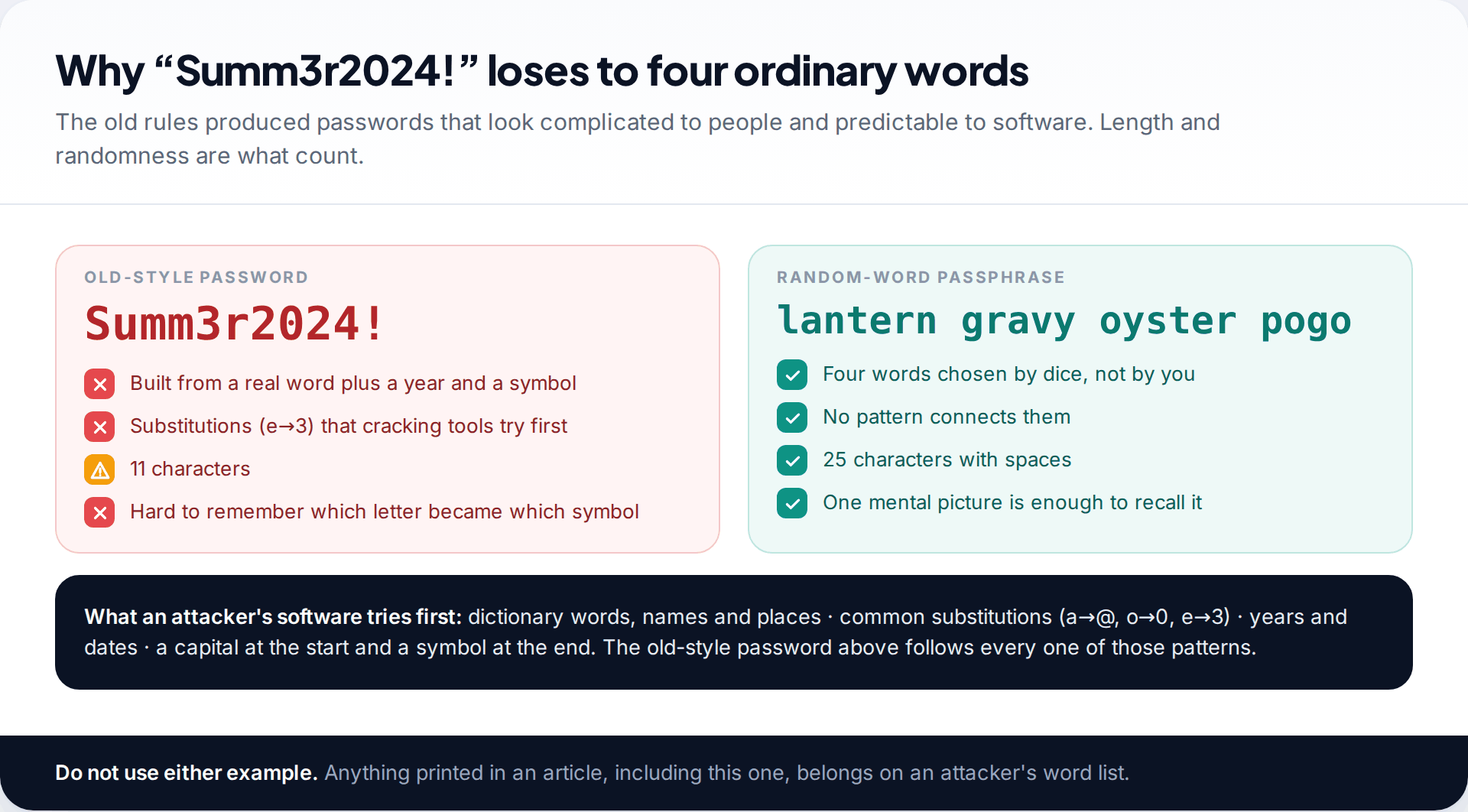
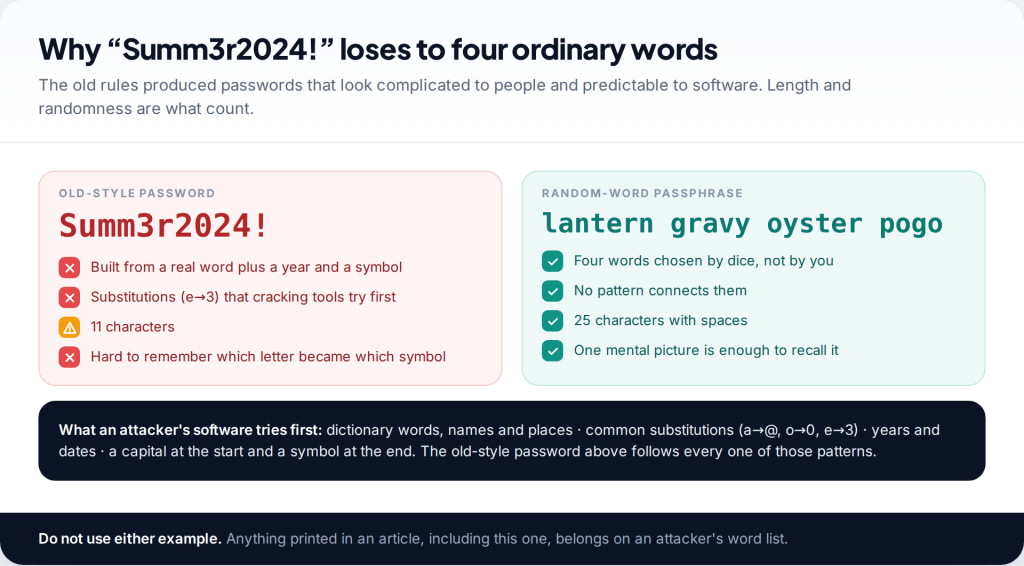
For years, sign-up forms trained everyone into the same habits. Take a word, capitalise the first letter, swap an “o” for a zero and add “!” at the end. Attackers know those habits too. Password-cracking tools try dictionary words with common substitutions, years and trailing symbols long before they try anything random. The result looks complex to you and follows a pattern to them.
| Myth | What is actually true |
|---|---|
| Symbols and numbers make a password strong | Length and randomness do. NIST now tells services not to require character mixtures at all. |
| You should change passwords every few months | Forced changes lead to predictable tweaks (Summer1 → Summer2). NIST says change only when there is evidence of compromise. |
| Writing a password down is always wrong | The NCSC says it’s fine if you keep it somewhere safe. A note at home beats a reused password. |
| Swapping letters for look-alike symbols fools attackers | Those substitutions are among the first variations cracking tools try. They mostly make it harder for you. |
| A long password is hard to remember | Four vivid words are easier to recall than eight random characters of similar strength. |
What the current guidance says
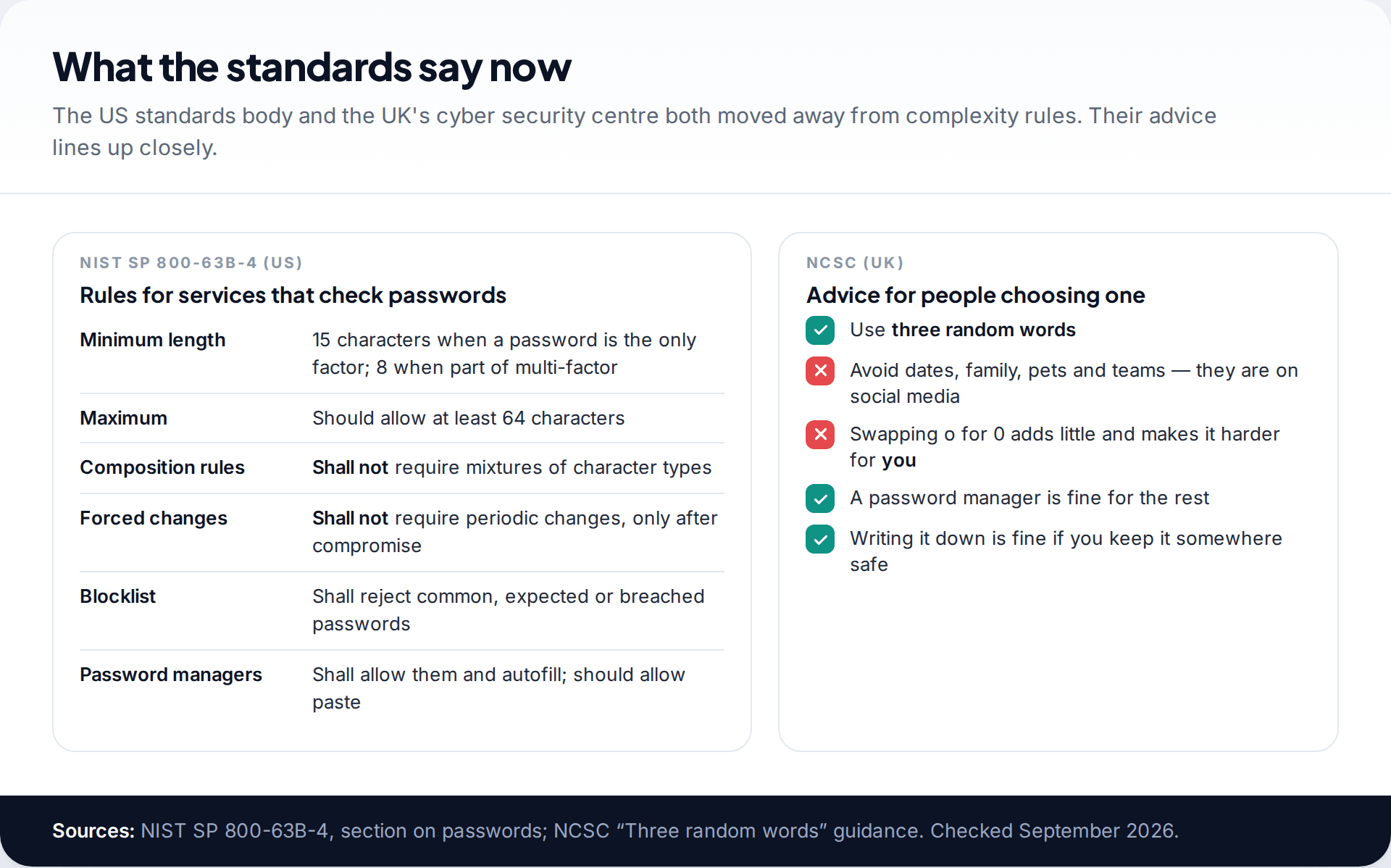
Two sources shape password advice in English-speaking countries, and they agree more than they differ. The US National Institute of Standards and Technology’s SP 800-63B-4 is written for organisations that run login systems. It says services shall require at least 15 characters when a password is the only thing protecting an account, and at least 8 when it’s one part of multi-factor sign-in. It says they shall not impose composition rules such as mixing character types, and shall not force periodic changes unless there is evidence of compromise. They should allow at least 64 characters, check new passwords against lists of common and breached ones, and allow password managers and pasting.
The UK’s National Cyber Security Centre speaks to individuals. Its advice is to use three random words. Avoid anything about you that could be found online, such as birthdays, pets, family or teams. Don’t bother with character substitutions, which it says add little and make the password harder for you to remember. It also says a password manager is a sensible way to handle the rest.
Put together, you get the method below. It’s the NCSC’s approach with the randomness made deliberate and the length matched to what the account protects.
Strong passwords you can remember, step by step
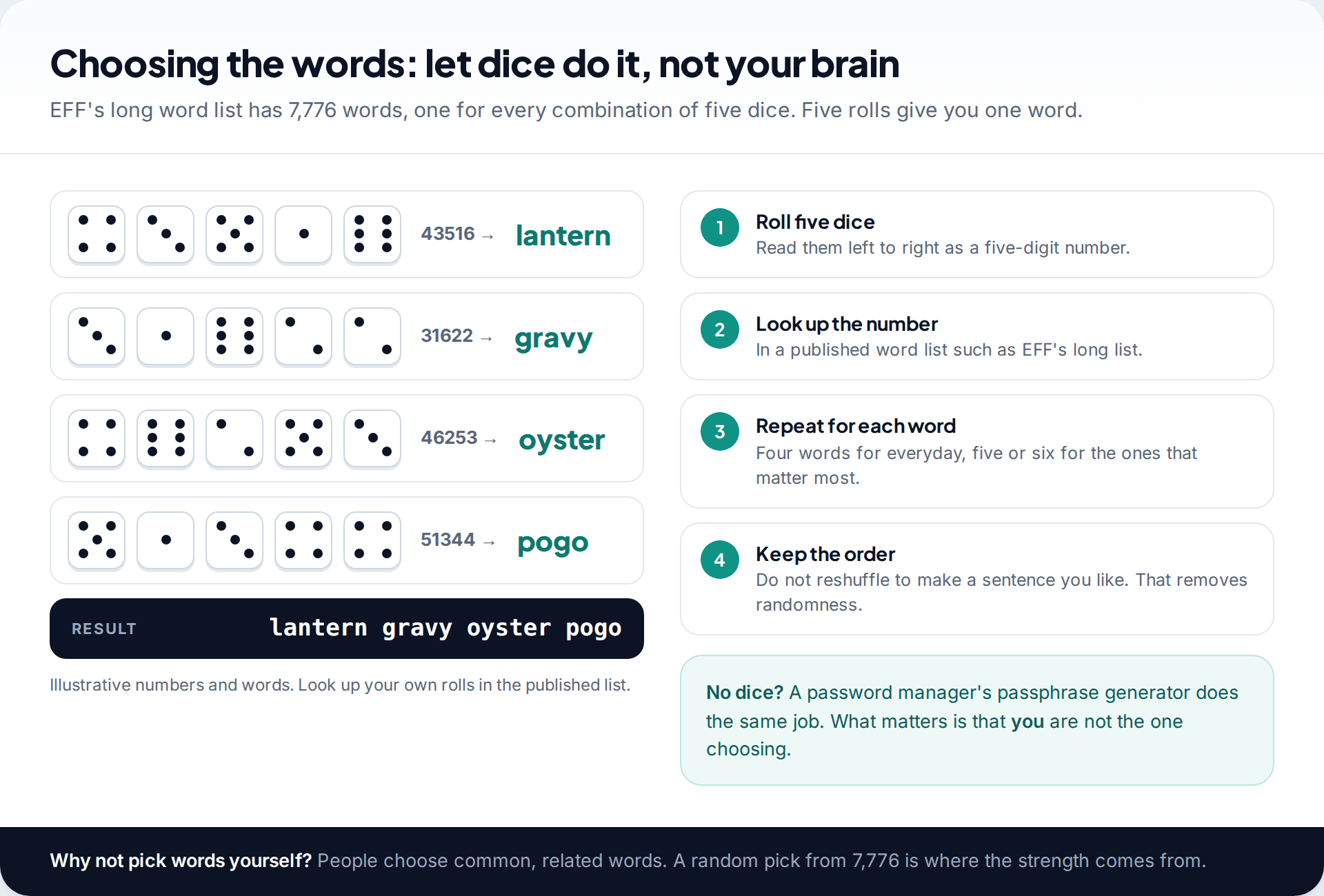
- Get a word list and dice. The Electronic Frontier Foundation publishes a long list of 7,776 words for exactly this. Each word matches one five-dice result.
- Roll five dice and read them as a number, say 43516. Look it up and write down the word.
- Repeat until you have four words for an ordinary account, or five or six for the accounts that matter most.
- Keep them in the order you rolled them. Resist swapping in a word you like better or reordering them into a sentence. Every choice you make puts back the predictability the dice took out.
- Join them with spaces if the site allows, or hyphens if it doesn’t.
If you don’t have dice, the passphrase generator built into most password managers does the same thing. What matters is that the words are chosen at random, not by you. People asked to “pick three random words” tend to pick common, related words that fit together, like “blue sky morning”. A randomly picked set like “lantern gravy oyster” is what makes this work.
How many words is enough?
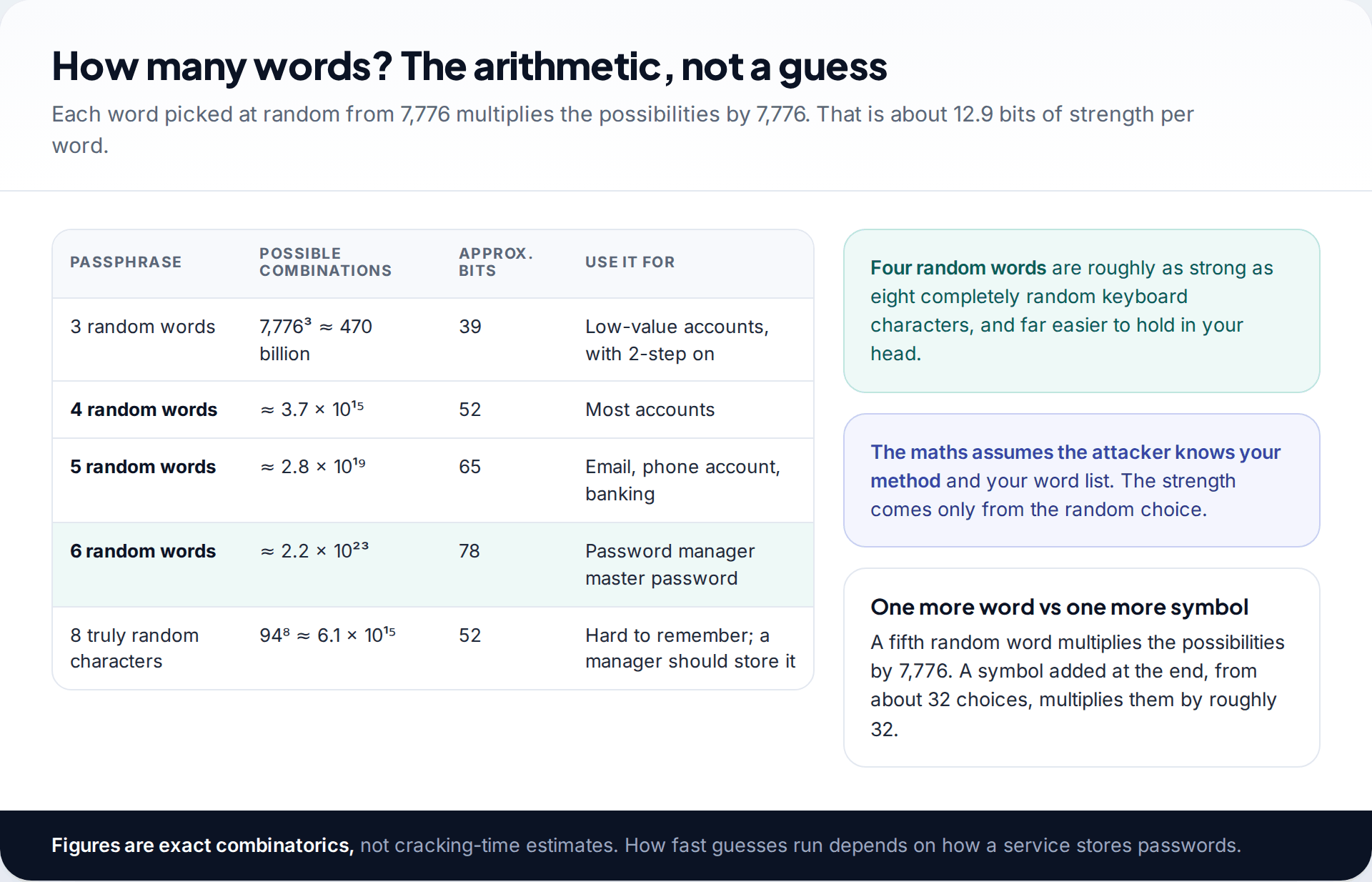
Here the arithmetic is simple enough to do yourself, and it’s honest in a way that “cracks in 3 trillion years” charts are not. With a list of 7,776 words, each randomly chosen word multiplies the number of possible passphrases by 7,776. Four words give about 3.7 quadrillion combinations. Six give about 2.2 × 10²³, which EFF states as roughly 277. An attacker who knows your exact method and word list still has to search that whole space.
For comparison, eight characters chosen completely at random from the 94 printable keyboard characters give about 6.1 quadrillion combinations. That is roughly the same as four words, and far harder to remember. How quickly an attacker could actually work through those numbers depends on how the website stores passwords, which you can’t see. Hence the sensible margin: four words for everyday accounts, five for email and banking, six for a password manager’s master password.
Three random words, as the NCSC suggests, is a floor, not a target. It easily passes NIST’s 15-character minimum, and it’s a big improvement on most people’s current passwords. For the accounts that unlock everything else, add a word or two.
Making it stick
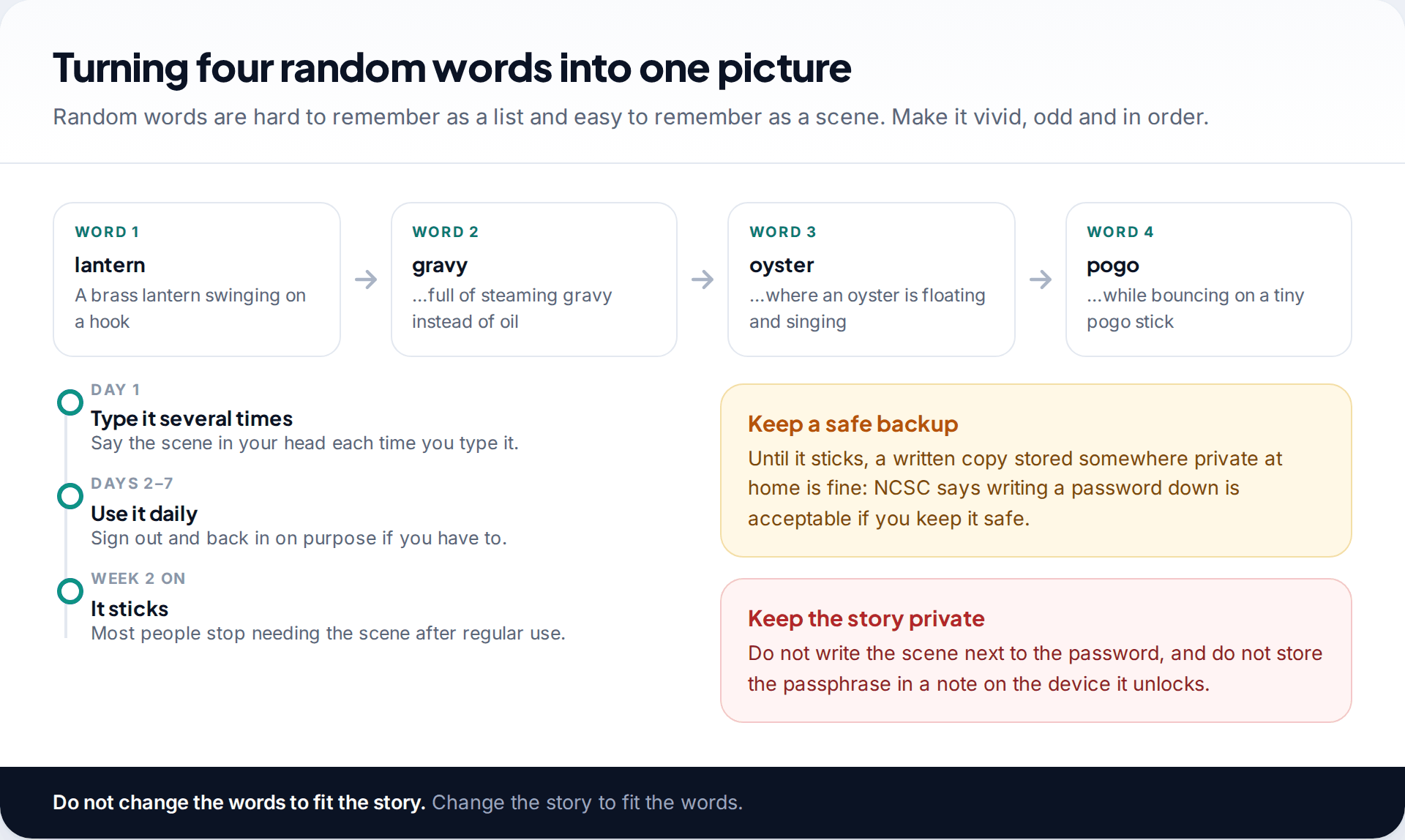
A list of unrelated words is hard to remember. A strange picture made from them is easy. Link the words in order into one scene: a brass lantern, full of gravy, with an oyster in it, bouncing on a pogo stick. The odder it is, the better it sticks. Keep the story in your head only. Don’t write the sentence down next to the password.
Then use it. Type it several times on the first day, picturing the scene as you go, and use it daily for the first week. Until it’s automatic, a written copy kept somewhere private at home is fine. The NCSC explicitly allows writing passwords down if you store them safely. What you shouldn’t do is keep it in a note on the same phone it protects.
Only memorise the passwords that unlock everything
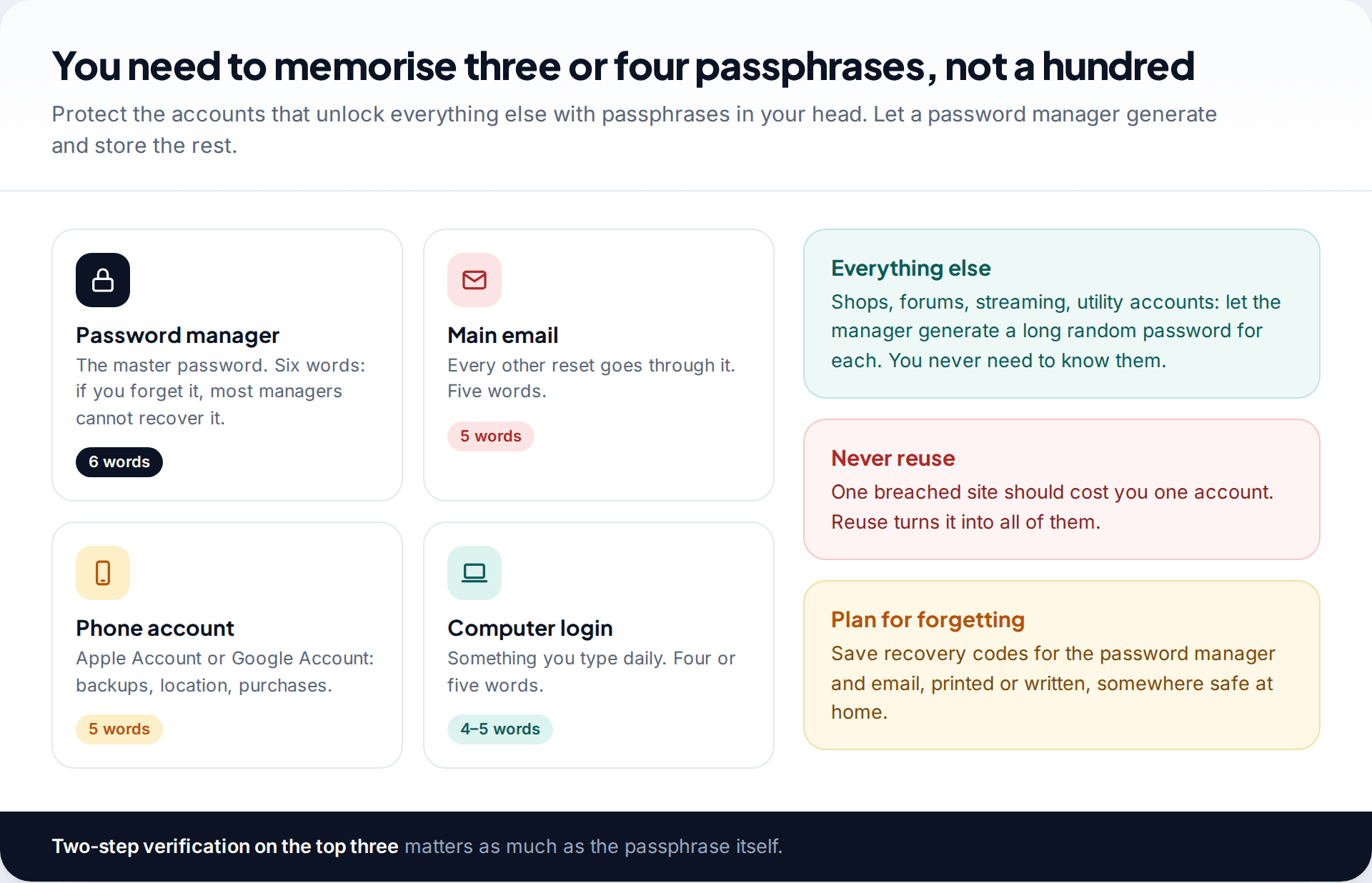
Nobody can memorise a unique passphrase for a hundred accounts, and you don’t need to. Memorise the few that protect everything else:
- Your password manager’s master password. Six words. Most managers are designed so that they can’t recover it for you.
- Your main email. Five words. Every “forgot password” link for every other account arrives there. If you ever need to, our guide on recovering a hacked email account shows how much depends on it.
- Your phone’s account, whether Apple Account or Google Account. It holds backups, location and purchases.
- Your computer login, which you’ll type often enough to remember easily.
For everything else, let the password manager generate a long random password and fill it in for you. Uniqueness is the point. When a shop or forum is breached, and eventually one will be, a unique password means you lose one account rather than every account that shared it.
When a site won’t accept your passphrase
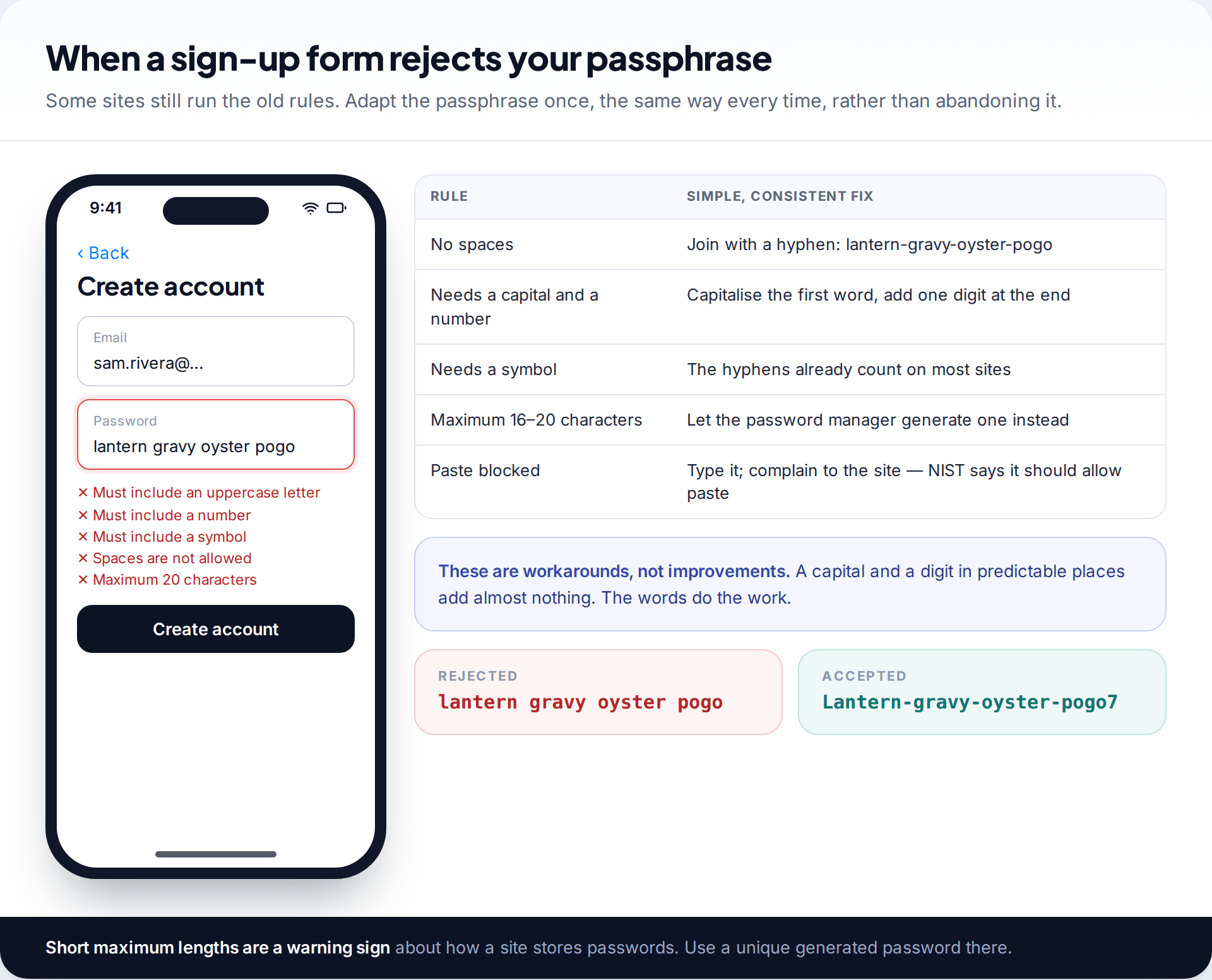
“Spaces are not allowed”
Some login systems strip or reject spaces.
Fix: join the words with hyphens. Most sites also count a hyphen as the “symbol” they demand.
“Must include an uppercase letter and a number”
A leftover complexity rule of the kind NIST now tells services not to impose.
Fix: capitalise the first word and add one digit at the end, the same way every time, so you don’t have to remember which site got which variant.
“Maximum 16 characters”
Short limits don’t fit passphrases, and can hint at old-fashioned password storage.
Fix: use a password manager’s generated password there instead, and make sure it’s unique.
Check once, then stop changing it
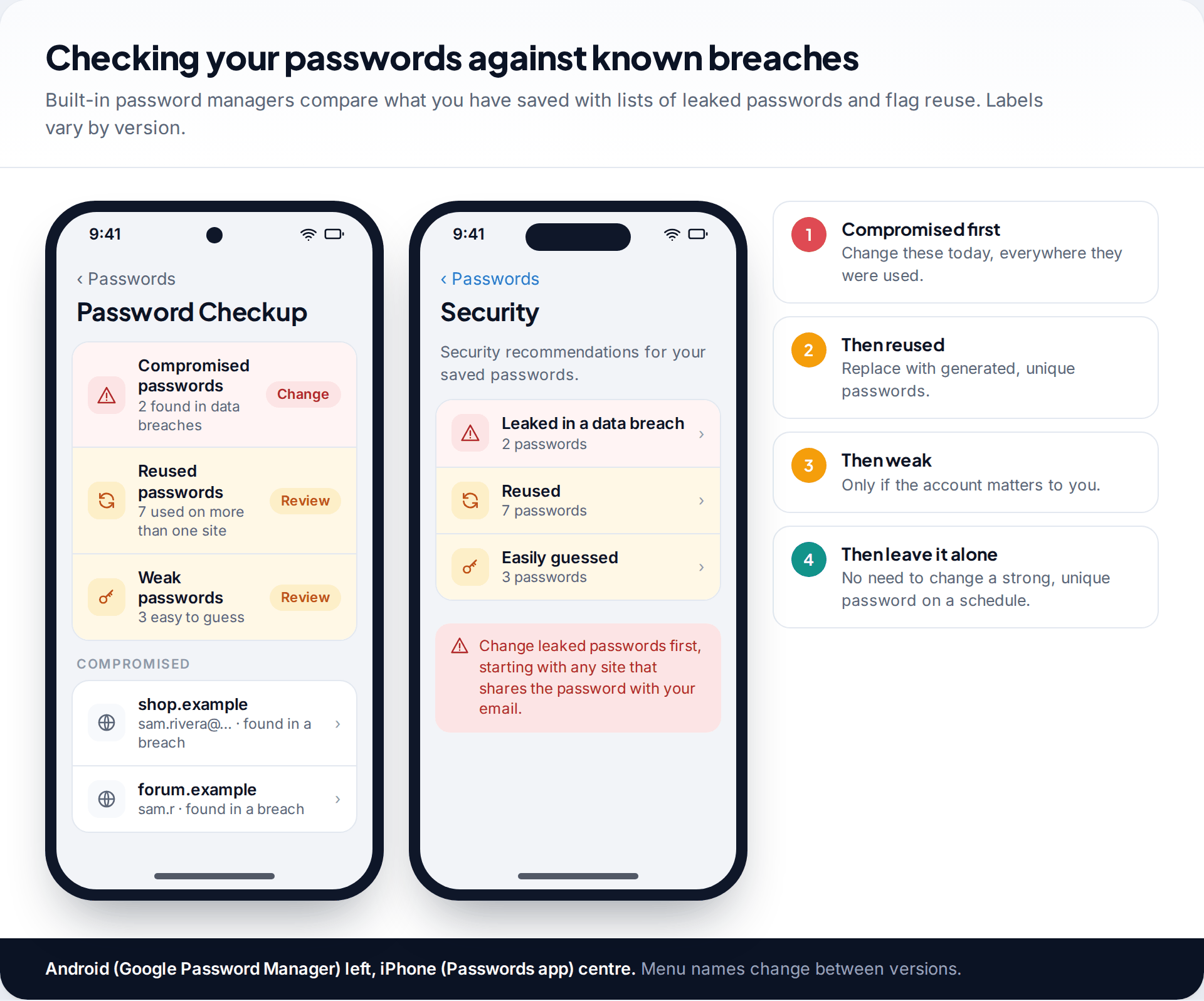
Both phone platforms now check saved passwords against known breaches. On Android, Google Password Manager has a Password Checkup. On iPhone, the Passwords app shows security recommendations for leaked, reused and easily guessed passwords. Labels move between versions, so search settings for “password” if you can’t find them. Fix compromised passwords first, starting with any site that shared a password with your email, then reused ones.
To see which services have leaked your email address, a breach checker helps. Our guide on how to tell if your email was hacked explains how to read the results. Once a strong, unique passphrase is in place, leave it alone. Current guidance is to change it when there is evidence of compromise, not on a calendar.
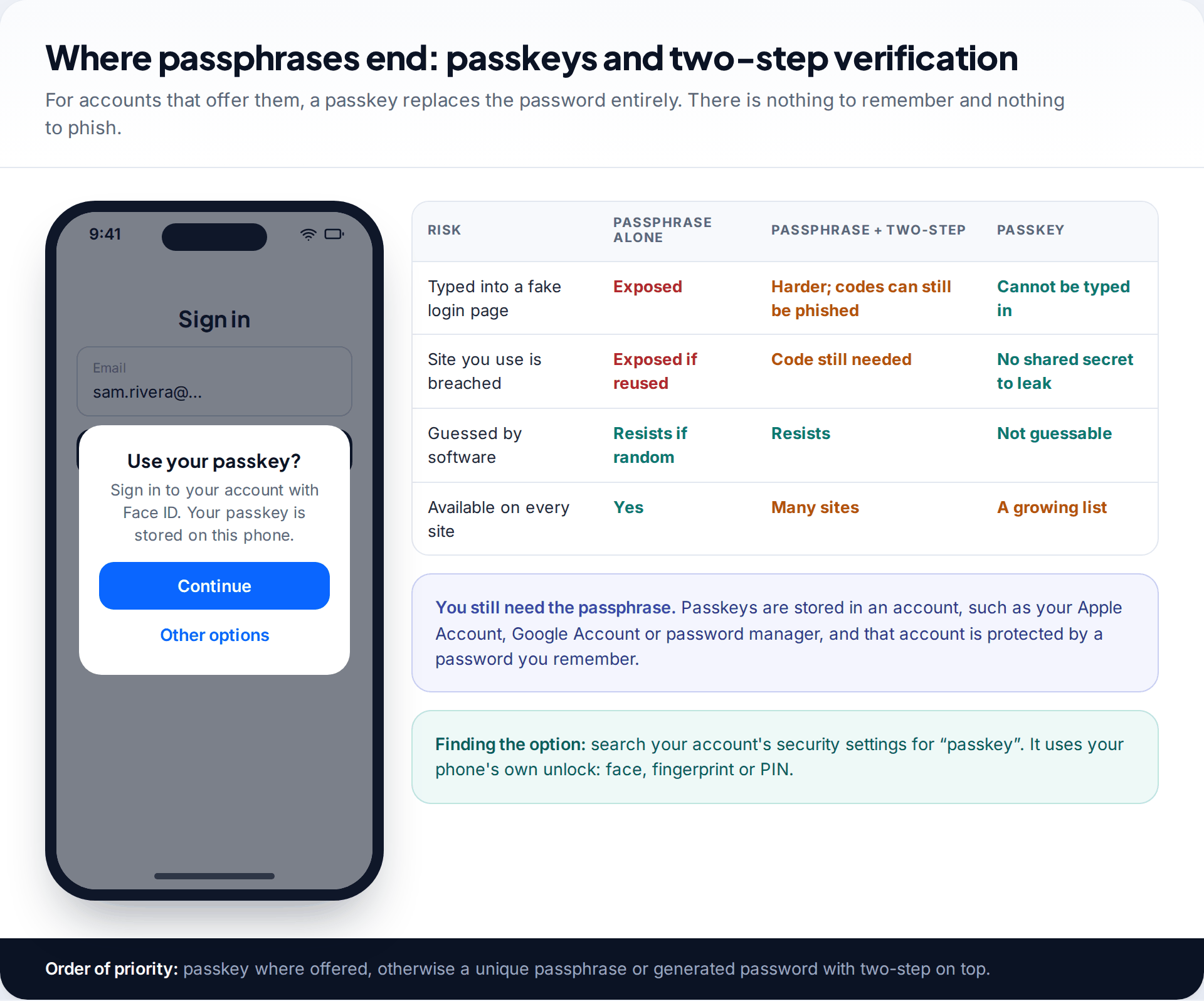
Finally, a passphrase is one layer. Turn on two-step verification for email, your phone account and your password manager. Where a service offers a passkey, use it. A passkey can’t be typed into a fake login page or leaked in a breach. That still leaves a password underneath, protecting the account where your passkeys live. That one should be the best passphrase you own.
What a passphrase cannot do
A strong password protects against guessing and against breaches of other sites. It doesn’t help if you type it into a convincing fake login page. It doesn’t help if malware on your device records your keystrokes. And it doesn’t help if someone watches you enter it. Those are what two-step verification, passkeys and a healthy suspicion of unexpected login prompts are for. Nor does it help an account where the recovery email or phone is weaker than the password itself.
How this page was put together
The rules quoted here come from NIST SP 800-63B-4’s password requirements and the NCSC’s “Three random words” guidance, and the word-list figures come from EFF’s dice-generated passphrase page, all checked in September 2026. The combination counts are straightforward arithmetic, not estimates of cracking speed, which depend on how each service stores passwords. The dice rolls and example words are illustrations, and you shouldn’t use them.
We have no commercial relationship with any password manager mentioned or implied here. Our editorial standards explain how guides are researched and corrected.
Common questions
How long should a strong password be?
NIST requires services to accept at least 15 characters for passwords used on their own. Four to six random words, which usually come to 20 to 35 characters, meets that comfortably and is easier to remember than a shorter random string.
Are three random words secure enough?
For everyday accounts, especially with two-step verification on, yes. That is the NCSC’s advice. For your email, phone account and password manager, use five or six words chosen at random rather than by you.
Should I add numbers and symbols to a passphrase?
Only if a site forces you to. Adding a digit or symbol in a predictable place adds little. Adding another random word adds far more.
How often should I change my passwords?
Only when there’s a reason: a breach, a phishing mistake, or signs someone got in. NIST tells services not to force periodic changes, because they lead to predictable variations.
Is it safe to use a password manager?
For most people it’s far safer than reusing passwords. Protect it with a six-word passphrase and two-step verification. Remember that most managers can’t recover a forgotten master password.
Can I use a song lyric or a famous quote?
No. Lyrics, quotes and phrases are on attackers’ lists precisely because they’re long and memorable. The words need to be random to be strong.
Looking for a tool to go with this? TheTruthSpy is a free parental control app for Android that stays visible on the child's phone. If it fits your family, see the Social media alerts feature.
Related guides
How to Secure Your Home Wi-Fi Network
A 20-minute router check-up: log in, change the admin password, pick WPA3 or WPA2, turn off WPS, add a guest…
How to Recover a Hacked Instagram Account
Get a hacked Instagram account back: use the revert email, instagram.com/hacked and the video selfie check, avoid recovery scams, then…
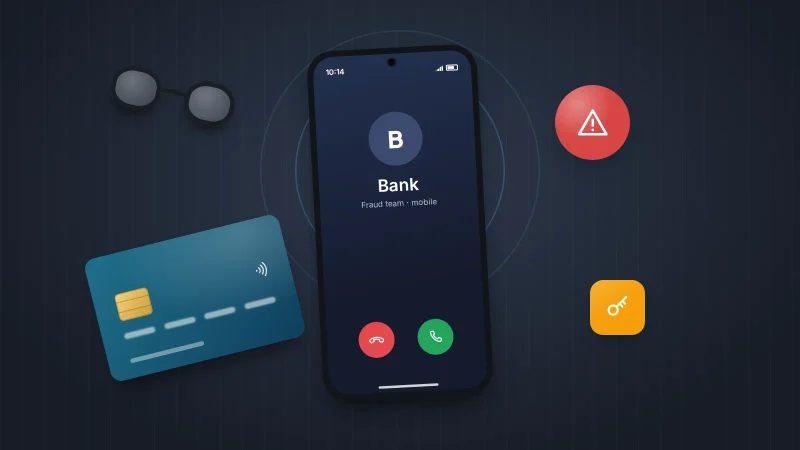
How to Spot a Scam Call Pretending to Be Your Bank
Recognise fake bank fraud-team calls, know the exact words to end them, call back safely on 159 or your card's…
Parental controls your child can see
Location, screen time limits, a web filter and alerts from notifications — free, and visible on your child's phone. Pair a phone in about ten minutes.
Android · Free to set up · Visible on your child's phone