How to Turn On Two-Factor Authentication Everywhere

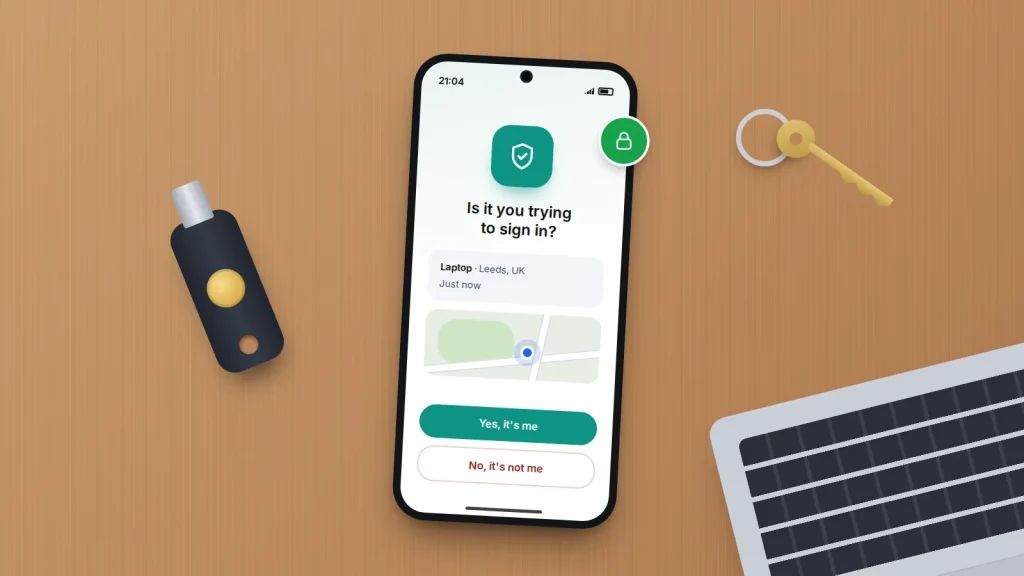
If someone learned your email password tonight, what would stop them? For most accounts without two-factor authentication, nothing. They could sign in, read your messages, and use the “forgot password” links on your bank, shopping and social media accounts to take those over too, all without touching your phone.
Two-factor authentication (2FA), also called two-step verification or 2SV, closes that gap. Signing in needs your password plus a second thing only you have, usually your phone. Both the UK’s National Cyber Security Centre (NCSC) and the US Cybersecurity and Infrastructure Security Agency (CISA) list it among the most effective things you can do to protect your online accounts.
Turning it on everywhere sounds like a weekend job, but the accounts that matter most take one evening. Below: which second step to pick, the order to work through, where each platform keeps the setting, and how not to lock yourself out when you change phones or help a parent.
The short version
- Start with your main email account, because it can reset the passwords on almost everything else.
- Any second step is far better than none. Text codes are the weakest option but still block most attacks that rely on a stolen password.
- Prefer an app prompt, authenticator app or passkey where offered, and keep a text code as a backup.
- Save each account’s backup codes somewhere safe away from your phone, such as a password manager or a printed sheet at home.
- Before you wipe or replace a phone, move your authenticator app codes and check you can still sign in.
What the second step actually protects against
Passwords leak in ways you cannot control: a data breach at a website you used years ago, a convincing fake login page, or a password reused across several sites. Criminals collect these and try them automatically on email and shopping accounts. A second step means a correct password on its own is no longer enough.
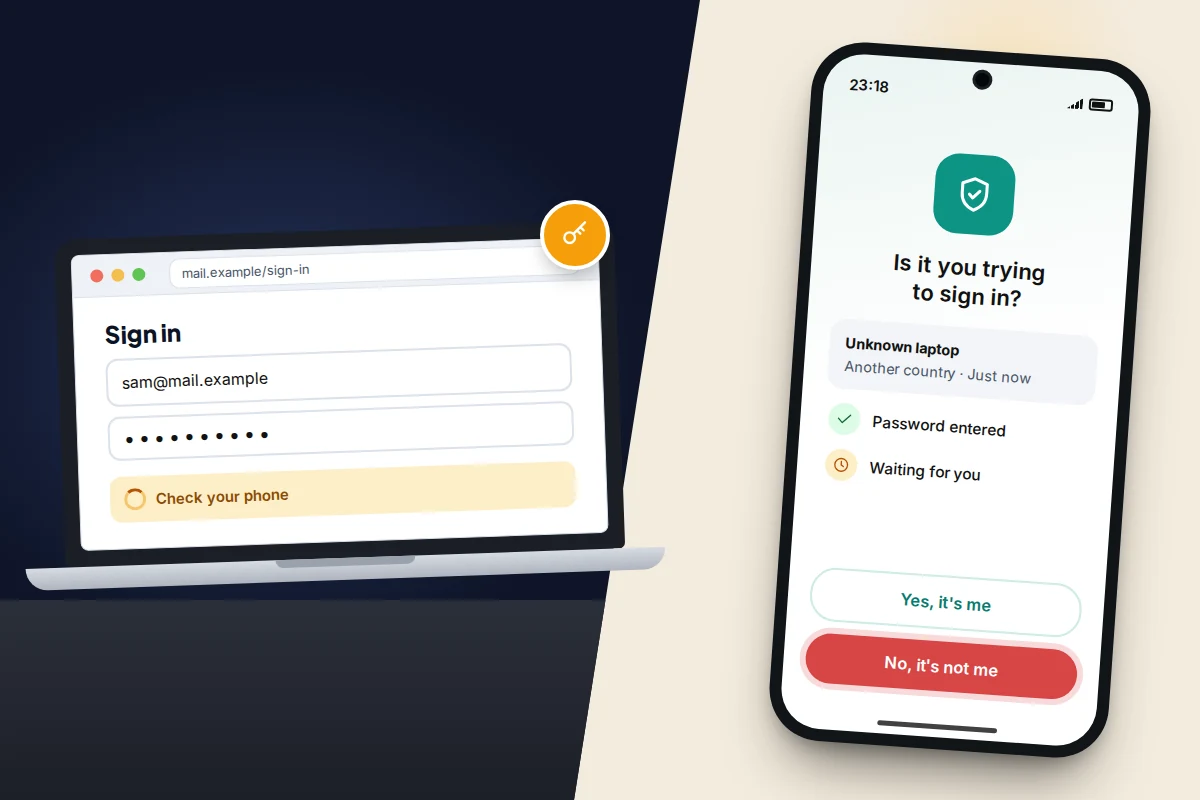
It does not make you untouchable. A realistic fake page can ask for your code as well as your password and pass both to the real site within seconds. That is why the type of second step matters, and why one rule applies to all of them: never read a code to anyone who contacts you, and never approve a sign-in prompt you did not start.
The kinds of second step, ranked
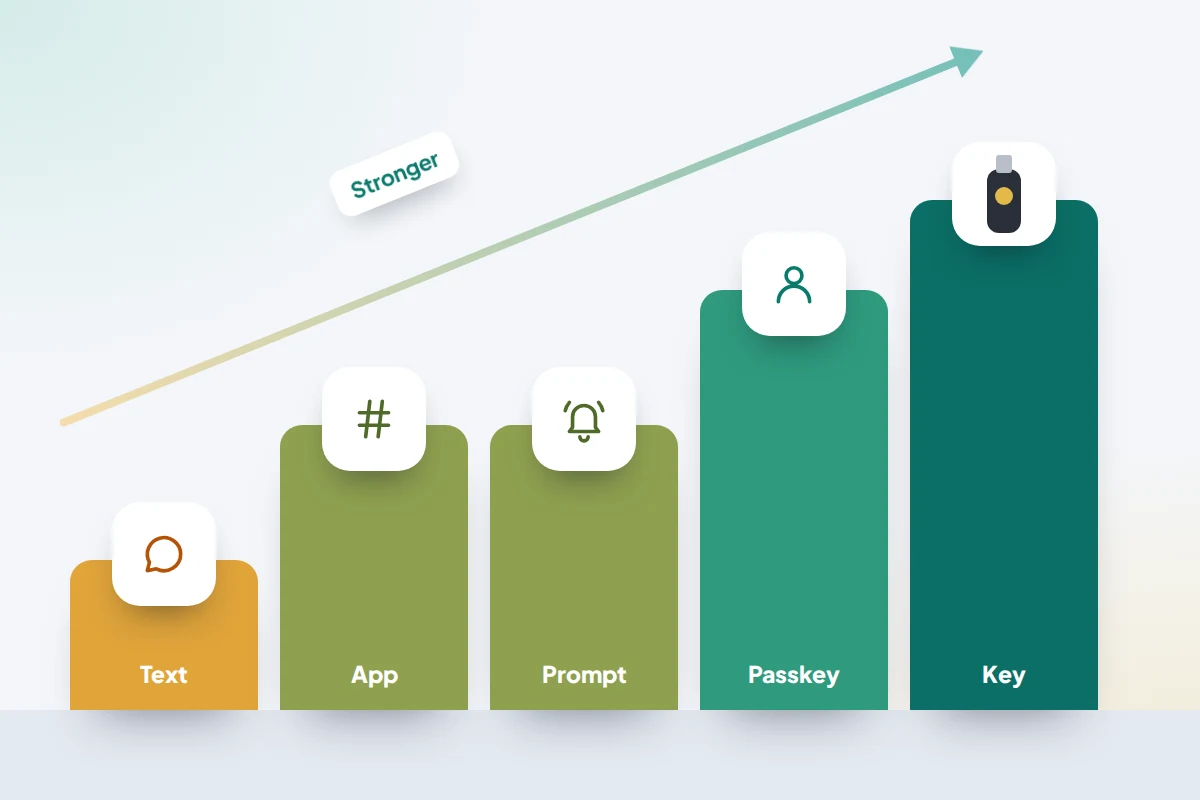
Most services let you choose, and many let you add more than one. The order below follows CISA’s guidance: phishing-resistant methods at the top, text and voice codes at the bottom. In the middle, CISA ranks authenticator codes level with prompts that ask you to match a number shown on the sign-in screen, and plain Yes/No prompts a little lower. The NCSC’s summary is the one to remember: any 2-step verification is better than not having it at all.
| Method | How it works | Strengths | Weak points |
|---|---|---|---|
| Security key | A small physical key you plug in or tap against the phone | Strongest protection; will not work on a fake site | Costs money; buy two in case you lose one; not supported everywhere |
| Passkey | Your phone or computer confirms it is you with your face, fingerprint or screen lock | Phishing-resistant and easy once set up | Not offered everywhere yet; stored on your device or synced through its cloud keychain or password manager |
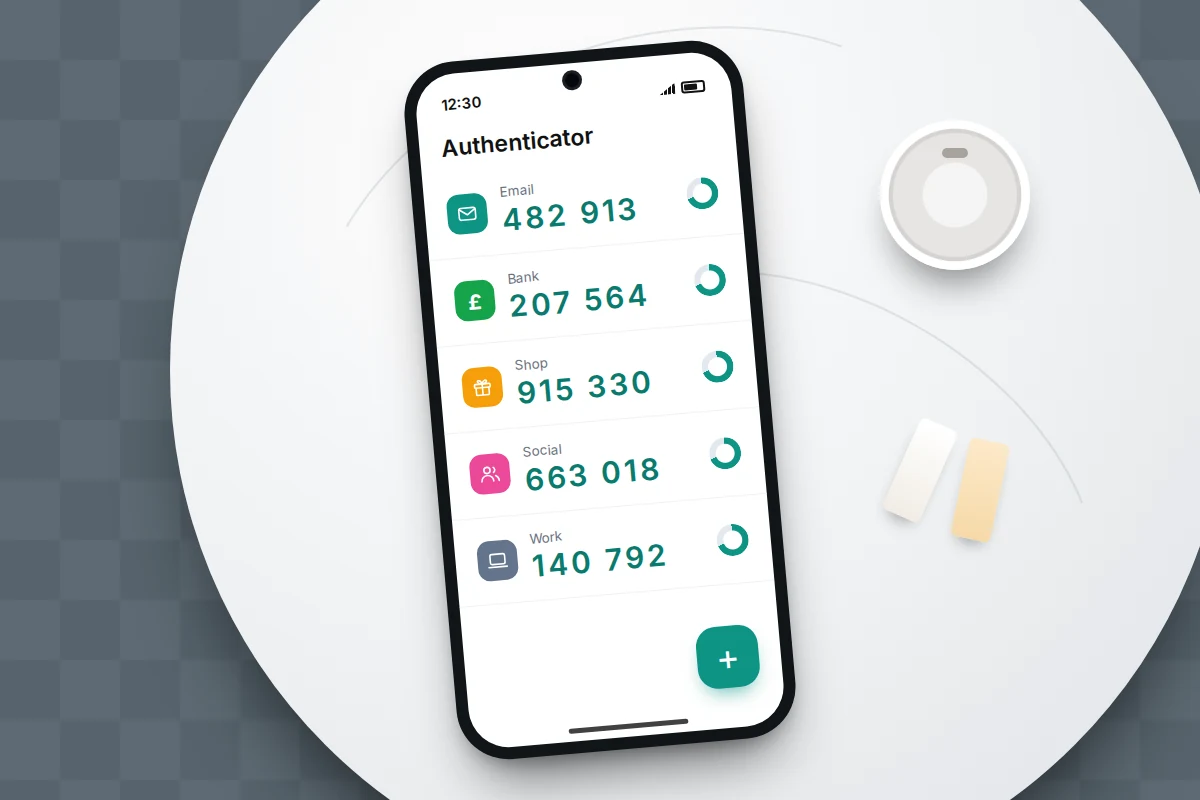
| Authenticator app | An app shows a six-digit code that changes every 30 seconds | Works without signal; not tied to your phone number | Codes can be typed into a fake page; lost with the phone unless backed up |
| App prompt | An “Is it you trying to sign in?” notification on a phone already signed in | One tap, no codes to type; safer when it asks you to match a number | Plain Yes/No prompts are easy to approve by habit when an attacker sends them repeatedly |
| Text or voice code | A code arrives by SMS or automated call | Works on any phone; nothing to install | SIM-swap fraud can divert your number; texts can be delayed abroad |
SIM-swap fraud is the main reason text codes rank last. A criminal persuades your mobile network to move your number to their SIM card, then receives your codes. It takes effort and some of your personal details, so it is far rarer than simple password attacks, but it happens. Microsoft, calling SMS “a leading source of fraud”, has started phasing out text codes for personal Microsoft accounts in favour of passkeys.
Why your email account comes first
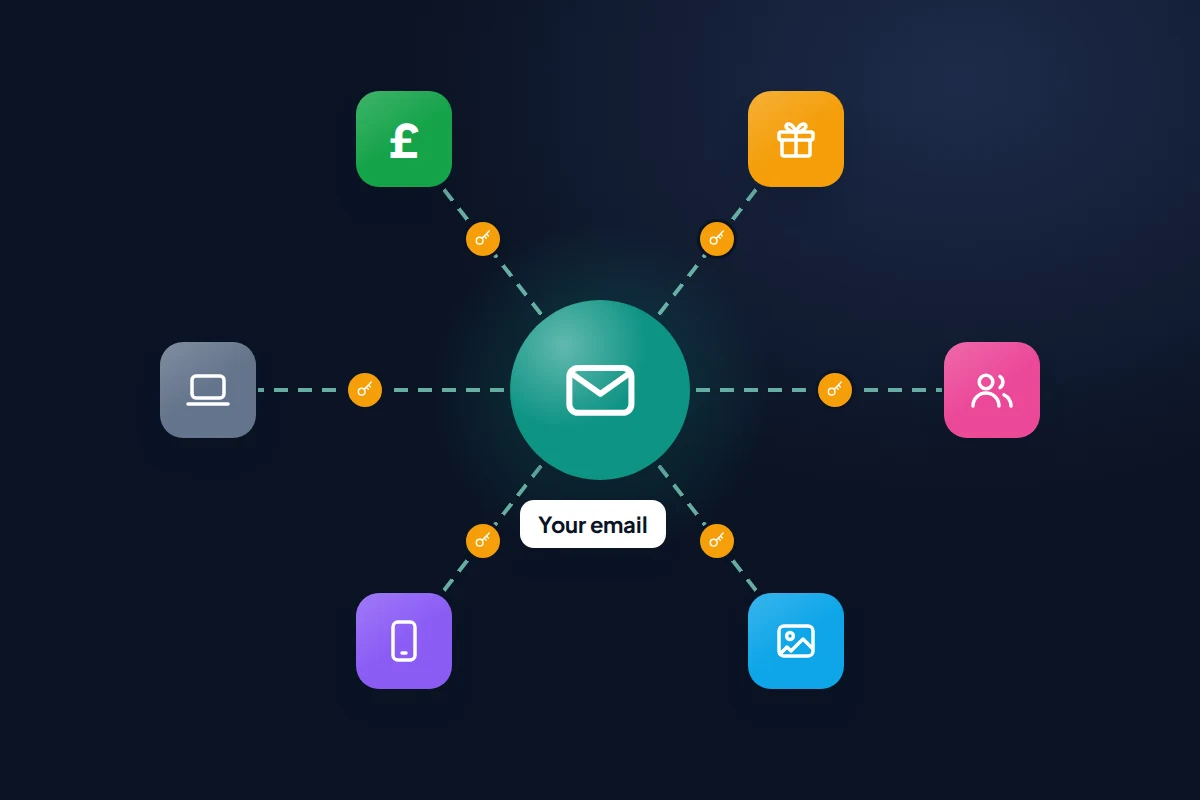
Almost every “forgot password” link sends a reset to your email. Whoever controls your inbox can therefore reset your other accounts and delete the confirmation emails before you see them, which is why the NCSC singles out email as the account to protect first.
If you have several email addresses, start with the one your bank and online shops use. Then do the account that controls your phone, your Apple Account or Google Account, because it holds your backups, photos and the ability to locate or erase the device. On many Android phones and for Gmail users, these are the same account, which saves a step.
Where the setting lives on the big platforms
These paths were correct in September 2026. Companies rename menus regularly, so if one has moved, search the account’s settings for “2-step” or “two-factor”.
Google (Gmail, Android, YouTube)
- Go to your Google Account, on a computer at myaccount.google.com or on Android in Settings → Google → Manage your Google Account.
- Open Security & sign-in, then under How you sign in to Google, select Turn on 2-Step Verification.
- Follow the prompts. Google prompts and passkeys are its recommended options; add an authenticator app or phone number as backup.
Apple Account
Two-factor authentication is already the default for most Apple Accounts. To check, go to Settings → [your name] → Sign-In & Security. If it is off, tap Turn On Two-Factor Authentication. While you are there, make sure your trusted phone numbers are current and consider adding a recovery contact under Recovery Contacts.
Microsoft (Outlook, Windows, Xbox)
- Go to account.microsoft.com/security and sign in.
- Select Manage how I sign in, then under Additional security, find Two-step verification and choose Turn on.
- Microsoft recommends having three pieces of security info on the account, such as an authenticator app and a backup email address.
Facebook and Instagram
Both use Meta’s Accounts Centre, which you reach from the settings menu in either app. Open Accounts Centre → Password and security → Two-factor authentication, choose the account and pick a method. An authenticator app is a better choice than text messages here, and you can generate a set of recovery codes on the same screen.
WhatsApp registers by phone number, so its extra step is something you choose rather than a code sent to you. Go to Settings → Account → Two-step verification → Turn on (or Set up PIN) and add an email address so you can reset it if you forget. For years this was a six-digit PIN; from August 2026 WhatsApp began replacing it with a longer password, so if your app offers a password, use it. Our guide to recovering a hacked WhatsApp account explains why this step matters so much.
Amazon
Go to Your Account → Login & security, find 2-step verification and follow the option to turn it on. Amazon offers text codes or an authenticator app; choose the app and keep the phone number as a backup.
For banks, the second step is usually built into the banking app, which asks you to approve payments and new devices. In the UK, strong customer authentication rules already require an extra check on many online card payments. Check the app’s security settings anyway, and make sure the phone number the bank holds is your current one.
Your one-evening plan
Work down this list in order, doing each account fully, including its backup step, before moving on. Most take five to ten minutes. If you run out of time, the first three rows cover the accounts that can unlock everything else.
| Order | Account | Method to choose | Backup step before moving on |
|---|---|---|---|
| 1 | Main email (the one your bank uses) | Prompt, passkey or authenticator app | Save backup codes; check recovery phone and email are current |
| 2 | Apple Account or Google Account on your phone | Built-in prompts or trusted device codes | Add a second trusted number or recovery contact |
| 3 | Password manager, if you use one | Authenticator app or security key | Store its recovery key or emergency kit on paper |
| 4 | Online banking | The bank’s own app approval | Write down the fraud number from the back of your card |
| 5 | Facebook and Instagram | Authenticator app | Save the recovery codes |
| 6 | Two-step PIN or password | Add a recovery email address | |
| 7 | Amazon and other shops with your card saved | Authenticator app | Keep your phone number as a second method |
| 8 | Microsoft account, if you use Windows or Outlook | Authenticator app or passkey | Add a backup email address |

Backup codes: where to keep them
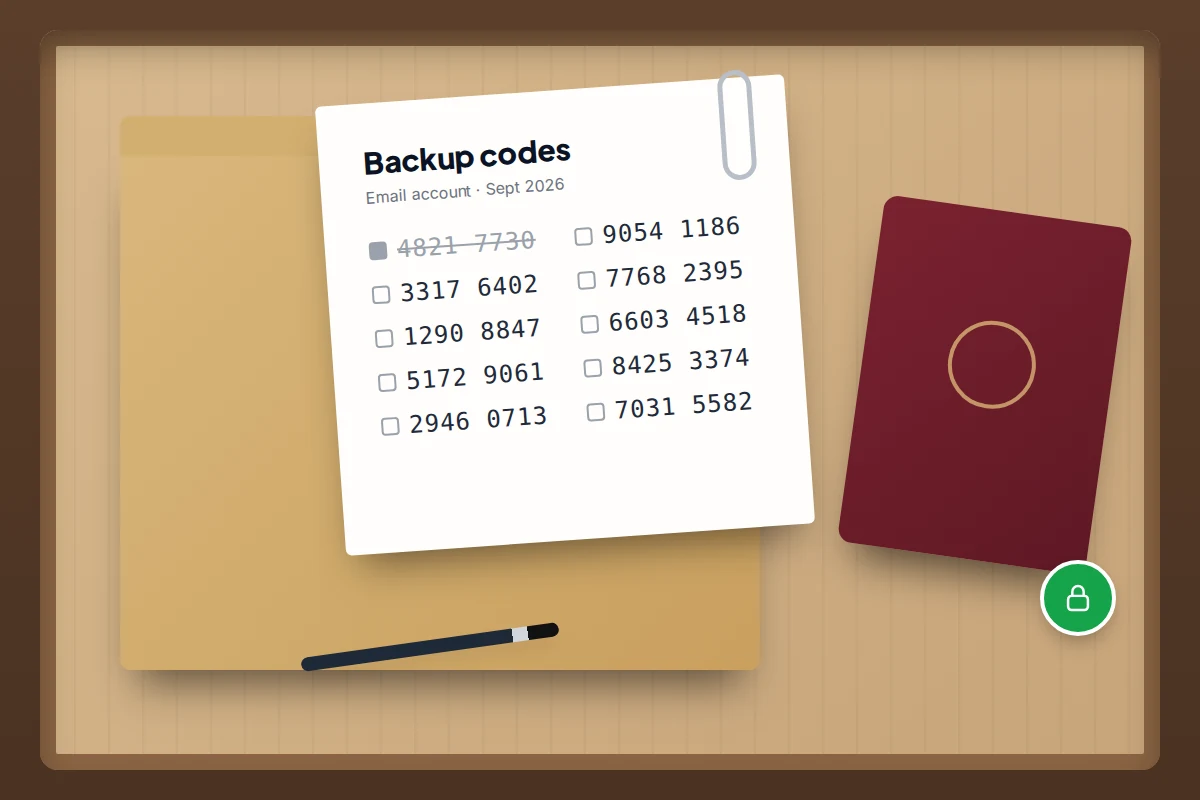
When you turn on 2FA, most services offer a set of one-time backup codes. Google, for example, gives you ten eight-digit codes, each of which works once. They are your way back in if your phone is lost, broken or stolen, so they must not live only on that phone.
- A password manager works well, as long as the manager itself is not locked behind the phone you might lose.
- A printed sheet kept with your passport or other important papers is simple and hard for an online attacker to reach.
- Not a screenshot in your photo library, a note in your email or a message to yourself. If someone gets into those, the codes go with them.
Label each set with the account name and the date. If you generate new codes later, the old set stops working, so replace the sheet.
When you change or lose your phone
This is where people lock themselves out. Text codes follow your number to a new phone, but authenticator app codes only move if you move them. Do this while the old phone still works.
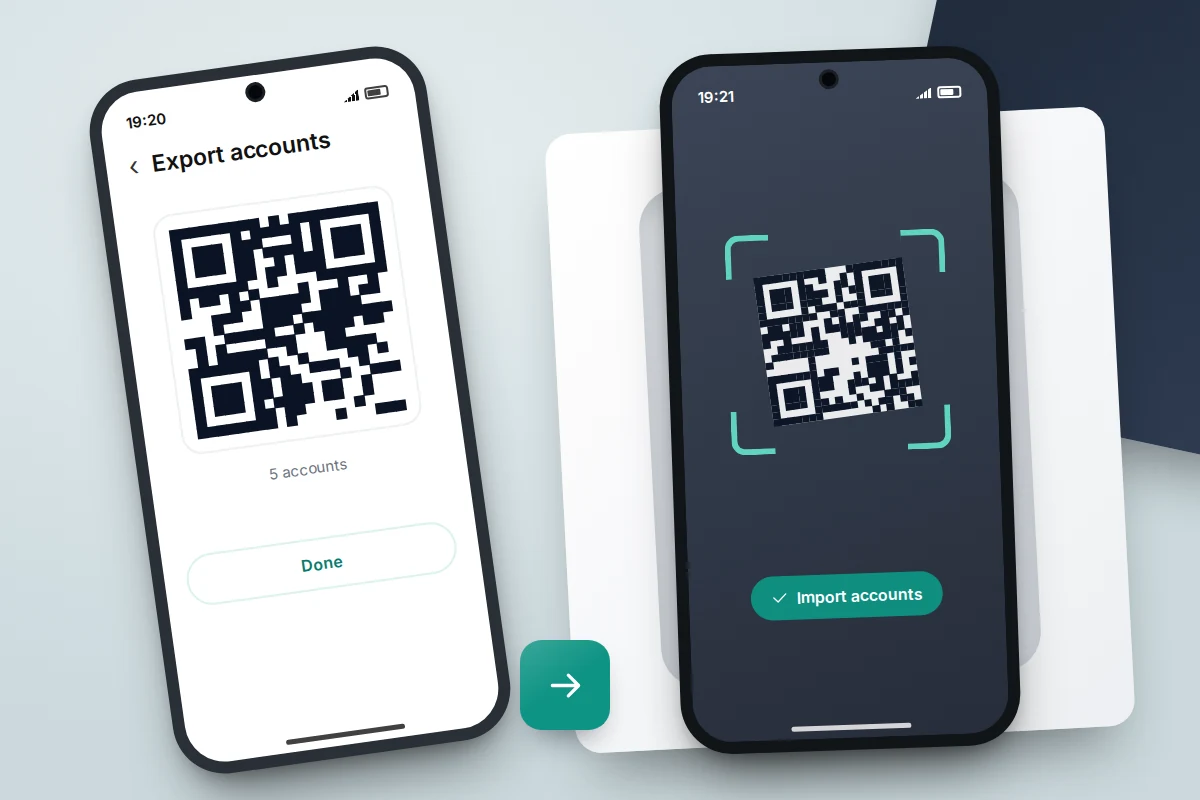
- Google Authenticator can sync codes to your Google Account, so signing in on the new phone brings them across. Without sync, use Transfer accounts → Export accounts on the old phone and Import accounts on the new one to scan a QR code.
- Microsoft Authenticator has a cloud backup option, but backups only restore to the same type of phone. Moving from Android to iPhone, or back, means re-adding accounts.
- Other authenticator apps vary. Check for a backup or export option before you need it.
After moving, sign in to your email on the new phone using the new codes before you erase the old one. Our guide to wiping a phone before you sell it covers the rest of that checklist. If a phone is lost with no backup, use your saved backup codes, then set up the authenticator again from scratch.
Setting it up for an older relative
2FA protects older people from exactly the account takeovers that target them, but a method they find confusing will get switched off. Do it together, with their agreement, on their own phone.
- Pick the simplest method they will actually use. A prompt on their phone, or a text code, is often better than an authenticator app they will not open.
- Print their backup codes and put them with their important papers, not in your house.
- Offer to be a recovery contact where the service supports it, such as Apple’s Recovery Contacts. You can help them regain access, but you cannot see their account.
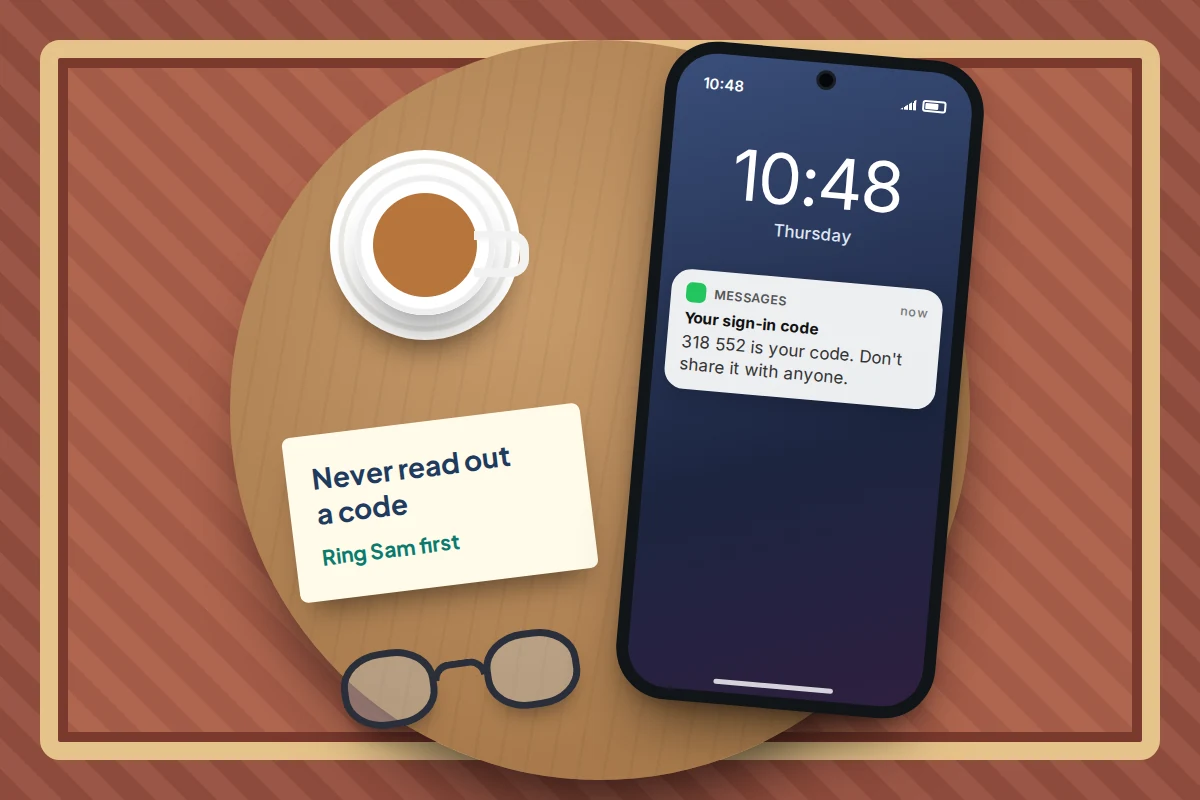
- Agree the one rule: “Nobody genuine will ever ask you to read out a code or tap Yes for them. If anyone does, hang up and ring me.”
That last sentence is worth writing on a card beside the phone. Scammers who have a password often call pretending to be the bank or the phone company, precisely to talk someone into sharing the code.
If codes don’t arrive or you get locked out
- Text codes never arrive. Check signal and that the number on the account is current. Abroad, texts can be slow; use an authenticator app or backup code instead.
- Authenticator codes are rejected. The phone’s clock may be wrong. Turn on automatic date and time in the phone’s settings.
- You get prompts you did not trigger. Tap No, then change that account’s password at once. Someone has it.
- You are fully locked out. Use the service’s official account recovery page, reached by typing its address yourself. Recovery can take days, and no genuine support agent will contact you first offering to speed it up.
Frequently asked questions
Will I have to enter a code every time I sign in?
Usually not. Most services ask for the second step on a new device or browser, then remember that device. You will be asked again after clearing cookies or signing in somewhere new.
Is a text message code really worth it if it can be intercepted?
Yes. Most account attacks use stolen passwords at scale and never get as far as a SIM swap. A text code stops those. Upgrade to an app or passkey when the service offers one.
What is the difference between 2FA, 2SV and MFA?
For everyday purposes they mean the same thing: signing in needs more than a password. MFA, multi-factor authentication, is the broader term that allows more than two steps.
Do passkeys replace two-factor authentication?
A passkey combines something you have, your device, with your fingerprint, face or screen lock, so it counts as strong verification on its own. Keep a backup method on the account in case you lose access to the device.
Can I use one authenticator app for all my accounts?
Yes. Any standard authenticator app works with most services that offer app codes, so you can keep them all in one place. Just make sure that app is backed up.
Sources and further reading
- NCSC: Setting up 2-Step Verification (2SV)
- NCSC: Turn on 2-step verification for your email
- CISA: More than a password, multifactor authentication
- Google Account Help: Turn on 2-Step Verification
- Apple Support: Two-factor authentication for Apple Account
- Microsoft Support: How to use two-step verification with your Microsoft account
- Microsoft Support: Microsoft to stop sending SMS codes for personal accounts
- Google Account Help: Get verification codes with Google Authenticator
Looking for a tool to go with this? TheTruthSpy is a free parental control app for Android that stays visible on the child's phone. If it fits your family, see what the app does.
Related guides
How to Secure Your Home Wi-Fi Network
A 20-minute router check-up: log in, change the admin password, pick WPA3 or WPA2, turn off WPS, add a guest…
How to Recover a Hacked Instagram Account
Get a hacked Instagram account back: use the revert email, instagram.com/hacked and the video selfie check, avoid recovery scams, then…
How to Spot a Scam Call Pretending to Be Your Bank
Recognise fake bank fraud-team calls, know the exact words to end them, call back safely on 159 or your card's…
Parental controls your child can see
Location, screen time limits, a web filter and alerts from notifications — free, and visible on your child's phone. Pair a phone in about ten minutes.
Android · Free to set up · Visible on your child's phone