Wi-Fi Tracker
See which Wi-Fi networks your child's Android phone joins, and when. Free. Network history is the quiet companion to GPS: it tells you the phone settled somewhere rather than passed through, and it keeps working indoors where satellite location gives up. Nobody installs a parental control app for the Wi-Fi log. It is the feature you discover three weeks in, on the evening the GPS pin is drifting somewhere unhelpful and the network name says the phone is in a café, and you stop worrying. That is the whole job: a second, cheaper source of truth about where a phone actually is.
Free · Permission: Location · Visible on your child's phone
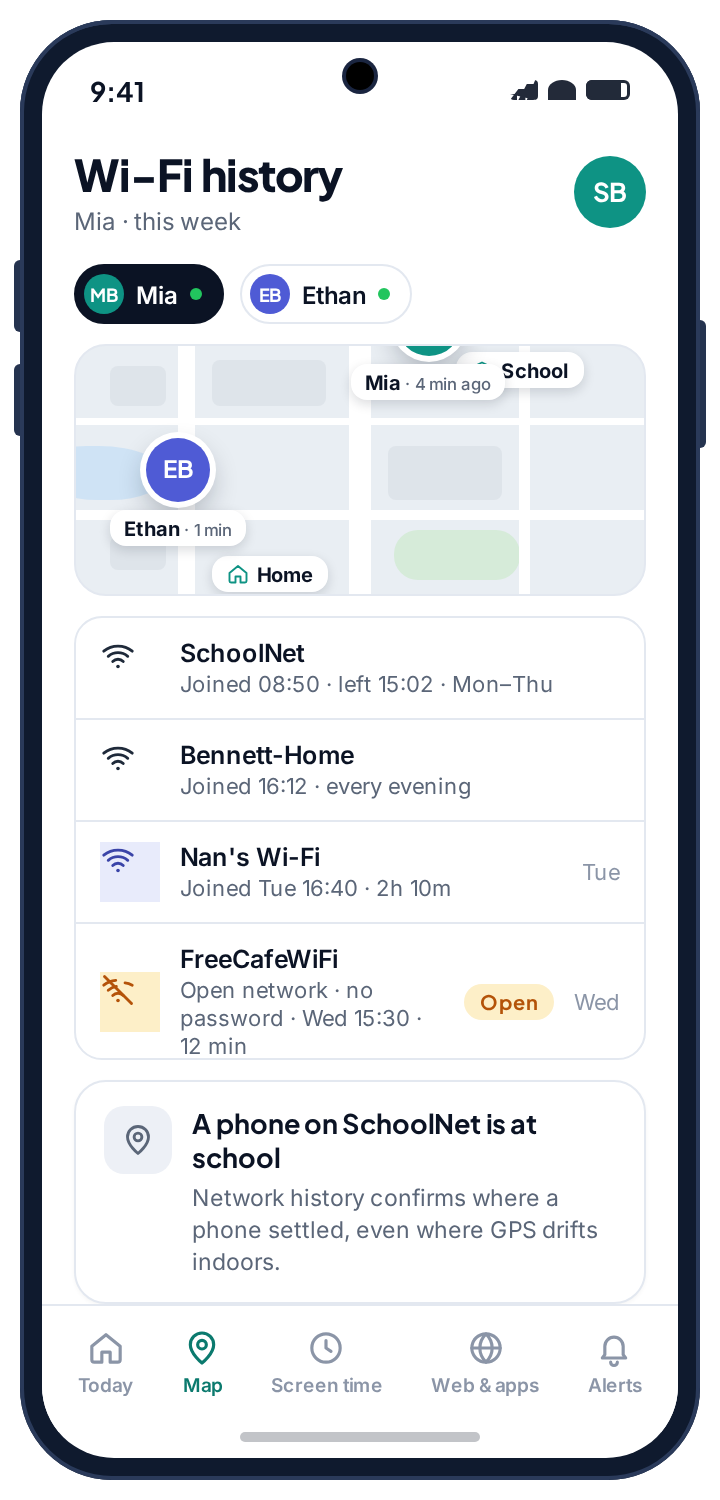
- A Wi-Fi connection does not drift. A router has a fixed position and a range of a few dozen metres, so “on the school network for six hours” is a harder fact than any pin the map drew during those six hours.
- Four things per network: its name, when the phone joined and left, whether it is new, and whether it is open with no password.
- An ordinary week is repetitive, which is exactly what makes the exceptions visible: a new network on a school day, an open one late at night, home Wi-Fi at three in the morning.
- Corroboration, never the only evidence. A network name is a supporting detail in a picture the map has already drawn.
- Free, either build, visible. Android treats network names as location data, so this uses the location permission and appears under location on the child's “What's shared” screen.
What the Wi-Fi tracker records
- The network name the phone joined, as broadcast by the router.
- When it connected, and when it dropped, so you get a duration, not just a moment.
- Whether the network is known, meaning one the phone has joined before, or brand new.
- Whether it is open, with no password. Open networks are the ones worth a second look, for safety reasons as much as location ones.
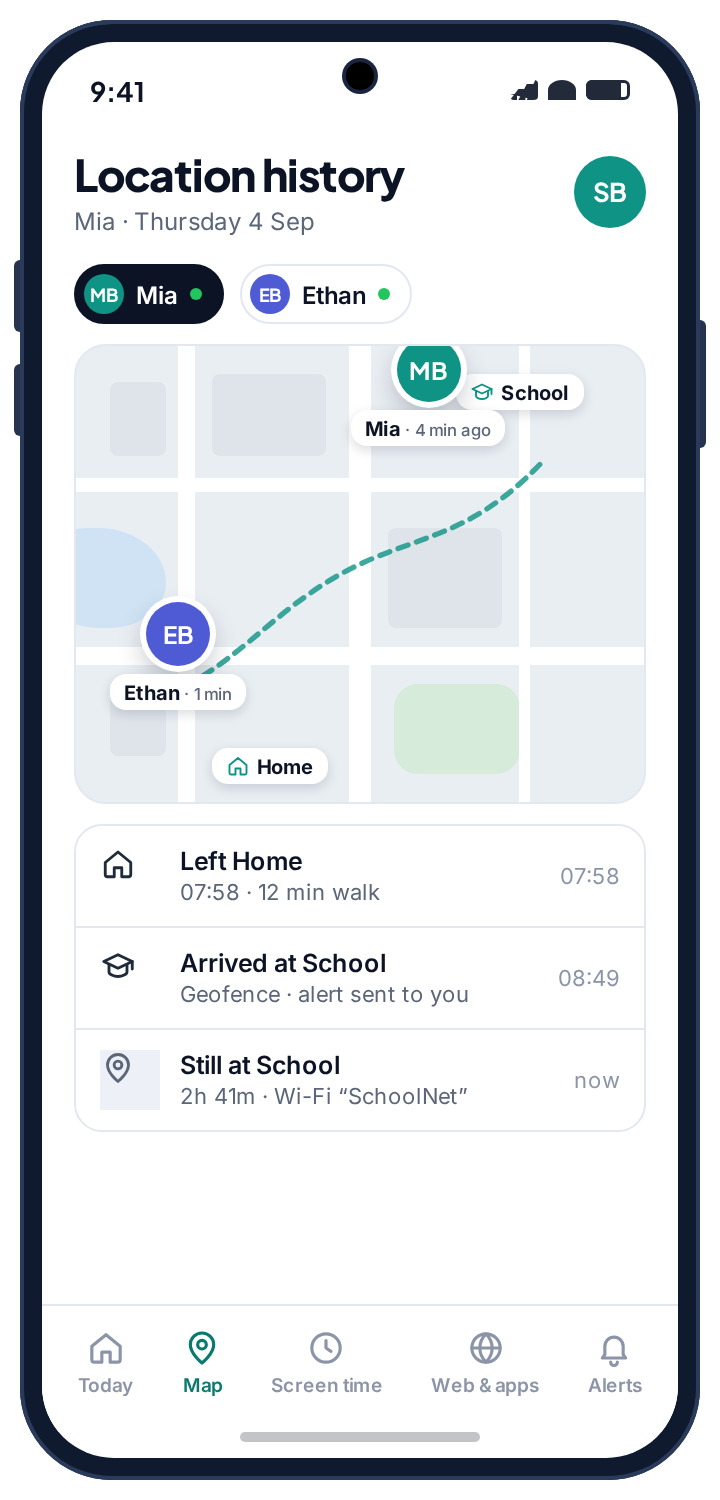
The log sits beside the map in your panel, so a stop on the location history that coincides with joining the school network reads as “at school”, however much the GPS drifted inside the building. Home overnight, school through the day, and one network that has not appeared before: that is what a typical week looks like, and the new one is the entry you will actually read.
Satellites need a view of the sky. A router does not move.
Inside a shopping centre, a school building or a basement flat, the phone falls back to cell towers and Wi-Fi positioning and drifts, sometimes by a couple of streets. That drift is the single most common reason parents lose confidence in a location tracker, and it is a property of Android rather than of any app.
A Wi-Fi connection does not drift. A router has a fixed position and a range of a few dozen metres, so “connected to the school network for six hours” is a harder fact than any pin the map drew during those six hours. Used together, the GPS location tracker gives you the route and the Wi-Fi tracker confirms the destinations.
| Source | Good at | Weak at |
|---|---|---|
| GPS | The route, outdoors, within metres | Indoors, dense streets, basements |
| Wi-Fi history | Confirming where the phone settled, indoors | Anything in between networks |
| Geofence | “Arrived” and “left” as events | Precision inside the fence |
An ordinary week is extremely repetitive, which is exactly what makes the exceptions visible.
Home overnight. School from nine. Home again by four. A friend's house on Saturday. Four or five names, over and over. The things worth noticing are all departures from that.
A new network on a school day
During hours the phone is normally on the school one. Usually a trip or a friend's house; occasionally the thing you would want to know about.
An open network late at night
Not sinister on its own; plenty of cafés and stations. But it says the phone was somewhere public rather than at a friend's house.
No network at all for a long stretch
On a day that normally has one. Usually a flat battery or a phone left at home; occasionally not. Check the last battery reading first.
Home Wi-Fi at three in the morning
Tells you they are in but not asleep. That is a screen time conversation rather than a safety one, and a bedtime schedule fixes it.
Open networks and the safety angle. Open Wi-Fi with no password is a poor place to do anything private, and children join them without a thought because the phone offers. The useful conversation is short: on a network with no password, other people on it can see more than they should, so do not sign into anything that matters. A two-minute chat you can have once, prompted by a real entry in a real log rather than an abstract warning.
Treat it as corroboration, never as the only evidence.
Names are not unique and anyone can set one.
The tracker records the name a router broadcasts. A network called “BT-HomeHub” tells you very little by itself.
Read it with: the map and the time. The name confirms a place the map already suggested.
If the phone stays on mobile data, there is nothing to log.
Plenty of teenagers never join anything but home.
Expect: a sparse log. The GPS location tracker is the primary source; this is the supporting one.
It cannot tell you what was done on the network.
It records the connection, not the traffic.
For that: the browsing history tracker and the web filter.
Turning Wi-Fi off stops the log.
It also stops the phone joining anything, so the trade is not much of a win for a child trying to hide.
Expect: a gap, and a phone burning through mobile data. Both are visible.
Questions parents ask about network history.
Can I see which Wi-Fi networks my child connects to?
Yes. The log shows each network name, when the phone joined and left, and whether the network is new or open.
Does the Wi-Fi tracker show what they did online?
No. It records the connection, not the traffic. Browsing history and web filtering cover what happened on the network.
Can I use Wi-Fi history to check where they are?
As a cross-check, yes, and a good one indoors where GPS drifts. Use the map as the primary source and the network name to confirm it.
What if the phone stays on mobile data?
Then there is nothing to record. The Wi-Fi tracker is a supporting signal, not a replacement for location tracking.
Can my child turn Wi-Fi off to hide?
They can, and the log stops. It also disconnects them from every network, so it is a costly way to hide very little.
Is the Wi-Fi tracker free?
It is. Network history is included on every paired Android phone at no cost, on either build.
What the Wi-Fi tracker sits beside
Its natural partner is the GPS location tracker, which supplies the map, the history trail and the geofence alerts that the network log corroborates. The screen time app explains what the phone was doing while it sat on that network. A network name tells you where the phone was, not what it did there; for that, the browsing history is the next place to look.
The Wi-Fi tracker switches on once the child's phone is paired with your parent account, which takes about ten minutes. The setup guide covers each screen.
A week of networks tells its own story.
Pair your child's phone and let a week of network history fill in beside the map. The exceptions will be obvious.
Android · Free to set up · Visible on your child's phone