How to Wipe a Phone Before Selling It

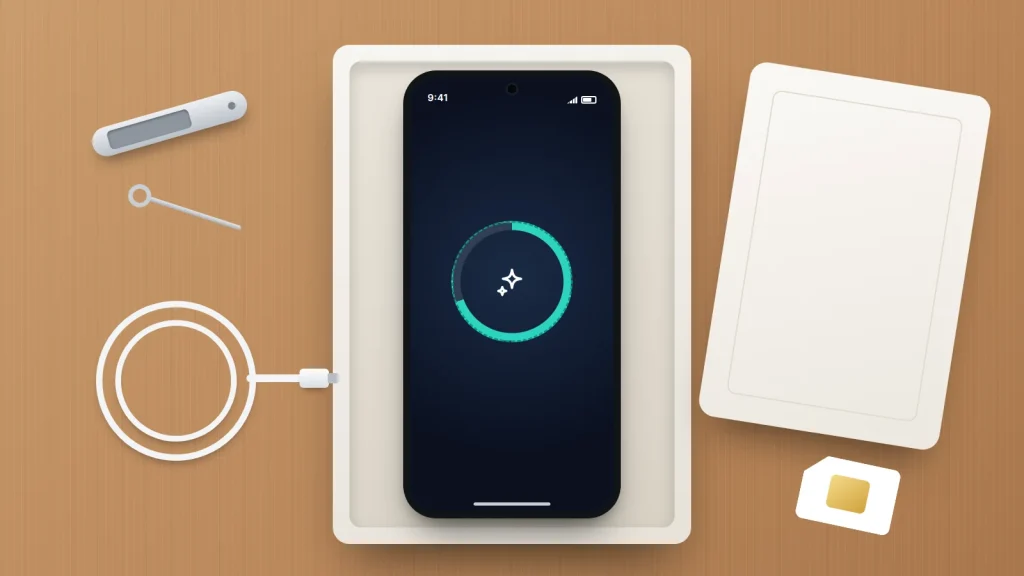
The factory reset is the easy part. The trouble comes from doing it too early. Reset first and you can find yourself locked out of your bank because the sign-in codes lived on the old phone. Forget to sign out first and the buyer is stuck on a screen asking for your password, and you get an awkward message a week later.
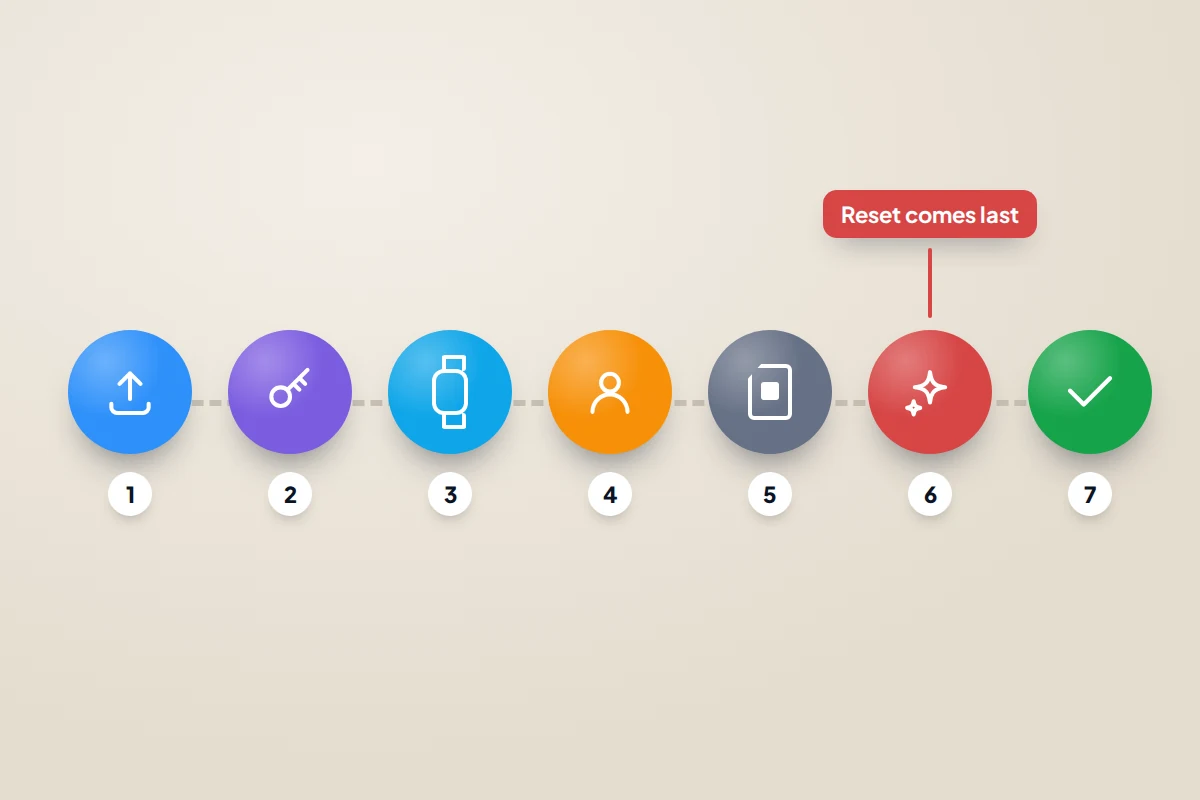
Selling or trading in a phone safely is mostly about order: save what you need, move anything tied to the handset, release it from your accounts, and only then erase it.
Below are the iPhone and Android steps in the order that avoids those problems, plus what to do with a cracked or dead phone.
The short version
- Back up and check the backup before anything else, then move authenticator and banking apps to your new phone while the old one still works.
- Unpair your watch and earbuds, then sign out of your Apple Account, or remove your Google (and Samsung) account, so the buyer is not blocked by Activation Lock or Factory Reset Protection.
- Take out the SIM and memory card, and erase the eSIM, before the reset.
- On a modern phone, the built-in factory reset makes your old data unreadable; after it, the phone should show a clean welcome screen.
- A cracked or dead phone can still be released from your account and recycled.
Two things a backup cannot fix
One is anything tied to the device: authenticator codes, banking app registrations and paired watches. The other is the anti-theft lock. Apple’s Activation Lock and Google’s Factory Reset Protection link the phone to your account, so that a thief who wipes it still cannot use it. That protects you until the moment you sell, and then blocks your buyer unless you release it.
So everything that needs the working phone happens first, and the reset happens last.
Back up, and check the backup worked
Make sure your photos, contacts and chats are safe somewhere other than the phone.
- iPhone: Settings → [your name] → iCloud → iCloud Backup → Back Up Now, or back up to a computer.
- Android: Settings → Google → All services → Backup on most phones, then Back up now. Samsung also offers its own backup under Settings → Accounts and backup.
- Back up WhatsApp and other chat apps separately from inside each app, because they are not part of the phone’s own backup.
Then confirm the backup is real by checking the date and opening a recent photo online; this guide to testing a phone backup walks through it.
Move sign-in codes and banking apps while the old phone still works
If an app on the old phone generates your sign-in codes, erasing it can lock you out of those accounts. This is the step people most often regret skipping.
Authenticator apps
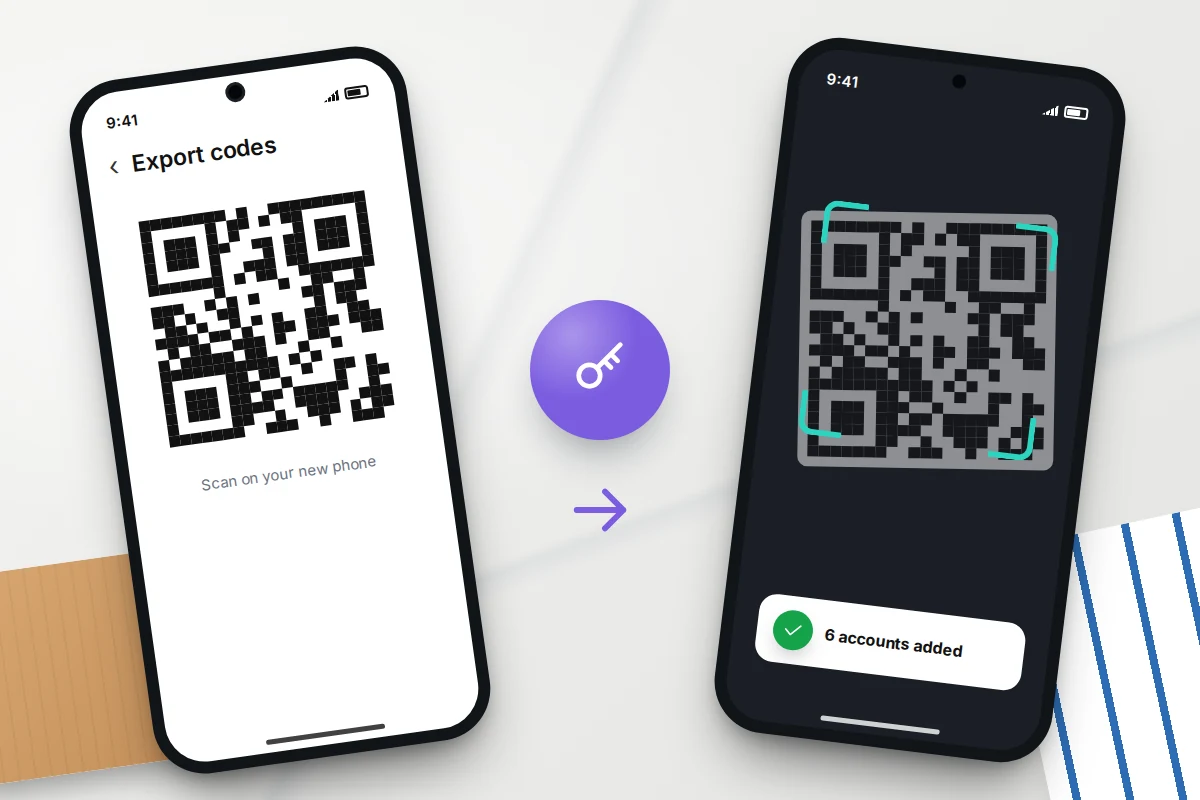
Each authenticator app has its own way of moving codes, so check yours. Google Authenticator, for example, can sync codes to your Google Account, or move them directly: on the old phone, Menu → Transfer accounts → Export accounts shows a QR code, and on the new phone, Transfer accounts → Import accounts scans it. Afterwards, sign in to one or two important accounts using the new phone’s codes to prove they work. Now is also a good time to review two-step verification across your accounts, including where your backup codes are kept.
Banking and payment apps
Most banking apps register one device as trusted. Install the app on the new phone and complete the bank’s setup there, which may involve a code by text, a card reader or a selfie check. Some banks ask you to deregister the old phone in the app; others do it automatically. Do not erase the old phone until you can log in on the new one.
Codes sent by text follow your number, not the handset. If your number is changing, update it with your bank and main accounts first; Apple advises adding the new number as a trusted number on your Apple Account.
Unpair watches, earbuds and other gadgets
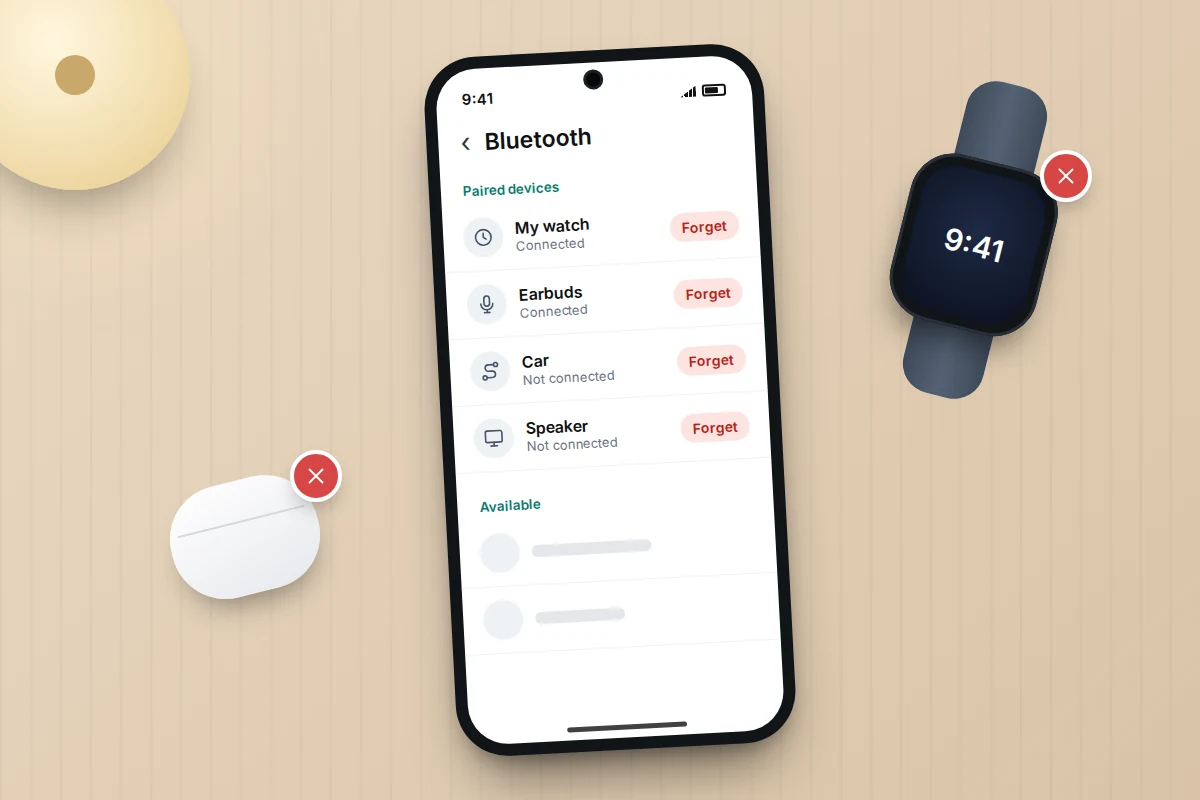
- Apple Watch: keep the watch and iPhone close together. In the Watch app, go to My Watch → All Watches, tap the info button next to the watch, then Unpair Apple Watch. Enter your Apple Account password when asked; this removes the watch’s own Activation Lock.
- Android watches: use the watch’s companion app to disconnect or reset it. The steps vary by maker.
- Earbuds and speakers: in Bluetooth settings, tap the device and choose Forget or Unpair.
- Smart home and car: make sure you can control cameras, thermostats and other smart devices from another phone or tablet; the UK’s National Cyber Security Centre points out that once the old phone is erased, you can no longer manage them from it. Remove the old phone from your car’s Bluetooth list too.
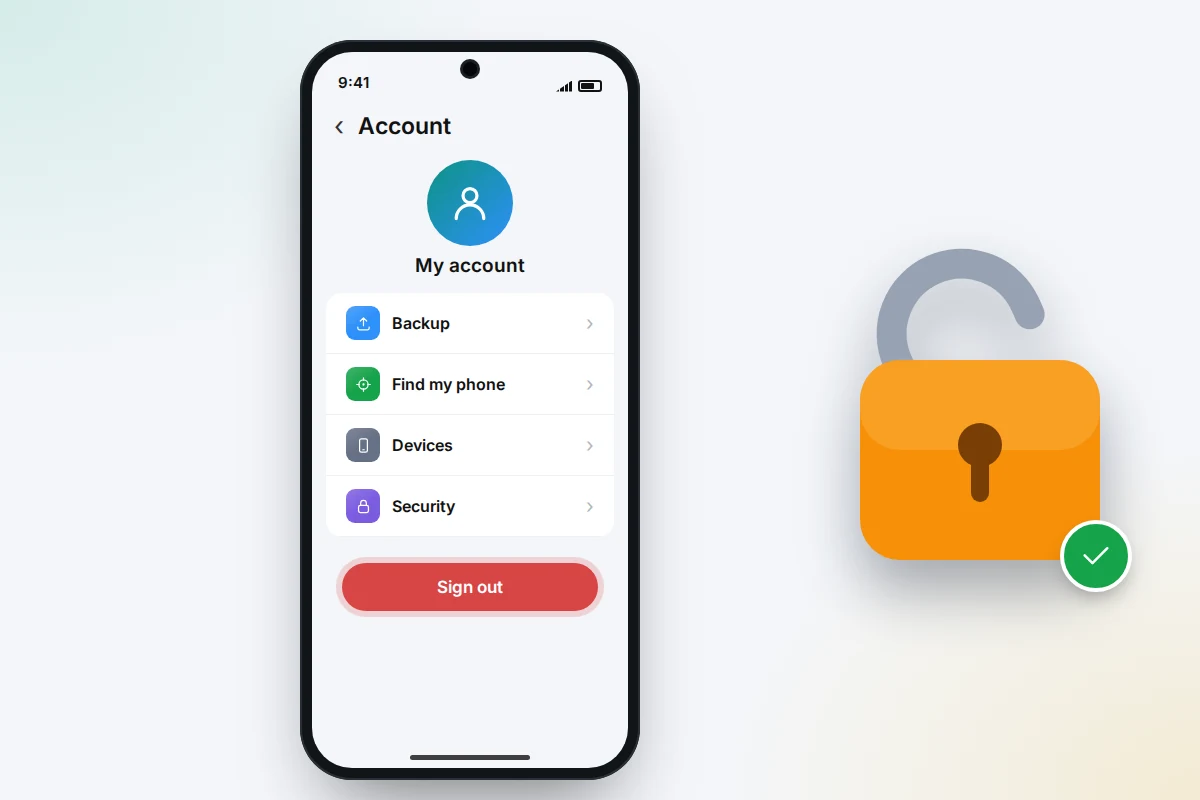
Sign out so the buyer is not locked out
iPhone: turn off Activation Lock
- Open Settings → [your name], scroll down and tap Sign Out.
- Enter your Apple Account password if asked. On iOS 26 and later you are offered Erase This iPhone or Sign Out But Don’t Erase; either is fine, as long as the phone is erased before it leaves you.
- Apple says that when you erase the phone from Erase All Content and Settings and enter your password, Find My and Activation Lock are turned off automatically. Signing out first shows you at once whether your password works.
Android: turn off Factory Reset Protection
- Open Settings → Passwords & accounts (it may be called Accounts, Users & accounts or Passwords, passkeys & accounts).
- Tap your Google Account, then Remove account, and confirm. Repeat for any other Google Accounts on the phone.
- On Samsung, go to Settings → Accounts and backup → Manage accounts and remove your Samsung account as well as your Google Account. Samsung’s reset guide notes that a reset asks for the Samsung account password if one is on the phone.
Google is explicit that removing your Google Account is how you turn off device protection. If you skip it, a buyer who resets the phone may be asked for your account and, in Google’s words, “won’t be able to use the device at all”.
SIM, eSIM and memory card
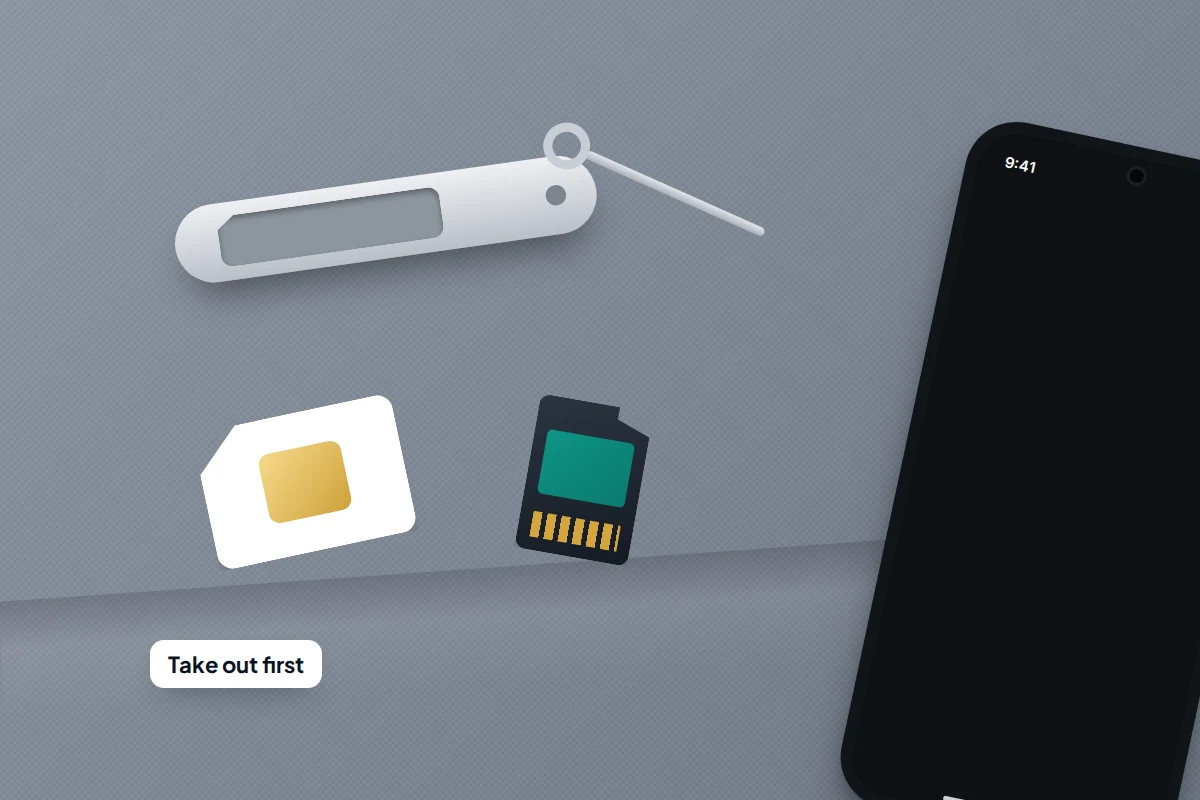
- Physical SIM: use a SIM tool or straightened paper clip to eject the tray and take the SIM out. It holds your number, not your data, so keep it for your new phone.
- eSIM: if your number is moving to a new phone, transfer it first. Then delete it from the old phone: on iPhone, Settings → Mobile Service (Cellular in the US) → Delete eSIM (with more than one plan, choose the plan, then Delete Plan), or choose to erase the eSIM when you erase the iPhone. On Android, look in the SIM settings or for an option to erase eSIMs during the reset. Deleting an eSIM does not cancel your contract; that is a separate call to your network.
- Memory card: Android phones with a card slot store photos and files there, and a factory reset may not erase it. Take the card out and keep it, or format it separately if it is going with the phone.
Factory reset, then check what the buyer will see
Charge the phone first. Google recommends at least 70% and warns an Android reset can take up to an hour.
- iPhone: Settings → General → Transfer or Reset iPhone → Erase All Content and Settings, then enter your passcode and Apple Account password.
- Pixel and many Android phones: Settings → System → Reset options → Erase all data (factory reset).
- Samsung: Settings → General management → Reset → Factory data reset.
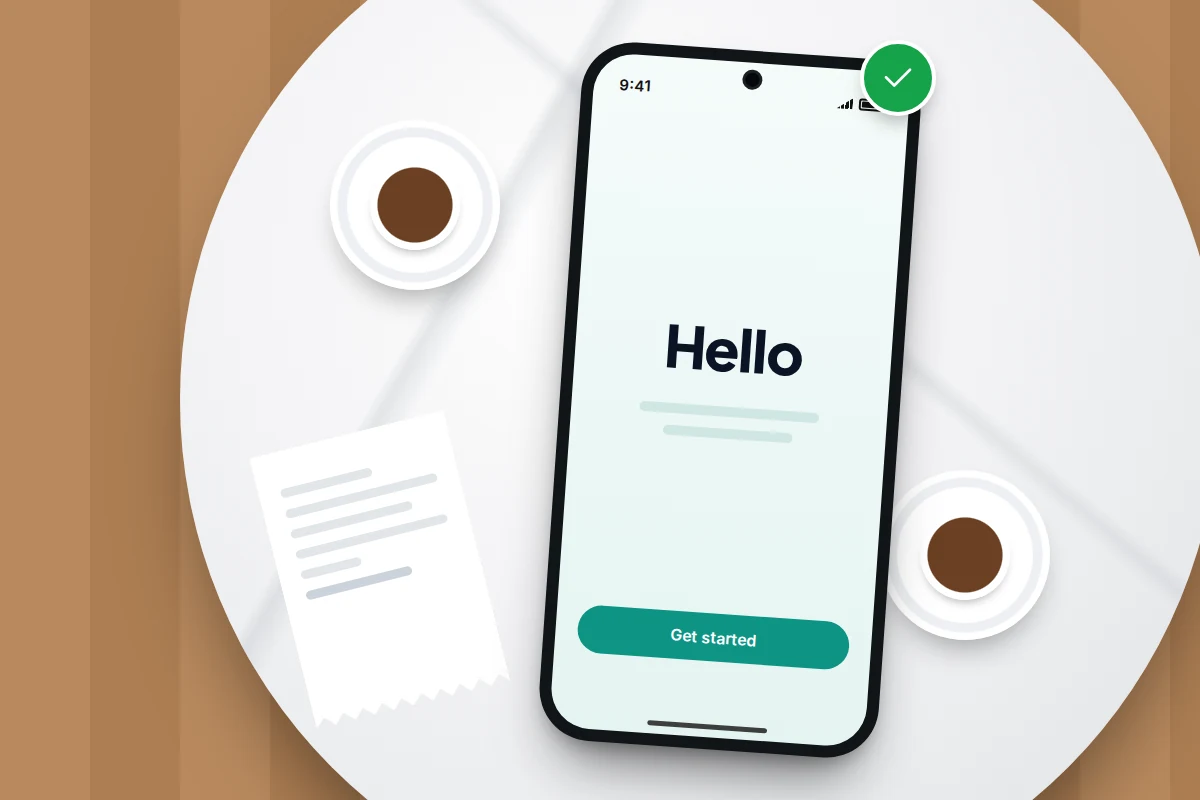
Other makers use similar wording; search Settings for “reset” if you cannot find it. When it finishes, the phone restarts at its first setup screen. That is what the buyer should see: on iPhone, the Hello screen, and on Android, a welcome screen. Setup should go on to ask for the new owner’s account, never yours. If you are handing it over in person, let the buyer start setup in front of you. Careful buyers check for exactly this, as our guide to checking a used phone before you buy it explains.
iPhone and Android steps side by side
| Step | iPhone | Android |
|---|---|---|
| Back up | Settings → [your name] → iCloud → iCloud Backup | Settings → Google → All services → Backup (varies) |
| Move codes | In each authenticator app | In each authenticator app |
| Unpair watch | Watch app → My Watch → All Watches → Unpair | The watch’s companion app |
| Release the lock | Settings → [your name] → Sign Out (Activation Lock) | Remove Google Account (Factory Reset Protection); Samsung account too |
| SIM and eSIM | Remove SIM; Settings → Mobile Service → Delete eSIM | Remove SIM and memory card; erase eSIM in SIM settings or at reset |
| Erase | Settings → General → Transfer or Reset iPhone → Erase All Content and Settings | Settings → System → Reset options (Pixel); General management → Reset (Samsung) |
The sell-day checklist
Work down it in order; each step depends on the ones above.
- New phone set up and working, or a backup taken and checked.
- WhatsApp and other chat backups made or chats transferred.
- Authenticator codes moved and tested on the new phone.
- Banking apps registered on the new phone and a login tested.
- Phone number updated with important accounts, if it is changing.
- Watch unpaired; earbuds and car Bluetooth forgotten.
- Signed out of Apple Account, or Google and Samsung accounts removed.
- SIM and memory card out; eSIM transferred and deleted.
- Phone charged to at least 70%.
- Factory reset done.
- Welcome or Hello screen showing; no request for your account.
- After the sale: remove the phone from your account’s device list and cancel or move its insurance.
Is a factory reset enough on a modern phone?
For almost everyone, yes. Modern phones encrypt their storage, and a reset destroys the key rather than trying to overwrite every file. Apple’s platform security guide says that erasing the key with Erase All Content and Settings “renders all files cryptographically inaccessible”.
On Android, Google requires new devices launched with Android 10 or later to use file-based encryption, and its documentation describes the keys being securely deleted on devices whose hardware supports it. Older phones are less certain: University of Cambridge researchers found in 2015 that data could be recovered after a reset from phones running Android 4.3 and earlier. If yours dates from that era, recycling it through a service that offers certified data destruction is the cautious choice.
The UK’s National Cyber Security Centre recommends the built-in reset as the way to erase a phone, while noting that no method guarantees complete removal against a determined expert.
Trade-in, recycling, and cracked or dead phones
Trade-in schemes run by phone makers, networks and retailers generally will not accept a phone still locked to your account, so do every step above first. Apple says that if a device is not eligible for trade-in credit, it will recycle it free, whatever the model or condition.
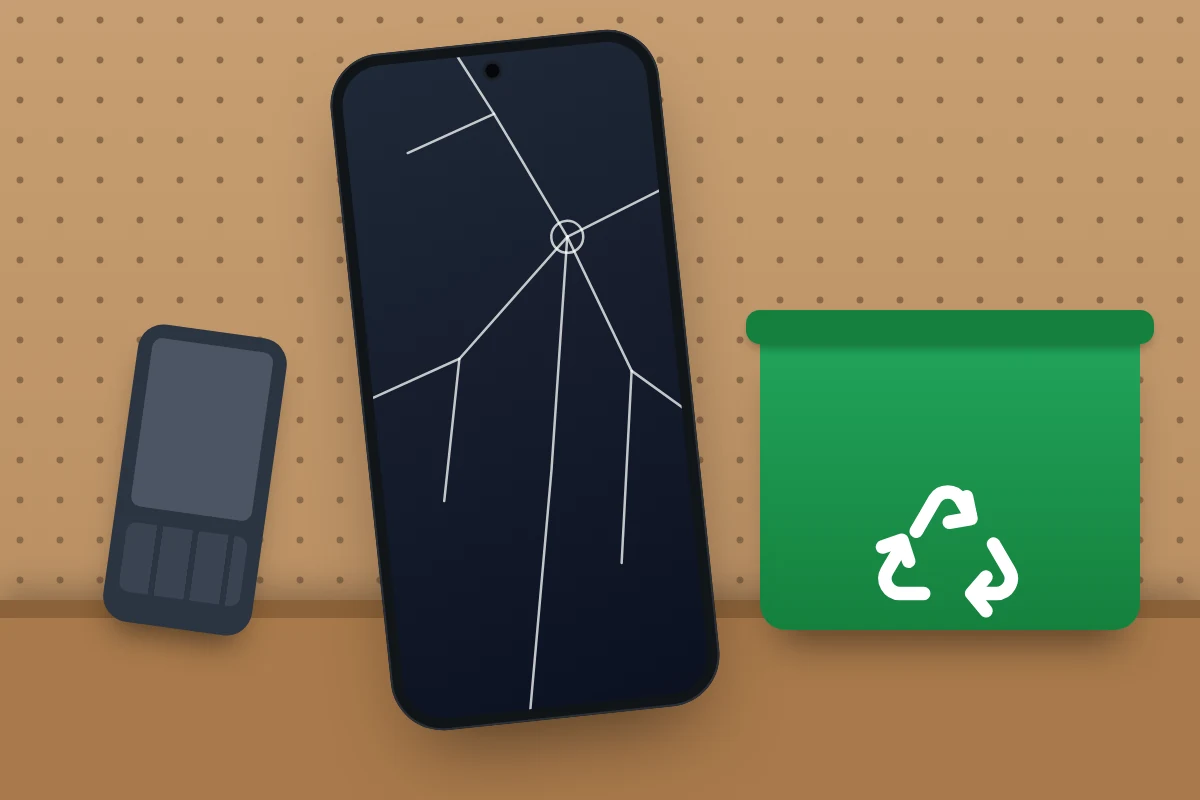
A cracked screen
If the phone still works, follow the full process. A cracked screen usually lowers the price but does not stop a sale or trade-in.
A phone that will not turn on
- iPhone: sign in at icloud.com/find, select the phone and choose Remove This Device. Apple says this removes Activation Lock, so the phone can be reused.
- Android: there is no equivalent switch that reliably releases Factory Reset Protection on a phone you cannot start. Sign it out from your Google Account’s device list so it no longer has access (Google warns this deletes that phone’s backup, so do it after your new phone is set up), and tell the recycler it may still be locked; many accept locked phones for parts and materials.
- Your data: a dead modern phone’s storage is encrypted and tied to your passcode. If the phone held anything sensitive, choose a recycler that offers certified data destruction.
Never put an old phone in the household bin: its lithium battery can start fires in bin lorries and recycling sites. In the UK, the Recycle Your Electricals postcode search lists drop-off points, including many shops.
What if something goes wrong
- You have forgotten your Apple Account or Google password. Reset it through Apple or Google’s account recovery before you erase. Google advises waiting 24 hours after changing your password before a reset.
- The buyer says it is asking for your account. For an iPhone, remove it at icloud.com/find with Remove This Device. For Android, you will usually need the phone back to sign in, remove the account and reset again.
- The phone is still on finance or a contract. Settle it first. A phone that stops being paid for can be blocked by the network, which lands on your buyer.
- You have already sold it without wiping it. Erase it remotely through Find My or Find Hub, change the passwords for your main accounts, and sign it out from your account’s device list.
Frequently asked questions
Do I need to remove my accounts if I am going to do a factory reset anyway?
Yes. The reset erases your data, but the anti-theft lock is held by Apple or Google, not the phone. Signing out, or removing your Google Account, is what releases it for the next owner.
Should I remove my payment cards first?
Apple says erasing an iPhone removes cards added to Apple Pay, and an Android reset removes your wallet app along with everything else. Removing them first does no harm. If the phone has already gone, Apple suggests removing cards through Wallet on another device.
Can I give the buyer the phone with its original box?
Yes, and it usually helps the sale. The box label shows the same IMEI as the phone, which reassures buyers the phone came from you.
How long does the whole process take?
Budget an evening. The reset takes minutes on an iPhone and up to an hour on some Android phones; backups, chat transfers and moving codes take longer.
Sources and further reading
- Apple Support: What to do before you sell, give away or trade in your iPhone or iPad
- Apple Support: How to remove Activation Lock
- Apple Platform Security: Data Protection in Apple devices
- Android Help: Help prevent others from using your device without permission
- Android Help: Reset your Android device to factory settings
- Samsung UK: Remove accounts from your Galaxy phone or tablet
- National Cyber Security Centre: Buying, selling and donating second-hand devices
- Recycle Your Electricals: find a drop-off point near you
Using a monitoring app for this? TheTruthSpy is a free parental control app for Android that stays visible on the child's phone. If it fits your family, see what the app does.
Related guides
How to Move From Android to iPhone
Moving from Android to iPhone: what Move to iOS transfers, how to bring WhatsApp chats, passwords and authenticator codes, and…
How to Free Up Storage on Your Phone
Find what is really filling your phone before deleting anything: read the storage screen, clear chat media and downloads safely,…
How to Test That Your Backup Works
Check your phone backup really works: find the last backup date on iPhone or Android, see what it leaves out,…
Free parental control app for Android
GPS tracking, screen time limits, web filtering, SMS and call monitoring — visible on your child's phone. Pair a phone in about ten minutes.
Android · Free to set up · Visible on your child's phone