How to Move From Android to iPhone

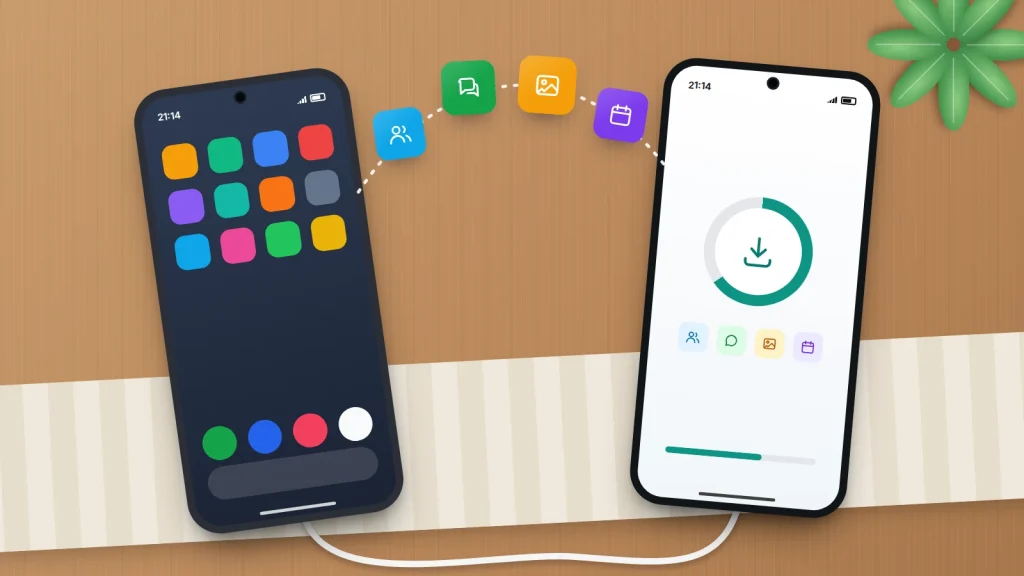
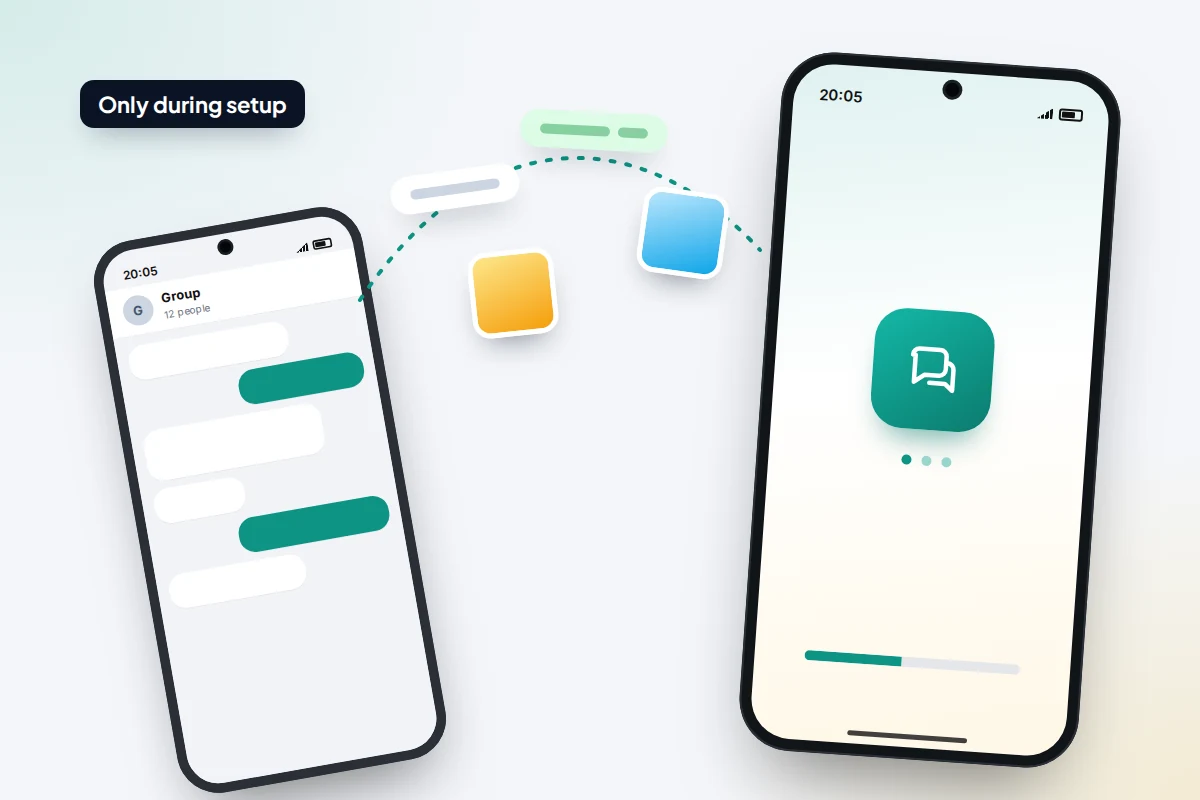
Most of what matters on an Android phone can reach a new iPhone in one sitting: contacts, texts, camera photos, calendars and even WhatsApp chats. The catch is timing. Apple’s transfer only runs while the iPhone is being set up, so if you tap through setup first, you have to erase the iPhone to get the easy route back.
Passwords, authenticator codes, paid apps and subscriptions never travel in that transfer, and wiping the old phone before moving the codes can lock you out of accounts. The order below avoids both problems, and the checklist at the end tells you when the wipe is safe.
The short version
- Do the transfer during iPhone setup: choose From Android and use the Move to iOS app (or the built-in option on some Android 17 phones).
- WhatsApp chats go across in the same transfer, but only onto an iPhone that is new or freshly erased.
- Move authenticator app codes and check your passwords before the old phone is wiped.
- Paid apps and in-app purchases don’t cross between the two app stores. Cancel Google Play subscriptions yourself.
- Keep the old phone, charged and untouched, until everything on the checklist works on the iPhone.
The order that saves you a factory reset
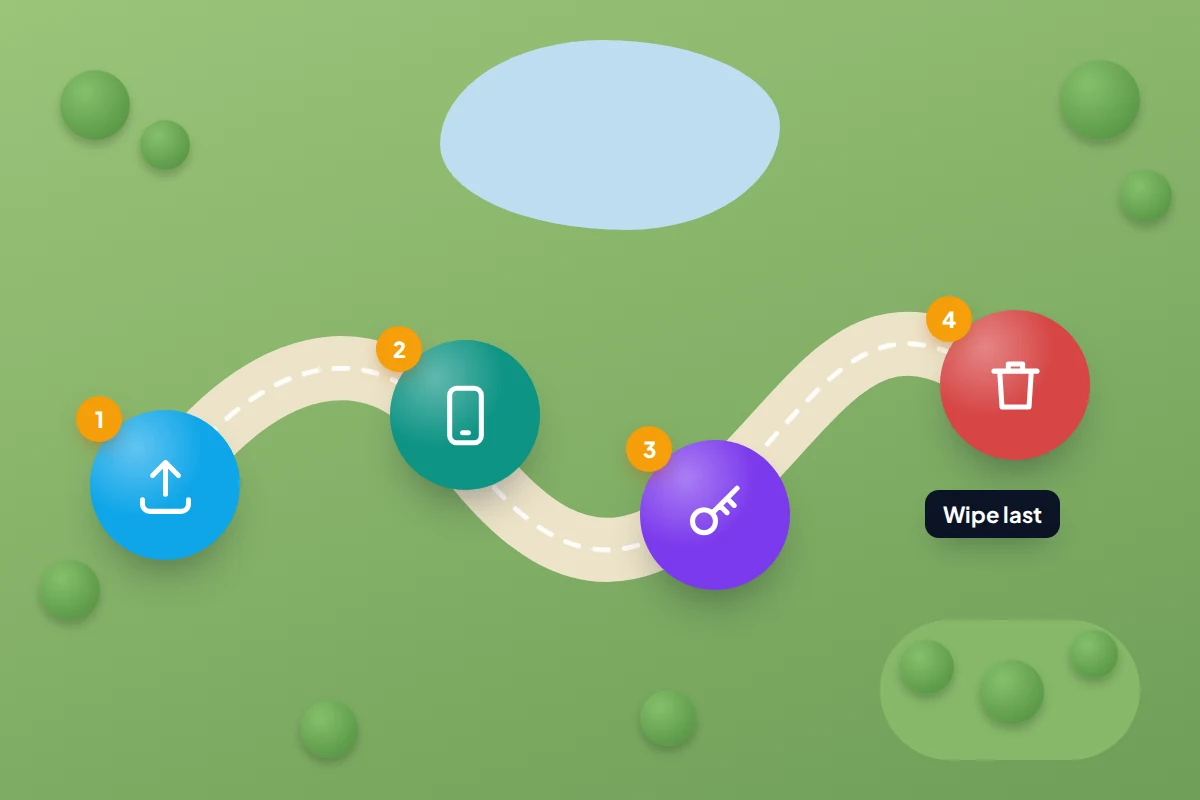
Setting up the iPhone first “just to have a look” is the classic mistake: Move to iOS only connects to an iPhone on its setup screens, and WhatsApp’s chat transfer needs one that is new or reset. Do it in this order:
- On the Android phone: update the system, Chrome and WhatsApp, and turn on Google Photos backup so there is a second copy of your pictures.
- Still on the Android phone: install Move to iOS from Google Play, and check the iPhone has room for everything, including anything on a microSD card.
- Just before you move your number: turn off RCS chats in Google Messages (see the texting section below). Then plug both phones into power, side by side, with the Android phone on Wi-Fi.
- Switch on the iPhone and run the transfer during setup.
- After setup: install WhatsApp on the iPhone, sign in with the same number, then deal with passwords, authenticator codes and subscriptions.
- Only when the checklist later in this article is complete: wipe the old phone.
What moves, what needs a separate step, and what stays behind
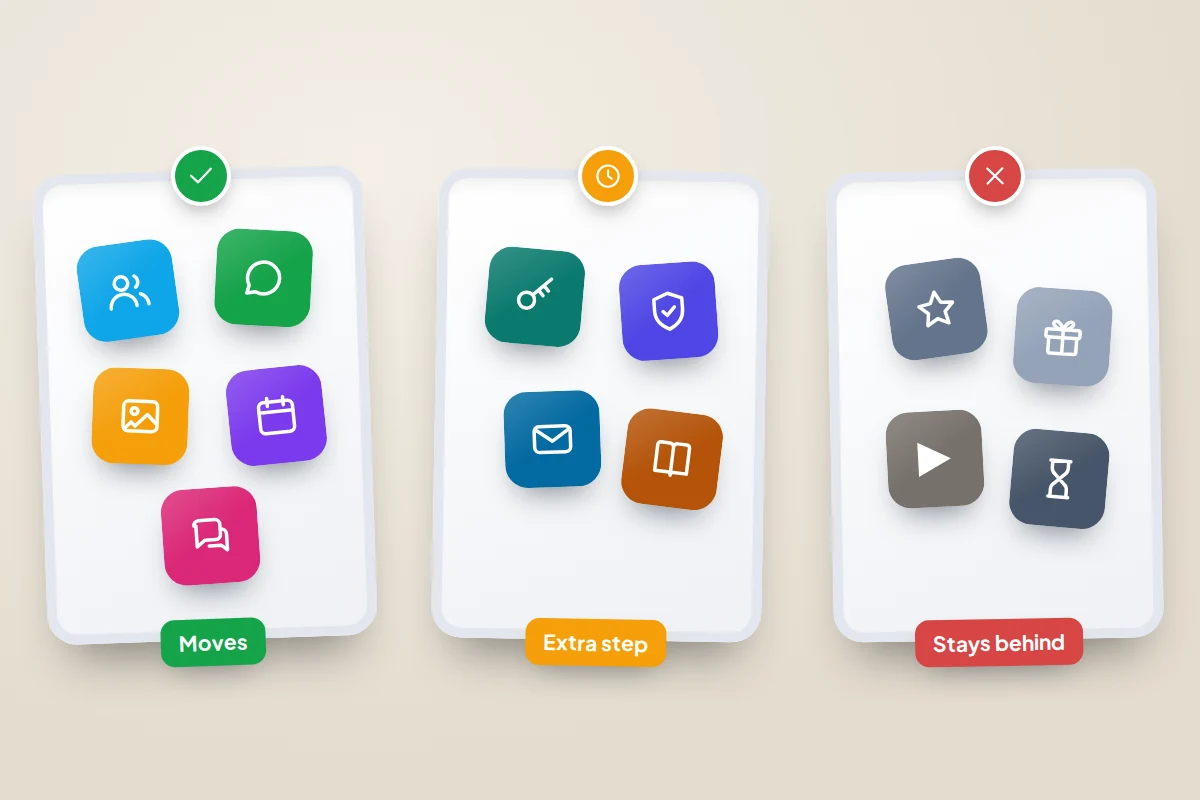
Apple’s list for Move to iOS covers contacts, message history, camera photos and videos, albums, files, bookmarks, mail accounts, calendars, call history, voice memos, WhatsApp and some settings. Free apps in both stores can be added automatically. Music, books and PDFs must be moved by hand.
| Item | Transfers in setup | Needs a separate step | Doesn’t transfer |
|---|---|---|---|
| Contacts, texts, call history | Yes | Optional: add your Google account so contacts keep syncing | |
| Camera photos and videos | Yes | Google Photos as a backup copy | |
| Calendars, bookmarks, mail accounts | Yes | Update Chrome first, or bookmarks may not come across | |
| WhatsApp chats and media | Yes, if selected | Install WhatsApp and sign in with the same number | Call history, display name, Channels media |
| Free apps | Some, if in both stores | Sign in to each app again | Android-only apps |
| Passwords | No | Use Google Password Manager on the iPhone, or import | |
| Authenticator codes | No | Move them in the authenticator app | Microsoft Authenticator’s Android backup |
| Music, books, PDFs | No | Copy by hand or re-download from the service | |
| Paid apps and in-app purchases | No | Check whether the developer has its own account | Google Play purchases |
| Phone number on an eSIM | On some networks | Move the physical SIM, or ask your network for a new eSIM | |
| Google Play subscriptions | No | Cancel in Google Play | Billing does not move to Apple |
Running the transfer during iPhone setup
Start with time to spare: a large photo library can take hours. Apple warns that using another app or taking a call on the Android phone mid-transfer stops your content transferring. Wording on the Android side varies a little between phone makers.
- Turn on the iPhone and follow the prompts until Quick Start, then choose Set Up Without Another Device.
- On Transfer Your Apps & Data, tap From Android. If your Android phone runs a compatible version of Android 17, Apple says it can transfer without the app; otherwise tap Transfer with App.
- On the Android phone, open Move to iOS, tap Continue, agree to the terms and allow any permissions it asks for.
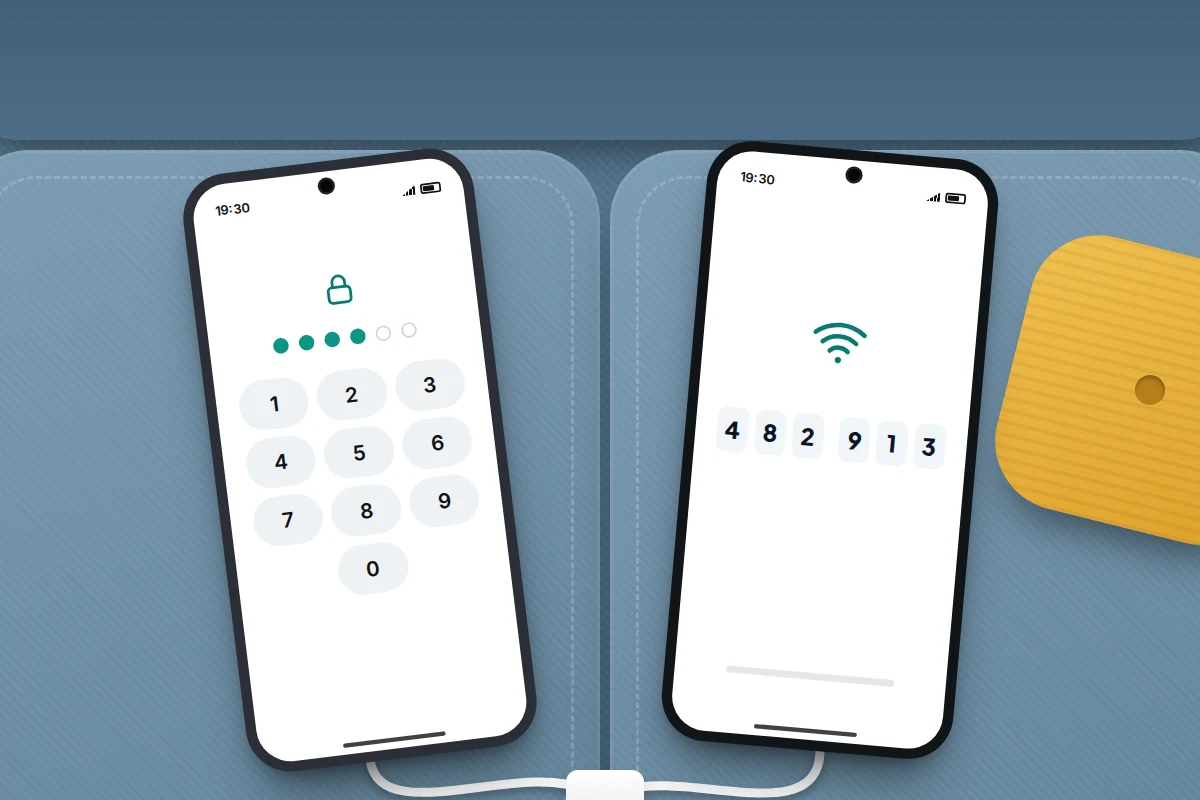
- On the iPhone, tap Continue on the Move from Android screen. A six- or ten-digit code appears.
- Type the code into the Android phone. The iPhone creates a temporary Wi-Fi network; tap Connect on the Android phone to join it.
- Choose what to move, including WhatsApp if you use it, and tap Continue.
- Leave both phones alone until the bar on the iPhone finishes, even if the Android phone says it is done first. Then tap Done on the Android phone and Continue on the iPhone.
A USB-C cable between the phones makes the transfer faster. If your number is on an eSIM, setup can move it across too, but only with iOS 26, a compatible phone on Android 16 or later and a supported network (in the UK, Apple lists only EE). Once it moves, the Android phone loses its signal, so it works on Wi-Fi only from then on.
WhatsApp: one chance, during setup
WhatsApp history goes across inside Move to iOS; the WhatsApp backup in your Google account only restores onto Android. WhatsApp’s requirements:
- Android 5 or later on the old phone and iOS 15.5 or later on the iPhone.
- The latest WhatsApp on both phones (you install it on the iPhone after setup), and the same phone number.
- An iPhone that is factory new or reset to factory settings.
- Both phones on power and on the same Wi-Fi network, or the Android phone connected to the iPhone’s hotspot.
When you pick WhatsApp in Move to iOS, the Android phone asks you to tap Start to prepare the export and signs you out of WhatsApp there. After setup, install WhatsApp on the iPhone, sign in with the same number and tap Start to import. Individual and group chats, media, your profile photo and communities come across; call history, your display name and Channels media do not.
The old phone keeps its copy until you delete WhatsApp or wipe it: a safety net if the import goes wrong.
Photos: keep a second copy in Google Photos
A second copy in Google Photos protects you if a long transfer fails part way, and the app works on iPhone too.
- On the Android phone, open Google Photos and tap your profile picture.
- Tap Photos settings → Backup and turn Backup on.
- Leave the phone on charge and on Wi-Fi overnight, then tap your profile picture again and check it says Backup complete.
Free Google storage is shared between Photos, Gmail and Drive, so a large library may need paid storage. Screenshots and pictures from other apps may sit in folders that aren’t backed up by default. To check a backup really works, open photos.google.com on a computer and look for your latest pictures.
Passwords and two-factor codes: the step that locks people out
Passwords
Passwords saved in Chrome or Google Password Manager live in your Google account, not on the phone. You have two choices:
- Keep using Google Password Manager. Install Chrome on the iPhone and sign in. Then open Settings → General → AutoFill & Passwords, turn on AutoFill Passwords and Passkeys and select Chrome so it can fill passwords in other apps.
- Move to Apple’s Passwords app. In Chrome on Android, tap More → Settings → Autofill and passwords → Google Password Manager → Settings → Export passwords & passkeys → Download file. On iOS 18.2 or later, import it with Settings → Apps → Safari → Import → Choose File. The file shows every password in plain text, so delete it everywhere once the import is done.
Authenticator apps
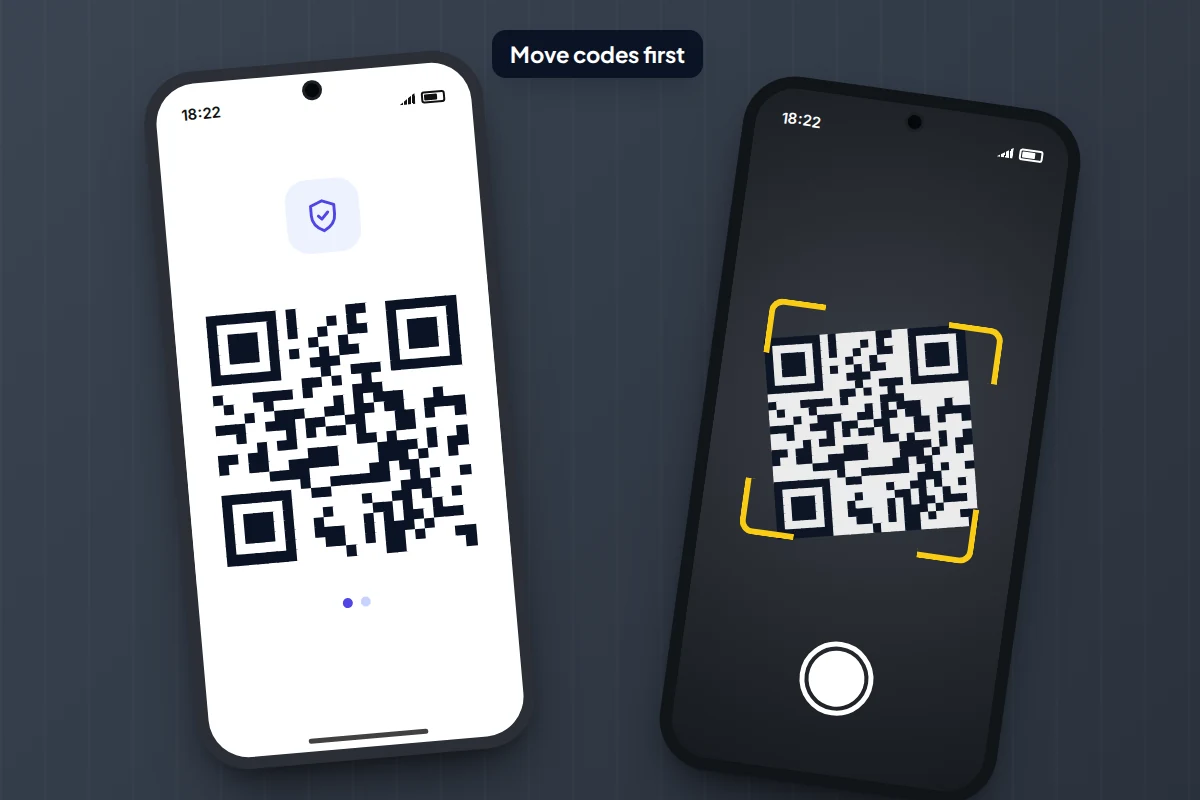
Authenticator codes cause the most trouble, because they live on the phone and a wipe deletes them. How you move them depends on the app:
- Google Authenticator can sync codes to your Google account, so signing in on the iPhone may bring them back. You can also use Menu → Transfer accounts → Export accounts on the old phone and scan the QR code with Import accounts on the iPhone.
- Microsoft Authenticator says backups only restore onto the same type of device, so an Android backup will not restore onto an iPhone. Add each account again on the iPhone, usually from the security settings of each service.
- Other apps vary. Look for an export option; if there is none, add each account again on the iPhone before removing it from the old one.
Codes sent by text follow your phone number, so they work as soon as the SIM or eSIM is active on the iPhone. While you are at it, you could turn on two-factor authentication for your important accounts.
Paid apps and subscriptions
Apps and in-app purchases bought on Google Play stay with Google Play, so a paid game or tool usually needs buying again. The exception is a service where you sign in to the developer’s own account: that subscription follows the account, not the store.
Google Play subscriptions keep charging after you switch, and Google says even uninstalling the app doesn’t cancel them. In the Play Store, tap your profile picture → Payments & subscriptions → Subscriptions, pick each one and tap Cancel subscription. To keep a service, resubscribe on the iPhone when the paid period ends.
Texting your Android friends and groups
iMessage handles chats with other iPhones; check it is on in Settings → Apps → Messages. Chats with Android users use RCS if your network supports it on iPhone (iOS 18 or later), which brings typing indicators, better photos and proper mixed group chats. Check Settings → Apps → Messages → RCS Messaging; if the switch isn’t there, your network may not support it and chats fall back to SMS and MMS.
Since iOS 26.5, Apple and Google have been rolling out end-to-end encryption for iPhone–Android RCS chats. It is a beta, on by default, and needs a supported network and an up-to-date Google Messages at the other end. Look for the lock icon in a chat rather than assuming it is encrypted.
One job on the old phone: if Google Messages used RCS, turn it off before you move your number, so Android friends’ messages don’t keep going to it. Tap your profile picture → Messages settings → RCS chats and switch RCS chats off. Google notes this removes you from RCS group chats, so ask to be added again from the iPhone. If the old phone is gone, messages.google.com/disable-chat does the same with a code sent to your number.
Day-one checklist before you wipe anything
Work through this with the old phone switched on beside you, so anything that fails can still be fixed.
| Check | How to confirm |
|---|---|
| Calls and texts work | Call and text someone on Android and someone on iPhone |
| Contacts are complete | Search for three people you rarely contact |
| Photos arrived | Scroll back to your oldest photos and open a few videos |
| WhatsApp history | Open an old group and scroll back several months |
| Email and calendar | Send a test email and check next month’s appointments |
| Passwords fill in | Sign in to your bank, email and one shopping site |
| Two-factor codes | Sign out and back in to your most important account using the iPhone |
| Banking and payment apps | Install, register the new device, add cards to your wallet again |
| Subscriptions | Google Play shows nothing still active that you meant to cancel |
| Other maker-only content | Notes, voice recordings or files kept in apps with no iPhone version are exported |
Keep the old phone, then wipe it properly
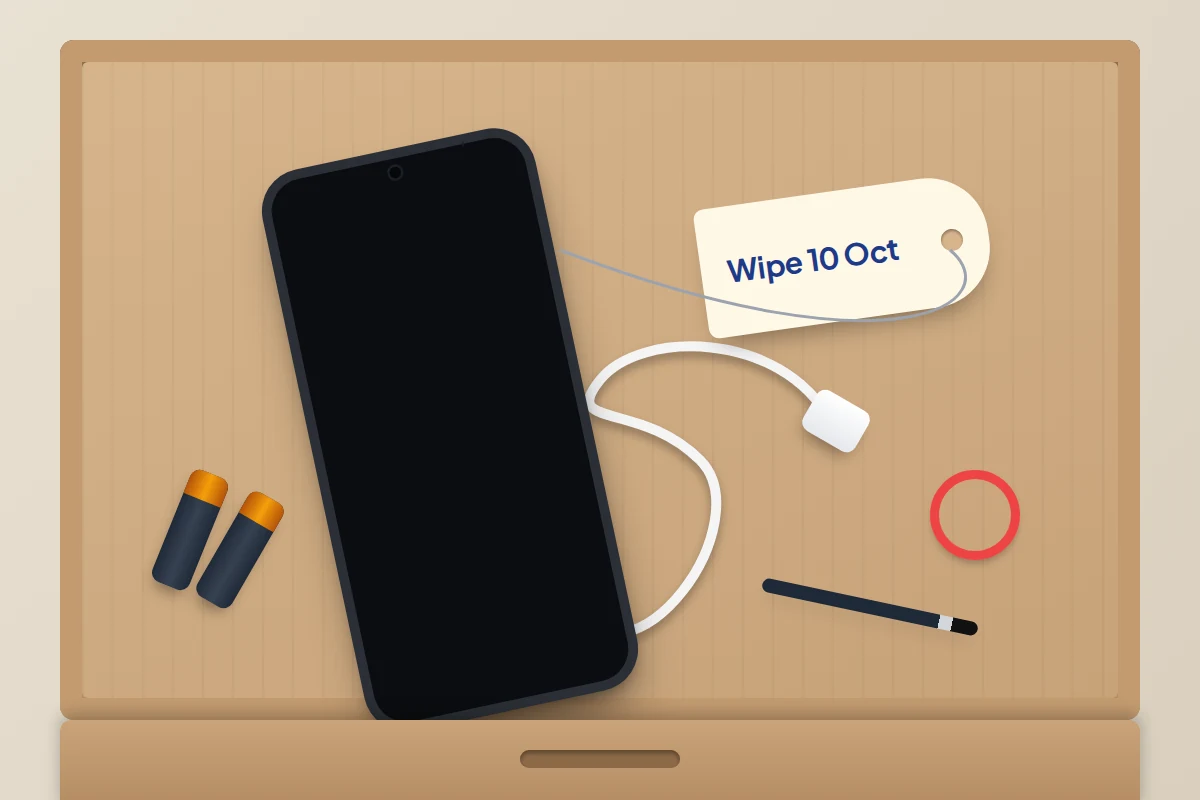
Put the Android phone in a drawer, charged, for a week or two. Something forgotten usually turns up: a rarely used account’s verification, a note in an app with no iPhone version.
When you are ready to pass it on, remove your Google account and then do a full reset, following how to wipe a phone before selling it.
What if the transfer stalls or fails
- The phones won’t connect. Turn off mobile data on the Android phone, plus any “smart network switch” style setting that could pull it off the iPhone’s temporary Wi-Fi.
- It stops part way. Restart both phones and try again, without opening other apps.
- Not enough space. Untick videos, finish setup, and bring the rest over later through Google Photos.
- You already set up the iPhone. To use Move to iOS or move WhatsApp chats, you need to erase it: Settings → General → Transfer or Reset iPhone → Erase All Content and Settings, then start again.
- WhatsApp shows no chats to import. Check it is signed in with exactly the same number and both WhatsApp versions are current.
Frequently asked questions
Do I lose my Google account if I move to iPhone?
No. Gmail, Drive, Photos and saved passwords stay in your Google account. You can use the Google apps on the iPhone, or add the account to Apple’s apps through Settings → Apps → Contacts → Contacts Accounts → Add Account → Google (Mail and Calendar share the same accounts).
Can I move WhatsApp after I’ve finished setting up the iPhone?
Not with the official method, which needs an iPhone that is factory new or reset. If your chats matter, erase the iPhone and run setup again while the old phone still has them.
Do I need to do anything with my SIM card?
A physical SIM just moves across. An eSIM transfers during setup only on supported networks and phones (see above); otherwise your network can issue a new one.
Can I use Move to iOS without Wi-Fi?
The iPhone creates its own temporary Wi-Fi network, so the data doesn’t go through your router, but Wi-Fi must be turned on. A USB-C cable between the phones also works.
Sources and further reading
- Apple Support: Move from Android to iPhone or iPad
- WhatsApp Help Center: How to move chats from an Android device to an iPhone
- Google Chrome Help: Import or export passwords and passkeys
- Google Account Help: Get verification codes with Google Authenticator
- Microsoft Support: Back up your accounts in Microsoft Authenticator
- Apple Support: Turn on RCS messaging on your iPhone
- Google Messages Help: Turn on RCS chats in Google Messages
- Google Play Help: Cancel, pause or change a subscription
Looking for a tool to go with this? TheTruthSpy is a free parental control app for Android that stays visible on the child's phone. If it fits your family, see what the app does.
Related guides
How to Reduce Mobile Data Usage on Your Phone
Find which apps are really using your mobile data, then fix the settings that matter on iPhone and Android, with…
eSIM Explained: How to Switch, Transfer and Travel With One
What an eSIM is, which phones are eSIM-only, how to move one to a new iPhone or Android phone, what…
How to Fix a Phone That Keeps Freezing or Restarting
Fixes for a frozen or rebooting iPhone or Android phone, from a one-minute force restart to recovery mode, with a…
Parental controls your child can see
Location, screen time limits, a web filter and alerts from notifications — free, and visible on your child's phone. Pair a phone in about ten minutes.
Android · Free to set up · Visible on your child's phone