How to Free Up Storage on Your Phone

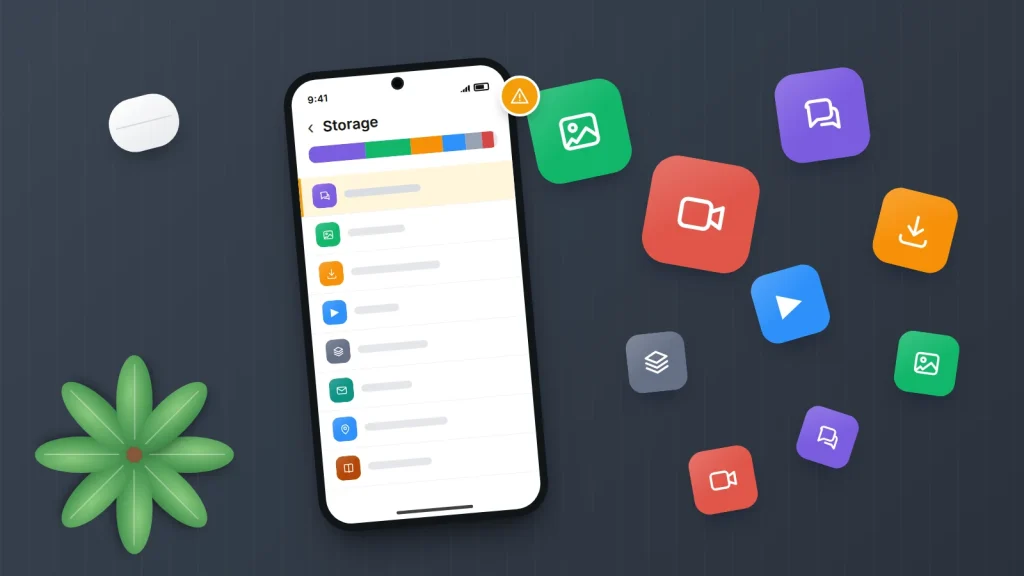
The “Storage almost full” warning tends to arrive at the worst moment: halfway through filming a school concert, or just as an app refuses to update. The natural reaction is to delete photos until the warning goes away. That works, but it often throws away the wrong things while the real space hog carries on growing.
Your phone already keeps a breakdown of what is using its storage, and the answer is often not what people expect. Chat apps that save every video, podcast episodes downloaded months ago and films saved for a holiday can take up more room than the photos you were about to delete.
Here is how to read the storage screen on an iPhone or Android phone, what is safe to remove and what is not, and a fifteen-minute clear-out you can repeat whenever the warning comes back.
The short version
- Open the storage screen first (Settings → General → iPhone Storage, or Settings → Storage on Android) and start with whatever is biggest.
- Messaging-app media, offline downloads and duplicate photos are usually the safest large wins.
- Do not delete photos or videos until you have confirmed they are in a working backup. Deleted items then sit in a bin for 30 days, still using space.
- Offloading or archiving apps frees space while keeping your data; clearing an app’s storage (rather than its cache) wipes it.
- Keep a few gigabytes free at all times, and more before a major software update.
Read the storage screen before you delete anything
Both iPhone and Android calculate how much space each category and app uses. The screen can take a minute to fill in, so wait until the coloured bar stops changing.
iPhone
- Open Settings → General → iPhone Storage.
- Look at the coloured bar. It splits your storage into categories such as Apps, Photos, Media, Messages, iOS and System Data.
- Read any recommendations underneath, such as reviewing large videos or offloading unused apps.
- Scroll to the list of apps, sorted by size. Tap one to see how much is the app itself and how much is its Documents & Data.
Android
- Open Settings → Storage. On Samsung phones it is Settings → Device care → Storage (Battery and device care on some versions).
- Tap a category, such as Images, Videos, Apps or System, to see what is inside.
- Look for a Free up space button or cards for duplicate files, large files and unused apps. Samsung builds these in; on Pixel phones, Free up space opens the Files by Google app.
Menu names vary by phone maker and Android version. If you cannot find the screen, type “storage” into the Settings search bar.
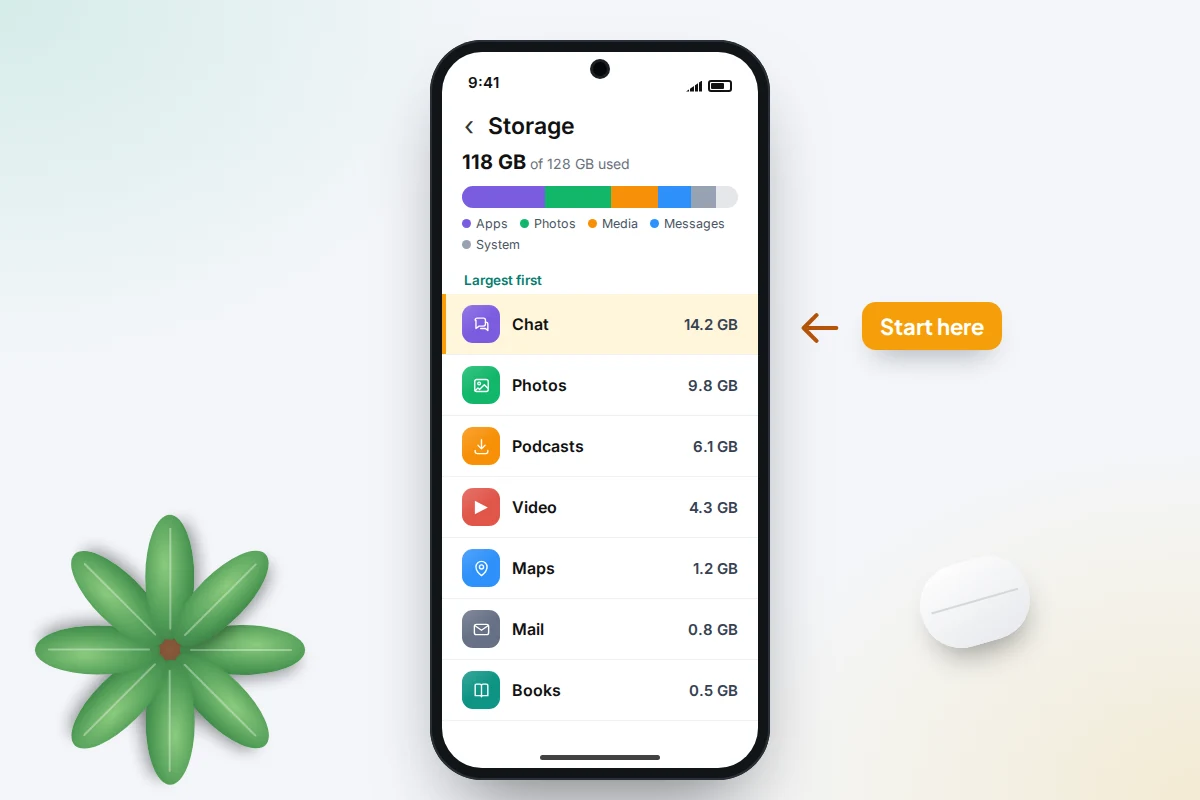
Note the two or three biggest entries. If a messaging app uses 14 GB and your photos 10 GB, clearing old chat videos will do more than any amount of photo pruning.
What usually fills a phone, and what is safe to remove
Once you know what is big, use this table to decide what to do with it.
| What it is | Safe to delete? | How |
|---|---|---|
| Photos and videos | Only once confirmed backed up | Duplicates and long videos first, then empty Recently Deleted or Bin |
| Messaging-app media | Usually; save anything precious first | The app’s own storage manager, largest first |
| Offline downloads (films, music, podcasts) | Yes; you can download again | The Downloads section of each app |
| App cache | Yes; it rebuilds as you use the app | Android: Settings → Apps → [app] → Storage & cache → Clear cache |
| App data (“Clear storage”) | Risky: signs you out, may erase content | Only for an app you are happy to set up again |
| Old downloads (PDFs, tickets, installers) | Usually | Files app, Downloads folder, sorted by size |
| Unused apps | Yes, if offloaded or archived | Offload (iPhone) or Archive (Android) keeps the data |
| System Data or System | Not directly | Clear browser and app caches, restart, wait |
Photos and videos: check the backup before you touch them
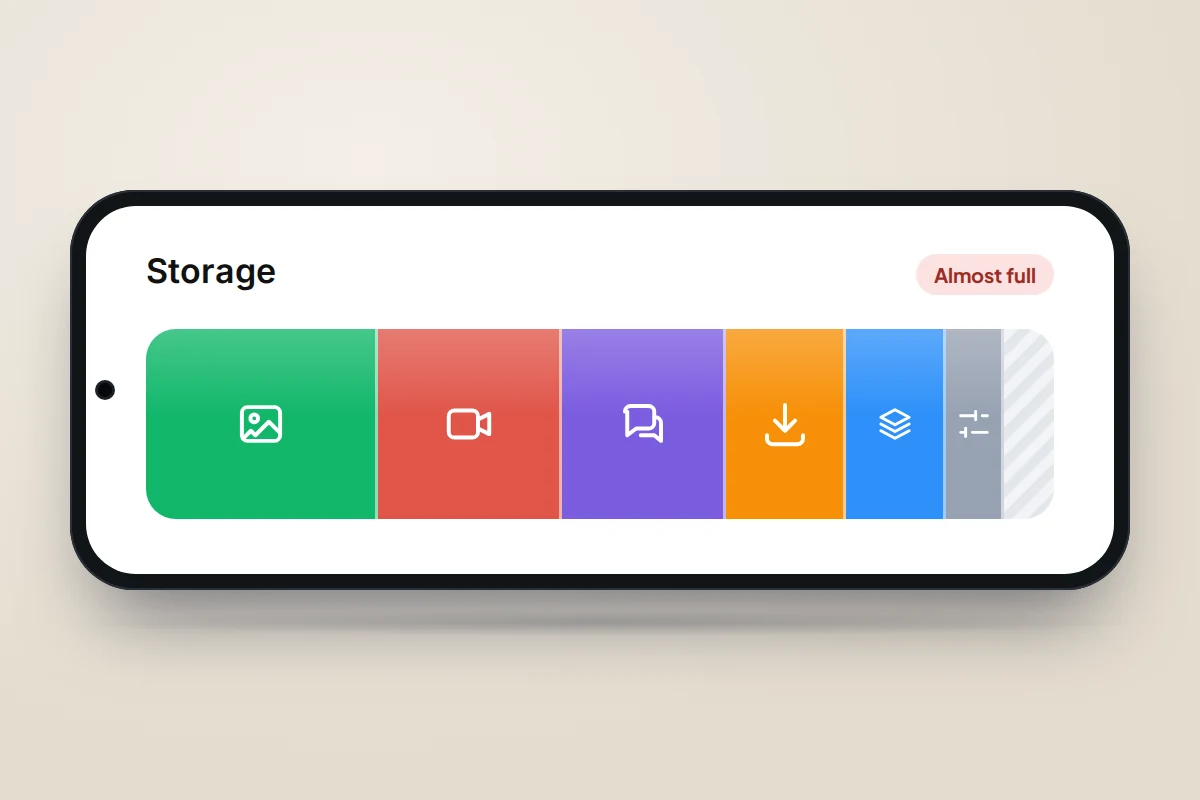
Photos are usually the biggest category, and the only one where a mistake cannot be undone. Before deleting any to save space, make sure they exist somewhere else. If you are not sure, spend five minutes checking that your backup actually works.
There is a second trap. With iCloud Photos or Google Photos, your library is synced, not just backed up. Apple says deleting a photo on one device deletes it on every device signed in to the same Apple Account, and Google Photos does the same for backed-up items. Deleting to save phone space can delete the cloud copy too.
Start with duplicates and long videos
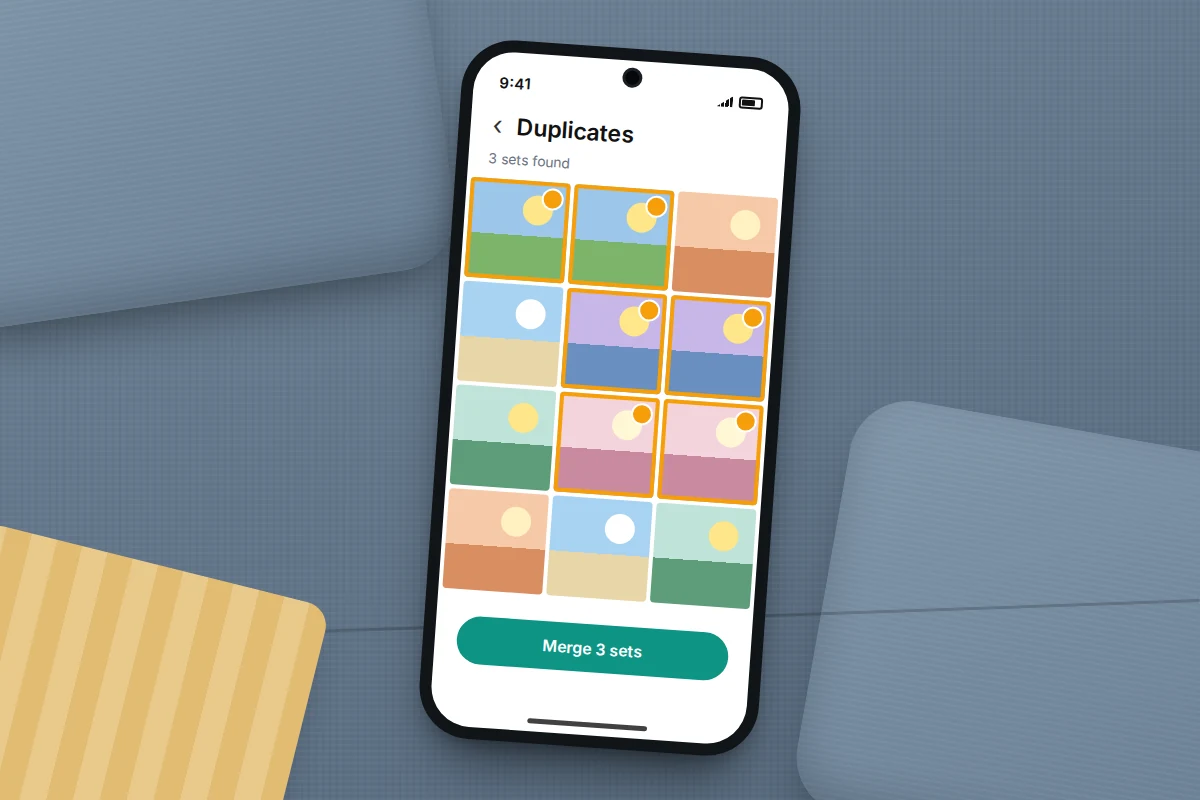
- iPhone: in Photos, open Duplicates under Utilities and merge the copies. The phone finds duplicates in the background, which Apple says may take some time, so the album may be missing or incomplete at first.
- Android: in Files by Google, tap Menu → Clean, then the Duplicate files card. Google marks one copy as the original.
- Both: look through your videos. A few minutes of 4K video can use more space than hundreds of photos, and screen recordings are easily forgotten.
Empty the bin, or the space does not come back
Deleted photos move to Recently Deleted on iPhone, or the bin in Google Photos, for 30 days. (Google cut its bin from 60 days to 30 in September 2026, so older advice may say 60.) Until then, or until you empty it, the space is still used. That delay is also your safety net, so only empty it once you are sure.
Messaging apps keep every video you are sent
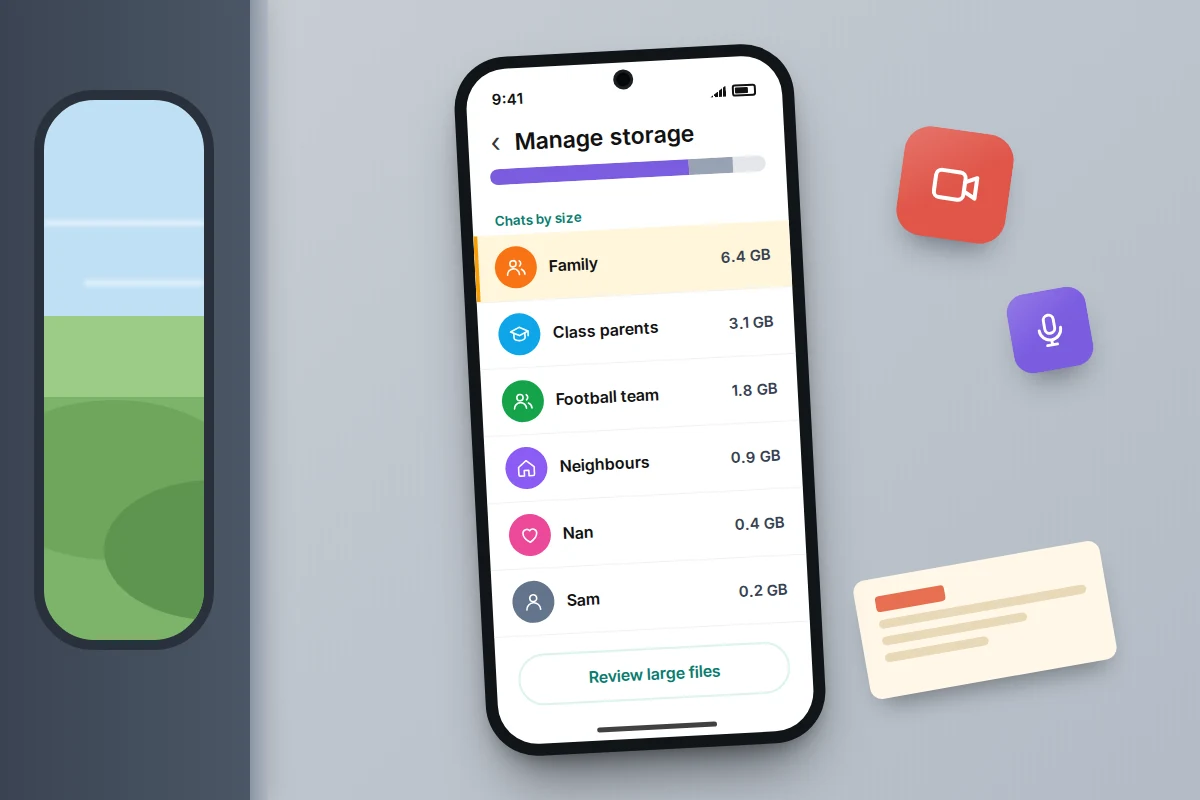
Family and school groups are a major source of hidden storage. Every forwarded clip and voice note is saved to your phone, sometimes twice if it also lands in your photo library.
- WhatsApp: open Settings → Storage and data → Manage storage. It lists chats by size and picks out large and frequently forwarded items so you can delete them. Reduce automatic media downloads while you are there.
- iPhone Messages: review large attachments in iPhone Storage → Messages. To stop old messages building up, set Settings → Apps → Messages → Keep Messages (Settings → Messages on older versions) to 1 Year. This permanently deletes older messages, so save anything precious first.
- Other chat apps usually have a similar storage page in their settings.
Offline downloads you forgot about
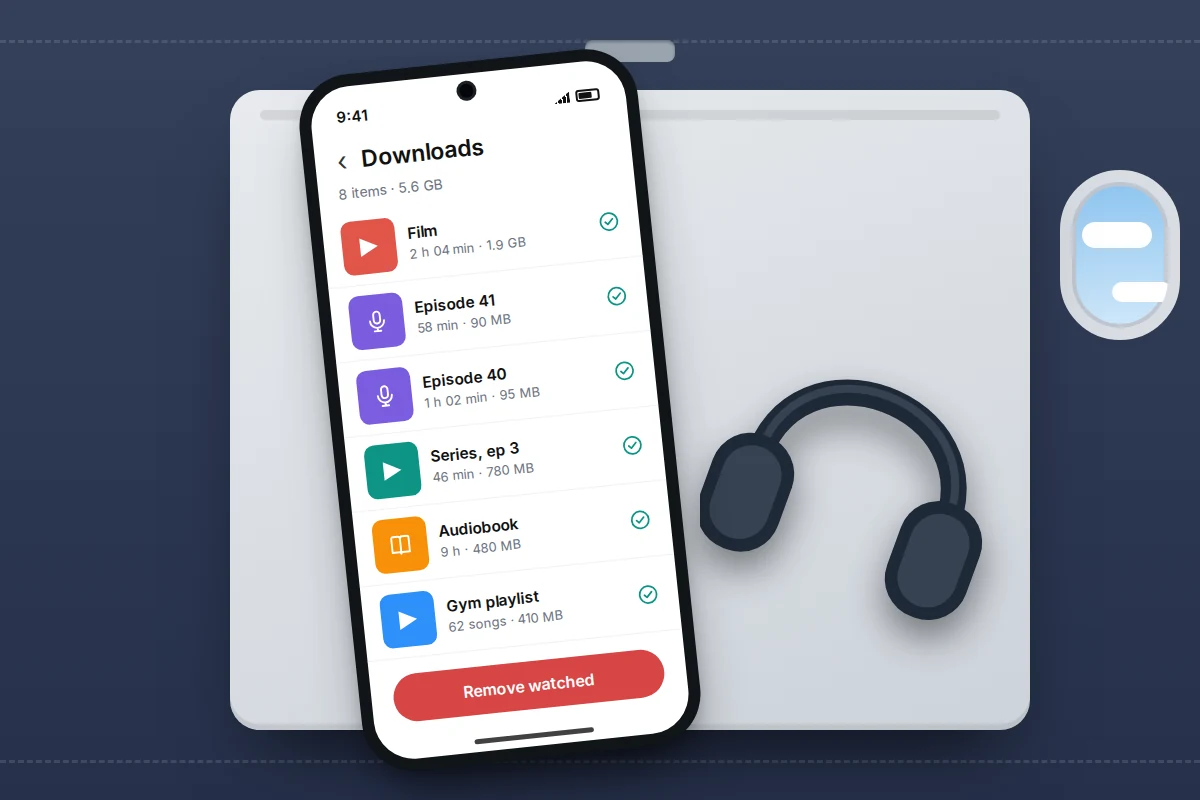
Films saved for a flight, gym playlists and podcast episodes that download automatically are stored inside the apps. They show up as a large app in the storage list rather than as “Media”, which is why they are easy to miss.
Open each streaming, music or podcast app near the top of the list, find its Downloads section and remove what you have finished. In podcast apps, turn off automatic downloads or limit how many episodes are kept, or the space fills again within weeks. Nothing is lost: you can download it again whenever you like.
Caches, old downloads and “System Data”
A cache is a store of temporary files an app keeps so it loads faster. It is safe to clear but regrows as you use the app, so treat it as a quick fix.
- Android: clear one app’s cache under Settings → Apps → [app] → Storage & cache, or many at once with the Junk files card in Files by Google. Avoid Clear storage unless you mean it: that resets the app as if newly installed.
- iPhone: there is no general “clear cache” button. Some apps have one in their own settings; Safari’s Clear History and Website Data frees space but signs you out of websites.
Old downloads are quicker still. Open the Files app, go to Downloads and sort by size; boarding passes, school letters and installers pile up here.
On iPhone, System Data (called Other on older versions) is a catch-all for caches, logs and temporary files. You cannot delete it directly, and Apple says the phone removes cached files when it needs space. Clearing Safari data, trimming Messages and restarting often reduce it. Android’s “System” category is mostly the operating system and cannot be reduced.
Offload or archive apps instead of deleting them
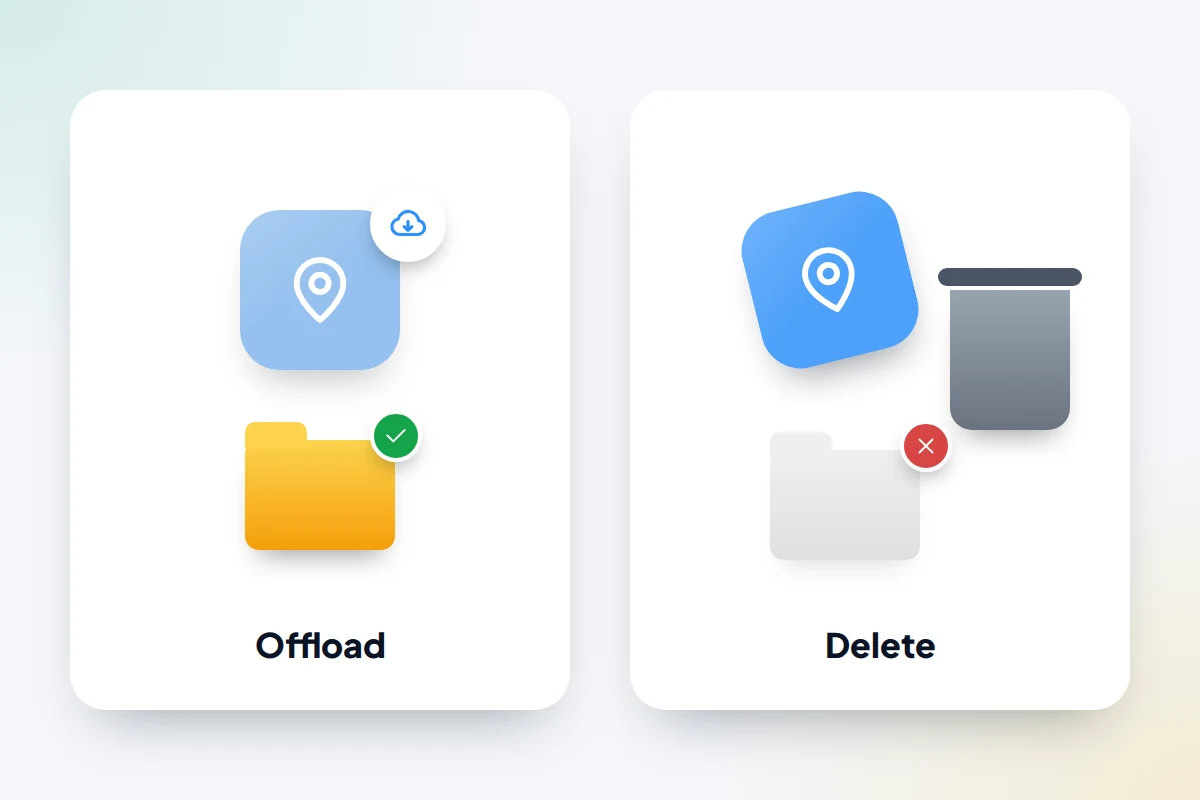
Apps you use twice a year can be removed without losing your sign-in or saved data.
- iPhone: in iPhone Storage, tap the app, then Offload App. Apple says this frees the app’s storage but keeps its documents and data; the icon stays with a small cloud, and tapping it reinstalls. Automatic offloading can be switched on from the iPhone Storage recommendations or the App Store settings.
- Android: Settings → Apps → [app] → Archive. Google says archiving removes the app and its temporary files but keeps the icon and your data. The Play Store can archive rarely used apps automatically.
The catch: an offloaded app needs an internet connection to come back, and only returns if it is still in the app store. Do not offload a ticket or boarding-pass app just before you travel.
“Optimise storage” for photos: useful, with a catch
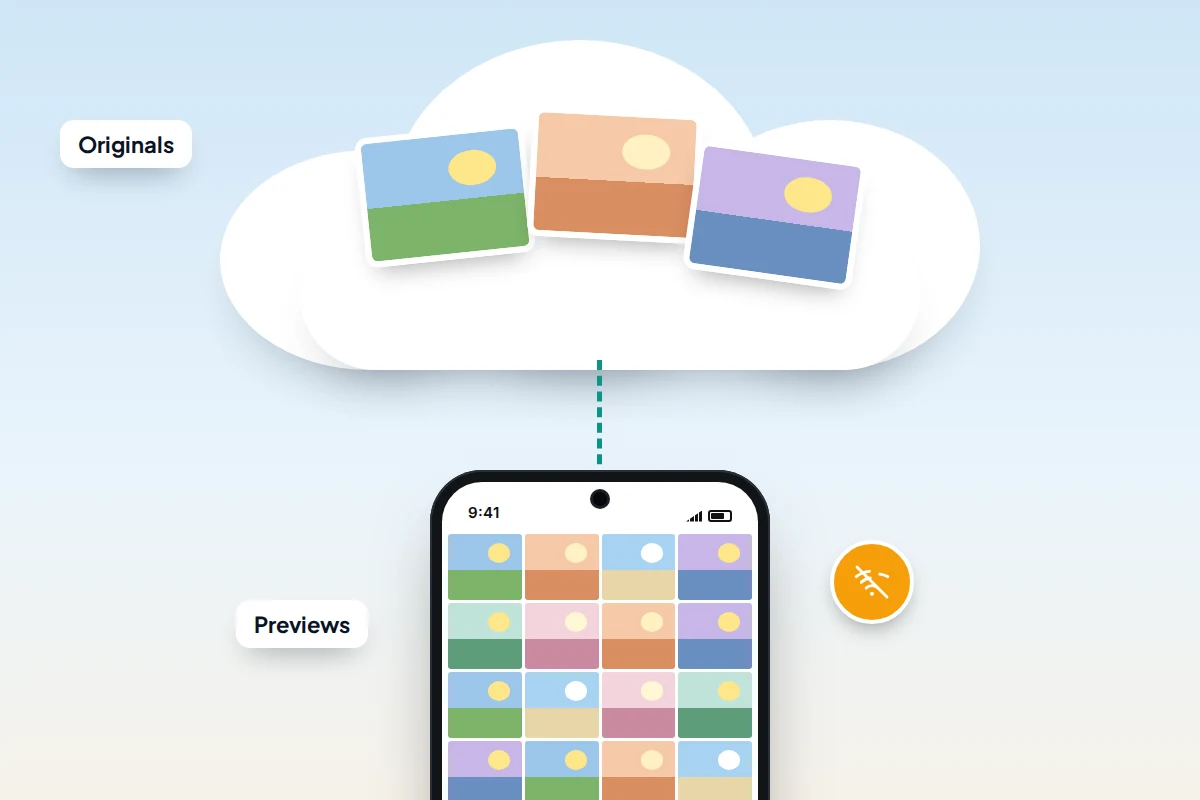
Apple and Google can both keep full-quality photos in the cloud and leave smaller copies, or none, on the phone.
- iPhone: Settings → [your name] → iCloud → Photos → Optimise iPhone Storage (on the newest iOS versions, tap iPhone Storage first). Apple says originals stay in iCloud and space-saving versions on the phone, starting with the photos and videos you open least.
- Android: in Google Photos, tap your profile picture, then Free up space on this device. This removes phone copies of items already backed up.
Know the catches before you rely on it:
- You need enough cloud storage. Apple gives 5 GB free and Google 15 GB shared with Gmail and Drive. A large library usually means a paid plan, and if the cloud fills up, new photos stop backing up.
- Originals need a connection. Opening or sharing a full-quality photo means downloading it first, which is slow or impossible on a poor signal.
- The cloud holds the only full copy. If you lose access to the account, the originals go with it. A second copy on a computer or drive protects against this.
- Google’s “Storage saver” is different. It stores compressed copies to save account space; it does not free space on the phone.
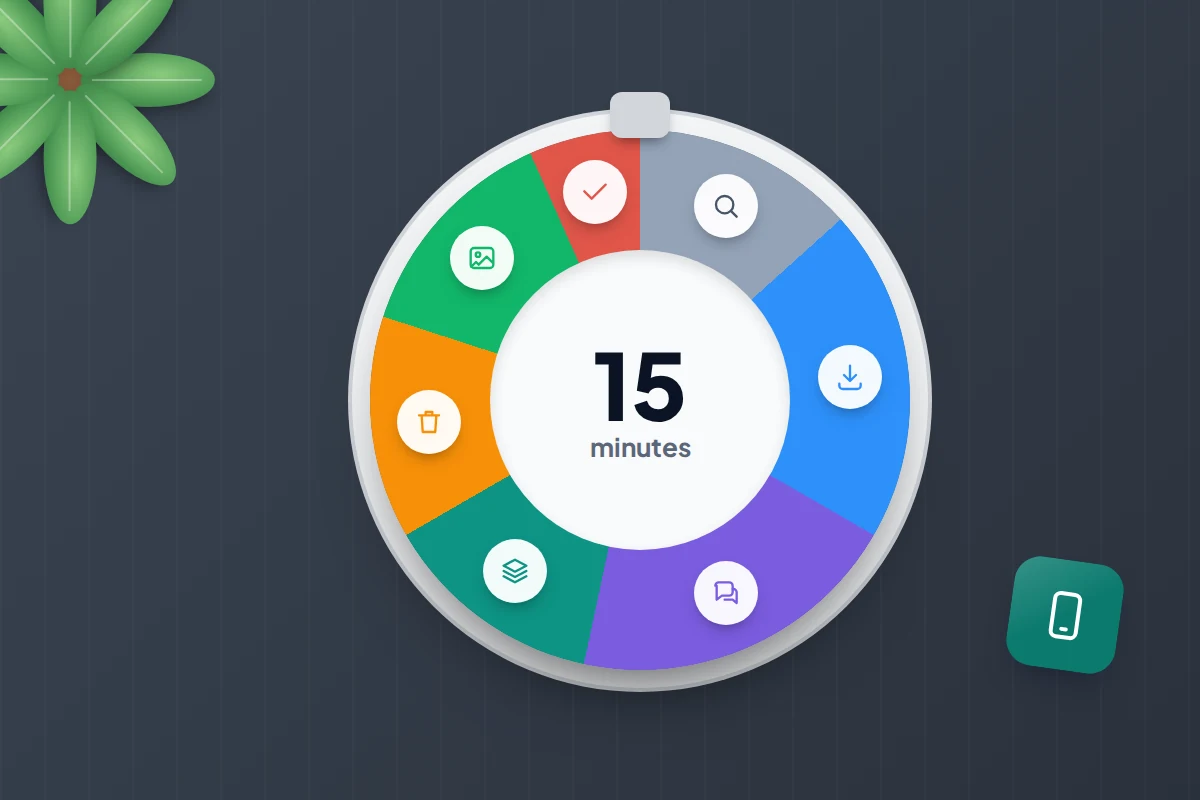
The 15-minute clear-out, in order
This routine starts with the safest, biggest wins and leaves photos until last. Stop whenever you have enough space.
- Minutes 0–2: look. Open the storage screen, let it finish calculating and note the three biggest items.
- Minutes 2–5: offline downloads. Remove watched films, finished episodes and old playlists. Turn off podcast auto-downloads.
- Minutes 5–8: chat media. Use WhatsApp’s Manage storage or your app’s equivalent to delete the largest videos and files.
- Minutes 8–10: apps. Offload or archive apps you have not opened in months.
- Minutes 10–12: files and caches. Sort Downloads by size and clear what you do not need. On Android, clear junk files.
- Minutes 12–14: photos, only if backed up. Merge duplicates and delete long videos you do not want.
- Minutes 14–15: finish. Empty Recently Deleted or the Bin if you are sure, restart and check the storage screen again.
How much free space to keep, and why
There is no official figure that suits every phone. A sensible habit is to keep at least a few gigabytes free, and nearer a tenth of the phone’s capacity if you can. A nearly full phone struggles in three ways:
- Updates need room. A major update downloads and unpacks several gigabytes. Without the space the phone may refuse it, leaving you on older software with unpatched security flaws.
- The camera needs room. Video fills space fast, and a nearly full phone can stop recording partway through.
- The phone starts deleting for you. Apple says a low iPhone removes things it can download again, such as unused apps and temporary files, which can mean an app vanishing just before you go offline.
What if the space doesn’t come back
- The number has not changed. Figures take a while to recalculate. Restart and check again after a few minutes.
- Deleted photos still count. Empty Recently Deleted or the Google Photos bin. Other apps keep separate bins: Files by Google has its own Trash, and Samsung lists its Gallery and My Files bins under Recycle bin on the Storage screen.
- The same videos keep returning. Your messaging app is probably saving incoming media to your photo library. Turn that off in its chat settings.
- System Data stays huge. Clear Safari data, set Messages to keep 1 year, install any pending update and restart. If it stays very large for days, ask Apple Support.
- Still full. Copy photos and videos to a computer or drive, check the copies open, then delete them from the phone. A memory card helps if your Android phone has a slot.
Frequently asked questions
Do phone cleaner apps help?
The built-in tools, plus Files by Google on Android, cover what most people need. Third-party “cleaner” and “booster” apps often show adverts, ask for broad permissions and clear caches that simply rebuild.
Will offloading an app delete my saved game or settings?
No. Offloading on iPhone and archiving on Android keep the app’s data, so it picks up where you left off. Deleting the app usually removes its data, unless the app stores it in your account online.
Is it safe to clear an app’s cache?
Yes. The app rebuilds the cache as you use it, so the saving is temporary. Clearing an app’s storage or data is the risky option, because it resets the app completely.
Why does my phone say storage is full when the numbers do not add up?
Calculations lag behind, deleted items may be sitting in a bin, and system files grow and shrink on their own. Restart, empty the bins and check again later.
Sources and further reading
- Apple Support: How to check the storage on your iPhone and iPad
- Apple Support: Delete photos on your iPhone or iPad
- Apple Support: Set up and use iCloud Photos
- Android Help: Free up storage on your Android device
- Files by Google Help: Clear your junk files
- Google Photos Help: Free up space on your device
- Google Play Help: Archive unused apps on Android
- WhatsApp Help Centre: How to free up storage on WhatsApp
Looking for a tool to go with this? TheTruthSpy is a free parental control app for Android that stays visible on the child's phone. If it fits your family, see what the app does.
Related guides
What to Do If Your Phone Gets Wet
Dropped your phone in water? What to do in the first five minutes, hour and day, what IP68 really means,…
Phone Not Charging? How to Find the Cause and Fix It
A ten-minute elimination test for a phone that won't charge: cable, adapter, port, software and battery, plus what liquid, heat…
Why Is My Phone Overheating? Causes and Fixes
Warm, hot or dangerous? Why phones heat up when charging, gaming or in the sun, how to cool one safely,…
Parental controls your child can see
Location, screen time limits, a web filter and alerts from notifications — free, and visible on your child's phone. Pair a phone in about ten minutes.
Android · Free to set up · Visible on your child's phone