Detecting Stalkerware on Android: Permissions, Admin Apps and Scans

You mention a conversation you only had over text, and the other person already knows about it. Or they turn up where you said you would not be. If you are trying to detect stalkerware on Android, this is usually how it starts: not with a slow phone, but with someone knowing too much. This guide takes you through the whole method, from weighing the signs to scanning, with the risky steps left until last.
First: can you check this phone safely?
Stalkerware reports what happens on the phone, and that can include you searching for it. If you suspect a partner, ex-partner or family member, read this guide on a device they have never had access to. Changing settings, installing a security app or removing the stalkerware can all be noticed. If that person could become dangerous when they realise, contact a domestic-abuse support service before acting — they can help you plan the timing, and some can check phones for you.
Nothing in the first part of this method changes the phone. You open screens, you read them, and you write down what you see — on paper, or by photographing the screen with another device. Screenshots on the phone itself can be captured by some monitoring apps. The noticeable steps, like installing a scanner or switching something off, come after that record exists.
A note on what “stalkerware” means here: commercial monitoring apps that someone installs on another adult’s phone, usually by having it unlocked in their hands for a few minutes. On Android, almost all of them are installed from outside Google Play, because Play does not allow them.
Weighing the signs before you look
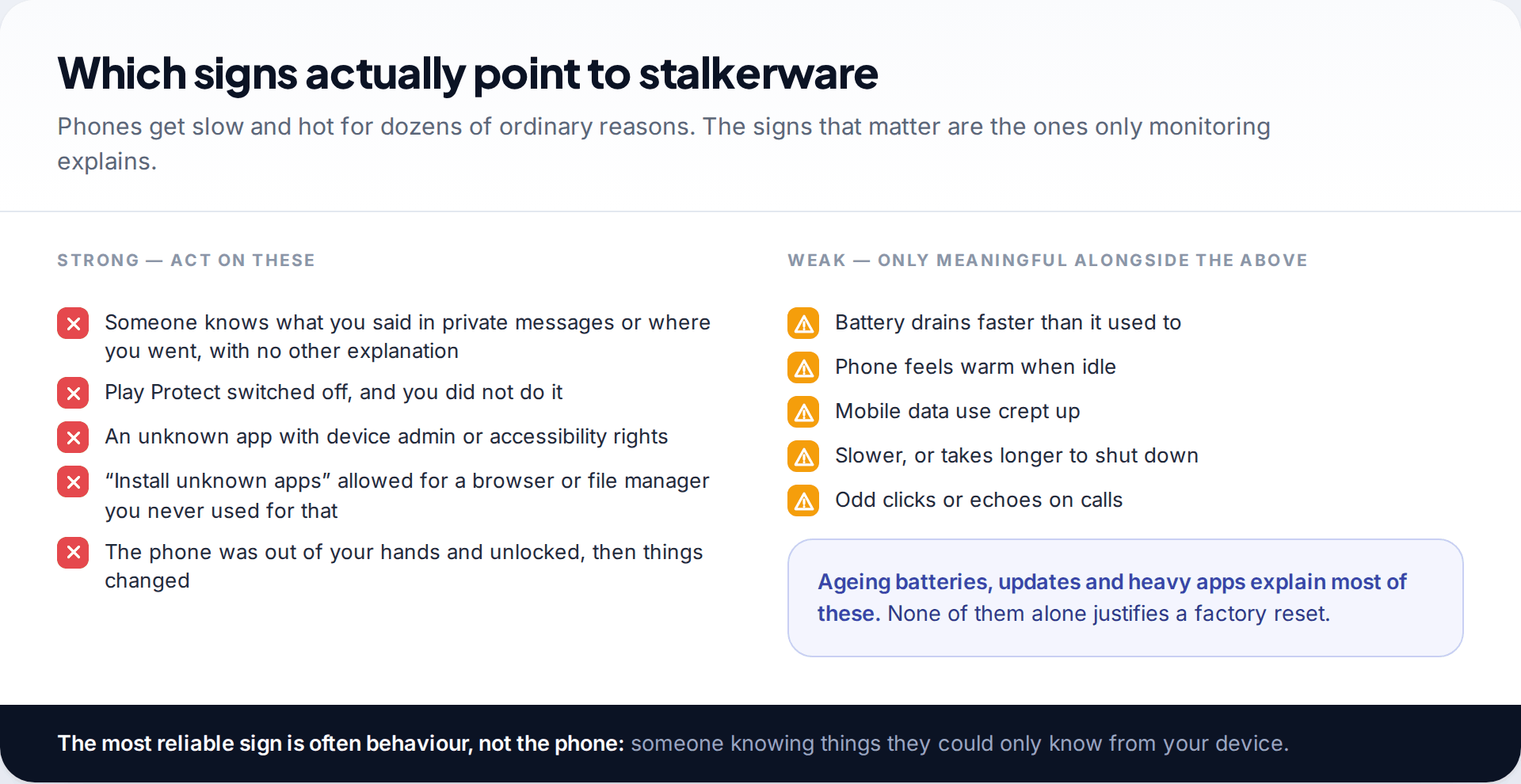
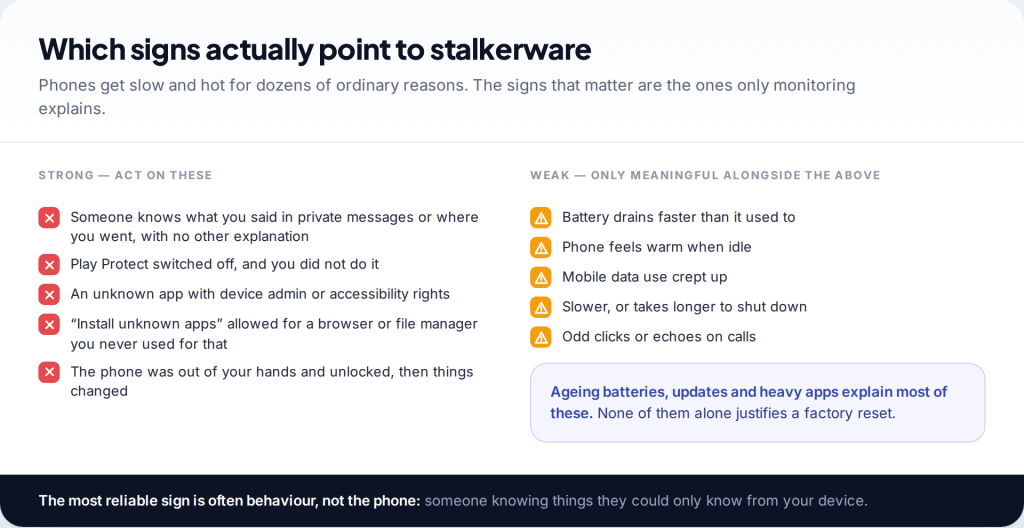
Most lists of spyware warning signs lead with battery drain, heat and data use. They can be symptoms, but an ageing battery, a background update or a busy app causes the same things far more often. On their own, they don’t justify alarm or a factory reset.
The signs worth acting on are specific: another person knowing the content of private messages, Play Protect switched off when you didn’t do it, an app you can’t identify holding device admin or accessibility rights, or permission to install unknown apps granted to a browser or file manager. The strongest pattern of all is timing — something changed after the phone was out of your sight and unlocked.
Keep a simple log as you go: the date, what the other person knew or did, and how they could have known it. Support organisations such as the Coalition Against Stalkerware recommend this because patterns are easier to see written down, and a dated record is useful if you later report what happened. It also helps you separate device clues from account clues — if the person knows about emails but not texts, for example, the email account is the more likely route than an app on the phone.
Step 1: check Google Play Protect, and know what it misses
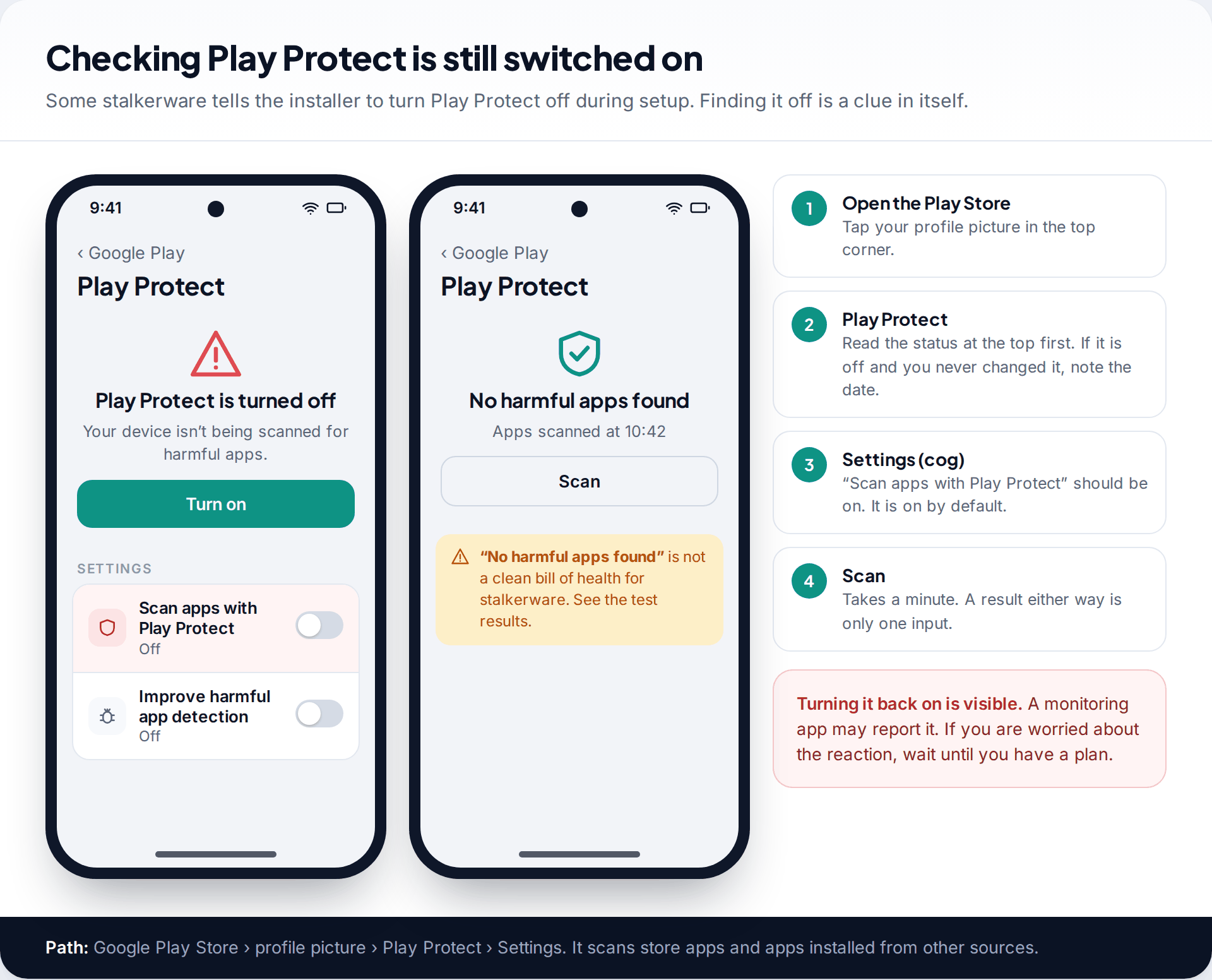
Open the Google Play Store, tap your profile picture and choose Play Protect. The status at the top tells you whether scanning is on, and the cog opens Scan apps with Play Protect. Google turns this on by default, and it checks apps from outside the store as well as from it.
If it is off and you never switched it off, that matters. Some stalkerware includes instructions telling the installer to disable Play Protect during setup — which is exactly why its absence is a clue. If it is on, run a scan, but read the result carefully.
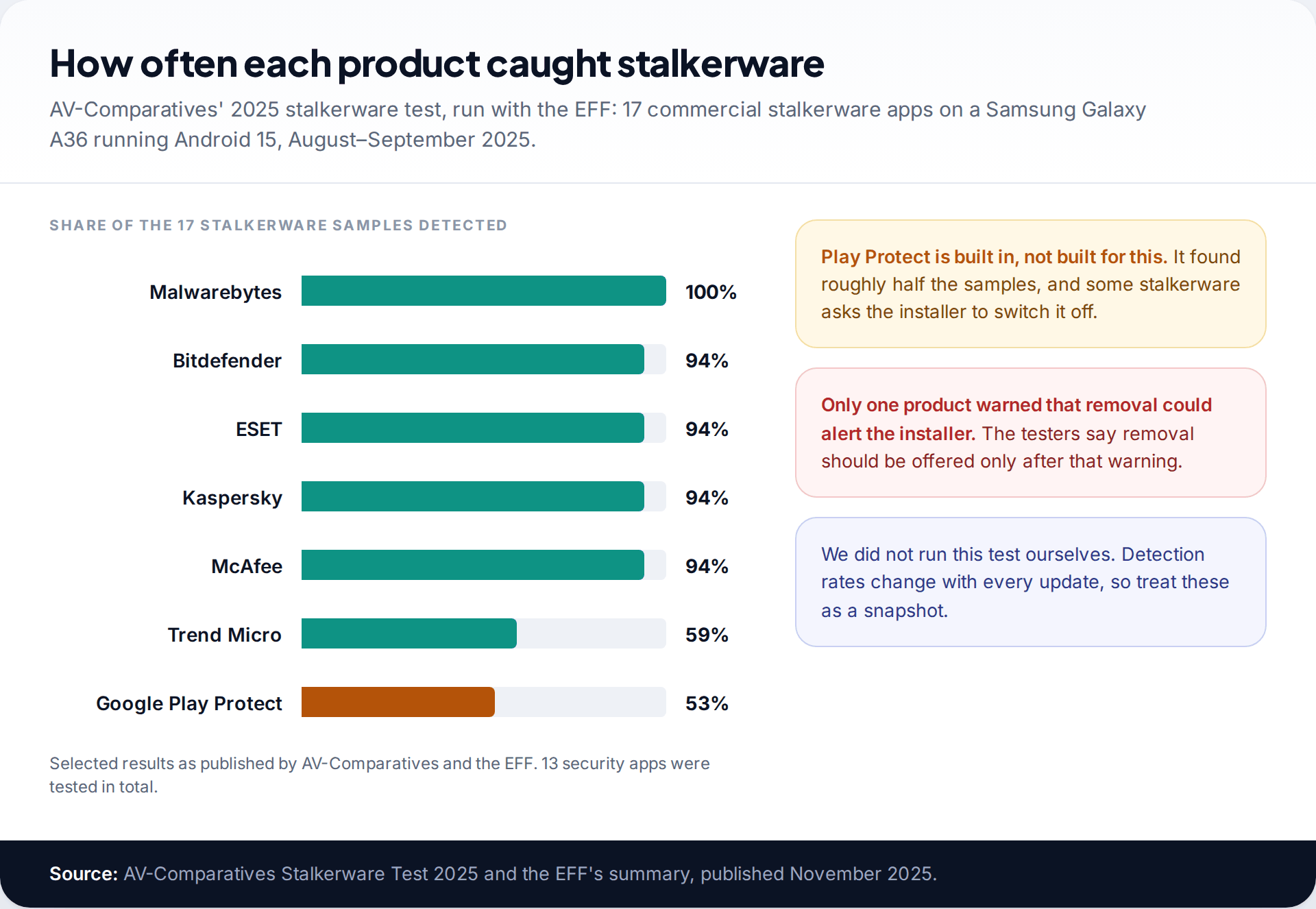
In AV-Comparatives’ 2025 stalkerware test, run with the Electronic Frontier Foundation on a Samsung Galaxy A36 running Android 15, Play Protect detected 53% of 17 commercial stalkerware apps. Several dedicated security apps detected 94% or more, and one detected all 17. “No harmful apps found” from Play Protect is therefore a weak all-clear.
| What Play Protect does | What it can’t do for you here |
|---|---|
| Scans installed apps, including sideloaded ones | Catch stalkerware reliably — about half in the 2025 test |
| Can disable or remove harmful apps automatically | Warn you that removal may alert the installer |
| Runs by default with no setup | Stay on if someone with your unlocked phone turns it off |
| Checks apps on this phone | See anyone signed in to your Google Account elsewhere |
Step 2: read the permission lists
Next, look at the places stalkerware has to register to function. On Android these are Settings › Accessibility (the downloaded or installed apps section) and Settings › Apps › Special app access, where device admin apps, notification access and usage access live. Samsung puts the second set under Settings › Apps, the three-dot menu, then Special access.
What you are looking for is overlap: one app you can’t identify appearing in several of those lists, especially with device admin rights — which is why it may refuse to uninstall — and an accessibility service, which lets it read the screen. Our guide to where hidden spy apps sit in your settings walks through each list screen by screen, with what legitimately belongs there.
Step 3: see what has been using your location, camera and microphone
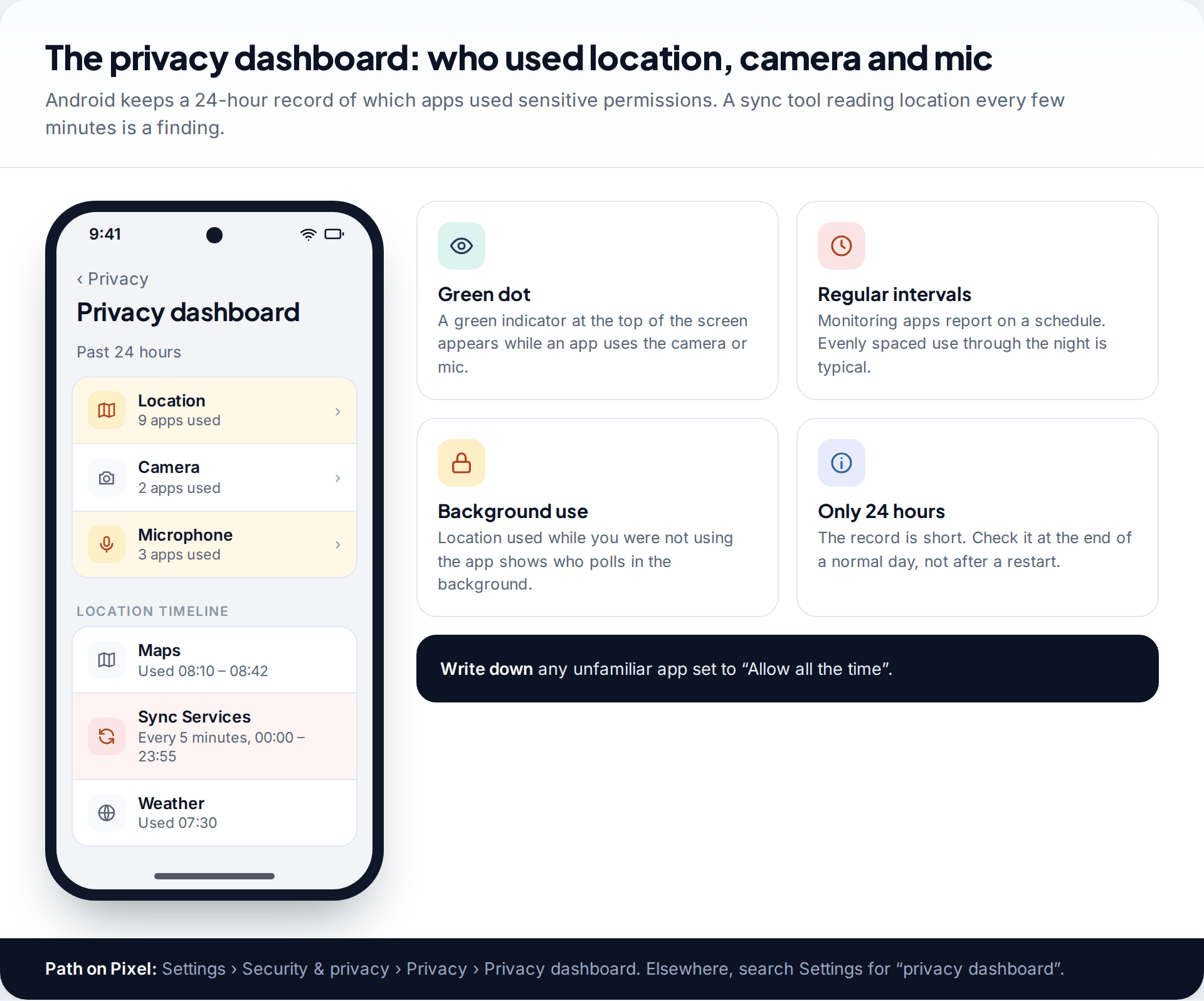
Android 12 and later keep a 24-hour record of which apps used location, the camera and the microphone. On Pixel it is at Settings › Security & privacy › Privacy › Privacy dashboard; on other phones search Settings for “privacy dashboard”. Tap a permission to see a timeline by app.
Monitoring apps report on a schedule, so their use tends to be evenly spaced and to continue overnight. That pattern, from an app with a vague name, is a real finding. Android also shows a green indicator at the top of the screen while the camera or microphone is in use. Because the record covers only 24 hours, check it at the end of a normal day.
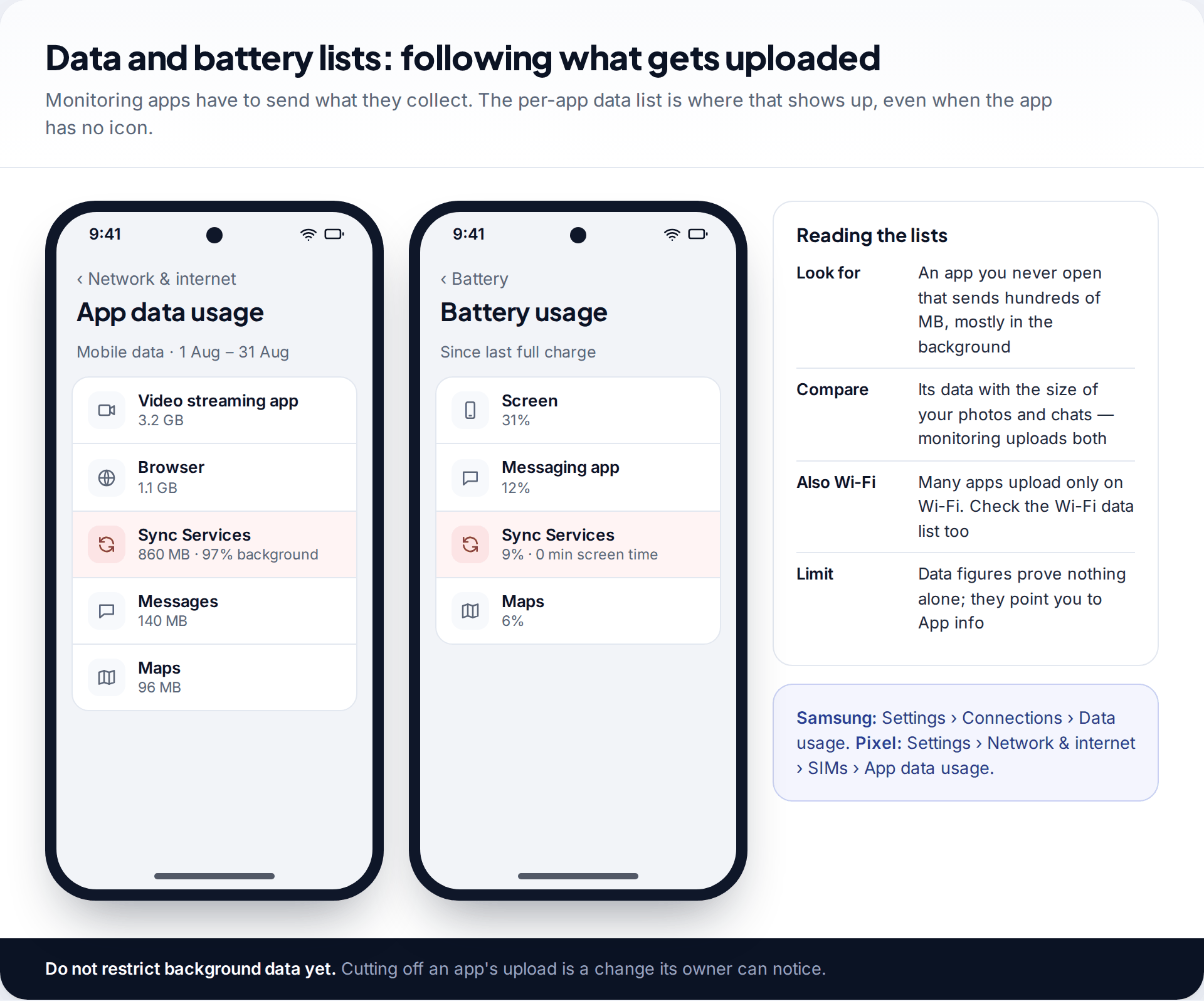
Then open the per-app data list — Settings › Network & internet › SIMs › App data usage on Pixel, Settings › Connections › Data usage on Samsung — and the battery list under Settings › Battery. An app you never open that sends hundreds of megabytes, mostly in the background, deserves a look at its App info page. Some apps only upload over Wi-Fi, so check that list too.
Step 4: compare in safe mode
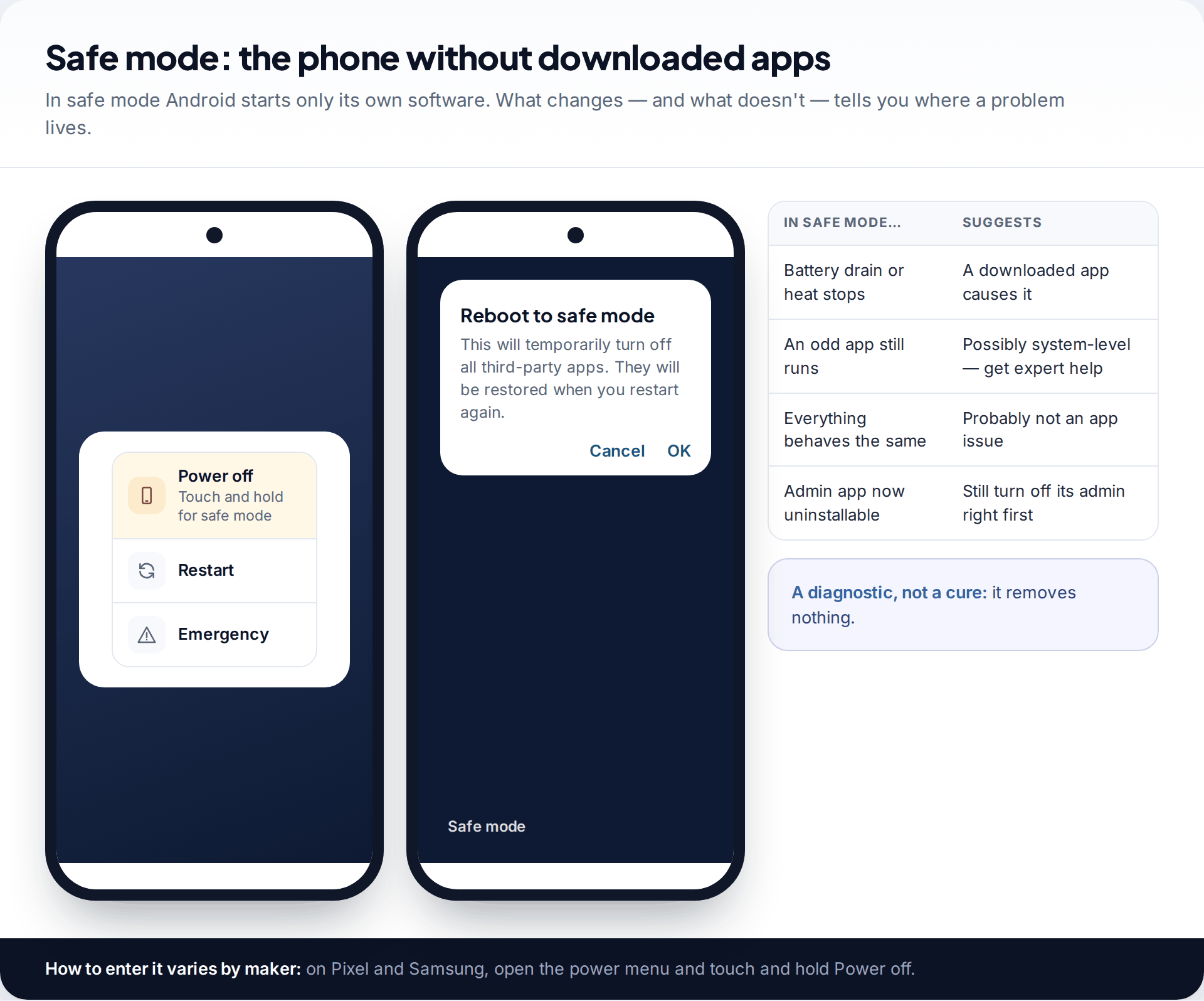
Safe mode starts the phone with only its built-in software, switching off everything you or anyone else downloaded until the next normal restart. On Pixel and Samsung, open the power menu and touch and hold Power off until “Reboot to safe mode” appears. Other makers use different buttons, so check their support pages if that doesn’t work.
Use it as a comparison. If battery drain or heat disappears in safe mode, a downloaded app is responsible — which fits stalkerware, but also fits a badly behaved game. If an app you can’t identify is still running and using data in safe mode, it may be part of the system image, which is rare and is a job for a specialist. Safe mode doesn’t remove anything, and a restart brings every app back.
Step 5: run a dedicated scanner, knowing it is visible
A dedicated mobile security app is the most thorough check most people can run themselves, and the 2025 results show a wide gap between the best of them and Play Protect. The chart above shows how the main options performed in that test; pick one from a well-known security company, installed from Google Play.
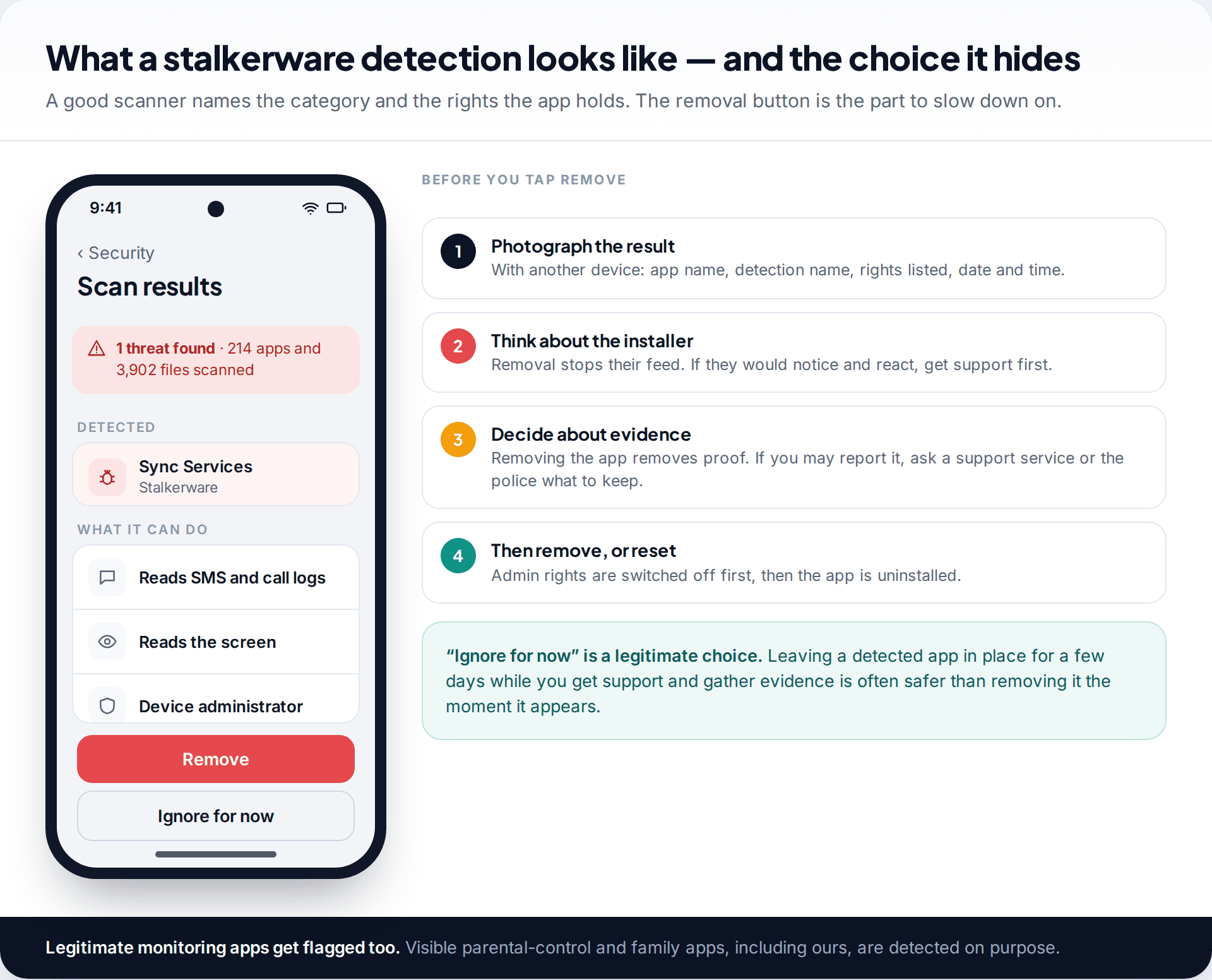
Two cautions. Installing a security app is itself visible to anyone watching the phone, so this step belongs after you’ve thought about safety. And most scanners offer immediate removal. AV-Comparatives noted that only one product in its test warned users that removing stalkerware might alert the person who installed it. Before you tap Remove, photograph the result with another device — app name, detection name and the rights it lists — and decide with support whether removal, a reset or a new phone is the right next step.
Scanners also flag legitimate, visible monitoring tools, including family and parental-control apps such as ours. That is intended: the scanner can’t know whether you agreed to it.
Step 6: check the account, not just the phone
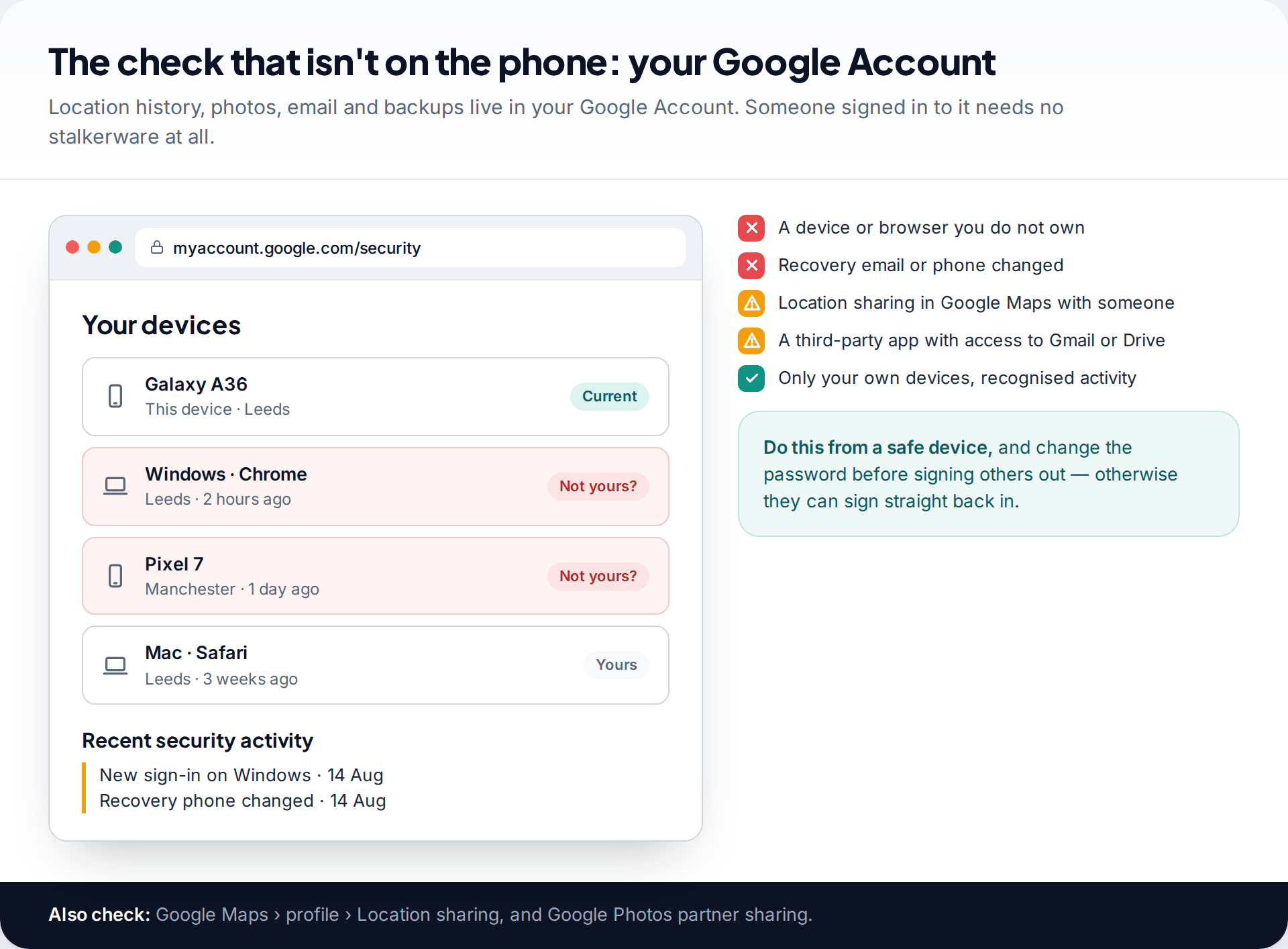
A clean phone doesn’t mean nobody is watching. Your Google Account holds your location history, photos, email and backups, and anyone who knows its password can read them from their own device. Go to your Google Account’s Security page, open Your devices, and look at Recent security activity. Unknown devices, a changed recovery phone or email, and sign-ins you don’t recognise are all signs of account-level access.
Also check location sharing in Google Maps and any partner sharing in Google Photos. If you change the password, do it from a safe device, and change it before signing out the unknown sessions so they can’t simply sign back in.
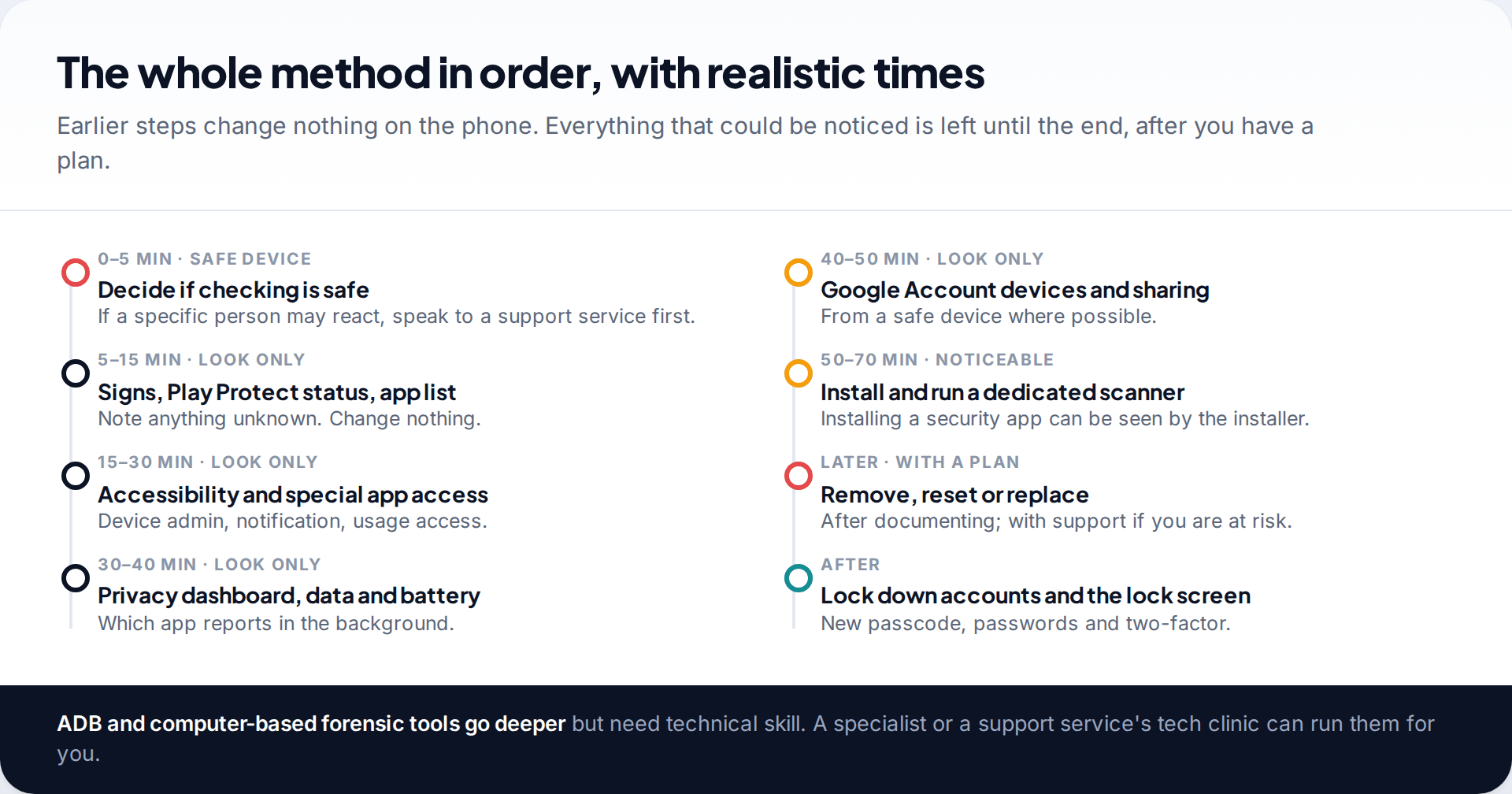
The full method in order
The scanner found nothing, but you are still sure
No scanner catches everything, and account access or location sharing never shows up in a scan.
Fix: check your Google Account devices and sharing, change passwords from a safe device, and consider who else had access to your phone or accounts.
An app will not uninstall
It holds device admin rights, which block normal removal.
Fix: switch off its admin right under Device admin apps first. If that is blocked too, a factory reset is the dependable route.
The problem came back after a reset
A backup restored the app, or someone still has your passcode or account password.
Fix: reset again without restoring app data, set a new passcode, change your Google password and turn on two-factor.
Checks that need a computer — connecting the phone over USB and using forensic tools — can see more than on-phone checks, but they take technical skill. If you need that level of certainty, a specialist, or the tech-safety service some domestic-abuse organisations run, is a better route than learning it under pressure. For what to do once you’ve found something, read what to do first if you think you have spyware.
How this page was put together
The detection rates come from AV-Comparatives’ Stalkerware Test 2025 and the EFF’s write-up of it, published in November 2025. Menu paths were checked against Google’s Play Protect, safe mode and Pixel help pages and Samsung’s support pages in September 2026. Android settings differ between makers and versions, so search Settings for a label if it isn’t where we say.
We did not run our own lab tests, and the app names in the illustrations are invented. See how our guides are researched and corrected.
Common questions
Can Google Play Protect detect stalkerware?
Sometimes. In the 2025 AV-Comparatives and EFF test it detected 53% of the stalkerware samples, well behind dedicated security apps. Some stalkerware also instructs the installer to switch Play Protect off.
Does dialling *#21# or another code show if my phone is tapped?
No. Codes like *#21# show call-forwarding status on many networks. They can reveal forwarded calls, but they don’t detect stalkerware apps.
Can stalkerware be installed on Android without touching the phone?
Commercial stalkerware almost always needs the unlocked phone in hand. Remote access more often comes from knowing your Google password, which gives access to the account rather than the phone.
Will a factory reset remove stalkerware on Android?
Yes, for apps installed on the phone, as long as you don’t restore a backup that reinstalls them. Back up photos and contacts, not apps, and set a new passcode afterwards.
Is it safe to remove stalkerware once I find it?
It is technically straightforward but can alert the installer and removes evidence. If someone you know installed it, talk to a domestic-abuse support service before removing it.
Does a rooted phone change things?
Yes. Root access lets monitoring software hide more deeply and survive some checks. If your phone was rooted without your knowledge, a reset or replacement is the safer route.
Using a monitoring app for this? TheTruthSpy is a free parental control app for Android that stays visible on the child's phone. If it fits your family, see the App blocker feature.
Related guides
Is My Phone Listening to Me? What’s Real
What research and regulators have found about phones listening for ads, why ads still feel uncanny, and how to check…
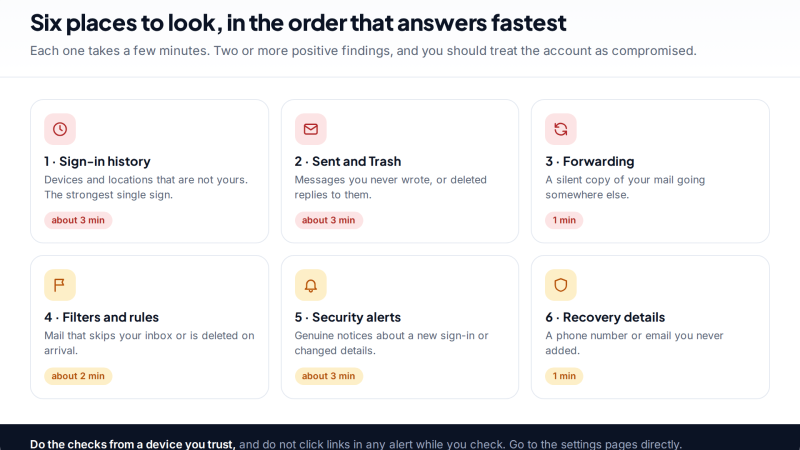
Was Your Email Hacked? The Evidence Inside Your Own Inbox
How to tell if your email was hacked using evidence you can check yourself: sign-in history, the Sent folder, hidden…
Hacked Email Account Recovery for Gmail, Outlook and Yahoo
How to recover a hacked email account on Gmail, Outlook or Yahoo: the official recovery page for each, how to…
Free parental control app for Android
GPS tracking, screen time limits, web filtering, SMS and call monitoring — visible on your child's phone. Pair a phone in about ten minutes.
Android · Free to set up · Visible on your child's phone