Finding Hidden Spy Apps: Where They Sit in Your Phone’s Settings

To find hidden spy apps on your phone, stop looking at the home screen and start looking at the lists a spy app has to join to work. On Android that means Accessibility, Special app access (device admin, notification access, usage access) and the full app list with system apps shown. On iPhone it means VPN & Device Management and the devices signed in to your Apple Account.
- Icons hide; permissions don’t. An app can remove itself from the app drawer, but it cannot use accessibility, notification access or admin rights without appearing in those settings.
- Look first, change later. Switching off or uninstalling a monitoring app can alert whoever installed it. Write down what you find before you touch anything.
- iPhone is a different search. Spying on an iPhone usually happens through the Apple Account or a management profile, not an app on the phone.
- An empty result is not the whole story. Someone signed in to your email or cloud account needs no app at all.
Why the app drawer tells you almost nothing
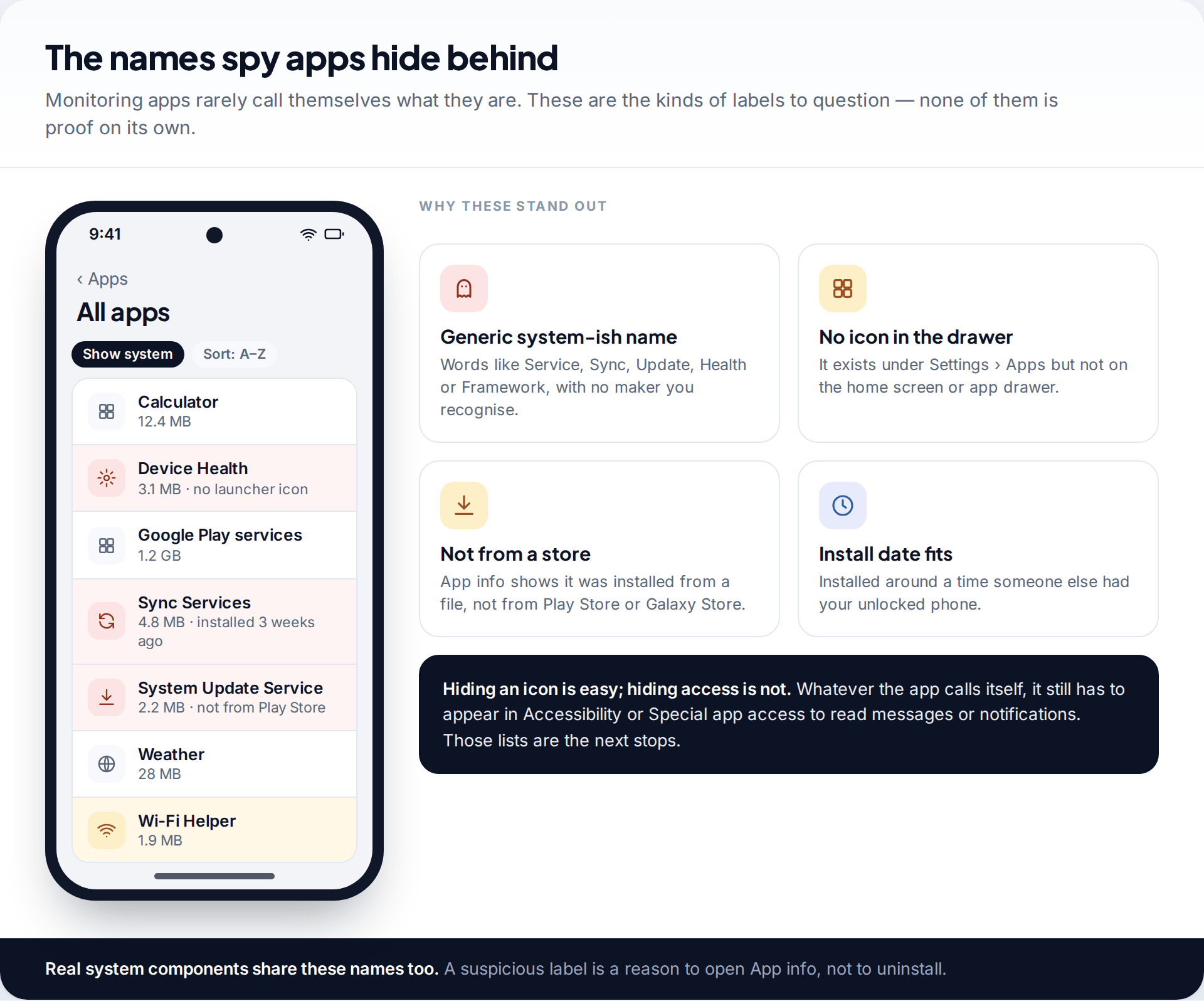
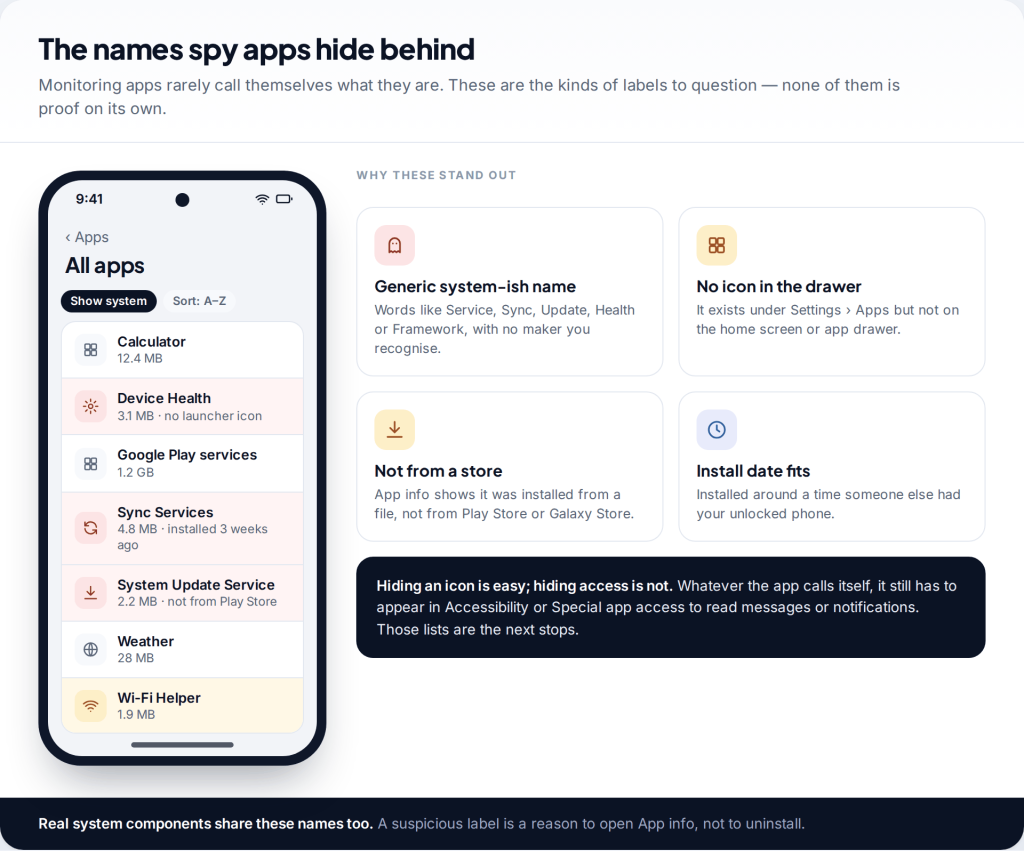
Commercial monitoring apps — often called stalkerware when they are installed on an adult’s phone without agreement — are built to be overlooked. After installation most of them remove their launcher icon, so there is nothing to tap in the app drawer. Many then rename themselves in the settings to something that sounds like part of Android: a sync service, a health check, a system update.
That is why scrolling through your home screens, or even your app drawer, is the weakest check you can do. What an app cannot hide is the access it needs to do its job. To read your messages it needs accessibility or notification access. To survive a clear-out it wants device admin rights. To report which apps you use it needs usage access. Android lists every app holding each of those rights, and that is where this tour goes.
The second reason to work from settings is that real system components really do have names like these. Judging an app by its name alone leads people to delete things their phone needs. Judging it by the combination of rights it holds, where it came from and when it arrived is far more reliable.
Before you open Settings: look, record, don’t change
If you think a partner, ex-partner or family member put something on your phone, your safety comes before the phone. Uninstalling a monitoring app, switching off its access or resetting the phone can tell the installer that you know. If that person may react with anger or escalate, talk to a domestic-abuse support service first — ideally from a phone or computer they have never had access to — and make a plan about when and how to act.
The tour below is designed to be read-only. You open lists, you read them, and you record what you see. Take notes on paper, or photograph the screen with a different device, instead of taking screenshots on the phone itself: some monitoring apps capture screenshots, and a screenshot of the admin list is exactly the kind of thing they would pass on.
For each item that bothers you, record the app name, which list it appeared in, what it was allowed to do, and the install date shown in App info. That record is useful whether you later remove the app, hand the phone to a specialist, or report what happened.
Android stop 1: the full app list, including system apps
Open Settings › Apps › See all apps (on Samsung, Settings › Apps). By default this hides many system components. Use the menu or filter at the top to show system apps — the wording is usually “Show system” — so an app pretending to be one cannot sit outside the list.
Scroll slowly. Look for generic names with no maker you recognise, apps that are not on your home screen or in your app drawer, and apps you did not install that arrived during a window when someone else had your unlocked phone. Then open any candidate and read its App info page.
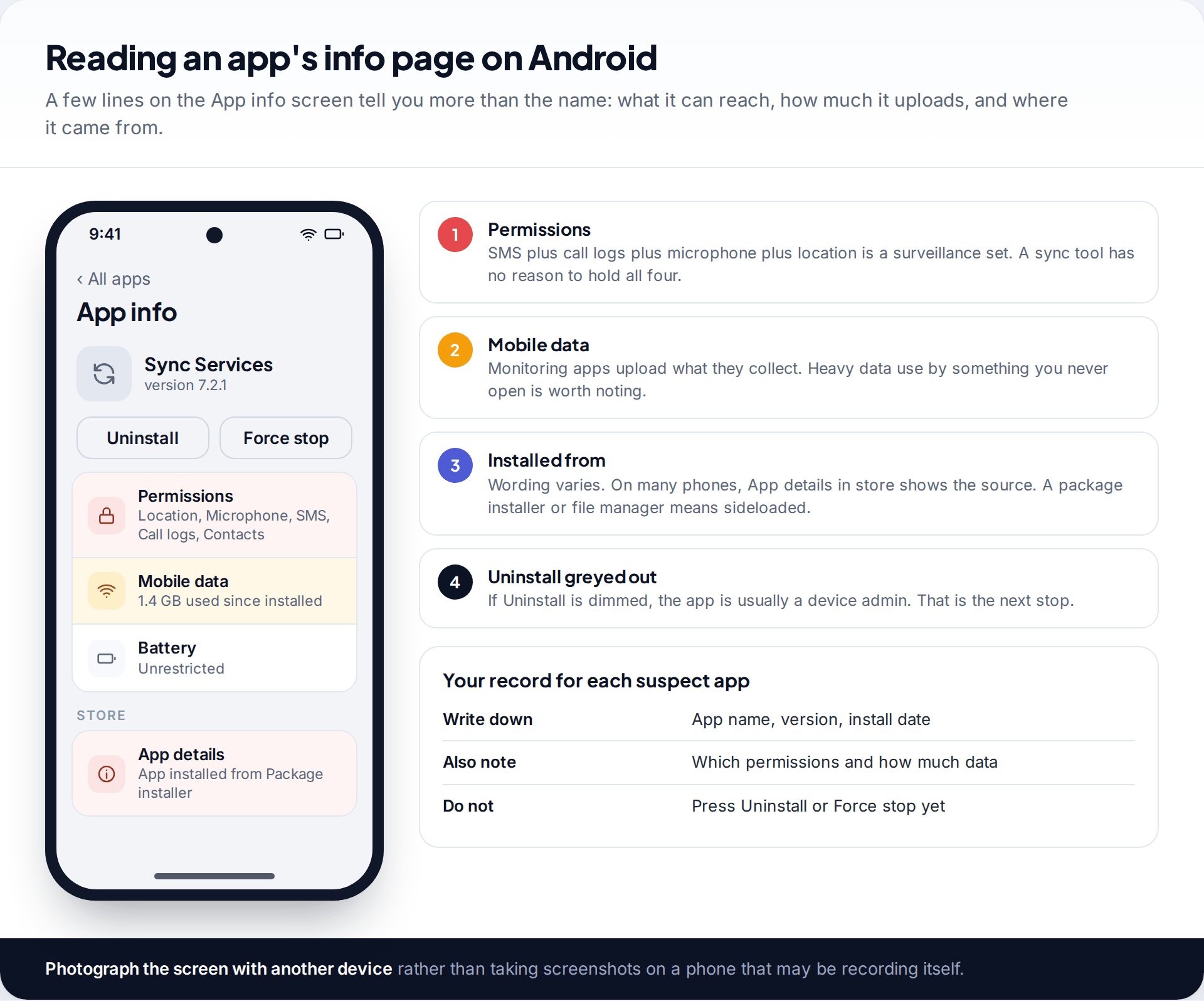
Three details on App info matter most. The Permissions line shows whether an unfamiliar app holds the classic surveillance set — SMS, call logs, microphone, location and contacts together. Mobile data shows how much it has uploaded; monitoring apps send what they collect somewhere. And the store or source detail shows whether it came from Play Store, Galaxy Store or a file. Sideloaded apps are not automatically bad, but nearly all stalkerware is installed that way because Google Play does not allow it.
If the Uninstall button is greyed out, the app holds device admin rights. Don’t try to force it; note it, and check the admin list in stop 3.
Android stop 2: Accessibility, the most powerful setting on the phone
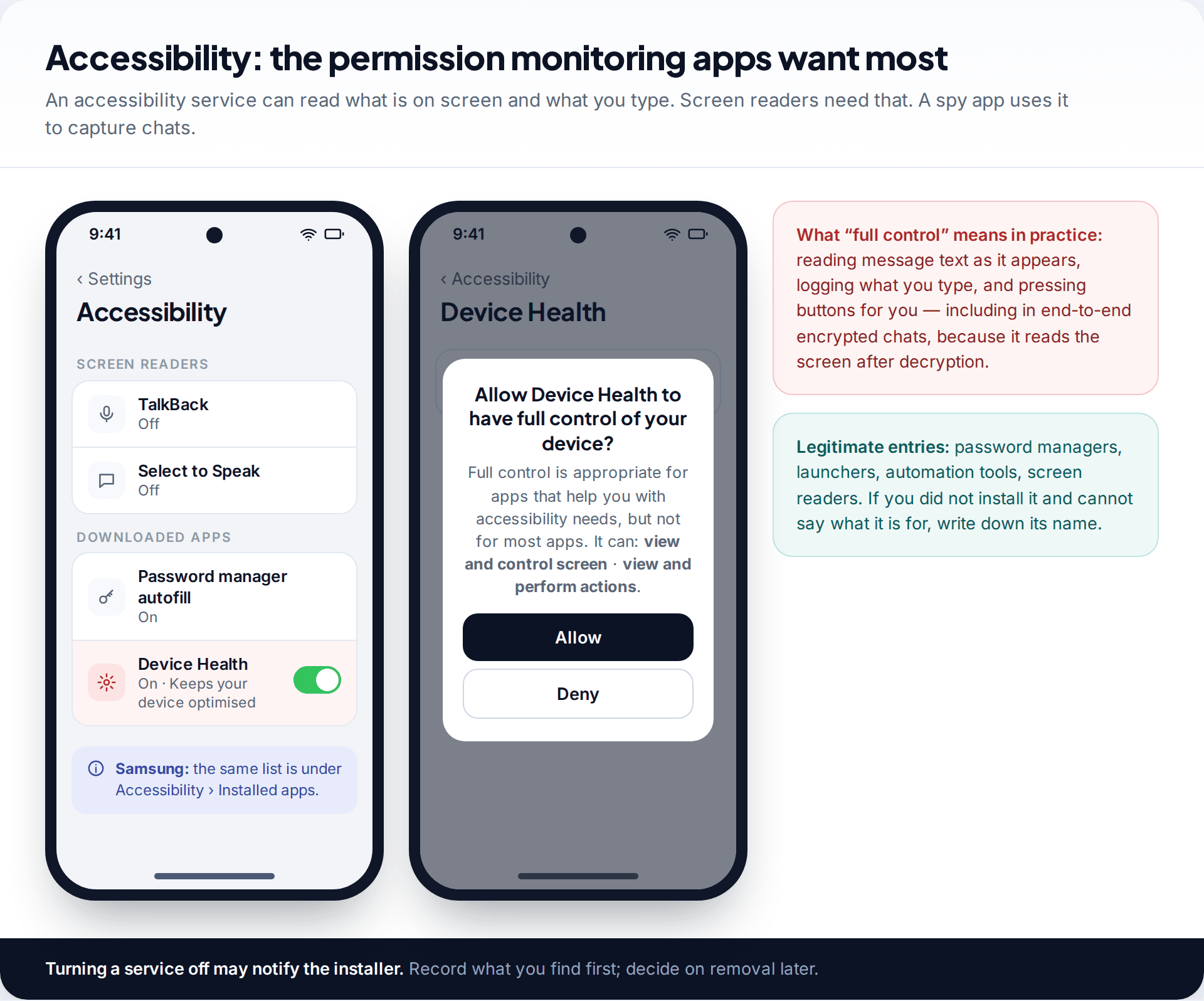
Open Settings › Accessibility. Built-in tools such as TalkBack sit at the top. Services added by apps you installed are grouped separately — on Pixel under “Downloaded apps”, on Samsung under Installed apps. Every entry there was granted “full control” at some point, with a dialog explaining that the app could view and control the screen.
That permission exists for people who need a screen reader or switch access. It also lets an app read message text as it appears — including in end-to-end encrypted chats, because the service sees the screen after decryption — and record what you type. It is the single most useful right for a spy app, so this short list deserves your closest attention. Password managers, launchers and automation apps appear here legitimately. An app you can’t place does not.
Android stop 3: the Special app access lists
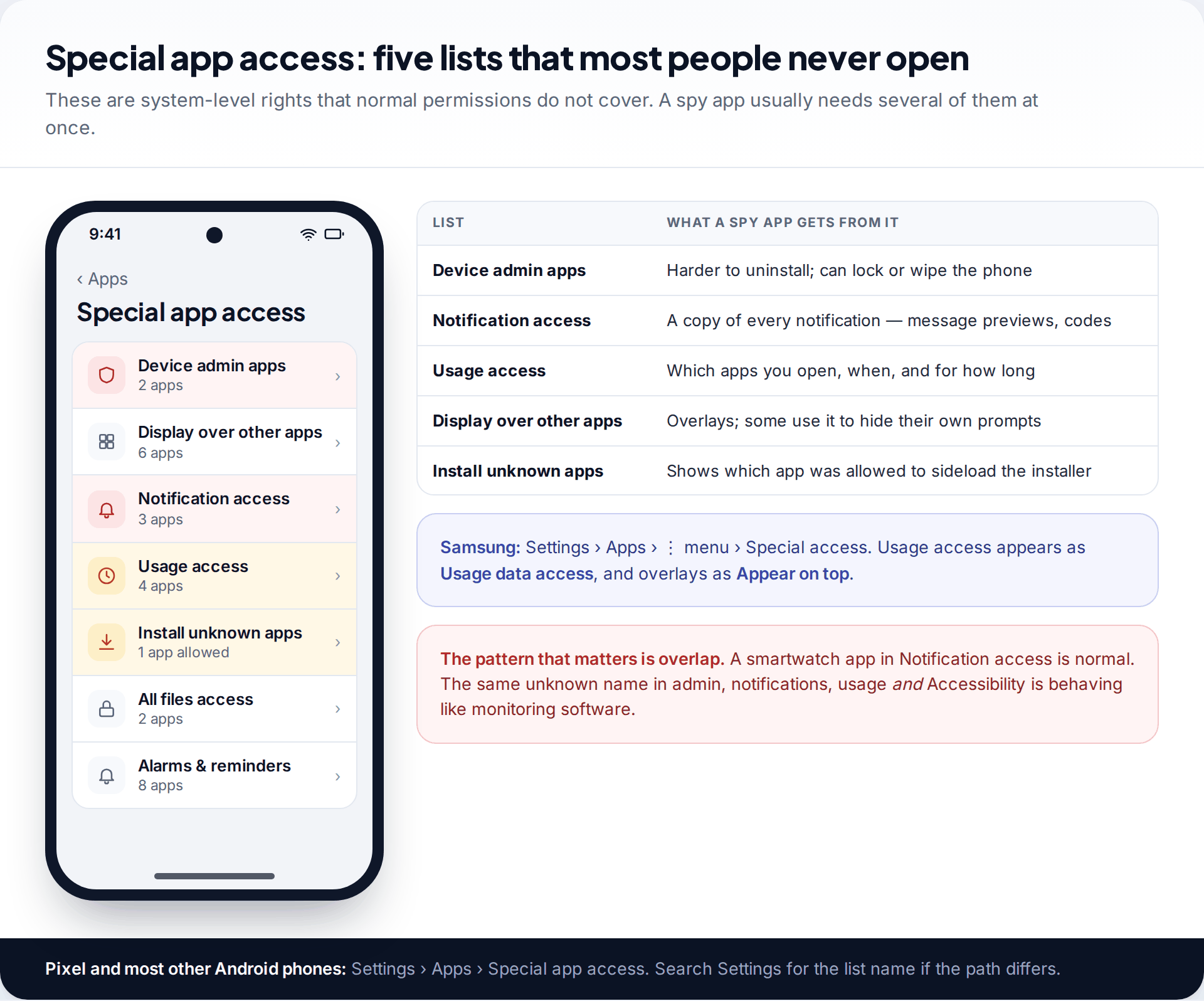
Open Settings › Apps › Special app access. On Samsung it is Settings › Apps, then the three-dot menu, then Special access. Labels differ a little between makers and Android versions, and searching Settings for the list name gets you there on any phone.
| List | What belongs there | Why a spy app wants it |
|---|---|---|
| Device admin apps | Find Hub, work or school management, some security apps | Blocks normal uninstalling; can lock or wipe the phone |
| Notification access | Smartwatch and fitness-band apps, some car apps | Copies every notification, including message previews and login codes |
| Usage access (Samsung: Usage data access) | Digital wellbeing, battery and parental-control apps | Logs which apps you open and for how long |
| Display over other apps (Samsung: Appear on top) | Chat heads, screen-dimmer and caller-ID apps | Draws over the screen, sometimes to hide its own prompts |
| Install unknown apps | Usually nothing, or a file manager you used once | Reveals which browser or file app was used to sideload an installer |
The pattern to watch for is overlap. A smartwatch app with notification access is ordinary. One unfamiliar app that turns up in device admin, notification access, usage access and accessibility at the same time is behaving like monitoring software, whatever it calls itself.
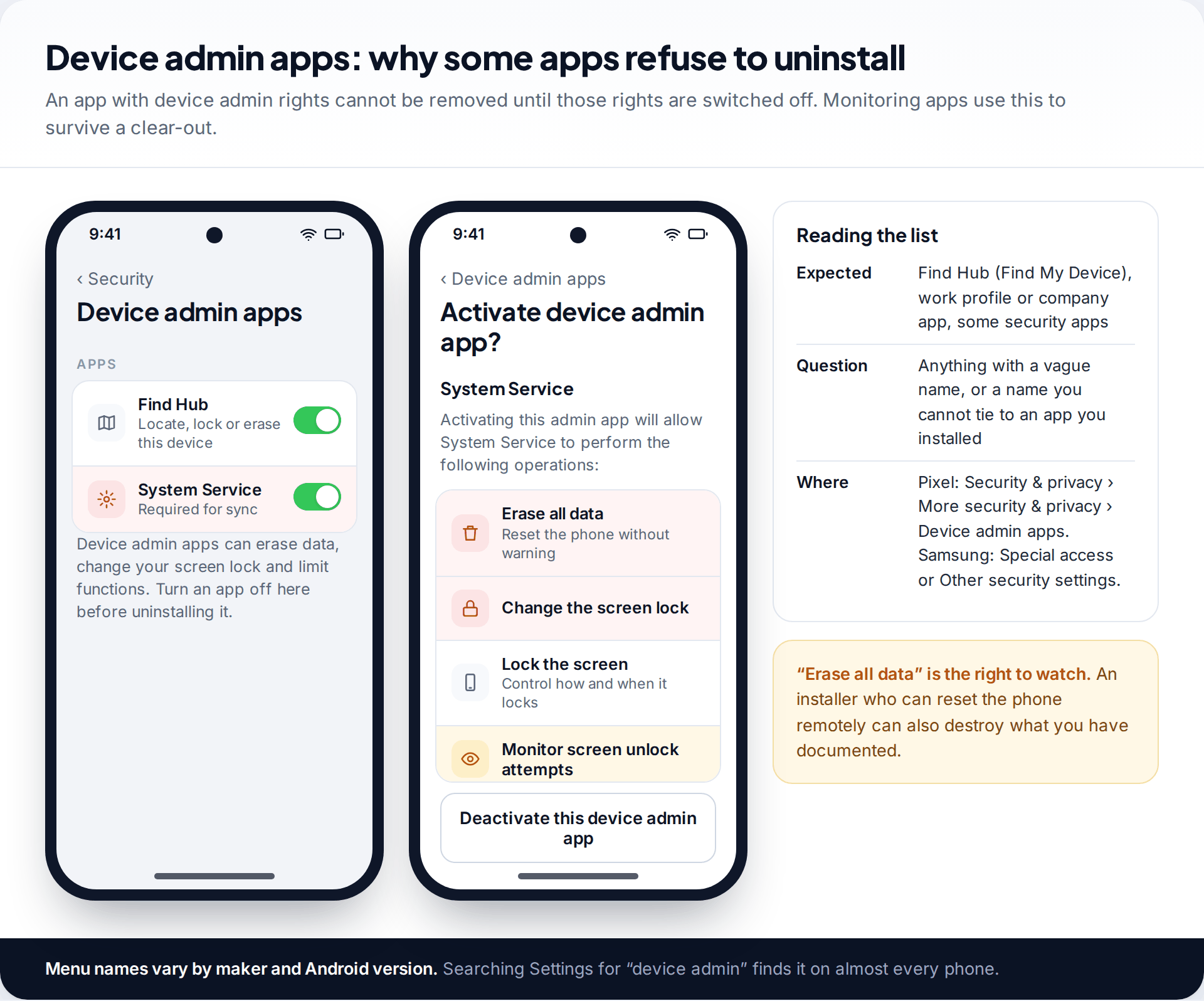
Device admin deserves a separate look because of what it allows. Tap an entry to see its rights: some can change the screen lock and erase all data. On Pixel phones the list is usually under Settings › Security & privacy › More security & privacy › Device admin apps; on Samsung it sits in Special access or in the security settings. Find Hub (formerly Find My Device) and company management apps belong here. A “System Service” you never installed does not.
Android stop 4: the checks that go beyond this phone
Two further checks round out the Android tour. In the Play Store, tap your profile picture, then Play Protect, and run a scan. It only takes a minute, but treat a clean result with caution: in AV-Comparatives’ 2025 stalkerware test, run with the EFF, Play Protect detected 53% of the samples, and some stalkerware tells the installer to switch Play Protect off during setup. If you find Play Protect disabled and you didn’t do it, that is itself a clue.
Then check your Google Account’s device list, under Security › Your devices, for sessions on phones or computers that are not yours. Someone signed in to your Google Account can see your location history, photos and email without any app on your phone. The full Android method, including safe mode and dedicated scanners, is in our guide to detecting stalkerware on Android.
Where to look on an iPhone
An iPhone that has not been jailbroken does not let App Store apps read other apps’ data, so the Android tour mostly doesn’t apply. Monitoring an iPhone usually takes one of three routes: signing in to the owner’s Apple Account elsewhere, installing a management profile, or jailbreaking the phone. The first two are visible in Settings.
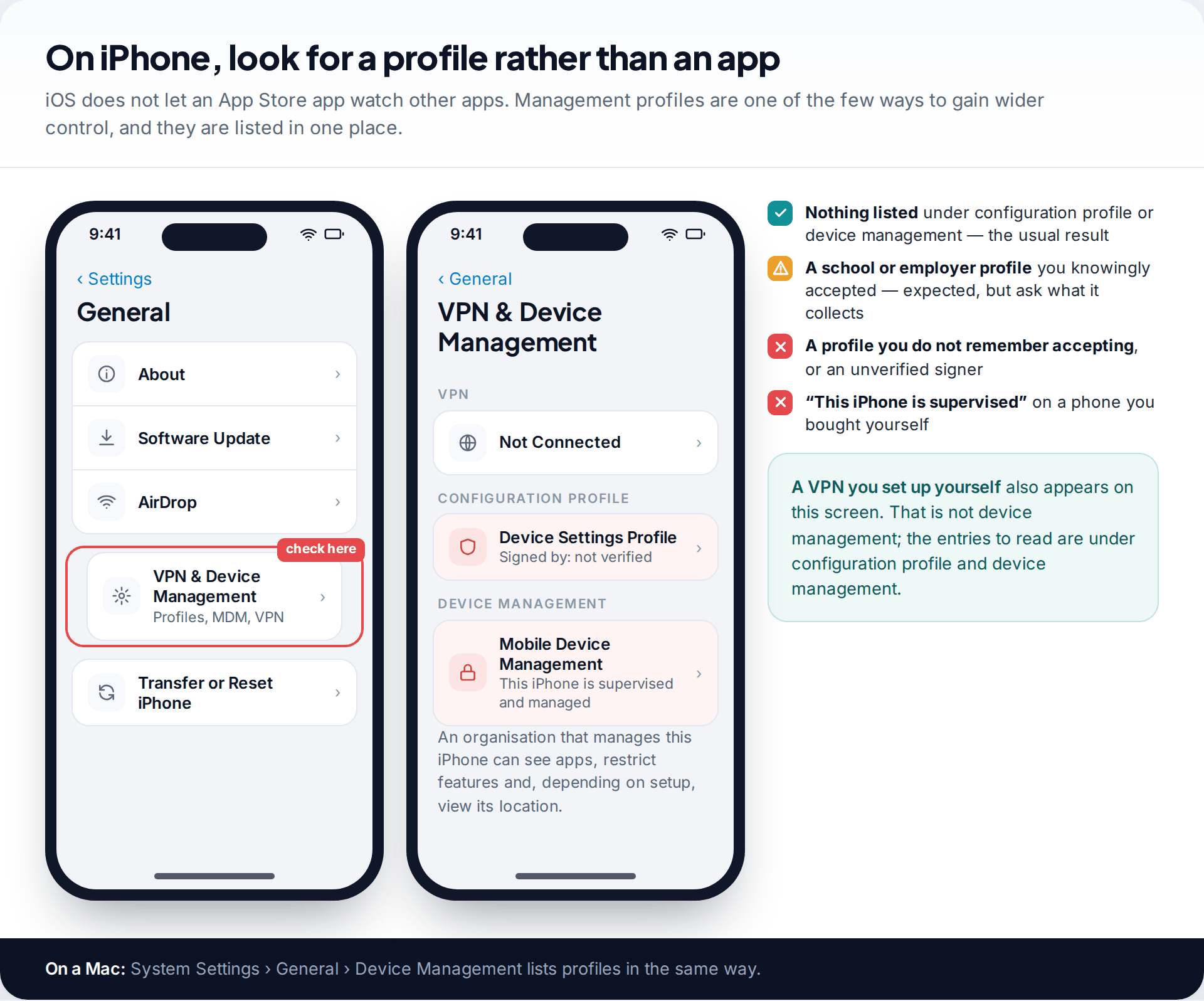
Go to Settings › General › VPN & Device Management and read every entry under configuration profile and device management; a VPN you added yourself also shows here and is not a concern. A profile from your employer or school, which you agreed to, is expected. A profile you don’t remember accepting, or a message that the iPhone is supervised and managed when you bought it yourself, suggests someone set up management on it. Apple notes that such management can give an organisation access to data and location.
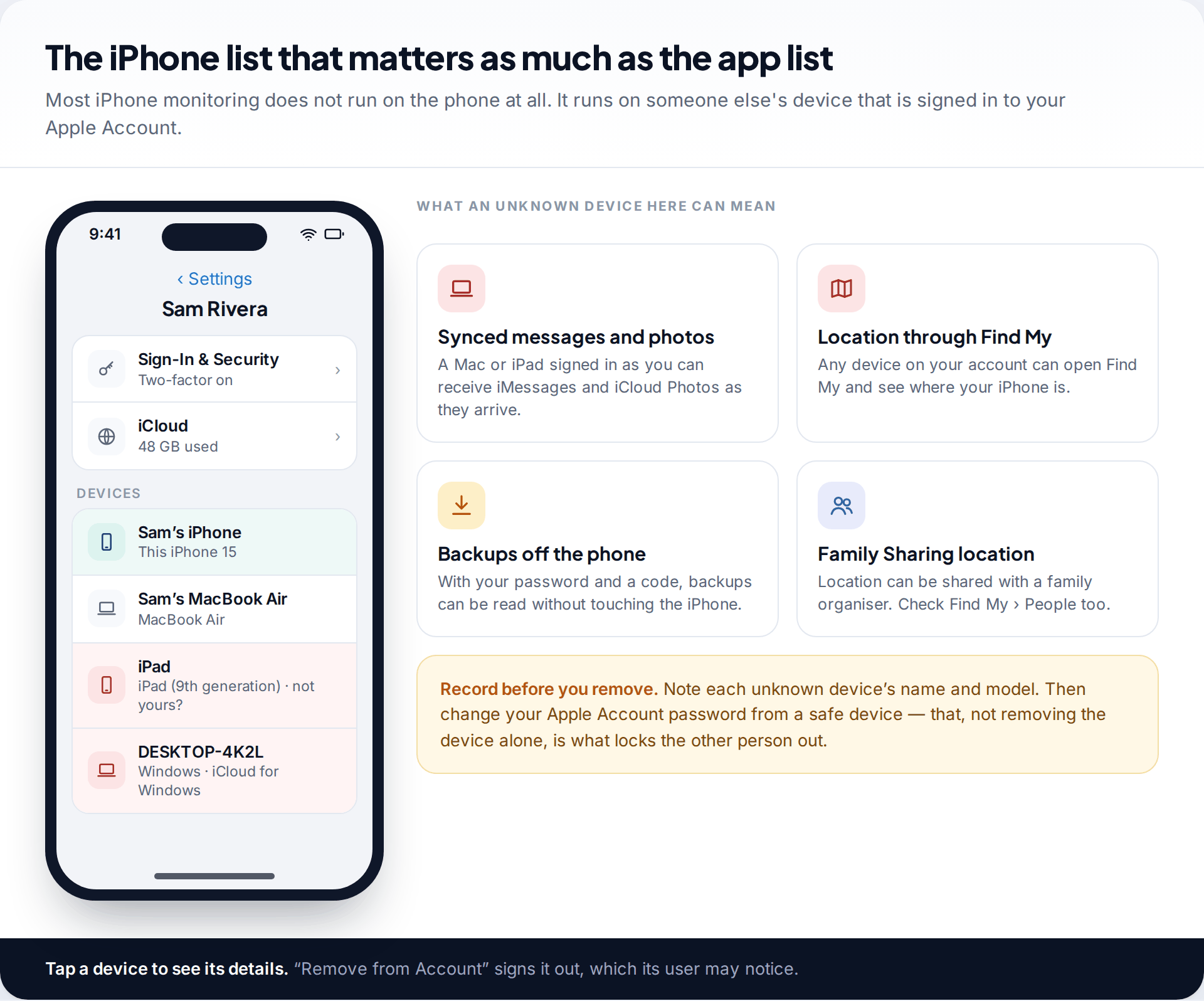
Next, tap your name at the top of Settings and scroll to the list of devices. Every device there is signed in to your Apple Account. A Mac or iPad you don’t own may be receiving your iMessages and iCloud Photos; any device on the account can use Find My to see where your iPhone is. Then open Settings › Privacy & Security › Safety Check, which lists the people and apps you share with. The iPhone-specific checks, including signs of jailbreaking, are covered in our guide to detecting stalkerware on iPhone.
Your settings tour, stop by stop
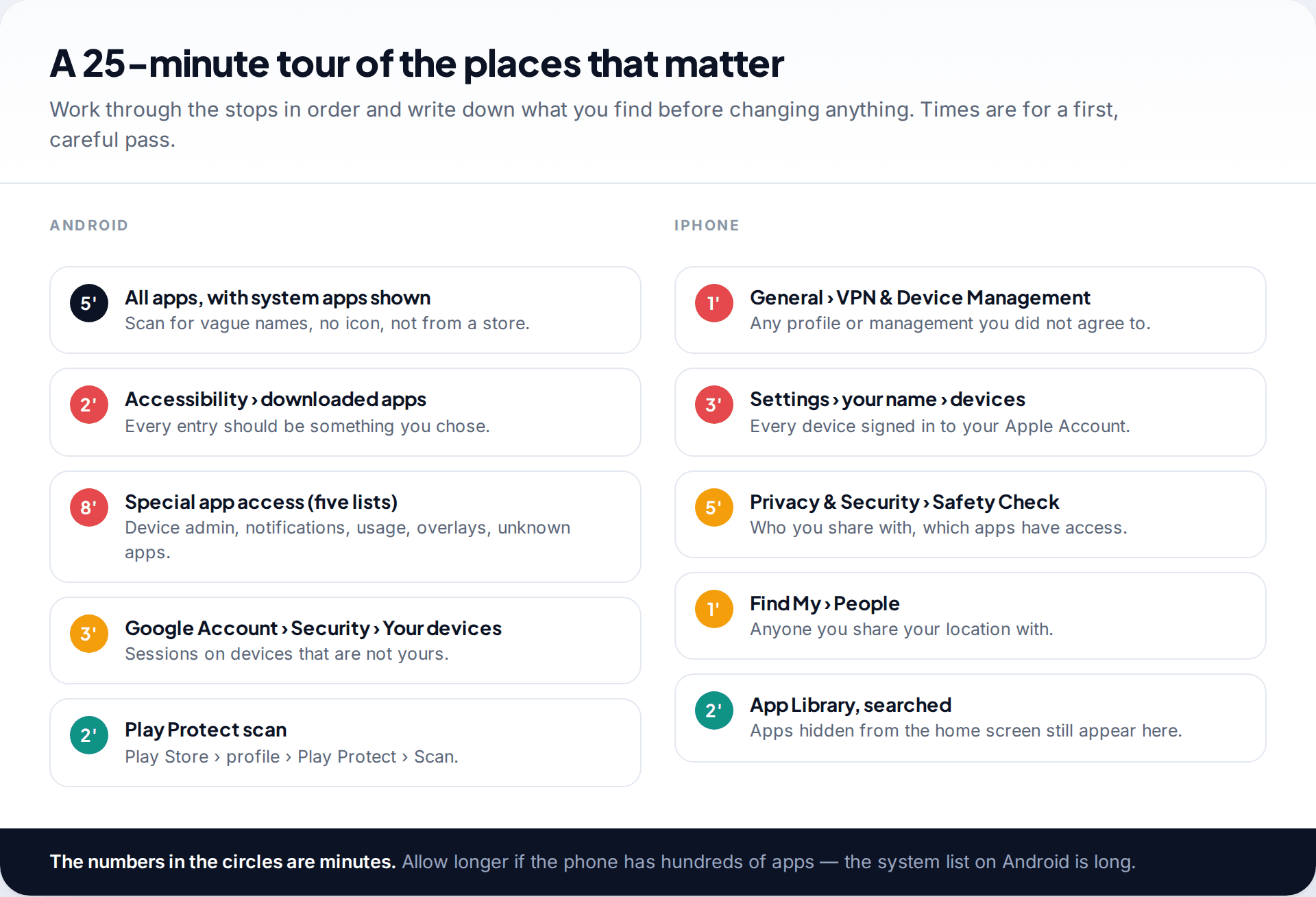
Done carefully, the tour takes around 25 minutes. Keep to the order: the Android stops go from the broadest list (all apps) to the most specific (admin rights), so that by the time you reach Special app access you already have a shortlist of names to look for. On iPhone, the profile check takes seconds and rules a whole route in or out, so it comes first.
Also search the App Library on iPhone, or the app drawer search on Android, for anything you recognise from the lists. Apps can be removed from the home screen without being uninstalled, and the search still finds them.
Making sense of what you found
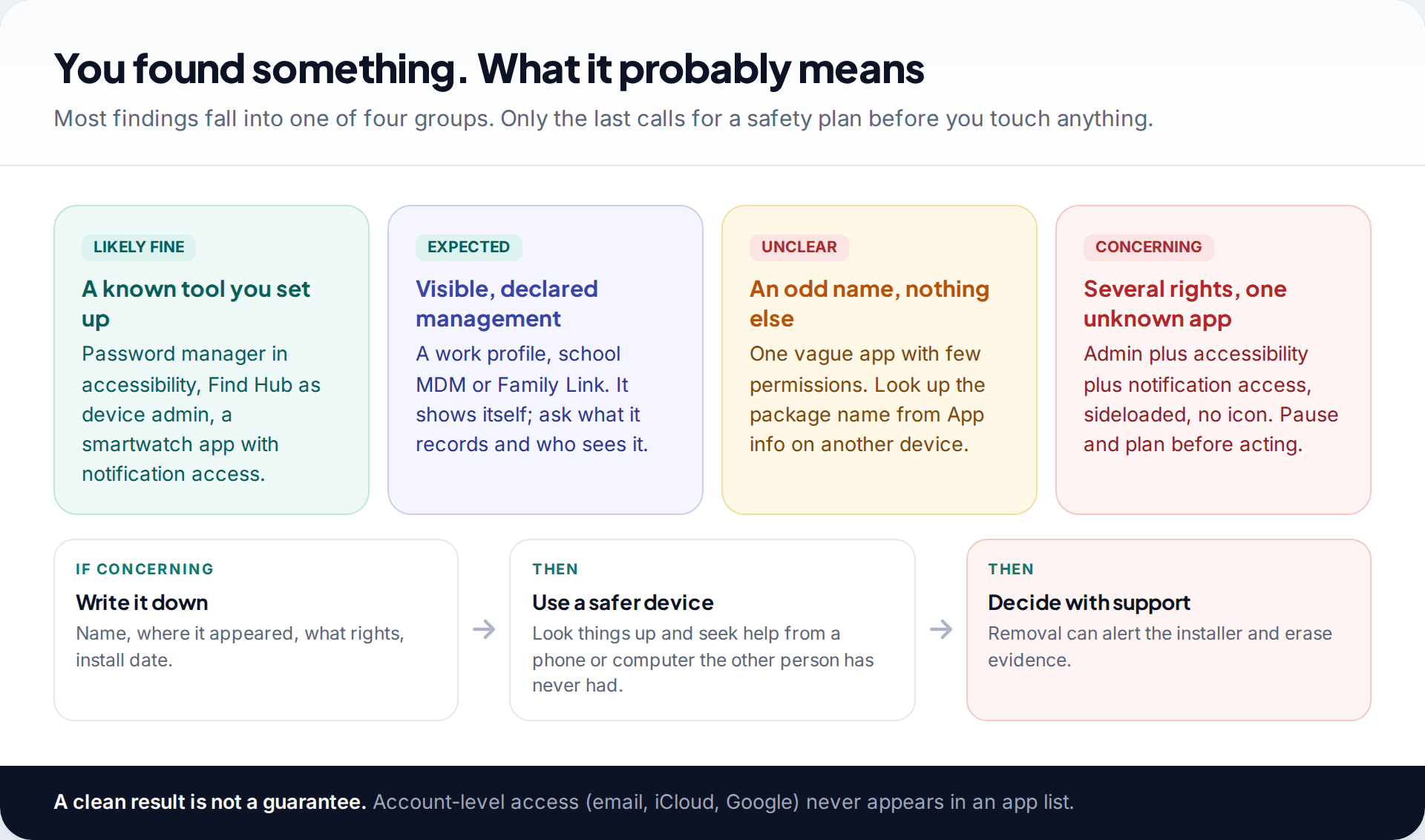
Most people who do this tour find tools they installed and forgot about. A password manager in accessibility, a fitness band with notification access, Find Hub as a device admin — all normal. Visible, declared management, such as a work profile, school MDM or a family-safety app like Family Link, is also expected; these tools show themselves, and legitimate, visible monitoring apps, including ours, will be flagged by detectors by design. Ask what they record and who sees it.
What should make you stop is a combination: one app you can’t identify, installed from outside a store, holding several of the rights above at once. If you find that, don’t uninstall it on the spot. Write down what you saw, use a device the other person has never touched to get support, and decide on removal with that support. Removing the app wipes the evidence of it, and it tells the installer that their access has ended.
What a settings tour cannot show you
This method finds apps that live on the phone. It does not find access that lives somewhere else. Someone who knows your Google or Apple password, or who is signed in to your email on their laptop, sees what those accounts see, and nothing about that appears in your app lists. Location shared through Google Maps or Find My, a Bluetooth tracker in a bag or car, and a rooted or jailbroken phone that hides apps from the system are all outside what these lists reveal.
So pair this tour with an account check: change the passwords on your main email and cloud accounts from a safe device, turn on two-factor authentication, and sign out sessions you don’t recognise — again, after thinking about whether the change will be noticed.
How this page was put together
Menu paths were checked against Google’s Android and Pixel help, Samsung’s support pages on special access and security settings, and Apple’s Personal Safety User Guide in September 2026. The Play Protect figure comes from AV-Comparatives’ 2025 stalkerware test, published with the Electronic Frontier Foundation. Settings move between Android versions and phone makers, so if a label isn’t where we describe it, search Settings for the name.
We did not install stalkerware to produce this page, and the app names in the illustrations are invented examples. Read our standards for research and corrections for how we keep guides like this current.
Common questions
Can a spy app be completely invisible on Android?
It can be invisible on the home screen and in the app drawer, but not in the settings that grant its access. To read messages or notifications it has to appear under Accessibility or Notification access. The exception is a rooted phone, where monitoring software can hide more deeply.
What does a hidden spy app usually call itself?
Something that sounds like part of the phone: a system service, sync tool, update service, device health or Wi-Fi helper. The name alone proves nothing, so check where it came from and which special access lists it appears in.
Can someone put a spy app on my phone without touching it?
Commercial stalkerware on Android almost always needs the unlocked phone in hand for a few minutes. Remote access is more often achieved through your accounts — a known Google or Apple password — than through an app.
Is it safe to delete an app I don’t recognise?
Technically, removing an unknown sideloaded app rarely harms the phone. The risk is personal: it can alert the installer and deletes evidence. If you suspect a specific person, get advice from a domestic-abuse support organisation before removing it.
How do I check for spy apps on an iPhone?
Check Settings › General › VPN & Device Management for profiles, the device list under your name for devices that are not yours, and Safety Check under Privacy & Security. Then look for signs of a jailbreak, such as package-manager apps you didn’t install.
Will a factory reset remove hidden apps?
A factory reset removes apps installed on the phone, including stalkerware, as long as you don’t restore a backup that brings it back. It does nothing about someone who knows your account passwords, so change those too.
Looking for a tool to go with this? TheTruthSpy is a free parental control app for Android that stays visible on the child's phone. If it fits your family, see what the app does.
Related guides
How to Check If Your Email Was in a Data Breach
Check if your email was in a data breach for free, then act on what leaked: passwords, card details or…
How to Start Using a Password Manager
Switch to a password manager without stress: built-in or standalone, protecting the main password, and a first-hour plan for the…
How to Tell If Your Phone Has a Virus or Malware
Most 'virus' signs have ordinary causes. How to check an iPhone or Android phone for real malware, remove it, secure…
Parental controls your child can see
Location, screen time limits, a web filter and alerts from notifications — free, and visible on your child's phone. Pair a phone in about ten minutes.
Android · Free to set up · Visible on your child's phone