How to Fix Bluetooth Pairing Problems

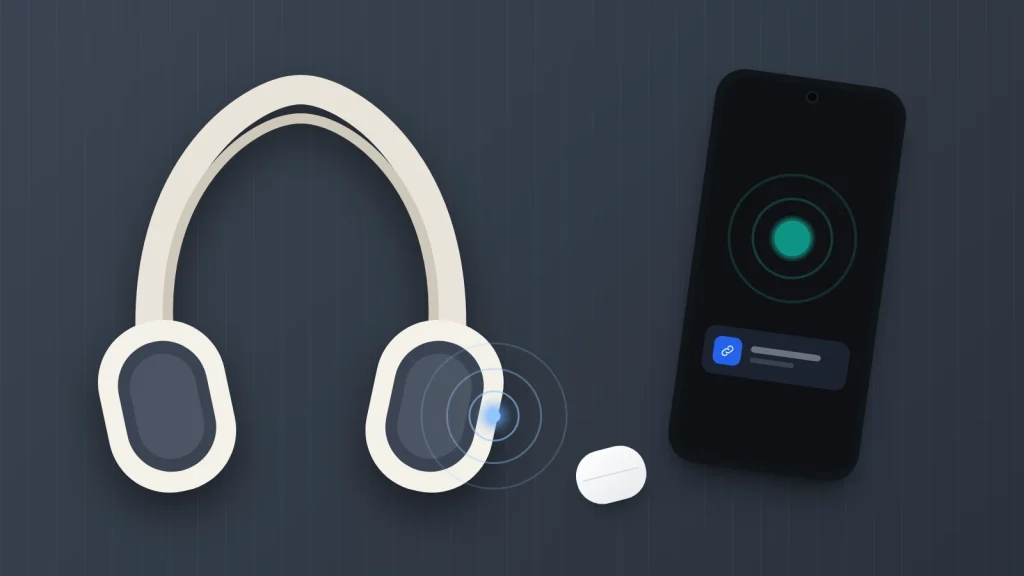
The headphones are on and the light is blinking, but they do not appear on your phone. Or the car found your phone last week and now refuses. Bluetooth failures look random, but most come down to a handful of causes: the accessory is not really in pairing mode, it is busy with another device, or one side has kept an old pairing record the other has forgotten.
The fixes below work for headphones, earbuds, speakers, cars and watches, on iPhone and Android. They are ordered from the quickest and least disruptive to the most thorough, so stop as soon as things work. Menu names vary by phone maker and software version; if a path does not match, search your Settings app for “Bluetooth”.
The short version
- “On” is not the same as “pairing mode”. Most accessories need a long press or a special button before a new phone can see them.
- Headphones connected to your laptop or tablet may ignore your phone. Disconnect them there first.
- Forgetting the device on the phone, and deleting the phone from the car or accessory, fixes most stubborn pairing failures.
- Calls working but no music (or the reverse) is usually a switch in the device’s Bluetooth settings, not a fault.
- If the accessory fails with every phone after a factory reset, it is probably the hardware.
Match the symptom to the likely cause
Find the closest row, try its fix, then use the ladder below if that does not work.
| Symptom | Likely cause | Fix |
|---|---|---|
| The device never appears in the list | Not in pairing mode, flat battery, or connected to something else | Charge it, put it in pairing mode, disconnect it from other devices |
| It appears, but pairing fails or “couldn’t connect” | An old pairing record on one side | Forget it on the phone, reset or clear it on the accessory, pair again |
| Worked yesterday, will not reconnect today | It reconnected to a laptop or tablet instead | Disconnect it from the other device, or connect from the phone’s Bluetooth list |
| Car cannot find or pair with the phone | The car’s phone list is full or holds an old entry | Delete your phone and unused phones from the car, then pair again while parked |
| Watch or fitness band keeps disconnecting | Battery settings closing the companion app, or the app lacks Bluetooth permission | Let the app run in the background without restriction; check its Bluetooth permission |
| Calls work but no music, or the reverse | Media audio or phone call audio switched off | Turn both on in the device’s Bluetooth settings |
| Sound from one earbud only | Buds out of sync, or the balance slider moved | Put both in the case and reset them; check the balance setting |
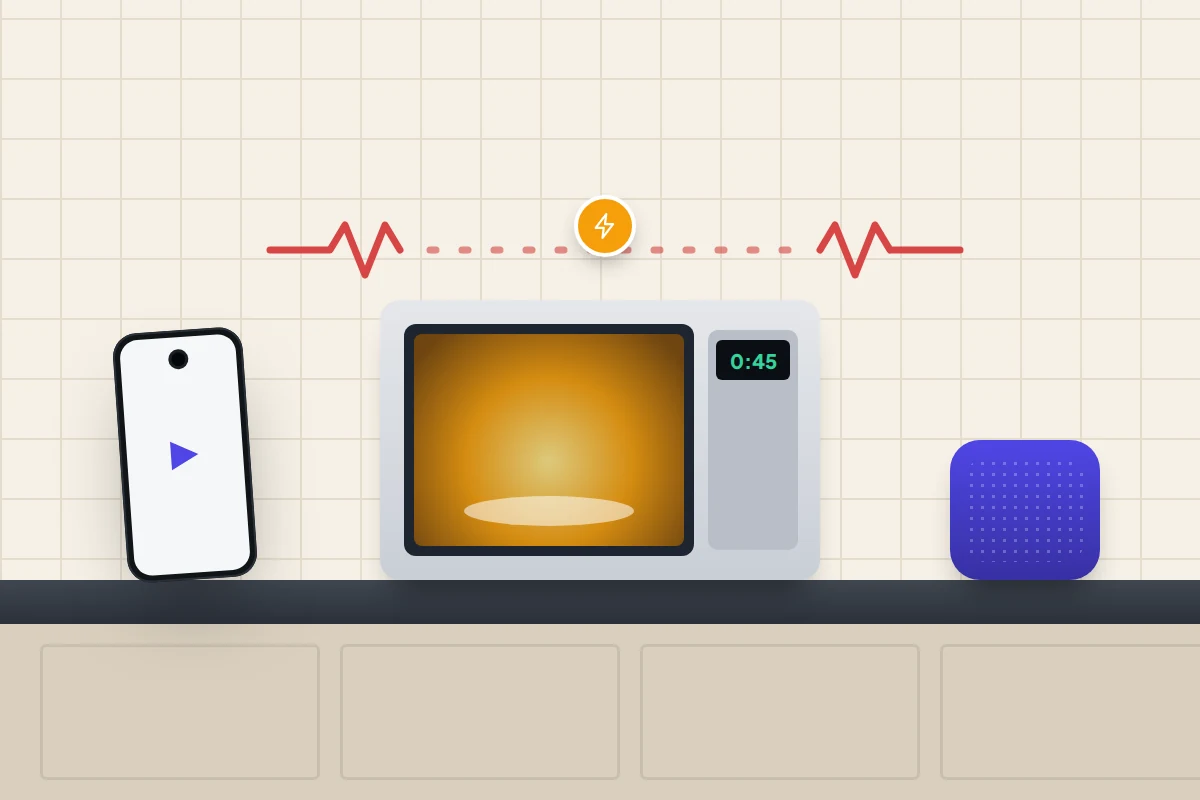
| Sound stutters or cuts out | Distance, walls, or interference | Move closer, keep the phone out of back pockets, move away from microwaves and USB 3 hubs |
| No pop-up offering to connect new earbuds (Android) | Fast Pair needs Bluetooth, location and notifications on | Check those settings, or pair manually from the Bluetooth list |
| Fails with every phone you try | A fault in the accessory | Contact the maker or retailer |
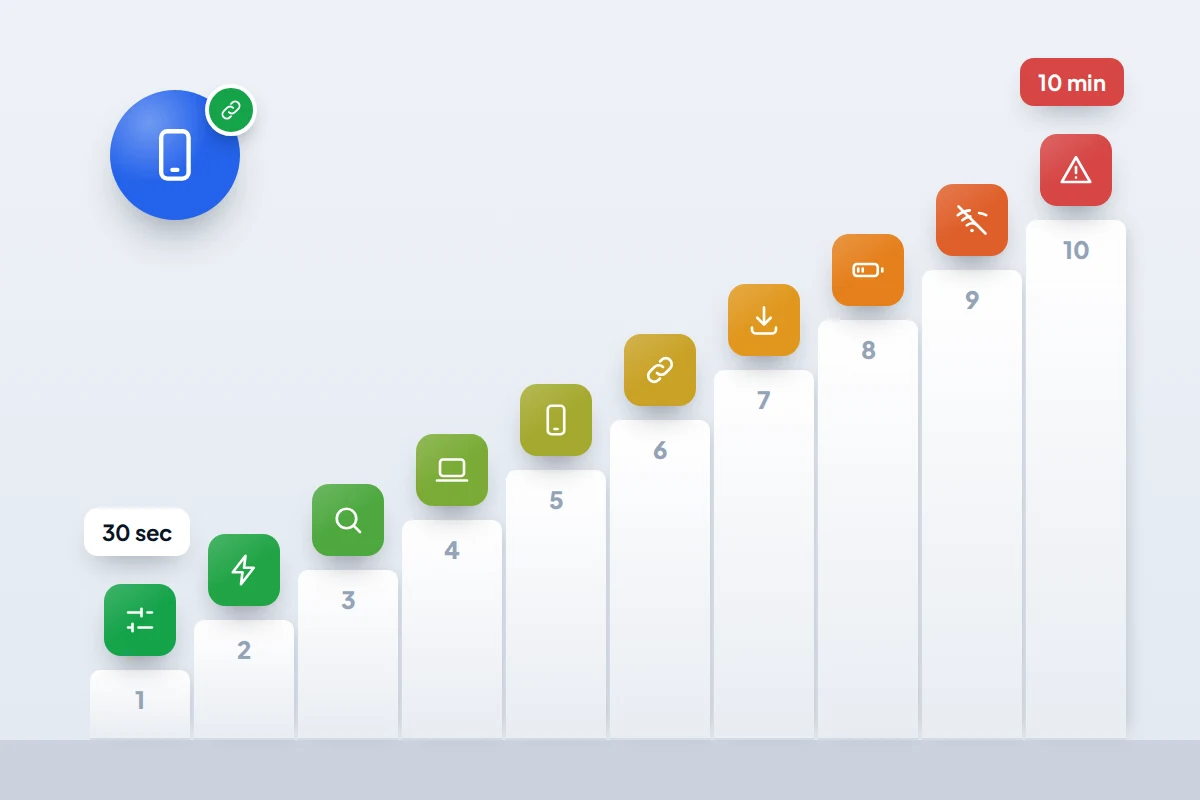
The ten-step ladder, quickest first
Each rung takes a little longer or undoes a little more. Times are rough.
- Turn Bluetooth off and on (30 seconds). On iPhone, use Settings: the Bluetooth button in Control Centre only disconnects accessories rather than switching Bluetooth fully off.
- Charge the accessory and bring it close (2 minutes). A nearly flat accessory may not pair or may keep dropping out. Hold it within a metre while pairing.
- Put it into pairing mode (1 minute). See the next section; this is the step most often missed.
- Disconnect it from other devices (2 minutes). Laptops, tablets, an old phone or a partner’s phone.
- Restart the phone and the accessory (3 minutes). This clears a stuck Bluetooth process on either side.
- Forget it on both sides and pair again (5 minutes). Remove it from your phone’s list, and remove your phone from the car or accessory’s memory.
- Update the phone and the accessory (10 minutes). Pairing bugs are regularly fixed in phone updates; see how to update your phone safely. Accessories update through the maker’s app.
- Check battery settings for companion apps (5 minutes). Mainly for watches and fitness bands on Android.
- Reset your phone’s network settings (10 minutes). This erases saved Wi-Fi passwords and, on Android, every Bluetooth pairing, so it comes late.
- Factory reset the accessory (10 minutes). Follow the maker’s instructions, then test it with a different phone.
Pairing mode is not the same as switched on
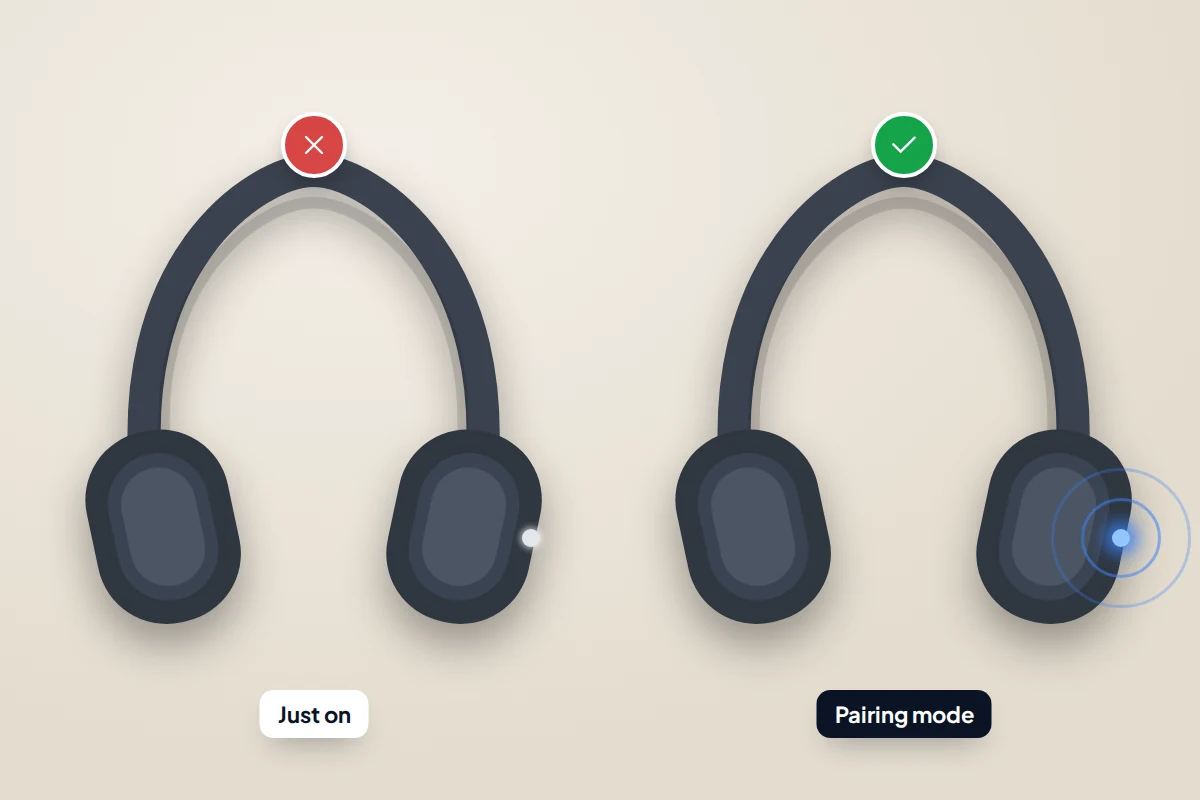
An accessory that is switched on usually tries to reconnect to the last device it knew. It only becomes visible to a new phone in pairing (or discovery) mode, which normally lasts a minute or two before it gives up.
- Headphones and speakers: usually a long press of the power or Bluetooth button, often for about seven seconds, until a light flashes blue or in alternating colours.
- Earbuds: usually buds in the case, lid open, then a press and hold on the case button or both touch areas.
- Cars: the head unit has a menu such as “add device” or “pair phone”. Many cars only allow it while parked.
- Watches: pairing happens through the watch’s companion app, not the phone’s Bluetooth list.
The exact method varies by model, so check the manual or the maker’s support page if a long press does nothing.
Connected to something else
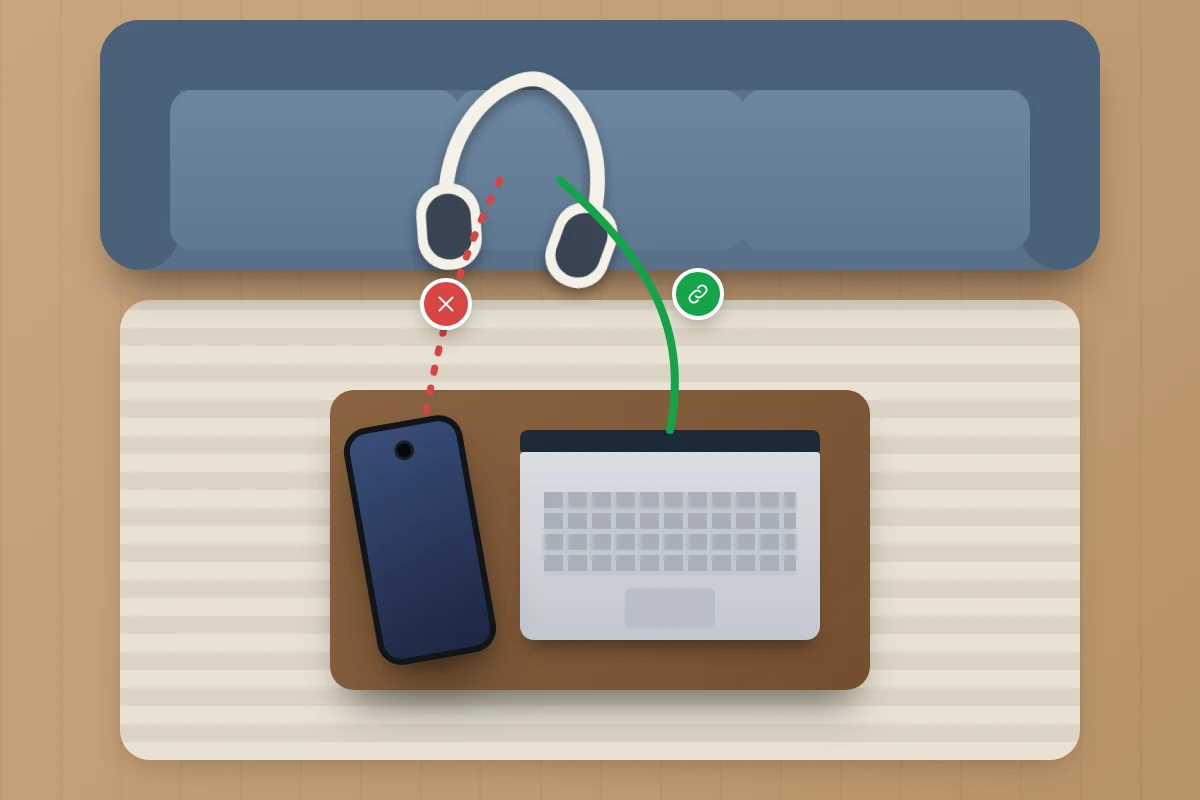
Many headphones support multipoint, connecting to two devices at once, and some will reconnect to your laptop before your phone. Apple and Samsung both advise disconnecting or unpairing an accessory from other devices before trying again. Turn Bluetooth off on the laptop or tablet for a moment and connect from your phone’s Bluetooth list.
Forget the device on both sides
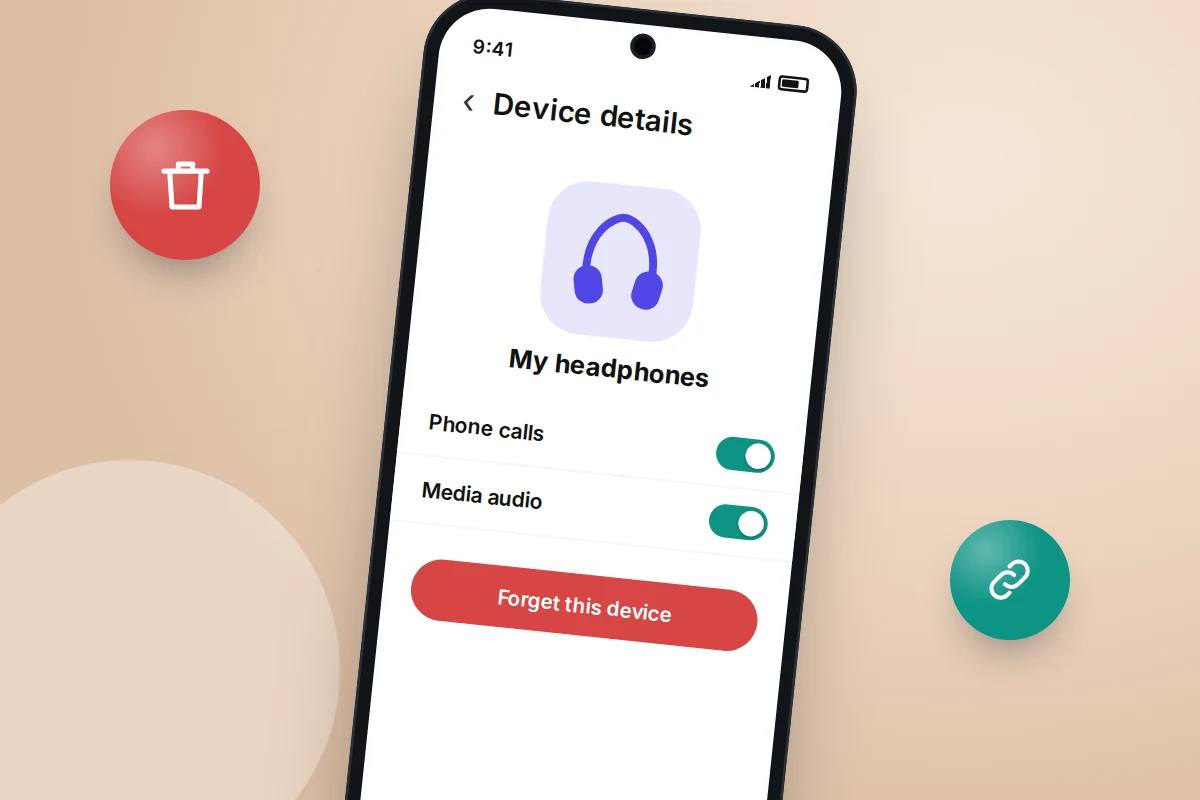
When two devices pair, each stores a key for the other. If one side loses or replaces its key, after a reset, a software update or a pairing with a different phone, the other keeps offering the old one and the connection fails. Removing the pairing on both sides lets them start afresh.
- iPhone: Settings → Bluetooth, tap the info button next to the device, then Forget This Device.
- Pixel and most Android: Settings → Connected devices, find it under Saved devices or Previously connected devices, tap the settings gear, then Forget.
- Samsung: Settings → Connections → Bluetooth, tap the gear next to the device, then Unpair.
Then clear the other side: delete your phone from the car’s device list, or reset the headphones or earbuds using the maker’s instructions. Put the accessory in pairing mode and pair as new. If asked for a code on an older accessory, Google notes that 0000 or 1234 are the usual defaults.
Cars have their own memory
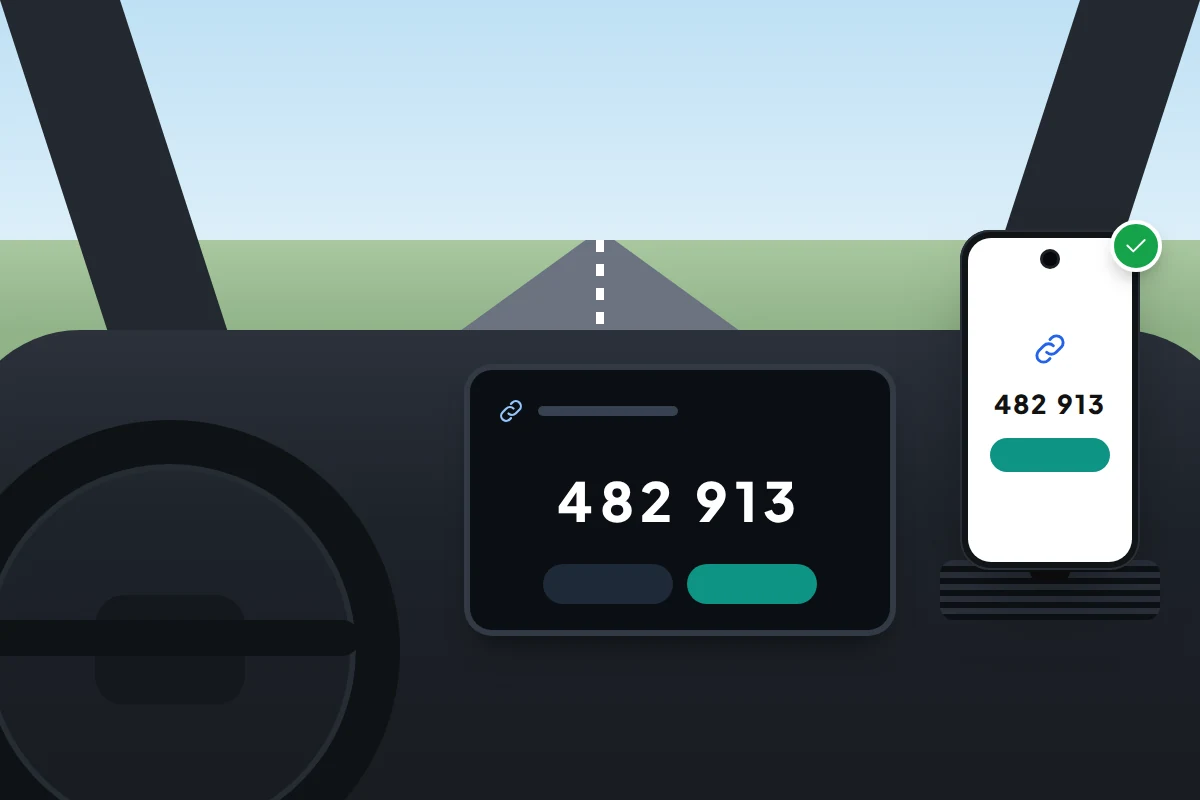
A car’s head unit keeps its own list of paired phones, and many can store only a limited number; your car’s manual gives the figure. A car that has been through several owners or family members may be full, or holding an old record for your phone that no longer matches.
- Parked, open the car’s phone or Bluetooth menu and delete your phone and any phones no longer in use.
- Forget the car on your phone, as above.
- Start pairing from the car, choose it on your phone, and confirm that the codes on both screens match.
- Allow contacts and call history if you want them on the car screen; decline if not. Google notes that not every car can play music over Bluetooth, so check the manual if calls work but music never has.
New-device pop-ups, caches and resets
When the pop-up does not appear
Many earbuds and headphones on Android support Google’s Fast Pair, which shows a notification to connect when a new device in pairing mode is nearby. Google says it needs Android 10 or later, Bluetooth and location switched on, notifications allowed and the phone within about half a metre. Check that Scan for nearby devices is on under Settings → Google → Devices & sharing → Devices. On iPhone, Apple’s own headphones show a similar setup card; most others pair from the Bluetooth list. If no pop-up appears, you can always pair from that list.
Clearing the Bluetooth cache
Older advice suggests clearing the Bluetooth app’s cache under Settings → Apps, with system apps shown. Whether that option exists depends on your phone and Android version, and neither Google nor Samsung lists it in their Bluetooth troubleshooting. If you cannot find it, skip to the reset below.
Resetting network settings
- iPhone: Settings → General → Transfer or Reset iPhone → Reset → Reset Network Settings. Apple says this resets all Wi-Fi networks and passwords, mobile settings, and VPN and APN settings. Its list does not mention Bluetooth, but be ready to pair accessories again.
- Pixel: Settings → System → Reset options → Reset Bluetooth & Wi-Fi. Android 13 and earlier combine this as Reset Wi-Fi, mobile & Bluetooth.
- Samsung: Settings → General management → Reset, then the network reset. The option’s name varies between One UI versions; choose the one that mentions Wi-Fi and Bluetooth or network settings.
Write down your home Wi-Fi password before you start. None of these touch your photos, messages or apps.
Watches and companion apps
Smartwatches, fitness bands and some headphones rely on an app that needs to keep running in the background. Android’s battery optimisation can close it to save power, and the watch then drops its connection when your phone screen is off.
- Pixel: Settings → Apps, choose the companion app, tap App battery usage, make sure background usage is allowed and choose Unrestricted.
- Samsung: Settings → Apps, choose the app, then Battery → Unrestricted.
- iPhone: check the app is allowed under Settings → Privacy & Security → Bluetooth, that Settings → General → Background App Refresh is on for it, and that Low Power Mode is not always on.
Connected, but the sound is wrong
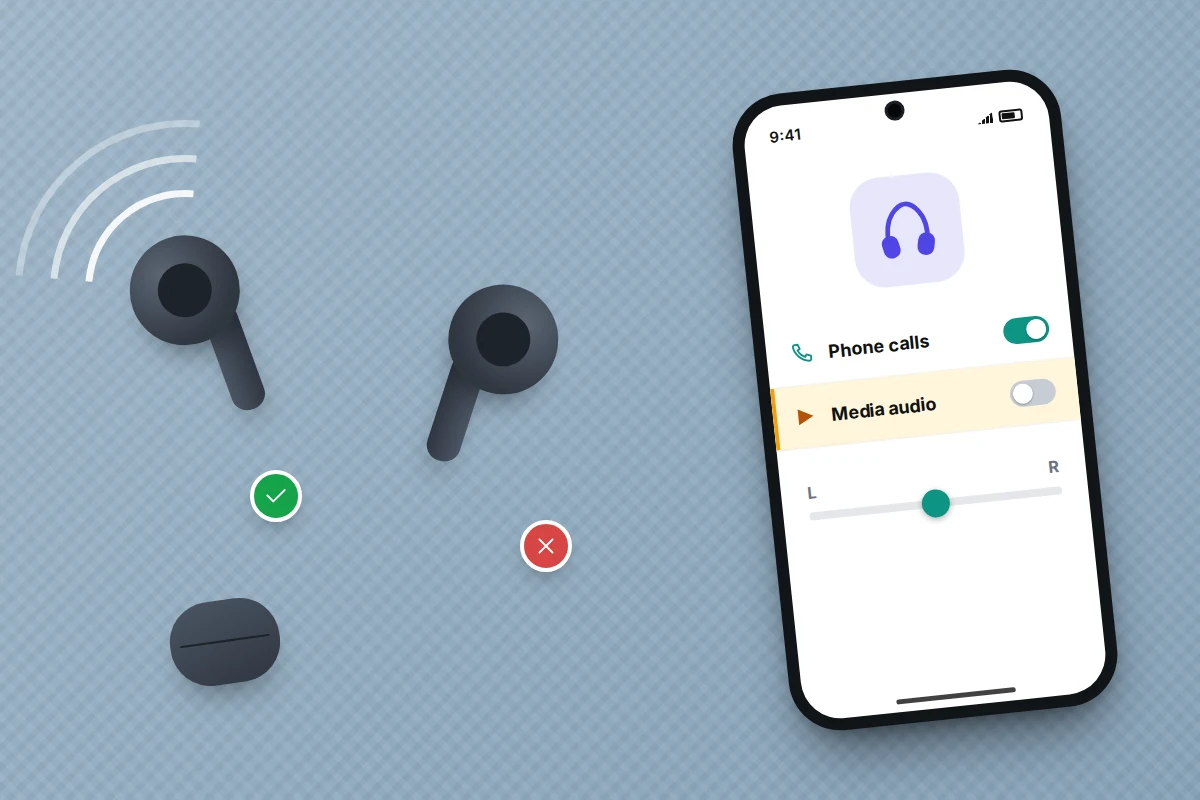
Calls but no music, or music but no calls. On Android, open the device’s settings from the Bluetooth list and check that both Phone calls (called Phone audio on some phones) and Media audio are on. On iPhone, during a call, tap the audio button and choose the headphones or car. If calls never go to Bluetooth, check that Settings → Accessibility → Touch → Call Audio Routing is set to Automatic.
One earbud only. Put both buds in the case, close the lid for a few seconds, and try again. If that fails, reset them using the maker’s steps. Also check the left-right balance slider in your phone’s accessibility audio settings, which is easy to nudge by accident. If a bud is missing rather than silent, see how to find lost earbuds.
Poor quality or silence after changing settings. Phones and headphones agree on an audio codec automatically. Android’s developer options let you force a different one, which can cause dropouts. If you changed it, set it back to the default.
Range, walls and interference
Samsung notes that connections can suffer beyond about 10 metres, and walls shorten that. Bodies block signal too, so a phone in a back pocket can make the opposite earbud stutter.
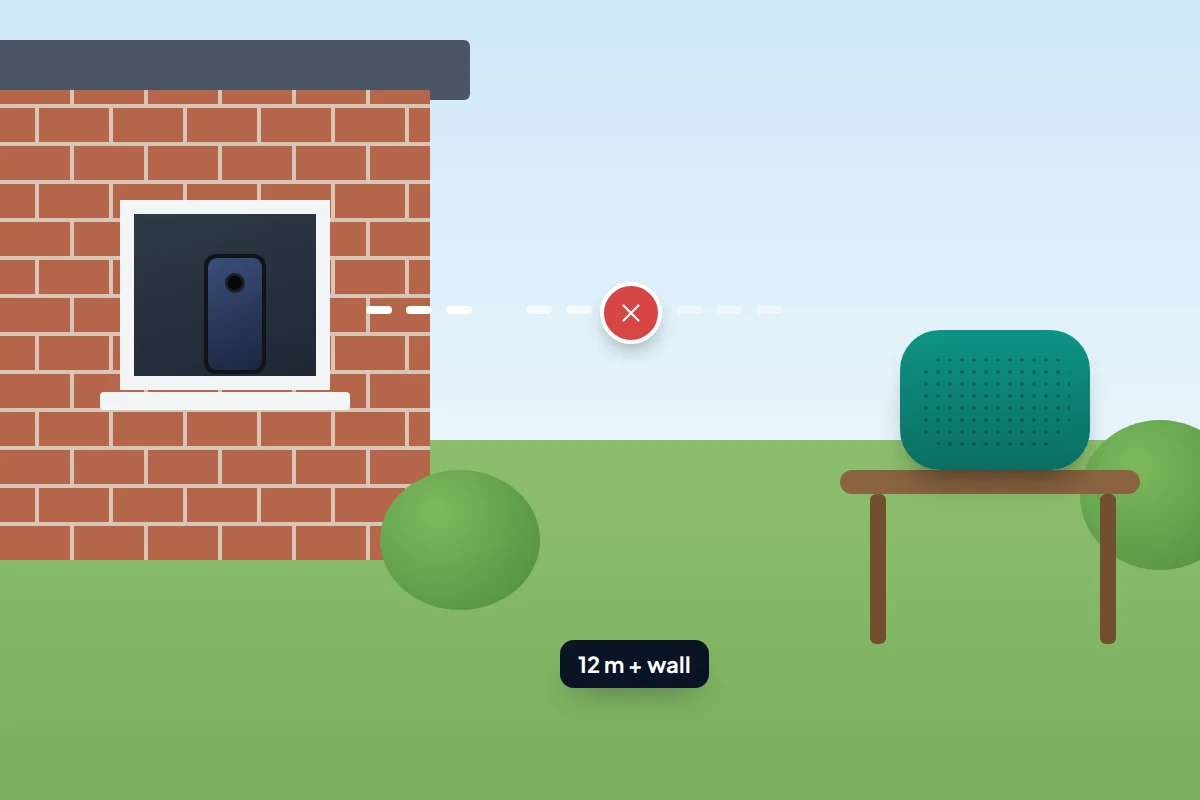
Bluetooth shares the 2.4 GHz band with Wi-Fi and some household devices. Apple names microwaves, cordless phones, wireless video cameras, power cables and fluorescent lights as possible sources of interference, along with USB 3 and Thunderbolt 3 devices, and notes that metal and concrete block wireless signals heavily. If audio drops only in one room or at one desk, move a metre or two, or move the phone away from a USB 3 hub.
Firmware, and when it is the hardware
Headphones, earbuds, watches and many car systems get firmware updates that fix connection bugs. Install the maker’s app, pair once, and check for an update; for cars, check the manual or ask the dealer.
Suspect a hardware fault when the accessory fails with every phone after a factory reset, or when your phone fails with every accessory after a network reset. Try another phone or accessory to see which side is at fault. Physical damage, water exposure or a battery that no longer holds charge are also signs. At that point, contact the manufacturer or retailer, especially if it is under warranty.
Frequently asked questions
Why does my phone connect to my headphones but not my partner’s?
Their headphones are probably still connected to their phone. Disconnect them there first, or put them into pairing mode.
Is it safe to accept a pairing request I did not start?
No. Decline any pairing request you did not start, and only pair in a public place when you can see the device you are pairing with.
Do I lose anything when I forget a Bluetooth device?
Only the pairing. Settings in the accessory’s own app usually survive, though you may need to sign in again.
Should I leave Bluetooth on all the time?
It uses little battery and is needed for watches and finding earbuds. Keep your phone updated, since Bluetooth security flaws are fixed through updates.
Sources and further reading
- Apple Support: If you can’t connect a Bluetooth accessory to your iPhone or iPad
- Apple Support: If you can’t connect to Wi-Fi (includes what Reset Network Settings resets)
- Apple Support: Use Bluetooth and Wi-Fi in Control Centre
- Apple Support: Resolve Wi-Fi and Bluetooth issues caused by wireless interference
- Android Help: Fix Bluetooth problems on Android
- Android Help: Use Fast Pair
- Samsung UK: How to fix Bluetooth connection problems
- Android Authority: How to reset network settings on Android
Looking for a tool to go with this? TheTruthSpy is a free parental control app for Android that stays visible on the child's phone. If it fits your family, see what the app does.
Related guides
How to Update Your Phone Safely and Know When Support Ends
Update your iPhone or Android phone safely, turn on automatic updates, and find out how many years of security updates…
How to Clean Your Phone Safely
What Apple, Samsung and Google actually allow when you clean a phone, what damages it, and how to clean the…
How to Reduce Mobile Data Usage on Your Phone
Find which apps are really using your mobile data, then fix the settings that matter on iPhone and Android, with…
Parental controls your child can see
Location, screen time limits, a web filter and alerts from notifications — free, and visible on your child's phone. Pair a phone in about ten minutes.
Android · Free to set up · Visible on your child's phone