How to Reduce Mobile Data Usage on Your Phone

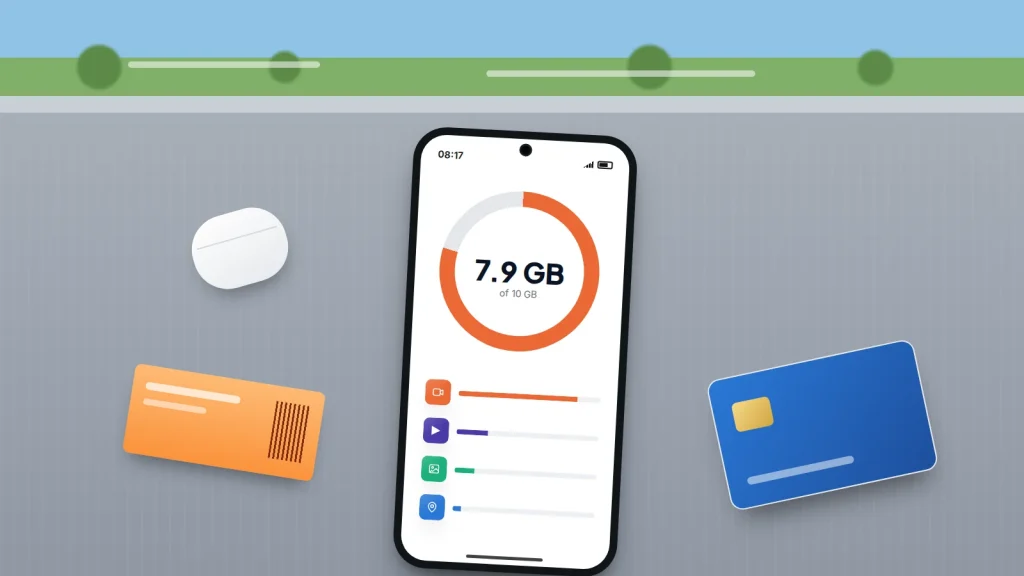
It’s the 12th of the month and your network has just texted: you’ve used 80% of your data. Most people’s first move is to switch mobile data off and hope. A better one is to spend two minutes on the per-app list, because one or two apps often account for most of the usage, and one setting in each usually fixes it.
This article works in that order. First find the real culprits, then change the settings that matter, with menu paths for iPhone and Android. There is also a worked example of a month’s data showing how much a single setting can save, and a 10-minute audit you can repeat whenever the bill looks wrong.
The short version
- Check which apps use the most data before changing anything. Reset the figures at the start of each billing month so they mean something.
- Video is almost always the biggest user. Changing a streaming app’s quality setting on mobile data can save more than every other change put together.
- Turn on Low Data Mode (iPhone) or Data Saver (Android) to stop background updates, backups and auto-downloads using mobile data.
- Check the settings that quietly switch you to mobile data when Wi-Fi is weak, and set photo backups and app updates to Wi-Fi only.
- Download maps, music and shows on Wi-Fi before you travel.
Find out which apps are using your data
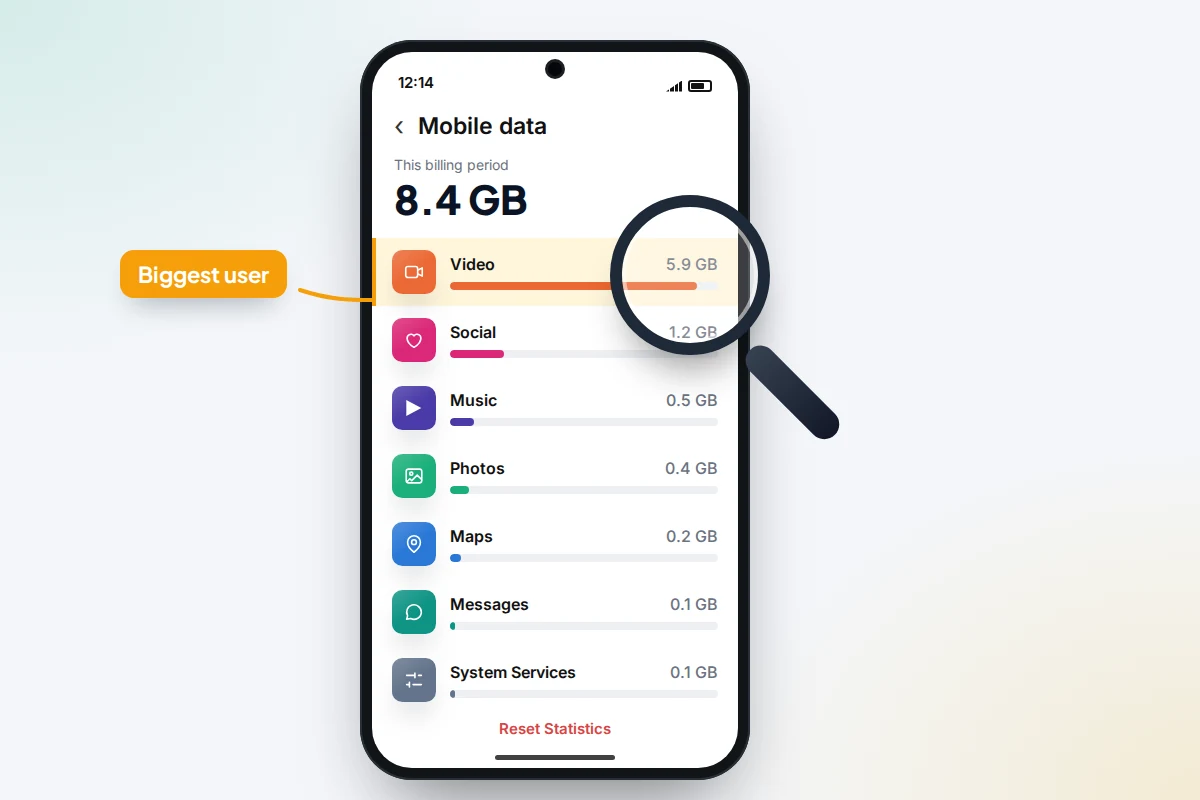
Your phone keeps a running total for each app. The catch is the time period: on an iPhone, the total counts from the last time you reset it, which may be months ago.
- iPhone: open Settings → Mobile Service (Mobile Data on older versions of iOS) and scroll down. Each app is listed with the data it has used. System Services covers the phone’s own features. Scroll to the bottom and tap Reset Statistics on the day your billing month starts, so the next reading covers one month.
- Pixel and most Android phones: open Settings → Network & internet → SIMs → App data usage. You can pick the date range and set the day your billing cycle starts, so the totals reset themselves.
- Samsung: open Settings → Connections → Data usage → Mobile data usage. The billing cycle start date is set on the same screen.
Your phone and your network can disagree slightly. Google points out that carriers may measure usage differently, so for billing purposes, your network’s app is the one that counts.
Set a warning before you run out
Android can warn you, or stop mobile data altogether, at a figure you choose. On a Pixel, go to Settings → Network & internet → SIMs → Data warning & limit, turn on Set data warning and enter an amount a little below your allowance. Set data limit switches mobile data off when you reach it. Samsung has the same options in Settings → Connections → Data usage.
iPhones don’t have a built-in data limit. Instead, use your network’s app, which can usually send usage alerts, and check the per-app list once a week until you know your pattern. Set any warning slightly early, because the phone and the network can count slightly differently.
What common activities actually use
These figures come from the services’ own help pages and are approximate. Real use varies with the app, the screen and the connection, and other services set their own quality levels.
| Activity | Approximate data | Where the figure comes from |
|---|---|---|
| Video, mobile “save data” setting | About 1 GB per 6 hours | Netflix help centre |
| Video, mobile “automatic” setting | About 1 GB per 4 hours | Netflix help centre |
| Video, mobile “maximum data” setting | 1 GB per 20 minutes or more (3 GB an hour) | Netflix help centre |
| Video, 4K on a TV or computer | Up to 7 GB an hour | Netflix help centre |
| Music, normal quality (about 96 kbit/s) | About 43 MB an hour | Worked out from Spotify’s stated bitrate |
| Music, very high quality (about 320 kbit/s) | About 144 MB an hour | Worked out from Spotify’s stated bitrate |
| Uploading 4K phone video | Roughly 170 MB per minute filmed | The estimate an iPhone shows in Settings → Camera → Record Video for 4K at 30 frames per second |
The gap is the point: an hour of video at the highest mobile setting can use as much data as 70 hours of normal-quality music. Spotify’s Lossless option, for Premium subscribers, streams far larger files than Very high, so keep it for Wi-Fi. Messaging, email and browsing are usually small by comparison, unless they are full of video.
A worked example: one month, one setting
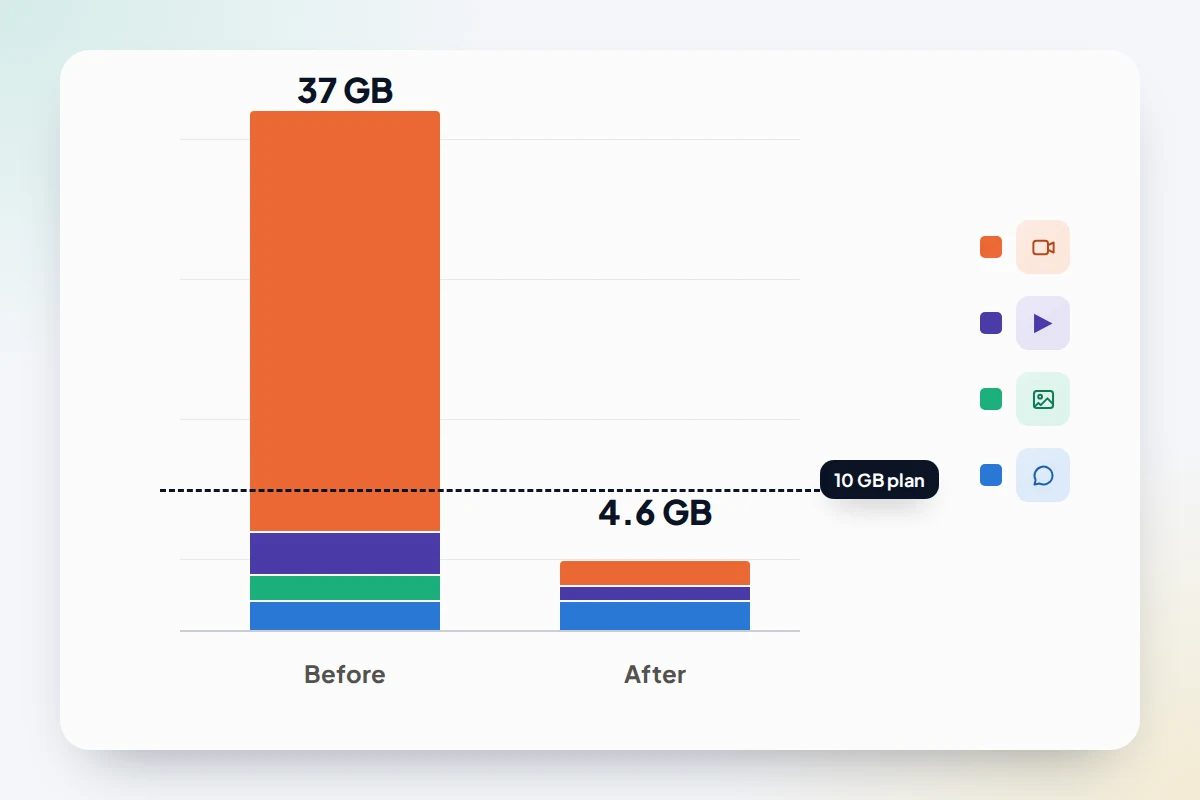
Say you have a 10 GB plan, commute by train 20 days a month, and keep running out. Here is a hypothetical month using the figures above. The last row is a placeholder for everything else; swap in the figure from your own per-app list.
| Activity in the month | Estimated before | Setting changed | Estimated after |
|---|---|---|---|
| Streaming shows, 30 minutes a day (10 hours) | About 30 GB at the highest mobile setting | Video app set to its data-saving option on mobile | About 1.7 GB |
| Music, an hour a day (20 hours) | About 2.9 GB at very high | Mobile streaming quality set to normal | About 0.9 GB |
| Backing up 10 minutes of 4K video | About 1.7 GB | Photo backup set to Wi-Fi only | 0 GB (it uploads at home) |
| Messages, maps, email, browsing | 2 GB (placeholder) | None | 2 GB |
| Total | About 37 GB | About 4.6 GB |
Changing only the video setting takes this month from about 37 GB to about 8 GB, back inside the plan. The other two changes save around 3.7 GB between them. That is why it pays to look at the list first: if you had turned off background refresh for twenty small apps instead, the total would barely have moved.
Downloading the shows at home on Wi-Fi would take the video row to zero. Many apps start on an automatic setting that uses far less than the highest one, so check what yours is actually set to before assuming video is the problem.
Video and music apps: the setting that saves most
Most streaming apps have a separate quality setting for mobile data, usually buried a couple of levels down. Brand names are below because the menus differ; other apps have similar options.
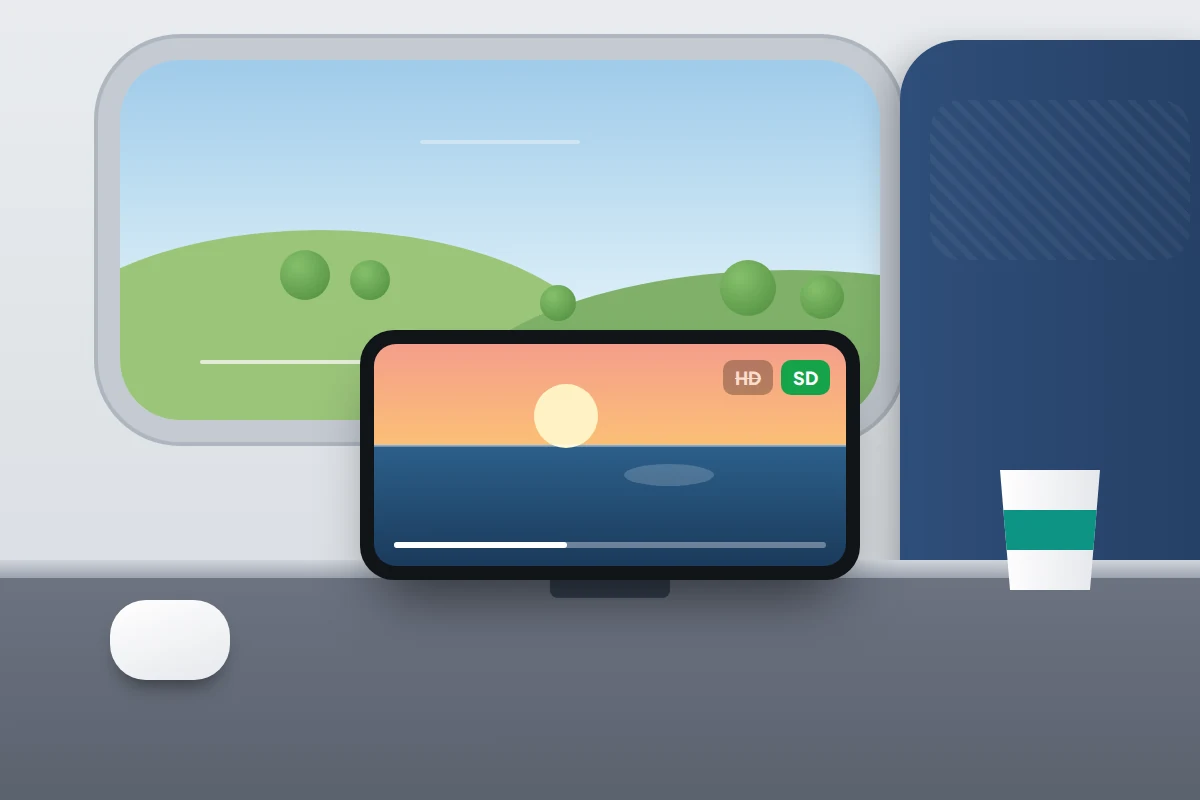
- YouTube: tap your profile picture, then Settings → Video quality preferences, and under mobile networks choose Data saver.
- Netflix: tap My Netflix, open App Settings → Mobile Data Usage and choose Save Data, or Wi-Fi Only if you download before you go out.
- Spotify: tap your profile picture, then Settings and privacy, and under Media quality set mobile streaming lower than Wi-Fi.
Social feeds are the other half of the problem. Videos that start playing as you scroll use data whether you watch them or not. Instagram has a Use less mobile data option in its media quality settings, Facebook lets you set video autoplay to never under its media settings, and TikTok has a Data Saver switch in Settings and privacy. These menus move often, so search the app’s settings if the path has changed. In WhatsApp, Settings → Storage and data → Media auto-download controls which photos and videos download on mobile data.
Low Data Mode and Data Saver
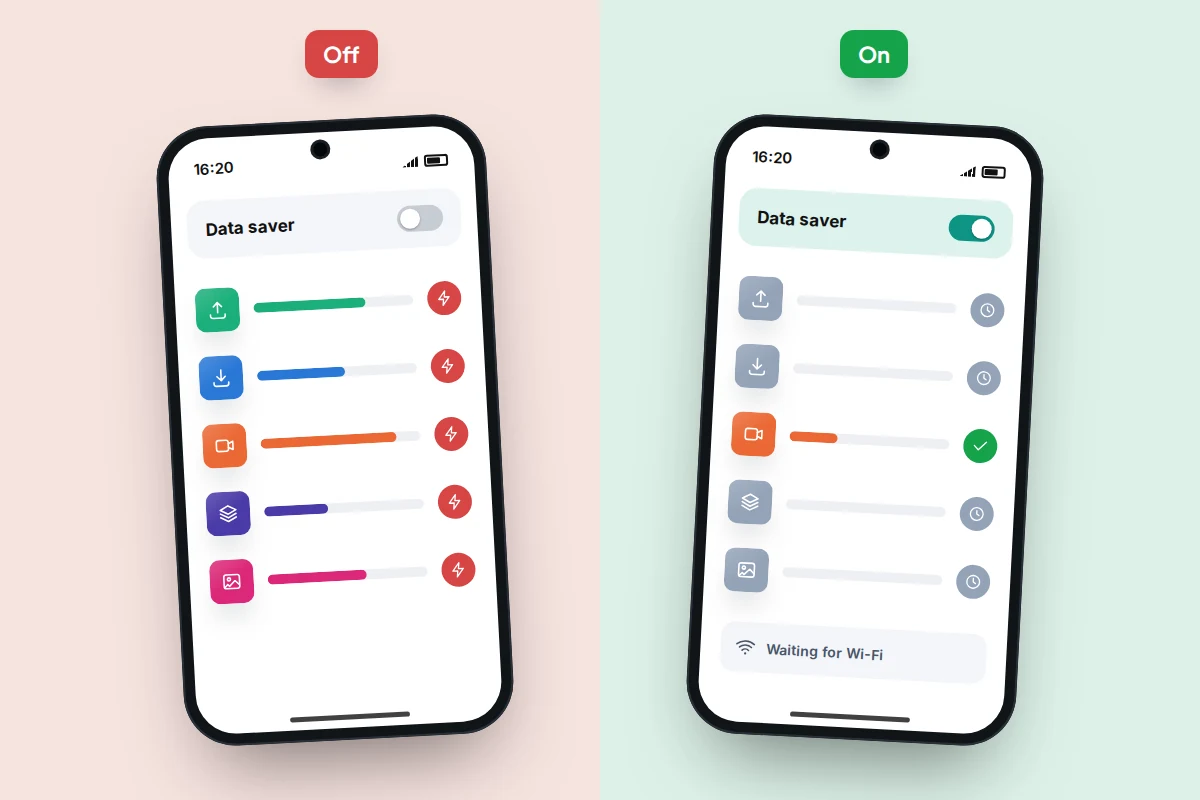
These switches tell the phone and its apps to hold back on anything that isn’t happening in front of you.
- iPhone: go to Settings → Mobile Service → Mobile Data Options and turn on Low Data Mode. On 5G iPhones, it’s under Data Mode. With two lines, tap the number first. Apple says it turns off Background App Refresh, lowers streaming quality, stops automatic downloads and backups, and pauses iCloud Photos updates.
- Android: go to Settings → Network & internet → Data Saver (Samsung: Settings → Connections → Data usage → Data saver). Google says most apps then get background data only on Wi-Fi. Use Unrestricted data to exempt apps that must stay live, such as your messaging app.
The trade-off is that some apps won’t refresh until you open them. On a 5G iPhone, it’s also worth checking that Data Mode isn’t set to Allow More Data on 5G, which Apple says enables higher data-usage features. Apple describes Standard, the middle option, as generally the default.
When weak Wi-Fi quietly switches you to mobile data
Phones are designed to keep you connected, so when Wi-Fi is poor they may use mobile data without telling you. That’s useful on a bad café connection, but it can use a lot of data at home if your Wi-Fi drops in one room.
- iPhone: Wi-Fi Assist is at the bottom of Settings → Mobile Service. Apple says it works only with apps on screen, doesn’t switch while you’re roaming, and isn’t used by some streaming apps.
- Pixel: look in Settings → Network & internet → Adaptive connectivity, where recent versions have a separate switch for moving to mobile data when Wi-Fi is poor.
- Samsung: Settings → Connections → Wi-Fi, then the three-dot menu, Intelligent Wi-Fi and Switch to mobile data. Names vary between One UI versions.
Background data, app updates and photo backups
For a single app you don’t want using mobile data at all, turn off its switch in the per-app list on an iPhone. On a Pixel, go to Settings → Apps, choose the app, tap Mobile data & Wi-Fi and turn off Background data; on a Samsung, it’s Allow background data usage under the app’s Mobile data. On an iPhone, Settings → General → Background App Refresh can be set to Wi-Fi only.
App updates can be large. On an iPhone, go to Settings → Apps → App Store and, under mobile data, turn off automatic downloads. In Google Play, tap your profile picture, then Settings → Network preferences → Auto-update apps, and choose to update over Wi-Fi only.
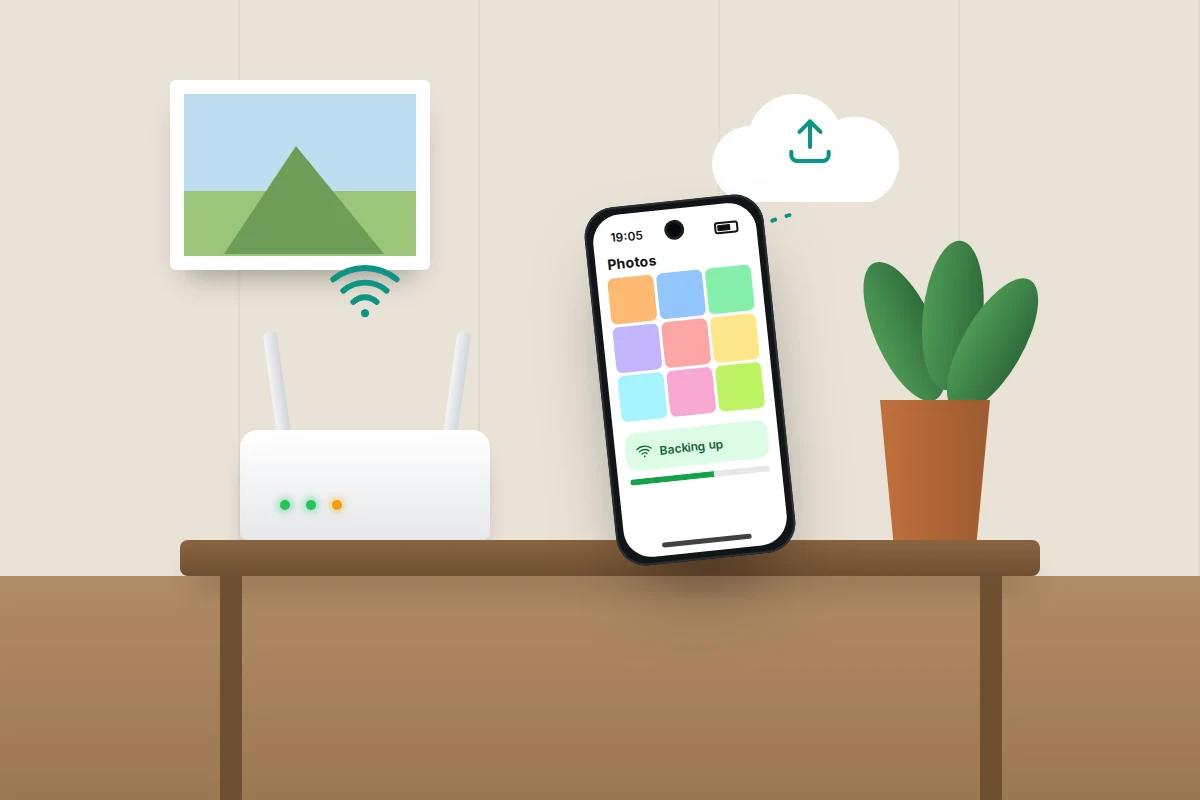
Photo backup is easy to miss, because it happens when you’re out taking pictures. On an iPhone, turn off Mobile Data in Settings → Apps → Photos. In Google Photos, tap your profile picture, then Photos settings → Backup → Mobile data usage, where you can set a daily limit and turn off Back up videos over data.
Maps, travel and hotspots
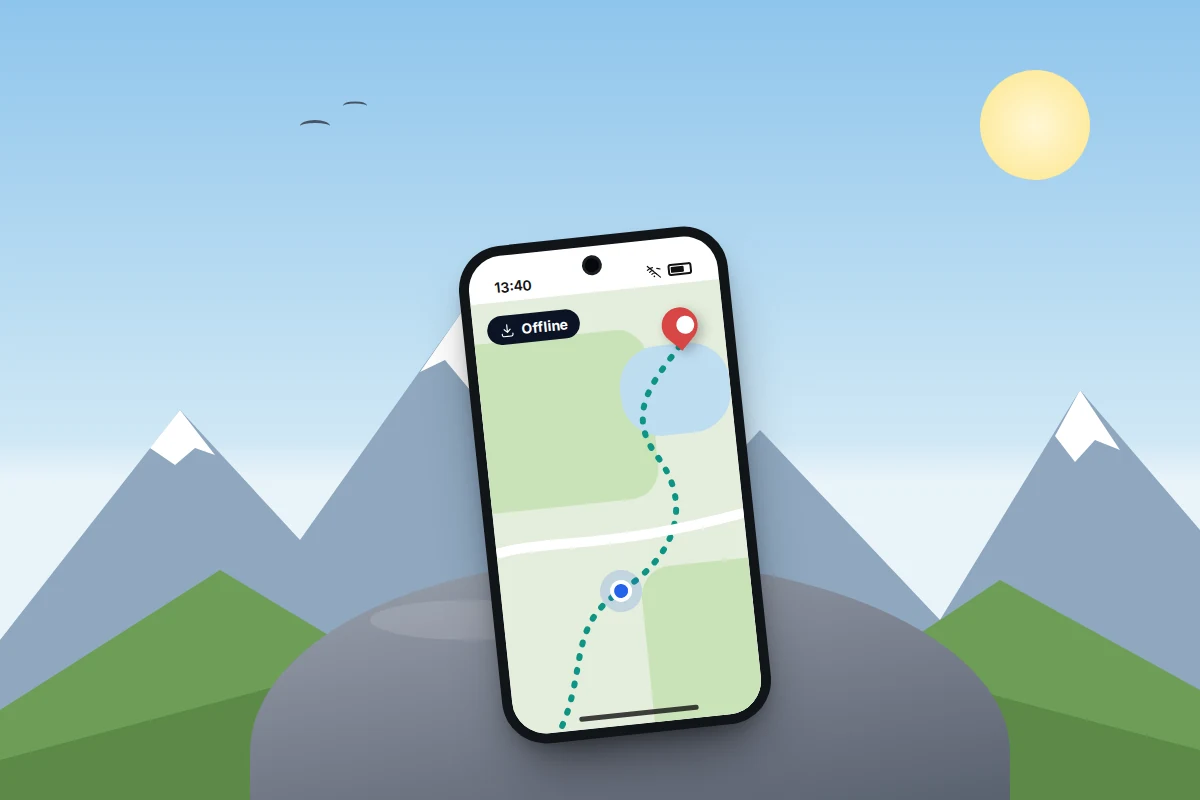
Downloaded maps work with no signal at all, which also helps abroad. In Google Maps, tap your profile picture, then Offline maps → Select your own map. Google says offline maps expire, updating themselves on Wi-Fi when they are close to it, and that walking, cycling and public transport directions aren’t available offline. Apple Maps (iOS 17 or later) has Offline Maps under your profile picture and keeps turn-by-turn navigation working offline. Downloads take space, so check how much storage you have free first.
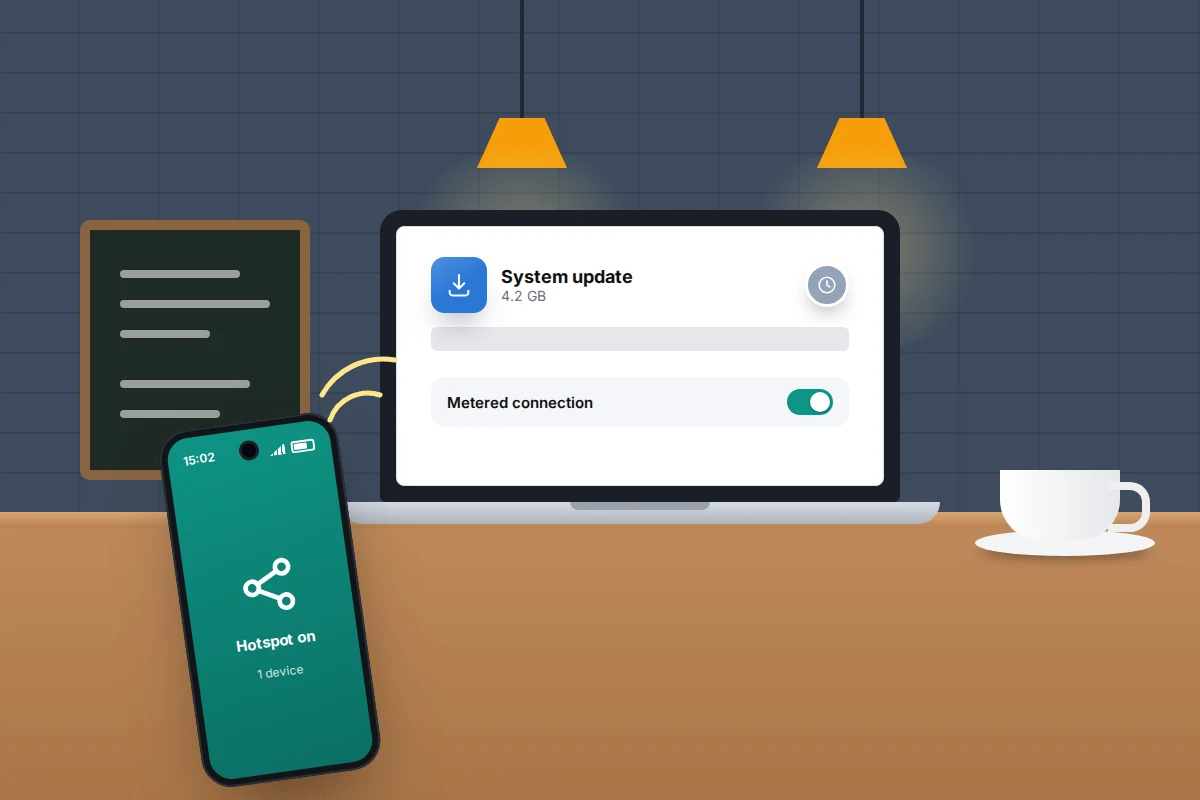
Hotspots cause surprise bills because a laptop treats your phone like any other Wi-Fi and starts syncing files and downloading updates. On Windows, go to Settings → Network & internet → Wi-Fi, select the hotspot and turn on Metered connection. On a Mac, turn on Low Data Mode in the network’s Details under System Settings → Wi-Fi.
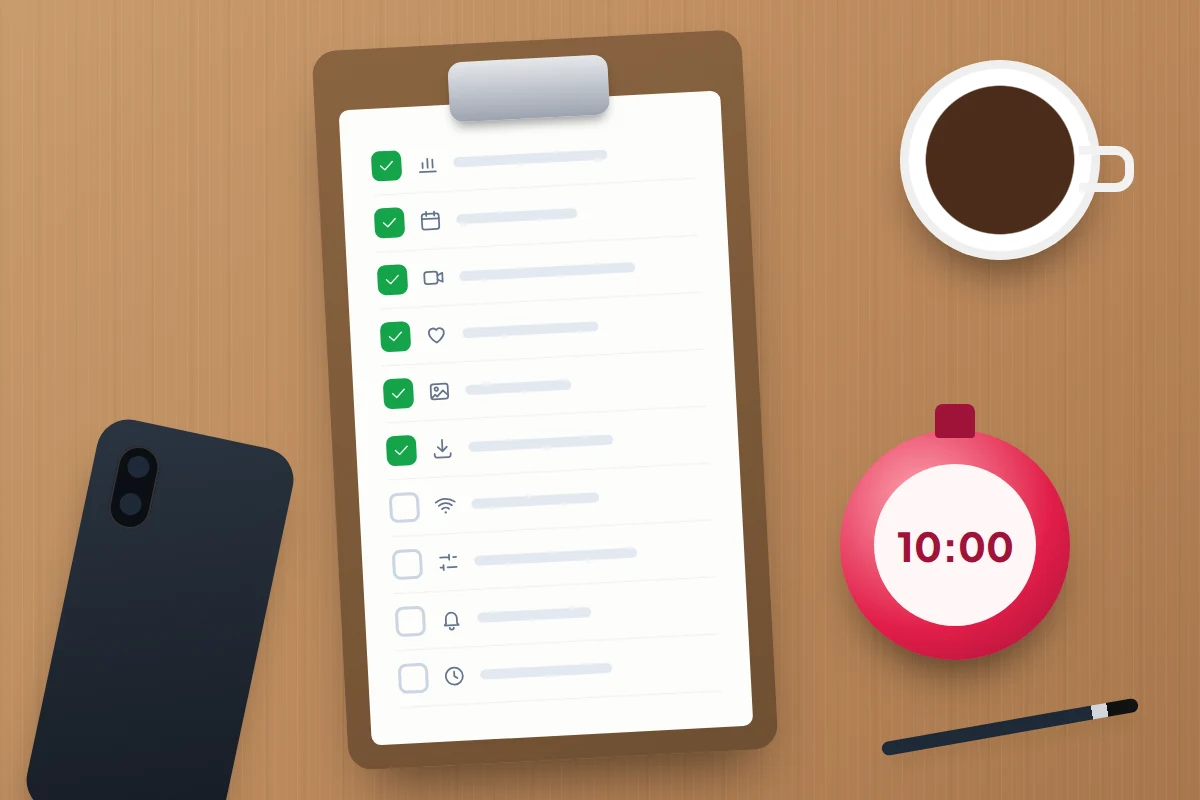
The 10-minute data audit
Run through this at the start of a billing month, or whenever usage jumps.
- Open the per-app list and note the top three apps (1 minute).
- Check the time period covers this billing month; reset or set the cycle date (1 minute).
- Set the mobile quality in each video or music app in your top three (2 minutes).
- Turn off autoplay or turn on data saving in your main social app (1 minute).
- Set photo backup to Wi-Fi only (1 minute).
- Set app store updates to Wi-Fi only (1 minute).
- Decide about Wi-Fi Assist or auto-switching (30 seconds).
- Turn on Low Data Mode or Data Saver if you’re often near your limit (30 seconds).
- On Android, set a data warning just below your allowance (1 minute).
- Put a reminder in your calendar to check the list again in a week (1 minute).
What if you’re still running out
- System Services is high: on an iPhone, tap System Services to see which part of the phone is responsible, such as software updates or backups.
- Usage jumps on days you didn’t use the phone much: look for a hotspot you left on, a tablet or laptop connected to it, or a cloud storage app uploading files.
- One app’s usage suddenly rises: check its settings after an update, since some updates reset quality options, and restart the phone.
- The numbers still don’t add up: compare with your network’s app. If the network shows much more than the phone, ask your network for an itemised breakdown.
Frequently asked questions
Does watching something I downloaded use mobile data?
No. Once a show, playlist or map is on the phone, playing it uses no data. Set downloads to Wi-Fi only so they don’t start over mobile data.
Does 5G use more data than 4G?
Not for the same thing, but faster connections let apps choose higher quality automatically. That’s why the Data Mode setting on 5G iPhones, and each app’s own quality setting, matter more than the network type.
Is it worth turning mobile data off completely?
Only as a stopgap. You lose messages, maps and alerts, and it doesn’t fix whatever used the data. Low Data Mode or Data Saver keeps the basics working.
My child keeps running out of data. What can I do?
Go through the audit with them, so they can see which app uses it. On an iPhone with Screen Time set up, you can also stop changes to mobile data settings under Content & Privacy Restrictions, agreed with them rather than done behind their back.
Sources and further reading
- Pixel Phone Help: Reduce and manage mobile data usage
- Pixel Phone Help: Use less mobile data with Data Saver
- Apple Support: Use mobile data on your iPhone or iPad
- Apple Support: Use Low Data Mode on your iPhone and iPad
- Apple Support: About Wi-Fi Assist
- Netflix Help Center: How to control how much data Netflix uses
- Spotify Support: Audio quality
- Google Photos Help: Back up photos and videos
Looking for a tool to go with this? TheTruthSpy is a free parental control app for Android that stays visible on the child's phone. If it fits your family, see what the app does.
Related guides
eSIM Explained: How to Switch, Transfer and Travel With One
What an eSIM is, which phones are eSIM-only, how to move one to a new iPhone or Android phone, what…
How to Fix a Phone That Keeps Freezing or Restarting
Fixes for a frozen or rebooting iPhone or Android phone, from a one-minute force restart to recovery mode, with a…
What to Do If Your Phone Gets Wet
Dropped your phone in water? What to do in the first five minutes, hour and day, what IP68 really means,…
Parental controls your child can see
Location, screen time limits, a web filter and alerts from notifications — free, and visible on your child's phone. Pair a phone in about ten minutes.
Android · Free to set up · Visible on your child's phone