How to Update Your Phone Safely and Know When Support Ends

The “update available” notice has sat on your screen for a week, and tapping “Later” has become a habit. Meanwhile, the flaws that update fixes have been published for anyone to read.
Updates are only half the story. Every phone eventually stops getting them, and many people only find out when their banking app refuses to open, even though the end date is often published.
Below: how to update an iPhone or Android phone safely, how to make updates happen without thinking about them, and how to work out when your phone’s support ends and what to do then.
The short version
- Most updates include security fixes. The UK’s National Cyber Security Centre (NCSC) advises installing them promptly and turning on automatic updates.
- Before a big update: back up, charge the phone, connect to Wi-Fi and make sure there is free storage.
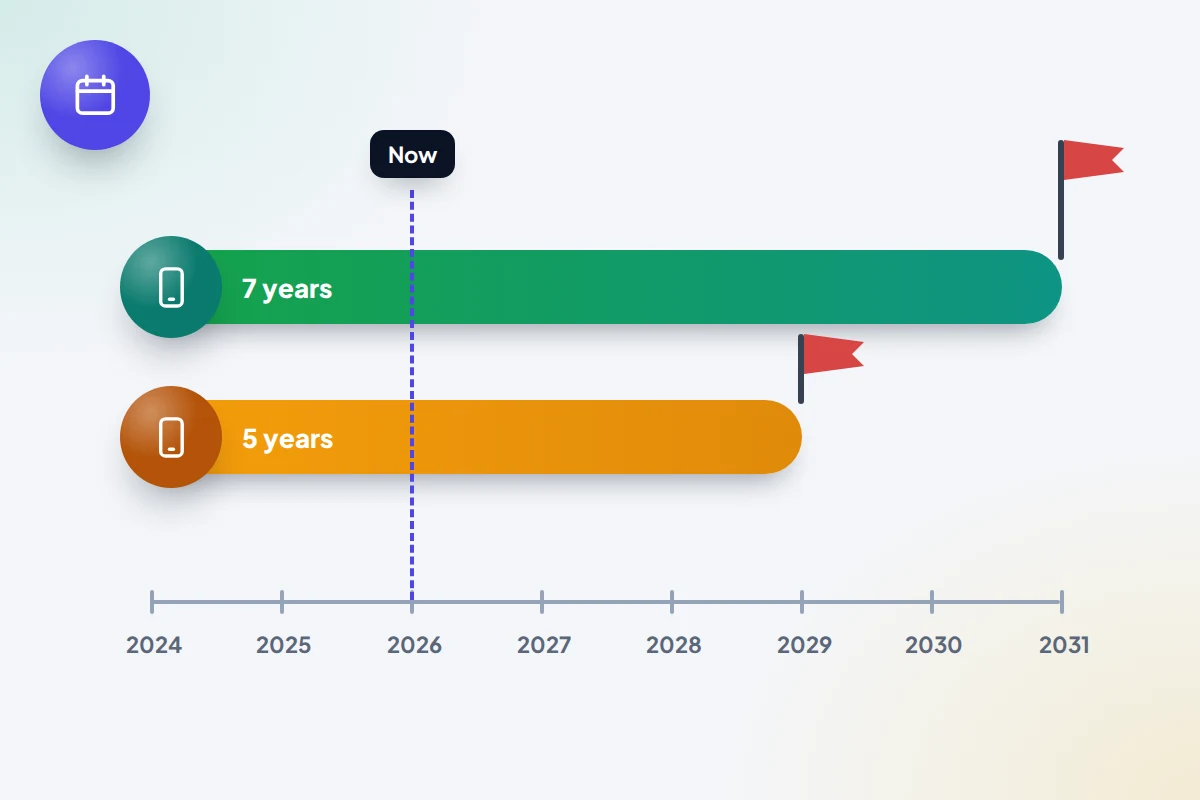
- Pixel 8 and later, and Samsung’s Galaxy S24 and later flagships, get seven years of updates. Apple has no fixed policy, but under UK rules has committed to at least five years for the iPhone 15 Pro Max.
- Check your phone’s security update date in Settings. If it is many months old and nothing new arrives, support has probably ended.
- Do not install beta software on the phone you rely on.
What an update actually fixes
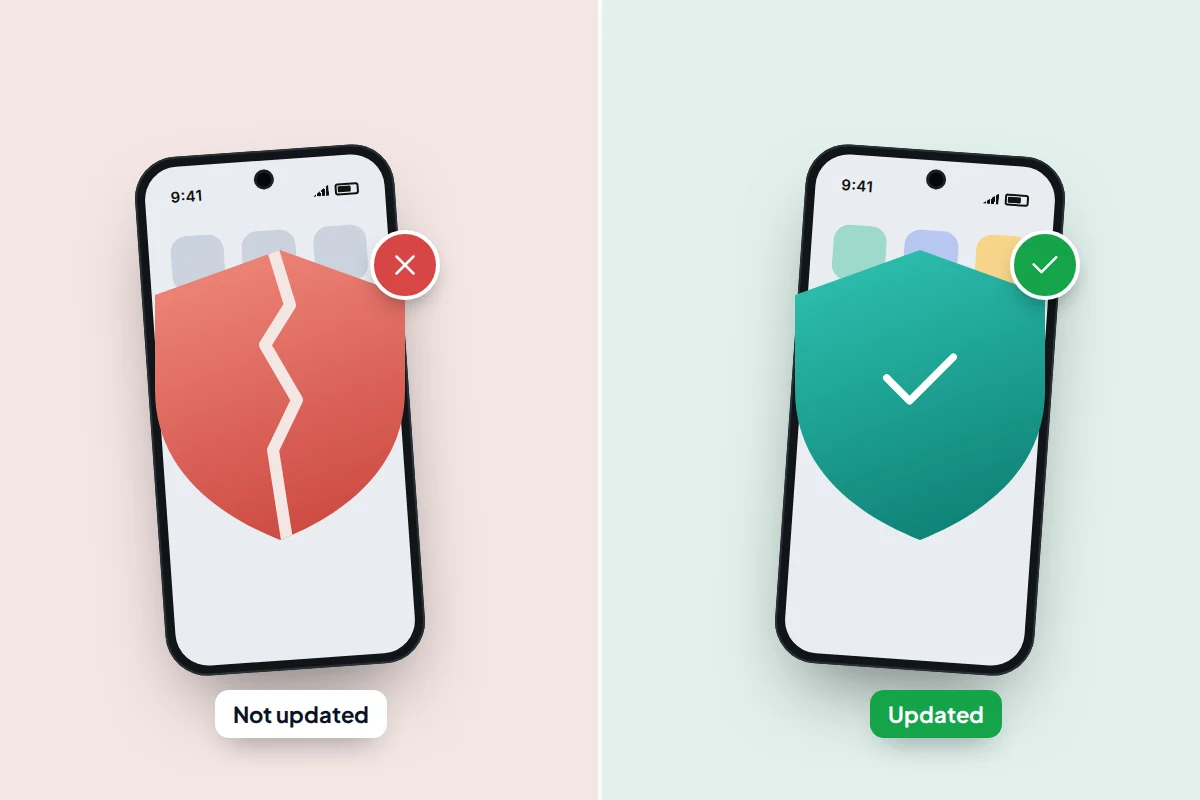
A phone update can bring new features, but the part that matters most is usually invisible: security patches. Researchers and criminals keep finding flaws in phone software, and each patch closes some of them. Once a flaw is fixed and published, anyone can study it, so phones that have not installed the patch become the easiest targets.
The NCSC puts it plainly: applying security updates promptly helps protect your devices and accounts from cyber criminals, and you should turn on automatic updates where available. Apple calls keeping your software up to date one of the most important things you can do to keep its products secure.
There are now several kinds of update, and they arrive separately:
- System updates: a new version of iOS or Android, or a smaller point release. These usually need a restart.
- Security updates: on Android, a monthly or quarterly patch with a date attached. On iPhone, from iOS 26.1, Apple can also send small Background Security Improvements between full releases, for parts such as Safari, WebKit and system libraries. They replace what Apple used to call Rapid Security Responses, and show up with a letter after the version number: the first, in March 2026, was iOS 26.3.1 (a).
- Google Play system updates: on Android, Google updates some core parts of the system through the Play Store, separately from your phone maker.
- App updates: your apps have their own security fixes, and some stop working if left too long.
Turn on automatic updates
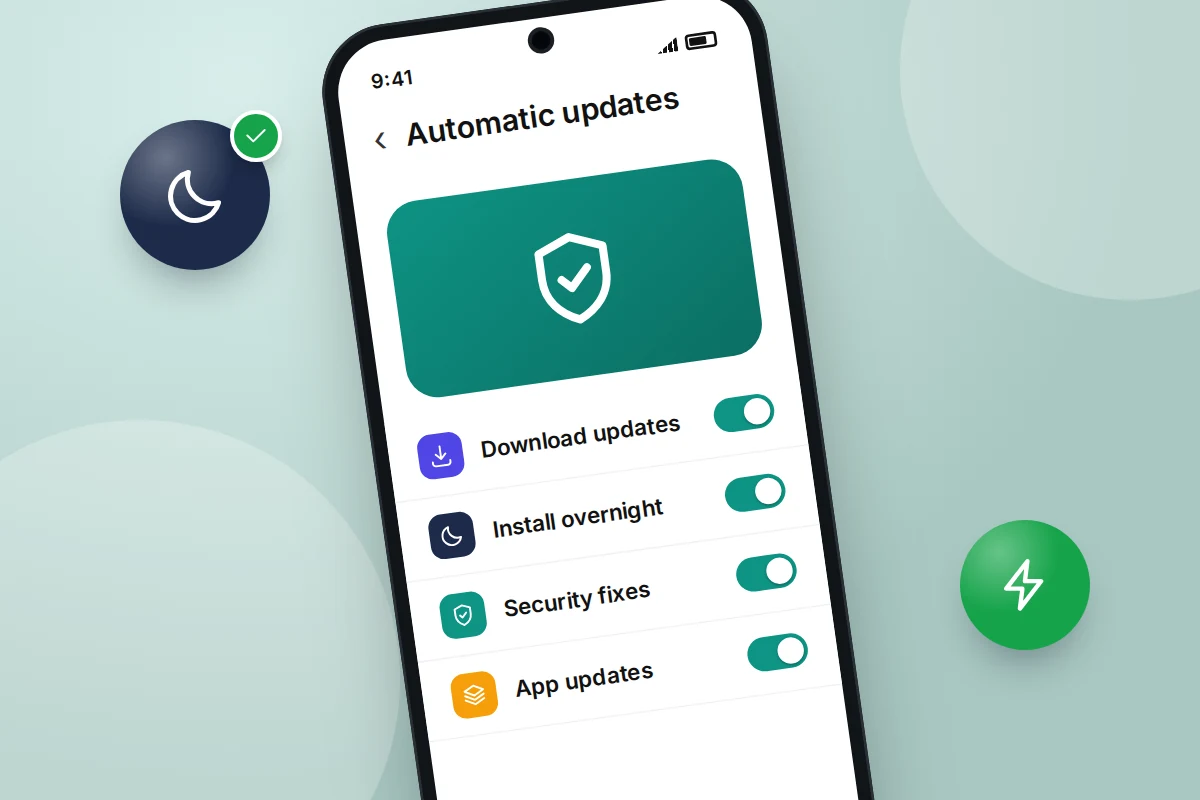
Automatic updates are the single most useful setting here. The phone downloads updates in the background and installs them overnight while charging, so a restart during the night is normal.
iPhone
- Go to Settings → General → Software Update → Automatic Updates.
- Turn on Automatically Download and Automatically Install. Apple says the phone then installs updates overnight while charging and connected to Wi-Fi.
- On iOS 26.1 and later, go to Settings → Privacy & Security → Background Security Improvements and make sure Automatically Install is on. With it off, these fixes wait for the next full update. Some need a restart.
- For apps, go to Settings → Apps → App Store and turn on App Updates.
Android
Menu names vary by maker and Android version; if a path does not match, search Settings for “update”.
- Pixel: Settings → System → Software updates. Google says most system updates and security patches install automatically, and on Pixel they take effect the next time you restart.
- Samsung: Settings → Software update, then turn on Auto download over Wi-Fi. Tap Download and install to check now.
- Google Play system update: on recent Pixels, Settings → Security & privacy → System & updates → Google Play system update; on Samsung, Settings → Security and privacy → Updates → Google Play system update. Its date also appears under Settings → About phone.
- For apps, open the Play Store, tap your profile picture, then Settings → Network preferences → Auto-update apps.
Before a big update: four quick checks
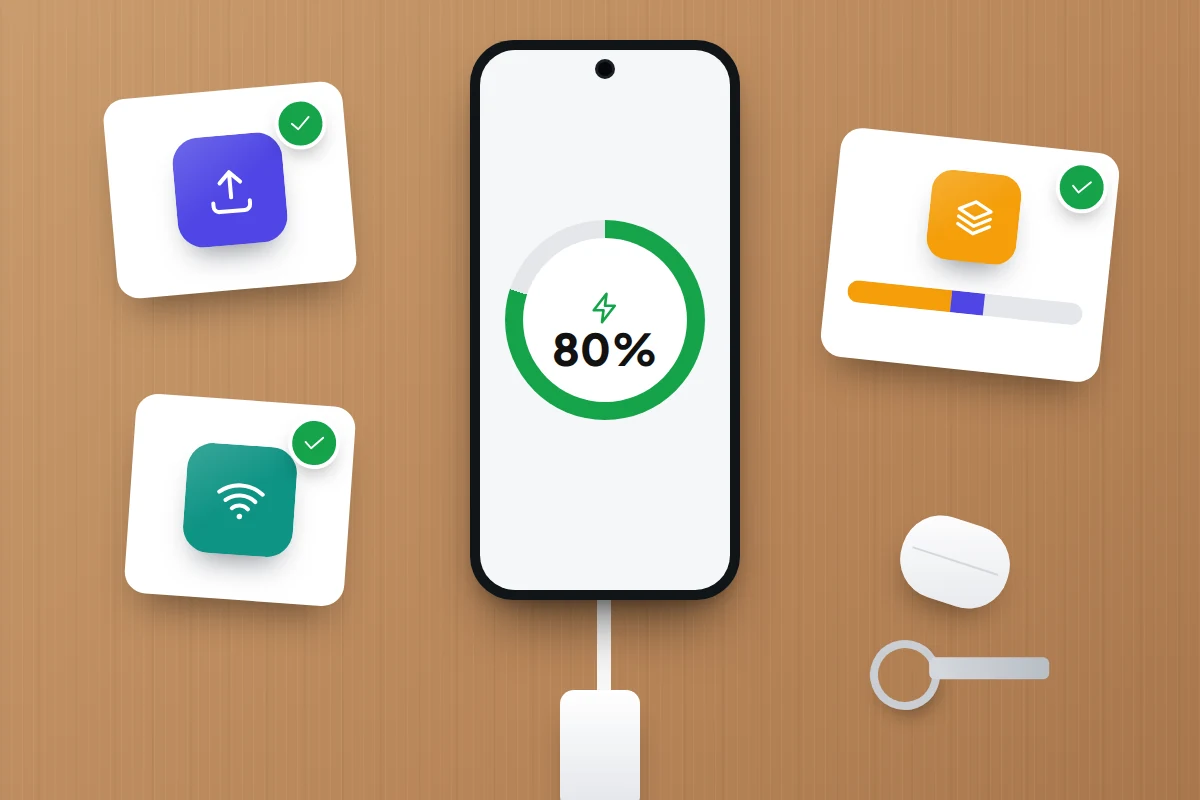
Small security patches rarely cause trouble. A full new version, such as iOS 27 or a new Android release, rewrites much more of the phone, so spend five minutes on these first.
- Back up. Apple lists this as the first step before updating. An update that fails halfway is rare, but the backup is what makes it harmless. If you have not checked yours recently, see how to test that your phone backup actually works.
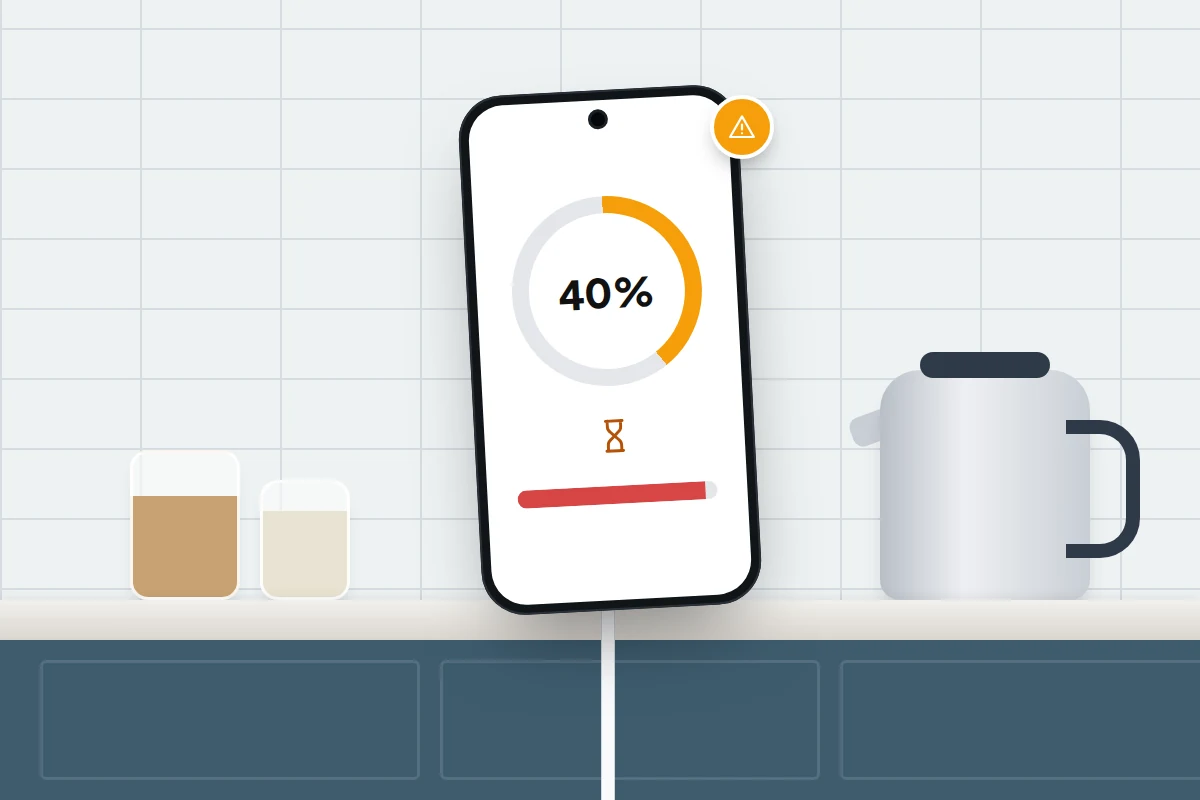
- Charge. Google advises charging to at least 75% before an Android update; Apple suggests keeping an iPhone plugged in. Plugging in is simplest either way.
- Use Wi-Fi. Updates can be several gigabytes. Apple notes that a VPN or proxy can stop the phone reaching its update servers, so switch one off if an update will not start.
- Make space. The download and the installation both need room. If your phone is nearly full, clear space safely before you start. iPhones can temporarily remove apps to make room and reinstall them afterwards, which takes longer.
Allow time. Many phones, including iPhones and Samsung Galaxy models, cannot be used at all while an update installs, not even for emergency calls, so do not start a major update just before you leave the house. (Pixels install in the background and only need a restart.) For a day or two afterwards, the phone may run warm and use more battery while it re-indexes files and optimises apps.
How long will my phone get updates?
This varies more than most people expect. The main policies as of September 2026 are below. Pixel and Samsung periods are promises made at launch; Apple gives a legal minimum and relies on its track record.
| Phones | Update policy | Where to check |
|---|---|---|
| iPhone | No fixed period. Apple’s UK statement for the iPhone 15 Pro Max promises at least five years from first supply (September 2023). In practice, iOS 27, released on 14 September 2026, still runs on the iPhone 11 from 2019, and some iPhones too old for it still get occasional security fixes | Apple’s list of iPhones that can run the latest iOS, and its security releases page |
| Google Pixel 8 and later, including the 8a | Seven years of Android and security updates, counted from when the model first went on sale on the US Google Store | Google’s Pixel update page |
| Google Pixel 6 and 7 series (including 6a and 7a) and Pixel Fold | Five years, counted the same way | Google’s Pixel update page |
| Samsung Galaxy S24 and later S series, Z Fold6 and Z Flip6 and later | Seven Android upgrades and seven years of security updates, as promised at launch | Samsung’s security updates list |
| Samsung Galaxy A16, A26, A36 and A56 | Six Android upgrades and six years of security updates, as announced at launch | Samsung’s security updates list |
| Older Samsung and other Android makers | Varies, often four years or fewer on older and cheaper models | The maker’s support pages, or its UK security statement |
What the law now requires
Since 29 April 2024, the UK’s Product Security and Telecommunications Infrastructure (PSTI) rules have required makers of connected devices, smartphones included, to state the minimum length of time a device will receive security updates. That is where Apple’s five-year figure came from. The rules require a published period, not a particular length.
In the EU, ecodesign rules that have applied since 20 June 2025 go further: for phones placed on the market from that date, security and other operating system updates must be available free for at least five years after the maker stops placing that model on the market. The EU rule does not apply in Great Britain.
Find your own phone’s end date
Start by finding out exactly which model you have and how recent its last update was.
- iPhone: Settings → General → About shows the model name and iOS version. If your model is not on Apple’s compatibility list for the newest iOS, it is on its final major version. It may still get security fixes for a while, but they are occasional.
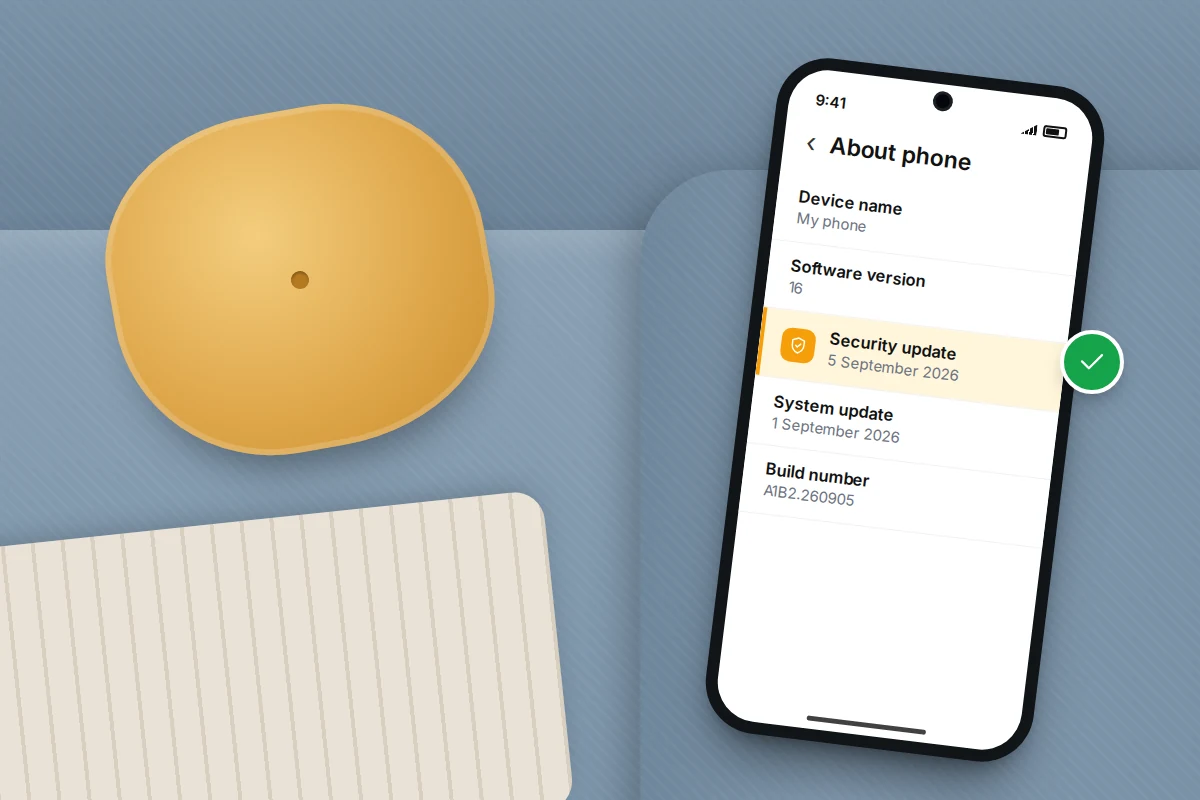
- Android: Settings → About phone → Android version shows the Android security update date and the Google Play system update date. On Samsung, look in Settings → About phone → Software information for the security patch level.
Then compare. Say you have a Pixel 6. It went on sale on the US Google Store in October 2021, so its five years end in October 2026. For Samsung, the security updates page lists which models currently get monthly, quarterly or twice-yearly patches; if yours is missing, its regular support has ended.
A rule of thumb: if your Android security update date is more than six months old and checking for updates finds nothing, look your model up, because it has probably stopped receiving them.
What “unsupported” means in practice
An unsupported phone does not stop working overnight. It still makes calls and takes photos. What changes is that new security flaws stay open for good, and the gap widens every month. The NCSC advises against buying phones that are no longer supported, because they will not receive the security updates that make them harder to hack.
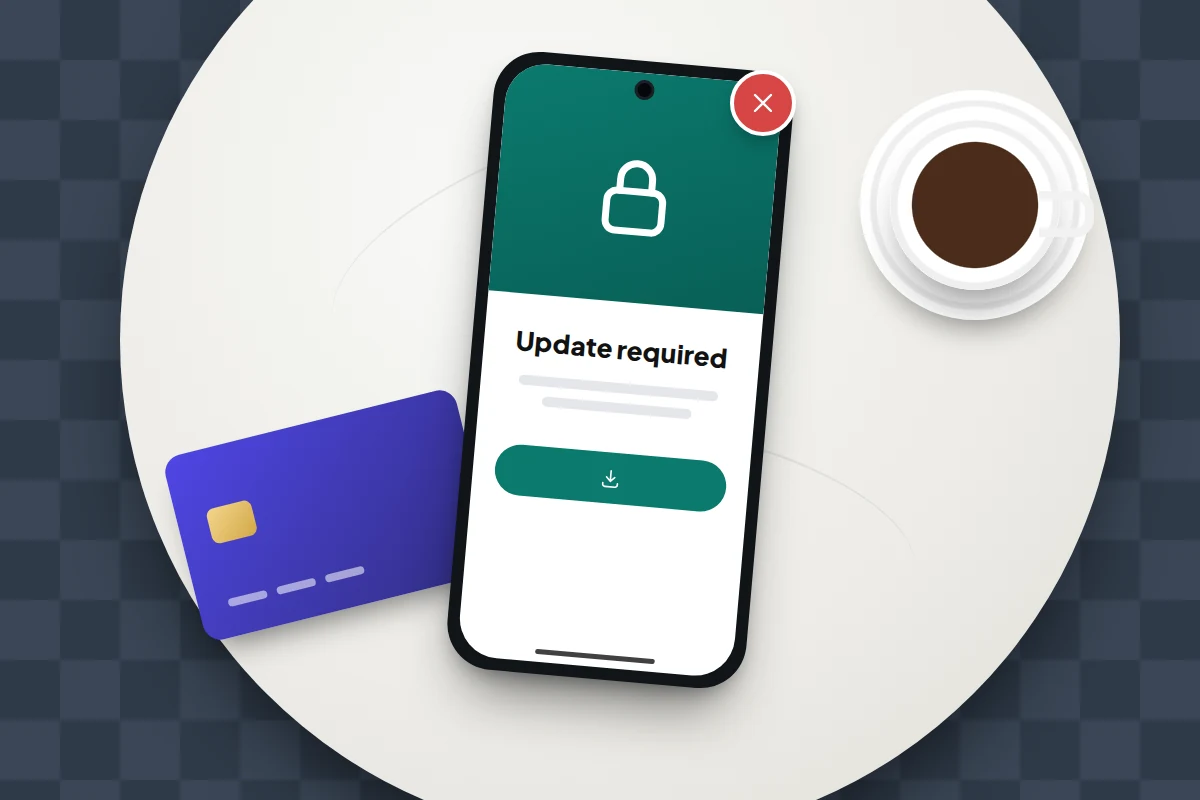
Apps follow. Banks, in particular, set a minimum operating system version. Tesco Bank, for example, lists iOS 16 and Android 10 as its minimums, says it weighs the security updates that Apple and Google still provide, and plans to raise them as iOS 27 and Android 17 arrive. When the minimum moves past your phone, the app stops opening and there is no workaround. Messaging apps, streaming services and eventually browsers follow more slowly.
When support ends: keep, replace or recycle
Keep it for low-risk jobs. An old phone can live on as a music player, a bedside clock, a camera for a child’s first photos or a video-call screen for a grandparent. Remove banking, email and payment apps, sign out of important accounts, and ideally use it on Wi-Fi only. The less it holds, the less there is to steal.
Replace it, with the calendar in mind. When you buy, check how many years of updates remain, not just the price. A model launched two years ago with seven-year support still has five; a cheaper model launched the same year may have one or two. The same check applies to a hand-me-down for a child.
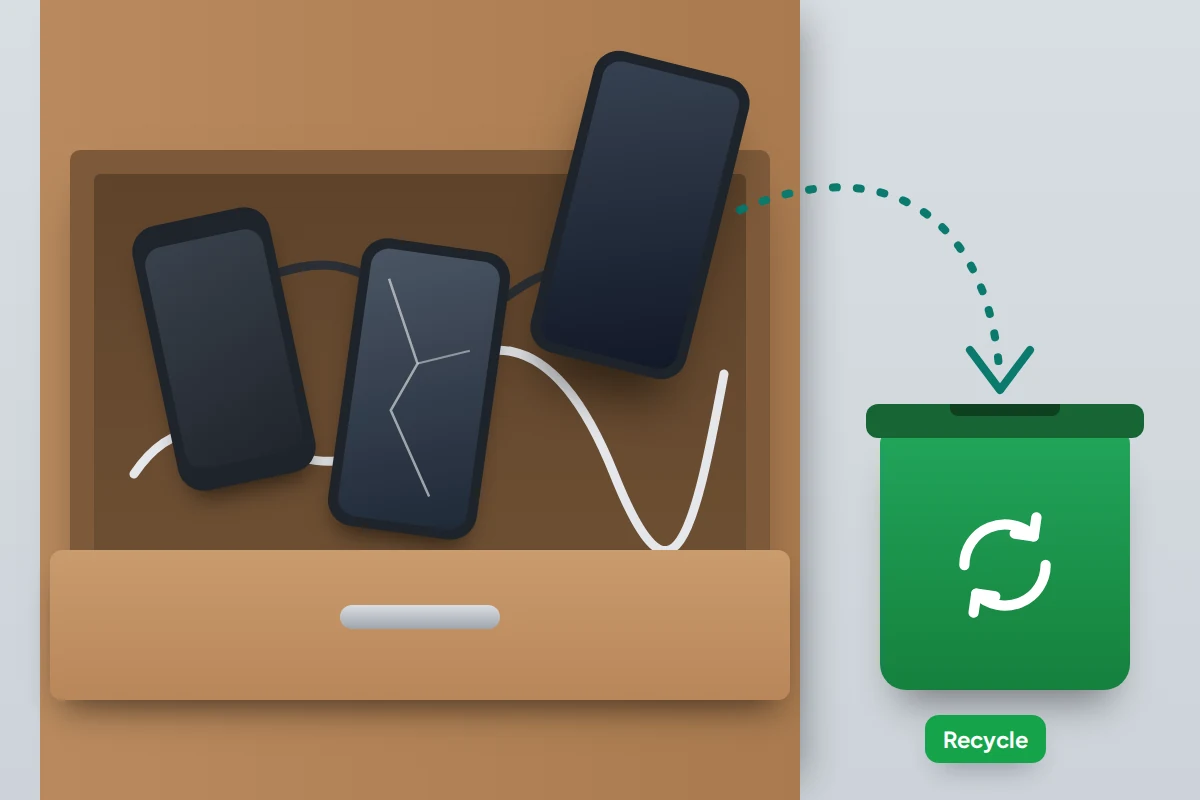
Recycle or sell it properly. Before it leaves your hands, back it up, sign out of your accounts, remove the SIM and do a factory reset, in that order; signing out first stops the phone staying locked to your account. Many phone makers, networks and retailers take old phones back for recycling.
When an update will not install
Not enough storage
Free space first. On iPhone, Settings → General → iPhone Storage lets you offload unused apps; on Android, Settings → Storage shows what is taking room.
“Unable to verify update” or stuck downloading
Apple suggests trying again on the same network, then another network or a computer. If that fails, delete the downloaded update: go to Settings → General → iPhone Storage, find the update in the list, tap it and choose Delete Update, then download it again from Software Update. Switch off any VPN first.
Stuck on a progress bar
Leave it plugged in for an hour; large updates can sit at one point for a long time. If nothing has changed after that, see our guide to fixing a phone that freezes or will not finish starting, which covers recovery mode.
Beta software
Pre-release versions of iOS and Android are for testing. Apple recommends installing betas only on a secondary device, and Google warns that its betas may contain errors. Leaving the Android beta usually means wiping the phone, and going back on an iPhone may mean restoring an older backup. Keep betas off the phone you rely on for banking, two-step codes and work. If one is already installed, turn off Beta Updates on the Software Update screen.
A checklist to keep
- Once: turn on automatic system, security and app updates.
- Once: note your phone’s end-of-support date somewhere you will see it, such as a calendar reminder six months before.
- Monthly: glance at the security update date. It should be recent.
- Before a major version: back up, charge, Wi-Fi, free space.
- When buying: check the update period and how much of it is left.
- At end of support: move banking and email to a supported phone, then keep the old one for low-risk use or erase and recycle it.
Frequently asked questions
Should I wait a few days before installing a big update?
A short wait for a major new version is reasonable if you depend on a particular app, since early bugs are usually fixed within weeks. Security updates are different: install those promptly.
Why is my phone slower after an update?
It is usually still finishing background work. If it is still slow after a few days, check storage and update your apps.
Can I go back to the previous version?
Generally not on a normal phone. Problems after an update are usually fixed by the next small release.
Is an unsupported phone safe for a child?
Not as their main phone, if it will hold accounts, messages and location sharing. For offline games or music on Wi-Fi, the risk is much lower.
Does a new phone from a shop always have years of updates left?
No. The clock starts when the model launches. Check the model’s launch date and the maker’s policy before you buy.
Sources and further reading
- NCSC: Install the latest software and app updates
- NCSC: Smart devices law and minimum security update periods
- Apple Support: Update your iPhone or iPad
- Apple Support: About Background Security Improvements
- Apple Support: If your iPhone or iPad won’t update
- Pixel Phone Help: When you’ll get software updates on Pixel phones
- Samsung Mobile Security: Security updates scope and supported models
- European Commission: New EU rules for durable smartphones and tablets
Looking for a tool to go with this? TheTruthSpy is a free parental control app for Android that stays visible on the child's phone. If it fits your family, see what the app does.
Related guides
How to Clean Your Phone Safely
What Apple, Samsung and Google actually allow when you clean a phone, what damages it, and how to clean the…
How to Reduce Mobile Data Usage on Your Phone
Find which apps are really using your mobile data, then fix the settings that matter on iPhone and Android, with…
eSIM Explained: How to Switch, Transfer and Travel With One
What an eSIM is, which phones are eSIM-only, how to move one to a new iPhone or Android phone, what…
Parental controls your child can see
Location, screen time limits, a web filter and alerts from notifications — free, and visible on your child's phone. Pair a phone in about ten minutes.
Android · Free to set up · Visible on your child's phone