Using Find My iPhone, Step by Step, From Any Device
 By TheTruthSpy Editor · Founder and editorPublished September 17, 2026Updated September 21, 20269 min read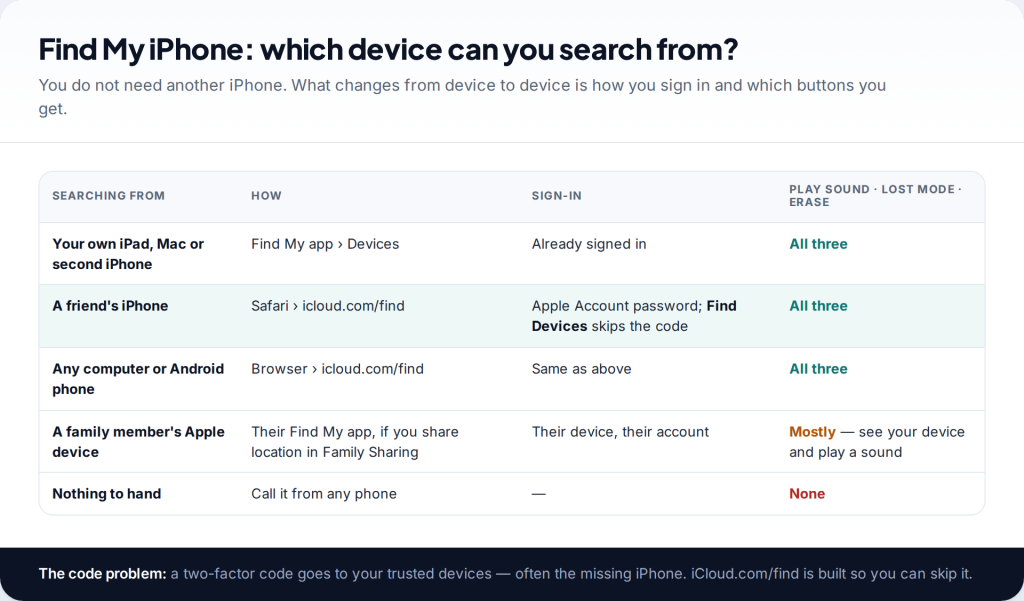
Where do you start when your iPhone is missing and you are holding someone else’s phone? Here is how to use Find My iPhone from almost any device. On an iPad or Mac of your own, open the Find My app and tap Devices. On a friend’s phone or any computer, go to icloud.com/find and sign in. Choosing Find Devices there lets you skip the two-factor code. From either, you can play a sound, turn on Lost Mode, or erase it.
- You do not need a second iPhone. Any browser on any device can reach icloud.com/find.
- The missing iPhone can’t send you a code, so use the Find Devices sign-in, which does not ask for one.
- Lost Mode first, Erase last. Lost Mode is reversible and keeps the phone trackable; Erase is neither.
- Never remove it from your account while it is missing. That switches off Activation Lock.
Step 1: choose the device you will search from
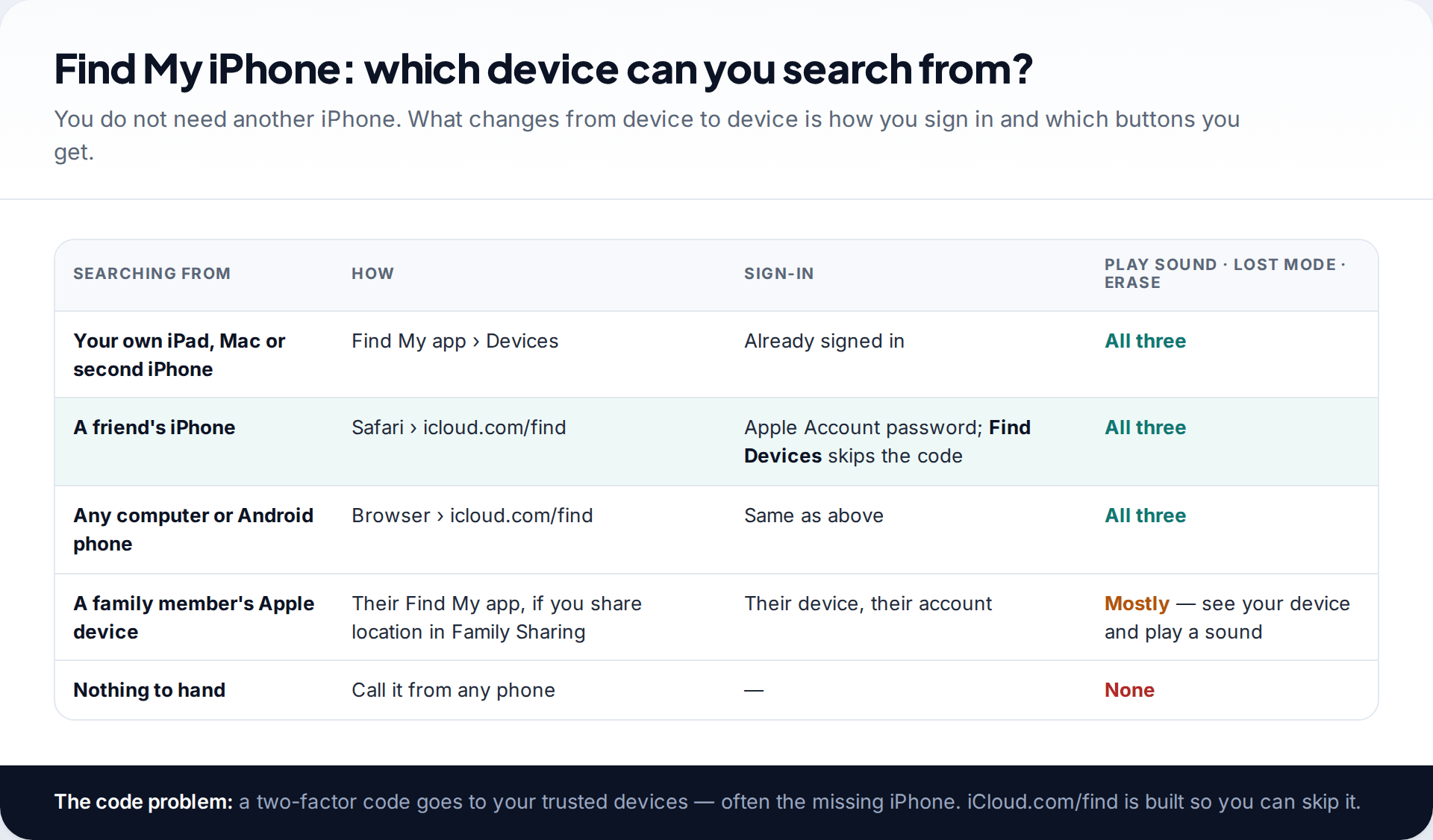
Find My iPhone is really one service with several ways in. What matters is not which device you borrow but how you sign in on it, because your Apple Account usually wants a two-factor code, and those codes go to your trusted devices. If the iPhone is your only trusted device, the code is on the phone you are looking for.
Apple gets around this in two ways. If you own another Apple device signed in to the same account, such as an iPad, a Mac or a second iPhone, the Find My app there is already signed in. On anything else, the Find Devices page at icloud.com/find lets you sign in without the code. It gives access only to the finding tools, not to the rest of your iCloud data.
Step 2: make sure Find My iPhone was switched on
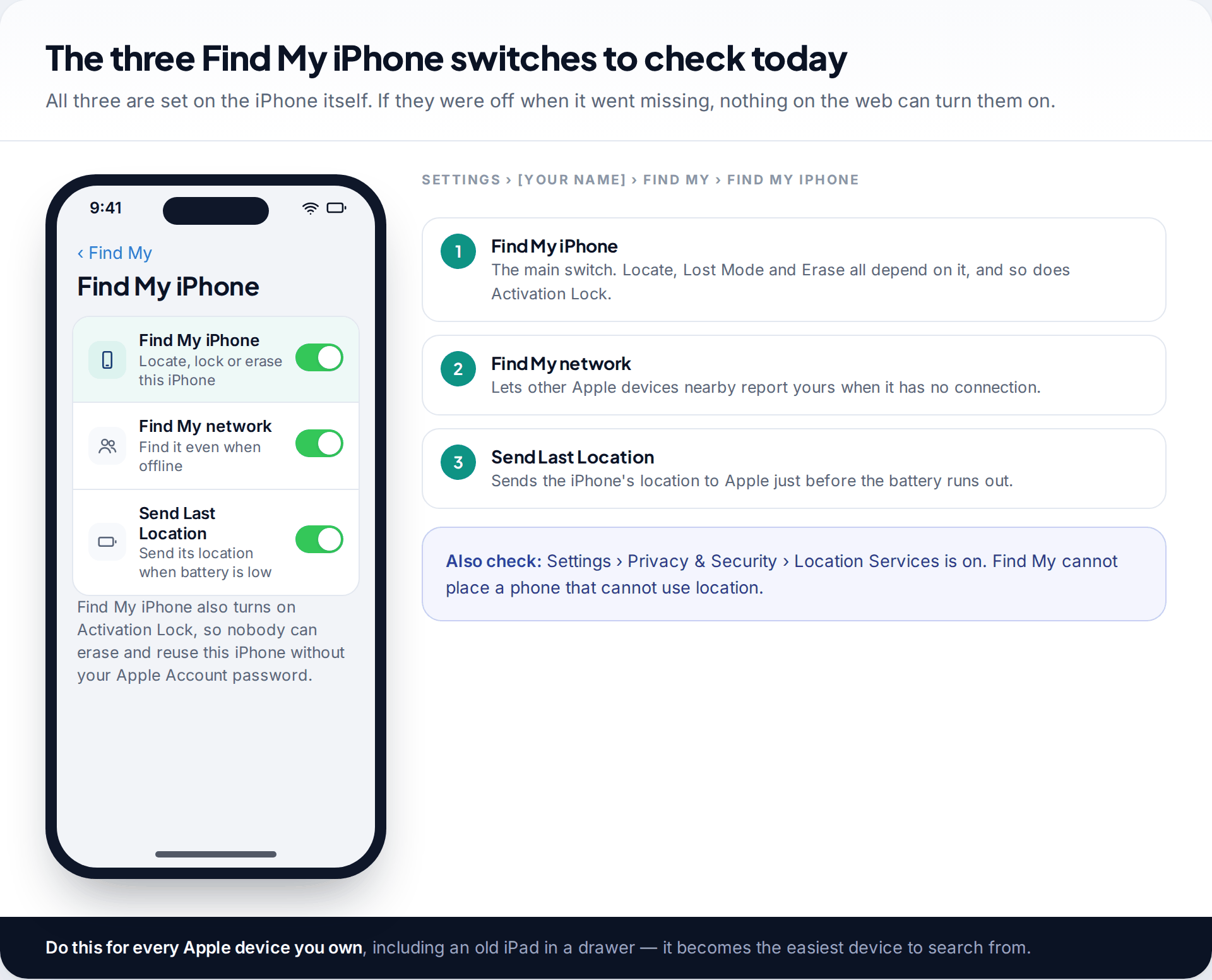
None of the steps below work unless Find My iPhone was on before the phone went missing. You cannot switch it on remotely. On an iPhone, the setting is at Settings › [your name] › Find My › Find My iPhone. The same screen has two more switches worth turning on. Find My network lets other Apple devices nearby report your iPhone when it has no connection. Send Last Location sends its location to Apple just before the battery runs out.
Find My iPhone also turns on Activation Lock. After an erase, the phone asks for your Apple Account password before anyone can set it up again. That is what makes a stolen iPhone hard to resell, and it is why the later advice about not removing the device matters.
How to use Find My iPhone from another iPhone, iPad or Mac
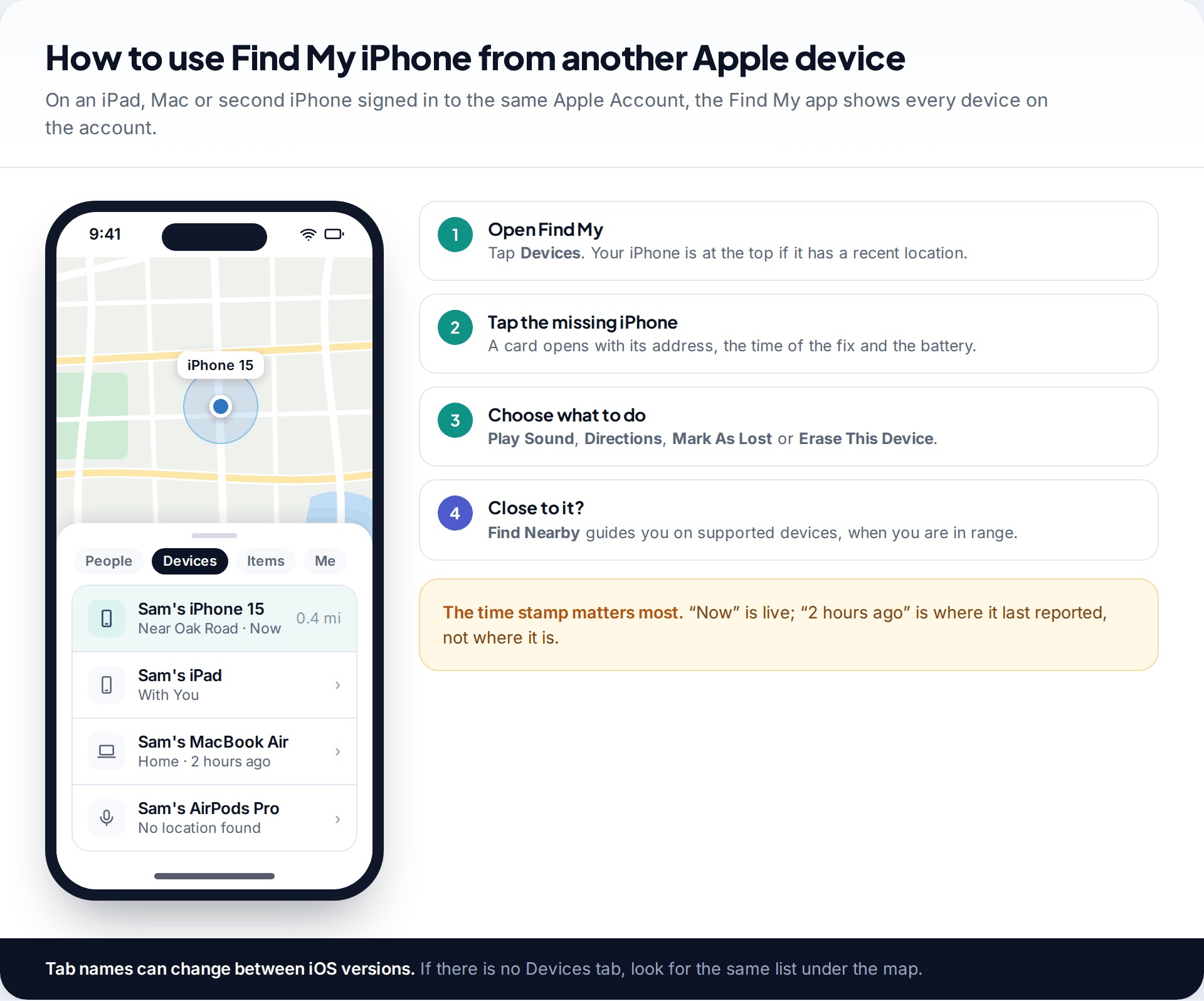
- Open the Find My app and tap Devices. Every device on your Apple Account is listed.
- Tap the missing iPhone. Its card shows the address, how long ago that location was recorded and, often, its battery level.
- Tap Play Sound if it is probably nearby. It plays even when the iPhone is on silent.
- Tap Directions to open Maps with a route to the location, if it is somewhere you can safely go.
- Under Mark As Lost, tap Activate if it is somewhere you cannot reach, then follow the steps in the Lost Mode section below.
When you are close, supported devices offer Find Nearby, which guides you towards the phone. If the device card says “No location found”, jump to the offline section. The phone has not reported recently, and the rest of this list will wait until it does.
Using iCloud.com/find on a friend’s phone or any computer
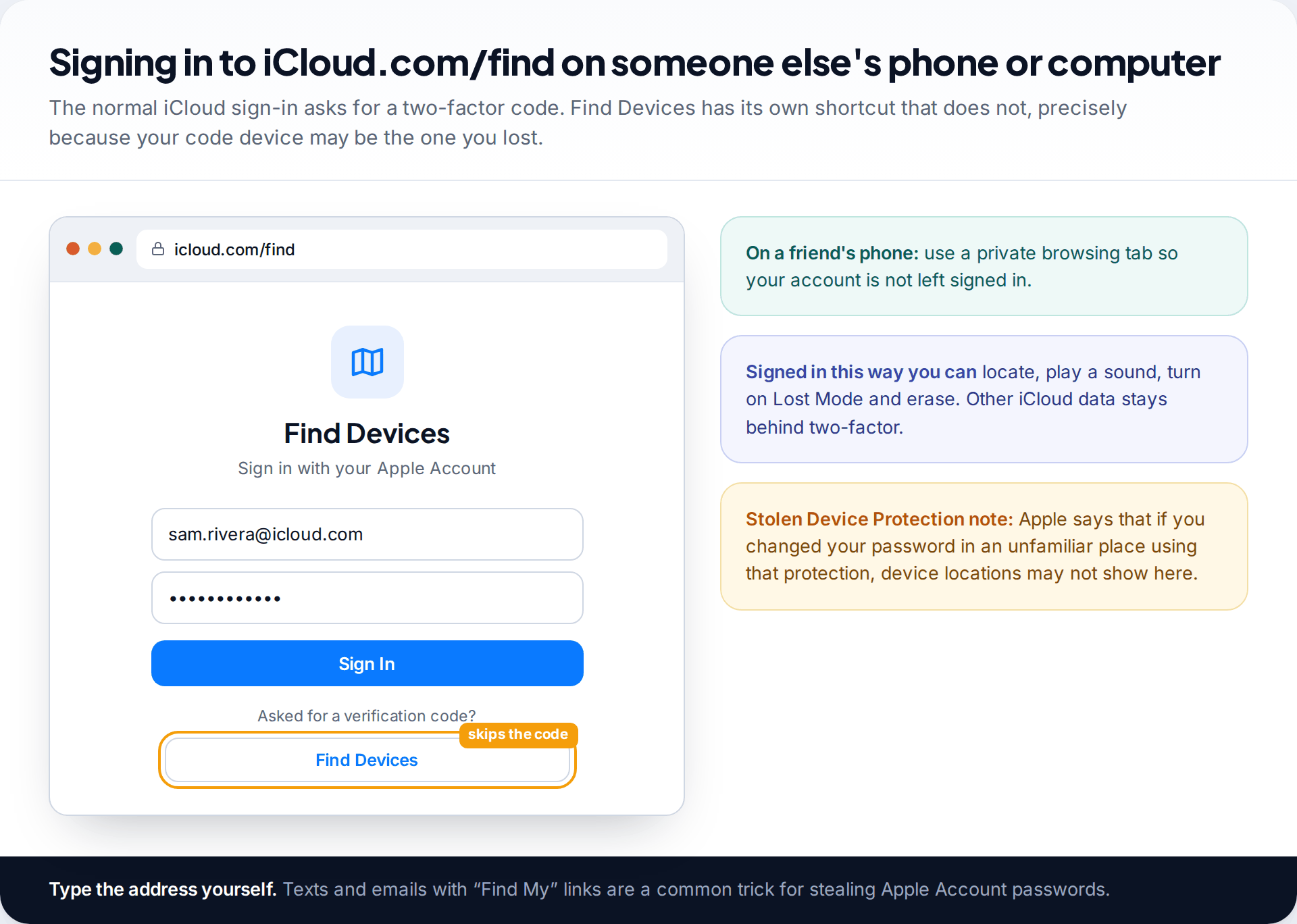
On a friend’s iPhone, an Android phone or a laptop, open a browser and type icloud.com/find. Type it yourself rather than tapping a link. Fake “Find My” pages are a standard way to steal Apple Account passwords, especially after a theft. Sign in with your Apple Account email and password. If a verification code is requested and you cannot receive it, choose the Find Devices button at the bottom of the window. Apple built this option for exactly this situation.
Use a private browsing window on a borrowed phone, and sign out when you finish.
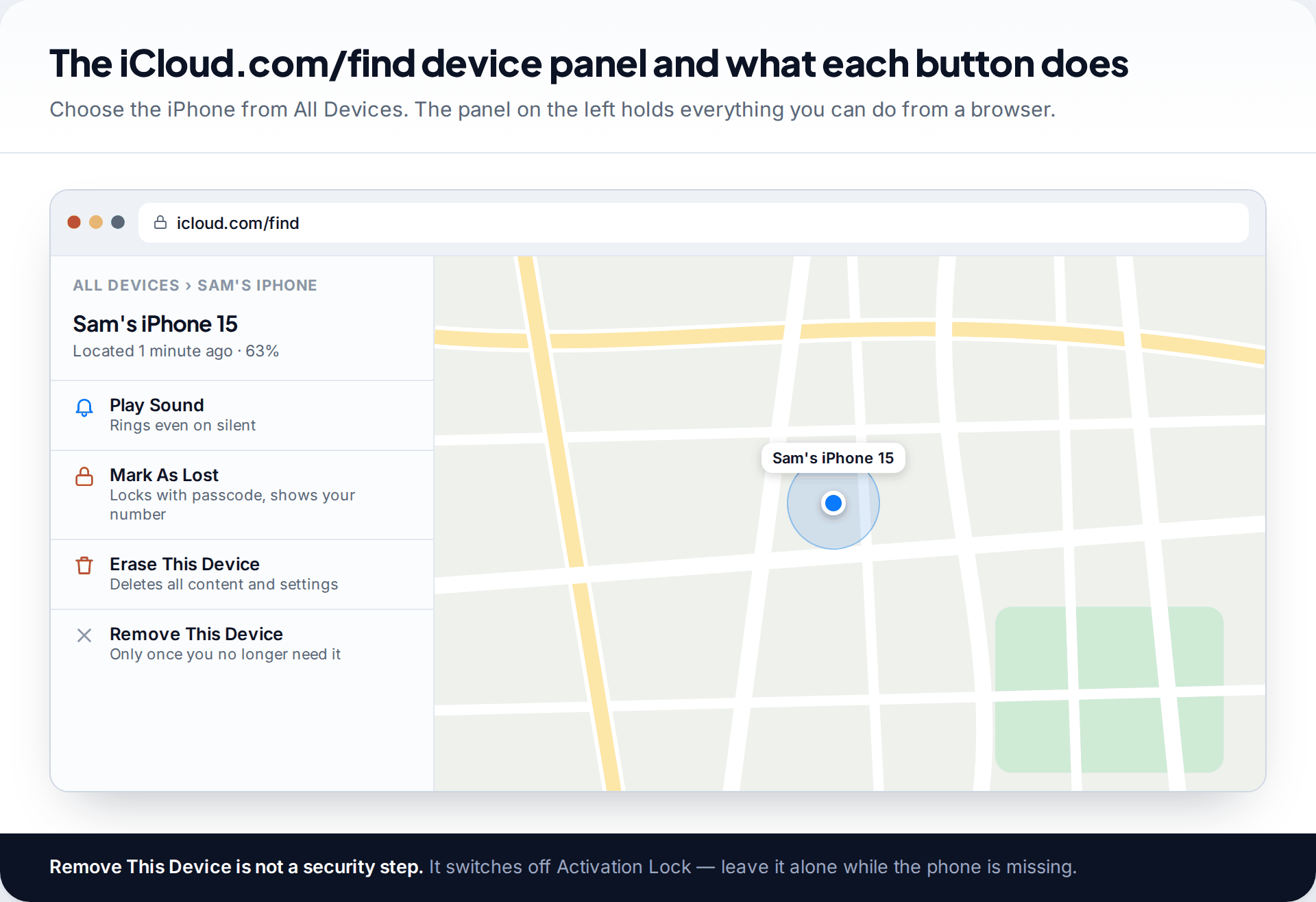
Pick the iPhone from All Devices. If it is online, it appears on the map at its current location. If not, the word “Offline” appears under its name and iCloud.com shows the last known location for up to 24 hours. From here you can Play Sound, Mark As Lost and Erase This Device. You will also see Remove This Device. Apple’s advice is not to use it while the phone is missing, because it switches off Activation Lock.
Using a family member’s device
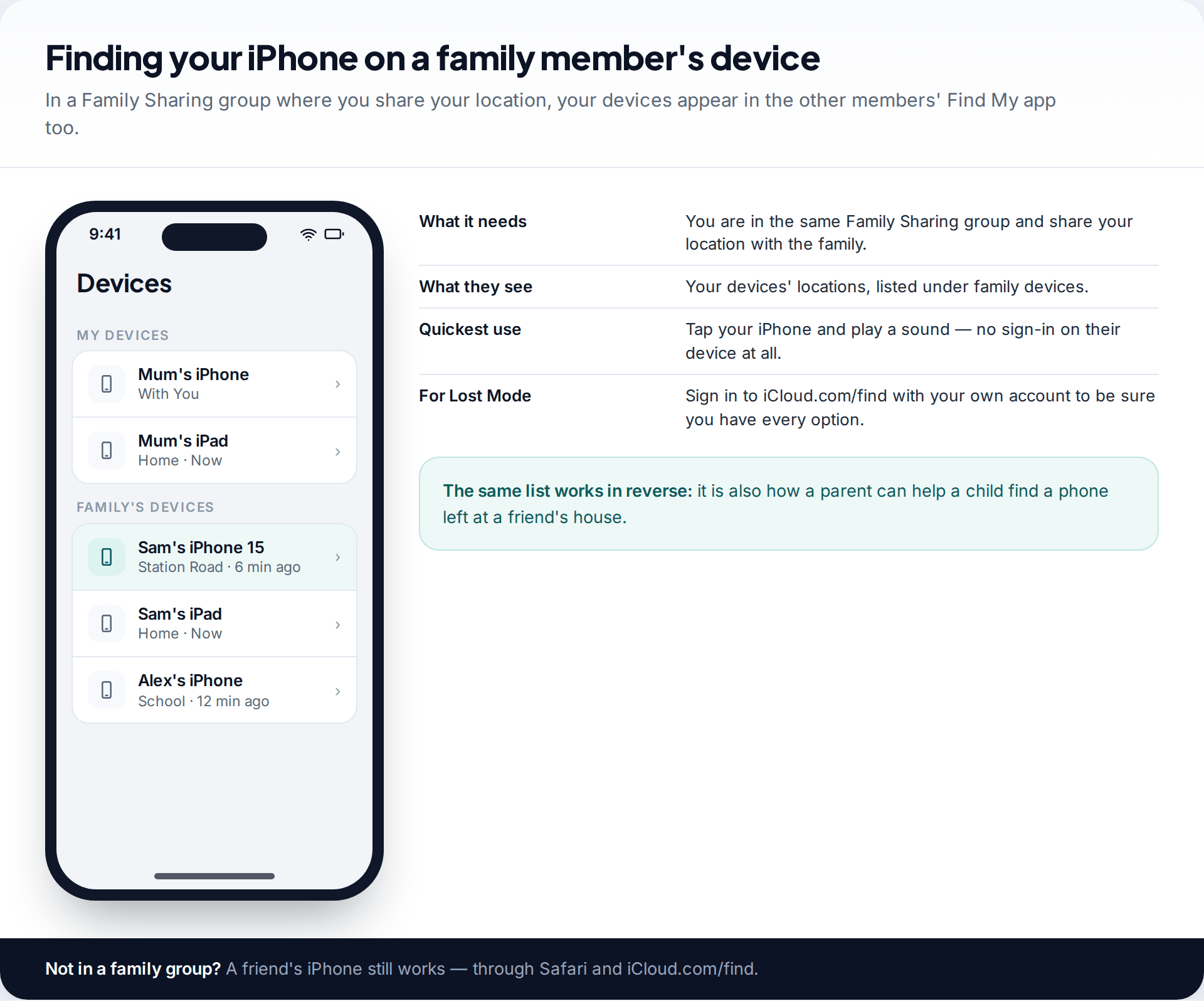
If you are in a Family Sharing group and share your location with it, your devices appear in the Find My app on the other members’ devices. A parent, partner or sibling can open Find My, find your iPhone in the family list and see where it is, without you signing in to anything. It is the quickest way to play a sound on a phone lost somewhere in the house.
For Lost Mode or Erase, it is better to sign in to iCloud.com/find with your own account, so the actions are clearly yours. If your family does not share locations yet, our guide to setting up location sharing for the whole family covers doing it across iPhone and Android.
Turning on Lost Mode, step by step
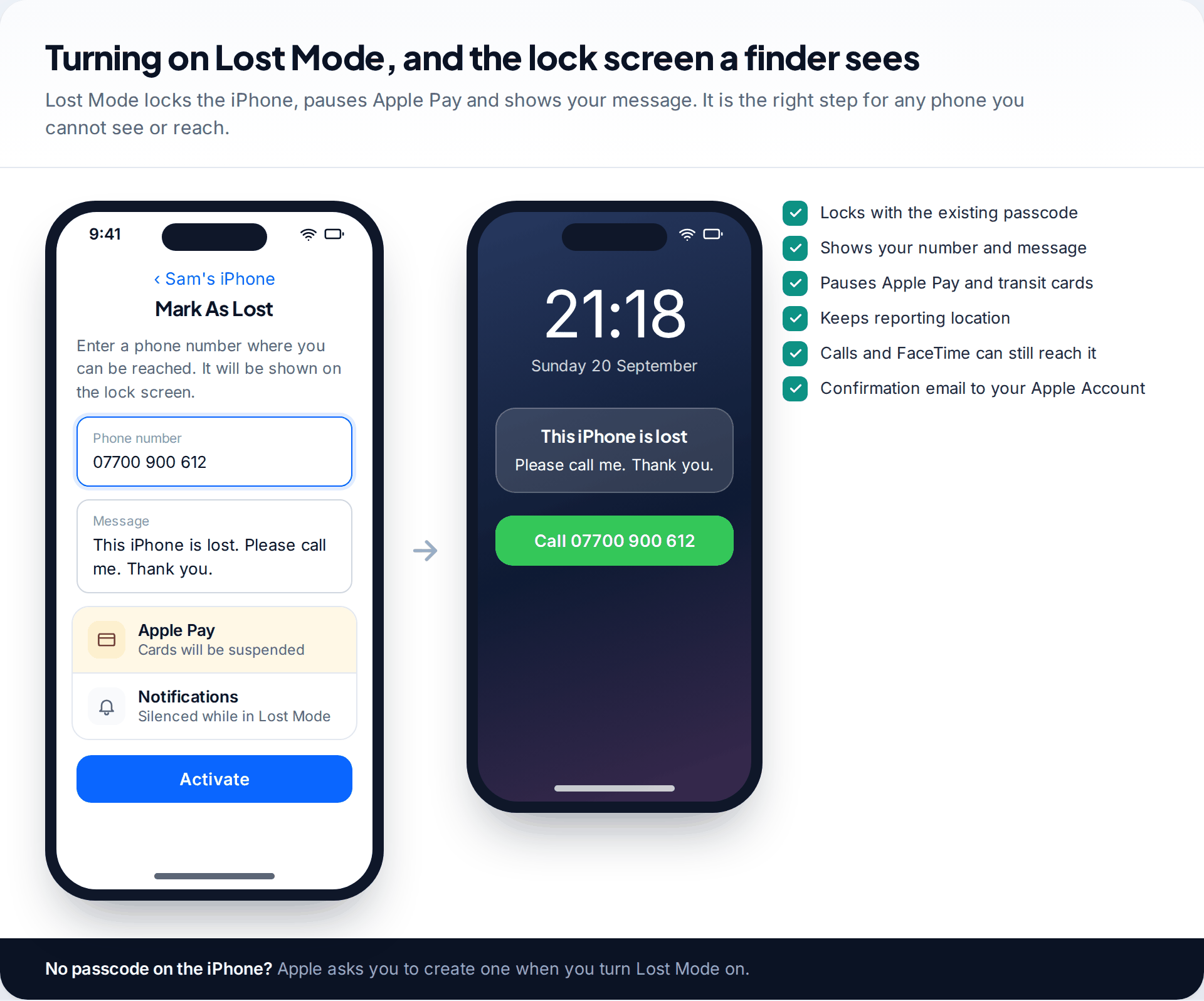
Lost Mode, labelled Mark As Lost, is the step to take for any phone you cannot see or reach. Apple’s iCloud guide lists what it does. It locks the iPhone with its passcode, or asks you to set one if there was none. It shows a phone number and message on the lock screen. It suspends Apple Pay and transit cards, silences notifications and alarms, and keeps the location updating on your map. Phone and FaceTime calls can still reach it, which is how a finder calls you back. Apple also sends a confirmation email to your Apple Account address.
- Select the iPhone and choose Mark As Lost (in the app, Activate under Mark As Lost).
- Enter a phone number where you can be reached. Use a friend’s or a work number, not the missing iPhone’s own.
- Add a short message. Leave out your address.
- Confirm. If the iPhone is offline, Lost Mode starts the moment it reconnects.
To end Lost Mode, enter the passcode on the iPhone itself, or select it on iCloud.com/find and stop Lost Mode there.
When the iPhone is offline or the battery has died
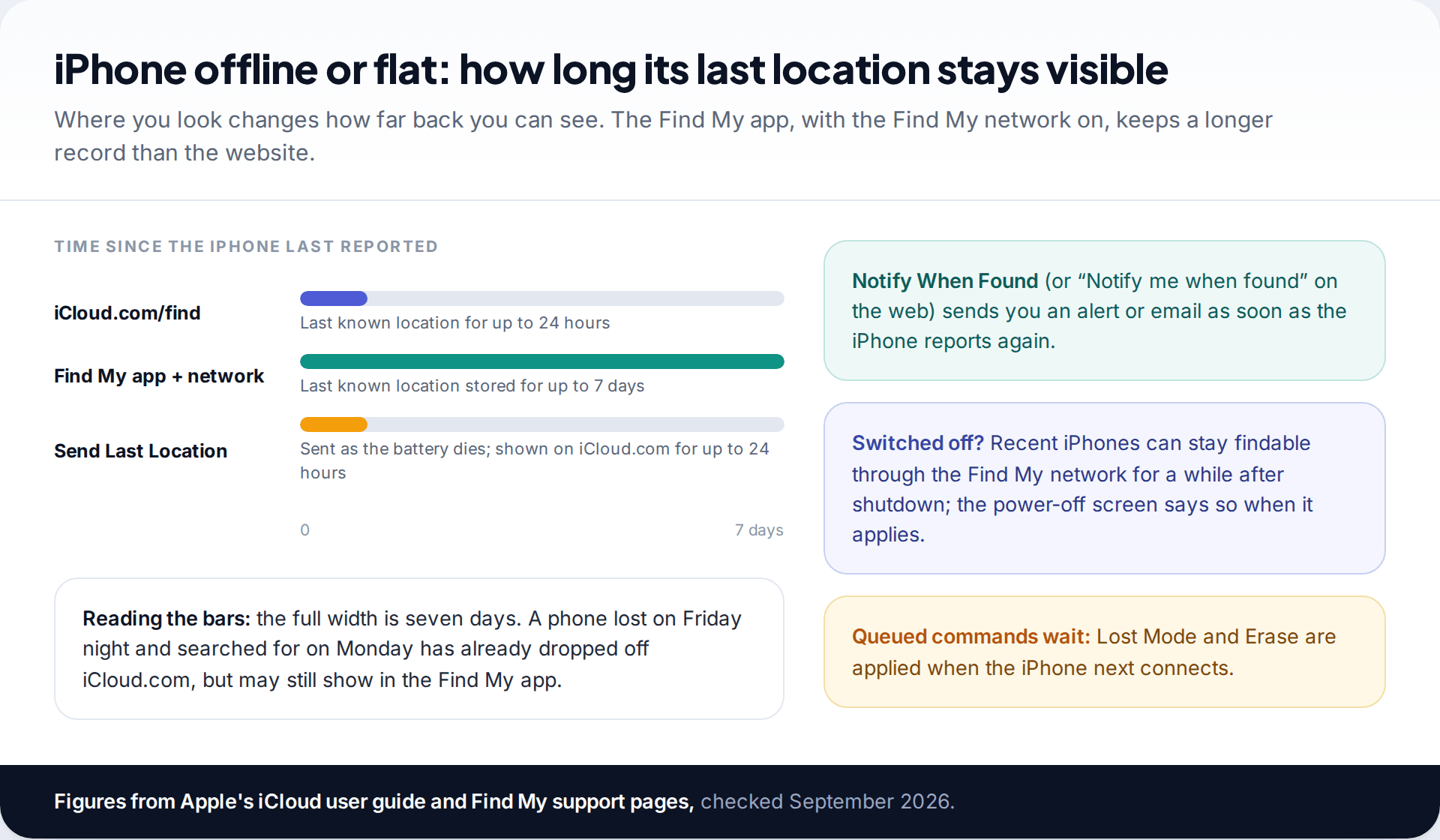
“Offline” means the iPhone has no connection, is switched off or has a flat battery. What you can still see depends on where you look and which settings were on. Apple’s iCloud guide says iCloud.com shows the last known location for up to 24 hours. With the Find My network on, the Find My app on any device signed in to your account keeps the last known location for up to seven days. Other Apple devices passing nearby can also update it, even while the iPhone itself has no signal.
Send Last Location adds one more point: the iPhone tries to report its location just before the battery runs out. Turn on Notify When Found so you get an alert, or an email on the web, when the phone reports again. If you think the phone was taken rather than dropped, switch to our guide on tracking a stolen iPhone. The priorities there are different.
When you get it back, and what Find My cannot do
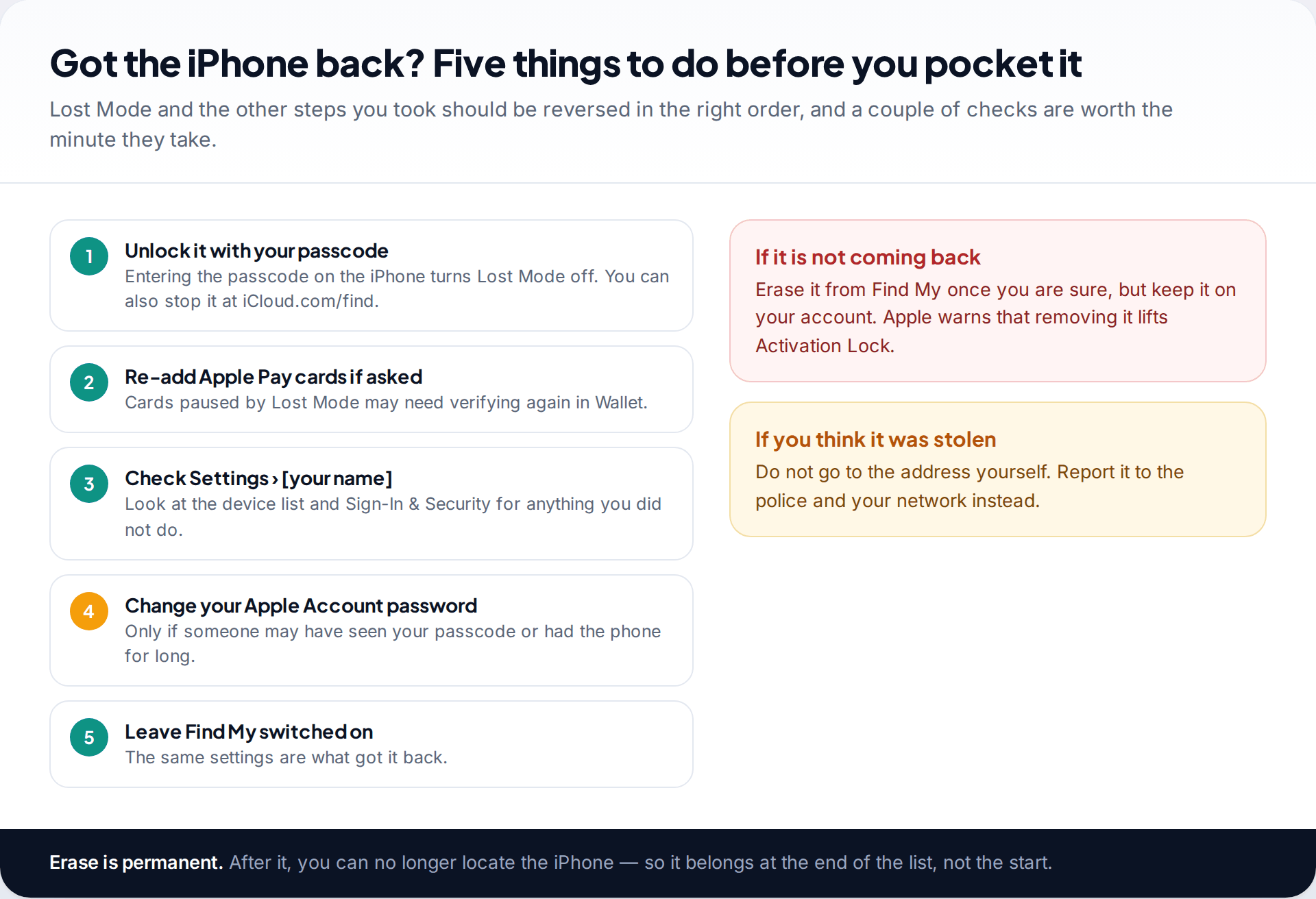
Once the iPhone is back in your hand, enter the passcode to end Lost Mode. Check Wallet in case any paused cards need confirming again, then open Settings › [your name] and look through the device list and sign-in settings for anything you did not do. If the phone was out of your hands for long, or someone may have seen your passcode, change your Apple Account password as well.
The iPhone is not in the device list at all
You are signed in with a different Apple Account, or Find My iPhone was switched off on the phone.
Fix: confirm the account email in Settings on another of your devices. If Find My was off, contact the police and your network instead; there is nothing to locate.
“No location found”
Location Services was off, or the phone has not reported since it went missing.
Fix: turn on Notify When Found and put it in Lost Mode anyway. Both wait for the next connection.
The address shown is hours old
The iPhone is offline and you are seeing its last report.
Fix: treat it as a lead, not a position. Ring the venue at that address before travelling there.
Find My has hard limits. It cannot switch itself on remotely. It cannot locate a phone that has been erased and removed from your account. And once the last-location window has passed, it cannot show where a switched-off phone has been. It also can’t find an iPhone signed in to someone else’s Apple Account, so there is no legitimate way to use it on a phone that is not yours.
How this page was put together
Each step was checked in September 2026 against Apple’s own documentation: the iCloud user guide pages on locating a device, Lost Mode and erasing, Apple Support’s guidance on lost or stolen devices and the Find My network, and the iPhone user guide. Apple changes tab names and button wording between iOS versions, so if a label differs slightly on your device, look for the same action nearby.
We did not test these steps on particular iPhone models for this page. Our editorial standards explain how guides are researched and kept current.
Common questions
Can I use Find My iPhone without another Apple device?
Yes. Go to icloud.com/find in any browser, including on Android phones and Windows PCs, and sign in with your Apple Account.
How do I get past the verification code if my iPhone is lost?
On the iCloud sign-in page, choose the Find Devices button at the bottom of the window. It opens the finding tools without a two-factor code.
Can I find my iPhone if it is dead or switched off?
You will see its last known location: up to 24 hours on iCloud.com, and up to seven days in the Find My app if the Find My network was on. Send Last Location helps if the battery ran out.
Does Lost Mode erase my iPhone?
No. It locks the phone, shows your message and pauses Apple Pay. Your data stays, and the phone keeps reporting its location.
Can someone else see where my iPhone is?
Only people who can sign in to your Apple Account, and family members you share your location with through Family Sharing. Check your account’s device list and sharing settings if you are unsure.
Should I remove my iPhone from Find My if it is stolen?
No. Apple advises keeping it on your account, and not removing it until any AppleCare+ claim is approved. Removing it turns off Activation Lock.
Looking for a tool to go with this? TheTruthSpy is a free parental control app for Android that stays visible on the child's phone. If it fits your family, see the Location & geofencing feature.
Related guides
How Accurate Is Phone Location Tracking? GPS, Wi-Fi and Cell Compared
Phone location accuracy runs from a few metres with GPS under open sky to miles when only the mobile network…
Using Google Maps Timeline to Find a Lost Phone
Can Google Maps find a lost phone? Only in two cases: someone you share your location with can see it,…
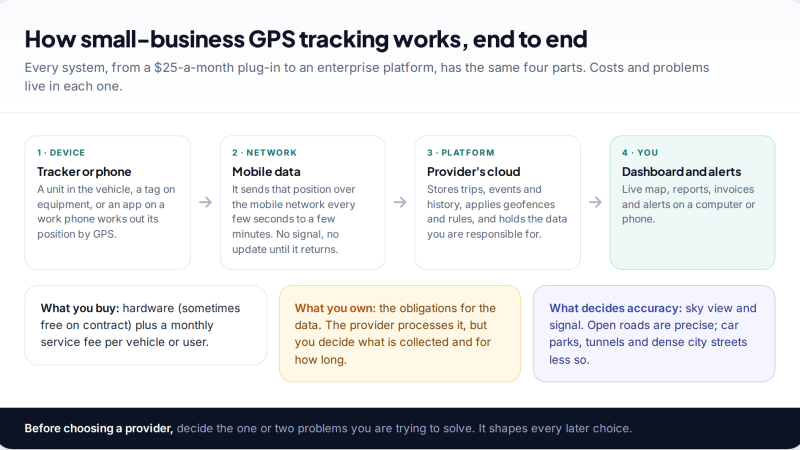
GPS Tracking for Small Business: A Starter Guide
A plain starter guide to GPS tracking for a small business: vehicle trackers versus phone apps, what a small fleet…
Parental controls your child can see
Location, screen time limits, a web filter and alerts from notifications — free, and visible on your child's phone. Pair a phone in about ten minutes.
Android · Free to set up · Visible on your child's phone