Whole-Family Location Sharing: One Setup Across iPhone and Android

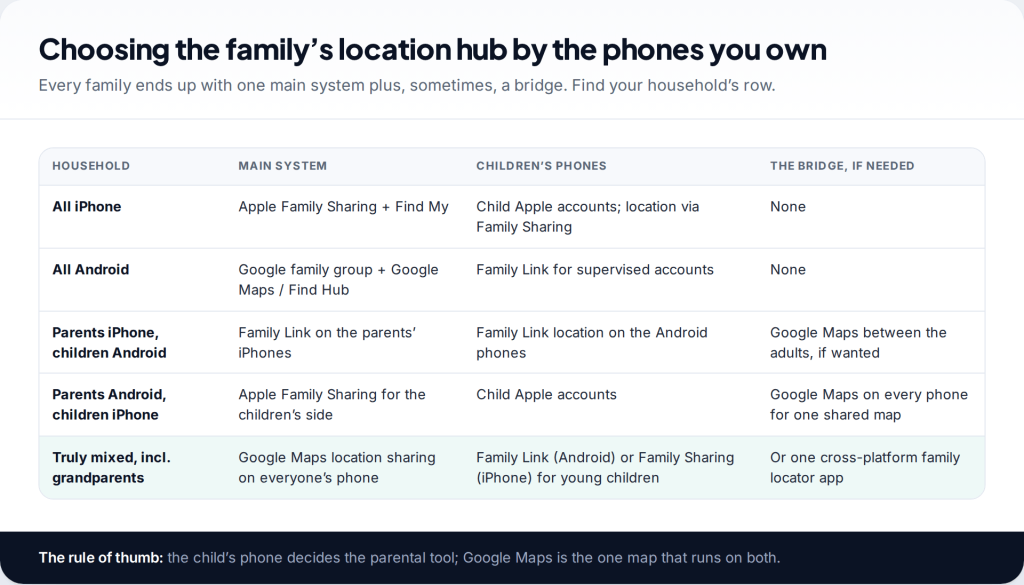
Most families don’t all use the same kind of phone. One parent has an iPhone, the other an Android, a teenager has whatever was cheapest, and a grandparent has a hand-me-down. A family location sharing setup that works for everyone uses the right parental tool for each child’s phone, and Google Maps as the one map that runs on both platforms.
- The child’s phone decides the tool. Android children: Google Family Link. iPhone children: Apple Family Sharing.
- Google Maps bridges the gap. Anyone with a Google account can share with anyone else, iPhone or Android.
- Plan who sees whom first. Not everyone needs to see everyone, and older teens deserve a say.
- Maintenance matters. New phones, updates and battery savers break sharing more often than anything else.
Start by mapping your household’s phones
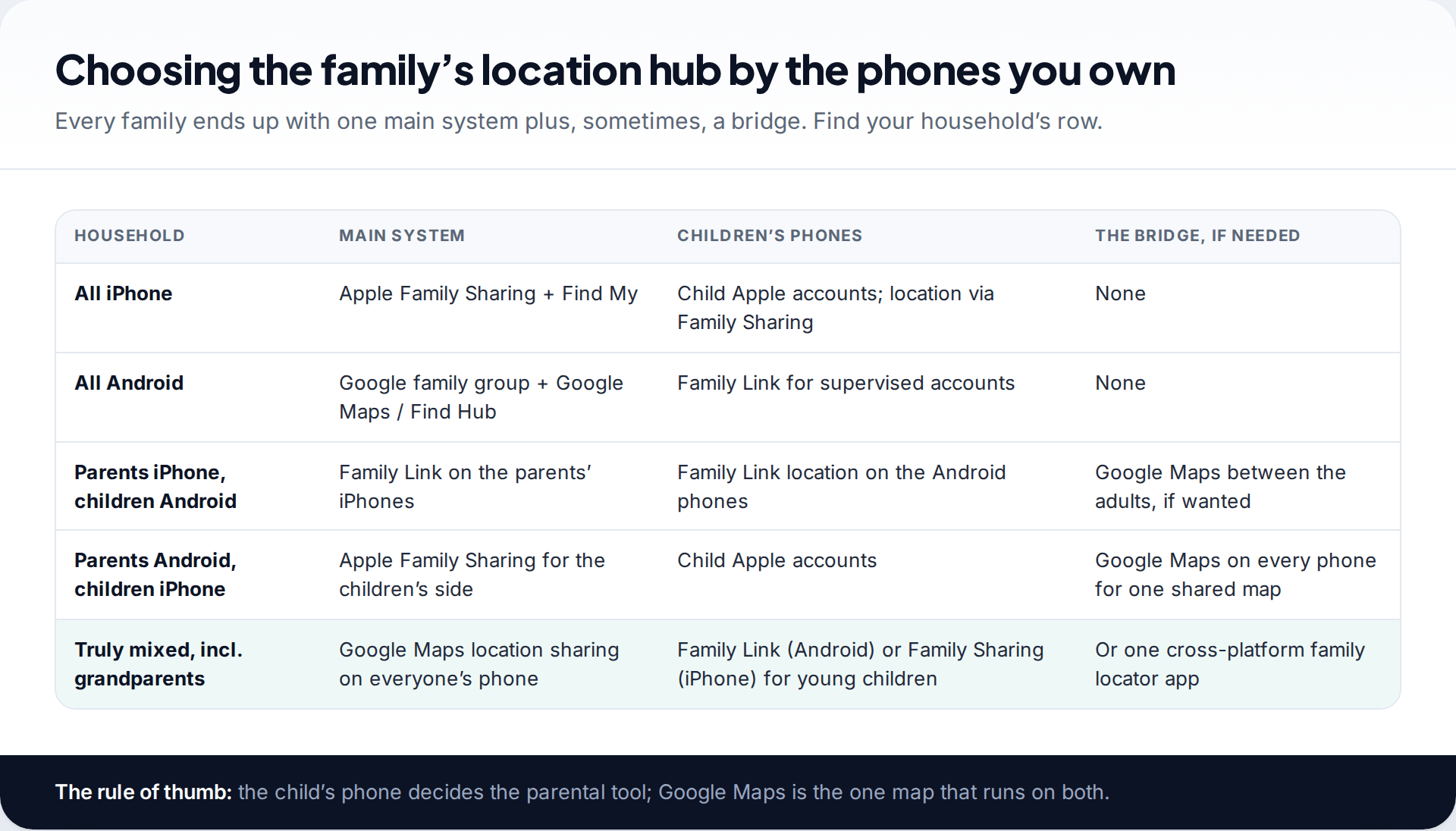
Apple’s and Google’s family systems do not talk to each other. Apple Family Sharing only includes Apple devices, and Google’s Family Link can only locate Android phones and compatible Fitbit devices. So the first job is to list every phone in the house and what it runs.
Two principles then decide the design. First, the child’s phone decides the parental tool: a 10-year-old with an iPhone is set up through Apple Family Sharing even if both parents use Android, and a child on Android is set up through Family Link even if the parents have iPhones. Family Link’s parent app runs on iPhone, so that case is straightforward. Second, Google Maps location sharing is the bridge. It runs on both platforms, so adults, older teens and grandparents can all appear on one map regardless of what they carry.
If you would rather have one app for everyone, a cross-platform family locator is the alternative. It is simpler to explain but adds another company holding your family’s movements, often with location history. For most households, the built-in tools are enough.
Decide who sees whom before you change a setting
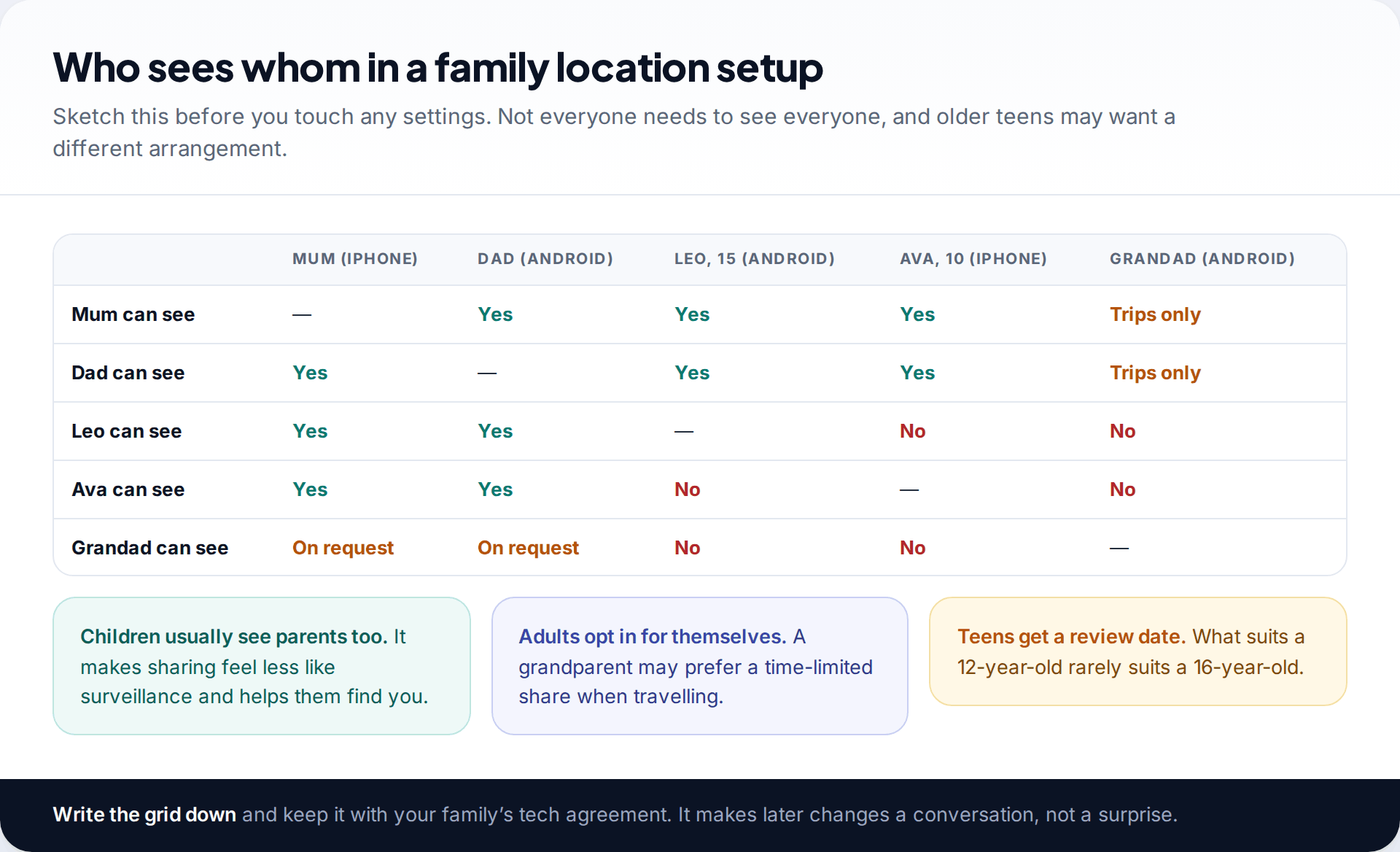
A family location setup is really a set of one-way permissions. Seeing someone does not mean they see you, and each person’s share is their own. Sketching a simple grid of who can see whom helps in three ways.
It makes parents share too. Children accept location sharing more readily when it is mutual, and it helps them find you. It also respects the adults. A grandparent or adult sibling should decide for themselves, and a time-limited share when travelling may suit them better than an ongoing one. And it gives teenagers a visible path to more privacy. A 15-year-old is more likely to keep sharing switched on if they know alerts will be reduced at the next review.
Setting up the iPhone side with Family Sharing
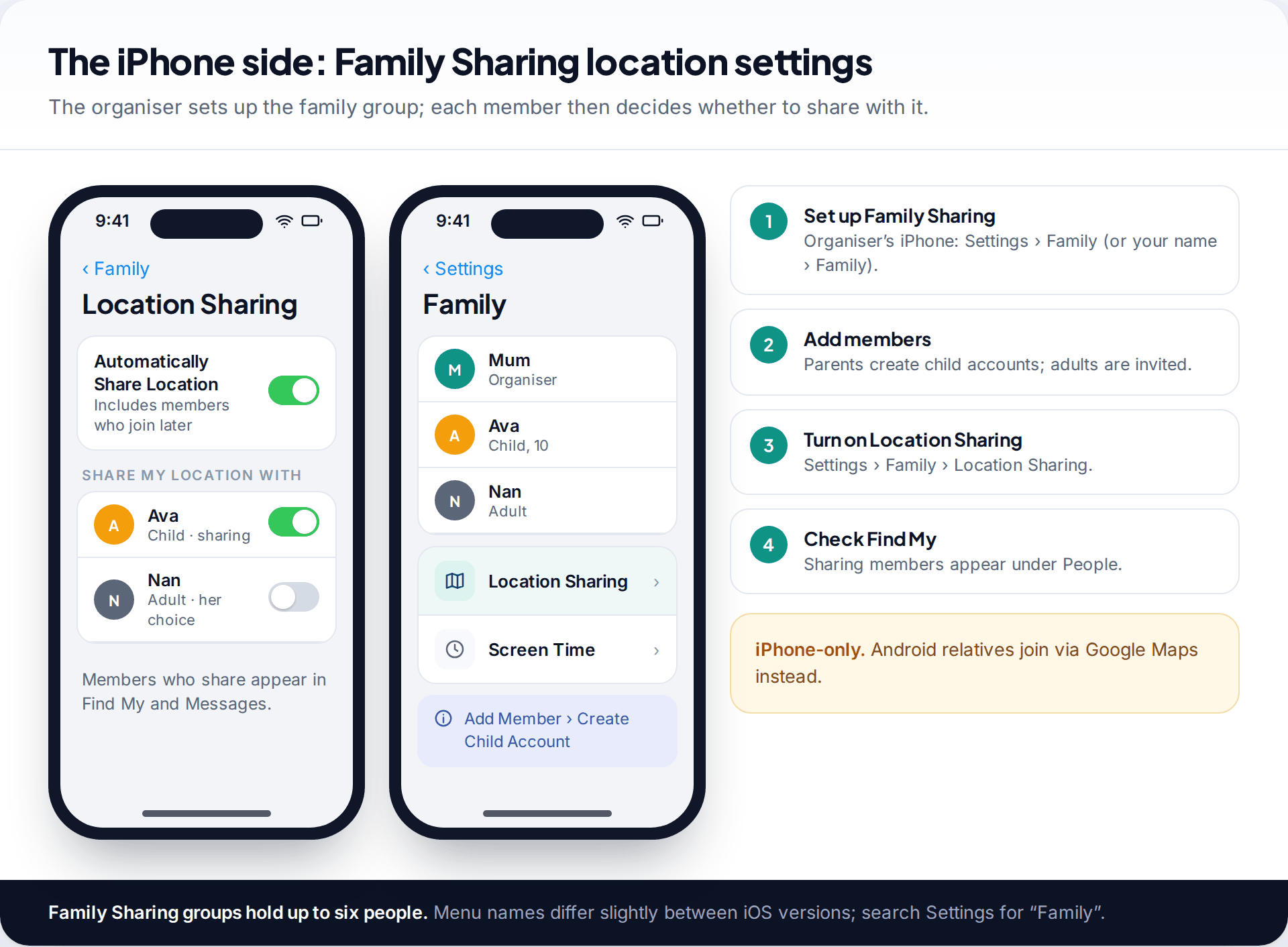
- Create the family group on the organiser’s iPhone: Settings › your name › Family (on recent iOS versions, Family appears near the top of Settings). A group holds up to six people.
- Add children. Younger children need a child account created by a parent inside Family Sharing; the minimum age for a standard Apple account varies by country. Adults are invited and accept on their own iPhone.
- Turn on Location Sharing under Settings › Family › Location Sharing and choose which members to share with. Apple’s help notes that the organiser’s location is shared with the group, and that Automatically Share Location shares with members who join later.
- Open Find My › People to check. Family members who share appear there, and in Messages.
Each member controls their own sharing. Parents can also use Screen Time on a child’s iPhone to limit changes to privacy settings. Talk to your child about this rather than relying on it alone.
Setting up the Android side with Family Link
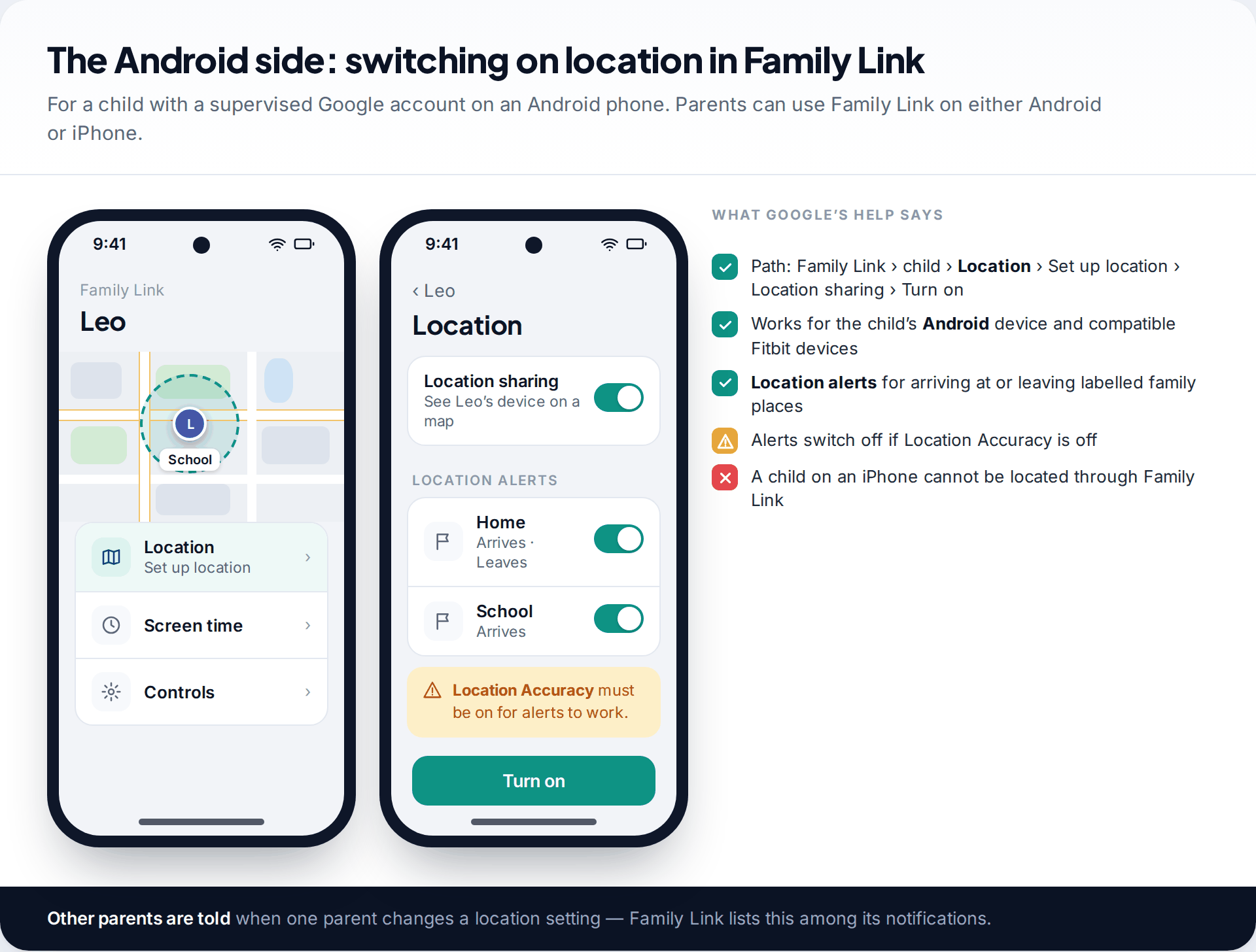
For a child with a supervised Google account on an Android phone, Google’s help gives the path: open Family Link, select your child, tap Location › Set up location, switch on Location sharing and tap Turn on. You then see the child’s device on a map inside Family Link.
Family Link also offers location alerts when a child’s device arrives at or leaves a labelled family place such as home or school. Google notes that these alerts are switched off if Location Accuracy is off on the child’s phone, so check that setting during setup. If both parents are Family Link parents, the other parent is notified when one changes a location setting, which avoids confusion.
Teenagers who manage their own Google account share through Google Maps instead, like the adults. For more on the Android options, including Find Hub, see our guide to setting up location sharing on Android.
Connecting everyone with Google Maps location sharing
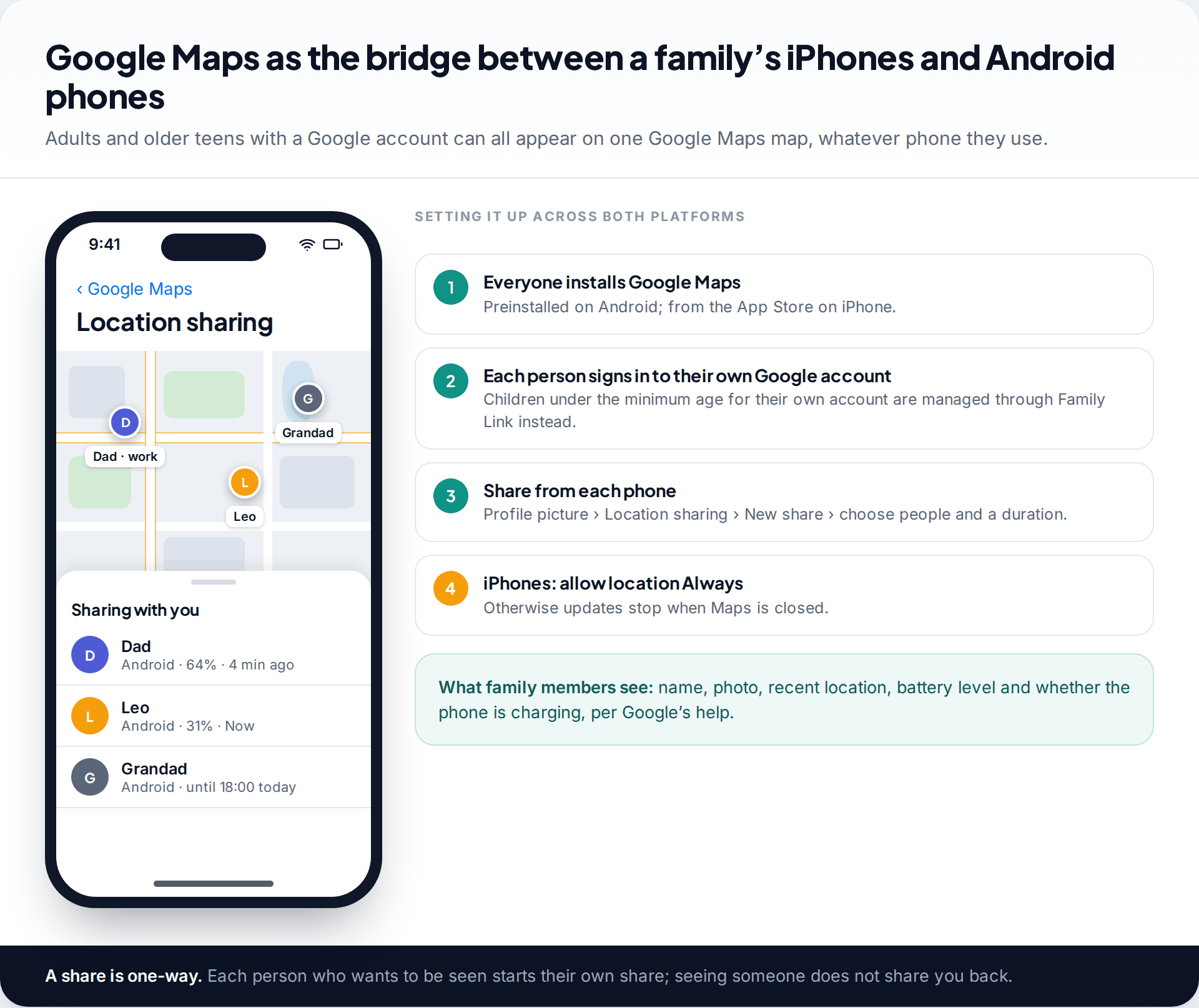
Once the children’s tools are set, Google Maps connects the rest of the family. Everyone installs Google Maps (it comes with Android phones and is free on the App Store), signs into their own Google account, and shares from profile picture › Location sharing › New share. Google’s help says people you share with see your name and photo, your device’s recent location, its battery level and whether it is charging.
Two details trip mixed families up. On iPhones, Google Maps should be allowed to use location Always with Precise Location on. Otherwise updates stop once the app is closed. And shares are one-way: if Dad shares with Mum, Mum still needs to share with Dad for him to see her.
Grandparents and other adults can choose a duration, such as until the end of the day for a long drive, rather than sharing indefinitely.
Place alerts: the part of the setup families use most
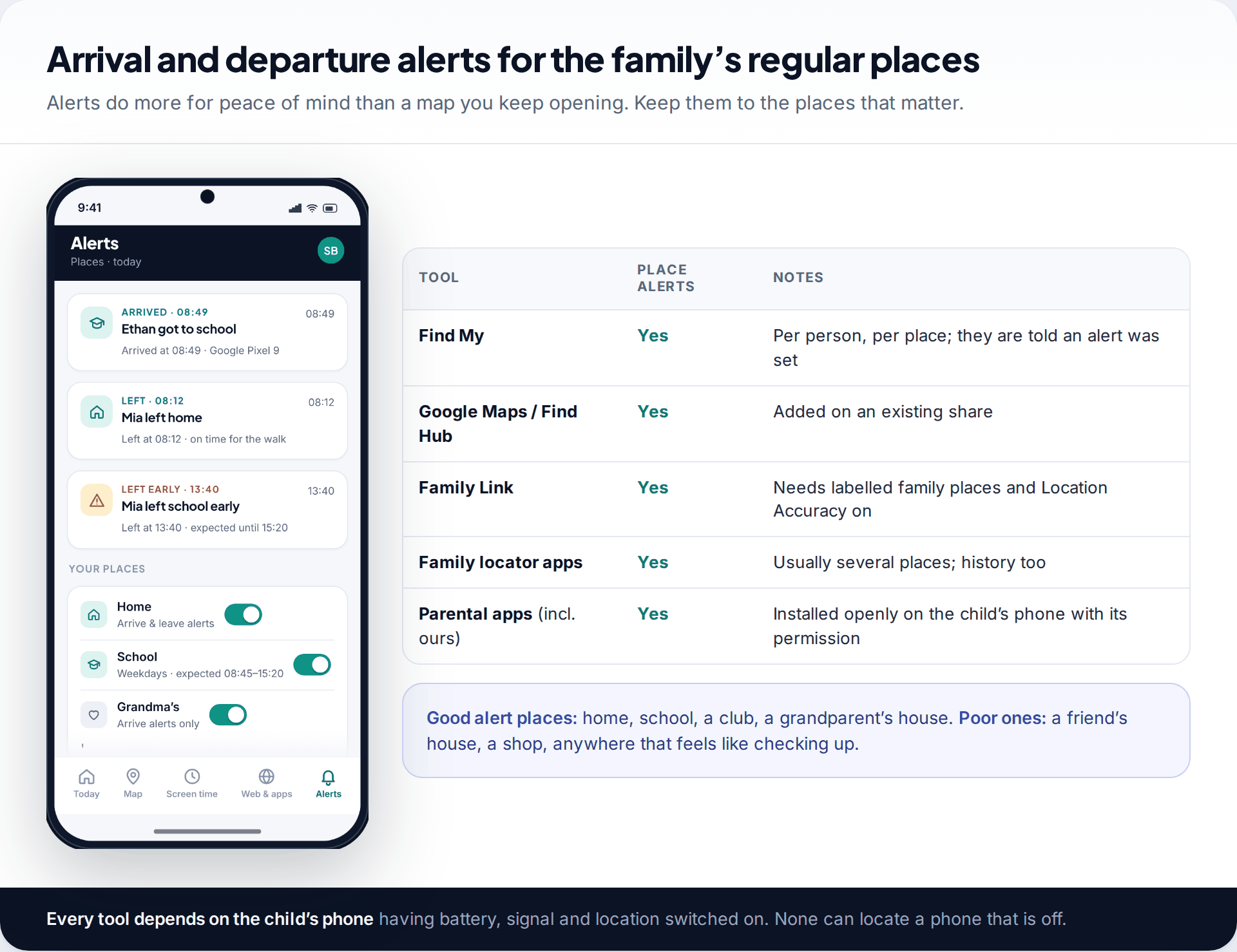
Most parents do not want to watch a map. They want to know that a child reached school and got home. Arrival and departure alerts do exactly that, and every major tool offers them in some form: Find My lets you add a notification for a person and place, Google Maps and Find Hub add alerts to an existing share, and Family Link uses labelled family places.
Keep alerts to the places that serve the original reason, such as home, school, a regular club or a grandparent’s house. Alerts for friends’ houses or shops quickly start to feel like checking up, especially to a teenager.
If you want place alerts, a location history and a map in one parent dashboard, our family location feature does that for a child’s Android phone, installed openly with the child’s knowledge. It cannot locate a phone that is off, out of signal or has location switched off, and it is not a replacement for the conversation below.
Explaining the setup to children and older relatives
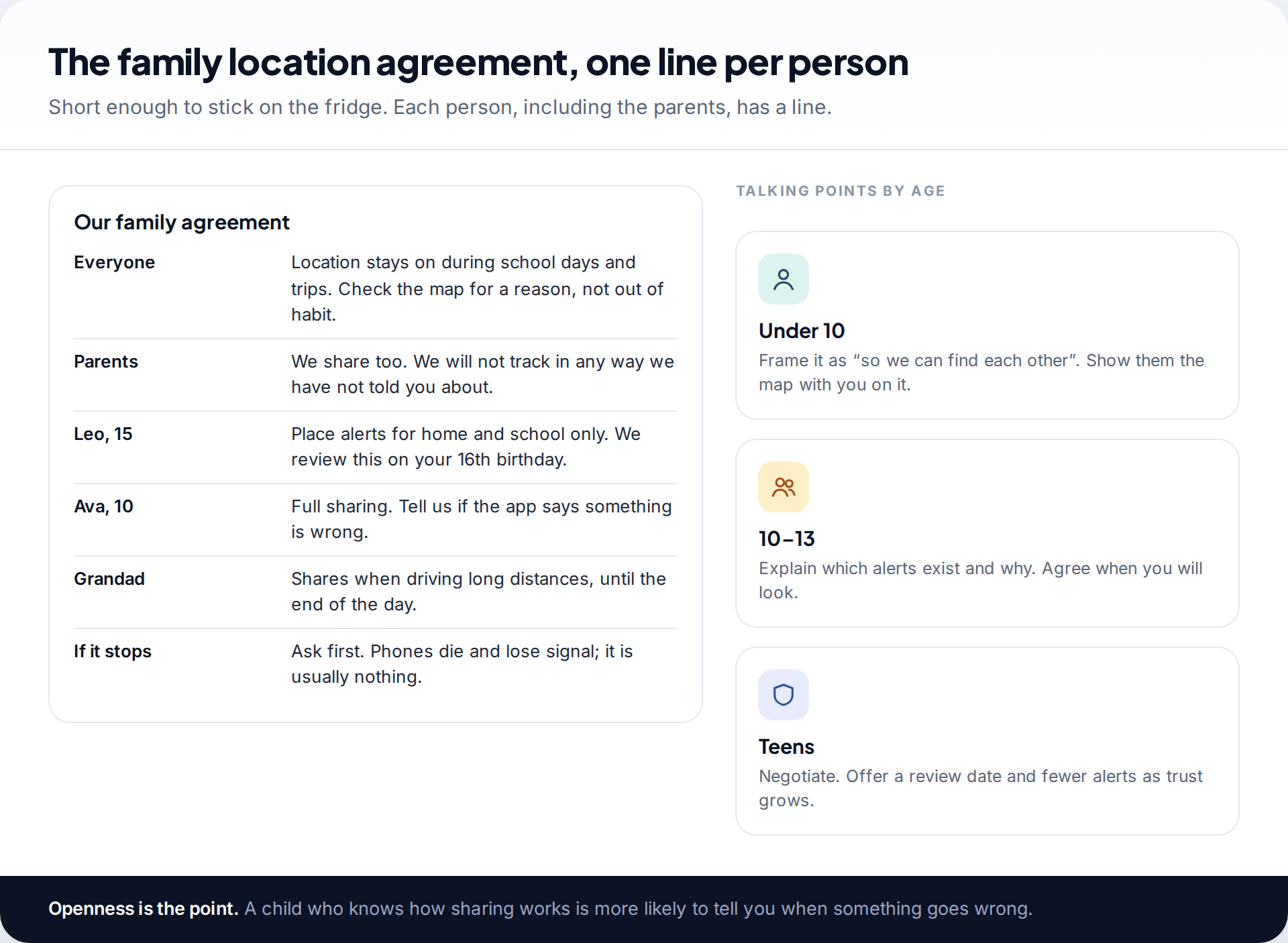
A family agreement does not need to be formal. It just needs to exist, so that each person knows what is shared, with whom and why. Include the parents. “We share too, and we won’t track you in any way we haven’t told you about” is the line children remember.
Pitch it to the age. Younger children respond to “so we can always find each other” and to seeing their own dot next to yours. Pre-teens can understand alerts and why they exist. Teenagers need negotiation and a visible route to more privacy, such as fewer alerts after a review. For older relatives, the pitch is usually practical: if a phone goes missing, or a long drive runs late, the family can help.
What no setup can do: tell you why someone is where they are, locate a phone that is switched off, or replace a phone call when something seems wrong. Treat a missing dot as a reason to ask, not a reason to panic.
Keeping it working through the year
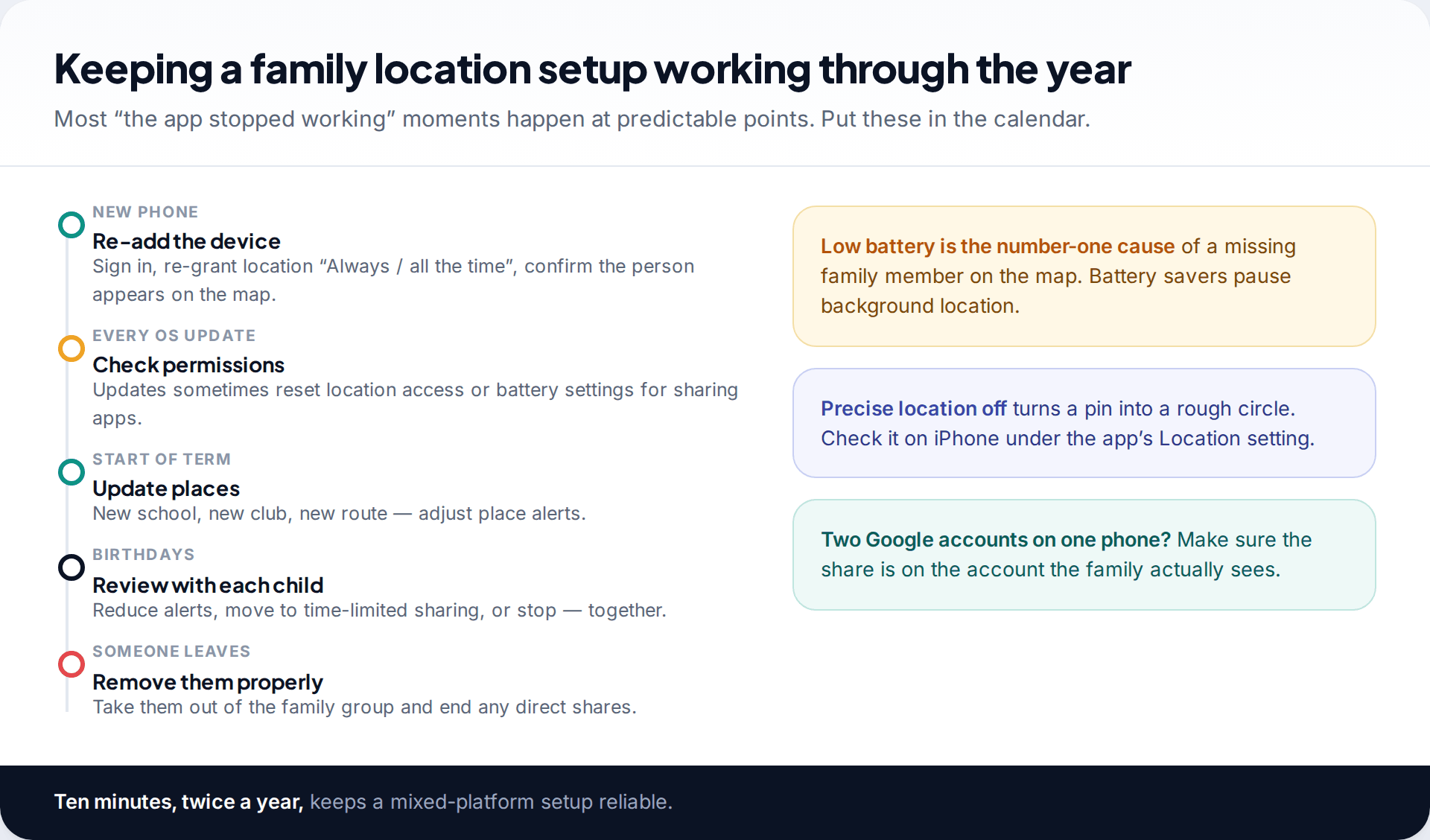
Family setups rarely fail all at once. They drift. A new phone gets set up without the location permission, an update resets a battery setting, or a child’s school changes and the old place alert keeps firing. A short routine keeps things reliable:
- After a new phone: sign in, allow location “Always” (iPhone) or “all the time” (Android), and check the person appears on the map.
- After a major update: recheck location permission and battery optimisation for the sharing app.
- At the start of each school year: update places and alerts.
- On birthdays: review each child’s arrangement with them.
- When someone leaves the household: remove them from the family group and end direct shares, so nobody keeps seeing someone they no longer should.
Fixing the problems mixed households hit most
An iPhone parent can’t see the Android child in Find My
Find My only shows Apple devices and people sharing through Apple. An Android phone will never appear there.
Fix: install Family Link on the parent’s iPhone for the child’s Android phone, or have the child share through Google Maps if they manage their own account.
Grandad’s location is hours old
Older Android phones often have aggressive battery optimisation, and some manufacturers restrict background apps by default.
Fix: in his phone’s settings, set Google Maps’ battery use to unrestricted and make sure location is allowed all the time.
The child’s Family Link alerts stopped
Google switches location alerts off when Location Accuracy is turned off on the child’s device.
Fix: turn Location Accuracy back on in the child’s location settings, then check the alert in Family Link.
A teenager appears twice, or not at all
They have both a supervised account and a personal one on the same phone, and the share belongs to the other account.
Fix: agree which account is used for family sharing and start the share from that one.
Everyone gets every alert
Alerts were set up by several people for the same child and place.
Fix: let one parent own the alerts, and switch off notification types you don’t need in each app’s settings.
How this page was put together
Paths and requirements were checked in September 2026 against Apple’s support page on location sharing in Family Sharing, Google’s Family Link help on finding a child’s location and setting up location alerts, Google’s Family Link notifications help, and Google Maps’ location-sharing help for Android and iPhone. Apple and Google rename menus between versions, so search settings if a label differs.
The household examples are illustrations, not case studies. We explain how we choose sources and correct mistakes on our editorial standards page.
Common questions
Can an Android phone join Apple Family Sharing?
No. Family Sharing and Find My’s family features only work on Apple devices. Android family members can share with iPhone users through Google Maps location sharing instead.
Can I use Family Link to see my child’s iPhone?
Not for location. Google’s help describes Family Link location for Android devices and compatible Fitbit devices. For a child with an iPhone, use Apple Family Sharing.
What is the best free way to share locations with the whole family?
For mixed households, Google Maps location sharing, plus Family Link or Family Sharing for young children. All are free. Paid family locator apps add history and extra alerts.
How many people can be in a family group?
Apple Family Sharing and Google family groups each allow up to six members. Google Maps location sharing is separate and is not limited to your family group.
Why does one family member keep disappearing from the map?
Usually low battery, a battery saver, no signal, or a location permission that was downgraded after an update. Check the phone doing the sharing, not the one viewing.
Should teenagers be able to turn sharing off?
That is a family decision, but arrangements that teens help design last longer. Many families agree fewer alerts or time-limited sharing as children get older, with a clear review date.
Looking for a tool to go with this? TheTruthSpy is a free parental control app for Android that stays visible on the child's phone. If it fits your family, see the Location & geofencing feature.
Related guides
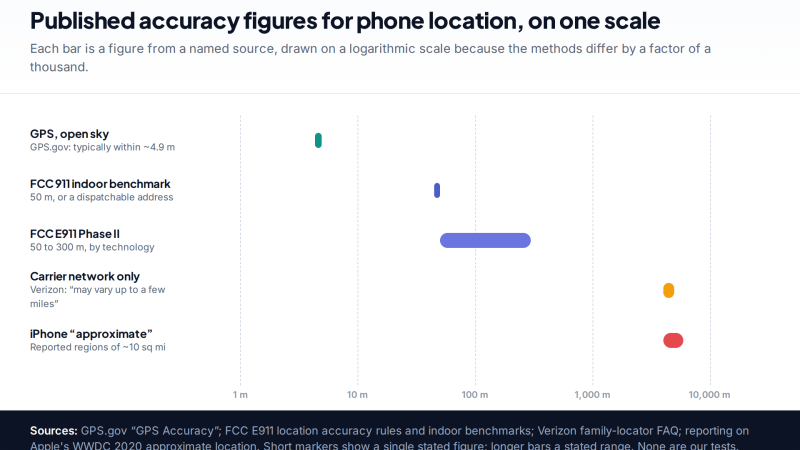
How Accurate Is Phone Location Tracking? GPS, Wi-Fi and Cell Compared
Phone location accuracy runs from a few metres with GPS under open sky to miles when only the mobile network…
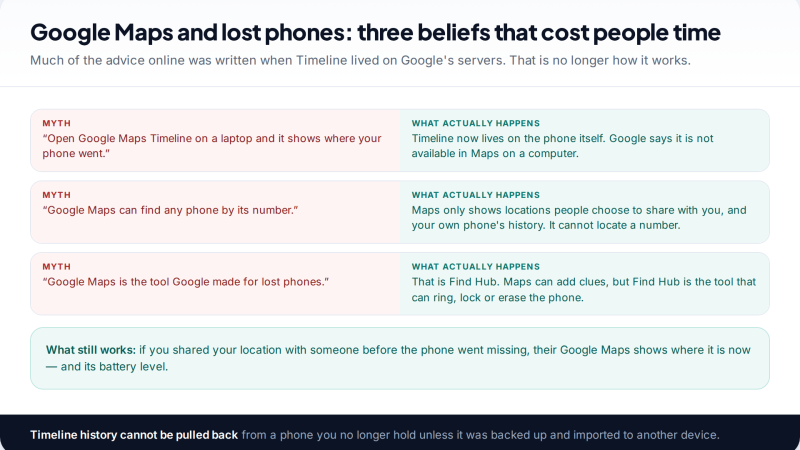
Using Google Maps Timeline to Find a Lost Phone
Can Google Maps find a lost phone? Only in two cases: someone you share your location with can see it,…
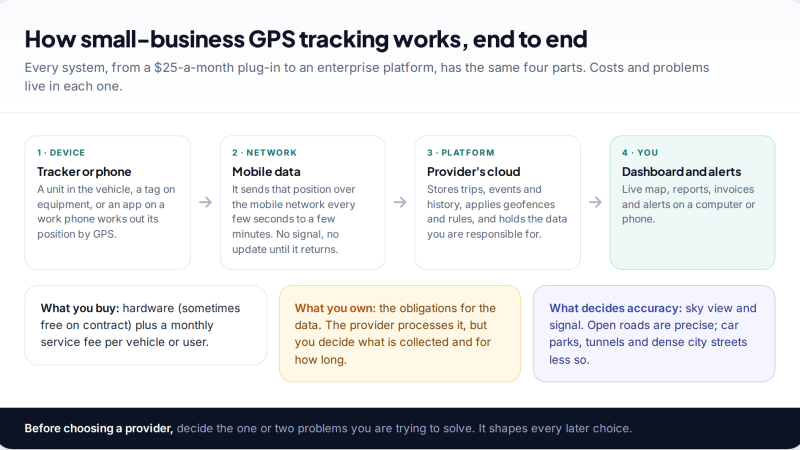
GPS Tracking for Small Business: A Starter Guide
A plain starter guide to GPS tracking for a small business: vehicle trackers versus phone apps, what a small fleet…
Parental controls your child can see
Location, screen time limits, a web filter and alerts from notifications — free, and visible on your child's phone. Pair a phone in about ten minutes.
Android · Free to set up · Visible on your child's phone