Using Google Maps Timeline to Find a Lost Phone
 By TheTruthSpy Editor · Founder and editorPublished September 19, 2026Updated September 21, 20269 min read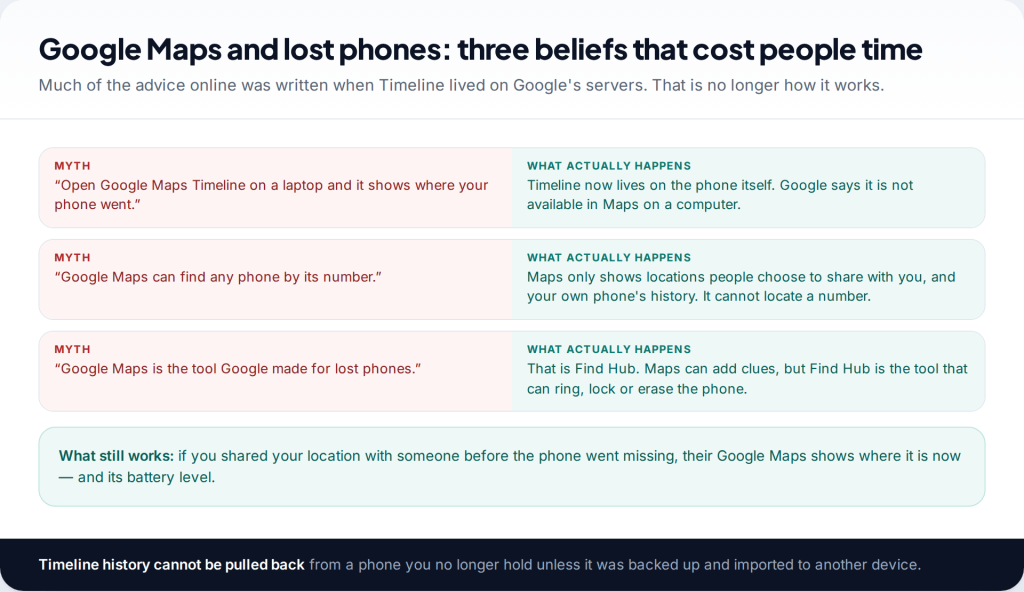
The popular advice is to open Google Maps Timeline on a laptop and see where your phone went. That no longer works: Timeline moved onto the phone itself, and Google says it is not available in Maps on a computer. You can still find a lost phone with Google Maps in one main way — if you shared your location with someone beforehand. For everything else, Google’s tool is Find Hub.
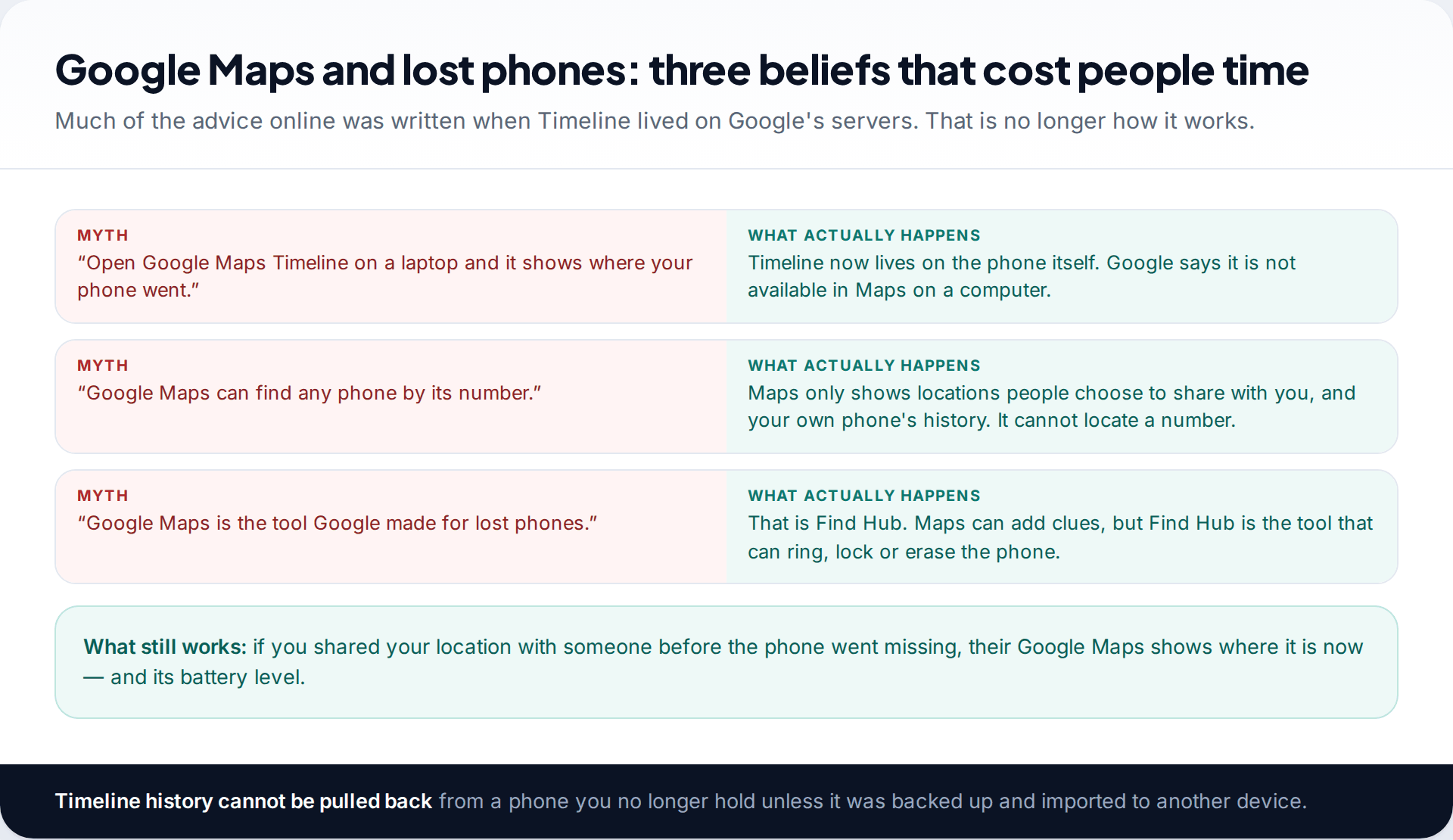
- Location sharing is the Maps route that still works. Whoever you share with sees the phone’s latest position and battery.
- Timeline is stored on the device now. If the phone is lost, its history is lost with it, unless it was backed up.
- A Timeline backup restores the past, not the present. It shows where the phone had been, never where it is.
- Use Find Hub to act. Maps can point; only Find Hub can ring, lock or erase.
Can you find a lost phone with Google Maps?
Sometimes, but not in the way most guides describe. Until recently, Google stored Location History on its servers, and you could open the Timeline in a browser to trace where a phone had been during the day. That made “check Google Maps Timeline” sound advice for years, and many pages still repeat it.
Google has since moved Timeline onto each device. The history of where a phone has been is now kept on that phone, with an optional encrypted backup, and Google’s help page says Timeline is not available in Maps on a computer. For a lost phone, that removes the most commonly suggested method. The other popular idea, finding any phone from its number in Google Maps, never existed.
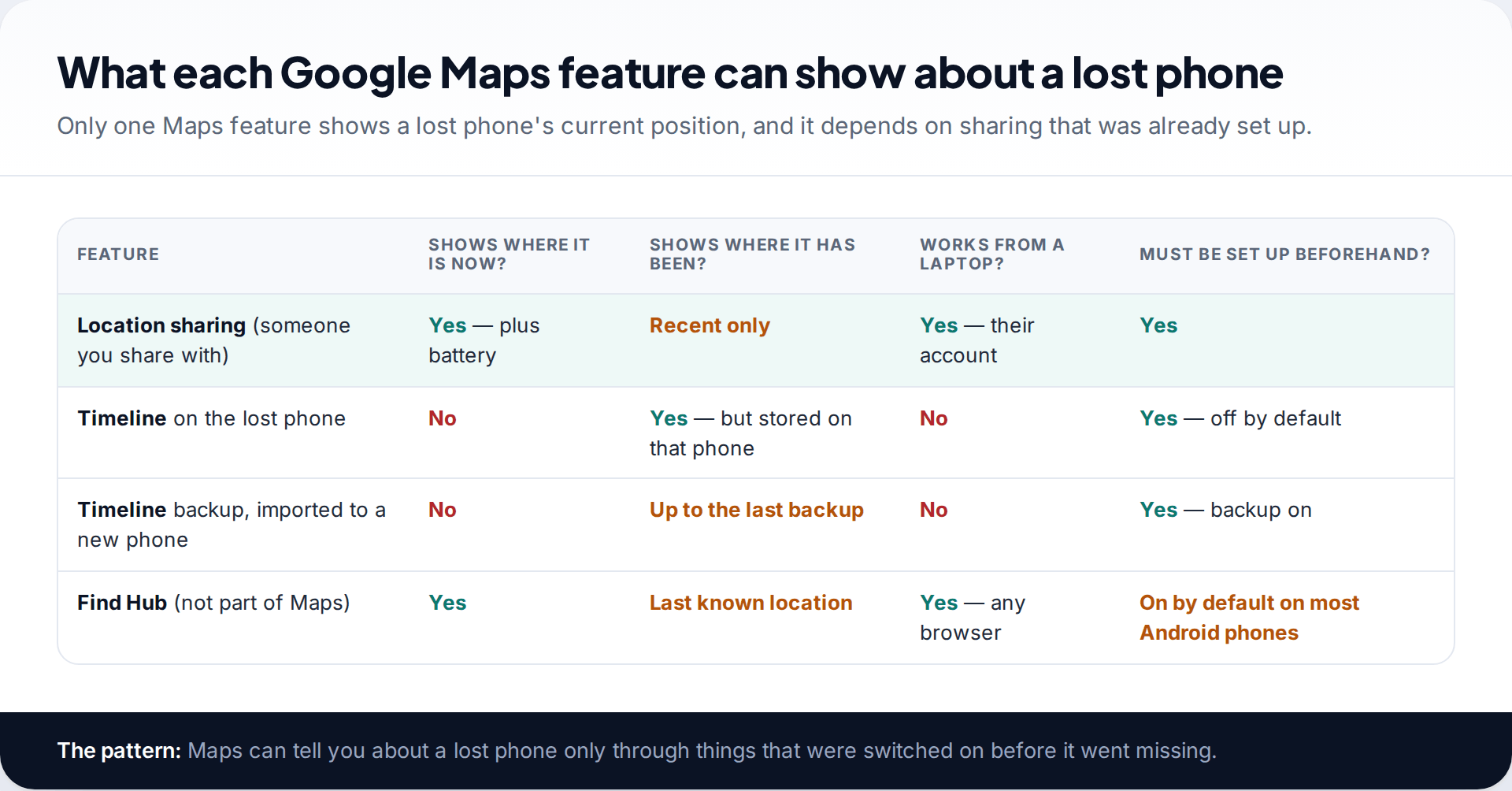
What remains is useful, but narrow. Location sharing, the feature that shows friends and family where you are, keeps working when your phone goes missing, because the phone is doing the sharing. If you set it up earlier, the person you share with can see your phone.
Route 1: someone you share your location with
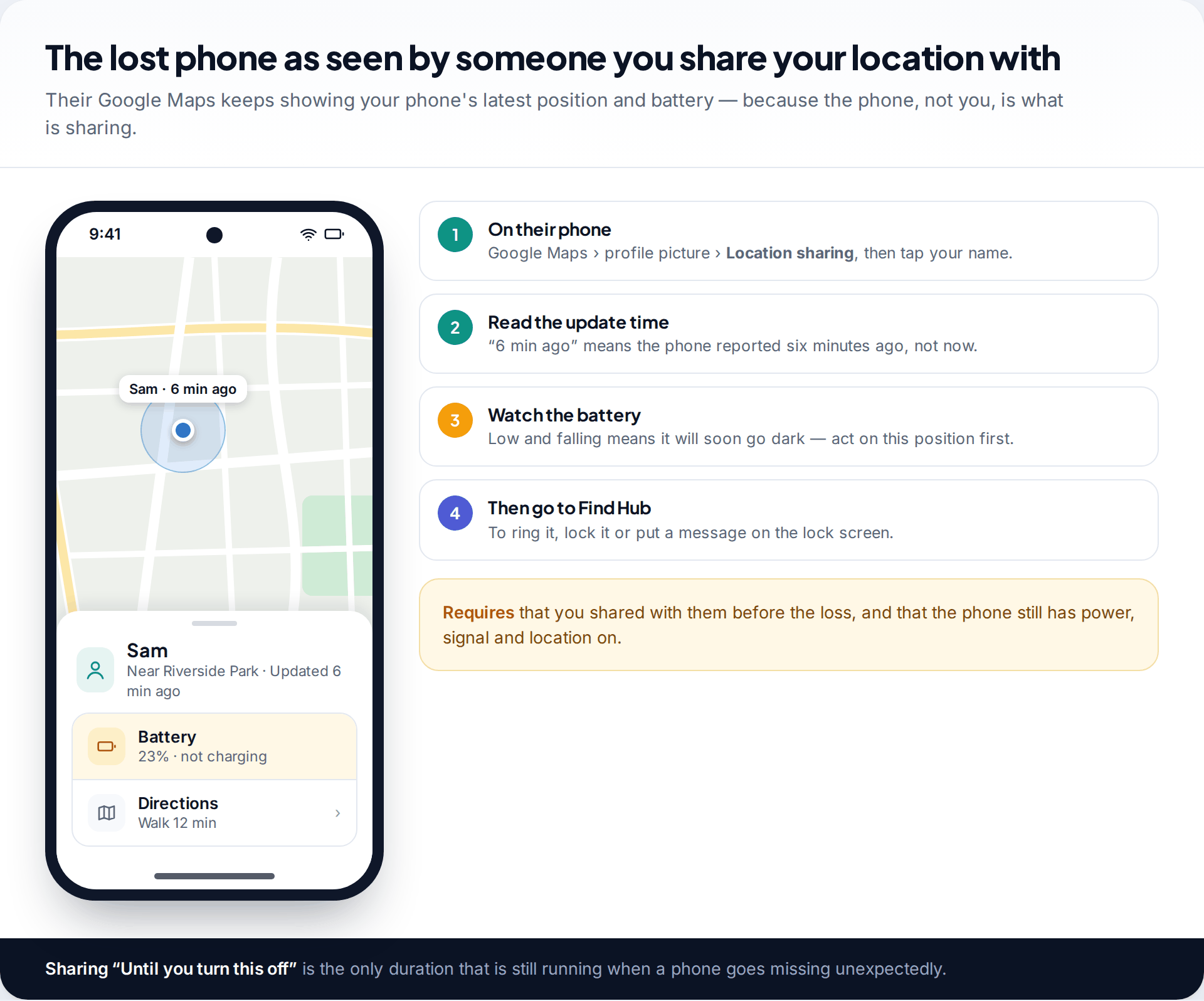
If you share your real-time location in Google Maps with a partner, parent or friend, their app shows your phone’s position, when it was last updated, and its battery level and whether it is charging. Google’s help page lists these as what people you share with can see. It does not matter that you are not holding the phone. As long as it has power, a connection and location turned on, it keeps reporting.
Ask them to open Google Maps, tap their profile picture, choose Location sharing, and select you. Two details matter. The update time tells you how fresh the position is. The battery level tells you how long it will keep reporting. A phone at 8% and falling needs to be found on this position. Once it dies, their map shows only the last update.
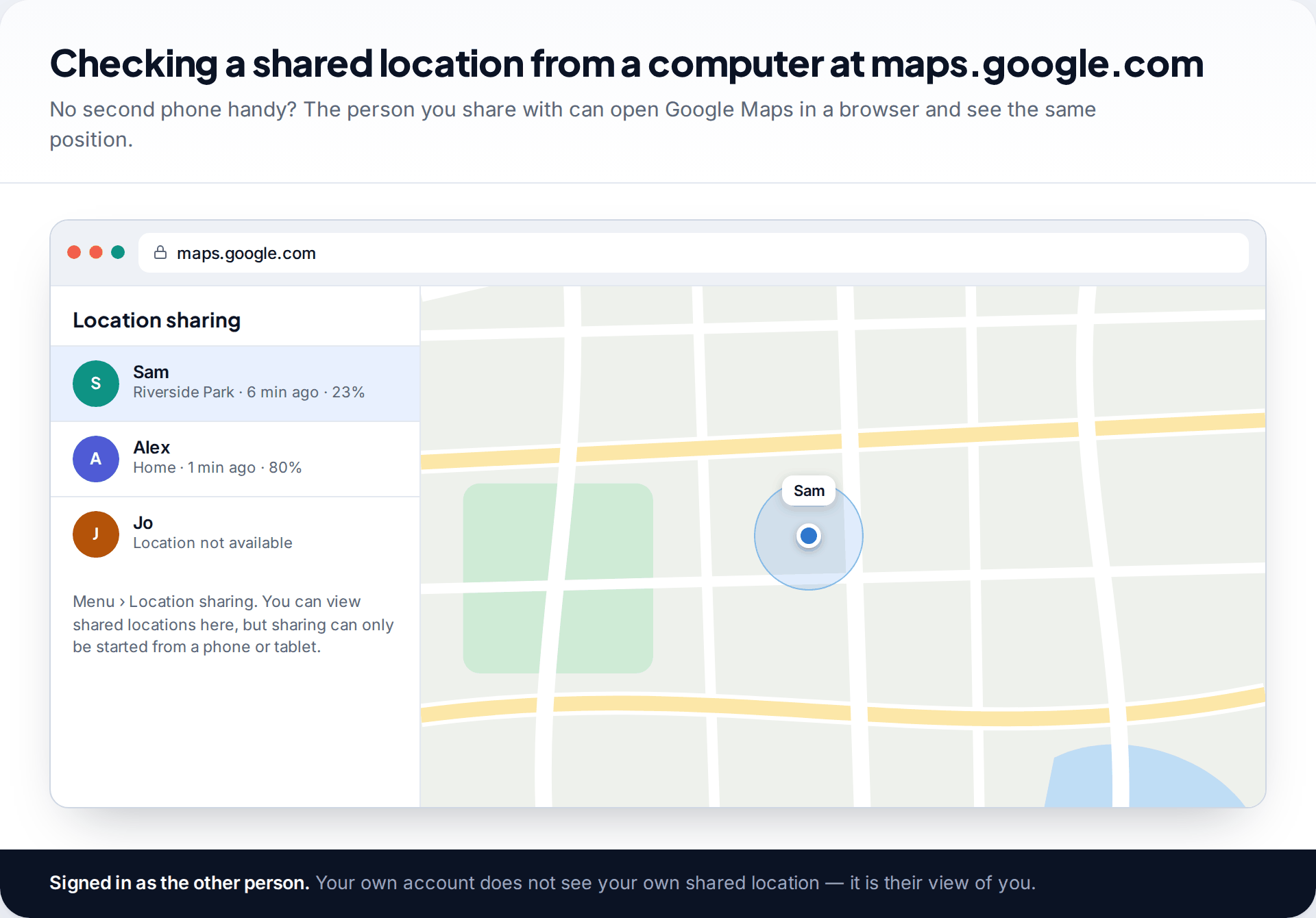
No second phone to hand? The person you share with can open maps.google.com on a computer, choose Menu › Location sharing, and see the same thing. Google notes that sharing can only be started from a mobile device, but shared locations can be viewed in a browser.
The limit is timing. A share set “For 1 hour” last month has long expired. Only shares set to Until you turn this off are still running when a phone goes missing without warning.
The shared location says “Location not available”
The phone has no signal or power, location is off, or the share has ended.
Fix: note the last position if one is shown, then check Find Hub, which may have a report from the offline network.
The position has not moved for hours
Either the phone is lying still, or it stopped reporting and you are seeing the last update.
Fix: look at the update time, not the pin. “3 hours ago” means it has not reported since.
You cannot see the person at all
You are signed in to a different Google Account from the one they shared with, or the share was time-limited and expired.
Fix: switch accounts in Maps. If the share has ended, it cannot be restarted without the phone.
Route 2: Google Maps Timeline, and what changed
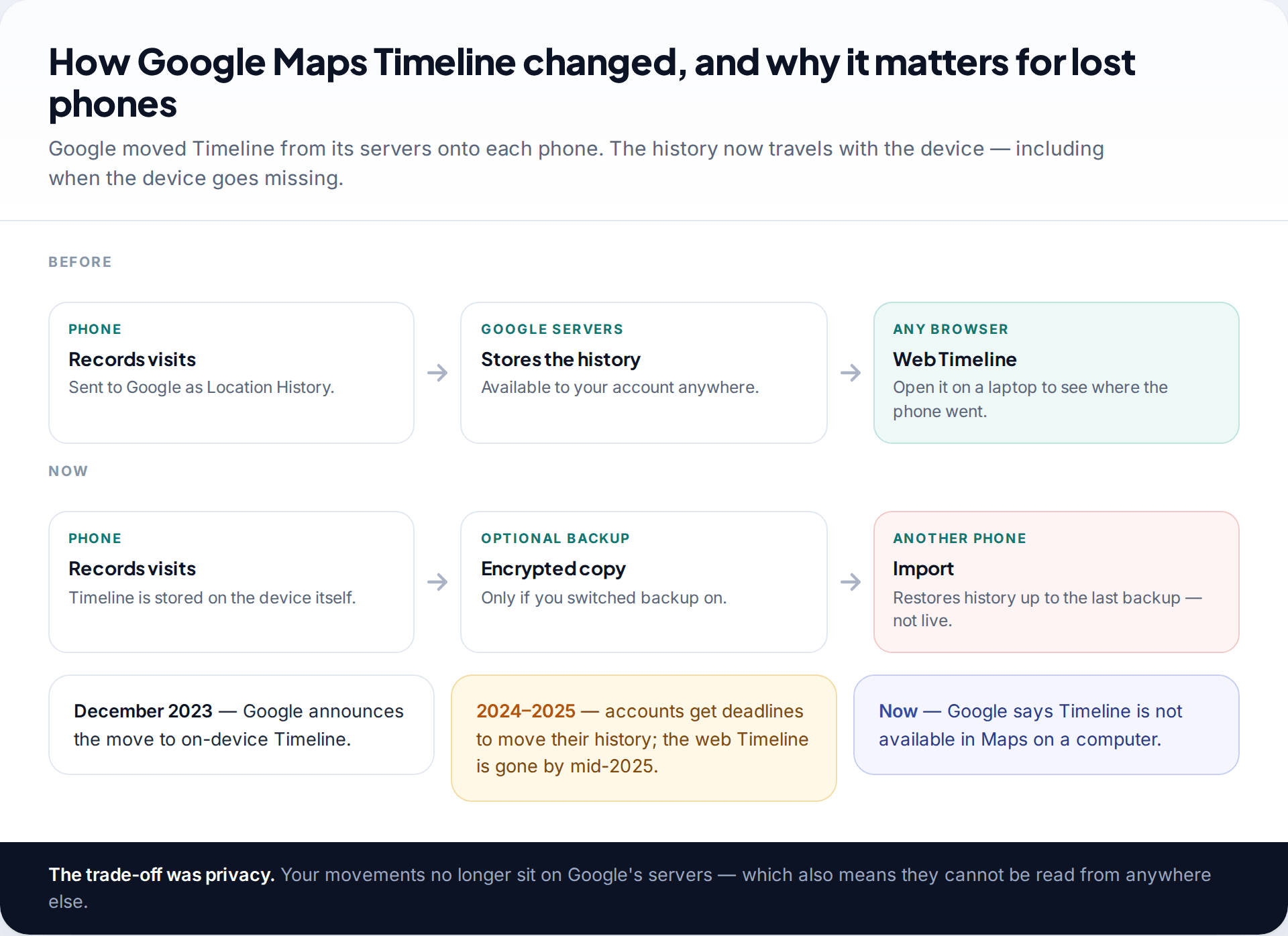
Google announced in December 2023 that Timeline would move from its servers to users’ devices. Accounts were given deadlines to move their history across, and by mid-2025 the web version had gone. Reporting at the time noted that only recent history was kept by default unless people chose otherwise. Timeline is also off by default. Google’s help says it can only be turned on if you opt in, so many phones have no Timeline at all.
The effect on lost phones is simple. Timeline lives on the phone you have lost. You cannot open it from a laptop, and nobody at Google can read it for you.
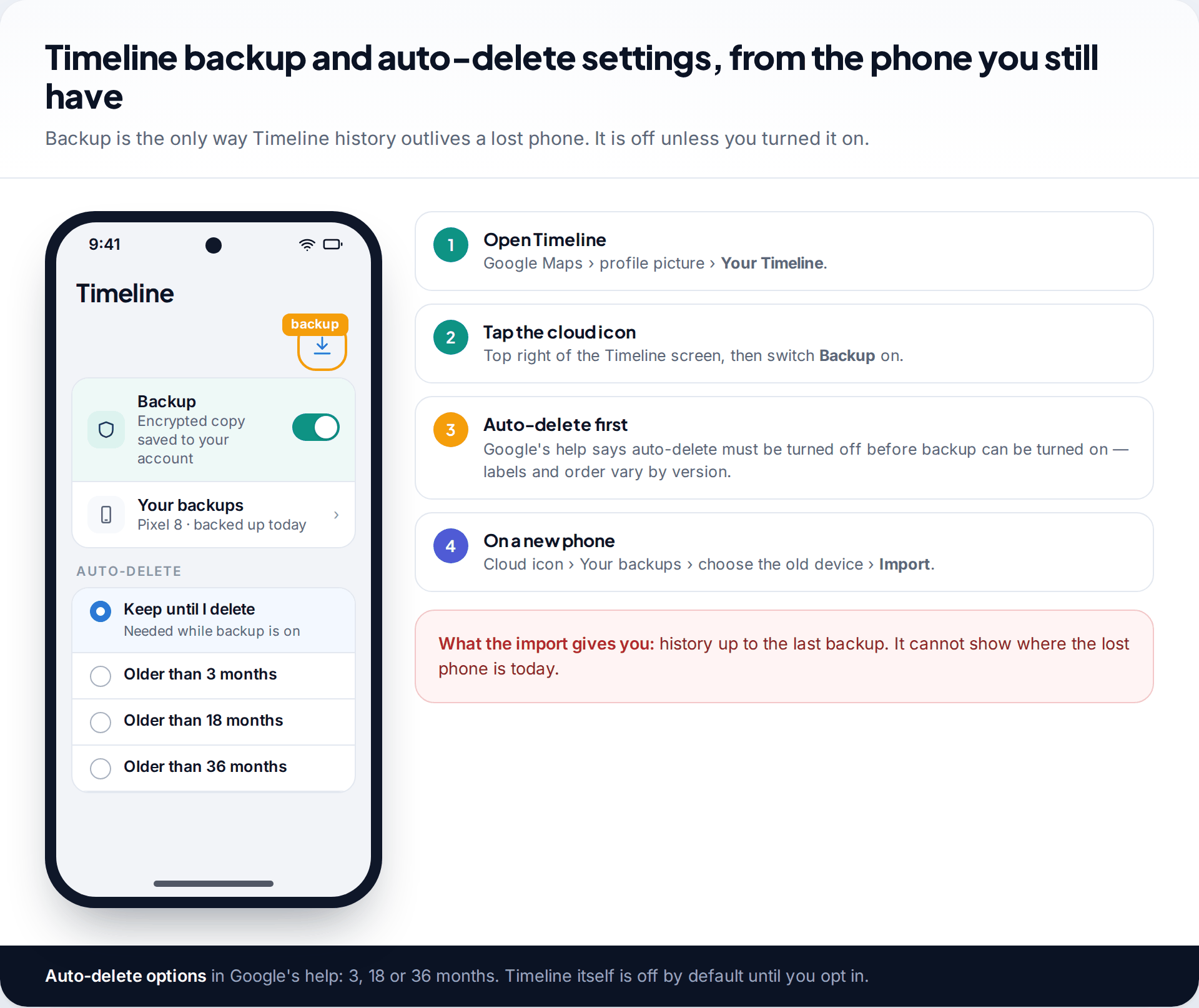
There is one partial exception. If you turned on Timeline backup, Google keeps an encrypted copy, and its help page says you can import that data onto another device even if you lose or damage the original. Tap the cloud icon on the Timeline screen, choose the backup under Your backups, and select Import. What you get back is history up to the last backup. It can remind you where you went that afternoon, which helps retrace your steps. It cannot show where the phone is now.
Route 3: use Find Hub, Google’s actual lost-phone tool
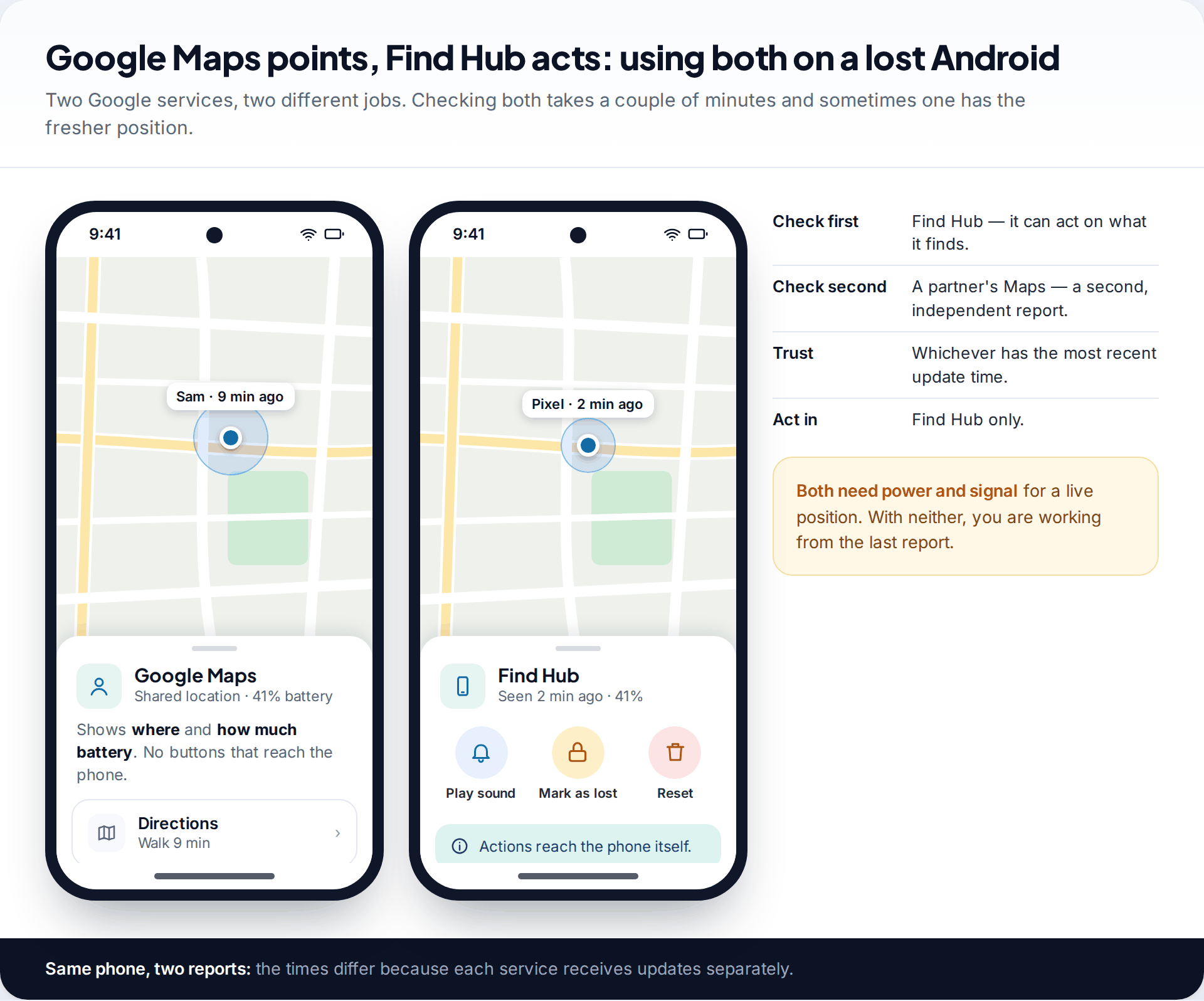
For an Android phone, the tool built for this job is Google Find Hub, formerly Find My Device. It is not part of Maps. It shows the phone’s current or last known location at google.com/android/find, can ring it at full volume even on silent, lock it with a message, or erase it. On most Android phones signed in to a Google Account it is on by default, which makes it far more likely to help than anything in Maps. Our guide to finding a lost Android phone covers Find Hub, Samsung Find and what to do when the phone is switched off.
Use Maps and Find Hub together. A shared location on a partner’s phone may be fresher than Find Hub’s, or the other way round, depending on which last received a report. Check both, then use Find Hub for any action.
In practice, open Find Hub first, because it is the service that can do something about what it finds. Then ask whoever you share with to look at their Maps. If the two disagree, trust the one with the more recent update time, and go to the more recent spot first. Neither shows anything new once the battery is flat.
If you use Google Maps on an iPhone
Google Maps location sharing works from the Maps app on an iPhone too. So an iPhone that was sharing with someone through Google Maps will show up on their map in the same way, battery included, while it has power and a connection. Timeline on iPhone is managed in the Google Maps app as well, and the same on-device rules apply.
For finding the iPhone itself, Apple’s Find My is the tool. It works at icloud.com/find in any browser, with a sign-in option that skips the two-factor code. It can play a sound, turn on Lost Mode and show the last known location when the phone is offline. Treat Google Maps sharing on an iPhone as a helpful second view, not the main search.
A worked example
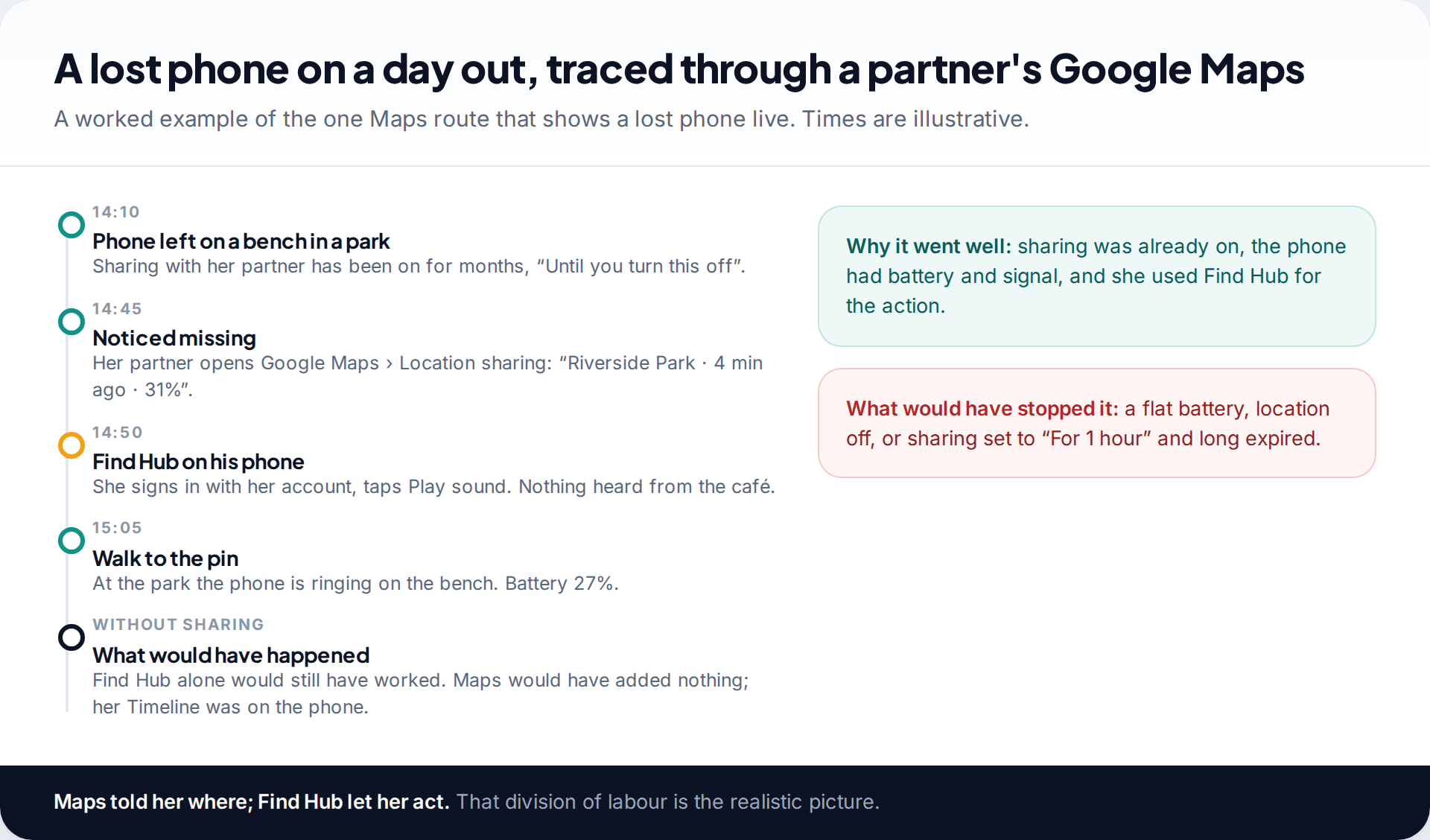
The example above is typical of when Maps helps. The owner had shared her location with her partner, open-ended, months earlier. When the phone went missing, his Maps showed it at the park with a third of its battery left. Find Hub, signed in on his phone with her account, made it ring. Without the sharing, Find Hub alone would still have found it. Maps’ contribution was a second, independent view and the battery reading, which told them how long they had.
Set it up now, while you have the phone
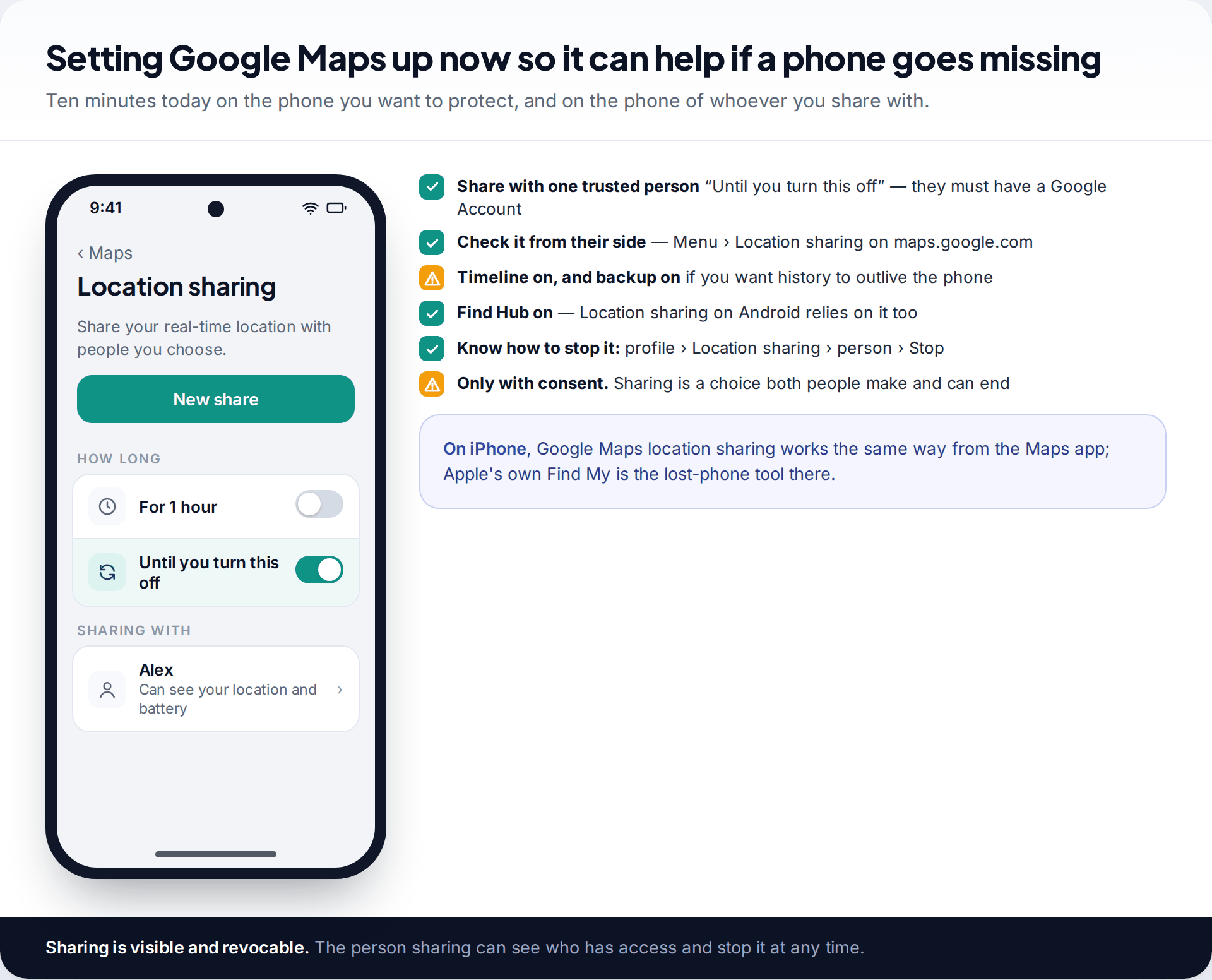
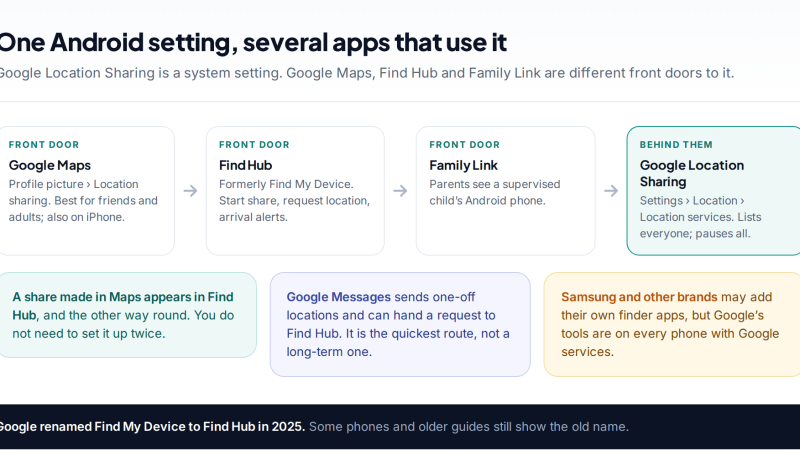
To share, open Google Maps, tap your profile picture, choose Location sharing and then New share, pick the duration and a contact, and tap Share. The other person needs a Google Account. Ask them to confirm they can see you, from their phone or from maps.google.com. If you want Timeline history to survive losing the phone, turn Timeline and its backup on. Keep Find Hub on too; on Android, location sharing relies on it. Our guide to setting up location sharing on Android goes through these screens and the privacy choices.
Share only with people you trust, and only by agreement. Location sharing is visible to the person sharing, who can see who has access and stop it at any time from the same menu.
How this page was put together
This guide was checked in September 2026 against Google Maps Help pages on managing Timeline and on sharing your real-time location, including the computer version, and Google’s Android Help on location sharing and Find Hub. Dates for the Timeline changes come from Google’s announcements as reported at the time. Deadlines differed between accounts, so we give the period rather than a single date.
We did not test recovery of any particular lost phone for this page. Our editorial standards set out how we research and correct guides.
Common questions
Can I see my Google Maps Timeline on a computer?
No. Google’s help says Timeline is not available in Maps on a computer, because the data comes from your device. You can view it only in the Google Maps app on the phone that holds it, or on a phone you have imported a backup to.
Can Google Maps find my phone if it is turned off?
No. Anyone you share with sees the last update before it switched off. Find Hub may show a last known location and, on some newer phones, network reports for a few hours after shutdown.
Can I track my lost phone with Google Maps without location sharing?
Not live. Without sharing, Maps can show only Timeline history, which is stored on the lost phone. Use Find Hub at google.com/android/find instead.
Is my old Timeline history gone?
If you did not move or back it up before your account’s deadline, some or all of the older history may have been deleted. Google gave accounts a period to act during 2024 and 2025.
Can Google Maps show where a phone is from its number?
No. Maps shows locations that people share with you, and your own history. It has no feature for locating a phone number.
Can I restart location sharing after the phone is lost?
No. Sharing can only be started from the phone or tablet doing the sharing, so a share that has ended stays ended until you have the phone back. That is why an open-ended share set up in advance is the one that helps.
Is location sharing the same as tracking someone?
It is tracking by agreement. The person sharing chooses who sees them and for how long, can see who has access, and can stop it at any time from Location sharing in Google Maps.
Looking for a tool to go with this? TheTruthSpy is a free parental control app for Android that stays visible on the child's phone. If it fits your family, see what the app does.
Related guides
How Accurate Is Phone Location Tracking? GPS, Wi-Fi and Cell Compared
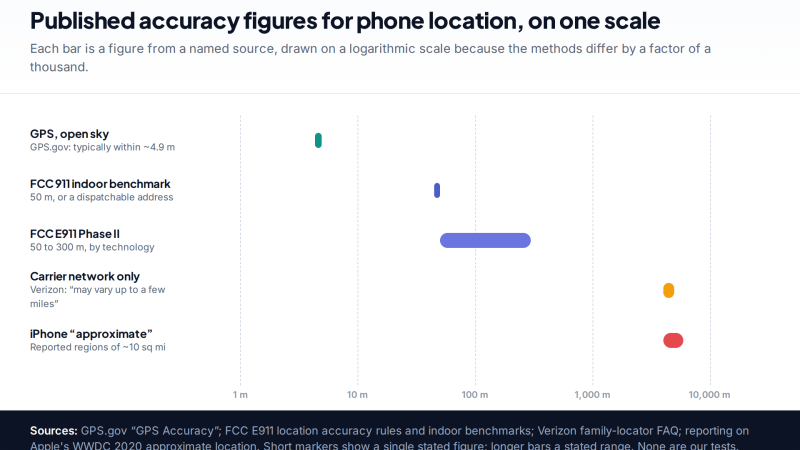
Phone location accuracy runs from a few metres with GPS under open sky to miles when only the mobile network…
GPS Tracking for Small Business: A Starter Guide
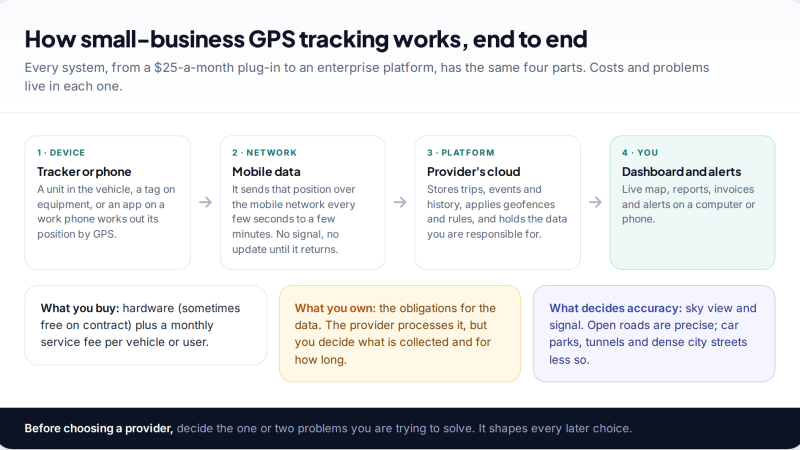
A plain starter guide to GPS tracking for a small business: vehicle trackers versus phone apps, what a small fleet…
Location Sharing on Android: Google Maps, Find Hub and Family Link
How location sharing on Android works: one Google Location Sharing setting behind Google Maps, Find Hub and Family Link, how…
Parental controls your child can see
Location, screen time limits, a web filter and alerts from notifications — free, and visible on your child's phone. Pair a phone in about ten minutes.
Android · Free to set up · Visible on your child's phone