Managing a Child’s Android From Your iPhone: What Works Cross-Platform
 By TheTruthSpy Editor · Founder and editorPublished September 18, 2026Updated September 21, 20269 min read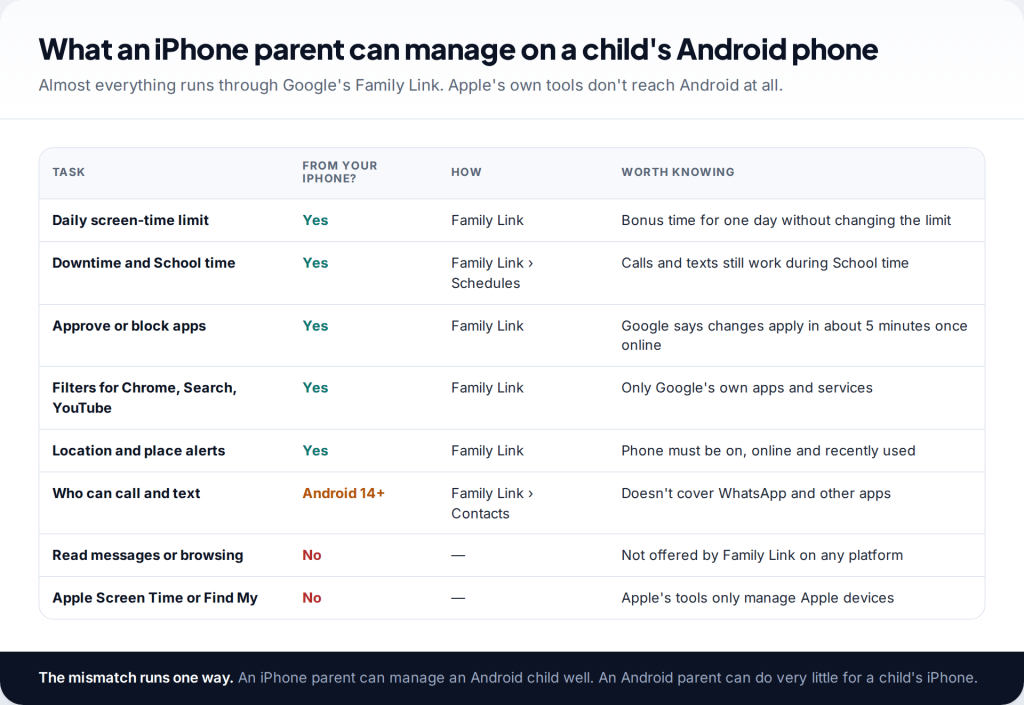
Yes, you can monitor your child’s Android from an iPhone. Google’s Family Link parent app runs on iOS and does almost everything the Android version does: screen-time limits, schedules, app approvals, content filters for Google’s apps, and location with arrive and leave alerts. What you can’t use is Apple’s own tooling. Screen Time and Find My only manage Apple devices.
That makes a mixed household more manageable than many parents expect. The gaps are mostly in the details: which Android version your child’s phone runs, what happens to notifications on iOS, and which Apple habits have no Android equivalent. This guide covers each of them.
What works when the parent has an iPhone
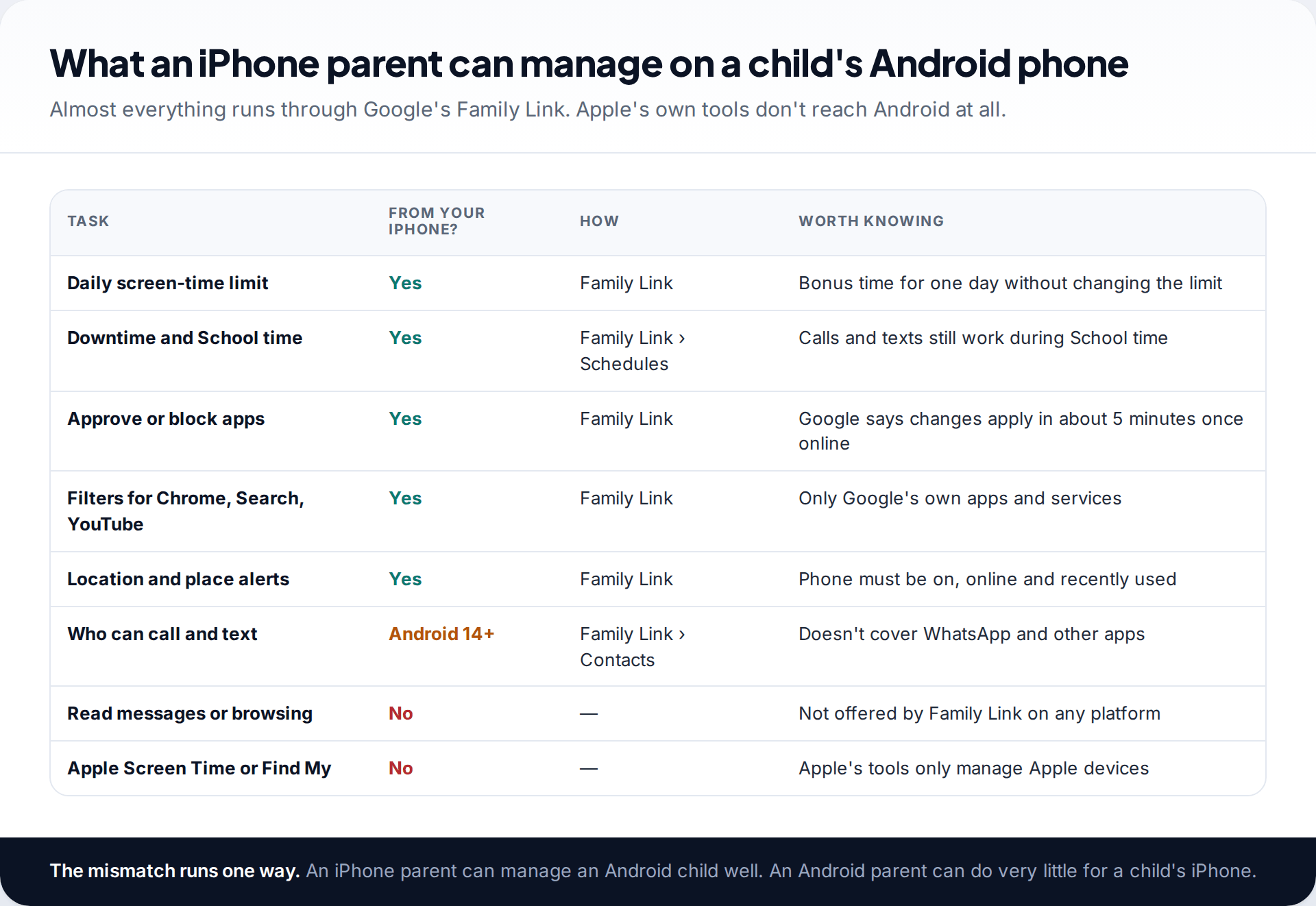
Family Link is two things: supervision on your child’s Google Account and Android phone, and a parent app to manage it. The supervision runs on the child’s side, so the parent app can sit on an Android phone or an iPhone without losing much. From your iPhone you can set a daily limit and give bonus time, create Downtime and School time schedules, approve or block apps, filter Chrome, Search and YouTube, see the phone’s location, set place alerts and lock the phone.
Two limits apply on every platform. Family Link doesn’t show message content or browsing history, and its filters only reach Google’s own apps and services. Separately, the direction of the mismatch matters. An iPhone parent can manage an Android child well, but it doesn’t work the other way round. Google’s help centre says iPhones and iPads can’t be supervised through Family Link beyond a few Google account settings.
Check the requirements first
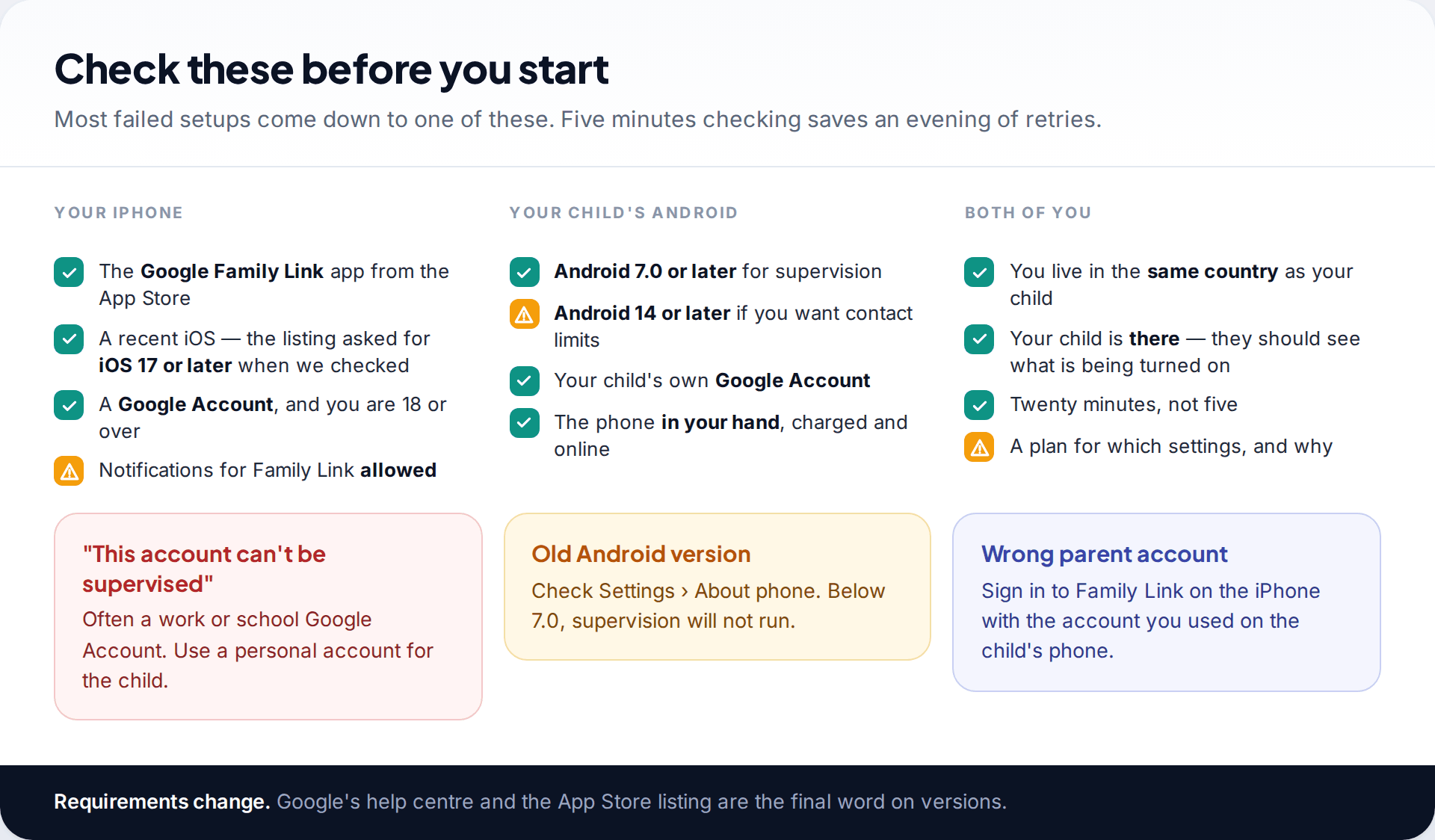
On your side you need the Google Family Link app from the App Store and a Google Account, and you must be 18 or over. Google’s device page listed iOS 16 as the minimum for parents, while the App Store listing asked for iOS 17 when we checked, so assume a reasonably current iPhone. You also need to live in the same country as your child.
On the child’s side, supervision needs Android 7.0 or later. Some newer controls need more. Limiting calls and texts to approved contacts, for example, needs Android 14 or later. If your child has an older hand-me-down phone, check its Android version in Settings › About phone before promising any particular setting.
How to set it up from your iPhone
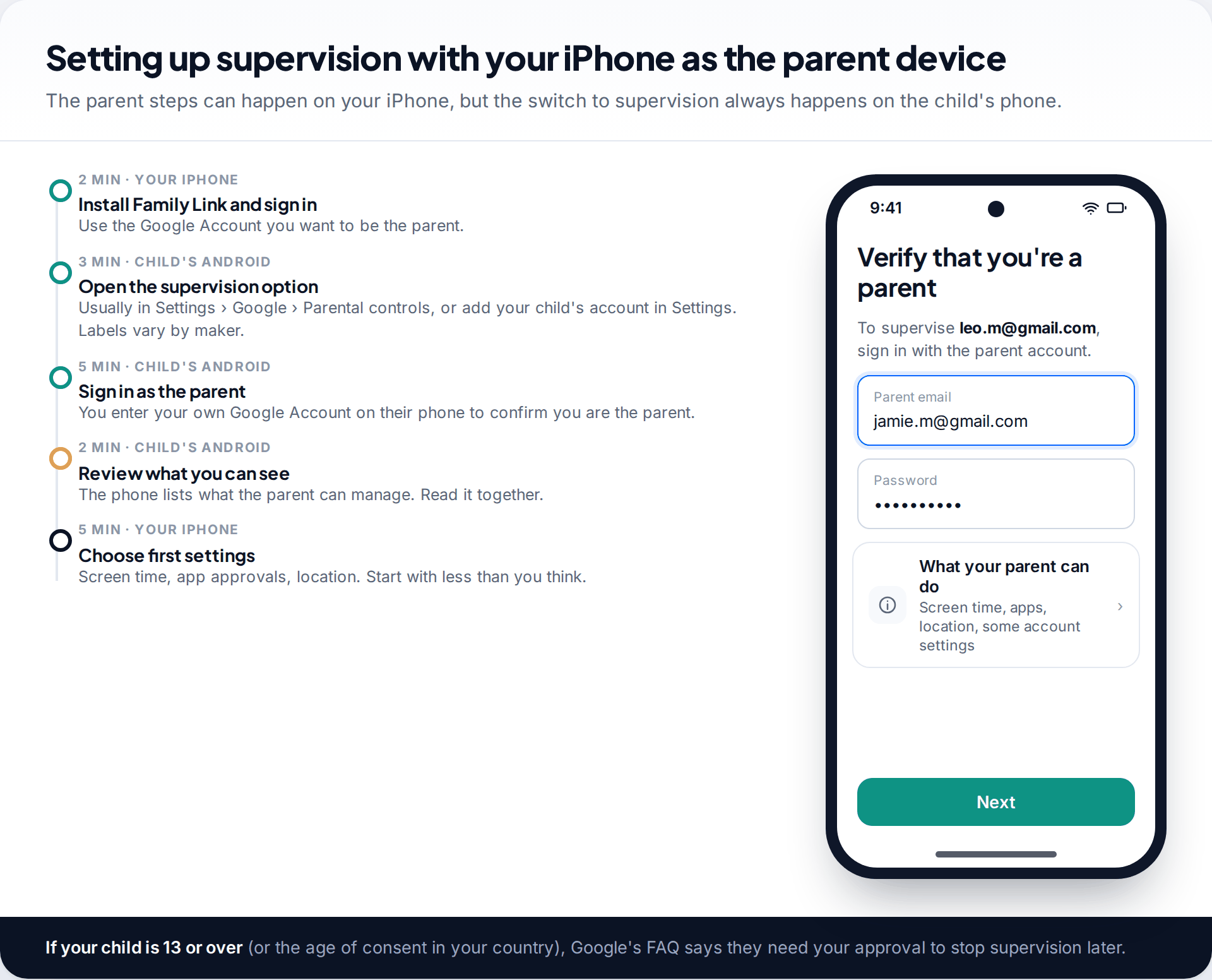
- Install Family Link on your iPhone and sign in with the Google Account that will be the parent.
- Pick up your child’s Android phone. Look for the parental controls option in Settings. On many phones it’s Settings › Google › Parental controls, but the path varies by manufacturer. Choose to supervise their account.
- Sign in with your own account on their phone when it asks you to verify that you’re a parent.
- Read the summary screen together. It lists what you’ll be able to see and manage. This is the moment to explain why.
- Back on your iPhone, choose the first settings. Start lighter than you think: a daily limit, app approvals and location. You can tighten things later more easily than you can relax them without an argument.
Set aside about twenty minutes. Most of it goes on the child’s phone, not yours.
Day-to-day management from iOS
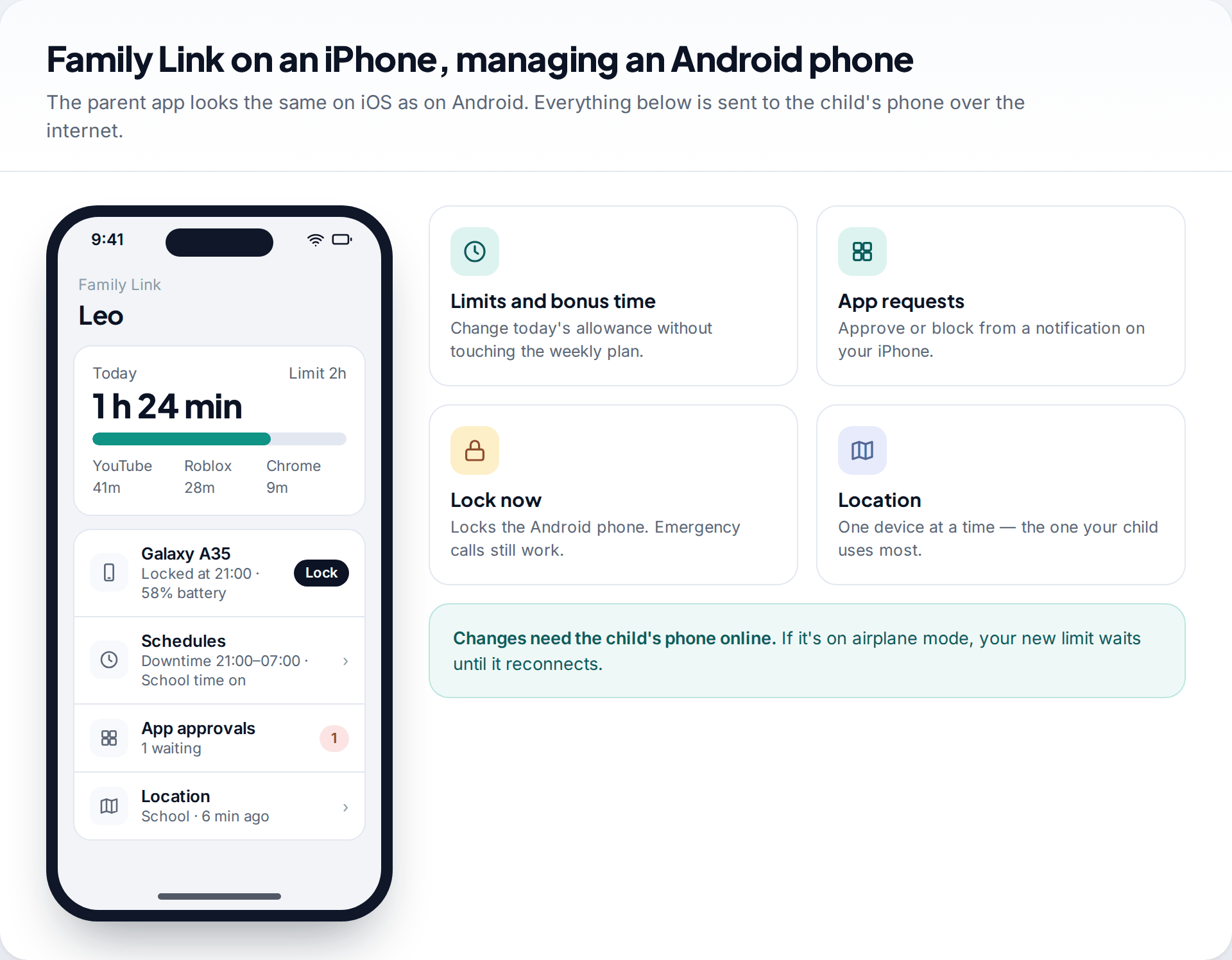
Screen time and schedules
The screen-time tab shows how long your child has used the phone today and which apps took the time. Google counts time an app is on screen, not time it runs in the background. You can give bonus time for a single day without changing the weekly plan, or lock the phone straight away. Emergency calls still work when it’s locked.
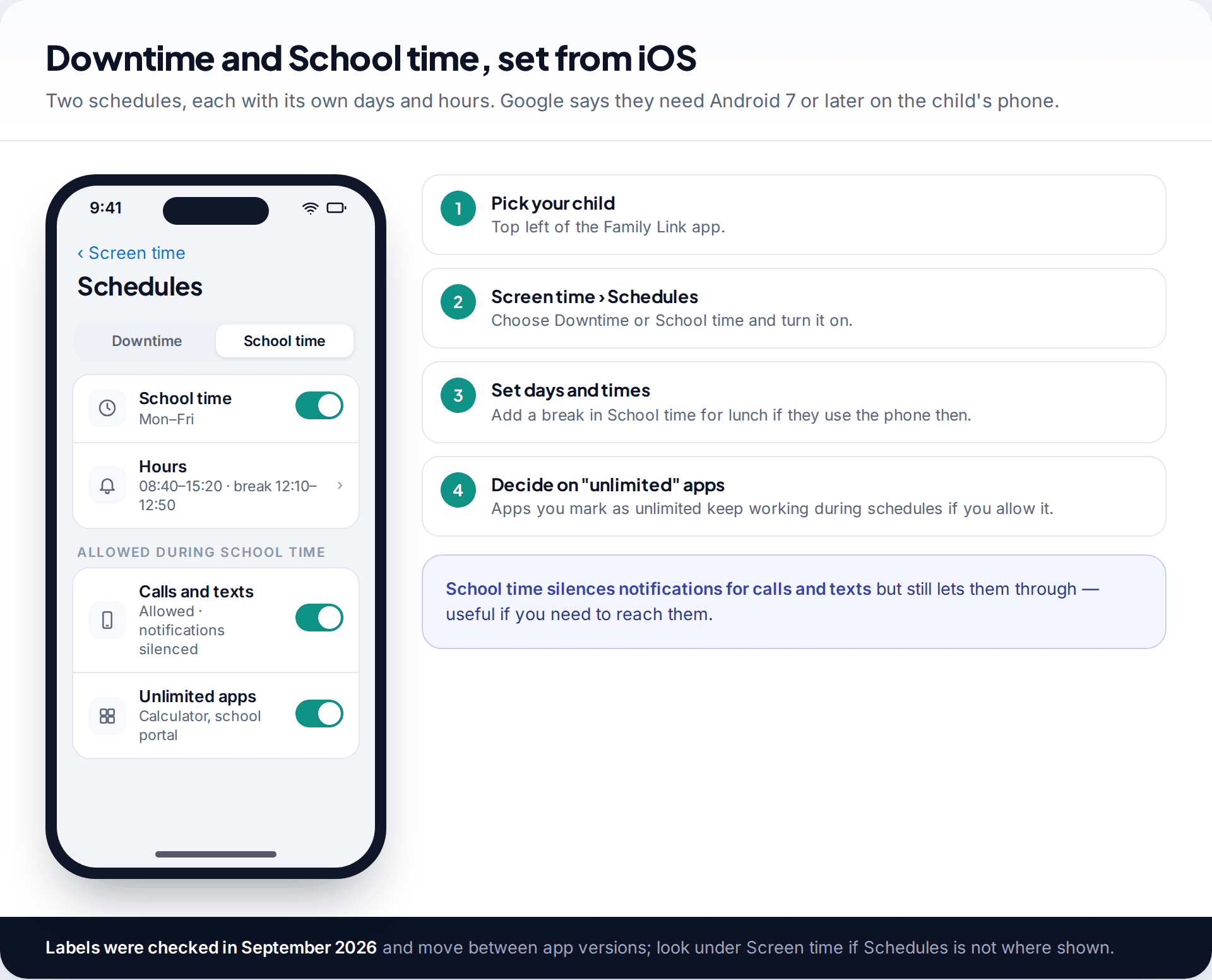
Schedules come in two kinds. Downtime is for nights. School time restricts the phone during lessons, can include a break, and still lets calls and texts through with their notifications silenced. You can mark some apps as unlimited, such as a calculator or a school portal, and choose whether they keep working during schedules.
Requests and notifications
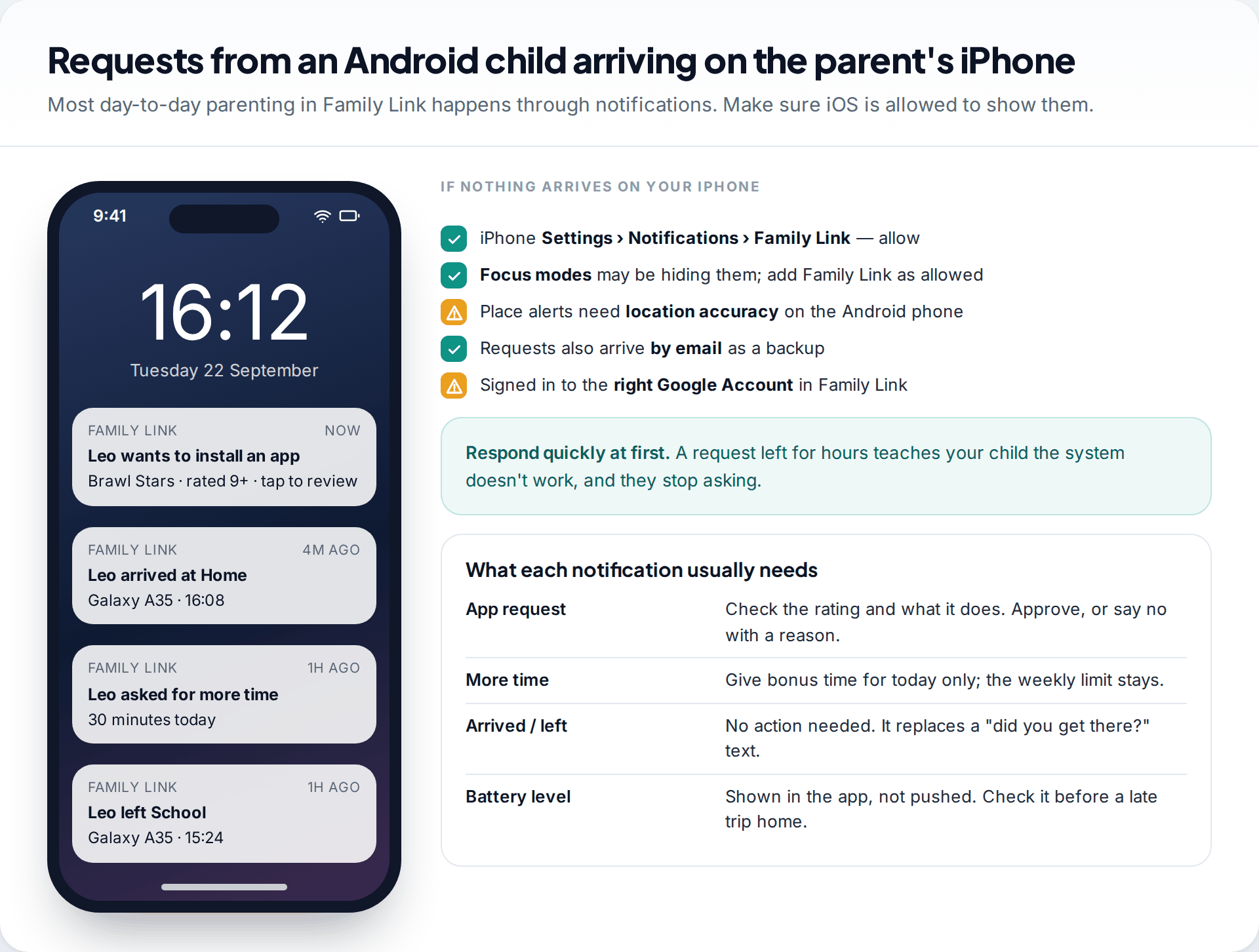
Much of Family Link happens through notifications on your phone: app requests, requests for more time, and place alerts. On an iPhone, check that notifications for Family Link are allowed, and that a Focus mode isn’t silencing them. Requests also arrive by email, which is a useful backup. Answer them promptly in the first few weeks. A request that sits unanswered all evening teaches your child the system doesn’t work.
Location
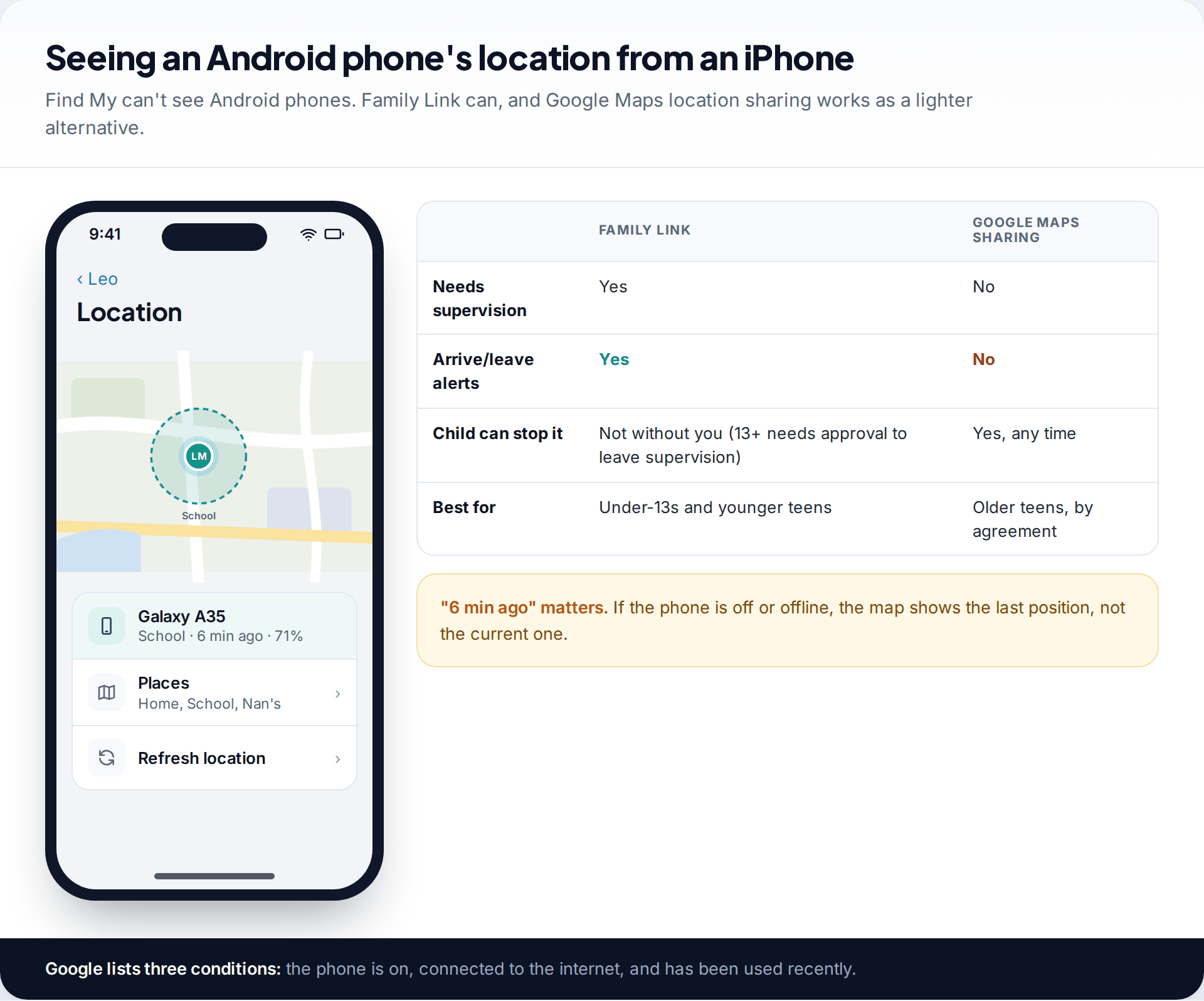
Find My can’t locate an Android phone, so location comes from Family Link or from Google Maps location sharing, which works between iPhone and Android without supervision. Family Link adds arrive and leave alerts for places you save. Google’s conditions are that the phone is on, connected and recently used, with location accuracy switched on. It also shows one device at a time, the one your child uses most. For the Android-side settings, see our guide to location sharing on Android.
What your child sees on the Android side
Supervision isn’t hidden, and it shouldn’t be. On the child’s phone, Family Link shows that the account is supervised, lists which settings the parent manages, and shows the time left today. When a limit runs out, the phone locks, apart from calls and any apps you’ve marked as unlimited. When your child wants an app, more time or a new contact, they send a request from their phone and see whether you’ve answered.
It’s worth walking through this with your child in the first week. Show them how to ask for more time properly, what happens at the daily limit, and that emergency calls always work. Children who know how the system works tend to use requests. Children who don’t tend to look for ways round it, such as a factory reset or a second account. Once supervision is on, both of those need your involvement.
Two households, two phone brands
Leo, 11, lives between his mum, who has an iPhone, and his dad, who uses an Android phone. His mum set up Family Link from her iPhone and then added his dad as a second parent in the Google family group, so both can manage the same settings from their own phones. They agree one set of limits for school nights, which applies in both homes because it lives on Leo’s phone, not in either house. Weekend bonus time is given by whoever Leo is with.
If a second parent uses an iPhone too, nothing changes. Each parent installs Family Link, signs in with their own Google Account, and sees the same child.
What doesn’t cross the platform divide
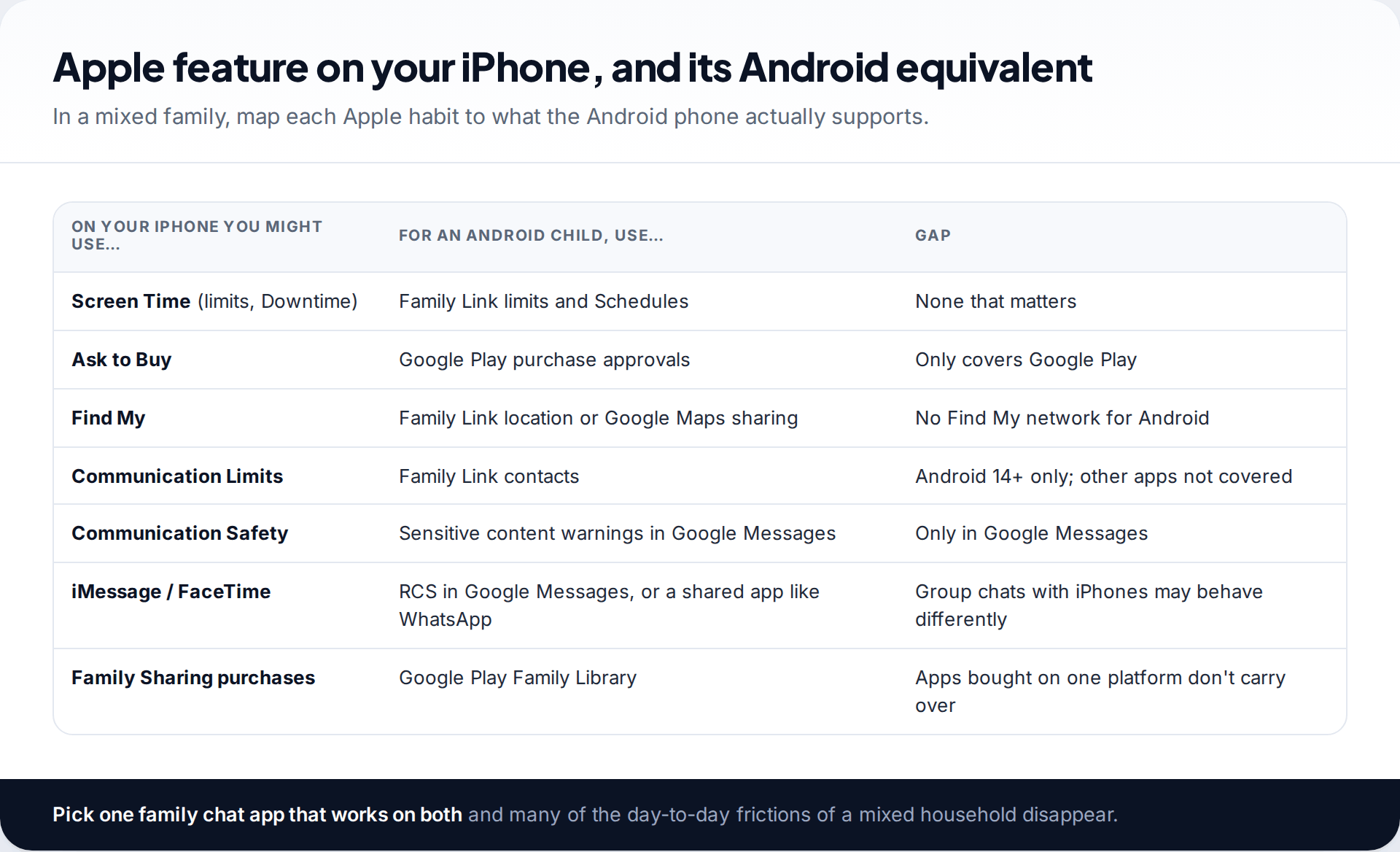
If you’re used to running a family on Apple’s tools, expect a few things to work differently. Ask to Buy becomes Google Play purchase approvals, which only cover Google Play. Communication Limits become Family Link’s contact controls, but only on Android 14 or later and only for the Phone app, Google Messages and Samsung Messages. Communication Safety has a counterpart in Google Messages’ sensitive content warnings, which Google says are on by default for supervised children and can’t be switched off by the child.
Purchases don’t carry across either. An app bought through Family Sharing isn’t available on the Android phone. The daily friction usually comes from messaging. Group chats mixing iPhones and Android phones behave differently from all-iMessage groups, and agreeing on one cross-platform chat app for the family avoids most of it.
Troubleshooting a cross-platform setup
The child’s location isn’t updating
The Android phone may be off, offline, in battery saver, or have location accuracy switched off.
Fix: on the child’s phone, turn on location and location accuracy, and exclude Google Play services from aggressive battery saving if the manufacturer offers it. Check the time stamp before worrying.
No notifications on the iPhone
iOS notification permission was declined at install, or a Focus mode is filtering them.
Fix: iPhone Settings › Notifications › Family Link › Allow Notifications. Add Family Link to any Focus you use in the evenings.
A new limit didn’t apply
Changes reach the child’s phone over the internet. Google says app blocks take effect in about five minutes once the device is connected.
Fix: make sure the Android phone is online, then wait a few minutes. Opening Family Link on the child’s phone can prompt a sync.
The contacts option is missing
Contact limits need Android 14 or later on the child’s phone.
Fix: check Settings › About phone on the Android. If it can’t update, use app approvals to limit which messaging apps they install.
When Family Link isn’t enough
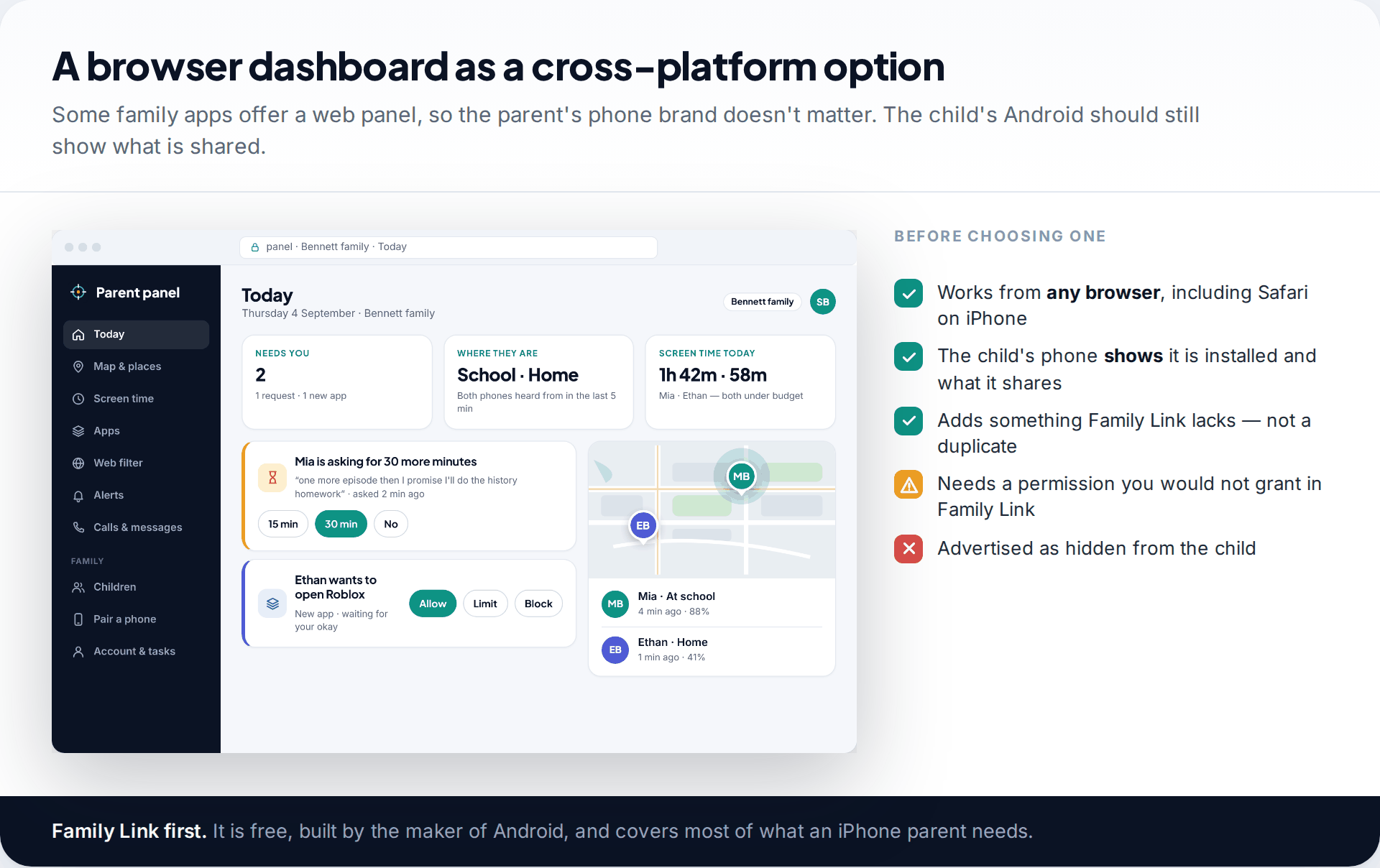
For most families, Family Link covers what an iPhone parent needs. Some want more, such as notification previews from social apps, keyword alerts, or a browser dashboard shared between two parents on different phones. Our app runs on the child’s Android phone with a web panel you can open in Safari. The child’s phone shows a plain list of what is shared. It can’t read end-to-end encrypted chats, it doesn’t replace talking to your child, and like Family Link it only works on a phone your family has set up together. You can compare what it covers. If you do add a second tool, make sure it adds something Family Link lacks rather than duplicating limits, because two sets of rules on one phone confuse everyone.
How this page was put together
Requirements and features were checked in September 2026 against Google’s Family Link help centre (device compatibility, schedules, contacts, location and app management), Google’s Family Link FAQ and the Family Link listing on Apple’s App Store. Where the two disagreed on the minimum iOS version, we give both.
We didn’t run a hands-on test on specific phones for this article. Android manufacturers label settings differently, so treat the paths as a guide. You can read about our editorial standards and how we fix errors.
Common questions
Does Family Link work on iPhone?
As a parent app, yes. You can manage a child’s Android phone or Chromebook from an iPhone. What Family Link can’t do is fully supervise a child’s iPhone. On an iPhone it only manages some Google account and service settings.
Can I use Screen Time on my iPhone to control my child’s Android?
No. Apple’s Screen Time and Family Sharing controls only apply to Apple devices. Use Family Link for the Android phone instead.
Can I see my child’s Android location in Find My?
No. Find My only locates Apple devices and items. Use Family Link’s location feature, or ask your child to share their location with you in Google Maps, which works across both platforms.
Can I see my child’s texts from my iPhone?
Not through Family Link. It can limit calls and texts to approved contacts on Android 14 or later, but it doesn’t show message content.
Can I manage my child’s Android from an iPad?
Yes. The Family Link listing on the App Store covers iPad as well as iPhone, so a family iPad can act as a parent device. Remember that anyone who can open that iPad can then change your child’s settings, so lock it with a passcode your child doesn’t know.
Is Family Link free?
Yes. Family Link is free on both iPhone and Android.
Can my teenager turn off Family Link?
Google’s FAQ says children over 13, or the age of consent in their country, need parental approval to stop supervision. As a parent, you can end it at any time.
Looking for a tool to go with this? TheTruthSpy is a free parental control app for Android that stays visible on the child's phone. If it fits your family, see the Location & geofencing feature.
Related guides
Instagram Supervision: Setting Up Parental Controls on a Teen Account
Instagram's parental controls come in two layers: Teen Account protections that switch on automatically, and Supervision, which you link through…
Choosing a Kids’ GPS Watch: Features That Matter and Traps to Avoid
How to choose a kids' GPS watch: network and SIM compatibility, realistic location accuracy, SOS and call whitelists, battery life,…
Parental Controls for Beginners: Where to Start on Every Device
A plain-English starting point for parental controls: the four layers that matter, a first-30-minutes setup, where the settings live on…
Parental controls your child can see
Location, screen time limits, a web filter and alerts from notifications — free, and visible on your child's phone. Pair a phone in about ten minutes.
Android · Free to set up · Visible on your child's phone