Instagram Supervision: Setting Up Parental Controls on a Teen Account

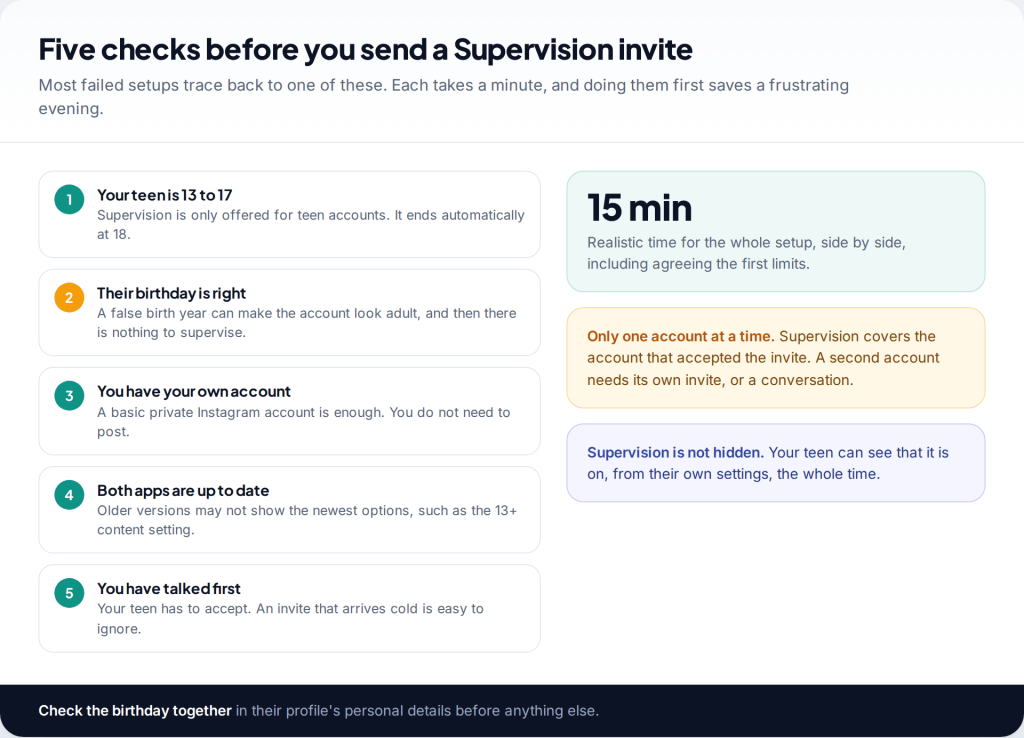
Instagram parental controls work in two layers. Every account belonging to a 13 to 17-year-old is a Teen Account, with private settings, message limits and a 13+ content filter switched on automatically. Supervision is the second layer: you send an invite from Family Center, your teen accepts, and you can then set time limits, approve setting changes and see who they follow. Neither layer lets you read messages.
- Teen Account protections are automatic. Under-16s need your permission to loosen them, but only if you have linked Supervision.
- Supervision needs your teen’s agreement. It is an invitation, not a switch, and it shows on their side.
- You see time, follow lists and contacts. You never see message content, and nothing in the settings changes that.
- Set it up side by side. About fifteen minutes, including agreeing the first limits.
Before you start: five checks that save time
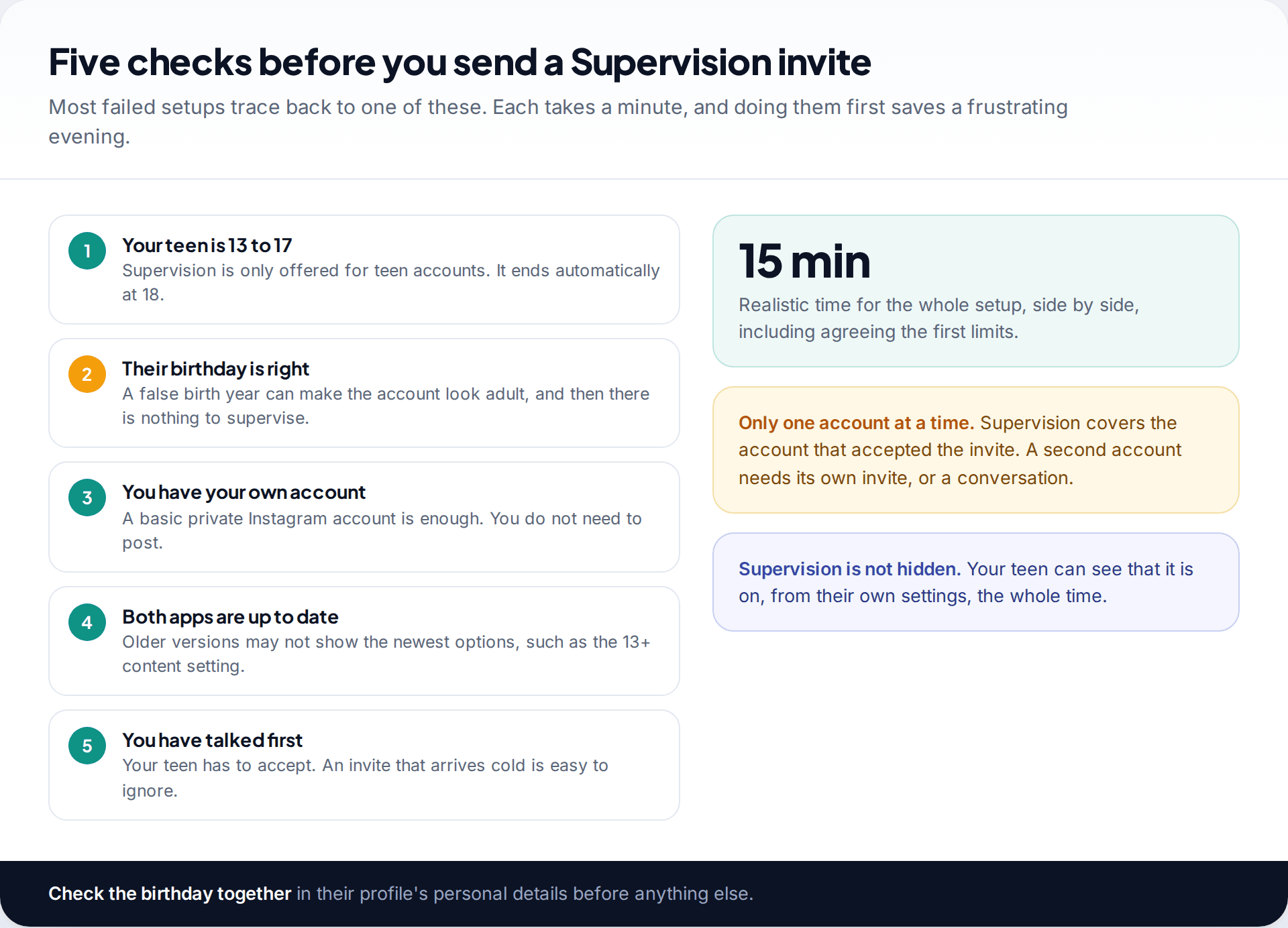
Supervision exists only for teen accounts, so the first thing to confirm is that Instagram thinks your child is a teenager. Plenty of children pick an older birth year when they sign up, sometimes years before they are old enough for an account at all. If the account looks adult, the option to supervise it simply won’t appear. Open the profile’s personal details together and check the date.
You also need your own Instagram account. It can be private, with no posts. That is the account the dashboard lives in, and it’s the one your teen will see named on their supervision screen. Update both apps before you begin, because newer controls such as the 13+ content setting appear only in recent versions.
The last check is the one that matters most: talk before you invite. Your teen has to accept, and an invite that arrives unannounced is easy to ignore. Explain what you will see, what you won’t, and why you want it. The rest of this guide makes that explanation easy, because the list is short and specific.
What Teen Accounts already do, and what Supervision adds
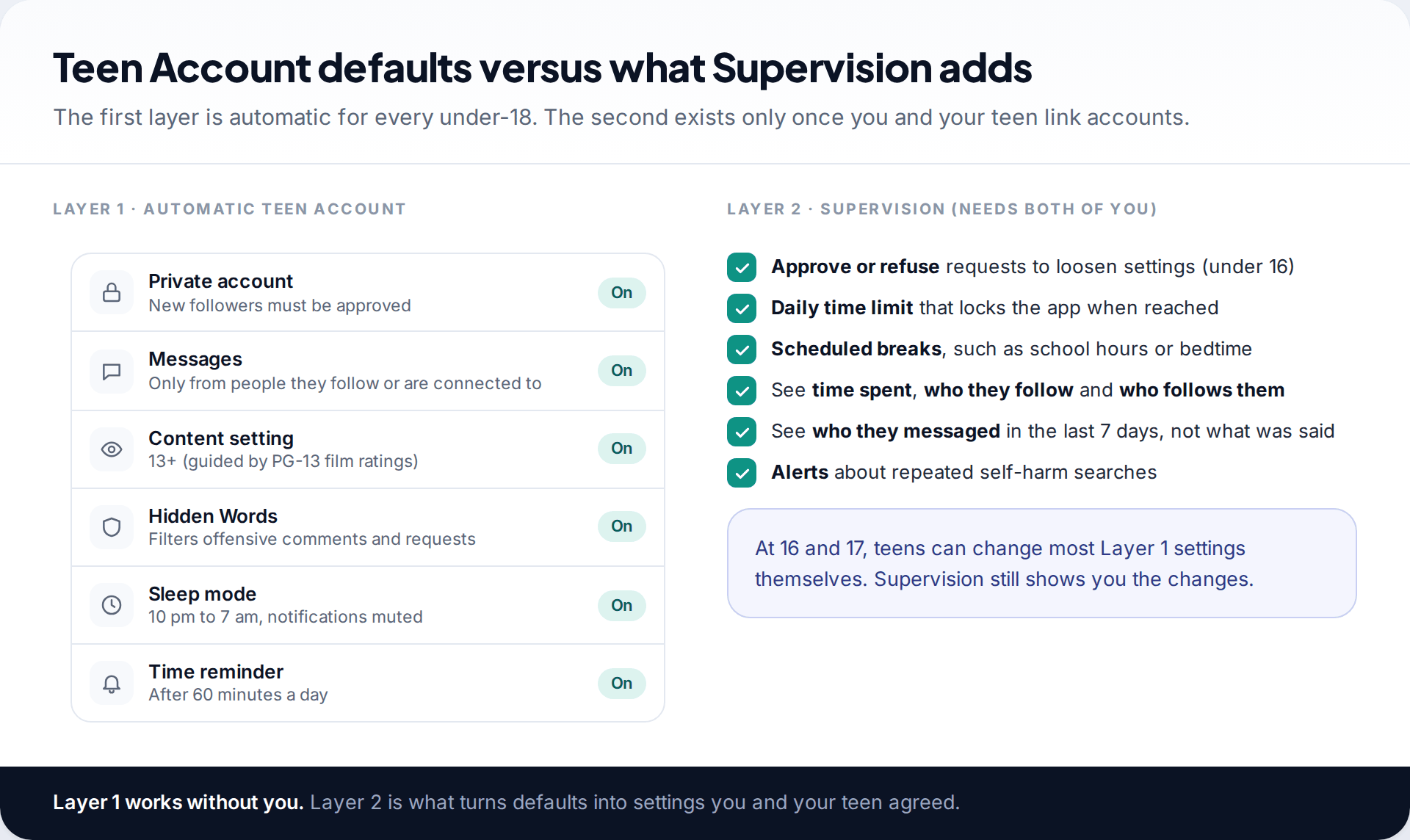
Instagram launched Teen Accounts in September 2024 and has since rolled them out in every country where it operates. Anyone under 18 is placed into one. By default the account is private, only people your teen follows or is already connected to can message them, Hidden Words filters offensive comments and message requests, a reminder appears after 60 minutes of daily use, and Sleep mode mutes notifications from 10 pm to 7 am. From October 2025 Meta added a 13+ content setting, modelled on PG-13 film ratings, which hides more mature posts, blocks mature search terms and stops teens following accounts that regularly post that kind of content.
For under-16s, loosening any of these needs a parent’s permission. The catch is that permission is requested through Supervision. Without it, there is no parent linked to approve anything. That makes Supervision the thing that gives the defaults their teeth. It also adds controls the defaults don’t have: a hard daily limit, scheduled breaks, and a view of the account’s shape.
At 16 and 17, teens can change most defaults themselves. Supervision still works at those ages, and you still see the changes, which suits the stage where you are handing over rather than holding on.
How to set up Instagram parental controls, step by step
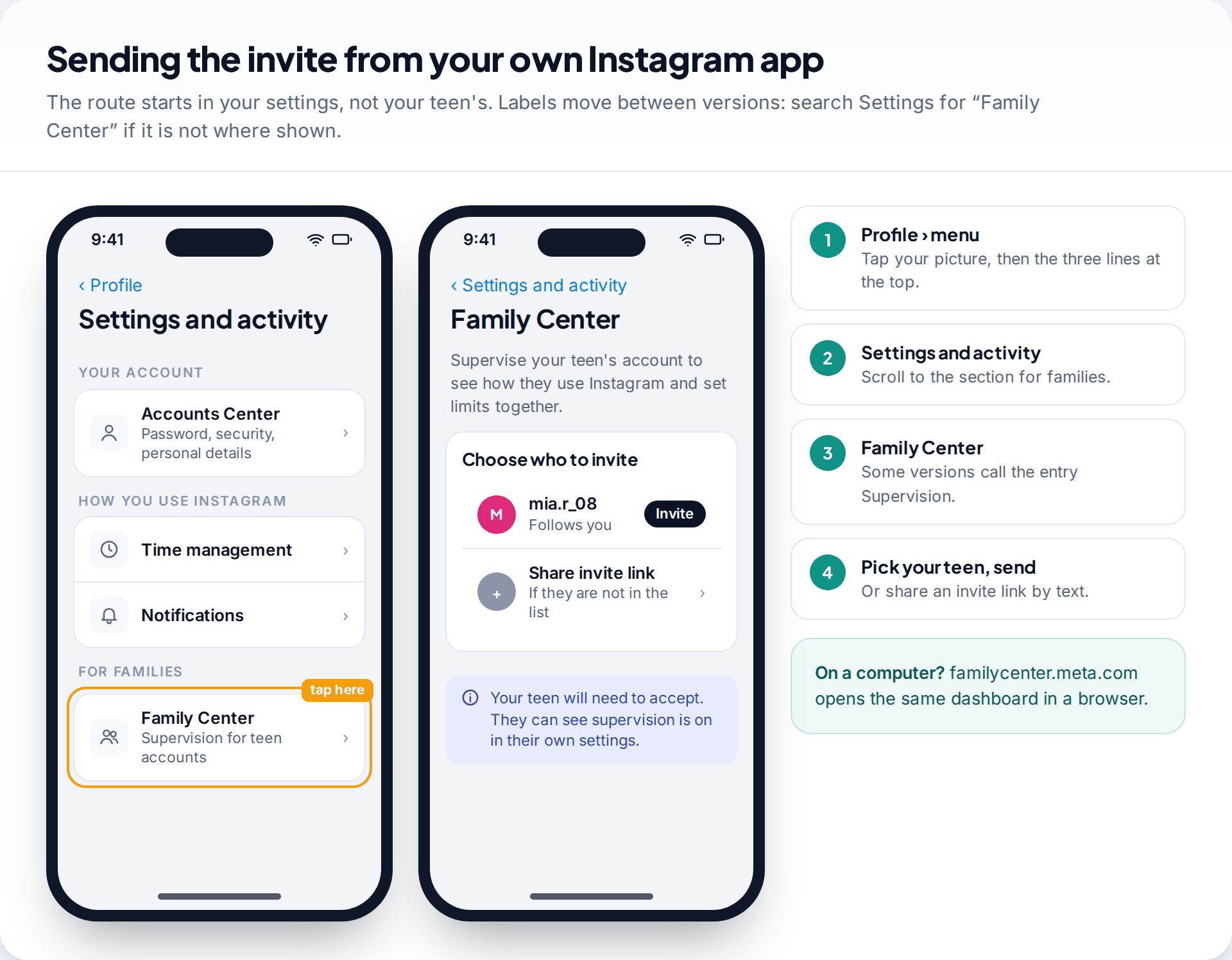
- Open your own profile in the Instagram app and tap the menu (three lines) at the top.
- Go to Settings and activity and scroll to the section for families. Tap Family Center. Some versions label the entry Supervision.
- Choose your teen’s account from the list, or create an invite link and send it to them by text.
- Have your teen open the invite on their phone and read the screen before accepting.
- Return to Family Center. Your teen’s name now appears, and tapping it opens their controls.
Either of you can start the process, so a teen can also send the invite from their own settings. If you would rather work on a computer, familycenter.meta.com opens the same dashboard in a browser. Since May 2026 Meta has let a single invitation cover Instagram, Facebook, Messenger and Meta Horizon, so if your teen uses more than one of those apps you can supervise them together from one page.
Labels move between app versions and countries. If you can’t see Family Center where described, search the settings screen for “Family Center” or “Supervision” rather than assuming it isn’t available.
The moment your teen accepts
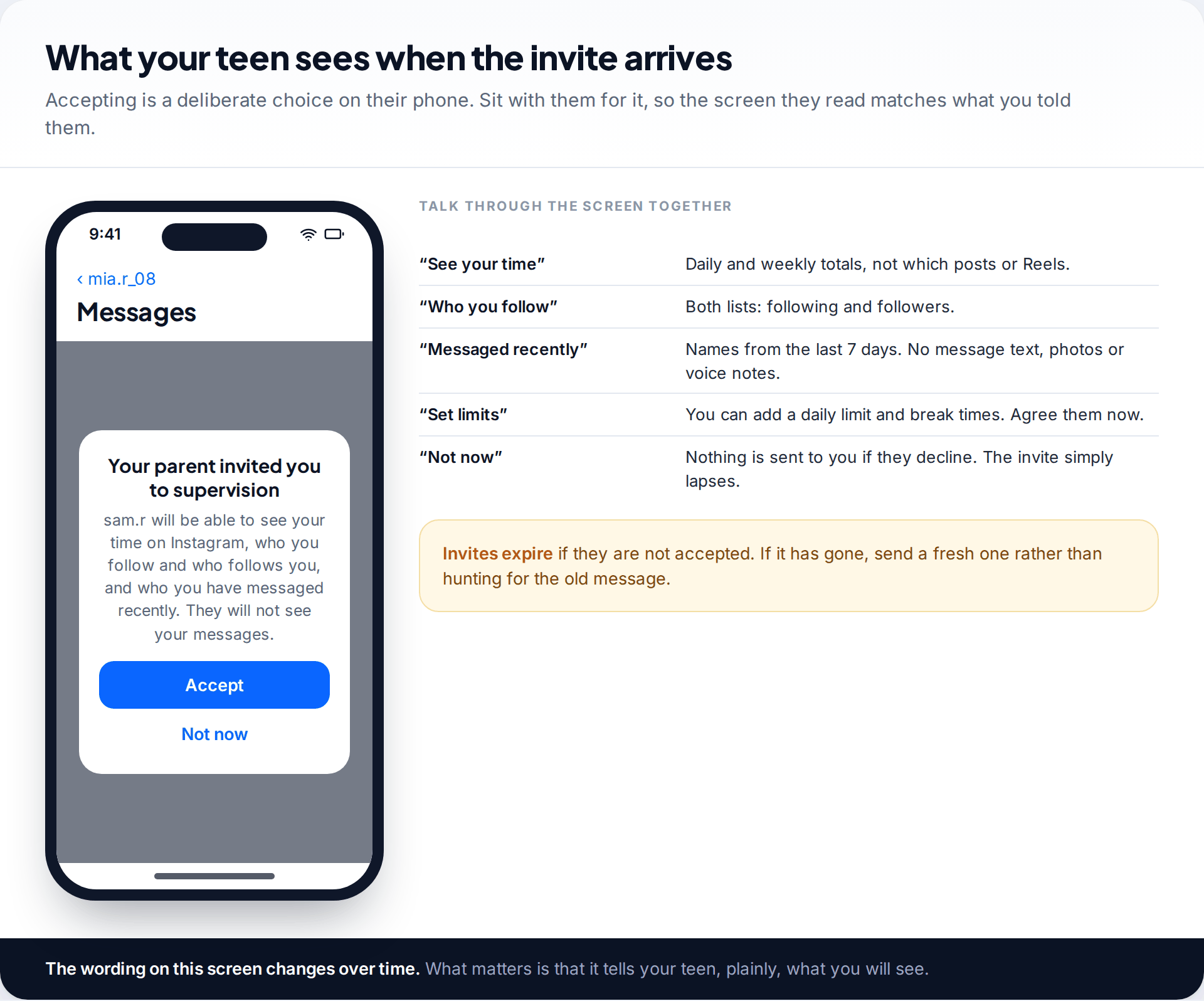
Your teen sees a short summary of what supervision means before they choose. It says you will see their time on Instagram, who they follow, who follows them, and who they’ve messaged recently, and that you will not see their messages. Go through it together. Teens often expect far more monitoring than Supervision allows, and hearing that you cannot read their chats tends to lower the temperature.
If they tap “Not now”, nothing dramatic happens. The invite lapses, and you can talk and send another later. Invites expire if they sit unanswered, so a fresh one is usually quicker than finding the old message.
Settings to agree in the first fifteen minutes
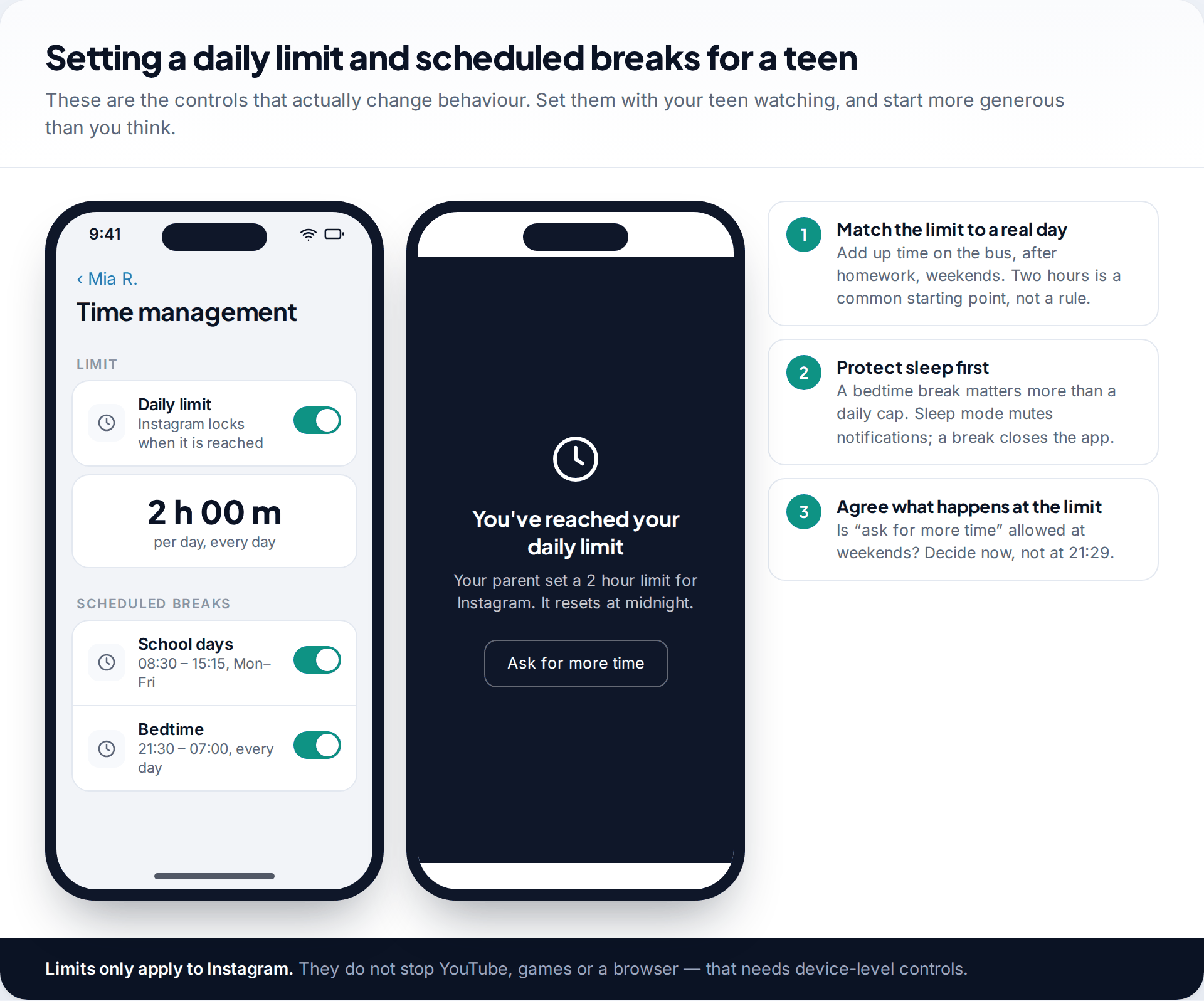
Once the link is live, open your teen’s controls together and set three things.
- A bedtime break. Sleep mode already mutes notifications overnight, but the app still opens. A scheduled break closes it. Pick times that match the house rules you already have.
- School hours, if phones are allowed in bags during the day and you’d rather Instagram wasn’t.
- A daily limit. When it runs out, Instagram locks until midnight. Look at a week of real use first if you can, and set the limit a little above the quiet days, not below the busy ones.
Limits that are agreed hold up far better than limits that are imposed. Decide now what happens when the limit arrives at a bad moment, such as a group project on a Sunday evening.
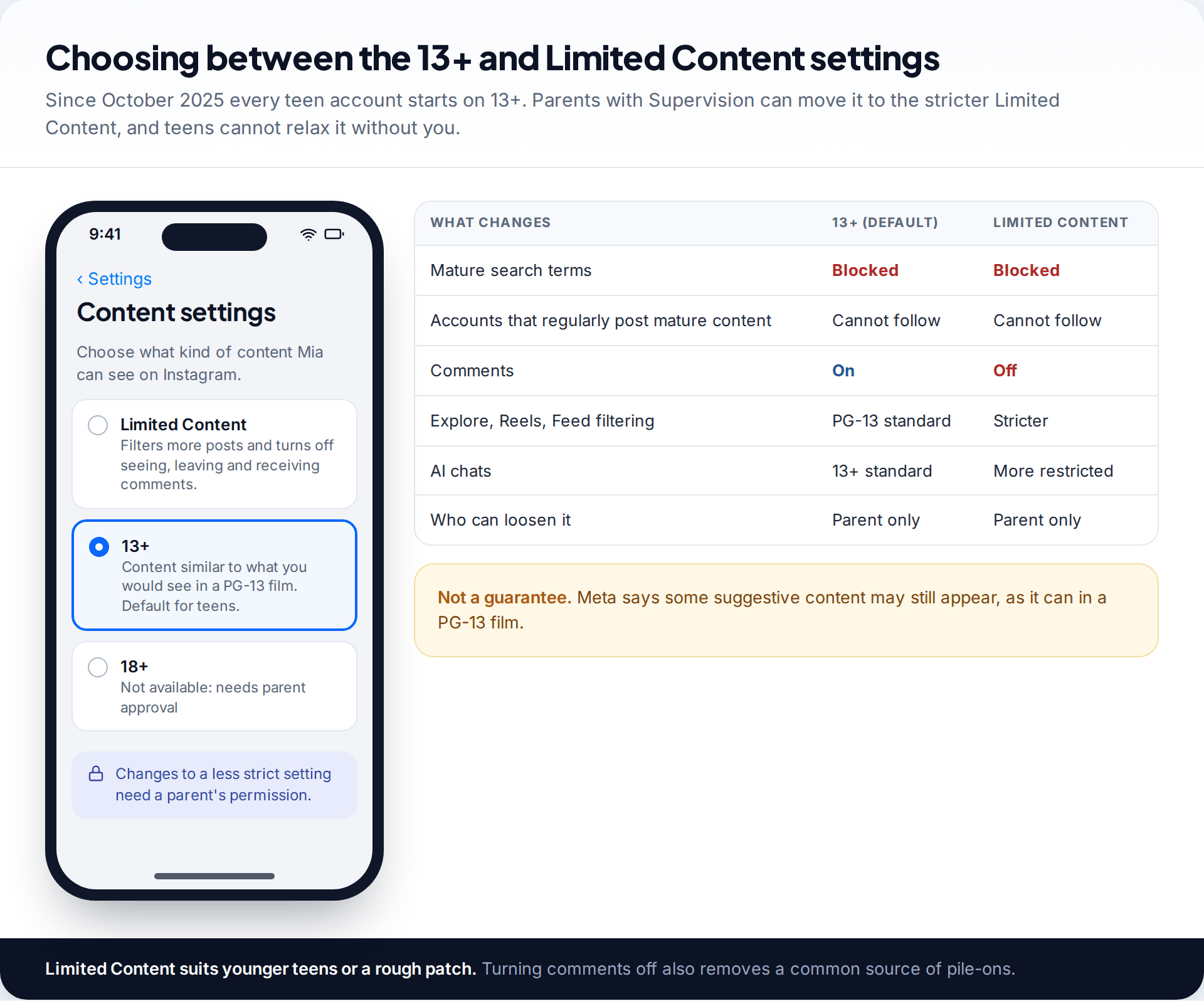
Then look at the content setting. Every teen starts on 13+. If your child is at the younger end, or going through a rough patch online, you can move it to Limited Content, which filters more and turns off seeing, posting and receiving comments. Meta says this setting also restricts conversations with its AI more tightly. Your teen can’t move it back to a looser option without your approval. Parents who supervise can also flag posts they think shouldn’t be shown to teens, and Meta says those reports feed into its reviews.
Finally, glance at messaging and Hidden Words with your teen. The defaults are already strict, so the job is mostly to show them where the controls are, including how to block and report from inside a chat.
Reading the Supervision dashboard
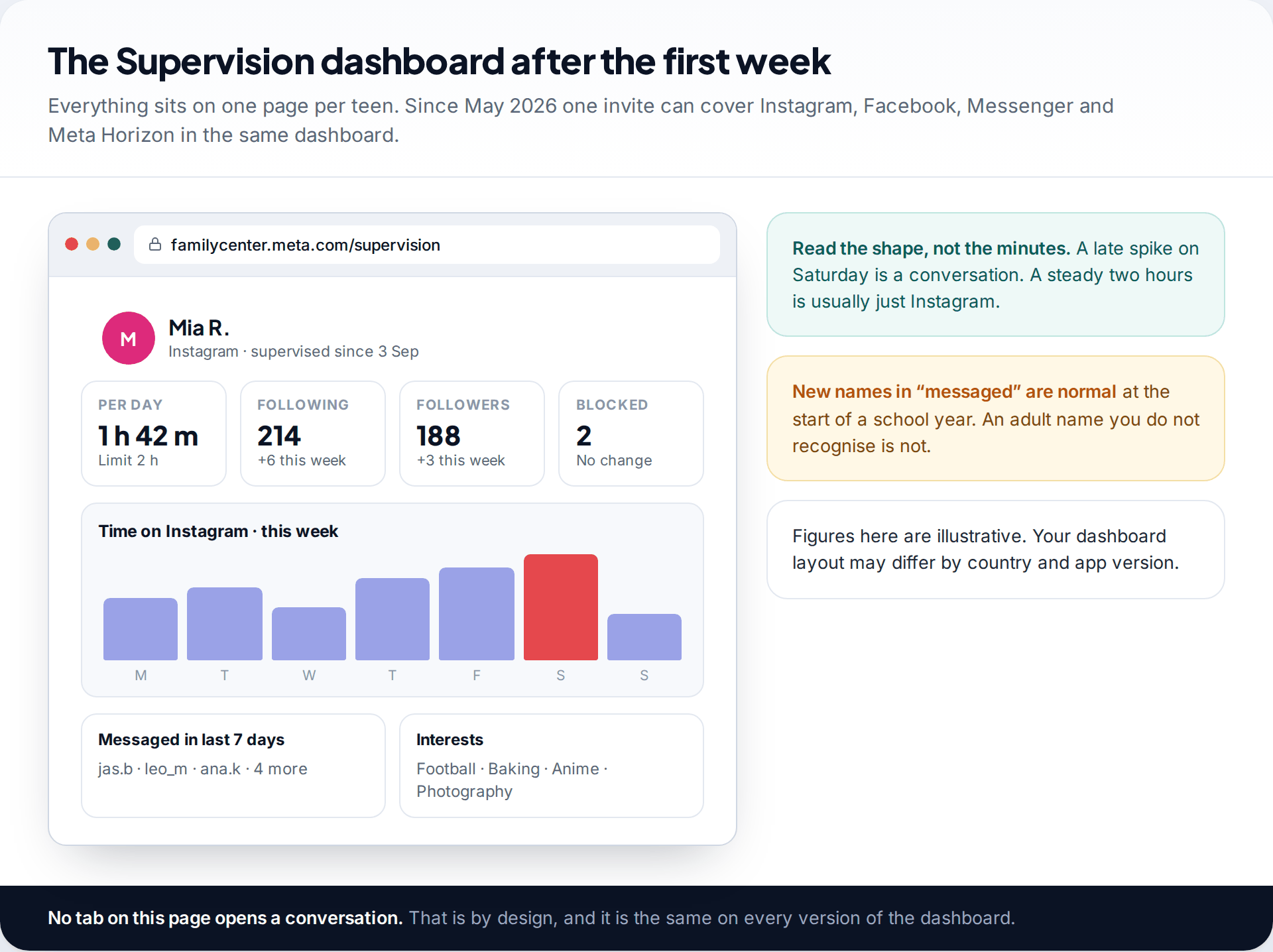
The dashboard gives you the outline of the account. You’ll see daily and weekly time, the lists of who your teen follows and who follows them, accounts they have blocked, and the names of people they’ve messaged in the last seven days. Since May 2026 it also shows the general topics your teen is interested in, from the “Your Algorithm” controls, and Meta has said it will start notifying parents in some markets when a new interest is added. You’ll be told when settings change and, if your teen chooses to share it, when they report someone.
Two alerts are newer. Since February 2026 Instagram notifies supervising parents if their teen repeatedly searches for suicide or self-harm terms in a short period, with guidance for the conversation that follows. That began in the US, UK, Australia and Canada and was due to be available worldwide by August 2026. In July 2026 Meta added alerts when a teen’s conversation with Meta AI suggests they may be at risk of self-harm, starting in the same four countries. Both depend on Supervision being on.
What the dashboard rewards is noticing change. A new adult name in the message list, a follower count that jumps overnight, or time that creeps later into the evening are all worth a calm question. Our guide to reading your child’s following list goes through what to look for in those lists.
What Instagram’s parental controls cannot do
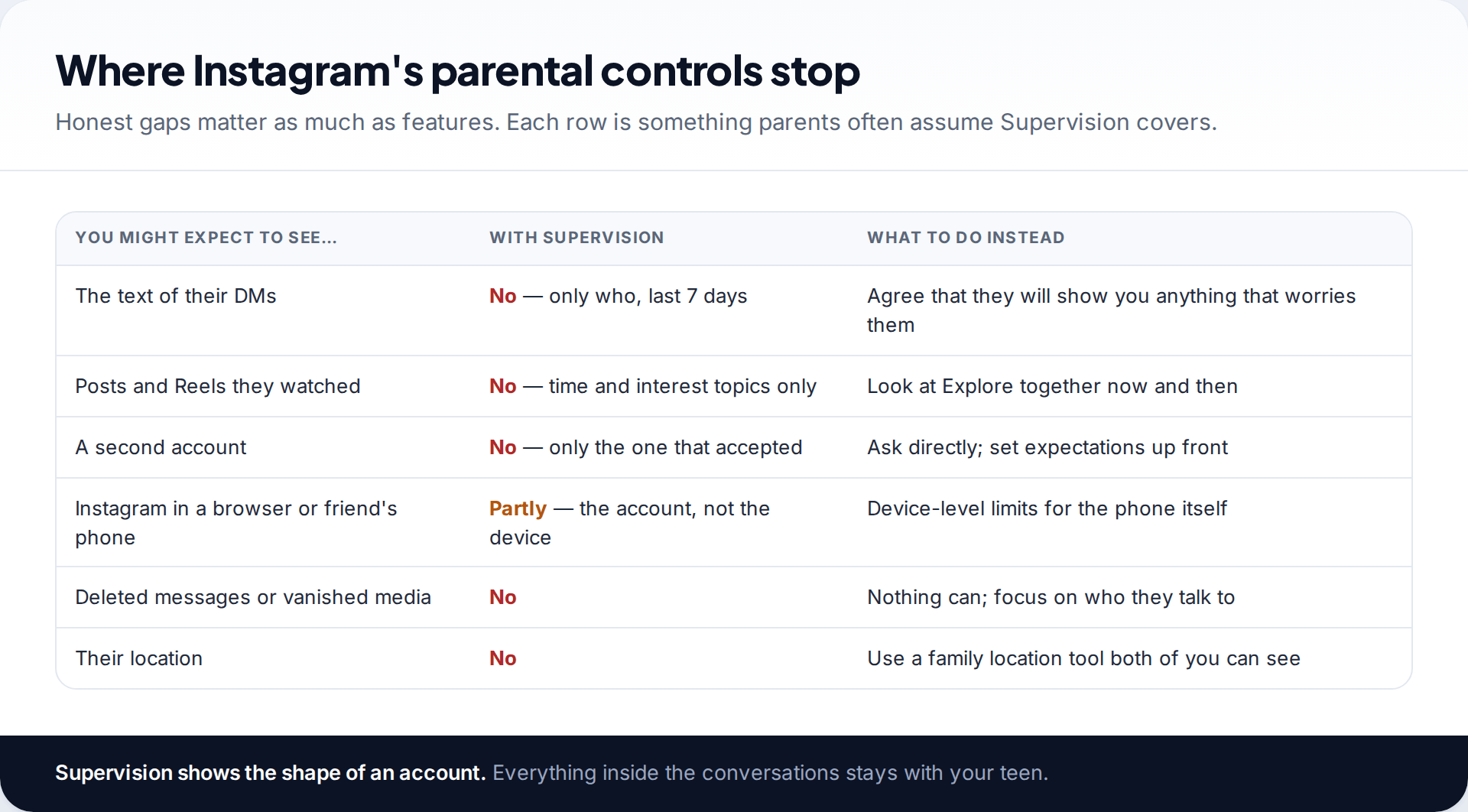
You will never see message content through Supervision. Not text, photos, voice notes or disappearing media. The seven-day list shows names only. Plan around that from the start, rather than finding out when something goes wrong.
Supervision covers the account that accepted the invite. It can’t see a second account, and it can’t see Instagram opened on a friend’s phone. Time limits apply to Instagram only, not to the other apps and games on the phone. For whole-device limits, you’ll need the phone’s own controls or a family app that works at device level; our screen time controls cover that side, and they’re visible on your teen’s phone in the same way.
Supervision also can’t tell you what your teen scrolled past. It shows interest topics, not the posts. The 13+ filter reduces mature content, but Meta itself says some may still get through.
Troubleshooting the setup
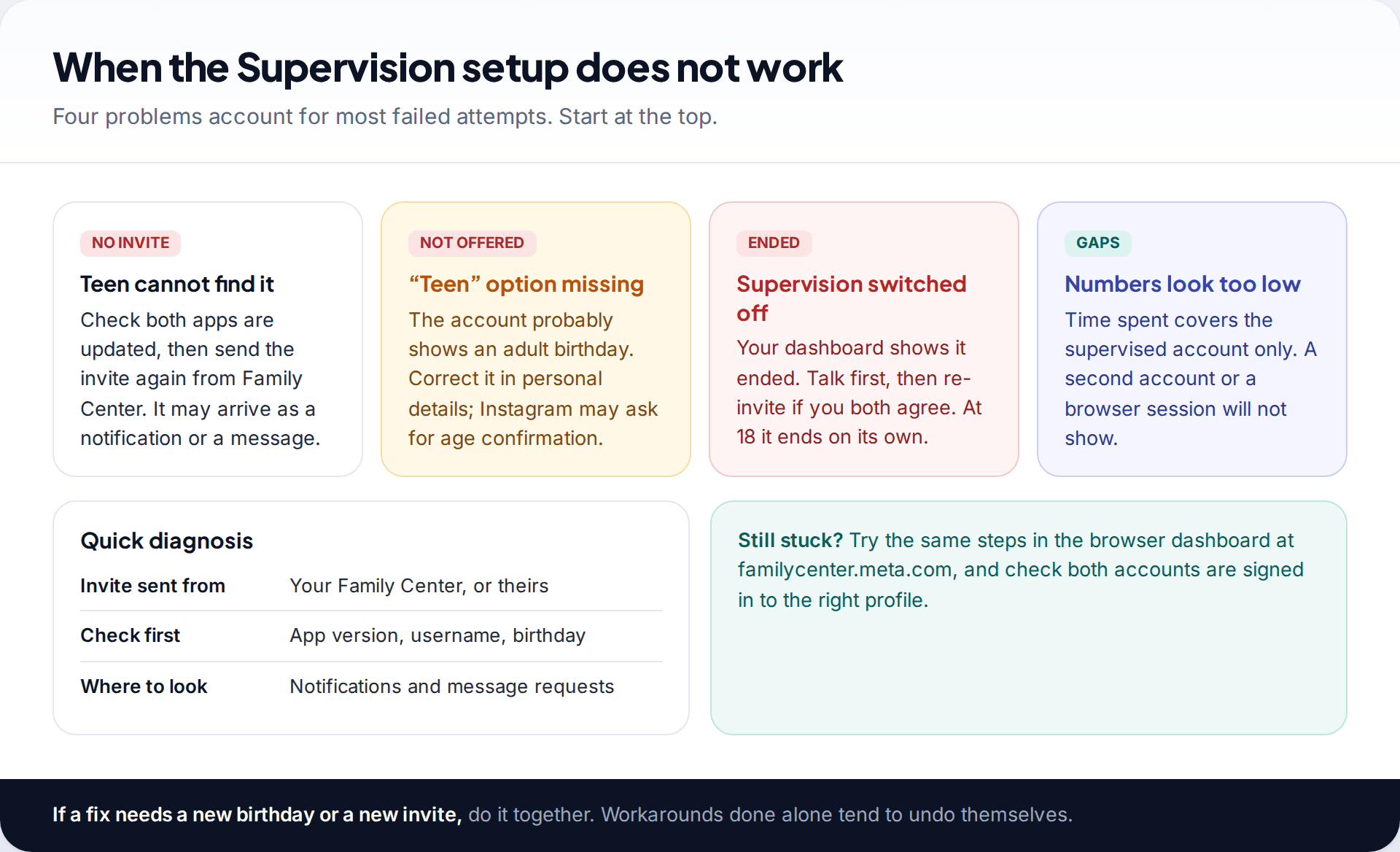
The invite never arrives
Usually an out-of-date app, or the invite went to a different account.
Fix: update both apps, confirm the username, and send a new invite link by text.
There is no option to supervise
The account’s birthday probably makes your teen look 18 or older.
Fix: correct the date in personal details together. Instagram may ask for age confirmation before it changes.
Supervision ended without warning
It ends automatically at 18, and it can be removed from either account.
Fix: check the dashboard, then talk before you re-invite. A quiet re-invite starts an arms race.
Time spent looks impossibly low
The figure covers the supervised account only.
Fix: ask whether there’s another account or browser login. Agree that all accounts are supervised, or none are.
How this page was put together
We checked the setup route and feature list against Meta’s newsroom announcements on Teen Accounts (September 2024), the 13+ content setting (October 2025), the Family Center changes (May 2026) and the parent alerts (February and July 2026), alongside current parent guides that describe the menus. This was done in September 2026. Where sources disagreed on a label or an invite’s expiry window, we have described the mechanism instead of a single wording.
Dashboard figures in the images are illustrative, not from a real family. You can read our standards for checking and correcting guides.
Common questions
Can I set up Instagram parental controls without my teen knowing?
No. Supervision only starts when your teen accepts an invite, and they can see it is active in their own settings. That’s deliberate, and it’s also why it tends to last.
Does my teen need to agree to Teen Account settings?
No. Teen Account protections apply automatically to every under-18. What needs agreement is Supervision, which lets you approve changes and set limits.
Can I see my child’s Instagram messages with Supervision?
No. You see the names of people they messaged in the last seven days, not what was said. No Instagram setting gives parents message content.
What age does Instagram Supervision stop?
It ends automatically when your teen turns 18. It can also be removed earlier from either account, and the dashboard shows when that happens.
Do I need an Instagram account to supervise?
Yes. The dashboard lives in a parent account. It can be private and empty, and you can also open it in a browser at familycenter.meta.com.
Can two parents supervise the same teen?
Rules on this have changed over time and may differ by version. Check the Family Center screen when you set up. If only one link is allowed, agree which parent holds it and share the view.
Looking for a tool to go with this? TheTruthSpy is a free parental control app for Android that stays visible on the child's phone. If it fits your family, see the Social media alerts feature.
Related guides
Managing a Child’s Android From Your iPhone: What Works Cross-Platform
Yes, you can manage a child's Android phone from an iPhone. Google's Family Link parent app runs on iOS and…
Choosing a Kids’ GPS Watch: Features That Matter and Traps to Avoid
How to choose a kids' GPS watch: network and SIM compatibility, realistic location accuracy, SOS and call whitelists, battery life,…
Parental Controls for Beginners: Where to Start on Every Device
A plain-English starting point for parental controls: the four layers that matter, a first-30-minutes setup, where the settings live on…
Parental controls your child can see
Location, screen time limits, a web filter and alerts from notifications — free, and visible on your child's phone. Pair a phone in about ten minutes.
Android · Free to set up · Visible on your child's phone