Parental Controls for Beginners: Where to Start on Every Device

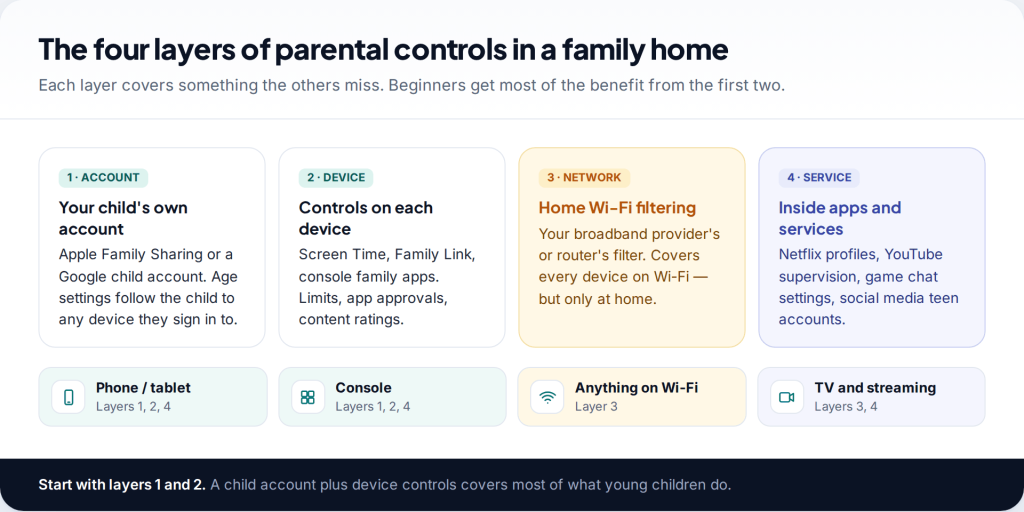
Many parents picture parental controls as one switch that makes the internet safe. It isn’t, and knowing that is where parental controls for beginners should start. Controls come in four layers: your child’s account, the device, your home Wi-Fi, and the apps and services themselves. Set up the first two properly and you’ve covered most of what a young child does. The rest can follow a step at a time.
This guide gives you a 30-minute starting setup, then works through where controls live on phones and tablets, consoles, Wi-Fi and streaming services. It ends with a checklist by age and an honest list of what controls can’t do.
The four layers, and why you need more than one
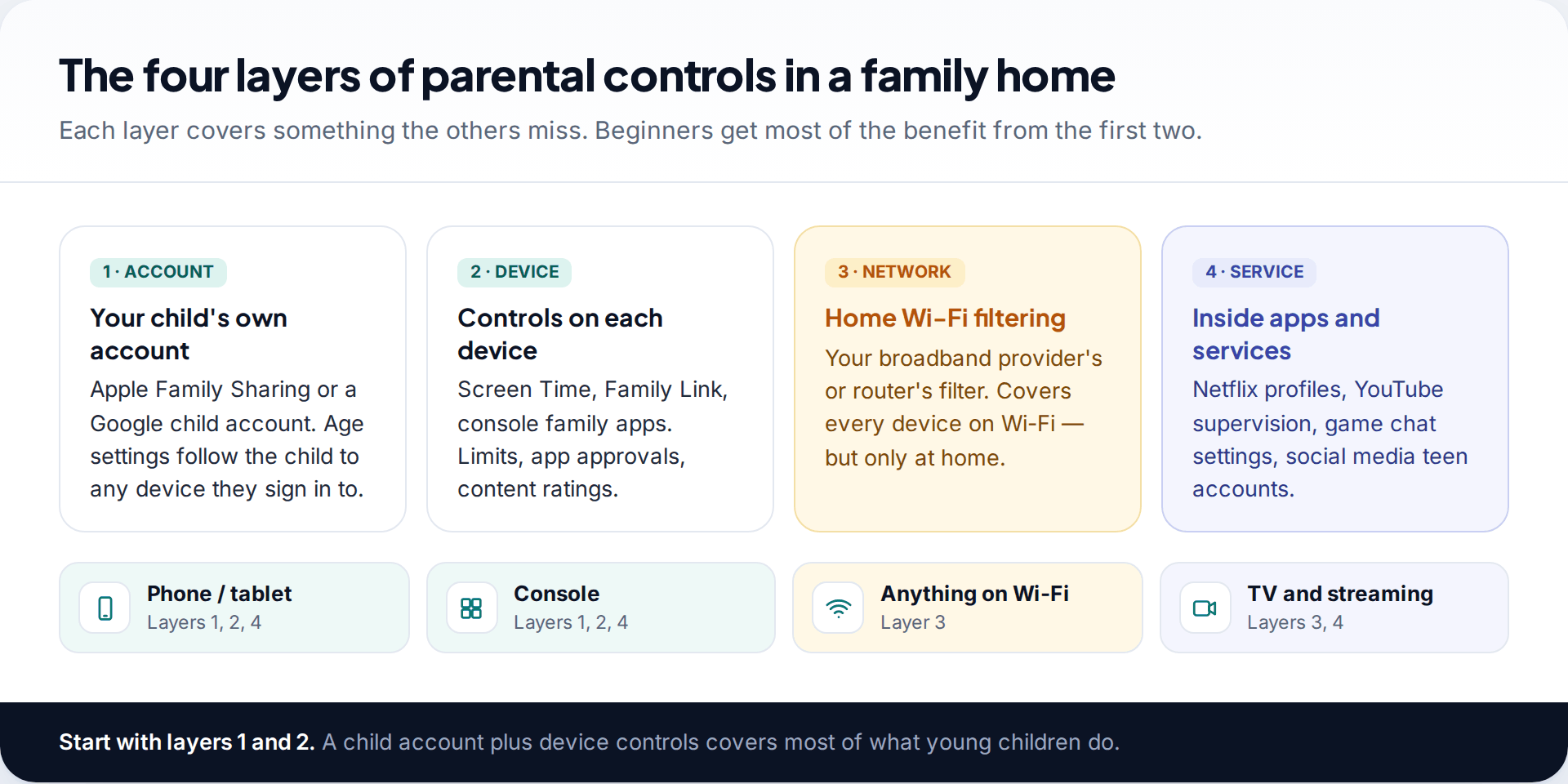
The account comes first because it travels with your child. A child account in Apple’s Family Sharing or Google’s Family Link carries their age, so app stores, YouTube and other services can apply age-appropriate defaults wherever they sign in. Enter their real date of birth. Many protections switch on automatically because of it.
Device controls sit on each phone, tablet, console and computer: time limits, bedtimes, app approvals and content ratings. Network filtering on your home Wi-Fi covers everything connected to it, including smart TVs and friends’ phones, but only while they’re at home. Service-level settings live inside individual apps, such as streaming profiles, game chat options and social media teen accounts. None of these layers is complete on its own, which is why beginners who rely on only one are often disappointed.
Your first 30 minutes
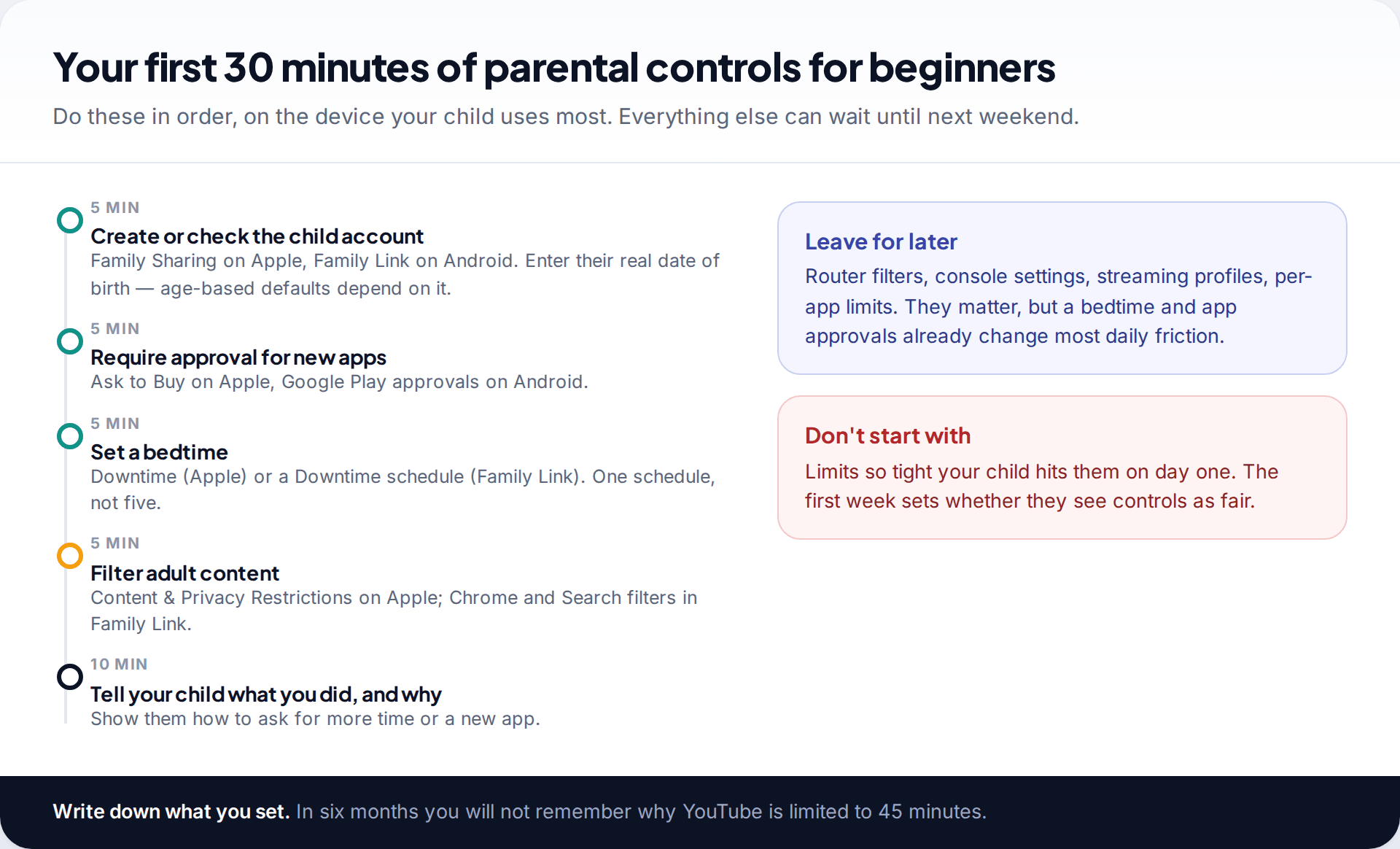
If you do nothing else, do these on the device your child uses most:
- Create or check the child account (about 5 minutes). On Apple, add them to Family Sharing as a child. On Android, set up Family Link. Check the date of birth.
- Require approval for new apps and purchases (5 minutes). Ask to Buy on Apple, and approvals for Google Play in Family Link.
- Set one bedtime (5 minutes). Downtime on Apple, or a Downtime schedule in Family Link. One schedule you’ll actually keep beats five you won’t.
- Filter adult content (5 minutes). On Apple, Content & Privacy Restrictions. On Android, the Chrome and Search filters in Family Link.
- Explain it to your child (10 minutes). Show them what’s on, why, and how to ask for more time or a new app.
Resist the urge to set tight daily limits on the first day. A child who hits a limit within an hour of setup will see controls as a punishment. One who gets a bedtime and a request button will usually see them as house rules.
Phones and tablets
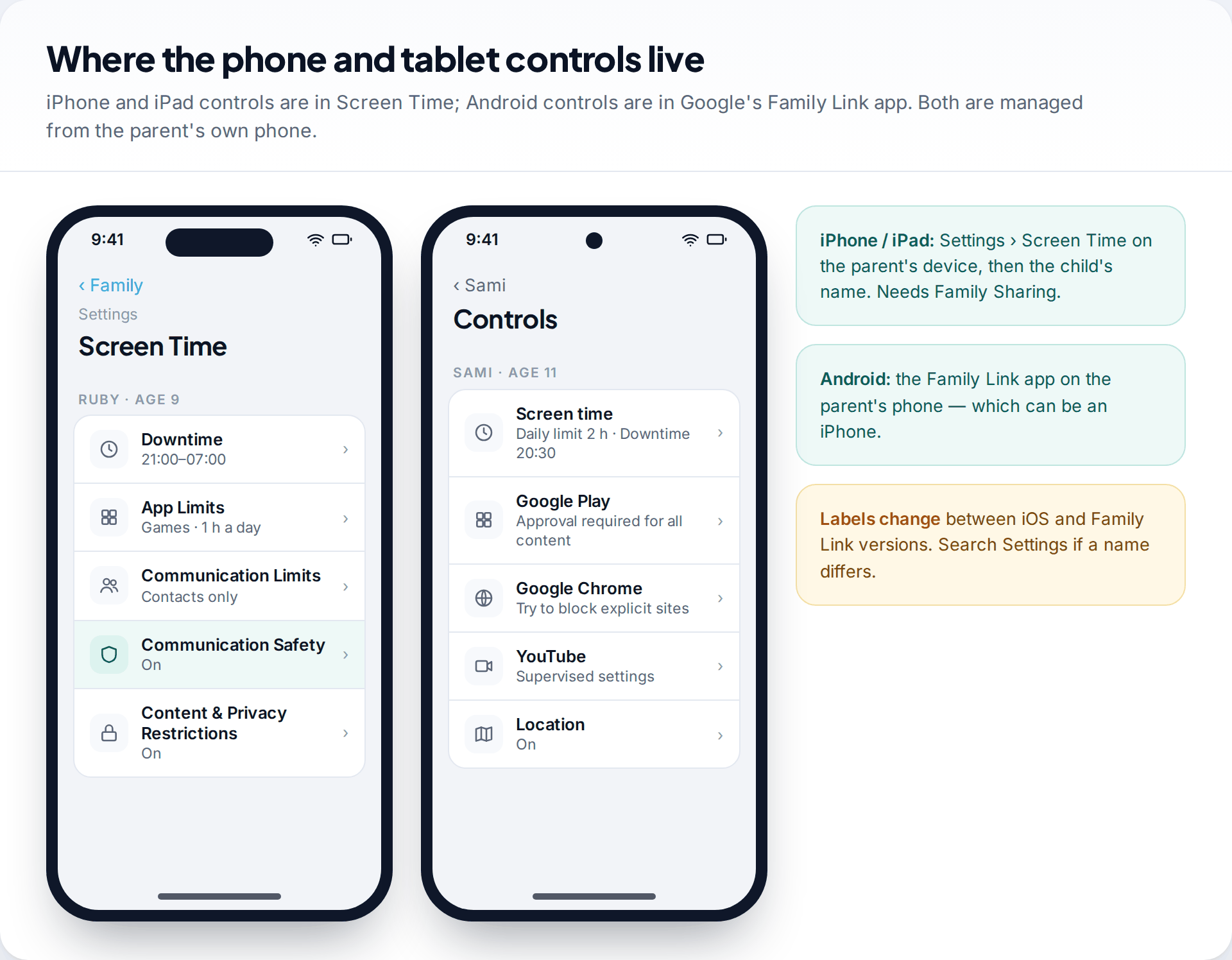
iPhone and iPad: Screen Time
Apple’s controls live in Screen Time, which you manage from your own device through Family Sharing. The main settings are Downtime for bedtime, App Limits for categories like games, Communication Limits to choose who your child can call, FaceTime and message, and Content & Privacy Restrictions for web content, purchases and ratings. Apple says Communication Safety, which blurs nude images in Messages, AirDrop and FaceTime, is on by default for under-18s on current software.
Android: Family Link
On Android, Google’s Family Link covers the same ground: a daily limit, Downtime and School time schedules, approvals for Google Play, filters for Chrome, Search and YouTube, and location. The parent app runs on Android and iPhone. On Android 14 and later it can also limit calls and texts to contacts you add. If your family mixes Apple and Android, see our guide to managing a child’s Android from an iPhone.
Games consoles
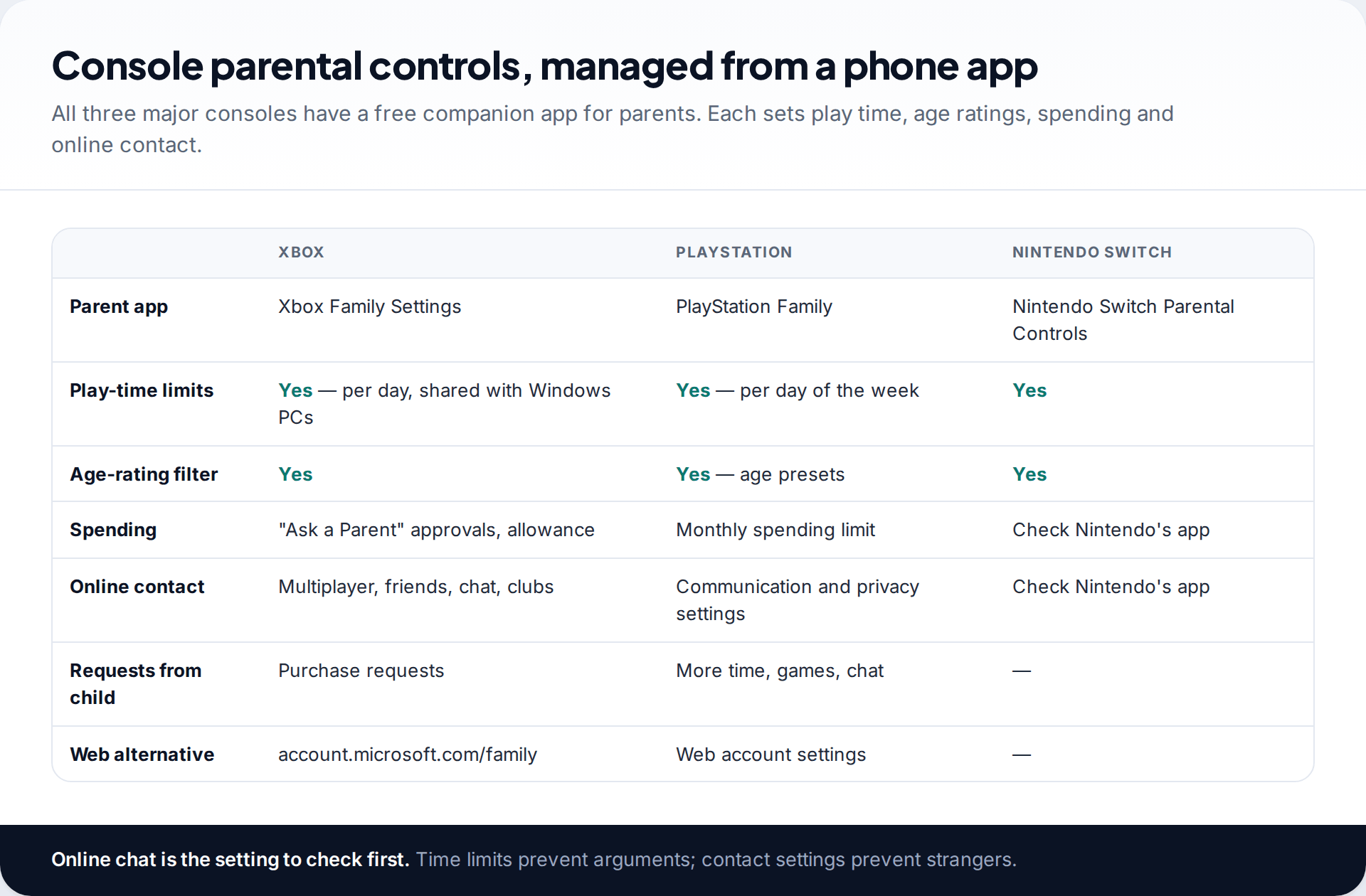
Xbox, PlayStation and Nintendo each have a free parent app. Xbox Family Settings sets screen time shared across Xbox and Windows, filters by age rating, handles “Ask a Parent” purchase requests, and controls multiplayer, friends and chat. You can also use it through account.microsoft.com/family. The PlayStation Family app sets play time for each day of the week, applies age presets, sets a monthly spending limit, and lets your child ask for more time, a game or chat permissions from the console. Nintendo’s Switch Parental Controls app sets play time and restricts games by rating.
If you only change one console setting, make it online contact. Time limits prevent arguments, but contact settings decide whether strangers can message or voice-chat with your child in a game. For under-10s, “friends only” or “off” is a sensible start.
Home Wi-Fi and the router
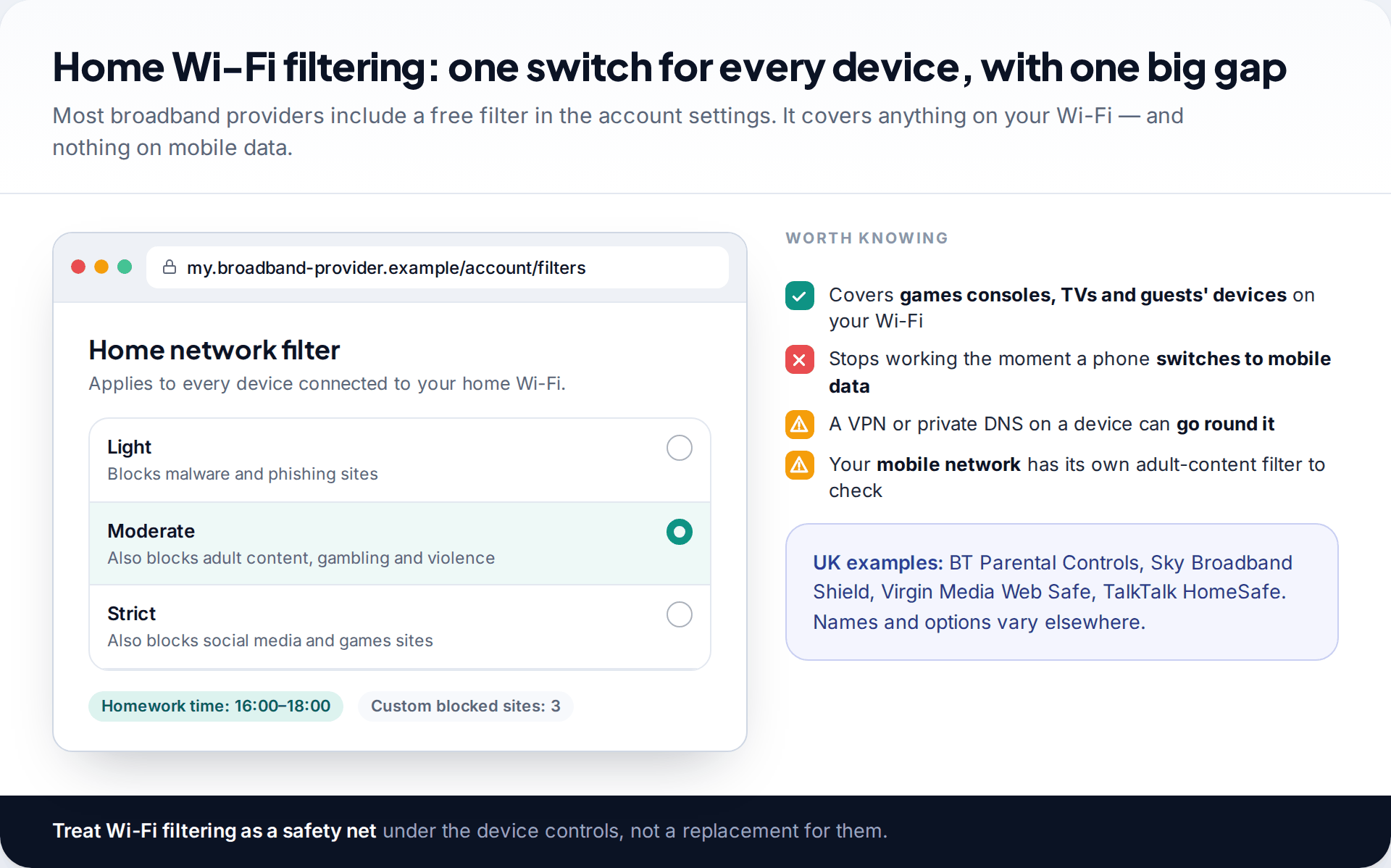
Most broadband providers include a free content filter that you switch on in your online account, and many routers have their own. In the UK, for example, BT, Sky, Virgin Media and TalkTalk each offer one. It covers everything on your Wi-Fi at once, including consoles, smart TVs and friends’ devices, which makes it a good safety net for younger children.
The limitation is simple and important. As the UK charity Internet Matters puts it, protection is lost as soon as a device connects through another network. A phone on mobile data or a friend’s Wi-Fi escapes it, and a VPN or private DNS setting on a device can get round it at home too. Mobile networks usually run their own adult-content filter, so check that as well when your child gets a SIM.
TV, streaming and YouTube
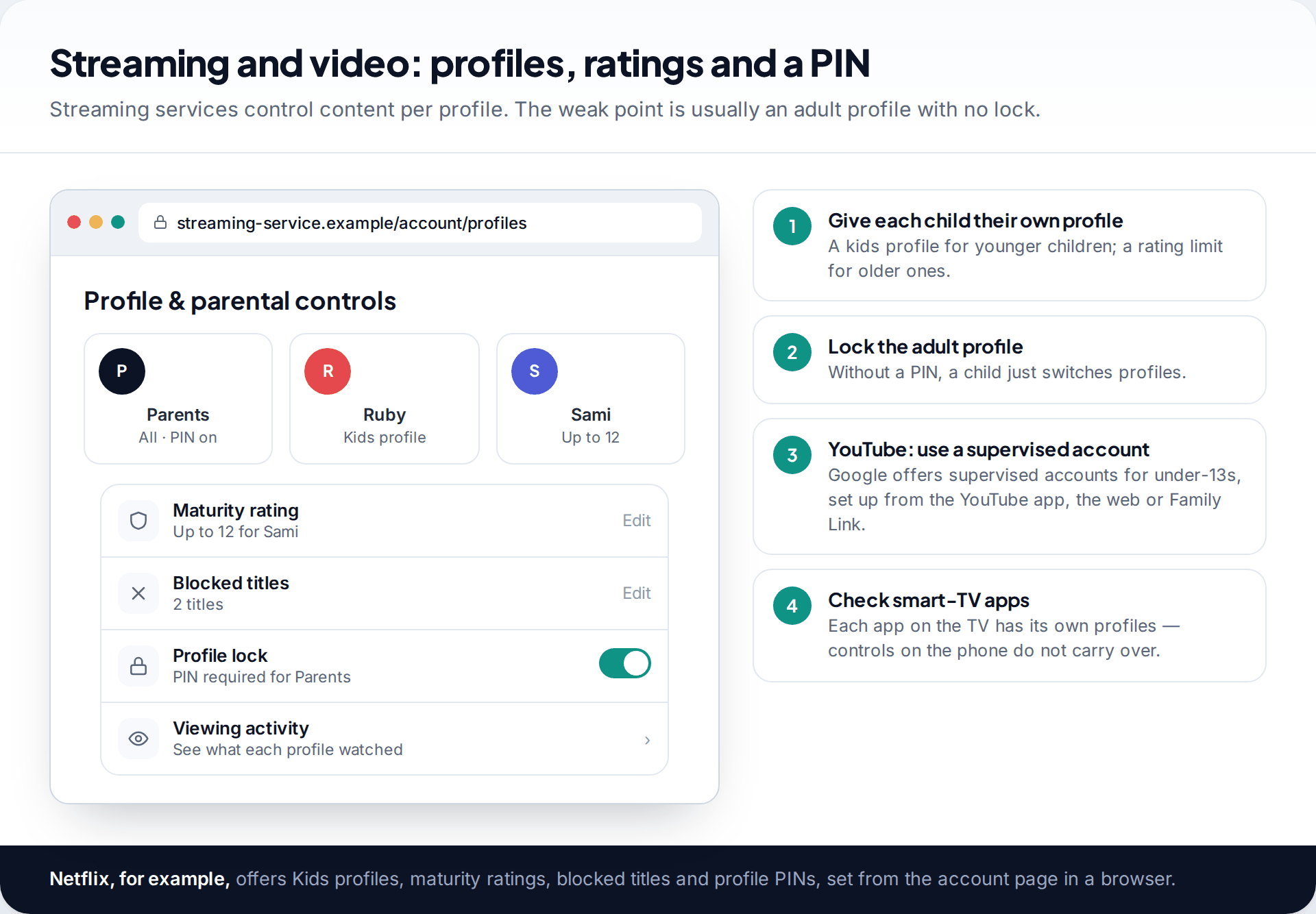
Streaming services control content per profile. Netflix, for example, offers Kids profiles, maturity-rating limits, blocked titles, viewing history and a PIN to lock individual profiles. You set these from the account page in a browser. The most common gap is an adult profile with no lock. If a child can tap into “Mum”, the kids profile does nothing.
For YouTube, Google offers a supervised account for children under 13, or the relevant age where you live. You can set it up from the YouTube app, on the child’s device, at families.youtube.com, or through Family Link, and choose a content level when you do. Remember that each app on a smart TV has its own settings. What you set on a phone doesn’t carry over to the TV.
Computers and laptops
Computers are often forgotten because children use them less than phones. They also tend to have the fewest restrictions. On a Windows PC, give your child their own Microsoft account in your family group rather than letting them use yours. Microsoft’s family settings, managed at account.microsoft.com/family or in the Xbox Family Settings app, share screen-time limits and content filters across Windows and Xbox. On a Mac, Screen Time works the same way as on an iPhone once your child has their own user account in Family Sharing. On a Chromebook, signing in with a Family Link-supervised Google account applies the same Chrome filters and limits as on Android.
The common mistake is a shared family login with no password. Any controls you set are on the adult account, not the child’s. A separate account for each child takes ten minutes and makes everything else work. School-issued laptops are usually managed by the school and filtered on their network. Ask what the school’s controls cover at home before adding your own.
A starting checklist by age
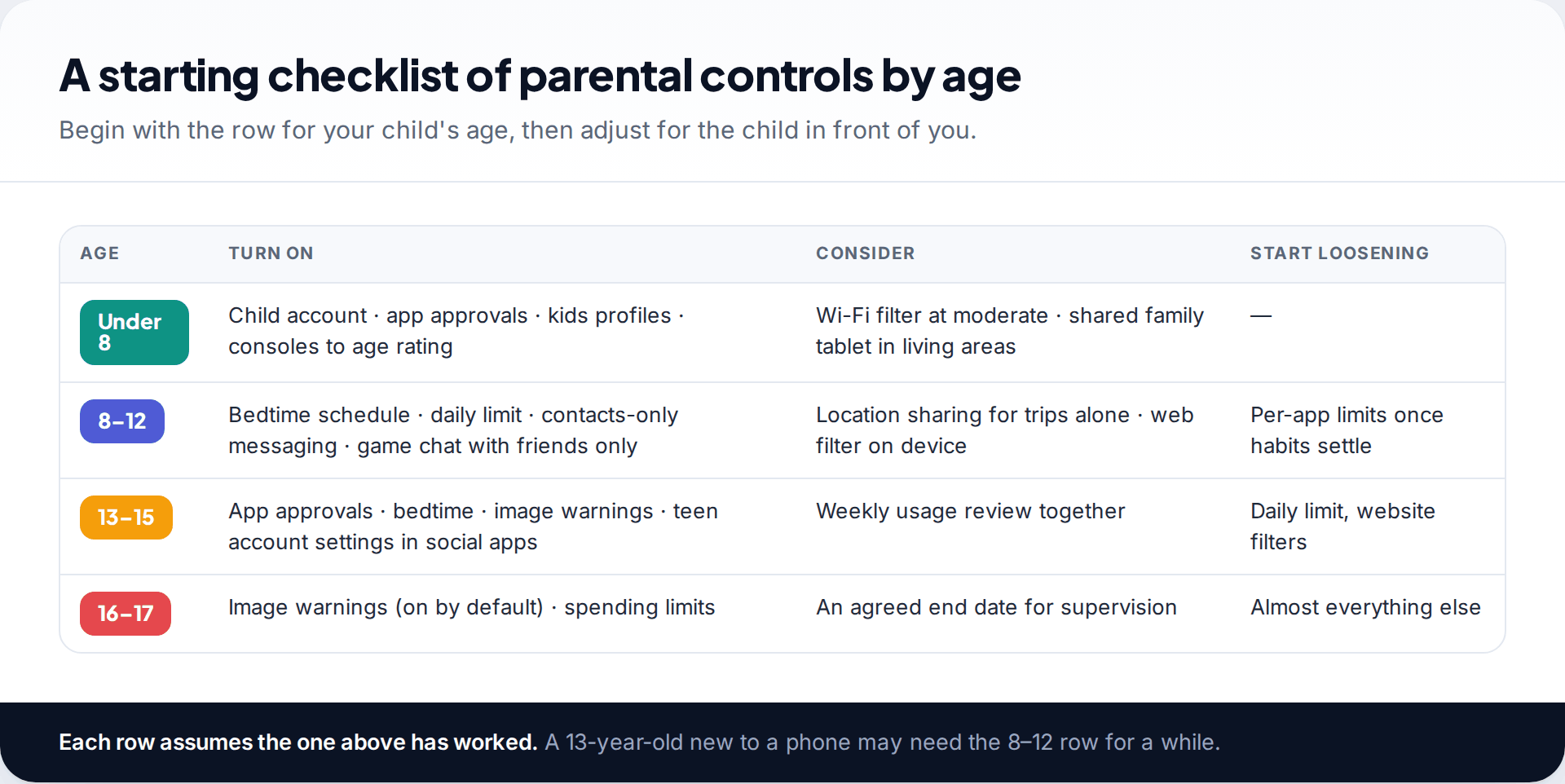
Under 8: a child account, app approvals, kids profiles on streaming, consoles limited to age-appropriate games, and a moderate Wi-Fi filter. Devices used in shared rooms do more than any setting.
8 to 12: add a bedtime schedule, a daily limit, contacts-only messaging and friends-only game chat. If they start travelling alone, add location sharing. This is the age when requests, for more time or a new app, become the main way you parent through the controls, so answer them quickly.
13 to 15: keep app approvals and the bedtime, rely on the built-in image warnings, and use the teen account settings inside social apps. Replace daily limits with a weekly look at usage together. Instagram’s supervision tools for Teen Accounts are a good example of service-level controls at this age.
16 and 17: most controls should be coming off, by agreement and with an end date. Keep spending limits and the image warnings, which are on by default anyway.
What parental controls can’t do
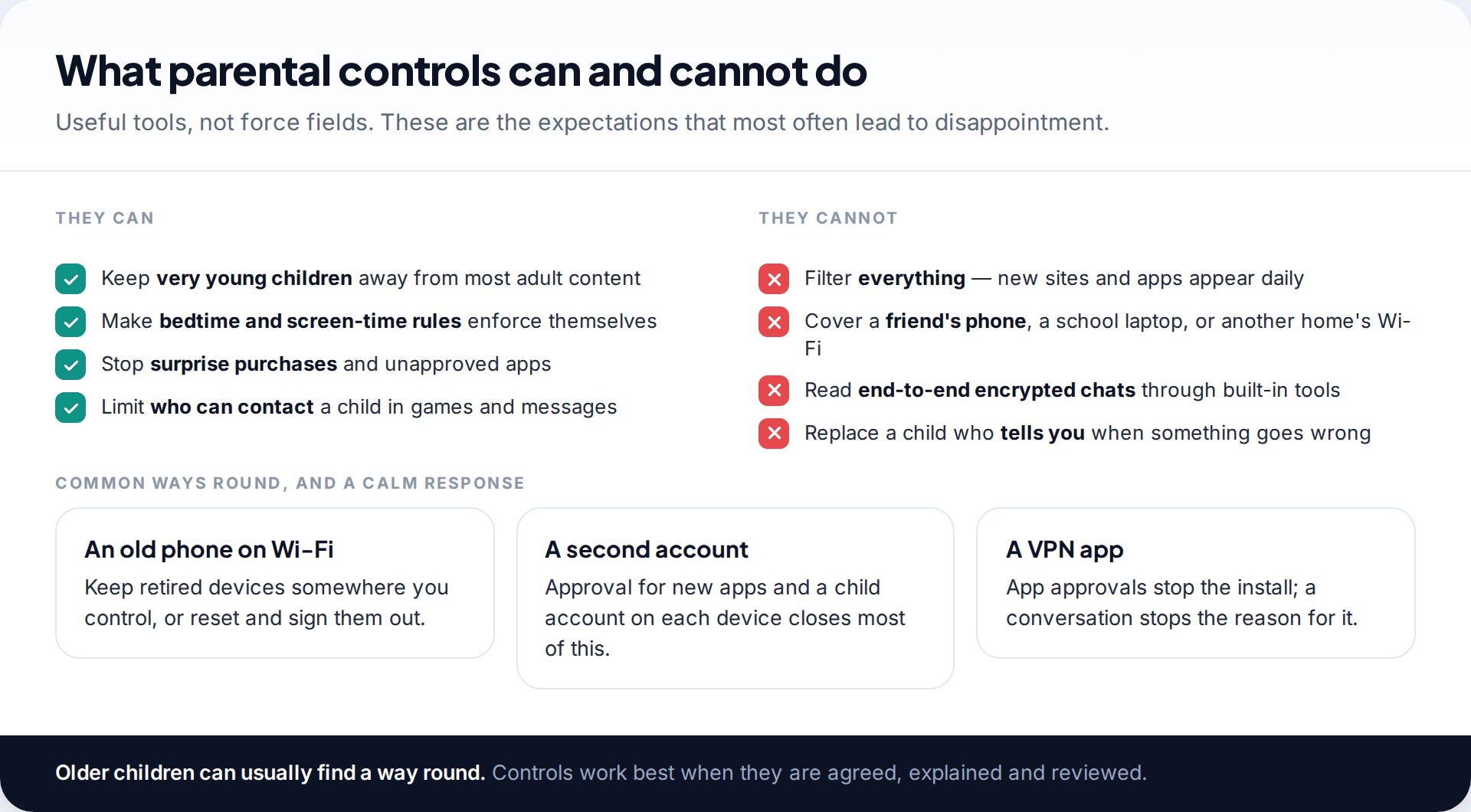
Filters miss things, because new sites and apps appear faster than any list can keep up. Controls on your child’s devices don’t reach a friend’s phone, a school laptop or another family’s Wi-Fi. Built-in tools don’t read end-to-end encrypted chats, and they aren’t meant to. Older children who want to get round controls often can, with a factory reset, a second account or an old handset.
None of that makes controls pointless. It means they work as support for rules you’ve talked about, not as a replacement for them. A child who knows why a limit exists, and can ask for it to change, is less likely to spend their energy getting round it.
Adding a family app, if you need one
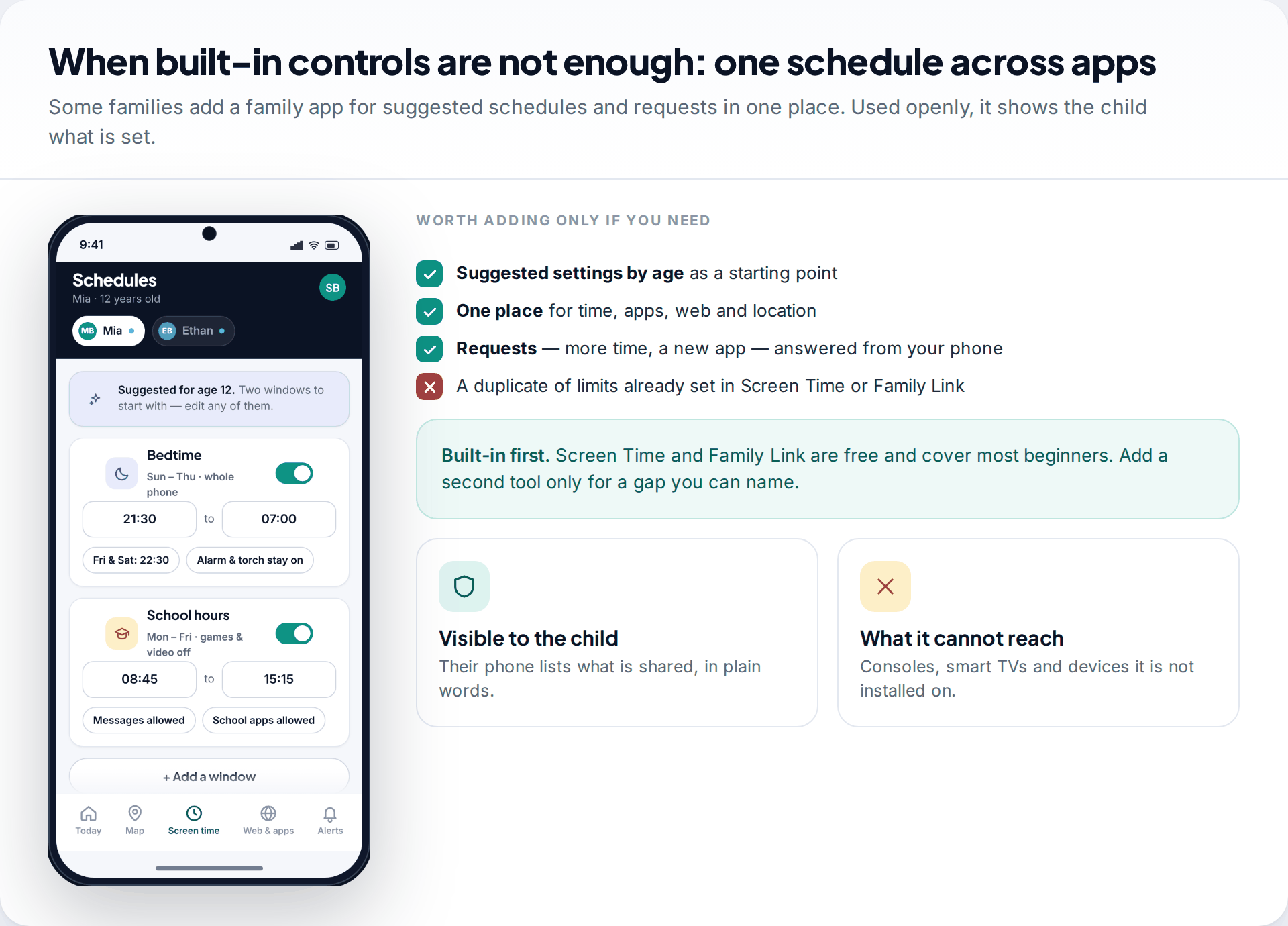
Screen Time and Family Link are free and are enough for most beginners. Some families want one dashboard across several children and devices, suggested schedules by age, and requests handled in one place. Our app does that on phones your family has set up together. It shows your child what is shared and can’t be hidden from them. It can’t filter devices it isn’t installed on, such as consoles or smart TVs. It works alongside the built-in tools rather than replacing them. You can see how its screen-time controls work.
How this page was put together
We checked settings in September 2026 against Apple’s Screen Time and Communication Safety support pages, Google’s Family Link and YouTube help centres, Xbox’s and PlayStation’s parental control pages, Netflix’s help centre and Internet Matters’ guidance on broadband and mobile filters. Nintendo’s page didn’t load fully when we checked, so we describe its app only in general terms.
We didn’t test every console or router. Menu labels change often, so search the settings for the feature name if a path differs. Read our editorial standards for how we research and correct guides.
Common questions
What is the easiest parental control to set up first?
A child account with app approvals: Family Sharing with Ask to Buy on Apple, or Family Link on Android. It takes a few minutes and stops most surprise downloads and purchases.
Are parental controls free?
The main ones are. Screen Time, Family Link, the Xbox, PlayStation and Nintendo parent apps, broadband filters from major providers and streaming profile controls cost nothing extra. Paid apps add convenience and extra features.
Do I need parental controls on the router if I have them on the phone?
Not strictly, but a router or broadband filter covers devices you can’t easily control, such as smart TVs, consoles and visiting friends’ phones, while they’re on your Wi-Fi.
At what age should I start using parental controls?
From the first device your child uses on their own, even a tablet at five. Start simple and loosen controls as they show they can manage.
Can my child turn off parental controls?
Not easily if they’re set up with a parent account and passcode. Older children may find ways round, such as a second device or a factory reset. That’s why explaining the rules matters as much as setting them.
Will parental controls let me read my child’s messages?
No. Apple’s and Google’s built-in controls manage time, apps, content and contacts. They don’t show message content.
Looking for a tool to go with this? TheTruthSpy is a free parental control app for Android that stays visible on the child's phone. If it fits your family, see what the app does.
Related guides
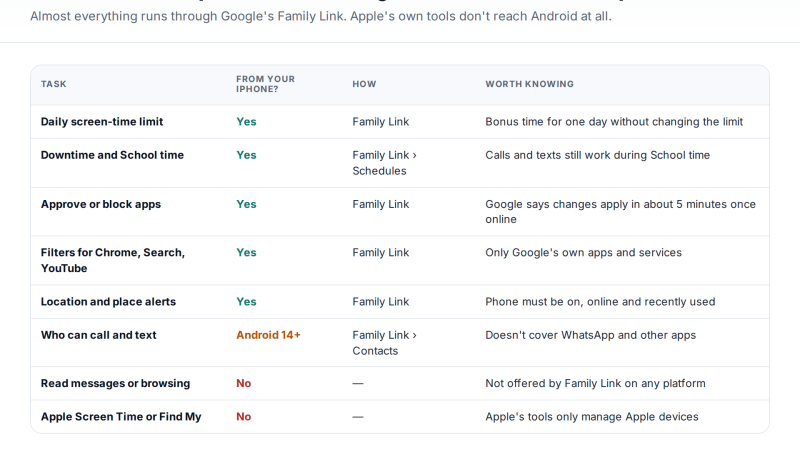
Managing a Child’s Android From Your iPhone: What Works Cross-Platform
Yes, you can manage a child's Android phone from an iPhone. Google's Family Link parent app runs on iOS and…
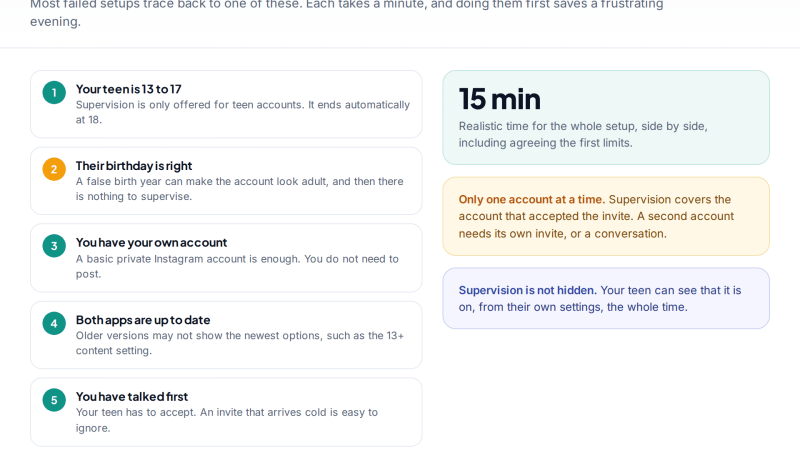
Instagram Supervision: Setting Up Parental Controls on a Teen Account
Instagram's parental controls come in two layers: Teen Account protections that switch on automatically, and Supervision, which you link through…
Choosing a Kids’ GPS Watch: Features That Matter and Traps to Avoid
How to choose a kids' GPS watch: network and SIM compatibility, realistic location accuracy, SOS and call whitelists, battery life,…
Parental controls your child can see
Location, screen time limits, a web filter and alerts from notifications — free, and visible on your child's phone. Pair a phone in about ten minutes.
Android · Free to set up · Visible on your child's phone