How to Take Screenshots and Record Your Screen on Any Phone

A scam text arrives and you want to show your bank. A relative rings about an error message they cannot describe. A booking confirmation needs keeping before the page disappears. In each case the quickest answer is a picture of the screen, and every modern phone can take one in under a second.
The difficulty is that each phone maker does it slightly differently, and the extras, such as capturing a whole web page, recording with your voice, or blacking out a card number before you share, are tucked away. Below are the exact steps for iPhone, Google Pixel and Samsung Galaxy phones as of September 2026, a quick-reference table to keep, and what to watch for when a screenshot is evidence or contains someone else’s details.
The short version
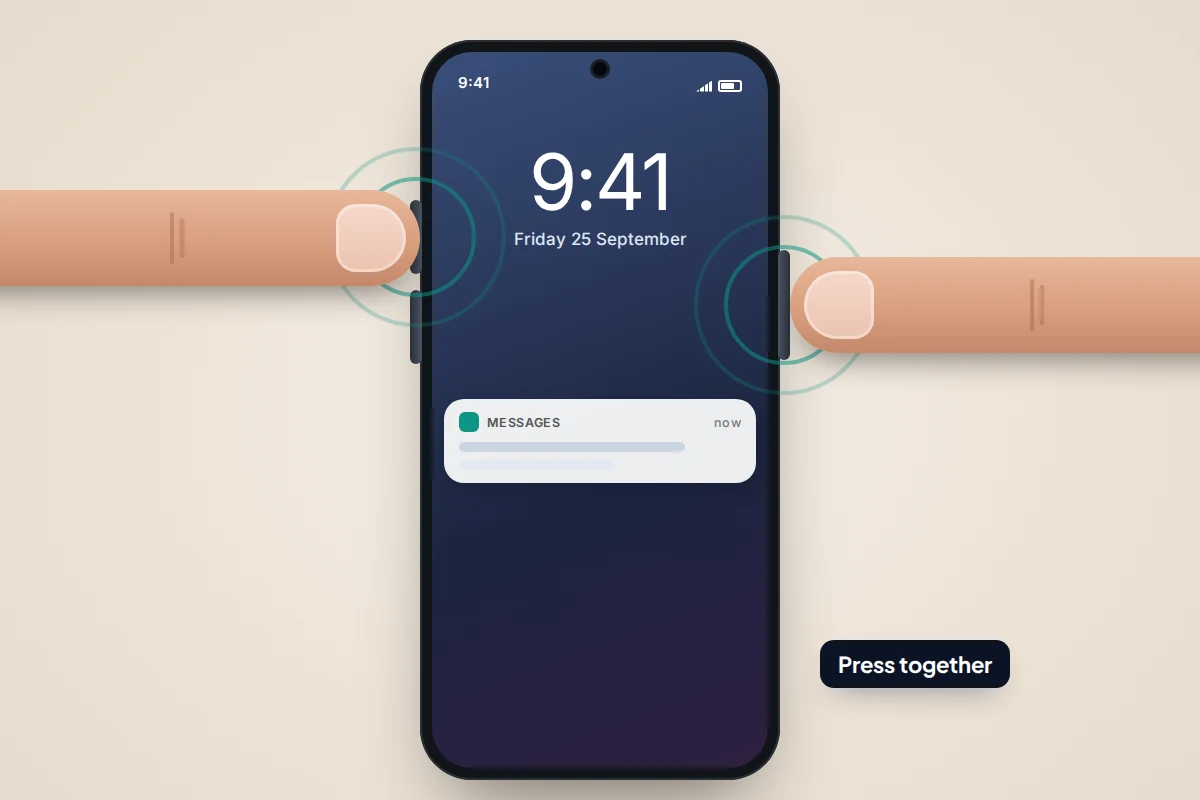
- iPhone: press the side button and volume up together. Most Android phones: power and volume down together.
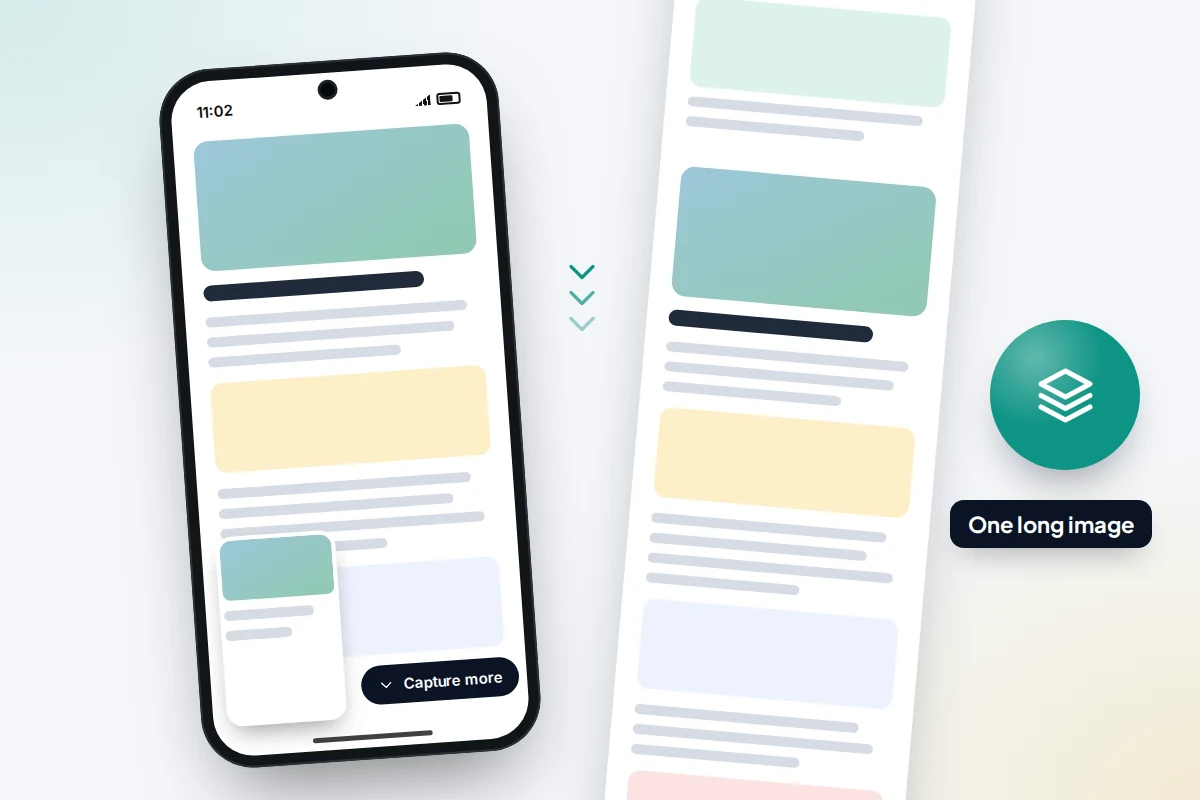
- For a long page or chat, use Full Page on iPhone, Capture more on Pixel or Scroll capture on Samsung.
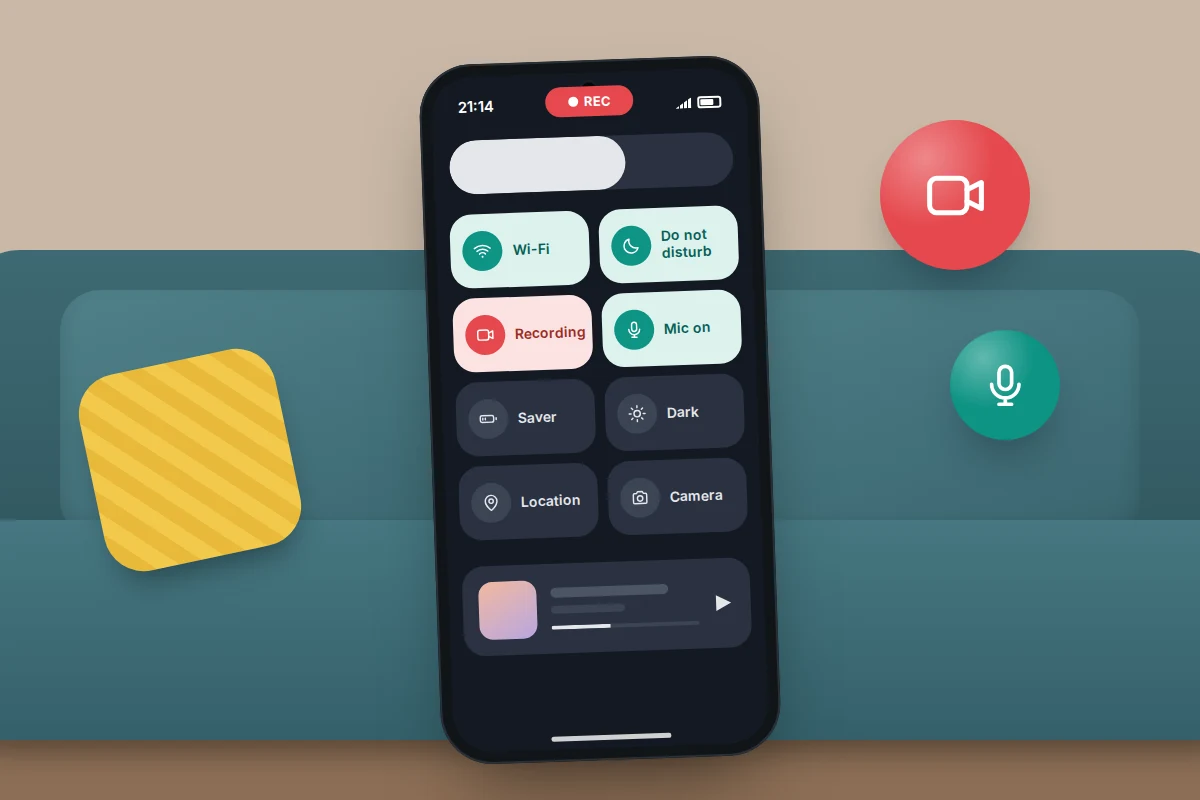
- Screen recording lives in Control Centre on iPhone and Quick Settings on Android; turn on Do Not Disturb first so notifications do not end up in the video.
- Before sharing, crop tightly and cover private details with a solid box, not a see-through highlighter.
- For evidence, keep the original messages as well as the screenshots, and never screenshot sexual images of anyone under 18. Report them instead.
Quick reference: the same job on three phones
Menu names can differ slightly on other Android brands and older software, but the button combination for a screenshot, power and volume down, works on nearly all of them.
| Action | iPhone | Google Pixel | Samsung Galaxy |
|---|---|---|---|
| Take a screenshot | Side + Volume up (Home button models: Side or Top + Home) | Power + Volume down | Side + Volume down |
| Screenshot without buttons | Back Tap or AssistiveTouch | Recent apps → Screenshot | Palm swipe to capture |
| Capture a long page | Preview → Full Page (Safari, saves a PDF) | Capture more | Scroll capture (down-arrows icon) |
| Record the screen | Control Centre → Screen Recording | Quick Settings → Screen record | Quick panel → Screen recorder |
| Add your voice | Touch and hold record → Microphone | Record audio → Microphone or Device audio and microphone | Sound: Media sounds and mic |
| Find the file | Photos → Collections → Media Types | Photos → Collections → On this device | Gallery → Albums |
| Edit or mark up | Tap the preview → Markup | Tap Edit on the preview | Pencil icon on the toolbar |
Screenshots on iPhone
On an iPhone with Face ID, press the side button and volume up at the same time, then let go quickly. On an iPhone with a Home button, press the side (or top) button and the Home button together. Holding too long can start the power-off screen or Siri; a quick squeeze works best.
With iOS 26, the screenshot fills the screen with editing tools and a Visual Intelligence option underneath. Tap Done (the tick) and choose whether to save it to Photos or delete it, which is handy if you only needed it for a moment. If you prefer the older small thumbnail in the corner, go to Settings → General → Screen Capture and turn off Full-Screen Previews.
Back Tap and AssistiveTouch
If pressing two buttons at once is awkward, perhaps because of stiff fingers or a bulky case, there are two alternatives on iPhone.
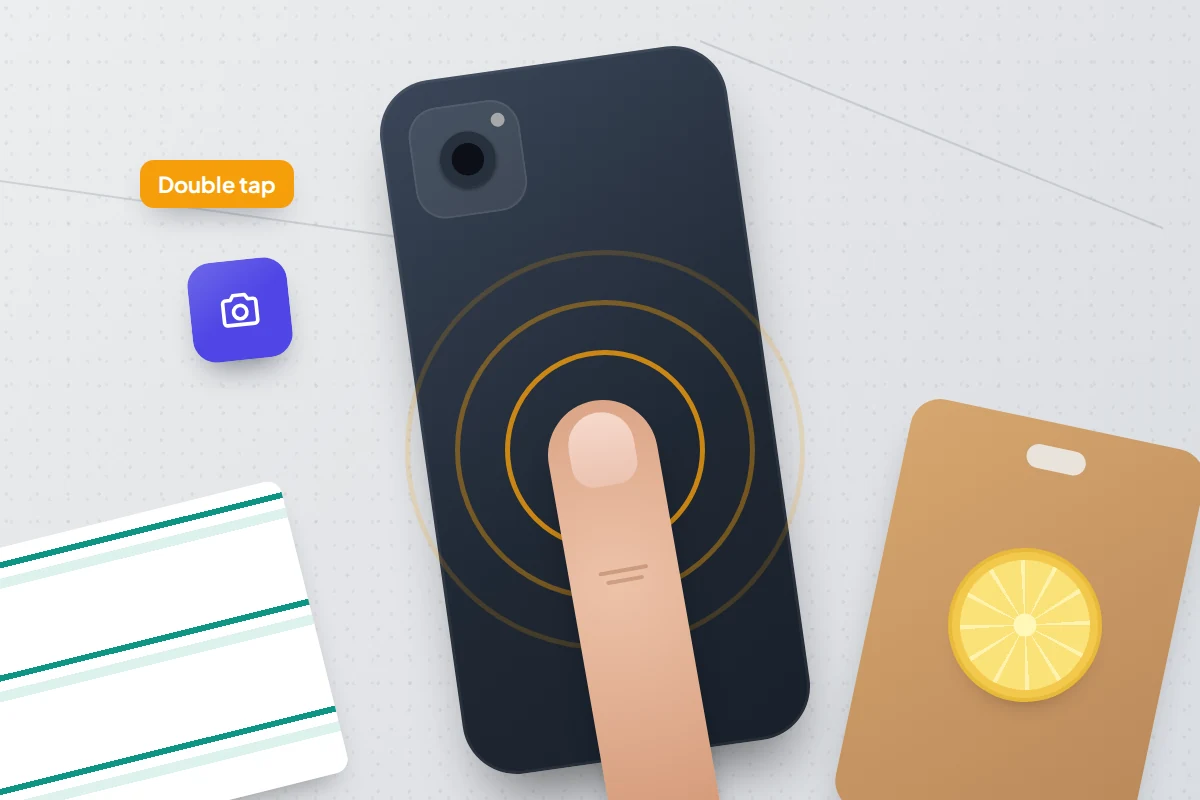
- Back Tap (iPhone 8 and later): go to Settings → Accessibility → Touch → Back Tap → Double Tap and choose Screenshot. Two firm taps on the back of the phone then take a screenshot.
- AssistiveTouch: go to Settings → Accessibility → Touch → AssistiveTouch and turn it on. Under Custom Actions, set Double-Tap to Screenshot. A floating button appears on screen; double-tap it to take a screenshot.
Screenshots on Android
On a Pixel, Samsung and most other Android phones, press power and volume down together. A preview appears in the bottom corner with options to share, edit or delete.
- Pixel, from recent apps: swipe up from the bottom and hold (or tap the square Overview button), then tap Screenshot under the app you want. This is handy when the buttons are hard to reach.
- Samsung palm swipe: go to Settings → Advanced features → Motions and gestures and turn on Palm swipe to capture (on some models it sits directly under Advanced features). Then sweep the side of your hand across the screen.
- Samsung Smart select: open the Edge panel from the side of the screen and choose Smart select to capture just a rectangle or oval of the screen. On recent software it may appear as an app in the Apps panel rather than as a panel of its own.
Capturing a whole web page or long chat
For a long receipt, terms and conditions or a conversation, a scrolling capture saves more than one screen in a single file.
- iPhone: take a screenshot in Safari, tap the preview, then tap Full Page at the top. When you tap Done, you can save the whole page as a PDF in the Files app. This works in Safari and some other apps, but not in most messaging apps.
- Pixel: take a screenshot, then tap Capture more on the preview (Android 12 and later). Drag the crop handles down to include as much as you need.
- Samsung: take a screenshot, then tap the Scroll capture icon (two arrows pointing down) on the toolbar. Keep tapping until you reach the end.
For a long chat on iPhone, take a series of screenshots with a little overlap so nothing is missed. If the conversation may be needed as evidence, the app’s own export option, where there is one, keeps the text and timestamps more completely than images do.
Recording your screen
On iPhone
- If the record button is not in Control Centre, add it: open Control Centre, touch and hold an empty space (or tap +), tap Add a Control and choose Screen Recording.
- To record your voice too, touch and hold the record button and tap Microphone to turn it on.
- Tap the record button and wait for the three-second countdown, then close Control Centre.
- To stop, tap the red indicator at the top of the screen, then Stop. The video goes into Photos.
On Android
- Swipe down twice from the top of the screen and tap Screen record (Pixel) or Screen recorder (Samsung). If it is missing, tap the pencil or edit icon to add the tile.
- Choose your options. On recent Pixels you can record a single app or the entire screen, and pick Device audio, Microphone or both. Samsung offers No sound, Media sounds or Media sounds and mic, with more options in Settings → Advanced features → Screenshots and screen recordings.
- Tap Start and wait for the countdown.
- To stop, swipe down and tap the recording notification or the stop button.
Whatever phone you use, turn on Do Not Disturb before recording. A message preview that pops up mid-recording is saved in the video, and it is easy to share without noticing. Recording a single app, where offered, avoids the problem altogether.
Where your screenshots go
- iPhone: the Photos app, under Collections → Media Types → Screenshots or Screen Recordings. Full Page PDFs are in the Files app.
- Pixel: Google Photos, under Collections → On this device → Screenshots; recordings are in the Movies folder.
- Samsung: the Gallery app, under Albums → Screenshots and Screen recordings. In My Files, look in Internal storage → DCIM.
Screenshots add up, and screen recordings are video files that can be large. If a backup service copies them all, they also count against your cloud storage. Clearing out old ones every so often is one of the easier ways to free up space on a phone.
Hiding personal details before you share
A screenshot often holds more than you meant to send: a notification from someone else, a card number, a delivery address, a QR code. All three phones let you crop and draw on a screenshot straight from the preview, but some tools hide things better than others.
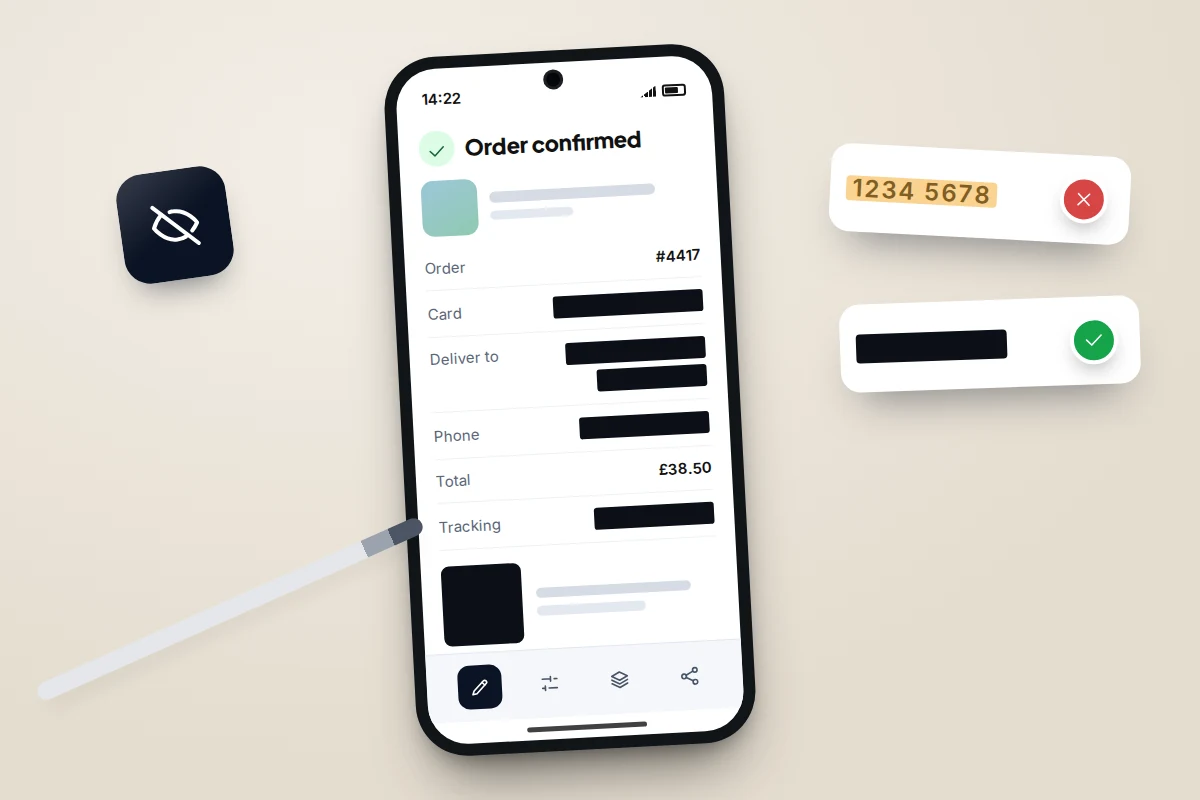
Use a solid, fully opaque shape or the pen at full strength. A highlighter or a semi-transparent marker can leave the text underneath readable if someone brightens or zooms the image. Blurring and pixelating are less reliable than a solid block, especially for short text such as numbers.
Sharing a screenshot safely: a checklist
- Crop first. Remove the status bar, other chats in the list and anything outside the part you need.
- Scan for details: names, phone numbers, email and home addresses, account, card and order numbers, one-time codes, QR codes and barcodes, and faces.
- Cover them with a solid box, not a highlighter.
- Check the saved version. Open it, zoom in and make sure nothing shows through.
- Think about whose words they are. Screenshots of a friend’s messages or a family group chat share their details as well as yours; ask first where you can.
- Send the one image rather than a link to an album or a shared folder.
Screenshots as evidence
For a scam message, online bullying or a threatening post, screenshots are often what a platform, bank, school or the police will ask for first. They are more useful when they are complete.
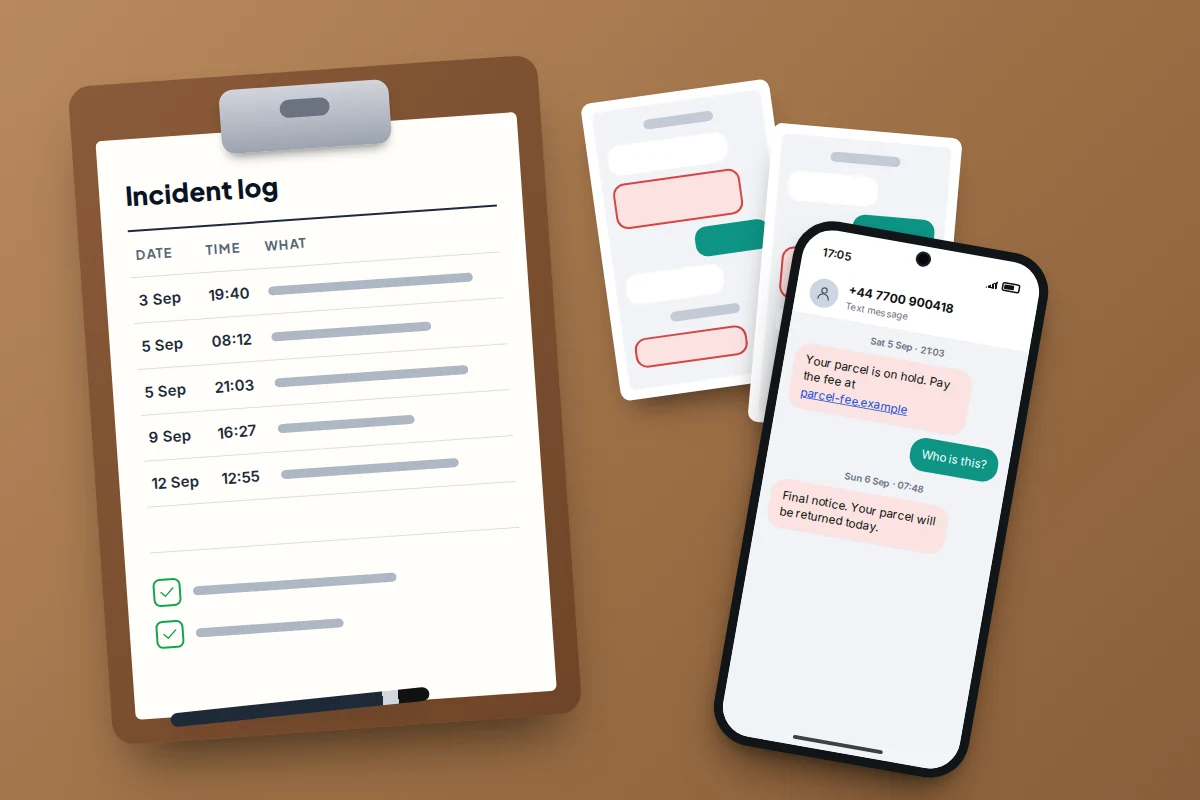
- Show who and when. Include the sender’s name or number and the date. The clock in the status bar is not a date, so scroll up to the date heading in the chat or open the message details.
- Show where. For a web page or post, include the address bar or the account’s profile page.
- Keep the originals. Do not delete the conversation or the account’s messages after taking screenshots. Take the screenshots before you block or report, as some apps hide the conversation afterwards.
- Keep a simple log: date, time, app, what happened and the name of each screenshot file. Back the files up somewhere other than the phone.
In the UK, after capturing a scam text you can forward it free to 7726, which passes it to your mobile network. For bullying that involves a child, our guide to the signs of cyberbullying and what to do covers talking to your child and reporting it.
There is one firm exception. If the content is a sexual image of anyone under 18, do not screenshot, save or forward it, even as evidence. UK government guidance for schools states plainly that viewing, copying, sharing or saving such images is illegal. Report it to the platform and the police instead; young people can use Report Remove from Childline and the Internet Watch Foundation to get images taken down.
When a screenshot comes out black or is blocked
Some apps deliberately stop screen capture, and it is not a fault with your phone.
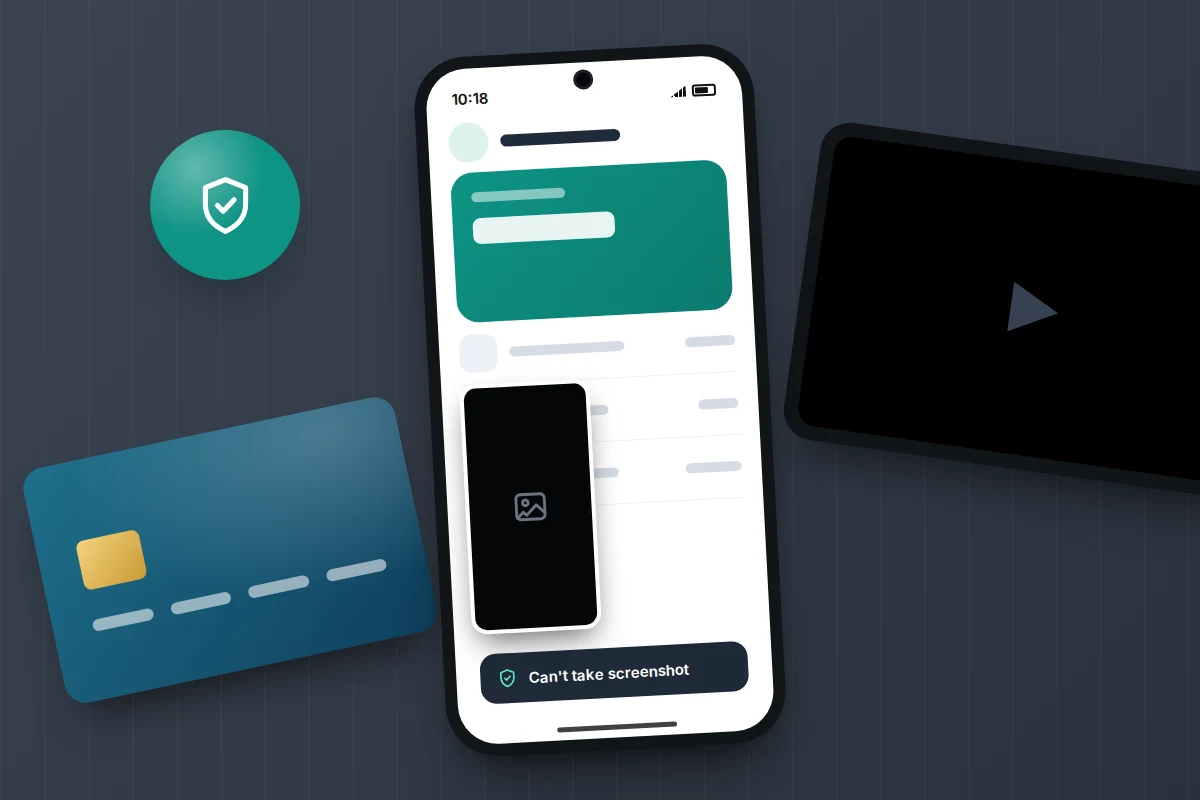
- Banking and payment apps on Android often block screenshots so card details and codes cannot be captured by you, or by malware. You may see a message saying the app or security policy does not allow screenshots.
- Streaming video protected by copyright technology (DRM) comes out black in screenshots and recordings on both iPhone and Android.
- Private browsing tabs in Chrome on Android, and disappearing or view-once photos in some messaging apps, block capture.
- Work phones may have capture blocked by your employer’s settings.
iPhone apps generally cannot block a screenshot, but some can detect one or hide content from recordings; Snapchat, for example, tells the other person. Where an app blocks capture and you need a record, such as a bank transaction, use the app’s own statement or export, or photograph the screen with another device.
Recording calls and video calls: ask first
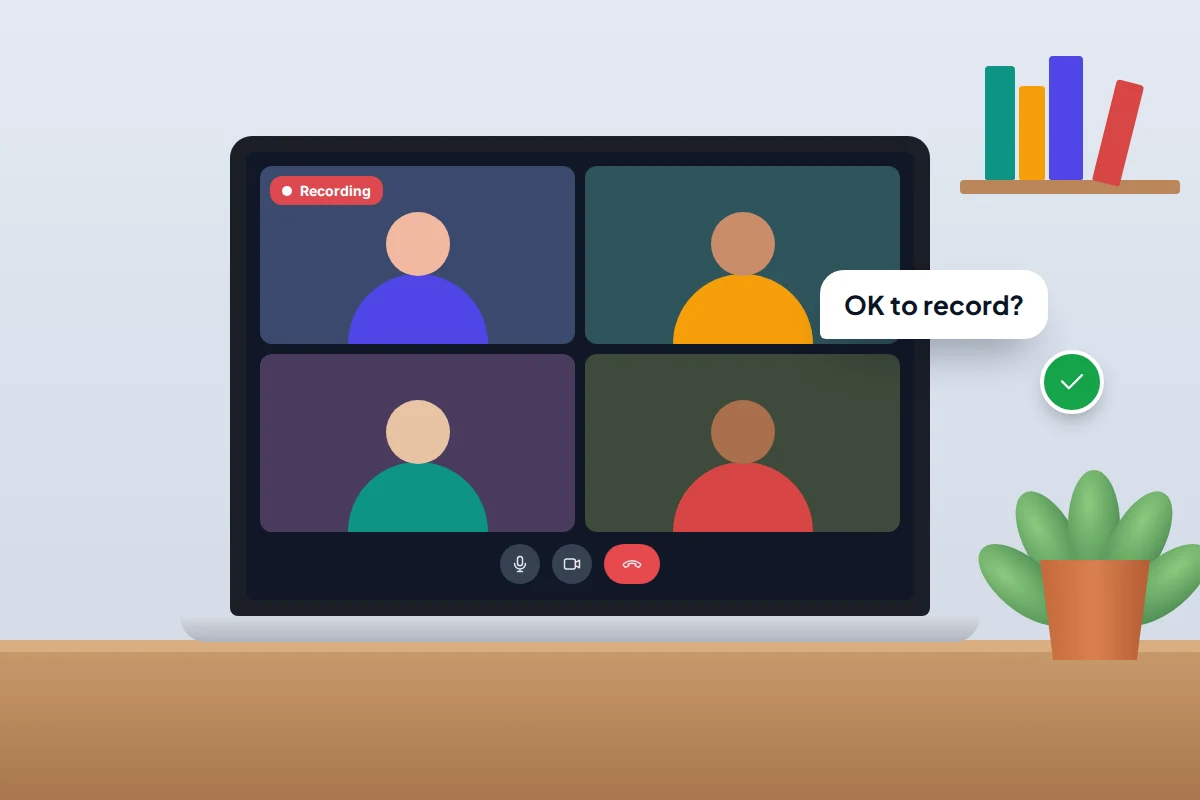
A screen recording of a video call captures the other people’s faces and voices, and nothing tells them it is happening. The law on recording calls varies between countries, and in some places between states, and this is not legal advice. The simple rule works everywhere: tell everyone before you record and get their agreement.
Built-in call recording is designed with this in mind. On iPhone (iOS 18.1 and later), everyone on a call hears an announcement when you start recording it, and video-call apps usually show a notice when their own recording tool is used. If you need to record calls because of harassment or a dispute, ask the police, a solicitor or Citizens Advice what is appropriate before you start.
Frequently asked questions
Does the other person know if I screenshot their message?
Usually not. Text messages, WhatsApp chats and most email apps do not notify anyone. Snapchat does, and some apps block screenshots of disappearing or view-once content.
Why is there no sound in my screen recording?
Check that the microphone or audio option was switched on before you started; it cannot be added afterwards. Some apps, including many streaming and calling apps, do not allow their audio to be recorded.
Can I screenshot on a phone with a broken button?
Yes. On iPhone, use Back Tap or AssistiveTouch. On a Pixel, use the Screenshot button in recent apps; on Samsung, palm swipe or Smart select.
Are screenshots enough for the police?
They are a good start. Keep the original messages on the phone as well, because investigators may want to see them in context or with their full details.
Do screenshots contain my location?
Screenshots do not record GPS location the way camera photos can. They do show whatever was on the screen, including maps, addresses and notifications, so check the picture itself.
Sources and further reading
- Apple Support: take a screenshot on iPhone
- Apple Support: record the screen on your iPhone
- Android Help: take a screenshot or record your screen
- Pixel Phone Help: take a screenshot on your Pixel
- Samsung Support: how to take a screenshot on a Galaxy phone
- Samsung UK: record your screen on a Galaxy device
- MacRumors: turning off full-screen screenshot previews in iOS 26
- UK Council for Internet Safety: sharing nudes and semi-nudes, how to respond (PDF)
Looking for a tool to go with this? TheTruthSpy is a free parental control app for Android that stays visible on the child's phone. If it fits your family, see the Screen time & limits feature.
Related guides
How to Fix Bluetooth Pairing Problems
Fix Bluetooth pairing problems with headphones, earbuds, cars, speakers and watches on iPhone and Android, using a symptom table and…
How to Update Your Phone Safely and Know When Support Ends
Update your iPhone or Android phone safely, turn on automatic updates, and find out how many years of security updates…
How to Clean Your Phone Safely
What Apple, Samsung and Google actually allow when you clean a phone, what damages it, and how to clean the…
Parental controls your child can see
Location, screen time limits, a web filter and alerts from notifications — free, and visible on your child's phone. Pair a phone in about ten minutes.
Android · Free to set up · Visible on your child's phone