Is Public Wi-Fi Safe? What to Do and What to Avoid

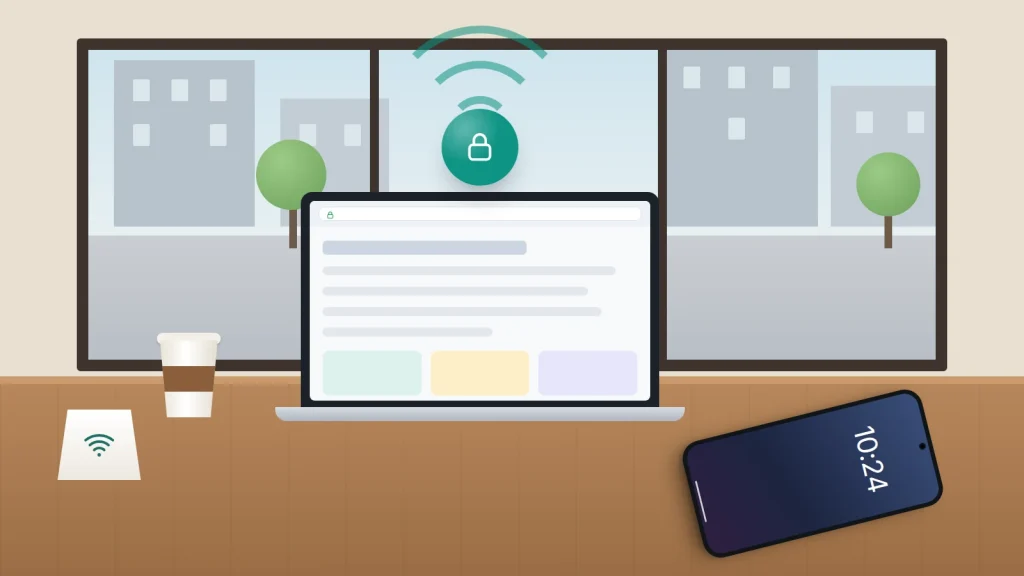
For most everyday things, yes. Reading the news, checking a map or sending a WhatsApp message over a café’s Wi-Fi is far safer than it was ten years ago, because almost every website and app now encrypts what it sends. The US Federal Trade Commission (FTC) puts it plainly: “Today, most websites do use encryption to protect your information.”
The risks have not gone, though; they have moved. The problem today is less someone quietly reading your traffic and more a fake network with a convincing name, a login page that asks for far more than it needs, and a phone that joins networks without asking you.
Below: which tasks are fine on public Wi-Fi and which are better done on mobile data, the few settings worth changing before you travel, and what a VPN does and does not protect you from.
The short version
- Browsing, maps, streaming and encrypted messaging are generally fine on public Wi-Fi.
- Check the exact network name with staff; two similar names are a warning sign.
- Don’t enter card details or social media passwords on a Wi-Fi login page.
- Use mobile data or your own hotspot for banking, payments and changing passwords.
- Turn off auto-join for public networks, forget them afterwards, and set AirDrop or Quick Share to contacts only.
What has changed, and what hasn’t
When you visit a site that starts with https, or use a modern app, the content travels encrypted between your phone and the service. Someone else on the same café network sees scrambled data, not your password or messages. That is the main reason the old advice to never touch public Wi-Fi has softened.
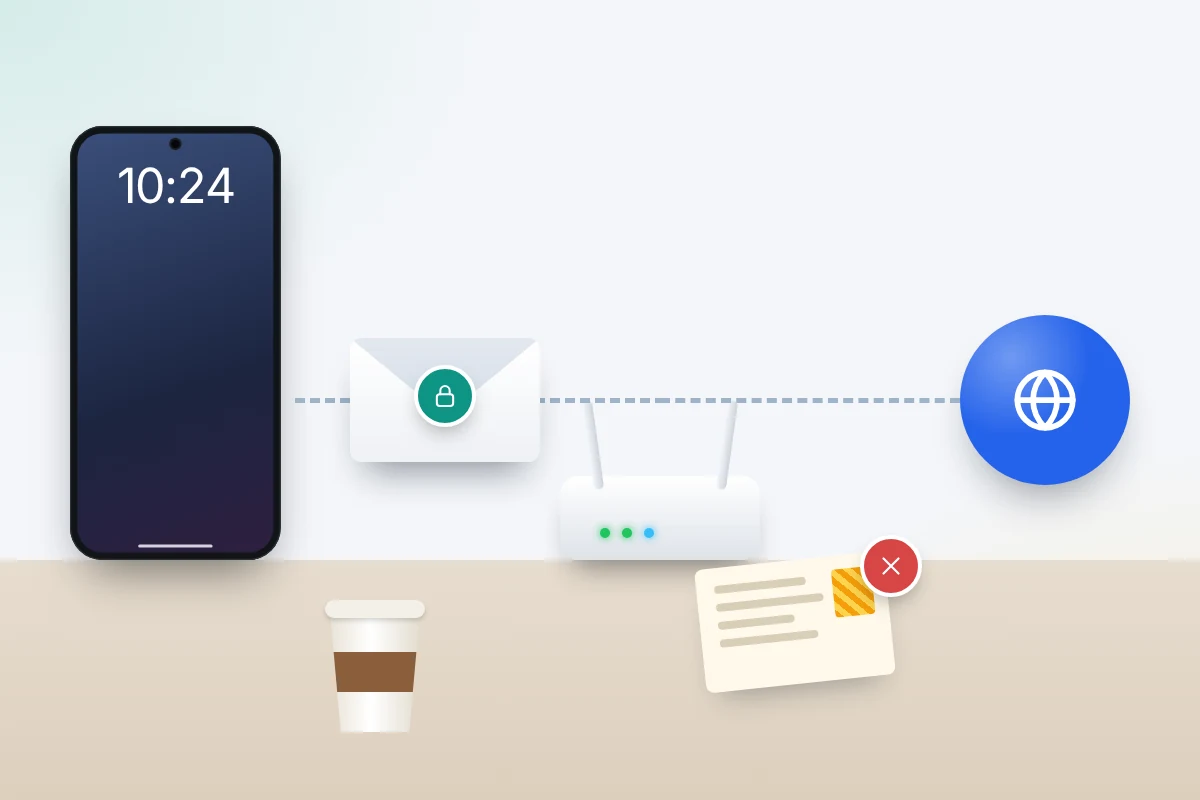
Encryption has limits. It protects the content but not the metadata: the Electronic Frontier Foundation (EFF) points out that the network can still see which sites you visit, even if not what you do there. And it does nothing if the site itself is fake. The FTC warns that scammers create convincing sites and encrypt them too, so your data is protected on its way to the criminal.
The risks that are left
- Fake “evil twin” networks. Someone sets up a hotspot with a plausible name, such as the café’s name plus “Free”. Your phone joins it and they control what happens next.
- Login pages that ask for too much. The page that appears before you get online (a captive portal) is controlled by whoever runs the network. A fake one can ask for an email password, a social media login or card details.
- Auto-joining. Phones remember networks by name. If a fake network uses a name you have joined before, your phone may connect without asking.
These are not hypothetical. In November 2025 an Australian man was jailed for seven years and four months after the Australian Federal Police (AFP) found he had run fake Wi-Fi networks at Perth, Melbourne and Adelaide airports and on domestic flights. People who connected were shown a page asking them to log in with an email or social media account; he used the details to get into women’s accounts and steal private images.
Task by task: is public Wi-Fi OK?
Use this as a rule of thumb. “Mobile data” includes a personal hotspot from your own phone.
| Task | Public Wi-Fi OK? | Safer option |
|---|---|---|
| Browsing news, maps, timetables | Yes | None needed |
| Streaming music or video | Yes | None needed, though some networks block or slow it |
| WhatsApp, iMessage and similar messaging | Yes | None needed; these are end-to-end encrypted |
| Reading email in the official app | Generally yes | Mobile data if anything about the network seems odd |
| Online banking | Better avoided | Mobile data or your own hotspot |
| Typing card details to buy something | Better avoided | Mobile data, or wait |
| Changing a password or recovering an account | Better avoided | Mobile data |
| Signing in to the Wi-Fi with a social media account | Avoid | Room number, voucher code, or skip the network |
| Card details on a Wi-Fi login page | Avoid | Ask staff, or pay at the desk or on your room bill |
| Work systems | Follow your employer’s rules | Usually the work VPN or mobile data |
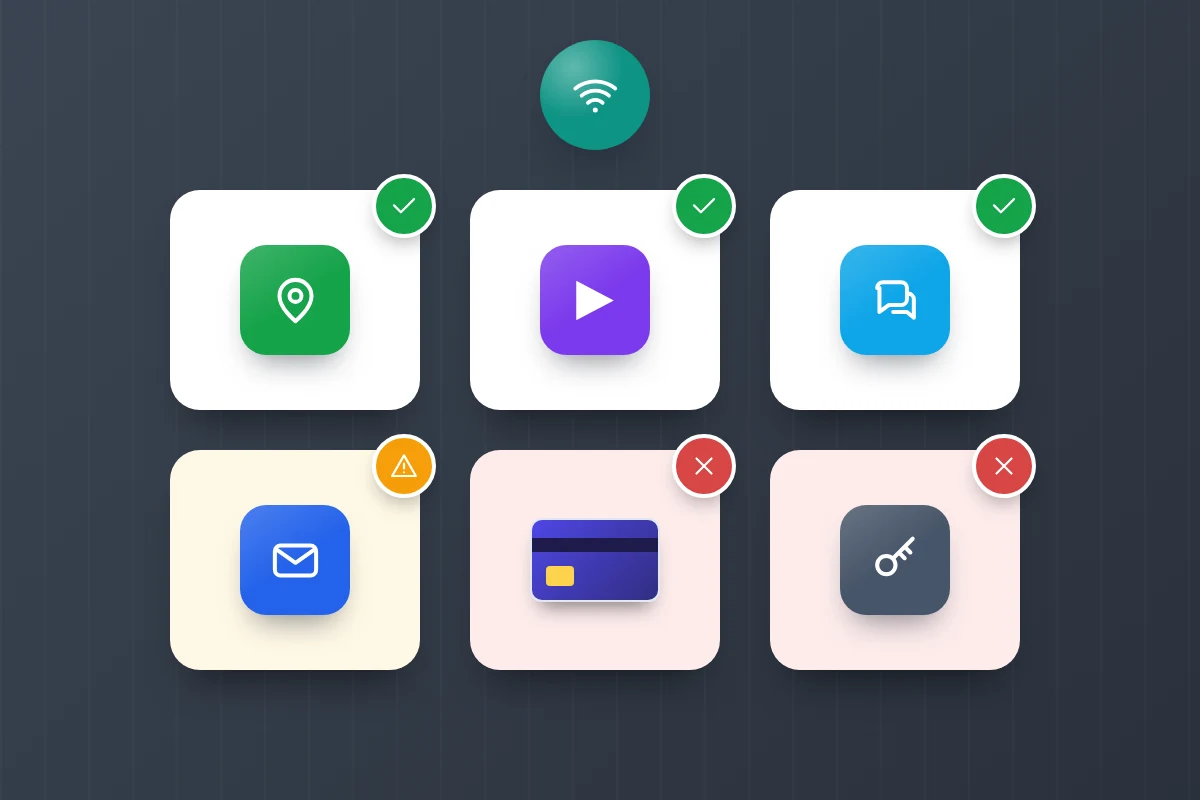
Why the caution on banking when the bank’s app is encrypted? Because the damage from a mistake is large and avoiding it is easy. Mobile data takes the fake network and the fake login page out of the picture. The FCC’s advice for travellers is blunter: don’t use public Wi-Fi to make purchases or access bank accounts.
Choose the right network
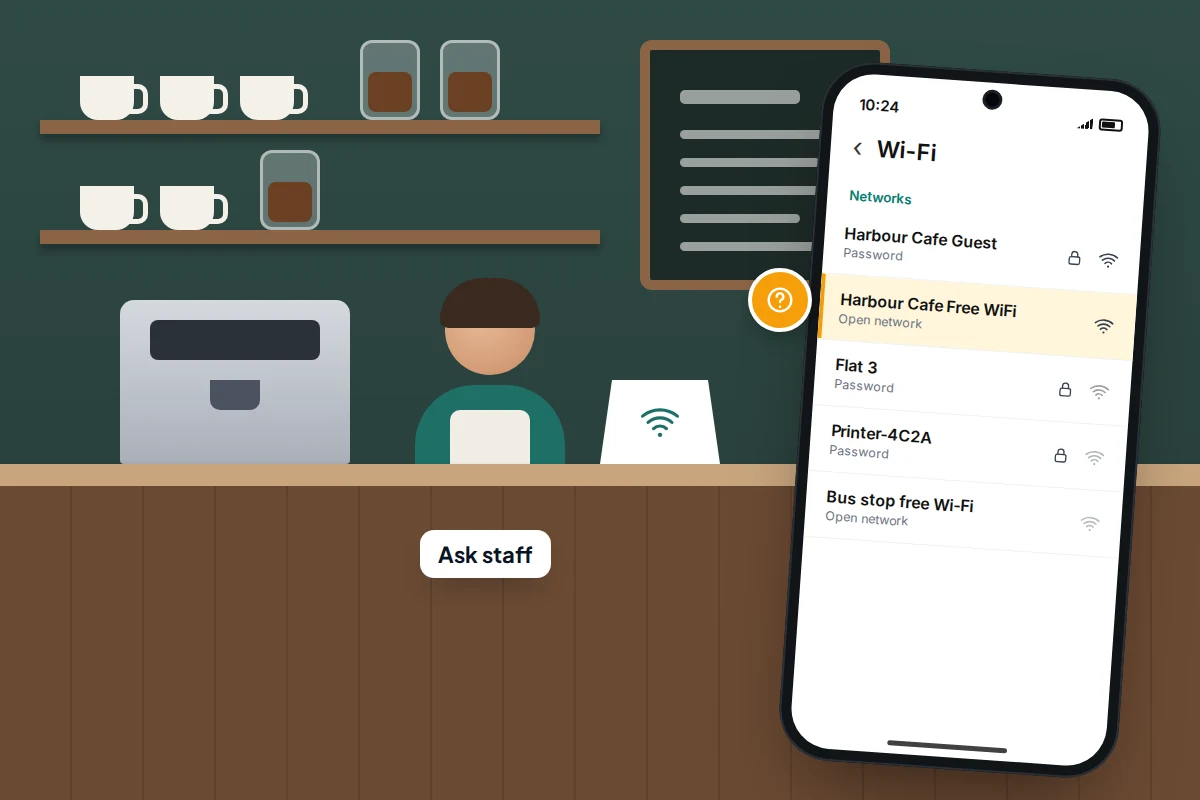
- Ask a member of staff for the exact network name, or check the sign at the counter. The US Federal Communications Commission (FCC) advises checking with staff whenever more than one hotspot claims to belong to the place you are in.
- Be wary of near-duplicates. “Harbour Cafe Guest” and “Harbour Cafe Free WiFi” cannot both be official, and the one with the stronger signal is not necessarily the real one.
- Prefer a network with a password shared by staff over an open one. It does not prove the owner is honest, but it stops strangers outside from reading traffic on the network itself.
- Look at your phone’s warnings. Both iPhone and Android flag open or weak networks, for example as unsecured or with no padlock icon.
Wi-Fi login pages: what is reasonable to hand over
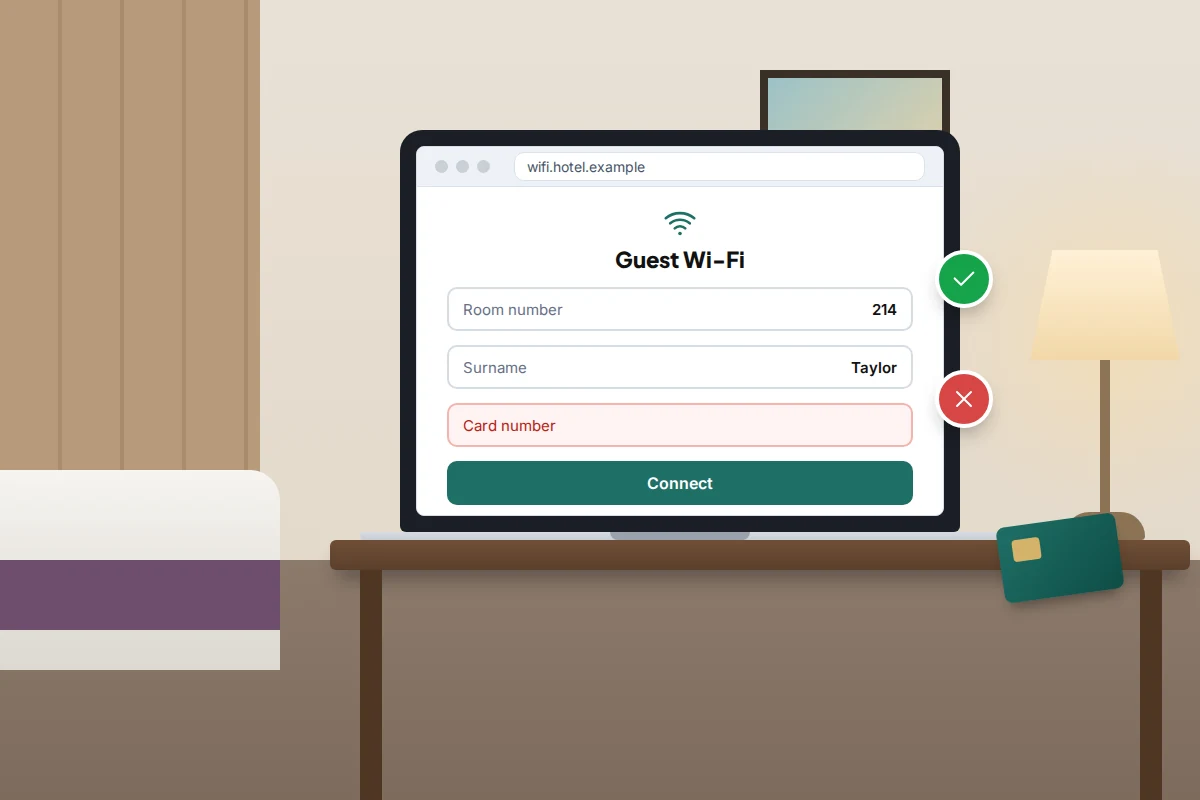
A captive portal is normal. Hotels ask for your room number and surname, cafés and trains ask you to accept terms, airports sometimes ask for an email address. What they should not need is anything that unlocks your accounts or your money.
- Fine: accepting terms, a room number and surname, a voucher code from the receipt.
- Think twice: an email address. A spare address avoids marketing emails, and you should never type the password for it.
- Don’t: sign in with a social media or email password, or enter card details. If paid Wi-Fi is on offer, pay at reception or on your room bill.
Stop your phone joining networks on its own
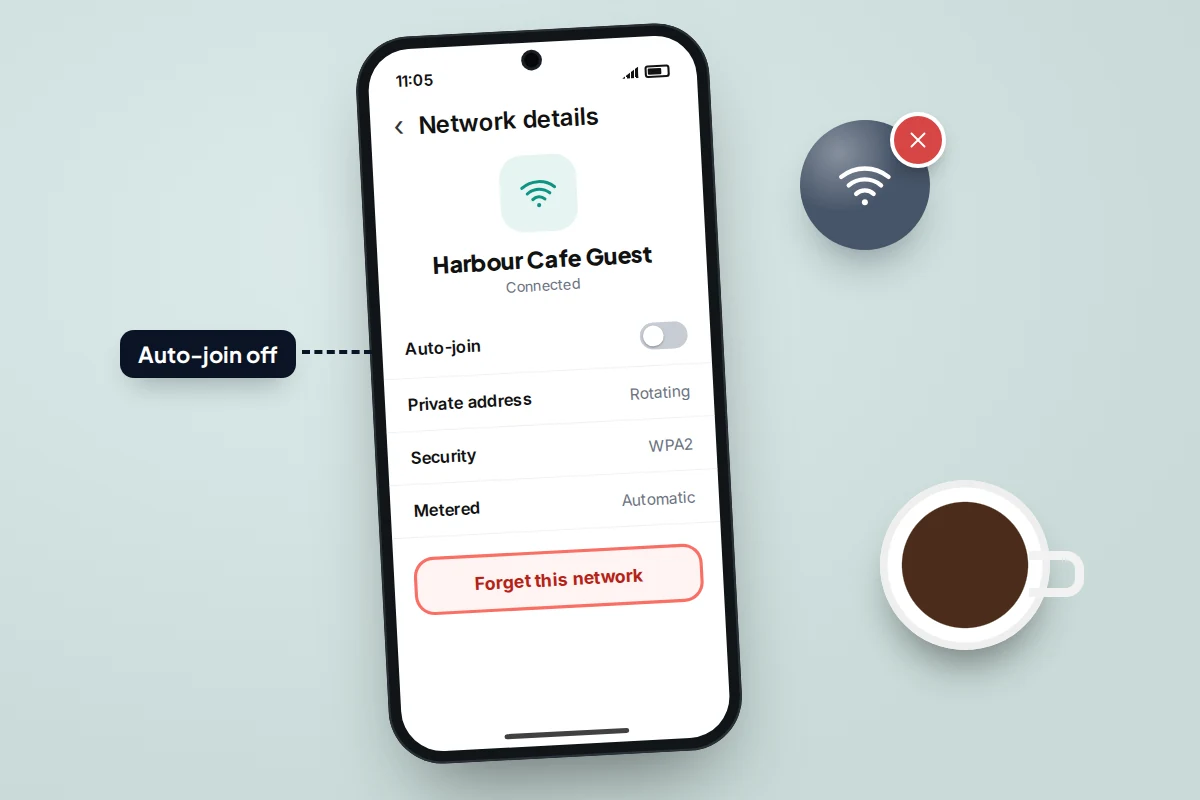
Auto-join is convenient at home and a liability on the move, because a fake network only has to copy a name your phone already trusts. Menu names vary by phone maker and version.
iPhone
- While connected, go to Settings → Wi-Fi and tap the info button next to the network.
- Turn off Auto-Join, or tap Forget This Network when you leave.
- On the same page, Private Wi-Fi Address can be set to Rotating (iOS 18 and later), which changes the address your phone shows the network every so often, making your visits harder to link.
- To clear out old hotel and airport networks in one go, tap Edit at the top of the main Wi-Fi page.
Android
- Go to Settings → Network & internet → Internet (on Samsung, Settings → Connections → Wi-Fi) and tap the settings icon next to the network.
- Turn off Auto-connect or Auto reconnect, or tap Forget.
- On some phones, Network preferences includes an option to connect to public networks automatically. Turn it off.
Keeping your phone updated closes the security holes that attackers on a shared network would try to use; our guide to phone software updates explains how to check you are still getting them.
Mobile data and personal hotspots
Your mobile network is the easy alternative for anything sensitive. You know who runs it, and your phone checks it is talking to your own operator. The UK’s National Cyber Security Centre (NCSC) made the same point in its 2020 Small Business Guide, since replaced, noting that with a public hotspot “there is no way to easily find out who controls” it, and suggesting your mobile network instead. The NCSC’s current advice for individuals doesn’t single out public Wi-Fi; its top tips cover strong passwords, two-step verification, updates and backups, which protect you on any network.
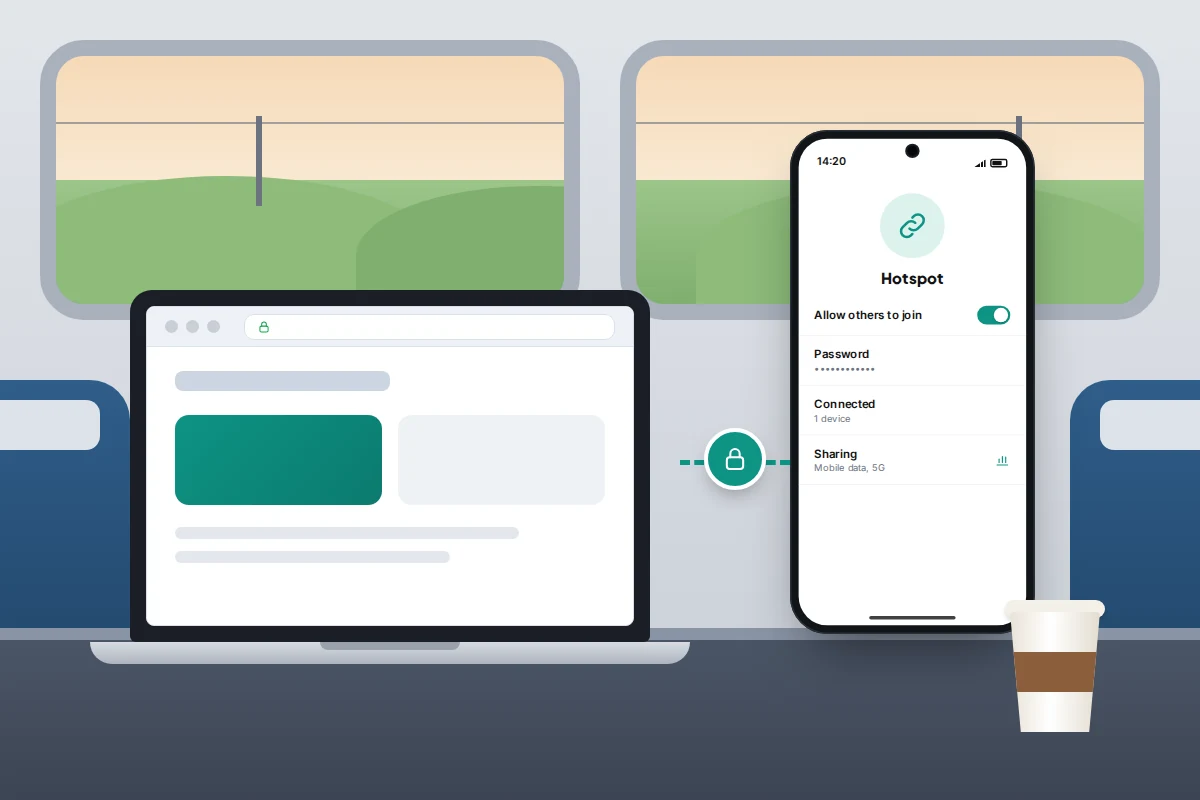
For a laptop or tablet, share your phone’s connection:
- iPhone: Settings → Personal Hotspot, switch on Allow Others to Join and check the Wi-Fi password is not a simple one.
- Android: Settings → Network & internet → Hotspot & tethering → Wi-Fi hotspot (on Samsung, under Connections). Set a long password and switch the hotspot off when you finish.
Worried about the allowance? Banking and payments use very little data; it is video and backups that eat it. Our guide to cutting mobile data use shows how to keep a hotspot from draining your plan.
VPNs: what they do and don’t do
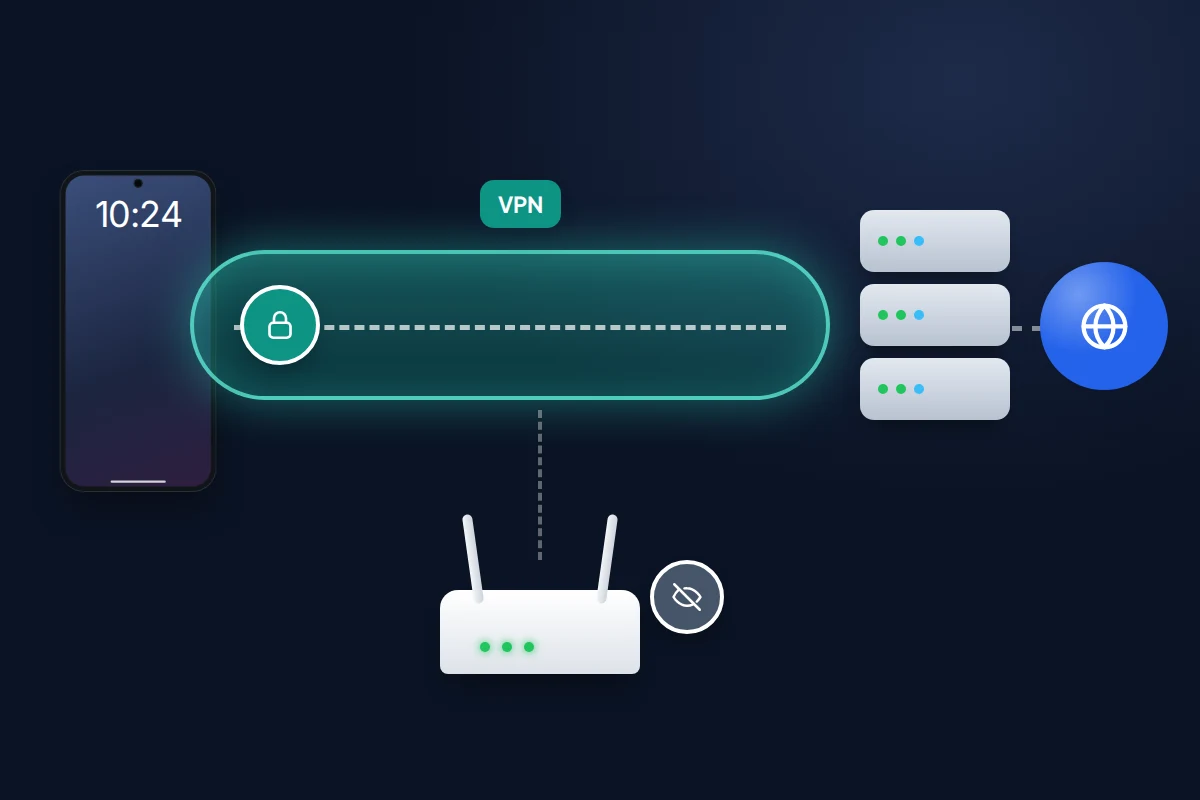
A VPN wraps everything your phone sends in an encrypted tunnel to the VPN company’s servers. On public Wi-Fi, that means the network owner, honest or not, sees only that you are connected to a VPN. It also hides which sites you visit from that network, which HTTPS alone does not.
What a VPN does not do:
- It does not stop you typing your password into a fake site or a fake login page.
- It does not make you anonymous; sites can still recognise you through accounts and cookies.
- It does not remove trust, it shifts it. The VPN company can see what the café network could have seen.
That last point is why free VPNs from companies you have never heard of are a poor trade. The EFF notes that some VPNs are free because they sell your data, advises checking who runs a service and whether it has had independent audits, and warns against trusting an app just because it is in an official app store. The NCSC’s 2020 guide likewise advised using only VPNs from reputable providers.
You may already have one. iCloud+ subscribers can switch on iCloud Private Relay, which protects Safari browsing, and some Pixel phones include a VPN from Google in some countries. Many employers provide a work VPN. For occasional café use, mobile data is simpler than any of them.
AirDrop, Quick Share and Bluetooth
These don’t use the café’s Wi-Fi, but they matter in the same crowded places.
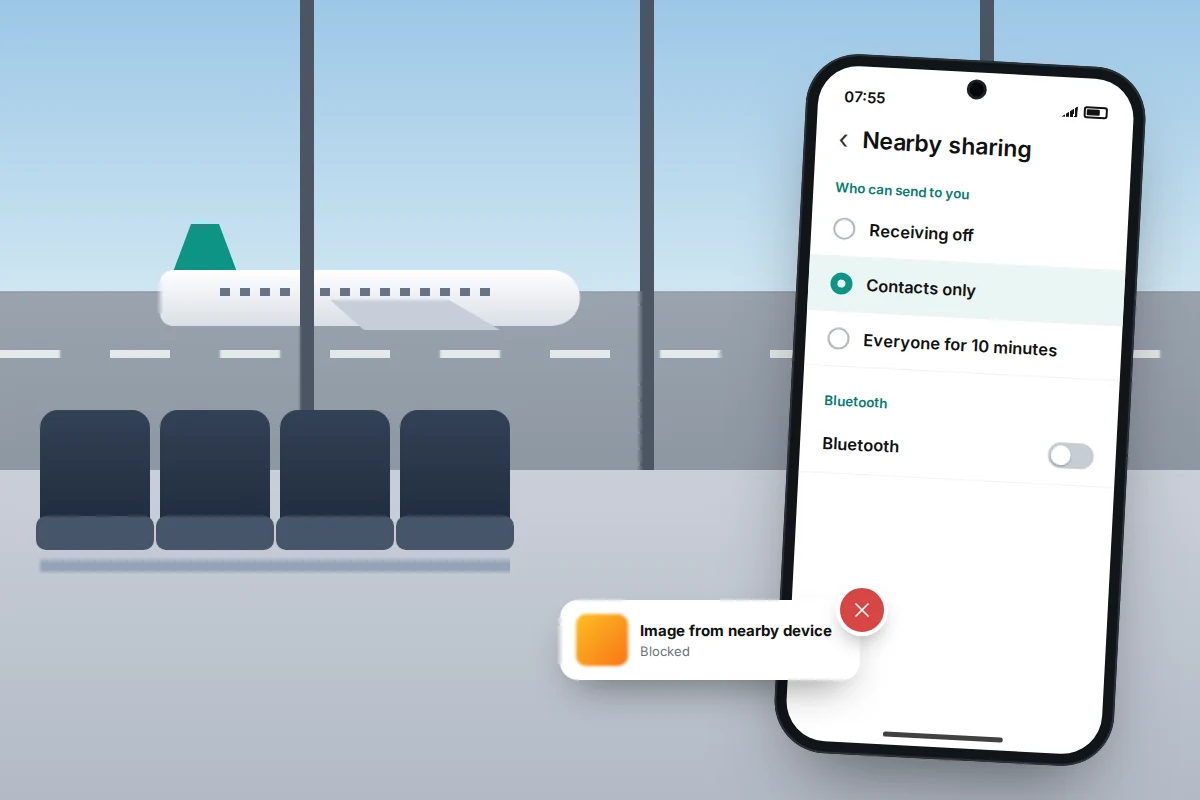
- iPhone: Settings → General → AirDrop, choose Contacts Only. If you pick Everyone for 10 Minutes to receive something from a stranger, it switches back afterwards.
- Android: search Settings for Quick Share, open Who can share with you and choose Contacts or Your devices. Everyone for 10 minutes also reverts automatically.
- Bluetooth: the FCC suggests turning it off when you are not using it. At minimum, don’t accept pairing requests you didn’t start.
Hotels and airports
Hotels. Hotel Wi-Fi is usually one large network shared with every guest. Use it for streaming and browsing, and switch to mobile data for banking. Don’t sign in to personal accounts on a business-centre computer; if you must, use a private window and sign out. If your room TV lets you cast from your phone, disconnect when you check out.
Airports and planes. Airports publish their official network name on signs and websites; use that, not the strongest free network your phone finds. In-flight Wi-Fi portals often take payment, so buy through the airline’s app before you fly where possible, rather than typing card details into a page that appeared mid-air.
Before you travel: a quick checklist
- Install any pending software updates at home.
- Check your roaming allowance so mobile data is a real option.
- Set AirDrop or Quick Share to contacts only.
- Forget old hotel and airport networks, and on Android turn off automatic connection to public networks.
- Set a strong personal hotspot password.
- Make sure two-step verification is on for email and banking.
- Download maps and entertainment for offline use.
If you think you joined a fake network
- Disconnect and forget the network straight away.
- Change any password you typed while connected, from mobile data, starting with email.
- If you entered card details, call your bank on the number on your card.
- Check where your accounts are signed in and sign out any sessions you don’t recognise.
If you only browsed and typed nothing, there is usually nothing more to do.
Frequently asked questions
Is a password-protected café network safe?
Safer than an open one, because outsiders can’t read traffic on the network itself. But everyone who has the password is on the same network, and you are still trusting whoever runs it.
Is my home Wi-Fi safer than public Wi-Fi?
Yes, if it is set up well, because you control who joins. Our guide to securing your home Wi-Fi covers the router settings.
Does the padlock in the browser mean a site is safe?
It means the connection is encrypted, not that the site is honest. Scam sites use encryption too.
Do I need a VPN on holiday?
Not for most people. Mobile data for banking and payments covers the main risk. A reputable VPN helps if you rely on hotel or café Wi-Fi for everything.
Can someone hack my phone just because I joined public Wi-Fi?
It is unlikely on an up-to-date phone. The realistic risks are being tricked into entering details on a fake page, which is why checking the network and the login page matters more.
Sources and further reading
- Federal Trade Commission: Are public Wi-Fi networks safe? What you need to know
- Federal Communications Commission: Wireless connections and Bluetooth security tips
- Federal Communications Commission: Cybersecurity tips for international travellers
- National Cyber Security Centre: Small Business Guide, 2020 edition (PDF)
- Electronic Frontier Foundation: Choosing the VPN that’s right for you
- Australian Federal Police: Man jailed over “evil twin” Wi-Fi networks
- Apple Support: How to use AirDrop on your iPhone or iPad
- Android Help: Use Quick Share on your Android device
Looking for a tool to go with this? TheTruthSpy is a free parental control app for Android that stays visible on the child's phone. If it fits your family, see what the app does.
Related guides
How to Lock Down Your Facebook Privacy Settings
A 20-minute Facebook privacy review: posts, profile details, search, tags, Messenger, off-Meta activity and objecting to Meta's UK AI training,…
How to Spot a Romance Scam
The patterns romance scammers follow, what their lines really mean, checks that don't accuse anyone, what to do if you…
How to Spot a QR Code Scam
Fake QR stickers on parking meters and EV chargers, codes in emails and parcels: how to check a code before…
Parental controls your child can see
Location, screen time limits, a web filter and alerts from notifications — free, and visible on your child's phone. Pair a phone in about ten minutes.
Android · Free to set up · Visible on your child's phone