How to Lock Down Your Facebook Privacy Settings

Someone you have just met, a buyer on Marketplace or a new colleague, types your name into Facebook. What they see depends on choices you may have made years ago, or never made at all: your birthday, your hometown, where you work, old holiday albums set to Public, and a friends list that maps out your family.
Most of that can be tightened in about 20 minutes without losing touch with anyone. The review below starts with what makes the biggest difference, uses menu names as of September 2026, and covers Meta’s recent UK changes to off-platform tracking, facial recognition and AI training.
The short version
- Check your profile as a stranger sees it first, using View as, so you know what you are fixing.
- Set future posts to Friends, then use Limit past posts to pull years of old Public posts back in one step.
- Set your phone number, email, birth year and friends list to Only me, and stop people looking you up by phone or email.
- Turn on tag review so nothing appears on your profile without your approval.
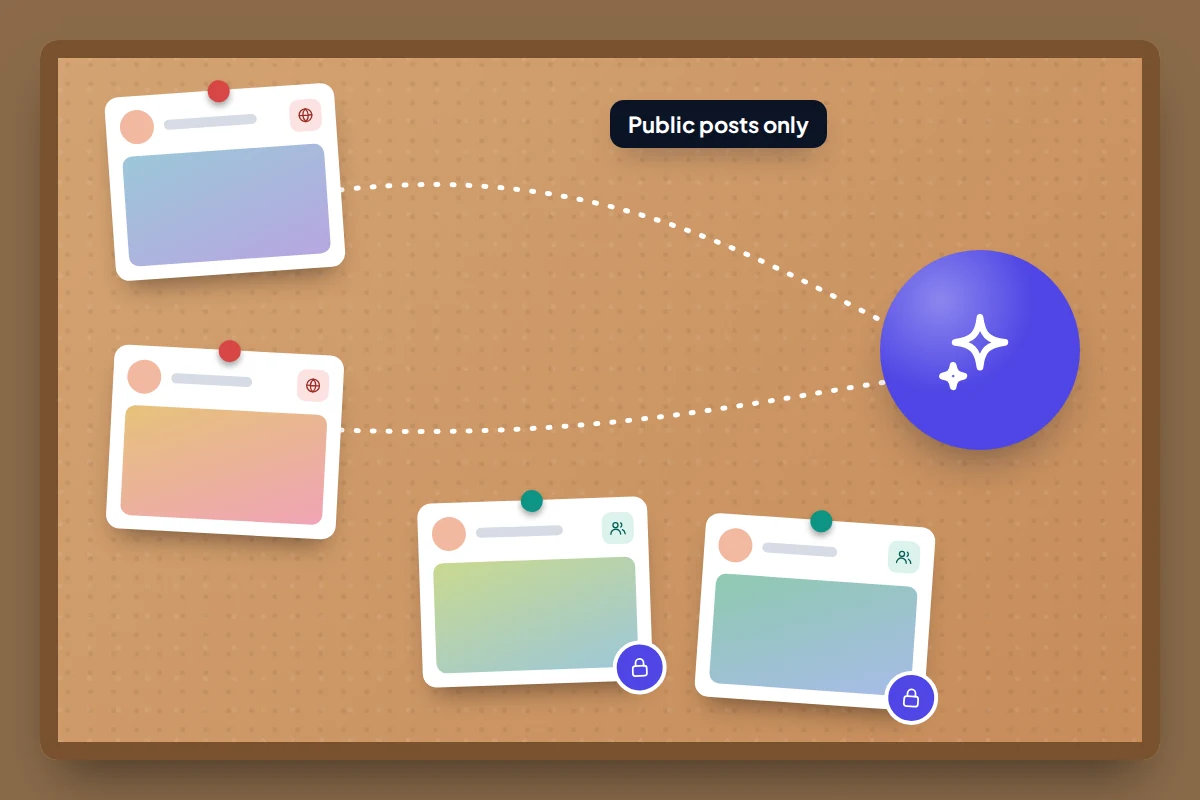
- Meta trains its AI on public posts from UK adults. Friends-only posts are left out, and you can object to the rest.
First, see your profile the way a stranger does
- Open the Facebook app and go to your own profile.
- Tap the three dots (•••) next to Edit profile, then tap View as. On a computer, the three dots sit below your cover photo.
- Scroll slowly. Note every detail, photo and post you would not hand to a stranger.
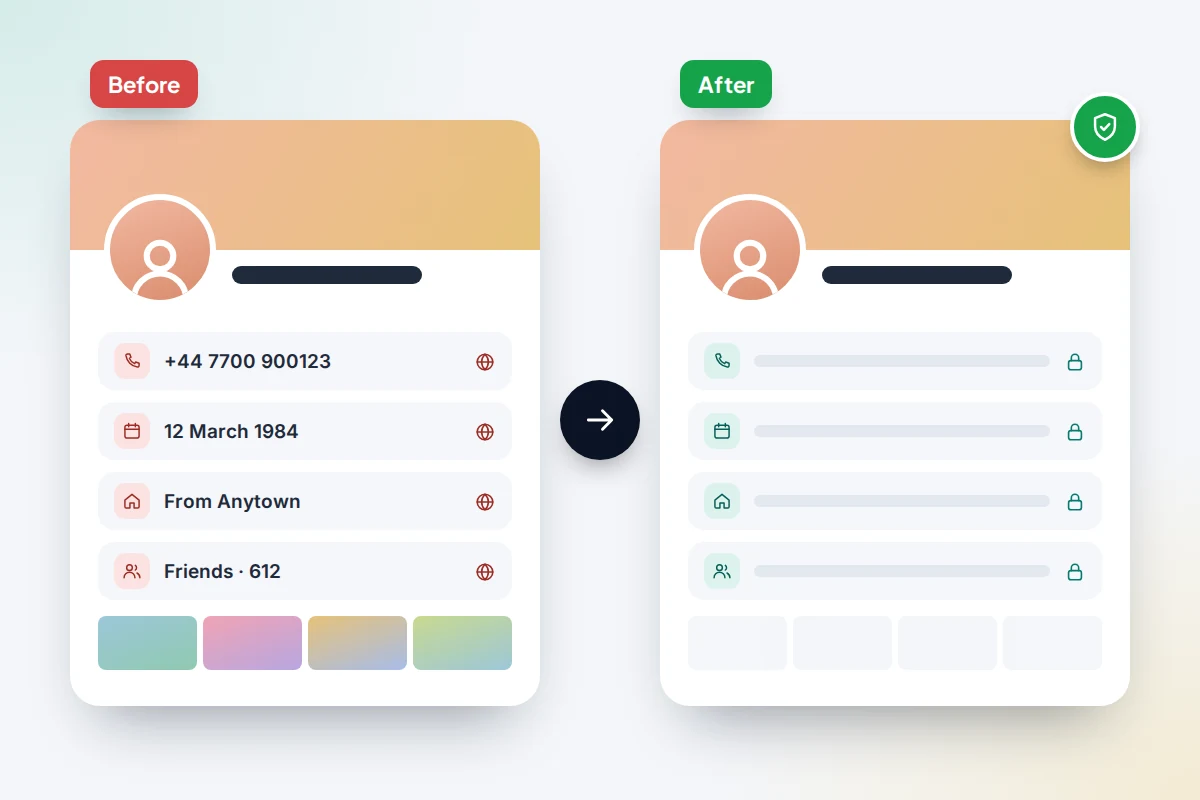
On a typical profile left on older defaults, a stranger might see a mobile number, full birthday, employer, hometown, a friends list and years of Public photos. After this review, the same stranger should see your name, profile picture, cover photo and anything you deliberately made Public, and nothing else. Run View as again at the end to confirm it.
Run Privacy Checkup for the quick wins
Privacy Checkup walks you through the main settings in plain language. In the app, tap the menu (three lines, or your profile picture), then Settings & privacy → Settings. Privacy Checkup is near the top; in some versions it sits inside Privacy Centre.
Of its topics, Who can see what you share and How people can find you on Facebook matter most for strangers. Work through those two, then use the sections below for what Privacy Checkup skips. The menus are almost identical on Android and iPhone; only the menu button moves.
Posts: who sees new ones, and the old ones
Go to Settings & privacy → Settings → Posts (under Audience and visibility).
- Who can see your future posts? Choose Friends. This becomes the default, and you can still make a single post Public when you want to.
- Limit who can see past posts. Tap it and confirm. Every post you shared as Public or Friends of friends becomes Friends.
Know the limits before you tap. You cannot undo it in one go; to make an old post public again, you change that post by hand. People tagged in a post, and their friends, may still see it, and posts in groups follow the group’s rules.
Profile details: who can see each one
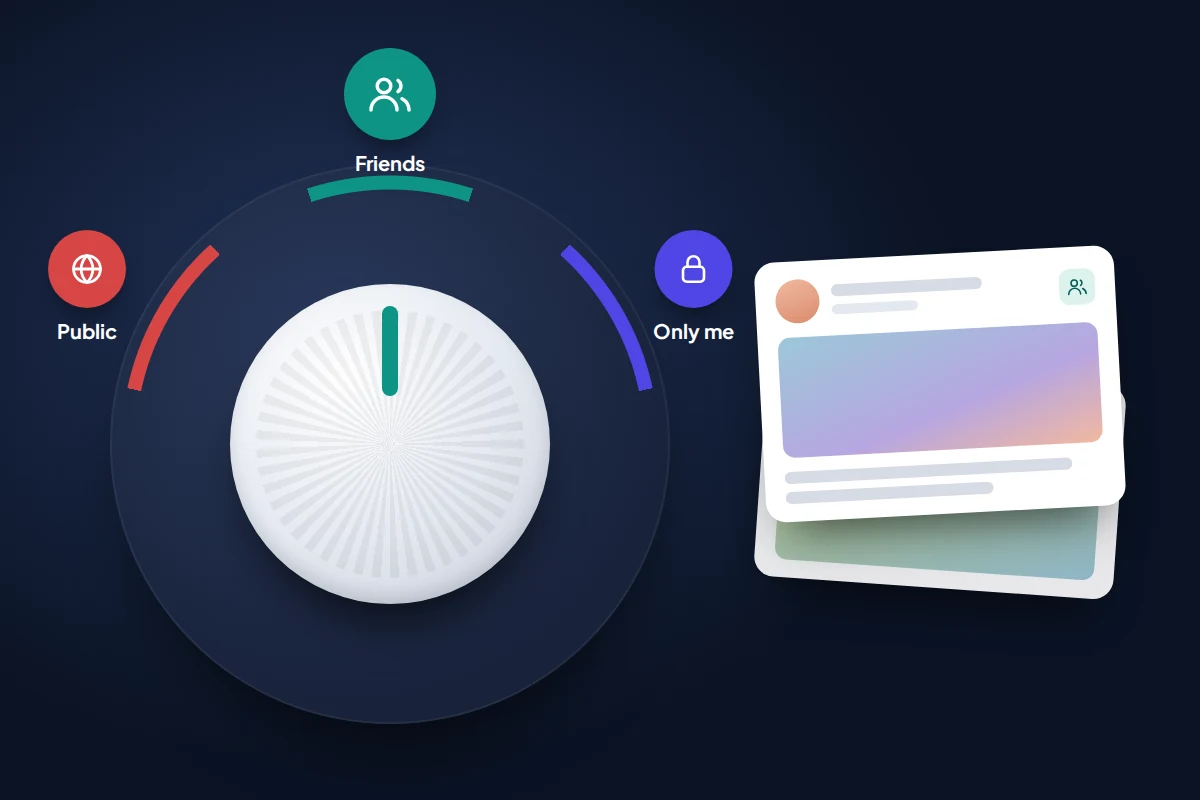
Your profile details are set one by one. Go to your profile and tap See your About info (or Edit profile, then the About section). Each detail has an audience icon beside it: a globe for Public, two people for Friends, a padlock for Only me.
- Mobile number and email: Only me. Scammers use them to target you or to reset accounts.
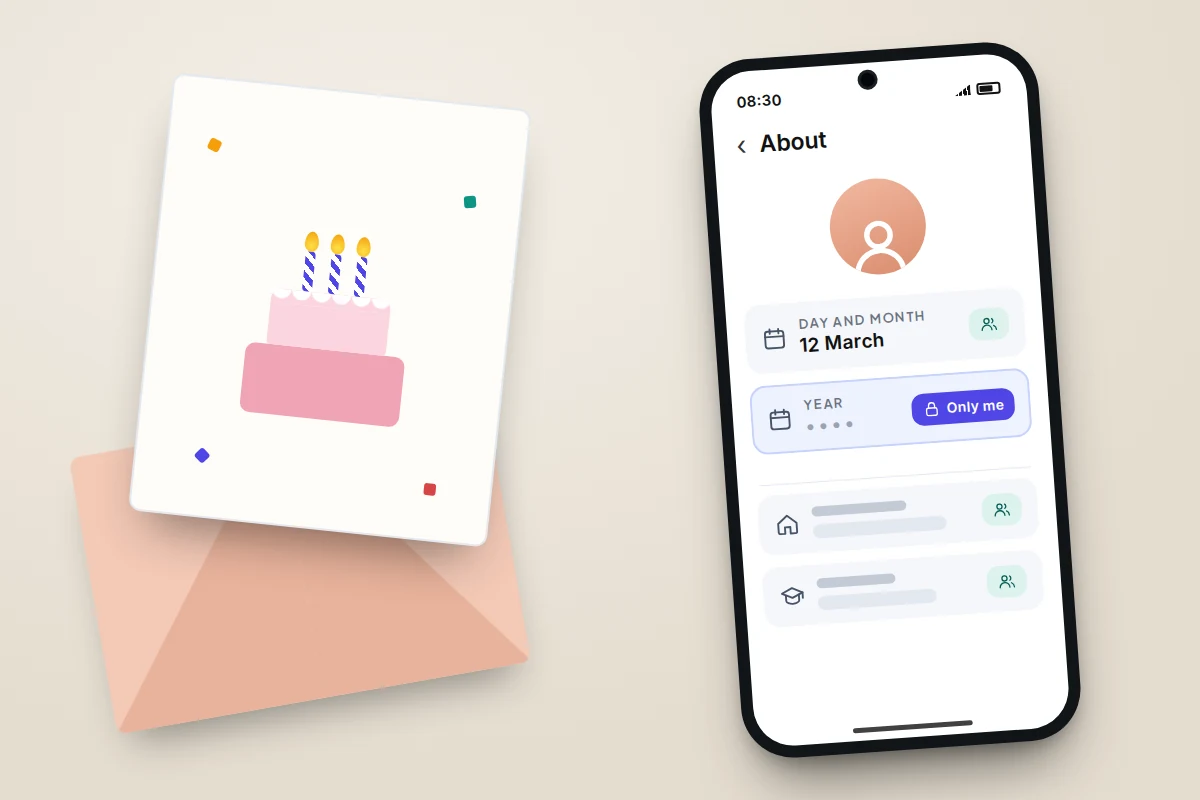
- Birthday: the date and the year have separate audiences. Leave the day and month to Friends if you like birthday messages; set the year to Only me, because a full date of birth is a staple of identity checks.
- Relationship and family members: Friends or Only me. Listed relatives help scammers pose as family.
- Workplace and education: Friends. Public job details help fake recruiters and targeted phishing.
- Current city and hometown: Friends. Hometown is a common security answer.
You can also delete any detail outright. Anything you never fill in cannot leak.
Who can find you, and how
These settings decide whether someone with your number, email or name can reach your profile. Go to Settings & privacy → Settings → How people find and contact you.
- Who can send you friend requests? Friends of friends cuts out most fake accounts.
- Who can see your friends list? Only me. A public friends list lets scammers clone your profile and message the people on it, and shows who your children and parents are.
- Who can look you up using the email address you provided? Only me, or the narrowest option you are offered.
- Who can look you up using the phone number you provided? The same. This stops someone with your number from putting a name and face to it.
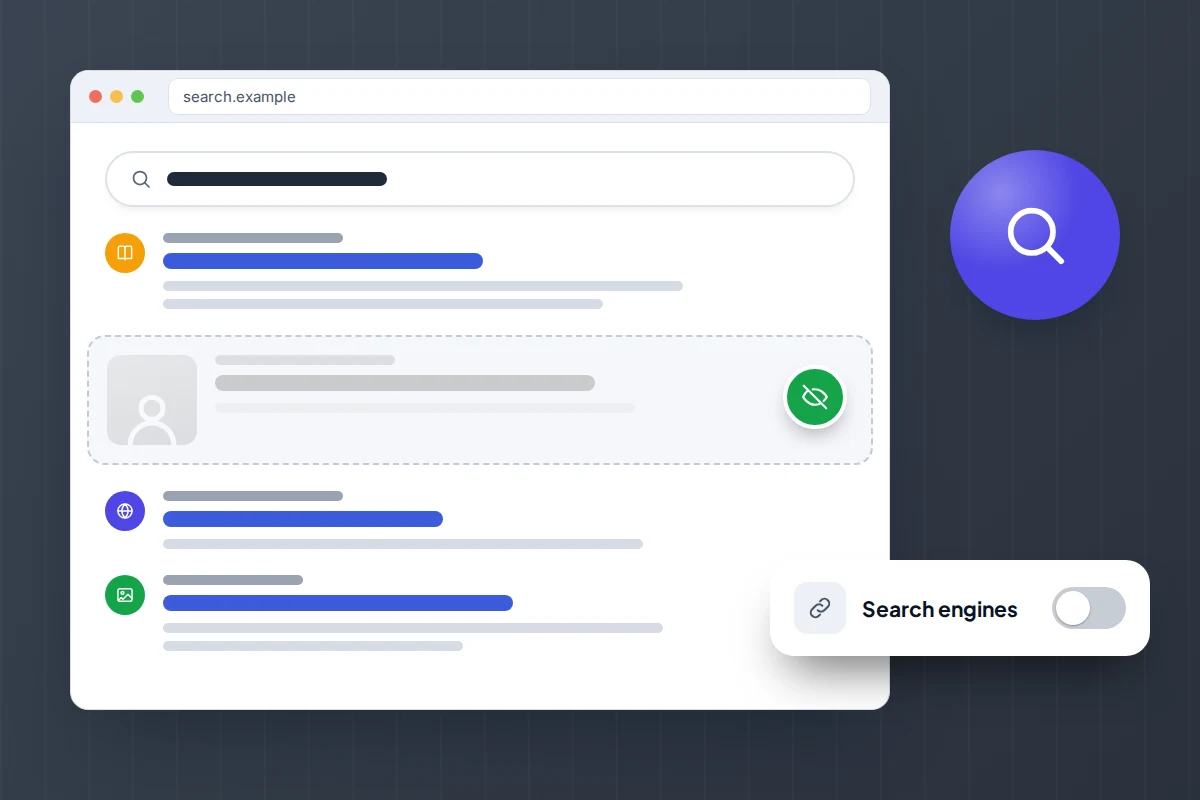
- Do you want search engines outside of Meta to link to your profile? Turn it off. Older versions word this “outside of Facebook”.
Search engines can take several weeks to drop the link, and the setting only removes the direct link to your profile; public posts can still turn up. If your name brings up other pages with your address or number, see how to remove personal information from Google search.
Tags, and what other people post about you
Friends can tag you in photos you would rather keep off your profile. Go to Settings & privacy → Settings → Profile and tagging and set these:
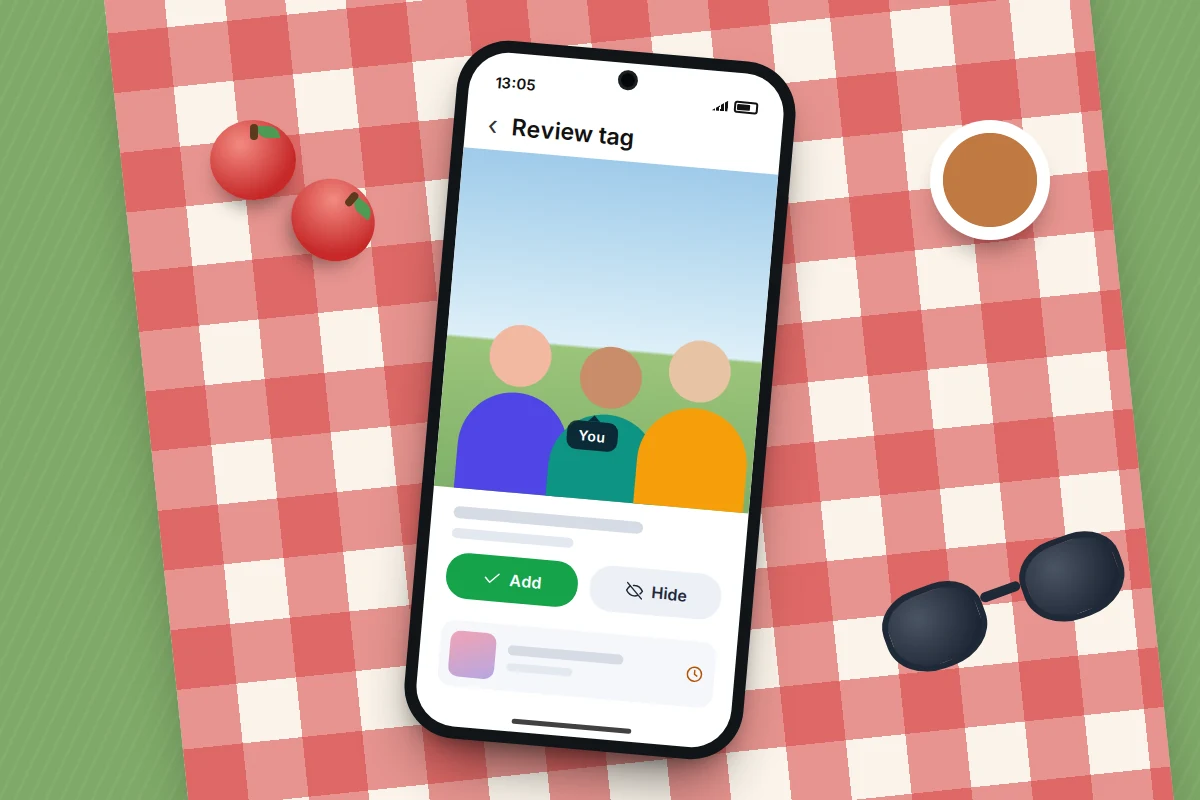
- Review posts you’re tagged in before the post appears on your profile? On. Tagged posts wait for your approval.
- Review tags people add to your posts before the tags appear on Facebook? On.
- Who can see posts you’re tagged in on your profile? Friends, or Only me.
- Who can post on your profile? Only me, unless you like friends leaving birthday messages there.
Tag review controls your profile, not the original post. A photo you decline still sits on your friend’s profile; ask them to remove it, or remove the tag yourself.
Messenger and Marketplace
Message requests
In the Messenger app, tap your profile picture or the menu, then Privacy & safety → Message delivery. For each group of people (friends of friends, people who have your number, others on Facebook) you can choose whether their messages arrive in your chats, in message requests, or not at all. Send anyone you do not know to Message requests or Don’t receive requests. Requests arrive without notifications, so scam openers such as “Is this you in this video?” never interrupt you.
Marketplace
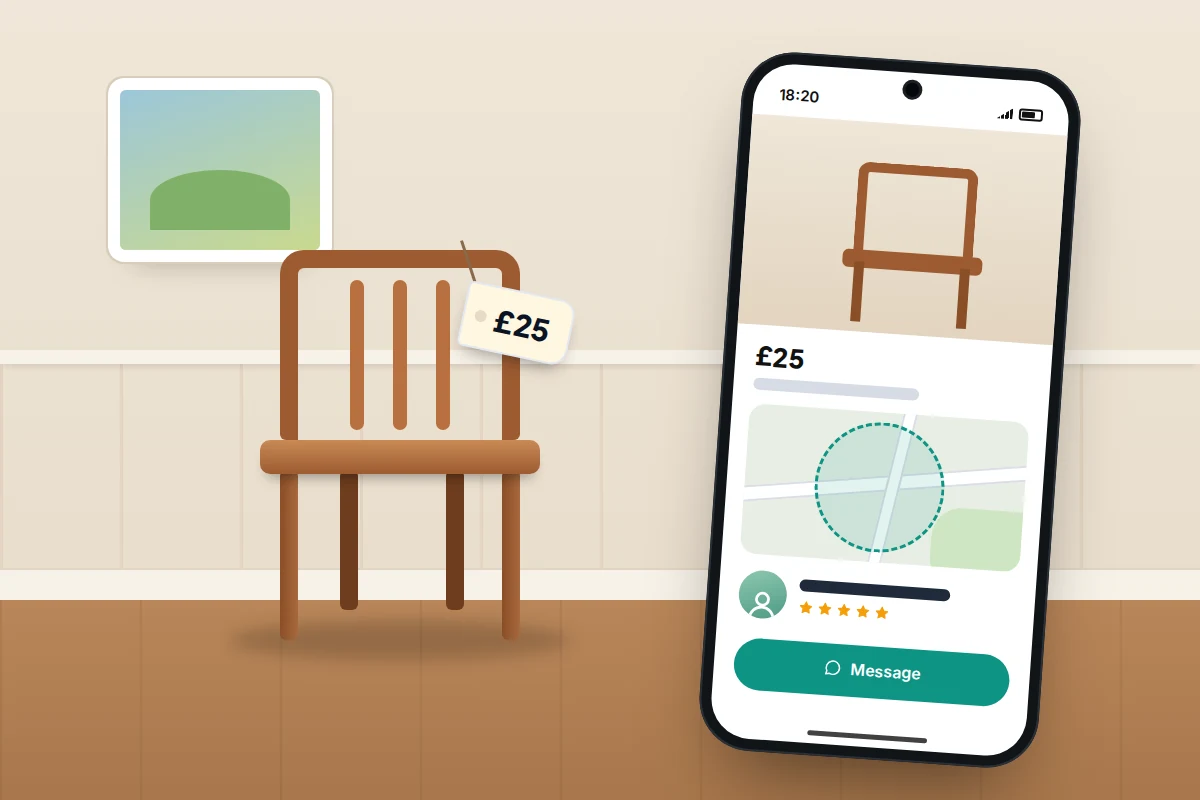
Anyone browsing Marketplace can open your Marketplace profile, which shows your name, profile picture, ratings, active listings and a general location, and buyers can tap through to your main profile. You cannot make Marketplace friends-only, so the protection comes from everything above. Use a nearby area rather than your street when listing, and arrange handovers in a public place.
Faces, location and what Meta collects
Facial recognition
Facebook’s old face recognition setting, which suggested photo tags, was switched off in November 2021, and Meta deleted the face templates of more than a billion people. It has since returned in narrower, optional forms.
Since March 2025, UK users locked out of an account may be offered a video selfie check; Meta says it deletes the facial data straight after the comparison. Public figures can opt in to have their faces used to spot scam ads. In July 2026 Meta launched Facebook Verified, an optional selfie-based badge for over-18s, rolling out in phases; Meta has not said when it reaches the UK. None of these tag you in photos.
Location
Facebook closed its Location History and Nearby Friends features in 2022, so what matters now is the phone’s permission. On iPhone, go to Settings → Apps → Facebook → Location and choose Never or While Using the App. On Android, go to Settings → Apps → Facebook → Permissions → Location; names vary by phone maker. Be sparing with check-ins and location tags too.
Activity from other websites and apps
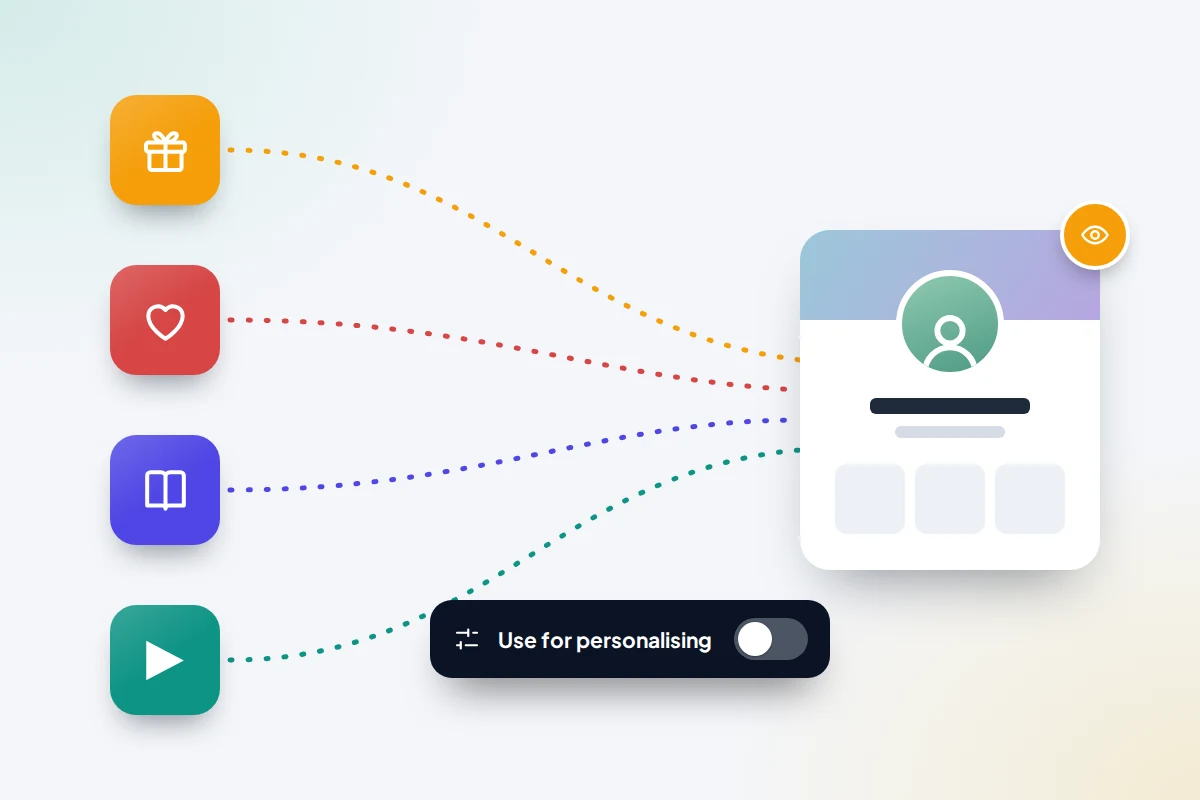
Many shops and apps tell Meta what you do on them, through tracking tools built into their sites and apps. For years the Your activity off Meta technologies setting let you see this, clear it and disconnect it from your account. In June 2026 Meta said it would retire that setting in the US, UK and several other countries from July, replacing it with a broader Activity from other businesses setting.
The new setting lets you stop Meta using that activity to personalise ads, your Feed and Meta AI, but not stop it being linked to your account. It sits in Accounts Centre with your ad preferences; search Settings for “Activity from other businesses” and choose not to allow it. If you still see the old setting, use its clear and disconnect options while they exist.
Ads and connected apps
In Accounts Centre → Ad preferences, review ad topics and advertisers. Since autumn 2025, UK adults can instead pay £2.99 a month on the web, or £3.99 through the iPhone and Android apps, for no ads on one account; Meta says subscribers’ data is then not used for ads. Then open Settings & privacy → Settings → Apps and websites and remove anything you signed in to with Facebook and no longer use.
AI training on public posts in the UK
In September 2024 Meta said it would start training its generative AI on public posts, comments, photos and captions from UK adults on Facebook and Instagram. It says it does not use private messages or accounts of under-18s. The UK Information Commissioner’s Office responded that it had not given regulatory approval, and that Meta had made objecting simpler and given people longer to do it.
Two things reduce what can be used: posts limited to Friends are not public, and UK adults can object. Go to Settings & privacy → Privacy Centre, find the section on how Meta uses information for generative AI, and follow the link to object. Meta has said it will honour objections. An objection applies to future training only: it cannot pull back material already used, and it does not cover photos or mentions of you in other people’s public posts.
Security: the settings that stop someone else changing all this
Privacy settings mean little if someone else can log in. Three steps in Accounts Centre → Password and security cover most of it: a password you use nowhere else, two-factor authentication with an authenticator app, and a look at Where you’re logged in to remove devices you do not recognise. Our guide to turning on two-factor authentication for your main accounts explains which method to pick. Facebook and Instagram share Accounts Centre, so if something looks wrong, the steps in recovering a hacked Instagram account apply almost word for word.
The 20-minute settings checklist
| Setting | Where | Recommended | Why |
|---|---|---|---|
| Who can see your future posts? | Settings → Posts | Friends | Public becomes a choice per post |
| Limit who can see past posts | Settings → Posts | Apply once | Pulls old Public posts back to Friends |
| Phone number and email on profile | Profile → About | Only me | Used for scams and account resets |
| Birth year | Profile → About | Only me | Common identity check |
| Workplace, hometown, relationship | Profile → About | Friends or Only me | Fuels targeted phishing and security answers |
| Who can see your friends list? | How people find and contact you | Only me | Stops clone accounts messaging your friends |
| Look up by email and phone | How people find and contact you | Only me or Friends | A number alone should not lead to your profile |
| Search engines linking to your profile | How people find and contact you | Off | Removes the search-engine shortcut to your profile |
| Review tagged posts and tags | Profile and tagging | On | Nothing appears without your approval |
| Message delivery | Messenger → Privacy & safety | Strangers to requests | Keeps scam messages out of your chats |
| Activity from other businesses | Accounts Centre | Don’t allow | Limits use of your activity on other sites |
| Apps and websites | Settings → Apps and websites | Remove unused | Old logins can keep access to your data |
| Two-factor authentication | Accounts Centre → Password and security | Authenticator app | Stops a stolen password being enough |
If a setting isn’t where this says
- A menu has moved. Meta renames and regroups settings often. Use the search bar at the top of Settings and type a word from the setting, such as “past posts” or “tagging”.
- View as still shows old photos. Profile pictures and cover photos are always public in their current form, and older ones sit in albums with their own audiences. Open each album and change its audience, or change individual photos.
- Guides mention “Lock profile” but you cannot find it. It is only offered in some countries; the settings above cover most of what it does.
Frequently asked questions
Will my friends know I changed my privacy settings?
No. Facebook does not notify anyone when you change an audience. Friends keep seeing what they saw before; only non-friends lose access.
Can I hide my profile from one specific person without blocking them?
Add them to your Restricted list from their profile (Friends → Edit friend list). They stay a friend but only see your Public posts and things you tag them in.
Are my comments on public pages visible to everyone?
Yes. A comment on a public page or public post is visible to anyone who can see that post, whatever your own settings. Limit past posts does not change them.
Does making posts Friends-only stop Meta using them?
It keeps them out of the public content Meta says it uses for AI training. Meta still processes them to run the service and for ads, which the ad and activity settings above partly control.
Sources and further reading
- Facebook Help Centre: Facebook Privacy Checkup
- Facebook Help Centre: choose who can see your previous posts
- National Cyber Security Centre: social media, how to use it safely
- Meta Newsroom: changes to controls for your activity from other businesses (June 2026)
- Meta Newsroom: facial recognition for scam ads and account recovery
- Meta Newsroom: training AI with UK users’ public posts
- ICO: statement on Meta’s use of UK user data to train AI
- Meta Newsroom: subscription for no ads in the UK
Looking for a tool to go with this? TheTruthSpy is a free parental control app for Android that stays visible on the child's phone. If it fits your family, see the Social media alerts feature.
Related guides
How to Spot a Romance Scam
The patterns romance scammers follow, what their lines really mean, checks that don't accuse anyone, what to do if you…
How to Spot a QR Code Scam
Fake QR stickers on parking meters and EV chargers, codes in emails and parcels: how to check a code before…
How to Remove Your Personal Information From Google Search
What Google will and won't remove, how Results about you works, people-search opt-outs, the right to be forgotten, Street View…
Parental controls your child can see
Location, screen time limits, a web filter and alerts from notifications — free, and visible on your child's phone. Pair a phone in about ten minutes.
Android · Free to set up · Visible on your child's phone