Phone Won’t Connect to Wi-Fi? How to Fix It

The network is right there in the list. You tap it, the phone thinks for a moment, and then nothing: an “incorrect password” message for a password you know is right, or a tick beside the network and pages that never load.
Before changing any settings, work out which side the fault is on. It is either your phone, the router and broadband behind it, or something about this one network and your phone together. Two quick tests tell you which, and they save you from resetting the wrong thing.
The fixes below follow that order, from the checks that take seconds to the resets that make you set things up again. Menu names differ between phone makers and software versions; where a path doesn’t match, search your Settings app for “Wi-Fi”.
The short version
- Test another device on the same Wi-Fi, and your phone on a different Wi-Fi. The results tell you whether to fix the phone or the router.
- “Can’t join” is usually a password, saved setting or compatibility problem. “Connected, no internet” is usually the broadband, a login page, a VPN or DNS.
- Forget the network and rejoin it, typing the password carefully. It’s case-sensitive.
- Private Wi-Fi addresses, a wrong clock, a VPN or private DNS can all block an otherwise healthy network.
- Reset network settings only after the simpler steps, and call your provider when no device works.
Phone or router? Two tests that point the way
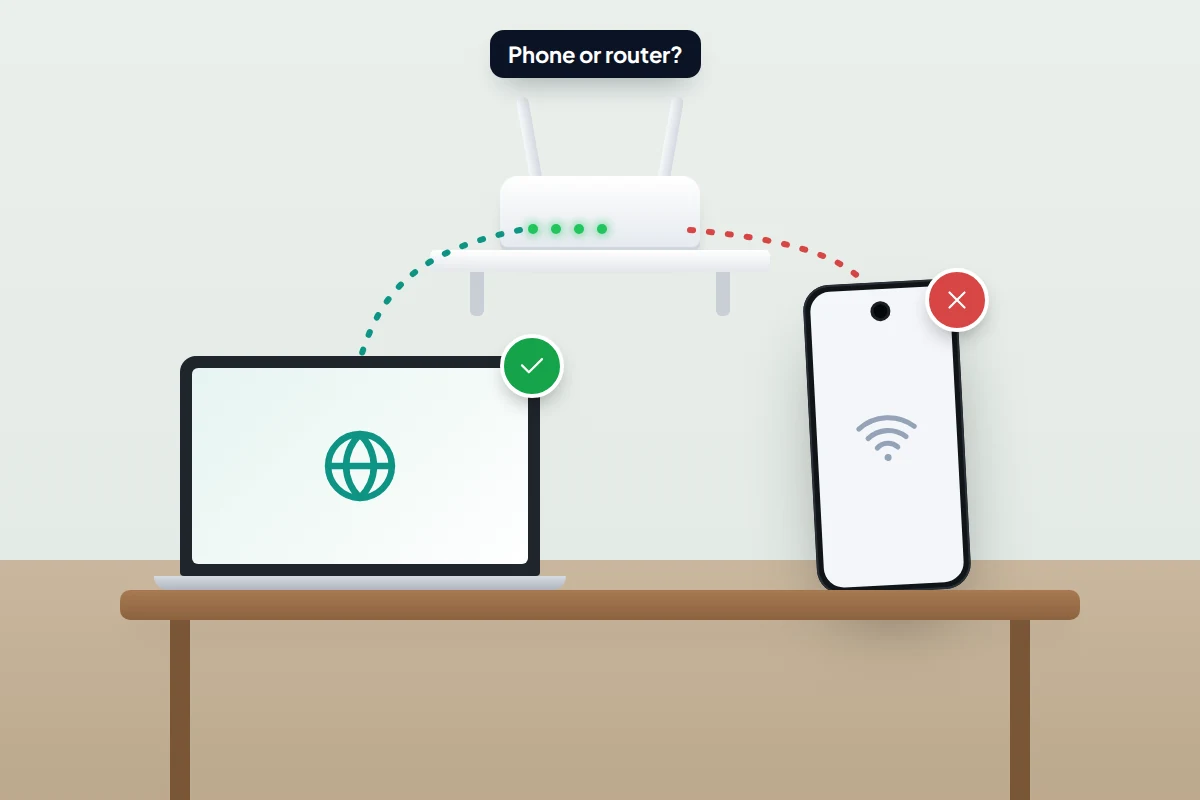
Google’s Pixel troubleshooting splits Wi-Fi problems three ways: the device, the network, or the internet connection behind it. You can tell them apart in a couple of minutes.
| Test | Result | What it points to | Where to start |
|---|---|---|---|
| 1. Does another phone, tablet or laptop work on the same Wi-Fi? | No, nothing connects | The router or the broadband | Restart the router; then the section on calling your provider |
| Yes, others work | Your phone, or how it gets on with this network | Go to test 2 | |
| 2. Does your phone work on a different Wi-Fi, such as a friend’s hotspot? | No, it fails everywhere | Your phone | Quick resets, clock, VPN and DNS, then reset network settings |
| Yes, only this network fails | Your phone’s saved settings for this network | Forget and rejoin, private address, band and security type |
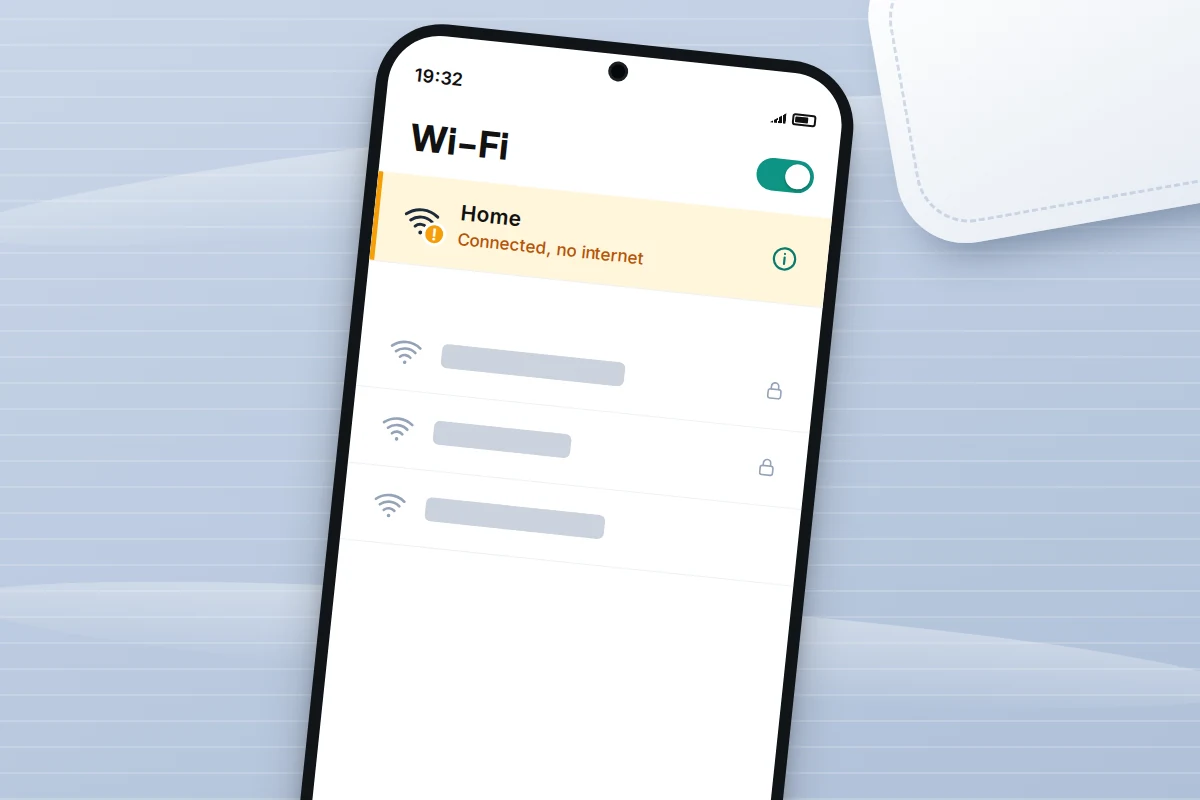
Also notice what the phone actually says. If it can’t join at all, the problem is getting onto the network. If it joins but shows “Connected, no internet” on Android or “No Internet Connection” under the network name on iPhone, the Wi-Fi link works and something beyond it doesn’t.
The quick resets, in order
- Turn Wi-Fi off and on, or turn aeroplane mode on for about ten seconds and off again. This makes the phone look for networks afresh.
- Restart the phone. It clears a stuck Wi-Fi process, the most common cause of a phone that suddenly can’t see networks it knew yesterday.
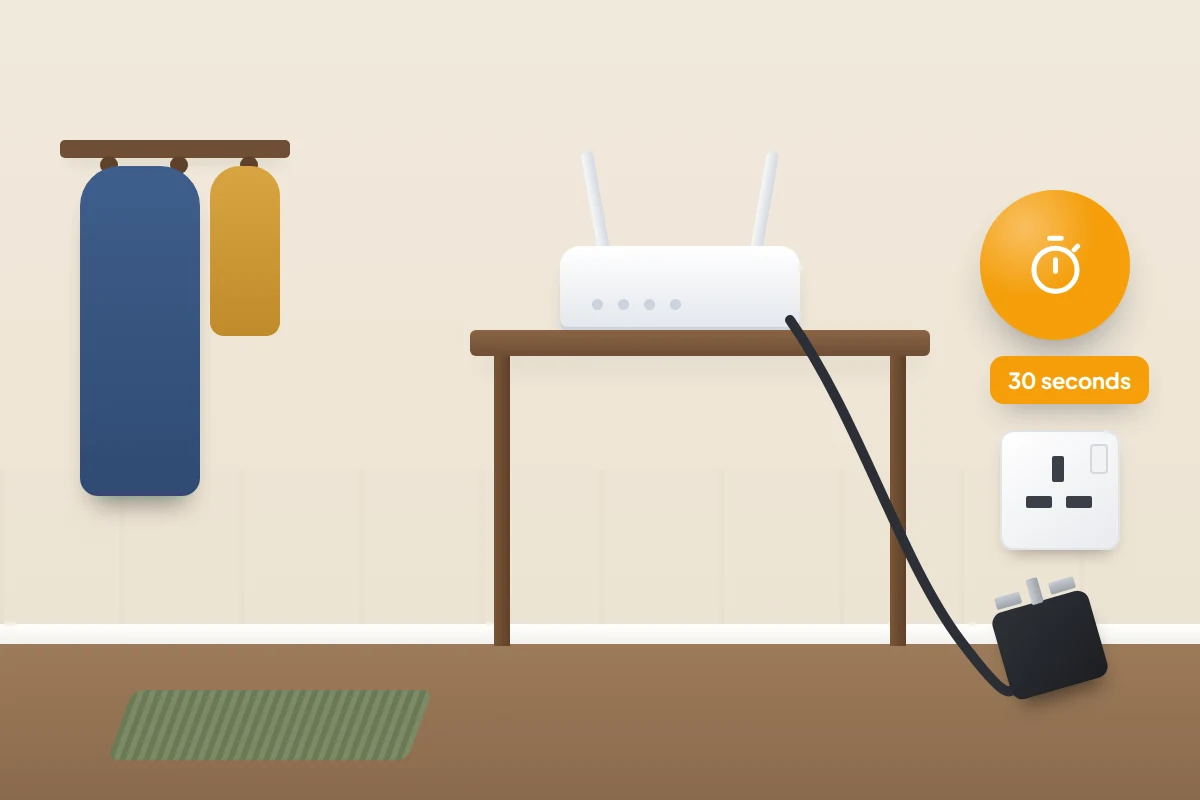
- Restart the router. Unplug it (and the separate modem, if you have one), wait about 30 seconds, plug it back in and give it a few minutes until the lights settle, as Google’s Android help suggests. Don’t press the recessed reset button: on most routers that wipes its settings.
- Move closer. A phone at the edge of range may see the network but fail to join or keep dropping it.
Match the symptom to the likely cause
| What you see | Likely cause | Fix |
|---|---|---|
| “Incorrect password” or “Authentication problem” | Wrong password, wrong case, or the password was changed | Forget the network and rejoin, typing slowly |
| Stuck on “Obtaining IP address”, or joins then drops | Router not handing out an address, or blocking unknown devices | Restart the router; try turning off the private address for this network |
| Connected, no internet (on every device) | Broadband is down | Restart the router; check your provider’s status page |
| Connected, no internet (only your phone) | Login page not completed, VPN, or private DNS | Open the login page; pause the VPN; set private DNS to Automatic |
| Secure sites show certificate or privacy errors | Phone’s date and time are wrong | Set date and time automatically |
| Network missing from the list on an older phone | Router on a 6 GHz-only or WPA3-only setting | Enable 2.4 and 5 GHz, or WPA2/WPA3 mixed mode |
| Smart plug or camera setup fails | The gadget only uses 2.4 GHz | Set up close to the router; see the bands section |
| Works fine except on one hotel, school or work network | Login page, device registration or a network filter | Complete the login, or ask whoever runs the network |
| Fails on every network after an update | A software bug or corrupted network settings | Update again, then reset network settings |
Forget the network and join again
Your phone stores each network’s password and settings. If the router’s password or security type has changed, or the saved entry is corrupted, the phone keeps offering the old details and fails. Forgetting the network makes it start fresh.
- iPhone: Settings → Wi-Fi, tap the info button next to the network, then Forget This Network.
- Pixel: Settings → Network & internet → Internet, tap the gear next to the network (or open Saved networks), then Forget.
- Samsung: Settings → Connections → Wi-Fi, tap the gear next to the network, then Forget.
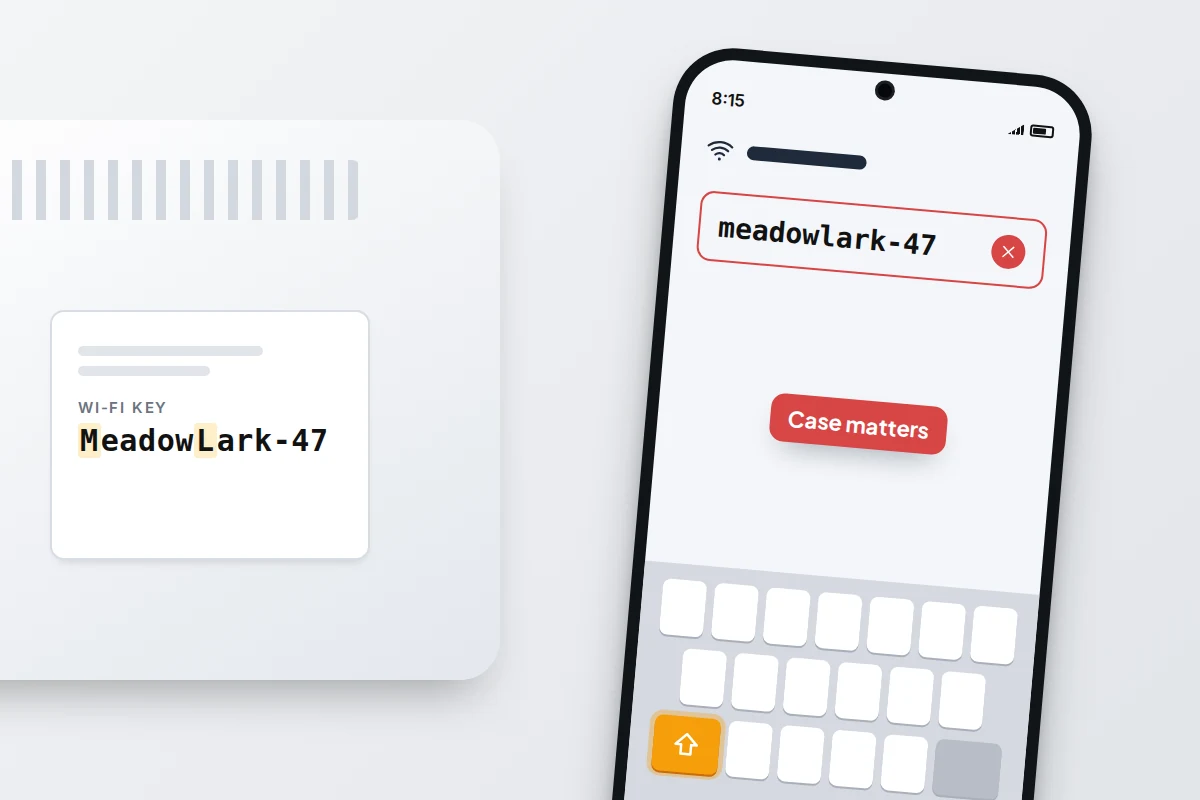
Then tap the network and type the password again. Wi-Fi passwords are case-sensitive, and router stickers often mix up lookalike characters such as 0 and O or l and 1. If another phone is already connected, it can show you the saved password: on iPhone, tap the info button next to the network and then Password; many Android phones offer a Share button that shows a QR code for the other phone to scan.
Private Wi-Fi addresses and the networks they confuse
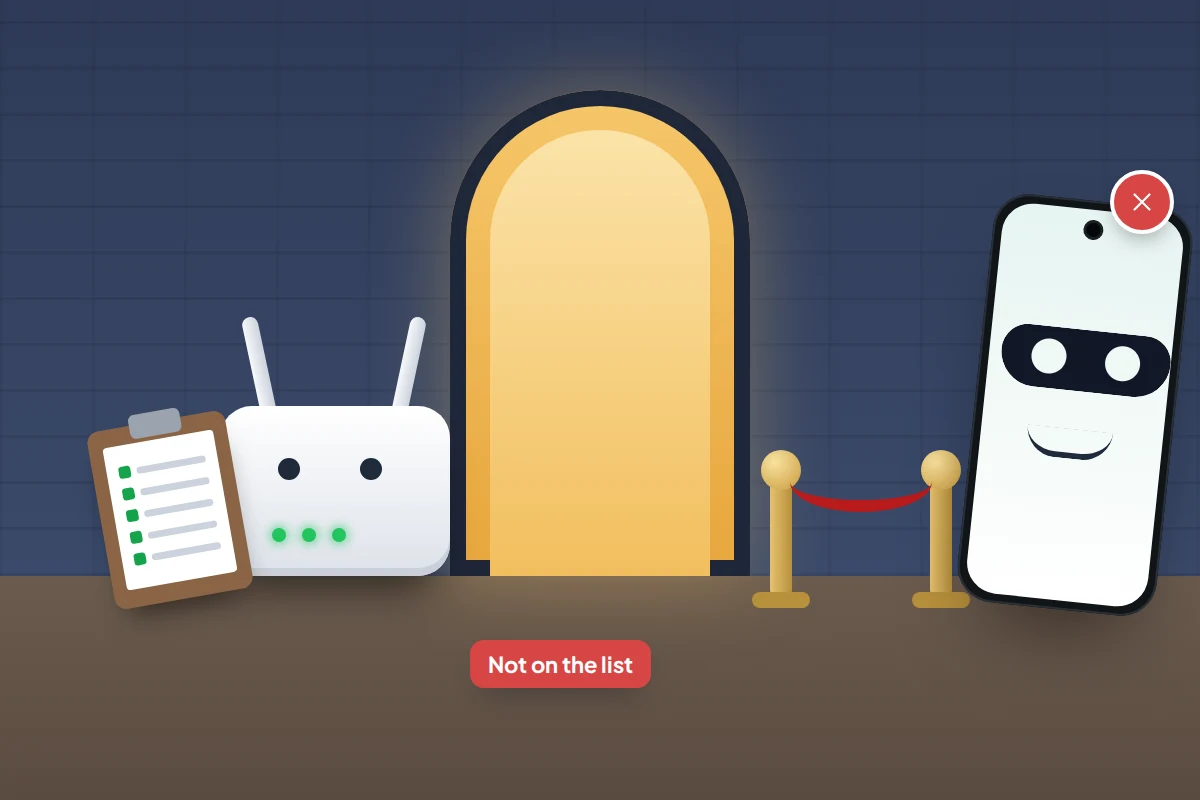
Every phone has a hardware address (a MAC address) that identifies it to the network. To stop networks tracking you from place to place, iPhones and Android phones now show each network a different, made-up address instead. Android has done this by default since Android 10.
That’s good for privacy, but it confuses networks that recognise devices by address. A router set to admit only approved devices, a router’s parental controls or schedules tied to a particular phone, and some paid hotel or venue Wi-Fi that remembers who has already logged in can all treat your phone as a stranger. On iPhone, the Rotating option changes the address every two weeks, so a network that knew you can suddenly stop recognising the phone.
Apple suggests installing the latest updates first, then turning the feature off only for the network that has trouble:
- iPhone (iOS 18 or later): Settings → Wi-Fi, tap the info button next to the network, tap Private Wi-Fi Address and choose Fixed (a private address that doesn’t change) or Off. Earlier versions have a single switch.
- Pixel: open the network’s settings, tap Privacy and choose Use device MAC.
- Samsung: open the network’s settings, look under View more or Advanced for MAC address type, and choose Phone MAC.
Leave the private address on for public networks. If a family router’s filter stops recognising someone’s phone, re-add the device in the router’s app together rather than switching privacy off everywhere.
Hotel, café and train Wi-Fi: the login page
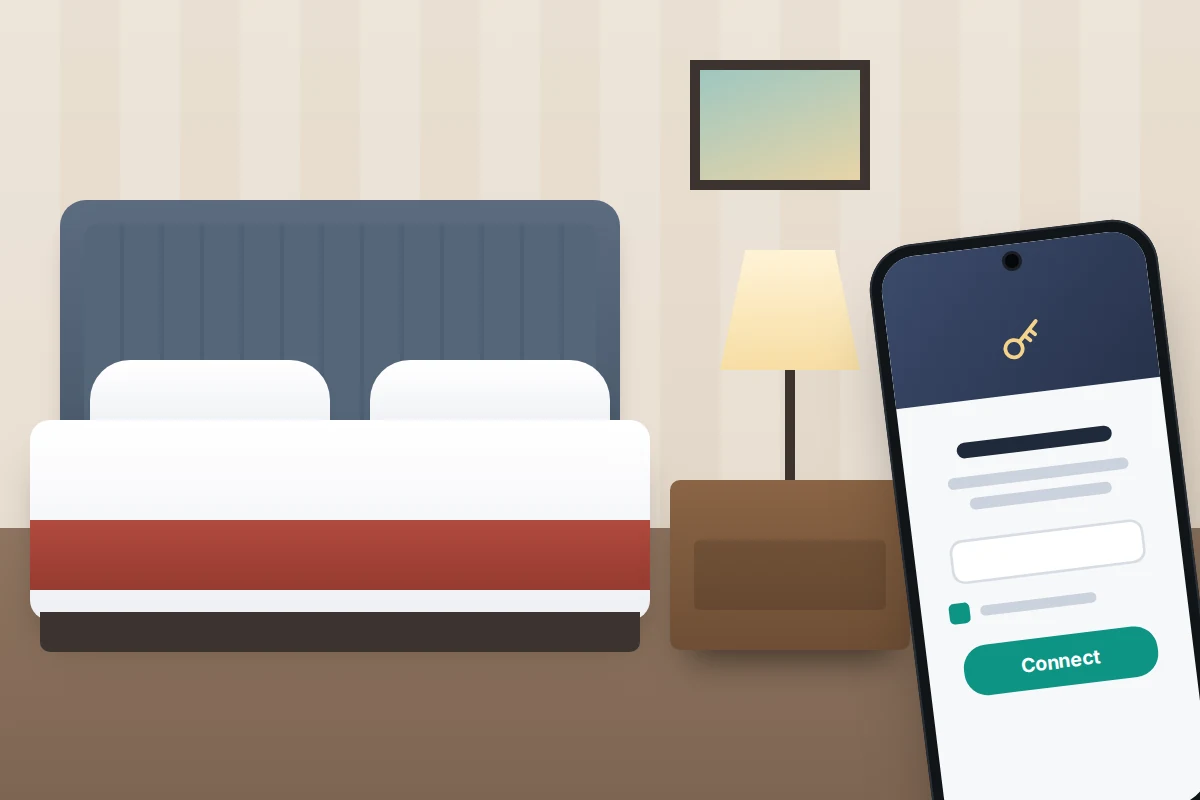
Many public networks let you join, then block the internet until you accept terms or sign in on a web page. The page should pop up by itself; on Android a notification asks you to sign in to the network. If nothing appears, open your browser and try any website you haven’t visited recently, which usually brings the page up.
VPNs and private DNS can stop the page loading, so pause them until you’re signed in and switch them back on straight after. If you keep being asked to sign in again, the private address may be the cause, as above. For what to avoid doing on these networks, see our guide to using public Wi-Fi safely.
Clock, VPN and private DNS: settings that block a good connection
Wrong date and time
Secure websites check the date on their certificates against your phone’s clock. If the clock is far out, pages fail with security errors that look like a Wi-Fi fault.
- iPhone: Settings → General → Date & Time → Set Automatically.
- Pixel: Settings → System → Date and time → Set time automatically.
- Samsung: Settings → General management → Date and time → Automatic date and time.
VPN
A VPN sends everything through a distant server; if that server or the app misbehaves, every network looks broken. Disconnect it in the VPN app, or check Settings → VPN on iPhone (it appears when one is installed) and Settings → Network & internet → VPN on Pixel. If Wi-Fi works with it off, the VPN is the problem.
Private DNS on Android
Go to Settings → Network & internet → Private DNS (on Samsung, Connections → More connection settings → Private DNS). Automatic is the default. If it is set to a specific provider hostname, perhaps by an ad-blocking app, networks that block that service leave you “connected, no internet”, sometimes with a warning that the private DNS server cannot be accessed. Switch back to Automatic to test.
2.4, 5 and 6 GHz: range, speed and smart home setup
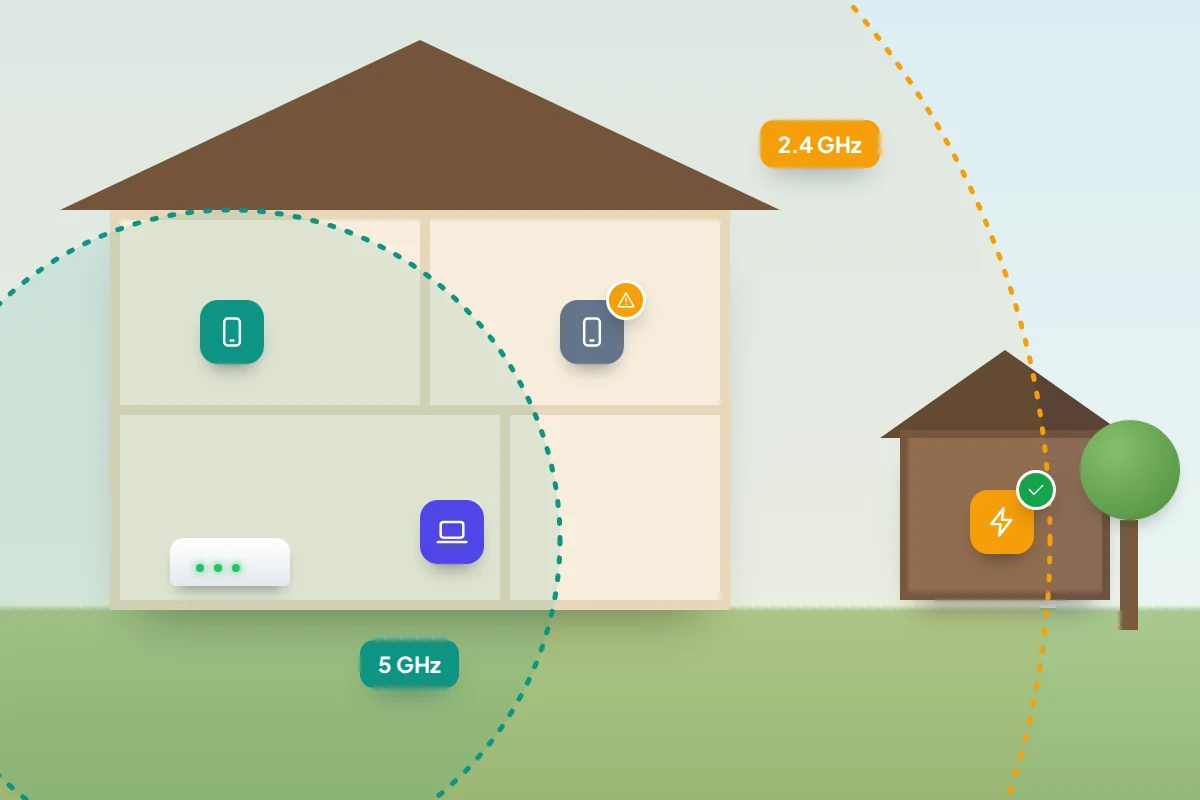
Most routers broadcast on more than one band. 2.4 GHz reaches further through walls but is slower and more crowded; 5 GHz is faster over shorter distances; 6 GHz, on newer Wi-Fi 6E and Wi-Fi 7 routers, is faster still, shorter range, and only works with recent phones. Apple recommends giving all bands the same network name, and many routers then steer each device to the band they think suits it.
That steering causes two common problems. A phone at the far end of the house can cling to a weak 5 GHz signal and keep dropping out; moving closer or restarting Wi-Fi usually shifts it. And many smart plugs, bulbs and cameras only work on 2.4 GHz, so setup fails when the phone doing the setup is on 5 GHz. Stand near the router during setup, or, if your router’s app allows it, switch 5 GHz off for a few minutes and back on afterwards.
WPA3 and older phones
WPA3 is the newest Wi-Fi security. Apple says it works with all devices that support Wi-Fi 6 and some older ones, which leaves a gap: an older phone or gadget may not see or join a router switched to WPA3 only. The usual fix is the router’s WPA2/WPA3 mixed (transitional) mode, which lets newer devices use WPA3 and older ones WPA2. An iPhone warning about weak security means the router is using outdated settings. Our guide to securing your home Wi-Fi explains which settings to choose.
Reset network settings: the last step on the phone
Before this, check for a phone update over mobile data or another network, since Wi-Fi bugs are often fixed in updates; see how to update your phone safely. A network reset erases every saved Wi-Fi network and password, so write down your home password first. It doesn’t touch photos, messages or apps.
- iPhone: Settings → General → Transfer or Reset iPhone → Reset → Reset Network Settings. Apple says this also resets mobile, VPN and APN settings.
- Pixel: Settings → System → Reset options → Reset Bluetooth & Wi-Fi. Android 13 and earlier combine this as Reset Wi-Fi, mobile & Bluetooth.
- Samsung: Settings → General management → Reset → Reset Wi-Fi and Bluetooth settings on recent versions; older versions call it Reset network settings.
On Android this also removes your Bluetooth pairings, so expect to pair headphones and the car again.
When to call your broadband provider
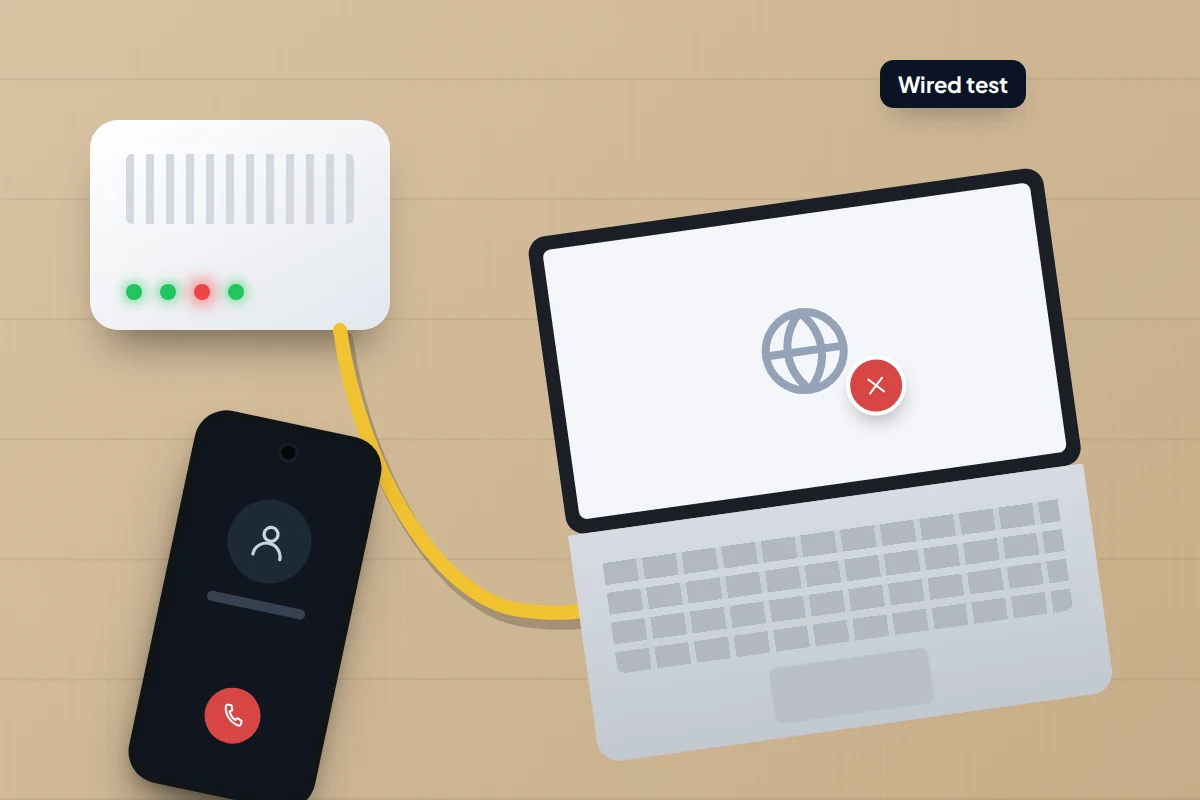
If no device can get online, a restart hasn’t helped, and a computer plugged into the router by cable fails too, the fault is in the router or the line. Before you call:
- Check your provider’s app or service status page on mobile data for a local outage.
- Note which router lights are on and their colours, and when the problem started.
- Say what you’ve already tried, so you skip the first script.
In the UK, Ofcom’s automatic compensation scheme covers the largest providers, including BT, EE, Sky, TalkTalk, Virgin Media and Vodafone. If your broadband stops working and isn’t fully fixed two full working days after you report it, they pay compensation for each calendar day until it is, so report the fault promptly. If only distant rooms struggle, the router is working and the house needs better coverage, which your provider may be able to help with.
Frequently asked questions
Why does my phone connect to every Wi-Fi except my home one?
Usually a saved setting for that network. Forget it and rejoin, then try turning off the private address for that network only, in case the router is filtering devices.
Will resetting network settings delete anything personal?
No. It removes saved Wi-Fi networks and passwords, VPN settings and, on Android, Bluetooth pairings. Photos, messages and apps stay.
Is it safe to turn off the private Wi-Fi address?
For your own home network the privacy gain is small, so switching it off there is reasonable if it fixes a problem. Keep it on for public networks.
Why does Wi-Fi work but one app says there’s no connection?
The app’s own service may be down, or a VPN or private DNS setting may block it. Try the app on mobile data to see which.
Sources and further reading
- Apple Support: If your iPhone or iPad won’t connect to a Wi-Fi network
- Apple Support: Use private Wi-Fi addresses on Apple devices
- Apple Support: Recommended settings for Wi-Fi routers and access points
- Pixel Phone Help: Fix Wi-Fi connection problems
- Android Help: Fix internet connection problems on Android devices
- Pixel Phone Help: Control aeroplane mode, private DNS and other network settings
- Android Open Source Project: MAC randomisation behaviour
- Ofcom: Automatic compensation – what you need to know
Looking for a tool to go with this? TheTruthSpy is a free parental control app for Android that stays visible on the child's phone. If it fits your family, see what the app does.
Related guides
How to Transfer Your Contacts to a New Phone
Find where your contacts are really stored, move phone-only and SIM contacts to the cloud, and transfer them between iPhone…

How to Recover Deleted Photos on Your Phone
Where deleted photos go on iPhone, Google Photos and Samsung Gallery, how long each bin keeps them, and which other…
How to Take Screenshots and Record Your Screen on Any Phone
Screenshots and screen recordings on iPhone, Pixel and Samsung: button combos, long captures, adding your voice, hiding private details and…
Parental controls your child can see
Location, screen time limits, a web filter and alerts from notifications — free, and visible on your child's phone. Pair a phone in about ten minutes.
Android · Free to set up · Visible on your child's phone