How to Stop Your Phone Notifications Taking Over

You pick up your phone to check the time, and ten minutes later you are reading a sale email, a delivery update and forty messages from a group chat you barely follow. Nothing was urgent.
Apps ask for permission to notify you the first time you open them, before you know what they will send, and many use it for offers as well as updates. The fix is not to switch everything off or to feel guilty about your phone. It is to decide, once, which apps get to interrupt you, which can wait for a batch, and which should stay quiet until you open them.
Below is a 10-minute audit you can do on an iPhone or Android phone, a table for sorting common apps, and the settings that let the right people reach you when everything else is quiet.
The short version
- Sort every app into keep, summarise or silence. Most apps belong in the last two.
- On Android, turn off only the promotional categories of an app and keep the useful ones, such as order updates.
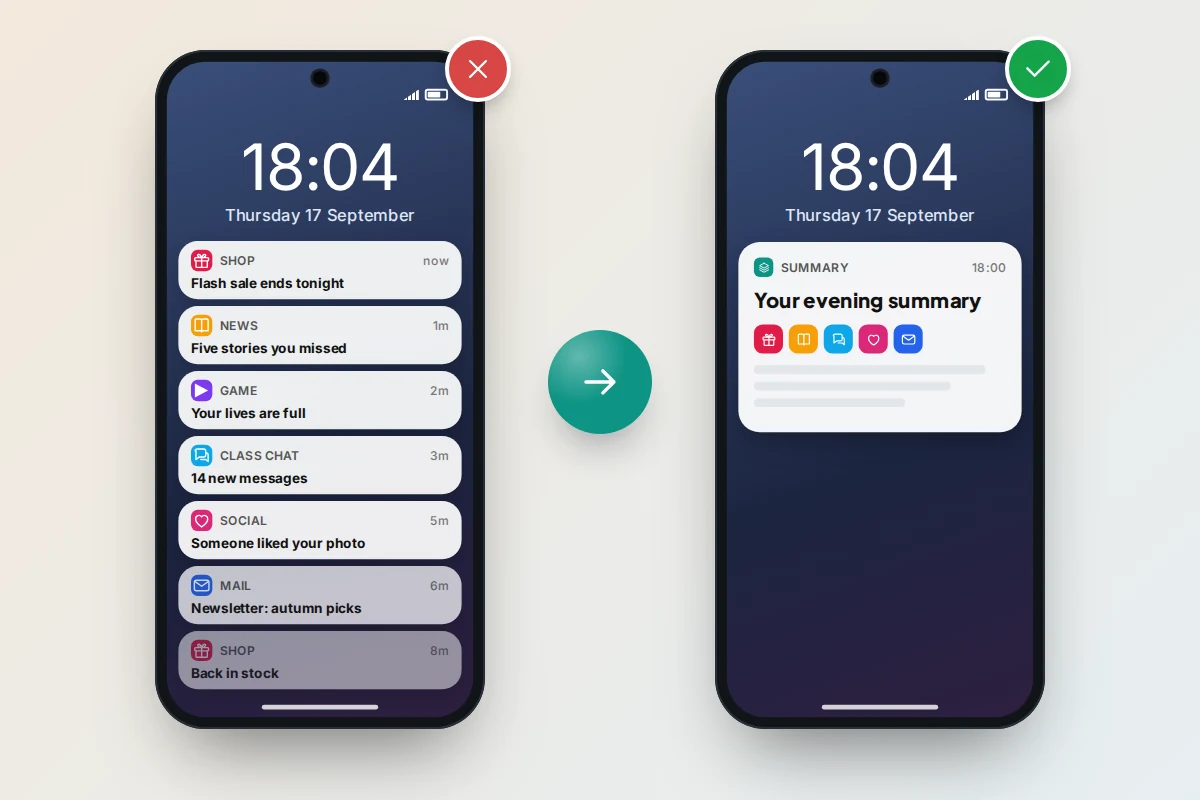
- Batch the rest with Scheduled Summary on iPhone or notification summaries on supported Android phones.
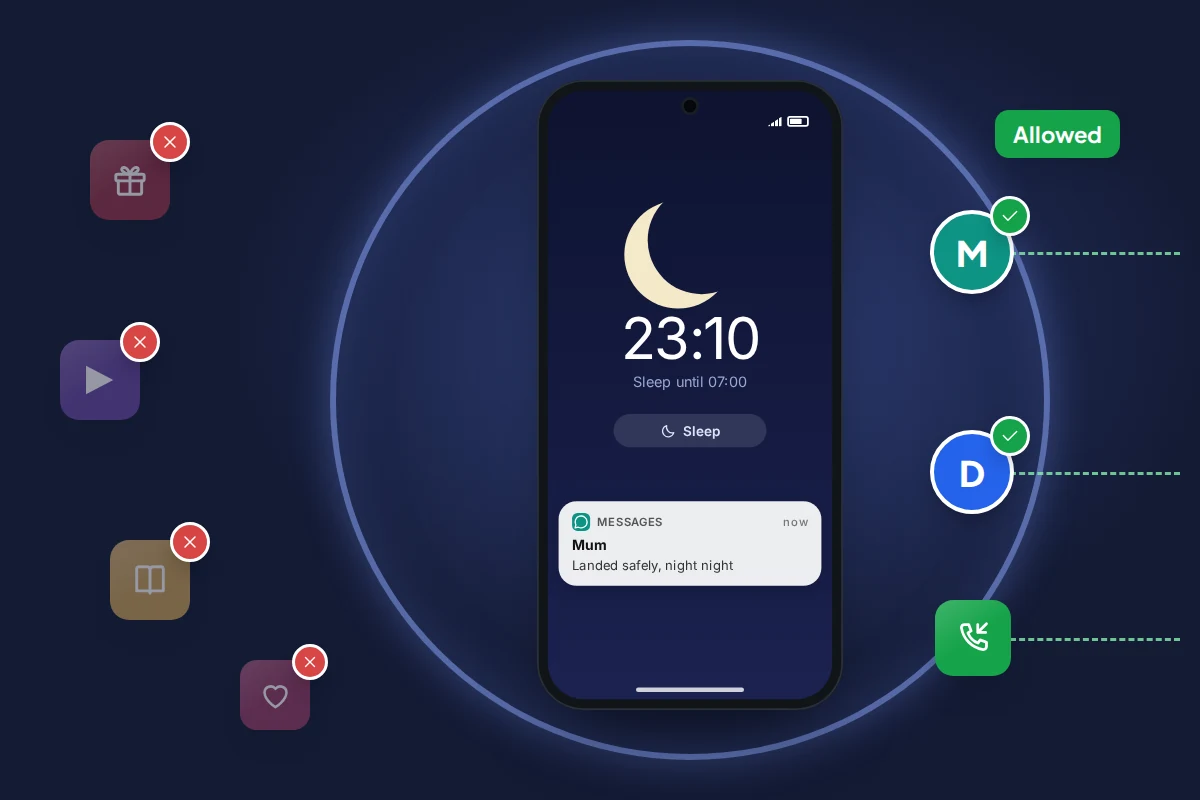
- Use Focus (iPhone) or Modes (Android) so family calls and repeated calls still get through at night.
- Leave emergency alerts switched on; they are rare and designed for situations where minutes matter.
The 10-minute notification audit
Set a timer for ten minutes and work through these steps. Menu names vary by phone maker and software version, so treat the paths as a guide.
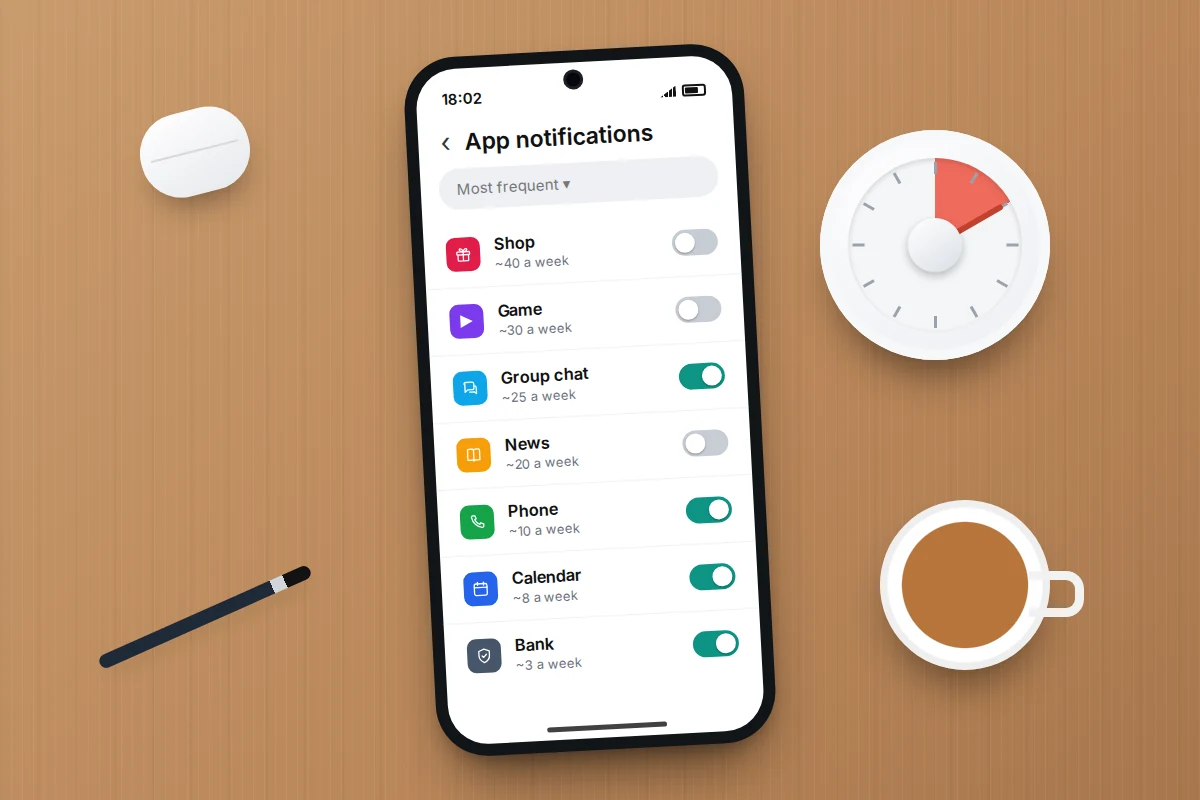
- Minutes 0–2: see who is loudest. On Android, open Settings → Notifications → App notifications and sort by Most recent or Most frequent where offered. On iPhone, open Settings → Notifications and scroll the app list, noting which apps you recognise from today’s pile.
- Minutes 2–5: sort the top ten. For each, ask one question: would I be worse off if I found out about this an hour later? If not, it does not need to buzz.
- Minutes 5–7: switch off the obvious. Games, shopping apps, streaming services and anything you installed once for a single purchase.
- Minutes 7–9: move the in-between apps to a summary, or on Android turn off only their promotional categories.
- Minutes 9–10: check the exceptions. Make sure calls, messages from family, two-factor codes, your bank and your calendar still come through.
Repeat it after a week to catch apps an update switched back on, and any you silenced but actually missed.
Keep, summarise or silence
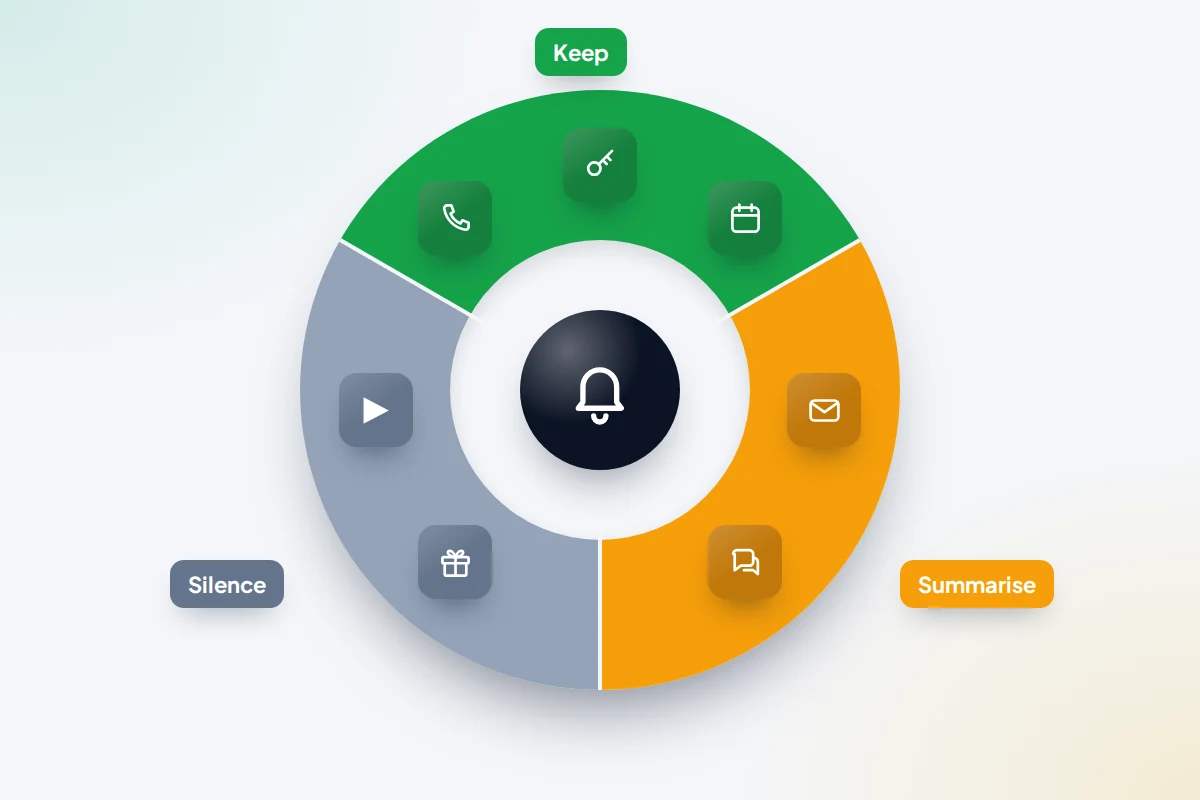
Every notification falls into one of three groups. Keep the ones where a delay costs you something. Summarise the ones you want to see today but not right now. Silence the rest; the app still works, and the information is there when you open it.
| App type | Suggested setting | Why |
|---|---|---|
| Phone calls and messages from people | Keep | Other people are the main reason to be interrupted |
| Two-factor codes and bank security alerts | Keep | Codes expire quickly and fraud alerts need a fast reply |
| Calendar reminders, school and travel updates | Keep | They are tied to a time |
| Delivery and taxi apps | Keep order updates, silence offers | “Driver arriving” matters; “20% off” does not |
| Summarise, or important senders only | Few emails need an answer within the minute | |
| Busy group chats | Summarise or mute | You can catch up in one go |
| News | Summarise, or one breaking-news channel only | Most headlines can wait an hour |
| Social media likes, follows and suggestions | Silence | Designed to pull you back in, rarely time-sensitive |
| Shopping, games and streaming | Silence | Mostly promotions and reminders to return |
| Emergency and government alerts | Keep | Rare, and meant for real danger |
Turn notifications off app by app
The fastest route is from the notification itself, rather than swiping it away.
- Android: touch and hold the notification, then tap the settings icon or Turn off notifications. Or go to Settings → Notifications → App notifications, tap the app and switch off All notifications.
- iPhone: swipe left on the notification, tap Options, then Turn Off. Or go to Settings → Notifications, tap the app and switch off Allow Notifications.
On iPhone, the same screen lets you keep an app’s notifications but stop them lighting up the screen: untick Lock Screen and Banners and leave Notification Centre ticked, so they collect quietly for when you look.
Android’s hidden advantage: notification categories
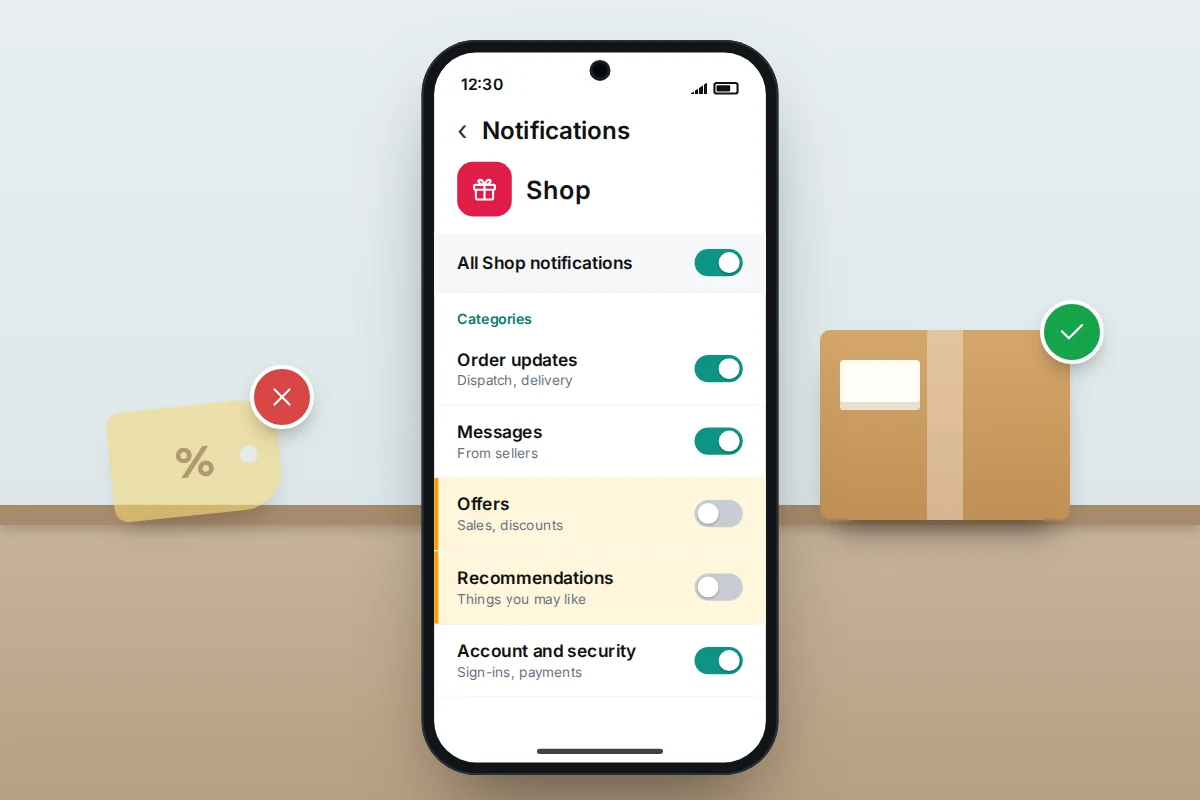
Android lets apps split their notifications into categories (developers call them channels), and you can switch them off one at a time. Tap an app in App notifications and you will often see a list such as “Order updates”, “Messages”, “Recommendations” and “Offers”. Turn off only the promotional ones.
Some apps put everything in one category, so it is all or nothing. iPhone has no equivalent; use the app’s own settings instead. On Samsung Galaxy phones, the category list has been hidden by default since One UI 6.1: search Settings for notification categories and switch on Manage notification categories for each app.
Let the phone batch the rest
Summaries suit the middle of the table: things you want to see today, just not one at a time.
iPhone: Scheduled Summary
- Go to Settings → Notifications → Scheduled Summary and switch it on.
- Choose one or more delivery times, for example 08:00 and 18:00.
- Pick the apps to include. Leave out messaging, your bank and anything with a time attached.
On iPhones that support Apple Intelligence, Settings → Notifications → Summarise Notifications also condenses long threads and stacks into a line or two, and can be switched off for individual apps. Treat these as a guide rather than the message itself. Apple paused summaries for news and entertainment apps in January 2025 after some misrepresented headlines; iOS 26 brought them back with a warning that a summary may change the meaning of the original.
Android: notification summaries and organiser
On Pixel 9 and later (excluding A-series models), Settings → Notifications → Notification summaries condenses long chat notifications, currently in English and Japanese. The Notification organizer on the same screen quietly groups promotions and news, and optionally social and suggested content, so they stop buzzing; it is English-only and available in a few countries, including the UK and US. On Galaxy phones with One UI 8.5, look for notification summaries under Settings → Galaxy AI. Other Android phones may have neither, in which case silencing categories does the same job.
Focus and Modes: quiet by default, with the right people let through
Do Not Disturb that blocks everything tends to get switched off after the first missed call. The better approach is a quiet mode with a short guest list.
iPhone: Focus
- Go to Settings → Focus and choose Do Not Disturb, Sleep or Personal, or add your own.
- Tap People, choose Allow Notifications From and add family members, a carer or your child’s school.
- Under Calls From, pick Favourites or Allowed People Only, and switch on Allow Repeated Calls, which lets a second call from the same person within three minutes ring through.
- Tap Apps and add only what must break through. Leave Time Sensitive Notifications on if you rely on alerts such as a doorbell or delivery at the door.
- Set a schedule, for example Sleep from 22:30 to 07:00.
Apple Intelligence iPhones also offer a Reduce Interruptions Focus, which lets through only notifications it judges urgent. For sleep, a fixed guest list is more predictable.
Android: Modes, Do Not Disturb and Bedtime
- On Pixel phones and others with a recent Android version, go to Settings → Modes and choose Do Not Disturb or Bedtime, or tap Create your own mode.
- Under Notification filters → People, allow calls and messages from starred contacts, and switch on Allow repeat callers, which lets a call through if the same person rings twice within 15 minutes.
- Under Apps, add only the few apps that must reach you.
- For Bedtime, set a start and end time or Turn on while charging.
On Samsung Galaxy phones, Do Not Disturb lives under Settings → Notifications, and scheduled Sleep or Work modes under Settings → Modes and Routines.
Priority conversations
On Android, touch and hold a notification from a chat and choose Priority. That conversation then appears at the top of your notifications and can break through Do Not Disturb, depending on your settings. On iPhone, the equivalent is adding that person under a Focus’s People list.
Lock screen privacy, badges and sounds
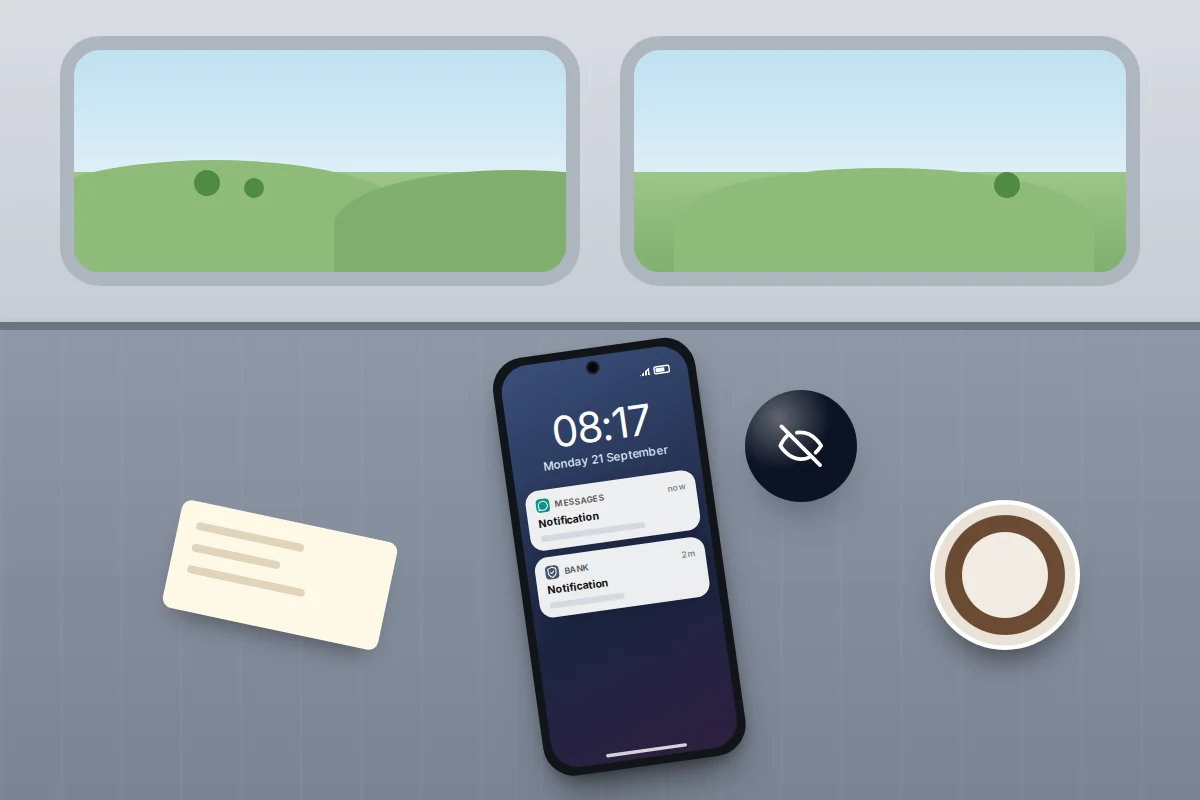
Notifications on the lock screen can be read by anyone sitting next to you, including the one-time code your bank just sent.
- iPhone: go to Settings → Notifications → Show Previews and choose When Unlocked. Face ID phones reveal the text as soon as they recognise you, so you lose very little.
- Android: go to Settings → Notifications and, under the lock screen options, turn off Sensitive notifications or choose to hide notification content. Wording varies by maker.
Badges, the red numbers on app icons, are a quieter form of nagging. Turn them off for email and social apps: on iPhone in each app’s page under Settings → Notifications, on Android with Notification dot on app icon in Settings → Notifications.
Recent Pixel phones also have Notification cooldown in Settings → Notifications, which lowers the volume when one app sends several notifications in quick succession. It takes the edge off a lively group chat without muting it.
Inside the apps: email, social media and group chats
Phone settings decide whether an app can notify you. The app’s own settings decide what it sends, and many offer finer control than the phone.
- Email: the Gmail app lets you set an account’s notifications to High priority only. The iPhone Mail app can alert you only for senders you mark as VIP.
- Social apps: look for Notifications in the app’s settings, usually reached from your profile. Turn off likes, suggested accounts, “memories” and live videos, and keep direct messages if you use them.
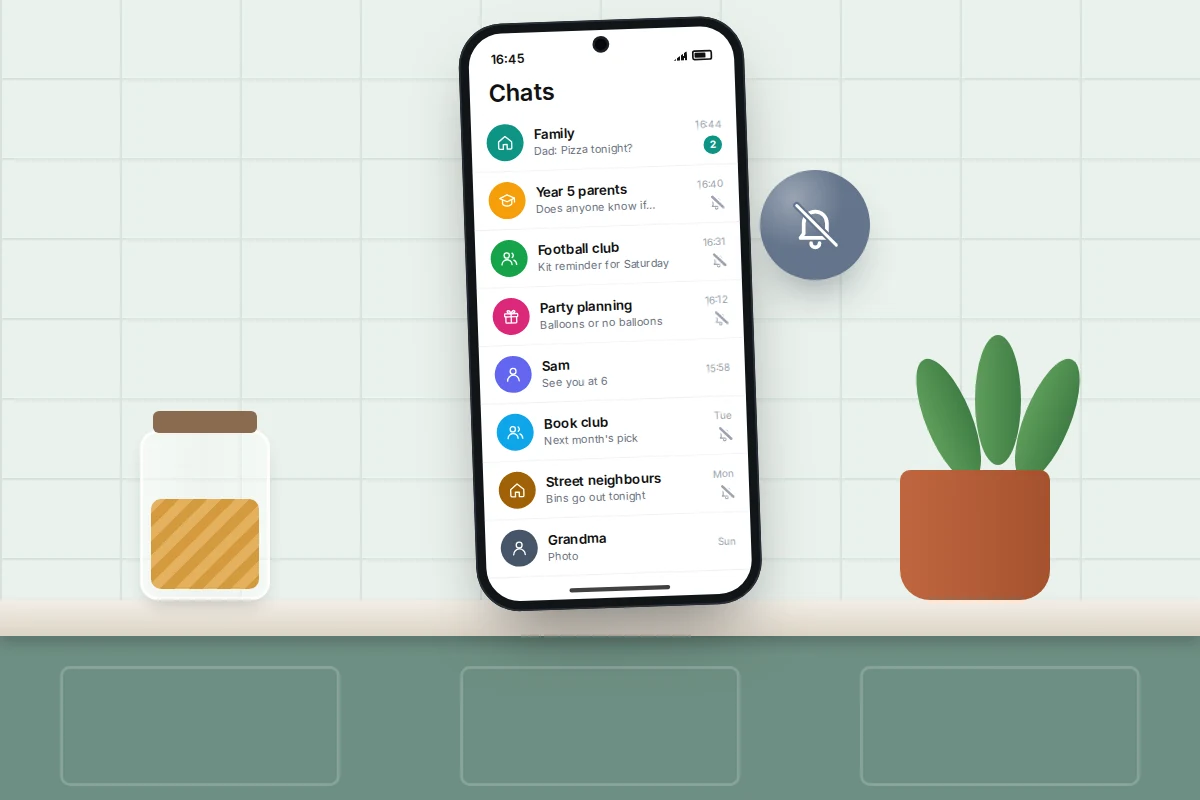
- Group chats: in WhatsApp, open the chat, tap its name and mute it for 8 hours, 1 week or Always. In Messages on iPhone, swipe left on the conversation and tap the bell. You can still open the chat whenever you like.
If it is your child’s phone that never stops buzzing, our guide to children’s group chats covers that side.
Emergency alerts: leave these on
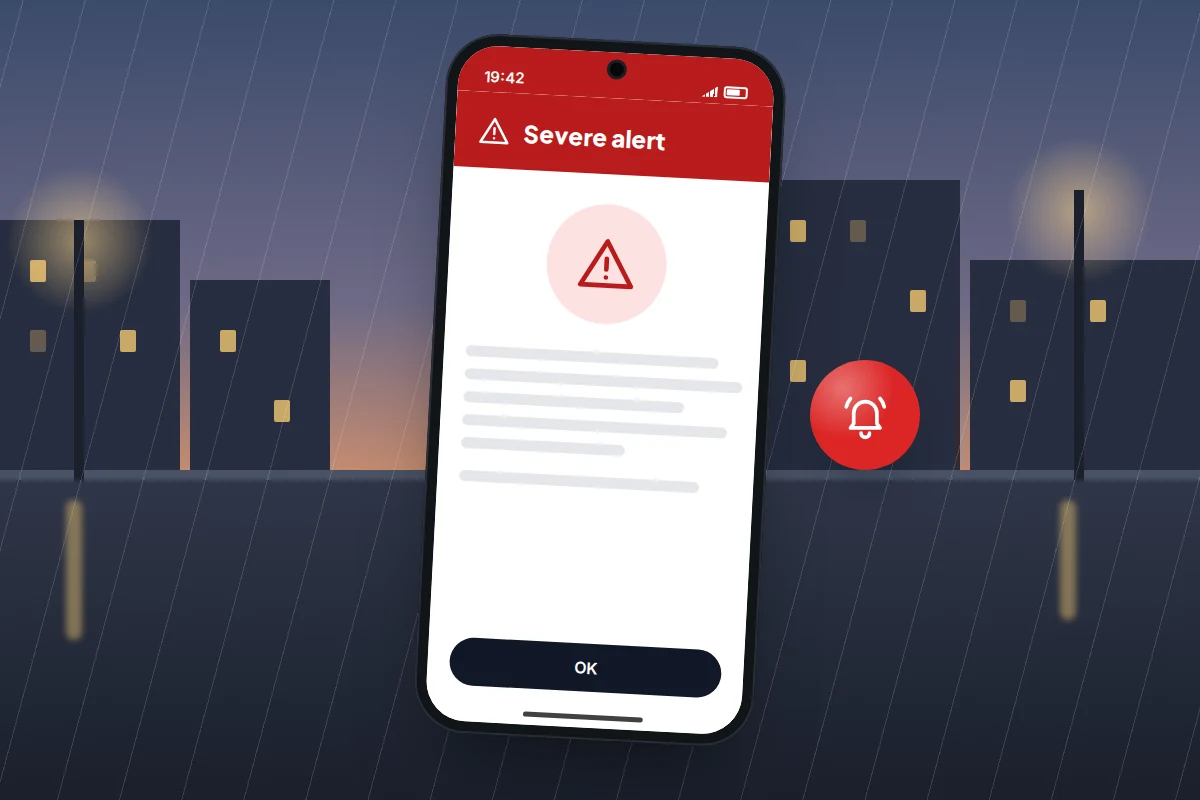
Government emergency alerts are not app notifications and should not be treated like them. In the UK, Emergency Alerts are sent to phones in an area where there is a danger to life, such as severe flooding or fire. GOV.UK says your phone may make a loud siren-like sound for about 10 seconds, even if it is set to silent, and advises you to stop and follow the instructions, pulling over first if you are driving.
You can opt out of severe and extreme alerts on iPhone (Settings → Notifications, at the bottom of the page) and on Android (search Settings for emergency alerts). The government’s advice is to keep them switched on for your own safety. Other countries run similar systems with their own settings.
Teenagers and notification overload
If your own phone feels busy, a teenager’s is usually busier. In a 2023 Common Sense Media study that tracked the Android phones of about 200 11- to 17-year-olds in the US, over half received 237 or more notifications a day, and about a quarter of all the notifications arrived during school hours.
The audit above works well as something you do together rather than something you do to their phone. Sit down, look at which apps send the most, and let them decide what to silence. Then agree the basics: a Sleep Focus or Bedtime mode with family allowed through, and group chats muted overnight.
Where the phone charges overnight matters as much as any setting. Our guide to screen-free zones at home covers charging phones outside bedrooms and how to agree it without a row.
If notifications still get through
- An app you silenced is back. Updates sometimes add new notification categories, which start switched on. Check the app’s categories again.
- Calls ring during Do Not Disturb. Check the repeated calls setting and your allowed list; anyone on that list rings through by design.
- Important messages went missing. Look in the Focus or Mode’s allowed apps and people, and on Android check you did not silence the “Messages” category along with promotions.
- Nothing arrives at all. Check that a Focus or Mode is not scheduled at the wrong time, and that battery saver is not restricting a background app.
Frequently asked questions
Will I miss something important if I switch off most notifications?
Not if your keep list covers people, security codes and anything with a time attached. Everything else is still in the app when you open it.
Does turning off notifications stop an app working?
No. The app works as normal; it just stops telling you. Messages, orders and emails are waiting when you open it.
Are AI notification summaries accurate?
Usually close, but not always. Apple shows summaries in italics so you can tell them from the original, and paused its news summaries in 2025 after errors. Open the original before acting on anything important.
What is the difference between Do Not Disturb and a Focus or Mode?
Do Not Disturb is one quiet setting. Focus on iPhone and Modes on Android let you create several, each with its own allowed people, apps and schedule, such as Sleep, Work or Driving.
Should I turn off emergency alerts because of the loud sound?
GOV.UK advises keeping them on: they are used rarely and only where there is a risk to life. The one exception it gives is someone with a concealed phone, such as a person living with domestic abuse, who may choose to turn them off.
Sources and further reading
- Apple Support: Use notifications on your iPhone or iPad
- Apple iPhone User Guide: Allow or silence notifications for a Focus
- Android Help: Control notifications on Android
- Android Help: Limit interruptions with Modes and Do Not Disturb
- Pixel Phone Help: Use AI to manage your notifications
- GOV.UK: Opting out of emergency alerts
- Common Sense Media: Teens are bombarded with hundreds of notifications a day
Looking for a tool to go with this? TheTruthSpy is a free parental control app for Android that stays visible on the child's phone. If it fits your family, see what the app does.
Related guides
Phone Won’t Connect to Wi-Fi? How to Fix It
Work out whether your phone, the router or one network is at fault, then fix Wi-Fi that won't join or…
How to Transfer Your Contacts to a New Phone
Find where your contacts are really stored, move phone-only and SIM contacts to the cloud, and transfer them between iPhone…
How to Recover Deleted Photos on Your Phone
Where deleted photos go on iPhone, Google Photos and Samsung Gallery, how long each bin keeps them, and which other…
Parental controls your child can see
Location, screen time limits, a web filter and alerts from notifications — free, and visible on your child's phone. Pair a phone in about ten minutes.
Android · Free to set up · Visible on your child's phone