How to Create Screen-Free Zones at Home

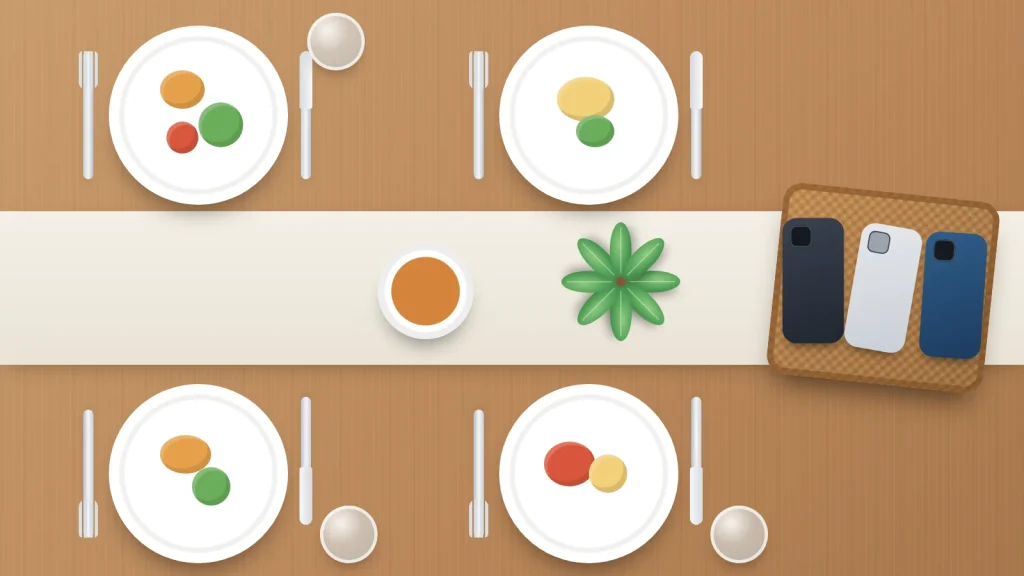
Counting minutes of screen time can turn every evening into a negotiation. A different approach is to decide where and when screens are not used at all: the bedroom overnight, the meal table, the short drive to school. Places and times are easier to remember than numbers, and they apply to everyone in the house, not just the children.
Zones tend to mean calmer mealtimes, better sleep and fewer arguments, with toddlers and teenagers alike. Which ones work best, and why? How do you bring them in without a fight? Which exceptions are sensible? And which settings already on Android phones and iPhones can back the rules up?
The short version
- Start with two zones: bedrooms overnight and the meal table. They are the ones most health bodies mention.
- Set up a charging spot outside bedrooms, and have adults charge their phones there too.
- Agree a few clear exceptions, such as music for sleep, navigation, or a video call with grandparents.
- Put something in the zone instead: a book, a board game, a proper alarm clock.
- Use Bedtime mode on Android or Sleep Focus and Screen Time on iPhone to make the rule the default.
Why zones work better than counting minutes
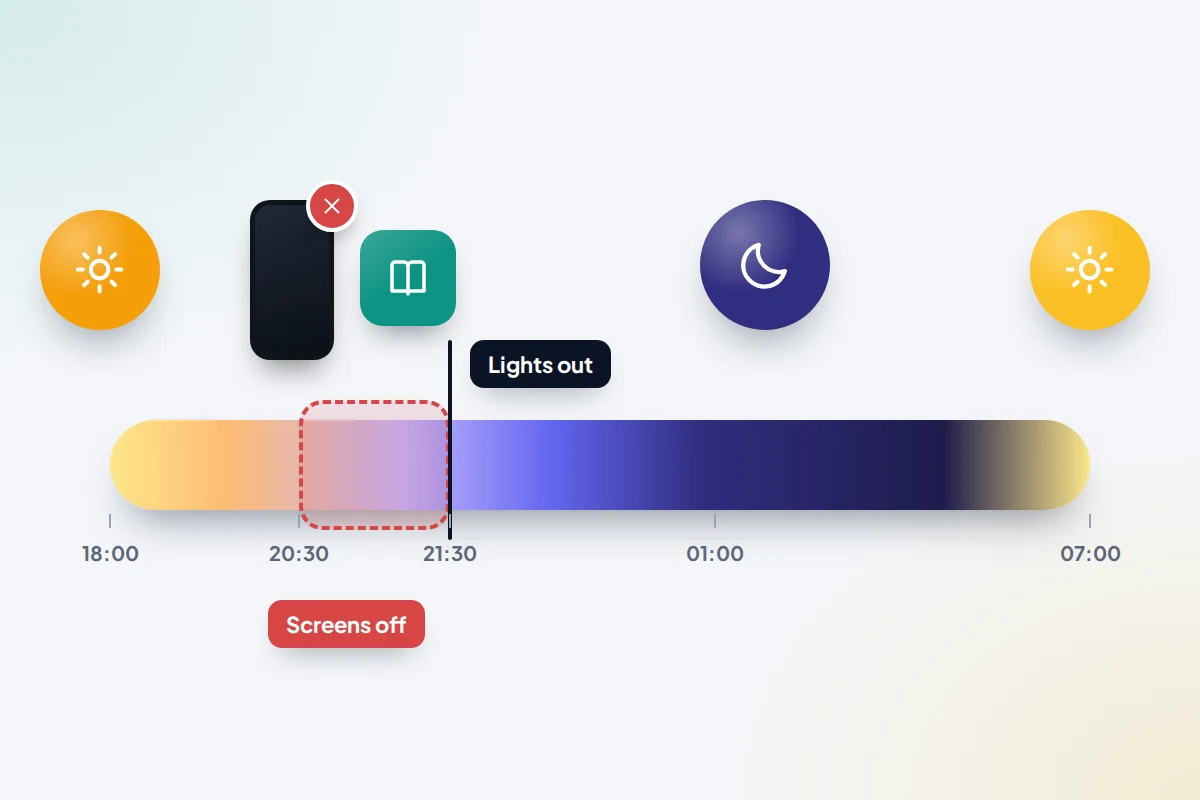
Health guidance has moved away from a single daily limit towards the question of what screens push out. The American Academy of Pediatrics (AAP), in its updated 2026 guidance for families, suggests creating screen-free zones and times such as bedrooms and mealtimes, and avoiding screens in the hour before bed, to make room for sleep, play, reading and time together.
In England, the Department for Education’s March 2026 advice for parents of under-fives recommends keeping screens out of mealtimes and the hour before bed. The Royal College of Paediatrics and Child Health (RCPCH) called no screens for an hour before planned sleep “a sensible rule of thumb” in its 2019 guidance.
It is worth being honest about the evidence. The RCPCH found little support for the idea that screen time is directly “toxic”, and stronger evidence that problems come when screens displace sleep, exercise and time with family. Screen-free zones target exactly that: they protect the moments that matter most without banning screens everywhere else.
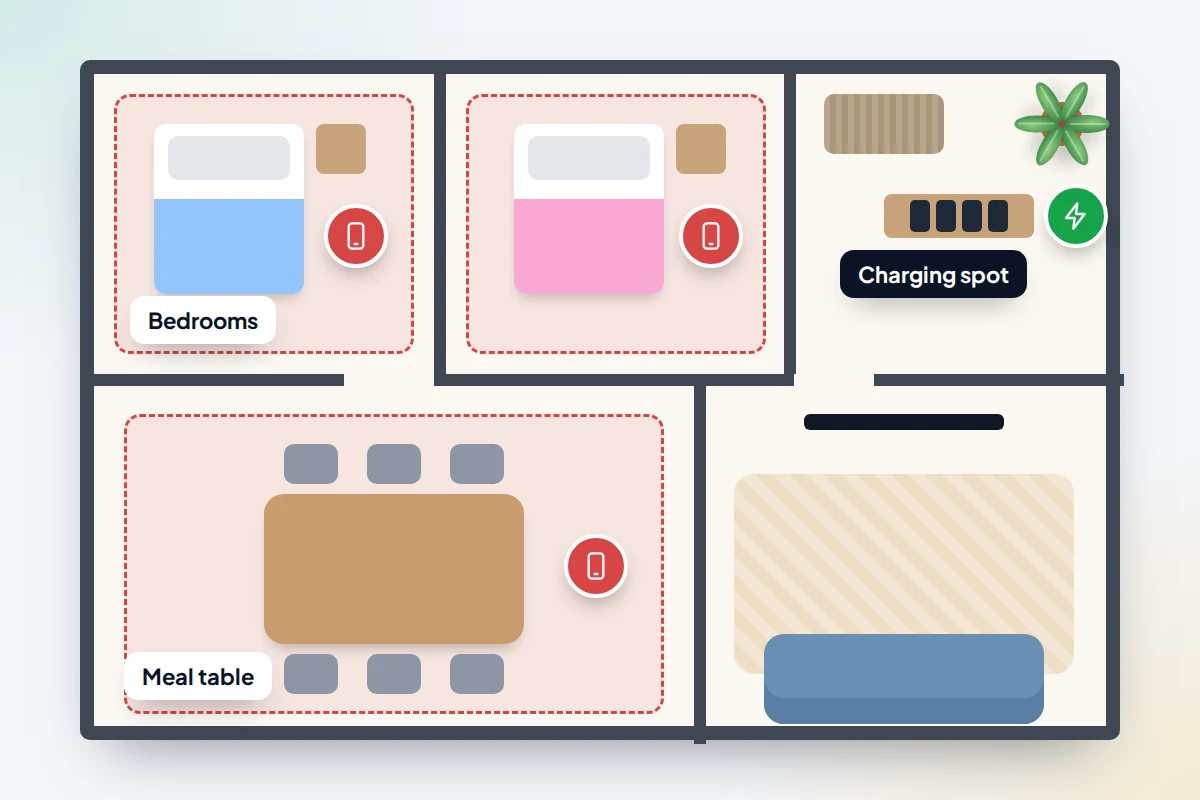
The places and times that work best
Bedrooms, overnight
This is the zone with the clearest payoff. A phone in the bedroom brings notifications, late-night messages and the temptation to check “just one thing”. Keeping devices out overnight also removes the need to police what happens behind a closed door. If full removal feels like too big a step for a teenager, start with “phones out by a set time” rather than “never in the bedroom”.
For more on why this matters, see our guide to screens and sleep.
The meal table
Meals are often the only time the whole family sits together. A screen-free table, including the television being off, makes conversation more likely and shows children that people come before notifications. Some families extend this to snacks eaten at the kitchen table, which also avoids mindless eating in front of a screen.
The car, for short trips
The school run or a drive to the shops is a natural time to talk, especially with teenagers, who often find it easier to chat side by side than face to face. Many families keep short journeys screen-free and allow films or games on long motorway trips. The driver’s phone stays in a holder for navigation only.
A charging spot outside bedrooms
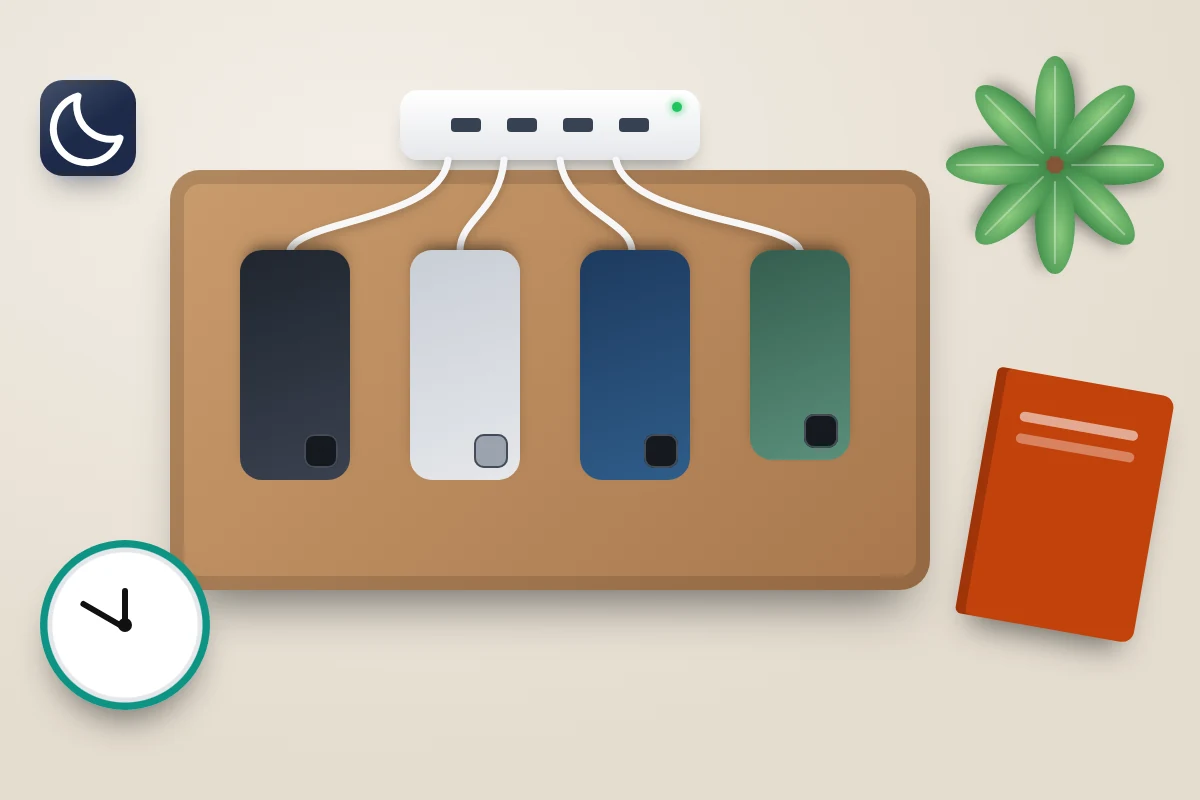
A single place where every phone and tablet charges overnight, such as a shelf in the hall or a basket in the kitchen, makes the bedroom rule easy to keep. Nobody has to hand a phone over; it just goes where it always goes. Put a multi-port charger there so there is no excuse about cables.
How to introduce screen-free zones without a fight
New rules imposed overnight tend to be resisted. The approach below gives everyone a say while keeping the final decision with the adults.
- Talk about the why first. Explain what you want more of (sleep, conversation, time together) rather than what you want less of.
- Start small. Pick one or two zones for the first fortnight. The meal table is usually the easiest win.
- Ask for input. Let children suggest exceptions and what goes in the zone instead. They are more likely to keep rules they helped make.
- Write it down. The AAP’s free Family Media Plan tool, or a note on the fridge, makes the agreement visible and ends “you never said that” arguments. Our guide to creating a family media plan walks through it.
- Review after two weeks. Keep what worked, adjust what did not, and add a zone only when the first ones feel normal.
Adults go first
Children copy what they see. The AAP’s guidance says it plainly: “Kids notice what we do”. If a parent scrolls at dinner, a phone-free table will not last a week.
Put your own phone in the charging spot at the same time as everyone else’s. If you are on call for work, say so and keep it face down and silent except for calls. Children usually accept an exception they can see is real, and notice one that is not.
Sensible exceptions
Rules with no exceptions tend to be broken quietly. Agree a few openly instead, and keep them specific.
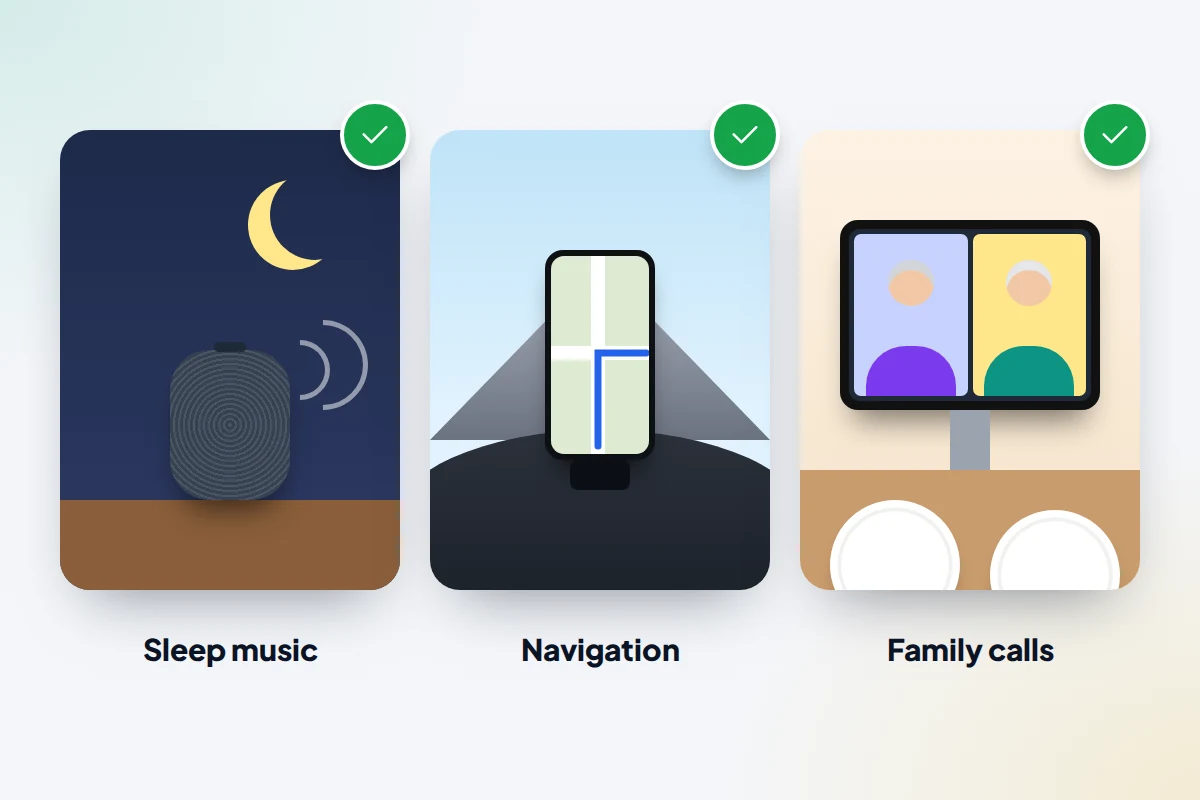
- Music or audiobooks for sleep on a speaker or old device with no apps, rather than a phone in bed.
- Navigation in the car, used by the driver or a navigator, not for scrolling.
- Calls from grandparents or family abroad at mealtimes, taken as a whole family on speaker or video.
- Homework on a laptop at a shared desk, not in a bedroom late at night.
- Emergencies and genuine on-call work, which should be rare and obvious.
What to put in the zone instead
An empty space tends to get filled by the nearest screen. Give each zone something else to do.
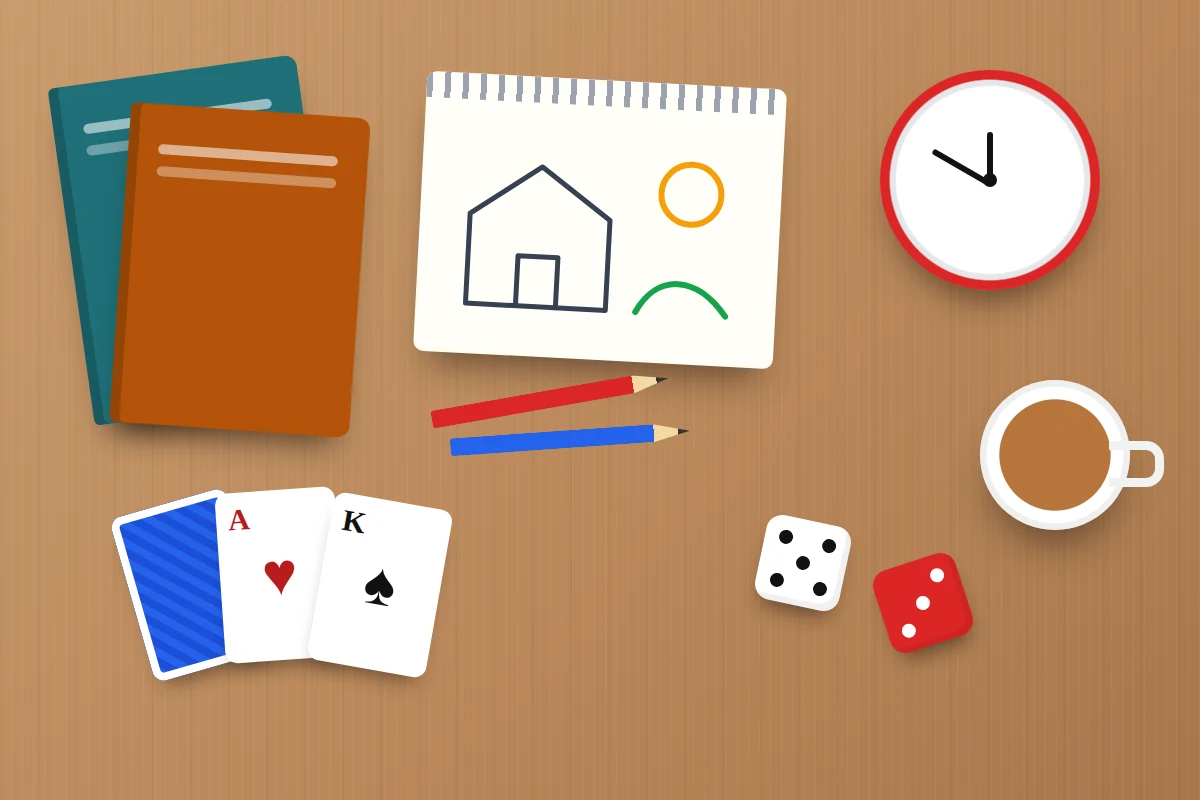
- Bedroom: a proper alarm clock, a reading light and a stack of books or comics.
- Meal table: conversation starters, a card game kept nearby, or a “best and worst part of the day” round.
- Car: music everyone takes turns choosing, audiobooks, or simple games like spotting number plates.
- Charging spot: nothing more than a charger that works, so the habit sticks.
Use your phone’s built-in features
Settings will not replace an agreement, but they make the agreed rule the default and remove the need for nightly reminders. Menu names vary by phone maker and software version, so treat the paths below as a guide.
Android: Bedtime mode and Focus mode
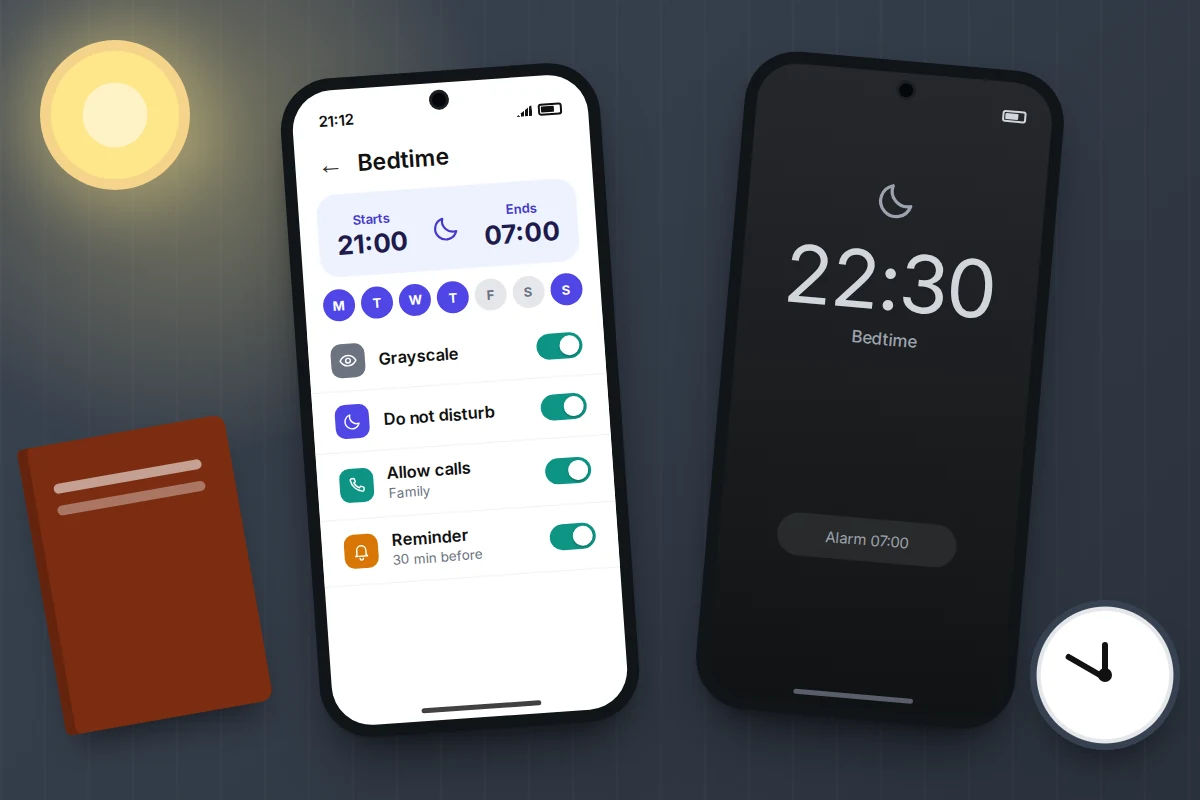
- Open Settings → Digital Wellbeing & parental controls → Bedtime mode. On some newer Pixel phones you may find Bedtime under Settings → Modes.
- Set a schedule, for example 21:00 to 07:00 on school nights.
- Turn on the screen options such as grayscale and Do Not Disturb, so the phone is quiet and less appealing.
- For daytime zones such as homework or meals, use Digital Wellbeing → Focus mode to pause chosen apps on a schedule.
On Samsung Galaxy phones, the equivalent is Settings → Modes and Routines → Sleep, where you can add grayscale and Do Not Disturb.
iPhone: Sleep Focus and Screen Time
- Open Settings → Focus → Sleep and set a schedule. Choose which people and apps can still reach you, such as family members.
- Open Settings → Screen Time and set a schedule for Downtime, when only apps you choose, and phone calls, are available.
- Add music or audiobook apps to the always-allowed list if they are one of your agreed exceptions.
Apple redesigned Screen Time in iOS 27, released in September 2026. For a child’s account, schedules are now set as Screen Time Schedules, with Time Allowances for app categories and an option to pause a device, for example at dinner. Labels may differ slightly while the update rolls out.
For a child’s own phone
On Android, Google Family Link lets a parent set a downtime schedule: open Family Link, select your child, then Screen time → Schedules and turn on Downtime. Your child can still answer calls and dial emergency numbers; to keep texting available, set the messaging app to Unlimited in the app limits. On iPhone, use Screen Time for your child through Family Sharing. Our own screen time schedules page explains another way to set bedtime and school-time rules on a child’s Android phone.
Adapting by age
The same zones work across ages, but how you run them changes.
- Under 5: adults control the devices, so zones are simple. Keep screens out of meals and the hour before bed, as the Department for Education suggests.
- 5 to 11: explain the reasons, let children help choose what goes in each zone, and use device schedules as a backstop.
- Teenagers: negotiate more, and swap rules for agreements. A later cut-off time, in return for phones charging outside the bedroom, is a fair trade.
A simple zone plan
Use this table as a starting point for your own family’s plan.
| Zone | Rule | Sensible exception | What helps |
|---|---|---|---|
| Bedrooms | No phones or tablets overnight, and none in the hour before bed | Sleep music on a speaker | Alarm clock, books, Bedtime mode or Sleep Focus |
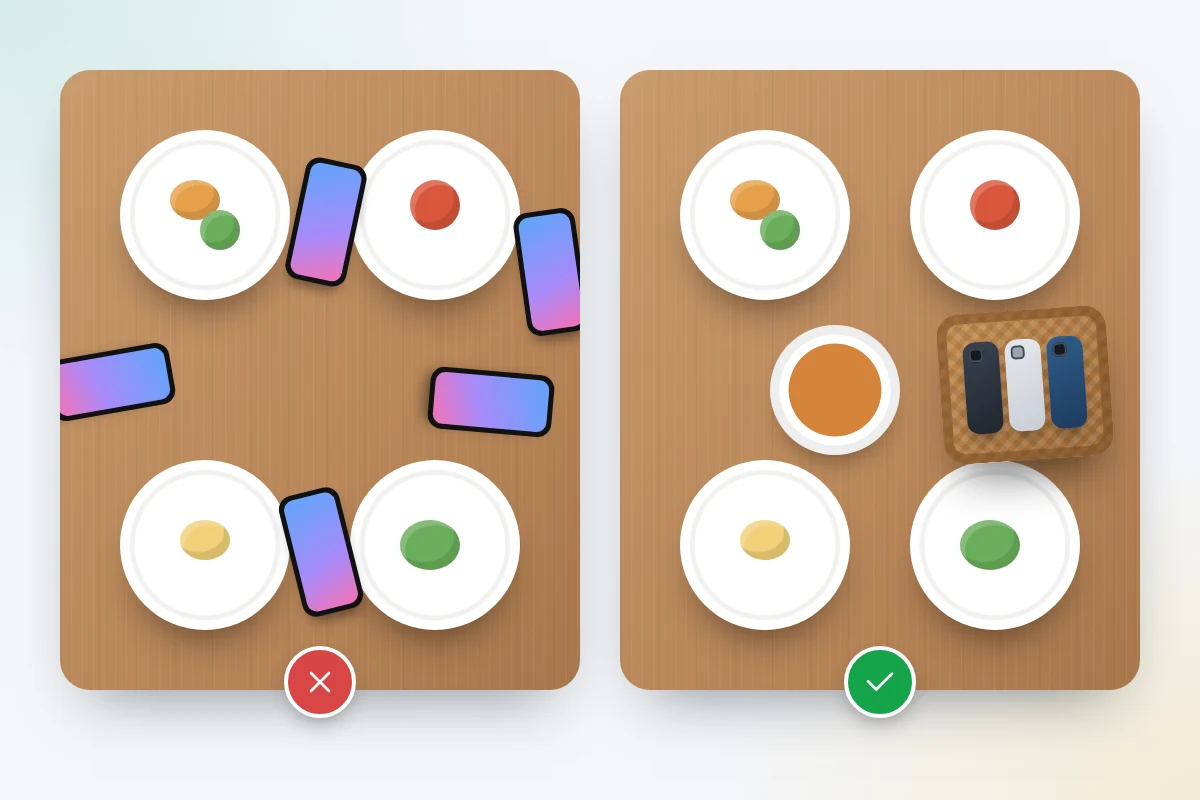
| Meal table | No phones on the table, television off | Family video call with grandparents | Phone basket, conversation starters |
| Car (short trips) | No screens for passengers | Navigation for the driver | Shared music, audiobooks |
| Charging spot | Every device charges here overnight, adults included | On-call work phone, kept silent | Multi-port charger in a shared space |
| Homework time | Only the device needed for the task | Messaging a classmate about the work | Focus mode, shared desk |
What if this doesn’t work
- Phones keep sneaking back into bedrooms. Check the charging spot is convenient and has working cables. Then talk about why the rule is slipping rather than adding punishments.
- A teenager says they need their phone as an alarm. Buy a cheap alarm clock. It removes the most common reason for a phone by the bed.
- Adults keep breaking the rule. Name it at the next review. Children will notice long before you do.
- Bedtime mode keeps being switched off. On a child’s device, use Family Link or Screen Time through Family Sharing so the schedule can only be changed by a parent.
- Meals feel awkward without screens. That usually passes within a couple of weeks. Keep a card game or question cards nearby.
Frequently asked questions
Which screen-free zone should we start with?
The meal table is usually the easiest, because everyone is together and the rule is easy to see. Bedrooms overnight make the biggest difference to sleep but often need more negotiation.
Does the television count?
Yes. A television on in the background during meals pulls attention in the same way as a phone. Treat all screens the same within a zone.
What about using a phone as an alarm clock?
It is the most common reason phones end up in bedrooms. An inexpensive alarm clock solves it and removes the temptation to check messages first thing.
Is it fine to have exceptions for teenagers?
Yes, as long as they are agreed openly and are specific, such as a later cut-off on Fridays. Exceptions that are negotiated tend to be kept.
How long before screen-free zones feel normal?
There is no fixed timeline. Most families find the first week the hardest, and reviewing the plan after a fortnight helps it stick.
Sources and further reading
- American Academy of Pediatrics: Family Media Plan tool
- HealthyChildren.org (AAP): helping kids thrive in a digital world
- Department for Education: new advice for parents on screen time for young children
- Childnet: what the experts say about screen time, including RCPCH guidance
- Android Help: manage how you spend time with Digital Wellbeing
- Google For Families Help: set a schedule on your child’s device
- Apple Support: set Screen Time schedules on iPhone
Looking for a tool to go with this? TheTruthSpy is a free parental control app for Android that stays visible on the child's phone. If it fits your family, see the Screen time & limits feature.
Related guides
How to Set Up Google Family Link on Your Child’s Android Phone
Set up Google Family Link on your child's Android phone: under-13 and teen accounts, time limits, School time, app approvals,…
How to Set Up Screen Time on Your Child’s iPhone
Set up Screen Time for your child from your own iPhone: iOS 27 schedules and allowances, contacts, web filters, what…
How to Share Your Location With Family on iPhone and Android
Share your location with family on iPhone and Android: Find My, Google Maps, WhatsApp and more, what works across both,…
Parental controls your child can see
Location, screen time limits, a web filter and alerts from notifications — free, and visible on your child's phone. Pair a phone in about ten minutes.
Android · Free to set up · Visible on your child's phone