Signs Your Phone Is Being Monitored, and the Checks That Confirm It

Is my phone being monitored? The most reliable sign is not a hot battery or a clicking noise. It is someone knowing things they should not: where you were, what you wrote, who you called. To confirm it, check the four places monitoring has to show up. Those are your account’s device list, your sharing settings, device management, and the apps with deep access. Most people can do all four in under an hour.
Safety first. If the person you suspect could react badly to finding out you are checking, read everything below before you change anything. Looking at settings is safe. Removing, switching off or resetting things can be noticed.
Is my phone being monitored? Start with what someone knows
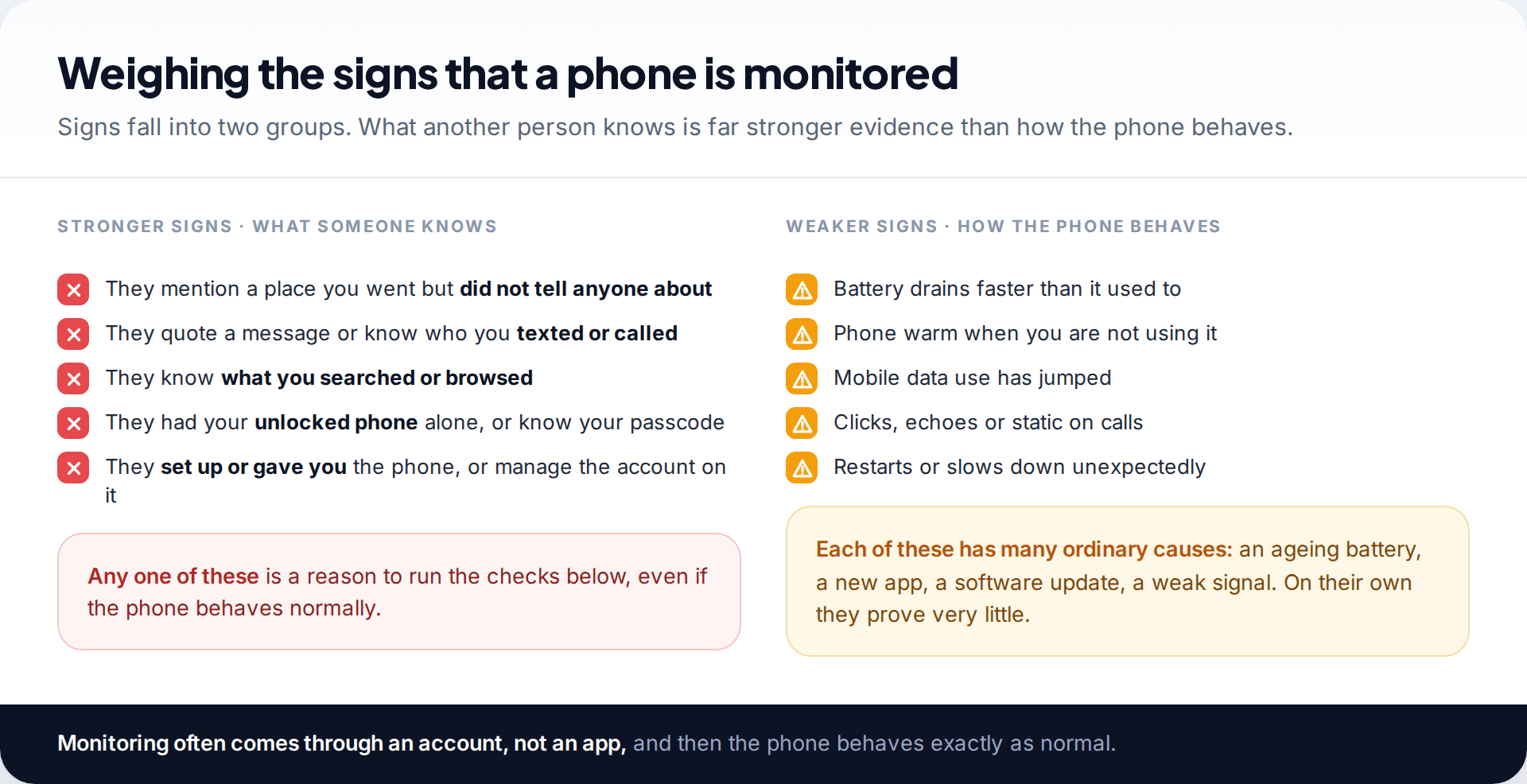
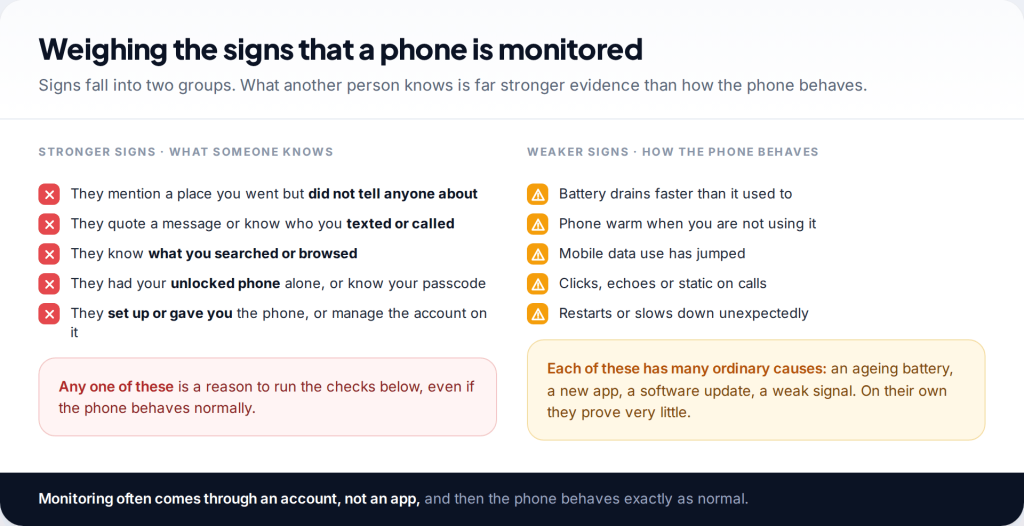
Most lists of warning signs lead with battery drain, overheating, strange noises on calls and unexpected restarts. The US Federal Trade Commission lists some of these too. But each one has a dozen ordinary explanations, and the most common kind of monitoring causes none of them. When someone reads your messages through a synced account, your phone does nothing different at all.
The stronger evidence is informational. Someone brings up a café you visited alone. They know about a conversation you only had by text. They know what you searched for, or turn up where you are without being told. Add opportunity to that: did they ever have your unlocked phone for more than a few minutes, do they know your passcode, did they set the phone up for you or pay for the account?
If you recognise one or more of those, the checks below are worth doing even if your phone seems perfectly normal. If you only have the behaviour signs, the checks are still quick, and they will either put your mind at rest or show you something specific.
Before you check: look first, change later
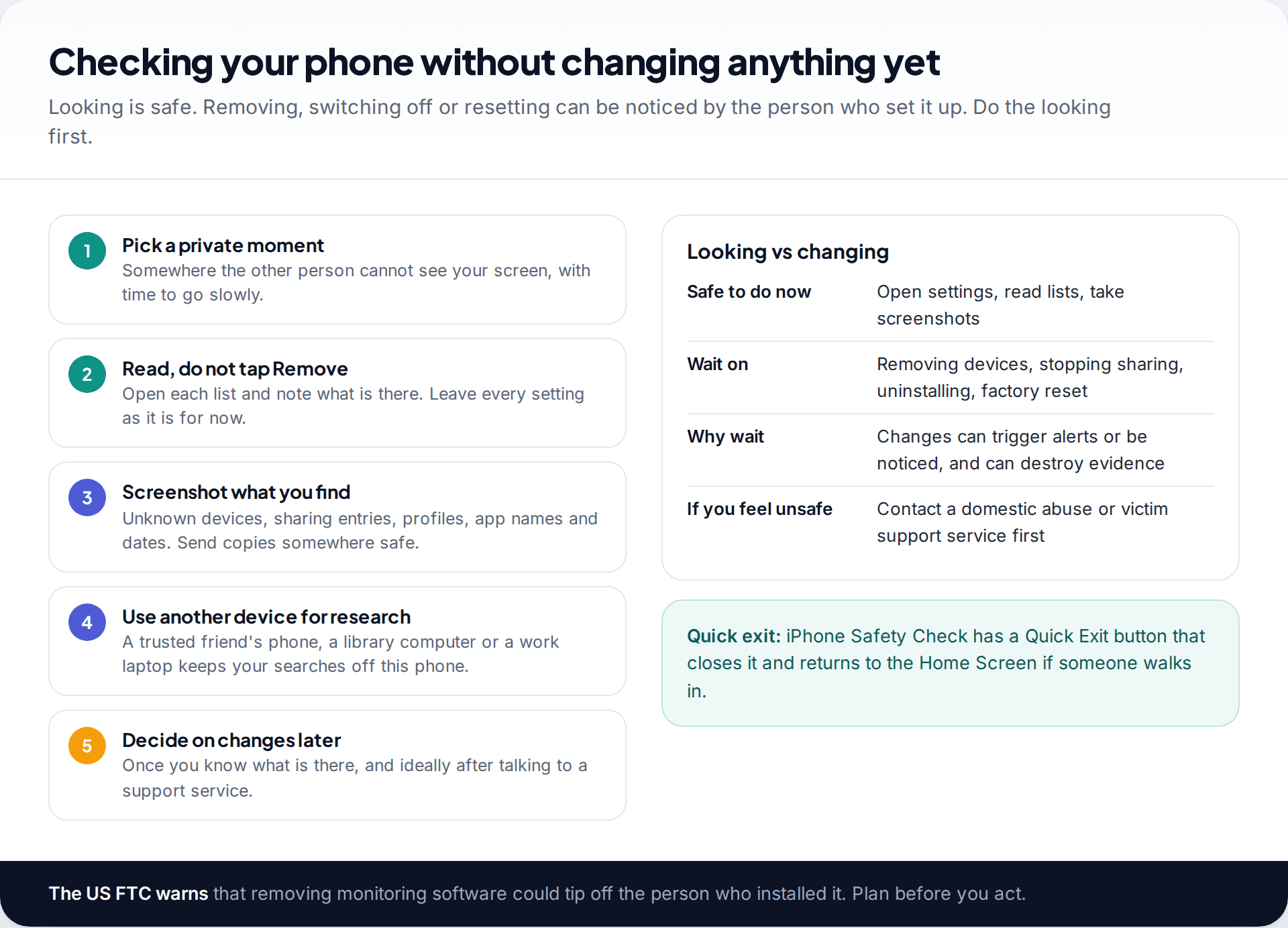
Every check on this page starts by reading a list. You do not need to remove anything to learn whether monitoring is there, and there are good reasons not to rush. Removing a device from your account, stopping location sharing or uninstalling an app can be noticed by the person who set it up. The FTC warns that removing monitoring software could tip off the person who installed it. If that person is a partner or family member who is controlling or violent, the moment they lose access can be a dangerous one.
So work in two passes. In the first, you look and take screenshots. Send those screenshots somewhere the other person cannot reach, or photograph the screen with another device. If you need to search for help, use a phone or computer the other person has never had access to. In the second pass, later, you close access, ideally after talking to a domestic abuse or victim support service, who can help you plan the timing.
The four places monitoring has to show up
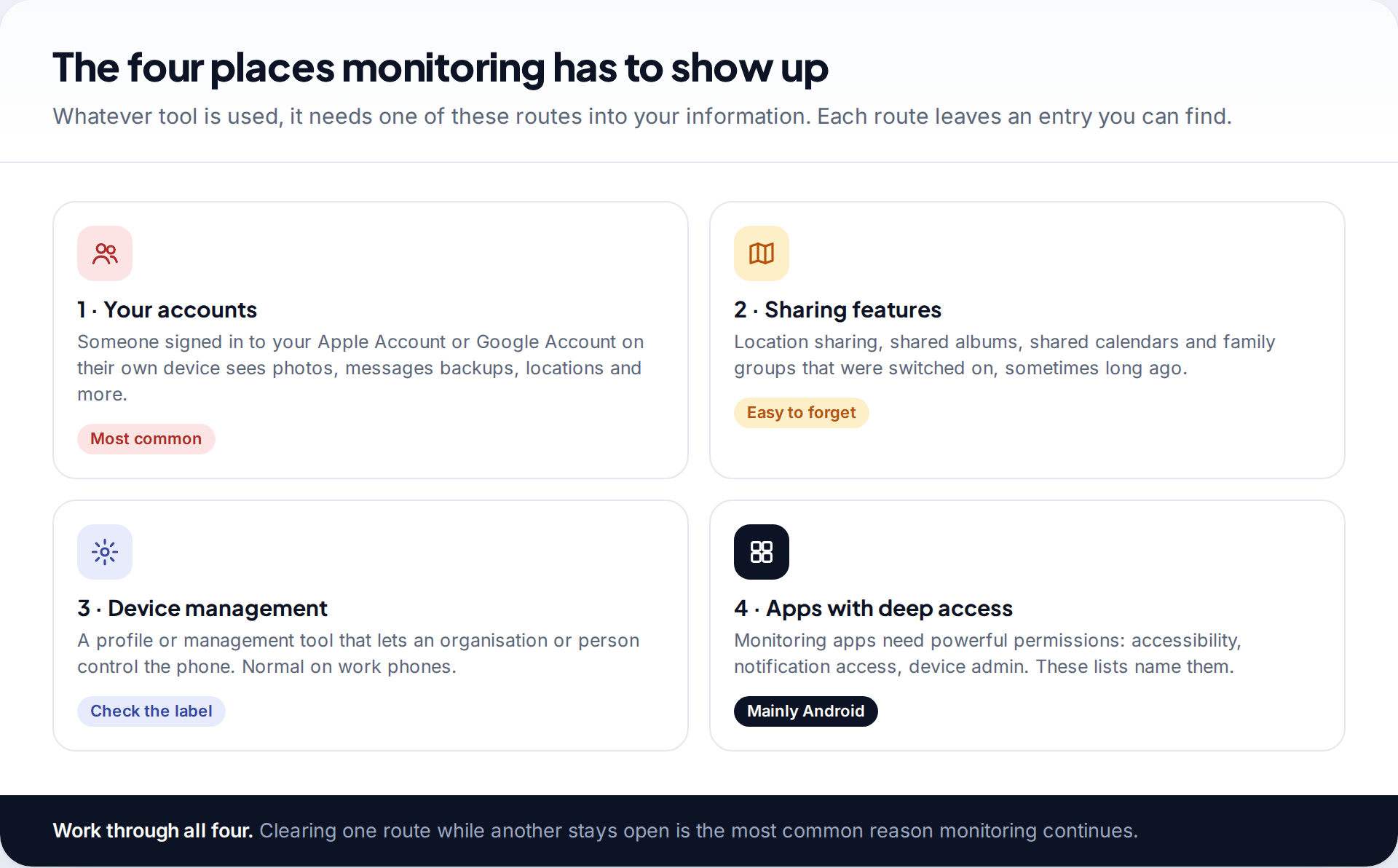
Monitoring tools differ, but they all need a way into your information, and there are only a few. Someone can sign in to your account on their own device. They can be on the receiving end of a sharing feature you or they switched on. They can control the phone through device management. Or they can install an app that uses powerful permissions to read what is on screen.
These routes are not equally likely. On an iPhone that has not been jailbroken, apps cannot read other apps’ content, so account access and sharing are by far the most common. On Android, installed monitoring apps are more practical, but account access is still the easier route for anyone who knows your password. Check all four, in this order, because the first two are the quickest and the most often overlooked.
Check 1: devices signed in to your account
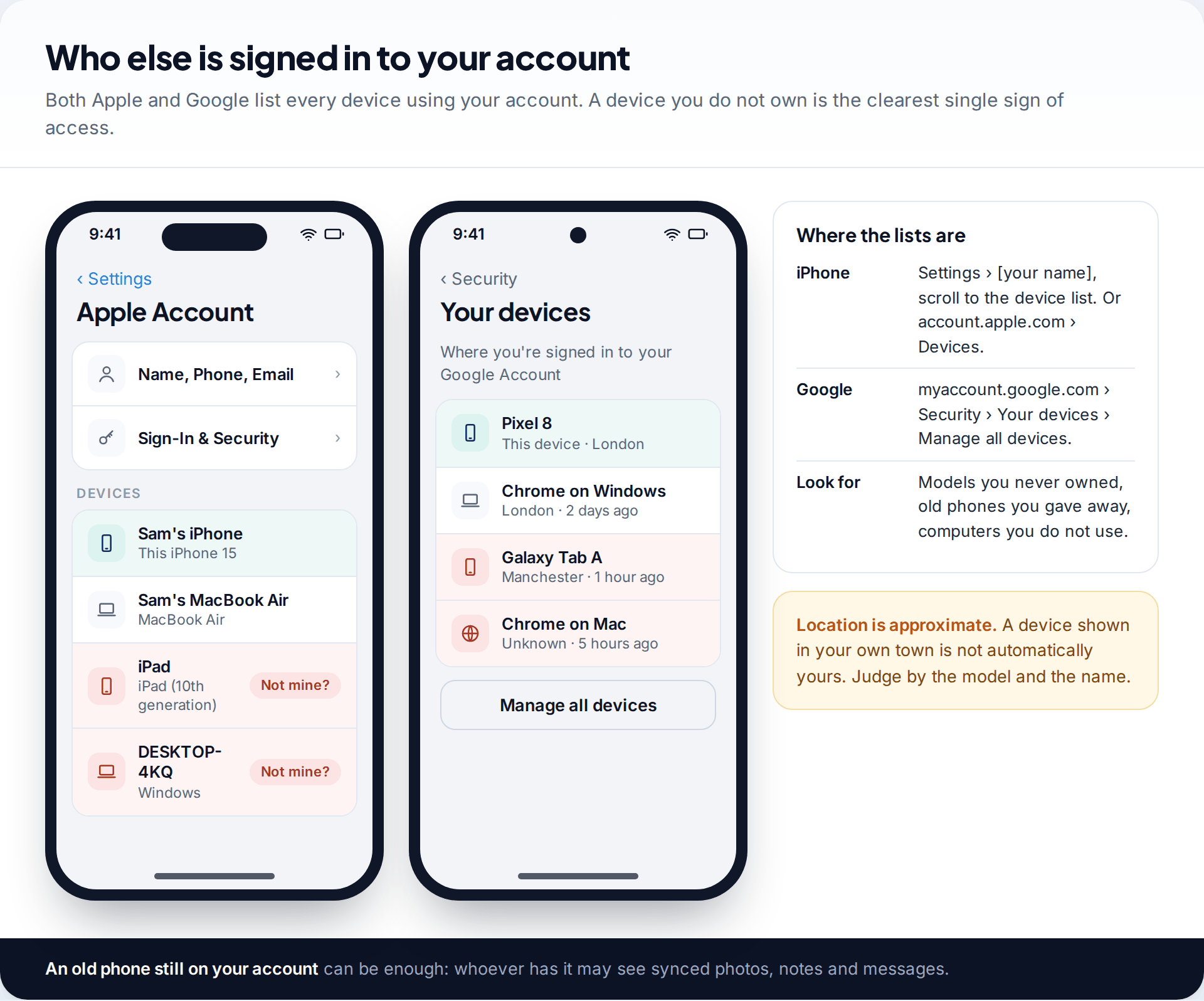
Your Apple Account or Google Account holds far more than the phone itself: photos, message backups, notes, contacts, browsing history, and for many people a location history. Anyone signed in to that account on another device can see what syncs to it, without ever touching your phone.
On an iPhone, open Settings › [your name] and scroll down to the list of devices. You can see the same list at account.apple.com under Devices. For Google, go to myaccount.google.com › Security › Your devices › Manage all devices, which works from any browser. Look for tablets, computers and phones you have never owned, and for old phones you sold or gave away that are still signed in.
Also look at the recovery details: the phone numbers and email addresses that can reset your password. An unfamiliar number there lets someone get back in even after you change the password. If you find one, do not remove it yet: note the model and name first.
Check 2: sharing you may have forgotten
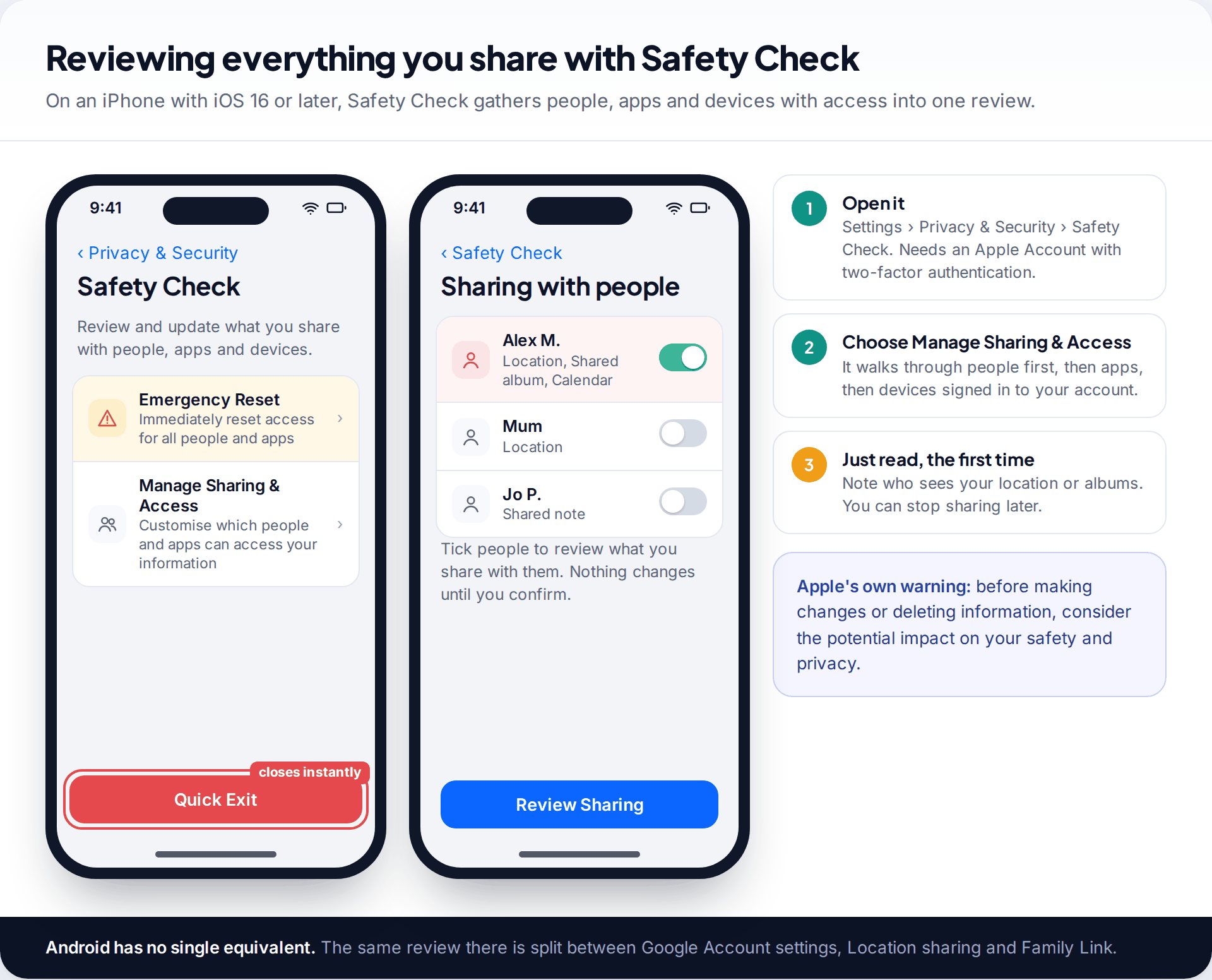
A lot of what feels like monitoring is ordinary sharing, switched on during a happier time, or by someone who set up your phone for you. Location sharing, shared photo albums, shared calendars and family groups all pass information continuously, and none of them look like spyware.
On an iPhone with iOS 16 or later, Safety Check is the fastest way to see all of it. Go to Settings › Privacy & Security › Safety Check and choose Manage Sharing & Access. It lists the people you share with and what each one receives, then the apps with access to sensitive data, then the devices on your account. It needs an Apple Account with two-factor authentication. The Emergency Reset option cuts everything at once, but that is a change, not a check, so leave it until you have decided what to do.
Android has no single equivalent. Check Settings › Location › Location services › Google Location Sharing to see who can see where you are. Then look in Google Photos for shared albums, and check whether your account belongs to a Google family group or is supervised through Family Link. Samsung and other makers may add their own sharing features, so search Settings for “sharing” as well.
Check 3: whether the phone is managed
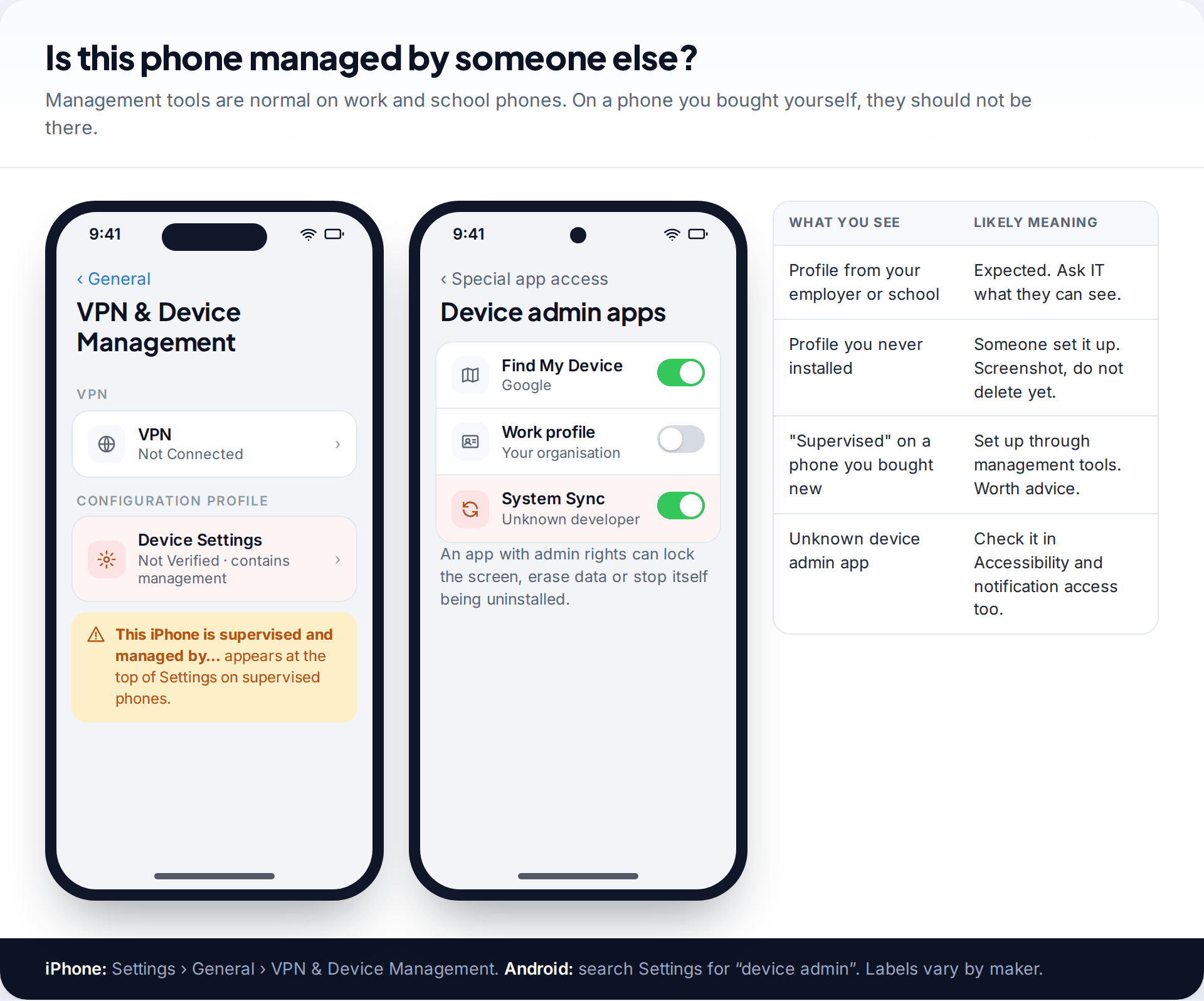
Companies and schools manage phones through device management. It lets them install apps, enforce settings and in some cases see a lot of what the phone does. The same tools can be misused on a personal phone.
On an iPhone, open Settings › General › VPN & Device Management. If you see a configuration profile you did not install, particularly one that says it contains device management, tap it to see who signed it and write that down. A message at the top of Settings saying the iPhone is supervised and managed by someone is also significant on a phone you bought yourself. On Android, search Settings for device admin. The list usually includes Find My Device and perhaps a work profile. Anything else you do not recognise is worth a note, especially if its Uninstall button is greyed out.
Check 4: apps with the access monitoring needs
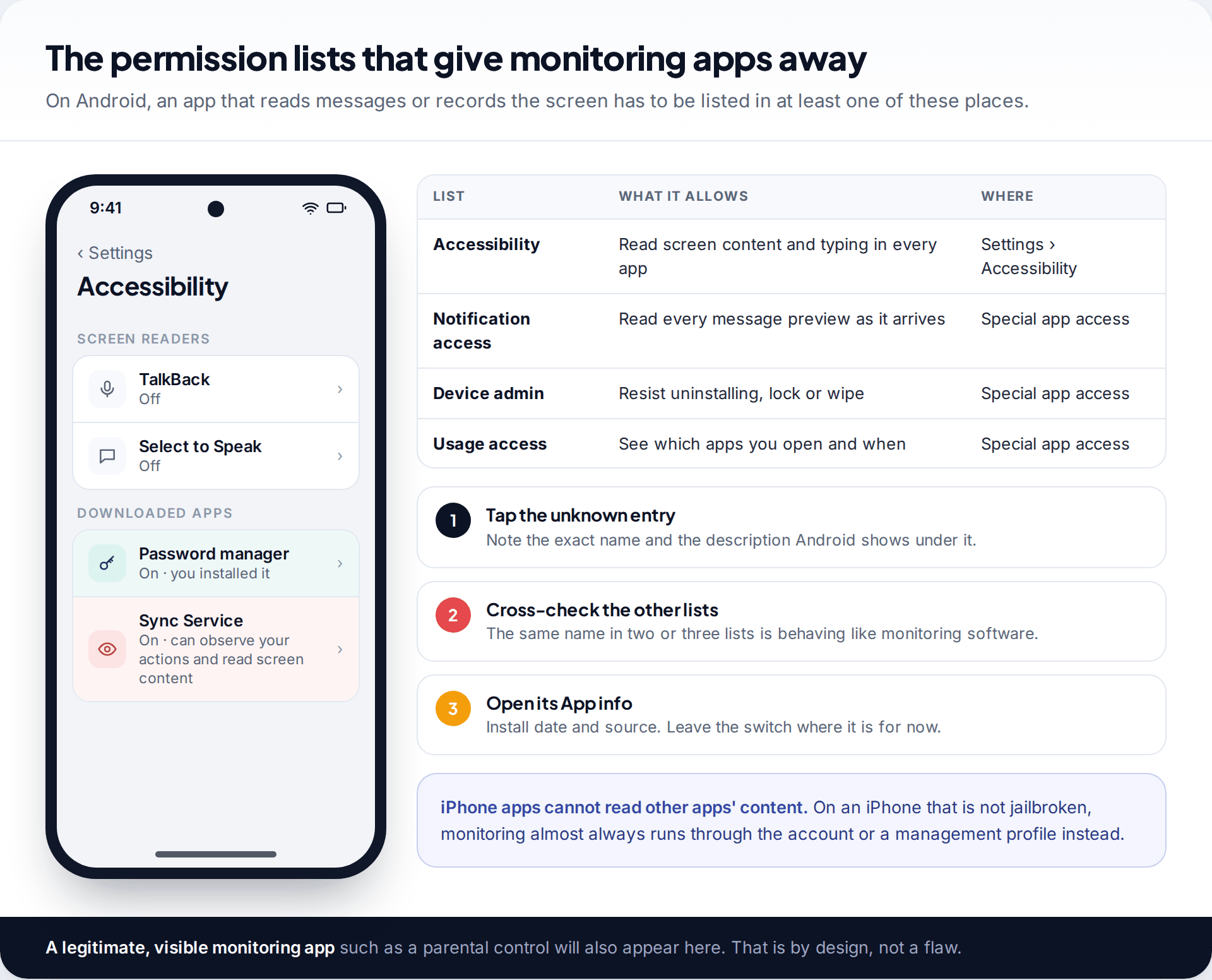
An app that reads your messages or records what you type has to be granted special access, and Android lists those grants in a few places. The key ones are Accessibility, which lets an app read screen content in every app, and notification access, which lets it read message previews as they arrive. Both are in Settings, with notification access usually under Apps › Special app access. Pay attention to any name that sounds like a system service but has no maker you know.
Password managers, screen readers and legitimate parental control apps also appear in these lists, and a visible parental control is not stalkerware. What you are looking for is an app nobody told you about. Our walk-through of where hidden spy apps show up in your settings covers each of these screens in detail, including Samsung’s different menu names.
What the phone’s own behaviour is worth
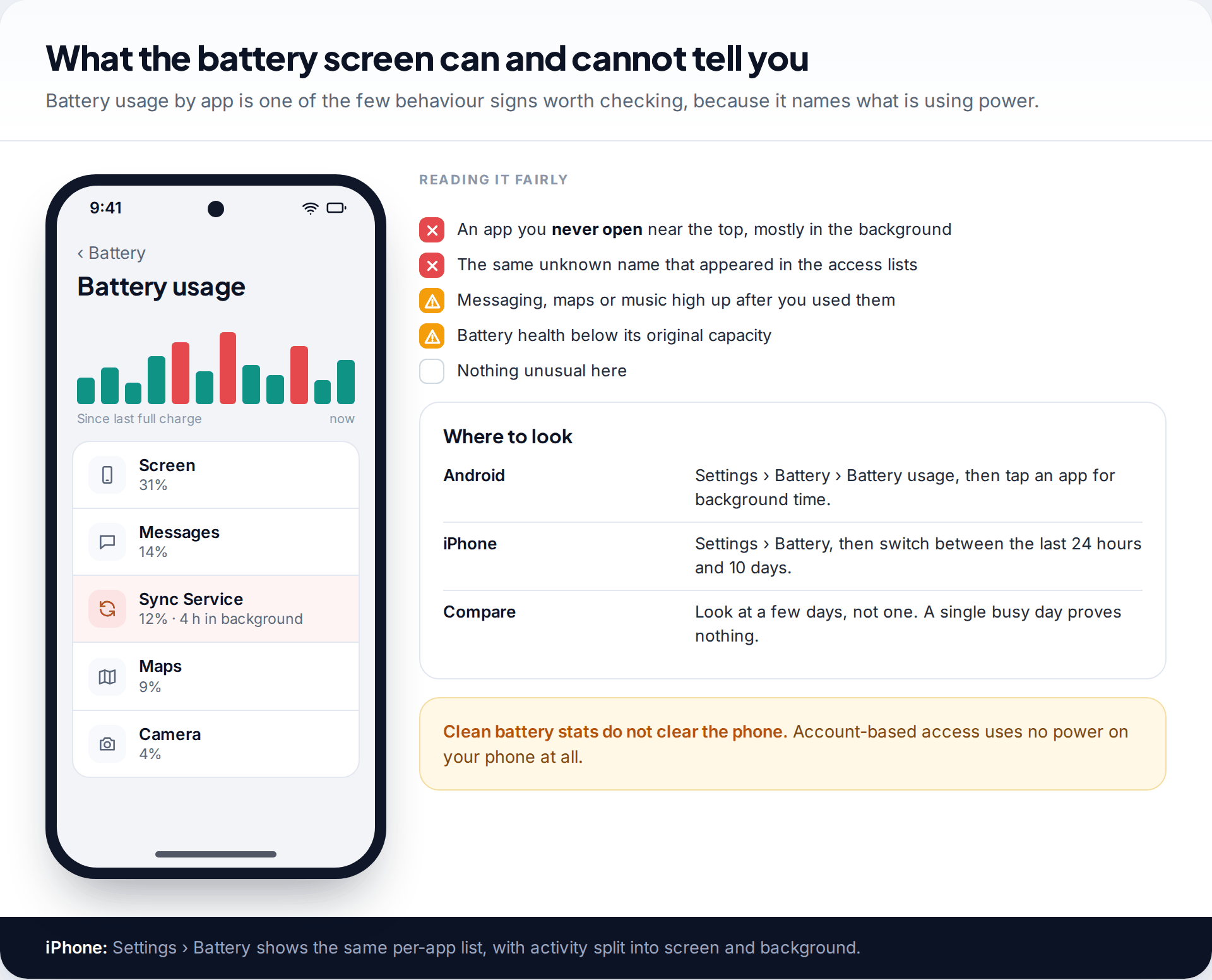
Behaviour signs are weak evidence, but one is worth a look: the battery usage list. On Android it is under Settings › Battery › Battery usage, and on an iPhone under Settings › Battery. It names the apps using power and, on most phones, splits screen time from background activity. An app you never open that is working hard in the background deserves a closer look, particularly if the same name turned up in Check 4.
The rest are close to useless on their own. Clicks and echoes on calls come from networks and handsets, not from modern monitoring apps. Phones warm up when they sync photos or update. Data use jumps when an app starts backing up. Treat them as reasons to run the four checks, not as answers.
Myth: dialling a code such as *#21# reveals whether your phone is monitored. Fact: codes like this show the status of call forwarding on some networks. They do not detect apps, account access or location sharing.
What your findings mean
Nothing on the phone, but he keeps knowing where she was
Priya’s iPhone shows no profile, and the apps look normal. In Safety Check, though, her location is still shared with her ex-partner from when they lived together. And the device list under her Apple Account includes an iPad she left behind when she moved out. No spyware was involved: the iPad still receives her photos and messages, and Find My shows him her location.
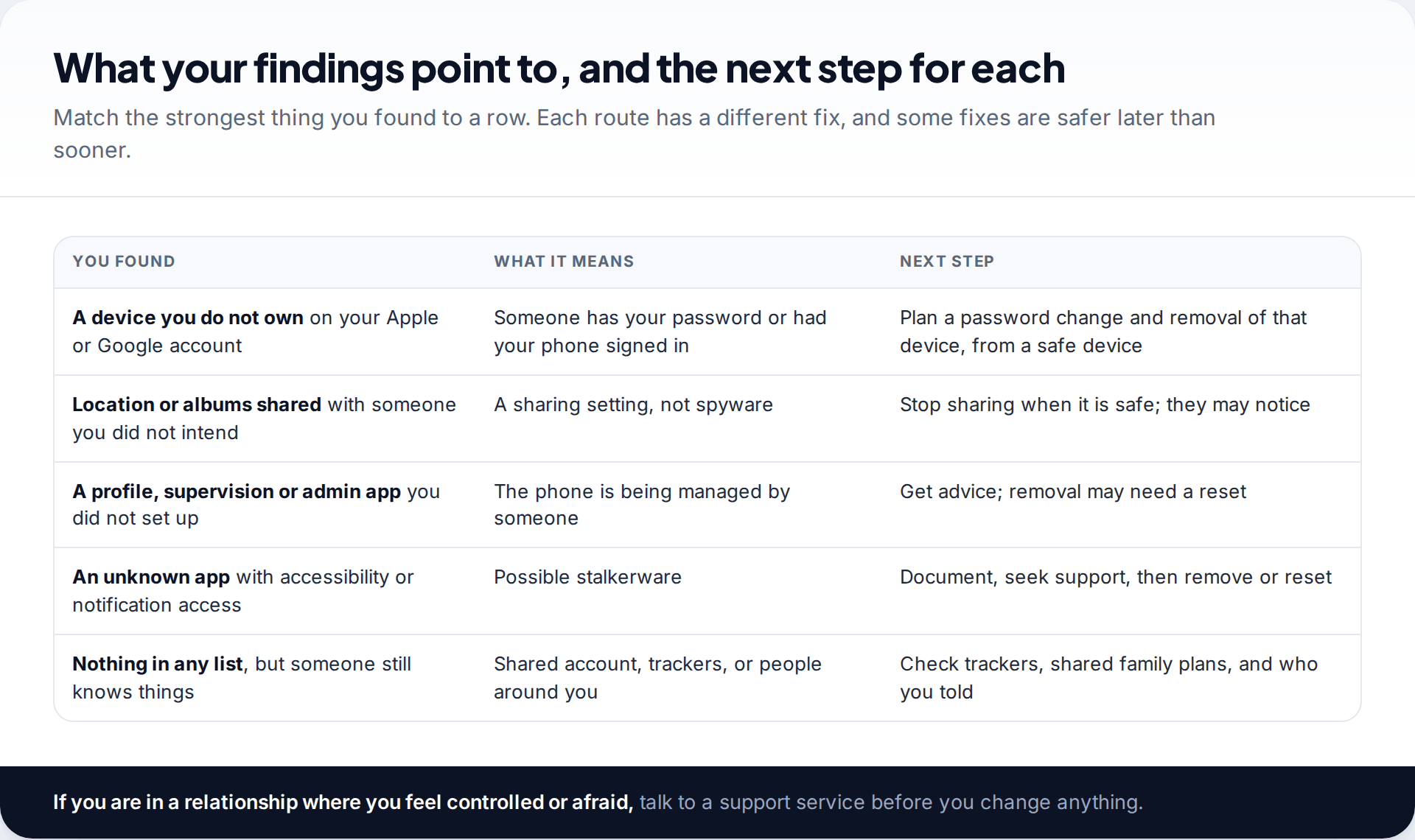
If the checks turned something up, the fix depends on the route. Account access is closed by removing the device and changing the password, then turning on two-factor authentication. Sharing is closed by stopping it. A management profile or a stalkerware app may need removing or a full reset, which is covered step by step in what to do if you think you have spyware. Whatever you find, keep your screenshots. They may matter later, and a reset erases the evidence along with the problem.
What these checks cannot tell you
These four checks cover the routes used in nearly all personal monitoring, but they have limits. They will not show a Bluetooth tracker in your bag or car. Your phone’s unknown tracker alerts cover that, and on Android you can run a manual scan under Settings › Safety & emergency › Unknown tracker alerts. They cannot show what your mobile provider or employer can see on their own systems. They cannot reveal an attacker who is logged in only through a web browser without a device appearing, although the sign-in alerts Apple and Google send by email often reveal it. And they cannot detect advanced commercial spyware of the kind used against journalists and activists, which leaves few traces on the phone itself.
They also cannot rule out the ordinary route: people around you. A shared family computer, a friend who passes things on, or an old tablet in a drawer can explain a surprising amount. If every list is clean but the feeling persists, write down each time someone knew something they should not, and what the source could have been. Patterns usually point to one route.
How this page was put together
We checked the menu paths against Apple’s Personal Safety User Guide, Google Account and Android help pages, and the FTC’s consumer advice on stalkerware in September 2026. Settings move between software versions and phone makers, so if a label differs on your phone, search Settings for the key word.
We did not run tests on phones for this page, and we don’t recommend any paid service. The standards we write and correct guides to are published separately.
Common questions
Can someone monitor my phone without touching it?
Yes, through your accounts. Anyone who knows your Apple Account or Google Account password, and gets past two-factor authentication, can see much of what syncs to the cloud. Installing an app normally needs the unlocked phone in their hands.
Does a factory reset stop all monitoring?
It removes apps and profiles on the phone. It does not remove someone’s access to your accounts, and restoring a full backup can bring an unwanted app back. Change passwords and check devices as well.
Is there a code I can dial to check?
No. Short codes show call forwarding status on some networks. They cannot detect apps, account access or location sharing.
Will antivirus find monitoring apps?
Some will. In AV-Comparatives’ 2025 stalkerware test with the EFF, detection ranged from all 17 samples for the best product down to about half for Google Play Protect. An app scan also cannot see account access, so use it alongside the four checks.
My employer gave me this phone. Can they see everything?
They can see what their management tools allow, which varies. Treat a work phone as visible to your employer and keep personal messages and accounts off it.
Will the other person know I checked?
Reading settings lists does not notify anyone. Removing a device, stopping sharing or uninstalling an app can be noticed, so decide on those changes separately.
Looking for a tool to go with this? TheTruthSpy is a free parental control app for Android that stays visible on the child's phone. If it fits your family, see what the app does.
Related guides
How to Check If Your Email Was in a Data Breach
Check if your email was in a data breach for free, then act on what leaked: passwords, card details or…
How to Start Using a Password Manager
Switch to a password manager without stress: built-in or standalone, protecting the main password, and a first-hour plan for the…
How to Tell If Your Phone Has a Virus or Malware
Most 'virus' signs have ordinary causes. How to check an iPhone or Android phone for real malware, remove it, secure…
Parental controls your child can see
Location, screen time limits, a web filter and alerts from notifications — free, and visible on your child's phone. Pair a phone in about ten minutes.
Android · Free to set up · Visible on your child's phone