Which Apps Used Your Camera or Mic? Reading the Privacy Dashboard

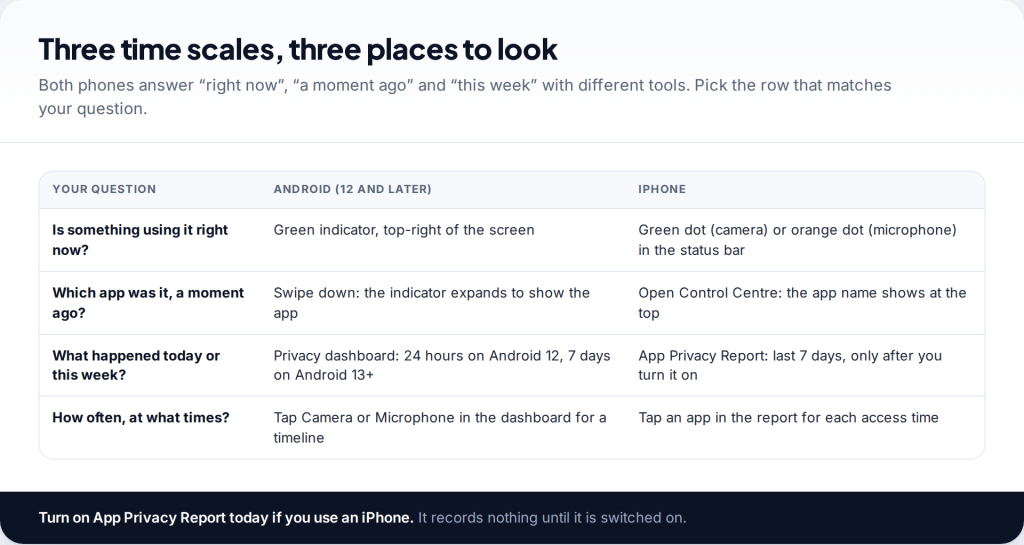
Want to know which apps used your camera or mic, and when? Both phones keep a record. On Android 12 and later, open Settings › Security & privacy › Privacy › Privacy dashboard and tap Camera or Microphone for a timeline. On iPhone, Control Centre names the app that used them most recently, and the App Privacy Report lists seven days of access once you turn it on.
- Right now: a green dot means the camera is in use; on iPhone, orange means the microphone. Swipe down to see which app.
- Earlier today or this week: Android’s Privacy dashboard (seven days on Android 13 and later) or iPhone’s App Privacy Report (seven days).
- Turn the iPhone report on now. It records nothing until it is switched on, so it can’t answer questions about last week yet.
- These tools show access, not content. They tell you that an app opened the camera, never what it saw.
Which tool answers your question?
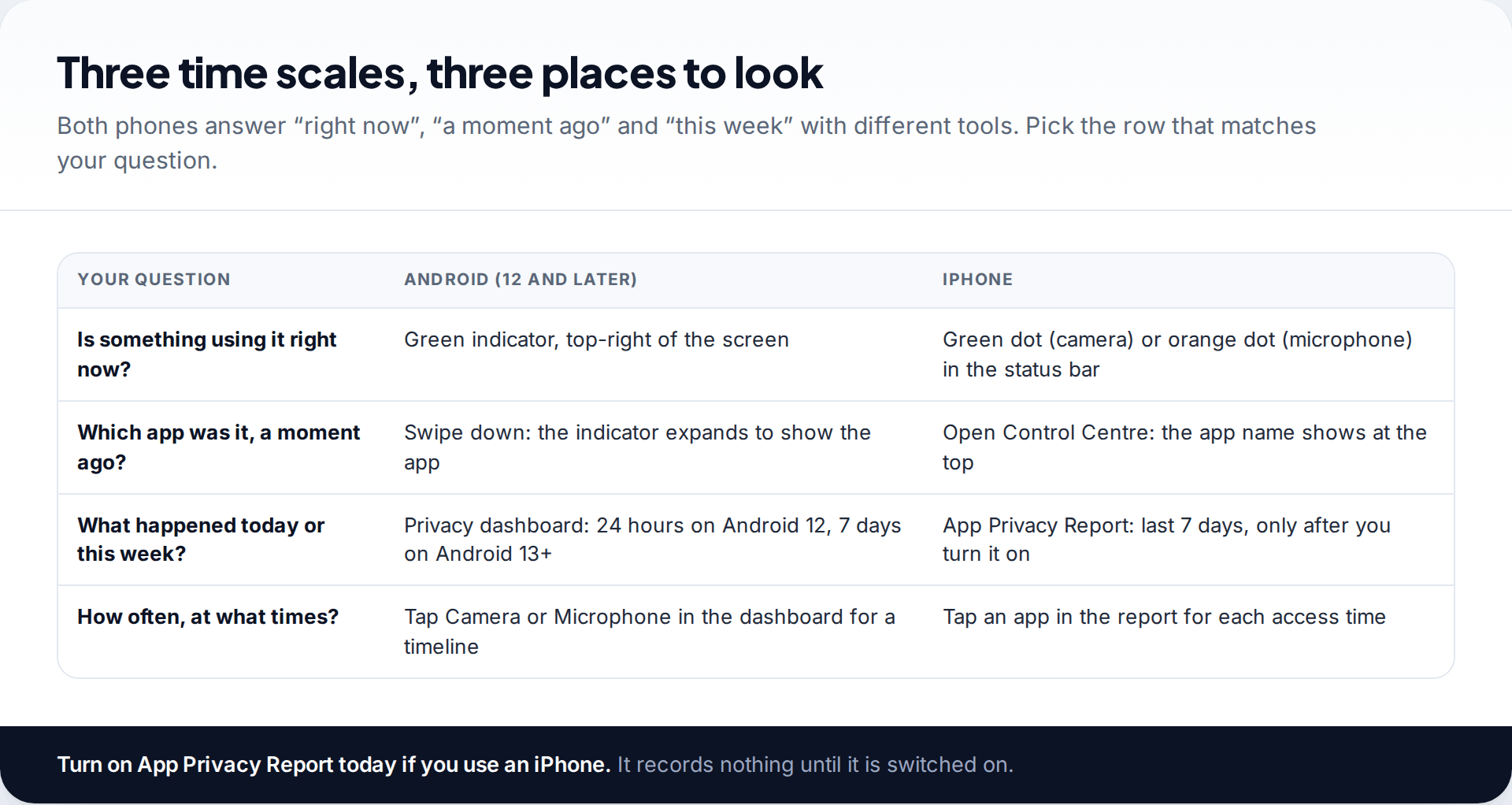
People usually arrive here for one of three reasons. They saw a dot appear and want to know what caused it. They noticed something odd earlier, such as the phone warm in a pocket or an app acting strangely. Or they want a general audit of what their apps have been doing. Each needs a different tool, and using the wrong one is the most common reason people find “nothing”.
For something happening now, use the indicator. For something that happened in the last few minutes, use the expanded indicator on Android or Control Centre on iPhone. For anything older, use the history: the Privacy dashboard or the App Privacy Report.
The green and orange dots: reading them live
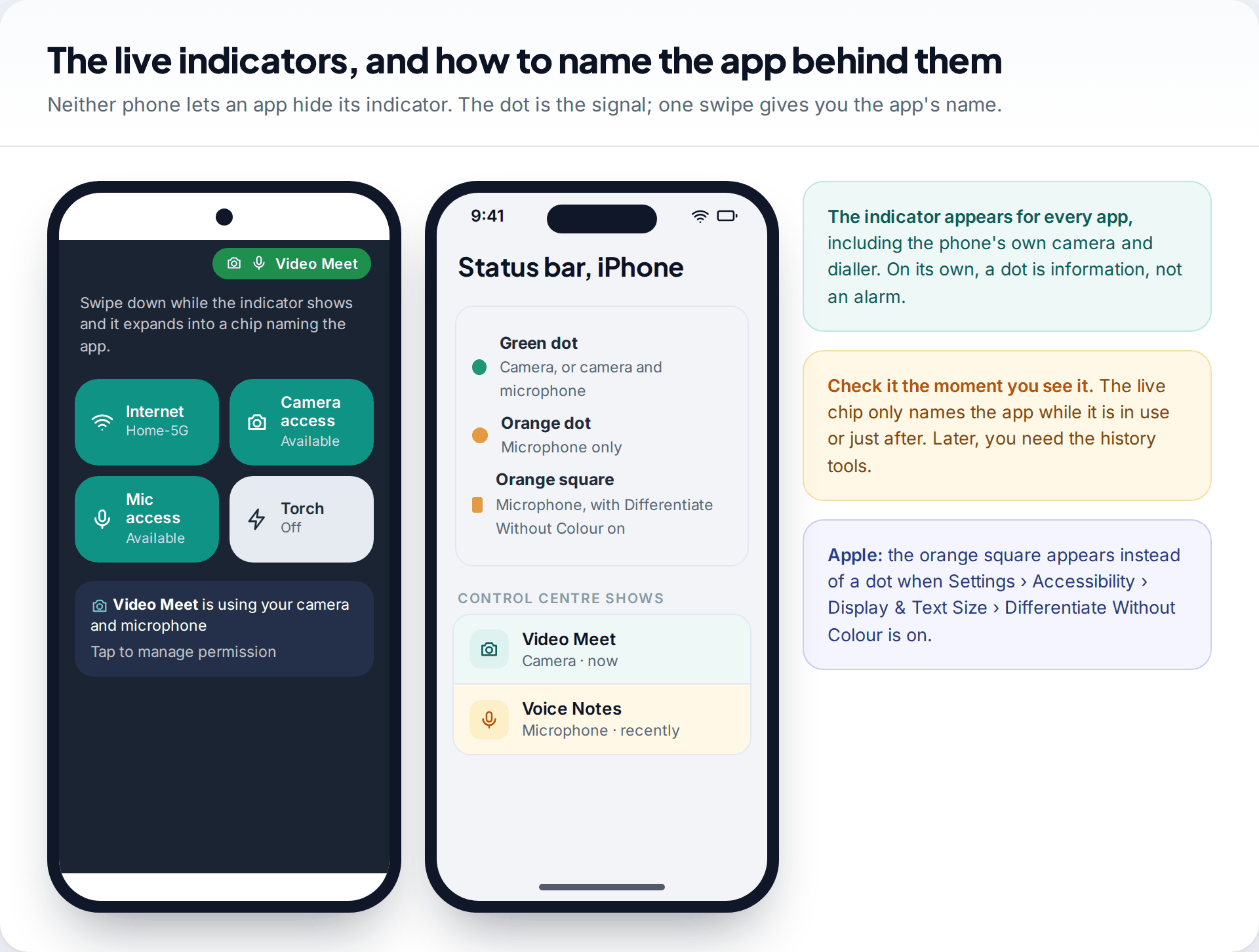
Since Android 12 and iOS 14, both systems show an indicator whenever an app is using the camera or microphone, and apps can’t switch it off. On Android the indicator sits in the top-right corner and is green for both the camera and the microphone. Swipe down from the top while it is showing and it expands to name the app. Tap that and you can go straight to its permission.
Apple’s support page is precise about the iPhone colours. An orange indicator means an app is using the microphone. A green indicator means the camera is in use, or the camera and microphone together. If you have turned on Differentiate Without Colour in Accessibility settings, the microphone indicator becomes an orange square instead of a dot.
Seeing one of these is not a warning in itself. The indicator also appears for the phone’s own camera, for voice typing, for a call, and for a QR code scan from the lock screen. What matters is whether you can account for it.
Android: see which apps used your camera or mic in the Privacy dashboard
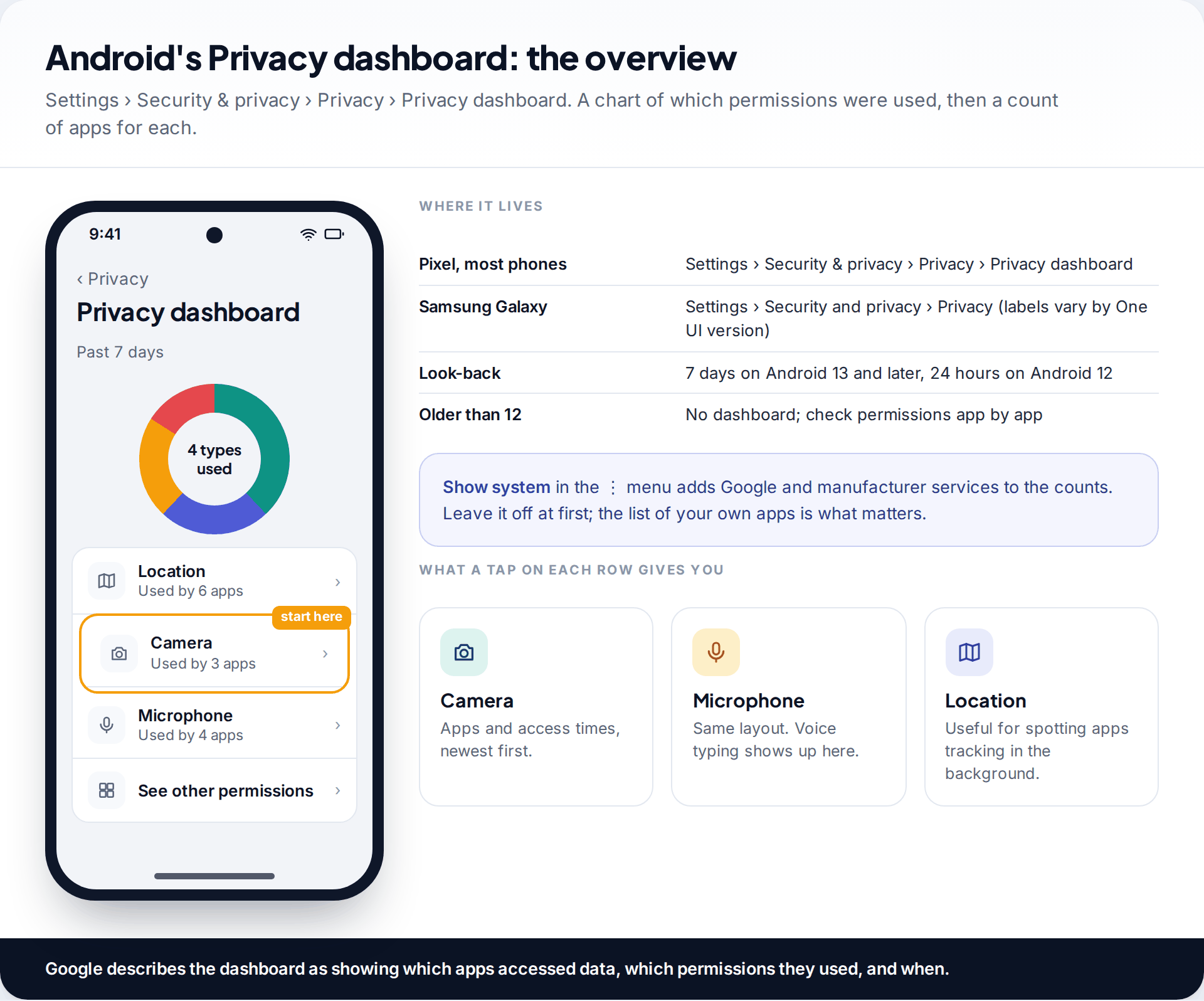
Google’s help page puts the Privacy dashboard at Settings › Security and Privacy (or Privacy) › Privacy dashboard. It covers the last 7 days on Android 13 and later and the last 24 hours on Android 12. Phones running Android 11 or older don’t have it at all; there, the best you can do is check permissions app by app.
The top of the screen shows which kinds of permission were used and how many apps used each. Samsung phones present the same information under Settings › Security and privacy, with wording that shifts between One UI versions. If you can’t find it, search settings for “Privacy dashboard” or “permission usage”.
The ⋮ menu has a Show system option that adds Google and manufacturer services to the counts. Leave it off on your first look. Your own apps are the ones you can do something about, and system services make the list longer without making it clearer.
Reading the Android camera and microphone timeline
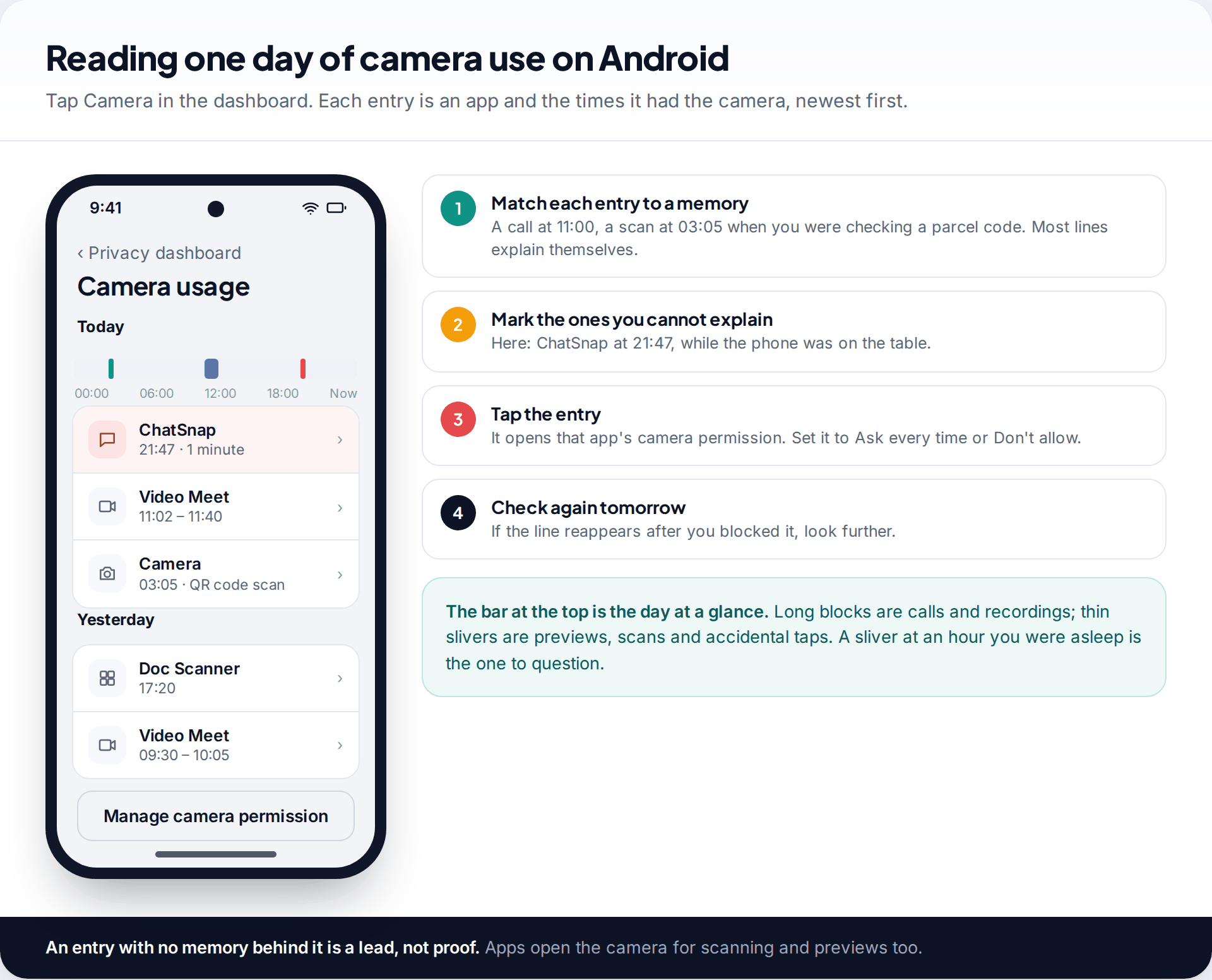
Tap Camera in the dashboard and you get a list of apps and times, newest first, grouped by day. Microphone works the same way. Go through it with your own memory of the day. The video call at eleven, the parcel code you scanned at the door and the photo you sent at lunch should all be there. Apps that access the camera briefly, just to show a preview when you open them, will appear too.
Mark anything you can’t explain, then look at the time and the app. A messaging app using the camera for one second while you were typing is probably a camera button tapped by accident. A game using the microphone at 2 a.m. while the phone lay on the bedside table is not.
Tapping an entry opens that app’s permission for the camera or microphone. Set it to Ask every time if you still want the feature, or Don’t allow if you don’t. Then look again over the next day or two. An app that keeps appearing after you blocked it deserves more attention. Our guide on how to stop an app using your camera covers every blocking option, including the Camera access switch that cuts off all apps at once.
iPhone: Control Centre shows the most recent use
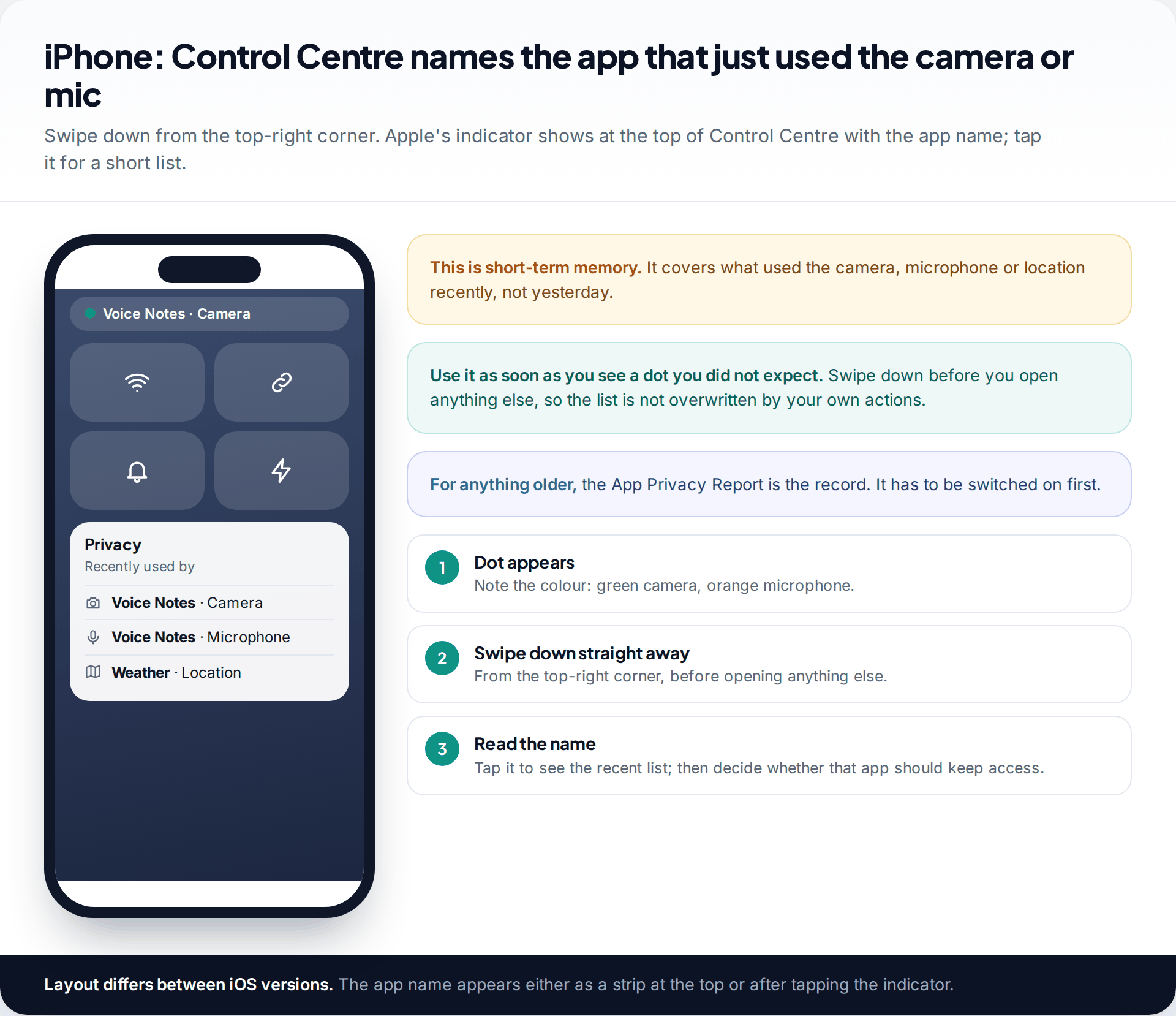
On iPhone, swipe down from the top-right corner to open Control Centre. When an app has used the camera or microphone recently, its name appears at the top next to the indicator, and tapping it opens a short Privacy list of recent camera, microphone and location use.
This list is short-lived. It is ideal for the moment a dot appears and disappears before you can react, and useless for “what happened yesterday”. Get into the habit of swiping down first, before you open any other app, so your own actions don’t crowd out the entry you are after.
iPhone App Privacy Report: the seven-day record
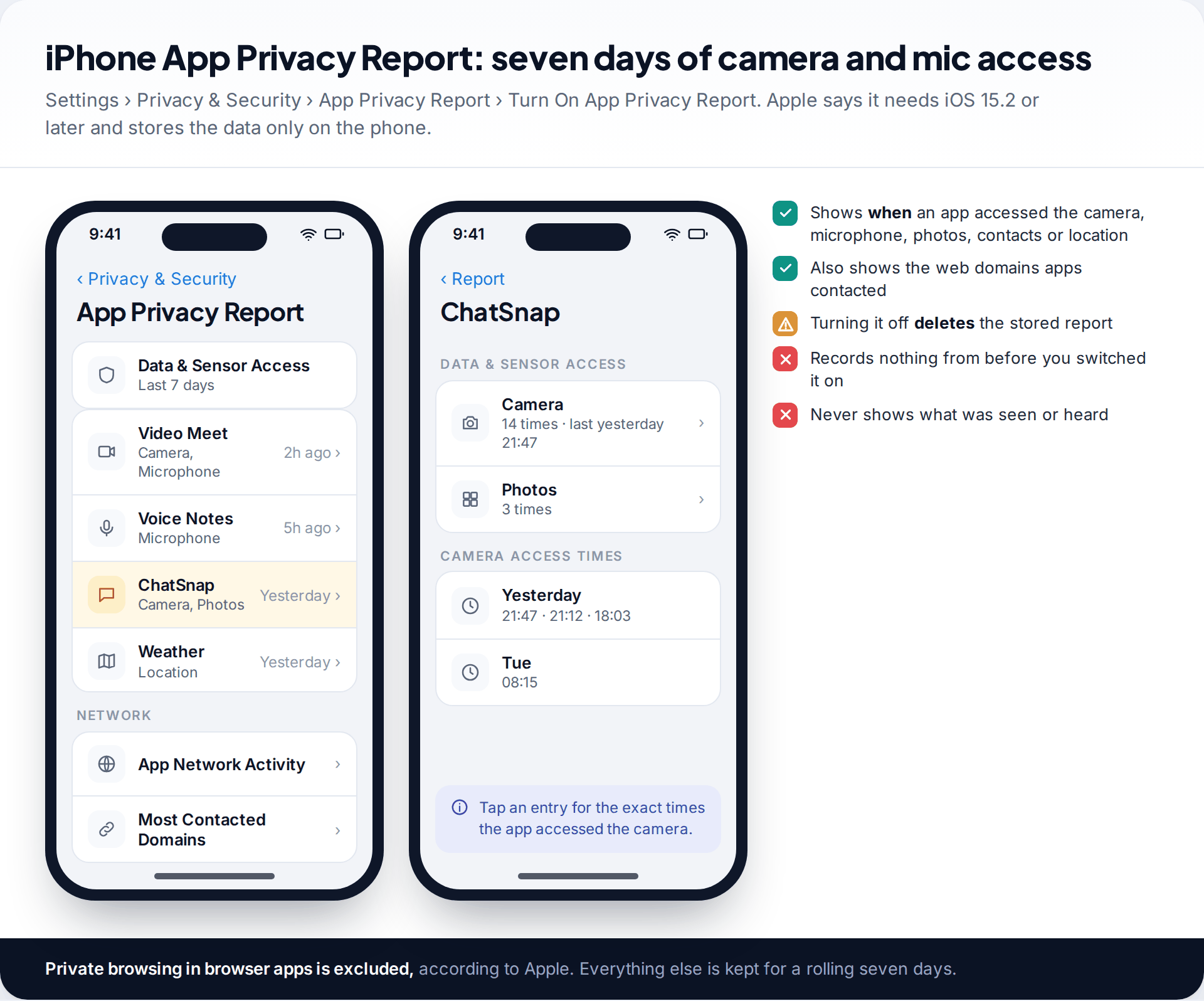
Apple’s App Privacy Report is the closest iPhone equivalent to Android’s dashboard. It needs iOS 15.2 or later. Turn it on at Settings › Privacy & Security › App Privacy Report › Turn On App Privacy Report. From then on it keeps a rolling seven days of activity, and Apple says the data is encrypted and stored only on the device.
The Data & Sensor Access section lists apps that accessed the camera, microphone, location, photos, contacts and other sensitive data, and when they last did. Tap an app to see each access time. Lower down, the Network sections list the web domains apps contacted, which is useful for spotting an app talking to servers you wouldn’t expect, though it takes some interpretation.
Two catches. The report can’t show anything from before you switched it on, and turning it off deletes everything it has collected. If you are gathering a record because something feels wrong, leave it on and take screenshots of anything that matters.
What the entries usually mean
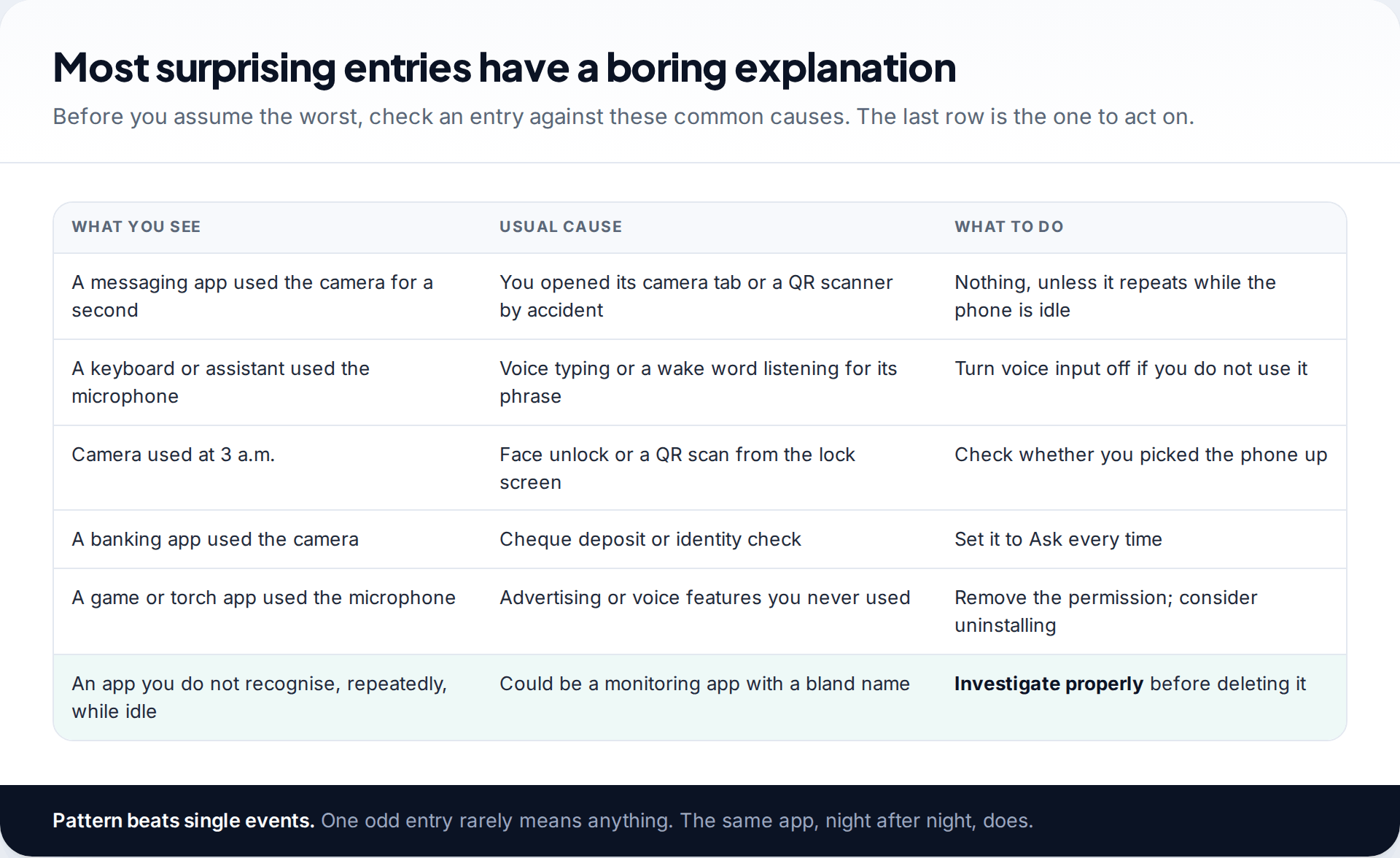
It’s easy to read a privacy log and panic. Most surprising entries have dull explanations. Keyboards use the microphone for voice typing. Assistants listen for their wake phrase. Face unlock and lock-screen QR scanners use the camera at odd hours because you picked the phone up. Banking apps use the camera for cheque deposits and identity checks.
An entry at 03:05 you don’t remember
Priya’s Android dashboard shows the Camera app at 03:05. She was asleep. Before worrying, she thinks about what else happened then. She had woken briefly and picked up the phone to check the time, and her phone uses face unlock, which needs the camera. The next entry, a messaging app at 21:47 while the phone was charging, has no such explanation. She sets that app to Ask every time and checks the dashboard over the following days.
What deserves action is a pattern: the same app using the camera or microphone repeatedly while the phone is idle, especially an app you don’t recognise or one with a generic name such as “System Service”. Monitoring and stalkerware apps often pick bland names. If that’s what you find, don’t rush to delete it. Our guide to telling whether your phone is being monitored explains the checks to do first, and why removing such an app can alert whoever installed it. If you’re worried about someone close to you, think about your safety first and consider contacting a domestic-abuse support service in your country.
What these logs can’t tell you
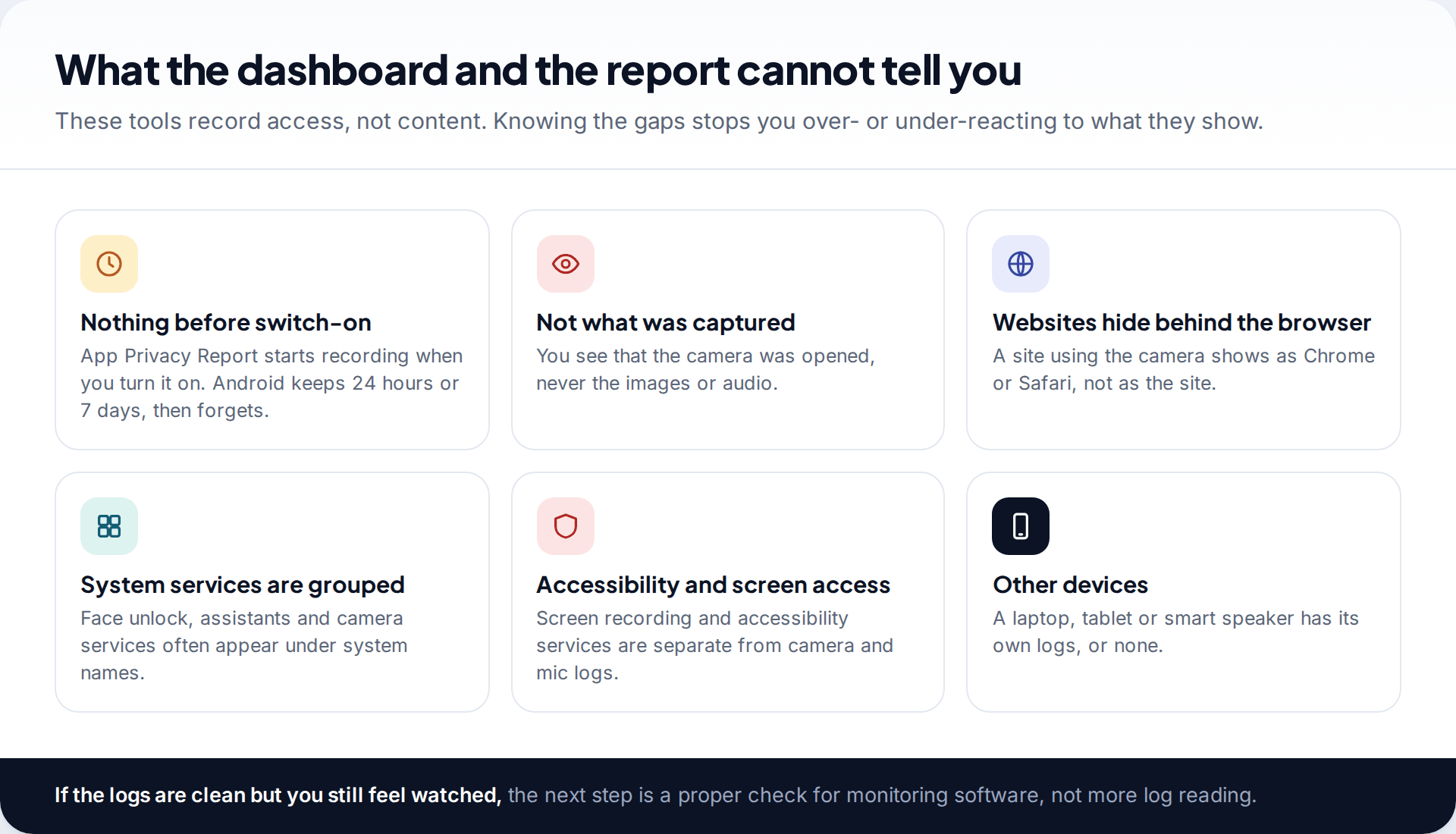
Both tools are honest about access and silent about everything else. They never show what the camera saw or the microphone heard. They forget: Android keeps seven days at most, iPhone’s report keeps seven days and nothing from before it was turned on. A website using your camera appears as the browser, so you’ll see Chrome or Safari rather than the site’s name. And screen recording and accessibility services are separate from camera and microphone access, so an app reading your screen won’t necessarily appear here at all.
There is no Privacy dashboard in Settings
The phone runs Android 11 or older, or the maker renamed it.
Fix: search settings for “privacy dashboard” or “permission usage”; on older phones check Permission manager app by app.
The indicator stays on after closing every app
Something is still running in the background, often a call, a voice assistant or a recording app.
Fix: swipe down to name it, then close or force-stop that app. If the name means nothing to you, check the dashboard entries for it.
The dashboard shows only system services
Show system is turned on, or none of your own apps used the permission.
Fix: turn Show system off in the ⋮ menu and look again.
Computers have their own records. On a Mac, a green light beside the camera shows when it is on. On Windows 11, the camera and microphone pages under Settings › Privacy & security list app access, and recent versions show which apps used them lately. Neither is linked to your phone’s logs.
How this page was put together
We checked the menu paths, time windows and indicator meanings in September 2026 against Google’s Android help page on the Privacy dashboard and app permissions, and Apple’s support pages on the status-bar indicators and the App Privacy Report. Where they are quoted, the time windows (24 hours on Android 12, seven days on Android 13 and later, seven days for the App Privacy Report) are the ones those pages state.
Manufacturers rename these screens, especially on Samsung and other customised Android phones, and we have not checked every model. Read how we research and correct our guides for more on our process.
Common questions
How do I see which app used my camera on Android?
Open Settings › Security & privacy › Privacy › Privacy dashboard and tap Camera. You’ll see each app and the times it used the camera over the last seven days (24 hours on Android 12). For something happening right now, swipe down while the green indicator is showing.
How do I check microphone access on iPhone?
Swipe down to Control Centre for the most recent use. For the past week, turn on Settings › Privacy & Security › App Privacy Report and look under Data & Sensor Access.
Does the green dot mean I’m being watched?
Not necessarily. It appears whenever any app uses the camera, including your own camera app, video calls and face unlock. Check which app it was; only unexplained, repeated use from an unfamiliar app is a real concern.
Can an app use the camera without the green dot showing?
On current Android and iOS, the system draws the indicator, and ordinary apps can’t hide it. A heavily modified or rooted phone is a different matter, which is one reason to keep your phone on official software.
Why is the App Privacy Report empty?
It only starts recording when you switch it on, and it takes time to collect data. Turning it off and on again erases what was there.
Can I see camera use from more than a week ago?
Not with the built-in tools. Android’s dashboard and iPhone’s report both keep about seven days. Screenshot anything you want to keep.
Looking for a tool to go with this? TheTruthSpy is a free parental control app for Android that stays visible on the child's phone. If it fits your family, see what the app does.
Related guides
How to Secure Your Home Wi-Fi Network
A 20-minute router check-up: log in, change the admin password, pick WPA3 or WPA2, turn off WPS, add a guest…
How to Recover a Hacked Instagram Account
Get a hacked Instagram account back: use the revert email, instagram.com/hacked and the video selfie check, avoid recovery scams, then…
How to Spot a Scam Call Pretending to Be Your Bank
Recognise fake bank fraud-team calls, know the exact words to end them, call back safely on 159 or your card's…
Parental controls your child can see
Location, screen time limits, a web filter and alerts from notifications — free, and visible on your child's phone. Pair a phone in about ten minutes.
Android · Free to set up · Visible on your child's phone