How to Back Up WhatsApp Chats

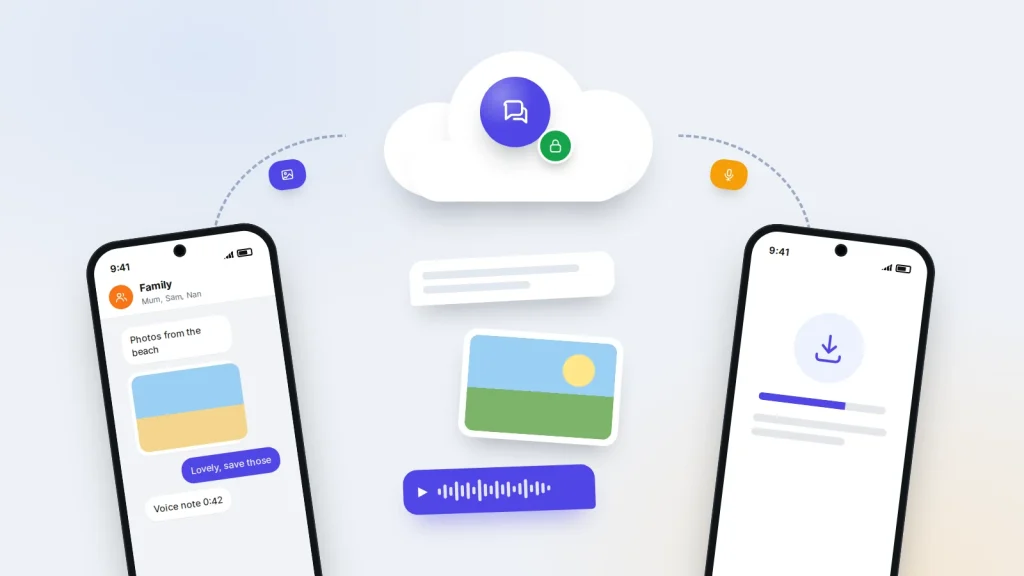
When you set up WhatsApp on a new or reset phone, it asks once whether to restore your chat history. Whether anything comes back depends on settings you chose months earlier. When the answer is “no backup found”, it usually means the backup went to a different account, or stopped running when the cloud storage filled up.
WhatsApp keeps its own backup, separate from your phone’s: in your Google account on Android, in iCloud on an iPhone. Below is how to switch it on, choose whether to encrypt it, check that it exists, and fix a restore that fails.
The short version
- Turn on backups in Settings → Chats → Chat backup and choose daily. Android backs up to your Google account, iPhone to iCloud.
- A backup can only be restored while you set up WhatsApp, using the same phone number and the same Google account or Apple Account.
- On Android, WhatsApp backups now count towards your Google storage. On iPhone, you need just over twice the backup’s size free, both in iCloud and on the phone.
- If you lock the backup with end-to-end encryption, keep the password or 64-digit key safe. WhatsApp cannot reset it, and without it the backup cannot be restored.
- Exporting a chat gives you something to read, not a backup: exported chats cannot be imported back into WhatsApp.
How a WhatsApp backup works, and why your phone backup isn’t enough
WhatsApp copies your messages and media into one backup file in your cloud account. Each new backup replaces the previous one, so there is only ever the latest copy, not a history you can pick from. By default the backup is protected by the cloud provider’s security, not WhatsApp’s end-to-end encryption, unless you switch that on.
Three rules decide whether that file is useful later:
- Same number. The backup belongs to the phone number that made it.
- Same account. The new phone must be signed in to the Google account or Apple Account that holds the backup.
- Same system. A Google account backup restores only onto Android, and an iCloud backup only onto an iPhone. Switching systems uses a separate transfer, covered below.
Your phone’s own backup doesn’t replace any of this. WhatsApp restores chats only from its own backup, during its own setup, so it needs its own switch, its own storage and its own check.
Turn on backups on Android
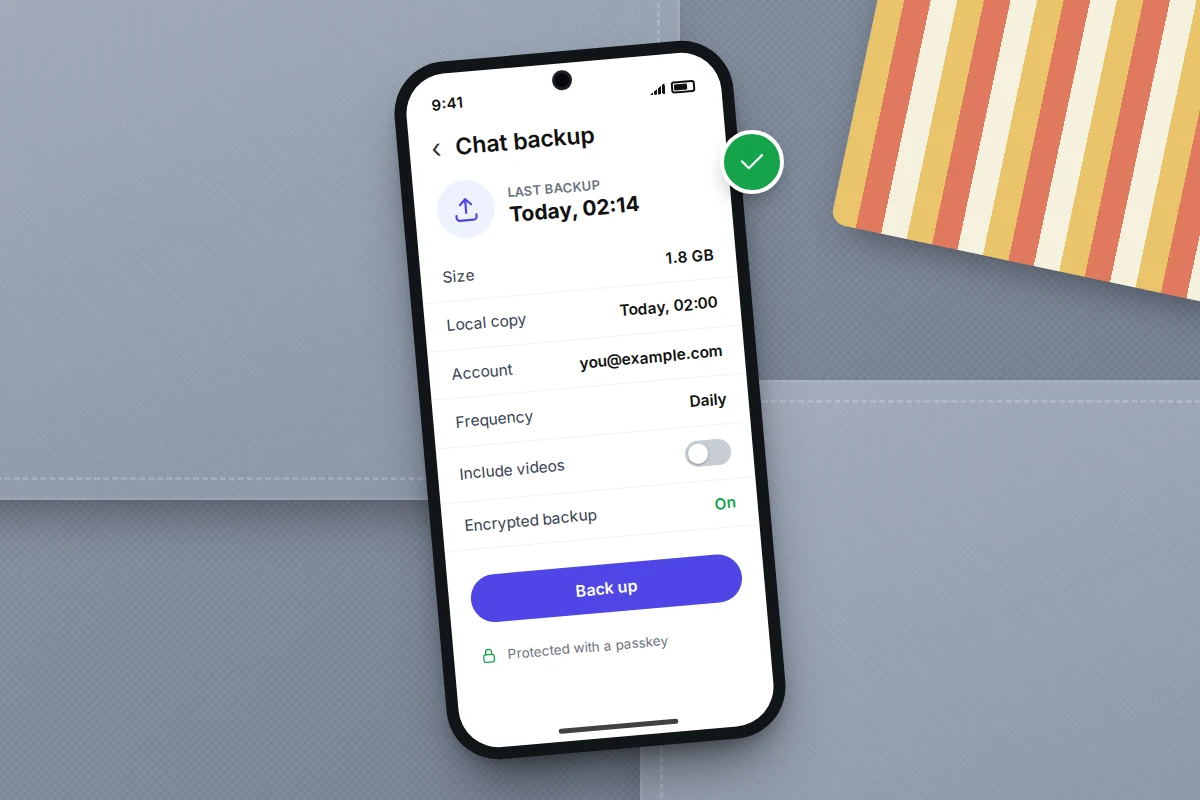
- Open WhatsApp and tap ⋮ (More options) → Settings → Chats → Chat backup.
- Check the Google Account shown. Pick the account you will sign in with on your next phone, not an old or work account you might lose.
- Set the frequency to Daily. The other choices are weekly, monthly or only when you tap Back up.
- Decide whether to Include videos (see below), and whether backups may use mobile data.
- Tap Back up and wait until the Last backup line shows today’s date. Option names shift a little between WhatsApp versions.
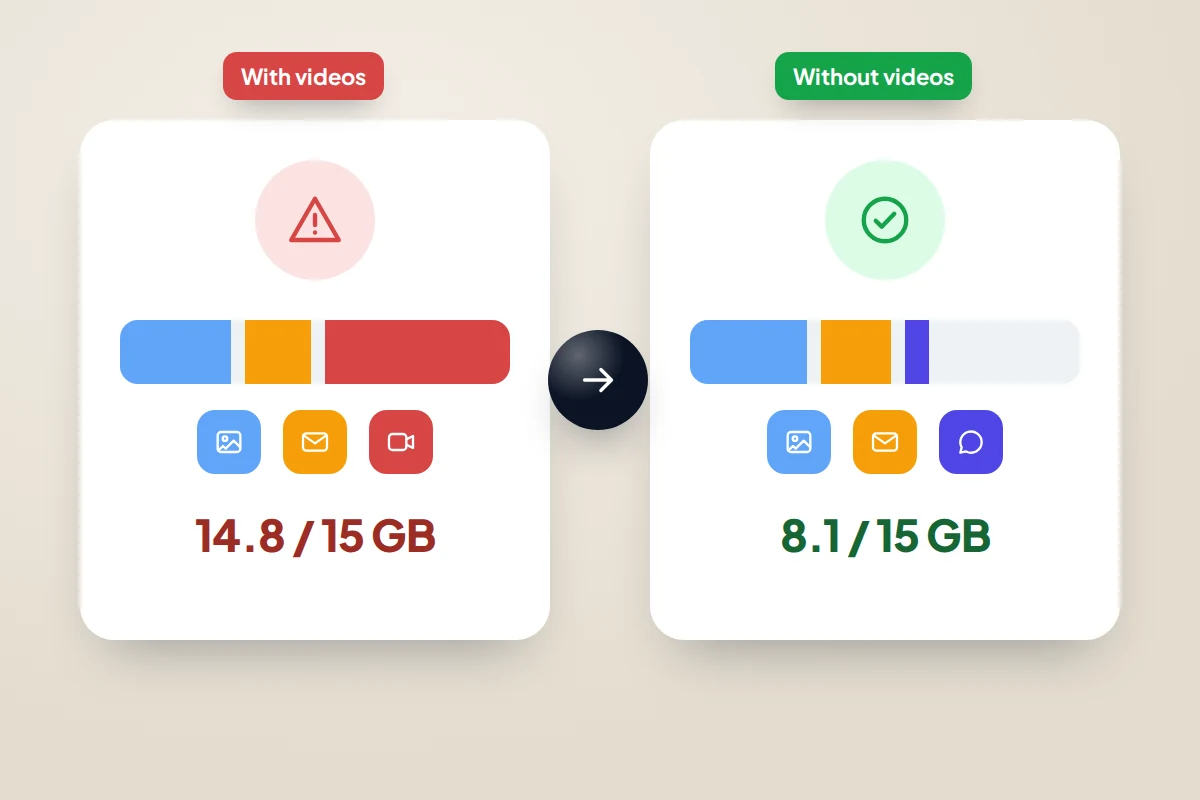
Since a change in the first half of 2024, WhatsApp backups on Android count towards your Google account storage: the free 15 GB that Gmail, Drive and Google Photos already share. Before that they were exempt, so a backup that fitted for years may have stopped when it reached you.
Android phones also keep a local backup: WhatsApp saves a copy of your chats to the phone’s own storage every night and keeps up to seven days of them. It helps if you reinstall WhatsApp on the same phone, but not if the phone is lost, unless you have copied the WhatsApp Databases folder off it.
Turn on backups on iPhone
- Make sure iCloud Drive is on: Settings → [your name] → iCloud, then check that iCloud Drive is on and WhatsApp is allowed to use iCloud.
- In WhatsApp, tap Settings → Chats → Chat Backup.
- Tap Auto Backup and choose Daily.
- Choose whether to Include Videos.
- Tap Back Up Now and stay on Wi-Fi until it finishes.
WhatsApp asks for at least 2.05 times the backup’s size free, both in iCloud and on the iPhone. A 3 GB backup therefore needs a little over 6 GB free in each place: more than Apple’s entire free 5 GB of iCloud storage.
Videos in or out: size versus completeness
Videos are usually most of a backup’s size. Say your chat history is 400 MB of text and photos, plus 5 GB of videos that friends sent. Including videos makes the backup more than ten times bigger, slower to upload and more likely to fail when storage runs low.
A sensible middle ground is to leave Include videos off, and save the videos you care about (a child’s first steps, a wedding speech) to your photo library. Your photo backup then protects them. If you do include videos, clear out forwarded clips first with Settings → Storage and data → Manage storage.
End-to-end encrypted backups: the password you must not lose
Turning on end-to-end encrypted backup means only you can open the backup: not WhatsApp, not Apple, not Google. The catch is that you now hold the only way in.
Go to Settings → Chats → Chat backup → End-to-end encrypted backup and choose how to lock it:
- A password you create: easy to type, easy to forget.
- A 64-digit encryption key. Very strong, and impossible to remember, so it must be stored somewhere safe.
- A passkey, which WhatsApp began rolling out in late 2025. It uses your fingerprint, face or screen lock instead, so there is nothing to write down. It may not appear on every phone yet.
If you lose the password or key and your phone, the backup cannot be restored. WhatsApp cannot reset it, and there is no support route around it. Changing the password needs the old one, but while WhatsApp still works on your phone you can turn encrypted backup off with your fingerprint, face or PIN, then on again with a new password, key or passkey. Do that the moment you realise you have forgotten it.
Store the password or key in a password manager, and consider a printed copy kept with other important papers.
Check the backup exists, when it last ran and how big it is
The quickest check is inside WhatsApp: Settings → Chats → Chat backup shows the date of the last backup and its size. If the date is more than a couple of days old on a daily setting, something is stopping it.
Then confirm it from the cloud side:
- Android: on a computer, open Google Drive, choose Storage, then Backups; in the Drive app, look for Backups in the menu. The WhatsApp backup is listed with its date. You cannot open or read it there, only see that it exists or delete it.
- iPhone: go to Settings → [your name] → iCloud → Manage Account Storage (just Storage on some versions) and find WhatsApp in the list with its size.
Make sure the account shown is the one you actually use. For everything else on the phone, there is a routine to test that a phone backup really works.
What’s saved where
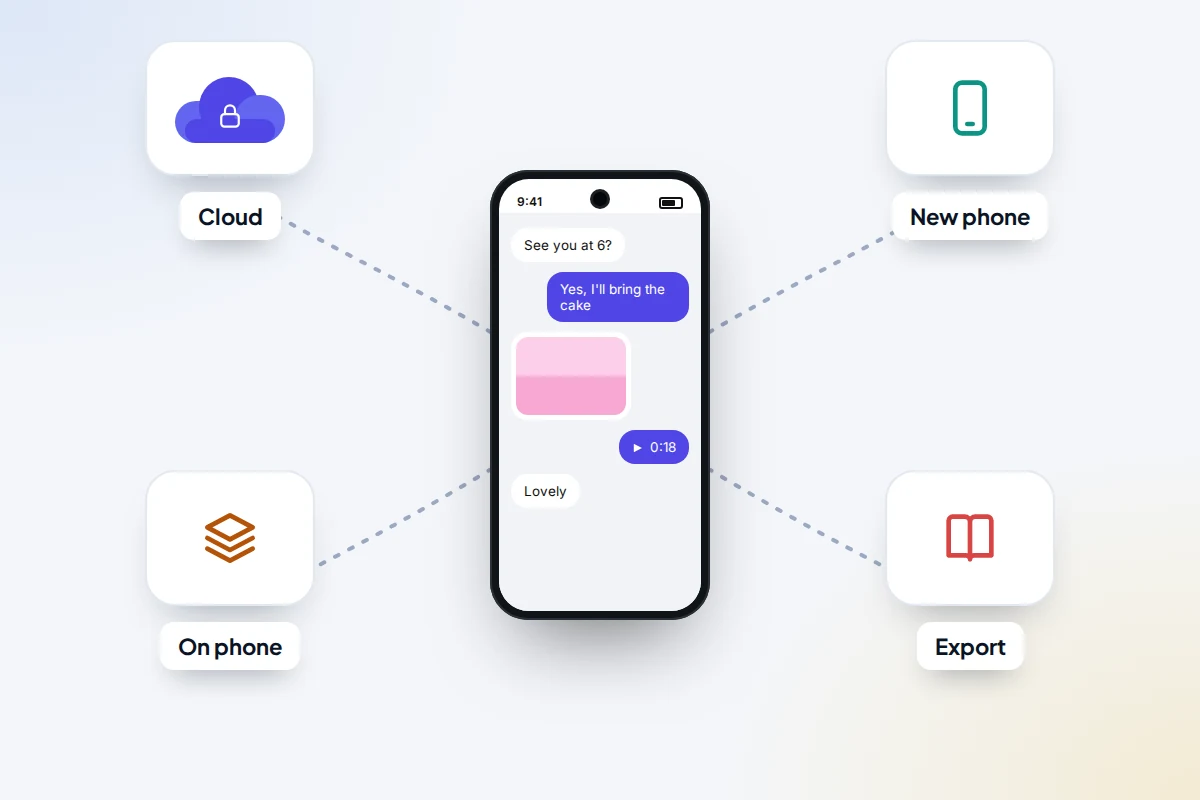
“Backed up” can mean several different things in WhatsApp, and only some of them can be put back into the app.
| Copy | Where it lives | What it holds | Can WhatsApp restore it? |
|---|---|---|---|
| Cloud backup, Android | Your Google account, counted in its storage | Chats, photos, voice notes, documents; videos only if included | Yes, during setup on Android with the same number and account |
| Cloud backup, iPhone | iCloud Drive in your Apple Account | The same, with videos optional | Yes, during setup on iPhone with the same number and account |
| Local backup (Android only) | The phone’s own storage, up to seven days | Chats; media stays in WhatsApp’s media folders | Yes, but it is lost with the phone unless copied off |
| Chat export | A text file, plus media if chosen, that you send or save | One chat, capped at the most recent messages | No, it is for reading and keeping only |
| Phone-to-phone transfer | Nowhere: it goes directly between two phones | Chats and media, including videos | Yes, at setup, while the old phone still works |
| Linked computer or tablet | A synced copy on that device | Recent history for viewing | No, it is not a backup |
Two gaps to know about. Don’t count on call history coming back: the move from Android to iPhone leaves it behind. And disappearing messages that were in a backup are deleted when you restore it.
Exporting a single chat
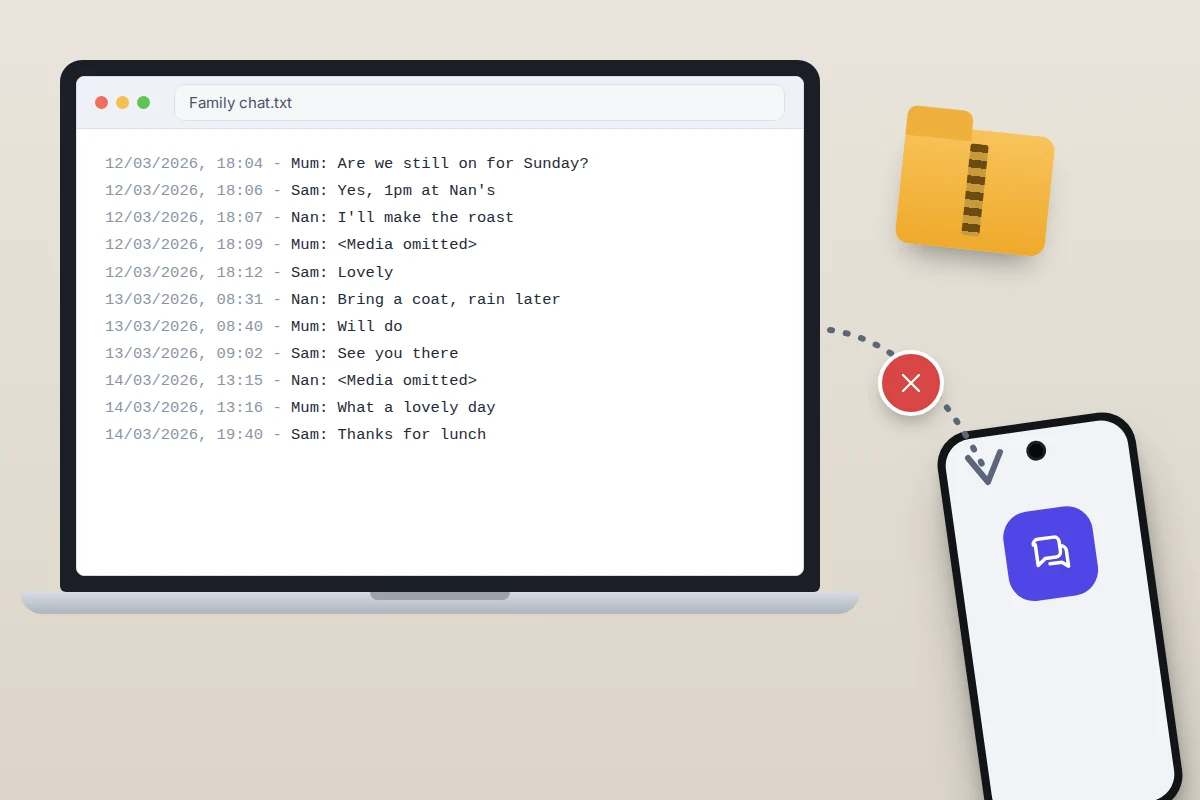
To keep one conversation as a file, open the chat and tap ⋮ → More → Export chat on Android, or tap the contact or group name and then Export Chat on iPhone. Choose with or without media. WhatsApp caps exports at the most recent messages (its help pages have long given 10,000 with media and 40,000 without), so an export of a long-running group may be incomplete. If someone in the chat has turned on Advanced Chat Privacy, exporting that chat is blocked.
Moving your chats to a new phone
Same system: transfer directly
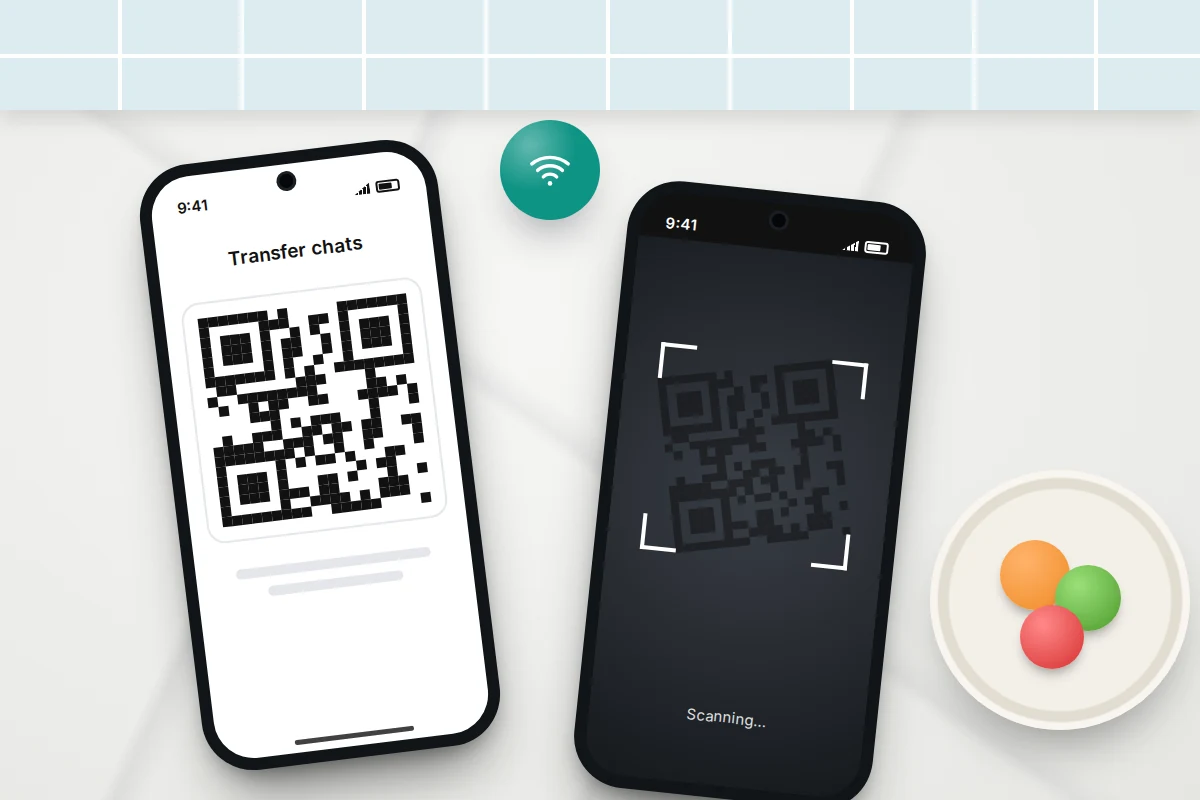
Going from Android to Android, or iPhone to iPhone, you can skip the cloud: WhatsApp’s chat transfer sends everything directly between the phones over local Wi-Fi, encrypted, without touching your cloud storage.
- Keep the old phone working, charged and on the same Wi-Fi as the new one.
- On the old phone, open Settings → Chats → Transfer chats (the wording varies slightly by system) and tap Start.
- Install WhatsApp on the new phone and register the same number. When it offers to transfer from your old phone, follow the prompts and scan the QR code shown on one phone with the other.
- Leave both phones alone until the transfer finishes.
Different system: use the official switch
Google account and iCloud backups do not cross between systems. From Android to iPhone, WhatsApp chats go across in Apple’s Move to iOS setup, onto an iPhone that is new or reset; the details are in our guide to moving from Android to iPhone. From iPhone to Android, the new phone’s setup offers to copy WhatsApp using a cable and a QR code scanned with the iPhone. If you skip that step, Google’s help gives you 3 to 7 days to do it later from Settings → Accounts and backup with Android Switch; Samsung phones use Smart Switch.
Restoring a backup
A restore only happens during WhatsApp’s setup, just after you verify your number. Skip the prompt and the only way back is to reinstall WhatsApp, losing anything new since.
Android
- Sign the new phone in to the Google account that holds the backup.
- Install WhatsApp and verify the same phone number.
- When WhatsApp finds the backup, tap Restore. Enter the password or key, or use your passkey, if the backup is encrypted.
- Wait for chats to finish, then tap Next. Media may carry on downloading in the background.
If there is no Google account backup, WhatsApp looks for a local backup on the phone instead.
iPhone
- Sign in to the same Apple Account, with iCloud Drive on.
- Install WhatsApp and verify the same phone number.
- Tap Restore Chat History and wait until it finishes, on Wi-Fi and on charge.
When a backup or restore fails
Most failures come down to storage, the wrong account or the wrong number. Work down this table.
| What you see | Likely cause | What to do |
|---|---|---|
| “No backup found” during setup | The phone is signed in to a different Google account or Apple Account, or you used another number | Sign in to the account shown on the old phone’s Chat backup screen, then set WhatsApp up again with the same number |
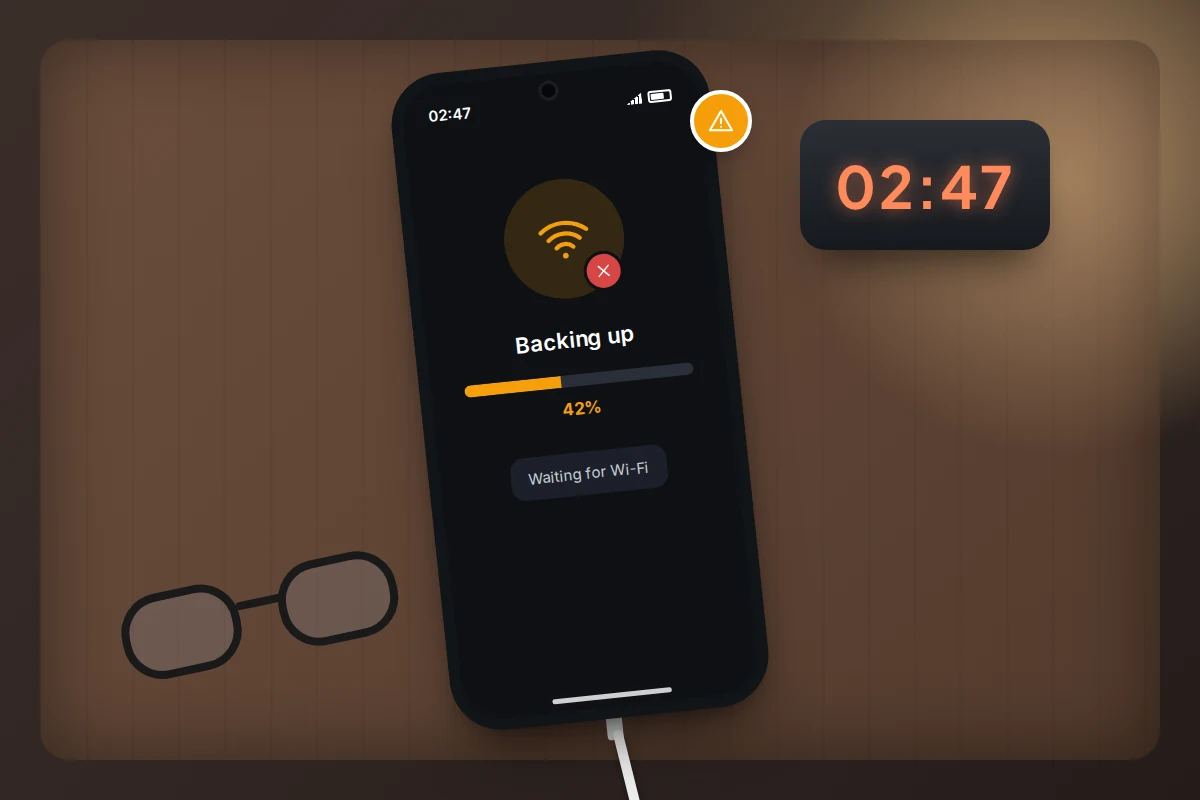
| Last backup is weeks old | Cloud storage full, or backup switched off after a reset | Free space or buy more; on iPhone, you need 2.05 times the backup size free |
| Backup stuck at a percentage | A large video, weak Wi-Fi, battery saver or an outdated app | Charge on Wi-Fi, update WhatsApp (and Google Play services on Android), restart, or turn off videos and try again |
| Asks for a password or key you don’t have | End-to-end encrypted backup is on | There is no reset. If the old phone still works, turn encrypted backup off and on there with a new password, then back up again |
| You changed your number | The backup belongs to the old number | Use Settings → Account → Change number on the old phone first, then make a new backup |
| Chats restored, videos missing | Include videos was off | Nothing to recover from the backup; check whether the videos are in your photo library |
| Restore prompt skipped | It only appears once | Delete and reinstall WhatsApp, then restore; new messages since then will be lost |
Frequently asked questions
Does my iCloud or Google phone backup include WhatsApp?
Don’t rely on it. On iPhone, an iCloud device backup can include WhatsApp chats, but not once you turn on end-to-end encrypted backup. WhatsApp’s own backup is the one it looks for during setup, so turn that on and check it separately.
Can I read my WhatsApp backup on a computer?
No. The file in Google Drive or iCloud is not viewable. To read a conversation on a computer, export the chat, or use WhatsApp on a linked computer while your account is active.
Can I keep several older backups?
Not in the cloud: each backup replaces the last, and Android’s local backups go back seven days at most. To keep an old state of a chat, export it.
Does WhatsApp delete old backups?
On Android, yes: a backup in your Google account that hasn’t been updated for about five months is removed automatically. If you have stopped using WhatsApp but want to keep certain conversations, export them rather than trusting that backup to still be there.
Will restoring bring back a message I deleted?
Only if it was deleted after the last backup, and restoring means reinstalling WhatsApp, which loses everything newer than the backup. It is rarely worth the trade.
Sources and further reading
- WhatsApp Help Centre: How to back up your chat history
- WhatsApp Help Centre: About end-to-end encrypted backup
- WhatsApp Help Centre: Can’t back up or restore your chat history
- WhatsApp Help Centre: How to transfer your chat history
- WhatsApp Blog: Passkey-encrypted chat backups
- Android Help: Transfer WhatsApp data to a new Android phone
- Android Police: WhatsApp backups now count against your Google storage
- Android Police: How to find your WhatsApp backups in Google Drive
Looking for a tool to go with this? TheTruthSpy is a free parental control app for Android that stays visible on the child's phone. If it fits your family, see the Social media alerts feature.
Related guides
How to Wipe a Phone Before Selling It
Wipe a phone before selling it in the right order: back up, move sign-in codes, sign out to release the…
How to Move From Android to iPhone
Moving from Android to iPhone: what Move to iOS transfers, how to bring WhatsApp chats, passwords and authenticator codes, and…
How to Free Up Storage on Your Phone
Find what is really filling your phone before deleting anything: read the storage screen, clear chat media and downloads safely,…
Parental controls your child can see
Location, screen time limits, a web filter and alerts from notifications — free, and visible on your child's phone. Pair a phone in about ten minutes.
Android · Free to set up · Visible on your child's phone