How to Transfer Your Contacts to a New Phone

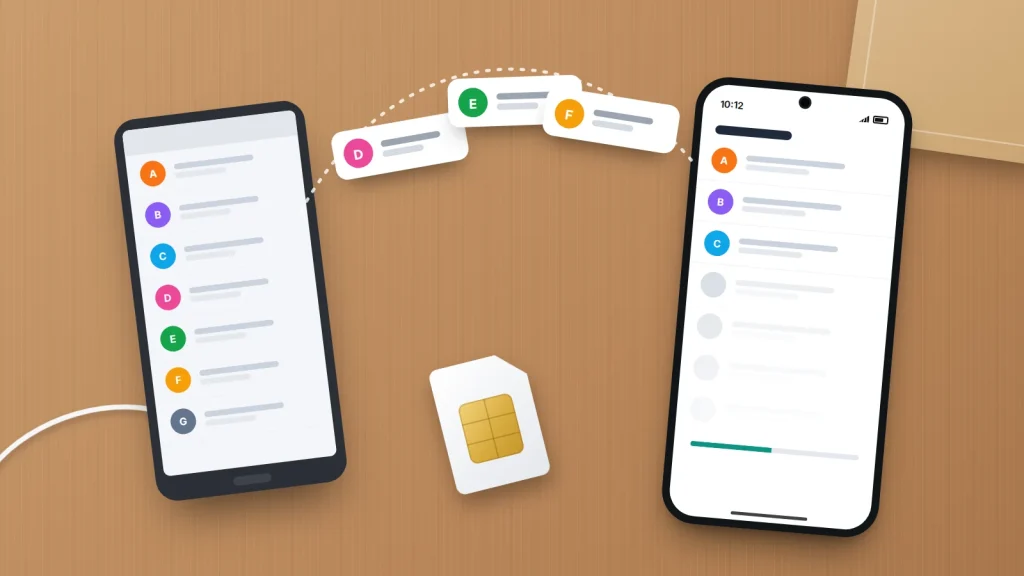
You sign in to the new phone, open Contacts, and most people are there. Your dentist, your neighbour and half the school parents are not. Nothing has been deleted: those contacts were saved somewhere the new phone doesn’t look.
Every contact belongs to an account, even though your Contacts app shows them all as one list. Some sit in a Google or iCloud account and follow you to any phone you sign in on. Others were saved to the SIM card, to a Samsung account or only to the phone’s own memory, and stay behind unless you move them.
Below: how to check where your contacts live, gather them into one cloud account, and move them between any two phones, including a basic one.
The short version
- Find out where your contacts are stored before you change phones. Phone-only and SIM contacts are the ones that go missing.
- Move everything into one cloud account (Google or iCloud) and make it the default for new contacts.
- Signing in to that account on the new phone brings the contacts with it, whatever the brand.
- Export a .vcf file as a backup you control, because syncing copies deletions as well as additions.
- Merge duplicates afterwards, and keep the old phone until names show up in your calls and messaging apps.
Why contacts go missing when you switch
When you save a contact, your phone files it under an account: a Google account, iCloud, a Samsung account, a work email account, the SIM card, or plain device storage. The Contacts app then merges all of these into a single list, which hides where each entry actually lives.
On a new phone, only contacts in accounts you sign in to come back, plus whatever the setup transfer copies. A Samsung account on a Pixel, or a work account you haven’t added yet, simply isn’t there.
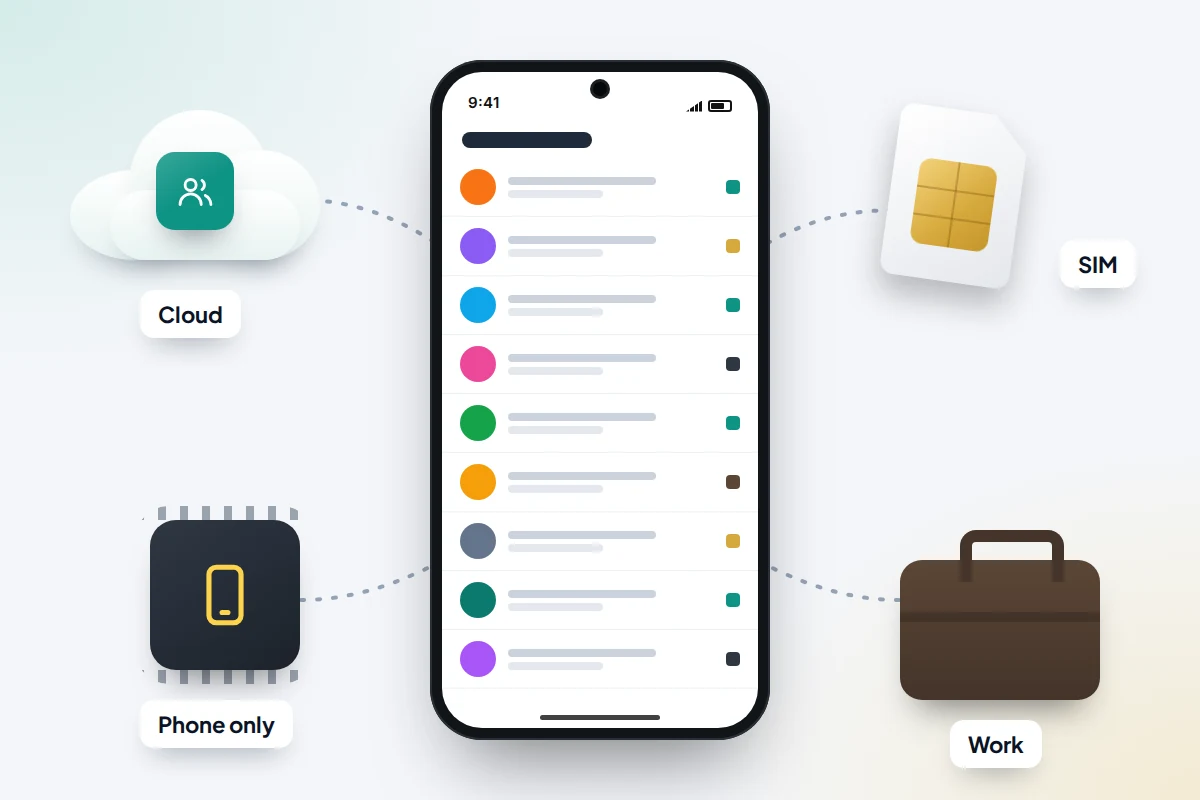
Where are my contacts? What you see and what it means
Open a few contacts you rarely use and look at the account shown on each one, usually near the top or bottom of the contact card. Then find the matching row below.
| What you see | Where it is stored | How to move it |
|---|---|---|
| Your Gmail address, or a Google label | Your Google account | Sign in to that Google account on the new phone, Android or iPhone |
| iCloud, or the contact appears under an iCloud list on iPhone | Your Apple Account (iCloud) | Sign in on the new iPhone; for Android, copy during setup or export a vCard |
| Samsung account | Samsung Cloud | Syncs to other Galaxy phones; move to Google first if you’re leaving Samsung |
| Phone, Device, Local or Phone storage | Only on this phone | Back up or move to your cloud account now |
| On My iPhone | Only on this iPhone | Turn on iCloud Contacts, or export them |
| A SIM icon or SIM label | The SIM card | Import into your cloud account; don’t rely on the SIM |
| A work email address (Exchange or Microsoft 365) | Your employer’s system | Add the work account on the new phone; ask IT before exporting |
| A name in WhatsApp but nowhere in Contacts | Saved inside WhatsApp | Comes back when you sign in to WhatsApp |
Work contacts belong to your employer’s account and can vanish when you leave the job, so copy personal numbers into your own account while you still can.
Check the storage settings on your phone
Menu names vary between phone makers and software versions, but every phone has a way to see which accounts hold contacts and which one new contacts are saved to.
Pixel and other phones using Google Contacts
- Open Contacts, tap your profile picture → Contacts app settings and look at Default account for new contacts. Choose your Google account if it says anything else.
- The Organise tab at the bottom (spelt Organize with US English settings, and called Fix & manage on older versions) has the import, export and SIM tools used below.
Samsung Galaxy
- Open Contacts, tap Menu (three lines) and then Manage contacts.
- Tap Default storage location (on some versions Set default storage location) and choose your Google account, or your Samsung account if you’ll only ever use Galaxy phones.
iPhone
- Open Contacts and tap Lists at the top left. You’ll see a list for each account, such as iCloud or Gmail.
- Go to Settings → Apps → Contacts → Contacts Accounts to see which accounts have Contacts turned on.
- Go to Settings → Apps → Contacts → Default Account and pick the account new contacts should go to.
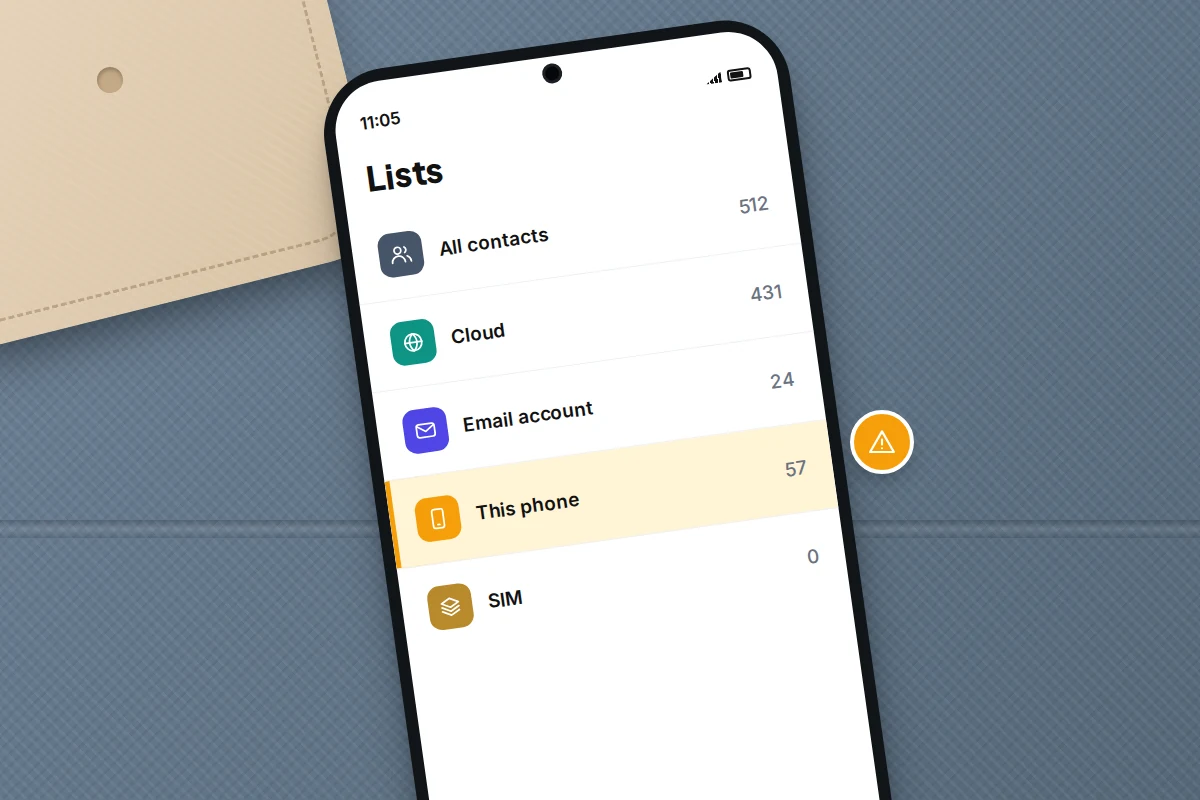
Move phone-only and SIM contacts into your cloud account
Do this on the old phone while it still works. It prevents most losses.
Android with Google Contacts
- Go to Settings → Google → All services, then under Backup & restore tap Google Contacts sync.
- Choose your Google account, tap View settings and turn on Backup device-only & SIM contacts automatically.
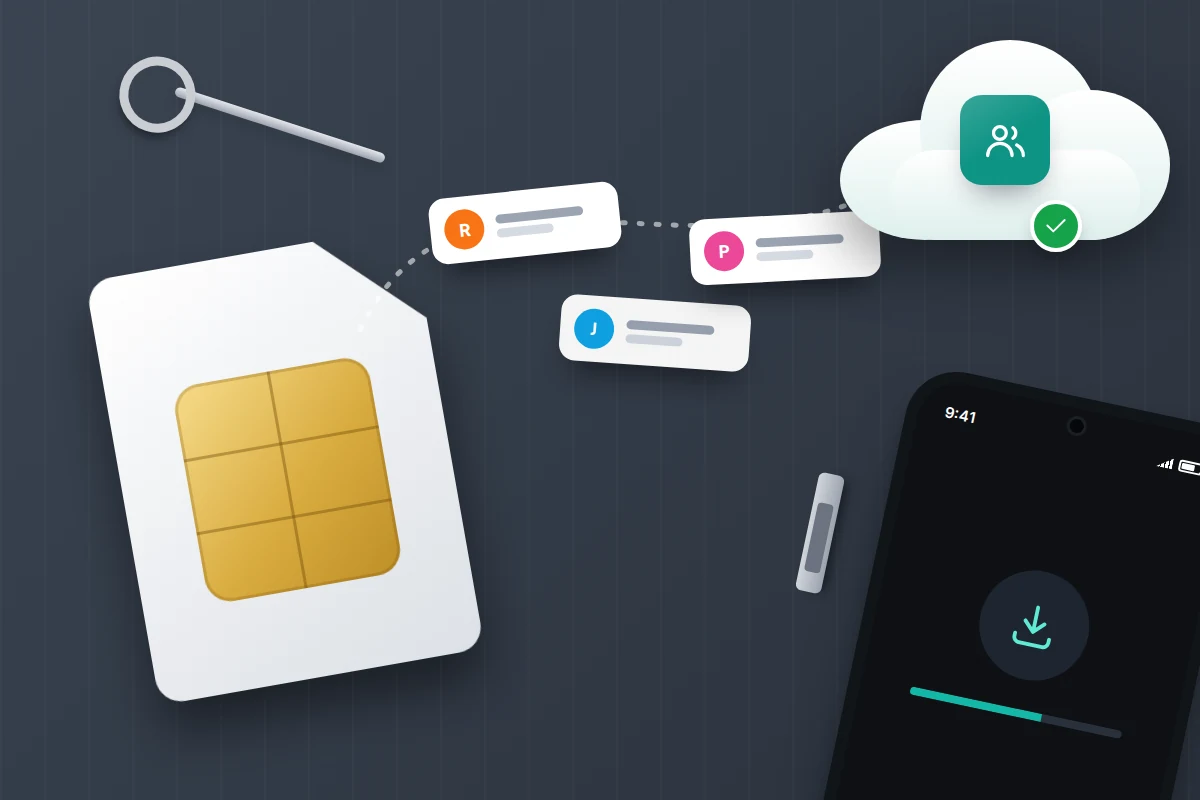
- For SIM contacts that still don’t appear, open Contacts → Organise → Manage SIM, select them, choose your Google account and tap Import.
Google says this backup works with one Google account only, and not with a child’s account or a Google Workspace (work or school) account. To move a single contact, open it, tap the menu and choose Move to another account; this deletes it from the original account.
Samsung Galaxy
- Open Contacts → Menu → Manage contacts → Move contacts.
- Choose the source (Phone or SIM), select the contacts, and pick your Google or Samsung account as the destination.
- For SIM contacts, Manage contacts → Import or export contacts also works.
iPhone
- For SIM contacts, put the old SIM in the iPhone and go to Settings → Apps → Contacts → Import SIM Contacts, choosing your iCloud account if asked. Apple notes that what comes across depends on how the old phone saved them.
- For On My iPhone contacts, go to Settings → [your name] → iCloud, tap See All and turn on Contacts. If asked what to do with existing contacts, choose to merge them.
Same brand: iPhone to iPhone, Android to Android
iPhone to iPhone
If iCloud Contacts is on, signing in with the same Apple Account brings your contacts down automatically. Quick Start, which runs when you hold the two iPhones together during setup, copies everything else too, including anything left On My iPhone. Keep both phones plugged in and leave them alone until it finishes.
Android to Android
Signing in with your Google account restores your Google contacts. Google says the setup option to copy apps and data from the old phone, by cable or wirelessly, also brings contacts stored on the phone or SIM, but not those synced to services other than Google.
Moving to a Galaxy, Samsung’s Smart Switch app copies contacts from another Galaxy, from other Android phones and from an iPhone. Contacts in a Samsung account sync only between Galaxy phones, so move them to Google before leaving Samsung.
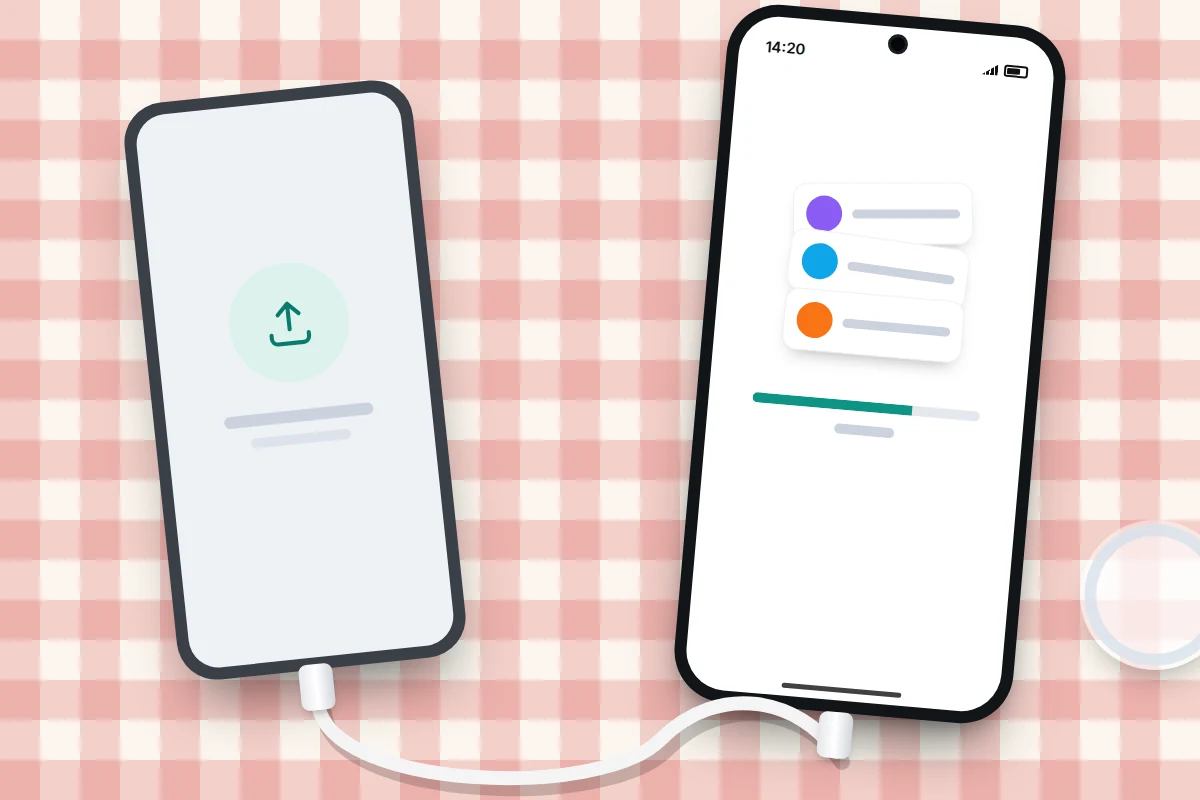
Between Android and iPhone
If you’re changing platform, our guide to moving from Android to iPhone covers the whole switch, including Apple’s Move to iOS app, which copies contacts during iPhone setup. If setup is already done, there are two dependable routes.
Keep them in Google
If your contacts are already in your Google account, you don’t need to transfer them at all. On the iPhone, go to Settings → Apps → Contacts → Contacts Accounts → Add Account → Google, sign in and make sure Contacts is on. Set Default Account to Google too, so new contacts land in the same place.
Going the other way, from iPhone to Android, Google says the Android setup copy (by cable, or wirelessly with the Android Switch app on the iPhone) brings across device, iCloud and other synced contacts.
Export and import a vCard file
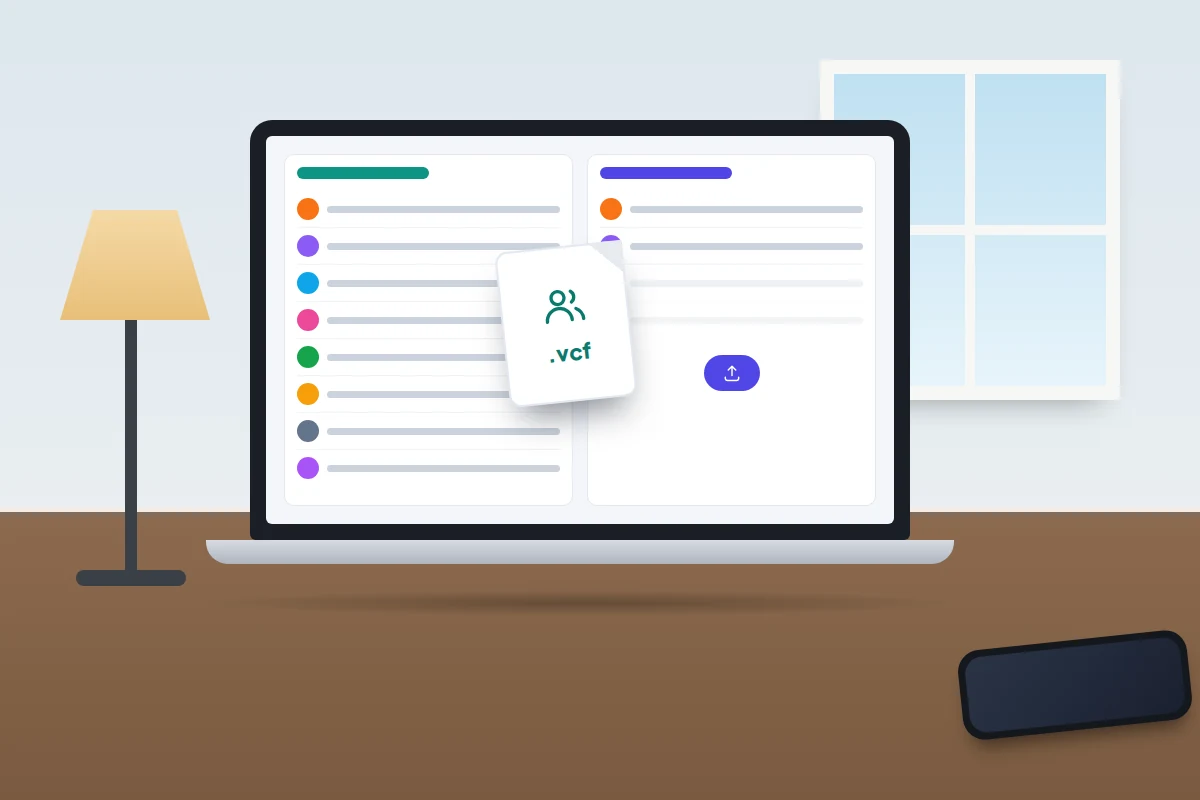
A vCard (.vcf) file is a plain list of contacts that any phone or contacts service can read. It works when the setup transfer didn’t, or the old phone is gone but its account isn’t.
- From iCloud: on a computer, go to icloud.com/contacts, select all contacts, click the Share button and choose Export vCard. Apple says selecting several contacts exports them as one file.
- Into Google: go to contacts.google.com, click Import → Select file, choose the file and click Import. Google asks you to split files of more than 3,000 contacts.
- From Google to iCloud: export from contacts.google.com, then on icloud.com/contacts click the Add button and choose Import Contact.
Basic phones and SIM-only contacts
Older button phones and many simple phones for older people save contacts to their own memory or the SIM. There is no account to sign in to, so the SIM usually becomes the bridge.
- On the basic phone, look in the contacts menu for an option such as Copy or Copy all to SIM. Wording varies a lot between models.
- Put that SIM in the new phone and import it as described above, into a Google or iCloud account.
- Check the result carefully. SIM storage is small, usually holds one number per name, and can shorten long names.
Some can send contacts over Bluetooth as vCards; for a dozen numbers, typing them in is often quicker.
Export a .vcf backup you control
Syncing is not a backup. If contacts are deleted or scrambled on one phone, the change syncs everywhere. A .vcf file saved somewhere other than the phone lets you put things back.
- Pixel: Contacts → Organise → Export to file, choose the accounts, then Export to .VCF file.
- Samsung: Contacts → Menu → Manage contacts → Import or export contacts → Export, and choose phone storage rather than the SIM.
- iPhone: in Contacts → Lists, touch and hold a list such as All Contacts and choose Export, or export from icloud.com/contacts on a computer.
The file holds other people’s numbers and addresses, so keep it somewhere private, not a shared folder. Google also keeps deleted contacts in Trash for 30 days, and Settings → Undo changes on contacts.google.com can roll back any changes from the past 30 days.
Merge duplicates afterwards
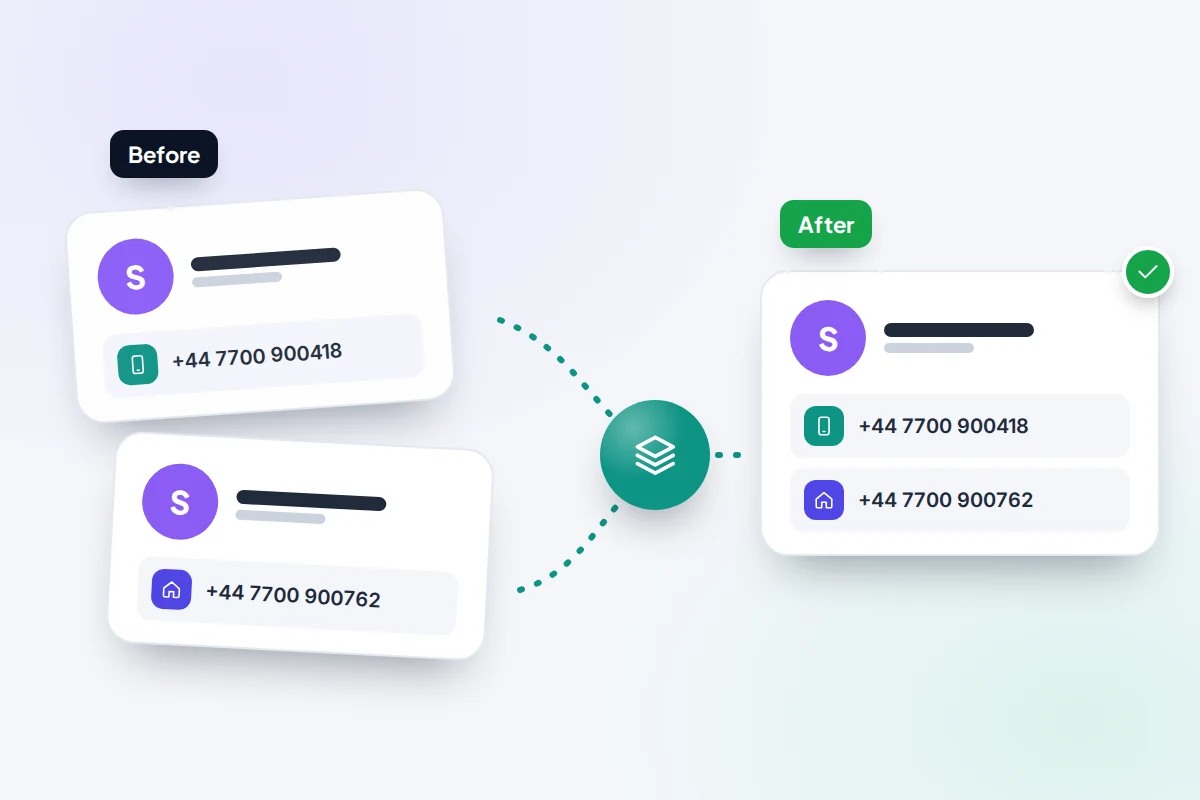
Duplicates appear when the same person was saved in two places, such as the SIM and Google, and both got imported. Merge once everything has arrived.
- Pixel: Contacts → Organise → Merge & fix, then merge the suggested duplicates.
- Samsung: Contacts → Menu → Manage contacts → Merge contacts.
- iPhone: if a Duplicates Found notice appears at the top of your contacts list, tap View Duplicates, then Merge All (iOS 16 or later). For entries under slightly different names, open one, tap Edit and use Link Contacts.
WhatsApp, Signal and other apps
WhatsApp and Signal move your chats separately, but the names they show come mostly from your phone’s address book. If your contacts made the move, names reappear once you allow the app access to Contacts; if not, you’ll see bare numbers.
Recent versions of WhatsApp can also save a contact inside WhatsApp itself, and those return when you sign in. Anyone you added from the phone’s Contacts app still depends on the address book.
Before you wipe the old phone
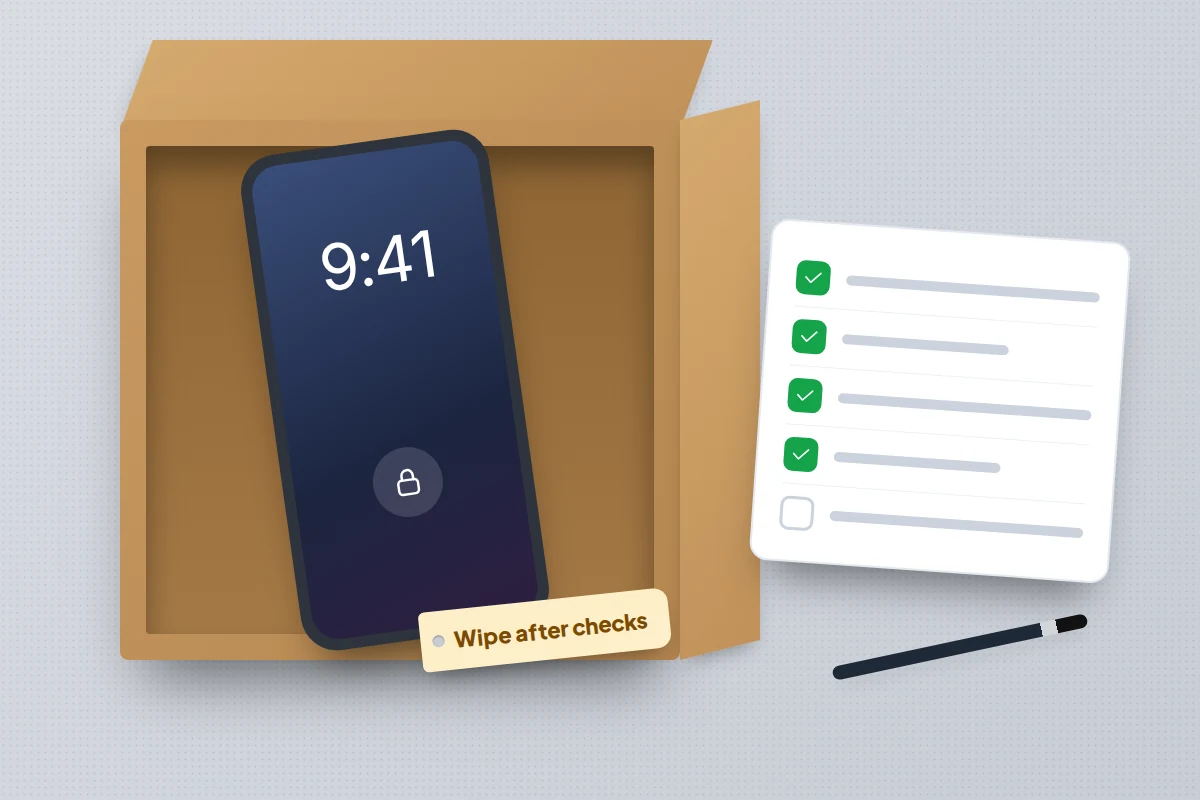
Work through this with both phones side by side. When every row checks out, follow our steps to wipe a phone before selling it.
| Check | How to confirm |
|---|---|
| Nothing left in phone-only or SIM storage | The account filter or Lists on the old phone shows zero, or only duplicates |
| Numbers roughly match | Compare the contact count on both phones; small gaps are often merged duplicates |
| Rarely used contacts arrived | Search for three people you haven’t called in a year |
| Default account is a cloud account | Save a test contact and check it appears at contacts.google.com or icloud.com |
| A .vcf backup exists off the phone | Open the file on a computer and see names inside |
| Work contacts are available | Your work account is added, and any personal numbers copied out |
| Messaging apps show names | Open WhatsApp or Signal and check a few chats |
| Emergency contacts are set | Check the emergency or medical information section on the new phone |
What if contacts are still missing
- Only some contacts show. The app may be showing one account. On iPhone, tap Lists and choose All Contacts; on Android, check the account filter or contacts-to-display setting.
- Google contacts don’t appear on Android. Go to Settings → Google → All services → Google Contacts sync → Status and check that sync is on, then pull down on the contacts list to refresh. On Samsung, account sync is also under Settings → Accounts and backup.
- The old phone is broken or lost. Contacts that were in Google or iCloud are still there: sign in at contacts.google.com or icloud.com on a computer to check. On Android, Contacts → Organise → Restore contacts can bring back device and SIM contacts that were backed up from the old phone.
- You deleted contacts by mistake. Use Google’s Trash or Undo changes within 30 days. On icloud.com, Apple lets you restore an earlier version of your contacts.
Frequently asked questions
Do my contacts move with my SIM card?
Only the ones saved to the SIM. Modern phones save new contacts to an account by default, so most people’s SIM holds few or none.
If I remove my Google account from the old phone, do my contacts disappear?
They disappear from that phone, but stay in your Google account and on any other phone signed in to it. Phone-only contacts on the old phone are not affected.
Why won’t my child’s contacts back up automatically?
Google’s automatic backup of phone and SIM contacts doesn’t work with a child’s account. Save the numbers they need directly to their Google account on their phone, or share a .vcf of family numbers from yours and import it.
Should I use a third-party contact transfer app?
You rarely need one. These apps ask for full access to everyone in your address book, so the built-in tools are the safer first choice.
Sources and further reading
- Google Contacts Help: Back up and sync device and SIM contacts
- Google Contacts Help: Import your contacts into Google Contacts
- Android Help: Copy apps and data from an Android to a new Android device
- Android Help: Copy apps and data from an iPhone to a new Android device
- Apple Support: Manage and delete contacts on your iPhone or iPad
- Apple Support: Import contacts from your SIM card to your iPhone
- Apple iCloud User Guide: Import, export or print contacts on iCloud.com
- Samsung Support: Manage your contacts on your Galaxy phone and tablet
Looking for a tool to go with this? TheTruthSpy is a free parental control app for Android that stays visible on the child's phone. If it fits your family, see what the app does.
Related guides
How to Recover Deleted Photos on Your Phone
Where deleted photos go on iPhone, Google Photos and Samsung Gallery, how long each bin keeps them, and which other…
How to Take Screenshots and Record Your Screen on Any Phone
Screenshots and screen recordings on iPhone, Pixel and Samsung: button combos, long captures, adding your voice, hiding private details and…
How to Fix Bluetooth Pairing Problems
Fix Bluetooth pairing problems with headphones, earbuds, cars, speakers and watches on iPhone and Android, using a symptom table and…
Parental controls your child can see
Location, screen time limits, a web filter and alerts from notifications — free, and visible on your child's phone. Pair a phone in about ten minutes.
Android · Free to set up · Visible on your child's phone