Your Child’s First Solo Journey: A Phone Checklist

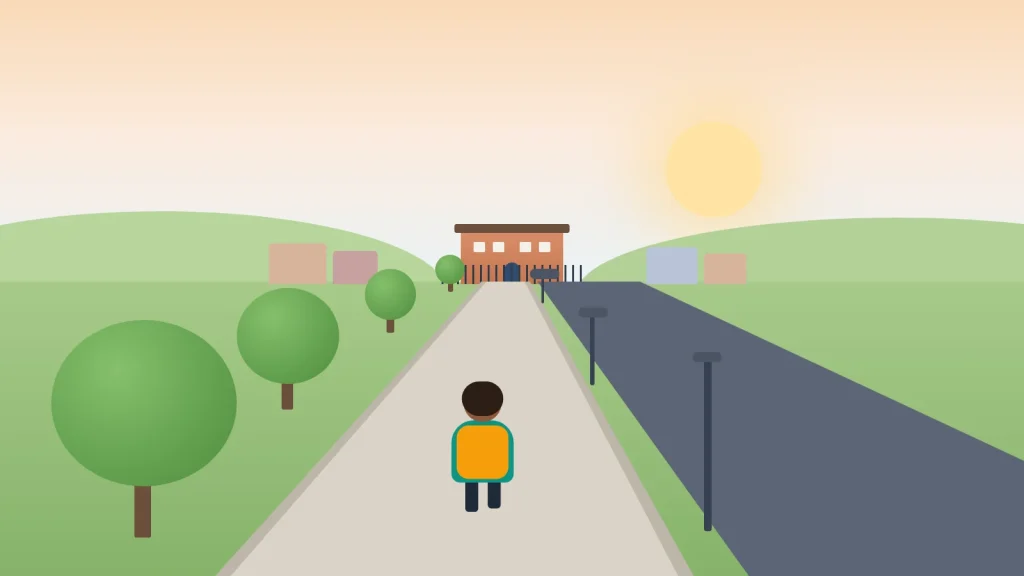
The night before, it’s often the parent who can’t sleep. Your child has walked to school beside you a hundred times; tomorrow they do it alone, or catch the 8:10 bus without you on it.
A phone helps, but it isn’t the plan. Phones go flat, get left on seats and lose signal in underpasses. What makes a first solo journey go well is a route your child has practised, a few settings done in advance, and a paper plan that still works when the phone doesn’t.
Below: how to judge readiness, practice runs, phone setup, tickets, agreed ways to know they’ve arrived, what to do when something goes wrong, and a plan card to fill in together.
The short version
- Practise the route together at least twice, at the real time of day, before the first solo trip.
- Charge the phone, put emergency contacts on the lock screen, and show your child how Emergency SOS works.
- Pack a paper card with two phone numbers and a Plan B meeting point. The plan mustn’t depend on the phone.
- Agree how you’ll know they’ve arrived: a message, an arrival alert or location shared for the trip only.
- Phone in the pocket and headphones out when crossing roads.
Is your child ready? What the guidance says
In the UK, no law sets an age for a child to go out without an adult, as the NSPCC points out. GOV.UK puts the wider rule plainly: the law doesn’t say when a child can be left on their own, but it’s an offence to leave a child alone if that places them at risk. The judgement is yours.
Some guidance helps. Rule 7 of the Highway Code says children should be taught the Green Cross Code and not allowed out alone until they can understand and use it properly. The Child Accident Prevention Trust (CAPT) notes that children have difficulty judging speed and distance until they are at least eight, and that child pedestrian accidents peak at 12, linked to independent travel. Whatever the age, the first year of travelling alone deserves extra care.
The NSPCC suggests talking through where they want to go, what they’ll do, who with, how far and what time they’ll be back. Before a first solo journey, your child should be able to:
- say their full name, address and the phone numbers of two trusted adults from memory
- cross roads safely without reminders
- explain what they’d do if the bus didn’t come or they got lost
- tell you they want to do it, rather than agreeing because a friend does
Do a practice run (or three)
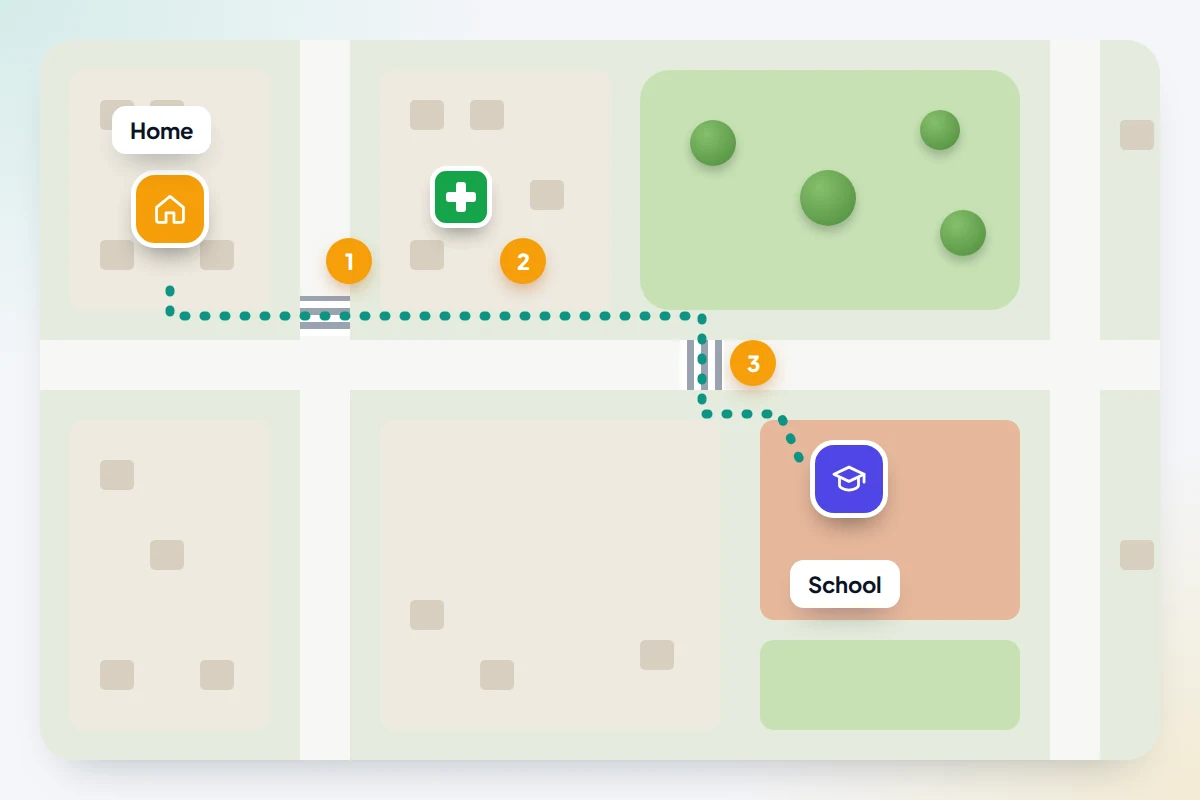
Walk or ride the route together at the real time of day. Traffic, crowds and school buses at 8:00 are nothing like a quiet Sunday.
- Run one: you lead, they watch. Point out landmarks, crossings, the stop for the way home (often on the other side of the road), and where to wait if they’re early.
- Run two: they lead, you stay quiet. Only step in if something is unsafe. Afterwards, ask what they found tricky.
- Run three: you follow or meet them there. Walk a little way behind, or be waiting at the gate, so they feel what it’s like on their own.
Time each run. The real journey time gives you an honest “should be there by” for later. Note the safe places on the route too: a shop, a pharmacy, the library, a staffed station. Those are where your child goes if anything feels wrong.
Set up the phone the night before
Most phone problems on a first trip are ones you could have fixed at home. Menu names below vary by phone maker and software version.
Power
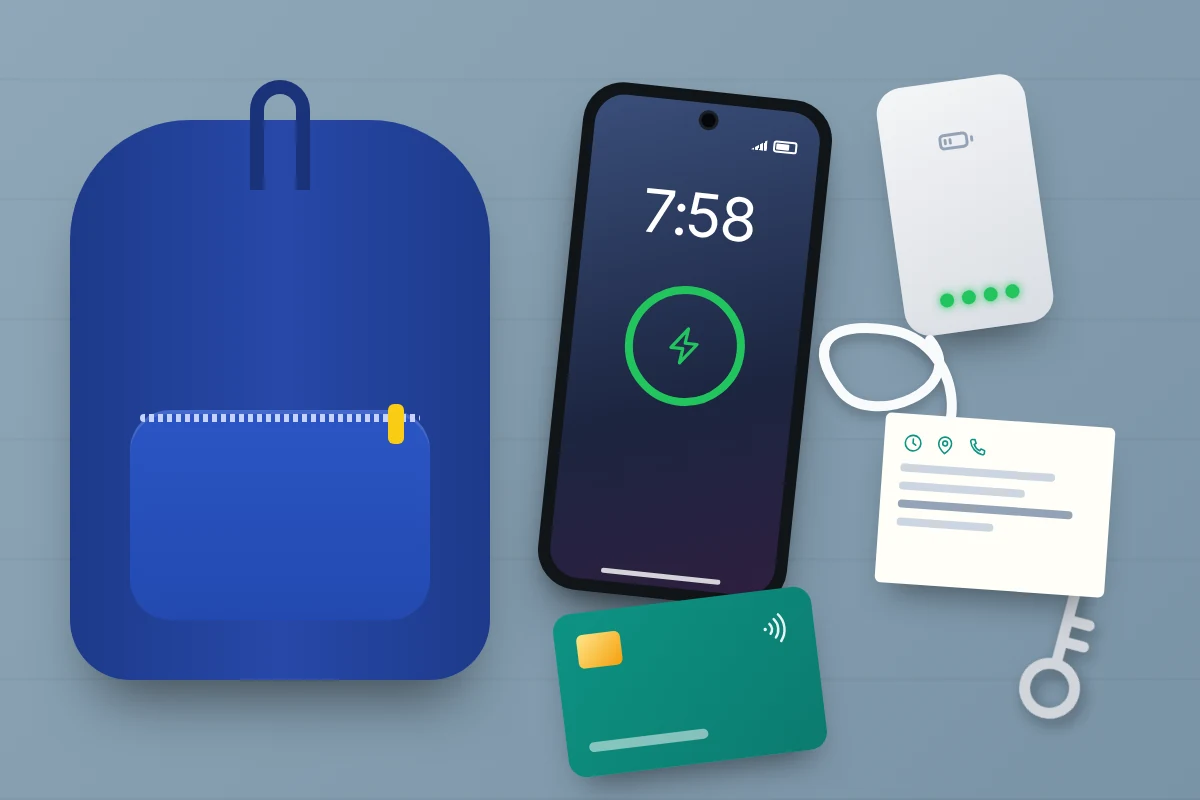
Charge the phone overnight and pack a small power bank with a short cable. Check the power bank itself is charged; a flat one is easy to miss.
Contacts and the lock screen
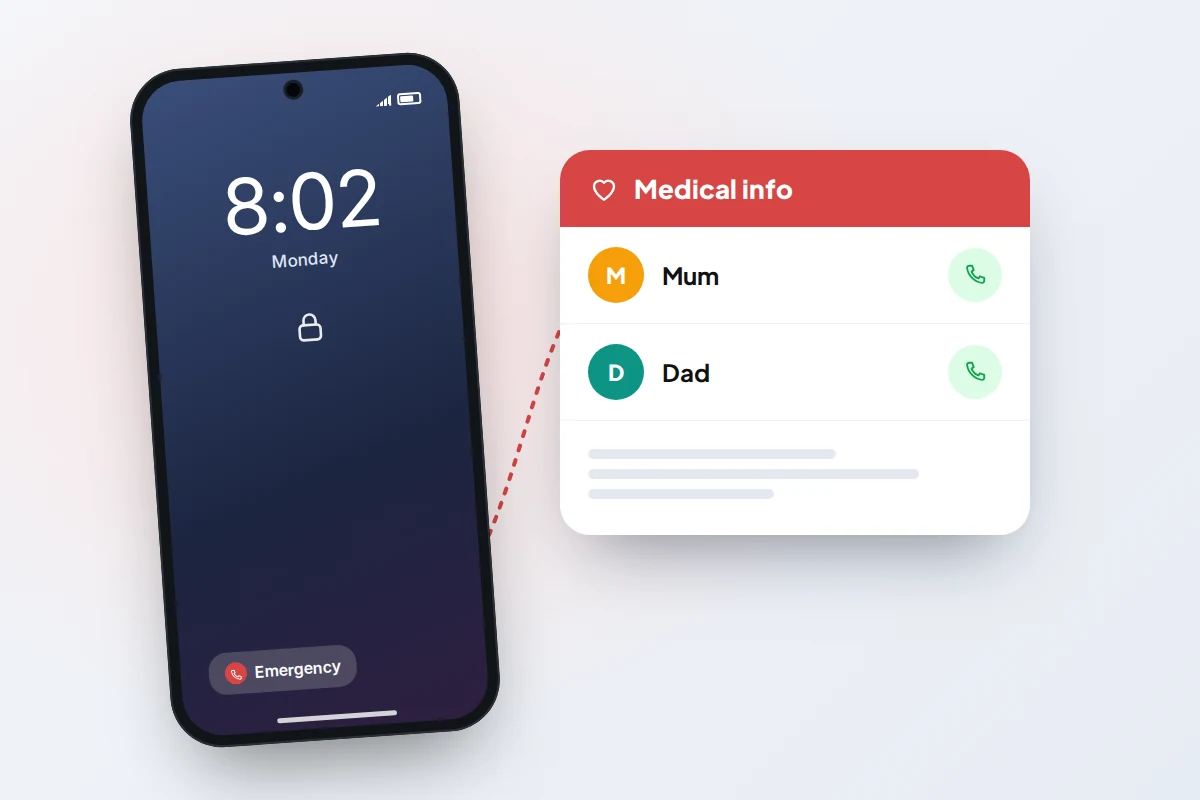
Save parents and one or two backup adults with plain names (“Mum”, “Dad”, “Gran”) and mark them as favourites. Then put emergency contacts where someone helping your child can see them without unlocking the phone:
- iPhone: open Health, tap the profile picture, then Medical ID → Edit. Add emergency contacts and turn on Show When Locked. Anyone can then open it from the lock screen via Emergency → Medical ID.
- Android: on Pixel and many other phones, open Settings → Safety & emergency (or the Personal Safety app), add emergency contacts and medical information under Your info, then turn on Show when locked under Emergency info access. Samsung phones use Settings → Safety and emergency.
Emergency SOS
Show your child where Emergency SOS is and what it does, without setting it off.
- iPhone: press and hold the side button and either volume button until the sliders appear, then drag Emergency Call. Call with 5 Presses can be turned on in Settings → Emergency SOS. After the call, the iPhone texts the emergency contacts with its location and sends updates for a while.
- Android 12 and later: press the power button five times or more. Settings are in Settings → Safety & emergency → Emergency SOS.
Both call emergency services. Explain that it’s for real emergencies, and that if it goes off by accident they stay on the line and say so.
Screen time rules
If you use Screen Time or Family Link, check the journey still works under them. A phone locked by Family Link can still answer calls and dial emergency services; mark any maps or bus app as Unlimited, then test that your child can ring you while a schedule is on. On iPhone, check Settings → Family → [child’s name] → Always Allowed includes Phone and those apps (on iOS 26, it’s under Settings → Screen Time).
Tickets and paying: keep a backup that isn’t the phone
London: the 11-15 Zip Oyster photocard gives free bus and tram travel and child fares on the Tube, DLR, London Overground, Elizabeth line and most National Rail services. It costs a £15 admin fee. It’s plastic, which is a feature: it works when the phone is flat. London buses don’t take cash, though 5- to 10-year-olds travel free on buses and trams without a photocard.
Trains: the 16-17 Saver takes 50% off most rail fares and the 16-25 Railcard takes a third off. Both come as a digital railcard in an app or as a physical card. A digital railcard on a dead phone can’t be shown, so many families choose the plastic one for the first year.
Paying by phone: Google Wallet for kids lets a parent add a payment card to a supervised child’s Android phone through Family Link for tap-to-pay in shops, in many countries including the UK and US. It doesn’t cover online or in-app payments, and spending limits come from your card provider rather than Wallet. On iPhone, Apple Cash Family is US only. Whether a child can add a card to their own Apple Wallet depends on their age and the card provider, so check with yours.
Whatever you choose, pack a physical backup in a separate pocket: the travel card itself, a bank card or a little cash where it’s accepted.
Agree how you’ll know they’ve arrived
Decide this together before the first trip, not at the door. There are three good options, and one is usually enough:
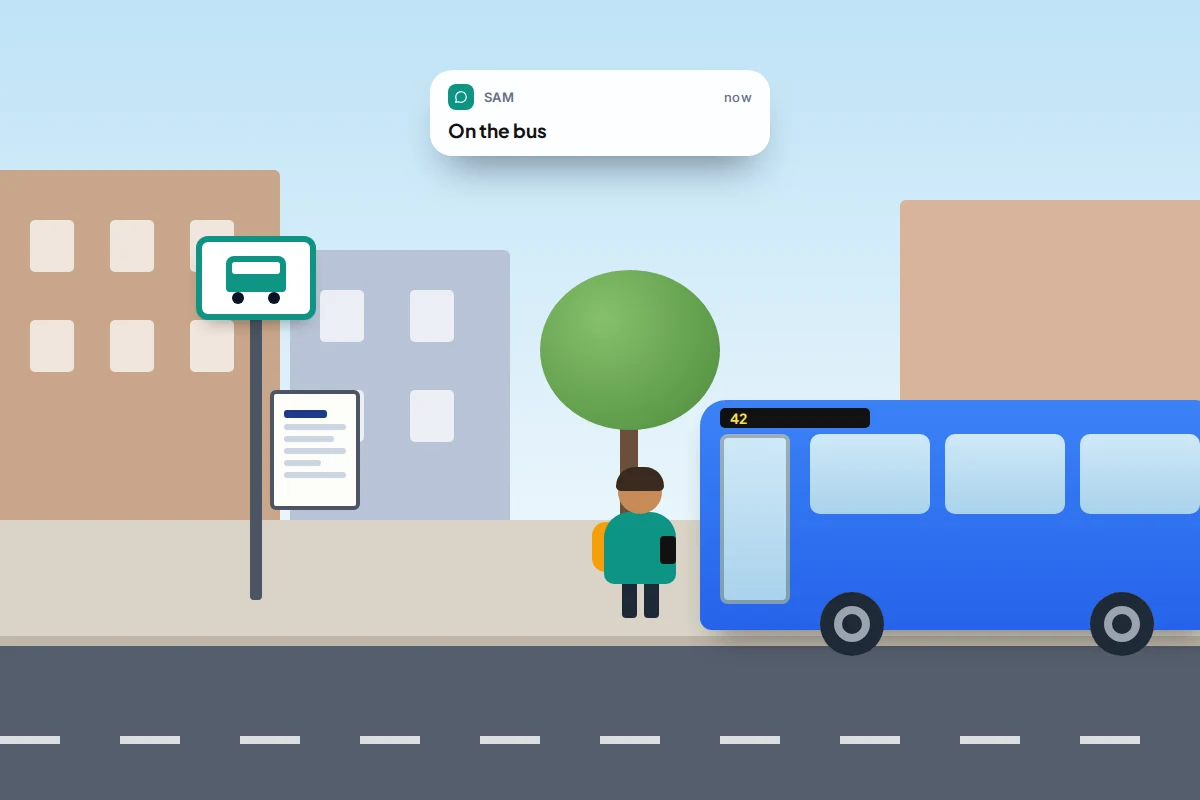
- A message at an agreed moment: “here” at the gate, “on the bus” when they board.
- An arrival alert, set up together, that tells you when they reach school or home. Your child is told it’s on.
- Live location for the journey only, shared for an hour and switched off at the gate.
How to set these up on iPhone and Android is covered in our guide to sharing location with family. What to do if a message doesn’t come, with a grace period and a step-by-step plan, is in the guide to check-ins instead of constant tracking. Agree the grace period now: buses run late, and ten minutes of silence is normal.
The plan card
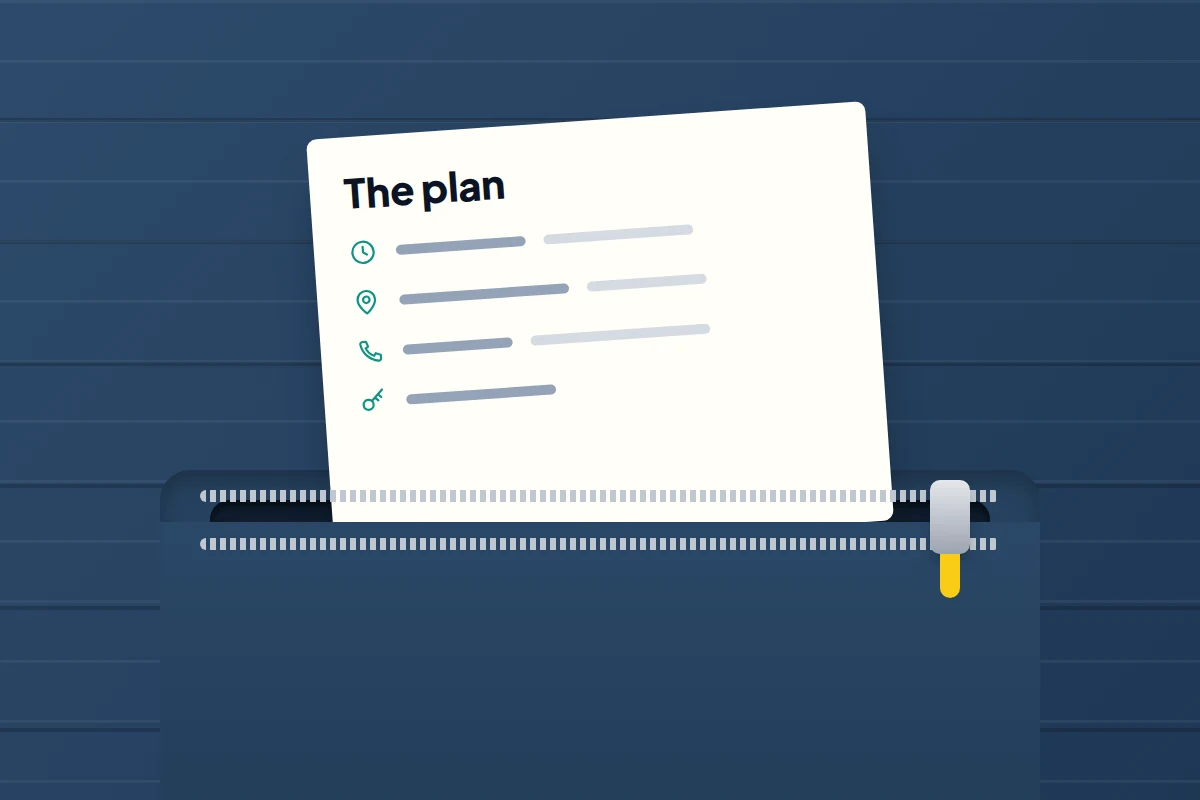
This is the part to bookmark. Fill it in together, print or write it on a card, and keep it in a zipped pocket of the bag or coat, not in the phone case, which goes wherever the phone goes.
| The plan | Example |
|---|---|
| Route | Elm Road, cross at the lights, side gate |
| Leave by / there by | 08:05 / 08:25 |
| Tell us when | “Here” at the gate |
| If the bus hasn’t come by | 08:20: ring Mum, then walk the practised route |
| Plan B meeting point | Inside the library entrance, High Street |
| Safe places on the way | Pharmacy, corner shop, station office |
| Numbers | Mum 07700 900123, Dad 07700 900456 |
| Code word | Anyone collecting you unexpectedly must say it |
Printable checklist
| Before you go | On the way | If something goes wrong |
|---|---|---|
| Phone charged, power bank charged | Phone in pocket when walking | Stay calm; you’re not in trouble |
| Plan card in a zipped pocket | Headphones out at crossings | Go to a safe place or Plan B point |
| Travel card or ticket packed | Send the agreed message | Ask a trusted adult to ring the card number |
| Emergency contacts on lock screen | Stick to the practised route | Never accept a lift that isn’t in the plan |
| Know the “there by” time | Stand back from the kerb at the stop | Danger: call 999 |
If the phone dies, is lost or is stolen
Flat battery. Nothing changes: your child carries on with the plan and, once there, asks the school office or a shop assistant to ring the number on the card. Agree in advance that a silent phone means “battery”, not “emergency”, and use the grace period.
Lost. If it was left on a bus or train, tell the driver or station staff straight away. You can usually locate it from your own phone if it was set up for that beforehand; our guide to setting up a phone so you can find it later covers what to switch on now.
Snatched or stolen. Let it go. A phone is replaceable. Your child should walk into the nearest shop or staffed place, tell someone, and ask them to ring you. Report it to the police on 101, or 999 if they were threatened or hurt.
In every case, learning one parent’s number by heart is the most useful backup of all. Practise it at the kitchen table until it’s automatic.
Plan B: missed buses and meeting points
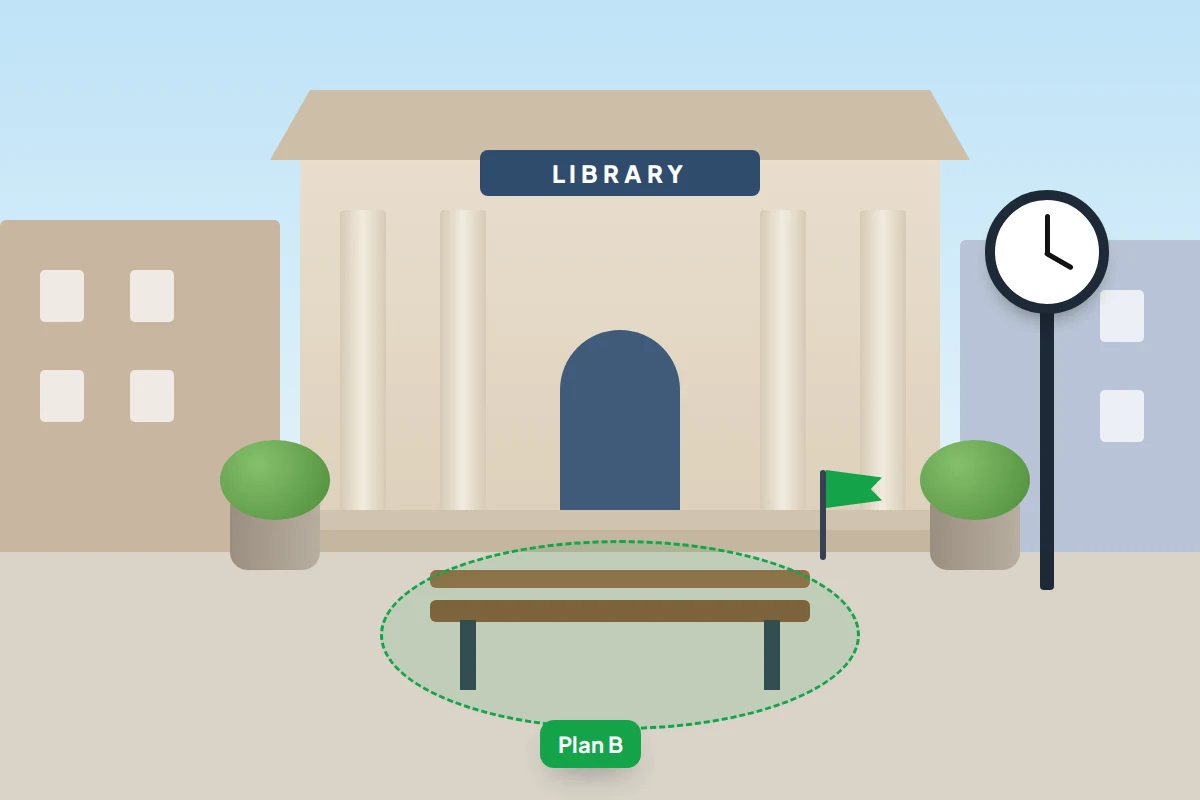
Choose a Plan B meeting point that is staffed, lit and on the route: a library entrance, a station ticket office, a named shop. “The park” or “the corner” are too vague and too empty.
- Bus doesn’t come: wait until the time on the card, then follow the card (ring, or walk the practised route if that’s agreed).
- Missed the stop: tell the driver, get off at the next stop, and ring or message you before walking back.
- Plans change on the day: nobody changes the plan without telling you first, and anyone sent to collect your child unexpectedly must know the code word.
Crossing roads: phone away, headphones out
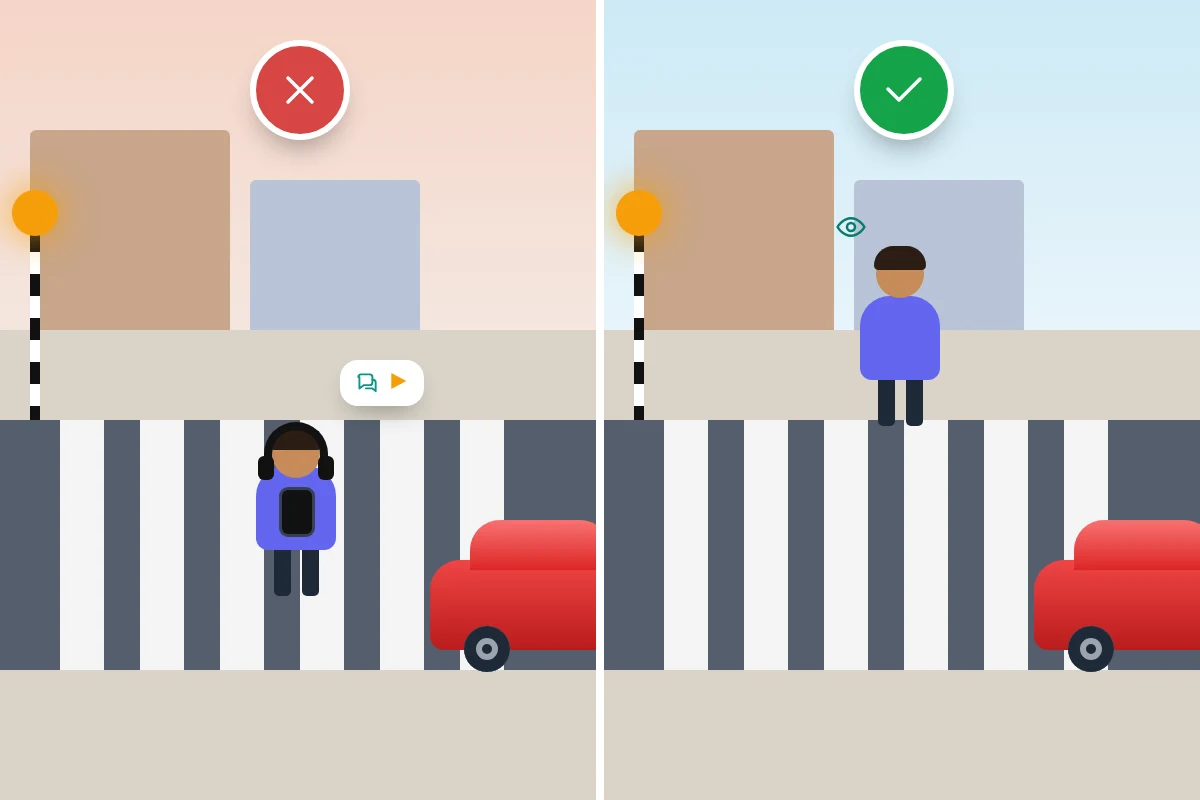
CAPT’s advice is direct: encourage your child to put their phone in their bag or pocket and take headphones out while crossing roads so they can concentrate. The Highway Code asks every pedestrian to avoid unnecessary distractions (Rule 1) and to keep looking and listening while crossing (Rule 7).
CAPT also suggests a simple demonstration at home: ask your child to read messages on their phone while you fire questions at them. They’ll notice how little they take in, which makes the rule theirs rather than yours. On your practice runs, count the crossings together and agree which ones to use.
Strangers and trusted adults
“Don’t talk to strangers” doesn’t help a lost child, because the person who helps them will almost certainly be a stranger. Teach instead who to ask:
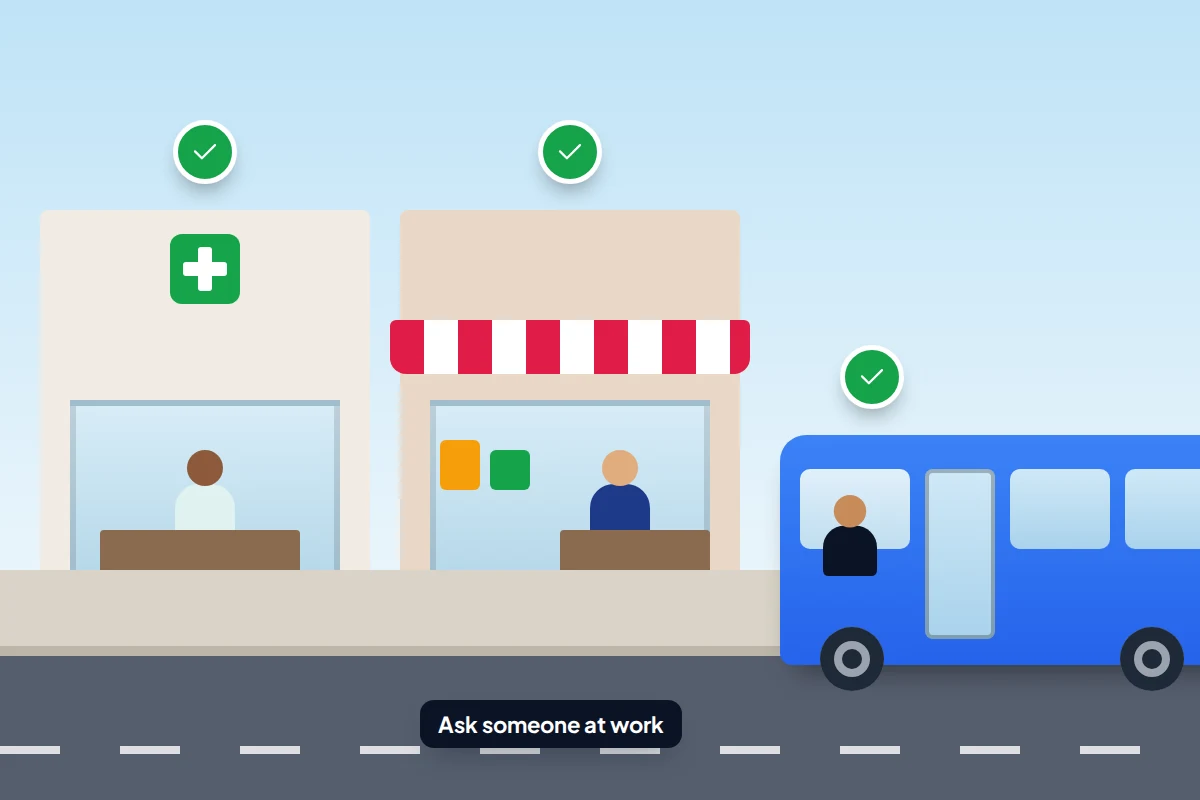
- people at work: the bus driver, station staff, a shop assistant or pharmacist
- a parent with children, if nobody at work is nearby
And a few firm rules: ask for help in a public place, never go anywhere with someone to “look for” something, and if anyone makes them uncomfortable, walk into a shop and tell the staff. Shouting and running to people is always allowed.
Frequently asked questions
What age can my child walk to school alone in the UK?
There’s no legal minimum. Base it on readiness: road sense, knowing the route and your number, and wanting to do it. CAPT’s point that children struggle to judge traffic speed until at least eight is a useful floor.
Should I track my child’s phone on their first solo journey?
Only if you’ve agreed it together, and preferably for the trip only. A message or an arrival alert is often enough, and it ends when the journey does.
Does my child need a smartphone for this?
No. A basic phone that calls and texts covers the essentials, and a child with no phone at all can manage with a practised route and a plan card.
Can my child pay for the bus with their phone?
Sometimes. Google Wallet for kids allows tap-to-pay in shops on a supervised Android phone in many countries, including the UK. On iPhone, it depends on the child’s age and the card provider. A physical travel card is the safer default.
What if my child panics and calls me in tears?
Stay calm on the phone, ask where they are and what they can see, and walk them to the nearest safe place or back to the plan. Talk about what happened later, when everyone is home.
Sources and further reading
- GOV.UK: Law on leaving your child on their own
- NSPCC: Leaving your child home alone, and going out without you
- The Highway Code: Rules for pedestrians (including the Green Cross Code)
- Child Accident Prevention Trust: Walking to school alone
- Apple Support: Set up your Medical ID in the Health app
- Android Help: Get help during an emergency
- Transport for London: 11-15 Zip Oyster photocard
- Google Wallet Help: About Google Wallet for kids
Looking for a tool to go with this? TheTruthSpy is a free parental control app for Android that stays visible on the child's phone. If it fits your family, see what the app does.
Related guides

How to Set Up Your Child’s First Email Account
Set up your child's first email account with Gmail, iCloud or Outlook: age rules, a safe address, recovery, what parents…

Smart Speakers and Kids: Settings Parents Should Change
The smart speaker settings to change for children on Alexa, Google and HomePod: voice purchases, explicit filters, recordings, Drop In…
How to Set Up a Shared Family Calendar
Set up a shared family calendar on Google, iCloud or Outlook: mixed iPhone and Android homes, school feeds, quieter alerts…
Parental controls your child can see
Location, screen time limits, a web filter and alerts from notifications — free, and visible on your child's phone. Pair a phone in about ten minutes.
Android · Free to set up · Visible on your child's phone