How to Set Up Your Child’s First Email Account

The request usually arrives sideways. A reading app the school uses wants an email address, then a game asks for one to “verify” a new account, and before long your child is asking for an address of their own.
That first address matters more than it looks. Whatever account it opens becomes the key to others: password resets for games, app store purchases, a club’s newsletter, later a bank. Set it up with your child, on the platform that matches their device, with an address that gives nothing away and a way back in that runs through you.
Below: the age rules as of September 2026, how Google, Apple and Microsoft handle a child’s first account, what a parent can and can’t see, and first-inbox rules to agree together.
The short version
- Under 13 (older in some countries), a parent creates the account: Google through Family Link, Apple through Family Sharing, Microsoft through a family group.
- Choose an address without their full name, birth year, school or town.
- Put your phone or email on the account for recovery, and keep the password between the two of you.
- None of the three parental dashboards shows the inbox. Agree openly when you’ll look at it together, and write the first-inbox rules as a family.
Does your child need their own address yet?
Plenty of children don’t, at first. Three things tip the balance.
- School platforms. Most schools issue their own accounts for homework apps. Those cover school and nothing else.
- App and game sign-ups. Many services ask for an email at sign-up. For a younger child, that should usually be your address or an account you manage, not a new inbox they check alone.
- A device of their own. An Android phone needs a Google Account and an iPhone an Apple Account. That account, which recovers the phone, apps and photos, is the real reason for the address.
If your child only plays games on a family tablet, your own account is often enough. A first phone or secondary school is a good moment to start.
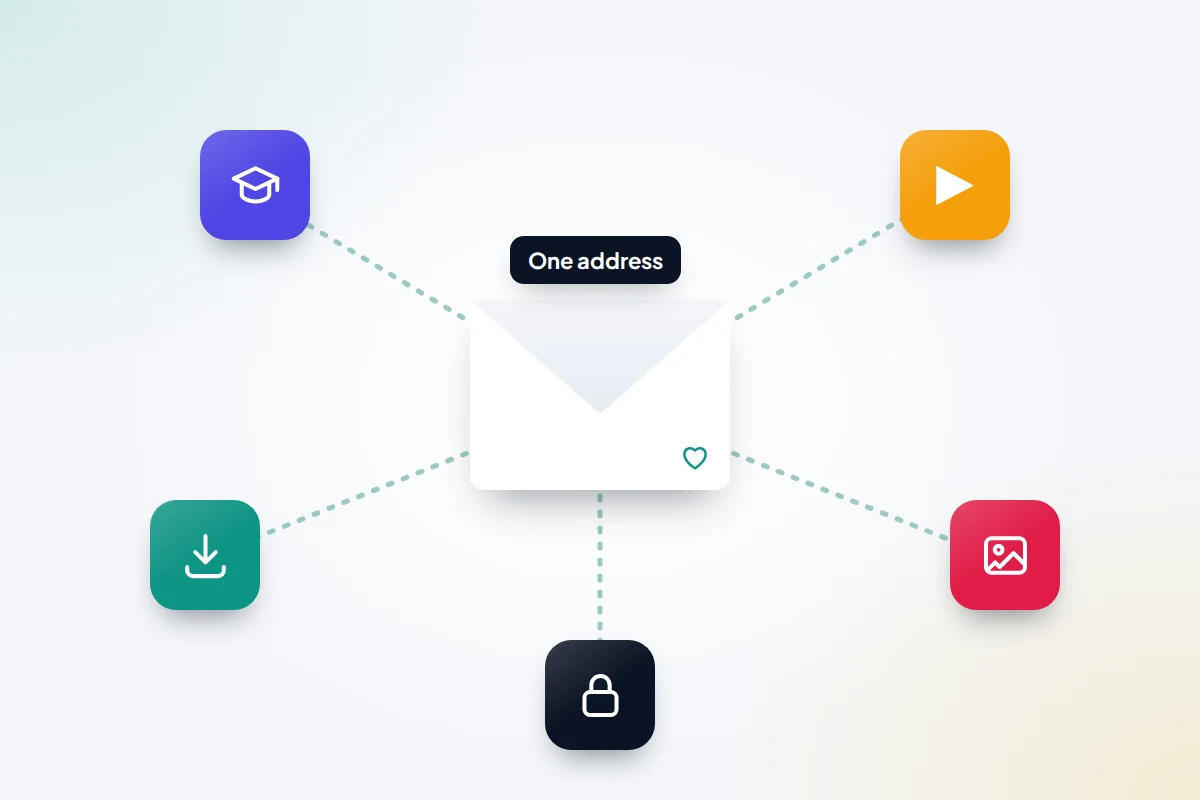
The age rules as of September 2026
In the US, the Children’s Online Privacy Protection Act (COPPA) requires services aimed at children under 13 to get verifiable parental consent before collecting their personal information, and to let parents review and delete it. The FTC’s amended rule, published in April 2025, adds a separate consent before a child’s data is shared with third parties such as advertisers.
In the UK, where an online service relies on consent to use a child’s data, 13 is the age a child can give it; below that, a parent must. The ICO’s Children’s code (the Age Appropriate Design Code) adds 15 standards for online services likely to be used by under-18s, including high privacy settings and location tracking switched off by default.
The platforms set their minimum age by country. Google’s is 13 in most countries, including the UK and US, but 14 in Spain and Italy, 15 in France and 16 in Germany, Ireland and the Netherlands. Apple’s list is similar and goes up to 18 in Brazil and in Texas. Microsoft asks for a parent’s consent when a child is under the “statutory age” for their region.
Below that age, you create the account and it stays linked to you. Typing a false birth year to skip this switches off the protections each platform applies by age.
Google, Apple or Microsoft: comparing child accounts
Choose by the device your child uses most: Google for Android or a Chromebook, Apple for an iPhone, iPad or Mac, Microsoft for Windows and Xbox. The address works anywhere, but each parental tool only covers its own platform.
| Google (Gmail) | Apple (iCloud Mail) | Microsoft (Outlook.com) | |
|---|---|---|---|
| Parent’s tool | Family Link | Family Sharing and Screen Time | Microsoft Family Safety |
| Age to run own account | 13 in the UK and US; 14 to 16 in parts of Europe; parent approval to leave supervision until 18 | 13 in the UK and most places; 14 to 16 in parts of Europe; 18 in Brazil and Texas | The statutory age in your region |
| Parent controls | Screen time, app approvals, Chrome filters, location | Screen Time, Ask to Buy, content filters, Allowed Contacts | Screen time, app and game filters, web filters in Edge, spending |
| What the parent sees | App use, screen time, location if on | Screen Time reports, purchase requests | Apps, games, websites and searches in Edge, spending |
| Email contents | Not shown in Family Link | Not shown; Allowed Contacts doesn’t cover Mail | Not shown in activity reports |
| Worth knowing | Under 13: no Gmail ads, and spam isn’t delivered, not even to the spam folder | Adult-website filter and Communication Safety on by default under 18 | Check the Outlook phone app accepts a child account; Outlook.com in a browser does |
Setting it up together
Do this side by side, with your own account and phone to hand. Menu names shift a little between versions.
Google: Gmail through Family Link
- Install Family Link on your phone and sign in with your own Google Account.
- Tap the profile menu at the top left, then Add child. On a new Android phone, you can instead tap Create account (or More options) → For my child when it asks you to sign in.
- Enter your child’s name, real birthday, the Gmail address you’ve picked and a password.
- Give consent by signing in with your account. One option is a card check, which places a temporary authorisation but doesn’t charge you.
Screen time, app approvals and filters are covered in our guide to setting up Google Family Link.
Apple: iCloud Mail through Family Sharing
- On your iPhone, go to Settings → Family → Add Member → Create Child Account → Continue.
- Enter your child’s name and real birthday. You may be asked to confirm you’re an adult.
- When asked for an email, pick the suggested @icloud.com address or type one you’ve chosen.
- Sign in on your child’s device. The address works in the built-in Mail app.
Microsoft: Outlook.com with a family group
- Create a new Microsoft account for your child with an @outlook.com address, entering their real date of birth.
- If they’re under the statutory age, they’re prompted to ask for consent. Open the link in the email you receive, sign in with your Microsoft account and approve.
- If they aren’t in your family group yet, go to account.microsoft.com/family → Add a family member and choose Member.
If the Outlook phone app won’t accept the child account, use Outlook.com in a web browser or the phone’s built-in mail app.
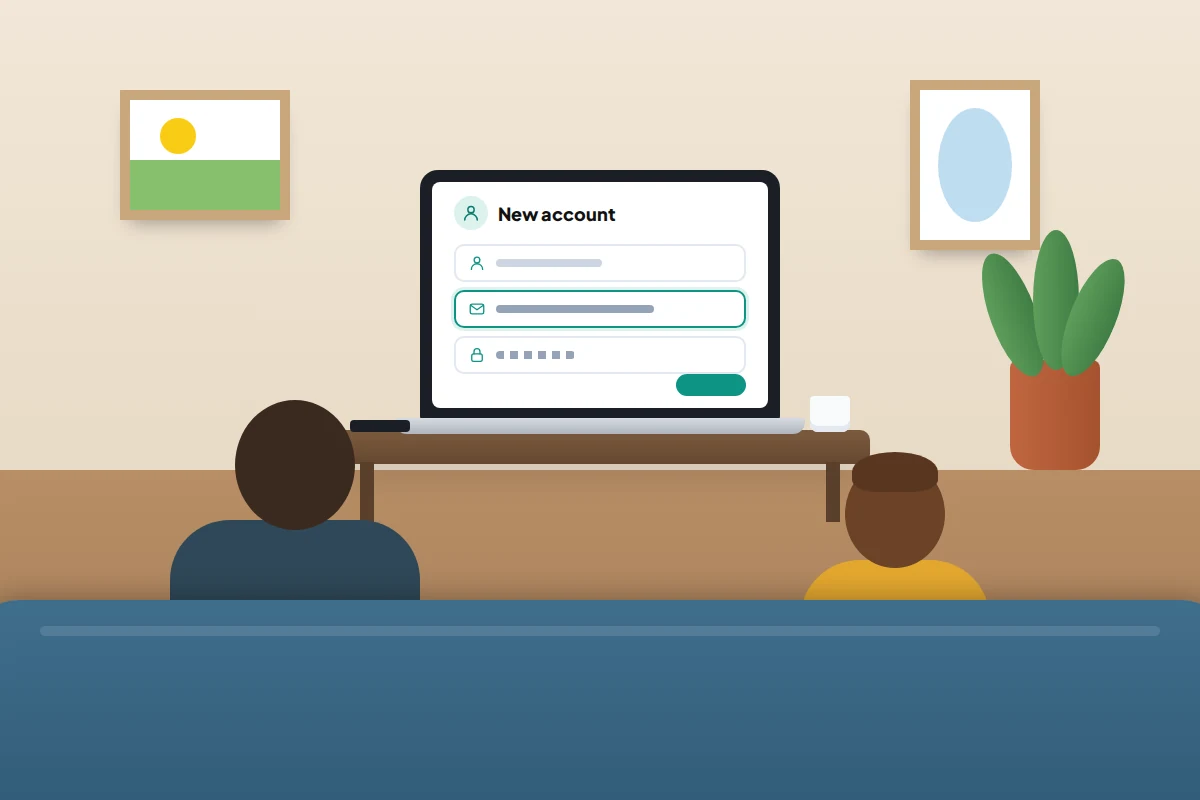
Choosing an address that gives nothing away
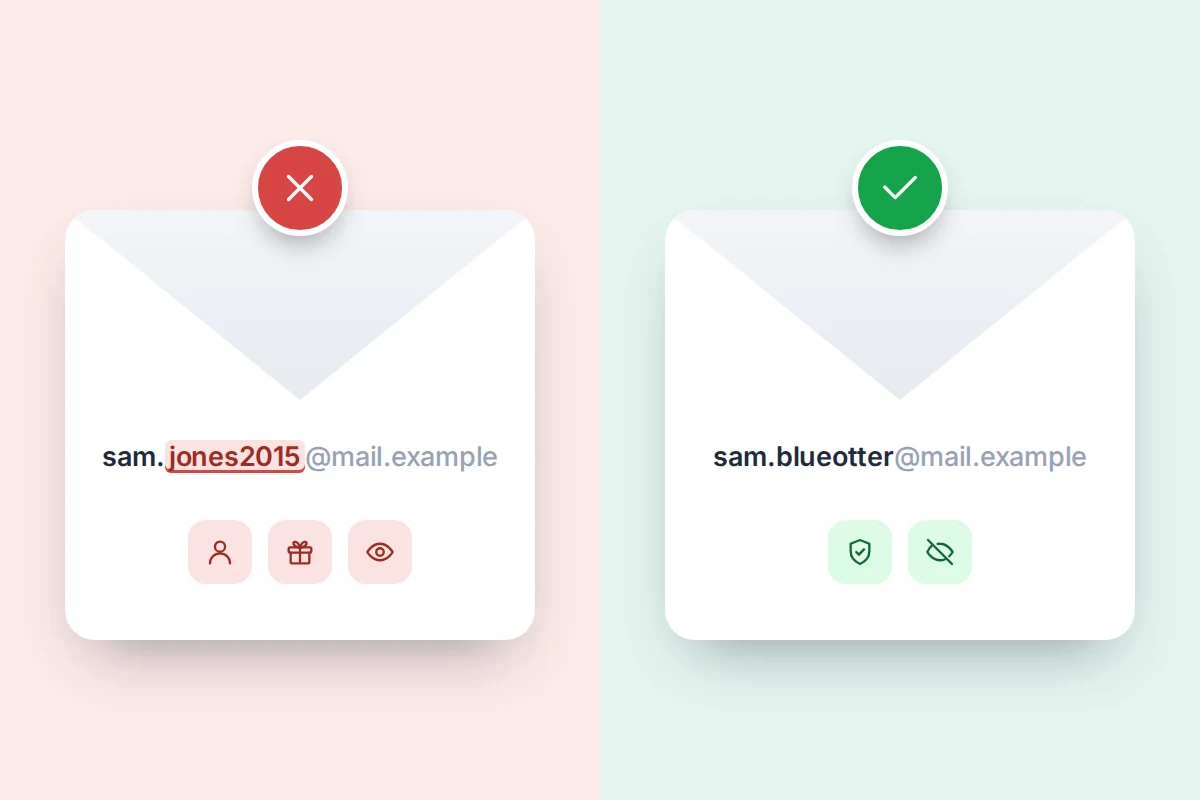
Email addresses travel: onto class lists, game friend lists and, sooner or later, a company’s data breach. An address like sam.jones2015 tells a stranger a child’s full name and roughly how old they are.
Leave out:
- the surname, or first name and surname together
- a birth year or age
- the school’s name or initials
- the town, street or house number
A first name or nickname plus two unrelated words works well: sam.blueotter or otter.reads.lots. Choose something they won’t be embarrassed by at 16. Google now lets some accounts swap a gmail.com address for a new one, but only once every 12 months, and the old address stays attached to the account. For the name that appears on sent emails, a first name alone is enough.
Password or passkey, and a way back in
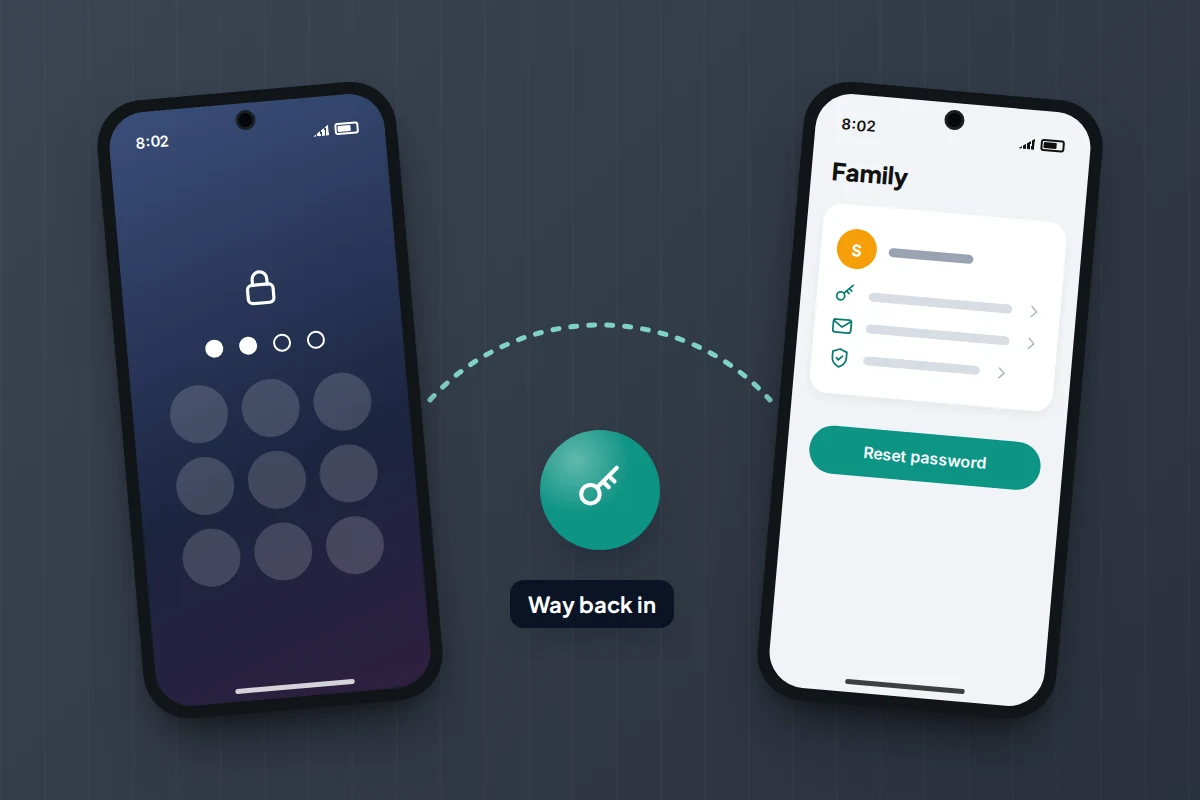
For a younger child, set a long password together, such as three random words, and keep a copy somewhere safe at home, not in the school bag. You should be able to reset it without them:
- Google: in Family Link, Controls → Account settings → Change password. Your child is signed out of their devices, and two-step verification is switched off, so turn it back on together.
- Apple: Settings → Family → [child’s name] → Change [name]’s Password. With Screen Time on, it may sit under Personal Information.
For a teenager with their own phone, a passkey is better than a password where the account offers one: the phone’s screen lock unlocks it, and there is nothing to type into a fake page. Add your phone number or email as a recovery option. On iPhone, a teen over 13 (the age varies by country) can add you as a Recovery Contact under Settings → [their name] → Sign-In & Security → Recovery Contacts.
Turn on two-step verification too. Our guide to password safety and account security for kids goes further.
What you can see, and what you can’t
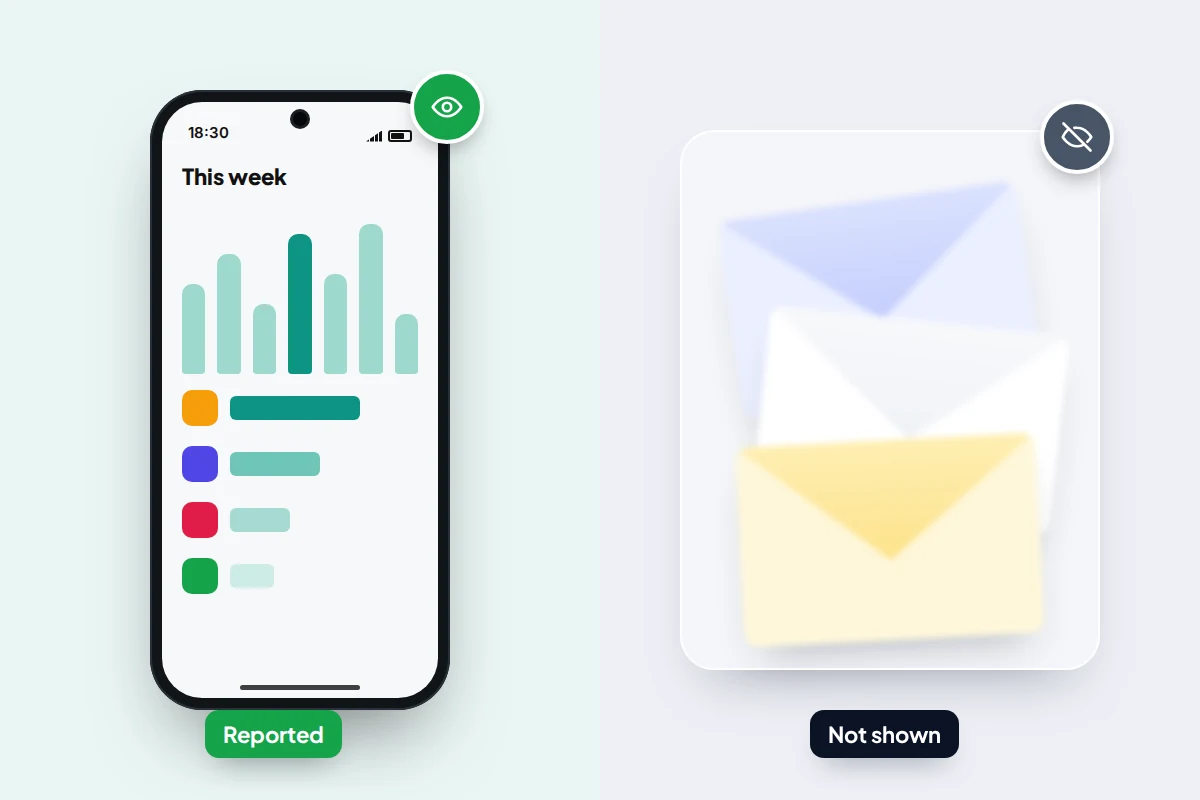
None of the three parental tools shows you the contents of a child’s inbox.
- Google: Family Link shows screen time, app activity and location if it’s on, but not emails. Google’s help is frank that for an account you created, parents “can access their child’s account data, like emails, by signing in to the child’s account”.
- Apple: Screen Time reports and Ask to Buy show app use and purchases. Allowed Contacts (Communication Limits before iOS 27) covers Phone, Messages and FaceTime, not Mail.
- Microsoft: activity reports show apps, games, websites and searches in Edge, screen time and spending, on devices your child has added. They don’t include Outlook emails.
With the password, you could read your child’s email on any platform without telling them. Don’t. If they find out, and children usually do, the next worrying email is the one they won’t show you. Say instead: “For the first month, we’ll open your inbox together once a week.” Step back as they show they can handle it.
Your first-inbox rules
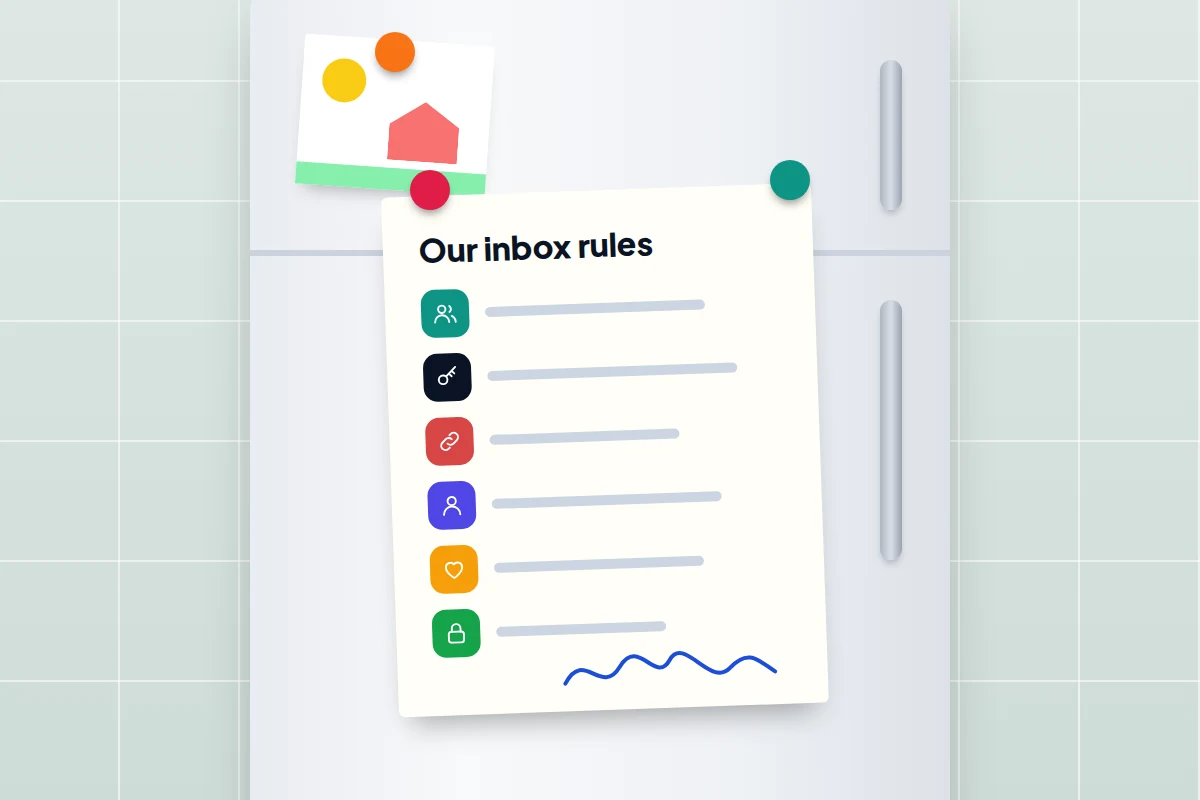
Write these down together, in your child’s words, and put them on the fridge. Rules they helped write are easier to remember.
- We give the address only to people and places we’ve agreed: family, school, clubs.
- Codes are never shared. A code that arrives by email or text is for you alone. Nobody genuine asks for it, not a friend and not “support”.
- Unexpected link? Don’t tap it. Open the app or website yourself instead.
- Someone you don’t know emails you: don’t reply. Show us.
- Emails you didn’t sign up for: unsubscribe only from names you recognise; everything else goes to spam.
- If something upsets or worries you, close it and tell us. You won’t lose the account for telling us.
- The password stays between you and us. Not best friends, not cousins.
- We look at the inbox together each week for the first month, then review these rules on your birthday.
Phishing, strangers and junk: what to teach first
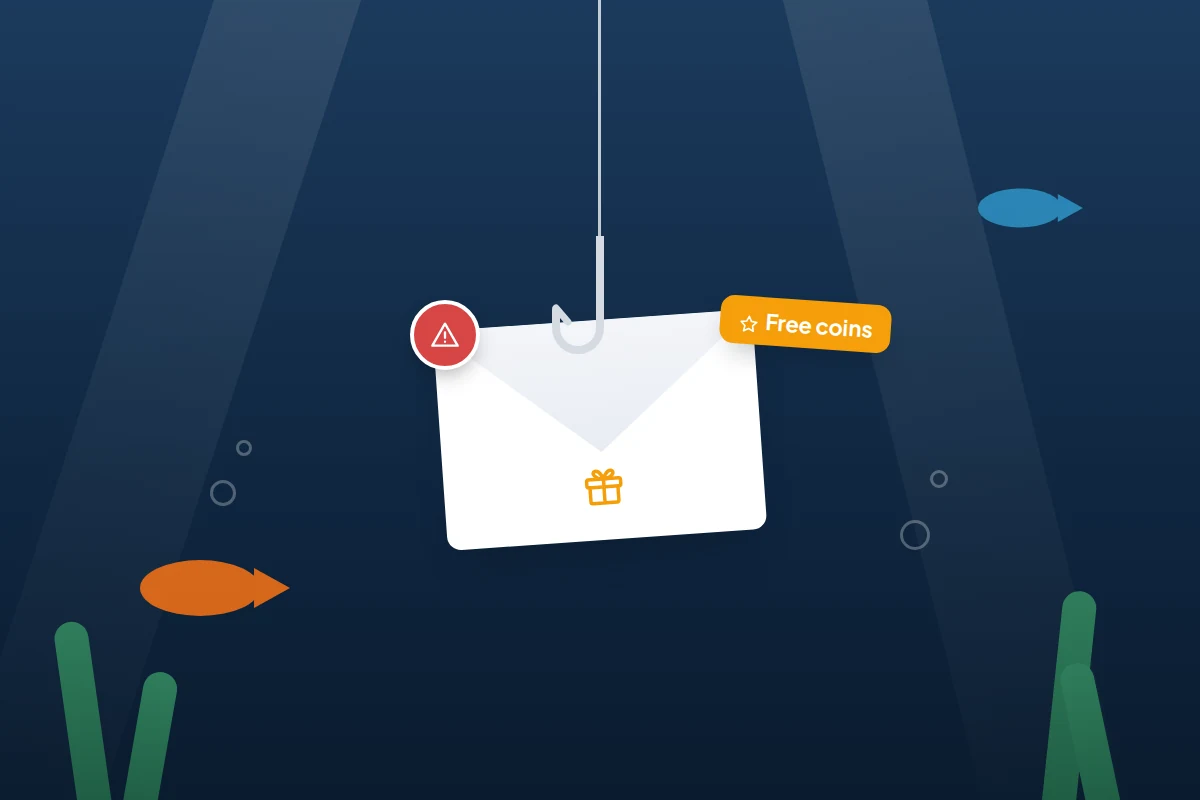
Scams aimed at children offer different bait (free game currency, a prize, a warning that their account “will be deleted”, a link from a friend whose account has been taken over) but the same signs: hurry, a link, and a request for a password or code. Our guide to spotting fake delivery texts walks through those signs with examples.
Look through a spam folder together once, so the signs become familiar. If your child is under 13 on Gmail, theirs stays empty because spam isn’t delivered at all, so use yours.
Unsubscribing: where Gmail offers it, Menu → Manage subscriptions lists regular senders with an Unsubscribe button. Clicking “unsubscribe” in a scam only confirms the address is live, so use Report spam for anything unfamiliar. In the UK, you can also forward suspicious emails to the National Cyber Security Centre at [email protected].
If something upsetting arrives
A cruel message, something frightening, an adult trying to strike up a secret friendship: how you react the first time decides whether your child tells you the second time.
- Thank them for telling you, and stay calm.
- Don’t reply, and don’t forward it to anyone.
- Block the sender and report the message using the three-dot menu in the mail app.
- If it’s from classmates, keep the messages and tell the school.
- If it’s sexual, or an adult is trying to build a secret relationship, don’t save or share any images; in the UK, report it to CEOP, the National Crime Agency’s child protection team, or to the police elsewhere.
- If anyone is in immediate danger, call 999 in the UK or your local emergency number.
Children in the UK can also talk to Childline on 0800 1111 about anything that has upset them.
At 13, and at school
Google emails you both as the 13th birthday (or the age in your country) approaches. Since early 2026, anyone under 18 needs a parent’s approval to stop supervision, and both of you are told if it ends. Use the email as a prompt to agree which controls to keep.
Apple keeps the adult-website filter and Communication Safety on by default until 18, and in the UK a 13-year-old can manage their own Apple Account. Microsoft‘s consent requirement applies until the statutory age for your region.
School accounts belong to the school, which controls them and may close them when your child leaves. Keep them for schoolwork, and never use one as the recovery address for a personal account.
Frequently asked questions
What age can my child have their own email address?
At any age with a parent-managed account. To run one alone, they need the platform’s minimum age for your country: 13 in the UK and US, up to 16 in parts of Europe, and 18 for Apple in Brazil and Texas.
Can I read my child’s emails?
Not through Family Link, Screen Time or Family Safety. You could sign in with their password, but do it openly and by agreement, never in secret.
Should I just use my own email for my child’s accounts?
For a younger child’s apps and games, often yes: you get the password resets. It stops working once they have their own phone.
Can my child change their address later?
Sometimes. Google lets some accounts replace a gmail.com address once every 12 months, keeping the old one as an alternate. Otherwise, a new address means a new account.
Sources and further reading
- Google For Families Help: Gmail and your child’s Google Account
- Google For Families Help: How Google Accounts work when children turn 13
- Google Account Help: Age requirements on Google Accounts
- Apple Support: Create an Apple Account for your child
- Apple Support: Region-specific rules for managing an Apple Account
- Microsoft Support: Roles, permissions and data sharing in Family Safety
- ICO: Introduction to the Children’s code
- FTC: Complying with COPPA, frequently asked questions
Looking for a tool to go with this? TheTruthSpy is a free parental control app for Android that stays visible on the child's phone. If it fits your family, see what the app does.
Related guides
Your Child’s First Solo Journey: A Phone Checklist
A first solo walk or bus ride: a practice run, phone setup, emergency contacts, tickets, agreed check-ins, and a paper…
Smart Speakers and Kids: Settings Parents Should Change
The smart speaker settings to change for children on Alexa, Google and HomePod: voice purchases, explicit filters, recordings, Drop In…
How to Set Up a Shared Family Calendar
Set up a shared family calendar on Google, iCloud or Outlook: mixed iPhone and Android homes, school feeds, quieter alerts…
Parental controls your child can see
Location, screen time limits, a web filter and alerts from notifications — free, and visible on your child's phone. Pair a phone in about ten minutes.
Android · Free to set up · Visible on your child's phone