Smart Speakers and Kids: Settings Parents Should Change

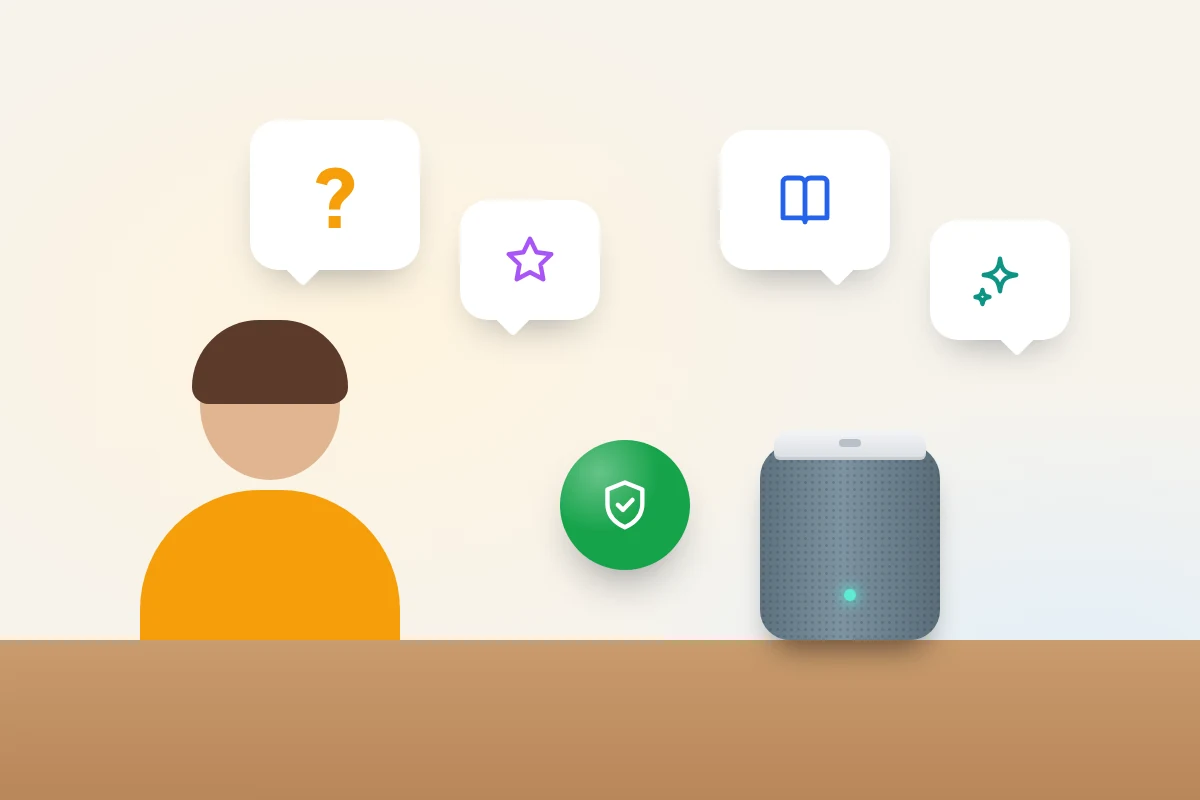
A smart speaker answers anyone who says its name. Unless you tell it otherwise, it can’t tell whether the voice asking for a song, placing an order or calling a relative belongs to you or to a seven-year-old. Out of the box, most are set up for adults: explicit lyrics allowed, requests saved to your account history, calls able to reach the device and, on Echo, shopping by voice switched on.
Fixing that needs no new speaker or subscription, just a handful of settings in the Alexa, Google Home or Apple Home app. Below: what the speaker actually records, what each setting does on all three platforms as of September 2026, and a short list to work through tonight.
The short version
- Turn off voice purchasing on Echo speakers, or protect it with a four-digit voice code.
- Switch on explicit-music filters and, on Google, filter assistant answers for anyone the speaker doesn’t recognise.
- Choose how long recordings are kept. Amazon offers “Don’t save recordings”, Google auto-deletes after 3, 18 or 36 months, and Apple doesn’t keep Siri audio unless you opt in.
- Limit who can call or Drop In on a speaker in a child’s room, and set a bedtime schedule.
- A physical microphone button is the surest way to stop the speaker listening. HomePod doesn’t have one, so there you tell Siri to stop listening.
What the speaker records, and when
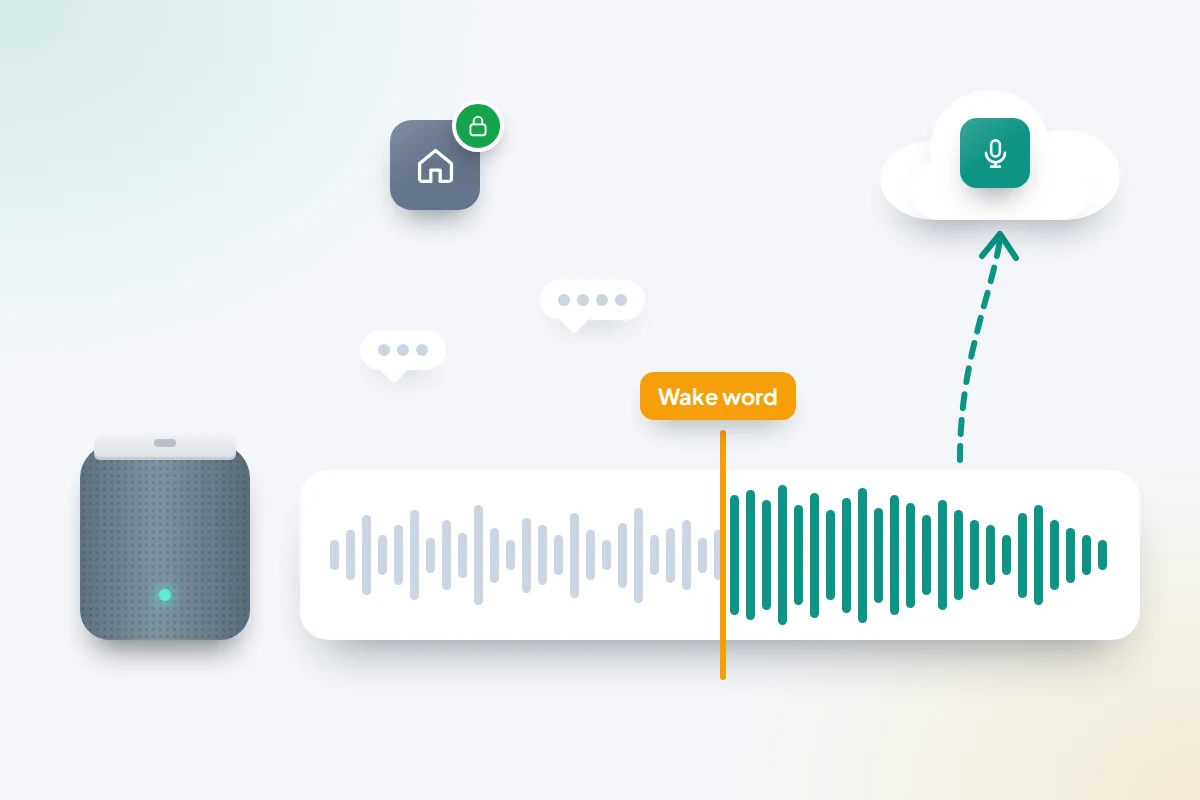
Smart speakers listen continuously for their wake word (“Alexa”, “Hey Google”, “Siri”), but that check happens on the device. Audio is sent to the company’s servers only once the speaker thinks it has heard the wake word, or when you press the action button. The weak point is the detector: a word that sounds similar can wake it, and the few seconds after that are sent and processed like any request. A light on the speaker shows when it’s listening, which is worth pointing out to children.
Where the audio goes changed in 2025. Amazon removed its “Do Not Send Voice Recordings” option on 28 March 2025. It had let three Echo models, set to US English, process requests on the device; Amazon said its generative AI features need the processing power of its cloud. Every Echo request now goes to Amazon’s cloud, and what you control is how long it’s kept afterwards.
Children’s recordings have been a regulatory issue before. In 2023 Amazon agreed to pay a 25 million dollar civil penalty in the US after the Federal Trade Commission alleged it kept children’s Alexa recordings indefinitely and undermined parents’ deletion requests. For the wider question of phones and eavesdropping, see whether your phone is listening to you.
The settings side by side
First, check which assistant you have
All three assistants changed recently, so menu names may not match older guides.
- Amazon: Alexa+, the generative AI version, opened in the UK as early access on 19 March 2026, on newer Echo devices and, by invitation, on other eligible ones. Amazon says it will cost £19.99 a month after early access and stay free for Prime members. Other Echos run the original Alexa. Both use the Alexa app.
- Google: Google says Gemini for Home will replace Google Assistant on existing Nest speakers and displays; early access began in October 2025, and which one you have depends on your device and country. Settings for both live in the Google Home app under Home settings.
- Apple: HomePod runs Siri. Apple released Siri AI, in beta and in English, on 14 September 2026 for recent iPhones and other devices. HomePod isn’t on Apple’s list of supported devices, and Apple says Siri AI isn’t available to users under 13.
The paths below were current in September 2026. Layouts vary by version and region, so if one doesn’t match, search the app’s settings for the setting’s name.
| Setting | Amazon Alexa (Alexa app) | Google (Google Home app) | Apple HomePod (Home app) |
|---|---|---|---|
| Voice purchasing | Settings → Account Settings → Voice Purchasing: off, voice code, or recognised voices only | No voice-shopping setting to manage; Family Link handles a child’s purchase approvals | No voice shopping; Ask to Buy in Family Sharing covers children’s purchases |
| Explicit music | Settings → Music & Podcasts → explicit filter, or “Alexa, block explicit songs” | Parental controls & Digital wellbeing → Music: non-explicit only | Home Settings → a person → Allow Explicit Content off |
| Filtering answers | Amazon Kids gives child-appropriate answers | Gemini for Home response filtering: for guests, or for everyone | No separate setting |
| Review and delete recordings | Settings → Alexa Privacy → Review Voice History | Home app Privacy → Home History, or myactivity.google.com | HomePod → Settings → Siri History → Delete Siri History |
| Auto-delete | Don’t save, 3 months, 18 months, or until deleted | 3, 18 (default) or 36 months, or off | Audio not kept unless you opt in to Improve Siri & Dictation |
| Voice profiles | Voice ID | Voice Match | Recognise My Voice |
| Children’s mode | Amazon Kids on the device | Supervised account via Family Link, invited to the home | None on HomePod |
| Calls into the speaker | Device → Communications → Drop In: off or My Household | Parental controls → calling restrictions | Intercom reaches only members of your home |
| Bedtime | Device → Do Not Disturb → Scheduled; Amazon Kids time limits | Downtime schedule | No schedule; “Siri, stop listening” or unplug |
| Microphone | Mute button; light turns red | Microphone switch or button | No physical switch |
Stop purchases by voice
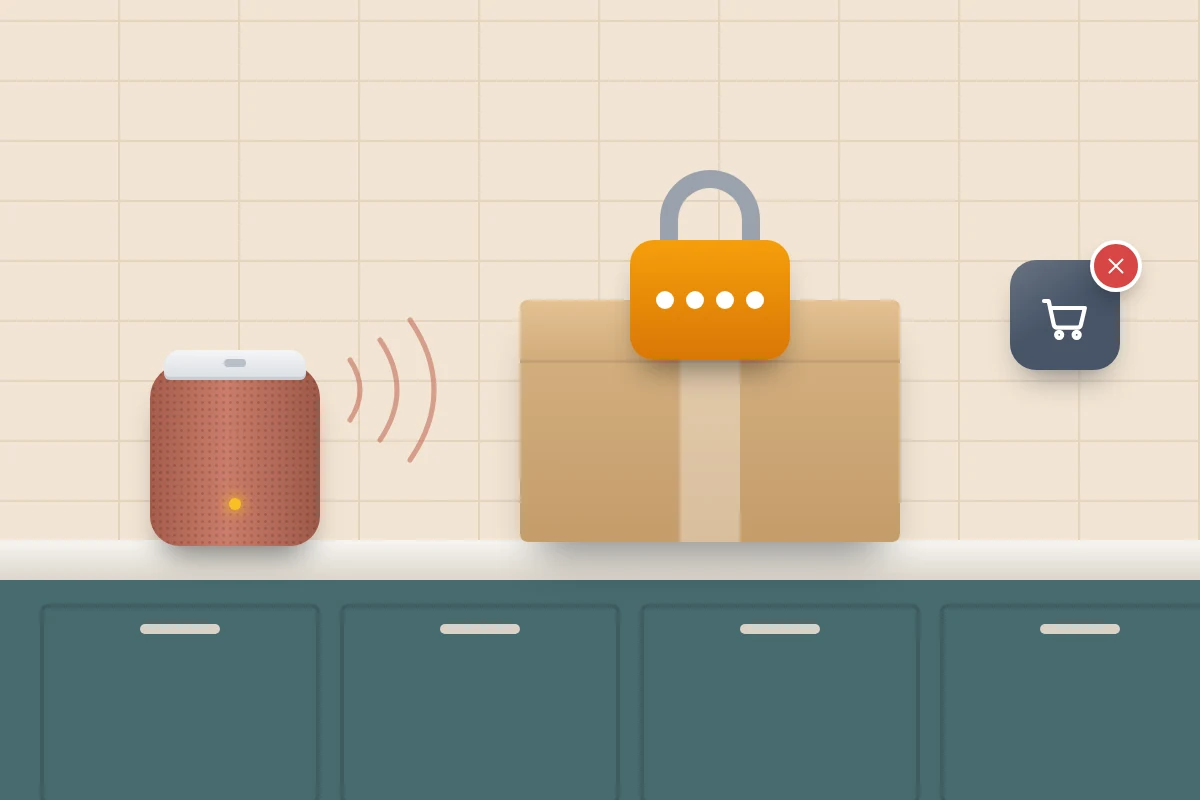
This matters most on Echo, which is built around shopping with your Amazon account. In the Alexa app, go to Settings → Account Settings → Voice Purchasing (older versions start from More). You have three choices:
- Turn Voice Purchasing off. The safest option if you never shop by voice.
- Require a voice code. A four-digit code has to be spoken to confirm each order. Children hear it if you say it aloud, so change it if it gets out.
- Only recognised voices. Purchases work only for people with a Voice ID. Voice recognition isn’t perfect, so combine it with a code.
In the same menu, turn off Kid Skills Purchasing unless you want children’s skills to offer paid extras.
Filter explicit music and answers
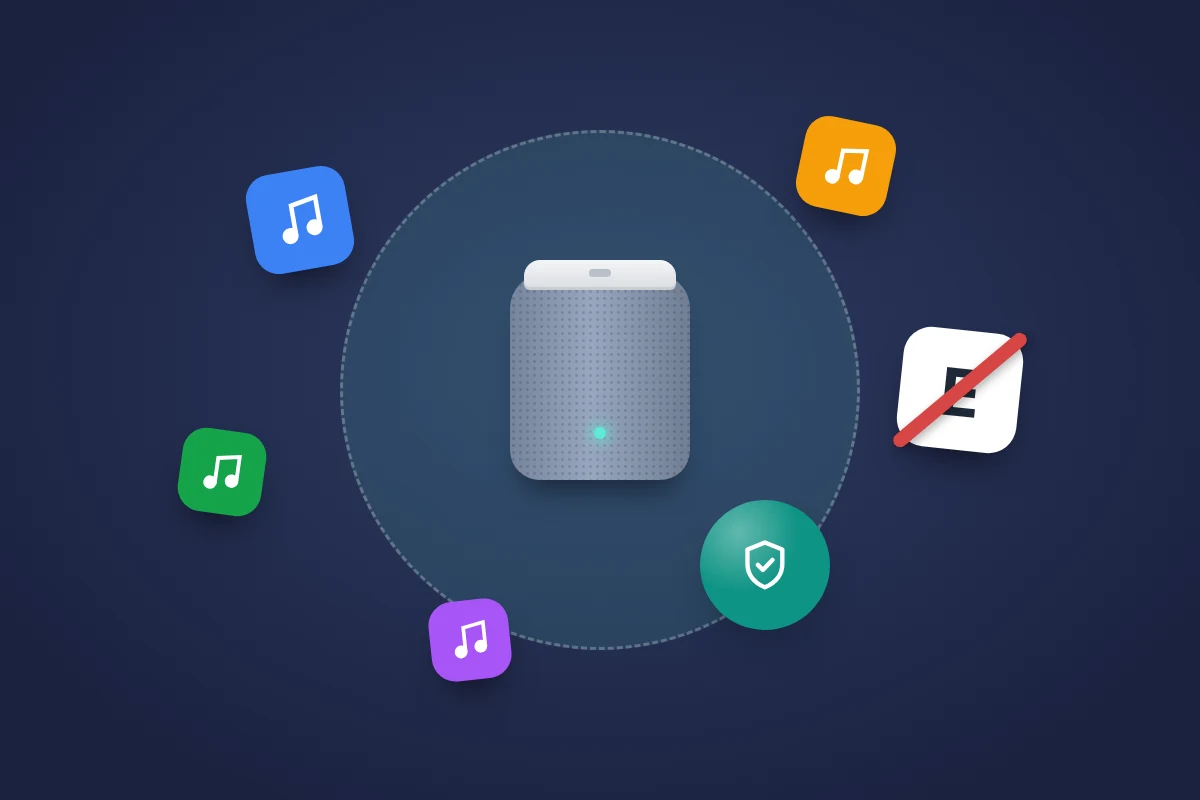
Alexa: turn on the explicit filter under Settings → Music & Podcasts, or say “Alexa, block explicit songs”. It covers supported music services; turn on the filter inside Spotify or Apple Music too if you use them.
Google: open the Google Home app, tap your profile picture, then Home settings → Parental controls & Digital wellbeing. You can apply filters to everyone or only to guests and children with a Family Link account, and choose non-explicit music, filtered or blocked videos, podcasts and news. For Gemini for Home, go to Home settings → Gemini for Home voice assistant → Gemini for Home response filtering. Google says voice-matched children under 18 always get filtered answers. A child whose voice isn’t recognised counts as a guest, though, so choose at least Filter responses for guests.
HomePod: in the Home app, go to Home Settings, tap a person and turn off Allow Explicit Content.
Recordings: review, delete and auto-delete
Amazon
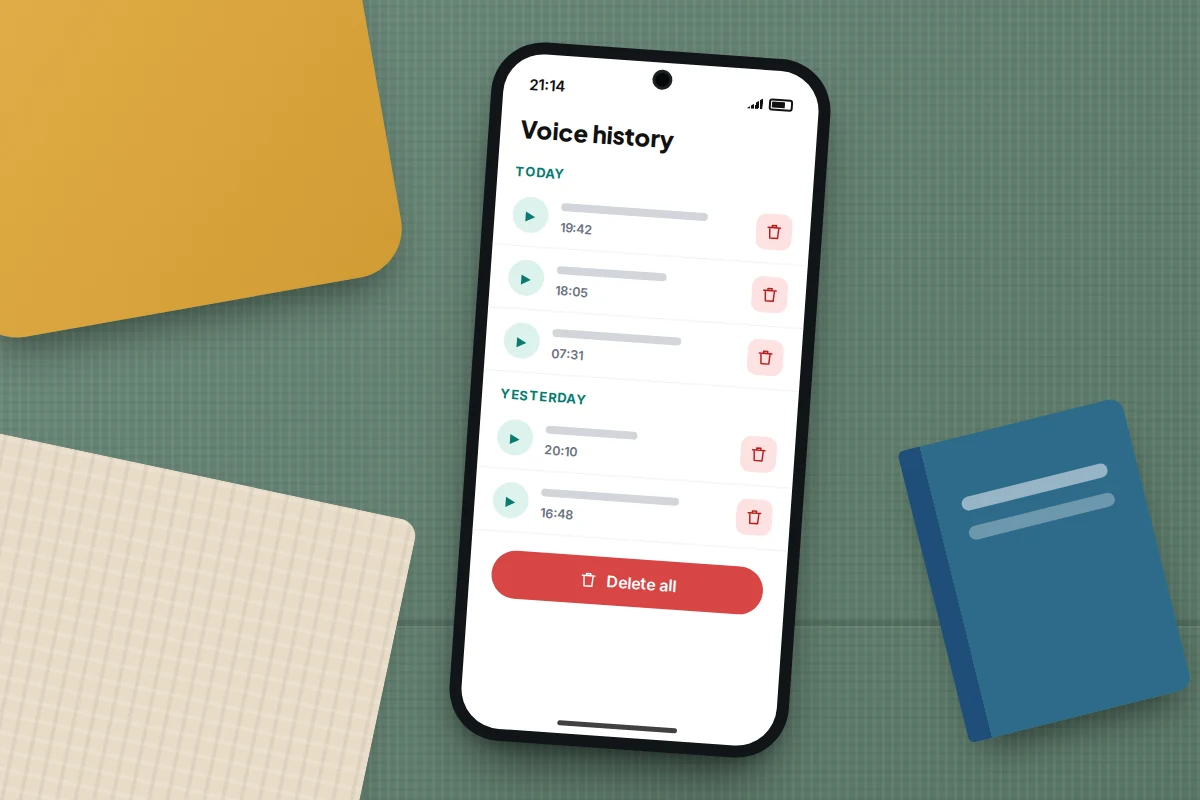
Go to Settings → Alexa Privacy. Review Voice History lets you play and delete recordings. Manage Your Alexa Data sets how long they’re kept: Don’t save recordings, 3 months, 18 months, or until you delete them. It also has Enable deletion by voice, after which “Alexa, delete what I just said” works. Under Manage How Your Data Improves Alexa, you can switch off the use of your recordings to improve Amazon’s services.
One trade-off: when Amazon removed local processing in 2025, it told affected customers that Voice ID doesn’t work with “Don’t save recordings”. If you rely on recognised voices for purchases, use a voice code instead.
Gemini for Home activity is saved to your Home History. Review or delete it in the Google Home app under Privacy → Home History, or at myactivity.google.com. By default, Google auto-deletes history older than 18 months; you can change that to 3 or 36 months, or turn auto-delete off. Saving audio to improve Google’s services is a separate setting, off by default.
Apple
Apple says HomePod sends nothing until it hears the wake word or you touch and hold the top, and that it doesn’t store audio unless you opt in to Improve Siri & Dictation. To clear a HomePod’s history, open the Home app, tap the HomePod, then Settings → Siri History → Delete Siri History.
Voice profiles and children’s modes
Voice profiles (Voice ID on Alexa, Voice Match on Google, Recognise My Voice on HomePod) let the speaker tell household members apart. That matters for children in two ways. Personal results such as your calendar, messages and contacts go only to your voice, and children’s settings only work if the speaker knows which voice is the child’s.
- Amazon Kids: in the Alexa app, open Devices, choose the Echo, and turn on Amazon Kids, then add your child’s profile. You manage it in the Amazon Parent Dashboard: daily time limits, pausing the device, approved contacts for calls and child-appropriate content. Setting it up gives Amazon your child’s name and birth date. Amazon Kids+ is an optional paid subscription for extra content; the controls work without it.
- Google: a child under 13 needs a supervised Google Account through Family Link, membership of your family group and an invitation to your home in the Google Home app, where they can only be a Member. Google says the child must be set up with Voice Match for parental controls to work properly.
- Apple: HomePod has no children’s mode. Settings apply per person or per home, so the explicit-content switch is the main control.
Tell children what the speaker is set up to do, and why. None of these settings needs to be hidden from them.
Calls, Drop In and announcements
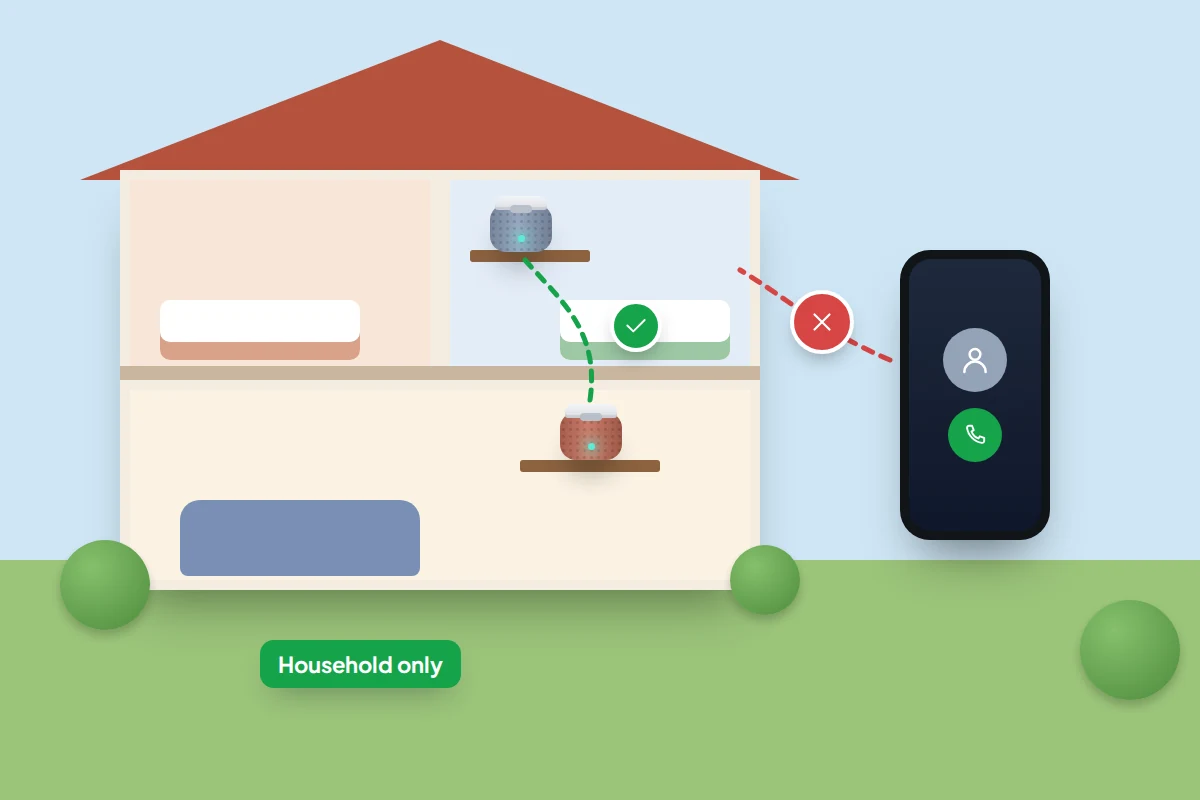
A speaker in a child’s room can be a two-way line. Alexa’s Drop In lets approved contacts connect to a device and start talking without it being answered. For a child’s speaker, go to Devices, choose the Echo, then Communications → Drop In, and pick Off or My Household. With Amazon Kids on, only contacts you approve can call.
On Google, Parental controls & Digital wellbeing includes calling restrictions. Announcements and broadcasts between your own speakers are usually fine; calls from outside are what to limit. HomePod’s Intercom only reaches the speakers and devices of people who are members of your home.
Bedtime schedules and the mute button
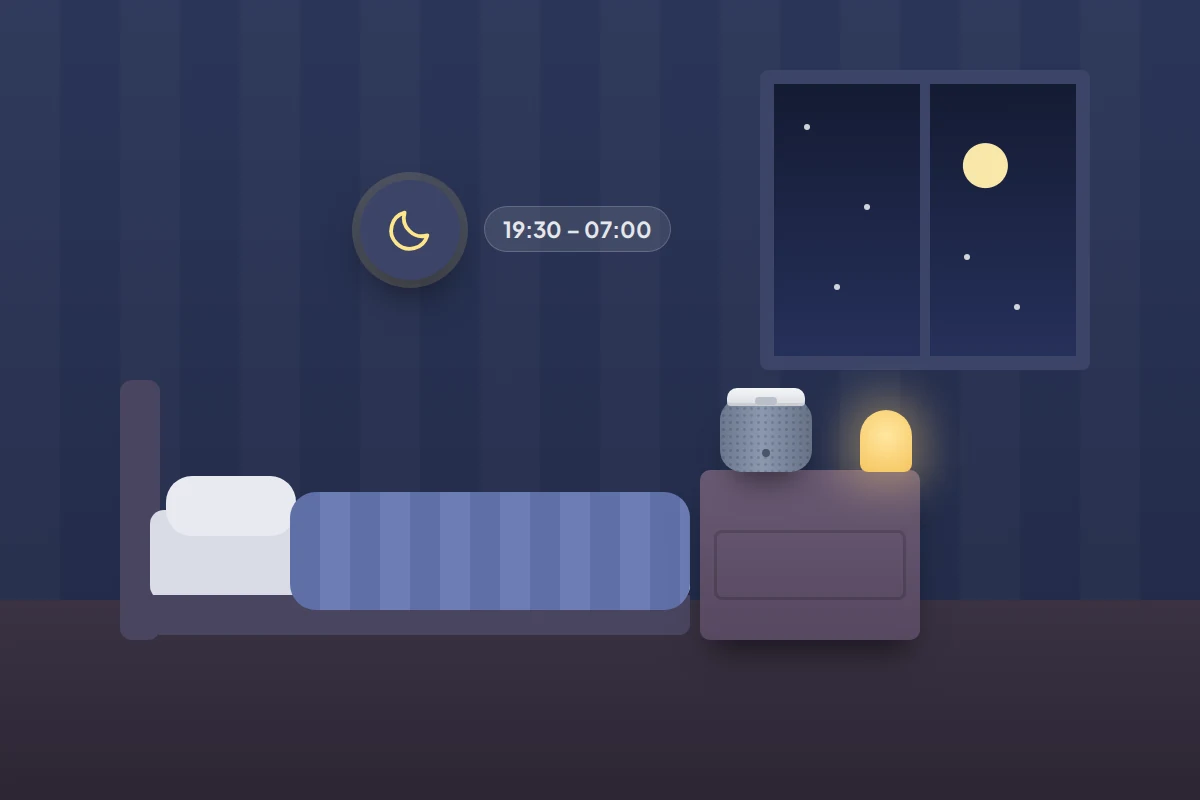
Alexa: in the device’s settings, open Do Not Disturb, turn on Scheduled and set the times. Calls, Drop Ins and notifications stay silent until it ends. Amazon Kids adds daily time limits and bedtimes in the Parent Dashboard.
Google: set a Downtime schedule in Parental controls & Digital wellbeing. Only home admins can create one. During Downtime the speaker ignores most requests, but alarms, timers and smart home controls still work, so a sunrise alarm isn’t lost.
HomePod has no bedtime schedule. Say “Siri, stop listening”, or turn off listening for “Siri” in the HomePod’s settings in the Home app.
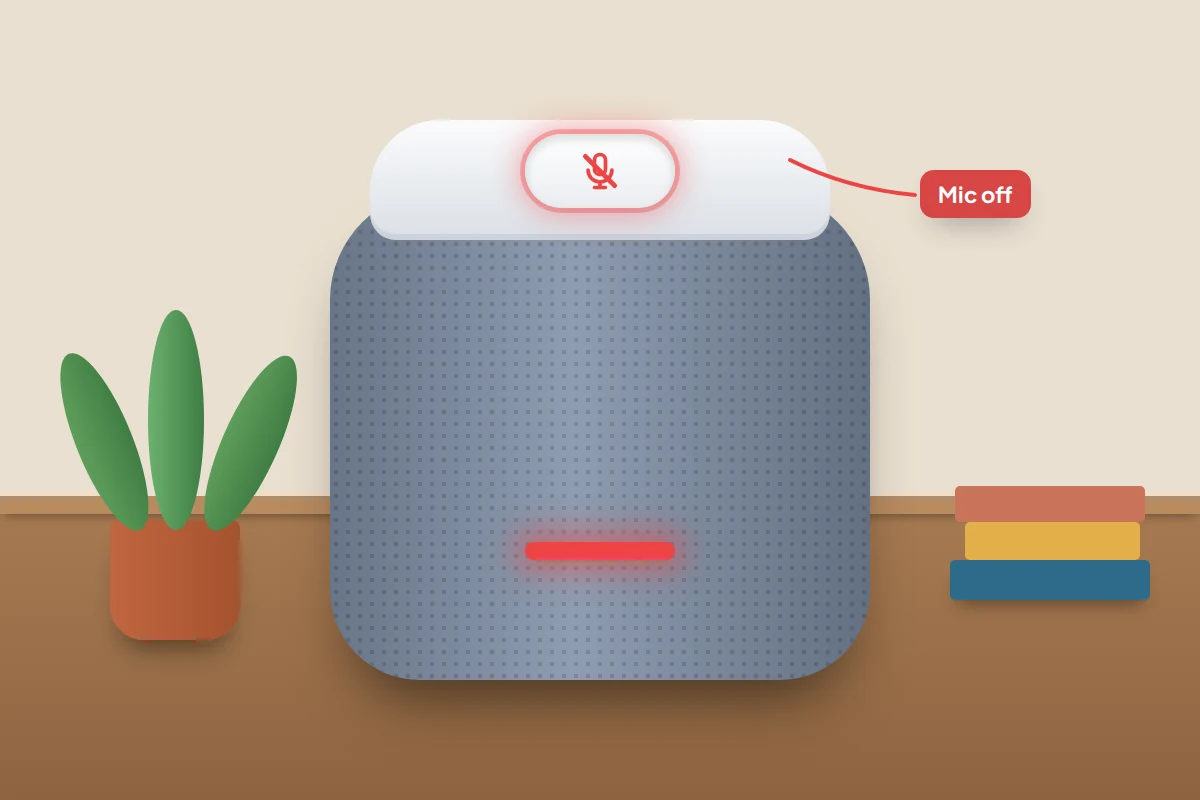
The surest way to know the microphone is off is the physical control. Echo speakers have a microphone button that turns the light red; Google’s speakers have a switch or button. Use it during a private conversation, or when visitors would rather not be heard.
Where to put the speaker
Placement is a setting too. A speaker in the kitchen or living room is used with adults nearby and is easy to check. One in a young child’s bedroom is used alone, often at night, and will hear more private conversations. Some families keep speakers in shared rooms until children are older. Others put one in a bedroom for music or stories, with Amazon Kids or Downtime, Drop In off and a night-time schedule.
AI chat on the speaker: what children might ask
Alexa+ and Gemini for Home hold back-and-forth conversations. That makes them better at homework questions and bedtime stories, and more likely to be asked things you didn’t expect: about bodies, news, scary events or other people. Google’s own help says its filters “aren’t perfect and mistakes can happen”.
Try it with your child. Ask the kinds of questions they would, listen to the answers together, and agree that anything confusing or upsetting comes to you. Our guide to AI chatbots and children covers how to talk about it.
Five things to change tonight
- Turn off voice purchasing on every Echo, or set a voice code.
- Turn on explicit filters for music, and on Google set answer filtering to at least guests.
- Choose your recordings setting. Pick an auto-delete period, then delete what’s already stored.
- Set Drop In to off or household only on any speaker in a child’s room.
- Add a bedtime schedule: Do Not Disturb on Alexa, Downtime on Google.
What if this doesn’t work
- Explicit songs still play. Turn on the filter inside the music service too, and check which account the speaker is using.
- Your child gets unfiltered answers on Google. Check their Voice Match is set up, or filter responses for guests.
- A setting in this guide is missing. Update the app. On Google, look under Gemini for Home or Google Assistant, depending on which your home uses.
Frequently asked questions
Is my smart speaker always recording?
It is always listening for the wake word, on the device. It records and sends audio only after it thinks it has heard that word, which sometimes happens by mistake.
Can I stop Alexa sending recordings to Amazon?
No, not since March 2025. You can choose “Don’t save recordings”, and Amazon says they’re deleted after your request is processed.
Do children need their own account?
For Google’s controls, a supervised account through Family Link. For Amazon Kids, a child profile in your Amazon Household. HomePod doesn’t use children’s accounts.
Can someone call my child’s speaker?
Only contacts allowed to. Turn Drop In off or limit it to your household, and use Amazon Kids’ approved contacts or Google’s calling restrictions.
Sources and further reading
- Google Home Help: Parental controls and Digital Wellbeing on devices in your home
- Google Nest Help: Filter Gemini for Home voice assistant responses
- Google Home Help: Manage and delete your Gemini for Home activity
- Amazon UK: Introducing Alexa+ in the UK (March 2026)
- TechCrunch: Amazon ends the Echo’s “Do Not Send Voice Recordings” option
- Apple HomePod User Guide: Privacy and security
- Apple Newsroom: Siri AI availability (September 2026)
- Federal Trade Commission: FTC and DOJ charge Amazon over children’s Alexa voice recordings
Looking for a tool to go with this? TheTruthSpy is a free parental control app for Android that stays visible on the child's phone. If it fits your family, see what the app does.
Related guides
How to Set Up a Shared Family Calendar
Set up a shared family calendar on Google, iCloud or Outlook: mixed iPhone and Android homes, school feeds, quieter alerts…

How to Share Photos With Family Without Social Media
Share family photos privately with iCloud, Google Photos or a photo frame: what changed in iOS 27, who pays for…
How to Set Up a Phone for an Elderly Parent
Set up an iPhone or Android phone with an older parent: bigger text, Assistive Access, captions, SOS and fall detection,…
Parental controls your child can see
Location, screen time limits, a web filter and alerts from notifications — free, and visible on your child's phone. Pair a phone in about ten minutes.
Android · Free to set up · Visible on your child's phone