How to Set Up a Shared Family Calendar

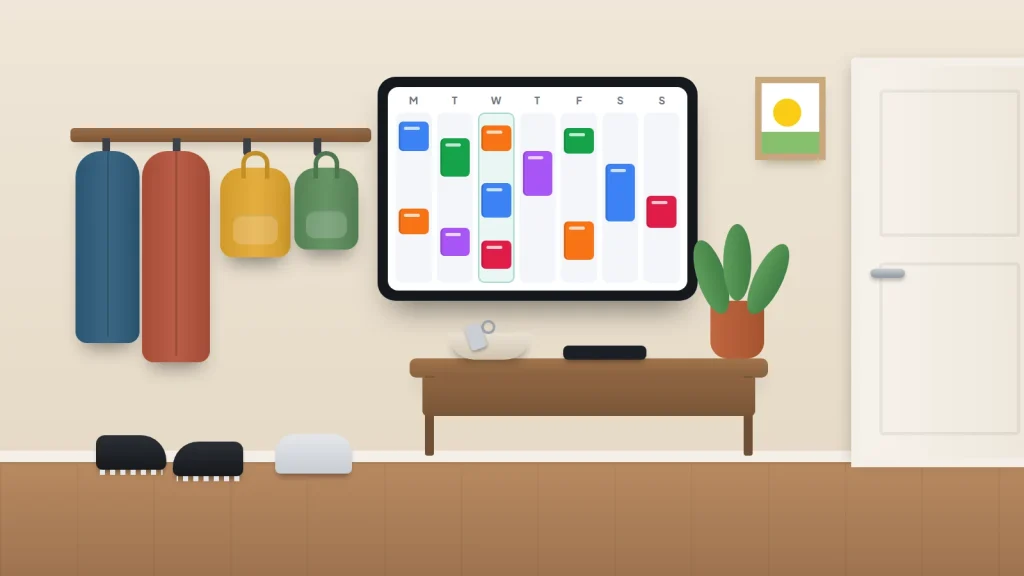
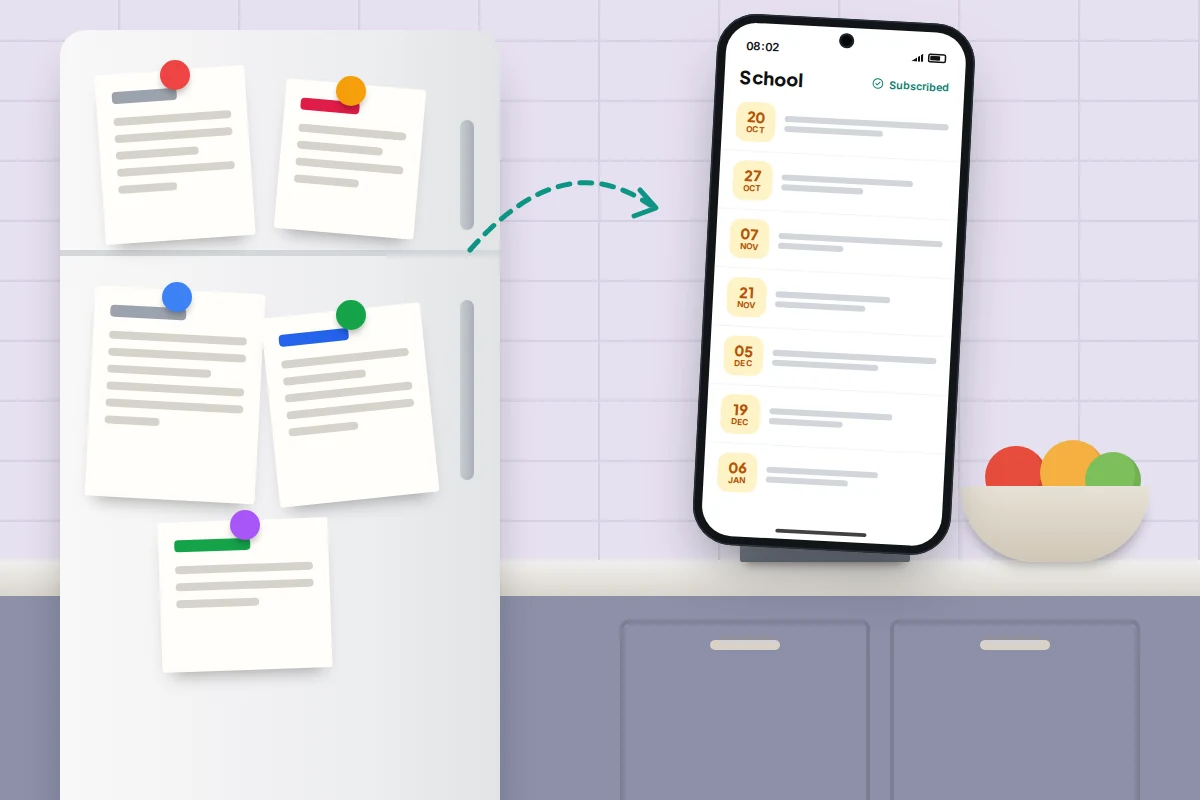
It’s Thursday morning and nobody packed the swimming kit. The lesson was on the school letter stuck to the fridge, in one parent’s phone and in the other’s head, but not anywhere everyone would see it. Most households don’t lack a calendar. They have four, and nobody checks all of them.
A shared family calendar only fixes that if everyone can open it on the phone they already carry, adding an event takes seconds, and it doesn’t buzz everyone about everything. Below: which service suits an all-iPhone, all-Android or mixed home, how to set it up, how to pull in school and club dates automatically, and how to keep people using it after the first week.
The short version
- All Android or a mix of phones: use Google’s family calendar, which appears automatically when you create a Google family group of up to six people.
- All iPhone: Family Sharing gives you a ready-made Family calendar, and you can share other iCloud calendars with anyone who has an Apple Account.
- Subscribe to school and club calendar feeds rather than copying dates in by hand.
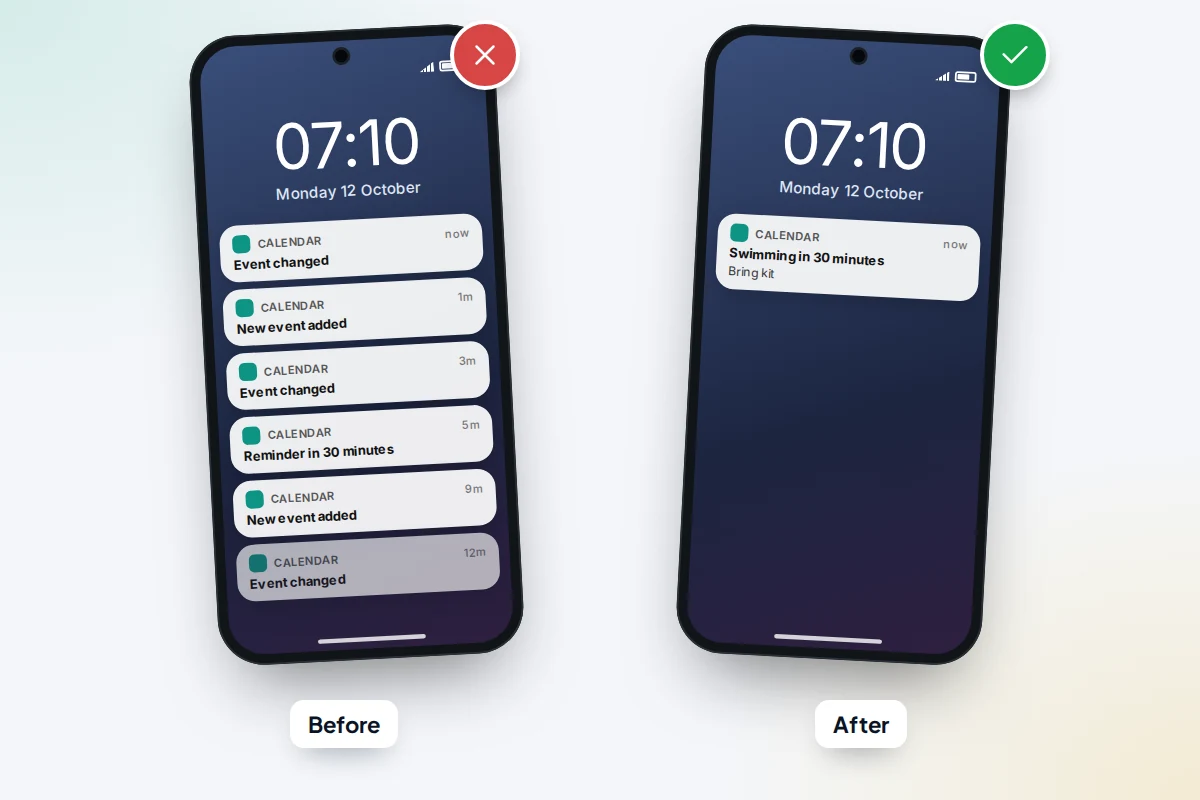
- Notification settings are personal. Each person chooses their own alerts, so nobody has to be nagged about the whole family’s week.
- A ten-minute Sunday check-in does more for adoption than any feature.
Pick the calendar that fits your household
The right choice depends on the phones in the house and on whether anyone outside it, such as a grandparent or a parent in another home, needs to see it too.
| Your household | Best option | Who sees what | Watch out for |
|---|---|---|---|
| Everyone on Android | Google family calendar | All family group members see and edit every event | Six people at most; you can only change family group once every 12 months |
| Everyone on iPhone | iCloud Family calendar via Family Sharing | All Family Sharing members see and edit | Six people at most; each needs an Apple Account with iCloud Calendar on |
| A mix of iPhone and Android | Google family calendar, with iPhone users adding their Google account | Same as Google; iPhone users see it in either calendar app | An iCloud calendar reaches Android only as a public, read-only link |
| Two homes, co-parents | A separate shared Google or iCloud calendar just for the children | Only people you invite, at the permission level you choose | Keep the right to manage sharing for yourself |
| Grandparents or a childminder | Share one calendar view-only | They see events but can’t change them | Each viewer needs an account on the same service, or you fall back to a public link |
| Everyone already uses Outlook | Outlook.com family calendar | Family group members, in Outlook.com and the Outlook app | Listed under Groups, not with your other calendars; not in classic desktop Outlook |
Children under 13 (the age varies by country) get their account from a parent, through Google Family Link or Apple’s Family Sharing.
Google’s family calendar: the easiest shared option
Google creates a calendar called “Family” automatically when you set up a Google family group. A family group can have up to six people, and the person who creates it becomes the family manager.
- Go to g.co/yourfamily in a browser, choose Create a family group, and invite up to five people by email.
- Once they accept, open Google Calendar on any phone or computer. The family calendar appears in everyone’s calendar list.
- To add an event, tap Create, then choose the family calendar from the calendar selector before you tap Save.
Everyone in the group can add and change events. Only the owner can delete the calendar itself, and only from a computer. Two limits to know before you start: you can only switch family groups once every 12 months, and anyone who leaves the group loses access to the family calendar.
Sharing a calendar outside the family group
A co-parent in another home, or a grandparent who does the Wednesday pick-up, doesn’t need to be in your family group. Create a separate calendar for the children at calendar.google.com (Other calendars → + → Create new calendar), then share it from the Google Calendar app on Android or iPhone:
- Tap Menu → Settings and select the calendar.
- Under Shared with, tap Add people or groups and choose a person.
- Pick a permission level and tap Save. They get an email with a link to add the calendar.
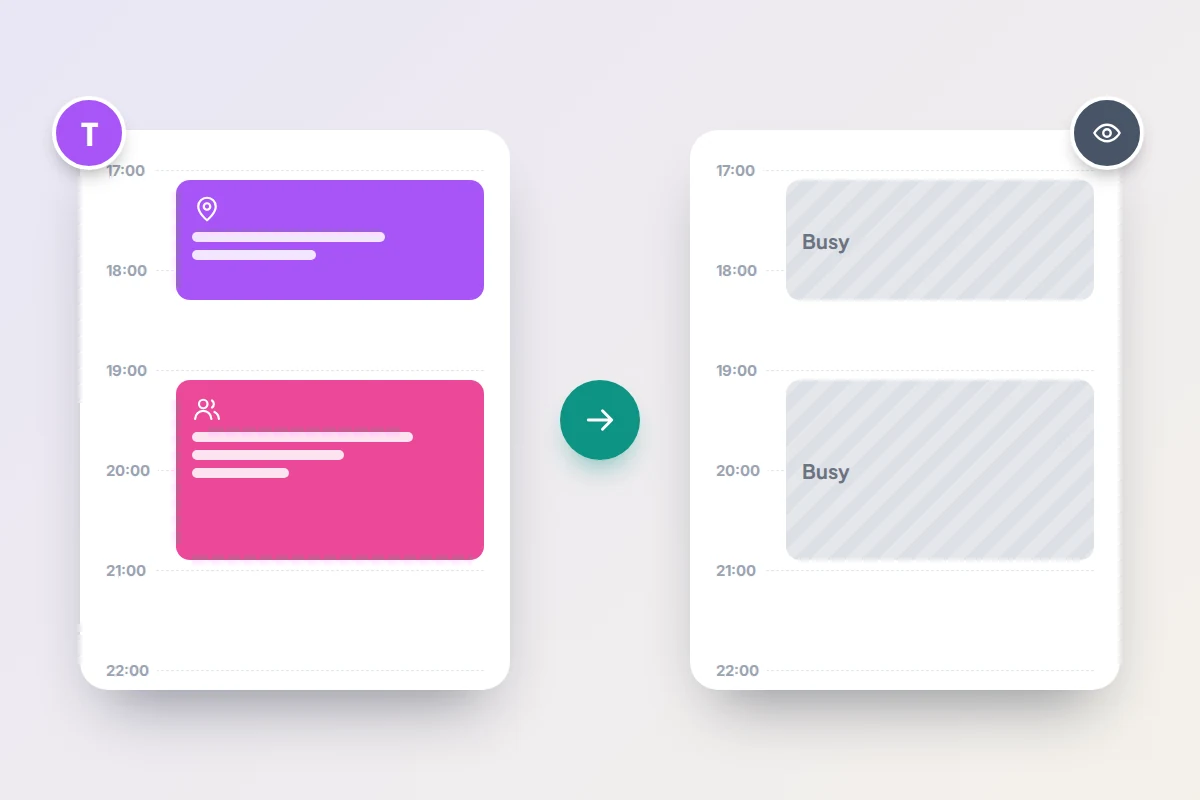
Choose the lowest level that works. See only free/busy shows blocks marked busy with no details. See event details shows everything but allows no changes, which suits grandparents. The Make changes levels let someone add and edit events, which suits a co-parent. Make changes and manage sharing also lets them invite other people, so keep that for yourself.
All iPhone: the Family calendar and shared iCloud calendars
If everyone uses an iPhone, Family Sharing does most of the work. Apple lets you and up to five others share a group, and it adds a calendar called Family to each member’s Calendar app, alongside a shared family reminders list. You set it up in Settings → [your name] → Family Sharing (called Family on recent versions), and each member needs iCloud Calendar turned on.
For anything beyond the household, share a separate iCloud calendar:
- In Calendar, tap Calendars, then the info button (i) next to an iCloud calendar.
- Tap Add Person, enter their email address and tap Add.
- Invitees can edit by default. Once they accept, tap their name and turn off Allow Editing if they should only view.
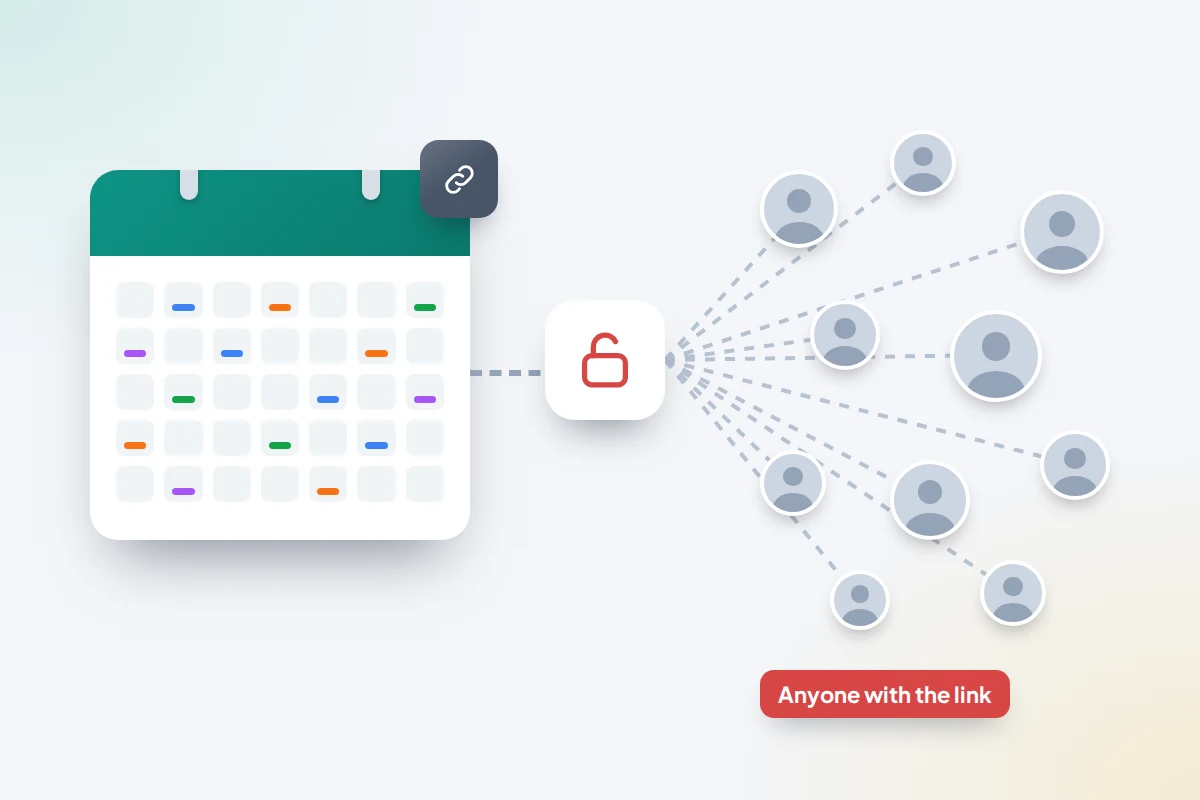
Private sharing like this only works for people with an Apple Account who use iCloud. For anyone else there’s Public Calendar on the same screen, which gives you a read-only link that works in any calendar app.
Mixed iPhone and Android homes
The most reliable setup is Google’s family calendar, with iPhone users viewing it in whichever app they prefer:
- Install the Google Calendar app from the App Store and sign in. The family calendar appears straight away.
- Keep Apple’s Calendar app and add the Google account: Settings → Apps → Calendar → Calendar Accounts → Add Account → Google (on iOS 17 and earlier, Settings → Calendar → Accounts). Events added in Apple Calendar to the family calendar reach everyone’s Android phones too.
Going the other way, getting an iCloud calendar onto Android, is harder. There’s no official iCloud calendar app for Android, so the usual route is to make the iCloud calendar public and add its link in Google Calendar. That works, but it’s read-only, and anyone who gets hold of the link, say from a forwarded group chat, can see every event. For a calendar holding children’s names, clubs and times, that’s too much to leave on an open link.
Households that already live in Outlook
If the adults use Outlook.com or the Outlook app, Microsoft offers a family calendar too. When you add members to your Microsoft family group, Outlook.com automatically creates a shared calendar that everyone in the family can add events to. It sits in the Groups area of the navigation pane in Outlook.com and the Outlook mobile app, not in your main list of calendars, and it doesn’t appear in classic desktop Outlook. Events you add aren’t sent to anyone automatically; invite the whole family or individual members if they need an alert.
School, club and team dates: subscribe, don’t copy
Many schools, sports clubs and leagues publish a calendar feed, often labelled “subscribe”, “iCal” or “add to calendar”, with a web address ending in .ics. Subscribing means term dates, fixtures and inset days appear in your calendar and update when the school changes them. Copying them in by hand means they’re out of date the first time a match is moved.
- Google Calendar: on a computer, click + next to Other calendars → From URL, paste the address and click Add calendar. Google says you can’t subscribe from the Android or iPhone app, only from a browser.
- iPhone: in Calendar, tap Calendars → Add Calendar → Add Subscription Calendar, paste the address, and choose iCloud as the account so it appears on all your Apple devices.
A subscription belongs to the person who adds it, not to the shared calendar. If both parents want the school dates, both subscribe. Updates aren’t instant either: the calendar app checks the feed on its own schedule, and Google Calendar can take up to a day to show a change, so for a same-day cancellation trust the school’s message over the calendar. Only subscribe to feeds from a source you trust, such as a link on the school’s own website or app.
Colours, repeats and notifications that don’t nag
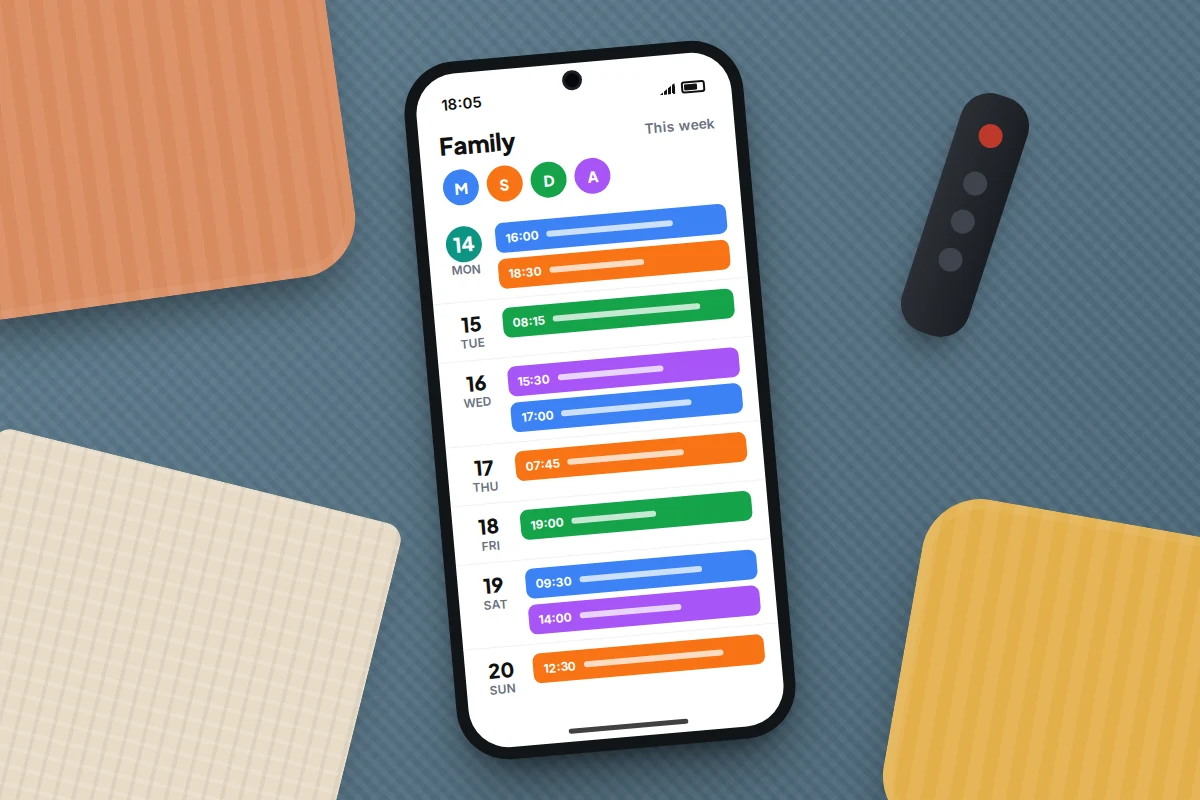
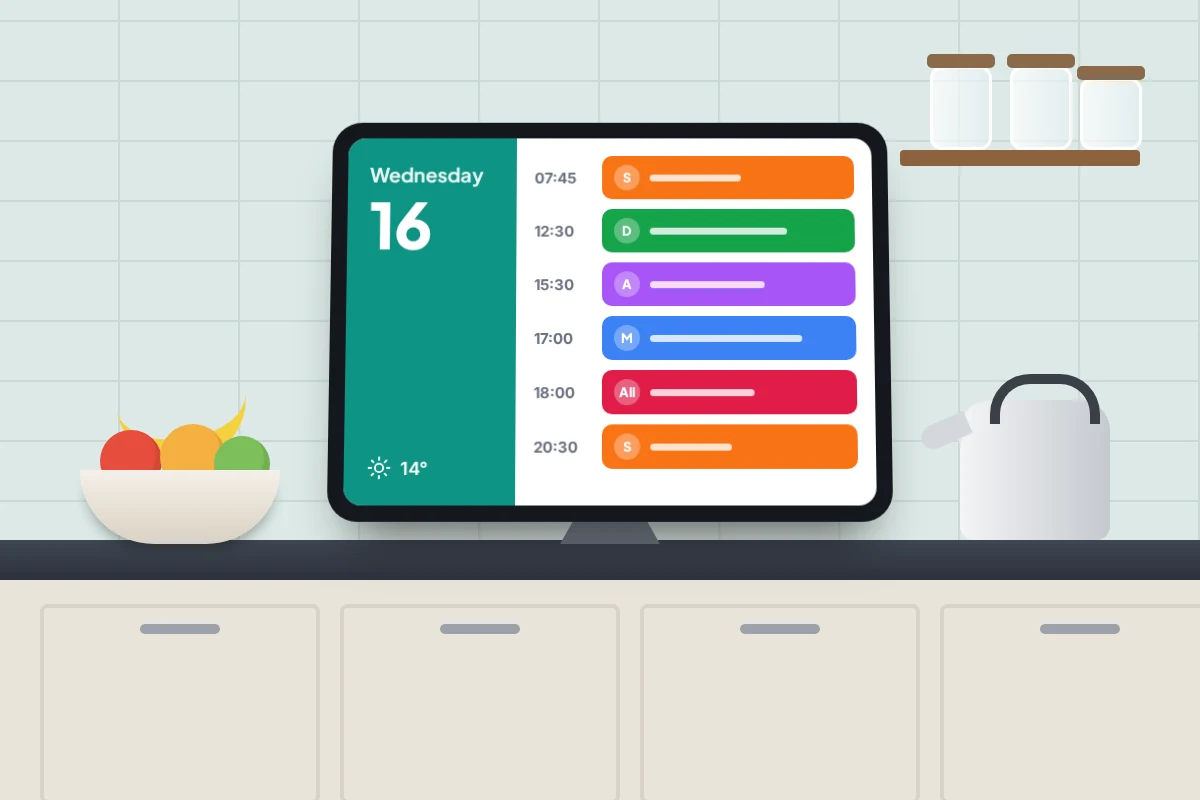
One colour per person. Colours are usually chosen by each viewer and don’t always carry across apps, so also start event titles with an initial (“M: Football”). That works everywhere, including on a kitchen screen.
Repeat with an end date. Set weekly clubs to repeat until the end of term, not forever. Stale “forever” events are what make people stop trusting the calendar.
Notifications are personal. Google says your notification settings apply only to your account and don’t affect anyone else’s on a shared calendar. So each person can choose, say, a 30-minute reminder for their own events and none for the rest. Set defaults per calendar in the Google Calendar app under Menu → Settings, choose the calendar, then change or remove its default notification. On an iPhone, you can stop alerts every time someone else adds or changes an event: Settings → Notifications → Calendar → Customise Notifications → Shared Calendar Changes.
Shared lists for shopping and chores
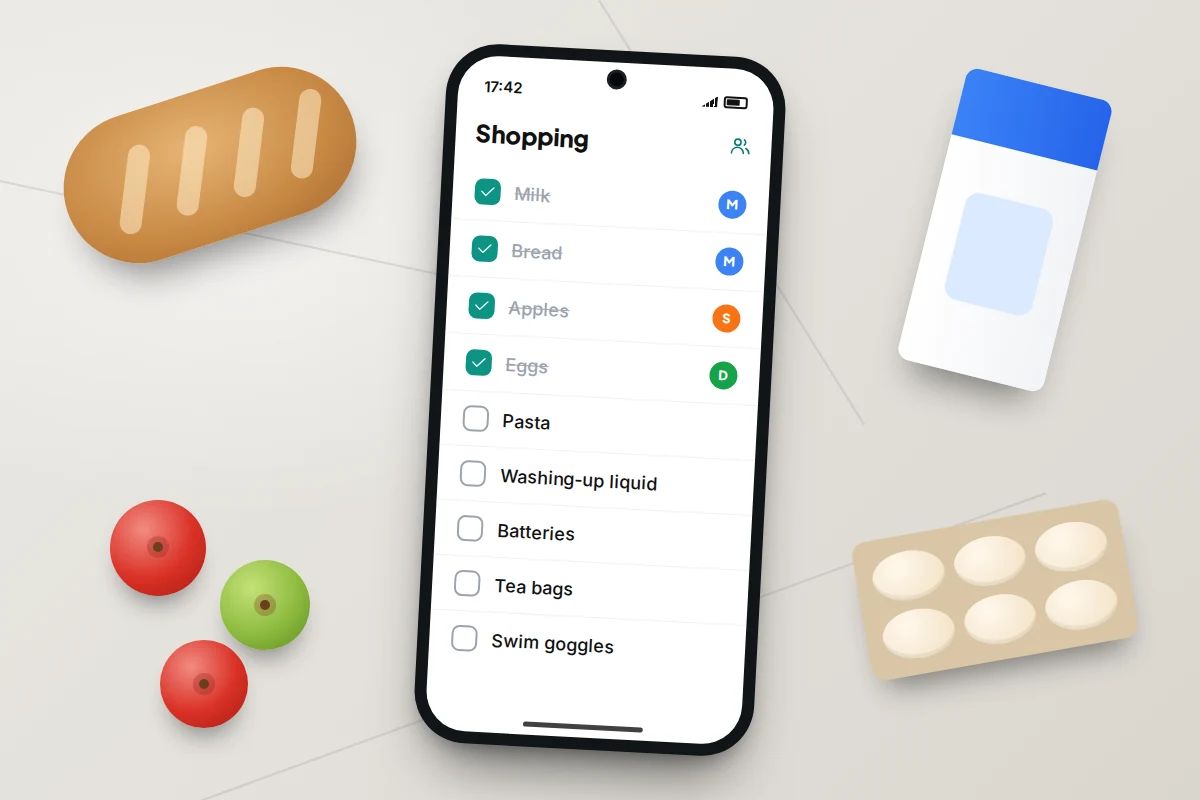
Shopping and chores sit better on a shared list than in the calendar.
- Google Keep: open a note or checklist, tap Action → Collaborator → Family group and tap Save. Anyone in the family can then tick, edit or delete items.
- Apple Reminders: Family Sharing already gives you a shared family reminders list. You can also share any list from its More menu with people who use iCloud, and assign items to named people.
Getting everyone to use it
Shared calendars usually fail because only one person keeps them up to date. Agree two things at the start.
Who adds what. A simple rule: whoever makes the arrangement adds it. The parent who books the dentist adds the dentist. A teenager who agrees to work a Saturday shift adds the shift. Younger children can tell a parent, who adds it for them.
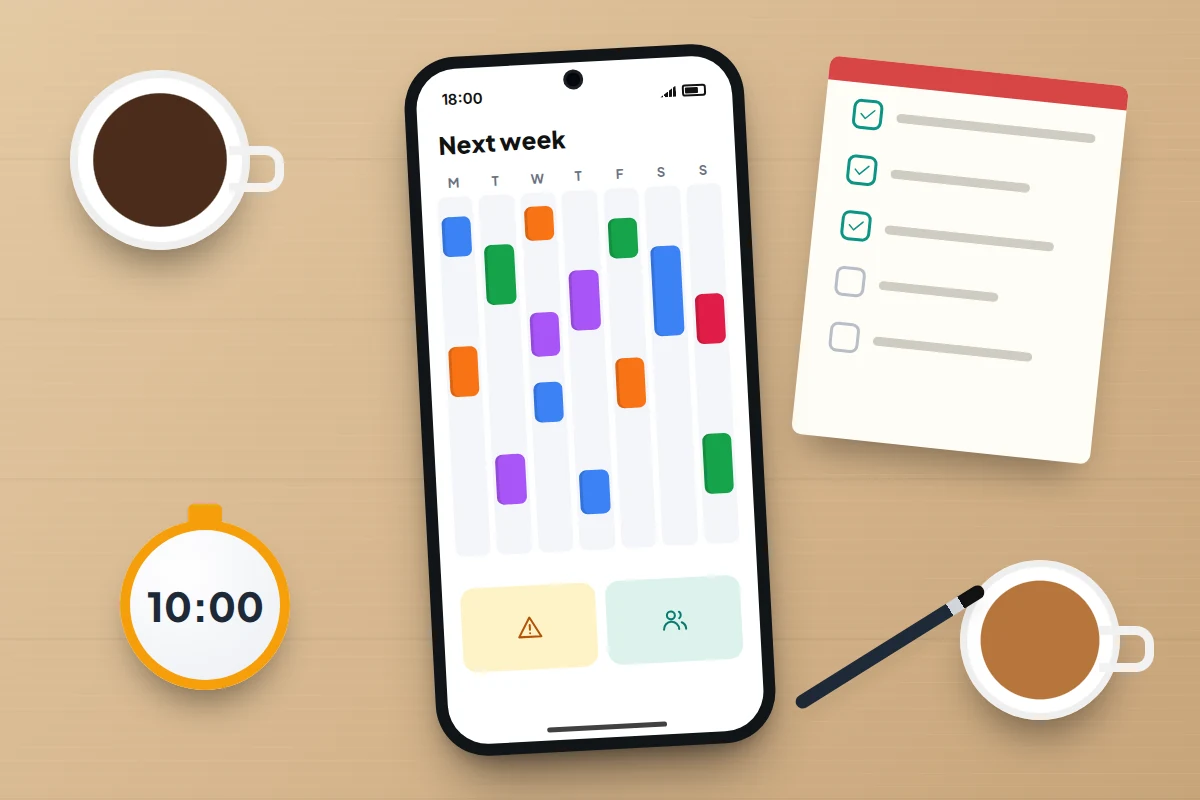
A ten-minute Sunday check-in. Once a week, look at the coming seven days together: who needs a lift, which evenings clash, what needs packing. It catches the events that never made it in.
Put it on a screen in the kitchen
An old tablet on a stand, plugged in, with the calendar app open, puts the week where everyone walks past it. On an iPad, set Settings → Display & Brightness → Auto-Lock → Never; Android tablets have a screen timeout setting under Display, though the longest option varies by maker.
Anyone in the kitchen can read that screen, visitors included, so a medical appointment or a surprise party belongs on a personal calendar rather than the family one.
A plan for the first week
- Day 1: set up the calendar and invite everyone. Check it appears on every phone, including any tablet.
- Day 2: add the fixed weekly events, such as clubs, lessons and regular shifts, with end dates.
- Day 3: subscribe to the school and club feeds. Clear the fridge of letters that are now in the calendar.
- Day 4: each person sets their own notifications. Five minutes each, no more.
- Days 5 and 6: use it. When someone mentions a plan out loud, ask “is it in?”
- Day 7: the first Sunday check-in. Fix what annoyed people, whether that’s too many alerts, the wrong colours or missing events.
What a teenager may not want to share
A shared calendar isn’t a record of everything a teenager does. Agree that the family calendar holds what affects other people: lifts, meals out, exams, work shifts and overnight stays. The rest can stay on their own calendar.
On Google, a teen can share their personal calendar with parents using See only free/busy, so you can see they’re busy on Friday evening without seeing where. Individual events can also be marked private. iCloud calendars have no free/busy level, so the equivalent is simply keeping a separate calendar that isn’t shared. Being open about the arrangement matters more than the setting, and the same thinking applies to agreeing check-ins instead of tracking.
What if it doesn’t work
- A shared Google calendar doesn’t show in Apple’s Calendar app. Visit google.com/calendar/syncselect in a browser, signed in to the same Google account, and tick the calendar.
- Someone can’t see the Google family calendar. Check they accepted the family group invitation and are signed in to that account.
- A school feed stopped updating. The school may have changed its link. Remove the subscription and add the current one.
- Events appear twice on an iPhone. The same calendar is probably showing through both the Google app and an added Google account. Hide one in the calendar list.
Frequently asked questions
Does everyone need their own account?
For editing, yes. Each person needs a Google account for Google’s family calendar, or an Apple Account for iCloud sharing. Children under 13 get theirs through Family Link or Family Sharing.
Can I give a co-parent access to the children’s schedule but not mine?
Yes. Keep the children’s events on a separate calendar and share only that one. Your personal calendar stays private.
Is a public calendar link safe for school events?
For a calendar that only holds public dates, like term times, it’s low risk. For one with your children’s names, clubs and locations, share privately instead.
What happens if we leave the Google family group?
You lose access to the family calendar. Copy any events you want to keep into your own calendar first.
Sources and further reading
- Google Calendar Help: Use a family calendar on Google
- Google For Families Help: Create a family on Google
- Google Calendar Help: Share your calendar with someone
- Google Calendar Help: Add a calendar using a link
- iCloud User Guide: Share a calendar on iCloud.com
- Apple Support: Use iCloud calendar subscriptions
- Microsoft Support: Use shared family calendars in Outlook.com
- Google Keep Help: Share a Keep note with your family group
Looking for a tool to go with this? TheTruthSpy is a free parental control app for Android that stays visible on the child's phone. If it fits your family, see what the app does.
Related guides
How to Share Photos With Family Without Social Media
Share family photos privately with iCloud, Google Photos or a photo frame: what changed in iOS 27, who pays for…
How to Set Up a Phone for an Elderly Parent
Set up an iPhone or Android phone with an older parent: bigger text, Assistive Access, captions, SOS and fall detection,…
How to Set Up Google Family Link on Your Child’s Android Phone
Set up Google Family Link on your child's Android phone: under-13 and teen accounts, time limits, School time, app approvals,…
Parental controls your child can see
Location, screen time limits, a web filter and alerts from notifications — free, and visible on your child's phone. Pair a phone in about ten minutes.
Android · Free to set up · Visible on your child's phone