How to Share Your Location With Family on iPhone and Android

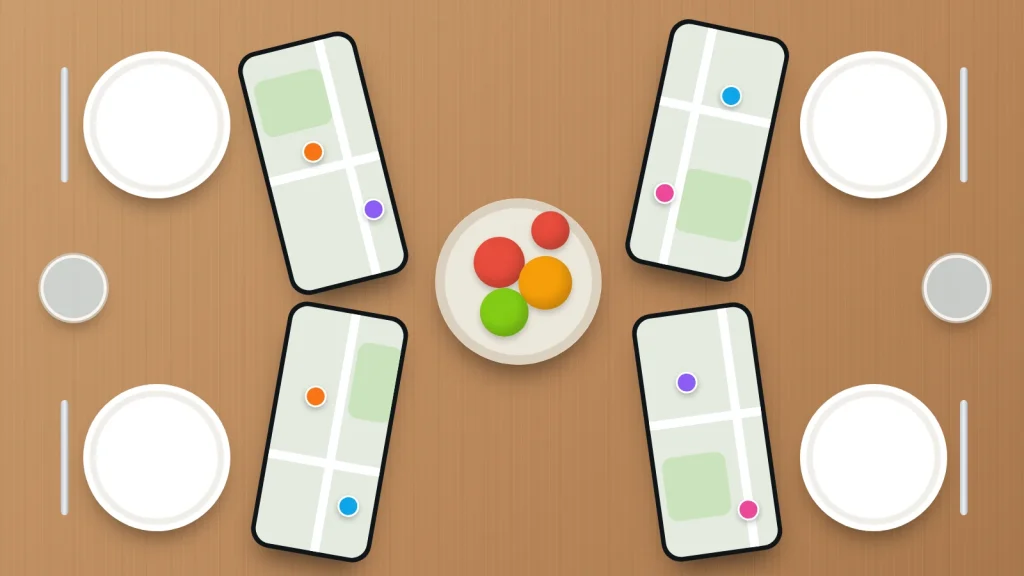
Say two of you have iPhones and the teenagers have Android phones. You open Find My, and half the family isn’t there. That isn’t a setting you have missed: Apple’s location sharing only works between Apple devices, and that alone explains many “it doesn’t work” moments.
The right tool depends on which phones your family uses, and whether you want sharing all the time or just for one journey. Once you know that, setting it up takes a few minutes per person.
Below are the main options as of September 2026, what the other person sees and is told, how to stop, and how to agree the arrangement so it stays mutual.
The short version
- All iPhones: use Find My’s Share My Location, which also appears in Messages.
- All Android, or a mix of iPhone and Android: use Google Maps location sharing, which runs on both.
- For a single journey, share for an hour or use WhatsApp live location, which always ends by itself.
- Starting a share is visible to the other person; stopping is quieter, but they will notice your location has gone.
- Agree together who shares with whom and when it’s off, and review it every so often.
Choose by the phones your family uses
- Everyone has an iPhone: Find My. It’s built in, and family members in a Family Sharing group already appear in it.
- Everyone has Android: Google Location Sharing, which you can start from Google Maps, Find Hub or Google Messages. Samsung owners can also use Samsung Find.
- A mix: Google Maps. It’s the main free option that keeps running on both, as long as everyone has a Google Account.
- One trip: any of the above with a time limit, or WhatsApp live location in a family chat.
- Younger children with supervised accounts: Family Link on Android, or Family Sharing on iPhone (see below).
iPhone: Find My and Messages
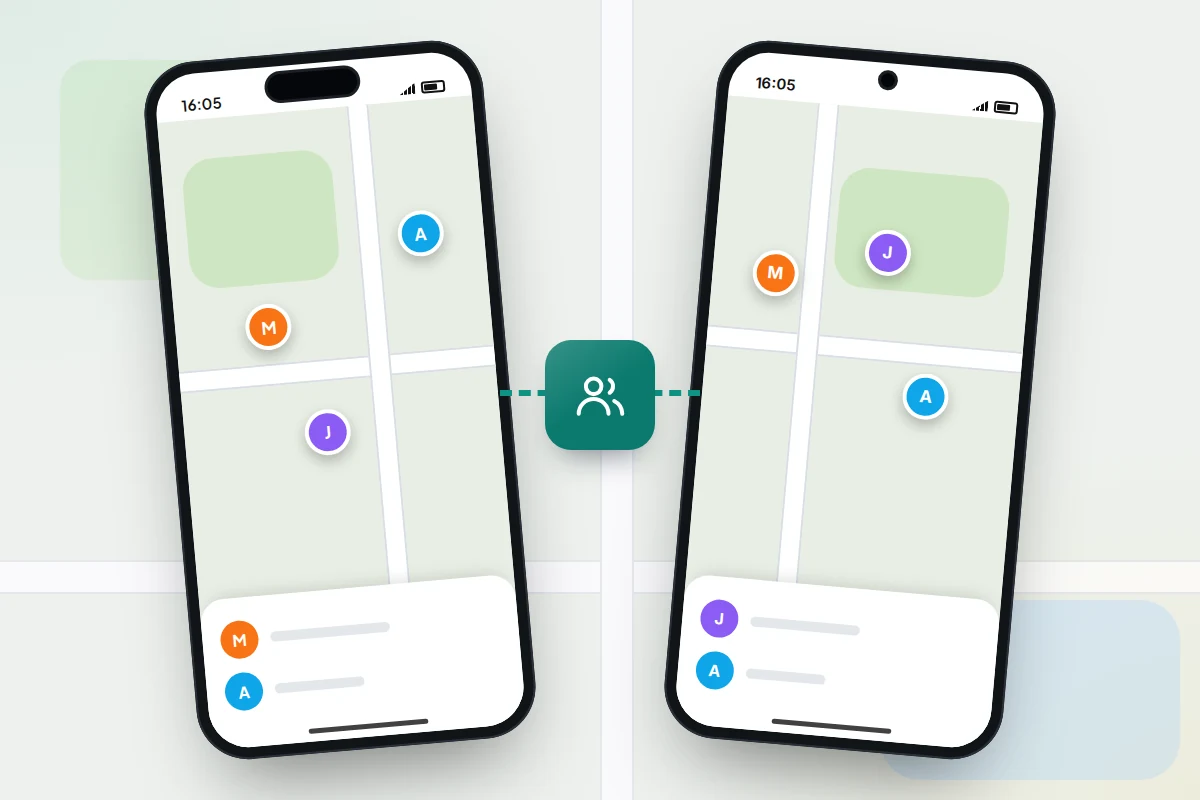
Find My and Messages use the same sharing, so a share started in one shows in the other. Menu wording can vary slightly between iOS versions.
- Open Find My, tap Me and turn on Share My Location.
- Tap People, then + (Add), then Share My Location.
- Choose the person, tap Send, and pick how long: one hour, until the end of the day, or indefinitely.
From Messages, tap the person’s name at the top of a conversation and choose Share My Location. You can also tap + in the chat, then Location, to share a live location that updates as you move. Apple says both of you need an iPhone for this.
With Family Sharing
If you already use Family Sharing, go to Settings → Family → Location Sharing. Apple says that once the organiser turns it on, the organiser’s location is shared with the whole group automatically; everyone else chooses for themselves whether to share. You only see someone’s location if they share it.
Messages also has Check In, which tells someone you have arrived without sharing your location along the way. It’s covered in our guide to check-ins as an alternative to tracking.
Android and mixed families: Google Location Sharing
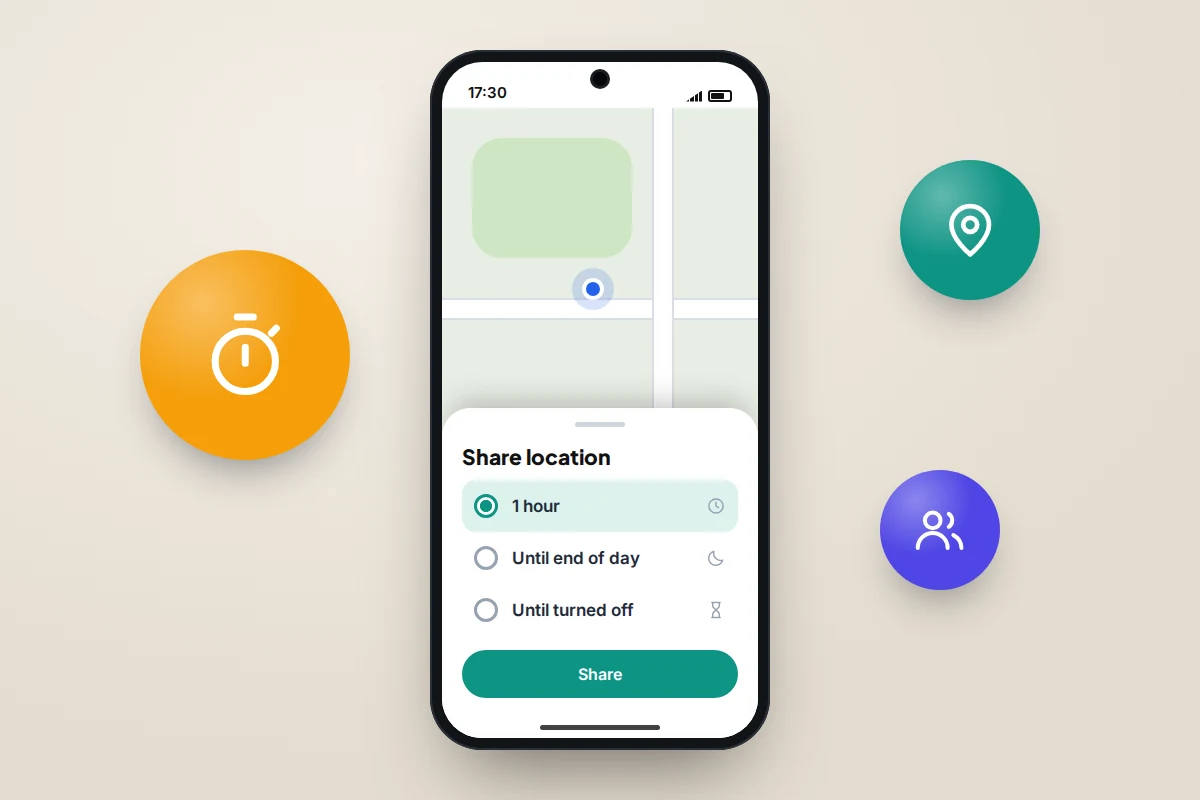
Google now runs one location-sharing system across Maps, Find Hub, Messages and Family Link. Start a share in any of them, and it shows in all of them. Stop it in one, and Google says it stops everywhere.
Google Maps (iPhone and Android)
- Open Google Maps and tap your profile picture.
- Tap Location sharing, then New share.
- Choose how long, including Until you turn this off.
- Pick the person and tap Share.
The person needs a Google Account. For someone without one, Google lets you copy a link instead, which works for up to 24 hours. On an iPhone, Google Maps needs permission to use location in the background to keep updating, so allow Always when asked, or change it in Settings → Apps → Google Maps → Location.
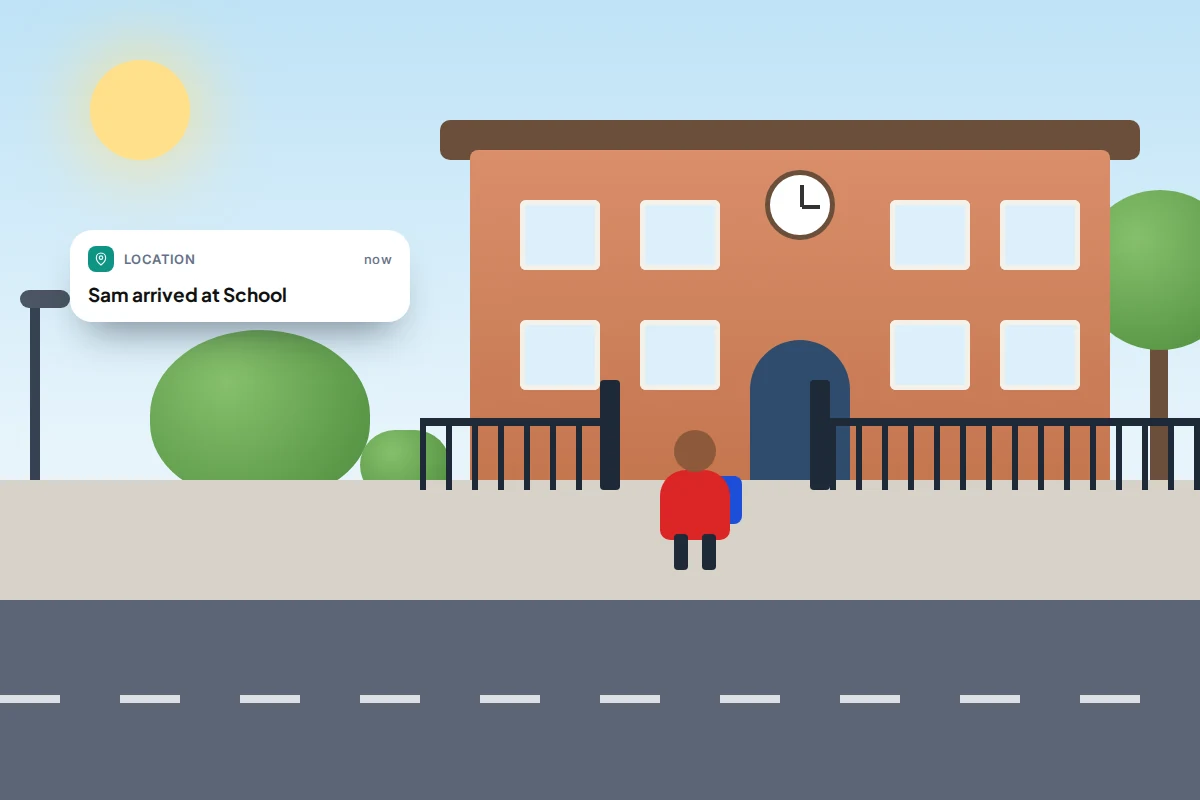
Once someone shares with you, you can tap their profile in Location sharing and add a notification for when they arrive at or leave a place. Google emails them to say you did, and they can turn such alerts off.
Find Hub and Google Messages (Android)
In the Find Hub app, go to the people section and tap Start share. Google lists one hour, until the end of the day, until you stop, or a custom length. In Google Messages, open a chat, tap the attachment button, then Real-time location; custom lengths there go up to 24 hours.
To see or stop every share at once, go to Settings → Location → Location services → Google Location Sharing. Turning off Use Location Sharing pauses updates without removing anyone.
Samsung Find and WhatsApp live location
Samsung Find (Galaxy phones)
If everyone has a Galaxy phone, Samsung Find has its own People tab for sharing with other Samsung account users, including your Samsung family group (Settings → Samsung account → Family). The other person needs the Samsung Find app too. A child’s location is shared only after a parent gives consent, and the parent’s phone is then notified. Stop by opening People, choosing the person, then More, and turning off Share my location.
WhatsApp live location (iPhone and Android)
For one journey, a family WhatsApp group is often simplest, because everyone already has it. Open the chat, tap the attachment button, then Location → Share live location, and choose how long; the choices are short, from minutes to hours, and there is no “until I stop” option. WhatsApp says live location is end-to-end encrypted, so only the people in that chat can see it. It ends at the time you chose; to stop early, tap Stop sharing in the chat, or go to Settings → Privacy → Live location.
Remember that everyone in a group chat sees a location shared there, including relatives you may not have had in mind.
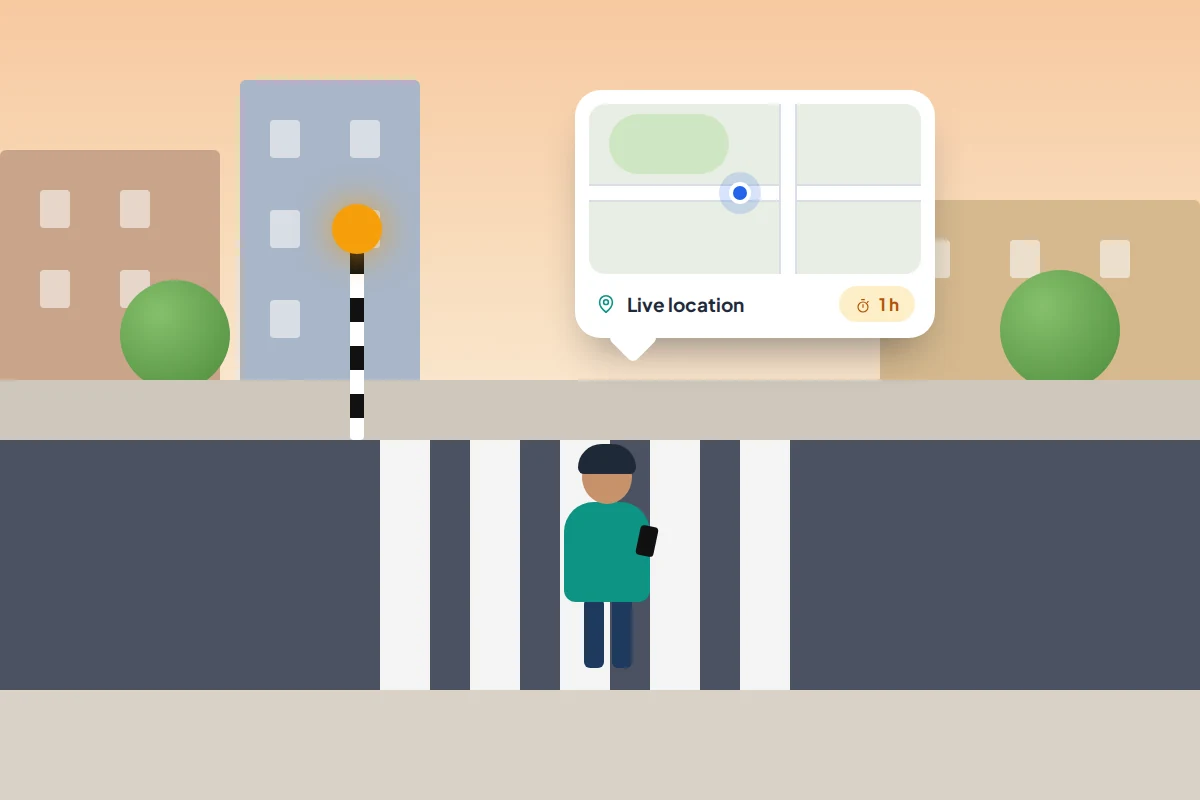
Comparing the options
This is what each option does as of September 2026. Features change, so check the app if something doesn’t match.
| Method | iPhone | Android | Time-limited? | Who sees it | Notifications |
|---|---|---|---|---|---|
| Find My / Messages Share My Location | Yes | No | 1 hour, end of day, or indefinitely | People you choose; Family Sharing members if you share with them | You appear in their People list; Apple says stopping doesn’t notify them |
| Google Maps location sharing | Yes | Yes | Set time, or until you turn it off | People with a Google Account you choose, or anyone with a link (up to 24 hours) | In-app notification, or email if they don’t use Maps or Find Hub; you’re emailed if they add arrival alerts about you |
| Find Hub / Google Messages | Use Google Maps | Yes | 1 hour, end of day, until stopped, or custom (Messages: up to 24 hours) | People you choose | Same as Google Maps: it’s the same share |
| Samsung Find | No | Galaxy phones | Time range you choose | Samsung account users you choose, such as your family group | Parents are notified once they consent to a child sharing |
| WhatsApp live location | Yes | Yes | Always; you pick the length | Everyone in that chat | Shows as a message in the chat |
| Family Link | Parent’s app only | Child’s phone | No, on until a parent turns it off | Parents of a supervised child | Parents can set arrive and leave alerts |
Children: Family Link and Family Sharing
For a younger child with a supervised Google Account, location comes from Family Link rather than ordinary sharing. In the Family Link app, parents go to Location → Set up location, choose the child and tap Turn on, then can add arrive and leave alerts for places such as home or school. Our guide to setting up Google Family Link walks through it, including what the child sees.
On iPhone, a child in your Family Sharing group can share their location with the family from Find My in the same way as an adult. Whichever you use, tell your child it’s on and why, and let them see your location too.
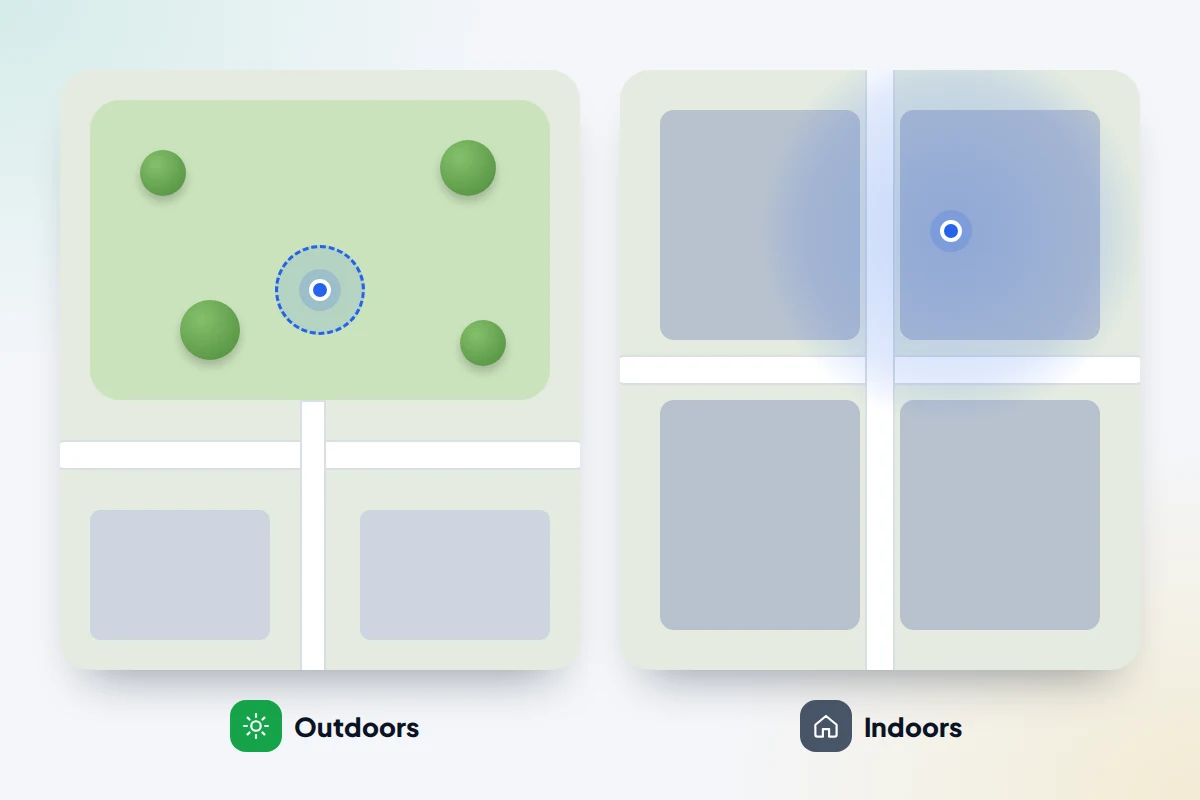
Battery, accuracy and delays
Location sharing doesn’t need the app to be open, but it does need the phone to be on, connected and allowed to use location in the background. Most confusion comes from forgetting one of those.
- Accuracy varies. Outdoors, satellite positioning is usually precise. Indoors and in dense city streets, phones fall back on Wi-Fi and mobile masts, and the dot can sit on the wrong building. Look at the size of the circle, not just the dot.
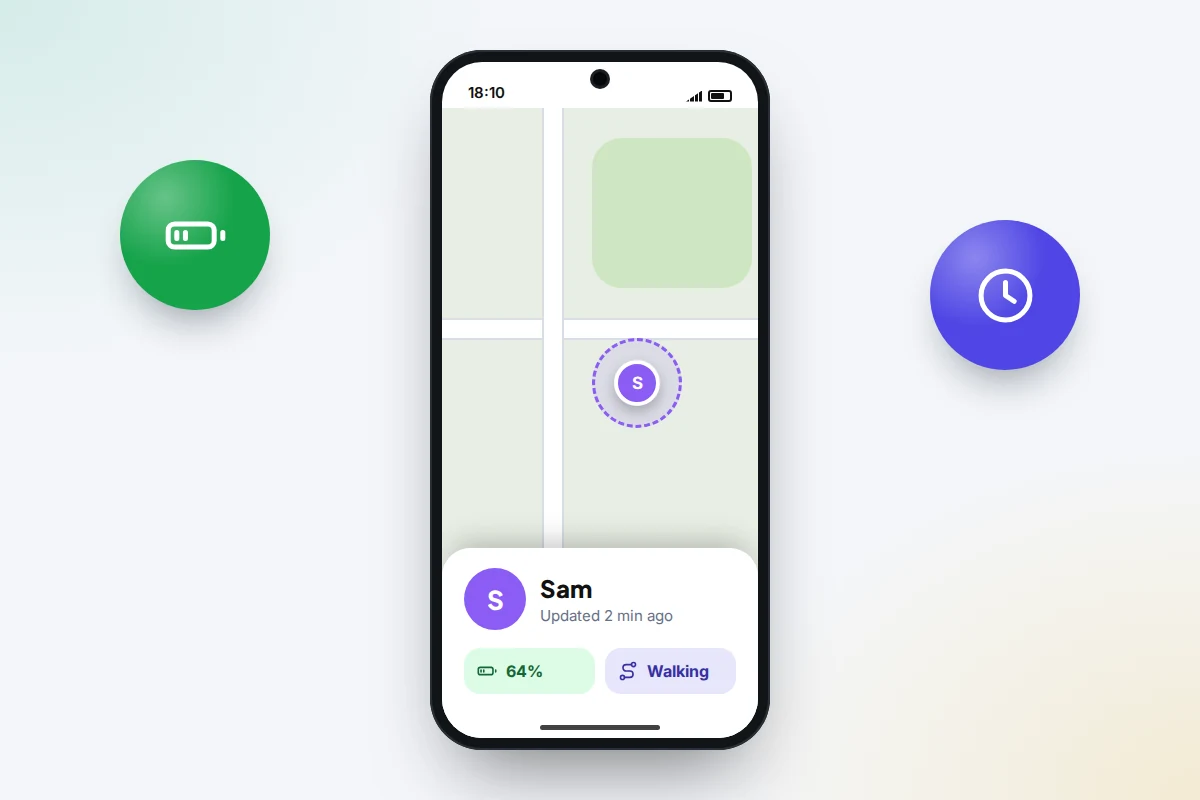
- Updates aren’t constant. They can be minutes apart, and battery-saving modes can slow them further. Always read the “updated” time before worrying.
- A flat or switched-off phone stops sharing. You’ll see the last place it reported. Agree in advance that a stale dot means “battery”, not “emergency”.
- Battery use is usually modest, but it adds to navigation, games and video on a long day out. A small power bank solves most of it.
Agree it together before you switch it on
Location sharing works best as an arrangement everyone has said yes to. Settle four things first.
- Who shares with whom. Make it two-way where you can: parents share with teenagers, not only the other way round.
- When it’s on. All the time, only on school days, or only for trips and late nights. Time-limited shares suit older teenagers.
- What it’s for. For example, “so we know you got home”, not checking where someone was on Saturday afternoon.
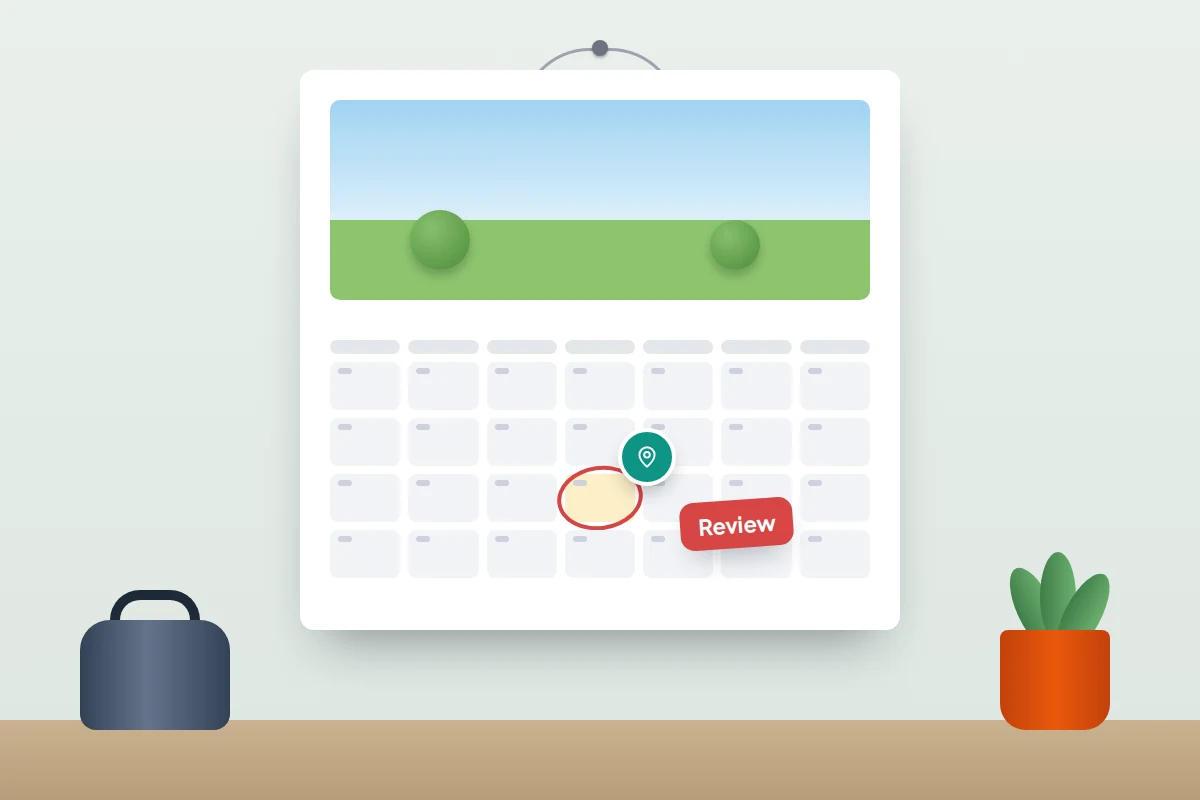
- When you’ll review it. A birthday or the start of a school year is a natural point to loosen it.
If a live map feels like too much, a check-in at agreed moments often works better; the check-ins guide linked above has example agreements for teenagers and older parents.
Stopping sharing, and what the other person notices
- Find My: tap People, choose the person, then Stop Sharing My Location. To stop with everyone, turn off Share My Location under Me. Apple says the person isn’t notified, but your location will no longer show for them.
- Google Maps: tap your profile picture, then Location sharing, the person and Stop. In Find Hub, tap the person, then Stop sharing. Either one ends the share in every Google app. Google doesn’t say it notifies them, but you’ll disappear from their list.
- WhatsApp: tap Stop sharing in the chat, and your live location stops updating for everyone in it.
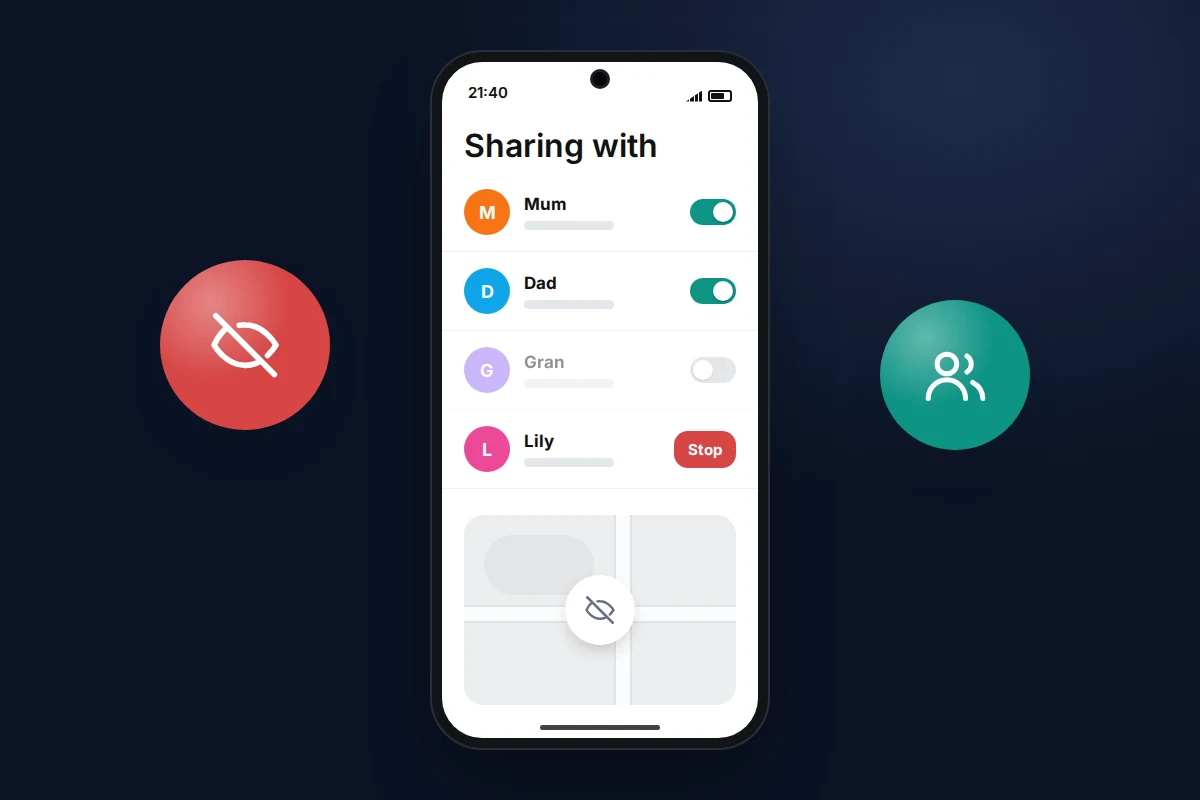
Because stopping is quiet, agree in advance that anyone who wants sharing off says so, rather than just switching it off.
What if it doesn’t work
- Someone’s location says “No location found” or is hours old. Their phone may be off, offline or in a battery-saving mode. On iPhone, check under Me in Find My that Share My Location is on and that the phone they carry is the one sharing (Use This iPhone as My Location).
- An Android family member is missing from Find My. Find My doesn’t work with Android. Use Google Maps for the whole family instead.
- Google Maps on iPhone stops updating. Set Google Maps’ location access to Always. Low Power Mode can also delay updates.
- A child’s phone can’t start a Google share. Google says an account managed by a parent has its location sharing managed in Family Link, so set it up there.
Frequently asked questions
Can an iPhone and an Android phone share locations with each other?
Yes, through Google Maps or WhatsApp, which both run on iPhone and Android. Apple’s Find My and Samsung Find don’t work across the two.
Is the other person told when I start sharing?
With Google, yes: they get a notification if they have Maps or Find Hub with notifications on, and an email if not. In Find My, you appear in their People list. In WhatsApp, it appears as a message in the chat.
Can I share with someone who doesn’t have a Google Account?
Yes, with a Google Maps link, which lets anyone who has it see your location for up to 24 hours. Send it only to the person you mean it for.
Do we need a separate family-location app?
Usually not. The built-in options cover sharing, time limits and arrival alerts. A separate app can make sense if you want extra features, such as alerts for several places, working the same way across a mixed family.
Should a teenager be able to turn sharing off?
They can on their own phone, whatever you agree. It works better if you agree when it’s off, such as at friends’ houses, than if they have to switch it off without telling you.
Sources and further reading
- Apple Support: Share your location with iPhone
- Apple Support: Share your location with your Family Sharing group
- Google Maps Help: Share your real-time location with others
- Android Help: Find your friends and family with Find Hub
- Google Account Help: Manage your Location Sharing settings
- WhatsApp Help Center: How to use live location
- Samsung Support: Use the Samsung Find app to share your location
- Google For Families Help: Find and manage your child’s location
Looking for a tool to go with this? TheTruthSpy is a free parental control app for Android that stays visible on the child's phone. If it fits your family, see the Location & geofencing feature.
Related guides
Your Child’s First Solo Journey: A Phone Checklist
A first solo walk or bus ride: a practice run, phone setup, emergency contacts, tickets, agreed check-ins, and a paper…
How to Set Up Your Child’s First Email Account
Set up your child's first email account with Gmail, iCloud or Outlook: age rules, a safe address, recovery, what parents…
Smart Speakers and Kids: Settings Parents Should Change
The smart speaker settings to change for children on Alexa, Google and HomePod: voice purchases, explicit filters, recordings, Drop In…
Parental controls your child can see
Location, screen time limits, a web filter and alerts from notifications — free, and visible on your child's phone. Pair a phone in about ten minutes.
Android · Free to set up · Visible on your child's phone