How to Transfer Photos From Your Phone to a Computer

Copying photos from a phone to a computer sounds like a single drag and drop. In practice, the method you pick decides whether you get the original files or smaller converted copies, whether Live Photos and dates survive, and whether the photos that live only in the cloud come across at all.
Below is the most dependable route for each combination of iPhone or Android with Windows or Mac, the settings that change what you end up with, and a checklist for proving the copy is complete before you delete anything from the phone.
The short version
- A USB cable is still the most dependable way to move a whole camera roll at full quality, on either kind of phone.
- If your photos sync to iCloud or Google Photos, the phone may hold only small previews. Download from the cloud, or keep originals on the phone first.
- iPhone photos are usually HEIC and videos HEVC. Choose whether to keep those originals or convert them on the way.
- Android File Transfer for Mac is no longer offered by Google; use the cloud, AirDrop from a supported Android phone, or a USB tool.
- Count the files and open a sample on the computer before deleting anything from the phone.
Pick the right method for your phone and computer
“Keeps originals” means you get the same file the camera saved, at full resolution, with its date and location data.
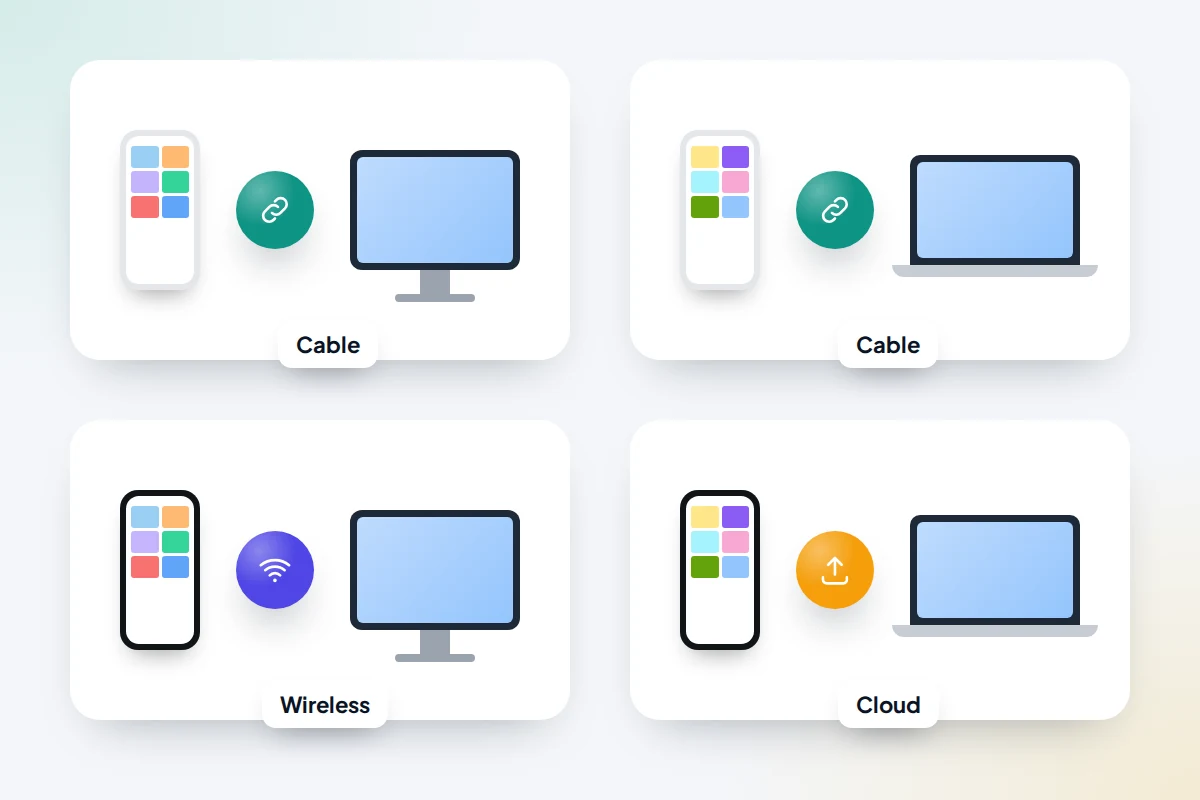
| Phone → computer | Best method | Speed | Keeps originals? |
|---|---|---|---|
| iPhone → Windows | USB cable, Apple Devices app, Windows Photos import | Fast | Yes, if the phone is set to keep originals |
| iPhone → Mac | USB cable with Photos or Image Capture; AirDrop for a handful | Fast | Yes |
| Android → Windows | USB cable in File transfer mode; Quick Share for a few | Fast | Yes |
| Android → Mac | Google Photos download, AirDrop on supported phones, or a USB tool | Medium | Yes, except Storage saver cloud copies |
| Any phone, whole library in the cloud | iCloud.com, iCloud for Windows, or Google Takeout | Slow for large libraries | Yes, if you choose the original format |
Before you plug in
- Check where the originals are. With iCloud Photos and Optimise iPhone Storage on, the full-size versions of older photos are in iCloud and the phone holds smaller copies. Apple says you must download the originals to the phone before importing to a PC, or download them from iCloud instead. Google Photos can likewise free up space by removing backed-up photos from the phone.
- Use a data cable. Some cheap cables only charge. If the computer does not react, try the cable that came with the phone.
- Check free space on the computer. Your phone’s storage screen shows how much Photos uses; the computer needs at least that much free, plus room to spare.
iPhone to a Windows PC
- Install the Apple Devices app from the Microsoft Store.
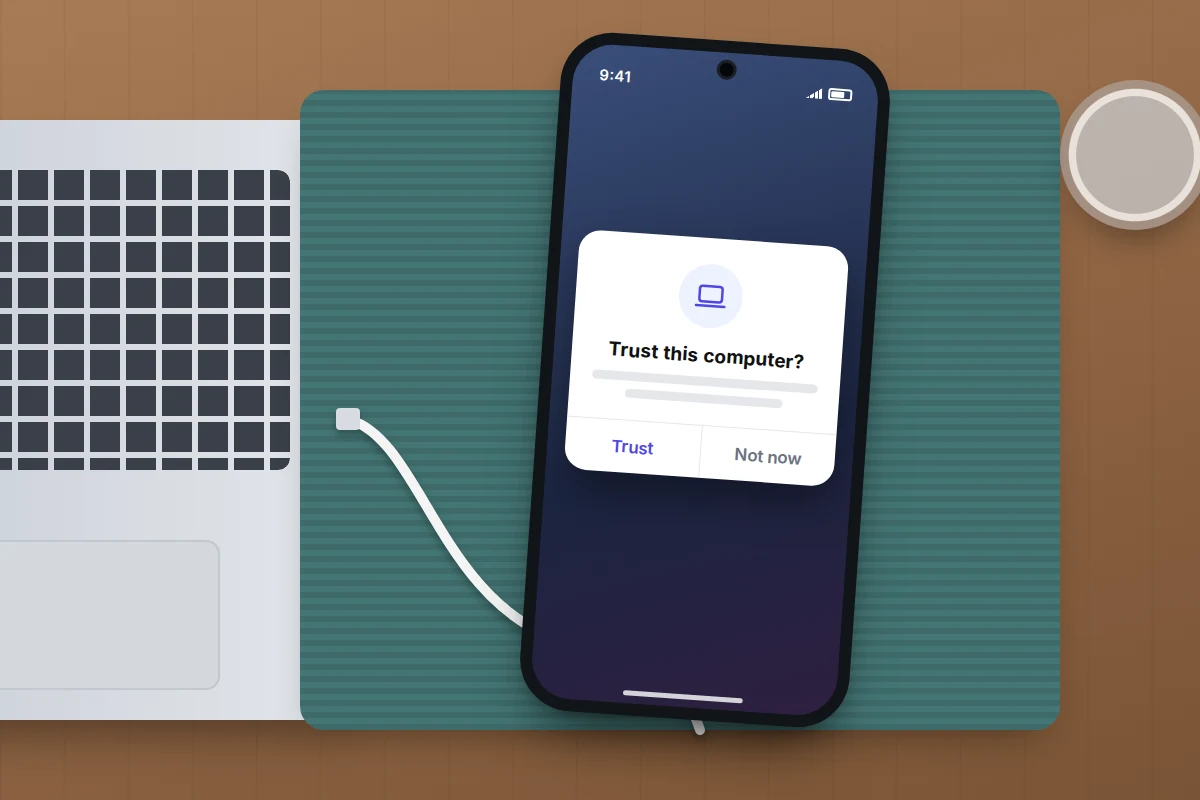
- Connect the iPhone with a USB cable and unlock it. When it asks whether to trust this computer, tap Trust and enter your passcode.
- Open the Windows Photos app, select Import, choose your connected device and follow the prompts to pick photos and a folder.
One iPhone setting changes what arrives. In Settings → Apps → Photos (just Settings → Photos on older versions), scroll to Transfer to Mac or PC. Automatic may convert photos and videos to JPEG and H.264 as they copy. Keep Originals copies the files exactly as the camera saved them, usually HEIC photos and HEVC videos. For an archive, Keep Originals is the better choice; convert copies later if you need JPEGs.
If the Photos import stalls on a large library, File Explorer also shows the iPhone’s DCIM folder, and you can copy the dated subfolders a few at a time.
iPhone to a Mac
Connect the iPhone by cable, unlock it and tap Trust. The Mac offers two tools:
- Photos opens an import screen. Choose Import All New Items, or select photos and click Import Selected. The photos go into your Photos library.
- Image Capture copies files into any folder you choose, such as one on an external drive. It is the better option when you want a separate, plain-file copy rather than more photos in the same library. Leave Delete after import unticked.
For a few photos, AirDrop is quicker. In Photos on the iPhone, select the pictures, tap Share, then Options at the top and turn on All Photos Data, so they arrive in their original format with their details. AirDropped files land in the Mac’s Downloads folder.
Android to a Windows PC
- Unlock the phone and connect it with a USB cable.
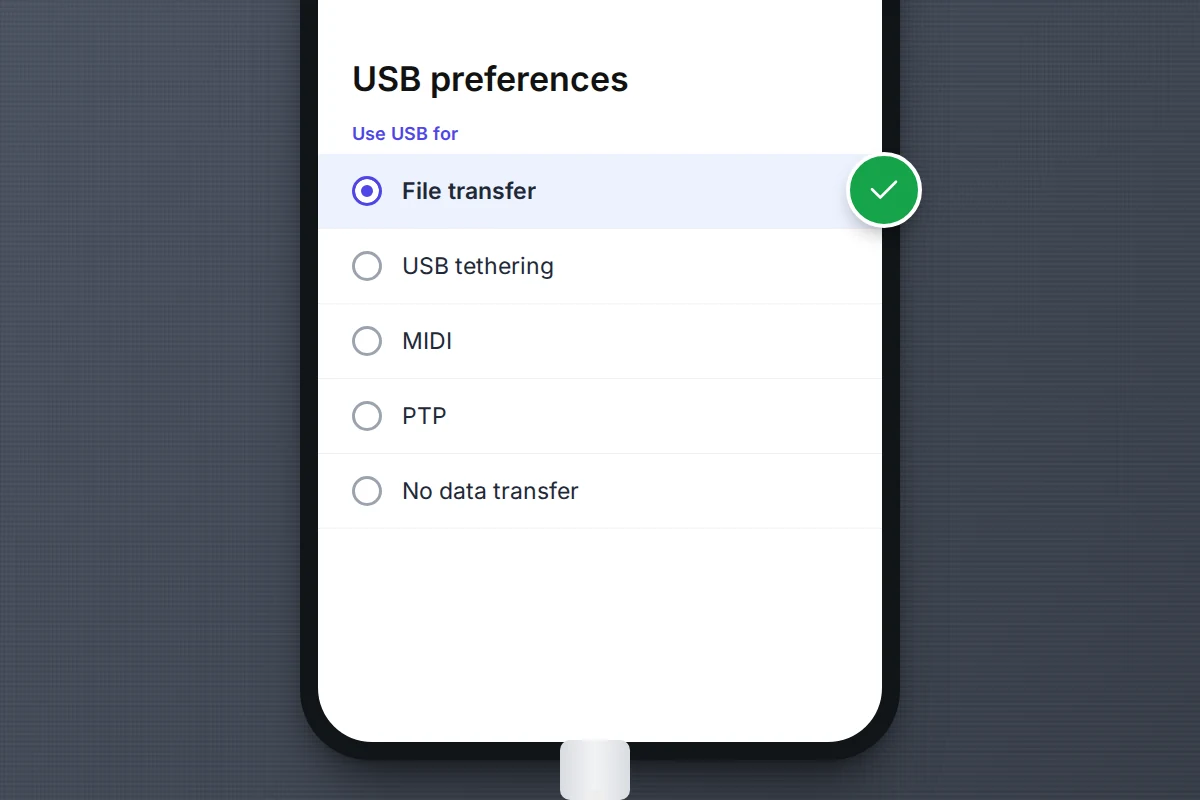
- Tap the USB notification and, under Use USB for, choose File transfer. Some phones call it Transfer files or MTP; the default setting is often charging only.
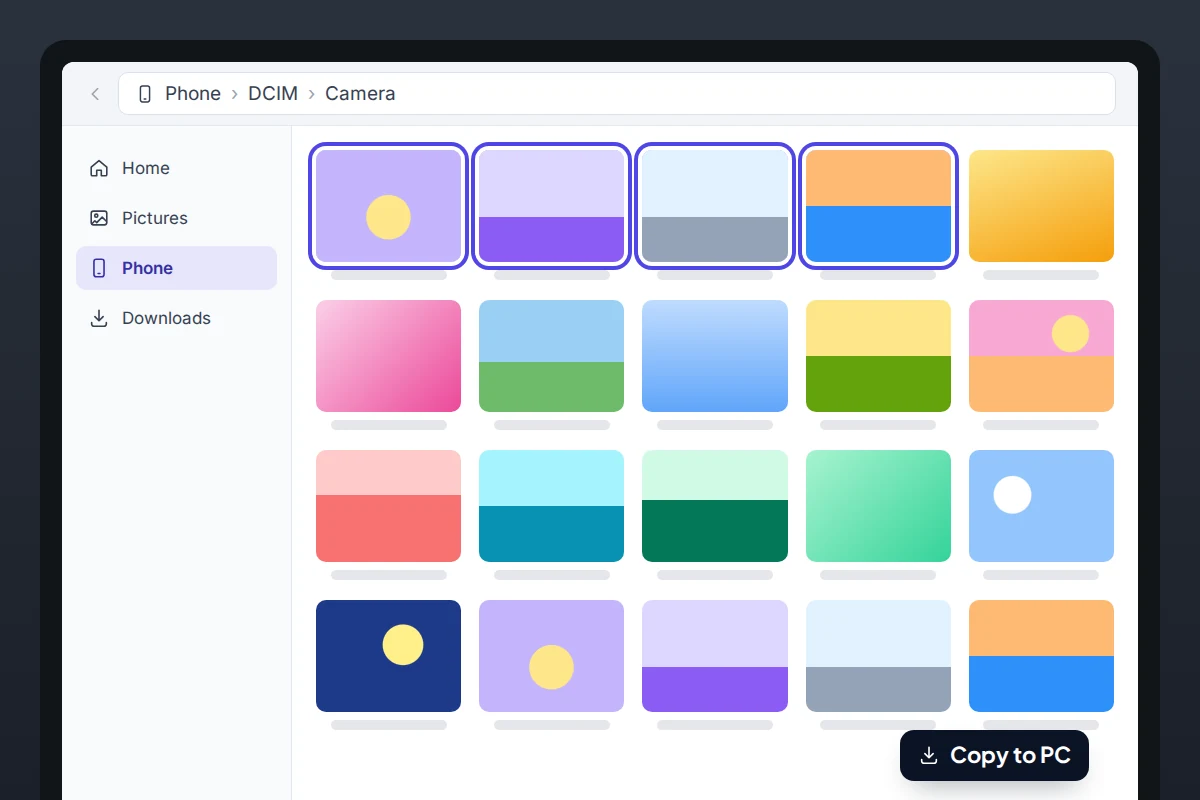
- Open File Explorer, select the phone, then its internal storage. Camera photos are in DCIM → Camera.
- Copy, don’t move, the folder to your computer.
Copying matters more than it sounds. Moving deletes each file from the phone as soon as it has been sent, so if the cable is knocked out or the transfer stops part way, you can be left with a damaged copy and no original. Copy first, check, and only then delete.
Camera photos are not the only ones. Screenshots usually sit in Pictures → Screenshots or DCIM → Screenshots, and photos saved from messaging apps have their own folders. Look through the top-level folders once so nothing is left behind.
Without a cable
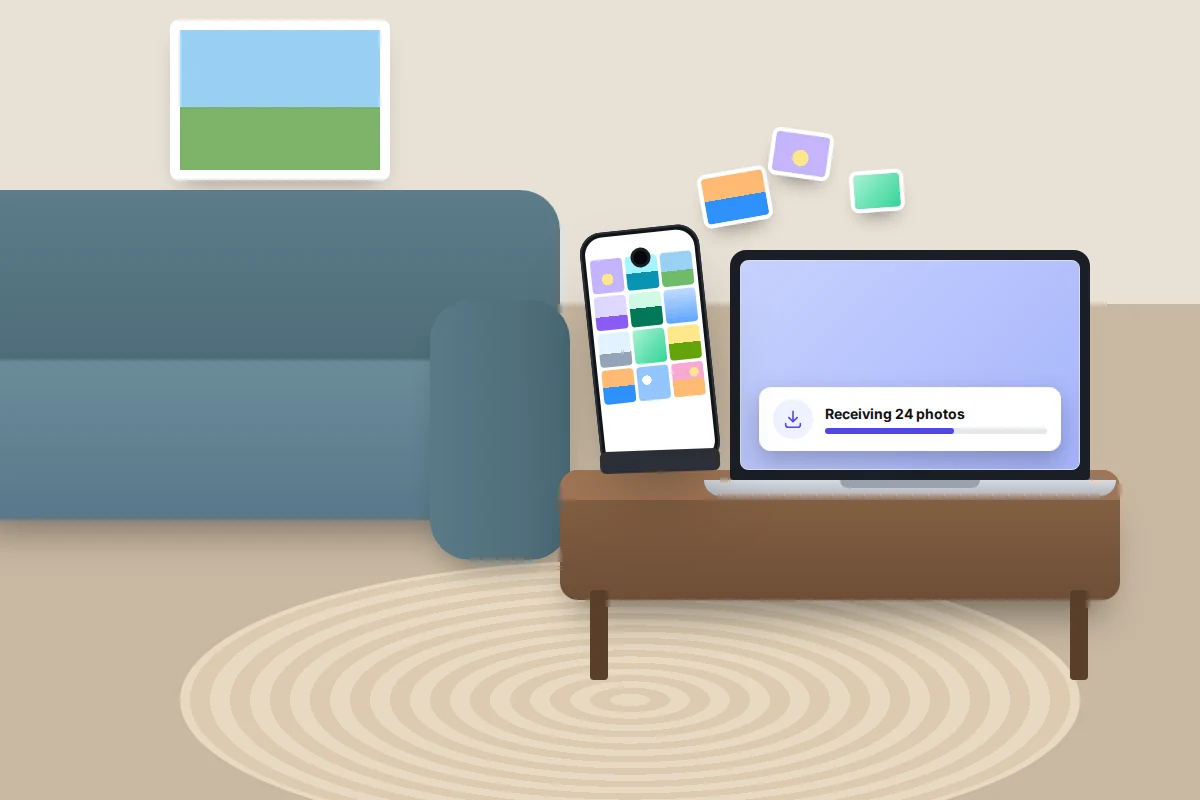
Quick Share sends photos from Android to a Windows PC with Google’s Quick Share app installed. Google lists 64-bit Windows 10 or later (Windows 11 on ARM computers), Android 6.0 or later, Bluetooth on, both devices on the same network and within about 5 metres. It suits dozens of photos rather than thousands.
On Windows 11, a phone linked through Phone Link can also appear in File Explorer, via Settings → Bluetooth & devices → Mobile devices. Microsoft warns that these are online-only files: deleting one in File Explorer deletes it from the phone. Copy to the PC; don’t tidy up there.
Android to a Mac
Macs cannot browse Android storage the way Windows can. Google no longer offers its Android File Transfer app for Mac: the old download page now points to Quick Share for Windows. The options now are:
- Google Photos on the web. If your photos back up at Original quality, download them at photos.google.com, or use Google Takeout for the lot. Backups made with Storage saver are compressed, so you get the smaller version.
- AirDrop from Android. Quick Share began working with AirDrop on the Pixel 10 in November 2025. By mid-2026 it had reached the Pixel 9 series, the Galaxy S24, S25 and S26 and recent Galaxy foldables, and some OnePlus, Oppo, Vivo, Xiaomi and Honor models, with more promised. Set the Mac’s AirDrop to Everyone while you send, because contacts-only sharing doesn’t work across the two systems.
- A cable with Image Capture. Set the phone’s USB mode to PTP (sometimes labelled Transfer photos), and Image Capture sees it as a camera. Third-party apps such as OpenMTP can browse all files if you need more.
Downloading from the cloud instead
If your photos already sync to iCloud Photos or Google Photos, the cloud may hold the most complete set, including photos from older phones.
- iCloud.com: sign in, open Photos, select up to 1,000 items at a time and download. Under More Download Options, choose Unmodified Originals to keep the original format; Most Compatible gives JPEG and H.264 instead.
- iCloud for Windows: turn on Photos, and your library appears in File Explorer, where you can download it to the PC.
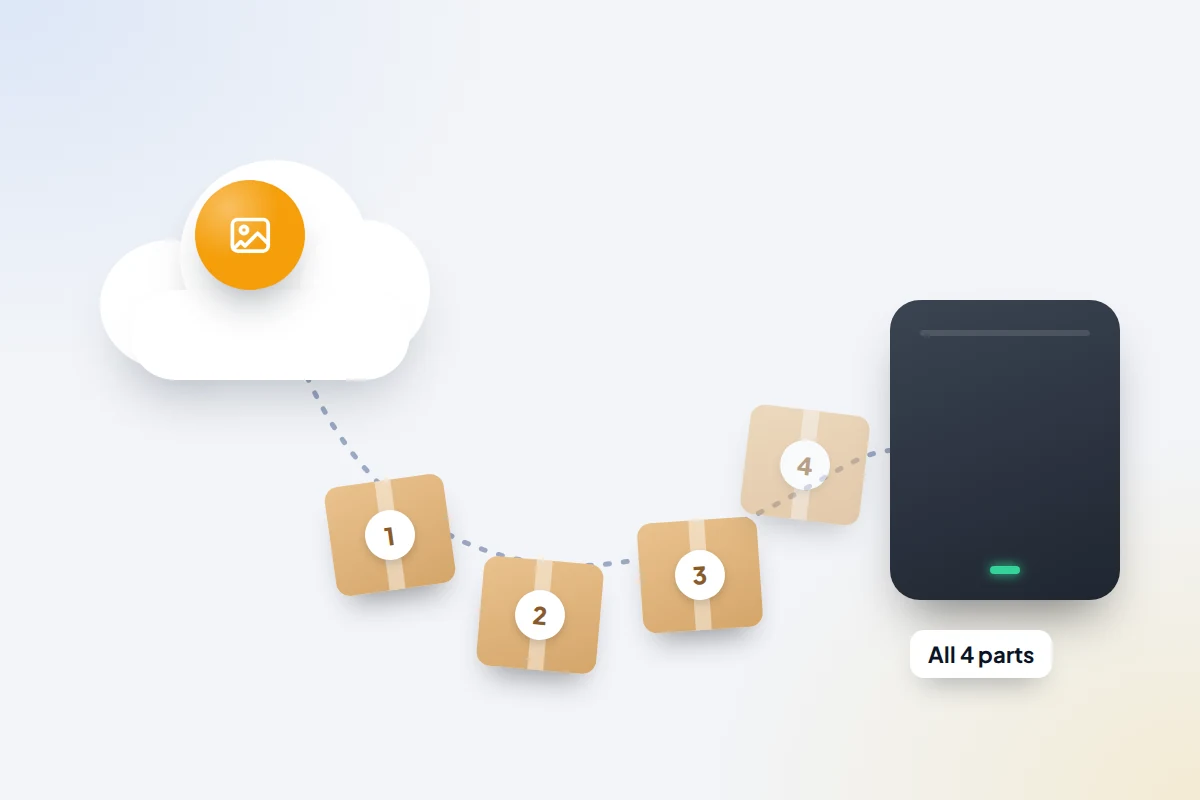
- Google Photos: select photos at photos.google.com, then ⋮ More → Download. For a whole library, Google Takeout builds zip files of up to 50 GB each. Each archive can be downloaded five times, and the link lasts about a week.
What happens to quality, dates and Live Photos
- HEIC and HEVC. Macs have opened them natively since macOS High Sierra (2017). Windows may need Microsoft’s HEIF Image Extensions and HEVC Video Extensions from the Microsoft Store; the HEVC one is a small paid download unless your PC maker included it. To shoot JPEG and H.264 from now on, choose Settings → Camera → Formats → Most Compatible, at the cost of larger files.
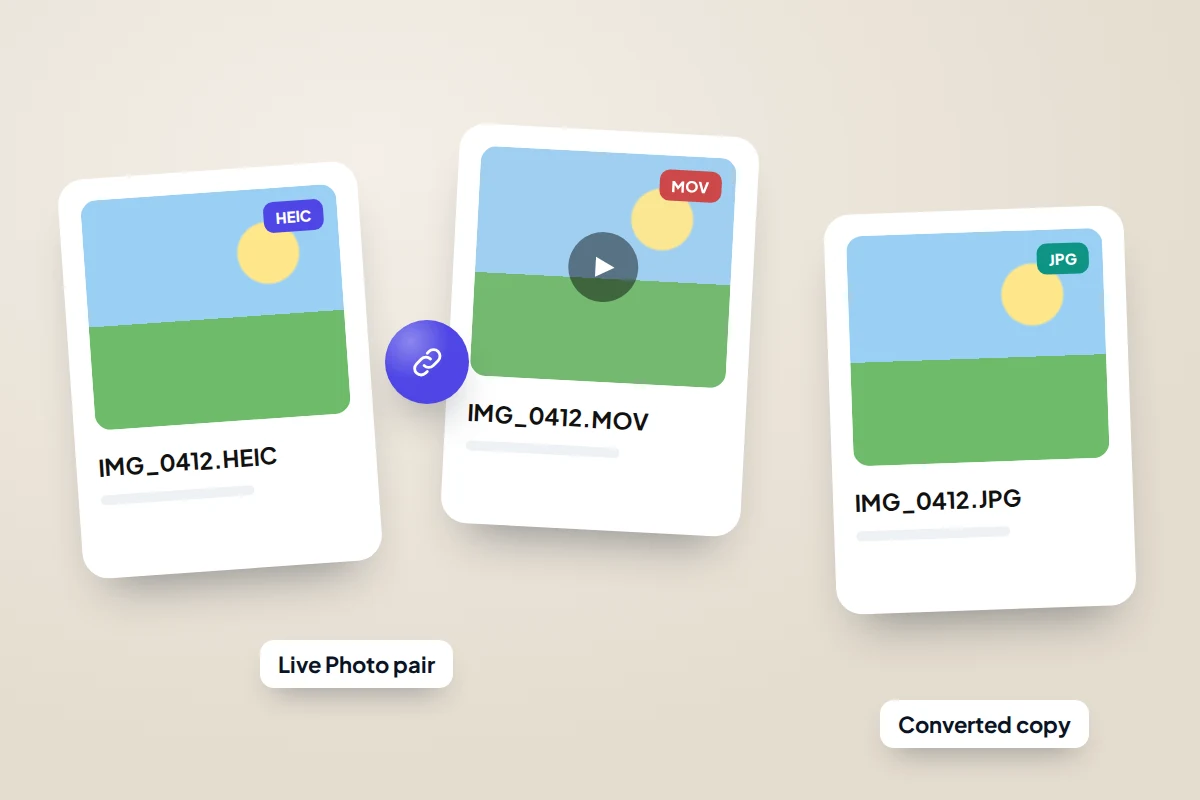
- Live Photos usually arrive on Windows as two files with the same name: a still image and a short MOV video. Keep both if you want the movement.
- Edited iPhone photos can come across as the original plus an edited copy, often with an “E” in the file name, so your file count may be higher than the phone’s photo count.
- Dates. The date the photo was taken is stored inside the file. The file’s own “created” date may become the day you copied or downloaded it, which is why some programs sort a downloaded library wrongly. Google notes this for downloads. Sort by “date taken” rather than “date created”. Takeout also puts some details in separate .json files beside each photo.
Before you delete anything from the phone
Run these checks while every photo is still on the phone.
| Check | How | It passes if |
|---|---|---|
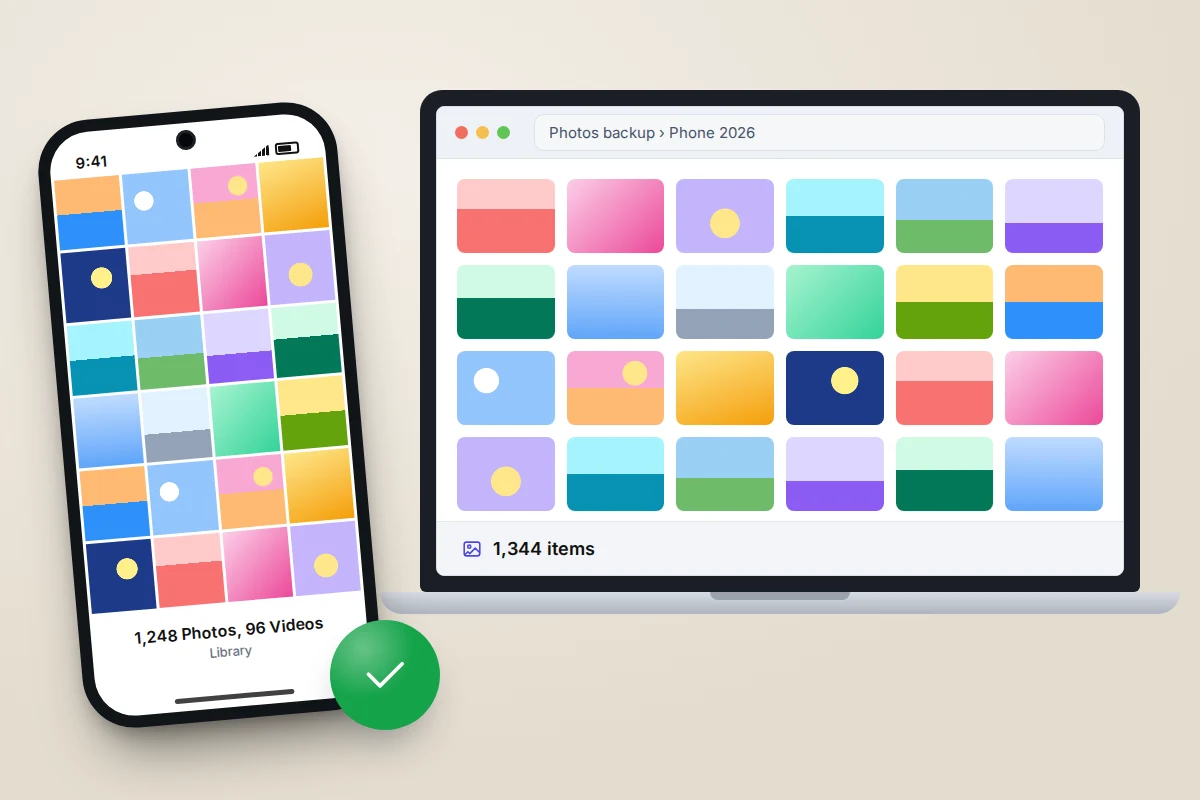
| Count | On iPhone, scroll to the bottom of the Library to see the photo and video counts; on Android, check the Camera album in your gallery app; on the computer, right-click the folder and choose Properties or Get Info | The numbers match, allowing for Live Photo pairs and edited copies |
| Oldest and newest | Sort the computer folder by date taken | Both ends of your date range are there |
| Spot-check photos | Open ten photos from different years | They open at full size, not as blurry previews |
| Spot-check videos | Play three long videos to the end | They play and have sound |
| Other folders | Look for screenshots and messaging-app folders | You have copied the ones you want |
| Second copy | Copy the folder to an external drive or a cloud service | It exists somewhere other than this computer |
When you do delete, remember that with iCloud Photos on, deleting from the phone deletes from iCloud and every other device too. Deleted photos sit in Recently Deleted on iPhone, or the bin in Google Photos, for 30 days, so you have a window to change your mind. If space is the reason you are deleting, there are other ways to free up storage on your phone that don’t touch photos at all.
What if the transfer doesn’t work
- The computer doesn’t see the phone. Unlock it, approve any prompt on its screen, try another USB port and a different cable.
- Only recent photos appear. The rest are in the cloud. Download from iCloud or Google Photos, or on iPhone turn on Download and Keep Originals in Settings → Apps → Photos and wait for the download to finish, which needs enough free space on the phone.
- The import stops part way. Import in smaller batches, by year or by folder, and keep the phone unlocked and on charge.
- Files won’t open on Windows. They are probably HEIC or HEVC. Install the extensions, or re-import with Automatic selected on the iPhone.
- Android shows an empty device. The USB mode reset to charging only. Pick File transfer again from the notification.
Frequently asked questions
Is a cable faster than the cloud?
Usually, yes. A cable doesn’t depend on your broadband speed, and nothing has to be uploaded first. The cloud wins only when the photos are already there and the phone holds just previews.
Does copying photos reduce their quality?
Not when you copy the original files. Quality drops when a method converts or compresses: Automatic transfer on iPhone, Storage saver in Google Photos, or sharing through messaging apps.
Can I copy photos without the phone’s passcode?
No. The phone has to be unlocked and must approve the computer. That protects your photos if someone else plugs in your phone.
Should I delete photos straight after copying them?
Only after the checklist above passes and a second copy exists. A single copy on one laptop is just moving the risk from the phone to the laptop.
Sources and further reading
- Apple Support: Transfer photos from your iPhone or iPad to your Mac or PC
- Apple Support: Download iCloud photos and videos
- Microsoft Support: Import photos and videos from phone to PC
- Microsoft Support: Setting up your Android phone’s photos in File Explorer
- Android Help: Transfer files between your computer and Android device
- Android Help: Share files between Android and Windows with Quick Share
- Google Photos Help: Download photos or videos to your device
- Google Account Help: How to download your Google data
Looking for a tool to go with this? TheTruthSpy is a free parental control app for Android that stays visible on the child's phone. If it fits your family, see what the app does.
Related guides
How to Back Up WhatsApp Chats
Set up WhatsApp backups on Android and iPhone, keep an encryption key safe, check the backup exists, and fix the…
How to Wipe a Phone Before Selling It
Wipe a phone before selling it in the right order: back up, move sign-in codes, sign out to release the…
How to Move From Android to iPhone
Moving from Android to iPhone: what Move to iOS transfers, how to bring WhatsApp chats, passwords and authenticator codes, and…
Parental controls your child can see
Location, screen time limits, a web filter and alerts from notifications — free, and visible on your child's phone. Pair a phone in about ten minutes.
Android · Free to set up · Visible on your child's phone