How to See Devices Logged Into Your Google Account

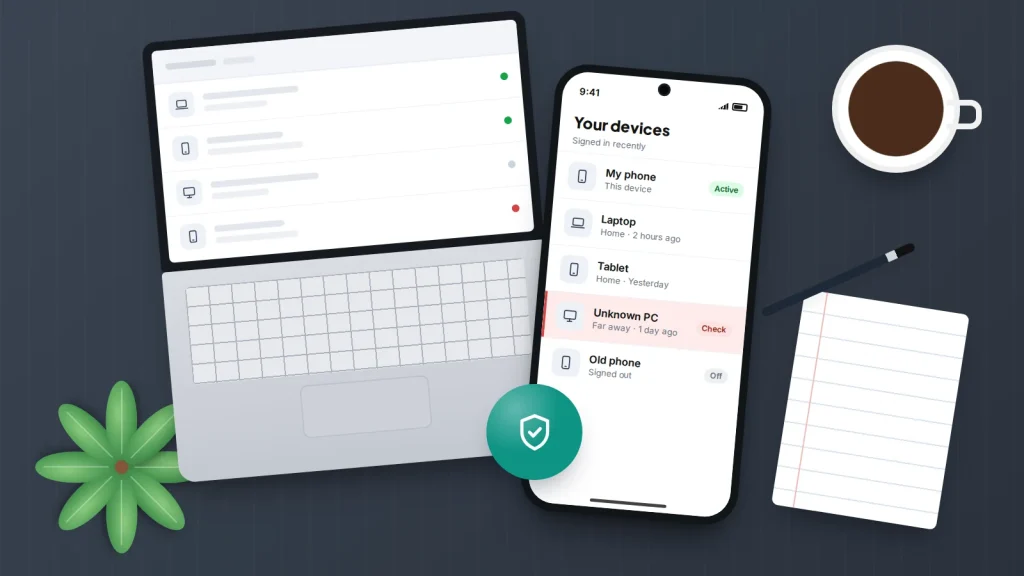
Your Google Account probably holds more than you think: email, photos, contacts, saved passwords and the keys to every site where you tap “Sign in with Google”. Every phone, tablet, laptop and browser you have ever signed in on keeps a small piece of that access until it is signed out.
A suspicious email, an old phone you are about to sell, or plain curiosity are all good reasons to look. The list of signed-in devices is easy to find on a computer, an Android phone or an iPhone, and each entry tells you more than it first appears to — including when something needs acting on.
The short version
- The list is in your Google Account under Security & sign-in → Your devices → Manage all devices, on any computer or phone.
- Locations are approximate and “last active” times include background syncing, so an entry can look odder than it really is.
- Old phones and browsers you no longer use should be signed out; it takes a few seconds per device.
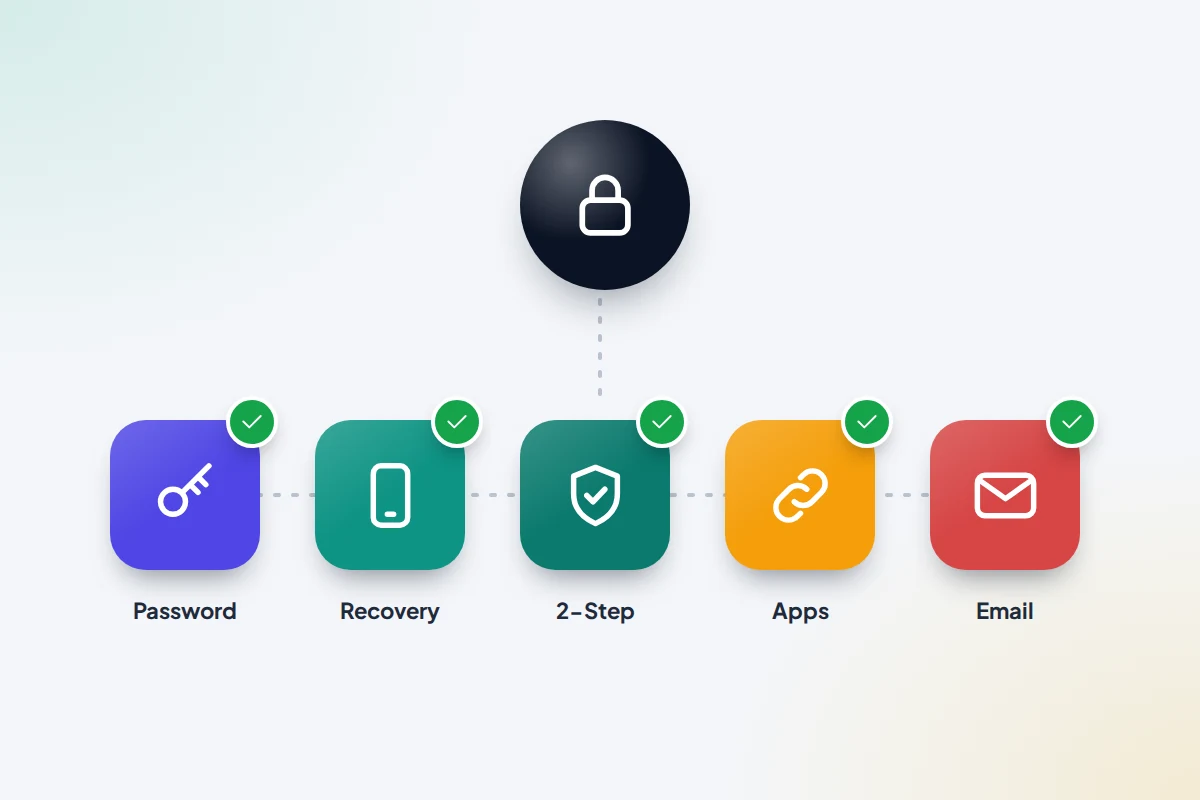
- If you genuinely do not recognise a device, sign it out, change your password, and check recovery details, 2-Step Verification, connected apps and Gmail forwarding.
Where to find the list of devices
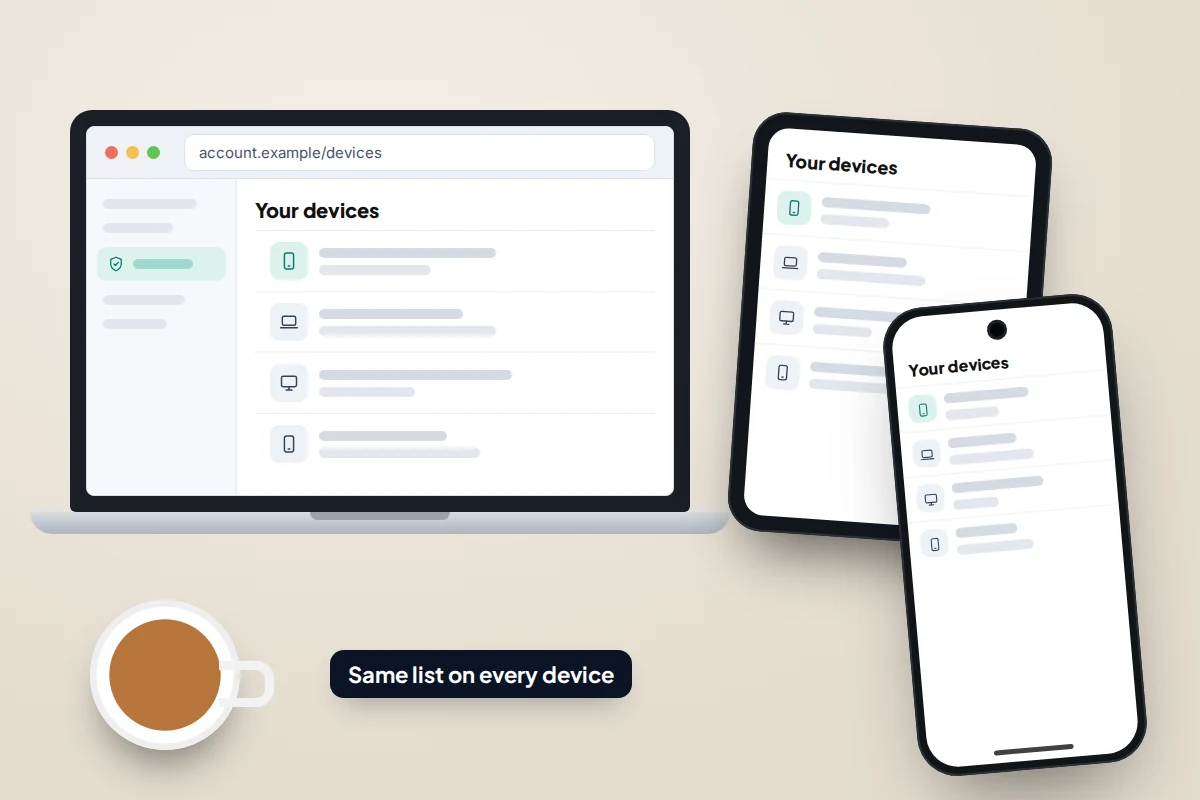
Google keeps one list for the whole account, so it does not matter which device you check from. It shows devices where you are signed in now, or have been in the last few weeks. The tab is currently labelled Security & sign-in; older guides call it Security.
On a computer
- Open a browser and go to myaccount.google.com. Sign in if asked.
- Select Security & sign-in in the menu on the left.
- Scroll to the Your devices panel and select Manage all devices.
On an Android phone
- Open the Settings app.
- Go to Google → Manage your Google Account. On some phones you tap your name first.
- Swipe along the tabs at the top to Security & sign-in, then tap Manage all devices under Your devices.
Menu names vary a little by phone maker and Android version. If you cannot find the Google entry in Settings, use the browser steps instead.
On an iPhone or iPad
- Open the Gmail app (or the Google app).
- Tap your profile picture or initial at the top right → Manage your Google Account.
- Go to Security & sign-in → Manage all devices.
If you do not use a Google app on your iPhone, open Safari and go to myaccount.google.com, then follow the computer steps.
How to read a device entry
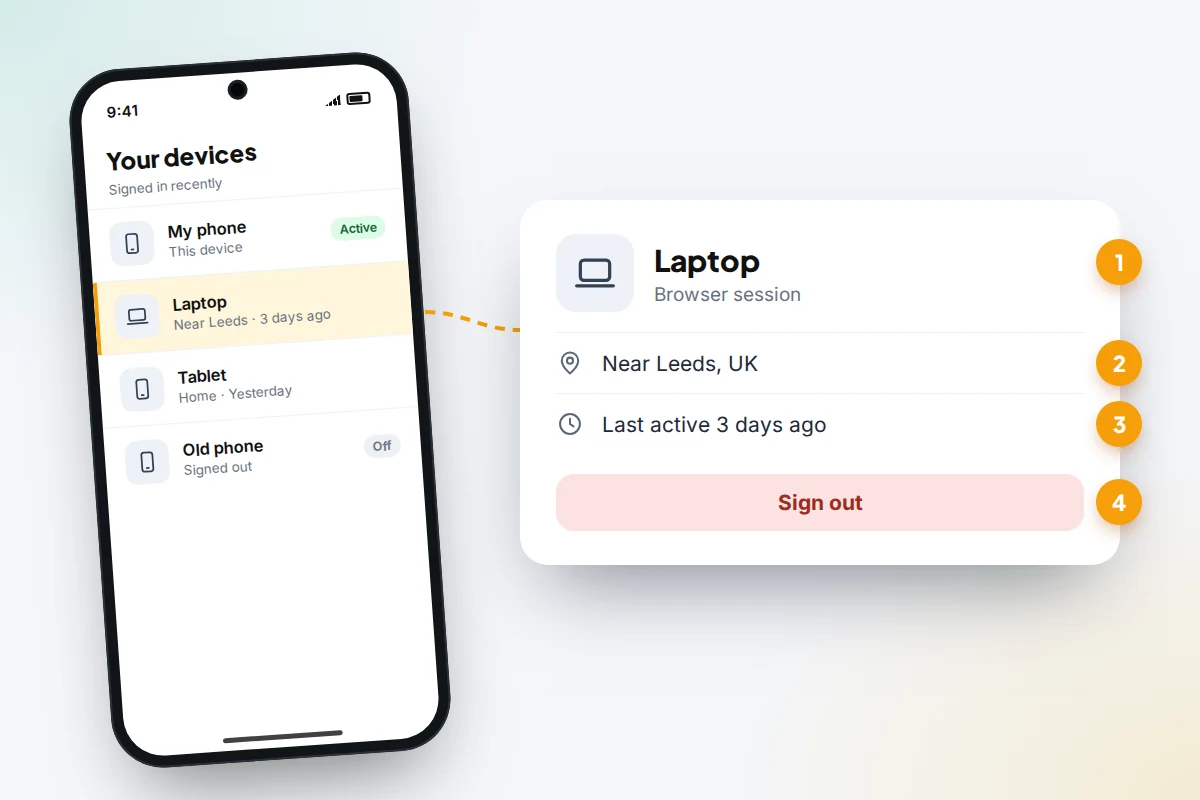
Each entry is a device, or a session on a device. A session is a period during which you are signed in from a particular browser, app or service. Tapping an entry opens more detail. Here is what you will typically see.
- Device name. Phones usually show their model name. Computers usually show the operating system, such as Windows or Mac, and sometimes the browser. A generic name does not mean a device is suspicious.
- “This device” or “Your current session”. The one you are using right now.
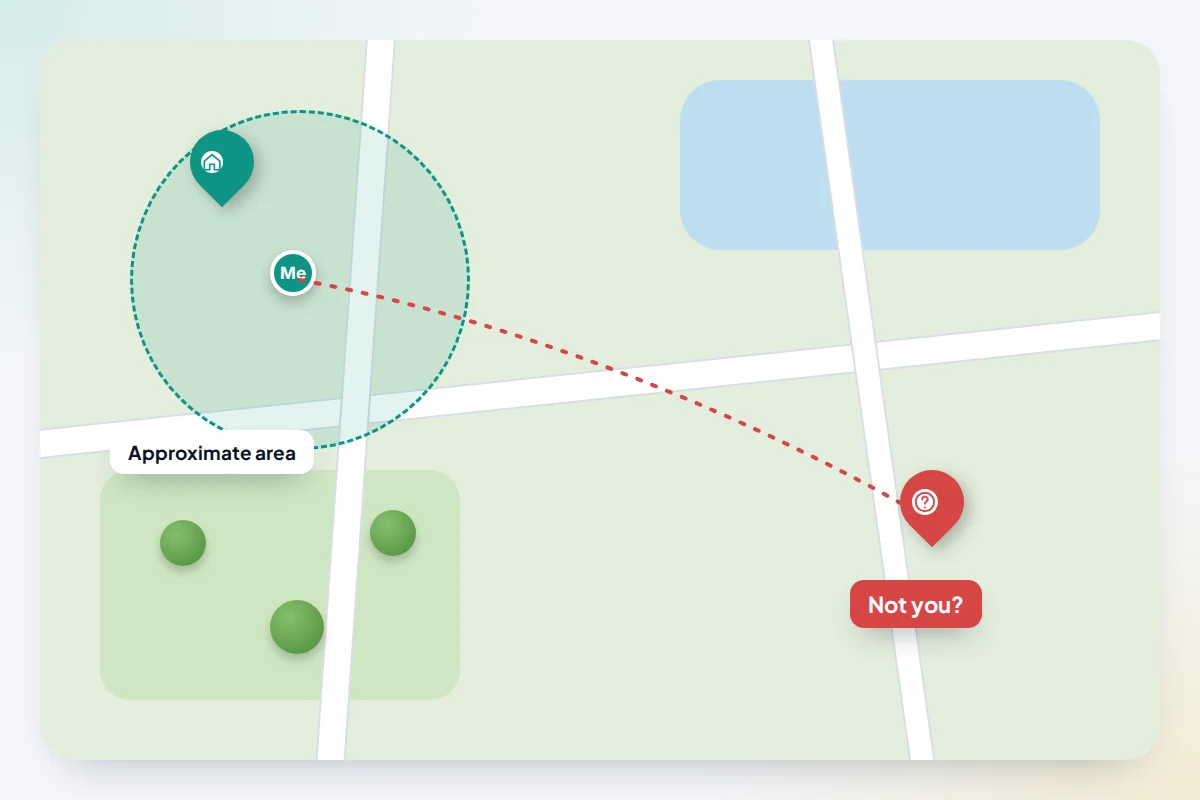
- Location. This is approximate. Google often shows a nearby town or region rather than your exact address, and mobile networks can route your connection through a city some distance away.
- Last active time. This is the last time the device or session communicated with Google’s systems. Apps such as Gmail and Calendar sync in the background, so a phone sitting in a drawer can still look recently active.
- “Signed out”. Devices you have left recently are labelled this way and eventually drop off the list.
You may also see several entries with the same name. Google notes these can come from one device or from several, for example two identical laptops in the same house. If you do not recognise a name, treat all the sessions with that name the same way.
Why old phones and browsers still appear
The list is not only about what you use today. A phone you replaced last month may still be signed in, especially if you traded it in without removing your account. The same applies to a work laptop, a smart TV, or a relative’s computer you used once to print a boarding pass.
Factory-resetting a phone, clearing a browser, or signing in again after a password change can also create a fresh entry, so one real device may appear more than once.
How to sign a device out
Signing out removes that device’s access to your account. It does not delete anything on the device itself, and it does not affect other people’s accounts on it.
- Open the device list: Security & sign-in → Your devices → Manage all devices.
- Select the device you want to remove.
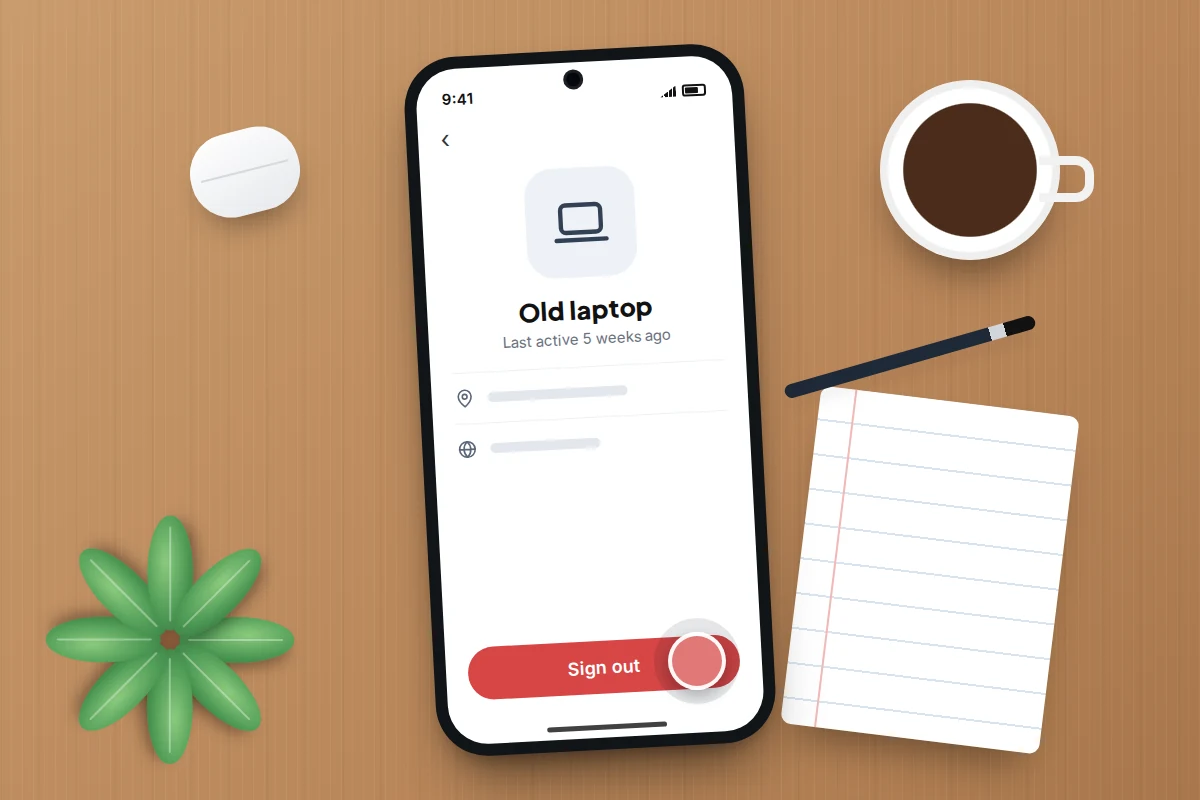
- Select Sign out and confirm.
The entry then shows as signed out. If the device is later used to reach your account again, it will need your password (and your second step, if you have one) to get back in.
If the device is a phone you have lost rather than one you have finished with, locate, lock or erase it first with Find Hub, which is what Google now calls Find My Device. Our guide on what to do when a phone is lost or stolen walks through the order of steps.
If you don’t recognise a device
First rule out the innocent explanations. Google lists several: you recently started using a new device, you used someone else’s computer or a public one, you reset a device, or you travelled and the location shows a nearby place. A different browser name, such as Safari when you normally use Chrome, can simply be an app on your iPhone.
If none of those fit, act straight away, in this order.
- Sign the device out using the steps above. Sign out every session with the same name.
- Change your password. Go to Security & sign-in → Password under How you sign in to Google. Google says changing or resetting your password signs you out everywhere except devices you use to verify it is you, some devices with third-party apps you have authorised, and home devices you have given access to. Use a password you have never used anywhere else.
- Check your recovery phone and email. Under How you sign in to Google, make sure the recovery phone number and recovery email are yours. An attacker who adds their own can take the account back later.
- Turn on 2-Step Verification or add a passkey. Both are under How you sign in to Google. A passkey lets you sign in with your fingerprint, face or screen lock, and is much harder to phish than a password.
- Review recent security events. On the Security & sign-in page, find Recent security events and select Review security events. Look for password changes, new sign-ins or new recovery details you did not make.
- Review third-party connections. In the section for your connections to third-party apps and services, remove anything you do not use or do not recognise. Removing access stops the app reaching your Google data; it does not delete your account with that app.
- Check Gmail for forwarding and filters. See the next section.
Finish by running Google’s Security Checkup at myaccount.google.com/security-checkup. It pulls these checks into one list with personalised recommendations.
Check Gmail for forwarding rules
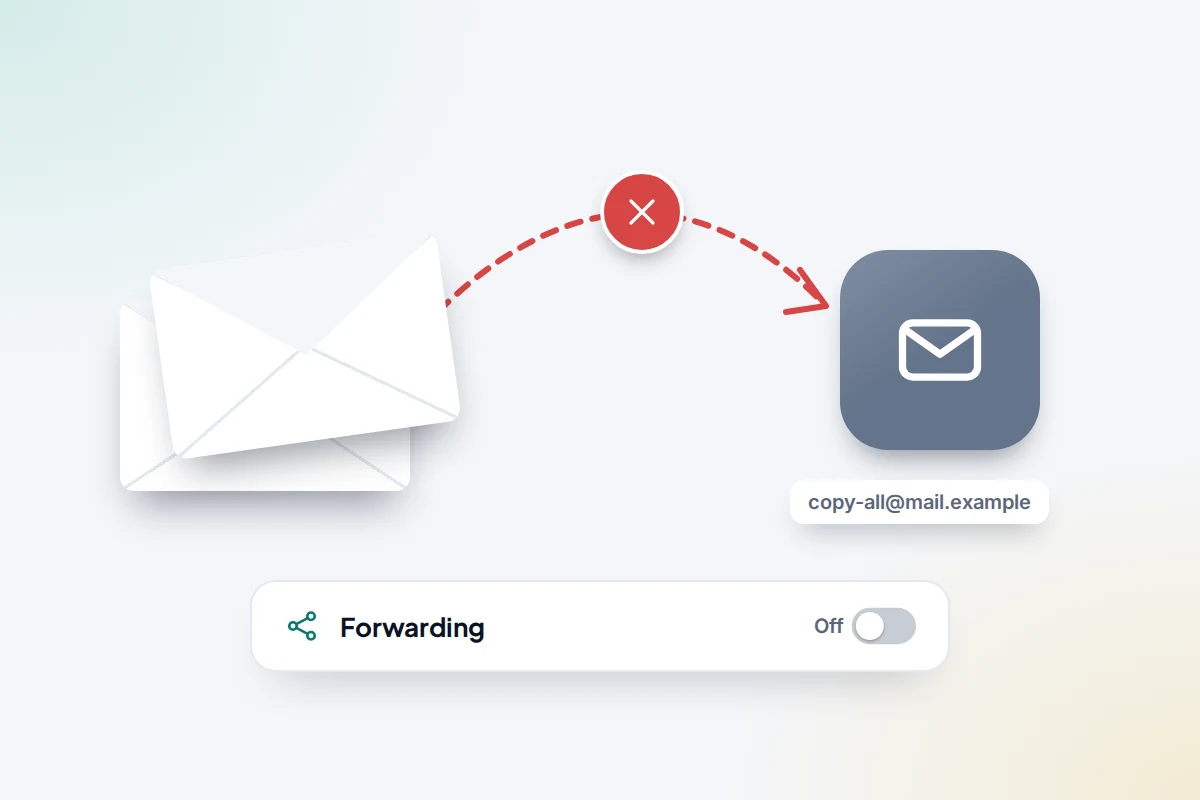
A common trick after an account break-in is to set up forwarding, so a copy of every email quietly goes to someone else even after you change your password. The UK’s National Cyber Security Centre highlights this in its advice on recovering a hacked account.
- On a computer, open Gmail and select Settings (the cog) → See all settings.
- Open the Forwarding and POP/IMAP tab. If forwarding is on to an address you do not know, select Disable forwarding and Save Changes.
- Open the Filters and Blocked Addresses tab and delete any filter you did not create, particularly ones that forward, delete or archive messages.
- Open the Accounts and Import tab and look under Grant access to your account. Delete anyone you did not add (this is called mail delegation).
These settings are easiest to check on a computer; the Gmail phone apps do not show all of them.
What you see, what it means, what to do
| What you see | What it probably means | What to do |
|---|---|---|
| Your old phone, still listed | You never removed your account before replacing it | Sign it out; if you still have it, remove the account and reset it |
| Your current phone, location a nearby town | Location is approximate, based on your connection | Nothing, if the device and time match your use |
| “Active” at a time you were asleep | Background sync by Gmail, Photos or Calendar | Nothing, if you recognise the device |
| Two entries with the same name | Two sessions, or two similar devices | Check both; sign out any you cannot account for |
| A browser on a computer you used once | You did not sign out of a shared or public computer | Sign it out |
| A device you have never owned, in a place you have not been | Someone else may have your password | Sign it out, change password, check recovery details, 2-Step Verification, apps and Gmail forwarding |
| An unknown device that returns after you sign it out | Your password or a connected app is still known to someone | Change password again, turn on 2-Step Verification or a passkey, remove unfamiliar connected apps |
How to keep your device list tidy
A short list makes a stranger’s device easier to spot.
Shared family computers
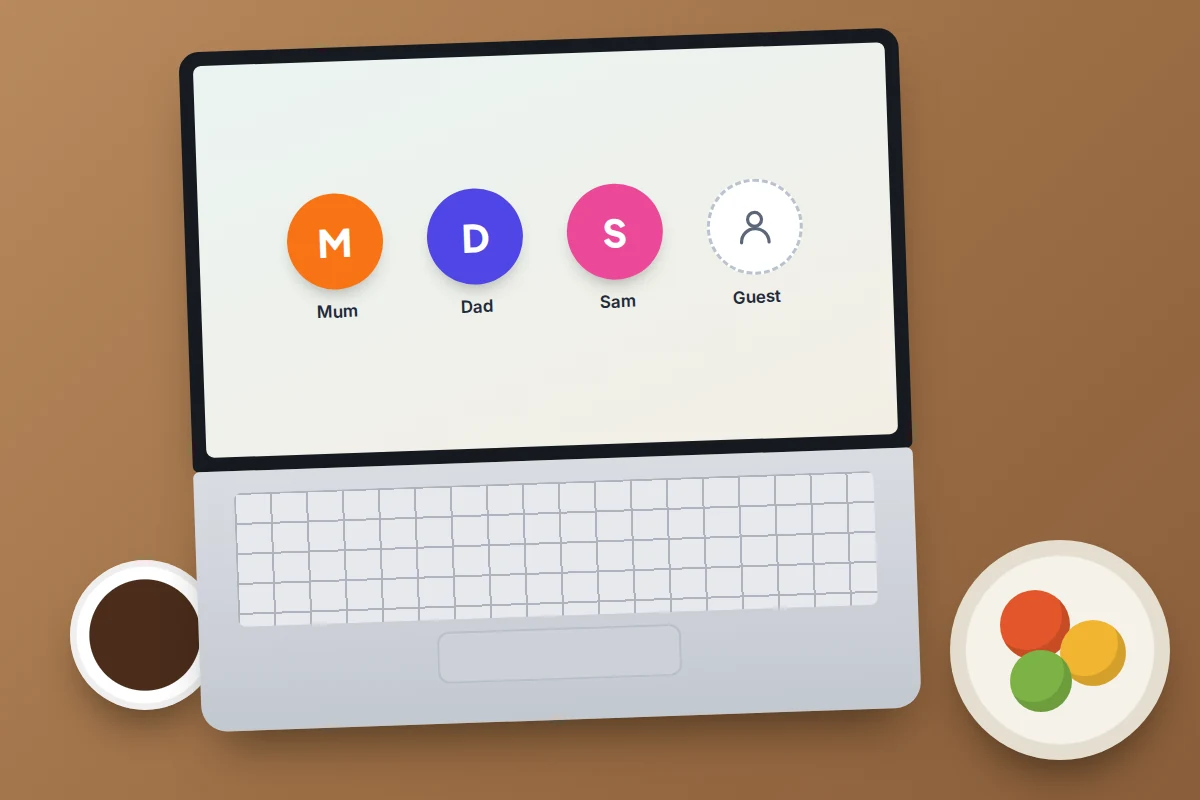
On a family laptop, give each person their own browser profile or their own computer user account, so nobody is signed in to anyone else’s Google Account by accident. When you use a computer that is not yours, such as at a library or a friend’s house, use a private or guest window and sign out when you finish. If you forget, you can sign that session out later from your own phone.
If your children have their own Google Accounts, it is worth showing them how to check this list too. Our guide to password safety and account security for kids covers the basics at a level they can follow.
Before you sell or pass on an old phone
- Back up anything you need, and check the backup has finished.
- On Android, go to Settings → Passwords & accounts, select your Google Account and choose Remove account. Depending on the phone, the menu may be called Passwords, passkeys & accounts, Users & accounts or Manage accounts. Removing the account also turns off the phone’s device protection, which would otherwise ask the next owner for your Google password after a reset.
- Factory-reset the phone. On an iPhone, follow Apple’s steps to sign out of your Apple Account first, then use Settings → General → Transfer or Reset iPhone → Erase All Content and Settings; your Google sign-ins are erased with everything else.
- Check your device list afterwards and sign out the old phone if it is still there.
A simple routine
Every few months, or whenever you change phones, open the list and sign out anything you no longer use. Pair it with the Security Checkup. The whole thing takes about five minutes.
What if this doesn’t work
- You cannot sign in at all. Use Google’s account recovery page (linked in Sources). Wrong answers do not lock you out of the process, so try from a device and place you have used before. Google says you cannot phone it for help signing in, so ignore any website or caller claiming to be Google account support.
- The same unknown device keeps coming back. Someone still has a way in. Change the password again from a device you trust, turn on 2-Step Verification or a passkey, and remove every third-party connection you do not recognise.
- You cannot find Security & sign-in. Menu names and layouts change. Use a computer browser at myaccount.google.com, where the layout is most consistent, or search your account settings for “devices”.
- The device list is empty or very short. It only shows recent sessions from roughly the last few weeks, so a device you have not used for a long time may simply have dropped off.
Frequently asked questions
Can I sign out of every device at once?
There is no single button for every device, but changing your password comes close. Google says it signs you out everywhere except devices used to verify it is you, some devices with third-party apps you authorised, and home devices you gave access to. Sign those out individually if needed.
Will the other device get a notification when I sign it out?
Signing out simply ends that device’s access. The person using it will find they are signed out of Google apps and services the next time they try to use them.
Why does my current phone show a town I am not in?
Google estimates location from how the device connects, and mobile networks often route traffic through a regional hub. A town nearby, or even your nearest city, is normal.
Does signing out delete my photos or email from that device?
It stops the device syncing with your account, so new email and photos stop arriving. Copies already stored on the device may remain until the account is removed or the device is reset.
Should I be worried about a device I don’t recognise that is marked “Signed out”?
It means that session has ended, but someone may still have signed in at some point. If you cannot account for it, change your password and work through the checks above anyway.
Sources and further reading
- Google Account Help: See devices with account access
- Google Account Help: Secure a hacked or compromised Google Account
- Google Account Help: Change or reset your password
- Google Account Help: How to recover your Google Account or Gmail
- Gmail Help: Automatically forward Gmail messages to another account
- Google Account Help: Manage links between your Google Account and apps from other developers
- Android Help: Help prevent others from using your device without permission
- National Cyber Security Centre: Recovering a hacked account
Using a monitoring app for this? TheTruthSpy is a free parental control app for Android that stays visible on the child's phone. If it fits your family, see what the app does.
Related guides
How to Spot a Fake Delivery Text
How to recognise fake parcel delivery texts, check a delivery safely, report the message to 7726, and what to do…
Is My Phone Listening to Me? What’s Real
What research and regulators have found about phones listening for ads, why ads still feel uncanny, and how to check…
Was Your Email Hacked? The Evidence Inside Your Own Inbox
How to tell if your email was hacked using evidence you can check yourself: sign-in history, the Sent folder, hidden…
Free parental control app for Android
GPS tracking, screen time limits, web filtering, SMS and call monitoring — visible on your child's phone. Pair a phone in about ten minutes.
Android · Free to set up · Visible on your child's phone