Google Find Hub (Find My Device): A Complete Walkthrough
 By TheTruthSpy Editor · Founder and editorPublished September 17, 2026Updated September 21, 20269 min read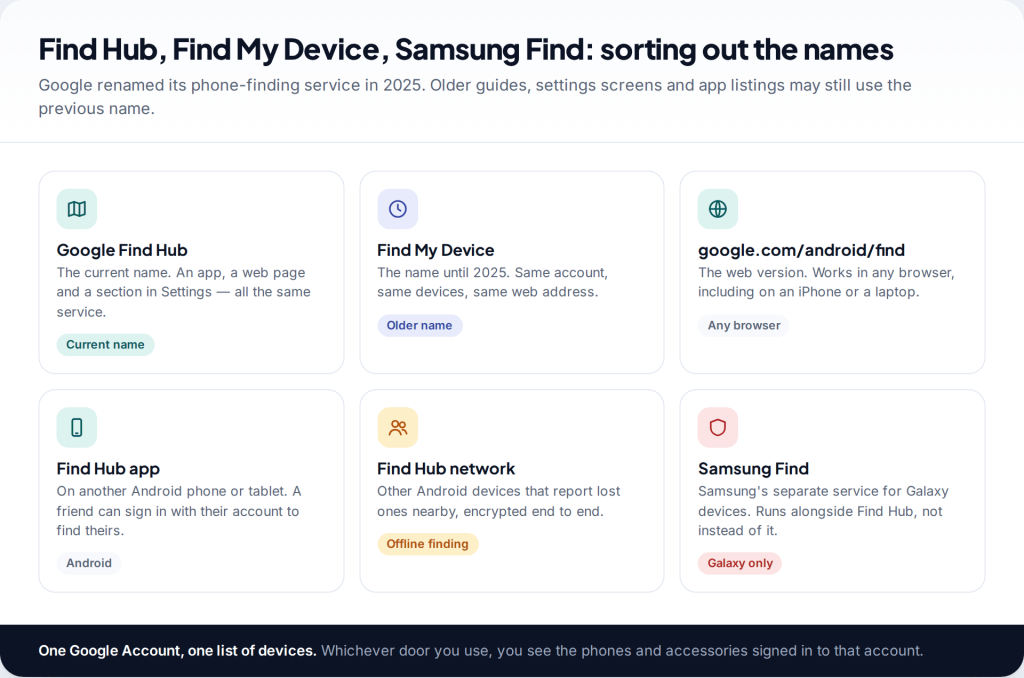
Find My Device on Android is now called Google Find Hub. It lets you see a lost phone on a map, ring it, lock it with a message, or erase it, from another Android device or from google.com/android/find in any browser. It only works if the phone was set up for it beforehand, so this walkthrough covers the setup checks first, then each action in turn.
What Find Hub is, and why Find My Device changed its name
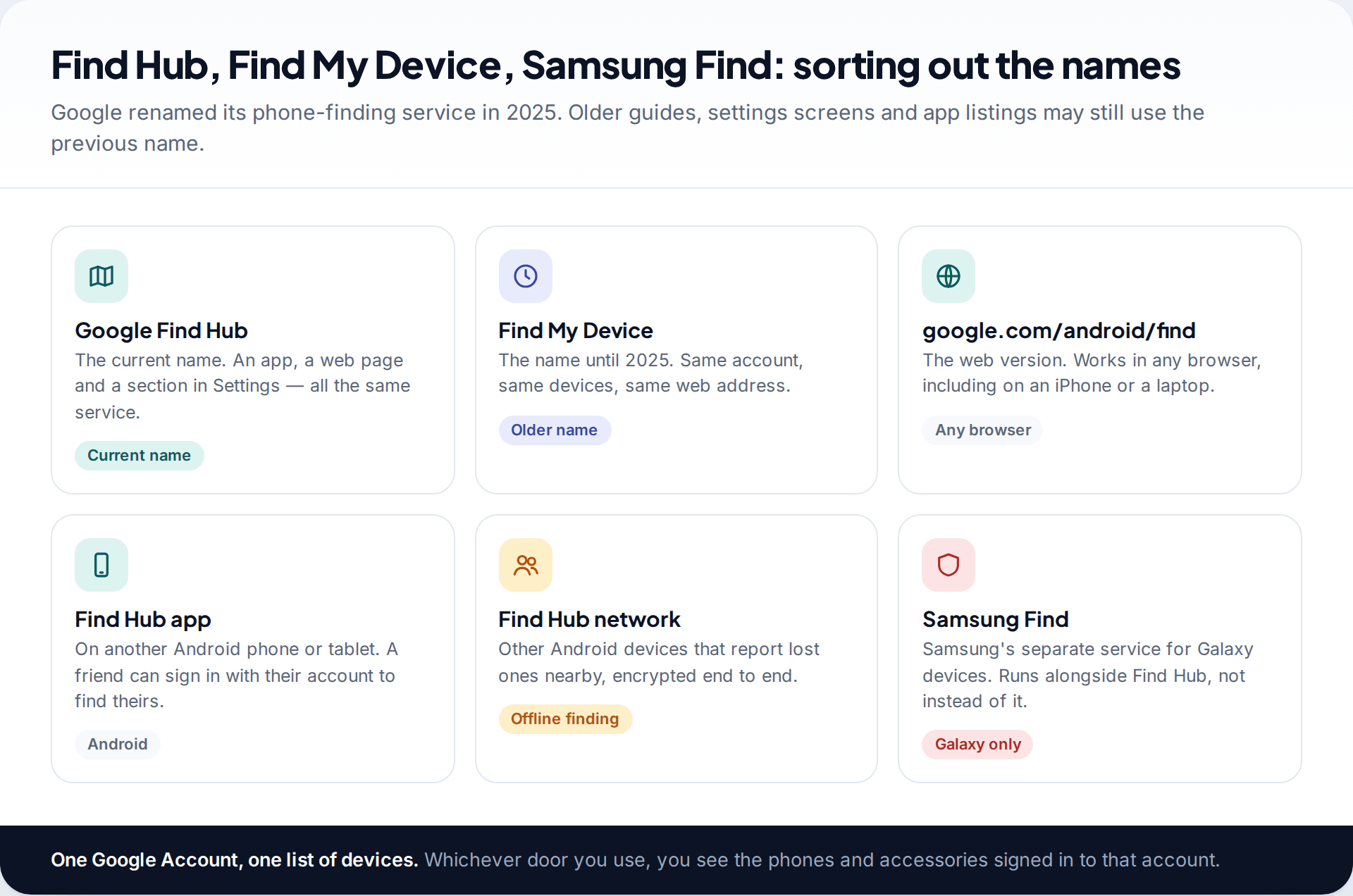
Google announced the change from Find My Device to Find Hub in 2025, alongside support for more accessories and tracker tags. Nothing about your account changed. The devices you had in Find My Device are the ones you now see in Find Hub, and the web address still works.
There are three ways in: the Find Hub app on an Android phone or tablet, the web page at google.com/android/find, and the Find Hub section in your phone’s Settings, where you control whether that phone can be found. Behind all three sits the Find Hub network, a crowdsourced system Google launched in 2024. Android devices that take part detect lost devices nearby over Bluetooth and report their location, encrypted so only the owner can read it.
If you have a Samsung Galaxy, you also have Samsung Find, a separate service tied to your Samsung account. It runs in parallel, not instead. Our guide to finding a lost Android phone covers both and what to do in the first half-hour.
How to turn on Find My Device on Android (Find Hub) and check it
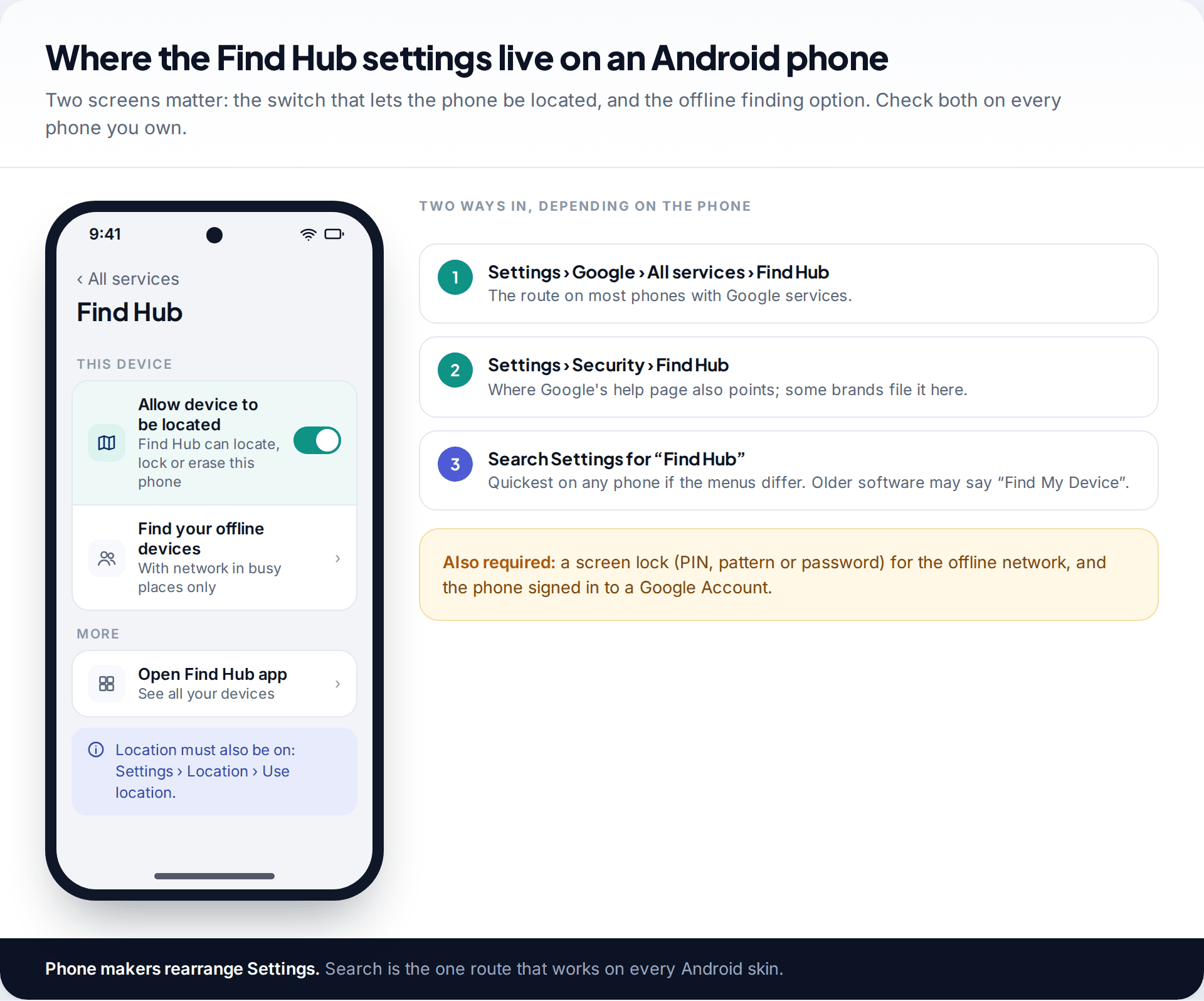
On most phones with Google services, Find Hub is on by default once you sign in to a Google Account. It is still worth checking, because a single missing requirement means the phone will appear in your list with no location. Google’s help pages list the conditions: the phone must be signed in to a Google Account, have Location turned on, have Find Hub turned on, and be visible in Google Play. To find the setting, go to Settings › Google › All services › Find Hub, or Settings › Security › Find Hub on some phones. Check that Allow device to be located is on.
If your menus look different, search Settings for “Find Hub”. Phones on older software may still say “Find My Device”. Phone makers move these options around, and searching finds them on any brand.
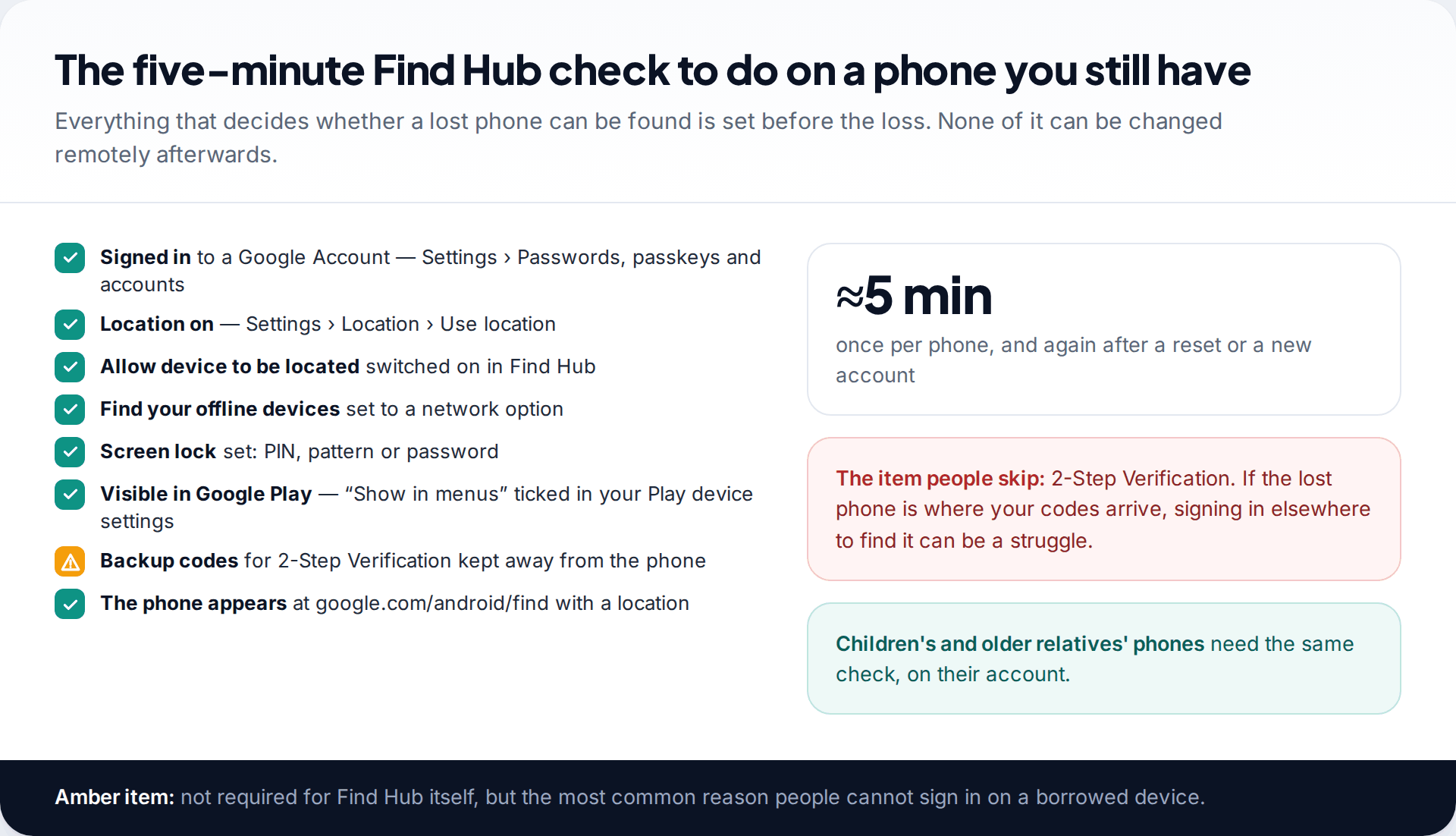
One item on the list is not strictly a Find Hub setting: 2-Step Verification. If your sign-in codes arrive on the phone you have lost, you may struggle to sign in on a borrowed device to find it. Google recommends creating backup codes in advance and keeping them somewhere other than the phone. It is five minutes’ work that saves a very bad afternoon.
Choosing a “Find your offline devices” option
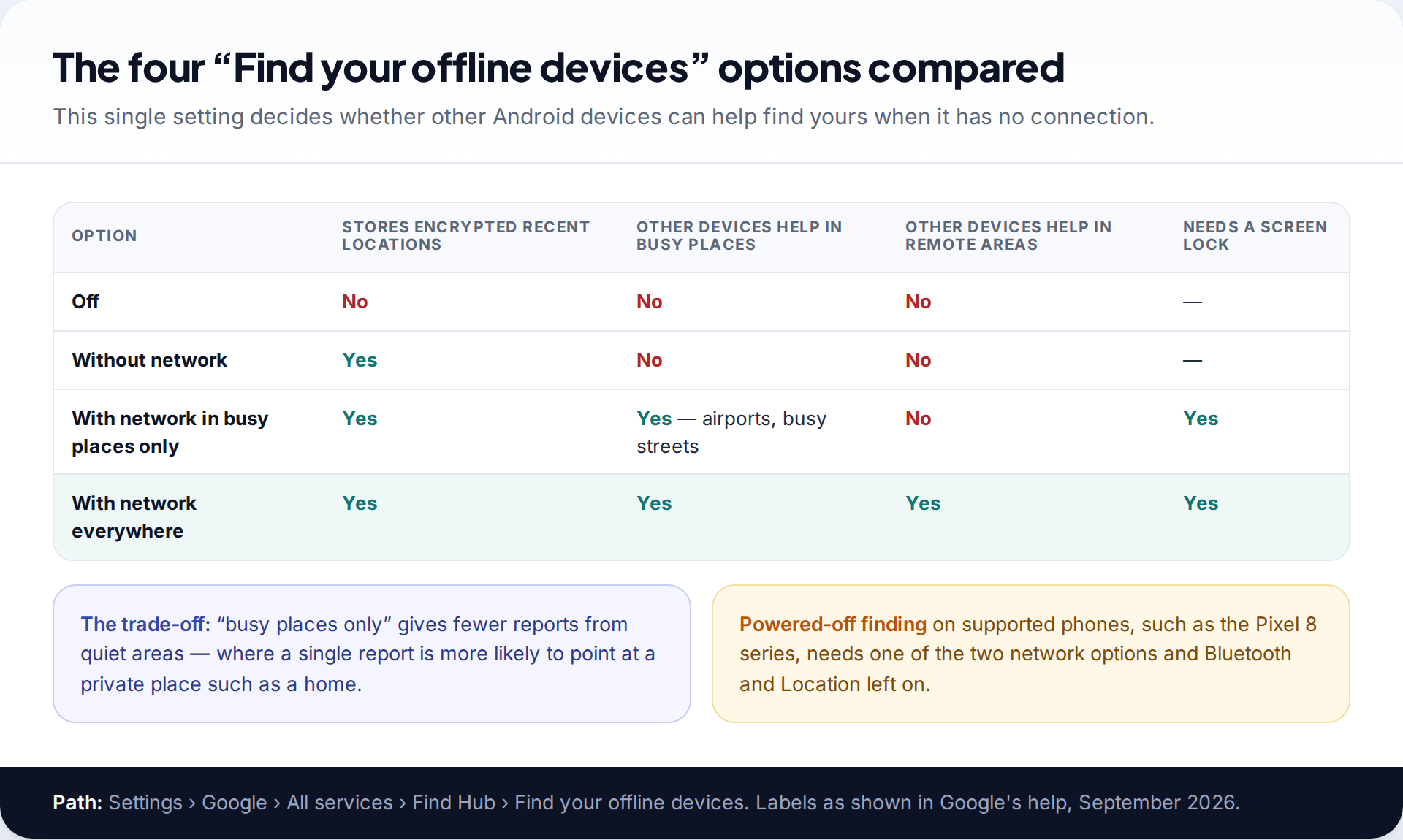
This setting is under Settings › Google › All services › Find Hub › Find your offline devices, and it controls what happens when the phone has no connection. Google describes the four options like this:
- Off — no encrypted recent locations are stored, and the phone does not take part in the network.
- Without network — encrypted recent locations are stored, but no other devices help find it.
- With network in busy places only — other devices help in places such as airports and busy streets.
- With network everywhere — other devices help in both busy and remote areas.
Both network options need a screen lock, because the lock is part of how the location reports are encrypted. The choice is a trade-off. “Busy places only” means fewer reports from quiet spots, where a single report is more likely to point at somewhere private, such as your home. “Everywhere” gives the best chance of finding a phone dropped on a country walk. There is no wrong answer, but Off gives you the least to work with if the phone goes missing without a signal.
Google also says supported phones, such as the Pixel 8 series, can be found for several hours after they are switched off or the battery dies, as long as a network option is chosen and Bluetooth and Location were on. Most other phones show only their last known location once they lose power.
Test it before you need it
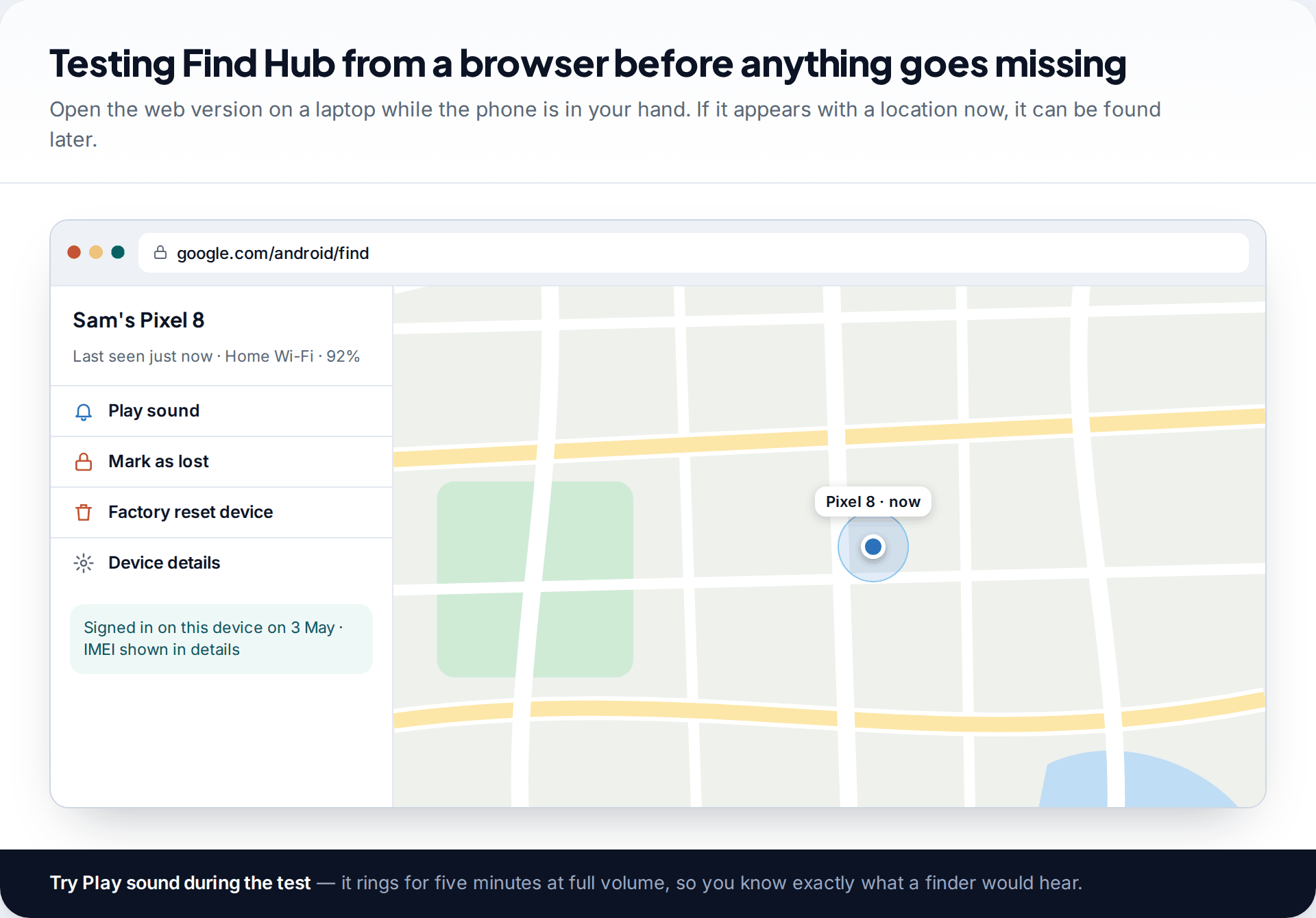
With the phone in your hand, open google.com/android/find on a laptop and sign in. Google’s own advice is to confirm the device appears there. If it shows with a location and “last seen just now”, the setup works. Press Play sound once so you know what it sounds like. The phone rings at full volume for five minutes, even on silent, until you stop it.
If the phone does not appear, the likeliest causes are a different Google Account from the one you signed in with, or the phone being hidden in Google Play. The troubleshooting section below covers both.
Using Find Hub when a phone is actually lost
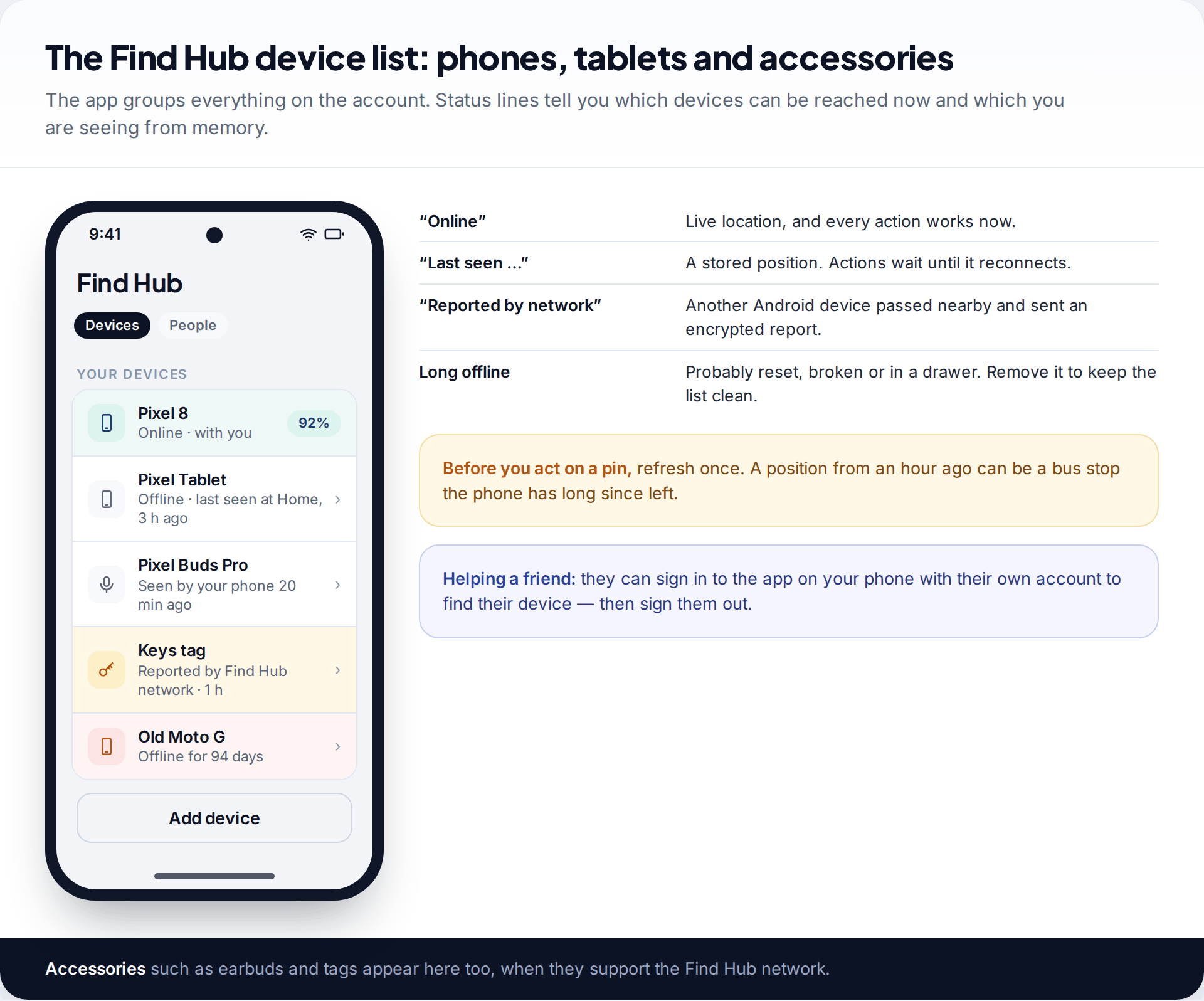
Open the Find Hub app on another Android device, or the web page, and choose the missing phone. Google’s page says the app lets you “Continue as” your own account or sign in to another one. That is how you can use a friend’s phone to find yours, provided you sign out afterwards. The map shows the phone’s position and a circle for how precise it is. Read the status line before acting. “Online” means actions happen now. “Last seen” means you are looking at a stored position, and anything you send is carried out when the phone reconnects.
The list includes accessories too. Earbuds, tablets and tracker tags that support the Find Hub network appear with their own status. Some phones and tags that support ultra-wideband can also guide you to an item’s exact spot when you are close.
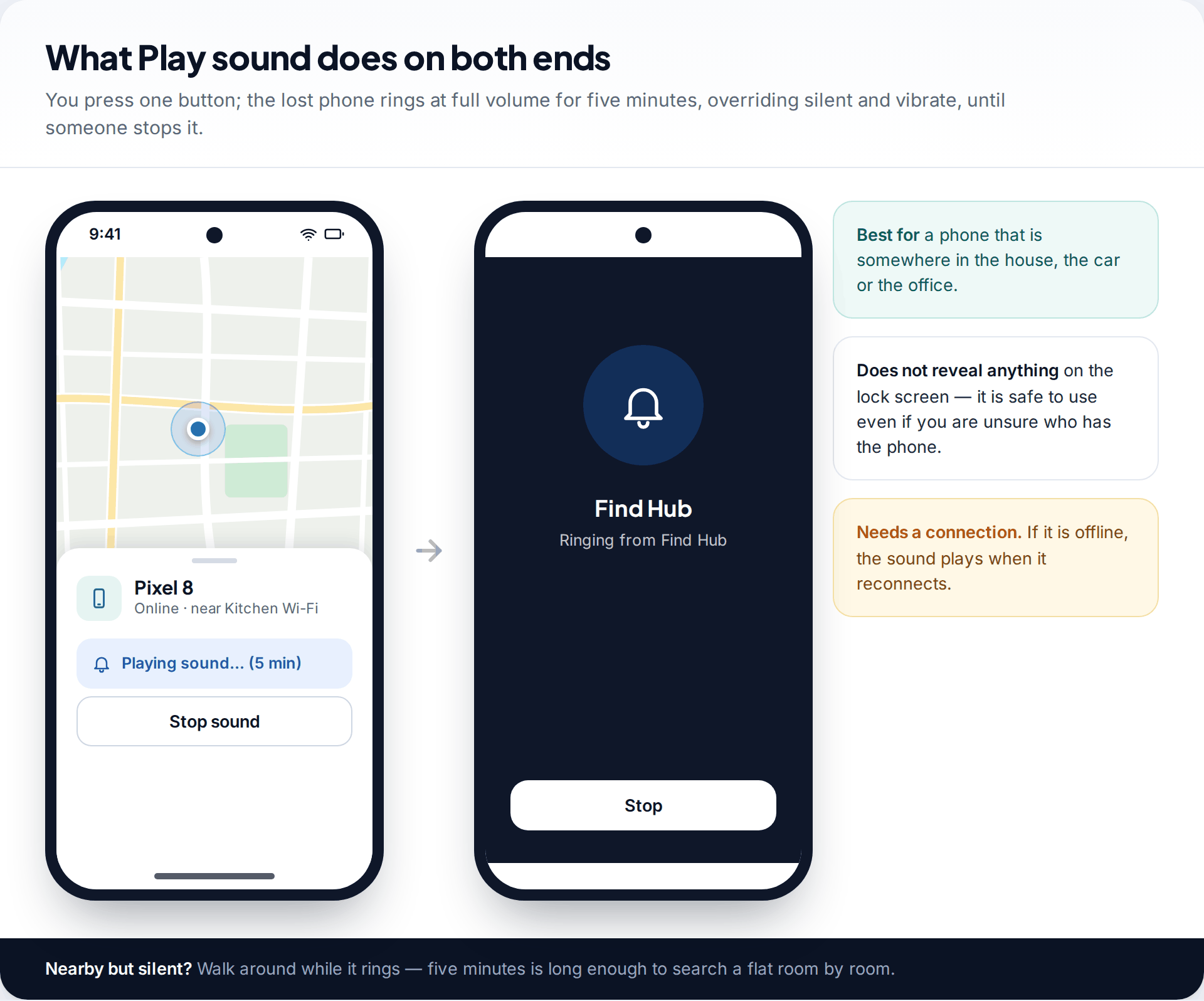
Play sound is the first action for a phone that is probably nearby. It gives nothing away to whoever has the phone, and it overrides silent mode, so a phone down the side of a car seat can be heard.
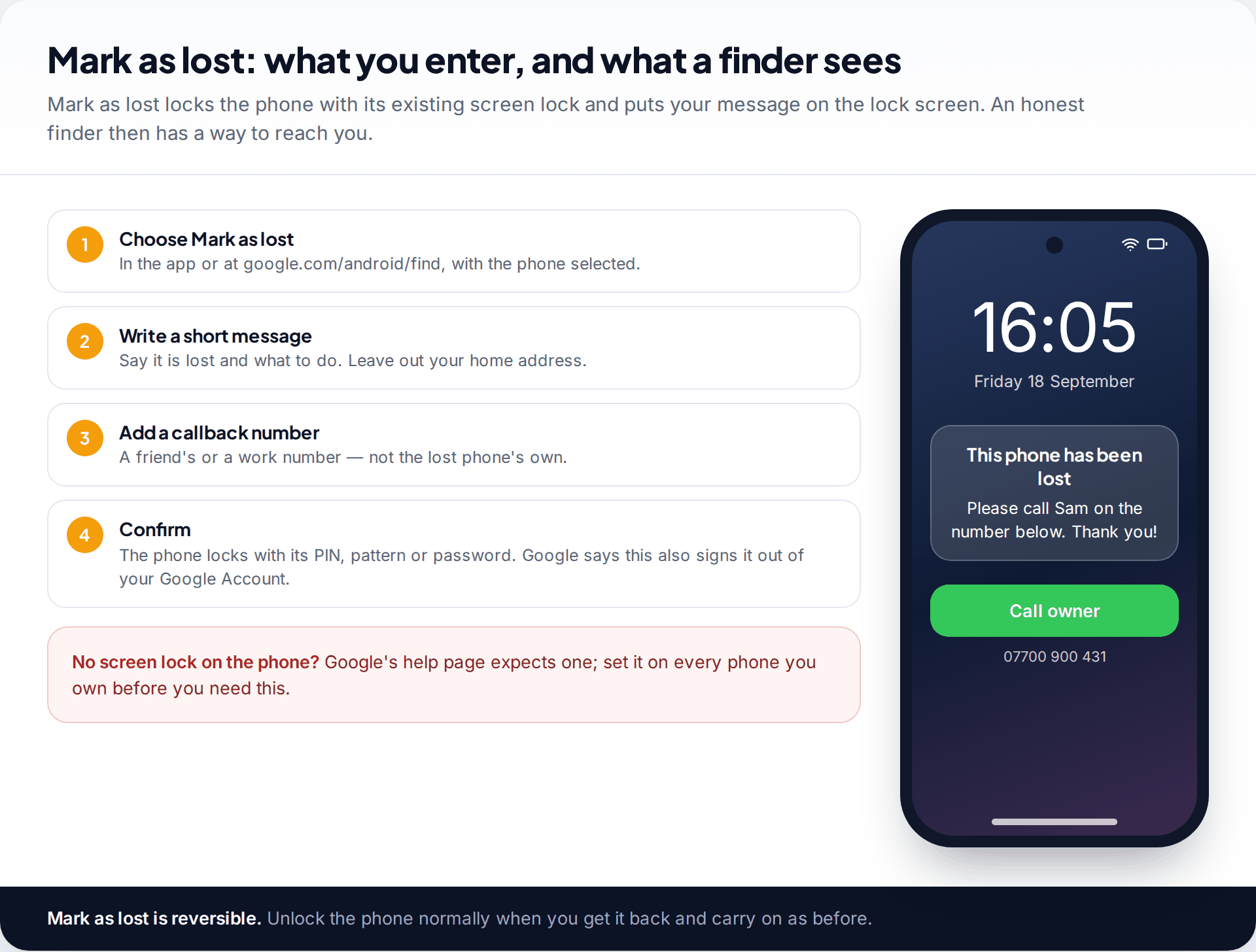
Mark as lost is for a phone left somewhere public. It locks the phone with its existing PIN, pattern or password and lets you show a message and a contact number on the lock screen. Google’s consumer guide adds that it signs the phone out of your Google Account, which protects your email and photos while it is out of reach. It can be undone: unlock the phone normally when you get it back.
A phone left on a bus, found from a partner’s Android
Priya realises at 18:10 that her phone is not in her bag. Her partner opens Find Hub on his own Android phone, taps his profile picture to add her account, and signs in with her password and a backup code, because her usual prompt would go to the missing phone. The map shows her phone “last seen 4 minutes ago”, moving along a bus route with a wide circle.
She chooses Mark as lost with his number as the callback, not Factory reset. Twenty minutes later the pin stops at the bus depot. She rings the depot, which has the phone in lost property. Back home, she signs her account out of his phone.
Factory reset: when and how
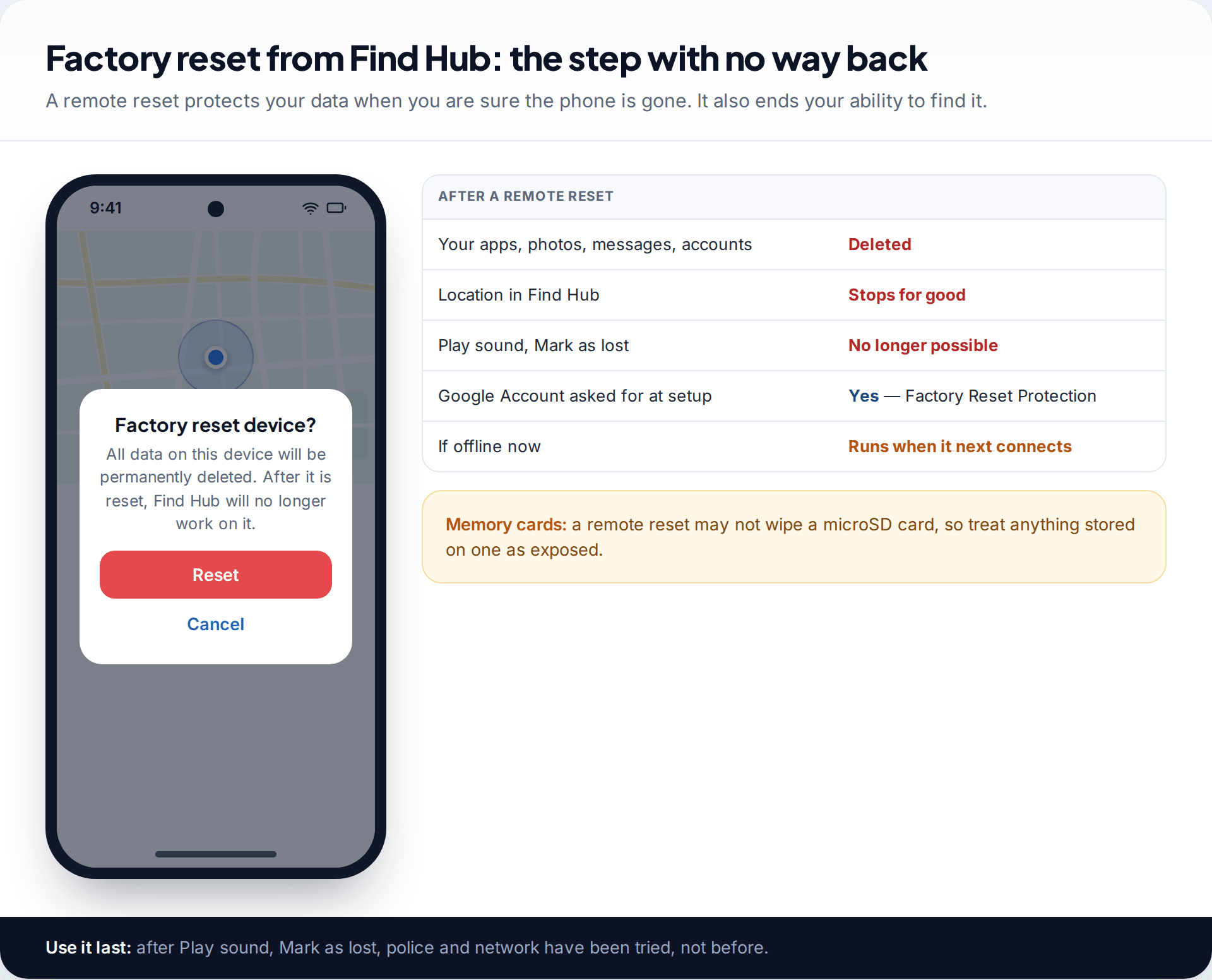
Choose Factory reset device when you are confident the phone will not come back, for example after a confirmed theft, or when it holds data you cannot risk. It permanently deletes everything, and afterwards Find Hub can no longer locate the phone. If the phone is offline, the reset runs the next time it connects. Google’s help has long cautioned that a remote reset may not erase a memory card, so change passwords for anything whose files were stored on one.
A reset does not make the phone free for someone else to use. After a reset, Android’s Factory Reset Protection asks for the Google Account that was on the phone during setup, which is a large part of why stolen Android phones are harder to resell than they used to be.
Troubleshooting Find Hub
The phone is not in the device list
You are signed in with a different Google Account, the phone was reset, or it is hidden in Google Play.
Fix: check which account is on the phone under Settings › Passwords, passkeys and accounts, and make sure “Show in menus” is ticked for it in your Google Play device settings.
It is listed, but there is no location
Location or Find Hub was off, the phone has no power, or it has not had a connection since it went missing.
Fix: use the last known location if one is shown and turn on notifications for when it is found. Nothing can switch location on remotely.
The location jumps around or covers a whole district
The phone is estimating from Wi-Fi or mobile masts rather than GPS, often indoors.
Fix: refresh after a few minutes and use Play sound once you are within the circle.
You cannot sign in on a borrowed device
2-Step Verification is sending codes to the lost phone.
Fix: use a backup code, a security key or a device you have signed in on before, such as your own laptop.
How this page was put together
Settings paths, the four offline option labels and the behaviour of each action were checked in September 2026 against Google’s Android Help pages on preparing for a lost device and on finding, securing and erasing one, as well as Google’s Find Hub product pages. Where Google’s sources use different labels for the same button, we have said so.
We did not run hands-on tests on specific phones for this page, and behaviour can differ by manufacturer and Android version. Our research and corrections policy explains how guides are checked and updated.
Common questions
Is Find My Device still available on Android?
Yes, under a new name. Google renamed it Find Hub in 2025. The service, your device list and google.com/android/find all carry on.
Does Find Hub work if the phone is off?
You will see the last known location. On supported phones, such as the Pixel 8 series, the Find Hub network can find the phone for several hours after it is switched off, if a network option, Bluetooth and Location were on beforehand.
Can I use Find Hub on an iPhone?
Yes, to find an Android device. Go to google.com/android/find in Safari and sign in with the Google Account on the Android phone. You cannot use Find Hub to find an iPhone.
Does Find Hub drain the battery?
It uses the location and Bluetooth services the phone is already running, and Google does not list a separate battery cost. Taking part in the offline network relies on Bluetooth being on.
Can someone use Find Hub to track me?
Only someone signed in to your Google Account. If you think someone else has access, change your password and check the devices signed in to your account. Android also shows alerts for unknown trackers travelling with you.
Does Mark as lost stop the phone being found?
No. It locks the phone and shows your message. Only a factory reset ends Find Hub tracking.
Looking for a tool to go with this? TheTruthSpy is a free parental control app for Android that stays visible on the child's phone. If it fits your family, see the Location & geofencing feature.
Related guides
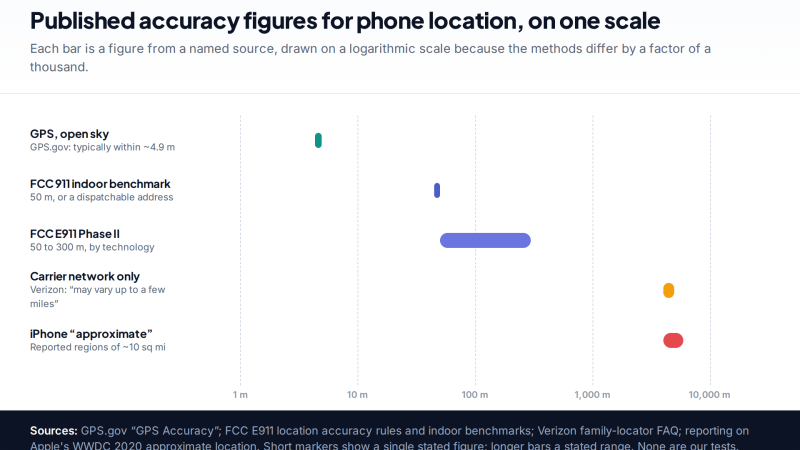
How Accurate Is Phone Location Tracking? GPS, Wi-Fi and Cell Compared
Phone location accuracy runs from a few metres with GPS under open sky to miles when only the mobile network…
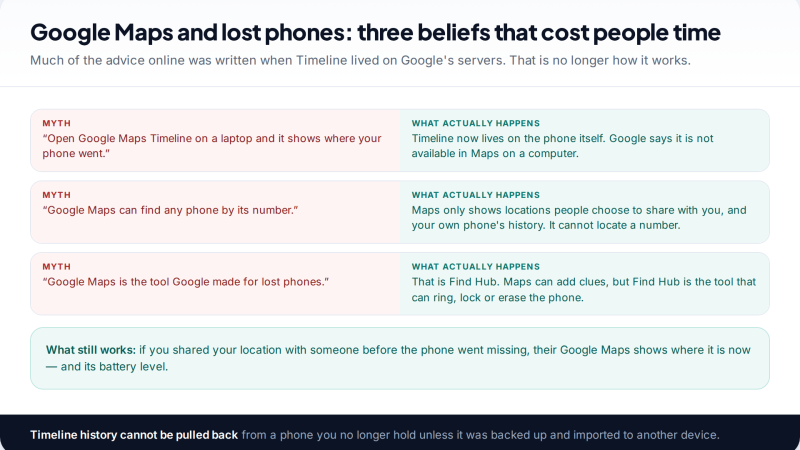
Using Google Maps Timeline to Find a Lost Phone
Can Google Maps find a lost phone? Only in two cases: someone you share your location with can see it,…
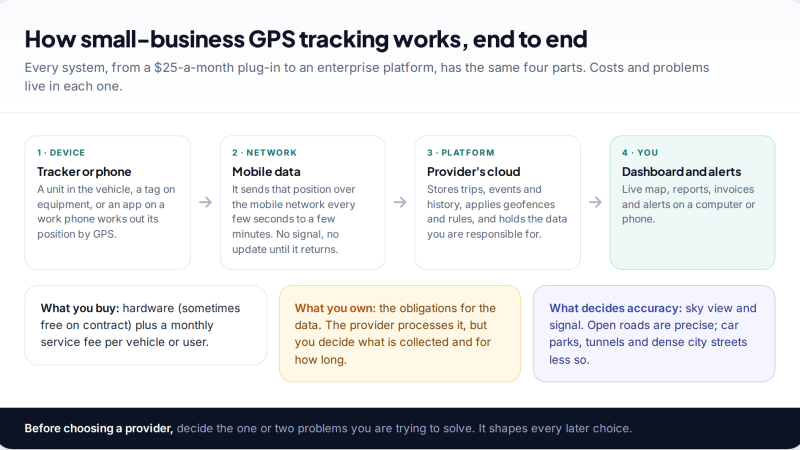
GPS Tracking for Small Business: A Starter Guide
A plain starter guide to GPS tracking for a small business: vehicle trackers versus phone apps, what a small fleet…
Parental controls your child can see
Location, screen time limits, a web filter and alerts from notifications — free, and visible on your child's phone. Pair a phone in about ten minutes.
Android · Free to set up · Visible on your child's phone