How to Start Using a Password Manager

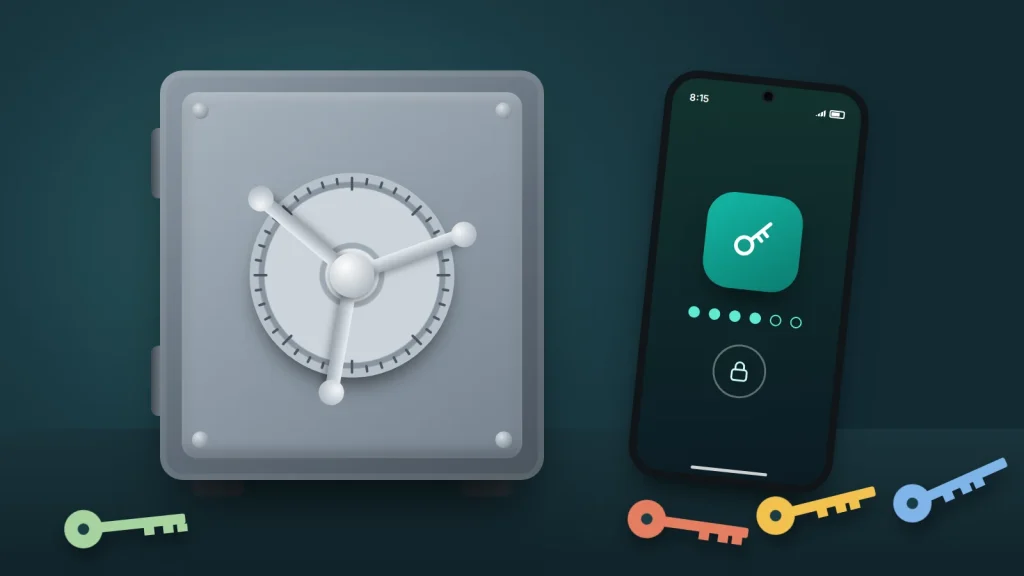
Most people have a small family of passwords: one for things that matter, one for everything else, and a few variations with a number on the end. It works until one of the sites you signed up to years ago is breached. From that moment, the password is on a list that criminals feed into software that tries it, automatically and at scale, on email, shopping and banking sites.
A password manager ends that pattern. It remembers a different, random password for every account, fills it in for you, and warns you when one turns up in a breach. You probably already have one built into your phone or browser and have never switched it on properly.
What follows is the practical switch, not a product review: what the built-in options do in September 2026, when a standalone manager makes more sense, how not to lock yourself out, and a first-hour plan that fixes the accounts that matter most before you touch the rest.
The short version
- Reused passwords are the real danger: one breach unlocks every account that shares the password.
- If everyone in your home uses one ecosystem, Apple Passwords or Google Password Manager is enough. Mixed households often do better with a standalone manager.
- Your manager is only as safe as the account or main password that unlocks it, so protect that first.
- Import what your browser already saved, change your ten most important passwords in the first hour, then fix the rest as you next sign in.
Why one reused password is the real risk
The attack has a name: credential stuffing. The UK’s National Cyber Security Centre (NCSC) describes it as taking advantage of people reusing the same username and password on different accounts. Nobody needs to guess anything. They take a real email and password leaked from one site and try it everywhere else.
That is why a clever password does not save you if you reuse it. A 20-character password is exactly as exposed as “Summer2019” once it has leaked alongside your email address. The US Cybersecurity and Infrastructure Security Agency (CISA) gives the same message: every password should be long, random and unique.
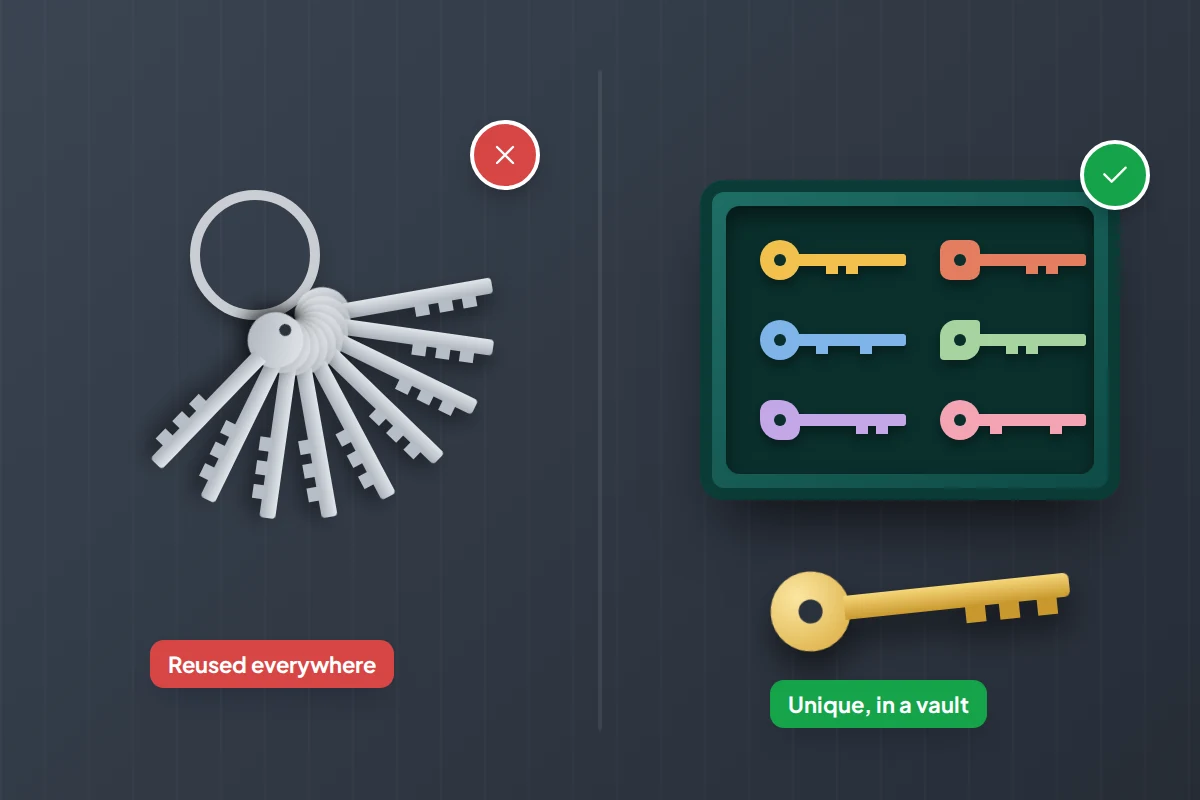
No person can remember 80 unique random passwords. That is the whole case for a password manager: it makes the safe habit the easy one.
What a password manager actually does
- Stores every login in an encrypted vault that syncs between your devices.
- Creates a long random password when you sign up or change one, so you never have to invent one.
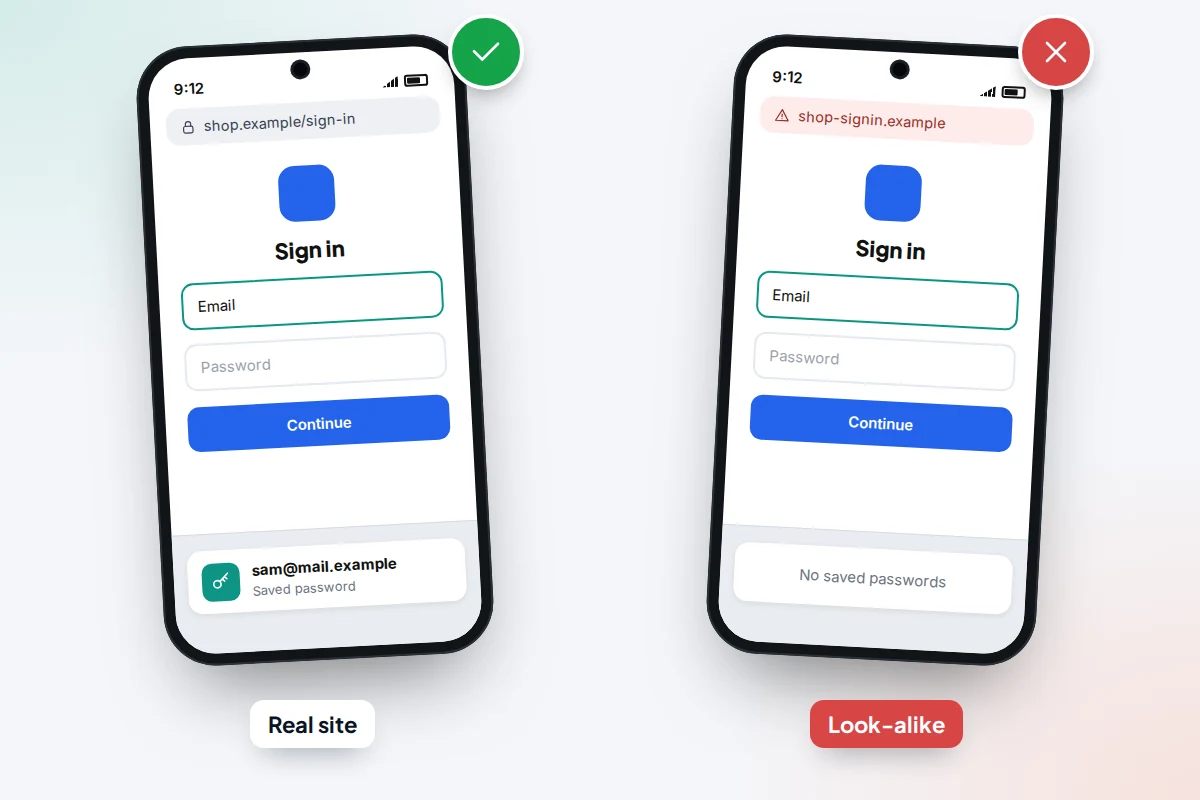
- Fills it in only on the website or app it was saved for. This is an underrated protection: on a convincing fake login page, the manager offers nothing, which is your cue to stop.
- Warns you about passwords that are reused, weak or found in known breaches.
- Holds passkeys, the password replacements that many sites now offer.
The built-in options you may already have
Apple Passwords
Since iOS 18, iPadOS 18 and macOS Sequoia, Apple’s saved passwords live in a standalone Passwords app. It holds passwords, passkeys, Wi-Fi passwords and two-factor verification codes, flags compromised and reused passwords under Security, and syncs through iCloud Keychain. On a Windows PC, install iCloud for Windows and use the iCloud Passwords app plus the iCloud Passwords extension for Chrome, Edge or Firefox. There is no Apple version for Android, which is the main limit.
Google Password Manager
Built into Android and Chrome, it syncs through your Google Account to any computer running Chrome, and to an iPhone through the Chrome app. You can also open it in any browser at passwords.google.com. On Android it uses your phone’s screen lock to protect saved passwords and passkeys, and its Checkup flags compromised, reused and weak passwords.
Standalone managers
Independent apps such as 1Password, Bitwarden, Dashlane, Proton Pass and KeePass-based apps work across iPhone, Android, Windows, Mac and most browsers. Most have a paid plan, and some offer a free tier; features and prices change often, so compare them on the providers’ own sites. Samsung phones may also offer Samsung’s own option, Samsung Pass, alongside Google’s.
Built-in or standalone: choosing for your household
The right answer depends less on features than on which devices you and the people you share with actually use. A manager that does not reach one of your devices gets abandoned, and passwords drift back into notes and memory.
| Your household | Sensible choice | Why |
|---|---|---|
| All iPhones, iPads and Macs | Apple Passwords | Already installed, syncs automatically, family sharing works between Apple devices |
| Android phones and Chrome on any computer | Google Password Manager | Built in, reaches Windows and Mac through Chrome |
| iPhone plus a Windows laptop | Apple Passwords with iCloud for Windows, or a standalone manager | Apple’s Windows extension fills passwords in Chrome, Edge and Firefox, but not in other browsers |
| Mixed: iPhone for you, Android for your partner or teenager | A standalone manager, or Google Password Manager through Chrome on the iPhone | Apple Passwords does not run on Android, so shared logins cannot live there |
| You use Firefox, or several browsers, on Android and computers | A standalone manager | On a computer, Google’s manager fills only inside Chrome; Apple’s does not reach Android at all |
Whichever you pick, pick one. Two managers running side by side offer competing suggestions, and within a month nobody knows which one has the current password.
The key to the vault, and what happens if you lose it
Everything in the manager is protected by one thing, so that one thing deserves most of your attention.
- Built-in managers are unlocked by your Apple Account or Google Account together with your device passcode or screen lock. Anyone who takes over that account could reach your passwords, so turn on two-factor authentication for your Apple or Google account before you start, and make sure the recovery phone number and email are current. Use a six-digit or longer passcode, not four digits, on the phone itself.
- Standalone managers usually use a main (or master) password that the company never sees. Many cannot reset it for you: forget it and the vault may be gone. Make it a passphrase of four or five random words, and store the recovery code or emergency kit the manager gives you on paper, at home, with your important documents.
Test recovery before you rely on it. Sign in to the manager on a second device, or in a browser, using only what you would have if your phone were lost. If you cannot, fix that now rather than on the day the phone goes in a canal.

Where your passkeys end up
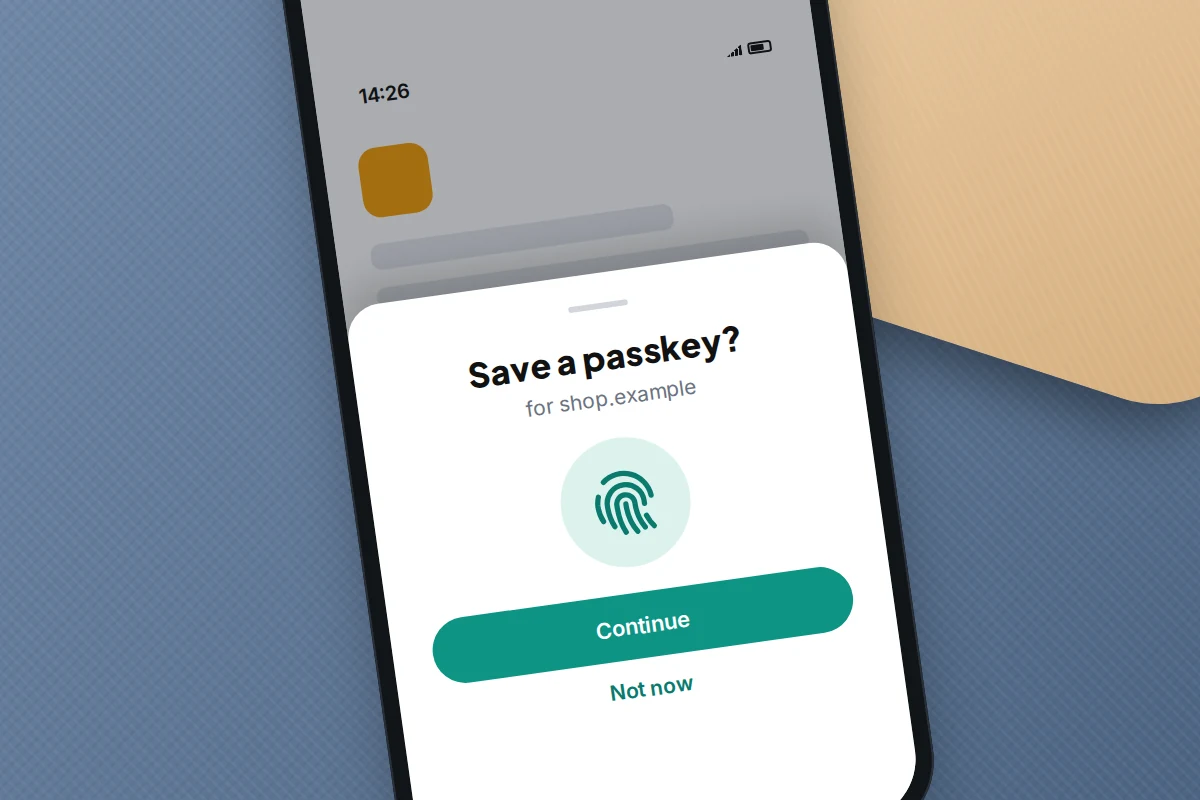
When a site offers to create a passkey, your phone saves it in whichever manager is set as its default, and signing in then takes a fingerprint, face scan or screen lock instead of a password. Apple Passwords syncs passkeys across your Apple devices; Google Password Manager syncs them across Android and Chrome. Most standalone managers can now store them too.
The practical point is to choose your default before you create passkeys, so they all end up in one place:
- iPhone: Settings → General → AutoFill & Passwords. Turn on AutoFill Passwords and Passkeys and choose which apps to fill from.
- Android 14 and later: Settings → Passwords, passkeys & accounts, then choose your preferred service. Names vary by phone maker; searching Settings for “passwords” finds it.
Your first hour: the switch, in order
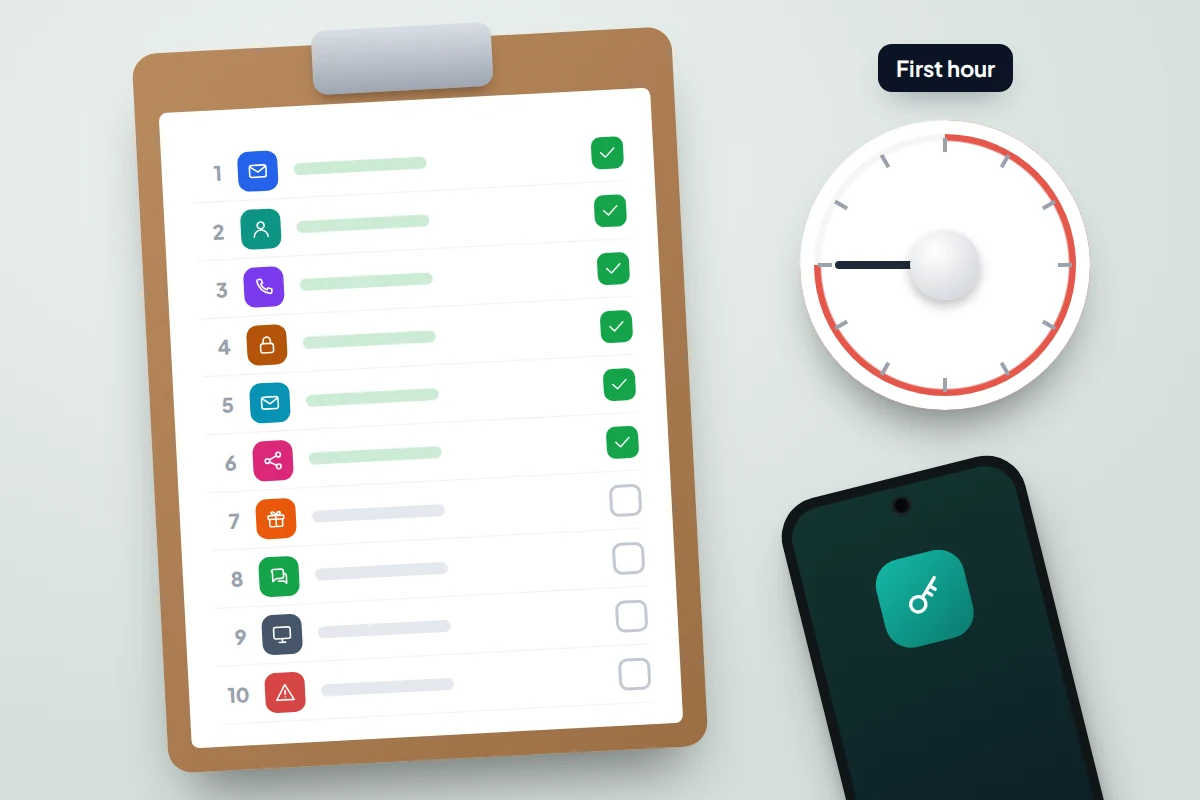
You do not need to fix 150 accounts tonight. The aim of the first hour is to get everything into the manager and to make the handful of accounts that can unlock the others unique and strong.
Minutes 0–15: set up and import
- Set your chosen manager as the default, using the paths above.
- Bring in what your browsers already know. For Google Password Manager on Android, open Chrome and go to More → Settings → Google Password Manager → Settings → Import passwords and passkeys (on some versions Google Password Manager sits under Autofill and passwords). For Apple Passwords on iPhone, export a CSV file from your old manager or browser, then use Settings → Apps → Safari → Import (iOS 18.2 or later). On recent iPhones and Macs, some standalone managers can move logins directly to or from Apple Passwords without a file.
- If you used a CSV file, delete it straight away, including from your downloads and bin. It contains every password in plain text.
Minutes 15–60: change the ten that matter most
Work down this list. For each, sign in, change the password using the manager’s suggested random one, and check two-factor authentication is on. Most take a few minutes, longer where you have to switch two-factor on. If your main email is Gmail or iCloud, rows 1 and 2 are the same account, which gives you a spare slot.
| Rank | Account | Why it comes this high |
|---|---|---|
| 1 | Main email | Password resets for almost everything else arrive here |
| 2 | Apple Account or Google Account | It unlocks your built-in manager, backups, photos and phone |
| 3 | Mobile phone network account | Controls your number, which receives text codes; ask for a port-out or SIM-change PIN if offered |
| 4 | Online banking | Direct access to money |
| 5 | Second email address | Often the recovery address for the first |
| 6 | PayPal or other payment apps | Can send money from linked cards |
| 7 | Shops with your card saved | Easy to spend from and rarely checked |
| 8 | Facebook and Instagram | Hijacked accounts are used to scam your friends |
| 9 | Microsoft account | Signs in to Windows, Outlook and OneDrive files |
| 10 | Any account the checkup marks as compromised | That password is already on criminals’ lists |
Fixing the rest as you go
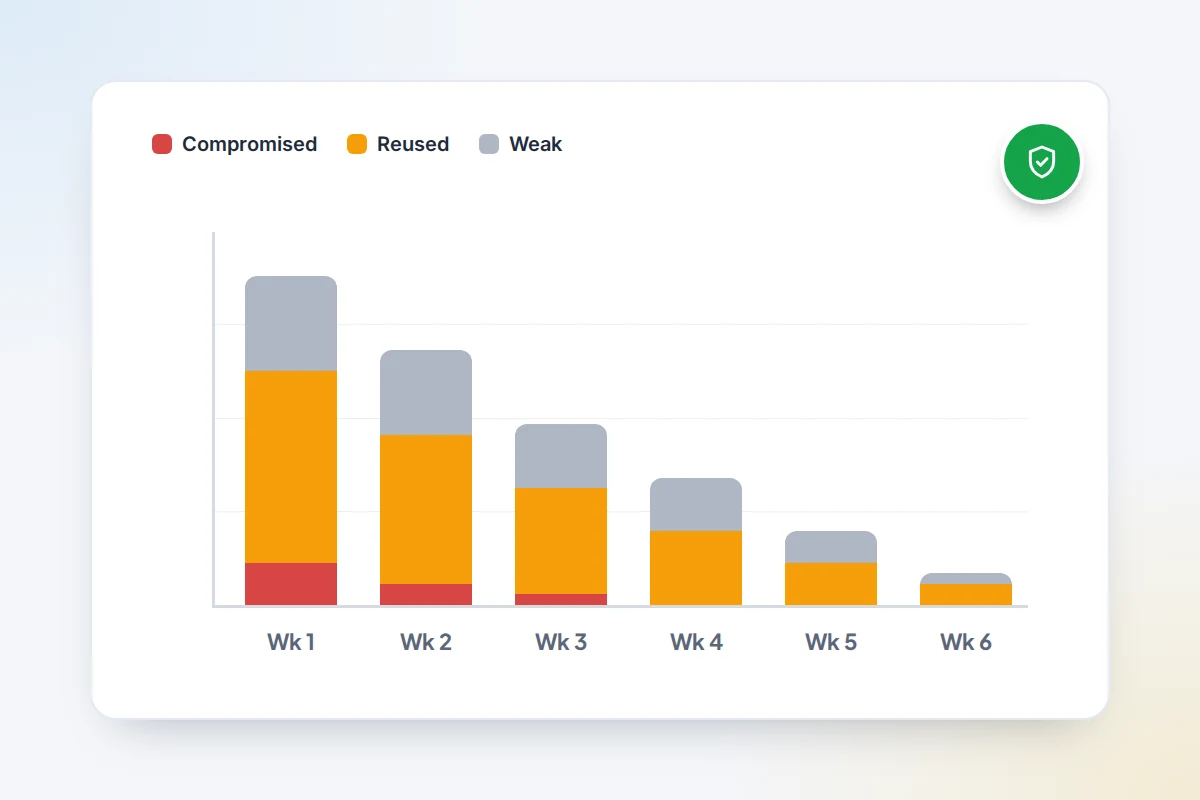
After the first hour, change passwords when you next sign in to each site rather than hunting through them all. The manager saves the new one automatically. Within a couple of months, the accounts you actually use will be done, and the ones you never visit matter less.
Use the manager’s warnings to decide what jumps the queue. In Apple Passwords, open Security; in Google Password Manager, open Checkup. Deal with compromised passwords first, then reused ones, then weak ones. For accounts you no longer use at all, closing them is better than changing their password.
Sharing passwords with family
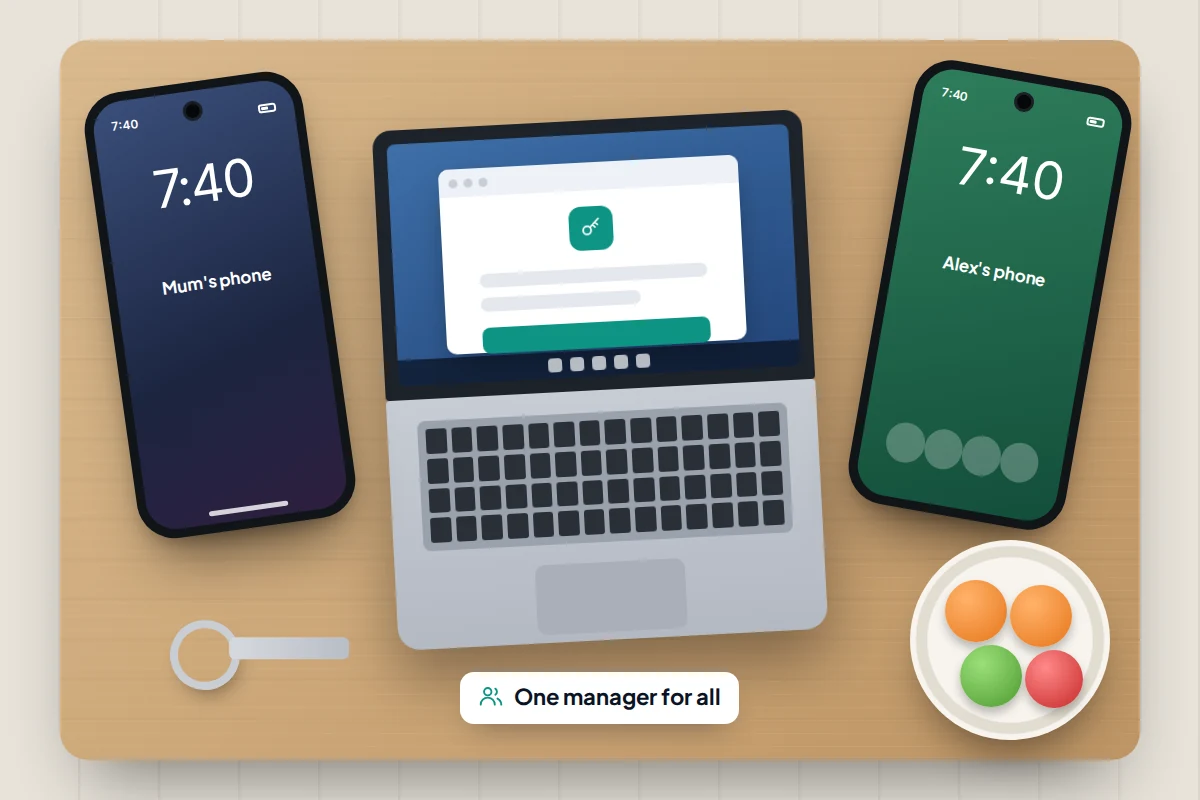
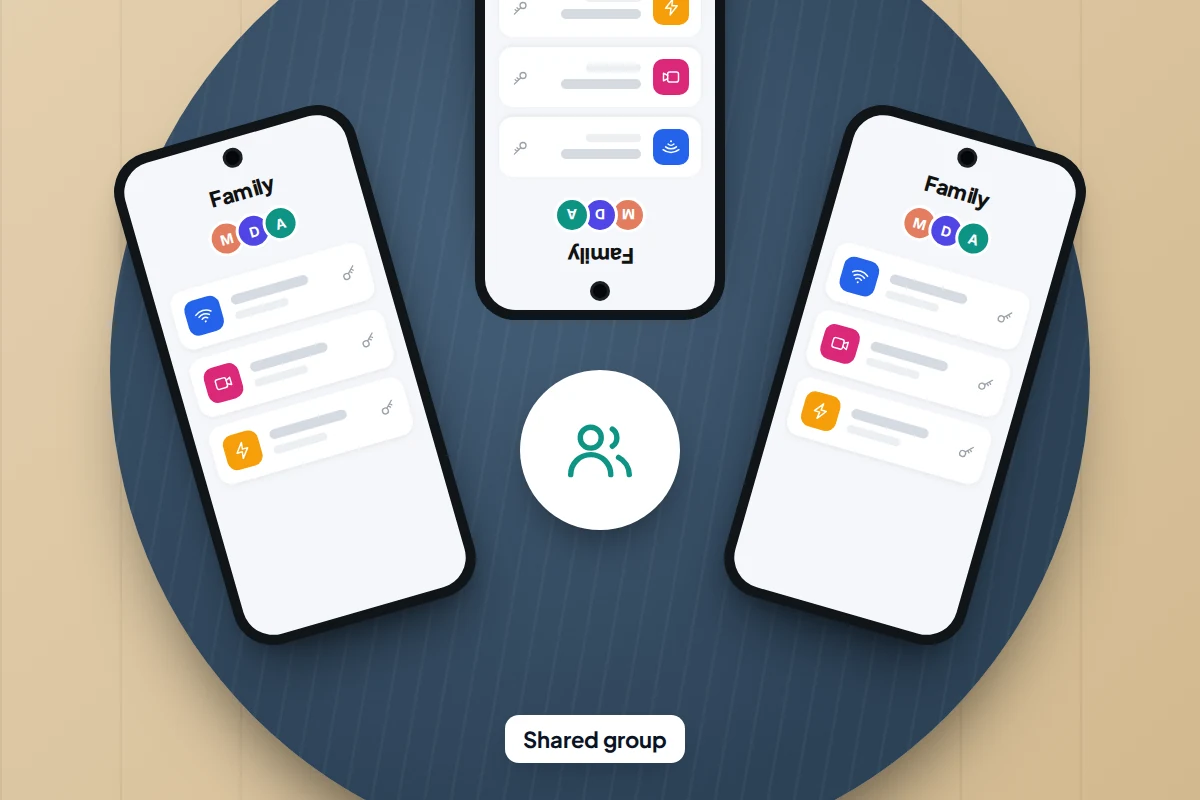
Sharing through the manager is safer than texting a password, because it arrives encrypted and nobody has to write it down.
- Apple Passwords: open Passwords, tap the + button and choose New Shared Group, add people from your contacts, then choose which passwords to add. Members need iOS 17, iPadOS 17 or macOS Sonoma or later. Everyone in the group can add, edit or delete the shared logins, but only the person who created the group can add or remove people. Someone who leaves may still remember what they saw, so change anything sensitive when they go.
- Google Password Manager: you can share only with members of your Google family group. Open the saved password, choose Share and pick the family member. The password is saved into their own Google Account as a separate entry rather than a shared folder, so after you change it, share the new one too.
Share only what the household genuinely uses together: streaming, the energy account, the Wi-Fi. With teenagers, sharing a few household logins openly is a good way to show how the manager works, which is a habit worth more than any single password.
If something happens to you
Emergency access is easy to forget and hard to fix afterwards. Apple’s Legacy Contact feature, for example, explicitly excludes iCloud Keychain data, including passwords and passkeys, so it does not hand over your vault. Options that do work:
- A shared group with your partner holding the handful of logins the household would need, such as the bank, utilities and insurance.
- A standalone manager’s emergency access feature, where offered, which lets a trusted person request access after a waiting period you set.
- Your main password or recovery kit in a sealed envelope stored with your will or important papers.
When the manager does not behave
- No fill suggestion appears. Check the manager is turned on as an AutoFill source, then check the saved web address matches the site. A missing suggestion on an unfamiliar page may mean it is fake.
- Two different suggestions pop up. Two managers are switched on. Turn off the one you are leaving.
- You changed a password but the old one keeps filling. The site’s change page sometimes fails to trigger saving. Edit the entry in the manager by hand.
- You lost your phone. Sign in on another device or browser with your account or main password, then use your recovery details if asked.
Frequently asked questions
Is it safe to keep all my passwords in one place?
It is far safer than reusing passwords, which is what most people do otherwise. The vault is encrypted and protected by your account, device lock or main password, which is why securing that one thing matters so much.
Is a browser’s built-in manager good enough?
For many people, yes. The NCSC says browser and device password managers are fine on your own devices. Avoid saving passwords on shared or public computers.
What if the password manager company is hacked?
Reputable managers encrypt your vault so that stored data is unreadable without your key. A long, unique main password and two-factor authentication on the manager account keep that protection meaningful.
Should I delete my old saved passwords from the browser?
Once everything is imported and working in your new manager, yes, and turn off the browser’s own saving so passwords do not split between two places.
Can my child use a password manager?
Yes, and a built-in one on their own device is a sensible start. Set it up together so they know how it works and how to recover their account.
Sources and further reading
- NCSC: Using a password manager
- NCSC: Use of credential stuffing tools
- CISA: Use strong passwords
- Apple Support: Use the Passwords app on your Apple devices
- Apple Support: Manage iCloud passwords on your Windows computer
- Google Chrome Help: Manage passwords in Chrome on Android
- Android Help: Sign in with passkeys
- Apple Support: How to add a Legacy Contact for your Apple Account
Looking for a tool to go with this? TheTruthSpy is a free parental control app for Android that stays visible on the child's phone. If it fits your family, see what the app does.
Related guides
How to Check If Your Email Was in a Data Breach
Check if your email was in a data breach for free, then act on what leaked: passwords, card details or…
How to Tell If Your Phone Has a Virus or Malware
Most 'virus' signs have ordinary causes. How to check an iPhone or Android phone for real malware, remove it, secure…
How to Check Which Apps Can See Your Location
See which apps can use your location on Android or iPhone, what each permission level allows, which apps really need…
Parental controls your child can see
Location, screen time limits, a web filter and alerts from notifications — free, and visible on your child's phone. Pair a phone in about ten minutes.
Android · Free to set up · Visible on your child's phone