Securing Your Snapchat: Two-Factor, Sessions and Who Can Reach You

What does it take to secure a Snapchat account? Four things. Contact details you control, a login that a stolen password can’t open, a Recovery Code saved somewhere safe, and privacy settings that keep strangers out of your chats. Snapchat puts the first three under Settings › My Account and the fourth under Privacy Controls. The whole job takes about twenty minutes.
Know what you are protecting against
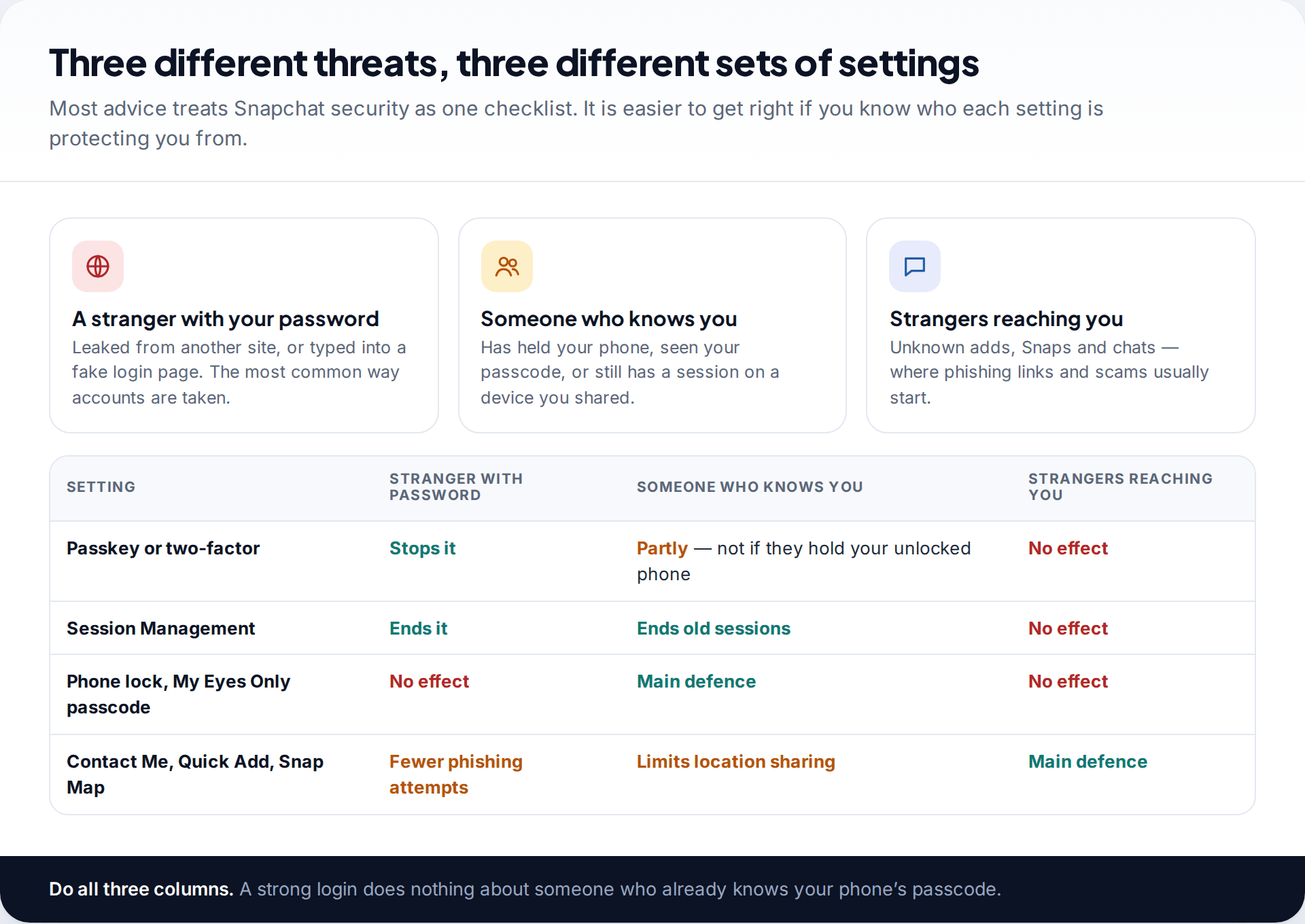
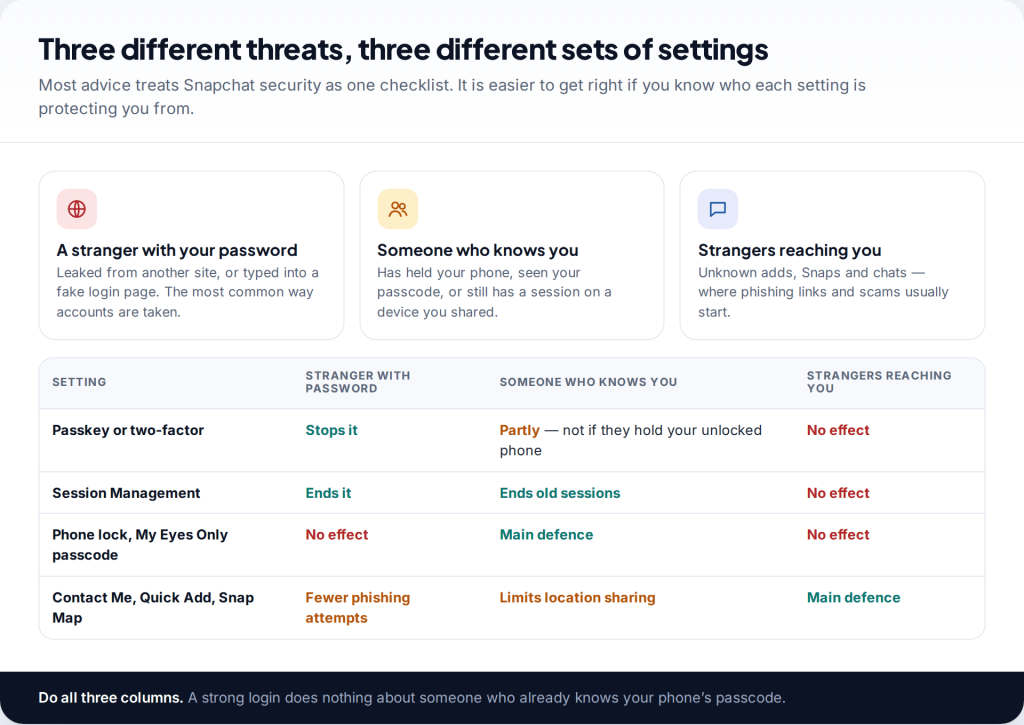
Snapchat security guides tend to be one long checklist. It helps to split it by threat. The most common is a stranger with your password: it leaked from another site, or you typed it into a fake login page. Passkeys, two-factor and Session Management deal with that.
The second is someone who knows you: a partner, ex, sibling or friend who has used your phone or watched you unlock it. Login protections don’t help much when the person is holding your unlocked phone. Your phone’s own lock and Snapchat’s My Eyes Only passcode matter more here. The third is strangers reaching you with friend requests and messages, which is where most phishing and scams begin. The privacy controls handle that.
Step 1: check the email and number on your account
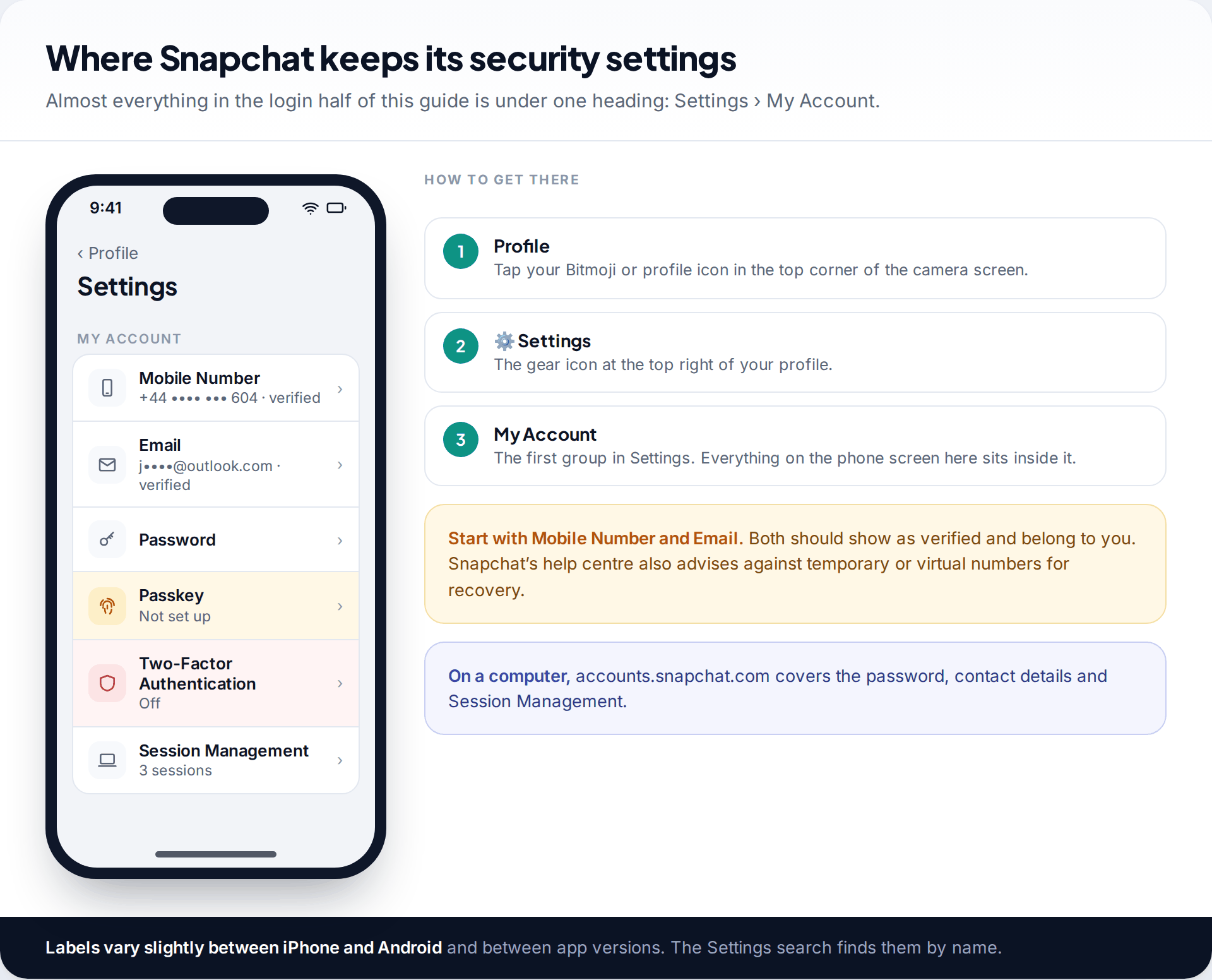
Open your profile, tap the gear icon, and look at Mobile Number and Email under My Account. Both should be verified, and you should be able to receive a code at each today. They are how Snapchat reaches you for password resets and security alerts, and how you prove the account is yours if something goes wrong.
Snapchat’s help centre recommends avoiding temporary or virtual phone numbers for this. An old email address you no longer check is a similar weak spot. Whoever controls that inbox can reset your Snapchat. Give the email account its own strong password and two-factor, because it is the key to everything else.
Step 2: add a passkey where it is offered
A passkey lets you log in with your phone’s face, fingerprint or PIN unlock instead of a password. Snapchat describes passkeys as stored securely on your device and not accessible to anyone, including Snapchat. They work through iCloud Keychain on Apple devices and Google Password Manager on Android.
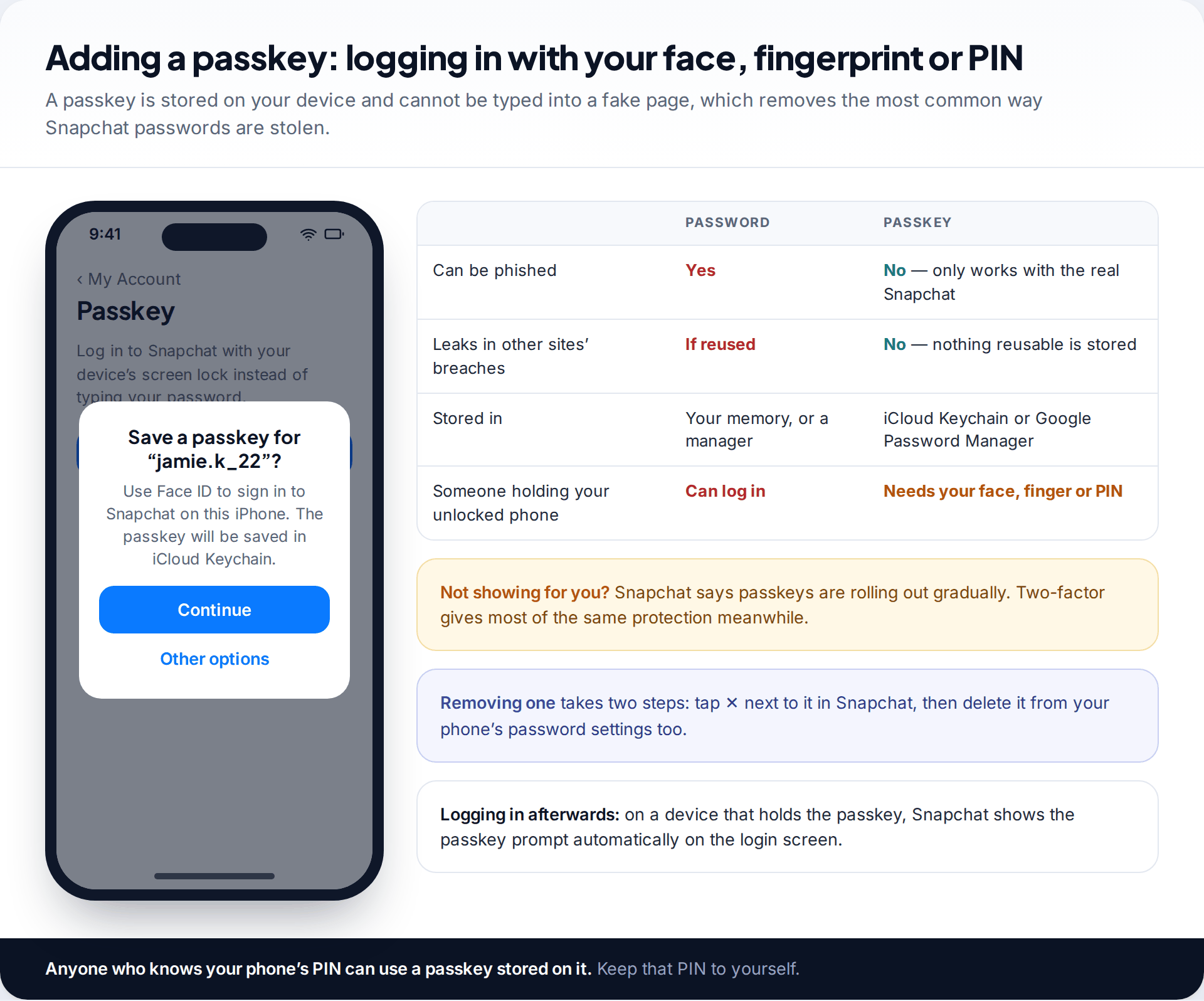
To add one, go to Settings › My Account › Passkey and tap Add Passkey, then follow the prompts. The main advantage is that a passkey can’t be phished. It only works with Snapchat’s real login, so a fake page has nothing to capture. Snapchat says passkeys are rolling out gradually, so you may not see the option yet. If you don’t, two-factor authentication covers most of the same ground.
A passkey is only as private as your phone’s unlock. Anyone who knows your PIN can use it. If you later remove a passkey, delete it in Snapchat and in your phone’s password settings too.
Step 3: turn on two-factor authentication
Two-factor authentication adds a one-time code to every login from a new device. Someone with your password alone can’t get in. Snapchat offers two methods: SMS verification and an authentication app.
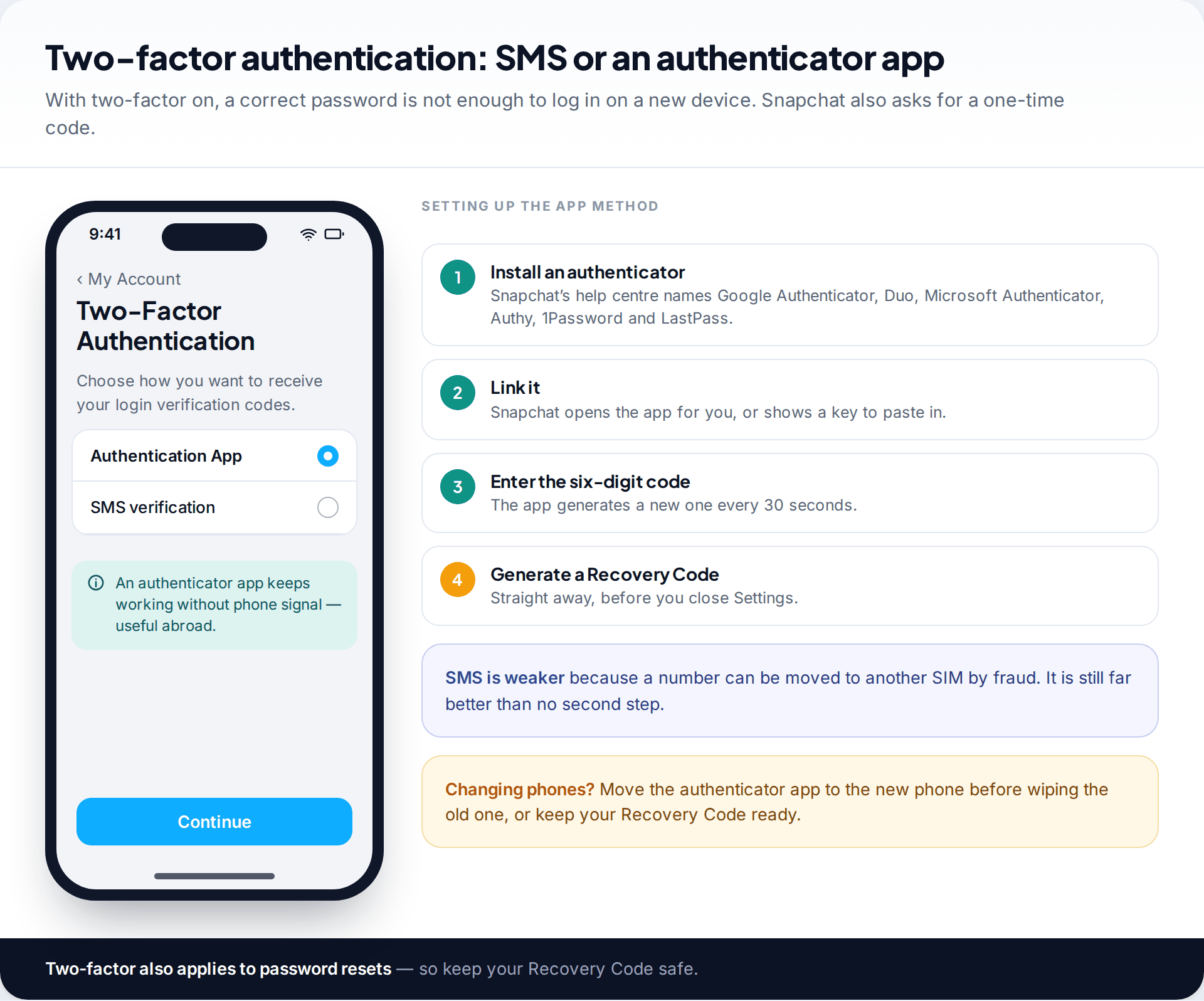
Go to Settings › My Account › Two-Factor Authentication, tap Continue and choose a method. The app method is stronger. Codes are generated on your phone and never pass through the mobile network, so a criminal who talks your carrier into moving your number to their SIM can’t intercept them. Snapchat’s help centre names Google Authenticator, Duo, Microsoft Authenticator, Authy, 1Password and LastPass among compatible apps. SMS is weaker for that reason, but it is still much better than nothing.
Snapchat’s two-factor has one detail to know: once it is on, Snapchat asks for a code even when you reset a forgotten password. That makes the next step essential.
Step 4: generate and store a Recovery Code
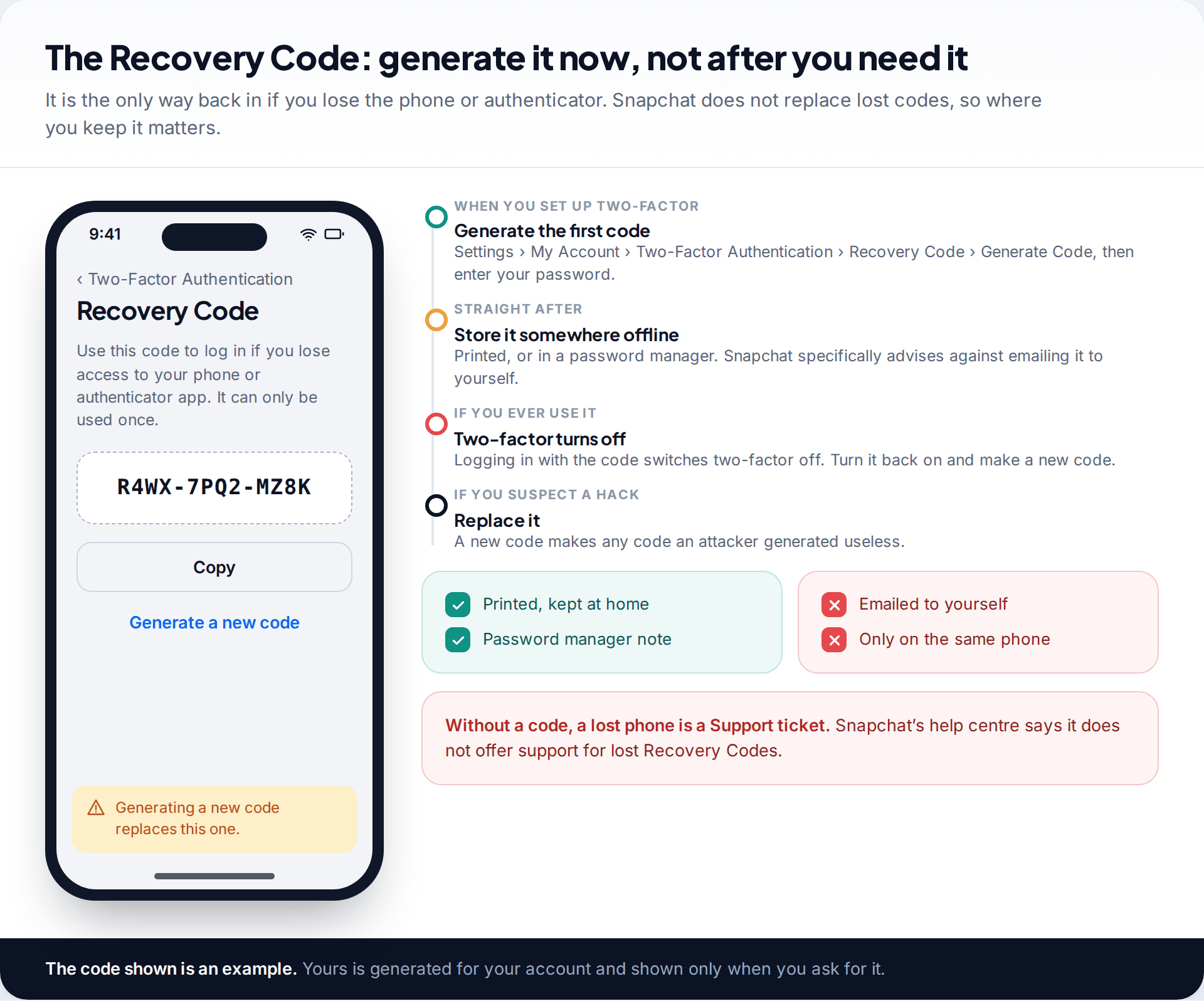
A Recovery Code is a one-time code that gets you past two-factor if you lose your phone, factory-reset it or delete the authenticator app. Generate it under Settings › My Account › Two-Factor Authentication › Recovery Code › Generate Code, then confirm with your password.
Snapchat’s help centre is unusually blunt about two points. It doesn’t offer support for lost Recovery Codes. And it advises against emailing the code to yourself. Print it, or keep it in a password manager that you can reach from another device. If you ever use it, two-factor switches off automatically, so turn it back on and generate a new one. A new code also replaces any code someone else might have generated while they had access.
Step 5: clear out Session Management
Session Management lists every device and browser currently logged in to your Snapchat. Old sessions build up: a tablet you no longer use, a school library computer, a phone you sold. Each one is a way in that needs no password at all.
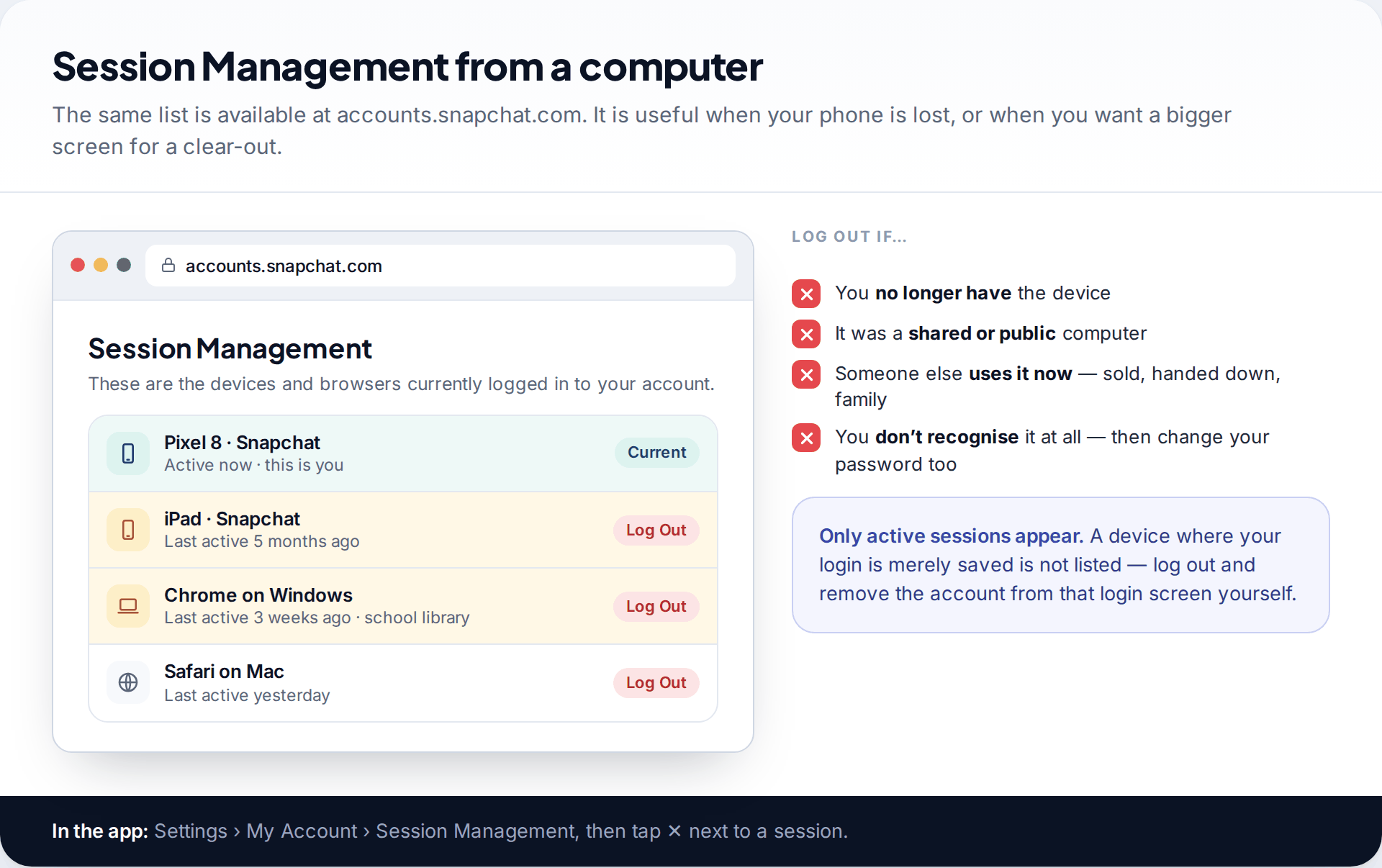
In the app it is under Settings › My Account › Session Management. Tap ✕ next to anything you don’t need. On a computer, sign in at accounts.snapchat.com and use Log Out. If you find a device you don’t recognise, change your password straight after removing it. Snapchat notes that Session Management shows only active sessions. A device that has merely saved your login isn’t listed, so log out properly on shared devices and remove your account from their login screen.
Step 6: control who can reach you and see you
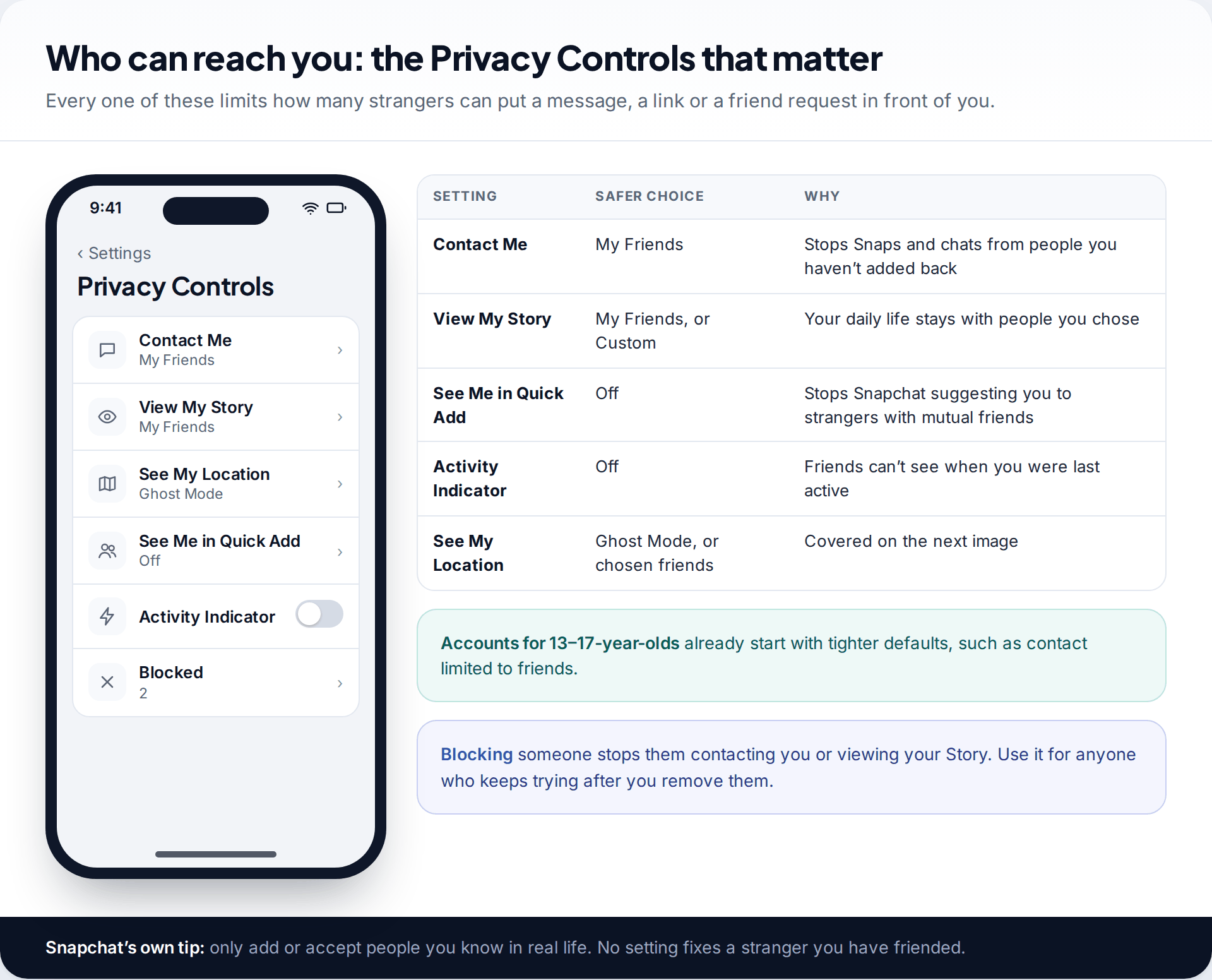
The login settings stop intruders. The privacy settings cut down how often you are targeted at all. Under Settings › Privacy Controls, work through these:
| Setting | Options | Suggested |
|---|---|---|
| Contact Me | Everyone / My Friends (and contacts, on some versions) | My Friends |
| View My Story | Everyone / My Friends / Custom | My Friends, or Custom to leave people out |
| See Me in Quick Add | On / Off | Off, unless you want suggestions to friends of friends |
| Activity Indicator | On / Off | Your choice. Off hides when you were last active |
| See My Location | Ghost Mode / My Friends / selected friends | Ghost Mode, or a short list of people you trust |
Snapchat’s own advice goes alongside these settings: only add or accept people you know in real life. A privacy setting can’t protect you from someone you have already friended.
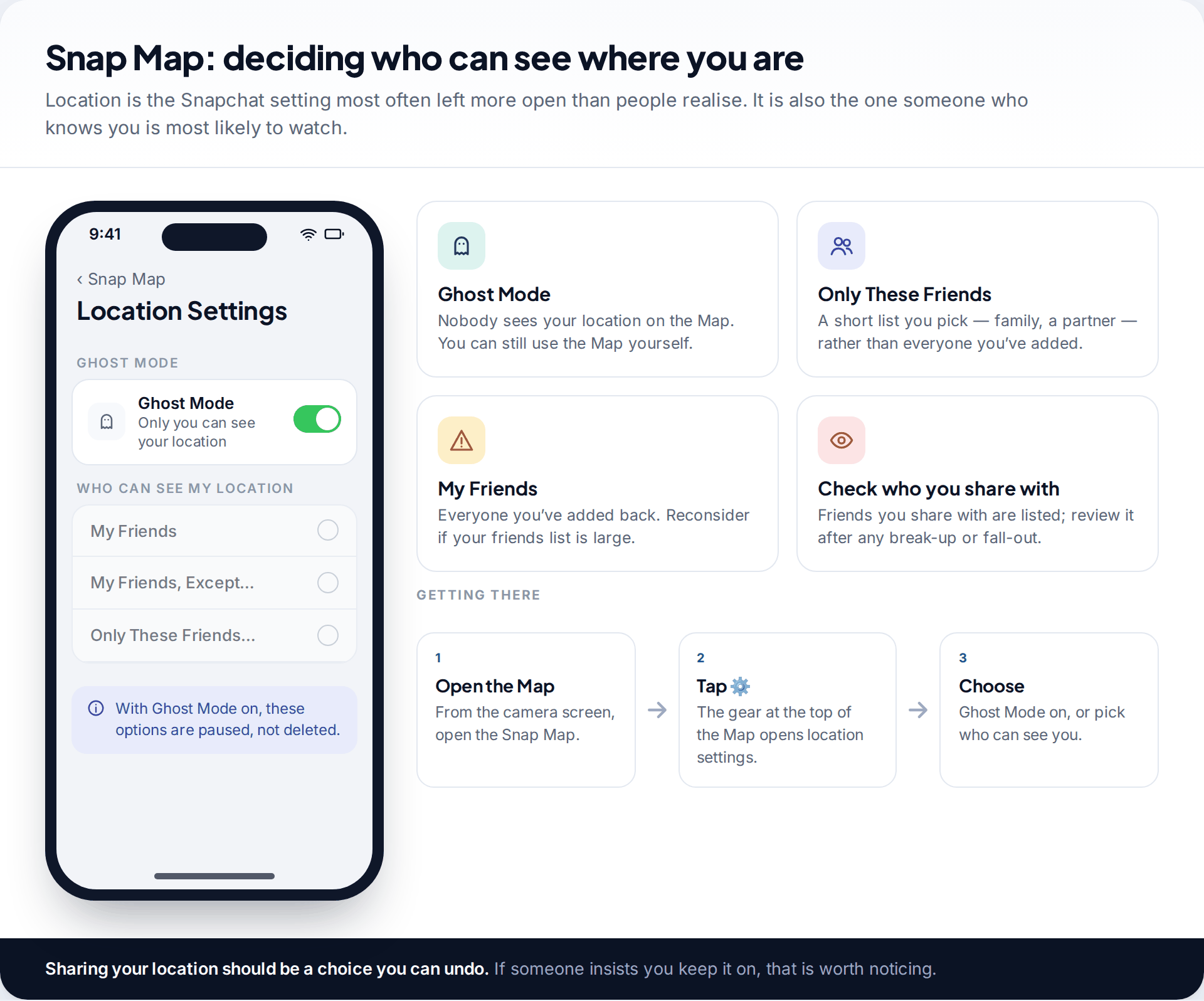
Location deserves its own look. On the Snap Map, Ghost Mode hides your location from everyone, while “My Friends, Except…” and “Only These Friends…” let you choose. Review the list after a break-up or a falling-out. Location sharing is only good if you can easily turn it off. If someone pressures you to keep it on, notice that.
Step 7: protect against people with access to your phone
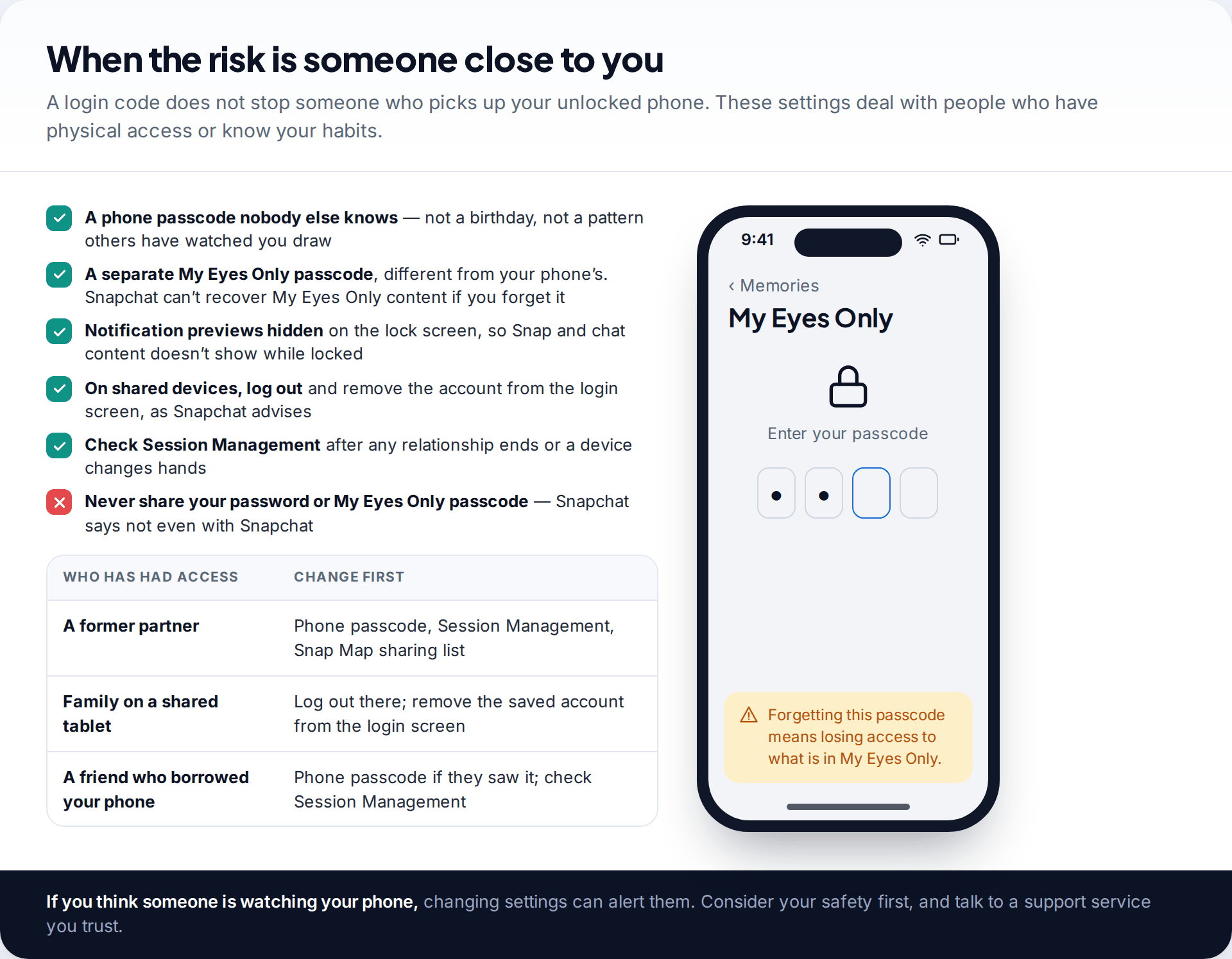
Most login protections assume the attacker is far away. When the risk is someone close to you, what matters is your phone’s own lock and what shows without it. Use a phone passcode nobody else knows. Hide notification previews on the lock screen. Give My Eyes Only its own passcode, different from your phone’s. Snapchat can’t recover My Eyes Only content if you forget that passcode, so choose one you will remember.
If you suspect someone is already watching your account or phone, think before changing everything at once. Removing their session or turning on Ghost Mode can be noticed, and in a controlling relationship that can make things worse. Consider your safety first and talk to a domestic abuse or victim support service you trust. Our guide to a hacked Snapchat account covers the signs of someone else using yours.
Recognising the messages built to undo all of this
Passkeys and two-factor block most attacks. What they can’t block is you handing over access, and that is what most Snapchat scams ask for. Watch for these patterns, which Snapchat’s own safety guidance and sign-in alert pages warn about:
- “I sent a code to your number by mistake.” A friend’s account, already taken over, asks you to forward a code. It is your own login code, and forwarding it hands over your account.
- Unrequested login codes. If a code arrives that you didn’t ask for, someone is trying to log in. Don’t share it, and change your password if it keeps happening.
- Links to “verify” or “unlock” your account. Snapchat’s real account pages are at accounts.snapchat.com. Type the address yourself rather than tapping a link in a chat.
- Unofficial Snapchat apps and “plus” versions. Snapchat links third-party apps and plugins to account locks, and some of them collect logins.
A useful habit: if a message asks for a code, a password or a payment, confirm it with the person through a different app or a phone call before doing anything.
What these settings can’t do
- Stop screenshots. Snapchat notes that people you send Snaps to can screenshot them or photograph the screen with another device. Snapchat may tell you when a screenshot is taken. It can’t prevent it.
- Protect a reused password elsewhere. If your Snapchat password is also your email password, a breach anywhere puts both at risk. Our guide to memorable, strong passwords explains the passphrase approach.
- Save you from handing over a code. Snapchat never asks for your password or a verification code by email or text. Anyone who does, including a “friend”, is attempting a takeover.
- Undo what is already out there. Tighter privacy settings apply from now on. They don’t recall Stories that were viewed or Snaps that were saved.
How this page was put together
Menu paths and settings were checked in September 2026 against Snapchat Support articles on passkeys, two-factor authentication, Recovery Codes, Session Management and account safety. The screens above are illustrative mockups, not screenshots. Snapchat renames and reorders settings between versions, so search for a setting by name if it isn’t where we describe.
We didn’t test authenticator apps or password managers and don’t recommend a particular one. Our editorial standards page explains how we check and update guides.
Common questions
What is the best way to secure a Snapchat account?
Verify your own email and number, add a passkey if it is offered, turn on two-factor with an authentication app, and save a Recovery Code offline. Then remove old sessions in Session Management and set Contact Me to My Friends.
Can someone log in to my Snapchat without me knowing?
Snapchat sends alerts and codes for suspicious logins, and any active login appears in Session Management. Check it now and then. A device that has only saved your login isn’t listed, so log out properly on shared devices.
Should I use SMS or an authenticator app for Snapchat two-factor?
An authenticator app, if you can. SMS codes can be diverted if someone moves your number to another SIM. SMS is still much better than no two-factor at all.
What happens if I lose my phone and I have two-factor on?
Log in with your Recovery Code. That switches two-factor off, so turn it back on and generate a new code. Without a Recovery Code, you will need Snapchat Support, and Snapchat says it doesn’t support lost codes.
Does Ghost Mode make my Snapchat account more secure?
It protects your privacy by hiding your location, but it doesn’t affect who can log in. It is one part of Step 6, not a replacement for two-factor.
How often should I check my Snapchat security settings?
Every few months is enough for most people, and always after losing a phone, ending a relationship or getting an unexpected login code. The check takes two minutes. Look at Session Management, confirm your email and number, make sure you can find your Recovery Code, and glance at who can see your location.
Can Snapchat support see my password or My Eyes Only passcode?
You should never share either one, and Snapchat says it will never ask for them. Anyone claiming to be Snapchat staff and asking for them is running a scam.
Looking for a tool to go with this? TheTruthSpy is a free parental control app for Android that stays visible on the child's phone. If it fits your family, see the Social media alerts feature.
Related guides
How to Check If Your Email Was in a Data Breach
Check if your email was in a data breach for free, then act on what leaked: passwords, card details or…
How to Start Using a Password Manager
Switch to a password manager without stress: built-in or standalone, protecting the main password, and a first-hour plan for the…
How to Tell If Your Phone Has a Virus or Malware
Most 'virus' signs have ordinary causes. How to check an iPhone or Android phone for real malware, remove it, secure…
Parental controls your child can see
Location, screen time limits, a web filter and alerts from notifications — free, and visible on your child's phone. Pair a phone in about ten minutes.
Android · Free to set up · Visible on your child's phone