How to Tell If Your Phone Has a Virus or Malware

Your phone has been slow all week, the battery runs hot, and this morning a web page flashed up a red warning that it is “infected with 4 viruses”. It is natural to wonder whether something nasty has got in.
Usually, nothing has. Most of the signs people associate with a virus have ordinary explanations, and that red warning is itself a scam rather than a diagnosis. Real phone malware does exist, though, and it looks different on iPhone and Android. Knowing where it actually hides lets you check properly instead of guessing.
Below you will find which symptoms matter and which are coincidences, the specific places to check on each system, how to remove what you find, and when wiping the phone is the sensible option.
The short version
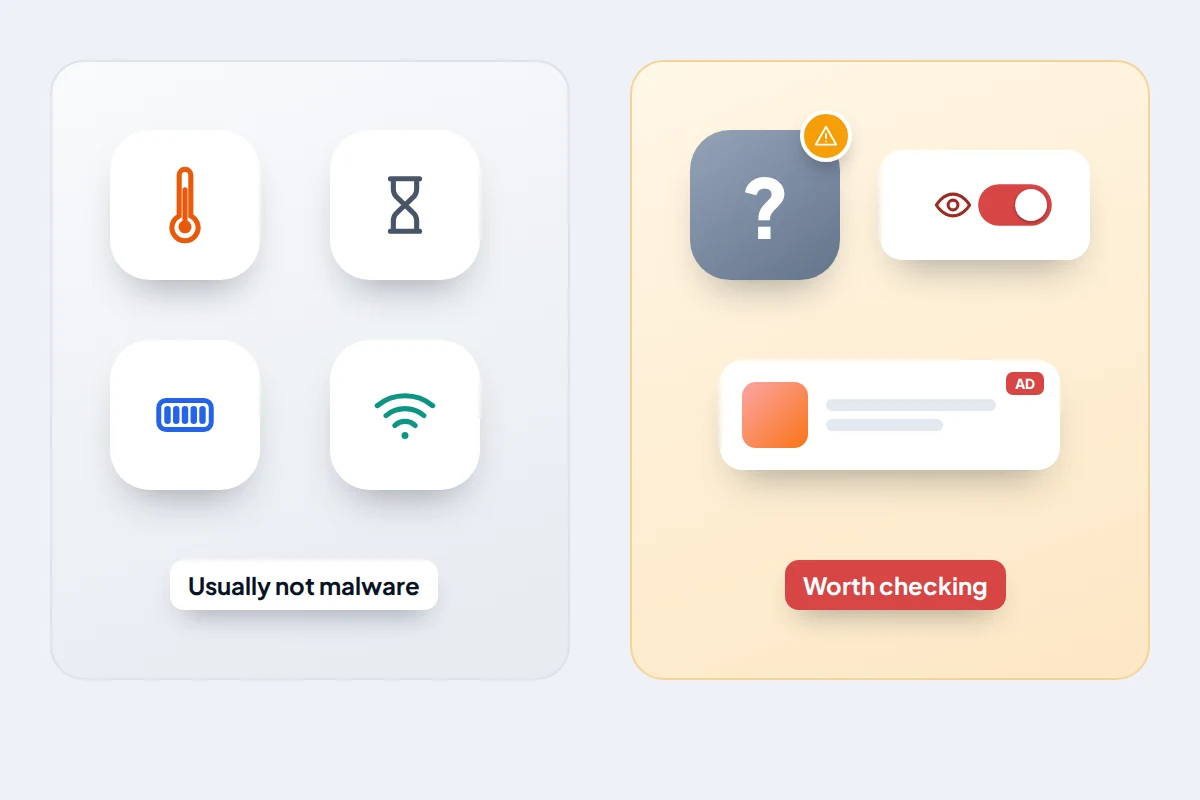
- Heat, slowness and a draining battery are rarely malware. Apps you did not install, ads outside apps and settings you did not change are more telling.
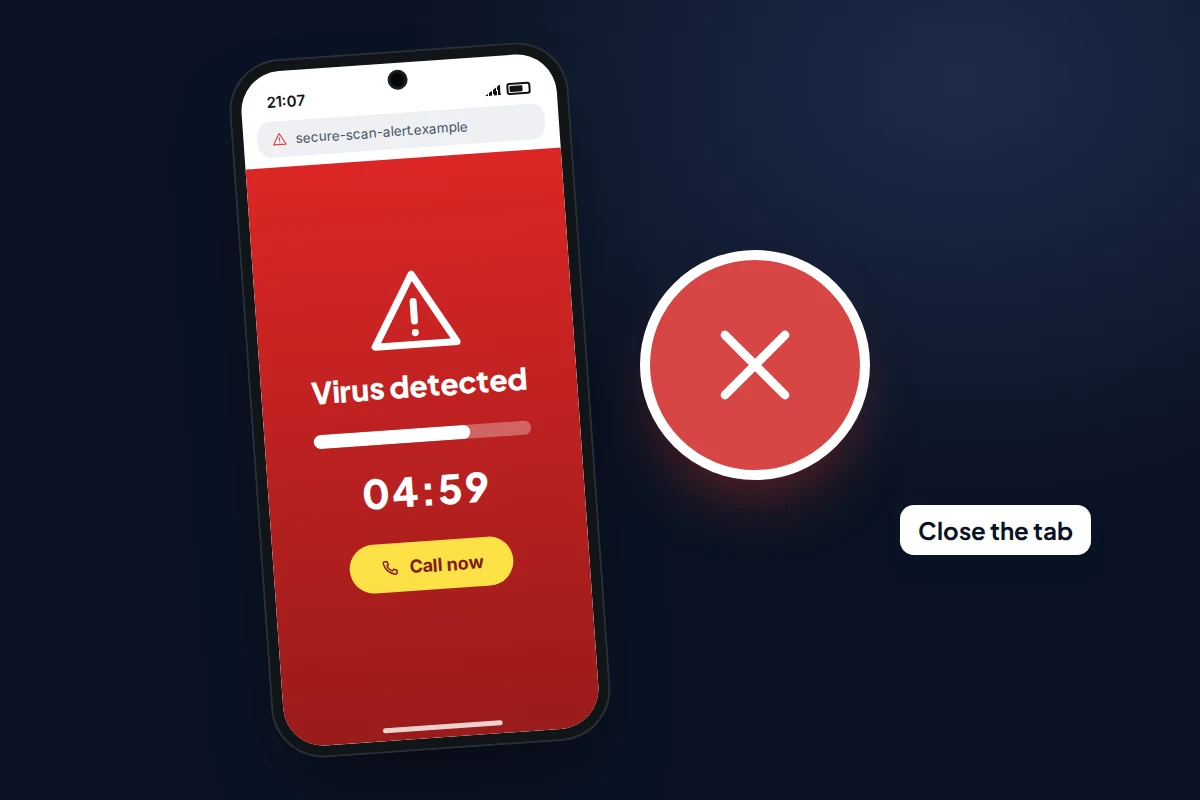
- “Your phone is infected” pop-ups in a browser are scams. Close the tab; never call the number or install the “cleaner” they push.
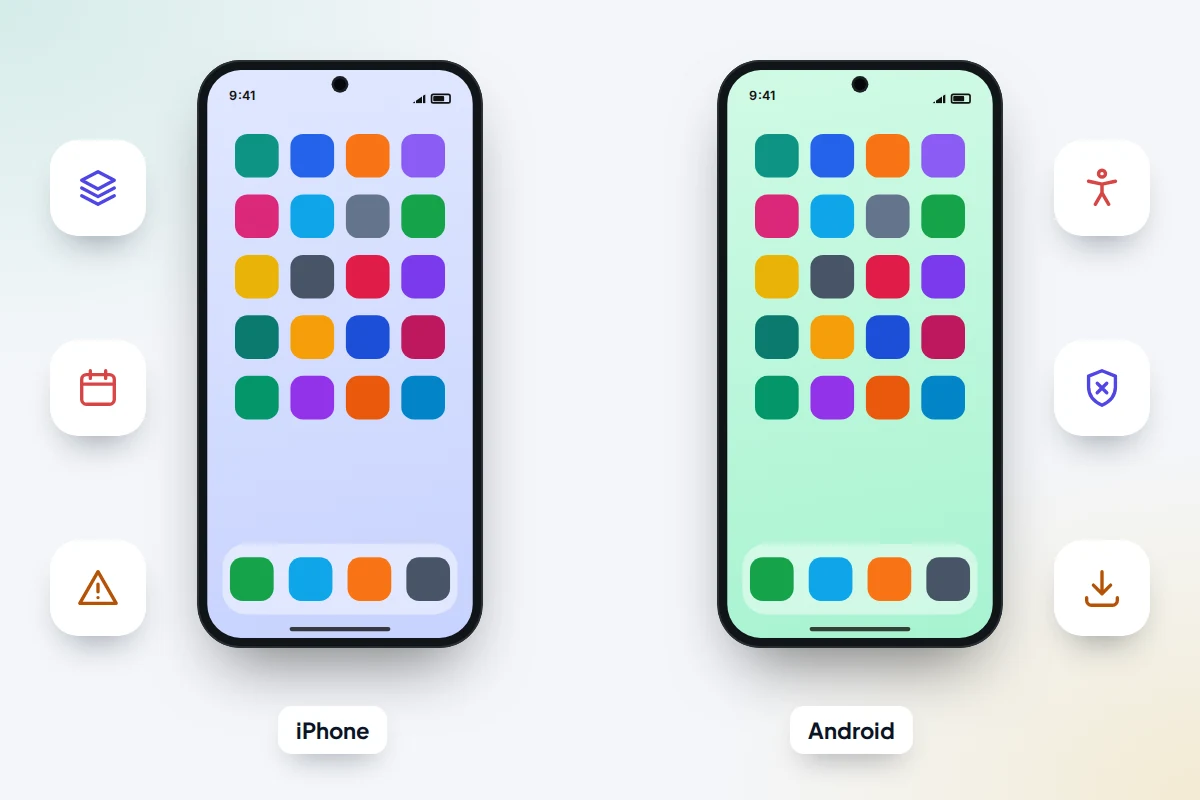
- On iPhone, check configuration profiles, calendar subscriptions and Safari website data. On Android, run a Play Protect scan and check Accessibility, device admin apps and who can install apps.
- After removing anything, change important passwords from a different, trusted device.
- If you installed an app from a link in a text, the UK’s National Cyber Security Centre advises a factory reset without backing up first.
What phone malware actually looks like now
The classic computer virus, a program that copies itself from file to file, is not how phones get into trouble. Both systems keep apps in separate compartments, so one app cannot quietly rewrite another. What gets through instead is software or settings you were tricked into allowing.
On iPhone
In most countries, including the UK and US, iPhone apps can only come from Apple’s App Store, and they cannot look inside each other. That makes classic infections very rare. The realistic problems are:
- Fake or low-quality apps from the App Store that are mainly adverts or subscription traps.
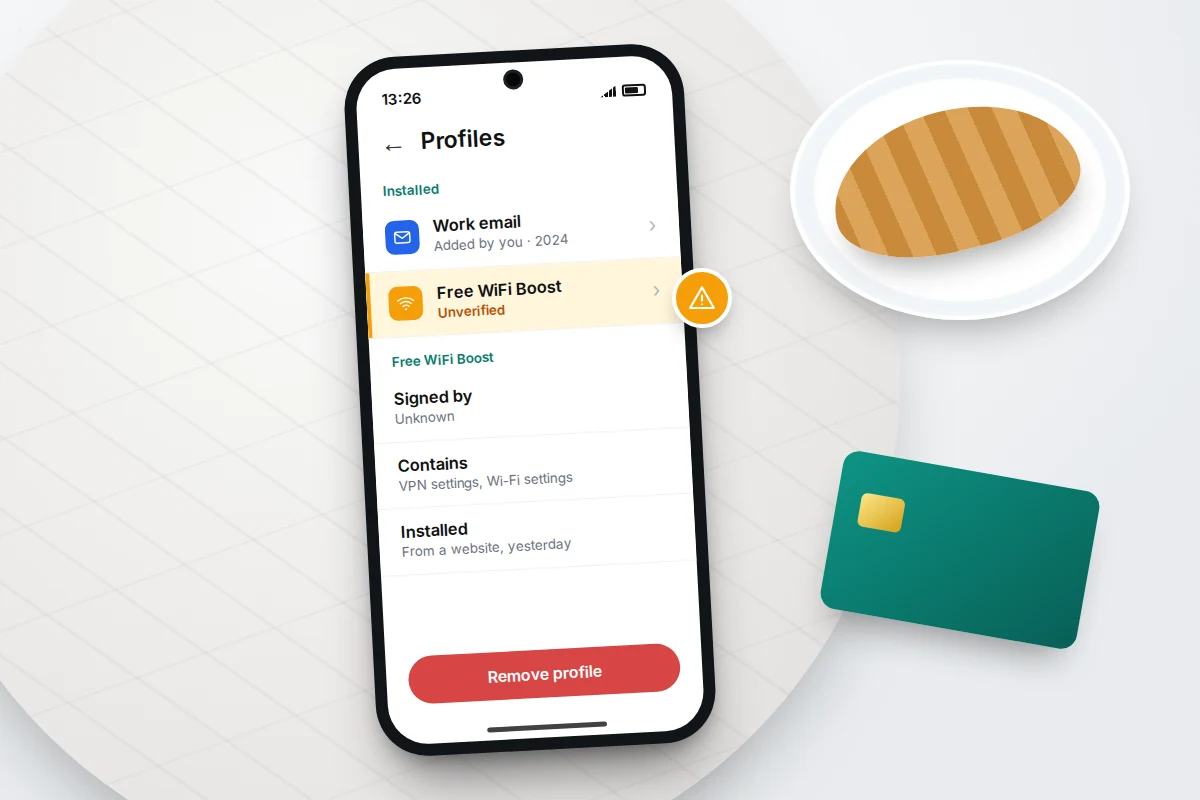
- Configuration profiles installed from a website that promised free Wi-Fi, a game or a “security update”. A profile can change settings such as a VPN or an email account, and a VPN can route your web traffic.
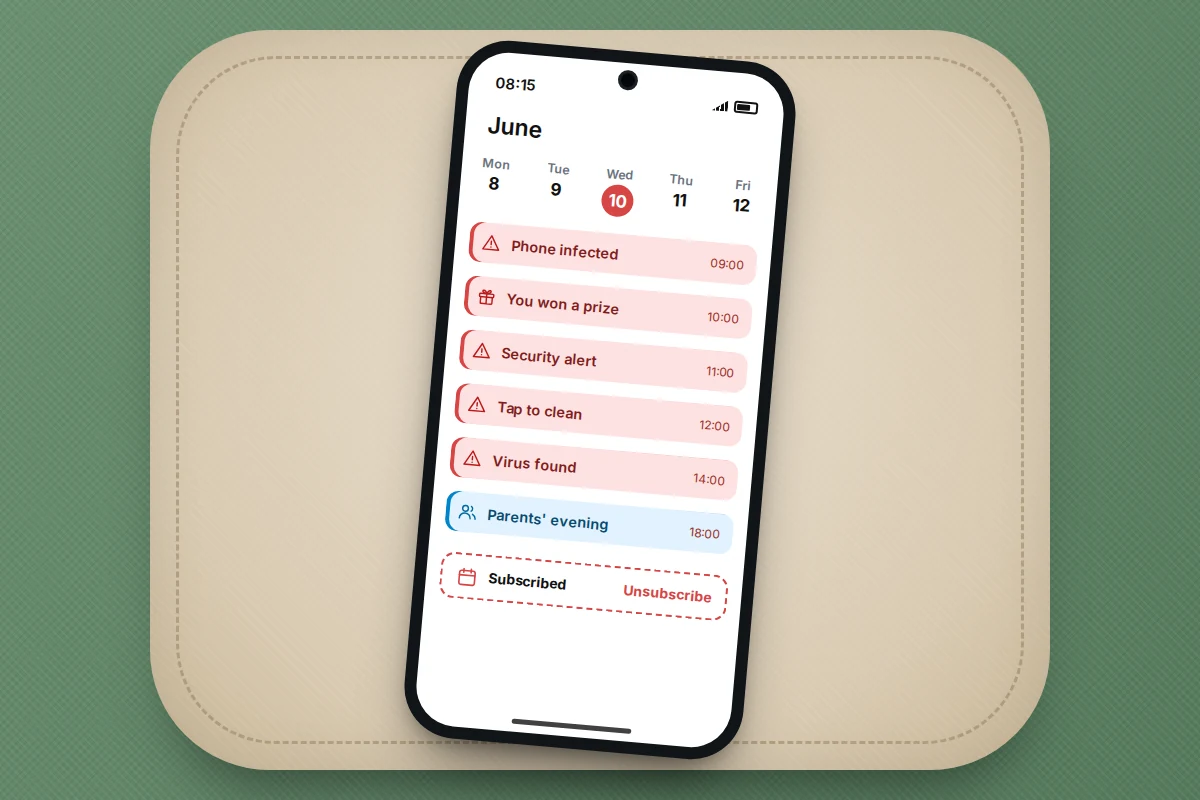
- Calendar-spam subscriptions that fill your calendar with alarming events linking to scam sites.
- Scam pop-ups and phishing pages that try to get your passwords or payment details.
On Android
Android lets you install apps from outside Google Play, which is useful but is also the main way malware arrives. Watch for:
- Sideloaded apps installed from a link in a text, email or advert, often posing as a parcel tracker, voicemail player or banking tool.
- Apps abusing Accessibility. This permission exists for people who need help using their phone. Google warns it lets an app read what is on your screen and act on your behalf, which is exactly what banking malware wants.
- Apps with device admin rights, which can make themselves hard to uninstall.
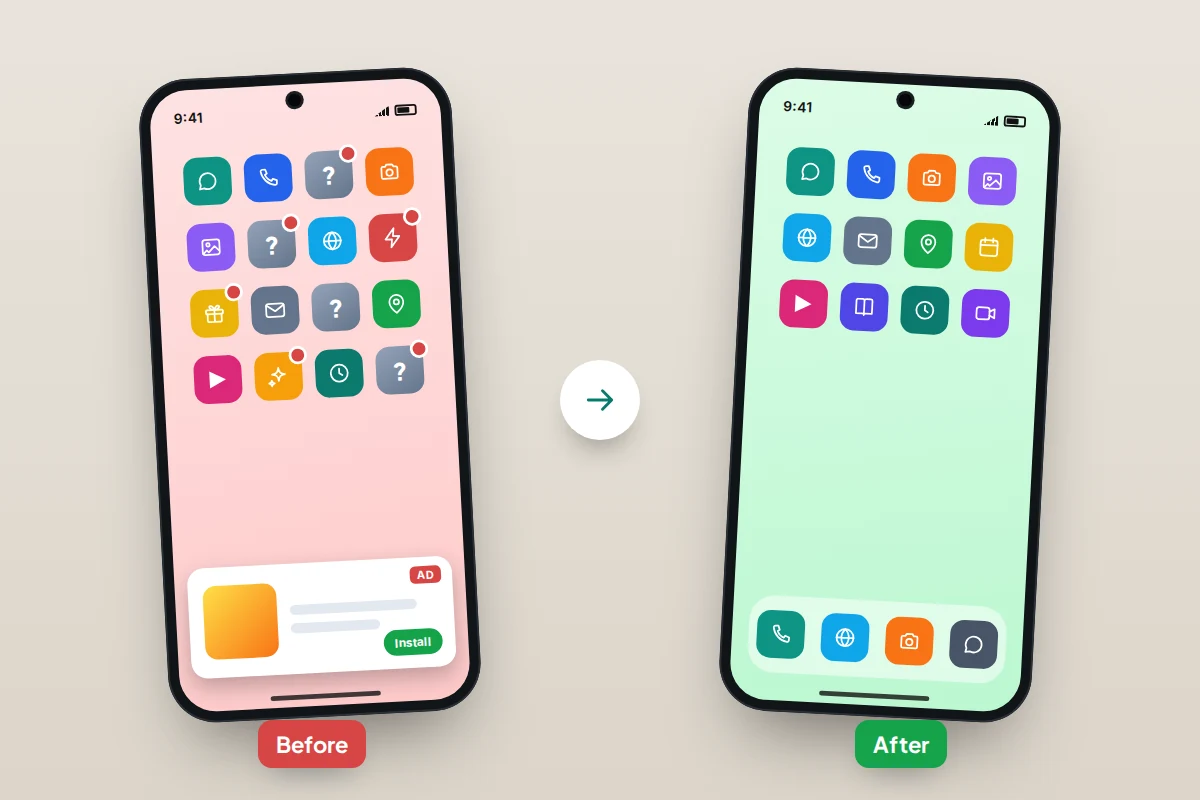
- Adware that shows full-screen adverts over other apps or on the home screen.
The NCSC has warned about fake “missed parcel” texts that lead to banking malware which can steal banking details and passwords, then send scam texts to everyone in your contacts. Our guide on spotting a fake delivery text shows what those messages look like.
Symptoms that usually have another explanation
Many articles list “warning signs” that any ageing or busy phone will show. This table puts each symptom beside its likelier cause and the check that settles it.
| Symptom | More likely explanation | Check |
|---|---|---|
| Battery hot or draining fast | Charging, heavy use, weak signal, an ageing battery, one busy app | Settings → Battery. A single unknown app at the top is worth a look. |
| Phone slow or freezing | Storage nearly full, an old phone, a pending update | Free up space, update, restart. |
| Data use higher than usual | Video, photo backup, app updates on mobile data | Data usage list in settings. Look for an app you do not recognise. |
| “Virus detected” warning in the browser | A scam web page or advert | Close the tab. Clear website data if it keeps returning. |
| Calendar full of alarming events | A spam calendar subscription | Remove the subscription (iPhone steps below). |
| Frequent alerts from a website | You allowed that site to send notifications | Browser site settings → Notifications. |
| Full-screen ads outside any app | Adware, often a recently installed app | Uninstall recent apps; use safe mode on Android. |
| Unknown app, or one you cannot uninstall | Possible malware with admin rights | Device admin apps and Accessibility checks. |
| Texts or posts sent that you did not send | A compromised account, or Android malware | Change passwords from another device; check apps. |
One symptom on its own rarely means much. Several of the lower rows together deserve the full checks below.
Fake “virus detected” pop-ups
These pages imitate a system alert: a red warning, a countdown, sometimes vibration or a beeping sound. They want you to call a “support” number, install a “cleaner” or pay for protection. Apple’s advice is not to believe a pop-up that warns of viruses and not to call its number or follow its links. The US Federal Trade Commission puts it just as plainly: never call a phone number that appears in a pop-up window.
- Do not tap anything on the page, including its “close” or “cancel” buttons, which may be part of the scam.
- Close the tab from the browser’s tab view. If the page keeps reopening, close the browser app completely.
- Clear the site’s data. On iPhone, Settings → Apps → Safari → Clear History and Website Data. In Chrome on Android, clear browsing data from the browser’s settings.
- Stop site notifications if alerts keep appearing outside the browser. In Chrome on Android: More → Settings → Site settings → Notifications, then block the site.
If you have already called the number, given remote access or paid, hang up, remove any app they had you install, change the passwords you used and contact your bank. Do not install a “cleaner” to fix the problem the scam invented.
Checks on an iPhone
Menu names below are for recent versions of iOS; older versions differ slightly.
Configuration profiles
- Go to Settings → General → VPN & Device Management.
- If you see a profile you do not recognise, tap it, then tap Delete Profile and restart the phone.
A work or school phone will have legitimate profiles; ask your IT team before removing those. If the section is missing entirely, no profiles are installed.
Calendar spam
Alarming events such as “Your iPhone is infected” usually come from a calendar subscription you were tricked into adding. Deleting individual events does not help, because the subscription adds more.
- In the Calendar app, tap Calendars.
- Tap the info button next to the unfamiliar calendar, then Delete Calendar or Unsubscribe.
- Tap Delete Calendar or Unsubscribe again to confirm. The events it added disappear with it.
Apps, Safari and Safety Check
- Scroll through Settings → General → iPhone Storage for apps you do not remember installing, and delete them.
- If pop-ups keep coming back, clear Safari’s website data as above.
- Install the latest iOS update from Settings → General → Software Update. Updates fix the security flaws that serious attacks rely on.
- Settings → Privacy & Security → Safety Check shows which people, apps and devices have access to your information.
Checks on an Android phone
Menu names vary by phone maker and Android version. If a path does not match, use the search bar at the top of Settings.
Run a Play Protect scan
- Open the Play Store, tap your profile picture, then Play Protect.
- Tap Scan. In the same screen’s settings, check that Scan apps with Play Protect is on.
Google says Play Protect may remove a harmful app automatically, disable it, or notify you so you can uninstall it. A clean scan is reassuring but not proof, so do the checks below too.
Check which apps have Accessibility
Go to Settings → Accessibility and look under Downloaded apps, Installed apps or Installed services, depending on your phone. Anything there besides tools you knowingly use, such as a password manager or a screen reader, deserves suspicion. Turn it off, then uninstall it.
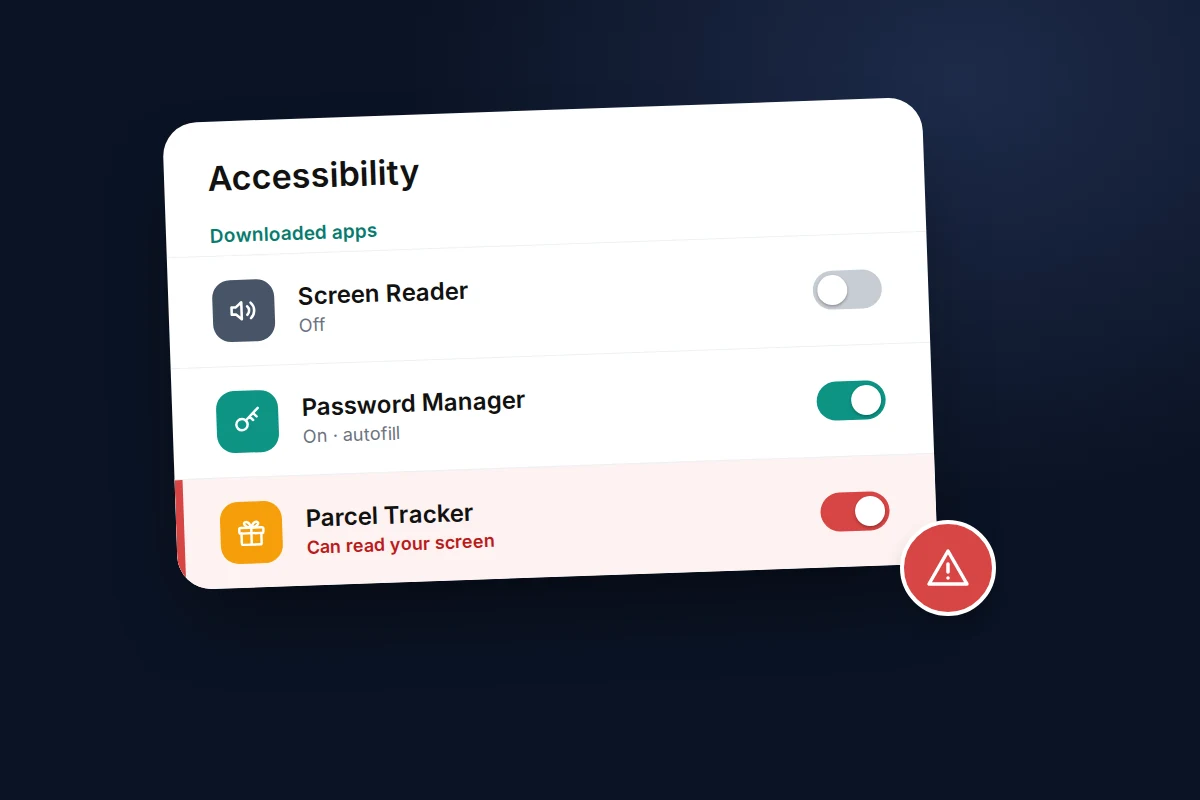
On Android 13 and later, an app installed from outside an app store usually cannot be given Accessibility access until you allow “restricted settings” for it. If an app or a caller ever talks you through allowing restricted settings, treat that as a red flag. Google advises against it unless you trust the developer.
Device admin apps and unknown sources
- Search Settings for Device admin apps. Find Hub (formerly Find My Device) and work apps are normal. Deactivate anything else you do not recognise; that is often what stops an app from uninstalling.
- Search Settings for Install unknown apps (on a Pixel, Settings → Apps → Special app access → Install unknown apps). Switch it off for browsers, messaging and file apps unless you actively need it.
- On a Samsung Galaxy, Settings → Security and privacy → Auto Blocker blocks installs from unauthorised sources.
Use safe mode to catch adware
Safe mode runs only built-in apps. If full-screen ads stop in safe mode, a downloaded app is responsible. On a Pixel 6 or later, hold Power and Volume up, touch and hold Power off or Restart, and tap OK. On a Samsung, touch and hold Power off in the power menu and tap Safe mode. Uninstall recent apps one at a time, restarting normally after each.
Removing what you find
- Remove special powers first. Turn off Accessibility for the app and deactivate it as a device admin. Uninstalling often fails until you do.
- Uninstall the app or delete the profile or calendar subscription.
- Restart and run another Play Protect scan on Android.
- Watch for a day. If the pop-ups, ads or unknown apps return, move on to a factory reset.
Change passwords from a clean device
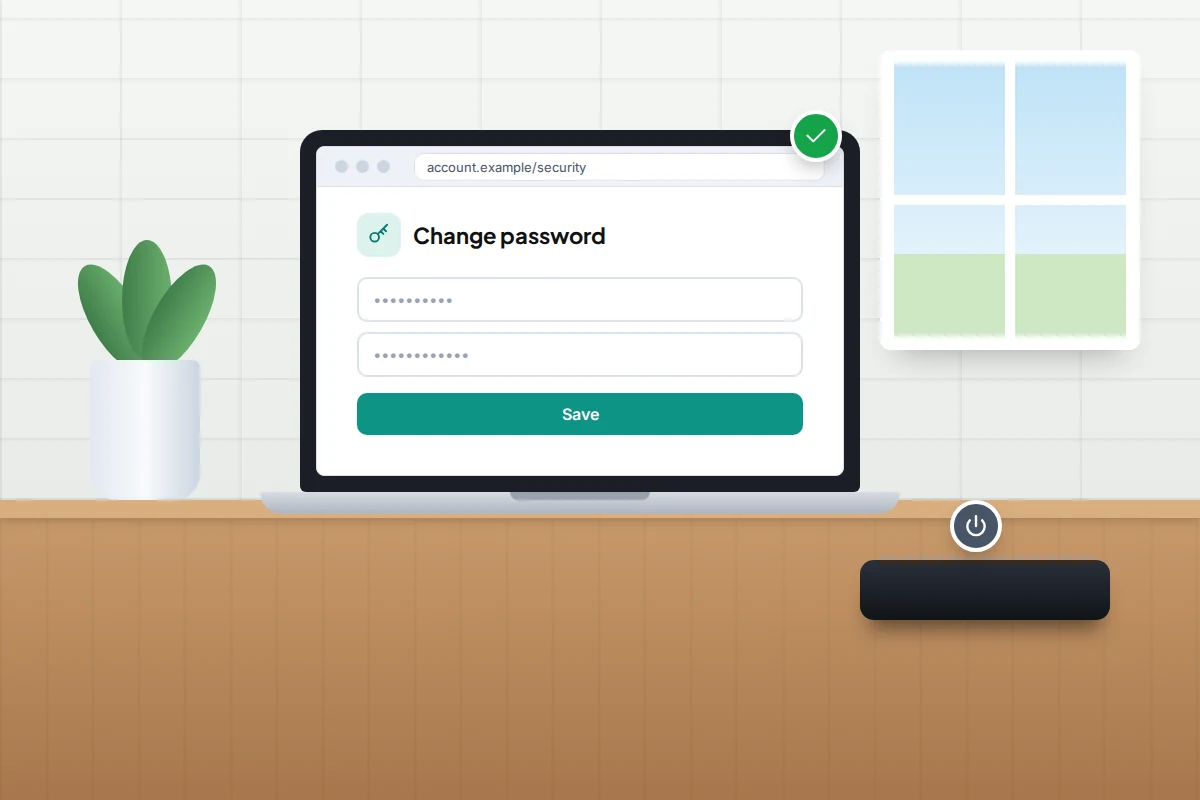
If malware was on the phone, anything you typed while it was there may have been captured. The NCSC advises not logging in to accounts on an infected phone, and changing passwords for any account you did use, plus any account sharing the same password.
Do this from a different device you trust, such as a laptop or another family member’s phone, so the new passwords are not captured too. Start with your email, because it can reset everything else, then banking, your Apple or Google account and social media. Turn on two-step verification as you go, and tell your bank if banking details may be exposed.
When a factory reset is the right call
A reset wipes everything, including malware that hides well. It is the right choice if you installed an app from a link in a text or email, if suspicious apps return after removal, or if you simply cannot rule it out.
- Do not make a fresh backup. The NCSC warns that after a malicious install, a new backup would contain the malware too. Photos and contacts that already sync to your Google or Apple account come back when you sign in again.
- Only restore a backup made before the malware was installed, and only if you are sure of the date. Otherwise set up as new and reinstall apps from the official store.
- Reset: on iPhone, Settings → General → Transfer or Reset iPhone → Erase All Content and Settings. On a Pixel, Settings → System → Reset options → Erase all data (factory reset). On a Samsung, Settings → General management → Reset → Factory data reset.
When the worry is a person, not malware
Everything above covers malware from strangers. If you think someone you know has had your phone and installed something to watch you, the checks and the safety considerations are different, and removing it can alert them. Our guide on how to tell if a phone has spyware covers that situation. If your concern is the microphone or camera, see whether your phone is really listening to you.
Frequently asked questions
Do I need antivirus on my iPhone?
No. iPhone apps cannot look inside other apps, so a “virus scanner” has almost nothing to scan. Keeping iOS updated and checking profiles and calendars protects you more.
Is antivirus worth it on Android?
Play Protect is built in and also checks apps installed from outside Google Play. A reputable security app can add scam-link warnings, but avoid anything advertised through a pop-up or promising to “boost” or “clean” your phone.
Can I get malware just by opening a text?
For almost everyone, no: the risk comes from tapping the link and installing or entering details. Rare attacks against journalists and activists exploit software flaws, which is why installing updates promptly matters.
Will a factory reset definitely remove malware?
For the app-based malware described here, almost always, as long as you do not restore a backup that contains the problem. If trouble returns after a clean setup, suspect a compromised account and change its password from a clean device.
Sources and further reading
- National Cyber Security Centre: Scam missed parcel texts and advice on avoiding malware
- Federal Trade Commission: Malware – how to protect against, detect and remove it
- Android Help: Use Google Play Protect to help keep your apps safe
- Android Help: Learn about restricted settings
- Apple Personal Safety User Guide: Review and delete configuration profiles
- Apple Support: Delete calendars and remove unwanted events on iPhone
- Apple Support: Recognise and avoid social engineering schemes
- Samsung Support: Protect your Galaxy device with Auto Blocker
Looking for a tool to go with this? TheTruthSpy is a free parental control app for Android that stays visible on the child's phone. If it fits your family, see what the app does.
Related guides
How to Check Which Apps Can See Your Location
See which apps can use your location on Android or iPhone, what each permission level allows, which apps really need…
How to Recover a Hacked WhatsApp Account
Get a hijacked WhatsApp account back by re-registering your number, deal with a PIN the attacker set, warn your contacts…
How to Turn On Two-Factor Authentication Everywhere
A one-evening plan to turn on two-factor authentication, starting with email: which method to pick, where the settings are, and…
Parental controls your child can see
Location, screen time limits, a web filter and alerts from notifications — free, and visible on your child's phone. Pair a phone in about ten minutes.
Android · Free to set up · Visible on your child's phone