Why Is My Phone Battery Draining So Fast?

Your phone was on 100% at breakfast and it is asking for a charger by mid-afternoon. Maybe it used to last a full day and something has changed, or maybe it has always been poor and you have simply had enough. Either way, the fix depends on the cause, and guessing rarely finds it.
Before changing any settings, find out where the charge is actually going. Your phone already records it, on Android and iPhone alike, and those battery screens usually point straight at the cause. The causes below are in roughly the order they turn up, from the screen itself to an ageing battery.
By the end you should be able to tell a settings problem from a worn-out battery, and know whether a few changes will do or a replacement is due.
The short version
- Look before you change anything: Settings → Battery on both Android and iPhone shows which apps and activities used the charge.
- The screen is usually the biggest single drain. Brightness, a high refresh rate and an always-on display all add up.
- Weak signal, background activity, a recent update and heat explain most of the rest.
- If the battery health reading is around 80% or lower, or the phone shuts down with charge left, a replacement battery is often the real fix.
- Constantly closing apps and installing “battery booster” apps do not help and can make things worse.
First, check whether the drain is really unusual
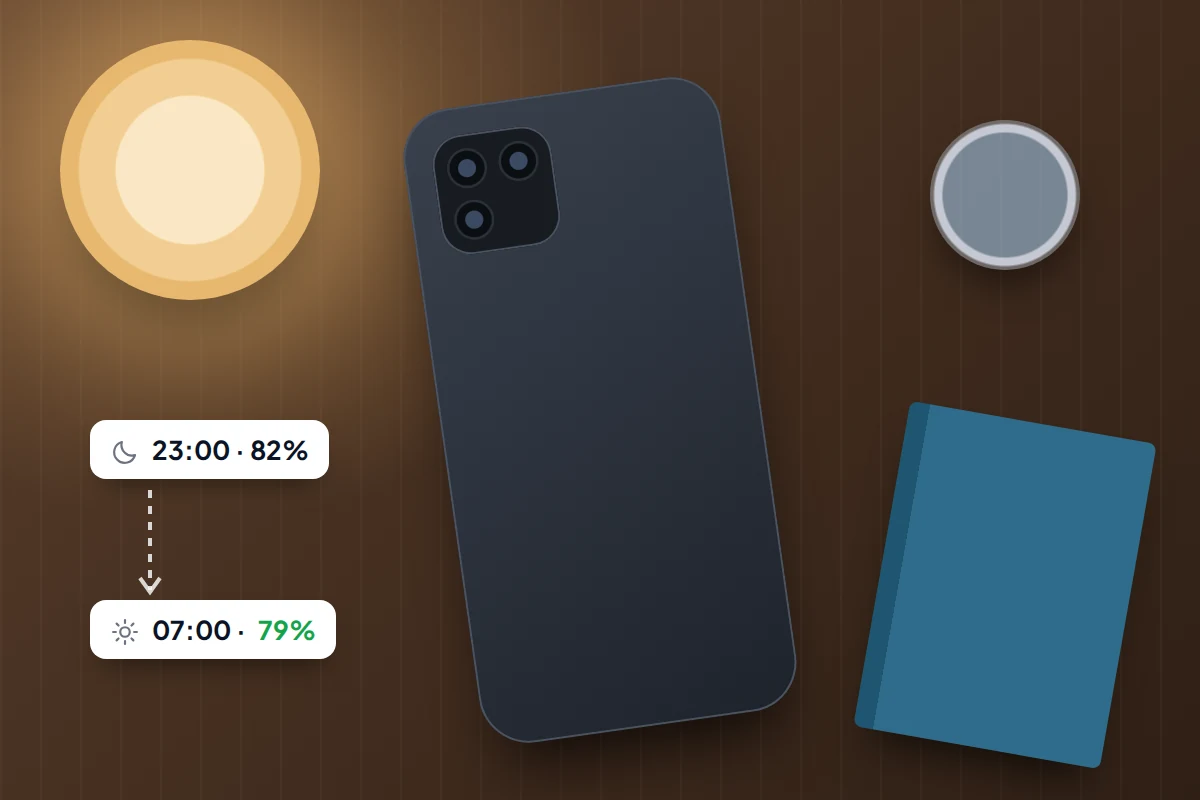
Start with something you can compare. Losing 30% during two hours of video and navigation is normal. Losing 30% overnight on a bedside table is not.
An overnight test tells you a lot. Note the percentage at bedtime, leave the phone untouched, and check it in the morning. Idle phones normally lose only a few percent overnight. If yours loses much more, something is running in the background or the phone is struggling for signal.
Also think about what changed recently: a new app, a major update, a new workplace with poor reception or a hot week. Knowing the timing narrows the search quickly.
How to read your phone’s battery usage screen
Both systems record what used the battery: a chart of charge over time, screen-on time and a list of apps. The layout changes between versions.
iPhone
- Open Settings → Battery.
- Read any Insights and Suggestions at the top. iOS flags things such as high brightness, background activity and an ongoing update here.
- Look at the Daily Usage chart, which compares today with your recent average.
- Tap View All Battery Usage to see the battery level graph and the app-by-app list. Tap an app to see how much of its use was on screen and how much was in the background.
Android
- On a Pixel, open Settings → Battery → Battery usage, then tap View by apps.
- On a Samsung Galaxy phone, open Settings → Battery → View details, which also shows screen-on and screen-off time.
- On other phones, look under Settings → Battery. Menu names vary by phone maker and Android version.
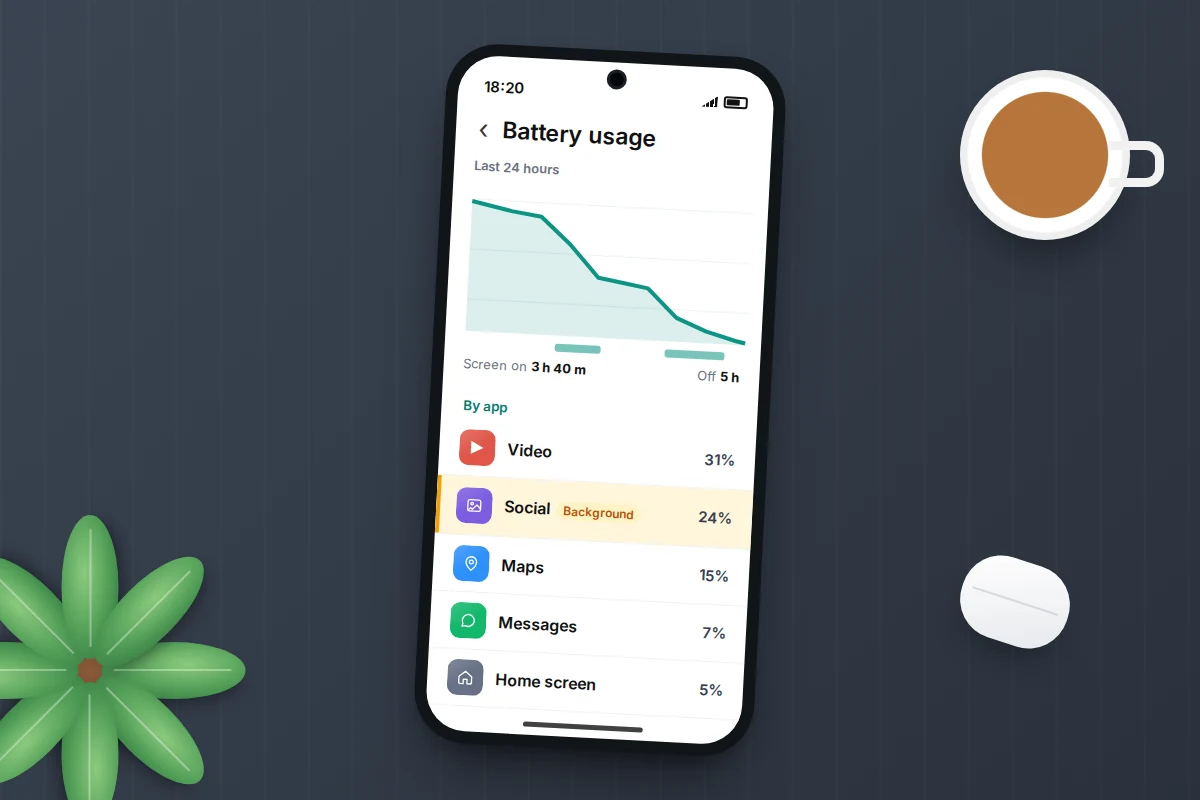
Two things matter most. First, compare screen-on time with the total drain: six hours of screen time is a good reason to be low. Second, look for an app with a high share of background use that you barely opened. That app is your first suspect.
The screen: usually the biggest single drain
During normal use, the display usually uses more power than anything else. Three settings decide how much.
Brightness. Running the screen at or near maximum all day costs a lot of charge. Turn on automatic brightness so the phone dims itself indoors. On iPhone it is under Settings → Accessibility → Display & Text Size → Auto-Brightness. On a Pixel, open Settings → Display & touch → Brightness level and turn on Adaptive brightness. On a Samsung, it is Settings → Display → Adaptive brightness.
Refresh rate. Many phones redraw the screen up to 120 times a second for smoother scrolling. If battery matters more, you can cap it. On a Pixel, turn off Settings → Display & touch → Smooth Display. On a Samsung, choose the standard option under Settings → Display → Motion smoothness. On iPhones with a high-refresh screen, Settings → Accessibility → Motion → Limit Frame Rate caps it at 60.
Always-on display. Showing the time and notifications while the phone is locked uses a small but constant amount of power. On iPhone, the switch is Settings → Display & Brightness → Always On Display on models that have it. On a Pixel it is Settings → Display & touch → Always-on Display, and on a Samsung it is under Settings → Lock screen and AOD.
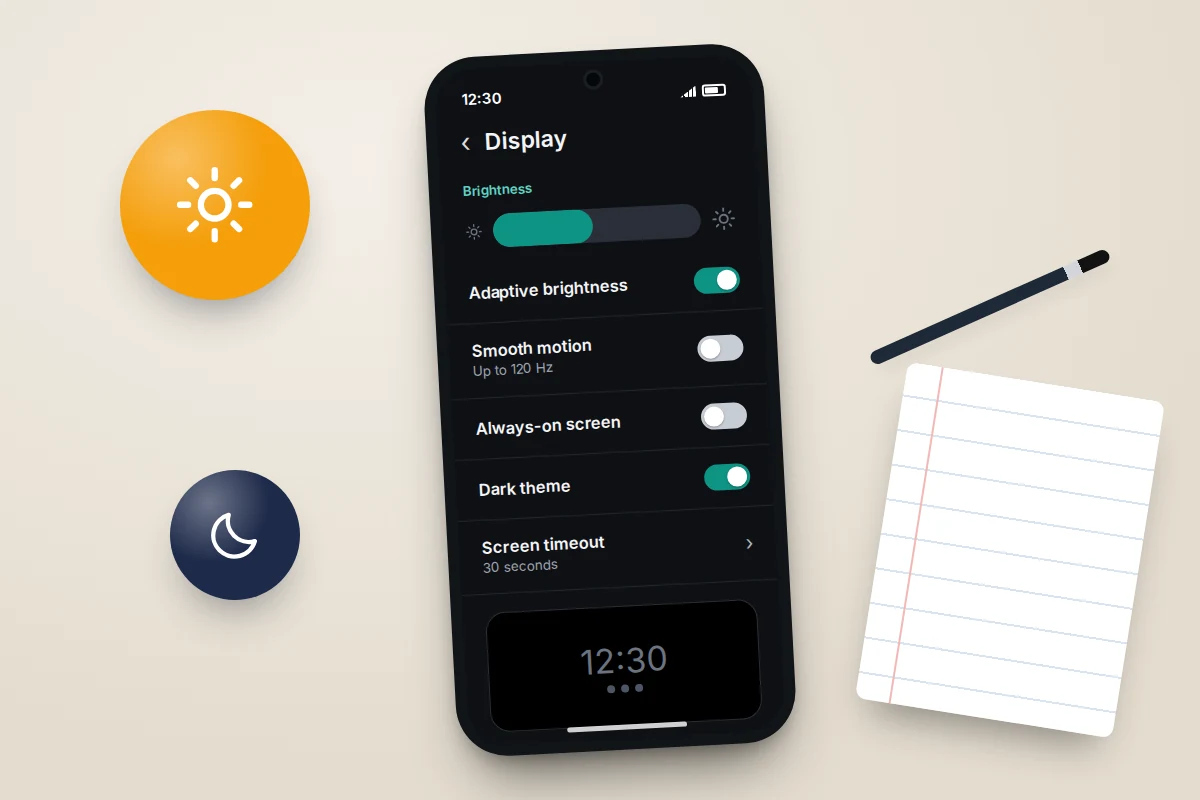
A shorter screen timeout also helps; 30 seconds to a minute suits most people.
Weak signal, background activity and location
Weak signal and network searching
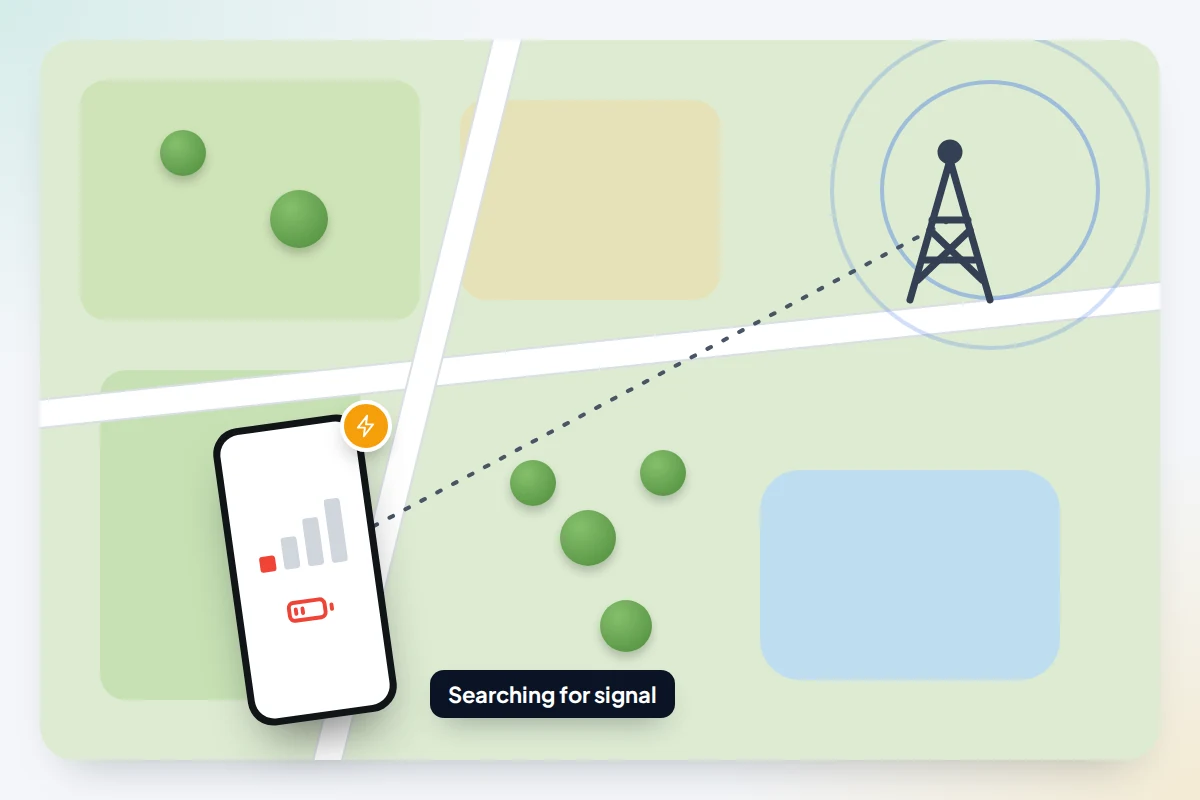
When mobile signal is poor, the phone increases its transmit power and keeps searching for a better connection. A day in a basement office or a rural area can drain the battery noticeably faster, and the iPhone battery screen may list poor signal as a cause.
Use Wi-Fi where it is good, because it usually costs less power than a struggling mobile connection. Where there is no signal at all, turn on Aeroplane Mode so the phone stops searching. On iPhones that support 5G, Apple recommends leaving the 5G Auto setting on so the phone uses 5G only when it helps.
Background activity
Apps refresh feeds, sync photos and check for messages while you are not using them. Most of this is useful, but one badly behaved app can drain a battery on its own.
- On iPhone, go to Settings → General → Background App Refresh and turn it off for apps that do not need fresh content the moment you open them.
- On a Pixel, go to Settings → Apps → See all apps, choose the app, then App battery usage, and pick Optimised or Restricted.
- On a Samsung, use Settings → Battery → Background usage limits and put rarely used apps to sleep.
Restricting a messaging app can delay its notifications, so keep that in mind for apps you rely on.
Location
Several apps asking for your location all day adds up. Change “always” to “while using the app” where it makes sense. On iPhone, that is Settings → Privacy & Security → Location Services. On Android, open Settings → Location → App location permissions.
Updates, heat and chargers
A recent software update
After a major update, the phone re-indexes files and photos and finishes background tasks. Apple says this can take several days, and Google notes slightly higher use after Pixel updates. Give it a few days before drawing conclusions. The same applies to a newly set-up phone restoring apps and photos.
Heat
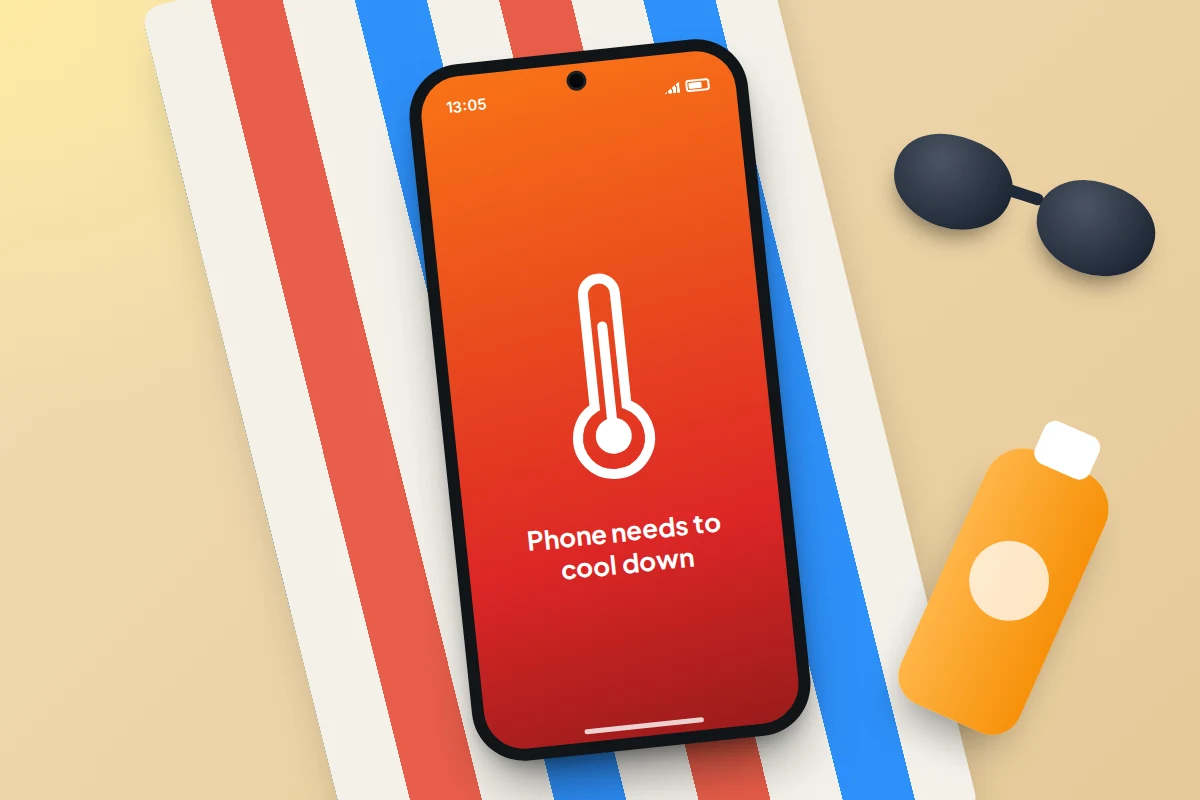
Batteries do not like heat. Apple says its devices work best between 0 and 35°C and warns that higher temperatures can permanently reduce capacity. Leaving a phone on a car dashboard in the sun, gaming while charging, or charging inside a thick case can all make it hot.
If your phone feels warm when idle, check battery usage for an app working hard in the background, and take the case off while charging if it gets hot.
A faulty charger or cable
Sometimes the battery is fine and the problem is getting charge into it. A frayed cable or weak adapter can leave the phone at 70% after a night on charge, which looks like drain the next day. Try a different cable and adapter, and check the port for lint.
Is your battery wearing out?
Every lithium-ion battery loses capacity as it goes through charge cycles, and no setting fixes that.
Checking battery health
- On iPhone 15 and later, go to Settings → Battery → Battery Health. On iPhone 14 and earlier, it is Settings → Battery → Battery Health & Charging. Maximum Capacity compares today’s capacity with when the battery was new.
- On Pixel 6 and later running Android 16, go to Settings → Battery → Battery health. Pixel 8a and newer show an estimated capacity percentage; older models show help and charging options.
- On a Samsung Galaxy, open the Samsung Members app, then Support → Phone diagnostics → Battery status, which reports Normal, Weak or Bad.
When to replace the battery
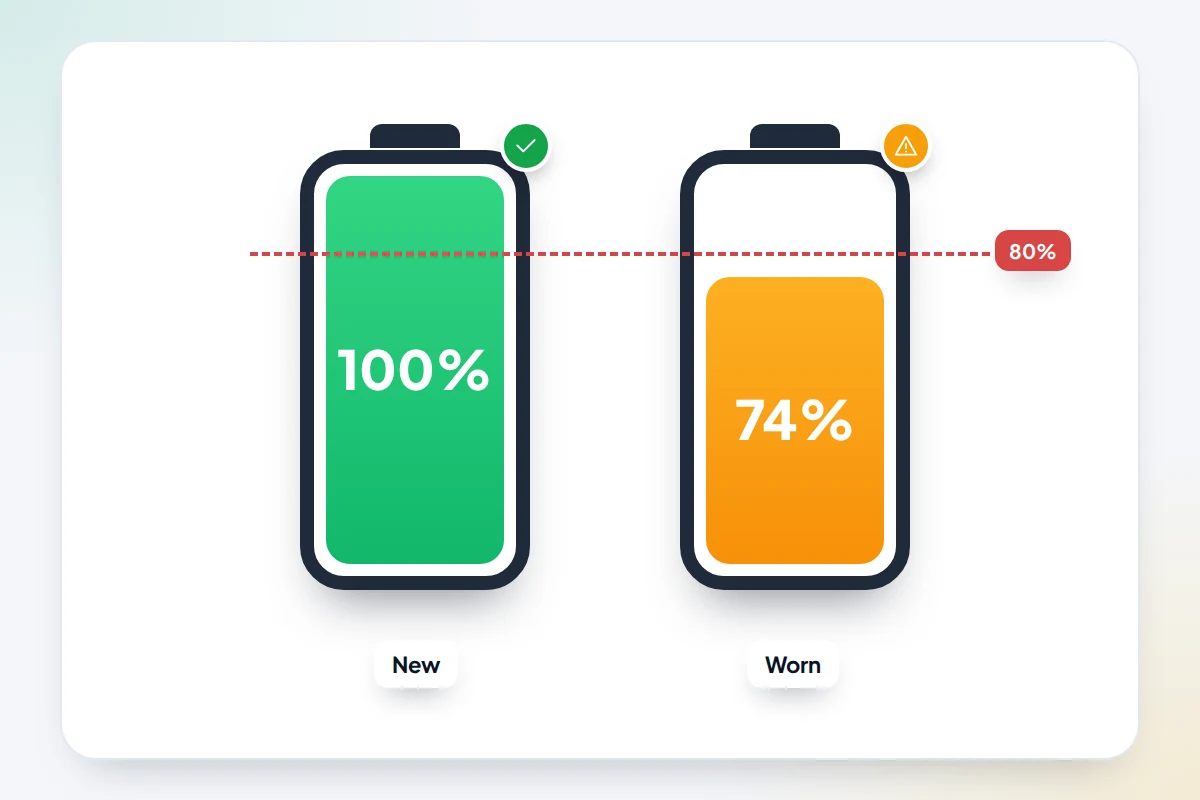
Apple designs iPhone 14 and earlier batteries to keep 80% of their original capacity at 500 full charge cycles, and iPhone 15 and later at 1,000 cycles, under ideal conditions. That 80% mark is a useful rule of thumb for any phone. A replacement is worth considering if:
- the health reading is around 80% or lower, or the phone shows a service message;
- the phone shuts down unexpectedly while still showing charge, especially in the cold;
- it no longer lasts a normal day after you have tried the settings in this guide;
- the back or screen is lifting or bulging. Stop using and charging the phone and get it looked at promptly, because a swollen battery is a safety issue.
Use the manufacturer or an authorised repairer where you can, and make sure your backup actually works before handing the phone over.
Built-in settings that help, and what doesn’t
Your phone already has good battery tools. Try these first.
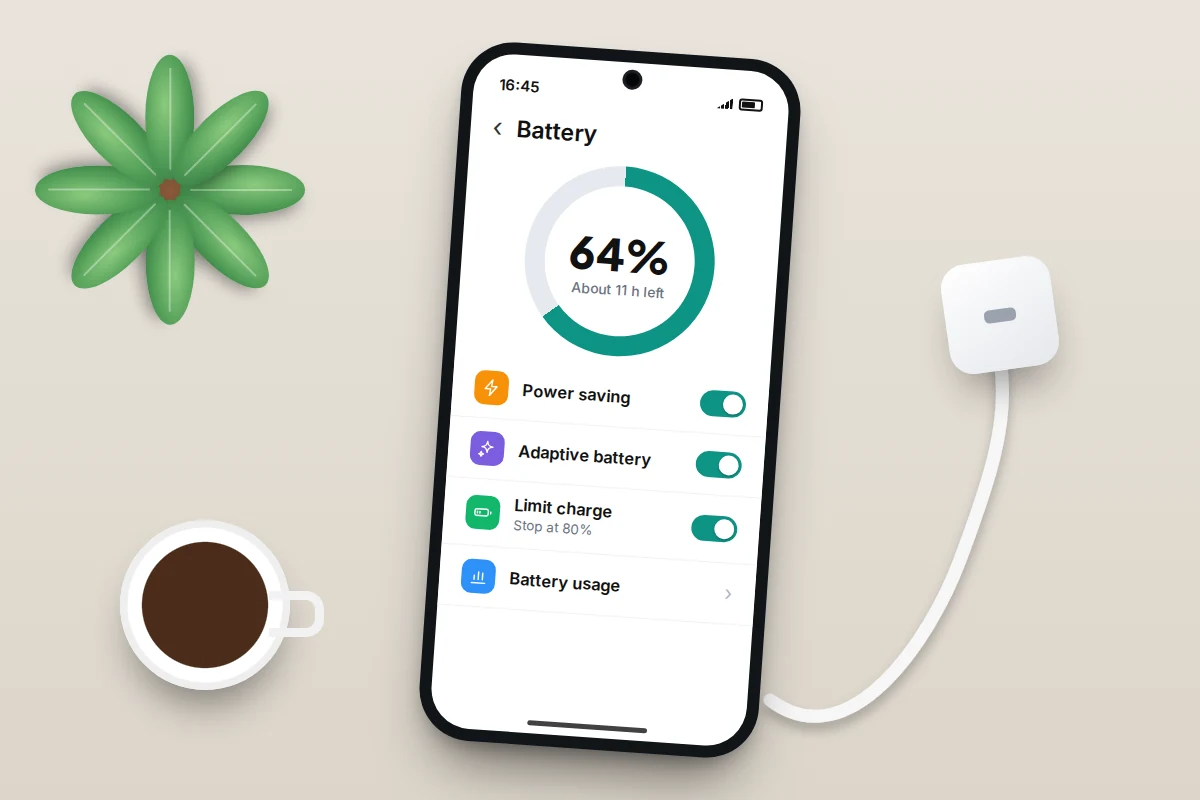
- Adaptive Battery (Android). Learns which apps you use and limits the rest. On a Pixel, look under Settings → Battery; its exact position varies by version.
- Battery Saver or Power saving (Android). Settings → Battery → Battery Saver on a Pixel, or Settings → Battery → Power saving on a Samsung. You can schedule it to switch on at a set percentage.
- Low Power Mode (iPhone). Settings → Battery → Power Mode on recent versions of iOS. It reduces background activity such as mail fetch and visual effects. Supported iPhones also offer Adaptive Power there, which makes small adjustments automatically.
- Charging optimisation. This protects long-term health rather than today’s charge. On a Pixel, use Settings → Battery → Battery health → Charging optimisation and choose Adaptive Charging or Limit to 80%. On a Samsung, use Settings → Battery → Battery protection. On iPhone 15 and later, use Settings → Battery → Charging; on earlier models, turn on Optimised Battery Charging in Battery Health & Charging.
What doesn’t help
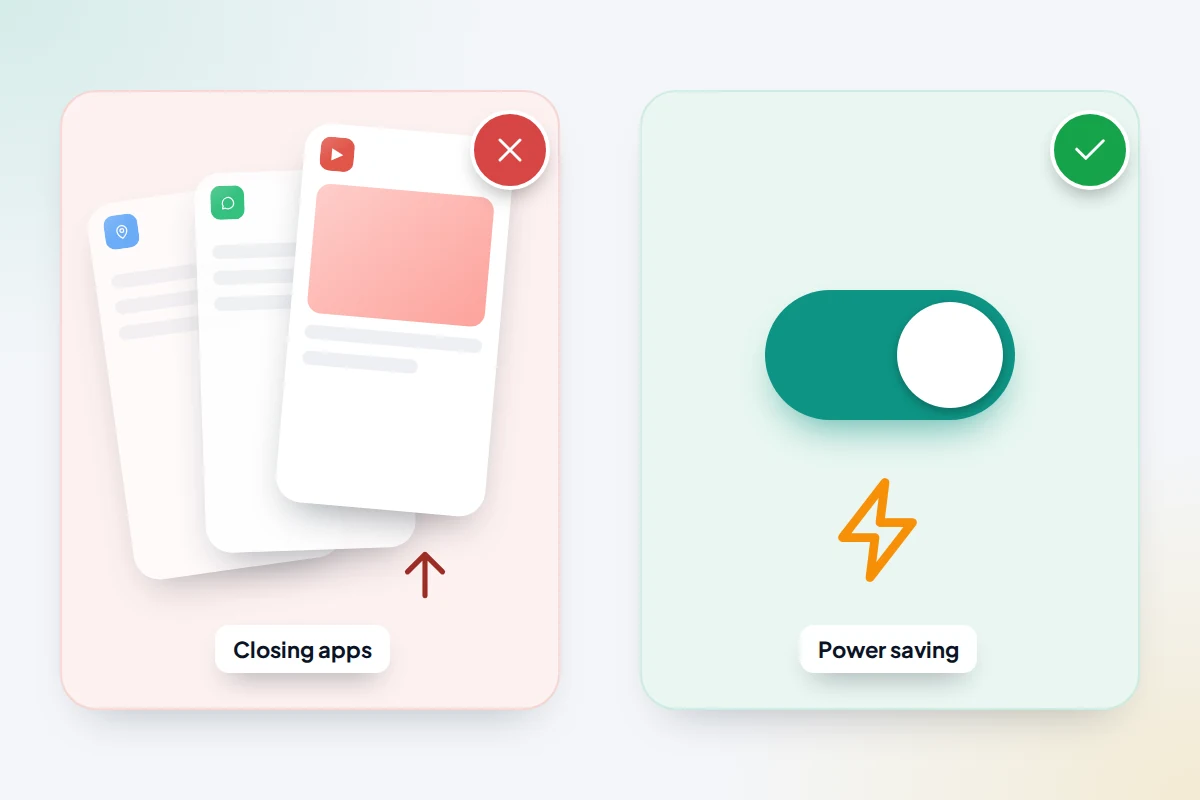
Closing apps all the time. Apple says recently used apps only use power when they are active or doing specific background tasks, and closing them does not improve battery life. Close an app only if it has frozen.
Most “battery saver” or “cleaner” apps. They usually repeat what the phone already does, and many run in the background showing adverts, which uses charge.
Draining to 0% on purpose. Modern phone batteries do not have a “memory” that needs clearing. Regular deep discharges add wear rather than preventing it.
Symptom, likely cause and fix
| Symptom | Likely cause | What to try |
|---|---|---|
| Drains fast only while you use it | Bright screen, high refresh rate, heavy apps | Auto-brightness, shorter timeout, cap refresh rate |
| Loses a lot overnight | Background app, weak signal, location | Check background use in the app list, limit that app, use Wi-Fi |
| Worse since a recent update | Indexing and background tasks | Wait a few days on Wi-Fi and charge, then recheck |
| Worse at work or in one building | Poor mobile signal | Use Wi-Fi there; Aeroplane Mode where there is no signal |
| Phone feels hot when idle | App stuck in the background, charging in a thick case, sun | Find the app in battery usage, remove case while charging, keep out of sun |
| Shuts down at 15–30% | Worn battery, cold weather | Check battery health; consider replacement |
| Not full after a night on charge | Faulty cable, adapter or dirty port; or an 80% limit switched on | Try another cable and adapter, check the port, check charging settings |
What if nothing explains the drain?
If the drain still makes no sense, restart the phone, install pending system and app updates, and uninstall apps you no longer use. If it continues, contact the manufacturer; a hardware fault is possible even when battery health looks fine.
Occasionally, heavy unexplained drain alongside other oddities, such as the phone being warm when idle, unusual data use, or apps and settings you did not add, can point to unwanted software. That is rare, and most drain has an ordinary cause. If several of those signs appear together, our guide on how to tell if a phone has spyware explains what to check calmly and what to do next.
Frequently asked questions
Is it bad to charge my phone overnight?
Not with modern phones. They stop charging when full, and features such as Optimised Battery Charging, Adaptive Charging and Samsung’s battery protection hold the charge at a lower level until shortly before you usually unplug. Keep the phone somewhere it can stay cool, not under a pillow.
Does dark mode save battery?
On phones with OLED screens, dark areas of the display use less power, so dark theme can help, particularly at high brightness. Google lists it among its battery tips. On LCD screens the difference is small.
Why does my phone die faster in cold weather?
Cold slows the chemistry inside the battery, so it cannot deliver as much power, and older batteries may shut down with charge still showing. The effect is usually temporary. An inside pocket helps.
How long should a phone battery last before it needs replacing?
It depends on how many charge cycles it goes through and how hot it gets. As a rough guide, many people notice a real drop after two to three years of daily use. The health reading on your phone is a better guide than age alone.
Should I replace the battery or the phone?
If the phone still gets security updates and does what you need, a new battery is usually far cheaper than a new phone. If updates have stopped, replacing the phone is often the better choice.
Sources and further reading
- Apple Support: If the battery in your iPhone or iPad drains too quickly
- Apple Support: iPhone battery and performance (Battery Health explained)
- Apple: Maximising battery life and lifespan, including temperature guidance
- Apple Support: Close an app on iPhone
- Pixel Phone Help: Get the most life from your Pixel phone battery
- Android Help: Fix battery drain issues
- Samsung Support: Get the most out of your Galaxy phone or tablet battery
- Samsung Support: How to check the battery status on your Galaxy phone
Looking for a tool to go with this? TheTruthSpy is a free parental control app for Android that stays visible on the child's phone. If it fits your family, see what the app does.
Related guides
What to Do If Your Phone Gets Wet
Dropped your phone in water? What to do in the first five minutes, hour and day, what IP68 really means,…
Phone Not Charging? How to Find the Cause and Fix It
A ten-minute elimination test for a phone that won't charge: cable, adapter, port, software and battery, plus what liquid, heat…
Why Is My Phone Overheating? Causes and Fixes
Warm, hot or dangerous? Why phones heat up when charging, gaming or in the sun, how to cool one safely,…
Parental controls your child can see
Location, screen time limits, a web filter and alerts from notifications — free, and visible on your child's phone. Pair a phone in about ten minutes.
Android · Free to set up · Visible on your child's phone