Searching Old Texts: Finding Any Message in Your SMS History

To search your text message history, open your messaging app and use the search bar above the conversation list. In Google Messages, type a word or pick a filter such as Starred, Images or Links. In iPhone Messages, swipe down on the conversation list to reveal Search, then narrow it to one person. The best search word is the rarest one the message is likely to contain.
That finds most texts in seconds. When it doesn’t, the reason is usually one of three things: the wrong search word, a conversation tucked away in Archived or Trash, or a message that lives on a different device from the one in your hand. This guide covers each app’s search, then works through what to do when nothing turns up.
Where your texts live decides what search can find
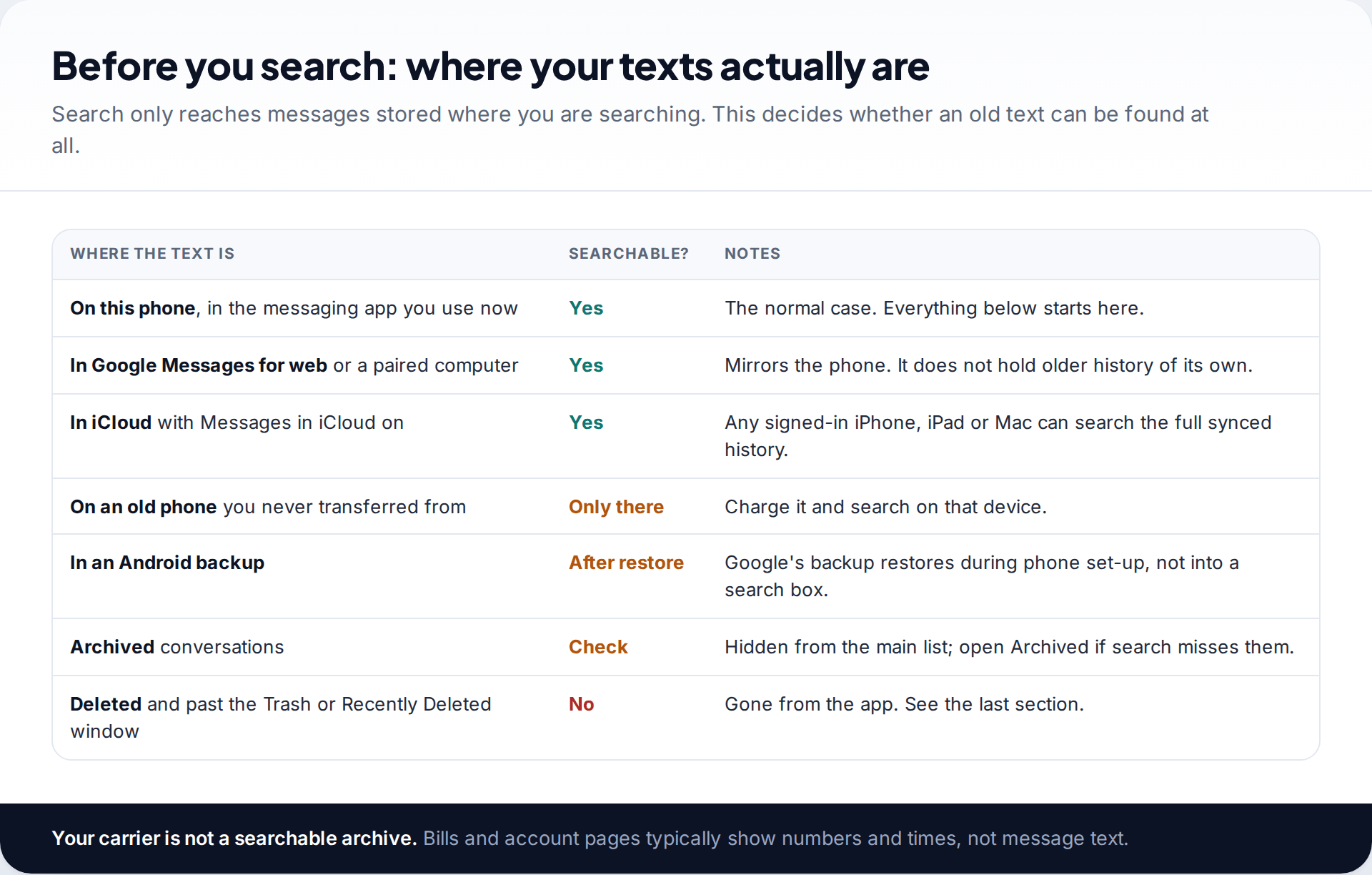
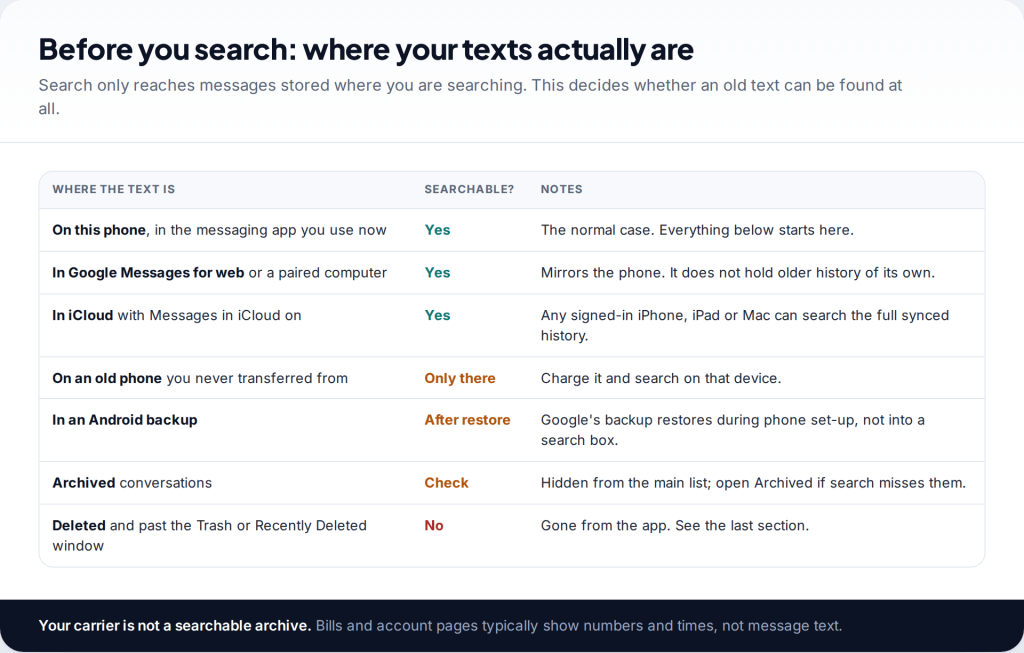
A search box only looks at messages stored in that app on that device, or synced to it. That sounds obvious, but it explains most “missing” texts. If you switched from an old phone without transferring messages, the history is still on the old phone. If you use an iPhone with Messages in iCloud turned on, your whole history is in iCloud and any signed-in Apple device can search it. Google Messages for web is different: it mirrors the phone, so it can’t find anything the phone doesn’t hold.
Backups are not searchable either. Google’s help explains that SMS, MMS and RCS messages in Google Messages are backed up with your phone, but restoring them happens while you set up a new phone or after a factory reset. There is no way to browse or search a backup in place.
Google Messages: search text message history across every chat
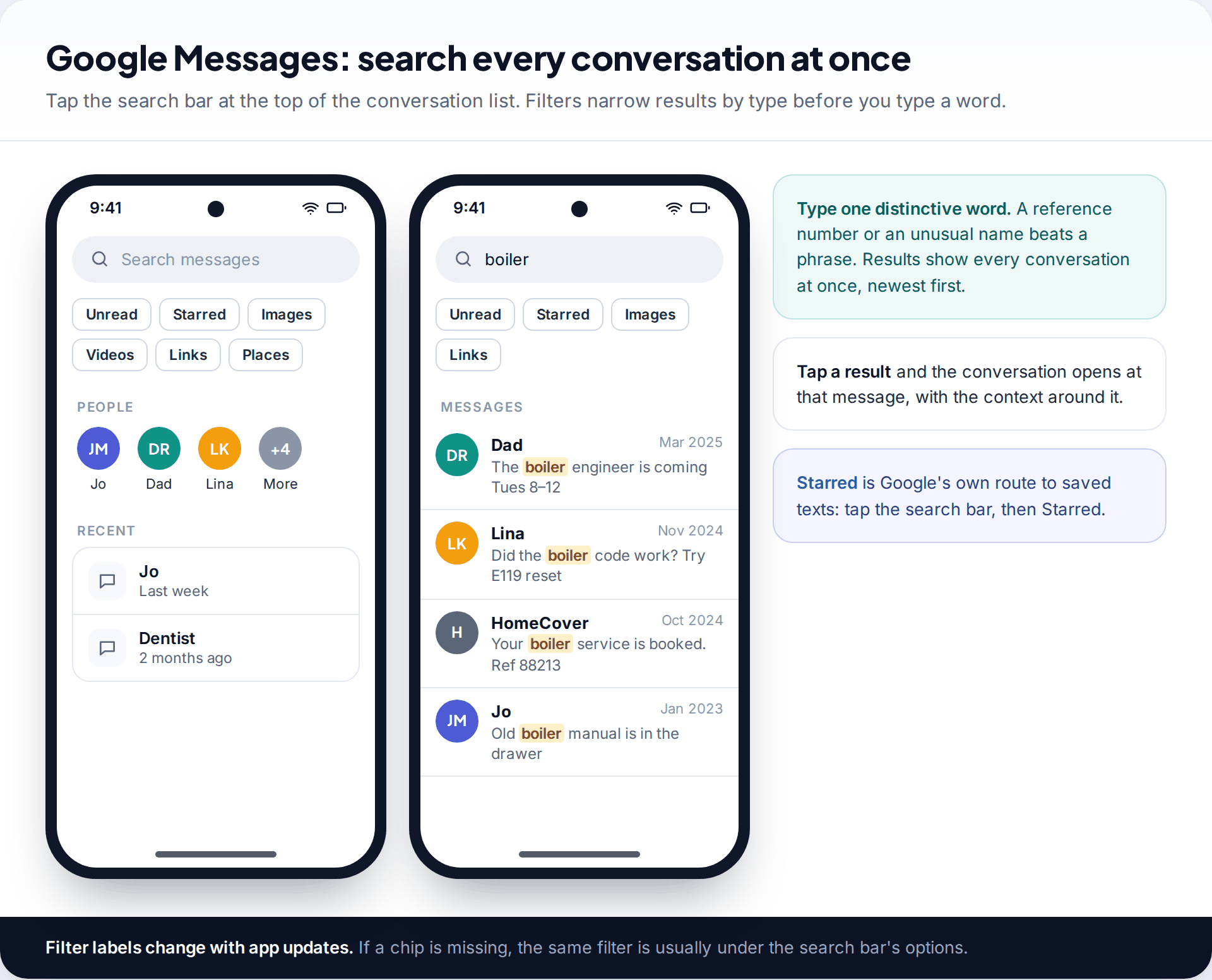
Google Messages is the default texting app on Pixel phones and many other Android handsets. The search bar sits at the top of the conversation list. Tap it and you’ll see recent contacts and a row of filters. The exact set varies with the app version, but Starred, Images, Videos, Links and Places are typical. Type a word and results appear from every conversation, each showing the sender, a snippet and a date. Tap one to open the conversation at that message.
Filters are underused. If you remember that someone sent you a link to a holiday cottage, picking the Links filter and typing the town will beat searching every text for the town’s name. The same goes for photos: the Images filter shows pictures by conversation, which is often quicker than scrolling a chat.
If you save important texts as you go, starring is the best habit to get into. Google’s help says you tap and hold a message and tap the star; to find starred texts later, tap the search bar and choose Starred, or use More options › Starred.
Searching inside one conversation
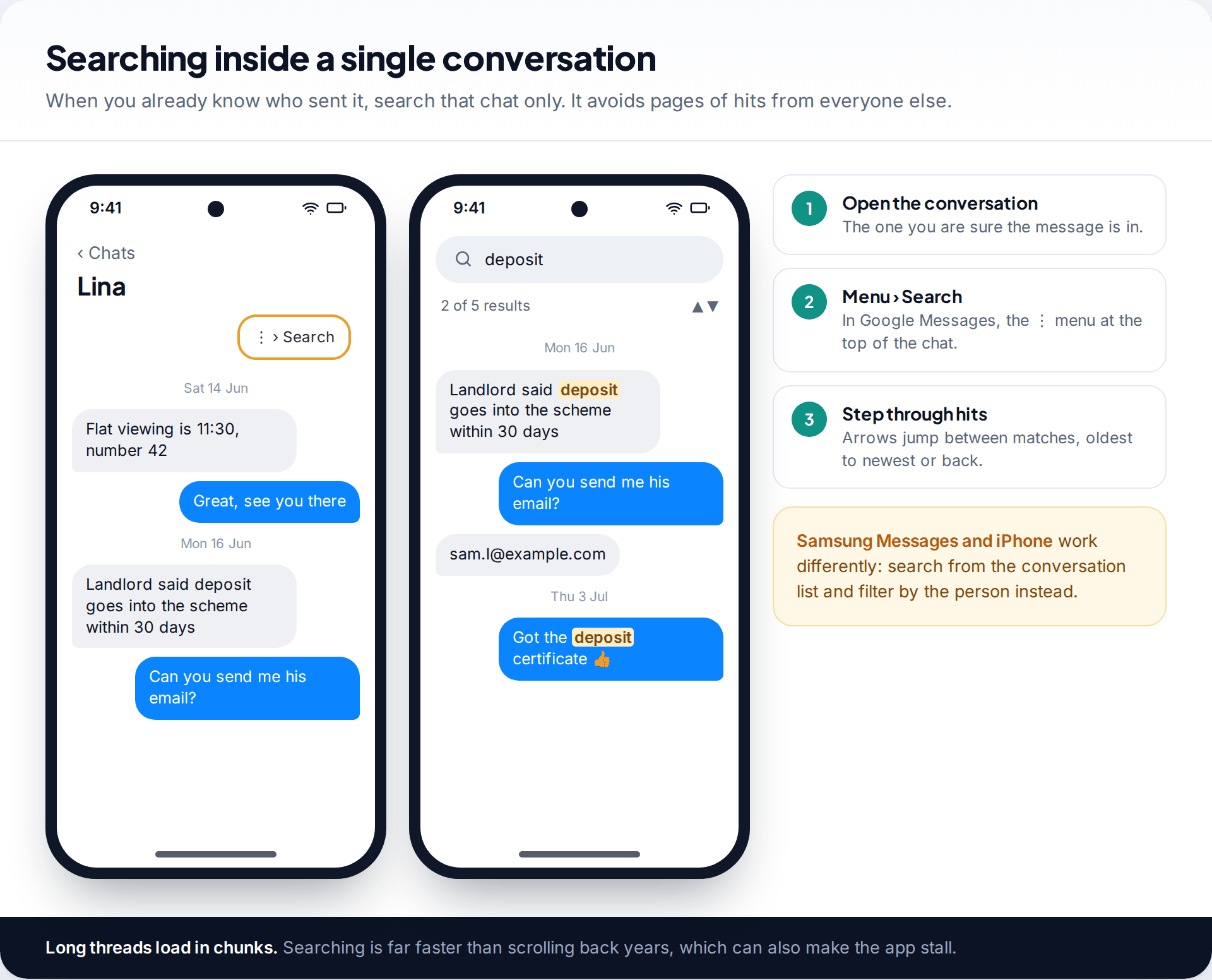
When you know who sent the message, searching everything produces noise. Open the conversation instead and use the menu (⋮) at the top: most versions of Google Messages offer Search there. Matches are highlighted in place, and arrows move you between them. You also see the messages either side, which is usually what you need.
This is much faster than scrolling. A thread going back several years loads in chunks, and dragging your way up can stall the app. On Samsung Messages and iPhone the approach differs slightly: you search from the main list, then narrow the results to one person.
Archived and deleted conversations in Google Messages
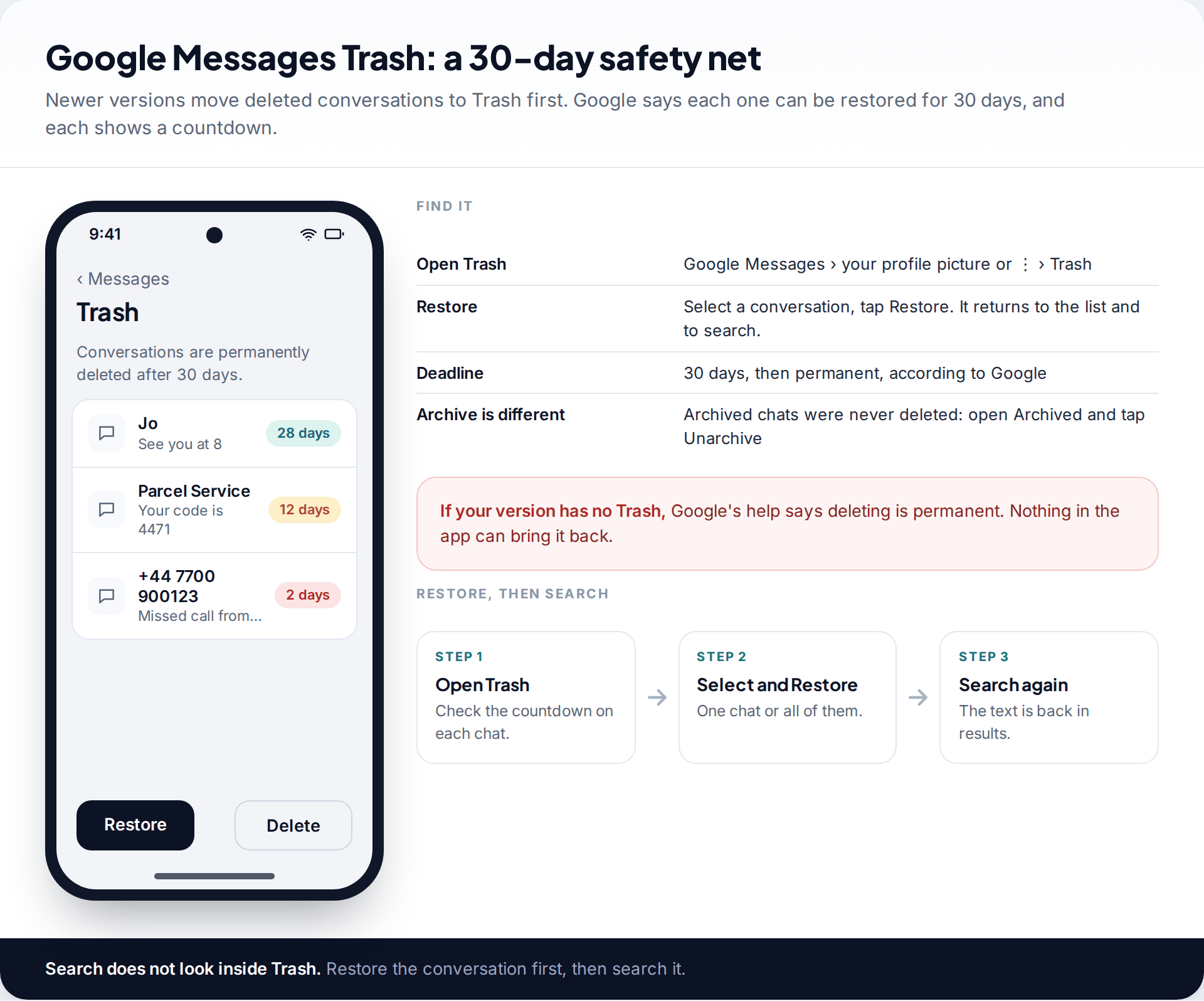
Archiving hides a conversation from the main list without deleting it. Google says archived conversations can still be read, and sending a new message to that person brings the chat back automatically. If search seems to miss someone, open Archived from the menu and tap Unarchive.
Deleted conversations are a different matter. Newer versions of Google Messages have a Trash folder, reached from your profile picture or the ⋮ menu. Google’s help says you can restore conversations from Trash within 30 days, each conversation shows how many days it has left, and anything removed from Trash can’t be recovered. Search doesn’t look inside Trash, so restore the conversation first. Older versions without Trash treat deletion as permanent; Google’s archive-and-delete help says so plainly.
Samsung Messages
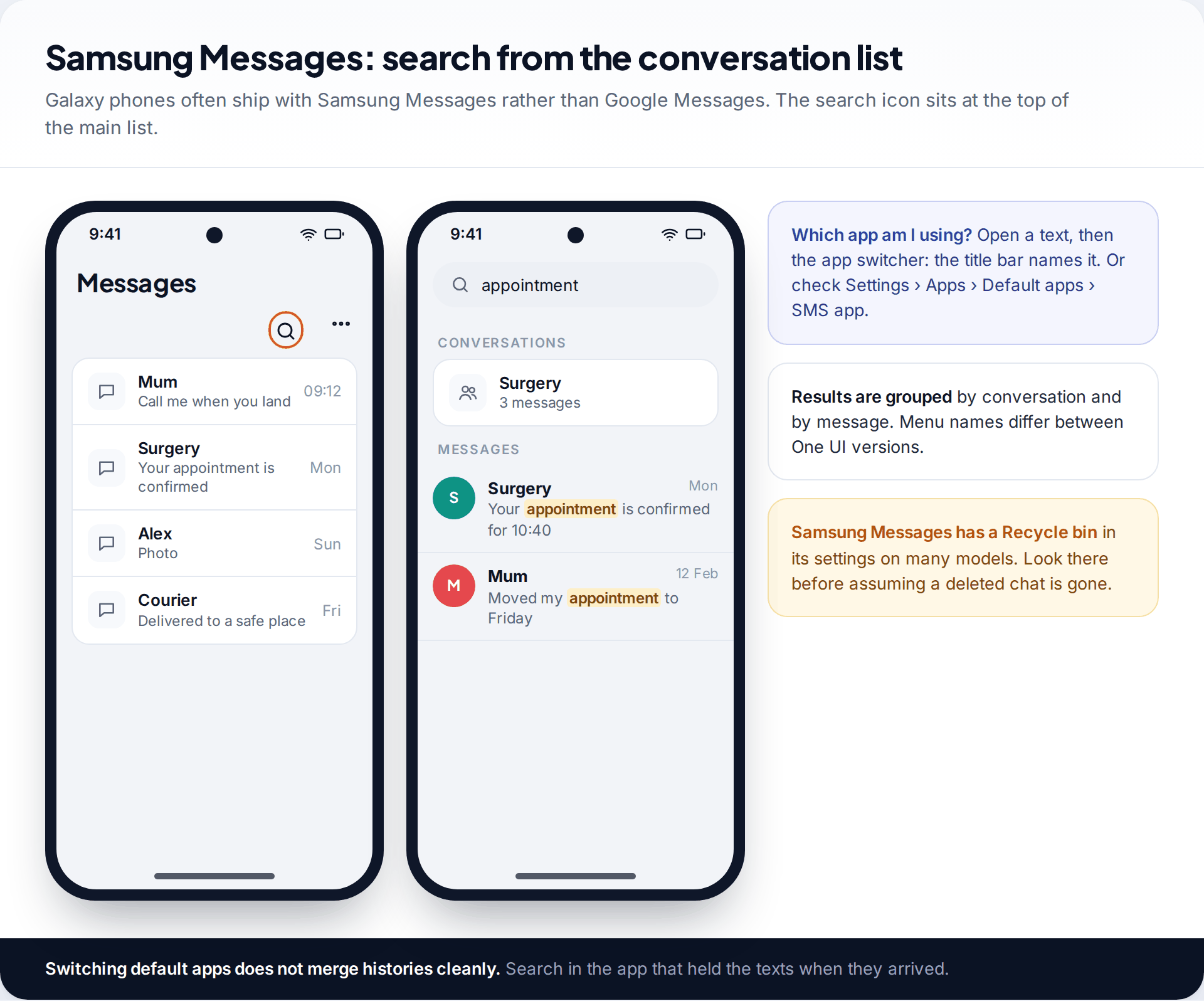
Many Galaxy phones use Samsung’s own Messages app. Tap the magnifying glass at the top of the conversation list and type. Results are grouped into conversations and individual messages. Menu names shift between One UI versions, so if a screen doesn’t match what you see, look for the same icon rather than the same words.
First make sure you’re searching in the right app. If you’ve switched between Samsung Messages and Google Messages, each may hold part of your history. Check which app is your default at Settings › Apps › Default apps › SMS app, and search the other one too if a text seems to have vanished. Many Samsung models also have a Recycle bin in the Messages app’s settings, which is worth opening before you assume a deleted chat is gone.
iPhone Messages: search and narrow by person
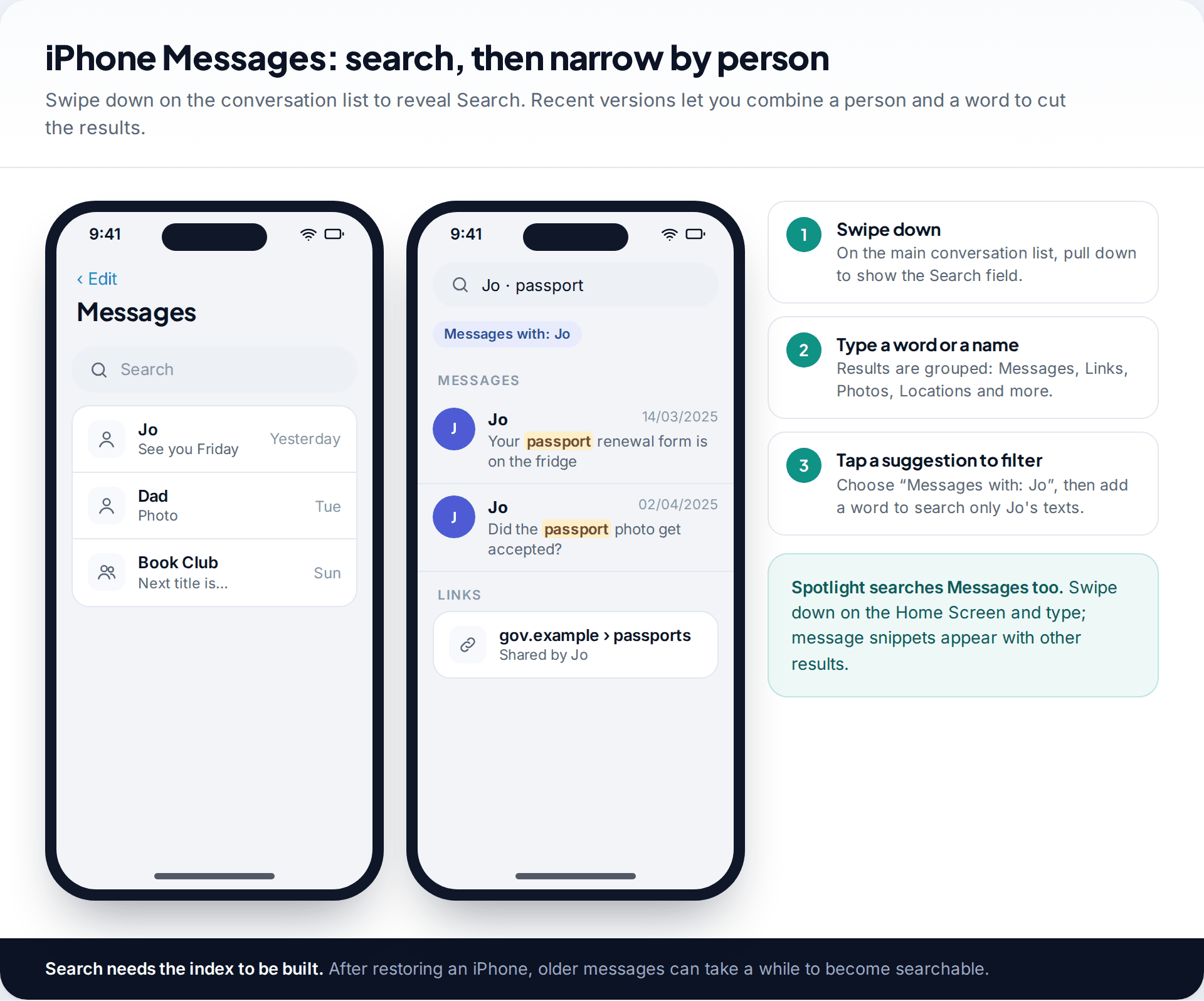
On iPhone, open Messages and swipe down on the conversation list to reveal the Search field. Results are grouped into sections such as conversations, messages, links, photos and locations. On recent versions of iOS you can filter as you type: choose a suggestion such as “Messages with” a person, then add a word, and only that person’s texts that contain it are shown.
Spotlight is a second route. Swipe down on the Home Screen and type; message snippets appear with other results. It’s handy when you can’t remember whether something came as a text, an email or a note.
After restoring an iPhone or setting up a new one, older messages can take a while to become searchable while the phone downloads and indexes them. If search misses a text you can see by scrolling, give the phone time on Wi-Fi and power, then try again.
Using a Mac and iCloud for years of iMessages
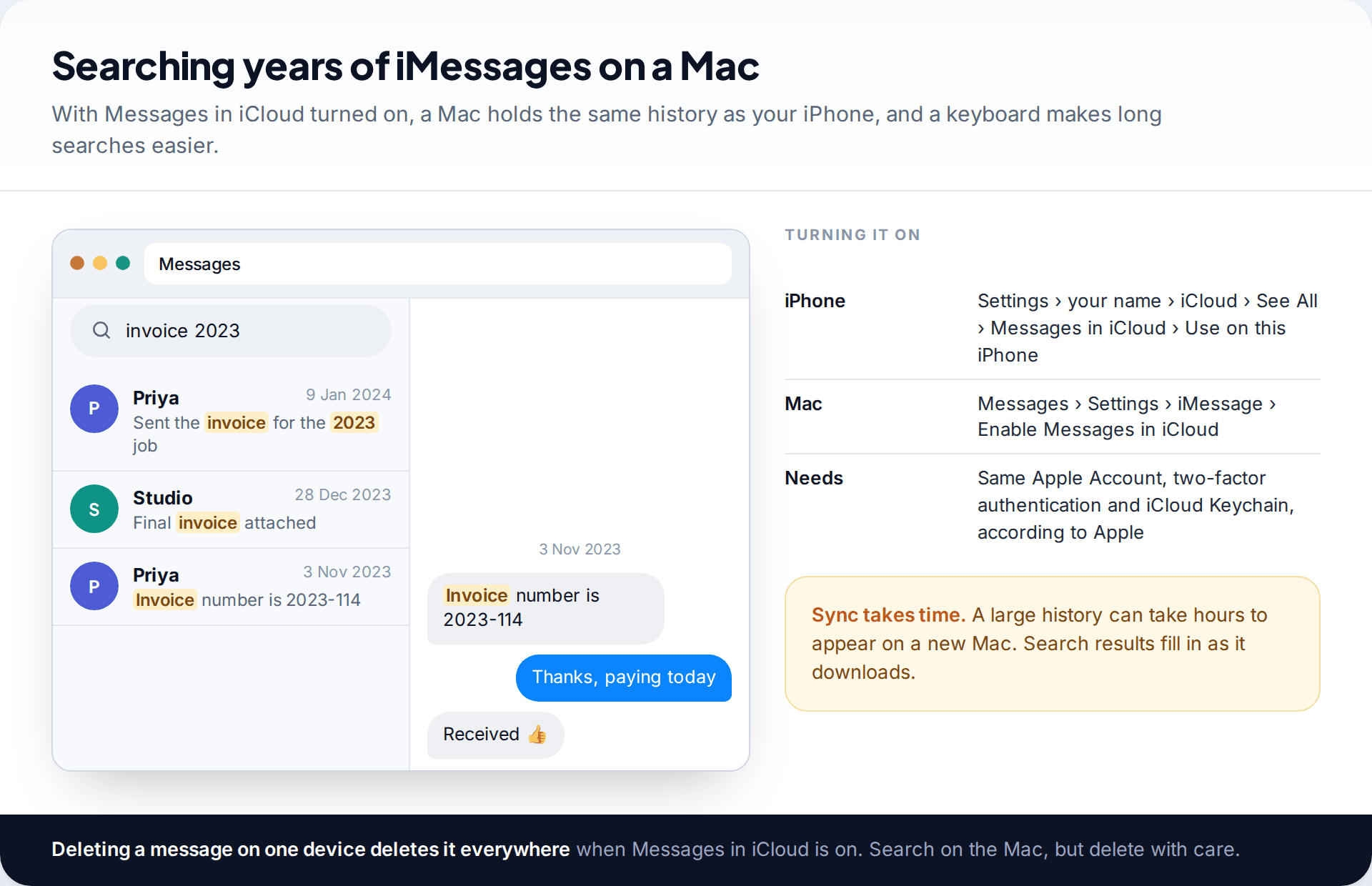
With Messages in iCloud turned on, your entire message history lives in iCloud and syncs to every Apple device signed in with the same Apple Account. Apple’s path on iPhone is Settings › your name › iCloud › See All › Messages in iCloud, then turn on Use on this iPhone. On a Mac it is Messages › Settings › iMessage › Enable Messages in iCloud. Apple lists two-factor authentication and iCloud Keychain as requirements.
A Mac is the most comfortable place to search a long history. The search box sits above the conversation list, results show the full snippet, and clicking one jumps to the message with the conversation beside it. One caution: with Messages in iCloud on, deleting a message on one device deletes it on all of them. Search freely, delete carefully.
Search terms that actually find old texts
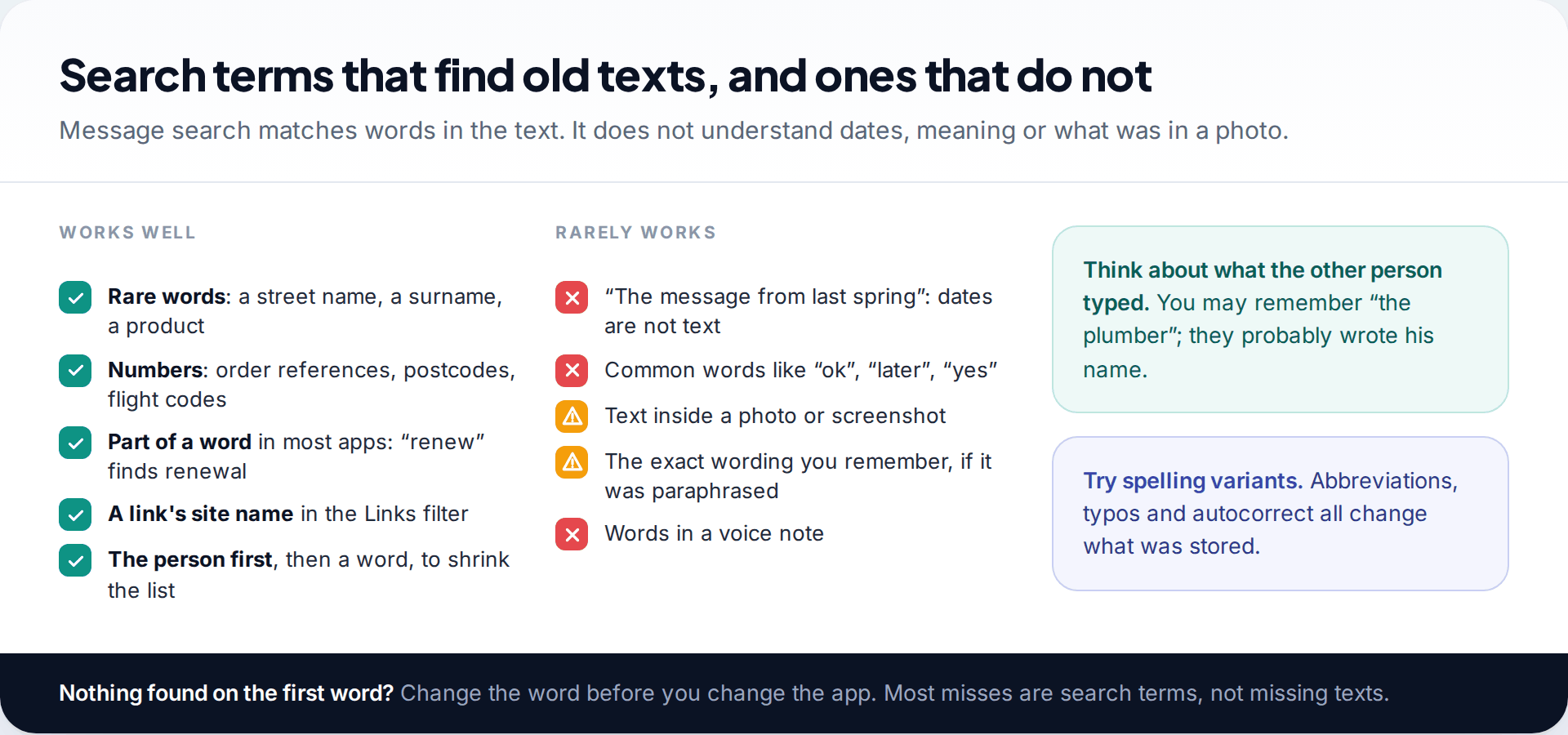
Message search is literal. It matches the words in the text, not the meaning, and it doesn’t search by date. So “the text about the boiler last March” is not a query that works; “boiler” is, and so is the engineer’s surname or the booking reference if you remember any of it.
- Think about what the other person typed. You remember “the plumber”; they probably wrote his first name or his firm.
- Prefer rare words and numbers. Postcodes, order numbers, street names and surnames give short, useful result lists.
- Try variants. Abbreviations, typos and autocorrect change what was stored: “tmrw”, “tomorow” and “tomorrow” are three different searches.
- Use the person filter first when you know who sent it, then a word.
- Use the type filters for links and photos, because the text around them is often brief.
What search can’t reach: words inside photos and screenshots, words in voice messages, and texts in other apps. WhatsApp, Signal and Telegram each have their own search, and SMS tools don’t cover them. If the message you want was a WhatsApp chat you’ve since deleted, our guide to recovering deleted WhatsApp messages from backups covers what is possible.
When the text isn’t there at all
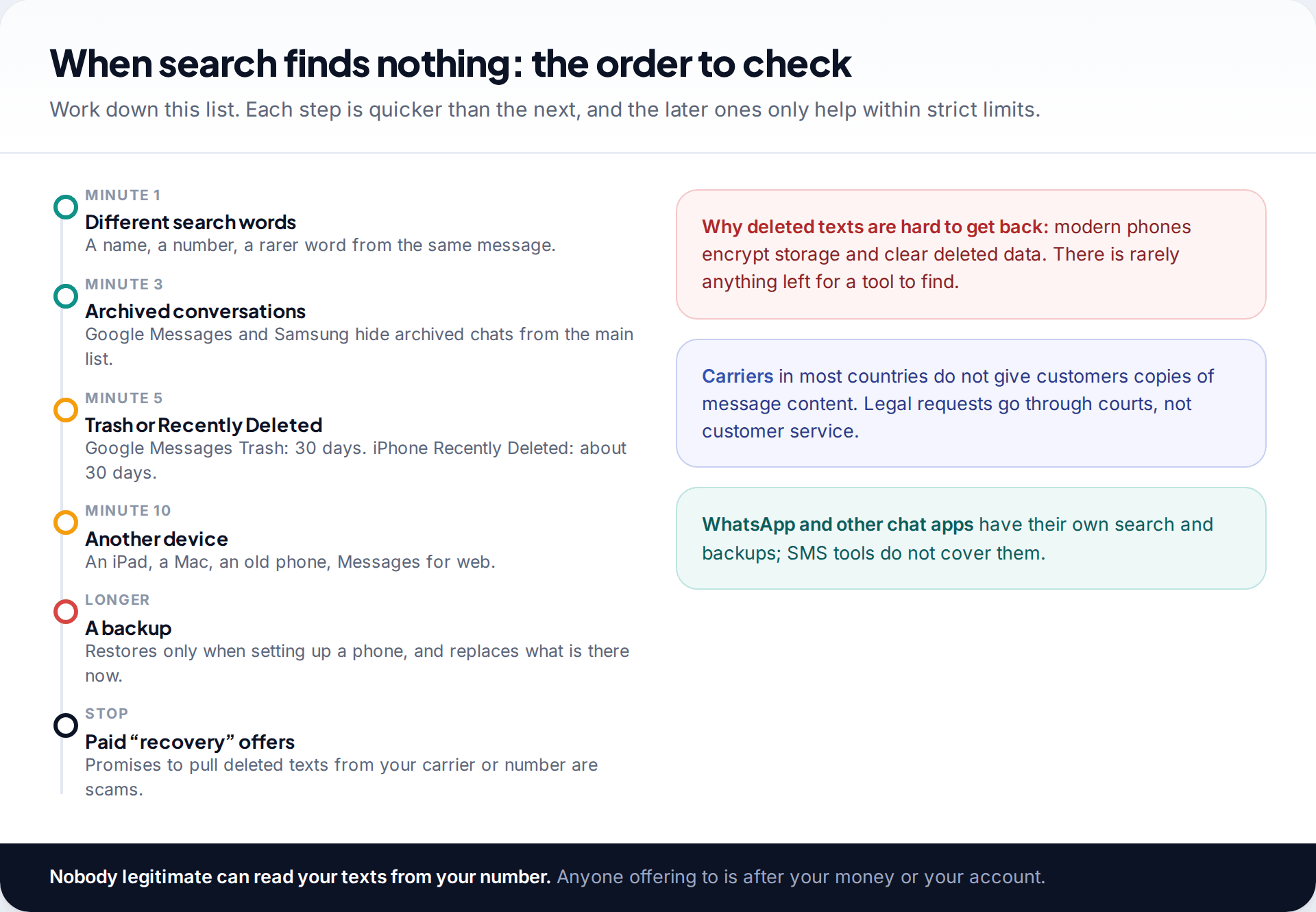
If several different searches find nothing, check places in order of effort. Archived conversations first. Then Trash in Google Messages or the Recycle bin in Samsung Messages. On iPhone, recently deleted messages are kept for about 30 days: in Messages, open the Edit or filter menu at the top of the conversation list and choose Show Recently Deleted (labels differ between iOS versions). Then any other device that may hold the conversation: an iPad, a Mac, an old phone in a drawer.
A backup is the last practical option, and a blunt one. On Android, Google restores messages during phone set-up; on iPhone, restoring an iCloud or computer backup replaces what’s on the phone now. Both can cost you newer messages, so weigh that before you start.
Be wary of “SMS recovery” offers. Modern phones encrypt their storage, and deleted messages are rarely left anywhere a tool can reach. Services claiming to retrieve deleted texts from your carrier or your phone number are not legitimate. Carriers in most countries don’t hand message content to customers; where records can be obtained at all, it is through a legal process.
Making the next search easier
Most people search their texts for the same few kinds of thing: codes, addresses, booking references and arrangements. A few small habits save the hunt next time.
- Star or pin as you go. A starred text in Google Messages is one tap away under the Starred filter; a pinned conversation stays at the top of the list.
- Copy important details out. A tenancy deposit reference or a warranty number belongs in a note or an email to yourself, where it will outlive a phone change.
- Transfer history when you change phones. Use the transfer offered during set-up, or turn on Messages in iCloud on iPhone, so the old history comes with you.
- Don’t clear old threads to save space without checking what’s in them. Photos and videos take up the room; text barely does.
How this page was put together
We checked the features and paths described here in September 2026 against Google’s Messages help pages on archiving and deleting, starring, Trash and backups, and Apple’s support pages on Messages in iCloud. Where Google or Apple publish a time limit, such as the 30-day Trash window, it is quoted from their pages.
Messaging apps change their menus often, and Samsung’s app differs across One UI versions, so labels on your phone may not match exactly. Our standards for research and corrections explain how we keep guides like this current.
Common questions
How do I search old text messages on Android?
Open your messaging app and tap the search bar or magnifying glass above the conversation list. In Google Messages, add a filter such as Starred, Images or Links; to search one chat, open it and use the ⋮ menu.
Can I search texts by date?
Not directly in the standard apps; search matches words, not dates. Search for a word you’d expect in the message, then check the dates in the results.
Why can’t I find an old text I know I received?
Usually the search word differs from the stored text, the chat is archived, or the text is on another device or in another app. Try a rarer word and check Archived before assuming it was deleted.
Can my phone company give me my text history?
Typically not the content. Carrier records and bills show numbers, dates and times; message content is not something they provide to customers on request in most countries.
Does iCloud keep my text messages?
Yes, if Messages in iCloud is on. Your history then syncs to all devices signed in to the same Apple Account and can be searched from any of them.
Can deleted texts show up in search?
No. Restore them first from Trash in Google Messages or Recently Deleted on iPhone, within the roughly 30-day window, and they become searchable again.
Looking for a tool to go with this? TheTruthSpy is a free parental control app for Android that stays visible on the child's phone. If it fits your family, see what the app does.
Related guides
Why Is My Phone Overheating? Causes and Fixes
Warm, hot or dangerous? Why phones heat up when charging, gaming or in the sun, how to cool one safely,…
How to Transfer Photos From Your Phone to a Computer
The best way to copy photos from iPhone or Android to Windows or Mac, what happens to HEIC files, dates…
How to Back Up WhatsApp Chats
Set up WhatsApp backups on Android and iPhone, keep an encryption key safe, check the backup exists, and fix the…
Parental controls your child can see
Location, screen time limits, a web filter and alerts from notifications — free, and visible on your child's phone. Pair a phone in about ten minutes.
Android · Free to set up · Visible on your child's phone