Improve GPS Accuracy on Your Phone: Calibration, Settings and Fixes

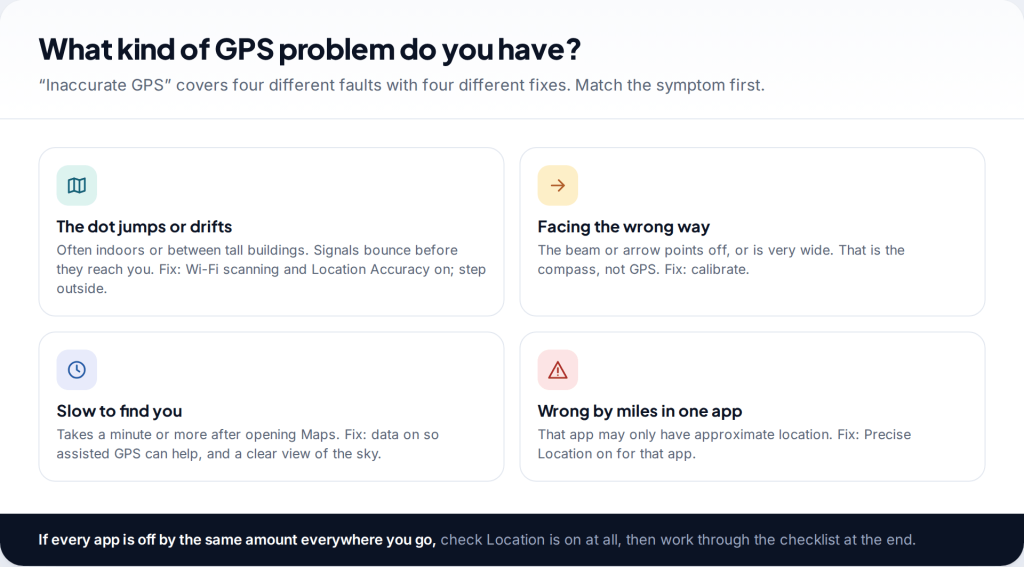
To improve GPS accuracy on a phone, first work out which fault you have. Jumping or drifting usually means weak signals: turn on Google Location Accuracy and Wi-Fi scanning on Android, keep Wi-Fi on, and on iPhone make sure Precise Location is on for the app. A beam pointing the wrong way means the compass needs calibrating. A slow first fix improves with mobile data on, so assisted GPS can help.
To improve GPS accuracy on your phone, start with the symptom
A phone doesn’t rely on GPS alone. It combines satellite signals with nearby Wi-Fi networks, mobile masts, Bluetooth and motion sensors, and a compass for direction. When the blue dot misbehaves, one of those inputs is usually missing or confused. Settings changes fix most of it; your surroundings decide the rest.
Identify the pattern before changing anything. If the dot wanders around a building, that is signal loss or reflection. If the position is right but the arrow points the wrong way, that is the compass. If Maps takes a long time to find you after the phone has been off or abroad, that is a slow first fix. And if one app is miles out while others are fine, that app may only have permission to see your approximate location.
Android: Google Location Accuracy and scanning
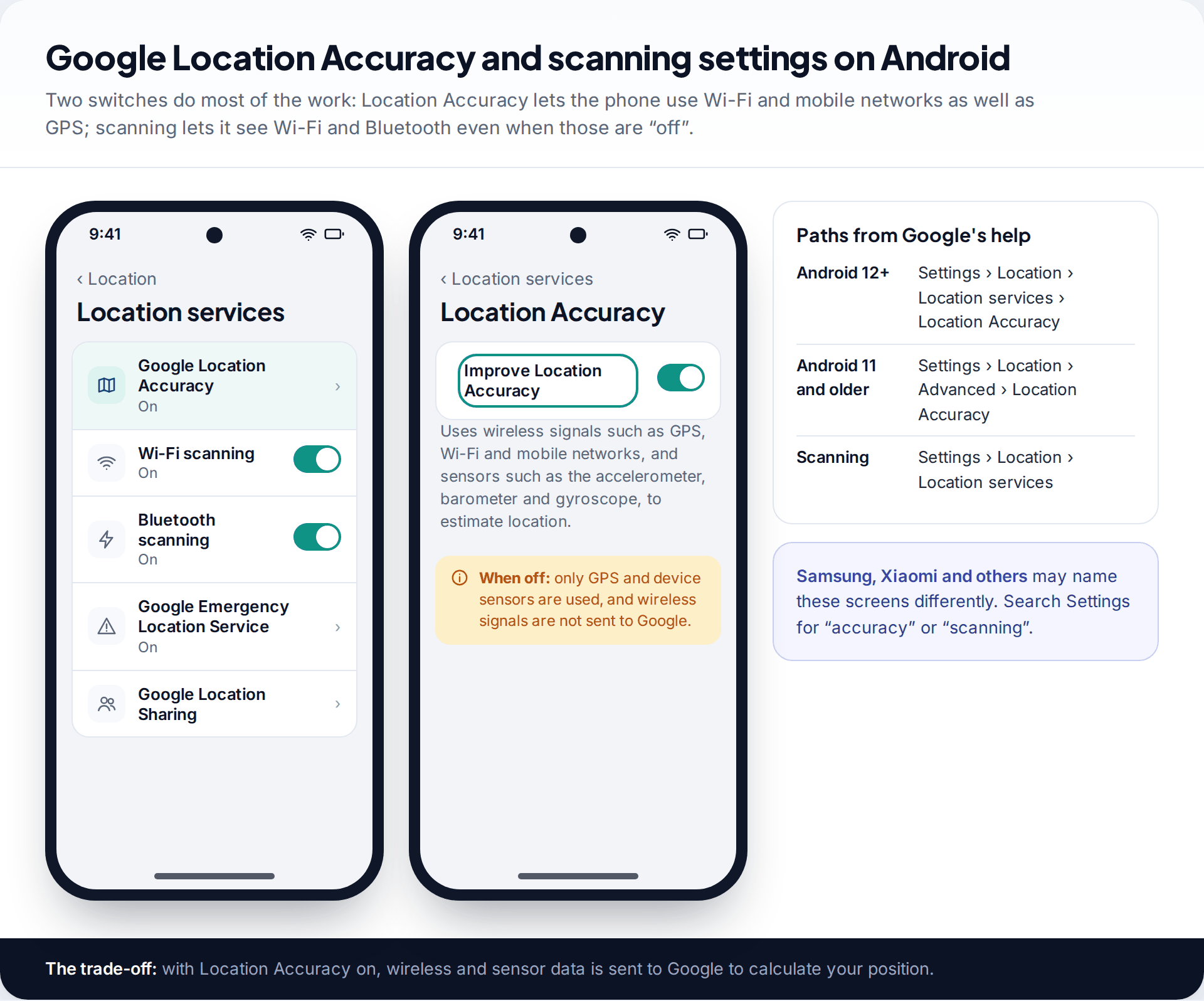
The single most useful switch on Android is Google Location Accuracy. Google’s help page explains that with it on, the phone estimates location using GPS, Wi-Fi and mobile networks, plus sensors such as the accelerometer, barometer and gyroscope. With it off, only GPS and device sensors are used, and wireless signals aren’t sent to Google. On Android 12 and later it is at Settings › Location › Location services › Location Accuracy, with a toggle labelled Improve Location Accuracy. On Android 11 and earlier, look under Settings › Location › Advanced.
In the same Location services screen are Wi-Fi scanning and Bluetooth scanning. These let apps and services look for nearby networks and devices even when Wi-Fi or Bluetooth is switched off, which helps a great deal indoors, where satellite signals are weakest. Leave both on unless you have a specific reason not to.
There is a privacy trade-off to be clear about: Location Accuracy sends wireless and sensor data to Google to work out your position. If you turn it off, expect a slower, less reliable fix indoors. Phone makers rename these screens, so on a Samsung or Xiaomi phone search Settings for “accuracy” or “scanning”.
iPhone: Precise Location and System Services
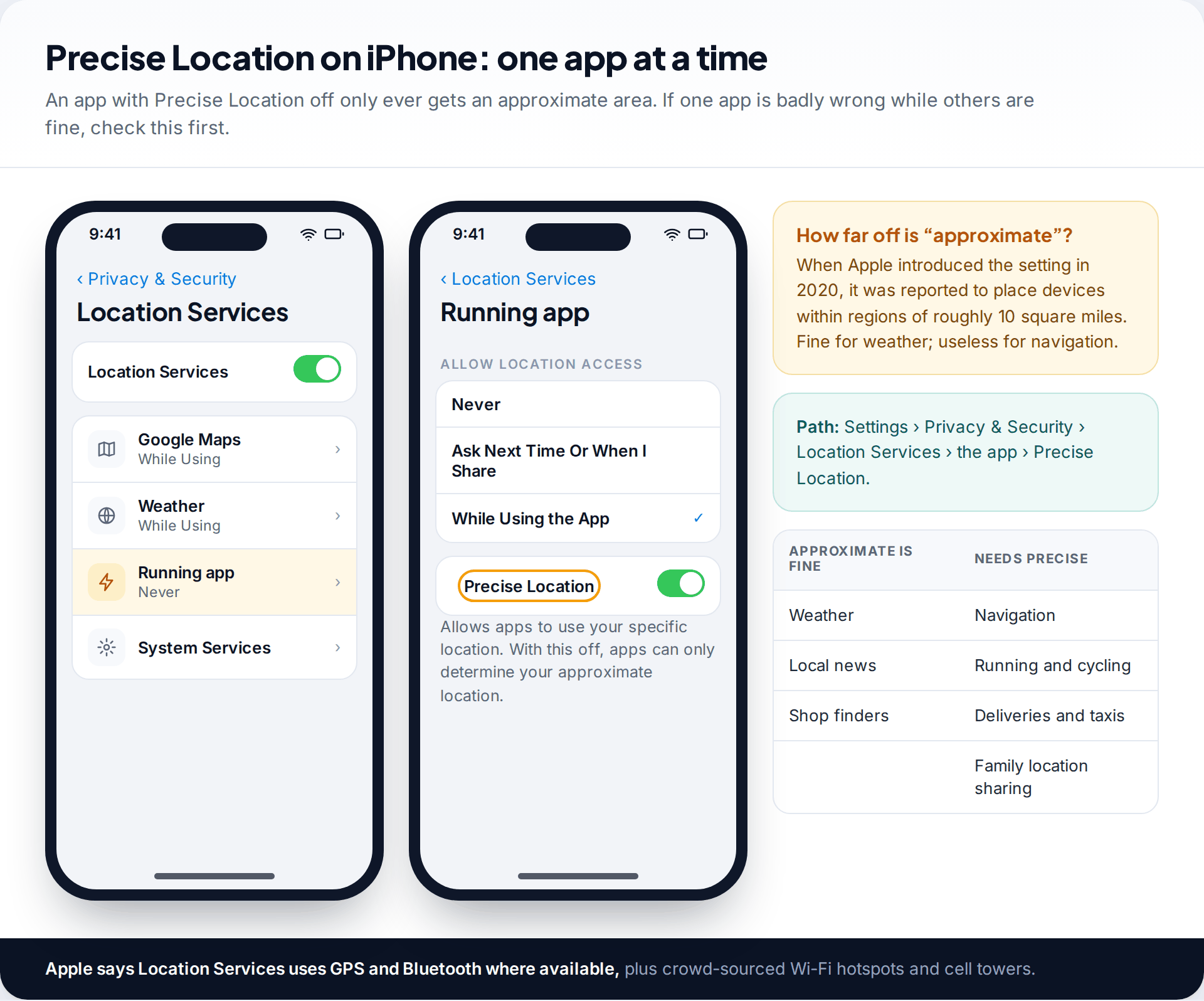
Apple says Location Services uses GPS and Bluetooth where available, along with crowd-sourced Wi-Fi hotspots and cell towers. On an iPhone there is no single accuracy switch; instead each app gets either precise or approximate location. Go to Settings › Privacy & Security › Location Services, tap the app and check Precise Location is on. When Apple introduced approximate location in 2020, it was reported to place devices within regions of roughly ten square miles, which explains why a running or delivery app can seem hopelessly wrong with it off.
Keep Wi-Fi switched on in Control Centre or Settings even when you aren’t connected to a network. The phone uses nearby hotspots to position itself, and this is a big part of why iPhones locate themselves quickly in towns.
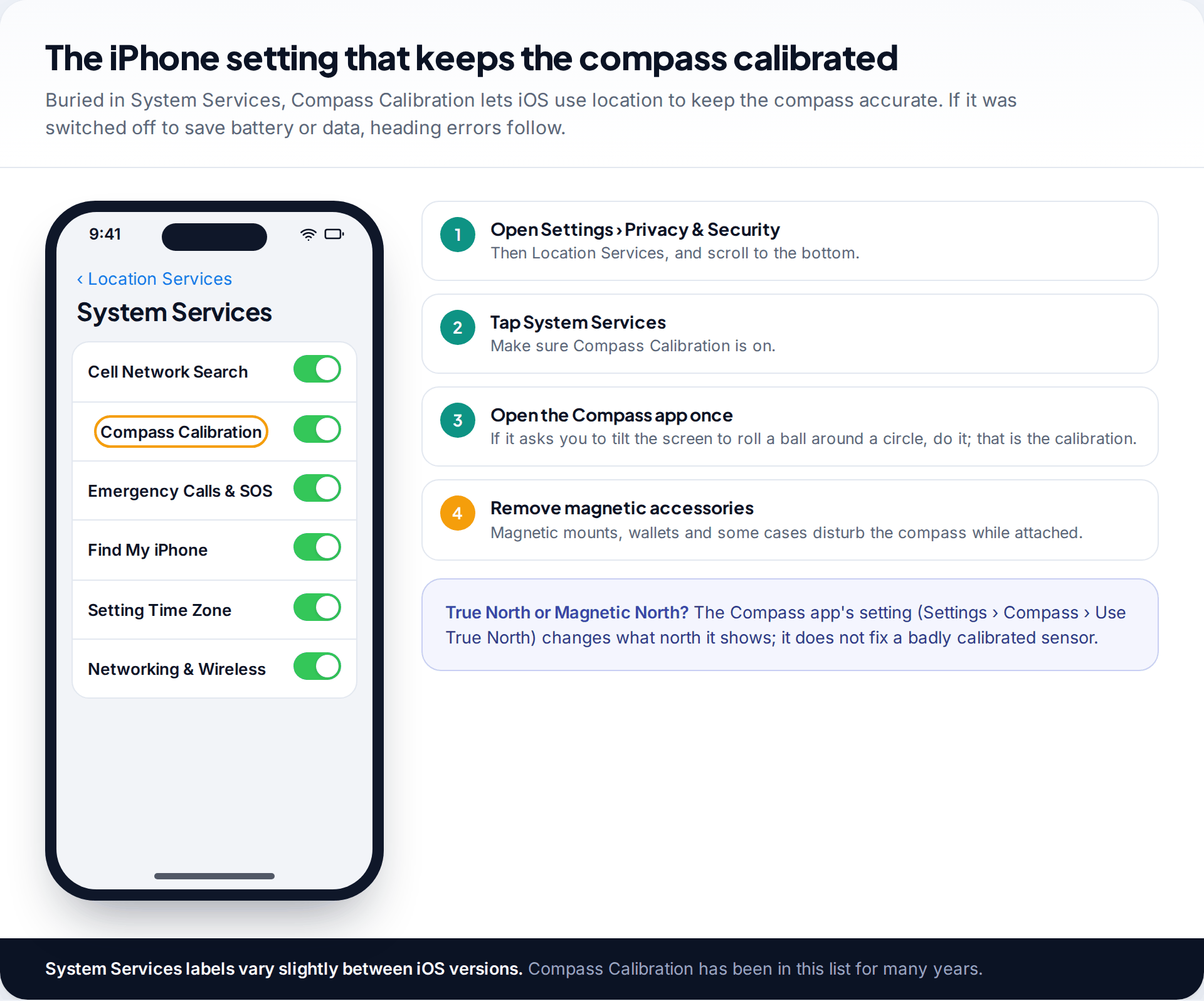
At the bottom of the Location Services list, System Services holds a setting called Compass Calibration. It allows iOS to keep the compass calibrated, and people sometimes turn it off while trimming battery or privacy settings. If your maps app shows the right position but the wrong heading, check it’s on, then open the Compass app; if it asks you to tilt the phone to roll a ball around a circle, that is the calibration.
Calibrate the compass in Google Maps
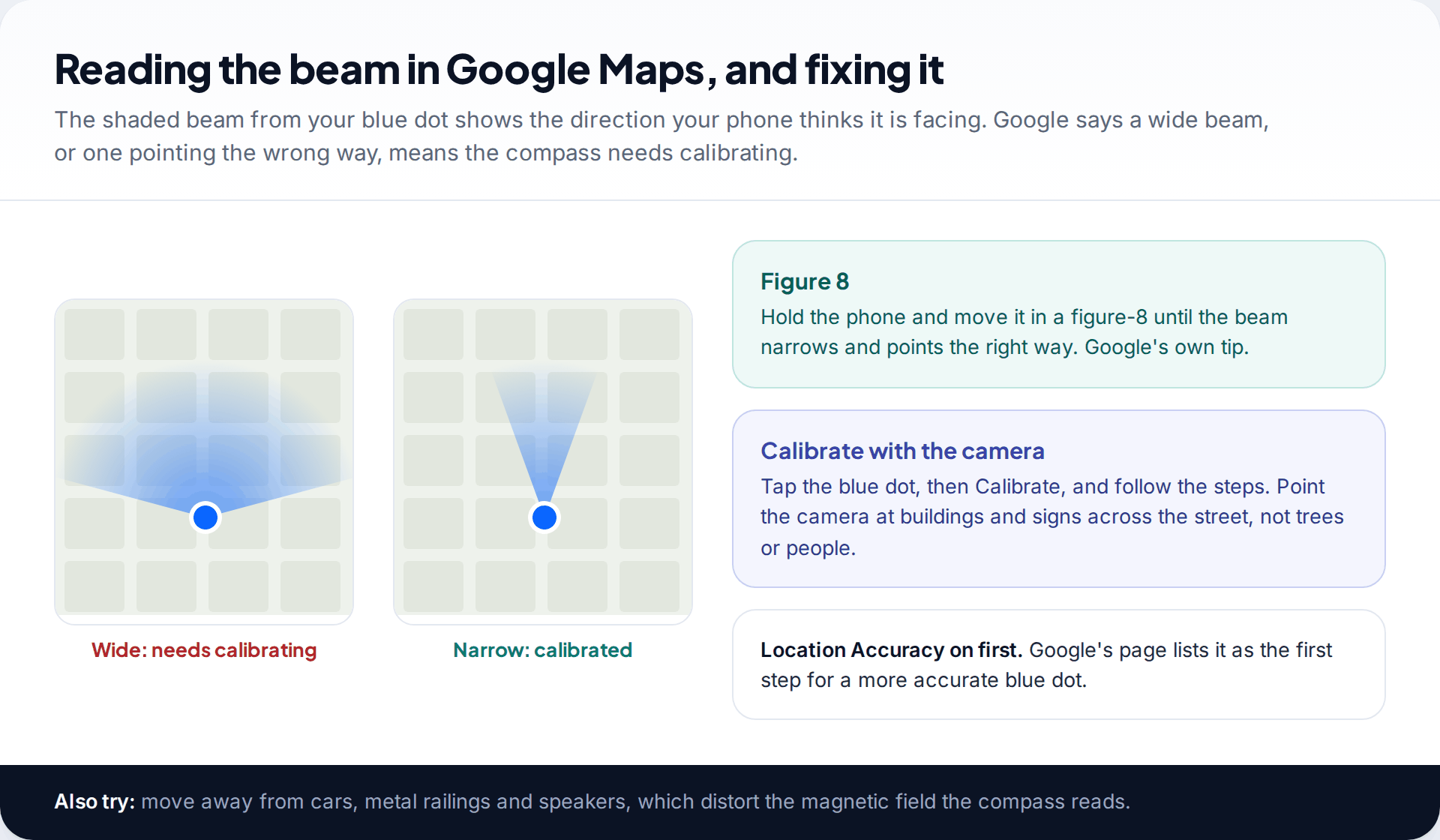
The blue dot in Google Maps has a shaded beam showing which way the phone thinks it is facing. Google’s help page says that if the beam is wide or points the wrong way, you should calibrate your compass. Two methods work. Move the phone in a figure-8 until the beam narrows and points correctly. Or tap the blue dot, choose Calibrate and follow the steps; this uses the camera to recognise the buildings and signs around you, and Google advises pointing it at buildings and signs across the street rather than trees or people.
The compass is a magnetometer, so it’s easily disturbed. Magnetic car mounts, wallet cases with magnetic clasps and even nearby metal railings or speakers can throw it off. Remove the accessory and recalibrate, and the heading usually comes straight back.
Speeding up the first fix: assisted GPS
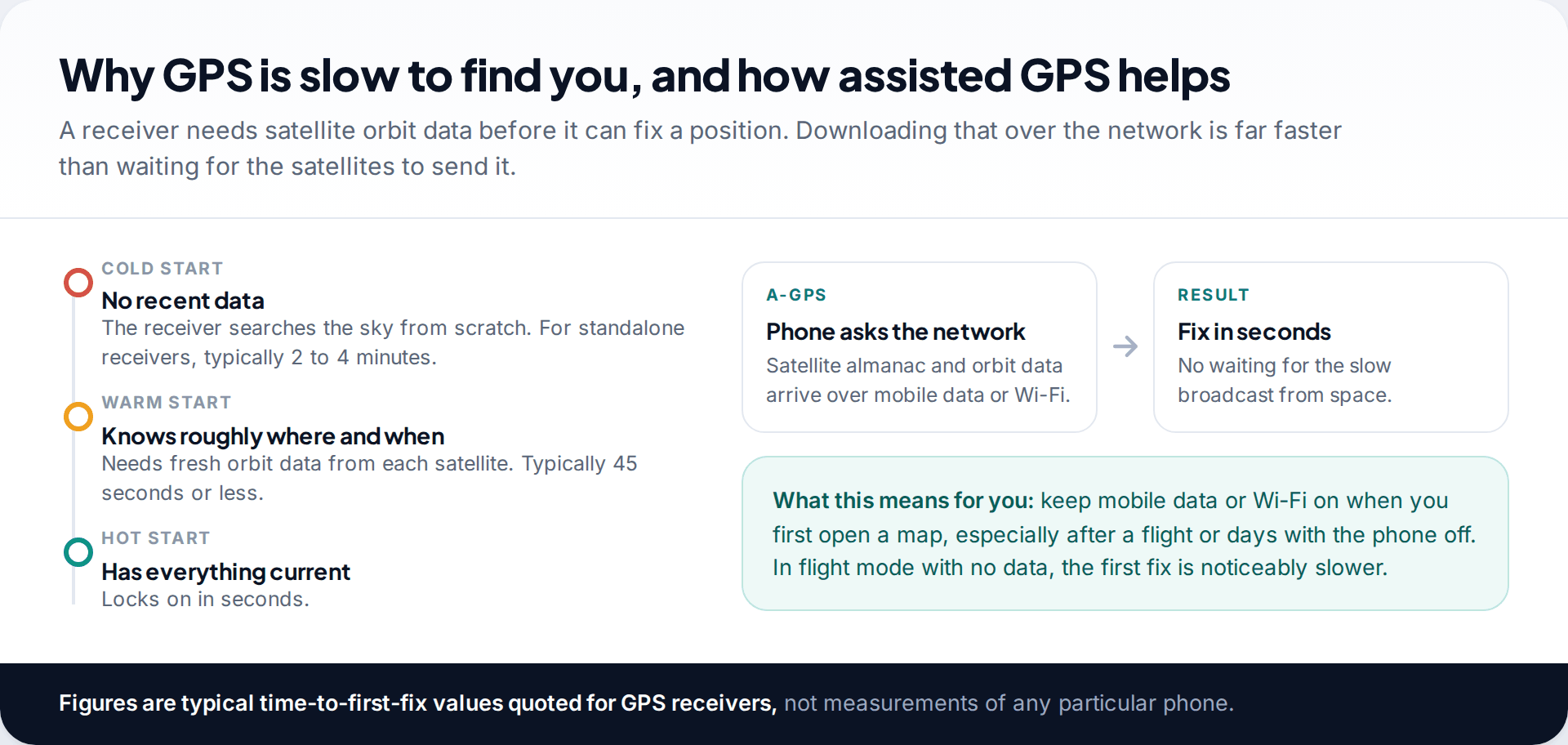
A GPS receiver needs to know where the satellites are before it can work out where it is. Starting from nothing — a “cold start” — a standalone receiver typically takes two to four minutes, because the satellites broadcast that orbit information slowly. Phones avoid most of the wait using assisted GPS, or A-GPS: they download the satellite data over mobile data or Wi-Fi and lock on in seconds.
In practice, if your phone has been off for days, has just landed in another country, or has been in flight mode, give it a data connection and a clear view of the sky when you first open a map. The first fix after that is the slow one; later fixes are quick.
Battery savers and background restrictions
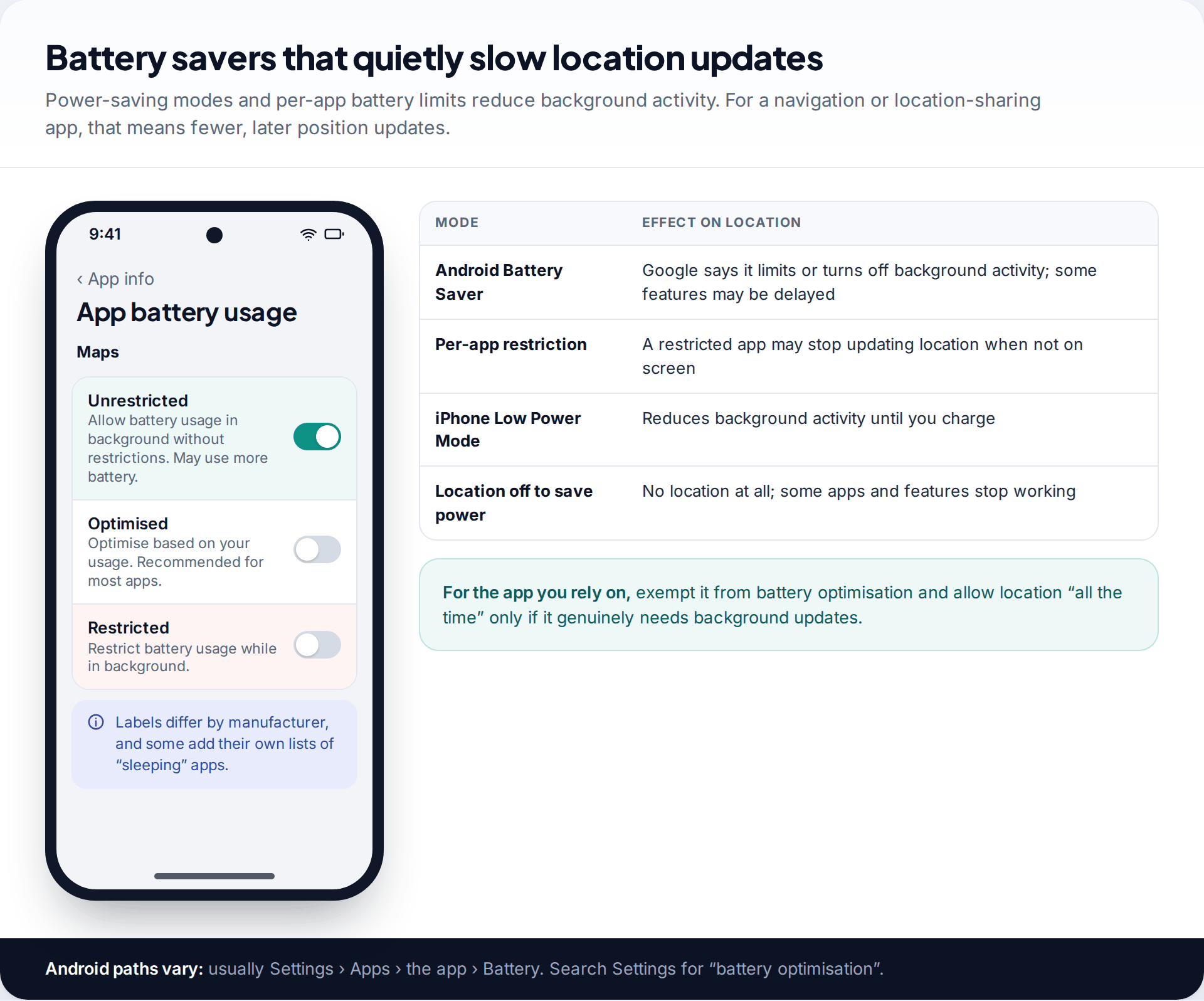
Battery saving is a frequent hidden cause of “GPS lag”. Google’s help pages say Android’s Battery Saver limits or turns off background activity and that some features may be delayed. Per-app settings can go further: an app set to Restricted may stop updating your location entirely when it isn’t on screen. iPhone’s Low Power Mode also reduces background activity until the phone is charged.
For a navigation, fitness or family-sharing app you depend on, open the app’s battery settings (usually Settings › Apps › the app › Battery on Android) and choose the unrestricted option. Only allow location “all the time” if the app genuinely needs to work in the background.
Your surroundings, and what no setting can fix
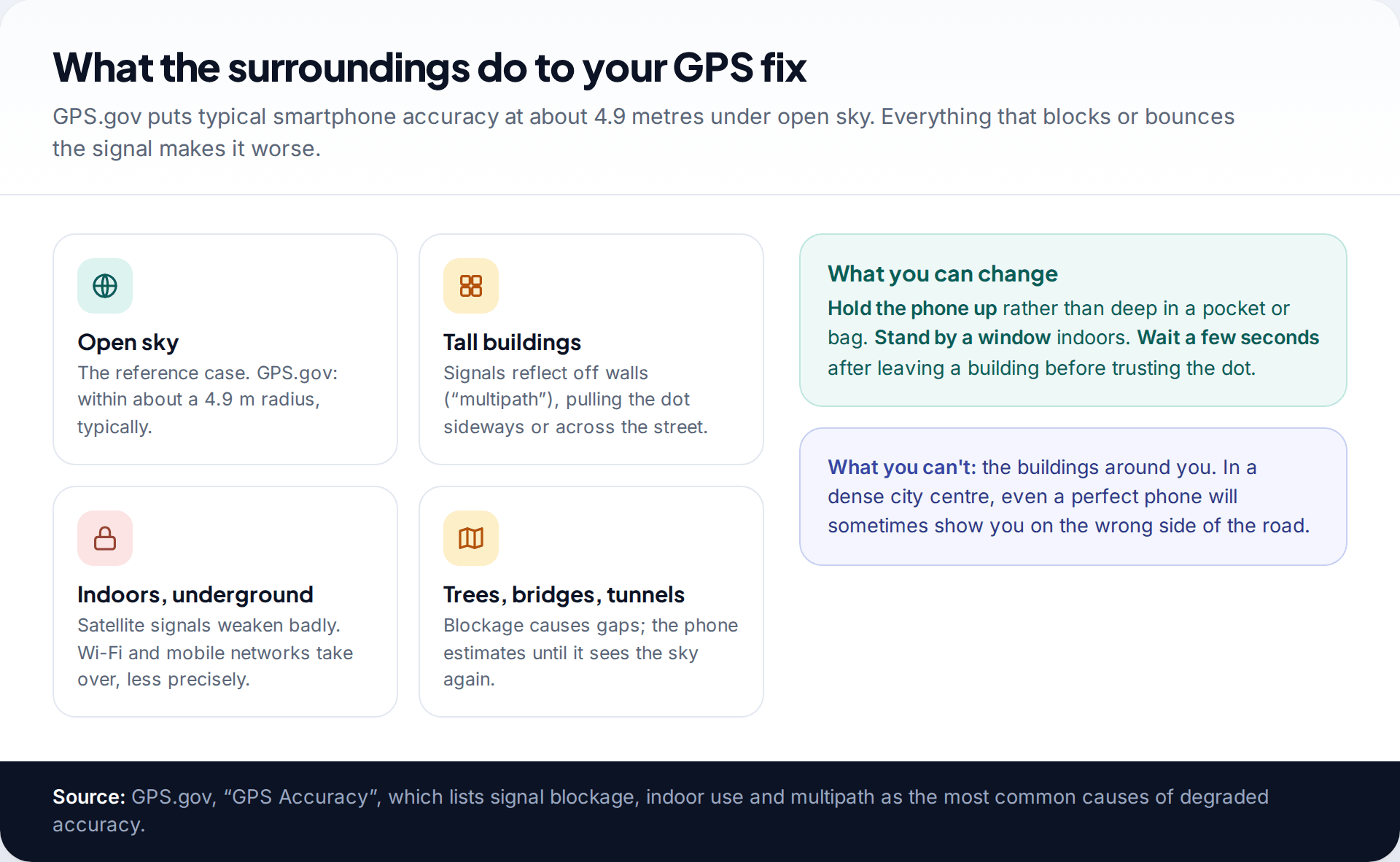
The US government’s GPS.gov site says GPS-enabled smartphones are typically accurate to within about a 4.9-metre radius under open sky, and lists the usual reasons it gets worse: signals blocked by buildings, bridges and trees; indoor or underground use; and signals reflected off buildings, known as multipath. That last one explains the dot that puts you across the road in a city centre.
You can help by holding the phone up rather than burying it, standing near a window indoors, and giving it a few seconds after you step outside. You can’t change the buildings. For a detailed look at how accurate GPS, Wi-Fi and mobile-network positioning really are, see our guide to how accurate phone location tracking is.
How to tell whether it actually got better
Judging accuracy by feel is unreliable, so use what the phone shows you. Google Maps draws a light-blue circle around the blue dot when it isn’t sure of your position; Google says a smaller circle means more confidence. After changing a setting, step outside, open Maps, wait ten or twenty seconds and watch the circle shrink. Do the same test in the spot that gave you trouble. If the circle is tight outdoors but wide indoors, your settings are fine and the building is the limit.
Comparing two apps in the same place is also revealing. If Google Maps is accurate but a fitness or delivery app is not, the problem is that app’s permissions or battery settings, not the phone’s GPS.
Things that look like GPS problems but aren’t
- A mock location app. On Android, Developer options include “Select mock location app”, which lets an app feed the phone a fake position. If you ever enabled developer options for a game or test, check this is set to no app.
- A VPN. A VPN changes the location websites infer from your IP address, so a website may think you are in another city. It does not change your phone’s GPS, and maps apps will still show where you really are.
- Websites in a desktop browser. A laptop without GPS estimates location from Wi-Fi or its IP address, which can be far off. That says nothing about your phone.
- A shared location that is out of date. If a family member’s dot is wrong, their phone may simply not have sent an update recently. Check the “last updated” time before blaming accuracy.
The full checklist, and common problems
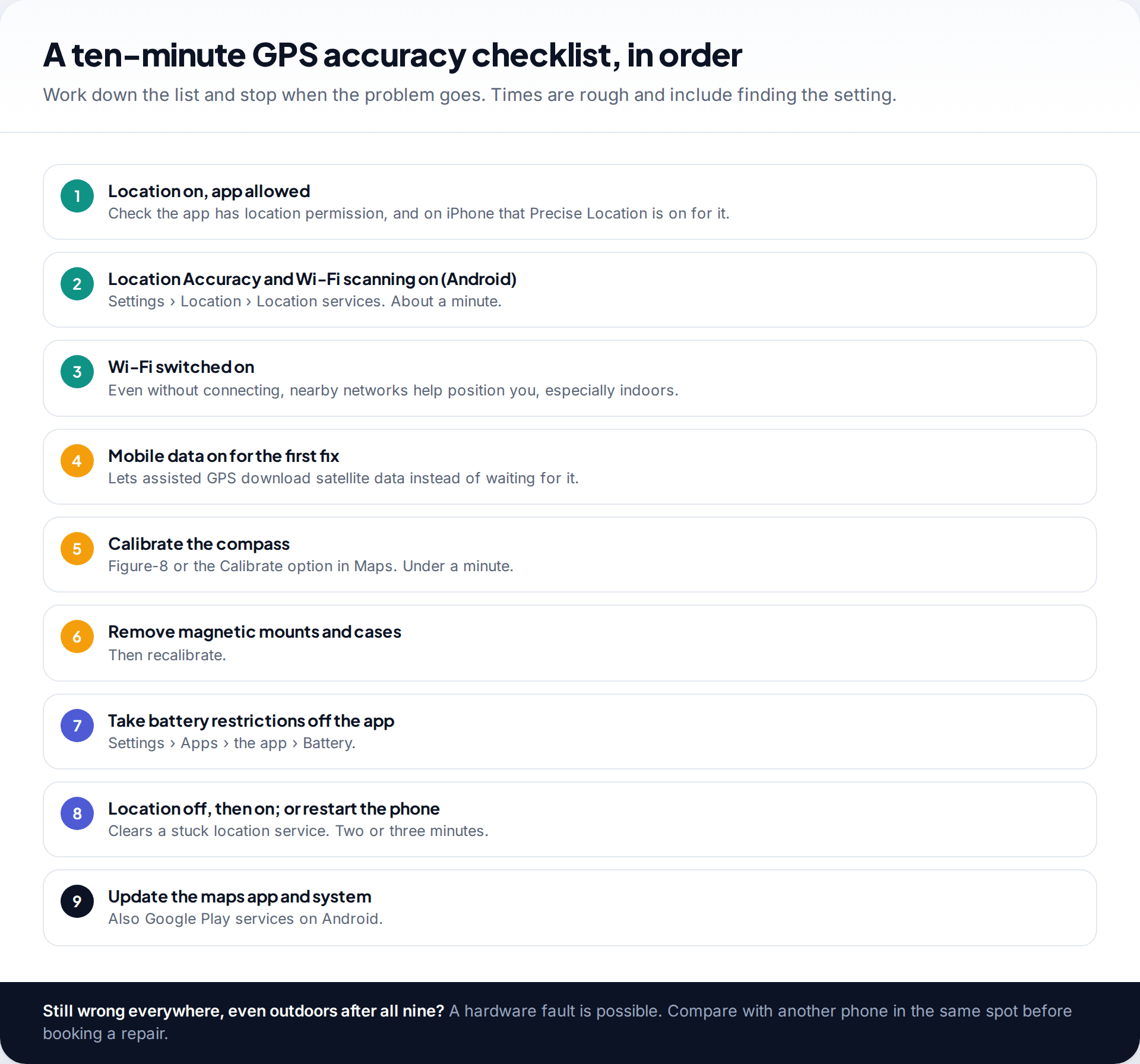
The dot is fine outdoors but wanders indoors
Satellite signals are weak inside; the phone relies on Wi-Fi and masts.
Fix: turn on Wi-Fi and Wi-Fi scanning, and Location Accuracy on Android. Some wander indoors is normal.
Only one app is wrong
That app has approximate location or restricted background use.
Fix: turn on Precise Location for it (iPhone) or grant precise location (Android), and lift its battery restrictions.
Direction is wrong but the position is right
The compass is uncalibrated or disturbed by a magnet.
Fix: remove magnetic accessories, then use the figure-8 or Calibrate in Maps. On iPhone, check Compass Calibration in System Services.
Location worked, then stopped updating
A battery saver or a stuck location service.
Fix: turn Location off and on, or restart the phone, then check battery settings for the app.
How this page was put together
Settings paths and descriptions were checked in September 2026 against Google’s Android and Google Maps help pages on Location Accuracy, location settings, compass calibration and Battery Saver, Apple’s Location Services support page, and GPS.gov’s accuracy page. The time-to-first-fix figures are typical values quoted for GPS receivers in general, not tests of a particular phone, and we have not run our own accuracy tests.
Manufacturers rename and move these settings. If a path doesn’t match your phone, search the Settings app for the setting’s name. Our editorial standards explain how we check and update guides.
Common questions
Why is my phone’s GPS so inaccurate?
Usually weak or reflected signals, especially indoors or among tall buildings. Check that Location Accuracy (Android) or Precise Location (iPhone) is on and that Wi-Fi is on, then calibrate the compass if the direction is wrong.
Does turning on Wi-Fi improve GPS accuracy?
Yes, particularly indoors. Phones use nearby Wi-Fi networks to position themselves, even without connecting to them.
How do I calibrate GPS on my phone?
GPS itself doesn’t need calibrating; the compass does. In Google Maps, move the phone in a figure-8 or tap the blue dot and choose Calibrate. On iPhone, keep Compass Calibration on in System Services.
Do GPS booster apps work?
They can’t improve the signal your phone receives. At most they refresh satellite data or show signal status, which the phone already manages through assisted GPS.
Does Battery Saver affect GPS?
It can. Google says Battery Saver limits background activity, so location updates in apps that aren’t on screen may slow or pause.
Why do websites think I’m in another town?
Websites that don’t get location permission guess from your IP address, which often maps to your provider’s network hub or a VPN server. That is separate from your phone’s GPS, and fixing GPS settings won’t change it.
Does a phone case affect GPS?
Ordinary cases don’t. Cases or mounts with magnets can disturb the compass, which affects direction rather than position.
Looking for a tool to go with this? TheTruthSpy is a free parental control app for Android that stays visible on the child's phone. If it fits your family, see the Location & geofencing feature.
Related guides
How Accurate Is Phone Location Tracking? GPS, Wi-Fi and Cell Compared
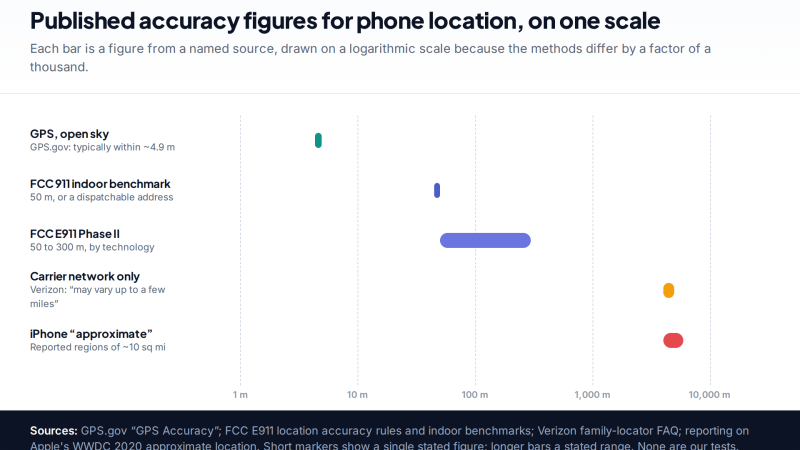
Phone location accuracy runs from a few metres with GPS under open sky to miles when only the mobile network…
Using Google Maps Timeline to Find a Lost Phone
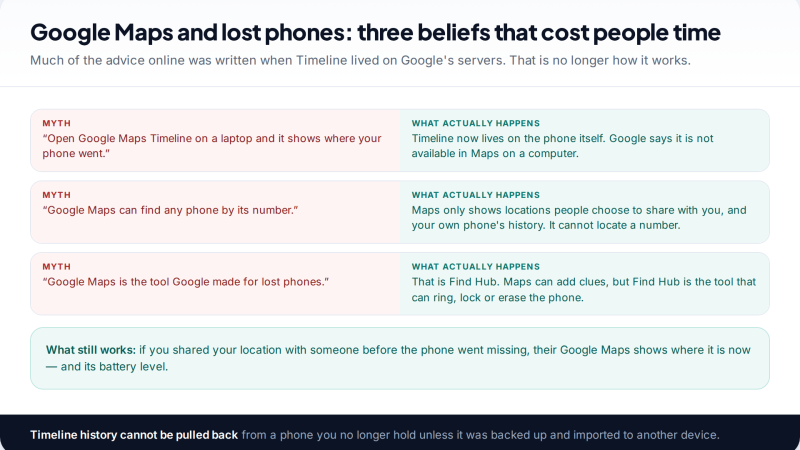
Can Google Maps find a lost phone? Only in two cases: someone you share your location with can see it,…
GPS Tracking for Small Business: A Starter Guide
A plain starter guide to GPS tracking for a small business: vehicle trackers versus phone apps, what a small fleet…
Parental controls your child can see
Location, screen time limits, a web filter and alerts from notifications — free, and visible on your child's phone. Pair a phone in about ten minutes.
Android · Free to set up · Visible on your child's phone