How to Set Up a Phone for an Elderly Parent

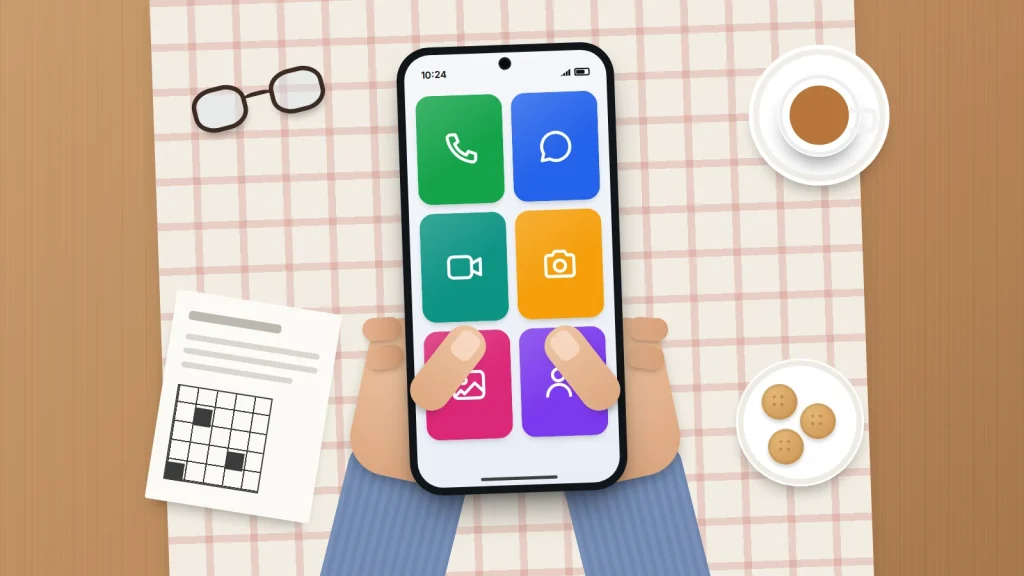
Plenty of people in their seventies and eighties run their lives from a smartphone. Others keep one in a drawer because the text is tiny, the buttons move after every update and a scam call has left them wary. Most parents are somewhere in between.
Setting up a phone for a parent works best when you do it with them, at their pace, and treat it as their phone. The aim is to remove what gets in their way, not to lock the phone down.
Below are the settings that help most on iPhone and Android as of September 2026, the safety features to set up together, and a cheat sheet to print.
The short version
- Start by asking what they use the phone for and what annoys them, then change only those things.
- Bigger text and a simpler home screen solve most problems. Assistive Access (iPhone) and Easy mode (Samsung) go further, but only if they want it.
- Set up Emergency SOS, Medical ID or medical info, and emergency contacts together, and show them how to cancel an accidental SOS.
- Agree a simple money rule: nobody in the family ever asks for money by text, and calls about money get a call back on a known number.
- Leave a one-page cheat sheet by the phone, written for them, not for you.
Start with a conversation, not the settings menu
Before touching anything, ask three questions: what do you use it for, what gets in your way, and what should stay exactly as it is. A parent who reads the news every morning won’t thank you for hiding the browser.
Agree a few ground rules too. They choose the passcode, and you only know it if they want you to. Anything you change, you show them how to change back. Their account details are written down somewhere they control, not kept only in your head.
On an iPhone, it’s worth offering to become their account recovery contact: Settings → [their name] → Sign-In & Security → Recovery Contacts → Add Recovery Contact. If they’re locked out, you can give them a code to get back in; Apple says you get no access to the account itself.
Make the screen easier to read
Small text is the most common complaint. The fix depends on whether the problem is words or everything.
iPhone
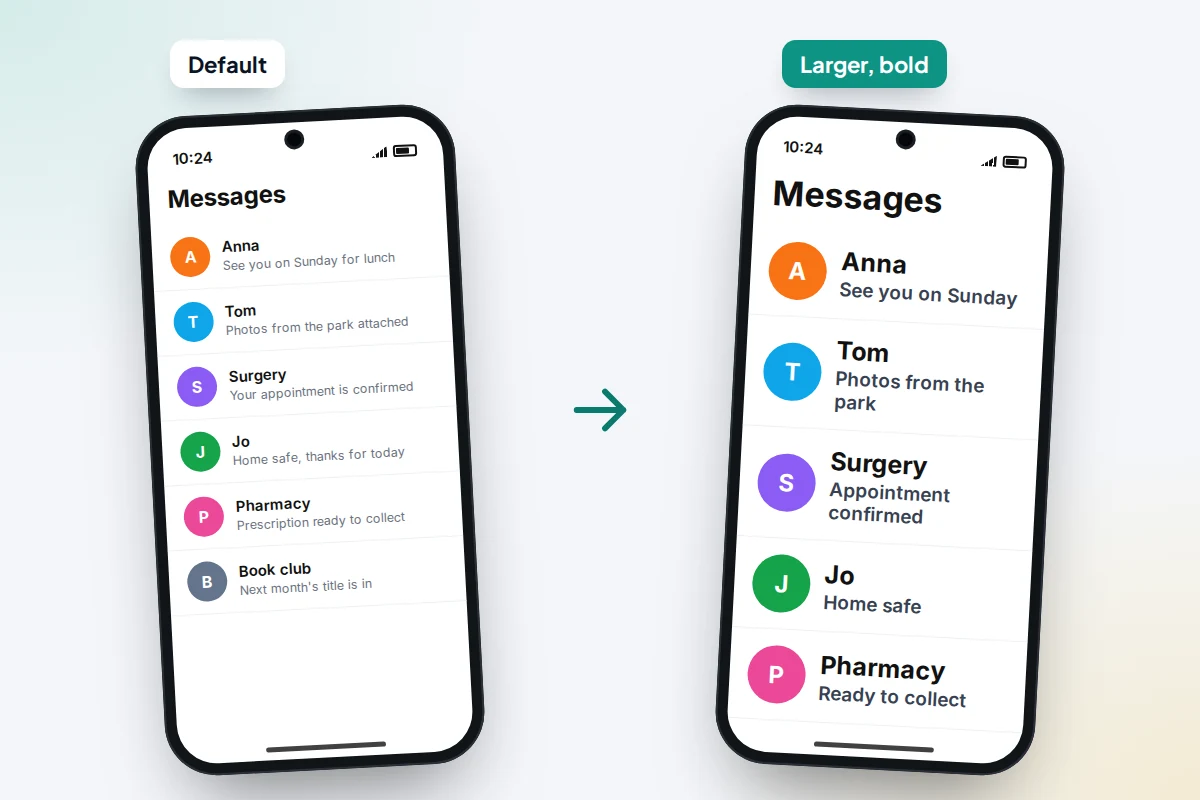
- Settings → Accessibility → Display & Text Size → Larger Text: drag the slider. Turn on Larger Accessibility Sizes for even bigger text. Bold Text is on the same screen and helps more than people expect.
- Settings → Display & Brightness → Display Zoom: choose Larger Text. This enlarges everything, including icons and buttons, at the cost of fewer icons per screen.
Text size only changes apps that support it. If one app stays small, look for a text setting inside it; if buttons and icons are hard to hit, Display Zoom is the one that helps.
Android
- Open Settings and search for Font size, then Display size. On Pixel phones both sit in Settings → Accessibility → Display size and text, along with Bold text. As on iPhone, some apps ignore the font setting.
A simpler home screen: Assistive Access and Easy mode
If the full phone feels like too much, both platforms have a simplified mode. These are big changes, so try them together and keep them only if your parent prefers them.
Assistive Access on iPhone
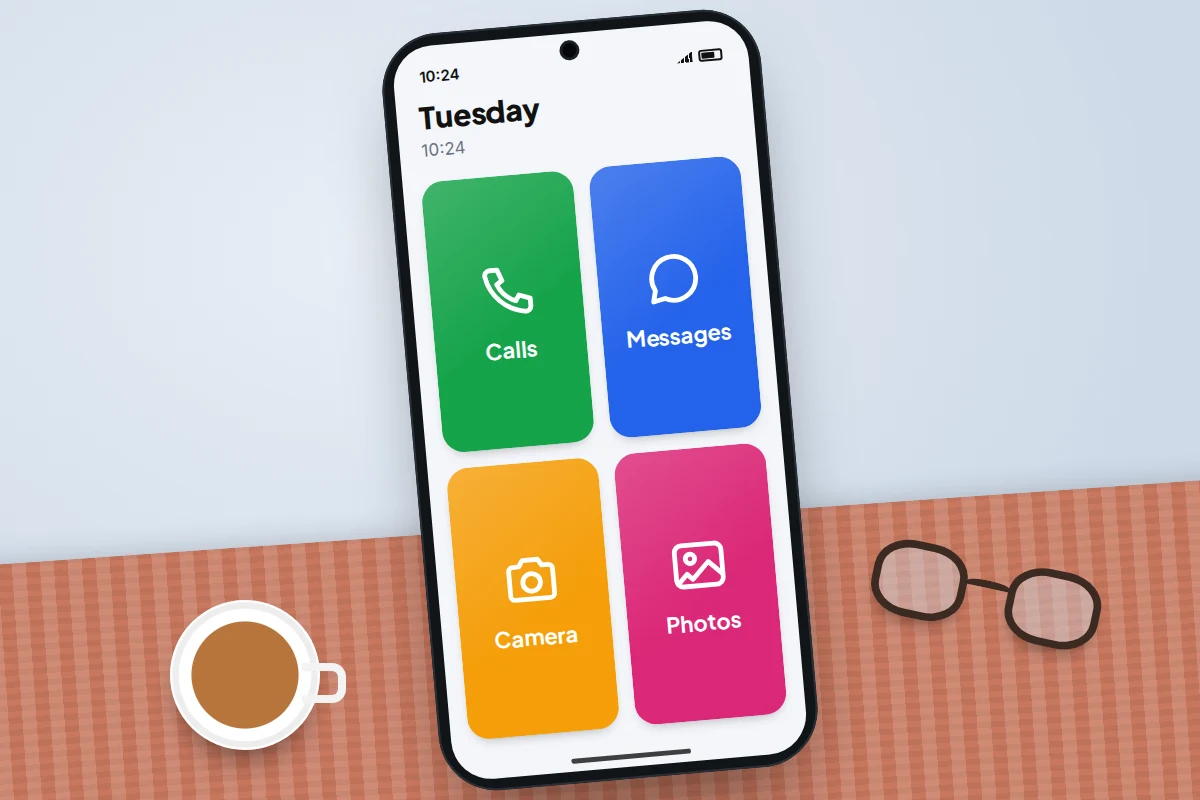
Assistive Access replaces the usual home screen with a few large buttons and simplified versions of Calls, Camera, Messages, Photos and Music, plus Magnifier and other apps you choose. It needs iOS 17 or later.
- Go to Settings → Accessibility → Assistive Access and tap Set Up Assistive Access.
- Confirm the Apple Account belongs to your parent.
- Choose the apps, then a layout: Rows (a readable list) or Grid (large icons).
- Set an Assistive Access passcode, which is needed to leave the mode.
- Learn the exit: triple-click the side button (or the Home button on older iPhones), tap Exit Assistive Access and enter that passcode.
In Calls you can show favourite contacts as big tiles, and choose whether calls come from anyone, all contacts or favourites only. Favourites only stops scam calls, but also the GP surgery unless it’s saved, so talk it through first.
Easy mode and Simple mode on Android
On Samsung Galaxy phones, Settings → Display → Easy mode makes text and icons bigger, turns on a high-contrast keyboard and lets you set a longer touch-and-hold delay, which cuts down accidental long presses. OnePlus has Simple mode in Settings → Accessibility & convenience. Other makers use different names, so search Settings for “easy” or “simple”; on a Pixel, use the text settings above and a tidy first screen.
Help with hearing and sight
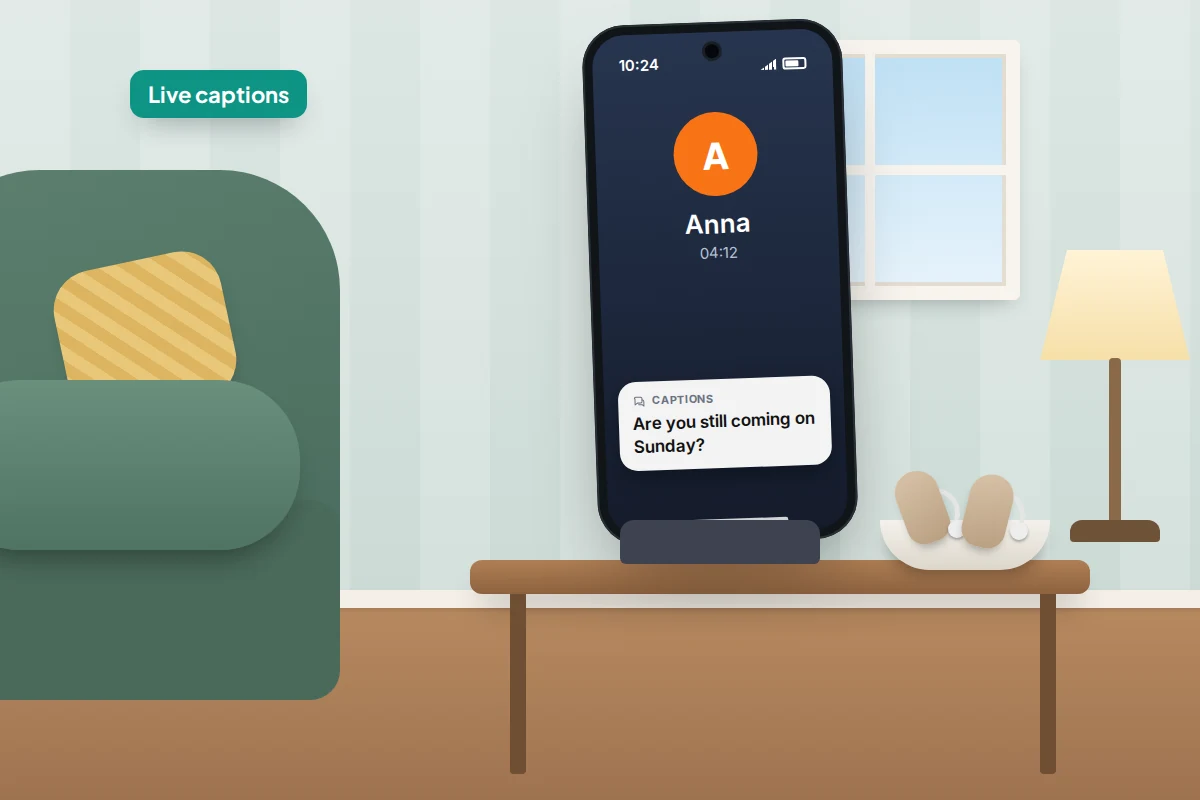
- Live Captions. On iPhone, Settings → Accessibility → Live Captions shows spoken words as text in calls, videos and conversations nearby; availability depends on language and region. On Android, press a volume button, tap the More icon under the volume slider, then Live Caption. It captions phone calls on Pixel and selected phones.
- Hearing aids. Made for iPhone hearing aids pair in Settings → Accessibility → Hearing Devices. On Android 14 or later, try Settings → Accessibility → Hearing devices → Pair new device. Apple notes that a phone’s hearing aid compatibility rating isn’t a guarantee, so try the phone with their hearing aids before buying.
- Magnifier. iPhone’s Magnifier app turns the camera into a magnifying glass for menus and medicine labels. Add it to Control Centre.
- Reading aloud. Android’s Select to Speak (Settings → Accessibility) reads out whatever you tap, including text seen through the camera. iPhone has Speak Selection under Accessibility → Spoken Content.
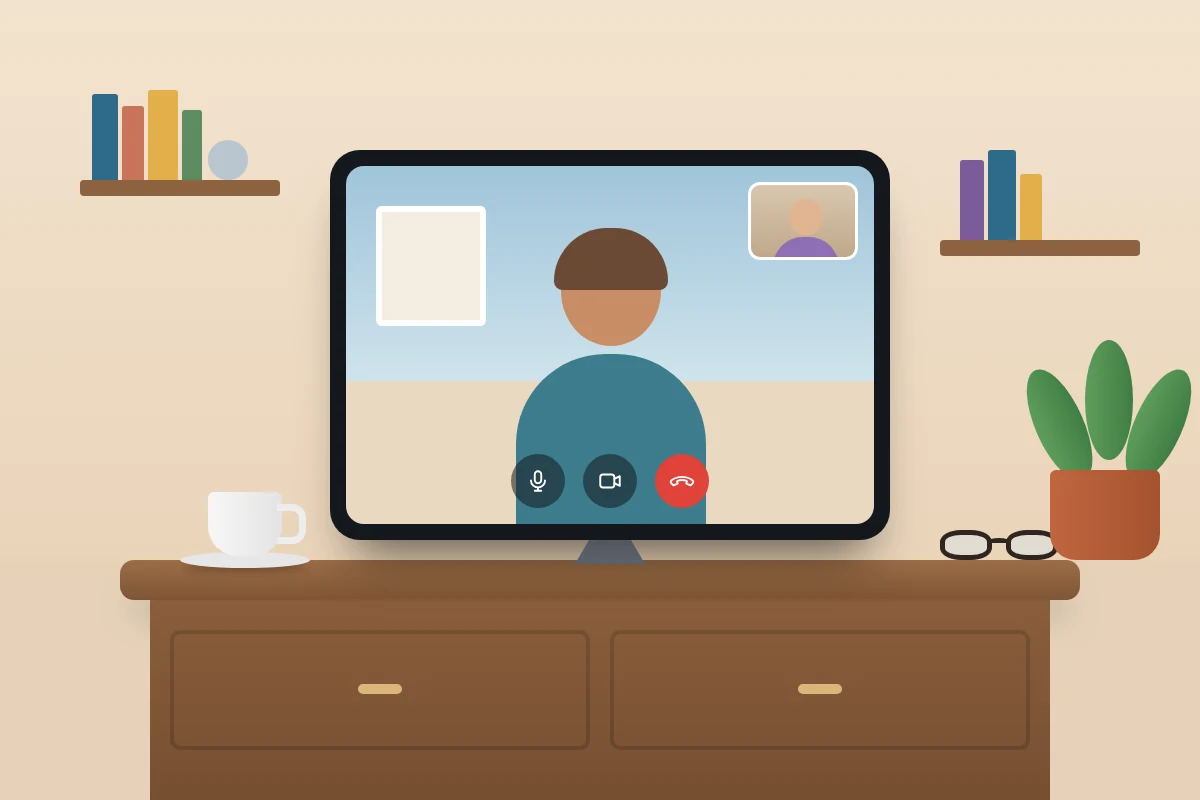
Contacts, favourites and a video-call button
- Add photos to contacts. A face on the incoming-call screen is quicker to recognise than a name.
- Save the numbers that matter: family, GP surgery, pharmacy, carers, the neighbour with a spare key.
- Put favourites on the first screen. On iPhone, add them to Favourites in the Phone app. On Android, most Contacts apps let you open a contact and choose Add to Home screen.
- Pick one video-call app the whole family uses, such as FaceTime if everyone has an iPhone, or WhatsApp across iPhone and Android. Put it on the first screen and practise a call together.
If unknown callers are a nuisance, both platforms can screen or silence them. Our guide to stopping spam calls covers the settings; save the important numbers first so real calls still ring.
Emergency SOS, medical details and fall detection
Set these up together and explain who gets told when each one is used.
- iPhone Emergency SOS: press and hold the side button and either volume button until the countdown ends. Settings → Emergency SOS can also let five quick presses of the side button start a call.
- iPhone Medical ID: in the Health app, tap the profile picture, then Medical ID → Edit. Add conditions, medicines, allergies and emergency contacts, and turn on Show When Locked so paramedics can read it. Emergency contacts get a message with the phone’s location after an SOS call.
- Android: Settings → Safety & emergency → Emergency SOS (Android 12 or later), triggered by pressing the power button five times or more. Google says it doesn’t work in aeroplane mode or with Battery Saver on. Medical info and emergency contacts are under Your info in the Personal Safety app. On Samsung, use Settings → Safety and emergency for Medical info, Emergency contacts and Emergency SOS.
What goes wrong is accidental SOS: five presses in a handbag can start a call. There’s a short countdown first, usually with a loud alarm, so show your parent how to cancel. If it connects, stay on the line and say it was an accident.
Fall detection on a watch
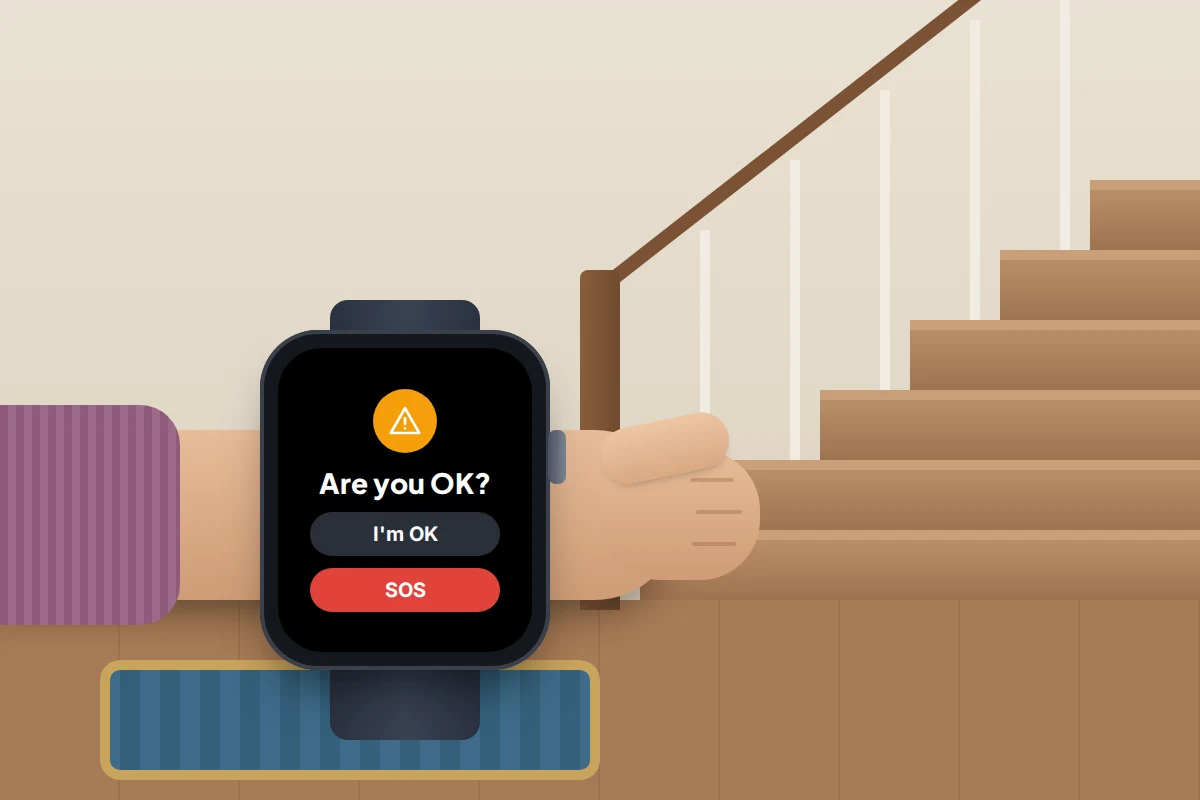
- Apple Watch (SE, Series 4 or later, and Ultra) turns fall detection on automatically if the wearer’s age in Health is 55 or over. After a hard fall, if the wearer doesn’t move for about a minute, a 30-second countdown starts, then it calls emergency services and messages emergency contacts. To call, it needs a mobile plan on the watch, Wi-Fi Calling, or the paired iPhone nearby.
- Pixel Watch (all models): press the crown, then Safety → Fall detection. It’s available in the UK and a number of other countries. Models without 4G LTE need the paired phone nearby to call.
- Galaxy Watch: in the Galaxy Wearable app, Watch settings → Safety and emergency → Hard fall detection. It has to be switched on, and it needs emergency contacts added.
Settings compared: iPhone and Android
Menu names vary by phone maker and Android version; searching Settings for the feature name is usually quickest.
| Need | iPhone | Android | Worth knowing |
|---|---|---|---|
| Bigger words | Larger Text, Bold Text | Font size, Bold text | Some apps ignore it |
| Bigger everything | Display Zoom | Display size | Fewer icons fit |
| Simpler phone | Assistive Access | Easy mode (Samsung), Simple mode (OnePlus) | Try it together first |
| Hearing | Live Captions, Hearing Devices | Live Caption, Hearing devices | Caption quality varies with accents and noise |
| Reading small print | Magnifier | Select to Speak with camera | Good for medicine labels |
| Emergency | Emergency SOS, Medical ID | Emergency SOS, medical info | Practise cancelling |
| Falls | Apple Watch | Pixel Watch, Galaxy Watch | Not a monitored service |
Quieter, safer and backed up
- Turn off notifications they don’t want. Games and shopping alerts bury the messages that matter. On iPhone, go to Settings → Notifications; on Android, Settings → Notifications → App notifications.
- Automatic updates. On iPhone, Settings → General → Software Update → Automatic Updates, then Automatically Install; it updates overnight while charging on Wi-Fi. On Android, check the system update screen in Settings and leave app auto-updates on in the Play Store.
- Backups. On iPhone, turn on iCloud Backup in Settings → [name] → iCloud; the free 5 GB often isn’t enough once photos pile up. On Android, Settings → Google → All services → Backup and restore (Samsung also has its own backup in Accounts and backup).
Location sharing, only if they want it
Some parents like family knowing they got home; others find it intrusive. Ask, don’t assume, and make it two-way. Our guide to sharing location with family covers the options and how to stop.
Talking about scams without scaring anyone
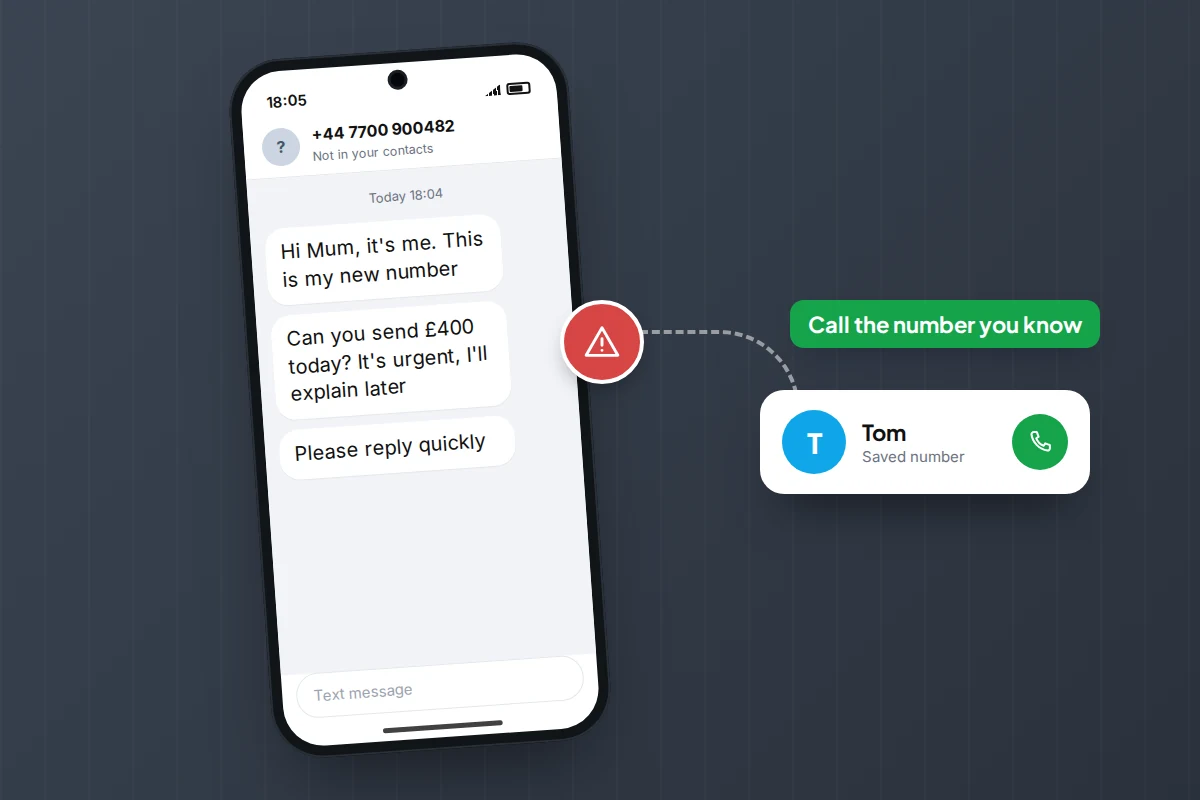
Scams catch confident people too, because the message is urgent and personal. Keep it practical and agree a few family rules:
- Nobody in the family will ever ask for money by text or from a new number. A “new phone, need help” message gets a call to the old number.
- Your bank will never ask you to move money to a “safe account”. Hang up and call back on the number on your card, or in the UK dial 159, which puts you through to your own bank.
- Being caught out is nothing to be ashamed of. Tell someone straight away; speed matters.
Our guide to bank impersonation scam calls goes through the scripts scammers use.
The physical side: case, charger and data
- A case with grip. A textured case, or one with a finger loop or strap, makes drops less likely. Check the side buttons are still easy to press.
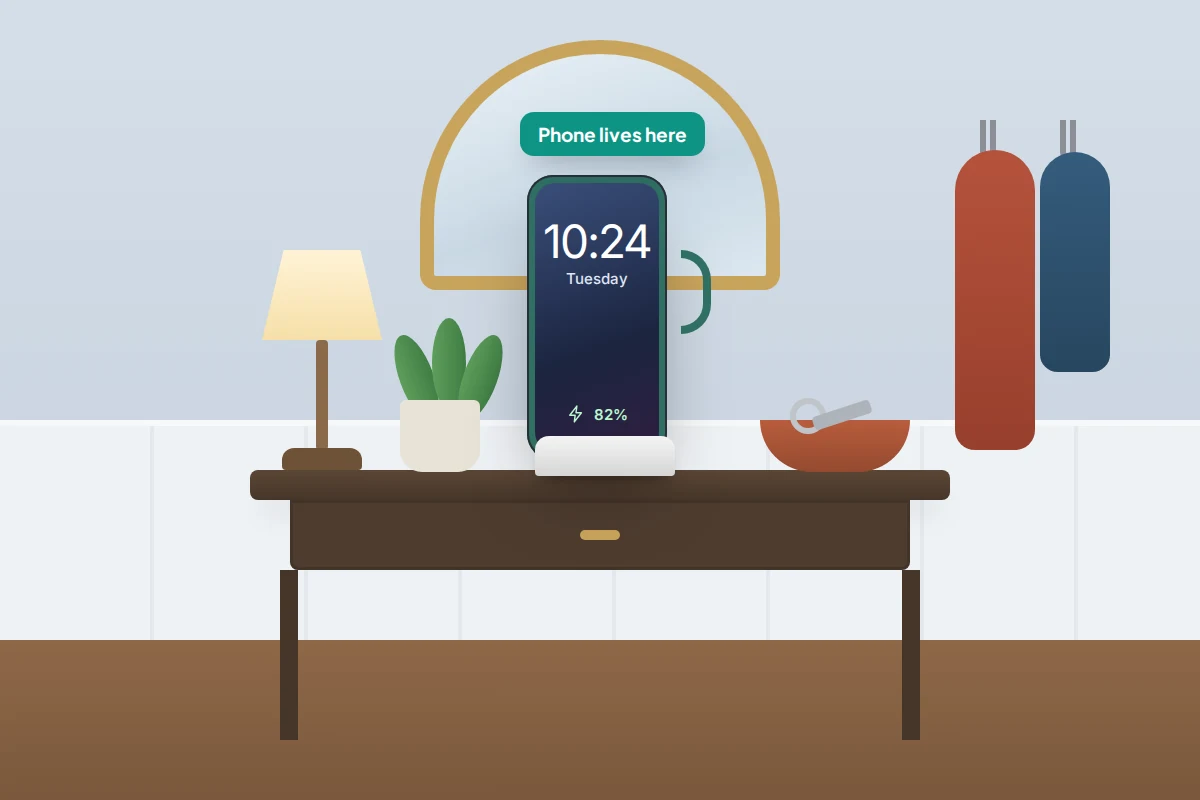
- A charging spot. A stand or dock by their chair or bed keeps the phone charged and easy to see. Wireless charging avoids fiddly cables.
- The right plan. Video calls use far more data than voice calls. If they’ll video-call away from home Wi-Fi, choose an allowance with room to spare.
A one-page cheat sheet to leave by the phone
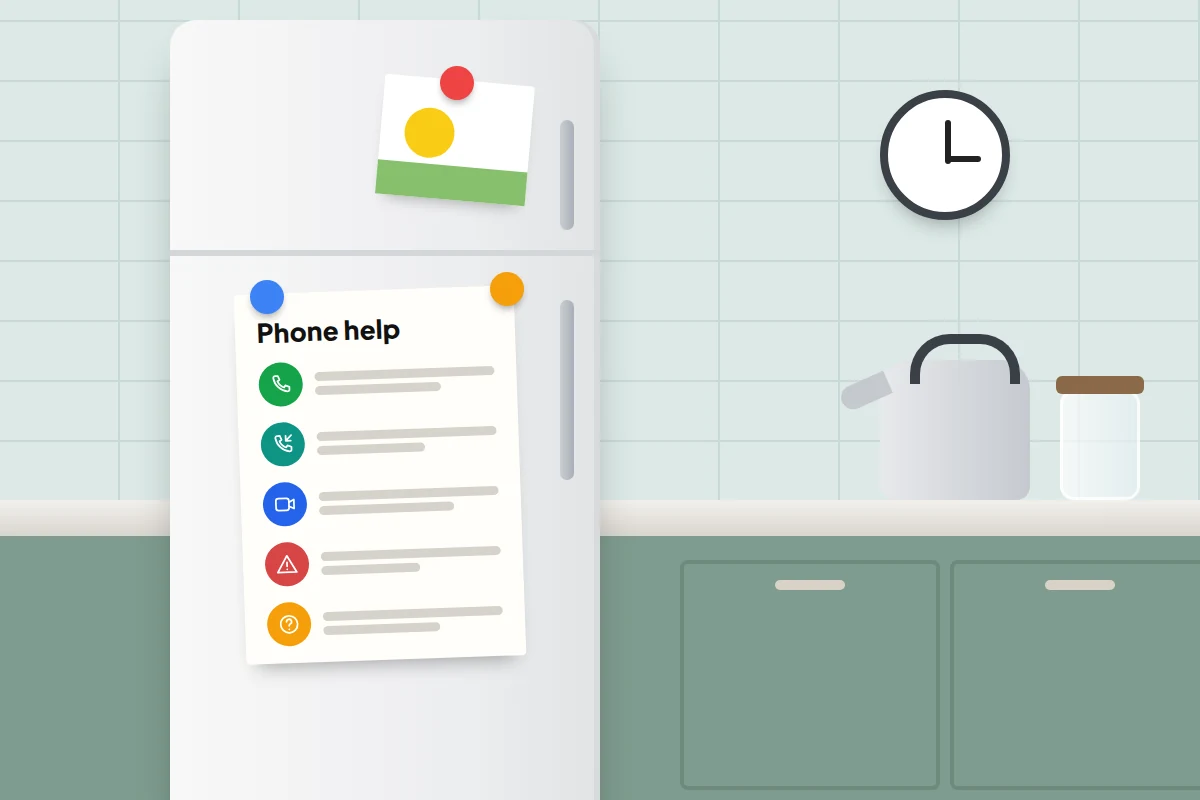
Fill in the names and numbers, print it large and put it on the fridge or by the charger. Here is a version to adapt:
To answer a call
- Slide or tap the green button. To end the call, tap the red button.
- If you don’t know the caller, you don’t have to answer. Most real callers leave a message.
To call someone back
- Open Phone, tap Recents, and tap the name or number.
- If it was a missed call from a number you don’t know, don’t call back. If it matters, they’ll leave a message or ring again.
To video-call the family
- Tap [app name] on the first screen, then [name], then the camera button.
- Hold the phone at arm’s length, or put it on its stand.
If a message or call asks for money
- Stop. We will never ask for money by text or from a new number.
- Call [name] on [number] before you do anything else.
- If someone says they’re from the bank, hang up. Then dial 159, or the number on the back of your card, from a different phone if you can.
If you need help
- Emergency: dial 999. [iPhone: or hold the side button and a volume button.] [Android: or press the power button five times.]
- Phone problem: switch it off and on again, then call [name].
What if it doesn’t work
- They’re stuck in Assistive Access. Triple-click the side or Home button and enter the Assistive Access passcode, not the phone’s usual passcode.
- Important calls stop ringing. Call screening or a favourites-only setting is catching them. Save the number, or relax the setting.
Frequently asked questions
Should I buy a special phone for older people?
Not necessarily. Simple button phones suit someone who only calls and texts. For video calls, photos or banking, a standard smartphone with larger text or a simplified mode usually works better.
Can I help with their phone when I’m not there?
If you both have iPhones on iOS 18 or later, they can share their screen in a FaceTime call, and you can ask to control it remotely, which they must approve. Otherwise, a video call often does the job.
Should I know their passcode?
Only if they want you to. A recovery contact and written account details kept at their home cover most lock-outs.
Is fall detection a replacement for a personal alarm?
No. None of these watches is a monitored service, none catches every fall, and a watch only helps if it’s worn and charged. If falls are a real worry, add a personal alarm with a 24-hour response centre.
Sources and further reading
- Apple Support: Set up Assistive Access on iPhone
- Apple Support: Use Fall Detection with Apple Watch
- Apple Support: Hearing Aid Compatibility requirements for iPhone
- Android Accessibility Help: Live Caption
- Android Help: Get help during an emergency with your Android phone
- Google Pixel Watch Help: Safety and emergency features
- Samsung Support: Using Easy mode on a Samsung phone
- Stop Scams UK: The 159 phone number
Looking for a tool to go with this? TheTruthSpy is a free parental control app for Android that stays visible on the child's phone. If it fits your family, see what the app does.
Related guides

How to Share Photos With Family Without Social Media
Share family photos privately with iCloud, Google Photos or a photo frame: what changed in iOS 27, who pays for…
How to Set Up Google Family Link on Your Child’s Android Phone
Set up Google Family Link on your child's Android phone: under-13 and teen accounts, time limits, School time, app approvals,…
How to Set Up Screen Time on Your Child’s iPhone
Set up Screen Time for your child from your own iPhone: iOS 27 schedules and allowances, contacts, web filters, what…
Parental controls your child can see
Location, screen time limits, a web filter and alerts from notifications — free, and visible on your child's phone. Pair a phone in about ten minutes.
Android · Free to set up · Visible on your child's phone