How to Share Photos With Family Without Social Media


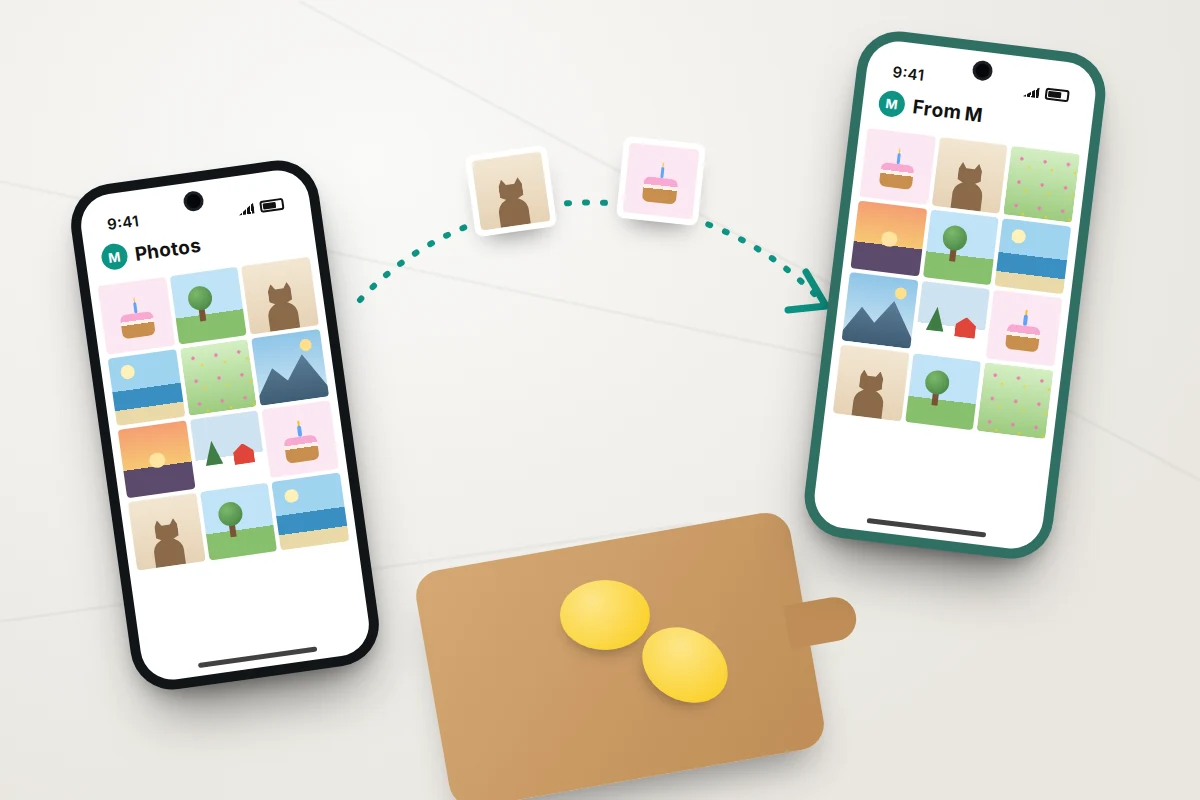
Grandparents who aren’t on social media still want the photos. The usual answer is a family group chat, where pictures arrive compressed, get buried under messages and vanish when someone changes phone. Posting publicly and restricting the audience is the other option, and it hands your children’s pictures to a platform built for sharing widely.
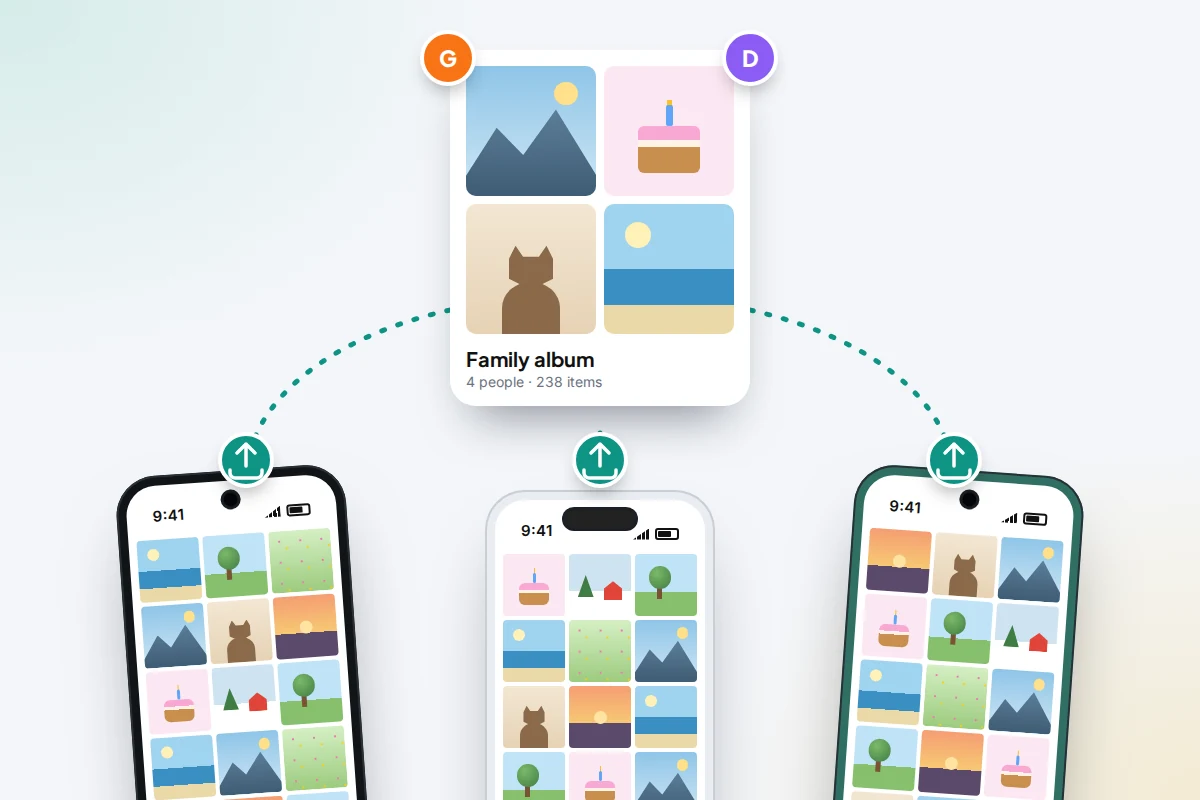
There are better ways: shared albums and shared libraries built into the phones your family already owns, and digital photo frames for relatives without a smartphone. They differ in who pays for storage, whether photos stay full quality, and who can delete what, and Apple changed its shared albums in September 2026.
Below is how each option works as of September 2026, how to pick one for an all-iPhone, all-Android or mixed family, and the privacy settings to check before the first photo goes in.
The short version
- All iPhones: an iCloud Shared Photo Library for your household, or a shared album for the wider family.
- Mixed iPhone and Android: Google Photos shared albums work on both, in the app or a browser.
- Since iOS 27, new iCloud shared albums are full resolution but count against the owner’s iCloud storage. Temporary 30-day albums don’t.
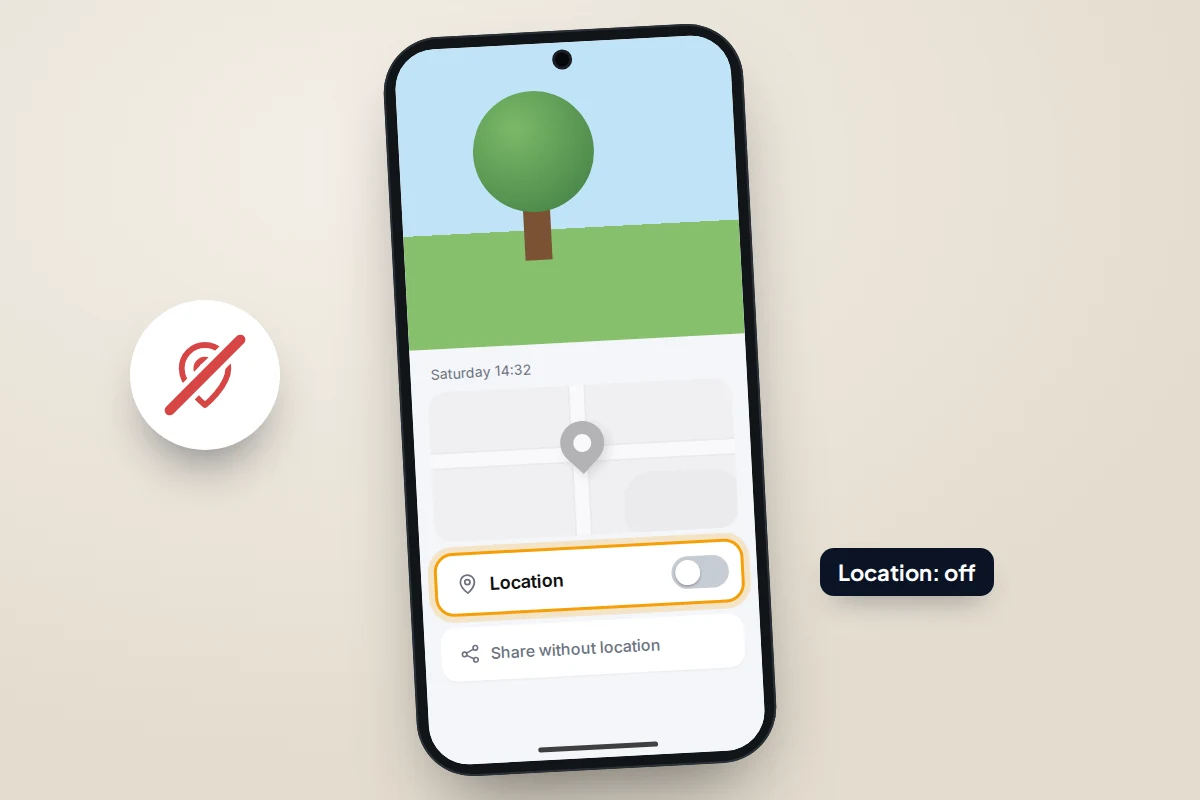
- Photos can carry the location where they were taken. Turn it off for albums shared beyond your home.
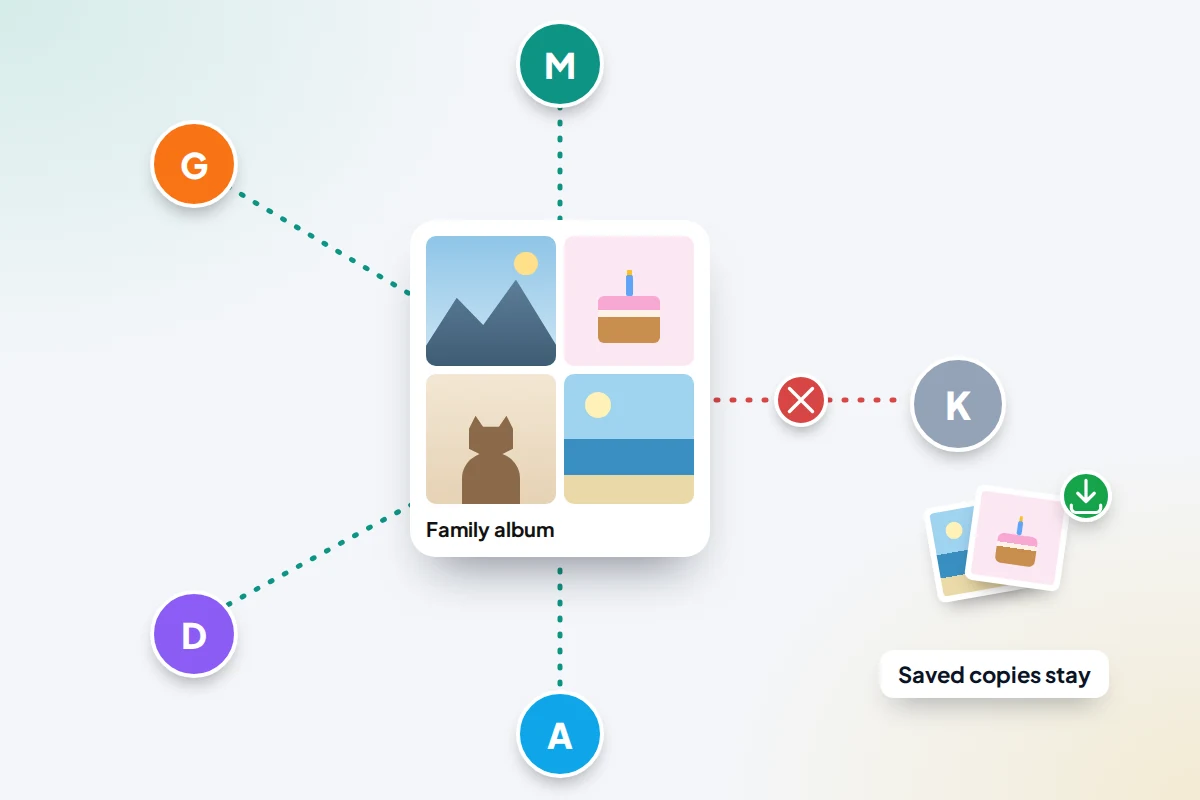
- Removing someone stops future access, but anything they already saved stays with them.
Choose by the phones your family uses
- Everyone has an iPhone, and you want one combined family collection: iCloud Shared Photo Library, for up to six people.
- Everyone has an iPhone, and you want to share selected photos with grandparents, aunts and cousins: an iCloud shared album.
- A mix of iPhone and Android: Google Photos shared albums. Since iOS 27, iCloud shared albums also accept contributions through a web browser.
- Everyone has a Samsung Galaxy: Samsung Gallery’s shared albums work, though Google Photos is more flexible.
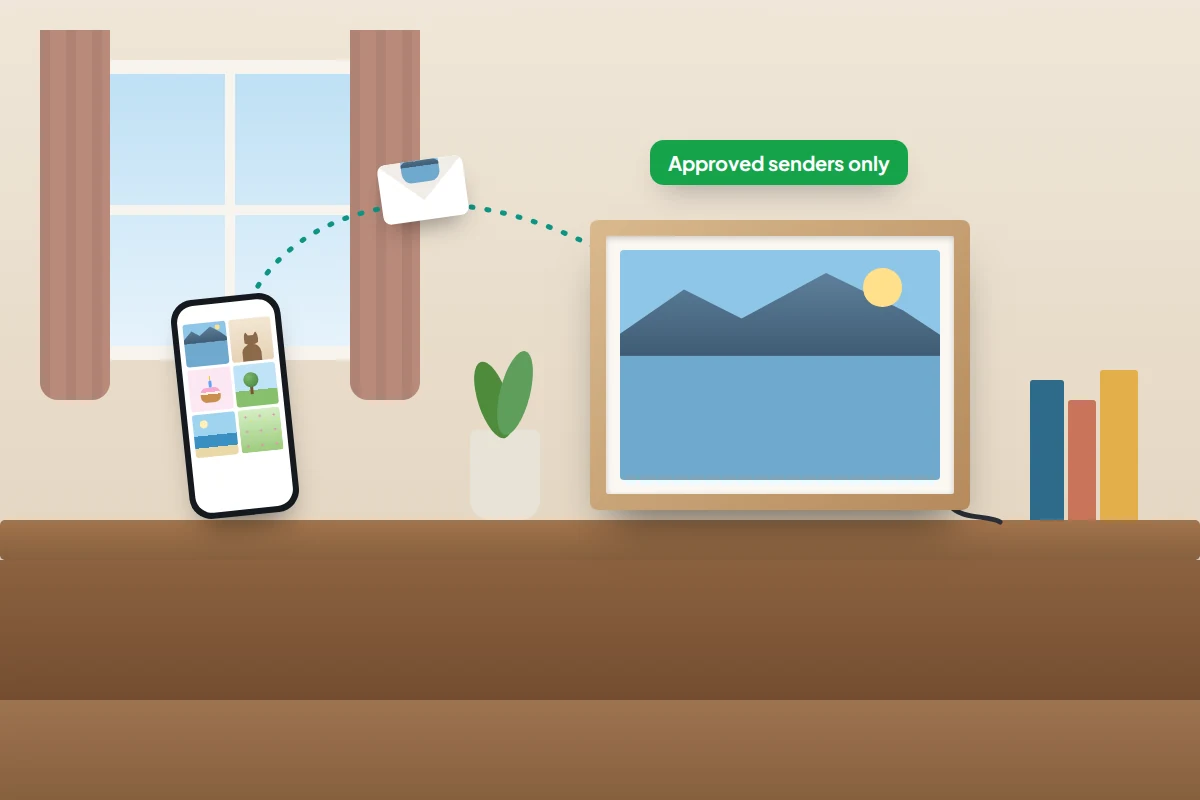
- A relative without a smartphone: a digital photo frame that receives photos by email or app.
How the options compare
Storage cost is the detail most people miss. It decides whose account fills up, and it changed for iCloud shared albums with iOS 27.
| Method | Works on | Storage cost | Quality | Who can add and delete | Link sharing |
|---|---|---|---|---|---|
| iCloud Shared Photo Library | iPhone, iPad, Mac | Organiser’s iCloud storage | Originals | Everyone adds, edits and deletes | No |
| iCloud shared album (iOS 27) | Apple devices; others on the web | Owner’s iCloud storage, including others’ uploads | Full resolution | Owner chooses who can add and can let others manage; owner deletes anything | Optional |
| iCloud temporary album | As above | None; deleted after 30 days | Full resolution | As above | Optional |
| Older iCloud shared album | Apple devices; others can only view | None | Reduced (2,048 pixels, 720p video) | Owner deletes anything; others delete their own | Public website option |
| Google Photos shared album | Android, iPhone, web | Each uploader’s Google storage | As backed up | Owner decides if others can add; owner removes anything | Optional |
| Google Photos partner sharing | Android, iPhone, web | Sharer’s storage | As backed up | One person, one way | No |
| Samsung shared album | Galaxy phones | Separate Samsung allowance | Not stated | Members add; owner manages members | Optional |
| Digital photo frame | Any phone, by email or app | Frame maker’s service | Resized for the screen | Approved senders | Usually no |
iCloud Shared Photo Library: one collection for the household
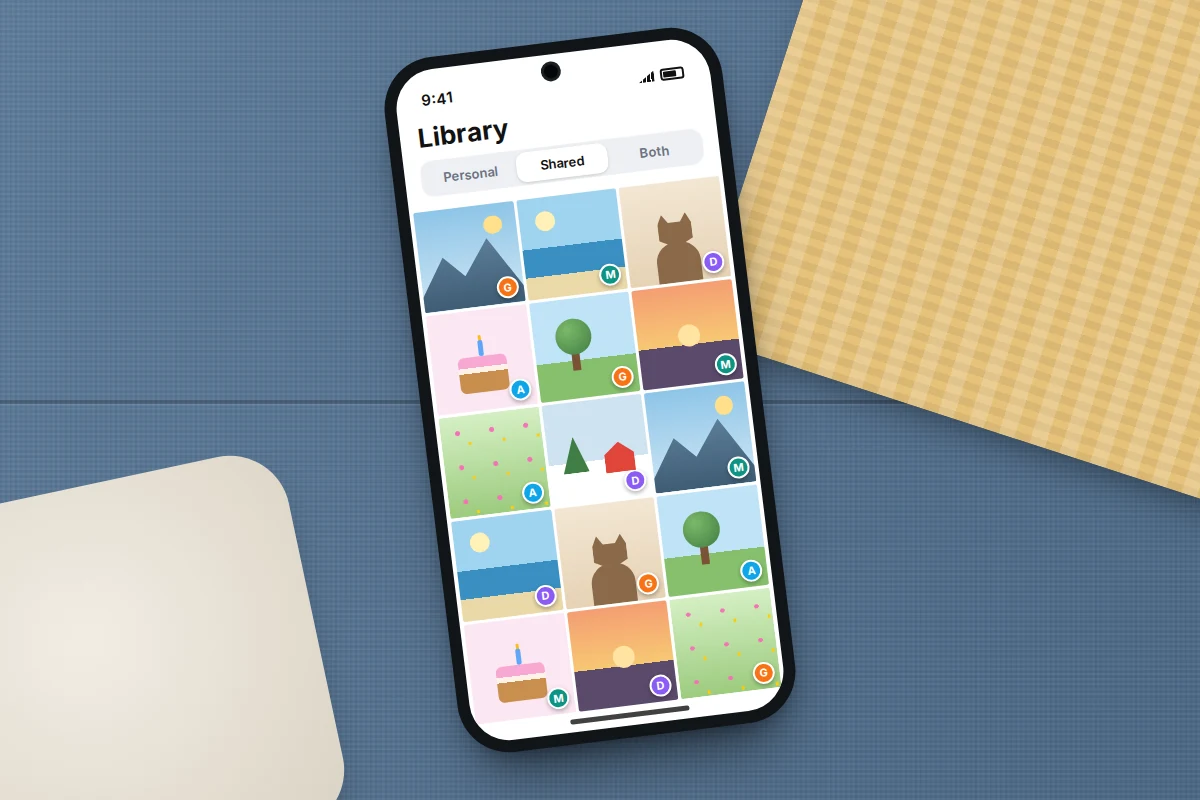
A Shared Photo Library is a second library that sits alongside everyone’s personal one. It suits parents and older children who want every photo of a holiday in one place, whoever took it. It needs iOS 16.1 or later and iCloud Photos turned on.
- Go to Settings → Apps → Photos → Shared Library (on iOS 17 or earlier, Settings → Photos → Shared Library).
- Invite up to five other people.
- Choose which past photos to move in: all of them, those taken after a date, or those showing chosen people. You can skip this and add later.
- Choose how the Camera shares: Share Automatically when you’re near other participants, Share When At Home, or Share Manually.
Three things to agree before you start:
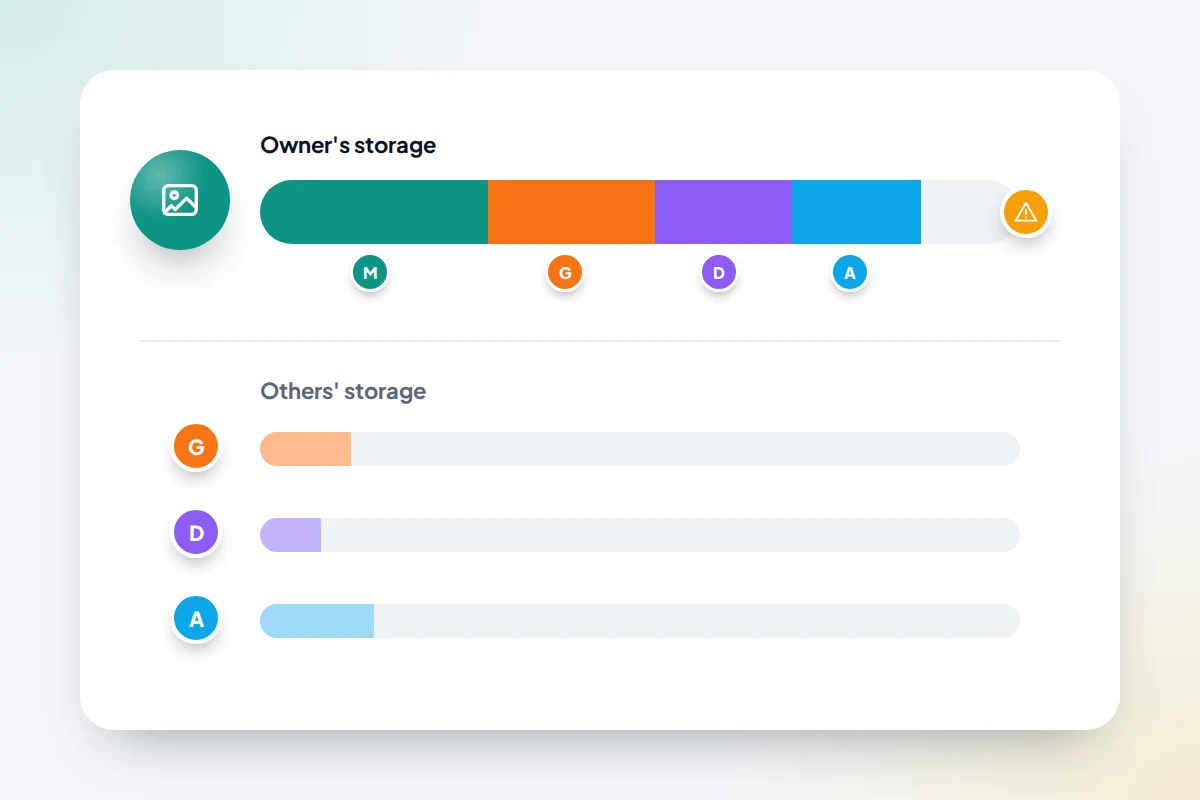
- Storage. The organiser’s iCloud storage holds everything, including everyone else’s photos. Others’ storage is unaffected.
- Deleting. Apple says every participant can add, edit and delete anything. Deleted items go to Recently Deleted, where only the person who added a photo can remove it for good, so a mistake can be undone for up to 30 days.
- Leaving. Someone who leaves chooses whether to take a copy of everything or just their own photos. If the organiser deletes the library, anyone who has been in it for more than seven days automatically gets a copy of everything; newer members get only what they added. Children under 13 can only join with members of their Family Sharing group.
Automatic sharing is convenient but blunt. It can add a photo a teenager took at a friend’s house because a parent happened to be nearby, so switch to manual sharing on phones where that matters.
iCloud shared albums after iOS 27
Shared albums suit the wider family: you pick the photos, and relatives subscribe. iOS 27, released on 14 September 2026, changed how they work.
- Full resolution. New shared albums keep photos and videos at their original quality. Older albums reduced photos to 2,048 pixels on the long edge and videos to 720p.
- The owner pays. New items in a permanent shared album count against the owner’s iCloud storage, including photos other people add. If the owner runs out, new photos can’t go in until they free up space or buy more.
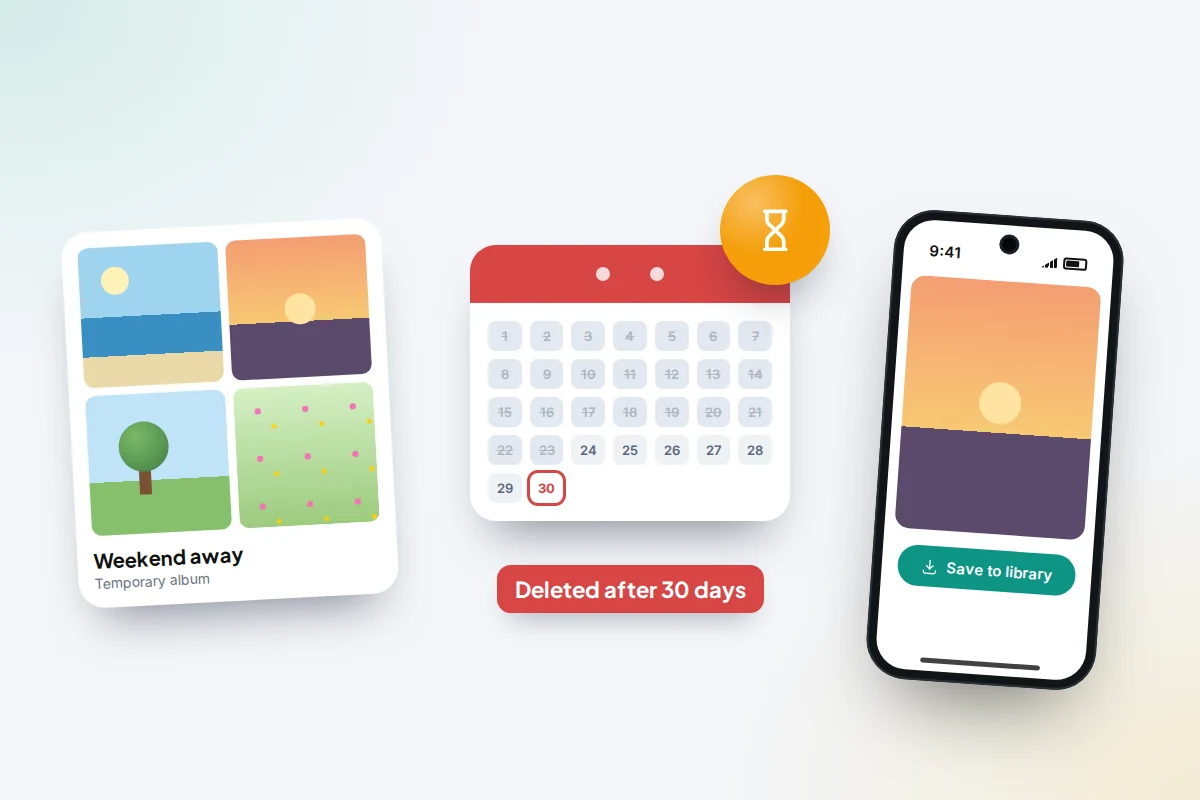
- Temporary albums. Turn on Make Album Temporary when you create an album, and it’s deleted after 30 days. Apple says temporary albums don’t count against your iCloud storage. Anything a member wants to keep, they must save to their own library first.
- Relatives without Apple devices. Apple says family can now join and add photos on the web, even without an Apple Account. Not every feature is available in every country.
- Older albums. Albums created before iOS 27 carry on as before, with reduced quality and no storage cost, unless the owner chooses Upgrade Shared Album (under the album’s More button). After upgrading, existing photos still don’t count, but new ones do. Members on older software must update or view the album on iCloud.com, and Apple keeps a copy of the old version in Shared Albums settings for six months in case you want it back.
When you create an album, Sharing Options lets you either invite and approve participants or share the album with a link, and choose whether others can add photos. For family, invite people by name rather than by link.
Google Photos: the one that works on both
Google Photos runs on Android, iPhone and in any browser, which makes it the easiest choice for a mixed family. Everyone needs a Google Account to join by name.
Shared albums
- In Google Photos, select the photos, then tap Create → Album and give it a name.
- Tap Share and choose people.
- In the album’s options, decide whether Collaborate is on (others can add photos) and whether Share photo locations is on.
Photos count against the storage of whoever uploaded them.
Collaboration is all or nothing: you can’t let one person add photos and stop another. The owner can remove anyone, and turning off sharing entirely removes photos and comments others added.
Partner sharing
Partner sharing sends your photos to one other person automatically as they back up: everything, only photos of chosen people, or photos from a certain date. Set it up by tapping your profile picture, then Photos settings → Sharing → Partner sharing. It works with one person at a time and suits two parents who each want the other’s photos of the children. Google notes that partner sharing always includes photo locations.
Samsung shared albums
Samsung Gallery has its own shared albums: open Gallery, tap the menu, then Shared albums, and invite people from Contacts, by Samsung account or with a link. Everyone needs a Samsung account. There’s also a shared family album for your Samsung family group. Storage is a separate Samsung allowance rather than your main cloud storage; it was 5 GB across all shared albums when Samsung introduced it.
One setting gets in the way: Samsung says that with Auto Blocker on Maximum restrictions, you can’t create or join shared albums.
Digital photo frames for relatives without a smartphone
A frame on a grandparent’s shelf that fills with new photos is often the most-used option of all. Most connected frames give each frame an email address or pair with an app, and family send photos to it.
- Control who can send. Choose a frame that lets the owner approve senders, and don’t post the frame’s email address anywhere.
- Check where photos are stored. They usually pass through the maker’s servers. Read how long they’re kept and whether a subscription is needed.
- Set it up before it’s gifted. Connect it to the recipient’s Wi-Fi and send a few photos while you’re there.
Location data: check it before you share
Phones usually store where each photo was taken. A shared library holds the original photos, and Google says partner sharing always includes locations, so the people you share with may see those places, including your home and your children’s school.
- iPhone, one-off shares: tap Share, then Options at the top, and turn off Location. “Location Not Included” confirms it.
- iPhone, a single photo: tap More (…) → Adjust Info → Adjust Location → No Location.
- iPhone, from now on: Settings → Privacy & Security → Location Services → Camera → Never.
- Google Photos: turn off Share photo locations in each shared album’s options. Google says locations added by your camera can’t be removed from the photo itself, so the album setting matters.
- Samsung Gallery: after tapping Share, tick Remove location data.
- Other Android cameras: look for a location or “location tags” option in the camera app’s settings; the name varies by maker.
Links, removing people and what they keep
A shared link can’t be guessed, but it can be forwarded, and anyone who has it can view the album. Google warns that if an album is shared by link, someone you remove can rejoin unless you turn link sharing off too.
Removing someone, or deleting an album, stops future access. It doesn’t reach into their phone: Apple and Google both say photos someone saved or downloaded stay with them. Share on the assumption that anything in an album may be kept.
A shared album isn’t a backup either. If the owner deletes it, the photos in it go. Keep your own copies, and consider a copy on a computer too; our guide to transferring photos to a computer covers that.
Children’s photos: agree it with them
Once children are old enough to have an opinion, ask before their photos go into an album that reaches the wider family. Teenagers often mind less about which photos are shared than about who sees them. Agree a few things together: which albums they appear in, whether they can ask for a photo to come out, and that nothing in a family album is reposted elsewhere. Our article on posting about your kids covers the wider questions.
What if it doesn’t work
- A relative can’t see a new iCloud album. Their device may be on older software. They can update or open the album on iCloud.com.
- “Items Not Shared” in an iCloud album. The owner’s iCloud storage is probably full. They need to free space or upgrade, or you can use a temporary album.
- Someone’s photos aren’t appearing in a Google album. Check Collaborate is on, and that they’re adding to the shared album rather than their own copy.
- You can’t create or join a Samsung shared album. Check Auto Blocker isn’t on Maximum restrictions and that everyone is signed in to a Samsung account.
Frequently asked questions
Can iPhone and Android users share one album?
Yes. Google Photos works on both, and since iOS 27 iCloud shared albums accept contributions from a web browser too.
Does a family group chat count as private sharing?
Messages in WhatsApp are end-to-end encrypted, but photos are often compressed and hard to find later. A shared album keeps them in one place at better quality.
If I delete a photo from a shared album, does it leave my own library?
No. A shared album holds copies, so your original stays. A Shared Photo Library is different: deleting there removes it for everyone.
Can grandparents get photos without an account?
Often, yes. Google Photos links open without an account, and Apple says relatives can now join new iCloud shared albums on the web without an Apple Account. Links can be forwarded, though, so an invitation by name or a digital photo frame is more private.
Sources and further reading
- Apple Support: How to use iCloud Shared Photo Library on iPhone or iPad
- Apple Support: Upgrade your shared albums
- iCloud User Guide: Create and join shared albums on iCloud.com
- Apple Personal Safety Guide: Manage location metadata in Photos
- Google Photos Help: Stop sharing an album and manage settings
- Google Photos Help: Set up partner sharing
- Google Photos Help: Understand, find and edit your photos’ locations
- Samsung Support: Creating a shared album in Samsung Gallery
Looking for a tool to go with this? TheTruthSpy is a free parental control app for Android that stays visible on the child's phone. If it fits your family, see the Social media alerts feature.
Related guides
How to Set Up a Phone for an Elderly Parent
Set up an iPhone or Android phone with an older parent: bigger text, Assistive Access, captions, SOS and fall detection,…
How to Set Up Google Family Link on Your Child’s Android Phone
Set up Google Family Link on your child's Android phone: under-13 and teen accounts, time limits, School time, app approvals,…
How to Set Up Screen Time on Your Child’s iPhone
Set up Screen Time for your child from your own iPhone: iOS 27 schedules and allowances, contacts, web filters, what…
Parental controls your child can see
Location, screen time limits, a web filter and alerts from notifications — free, and visible on your child's phone. Pair a phone in about ten minutes.
Android · Free to set up · Visible on your child's phone