How to Set Up Your Phone Now So You Can Find It Later

Most advice about lost phones starts after the phone has gone. By then, what you can do depends almost entirely on settings that were, or were not, switched on beforehand.
Ten minutes now is all it takes, on your own phone or one you are setting up for a child or an older relative. Android and iPhone are covered side by side, because the ideas are the same even where the menus differ.
The short version
- Turn on Find Hub (Android) or Find My (iPhone), including offline finding, so the phone can be located even without a data connection.
- Switch on the theft features: Theft Detection Lock and Remote Lock on Android, Stolen Device Protection on iPhone.
- Add a SIM PIN, put a contact number on the lock screen and note the IMEI (dial *#06#) somewhere away from the phone.
- Check that backups are actually running, and add tablets, earbuds and tracker tags to the same account.
- Test it once from a browser or another device, so you know the sign-in works when you are stressed.
Why the setup matters more than the search
Phone-finding services can only report what the phone has been allowed to share. The same goes for theft protection: locking a phone the moment it is snatched only works if the option was on beforehand. None of it costs anything, and most settings are one switch.
Say your phone slips out of a coat pocket in a taxi. With the settings below in place, you could see roughly where it is, make it ring, show a “please call” message and, if needed, lock or erase it. Without them, you are relying on the next passenger.
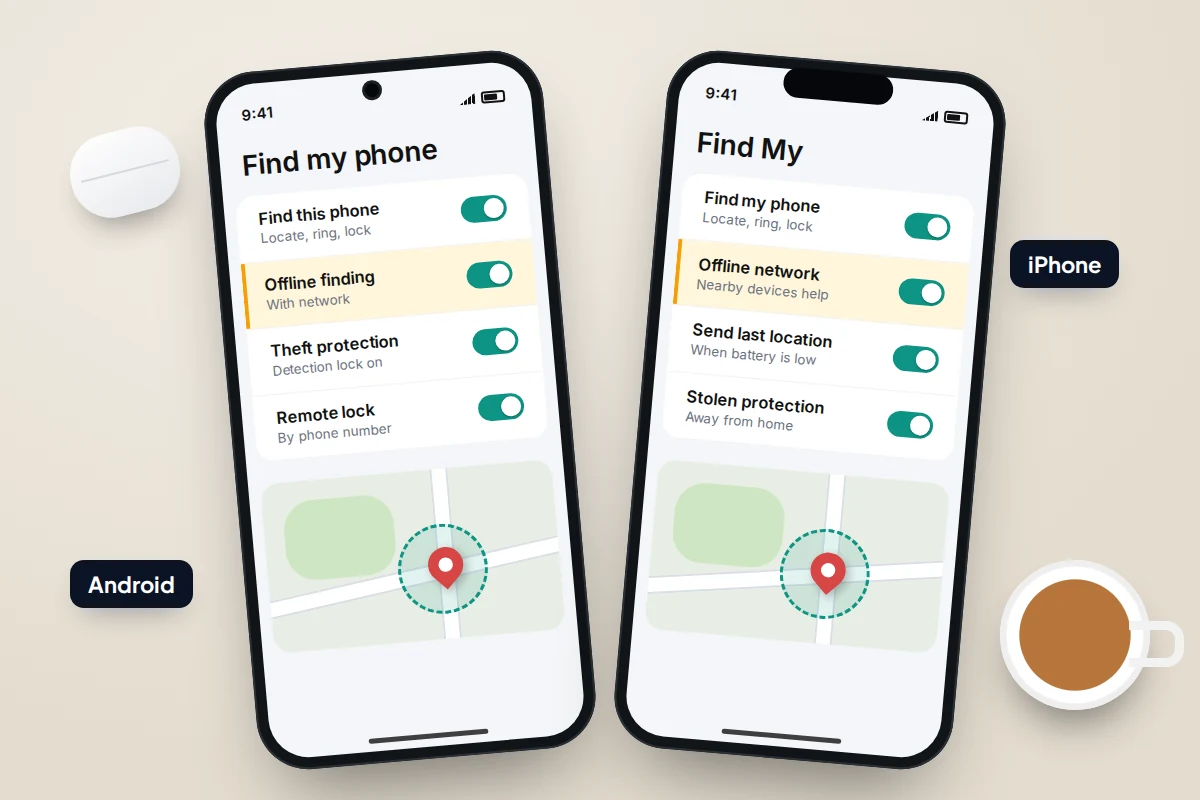
Android: turn on Find Hub and offline finding
Google renamed Find My Device to Find Hub in 2025. Menu names vary a little between phone makers and Android versions, so if a path below does not match exactly, search for “Find Hub” in the Settings app.
- Make sure the phone has a screen lock (PIN, pattern or password). Offline finding and several theft features need one. Go to Settings → Security (or Security & privacy) if you have not set one.
- Open Settings → Security → Find Hub, or Settings → Google → All services → Find Hub, and make sure it is switched on.
- In the same area, tap Find your offline devices. You will see four choices: Off, Without network, With network in busy places only and With network everywhere.
- Check that Location is on in Settings → Location, and that you are signed in to the Google Account you will use to find the phone.
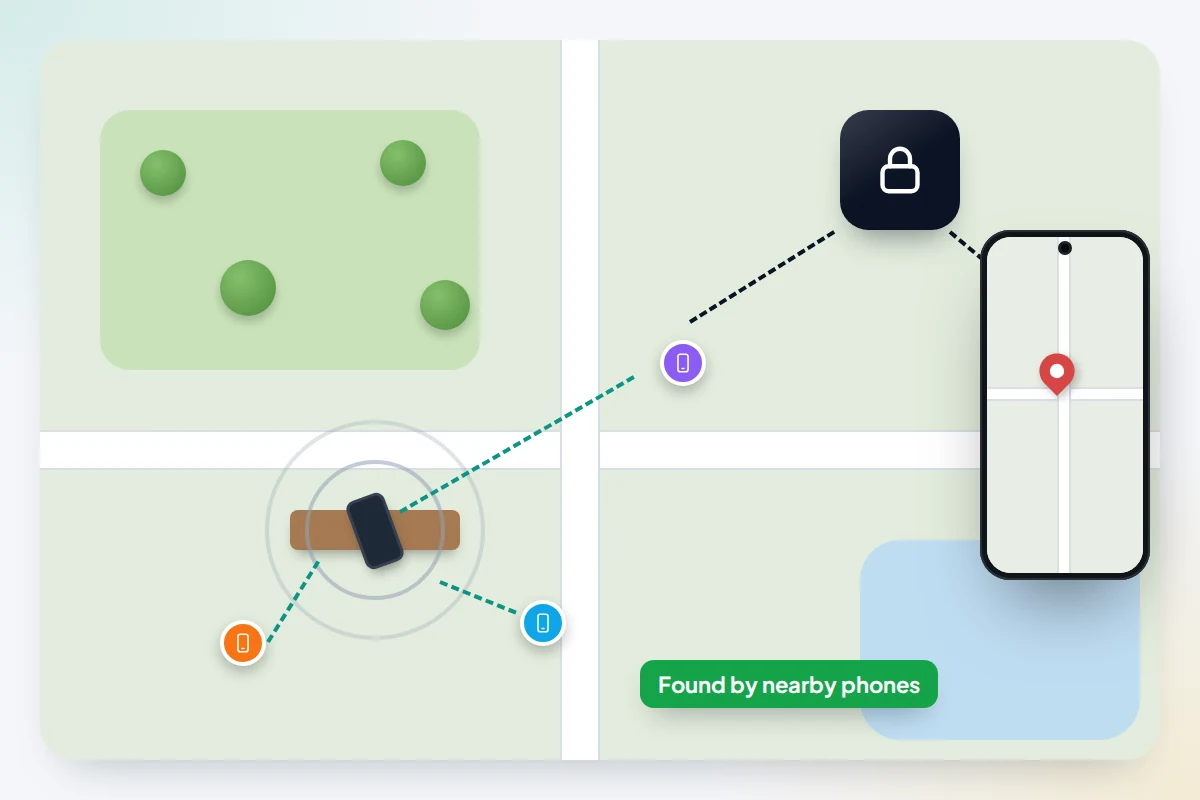
“Without network” stores your phone’s recent location, encrypted, with your Google Account. The “with network” options also let other Android phones nearby report where it is, using end-to-end encrypted data. “Busy places only” is more private; “everywhere” helps more in quiet areas. On older phones running Android 8.0 or lower, the equivalent is a switch called Store recent location.
When the battery runs flat
On supported phones, such as the Pixel 8 series and later, the Find Hub network can still locate the phone for several hours after it has switched itself off. For this to work, Bluetooth and Location need to be on when the phone shuts down. On other phones, the last stored location is what you will see. Some manufacturers, including Samsung, also offer their own finding service, which you can switch on alongside Find Hub.
Android: switch on theft protection
Google’s theft protection features sit together on Android 10 and later. Open Settings → Google → All services → Theft protection and work through the list.
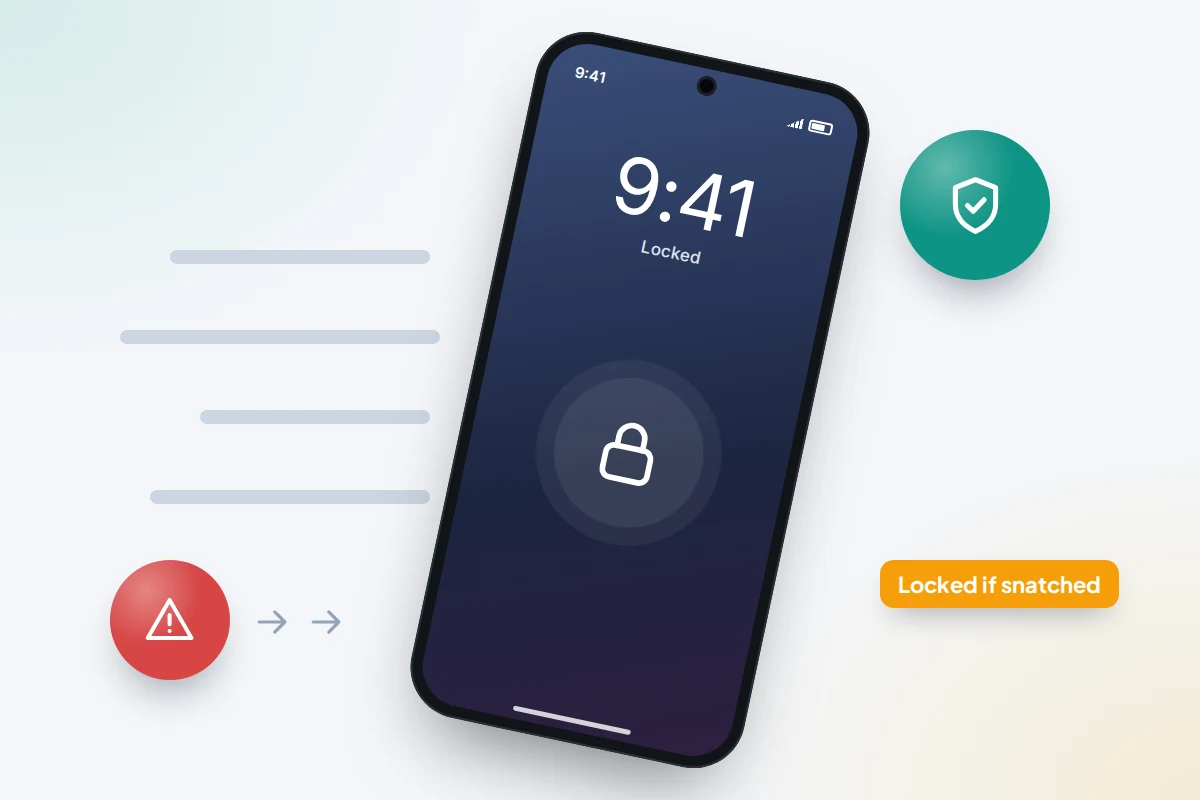
- Theft Detection Lock uses the phone’s sensors to spot the typical movement of a snatch-and-run and locks the screen automatically. It only acts when the phone is unlocked at the time.
- Offline Device Lock locks the screen if the phone is kept offline for a while after being taken, which is a common way thieves try to stop tracking.
- Remote Lock lets you lock the phone from any browser at android.com/lock using just your phone number, handy if your Google password escapes you under pressure. It needs an active SIM, a verified number and Find Hub on; you can add a security question.
- Identity Check (Android 15 and later, on supported phones) asks for your fingerprint or face before sensitive account and security changes when you are away from trusted places.
If you use 2-Step Verification on your Google Account, print or save your backup codes now. If the lost phone is the only way you receive sign-in prompts, backup codes are how you get into Find Hub from someone else’s device.
iPhone: Find My, the Find My network and Stolen Device Protection
Wording varies slightly between iOS versions.
- Open Settings → [your name] → Find My.
- Tap Find My iPhone and turn on Find My iPhone.
- Turn on Find My network, so the phone can be located through nearby Apple devices even when it is offline. On recent models this can also help for a while after the phone has been switched off.
- Turn on Send Last Location, so the phone sends its location to Apple when the battery is critically low.
If the battery does run out, Find My shows the last known location for up to seven days.
Stolen Device Protection
Stolen Device Protection targets someone who has watched you type your passcode and then takes the phone. Away from familiar places such as home or work, some actions need Face ID or Touch ID with no passcode fallback, and the most sensitive, such as changing your Apple Account password, also need an hour’s wait and a second check.
- Go to Settings → Face ID & Passcode (or Touch ID & Passcode) and enter your passcode.
- Tap Stolen Device Protection and turn it on.
- Choose whether the extra checks apply Away from Familiar Locations or Always.
It needs iOS 17.3 or later, two-factor authentication on your Apple Account, a passcode, Face ID or Touch ID, Significant Locations turned on, and Find My turned on.
Lock the SIM and label the lock screen
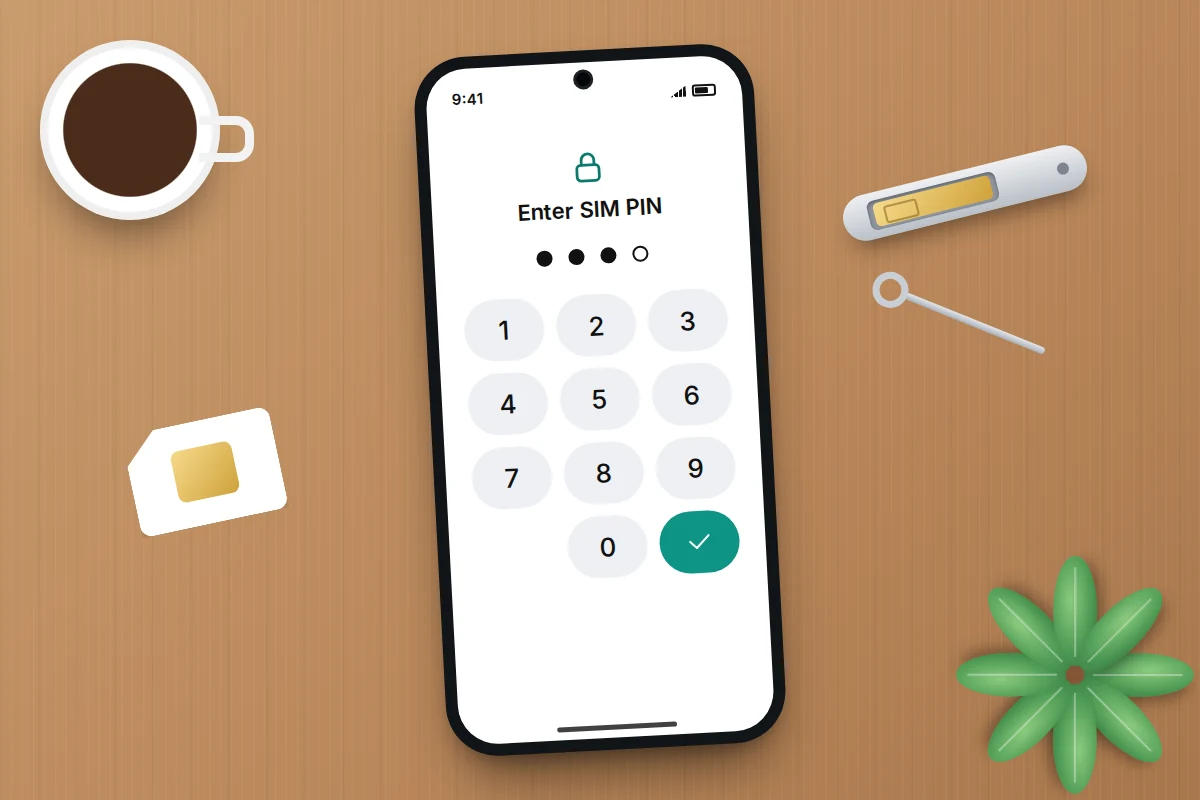
Add a SIM PIN
A SIM PIN stops someone putting your SIM in another phone to receive your calls and texts, including sign-in codes. Find your SIM’s current PIN on your network’s website first; some use a default such as 0000. Three wrong attempts block the SIM until you get a PUK code from your network, so do not guess.
- Android (Pixel): Settings → Security & privacy → More security & privacy → SIM lock, then turn on Lock SIM and change the PIN. On Samsung and other phones, look under Security or search Settings for “SIM lock”.
- iPhone: Settings → Mobile Service → SIM PIN (called Cellular in some regions), turn it on, then tap Change PIN.
Put contact details on the lock screen
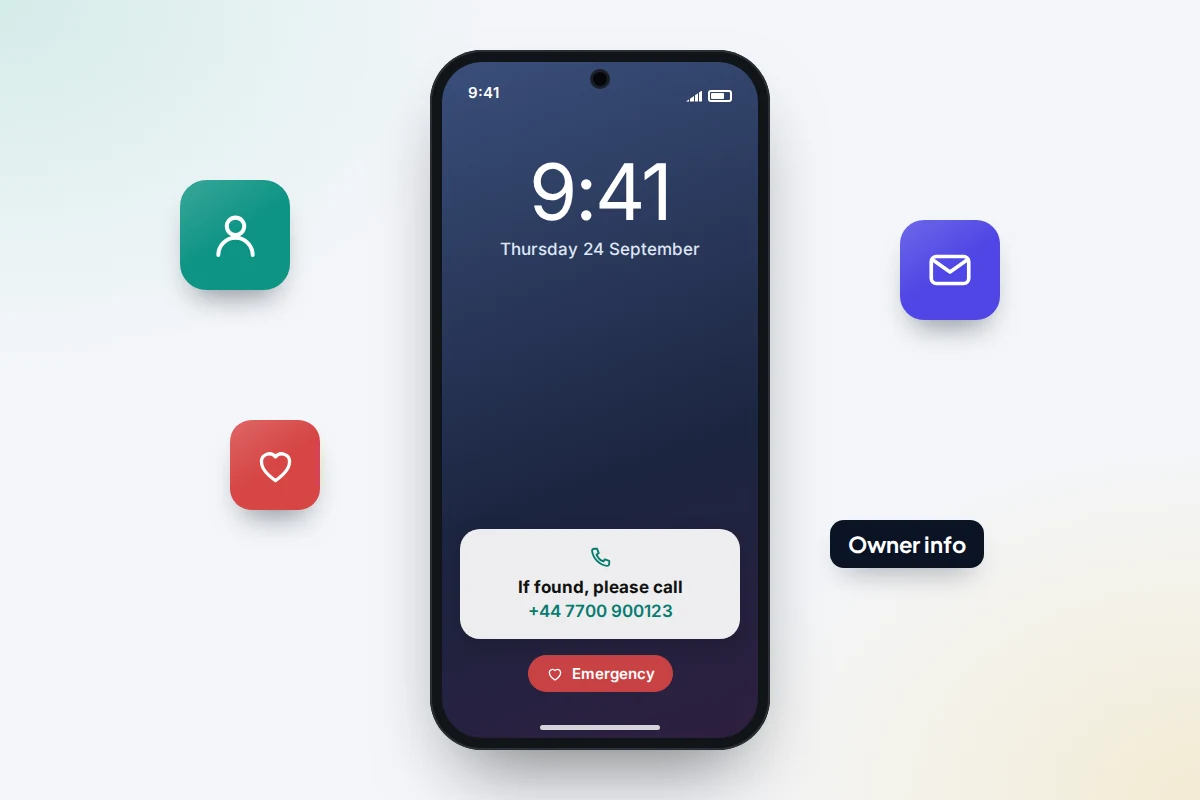
An honest finder can only return a phone if they know whose it is. Use a second number or an email address, never a home address: anyone can read it.
- Android: Settings → Display → Lock screen → Add text on lock screen, then type something like “If found, please call” and a number. For medical details and emergency contacts, open the Safety app or Settings → Safety & emergency, add them, and allow them to show when locked.
- iPhone: there is no permanent lock-screen message, but when you mark the phone as lost in Find My you can add a message and phone number. For emergency details, open the Health app, tap your profile picture, then Medical ID, and turn on Show When Locked.
Note the IMEI and check your backups
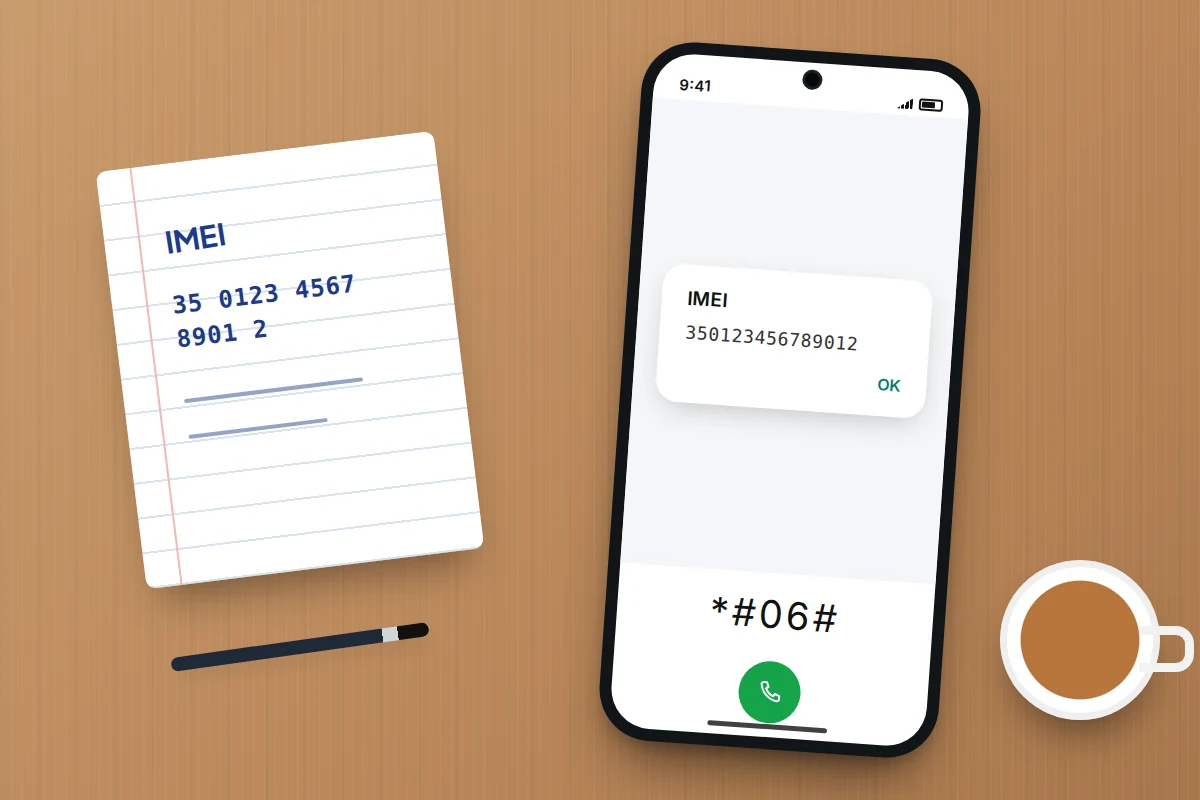
The IMEI is the 15-digit number that identifies the phone itself, separate from the SIM. Networks use it to block a stolen phone, and police use it to match a recovered phone to its owner.
- Open the phone’s dialler and type *#06#. The IMEI appears on screen. Phones with dual SIM or eSIM show two; note both.
- Or look in Settings → About phone on Android, or Settings → General → About on iPhone.
- Store it away from the phone: in a password manager, an email to yourself, or on paper with your important documents. The original box also has it on the label.
In the UK, Citizens Advice also suggests registering your phone on Immobilise, the free property register that police can search when they recover items.
Finding a phone is not always possible, so make sure losing it does not also mean losing your photos. On Android, check Settings → Google → All services → Backup (on some phones Settings → System → Backup) and make sure backup is on. On iPhone, go to Settings → [your name] → iCloud → iCloud Backup and turn on Back Up This iPhone. If the last backup date is weeks old, something is stopping it. Our guide on testing that a phone backup actually restores walks through a proper check.
Tablets, earbuds and other things that go missing
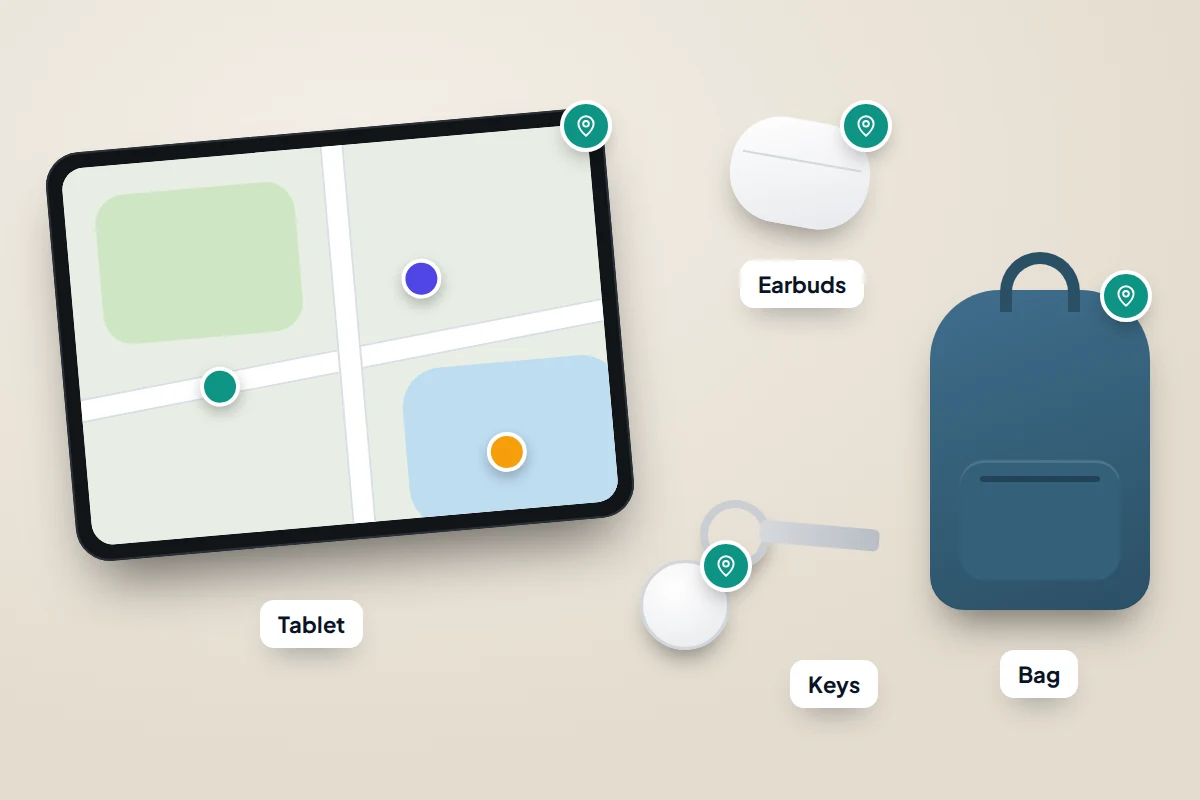
- Tablets: an Android tablet signed in to your Google Account appears in Find Hub once the same settings are on; an iPad appears in Find My once Find My iPad is on under Settings → [your name] → Find My.
- Earbuds and headphones: on Android, supported headphones can be added under Settings → Connected devices, then tap the device and choose Find when disconnected. Apple earbuds paired to your Apple Account appear in Find My.
- Keys and bags: a tracker tag that works with Find Hub or Find My shows up alongside your phone once paired. Trackers are for your own belongings; both platforms alert people to an unknown tracker travelling with them.
Test it once from another device
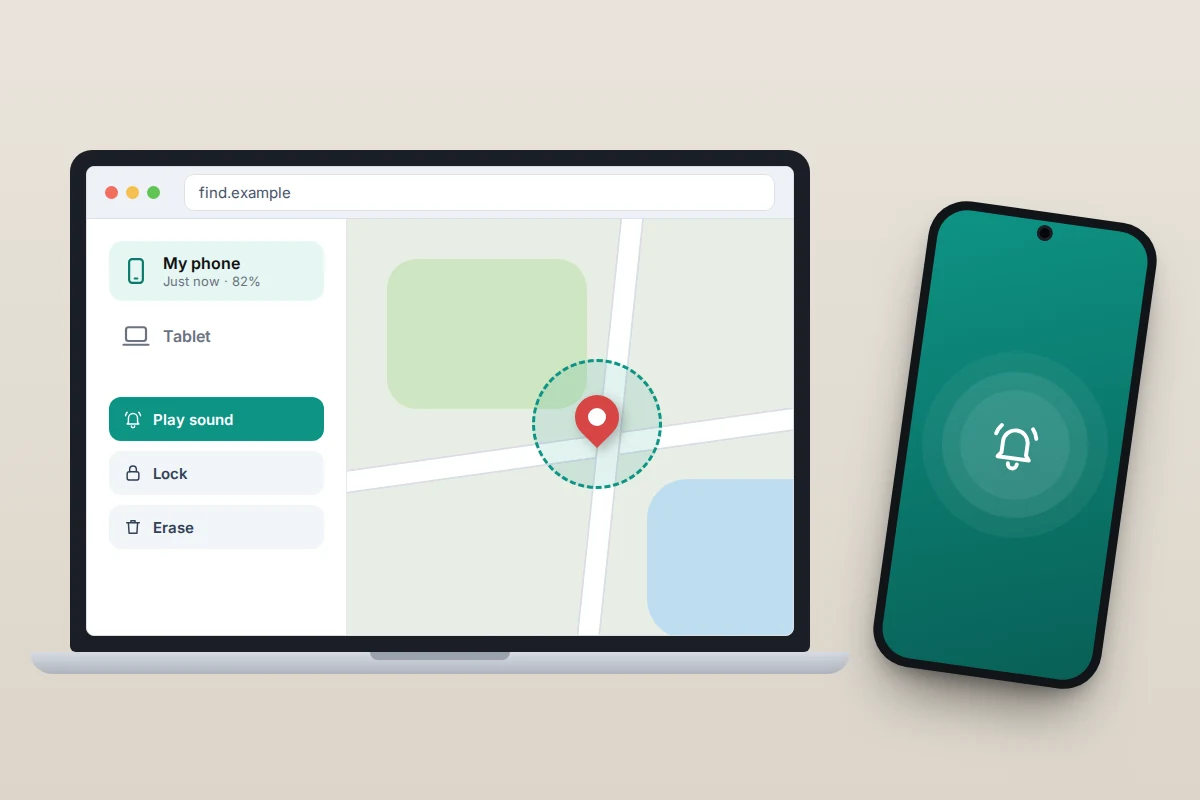
A setting you have never tried is one you cannot rely on. The test takes two minutes and shows up the most common problem: not being able to sign in without the phone you are trying to find.
- On a laptop or a family member’s device, open android.com/find (Android) or icloud.com/find (iPhone) and sign in.
- Check your phone appears with a recent location and battery level.
- Use Play sound. On Android it rings at full volume for five minutes, even on silent; stop it from the phone.
- On iCloud.com, notice the Find Devices button at the bottom of the verification code screen. It lets you continue without a code from your lost phone.
- On Android, try signing in the way you would if the phone were gone. If you need a code from the phone itself, set up backup codes now.
It also helps to agree with one trusted person, for example through a family group you have both joined, that they can help you locate your phone if it goes missing.
The ten-minute checklist
| Step | Android | iPhone |
|---|---|---|
| Location finding | Find Hub on | Find My iPhone on |
| Offline finding | Find your offline devices: a “with network” option | Find My network on |
| Flat battery | Bluetooth and Location on (supported phones) | Send Last Location on |
| Theft protection | Theft Detection Lock, Offline Device Lock, Remote Lock, Identity Check | Stolen Device Protection |
| SIM PIN | Security → SIM lock | Mobile Service → SIM PIN |
| Lock-screen contact | Add text on lock screen, emergency info | Medical ID, Show When Locked |
| IMEI noted | *#06# or About phone | *#06# or General → About |
| Backup on | Google backup | iCloud Backup |
| Sign-in without the phone | 2-Step Verification backup codes | Find Devices button on iCloud.com |
| Tested | android.com/find, Play sound | icloud.com/find, Play Sound |
What if this doesn’t work
- The phone does not appear on the web page. Check you signed in with the same account the phone uses, and that the finding switch and Location are on.
- The location is old. The phone may have been offline. Turn on offline finding and, on Android, choose a “with network” option.
- Theft protection options are missing. These need Android 10 or later, and Identity Check needs Android 15 and a supported phone. Install any updates and look again.
- Stolen Device Protection is greyed out. Usually two-factor authentication, Find My or Significant Locations is off. Turn them on and try again.
- You cannot sign in without the phone. Set up backup codes (Google) or note the Find Devices route on iCloud.com before you need them.
If a phone does go missing, our step-by-step guide on what to do when a phone is lost or stolen covers the first hour, from locating it to reporting it.
Frequently asked questions
Does leaving Find Hub or Find My on drain the battery?
Not noticeably for most people. Offline finding relies on Bluetooth, which is designed for low power use.
Can other people see my location through offline finding?
No. Both Google and Apple describe the location data passed through their networks as end-to-end encrypted, so neither the person whose phone relayed it nor the company can read it. Only you, signed in to your account, see where your device is.
Should I set this up on my child’s phone?
Yes, and explain what each setting does while you do it. Finding a lost phone is different from checking where someone is, so agree openly who can see the phone’s location.
What if I forget my SIM PIN?
After three wrong entries the SIM locks. Your network can give you the PUK code to unlock it. Do not keep guessing the PUK; too many wrong attempts can block the SIM permanently.
Can a thief just switch the phone off?
Yes, which is why offline finding, Send Last Location and Offline Device Lock matter. With Stolen Device Protection on, Find My stays on, and turning the protection off away from familiar places needs an hour’s wait and a second Face ID or Touch ID check.
Sources and further reading
- Google Android Help: Be ready to find a lost Android device
- Google Android Help: Protect your personal data against theft
- Apple Support: How to turn on Find My on your iPhone, iPad or Mac
- Apple Support: About Stolen Device Protection for iPhone
- Apple Support: Use a SIM PIN for your iPhone or iPad
- Metropolitan Police: Protect your phone
- Citizens Advice: What to do if your mobile phone is lost or stolen
Using a monitoring app for this? TheTruthSpy is a free parental control app for Android that stays visible on the child's phone. If it fits your family, see what the app does.
Free parental control app for Android
GPS tracking, screen time limits, web filtering, SMS and call monitoring — visible on your child's phone. Pair a phone in about ten minutes.
Android · Free to set up · Visible on your child's phone