How to Stop an App From Using Your Camera on Android and iPhone

You notice the green camera dot while scrolling a shopping app, or a torch app you installed years ago turns out to hold camera permission. To stop an app using the camera, take the permission away: on Android, open the app’s Permissions and set Camera to “Don’t allow”; on iPhone, go to Settings › Privacy & Security › Camera and switch the app off. Both take under a minute and neither deletes the app.
That covers most cases, but not all of them. Websites, laptops, children’s phones and the “block everything right now” situation each use a different control, and every one of them has limits that are worth knowing before you rely on it.
Which control do you actually need?
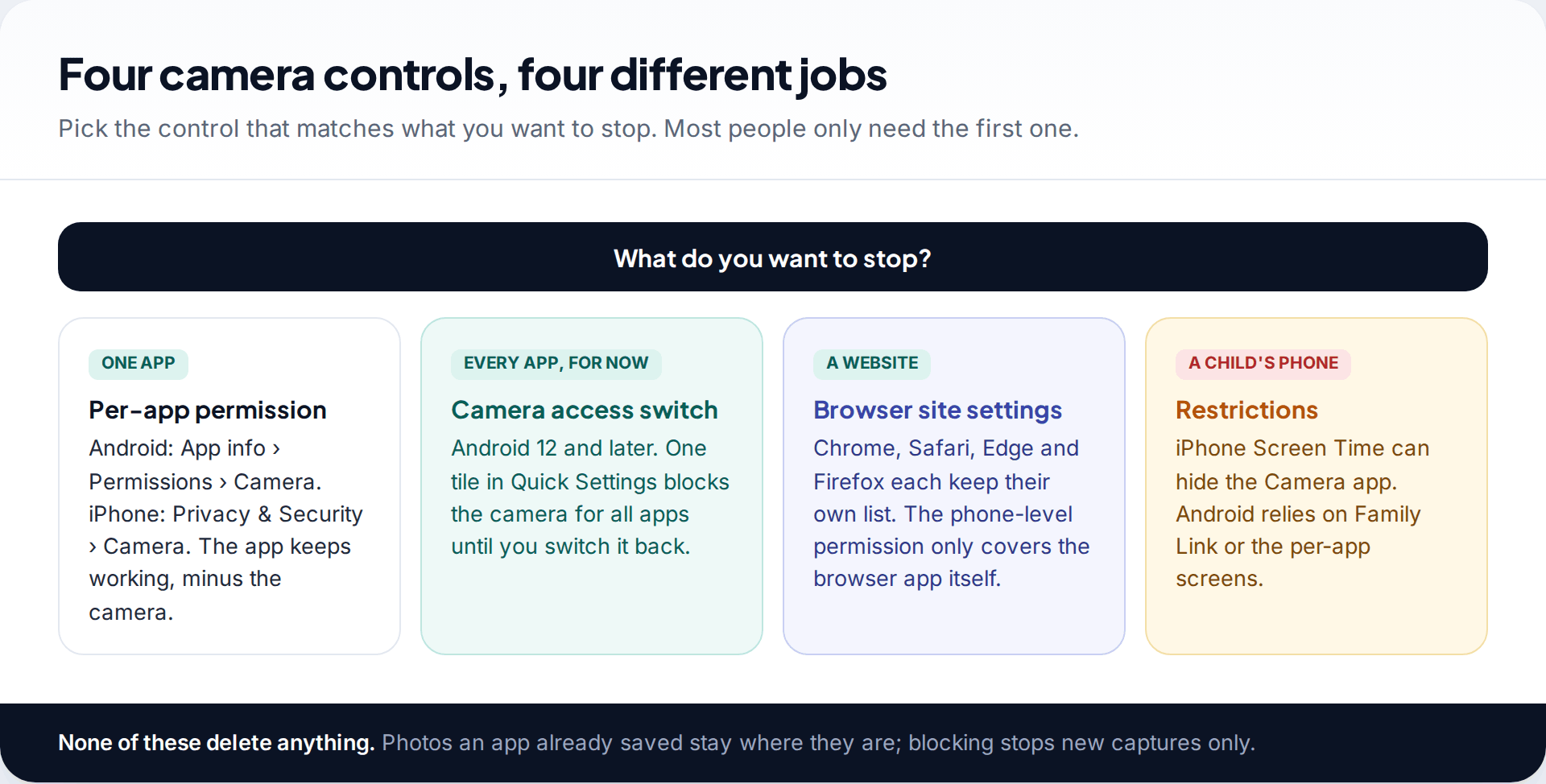
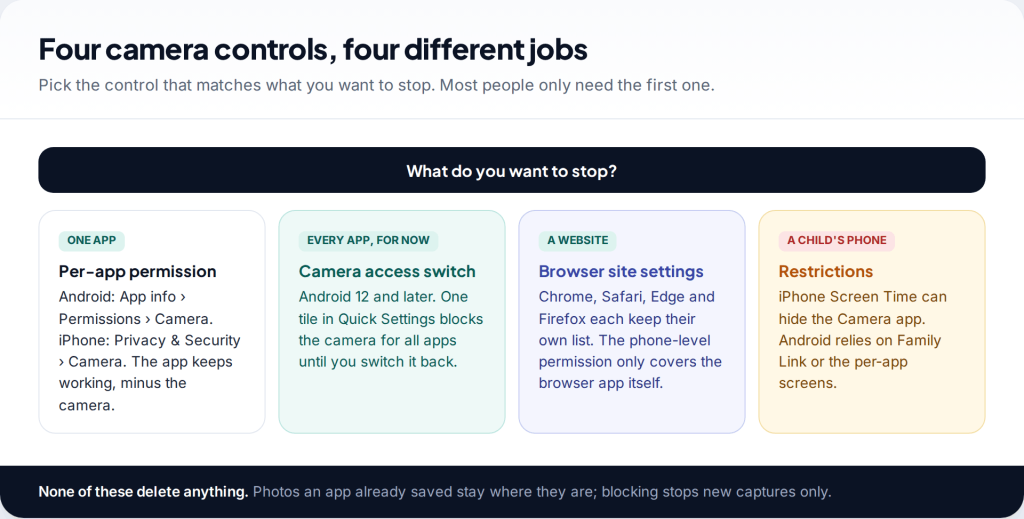
Phones treat the camera as a protected resource: an app has to ask, and you can withdraw the answer at any time. What differs is the scope of each control.
- One app you no longer trust with the camera — use the per-app permission. The app keeps working; features that need the lens simply stop.
- Every app, for an hour or an evening — on Android 12 and later, use the Camera access tile in Quick Settings. iPhone has no equivalent single switch.
- A website — the phone’s permission only covers the browser. The list of sites allowed to use the camera sits in the browser’s own settings.
- A child’s phone — iPhone’s Screen Time can remove the Camera app entirely. On Android, supervised accounts use Family Link and the same permission screens.
Android: stop one app using the camera
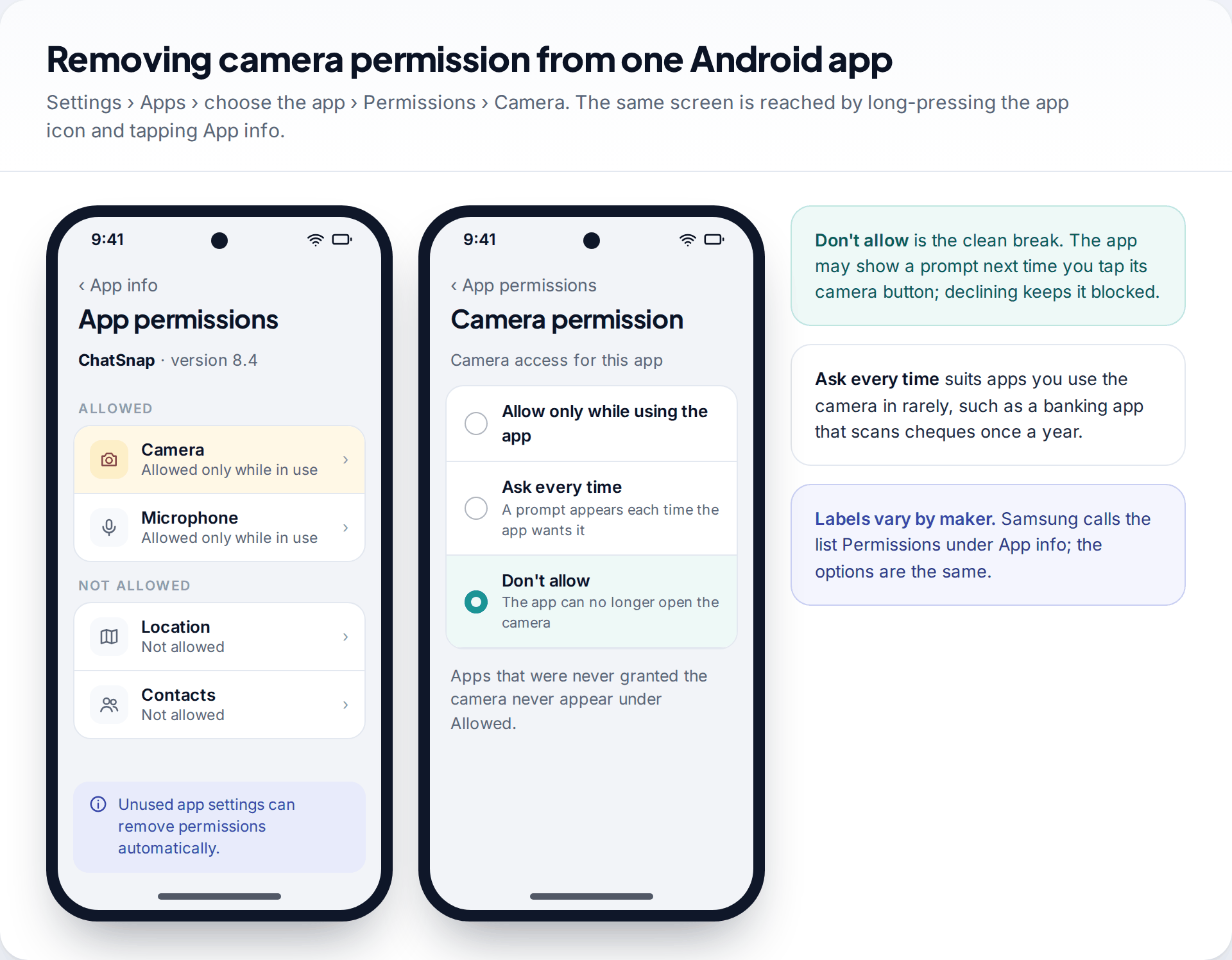
Google’s help pages put the per-app control at Settings › Apps › the app › Permissions. A faster route is to press and hold the app’s icon, tap the small “i” or App info, then Permissions. Tap Camera and you get three choices:
- Allow only while using the app — the app can use the camera while it is open on screen. This is the most any app can have for the camera on current Android.
- Ask every time — a prompt appears whenever the app wants the camera. It suits apps you use for photos only occasionally.
- Don’t allow — the app cannot open the camera. If you later tap a camera button inside it, it will usually show its own prompt asking you to grant access again.
“Don’t allow” is the right answer for anything that has no clear reason to see through your lens. Messaging, video calls, document scanning and banking deposit features do need the camera. Torches, calculators, wallpaper apps and most games do not.
Android also removes permissions from apps you stop using. Google describes it under Unused app settings on the App info page, where “Pause app activity if unused” also clears the app’s permissions after a period without use. Leave it on; it quietly tidies up apps you forgot about.
Check every app with camera access at once
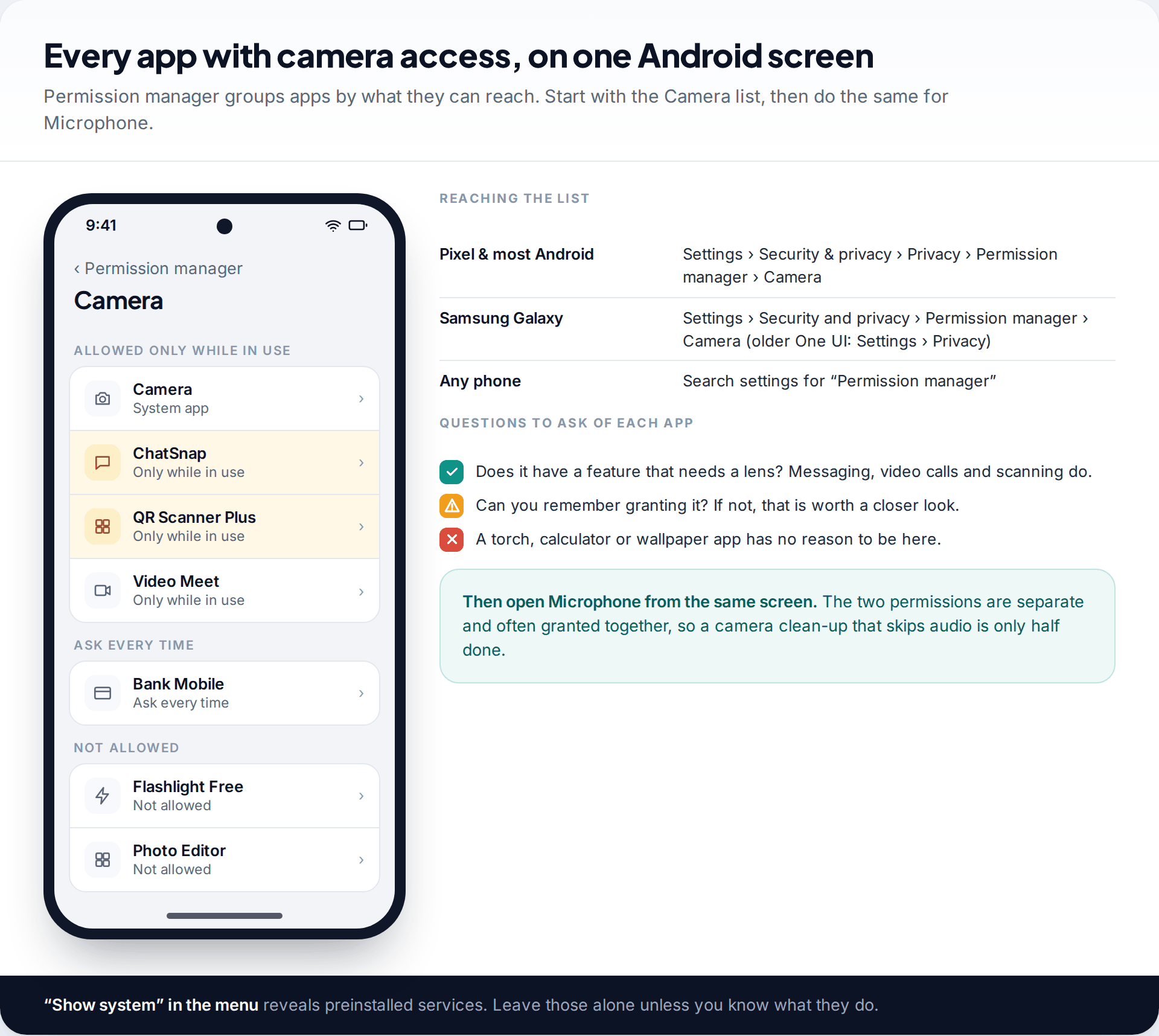
Going app by app is slow when you have eighty of them. Permission manager turns the question round: pick Camera and it lists every app that has it, grouped by the level of access. Google’s path is Settings › Security & privacy › Privacy › Permission manager. Samsung phones put it under Settings › Security and privacy (on older One UI versions, Settings › Privacy). If in doubt, search settings for “Permission manager”.
Work down the “Allowed” group and ask one question of each entry: does this app have a feature that needs the camera, and did I use it? Tap any app to change its setting on the spot. Then open Microphone from the same screen and repeat, because audio is a separate permission and the two are often granted together.
You will also see the phone’s own Camera app and, if you open the menu and choose Show system, a number of preinstalled services. Leave those alone unless you know what they do. Removing camera access from a system component can break face unlock, QR scanning in Quick Settings or the video calling built into the dialler.
Block the camera for every app with one switch
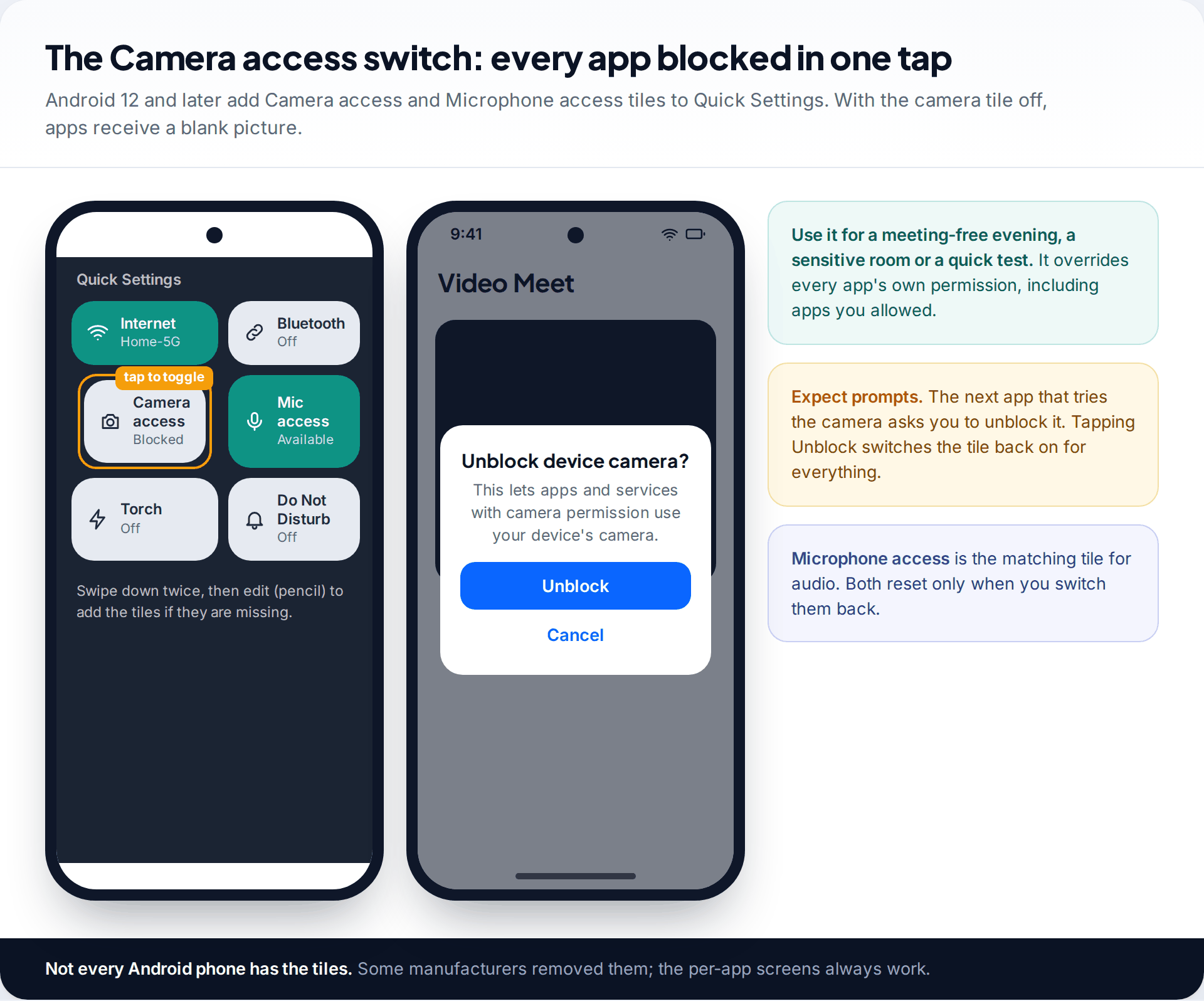
Android 12 added two Quick Settings tiles, Camera access and Microphone access. Google’s help describes the matching switches under Settings › Security & privacy › Privacy › Privacy controls. Turning Camera access off overrides every app’s own permission, including the ones you allowed, until you turn it back on.
It’s the right tool for temporary situations: a sensitive meeting, a room where you would rather nothing could film, or a quick test when you suspect something is using the camera in the background. Apps that try to use the camera while it is blocked receive a blank feed, and Android asks whether you want to unblock it. Tapping unblock switches it back on for all apps, not just the one you are in, so think before you tap.
If the tiles are missing, swipe down twice, tap the pencil or edit button and drag them into place. A few manufacturers do not include them at all. The per-app screens work on every phone regardless.
No lock icon means no lock. The Camera access switch does not survive a determined app that you then allow, and it is not a parental control. Anyone holding the unlocked phone can switch it back on with one tap.
iPhone: stop an app using the camera
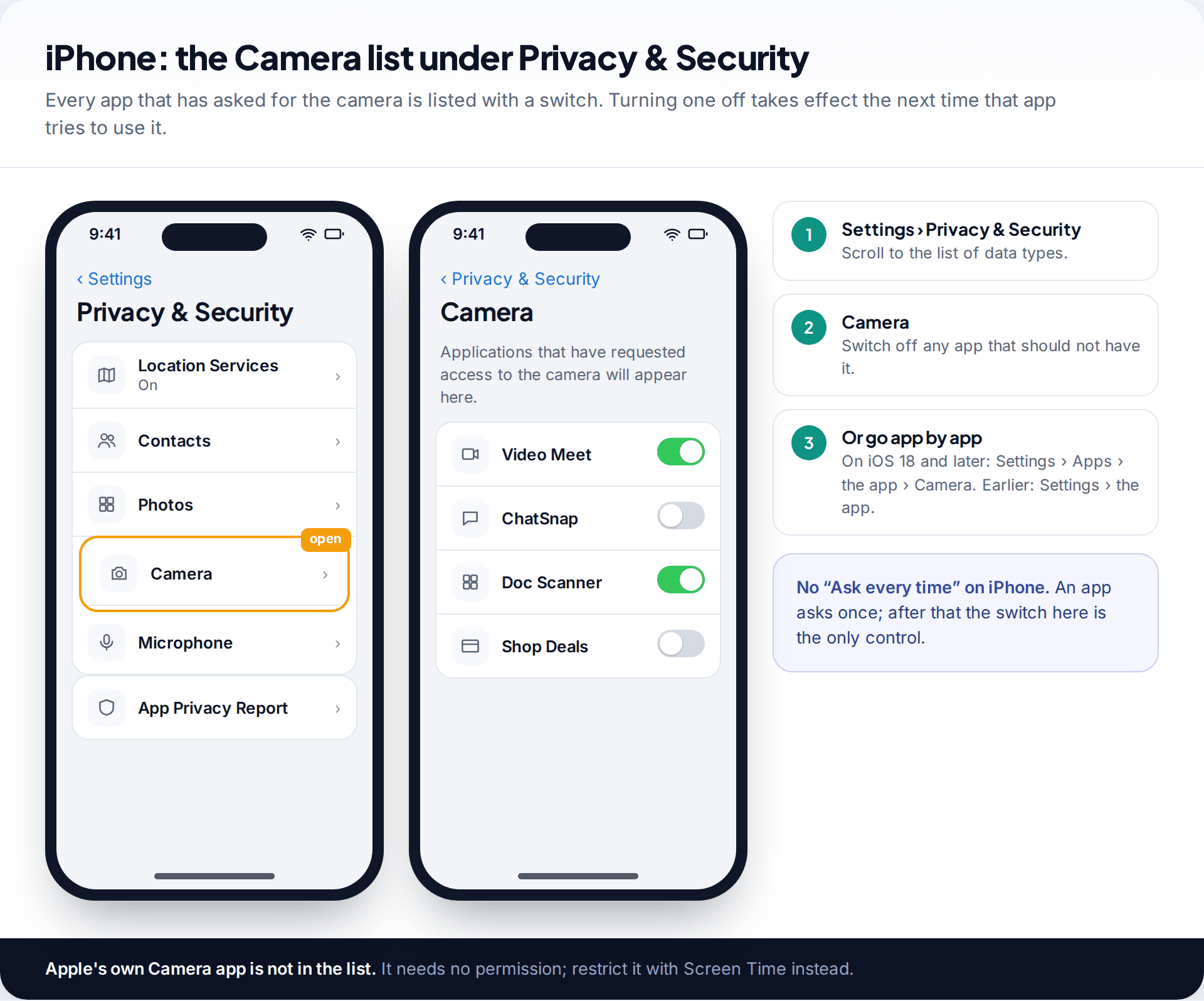
On iPhone the controls sit in one place: Settings › Privacy & Security › Camera. Apps that have requested the camera appear with a switch each. Turn off any that shouldn’t have it. You can also go the other way round and open the app’s own settings page. On iOS 18 and later that is Settings › Apps › the app; on earlier versions each app is listed near the bottom of the Settings screen.
Two differences from Android matter. First, iPhone has no “ask every time” setting; an app asks once, and after that only this switch changes the answer. Second, Apple’s own Camera app is not in the list, because it doesn’t need permission. If you want the camera gone entirely, that takes Screen Time.
While you’re on the Privacy & Security screen, open Microphone as well, and consider turning on the App Privacy Report further down. It records when apps actually used the camera over the past seven days, which tells you whether a permission is being used or just held. Our guide to seeing which apps used your camera or mic explains how to read it on both platforms.
Turning the camera off completely on an iPhone
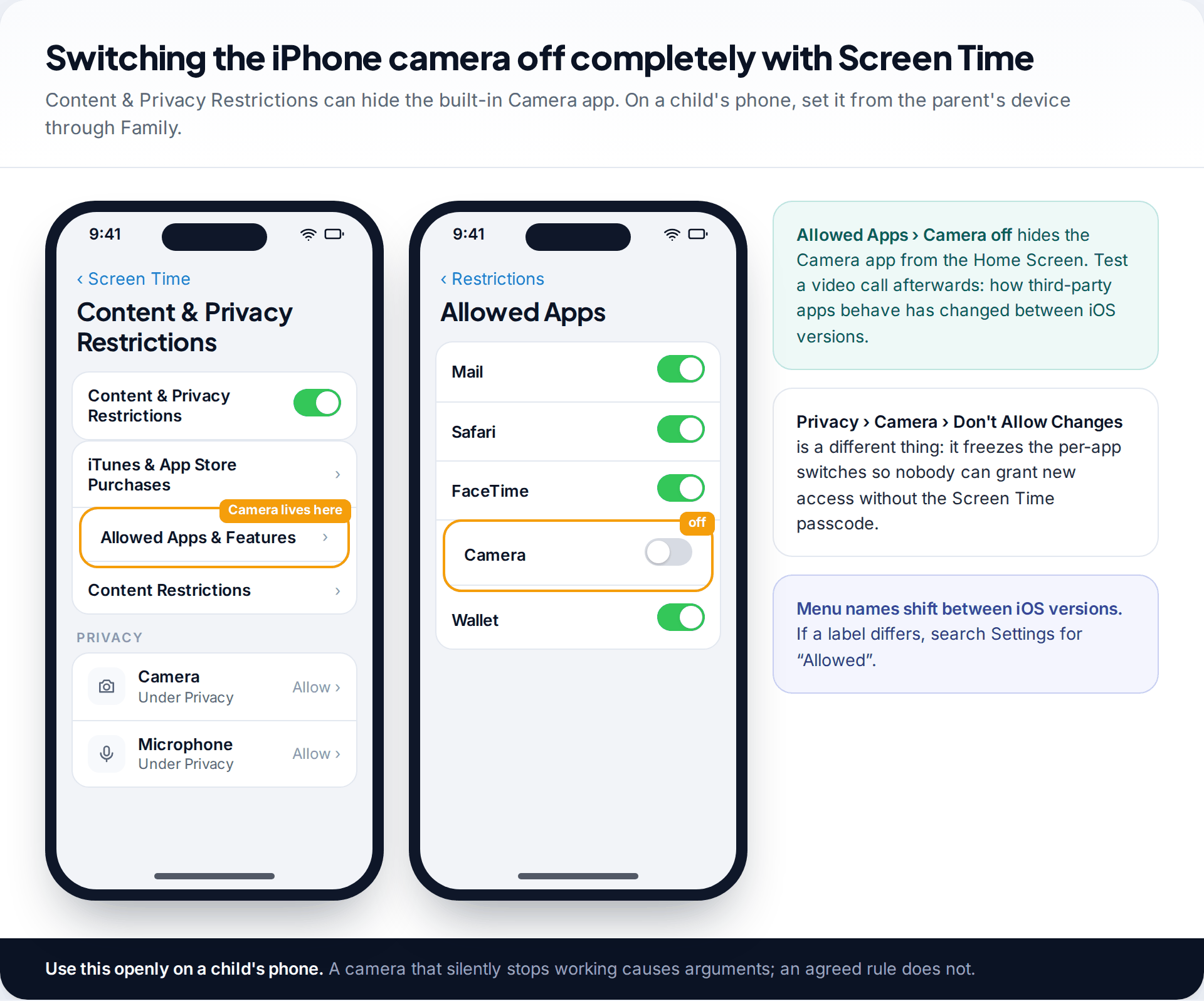
Screen Time’s Content & Privacy Restrictions have two camera settings, and they do different things:
- Allowed Apps › Camera (labelled Allowed Apps & Features on recent versions) hides the built-in Camera app from the Home Screen. Test a video call afterwards, because how third-party apps behave under this setting has varied between iOS versions.
- Privacy › Camera › Don’t Allow Changes freezes the per-app switches as they are. Nobody can grant a new app camera access without the Screen Time passcode.
On your own phone, go to Settings › Screen Time › Content & Privacy Restrictions and turn the main switch on first. For a child in your Family Sharing group, Apple’s instructions are to open Settings › Family, tap the child’s name and set the same restrictions from your own device. Do it with them, not behind their back: a camera that stops working without explanation invites workarounds, while an agreed rule is easier to keep.
Websites and the browser’s own camera list
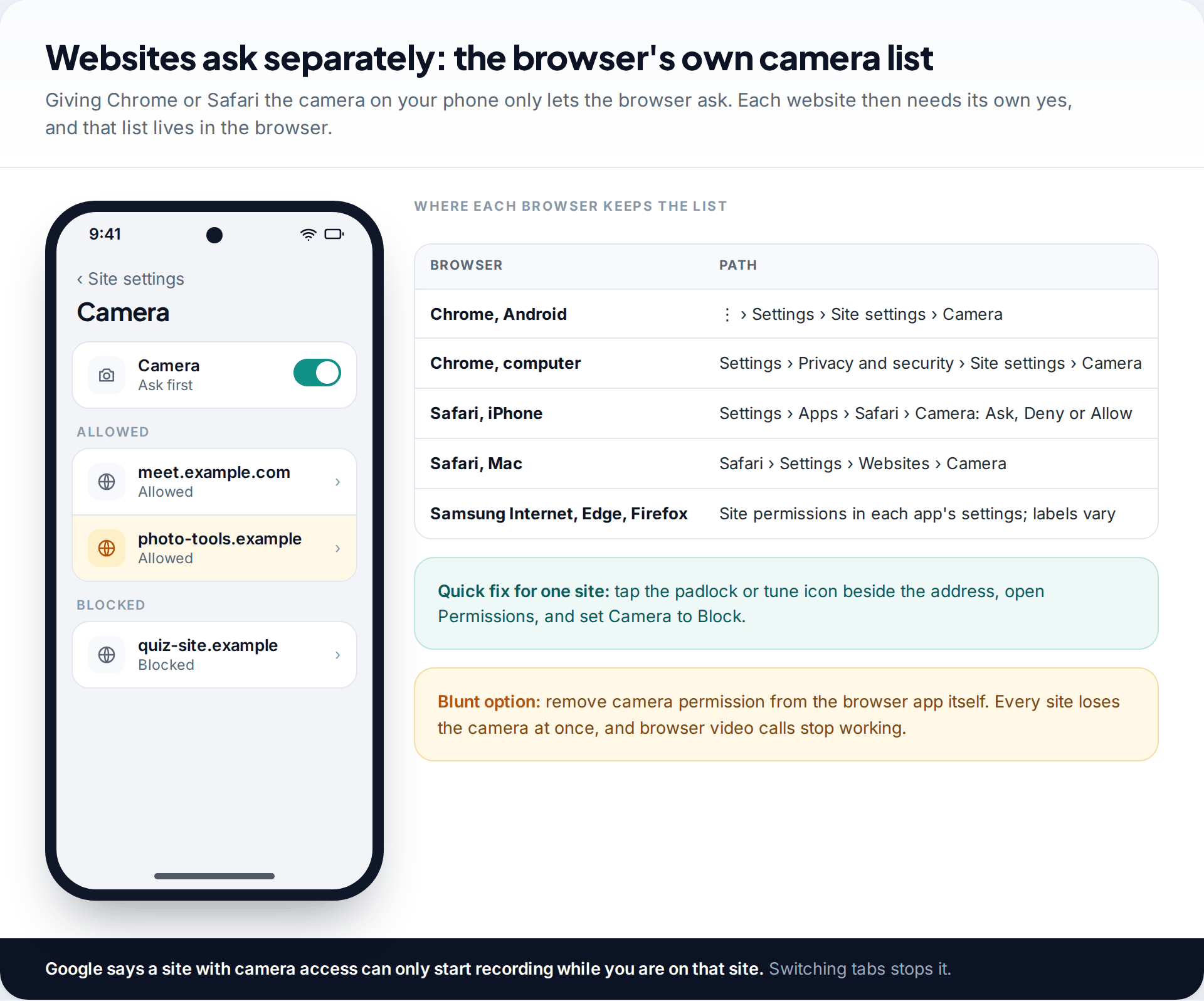
A website can’t reach your camera on its own. The browser has to hold the camera permission, and then each site asks separately. So blocking a website means using the browser’s list, not the phone’s.
- Chrome on Android: ⋮ › Settings › Site settings › Camera. Allowed and blocked sites are listed; tap one to change it. Google notes that a site you allow can start recording only while you are on it.
- Safari on iPhone: Settings › Apps › Safari › Camera, with Ask, Deny or Allow for all sites. For one site, tap the page settings button beside the address while you are on it.
- Safari on a Mac: Safari › Settings › Websites › Camera.
- Other browsers keep a similar Site permissions page; the labels differ, the idea does not.
If you simply want no website ever to use the camera, the blunt option is to remove camera permission from the browser app itself. Video calls in the browser will then fail, which is the trade-off.
Windows and Mac, briefly
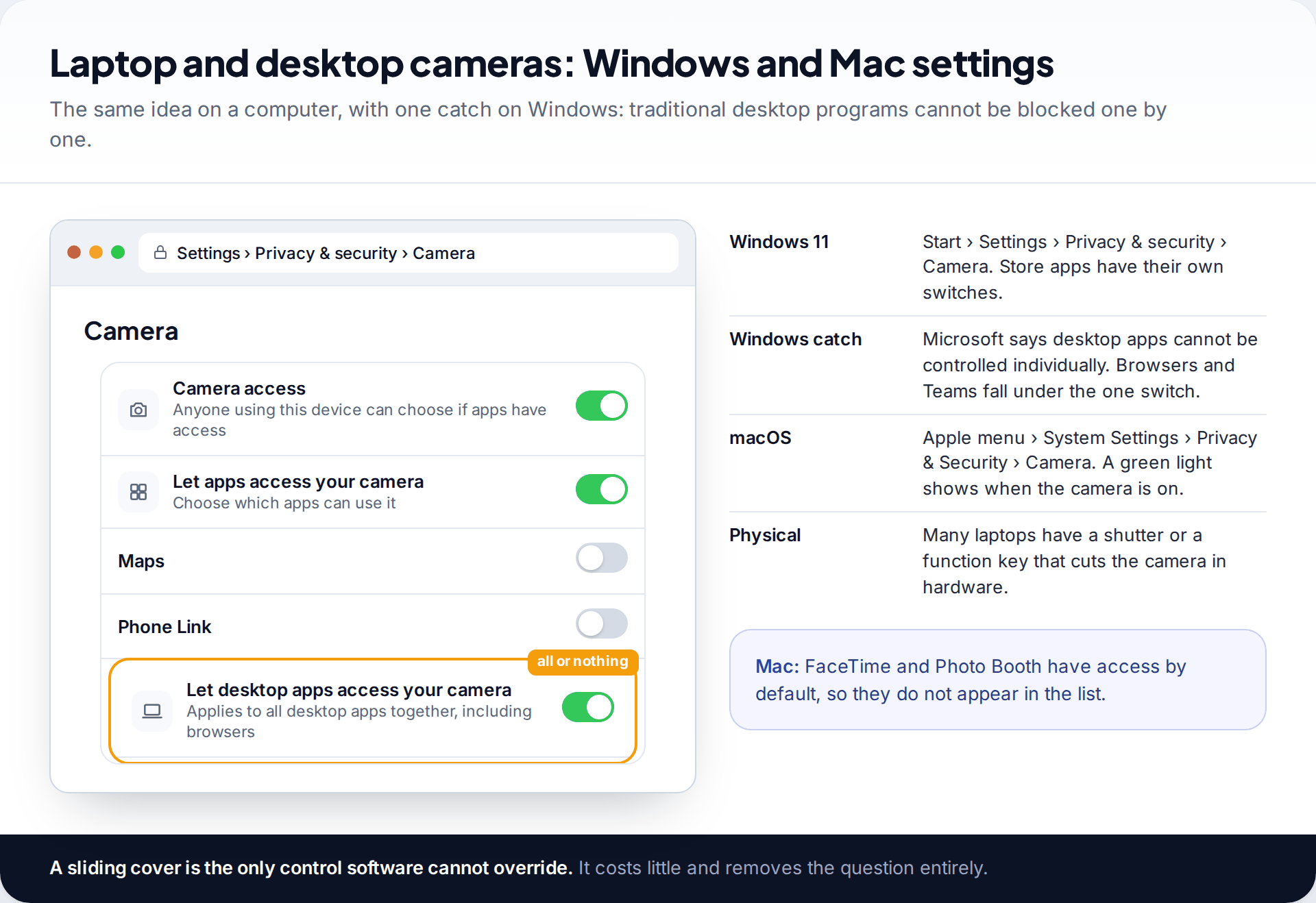
On Windows 11, Microsoft’s path is Start › Settings › Privacy & security › Camera. You’ll find three switches: one for the whole device, one for apps from the Microsoft Store (each with its own switch below), and Let desktop apps access your camera. Microsoft states that desktop apps can’t be controlled individually, so browsers, Teams and other installed programs are either all allowed or all blocked.
On a Mac, Apple’s path is System Settings › Privacy & Security › Camera, with a switch per app. A green light beside the camera shows when it is on, and it goes out when every app using it is closed. FaceTime and Photo Booth have access by default and don’t appear in the list.
On any computer, a camera shutter or cover is the one control that software cannot undo. Many laptops include a sliding shutter or a keyboard key that cuts the camera off in hardware.
What blocking the camera cannot do
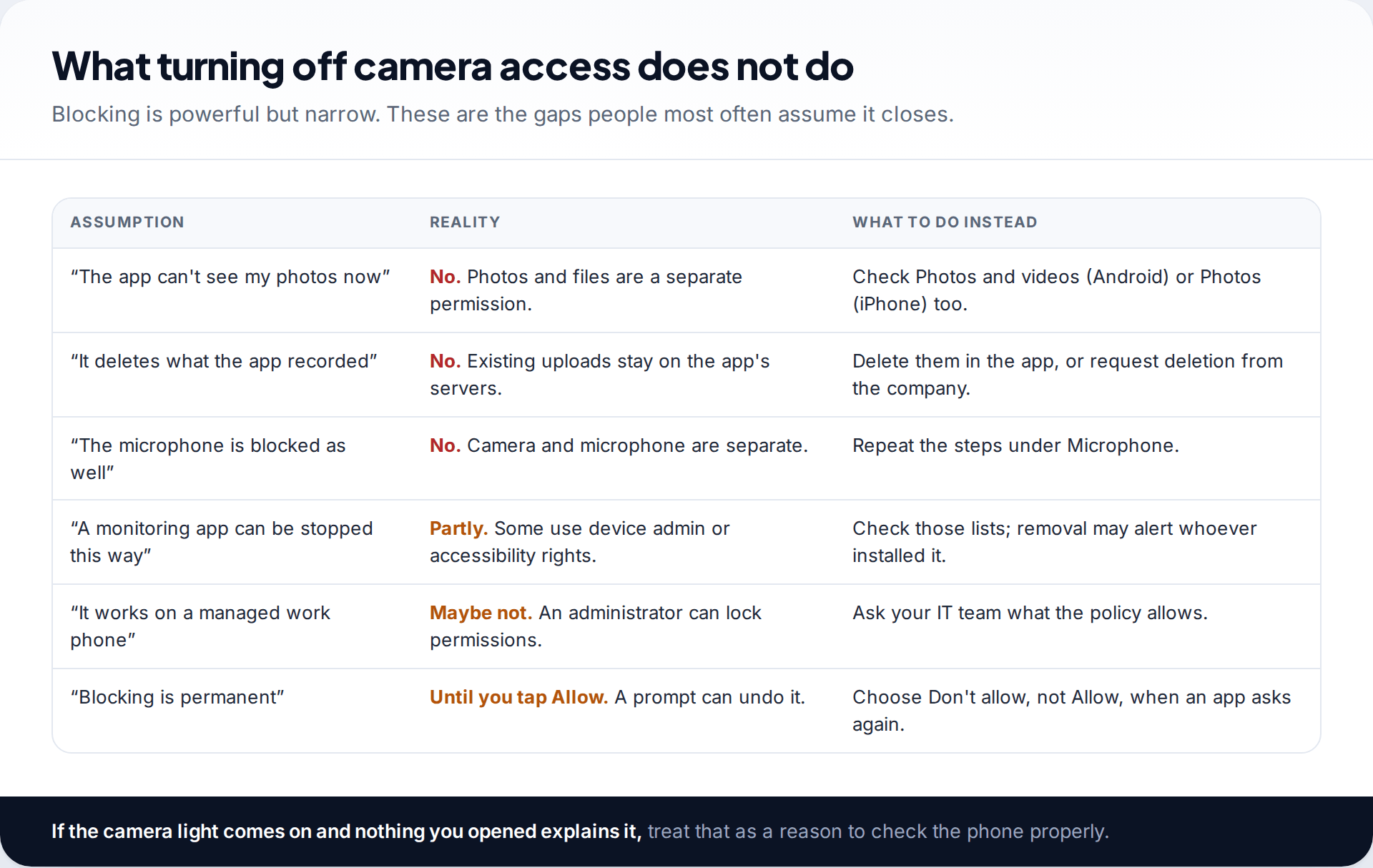
Camera permission is narrow by design. Removing it doesn’t take away access to your photo library, which is a separate permission (Photos and videos on Android, Photos on iPhone). It doesn’t block the microphone. And it does nothing about pictures or video the app already captured and uploaded; those sit on the company’s servers until you delete them in the app or ask the company to.
It is also only as strong as the phone’s permission system. On a work phone managed by an employer, the administrator may lock permissions so you can’t change them. A monitoring or stalkerware app may hold more powerful rights, such as device administrator or accessibility access, which is why the usual advice to “just remove the permission” is not enough in that situation. If you suspect that is what you are dealing with, read our guide to detecting stalkerware on Android first. Removing such an app can alert whoever installed it, so if you are worried about someone close to you, think about your safety before you act, and consider contacting a domestic-abuse support service in your country.
A video call shows a black screen after you changed settings
The Camera access tile is still off, or you set that app to Don’t allow.
Fix: turn Camera access back on in Quick Settings, or set the app to “Allow only while using the app”.
The camera switch is greyed out
A work profile, Family Link supervision or a Screen Time restriction controls it.
Fix: change it from the managing account, or ask whoever manages the device.
An app keeps getting camera access back
Usually the app prompts and someone taps Allow. Rarely, a device-admin app is re-granting it.
Fix: deny the prompt; if it keeps returning, check Device admin apps and consider uninstalling the app.
How this page was put together
The menu paths and option names were checked in September 2026 against Google’s Android help pages on app permissions, Permission manager and privacy controls, Apple’s support pages on Privacy & Security, Screen Time and Mac camera access, Google’s Chrome site-permission help and Microsoft’s Windows camera privacy article. Manufacturers rename these screens between versions, so if a label differs, search your Settings app for “camera” or “permission”.
We did not test every phone model, and some Android makers remove or rename the Quick Settings tiles. Our editorial standards page explains how we check and correct guides like this one.
Common questions
Will the app know I blocked its camera access?
The app can see that the permission is denied, and many will show a message asking you to grant it when you tap a camera feature. It doesn’t tell anyone else, and it doesn’t stop the rest of the app working.
Can an app use the camera when it is closed?
On current Android and iPhone, apps are limited to using the camera while they are in use, and the green indicator appears whenever the camera is active. That’s why an unexplained green dot is worth investigating.
Is it safe to deny camera access to preinstalled apps?
For obvious apps such as a manufacturer’s shopping or social app, yes. For system services shown under “Show system”, leave them alone unless you know their purpose, as face unlock and QR scanning can depend on them.
Does blocking camera access also block the microphone?
No. They’re separate permissions on both Android and iPhone. Change Microphone on the same screens, or use the Microphone access tile on Android.
How do I stop a website from using my camera?
Use the browser’s site settings: in Chrome, Site settings › Camera; in Safari on iPhone, Settings › Apps › Safari › Camera. Removing the browser’s own camera permission blocks every site at once.
Why is the camera option greyed out on my phone?
Something else manages it: a work profile, a parental control such as Family Link or Screen Time, or a device administrator app. Change it from that account, or find out who set it.
Using a monitoring app for this? TheTruthSpy is a free parental control app for Android that stays visible on the child's phone. If it fits your family, see what the app does.
Related guides
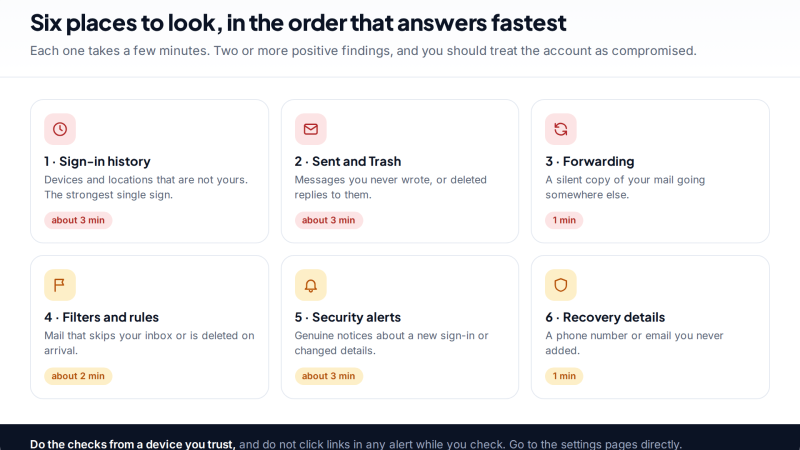
Was Your Email Hacked? The Evidence Inside Your Own Inbox
How to tell if your email was hacked using evidence you can check yourself: sign-in history, the Sent folder, hidden…
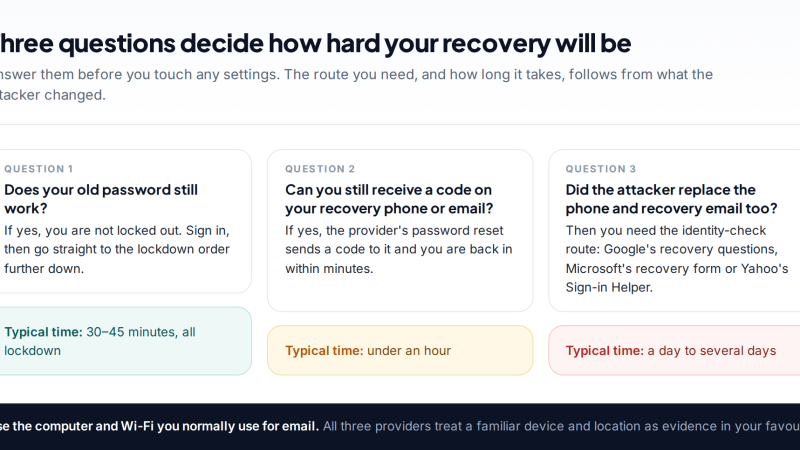
Hacked Email Account Recovery for Gmail, Outlook and Yahoo
How to recover a hacked email account on Gmail, Outlook or Yahoo: the official recovery page for each, how to…
Signs Someone Else Has Access to Your iCloud, and How to Cut Them Off
If you think someone has access to your iCloud, check the devices on your Apple Account, iCloud.com sessions, trusted phone…
Free parental control app for Android
GPS tracking, screen time limits, web filtering, SMS and call monitoring — visible on your child's phone. Pair a phone in about ten minutes.
Android · Free to set up · Visible on your child's phone