Stalkerware-Proofing Your Phone: Lock Screen, Accounts and Permissions

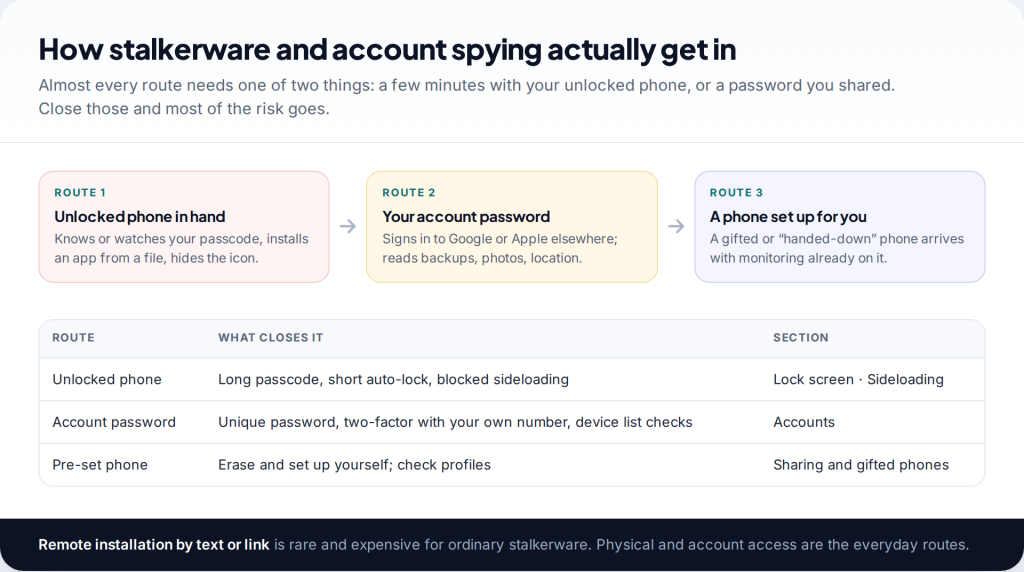
What actually protects a phone from stalkerware? Not an antivirus app on its own. To protect your phone from stalkerware, deny the two things installers depend on: a few minutes with your unlocked phone, and the password to your Google or Apple Account. A strong lock screen, blocked sideloading, locked-down accounts and a regular permission check cover almost every everyday route.
How stalkerware gets onto phones in the first place
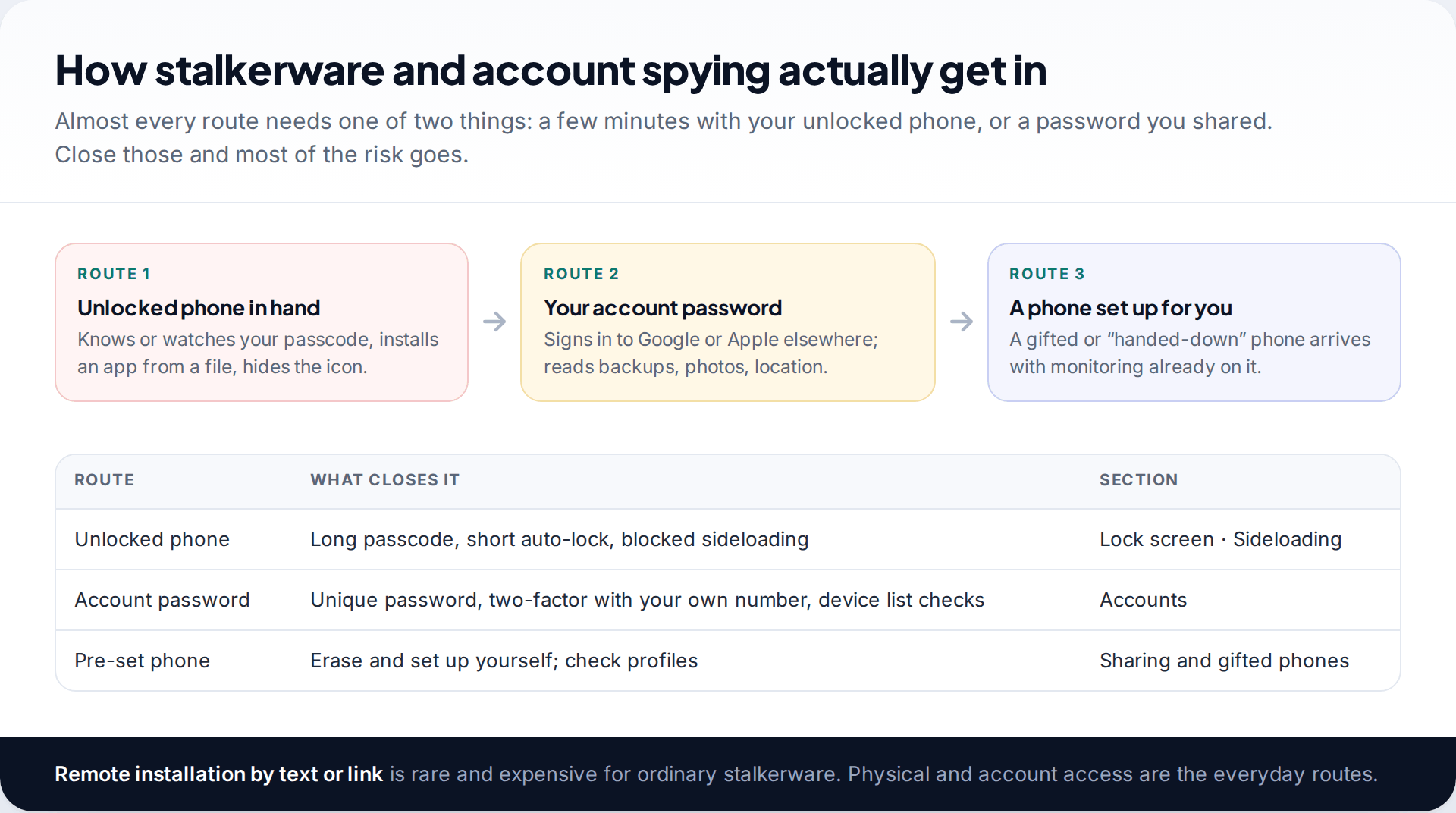
Commercial stalkerware is sold to people who want to monitor someone they know. On Android the buyer typically needs the target’s phone in their hands, unlocked, for a few minutes: long enough to allow installs from outside the Play Store, install the app from a file, grant it permissions and hide its icon. On iPhone the more common route is the Apple Account — knowing the password and getting past two-factor lets someone read iCloud data from their own device.
The third route is quieter: a phone that someone else bought, set up or “handed down” to you, already configured. That covers monitoring apps, management profiles and accounts signed in on your behalf.
Remote installation through a text message or link, with no contact at all, exists but belongs to expensive, targeted spyware rather than the consumer stalkerware most people face. So the most effective prevention is unglamorous: control who can unlock your phone and who can sign in to your accounts.
If you suspect your phone is already being monitored, check before you harden. Changing your passcode, turning on protections or ending location sharing can all be noticed by someone who is watching. If you are worried about how a partner, ex-partner or family member might react, talk to a domestic-abuse support service first, and read where hidden spy apps show up in your settings before changing anything.
Lock screen: make your passcode hard to learn and quick to engage
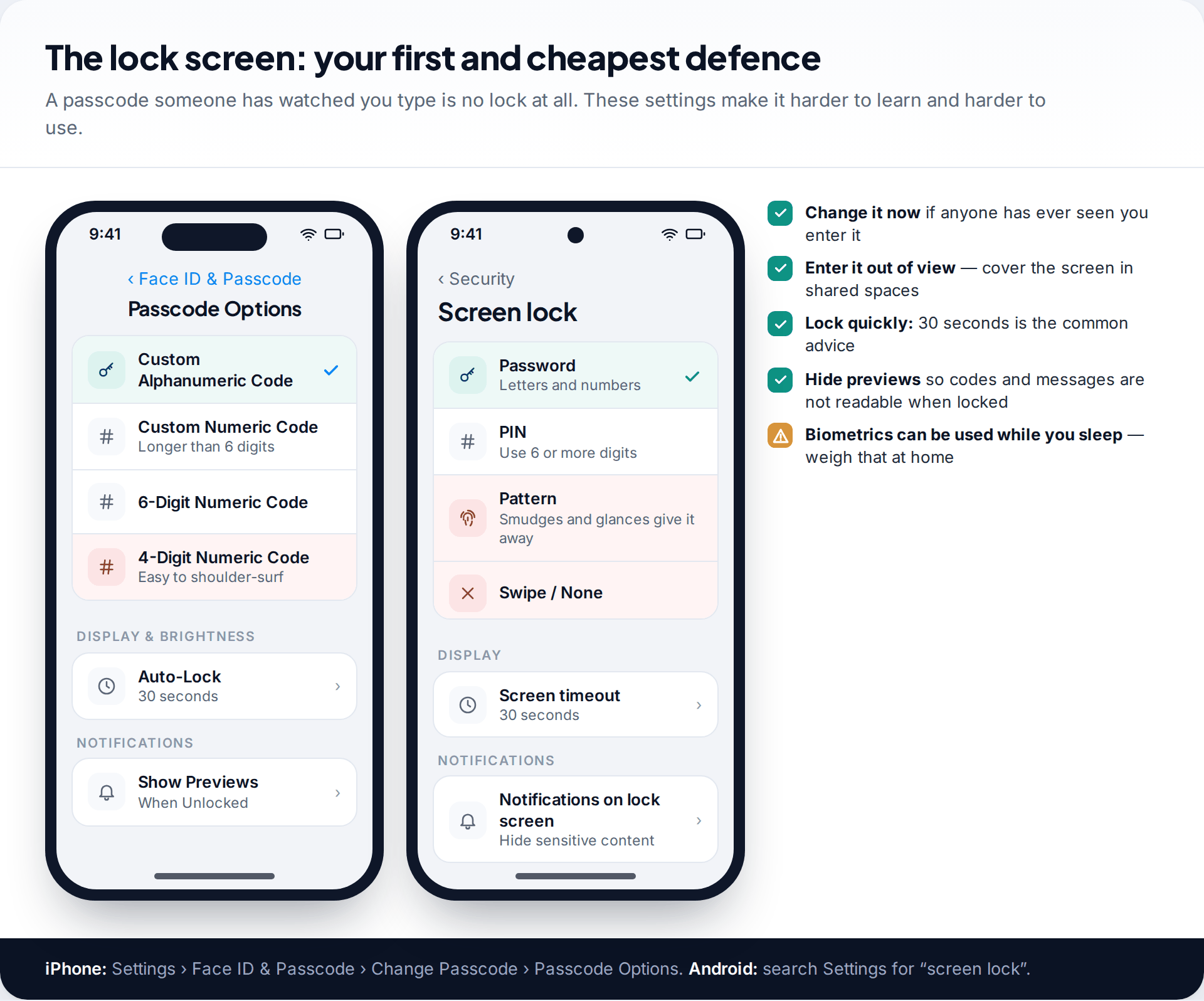
Most people who install stalkerware on a partner’s phone already know the passcode, because they have watched it typed a hundred times. So the first step is simple: change your passcode, and choose one that is harder to learn by glancing. On iPhone, go to Settings › Face ID & Passcode › Change Passcode and tap Passcode Options for a custom alphanumeric or longer numeric code. On Android, search Settings for “screen lock” and choose a password or a PIN of six or more digits. Patterns are the easiest to learn from a glance or a smudge.
Then shorten the time the phone stays unlocked when you put it down. Support organisations commonly advise locking after 30 seconds. On iPhone that is Auto-Lock under Display & Brightness; on Android, Screen timeout under Display. And hide notification content on the lock screen — Show Previews: When Unlocked on iPhone, the lock-screen notification setting on Android — so codes and messages can’t be read from a locked phone.
Face ID and fingerprint unlock are convenient and hard to watch, but they can be used while you’re asleep. If you share a home with someone you don’t trust, weigh that; a passcode-only phone is less convenient but more under your control.
Android: close the sideloading door
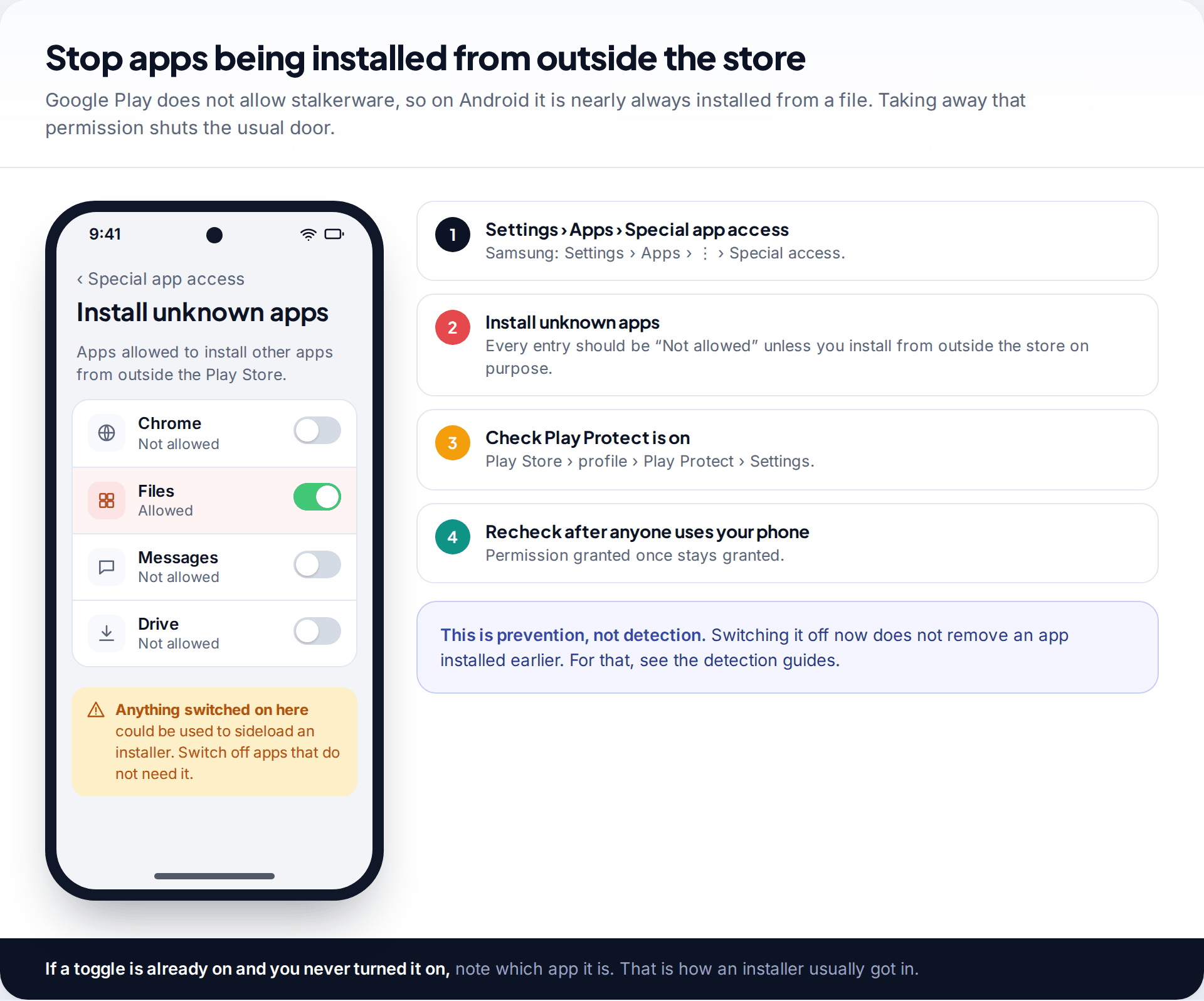
Because Google Play doesn’t allow stalkerware, installers use a browser or file manager to install it from a file, which needs the Install unknown apps permission. Open Settings › Apps › Special app access › Install unknown apps (on Samsung, Settings › Apps, the three-dot menu, then Special access). Every entry should say “Not allowed” unless you deliberately install apps from outside the store. If one is allowed and you never did it, make a note — it may show how something got onto the phone.
Also confirm that Play Protect is on: Play Store, your profile picture, Play Protect, then the settings cog. It is not a strong stalkerware detector, but some installers switch it off, so keeping it on removes one easy step.
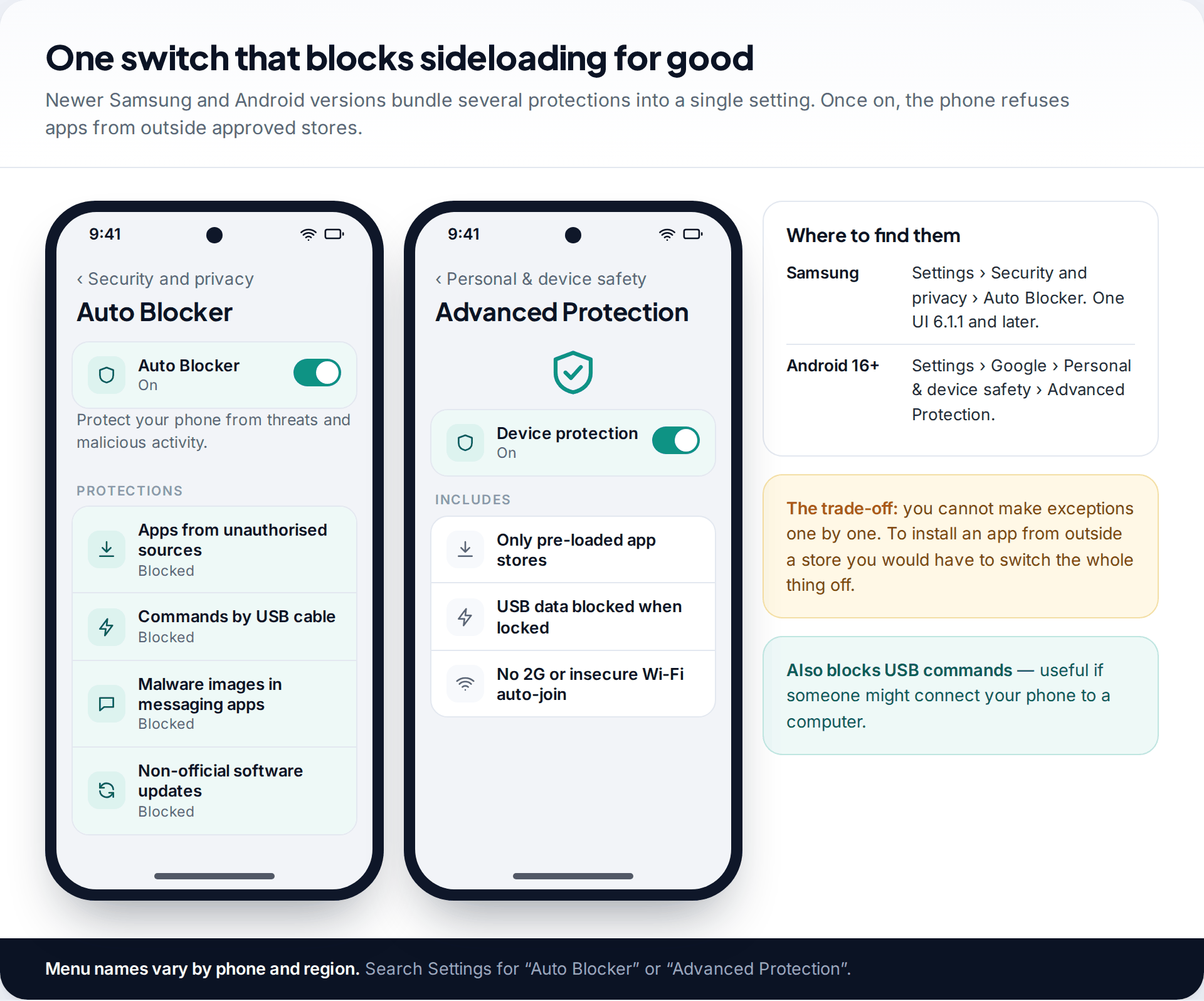
Newer phones make this stronger with a single switch. Samsung’s Auto Blocker (Settings › Security and privacy › Auto Blocker, One UI 6.1.1 and later) blocks apps from unauthorised sources, commands sent over a USB cable and unofficial software updates. On Android 16 and later, Google’s Advanced Protection goes further: only pre-installed app stores are allowed, USB data is blocked when the phone is locked, and connections to 2G networks are refused. The cost is flexibility — you can’t allow one exception without turning the whole mode off — which for most people at risk is a fair trade.
iPhone: Stolen Device Protection, even at home
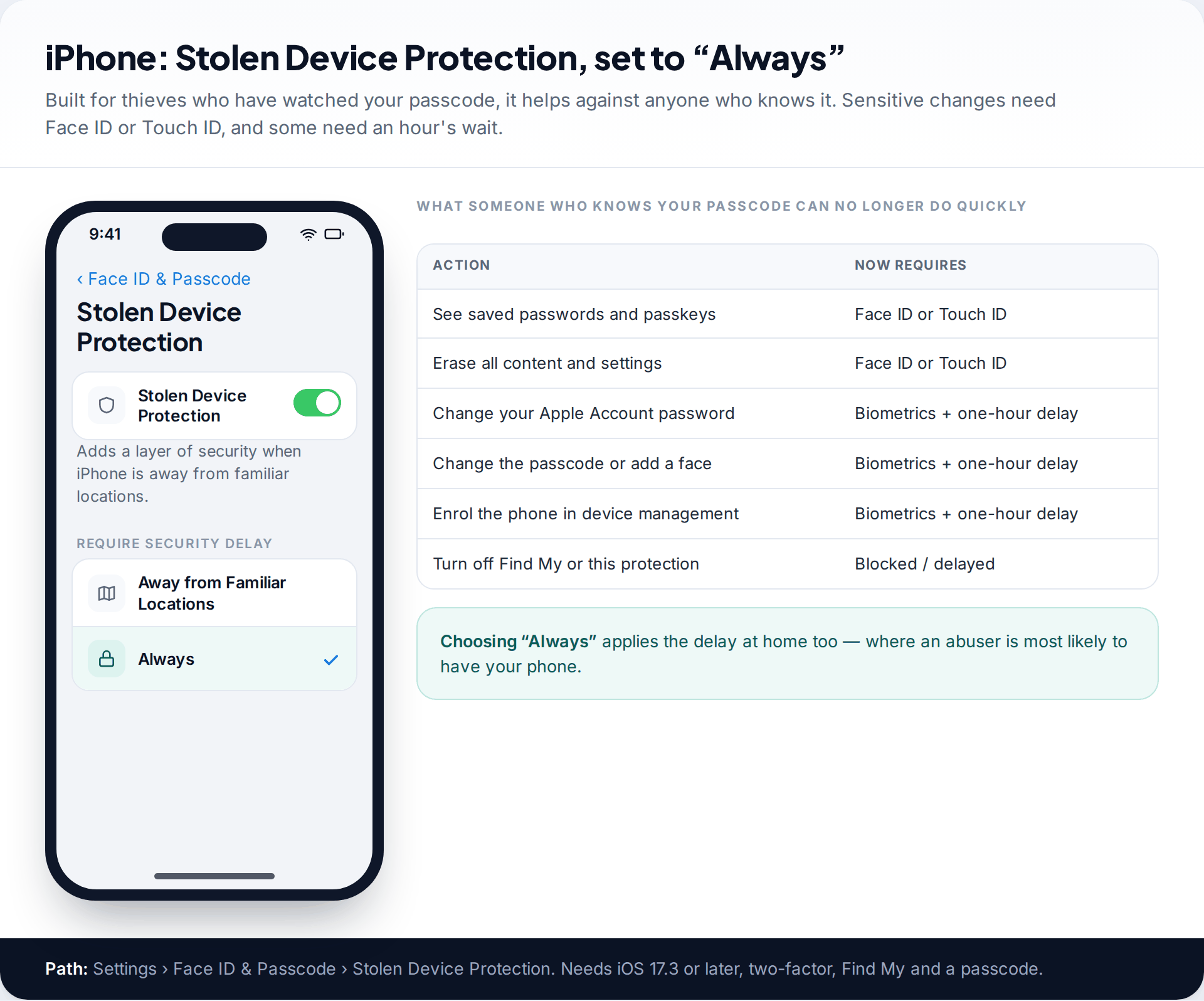
Apple designed Stolen Device Protection for thieves who have watched your passcode, and it helps equally against someone at home who knows it. With it on, seeing saved passwords or erasing the phone needs Face ID or Touch ID, and changing your Apple Account password, changing the passcode or enrolling the phone in device management needs biometrics plus a one-hour wait. You can’t turn off Find My while it is on.
By default it applies only away from familiar places such as home — exactly where a controlling partner is most likely to have your phone. Under Settings › Face ID & Passcode › Stolen Device Protection, set Require Security Delay to Always. It needs iOS 17.3 or later, two-factor authentication, Find My and a passcode.
Keep iOS updated, too. Jailbreaks, the only route to hidden spyware on an iPhone, depend on flaws that updates close.
Accounts: the protection that covers what the phone can’t
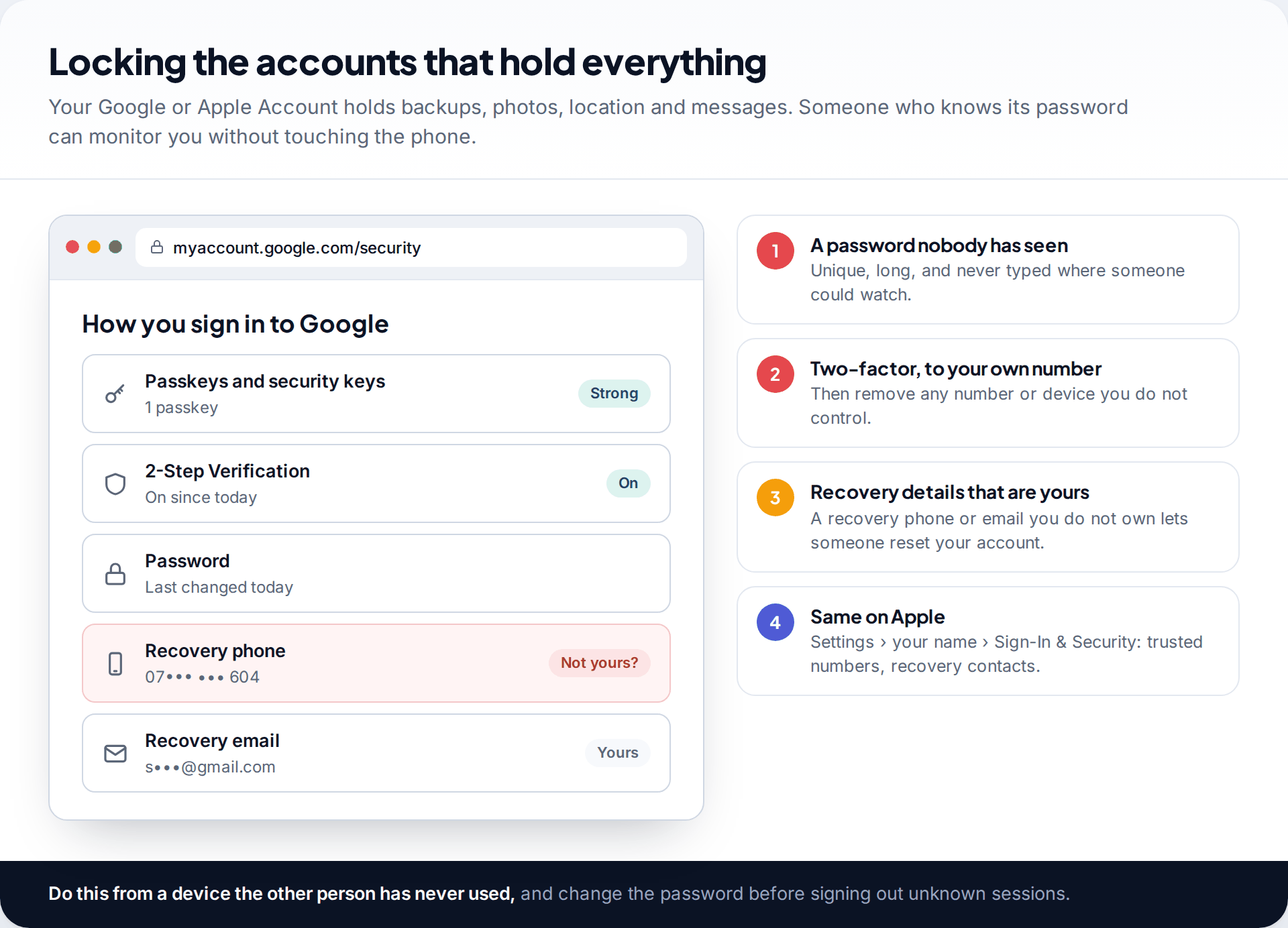
Your Google or Apple Account holds your backups, photos, location history and, on iPhone, often your messages. Someone who can sign in to it can monitor you without installing anything. Give it the same care as the phone:
- Set a new, unique password that nobody has seen you type, from a device the other person has never used.
- Turn on two-factor (2-Step Verification on Google) with your own phone number, and consider a passkey.
- Check the recovery details. A recovery phone, email or recovery contact you don’t control can be used to reset your account.
- Review signed-in devices — Security › Your devices on Google; the list under your name in Settings on iPhone — and sign out anything that isn’t yours, after the password change.
Do the same for your main email account, since it can reset almost everything else.
Review sharing and set-up you didn’t do yourself
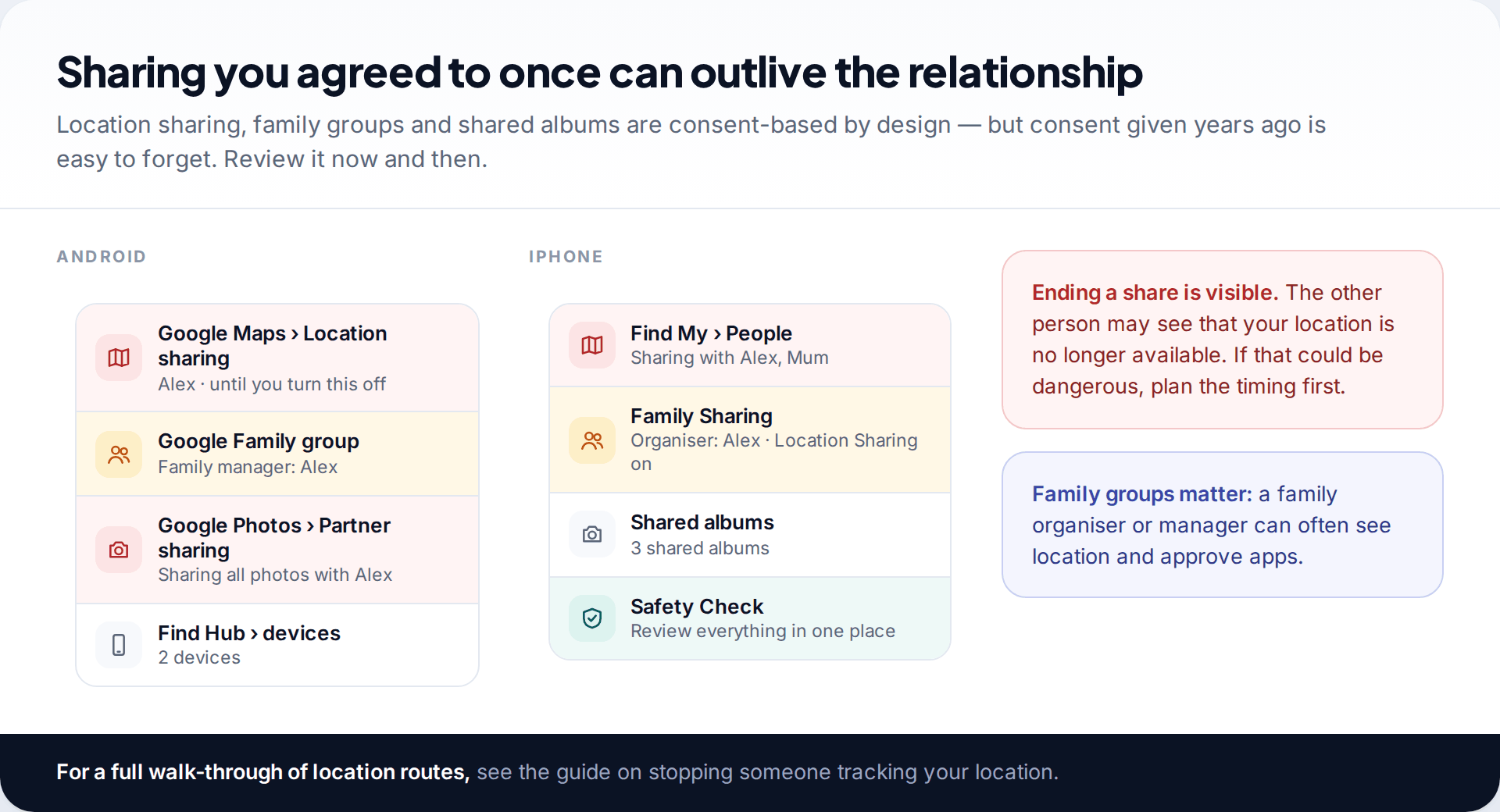
Not all monitoring is covert. Location sharing in Google Maps or Find My, a Google family group or Apple Family Sharing, and shared photo libraries are open features, often set up together in better times. Review them: on iPhone, Safety Check under Privacy & Security lists everything in one place. Our guide to stopping someone from tracking your location goes through every location route one by one.
A partner gives you a new phone, already set up
It arrives with your apps installed, your accounts signed in and a passcode you were told. It is a kind gesture — and it also means someone else chose every setting, knows the passcode and may have added a profile, an app or their own recovery number.
If you only have an hour: the order to do it in
You don’t need to do everything at once. If you have an hour, this order gets the most protection earliest, and puts the account steps — the ones that most need a safe device — together.
Passcode and auto-lock
New passcode nobody has seen, 30-second lock, previews hidden on the lock screen. This alone stops the most common installation route.
Block installs from outside the store
On Android, switch off Install unknown apps for every app, then turn on Auto Blocker or Advanced Protection if your phone has it. On iPhone, turn on Stolen Device Protection and set it to Always.
Google or Apple Account, then email
From a safe device: new password, two-factor to your own number, recovery details checked, unknown devices signed out. Repeat for your main email account.
Sharing and updates
Review location sharing, family groups and shared albums; install any pending system update; put the monthly check in your calendar.
If anything in the first two steps looks already changed — an app allowed to install from files, a profile you didn’t add — stop and treat it as a detection question rather than a prevention one.
A monthly check that keeps it that way
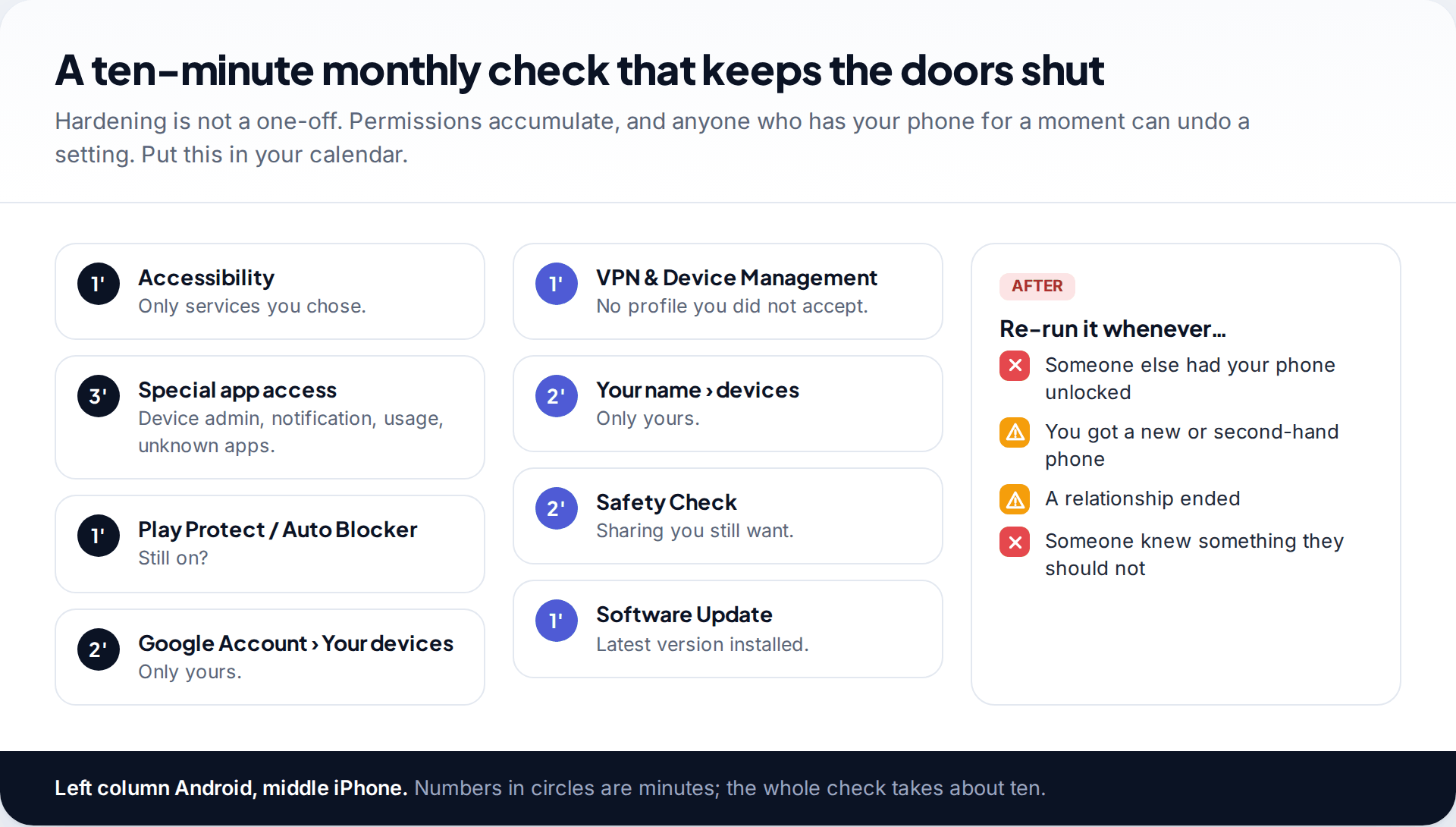
Permissions pile up, and one unguarded moment with your unlocked phone can undo a setting. A short routine catches that. On Android, look at Accessibility, the Special app access lists, Play Protect or Auto Blocker, and your Google Account’s device list. On iPhone, check VPN & Device Management, the devices under your name, Safety Check and Software Update. It takes about ten minutes.
Run it again whenever someone else has had your phone unlocked, after a relationship ends, when you get a new or second-hand phone, and whenever someone seems to know something they shouldn’t.
What these settings cannot do
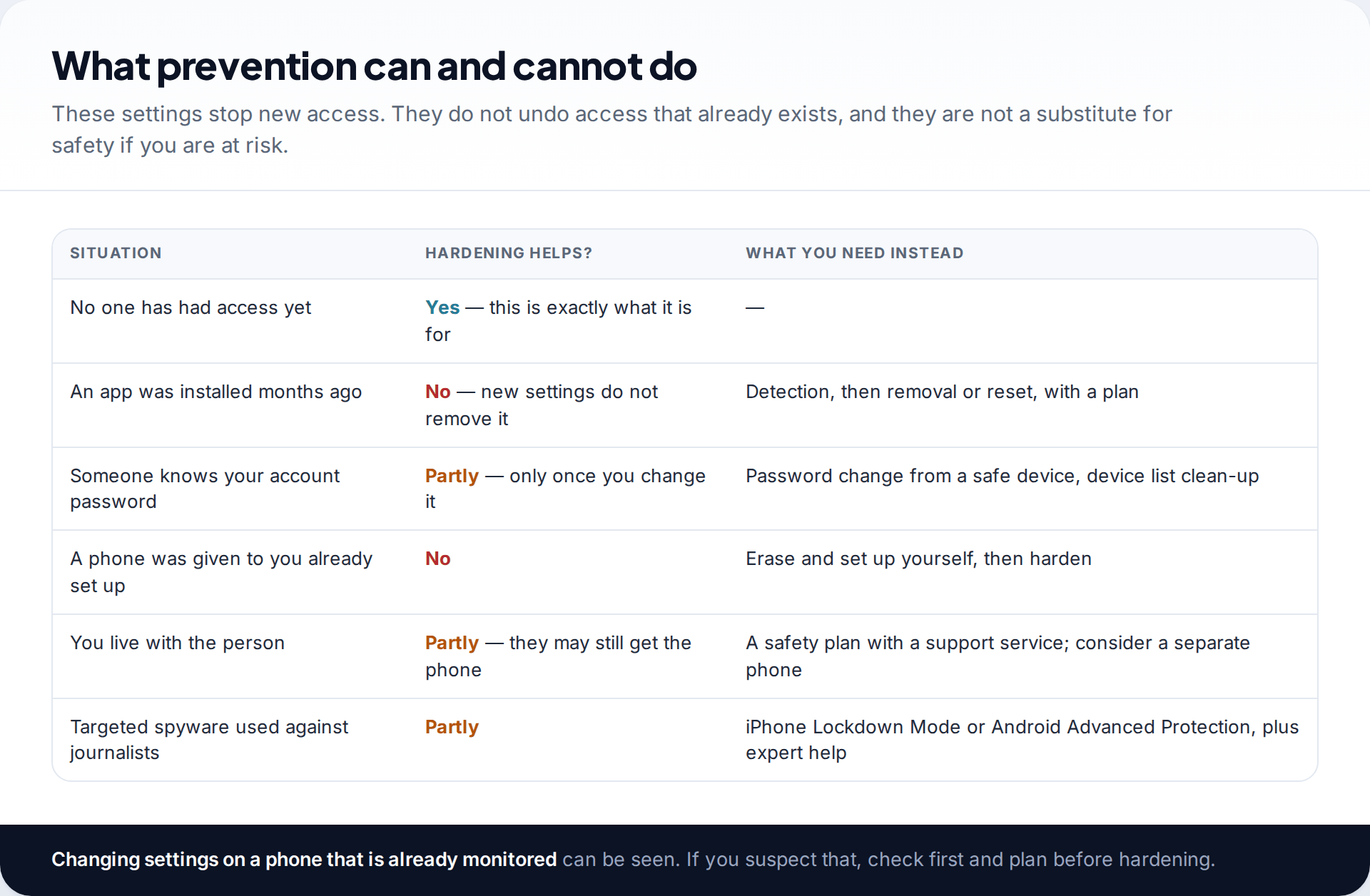
Hardening closes doors; it doesn’t clear out anyone already inside. An app installed months ago keeps running after you block sideloading, and an account password someone already knows keeps working until you change it. If you live with the person, they may still find ways to get hold of the phone, and a separate phone they don’t know about, arranged with a support service’s help, may be safer than any setting.
For people facing targeted, high-end spyware — journalists, activists, people in public life — iPhone’s Lockdown Mode and Android’s Advanced Protection are designed for that level of threat. For everyone else, the lock screen, sideloading block and account steps above do most of the work.
How this page was put together
Settings and requirements were checked in September 2026 against Apple’s Personal Safety User Guide and Stolen Device Protection support pages, Google’s Play Protect help, Samsung’s Auto Blocker support page and published descriptions of Android 16’s Advanced Protection. The advice on lock timing and safety planning follows guidance from the Coalition Against Stalkerware. Menus vary by phone maker and version.
We didn’t test stalkerware against these settings ourselves. More on how we check and update our guides.
Common questions
What is the best way to protect my phone from stalkerware?
Keep other people away from your unlocked phone and your account passwords. A new passcode nobody has seen, a short auto-lock, blocked sideloading on Android and two-factor on your Google or Apple Account close the usual routes.
Does antivirus stop stalkerware being installed?
It can catch some, but it isn’t a lock. Someone with your unlocked phone can often switch protection off or dismiss a warning. Prevention settings plus a security app are stronger than either alone.
Is an iPhone safer from stalkerware than Android?
Against hidden apps, generally yes, because iOS doesn’t allow them without a jailbreak. But iPhone users are still exposed through their Apple Account, so account security matters just as much.
Should I use Face ID or a fingerprint?
They are hard to watch and quick, which helps. But someone at home could use them while you sleep. If that is a concern, use a strong passcode only, and turn on Stolen Device Protection with the Always option on iPhone.
Can I stop someone installing stalkerware if they know my passcode?
Change the passcode first. On Android, blocking unknown apps with Auto Blocker or Advanced Protection makes installation much harder even with the passcode. On iPhone, Stolen Device Protection slows the account changes an installer would need.
Will these settings tell someone I changed them?
The settings don’t send notifications, but the effects can be noticed — a passcode that no longer works, location that stops updating. If you think you are being watched, plan the timing with a support service.
Looking for a tool to go with this? TheTruthSpy is a free parental control app for Android that stays visible on the child's phone. If it fits your family, see the Screen time & limits feature.
Related guides
How to Check If Your Email Was in a Data Breach
Check if your email was in a data breach for free, then act on what leaked: passwords, card details or…
How to Start Using a Password Manager
Switch to a password manager without stress: built-in or standalone, protecting the main password, and a first-hour plan for the…
How to Tell If Your Phone Has a Virus or Malware
Most 'virus' signs have ordinary causes. How to check an iPhone or Android phone for real malware, remove it, secure…
Parental controls your child can see
Location, screen time limits, a web filter and alerts from notifications — free, and visible on your child's phone. Pair a phone in about ten minutes.
Android · Free to set up · Visible on your child's phone