How to Find a Lost iPad or Android Tablet

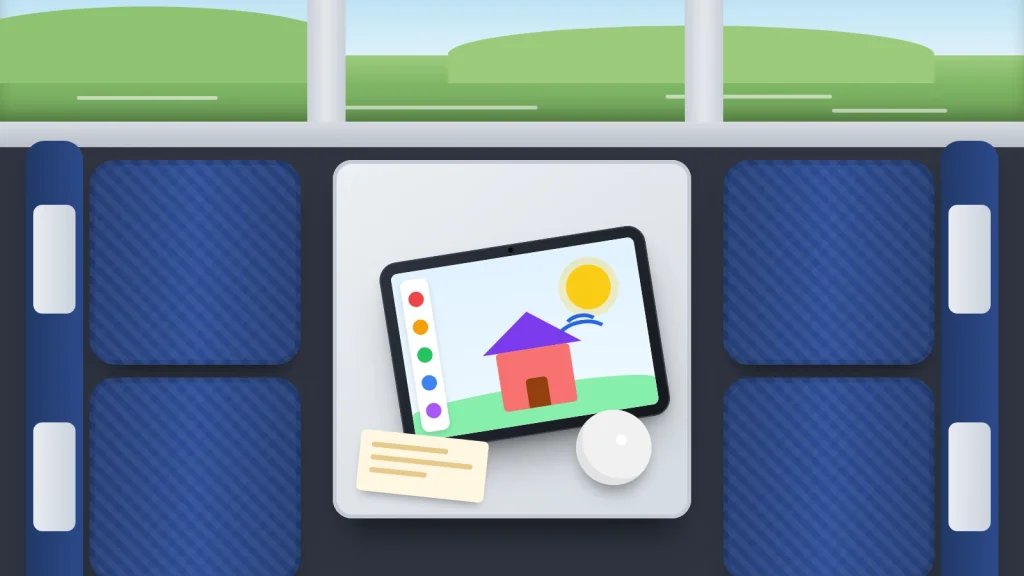
Tablets rarely go missing the way phones do. A phone is in your pocket until suddenly it isn’t. A tablet gets left on a train table, slides under a sofa cushion or goes home from school in someone else’s bag, and nobody notices until the next day. By then it may be somewhere with no Wi-Fi at all.
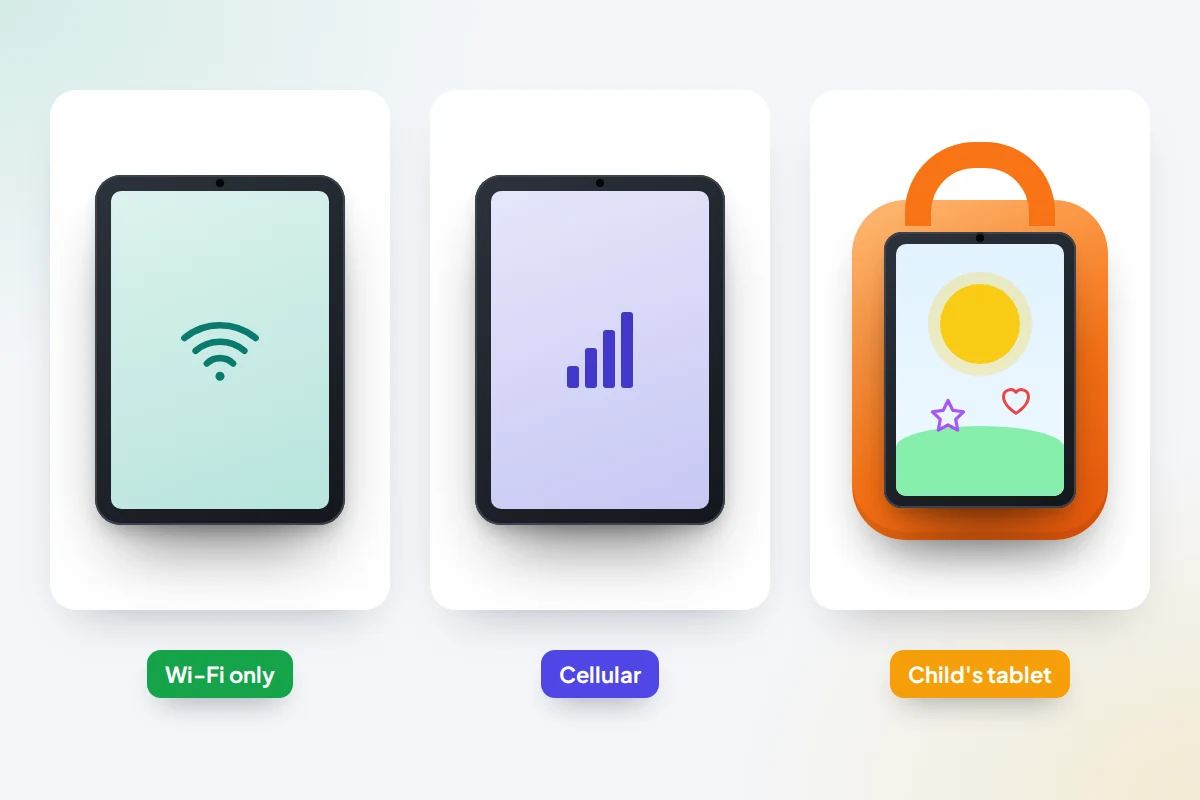
Many tablets have no mobile connection, so they report their location only on a known network or when a passing phone picks them up. Many are also shared, signed in to one parent’s account, or managed by a school, which changes who can find them. Here is what works for iPads, Android, Samsung and Fire tablets as of September 2026, and what to switch on now.
The short version
- Make it ring first if it could be at home: Find My for an iPad, Find Hub for Android, Samsung Find for a Galaxy Tab, or your Amazon account for a Fire tablet.
- A Wi-Fi-only tablet shows where it last connected, not where it is now, unless a finding network picks it up.
- Mark it as lost straight away; the lock and your message take effect as soon as it reconnects.
- School tablets belong to the school: tell IT first, as they can often lock and locate it themselves.
- A remote erase waits until the tablet next connects and can’t be undone; on Android it also ends the search. Leave it until last.
Which tablet, how to find it and what it needs
Find your tablet’s row. The last column is what had to be on before it went missing. If it wasn’t, the map can’t help; go straight to lost property and securing your accounts.
| Your tablet | How to find it | What it needs |
|---|---|---|
| iPad (Wi-Fi or Wi-Fi + Cellular) | Find My app on another Apple device, or icloud.com/find | Find My iPad on; Find My network on for offline finding |
| Android tablet (Pixel Tablet, Lenovo and others) | Find Hub app, or google.com/android/find | A Google Account on the main profile; Find Hub and Location on |
| Samsung Galaxy Tab | samsungfind.samsung.com and Find Hub; check both | A Samsung account; Lost device protection switches on |
| Amazon Fire tablet | Amazon account → Manage Your Content and Devices | Find Your Tablet and Location on; connected to Wi-Fi |
| Child’s tablet | The parent account it was set up under | Location sharing agreed and on in the family group |
| School tablet | The school’s IT team | Enrolled in the school’s device management |
One rule applies to every row: no service can find a tablet from its serial number, and sites that offer to are after your money.
Ring it before you search the house
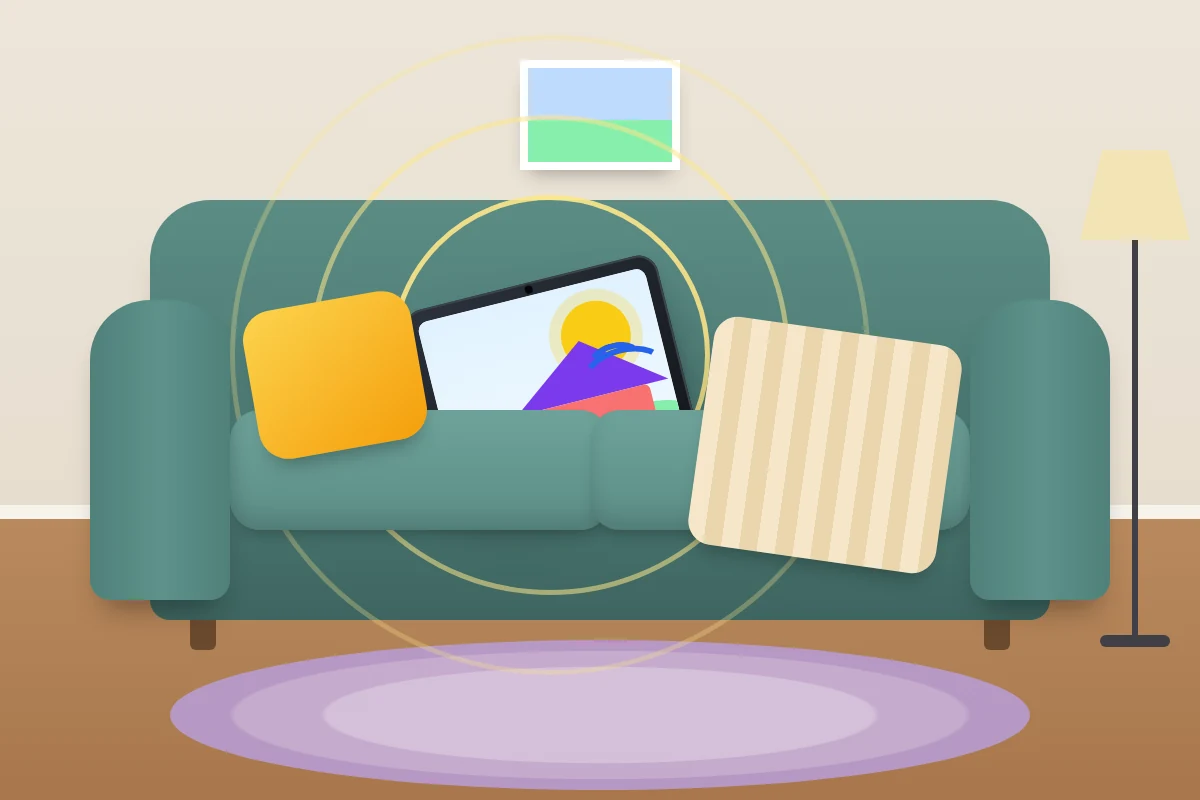
A missing tablet is often at home, in the car or at a relative’s. Tablets hide well: flat, often in a dark case, and silent unless someone is using them. Make it ring before you pull the sofa apart.
- iPad: in Find My, choose the iPad and tap Play Sound.
- Android: in Find Hub, tap Play sound. Google says it rings at full volume for five minutes, even on silent.
- Galaxy Tab: in Samsung Find, choose Ring; it rings for a minute, even when muted.
- Fire tablet: in Manage Your Content and Devices, choose Remote Alarm.
A thick children’s case muffles the sound, so listen close to cushions, beds and bags. If the ring doesn’t go through, the tablet is probably away from your Wi-Fi or out of battery.
iPad: Find My, Lost Mode and Activation Lock
Use the Find My app on another Apple device, or go to icloud.com/find in any browser and choose Find Devices, which doesn’t ask for a verification code.
- Open Find My, tap Devices and choose the iPad to see where it is, or where it was last seen.
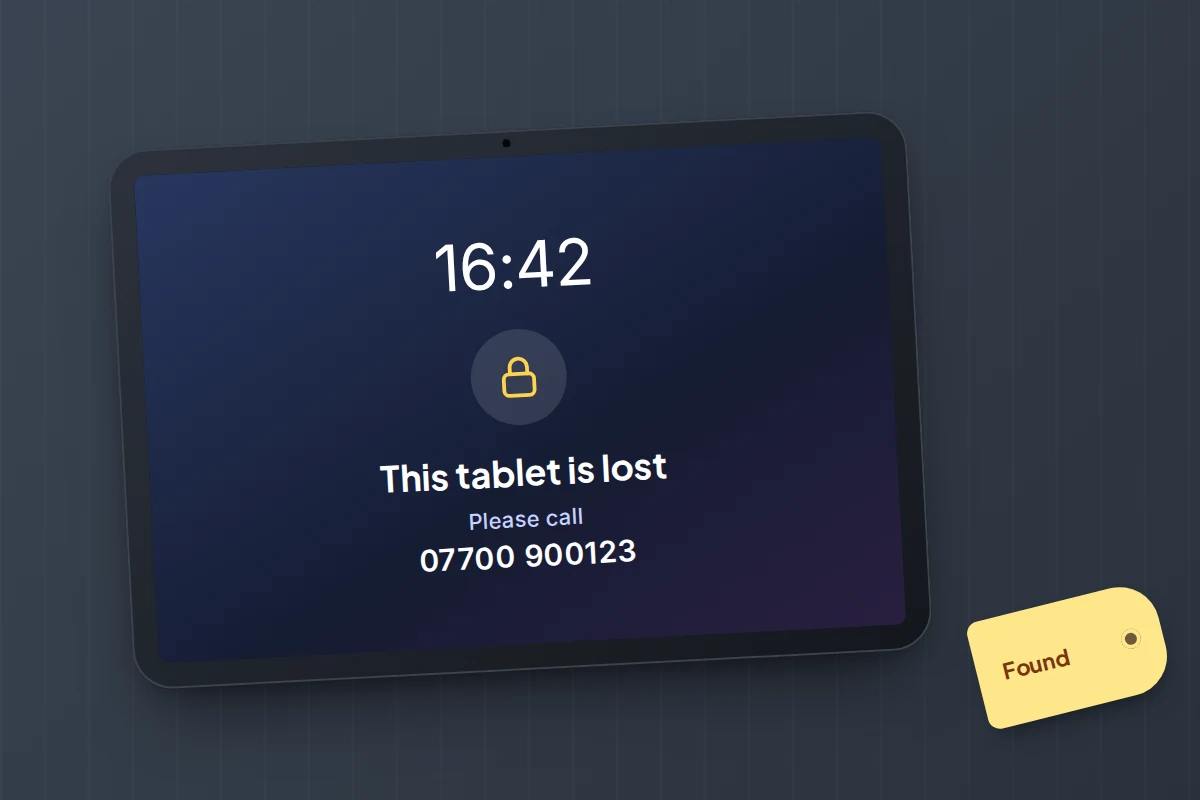
- If it isn’t nearby, tap the More button, scroll to Lost iPad and turn on Lost Mode (older versions say Mark As Lost). Add a phone number and message, then tap Activate.
- Turn on Notify When Found to get an alert when it next reports in.
Lost Mode locks the iPad with its passcode and shows your message; if the iPad is offline, it applies when it next connects. Activation Lock is on whenever Find My is, so nobody can erase the iPad and set it up as their own without your Apple Account password.
A family iPad is usually signed in to one adult’s Apple Account, so it appears in that person’s Find My, not yours. If you’re in a Family Sharing group and share locations, Apple says you can use Find My to help locate a family member’s missing device.
Android and Samsung tablets: Find Hub and Samsung Find
Google’s Find Hub (called Find My Device until 2025) covers Android tablets from most makers.
- Open Find Hub on another Android device, or go to google.com/android/find and sign in with the tablet’s Google Account.
- Choose the tablet to see where it is, or its most recent location.
- Tap Play sound, or Mark as lost to lock it and show your contact details on the lock screen.
Google says these actions need power and a Wi-Fi or mobile data connection, so an offline Wi-Fi-only tablet won’t lock until it’s back online. Send it now anyway.
Shared tablets: Google says only a shared tablet’s owner can change Find Hub settings, and the Google Account should be on the main profile. So the tablet appears in Find Hub for the adult who set it up, not for a child with their own profile.
Offline finding: under Settings → Google → All services → Find Hub → Find your offline devices, choose anything other than Off so Find Hub can store a recent location or use nearby Android devices to report the tablet. Google notes some of these options need Android 14 or later, so an older tablet may only store a last location.
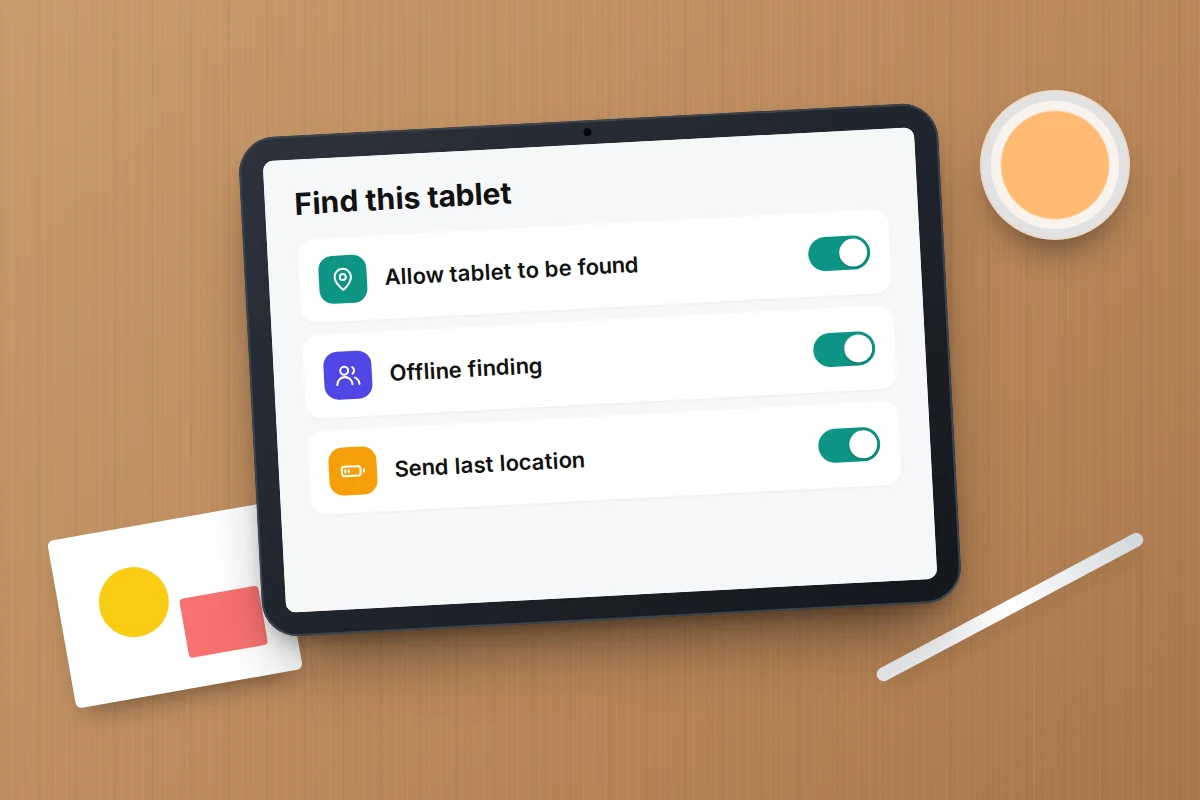
Galaxy Tab: Samsung Find needs a Samsung account and three switches in Settings → Security and privacy → Lost device protection: allow this tablet to be found, Send last location and Offline finding. It can ring, lock, erase, or turn on maximum power saving remotely to stretch the battery. Check Find Hub too and trust the more recent time stamp.
Amazon Fire tablets
Amazon’s tools for Fire tablets live in your Amazon account rather than an app.
- Sign in to Amazon in a browser and open Manage Your Content and Devices → Devices.
- Choose the Fire tablet.
- Use Find Your Tablet for an approximate location, or Remote Alarm, Remote Lock or Remote Factory Reset.
These only work if the tablet is on and connected to Wi-Fi, with location services and the feature turned on beforehand, and the location is approximate. Menu names vary by Fire OS version. A Fire tablet used through Amazon Kids is normally registered to the parent’s account, so look there.
If it isn’t coming back, deregister it there so it can’t use your account. Deregistering isn’t the same as a reset, so send a remote reset first if you can.
Why a Wi-Fi-only tablet goes quiet
A Wi-Fi-only iPad has no GPS: Apple lists GPS only for Wi-Fi + Cellular models, and Wi-Fi models estimate their position from nearby networks. Many Wi-Fi-only Android tablets are the same, which is why the circle on the map can be wide.
A tablet without a SIM or eSIM reports its location in only three situations:
- It joins Wi-Fi it knows: home, school, a grandparent’s house, a café it has used before.
- A passing device picks it up through the Find My network, the Find Hub network or Samsung’s offline finding. These reports are approximate.
- Someone connects it to a new network, for example to use it.
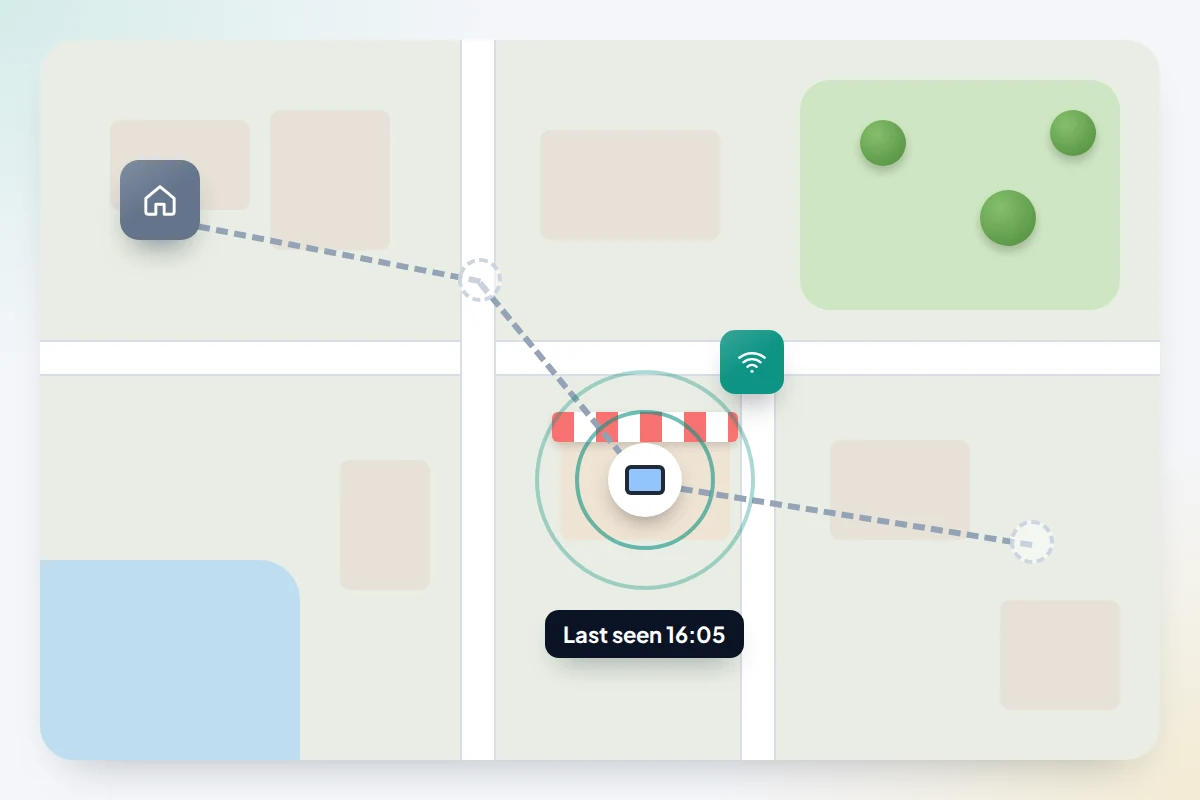
Otherwise you see a last known location and a time stamp. Say the map shows the tablet at a café at 16:05: that is where it last had Wi-Fi, so work forward from that time through wherever you went next. With the Find My network on, the Find My app keeps an iPad’s last known location for up to seven days; iCloud.com shows it for only 24 hours. Check early and take a screenshot.
Children’s tablets
Children don’t always say straight away that a tablet is missing, often because they’re worried about getting into trouble. Agree in advance that telling you quickly matters more than how it happened.
Who can find it depends on the set-up. An iPad on a child’s own Apple Account in Family Sharing appears for parents the child shares location with. A supervised Android tablet can show its location in Family Link if location sharing is on. If you’re setting up a child’s device, our guide to setting up parental controls on an iPad covers Family Sharing and what your child will see. Tell your child the tablet can be located if it’s lost.
Left on a plane, train or bus
If the map shows the tablet at an airport, a station or a bus garage, someone has probably handed it in. Contact lost property rather than turning up.
- Plane: items left on board usually go to the airline or its handling agent; items left in the terminal or at security go to the airport.
- Train or bus: contact the company that ran the service. Transport for London says items can take up to seven working days to be logged and are kept for up to three months, so keep checking.
Describe the case, stickers, lock screen picture and serial number. The rest works as it does for a phone; our guide to getting a phone back after leaving it in a taxi sets out the order, including what not to do while you wait.
School-issued tablets
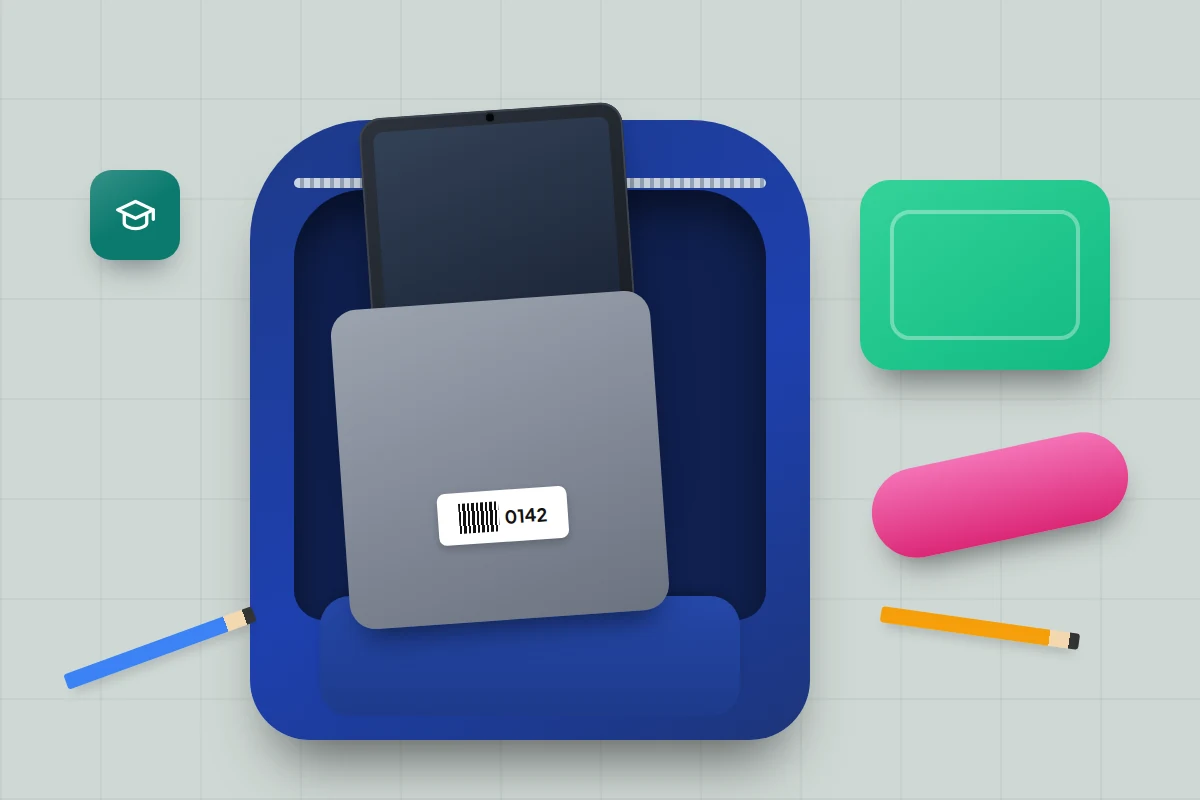
If the school owns the tablet, contact the school office or IT team before you try anything yourself. School tablets are usually enrolled in device management, which gives IT tools you don’t have.
Apple describes one: for a supervised iPad, an administrator can switch on Managed Lost Mode, which logs out the user, locks the iPad, shows a message such as a phone number, and can request its location even if Location Services are off. Managed Android tablets can often be locked or wiped by IT too. Don’t try to reset a school tablet yourself.
Lock now, erase last
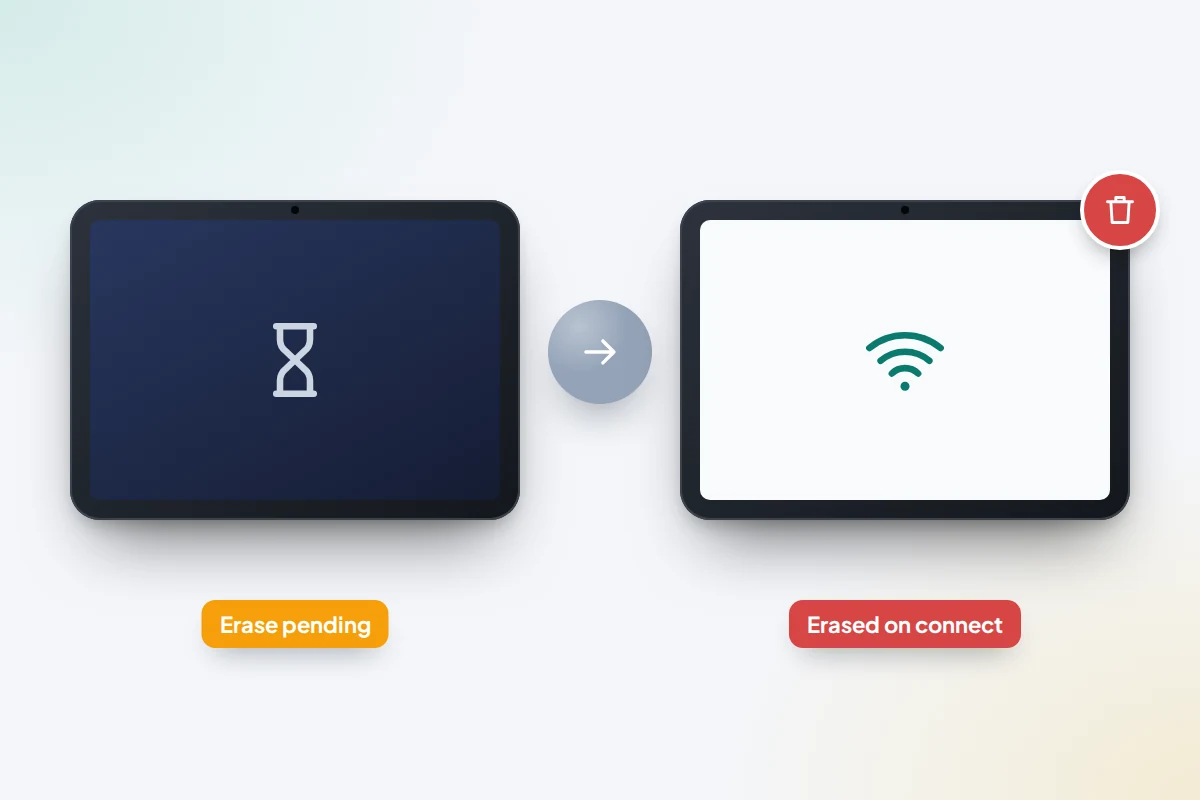
Locking is safe straight away. Erasing isn’t: it can’t be undone, and a reset Android or Galaxy tablet drops out of Find Hub, which ends the search. An iPad on iPadOS 15 or later can still be located after an erase, as long as you never remove it from Find My, which would also remove Activation Lock.
Apple says an erase sent to an offline device begins the next time it’s online, which for a Wi-Fi-only iPad in a lost property drawer could be days away. Android and Fire tablets also need a connection first.
So erase only if the tablet had no passcode, held sensitive files, or clearly isn’t coming back. Either way, protect the accounts on it: change your Apple, Google or Amazon password and check shopping, streaming and email accounts that were signed in. The steps are the same as for a lost laptop, including reporting a theft with the serial number.
Set it up now: a checklist for Wi-Fi-only tablets
Ten minutes now decides whether a future search starts with a map or a guess. Menu names vary by maker and version.
| Do this | Where | Why it helps |
|---|---|---|
| Find My iPad, Find My network, Send Last Location | Settings → [your name] → Find My → Find My iPad | Findable with no Wi-Fi; sends its location when the battery runs low |
| Find Hub and offline finding | Settings → Google → All services → Find Hub → Find your offline devices | Stores a recent location; nearby Android devices can report it |
| Lost device protection (Galaxy Tab) | Settings → Security and privacy → Lost device protection | Adds Samsung Find and offline finding |
| Find Your Tablet (Fire) | The tablet’s Settings; varies by model | Amazon’s tools only work if it was on beforehand |
| A passcode or PIN | Screen lock settings | Lost Mode relies on it to keep a finder out |
| Save Wi-Fi where it goes | Grandparents’, a childminder’s, school if allowed | Every known network is another chance to report in |
| Note the serial number | The About screen, or the box | Lost property, police and insurers ask for it |
| Test it | Find My, Find Hub or Amazon on your phone | Check it appears and rings while it’s at home |
What if this doesn’t work
It isn’t listed. It’s probably signed in to someone else’s account.
It has been offline for days. Leave Lost Mode or Mark as lost in place; it may report as soon as someone charges it.
You think it was stolen. Report it to the police (in the UK, call 101 or report online) with the serial number. Never go alone to a private address shown on the map.
Frequently asked questions
Can I find a Wi-Fi-only tablet that isn’t online?
Sometimes. An iPad with Find My network on, or an Android tablet with a network option for offline finding, can be reported by nearby devices. Otherwise you see only where it last connected.
What if the battery is flat?
It can’t ring or report anything new. With Send Last Location on, an iPad sends its location to Apple when the battery gets critically low, and Samsung’s Send last location does the same for a Galaxy Tab. Otherwise you see where it last connected.
Will whoever has the tablet see my message?
Yes, once it’s switched on and connected. The lock screen shows your message and number, and the tablet stays locked.
My child’s tablet went missing at school. Who do I contact?
For a school-issued tablet, the school’s IT team. For your own, the school office, so staff can check lost property while you use Find My or Find Hub.
Sources and further reading
- Apple Support: How to find your lost iPhone or iPad
- Apple Support: Set up Find My on your iPhone, iPad or Mac
- Apple Platform Security: Managed Lost Mode and remote wipe
- Android Help: Find, secure or erase a lost Android device
- Android Help: Be ready to find a lost Android device
- Samsung Support: How to locate your lost Galaxy phone or tablet
- Amazon Customer Service: Find a lost or stolen Amazon device
- Transport for London: Lost property
Looking for a tool to go with this? TheTruthSpy is a free parental control app for Android that stays visible on the child's phone. If it fits your family, see what the app does.
Related guides
How to Find a Lost Smartwatch
How to find a lost Apple Watch, Pixel Watch, Galaxy Watch or Fitbit: ring it, see its last location, lock…
How to Use a Bluetooth Tracker on Your Keys and Bags
Which Bluetooth tracker tag works with your phone, how to set it up so it can be found, coin battery…
What to Do If You Lose Your Wallet
Lost your wallet? Freeze your cards first, then use this 30-minute checklist, a who-to-contact table for UK and US cards…
Parental controls your child can see
Location, screen time limits, a web filter and alerts from notifications — free, and visible on your child's phone. Pair a phone in about ten minutes.
Android · Free to set up · Visible on your child's phone