How to Find a Lost or Stolen Laptop


A missing laptop is usually harder to find than a missing phone. It has no SIM, it spends most of its time asleep with the lid shut, and one common type, the Chromebook, can’t be located by its owner at all. What it does have is your email, your saved passwords and often years of files, all signed in and ready to use.
That changes the priorities. Finding the laptop is worth a few minutes. Making sure nobody can get into it, or into the accounts it was signed in to, is worth the rest of the evening.
Here is what Windows, Mac and Chromebook can each do in September 2026, what “offline” means on the map, and the order to work through if the laptop doesn’t turn up.
The short version
- Windows laptops can be located and locked from account.microsoft.com/devices, but only if Find my device was on, you signed in with a Microsoft account as an administrator, and location was switched on.
- Macs can be located, locked and erased with Find My, and the Find My network can report a Mac’s location even when it’s offline.
- Personal Chromebooks can’t be located by their owners; sign out of your Google Account from another device and change your password.
- Encryption protects your files whatever happens: check that Device Encryption, BitLocker or FileVault is on, and know where your recovery key is.
- School and work laptops: tell IT straight away, as they may be able to lock or wipe it remotely.
What decides whether you can find it
Three things: what kind of laptop it is, which settings were on before it went missing, and whether it has been online since. Most laptops only report their location when awake and connected, so most searches end up looking at a last known position rather than a live one.
Before you open a map, write down where you last had it open: a pin is only useful if you can match it to your day.
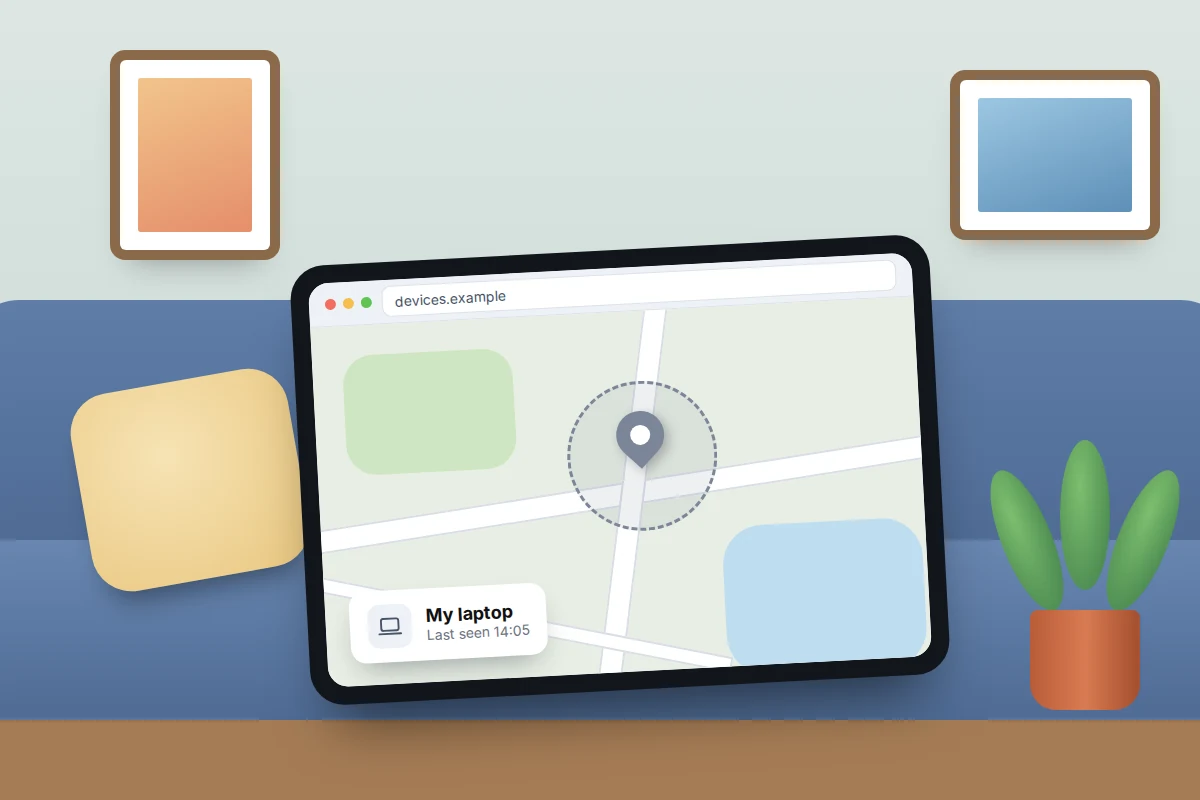
Windows: Find my device
Microsoft says Find my device works on Windows devices only if three things were true before the laptop went missing: you signed in with a personal Microsoft account, location was turned on, and your account was an administrator. A laptop signed in with a work or school account is IT’s job instead.
Locate it
- On any device, go to account.microsoft.com/devices and sign in.
- Select the Find My Device tab, choose the laptop and select Find.
- Note the time and the address. The pin shows where the laptop last reported from, which may be hours ago. Microsoft says that whoever is using the laptop sees a notification each time you try to locate it.
Lock it
- On the map, select Lock, then Next, and follow the prompts.
- Check back later if the laptop is offline: the lock needs an internet connection to go through.
Locking signs out whoever is using the laptop and blocks standard accounts, but another administrator account on it may still get in, so treat the lock as a deterrent rather than a seal. Microsoft suggests resetting your account password afterwards; do it. Find my device has no remote erase for personal laptops; if you’re worried about your files, encryption and password changes are your protection.
Mac: Find My, Lost Mode and Erase
Macs have the most complete tools, provided Find My Mac was on. Use the Find My app on another Apple device, or icloud.com/find in any browser.
- Locate: select the Mac to see its approximate location. If the Find My network was on, the Find My app can show a location reported by other people’s Apple devices even when the Mac is offline, and keeps the last known location for up to seven days (iCloud.com shows it for 24 hours).
- Mark As Lost: locks the Mac (with your Apple Account password on Apple silicon, or a numeric passcode you set on an Intel Mac), and shows your message and number on screen. If the Mac is offline, it shows as pending and takes effect when it next connects.
- Erase: deletes everything. Apple warns that after you erase a Mac, you generally won’t be able to find it with Find My. On a Mac with Apple silicon or the T2 Security Chip, Activation Lock stays on, so nobody can set it up again without your Apple Account password.
Erase only when you’re sure it isn’t coming back, or if the Mac wasn’t encrypted and held sensitive files. And don’t remove it from your account: that turns off Activation Lock and hands a thief a clean machine.
Chromebook: what Google can and can’t do
This is where people are most often surprised. Google’s own help says Chromebooks, like Windows, Mac and Linux computers, aren’t listed in its phone-finding service. There is no map, no ring and no remote lock for a personal Chromebook.
What you can do, from another device:
- Go to myaccount.google.com and open Security & sign-in → Your devices → Manage all devices. The list shows the Chromebook and when it was last active.
- Select the Chromebook and choose Sign out. This removes its access to your Google Account.
- Change your Google Account password, then review saved passwords at passwords.google.com.
Our guide to seeing which devices are signed in to your Google account explains how to read that list. The good news: ChromeOS encrypts each user’s data and only unlocks it when that user signs in, so a stranger can’t simply browse your files.
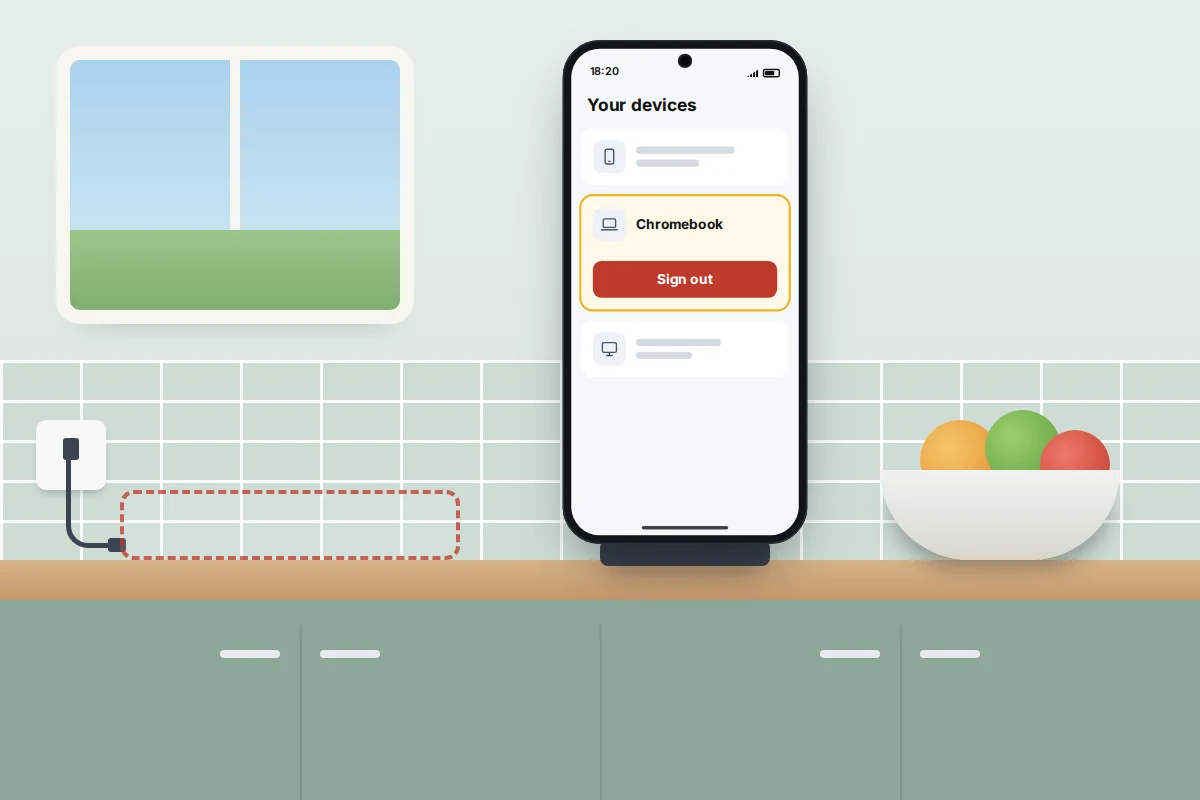
School and work Chromebooks are different. Administrators can disable a managed Chromebook so it shows a lock screen with return details, or disable it and wipe it.
Locate, lock or erase: laptop by laptop
| Laptop | Locate? | Lock? | Erase? | Needs, set up beforehand |
|---|---|---|---|---|
| Windows (personal) | Yes, last reported location | Yes, once it’s online | No | Microsoft account, administrator, location on, Find my device on |
| Mac | Yes, including via the Find My network | Yes, Mark As Lost | Yes (usually ends tracking) | Apple Account, Find My Mac and Location Services on |
| Chromebook (personal) | No | No; sign out of Google instead | No | Nothing to set up; data is encrypted by default |
| School or work laptop | Depends on IT’s tools | Usually, by IT | Usually, by IT | Enrolled in the organisation’s management |
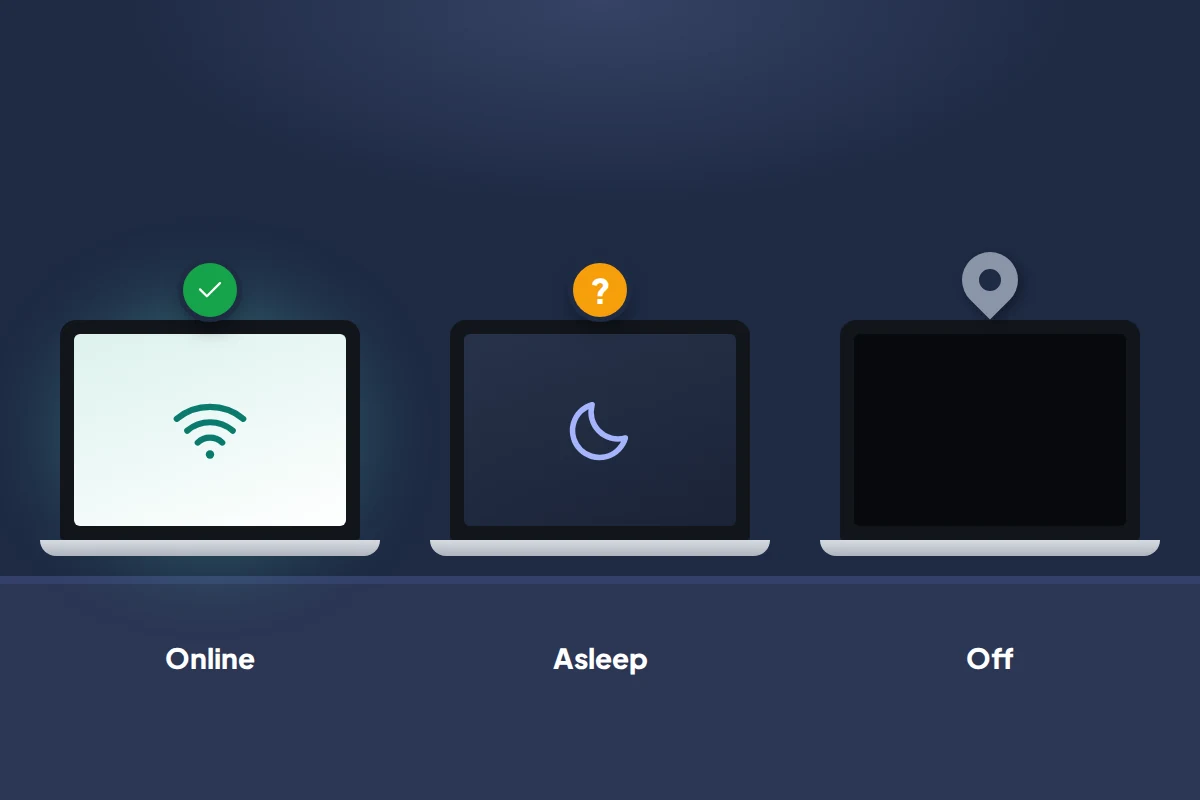
Asleep, offline or switched off
- Awake and connected: the location updates and locks take effect.
- Asleep with the lid closed: it may or may not report, depending on the model and its sleep settings. A Mac may be picked up by the Find My network, but don’t count on it.
- Switched off or flat: you get the last known location only. Apple’s finding-after-power-off is described for iPhones, not Macs.
- Wiped by someone else: a Windows laptop can no longer be located or locked. A Mac with Activation Lock still asks for your password.
So act now, even if the laptop shows as offline. On a Mac, Mark As Lost waits for the next connection, so whoever opens it on café Wi-Fi an hour later meets your message. On Windows, try the lock and check back.
Why encryption matters more than finding it
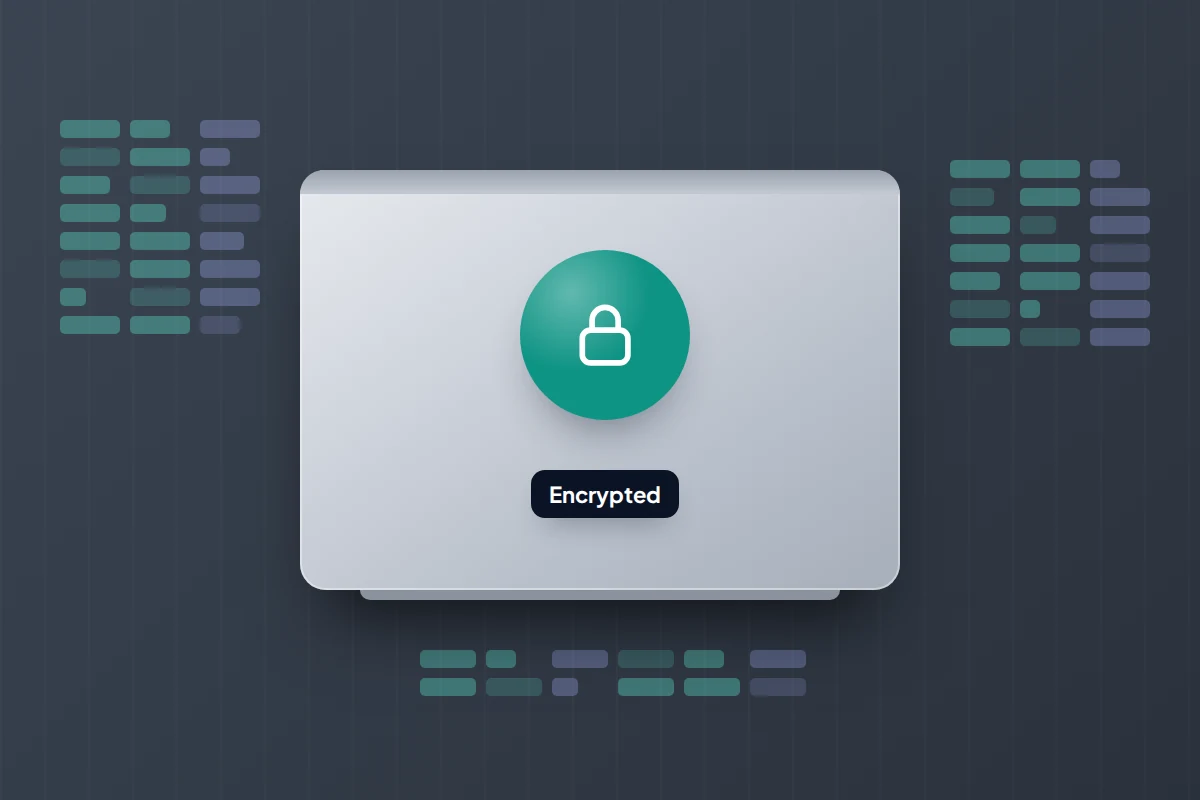
You may never see the laptop again. If the drive is encrypted and the laptop is locked, a thief gets hardware and nothing else. If it isn’t, anyone who removes the drive can read your files without knowing your password.
Windows: Device Encryption and BitLocker
Microsoft says Device Encryption turns on automatically on supported hardware when you set up Windows with a Microsoft account or a work or school account, including on Windows Home; with a local account, it doesn’t. Check it at Settings → Privacy & security → Device encryption. On Pro editions you may see BitLocker instead.
The recovery key is usually saved to your Microsoft account at aka.ms/myrecoverykey, or to your organisation’s account for work laptops. It may also be printed or on a USB stick. Microsoft can’t recreate a lost key, so check you can see yours before you need it.
Mac: FileVault
Apple silicon and T2 Macs encrypt the drive automatically, but only FileVault makes your login password the key. Check it at System Settings → Privacy & Security → FileVault. When you turn it on, you choose whether your iCloud account can unlock the disk or whether to keep a recovery key. Apple warns that if you forget both your password and the key, your files are lost for good.
If your laptop wasn’t encrypted, assume someone could read everything on it. Change every password that was saved in the browser, and consider what documents, such as scans of passports or bank statements, were stored on it.
Passwords and signed-in sessions
A laptop left signed in is a key to your email, and email resets everything else. Work through this from another device, most important first.
- Email: change the password for your main email account and sign out other sessions.
- Your platform account: In your Microsoft account’s advanced security options, look for Sign out everywhere, which can take up to 24 hours to reach every device. Change your Apple Account or Google Account password too.
- Passwords saved in the browser: if the laptop wasn’t encrypted or wasn’t locked, change them, starting with banking, shopping and social media.
- Banking: tell your bank if you used online banking on the laptop, and watch your statements.

Serial number, police report and insurance
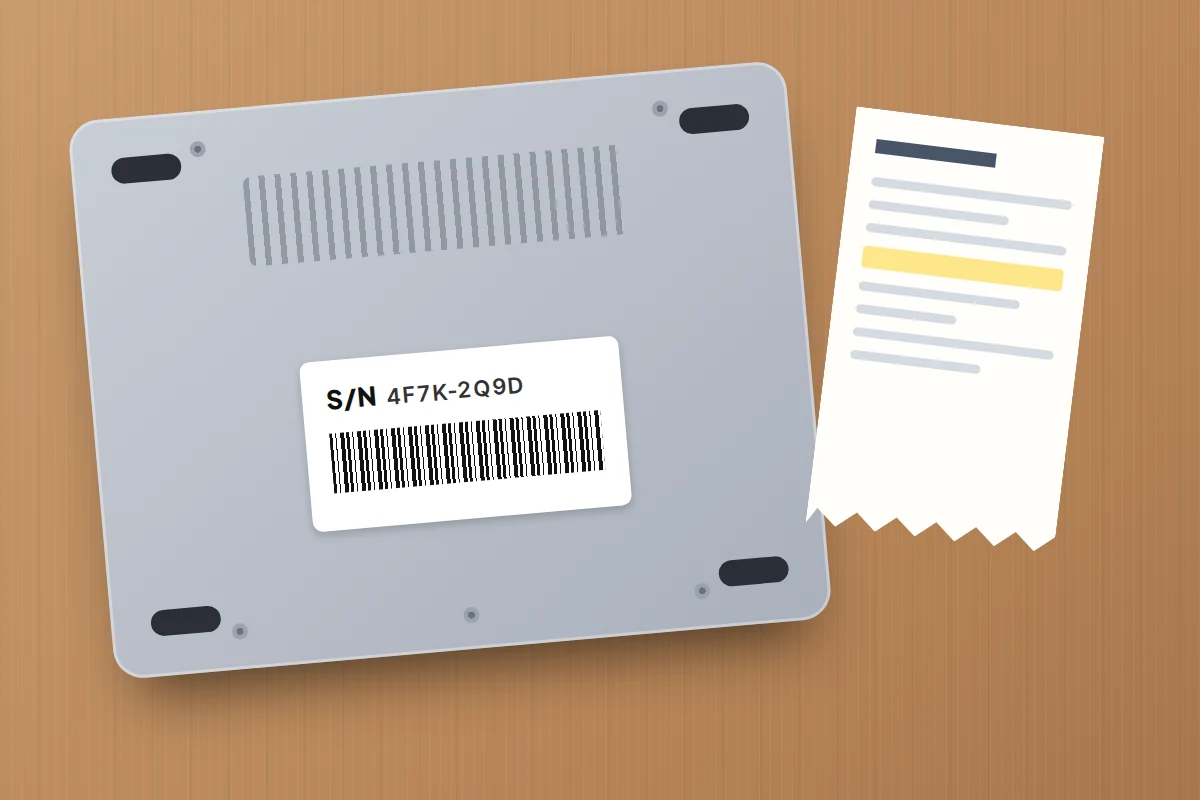
Police and insurers will ask for the serial number. If you don’t have the box or receipt:
- Mac: sign in at account.apple.com and select Devices; click the Mac to see its serial number.
- Windows: if the laptop was registered to your Microsoft account, its details may appear at account.microsoft.com/devices. Otherwise check the box, receipt or order confirmation.
If you think it was stolen, report it to the police. In the UK, call 101 or report online, giving the serial number and any location you’ve seen, and keep the crime reference number. Never go alone to an address shown on the map. If you had registered the laptop on the free Immobilise property register, police can match it to you if it’s recovered.
Check your home or travel insurance for a reporting deadline. If you left it on a train or bus, report it to the operator’s lost property as well.
School and work laptops
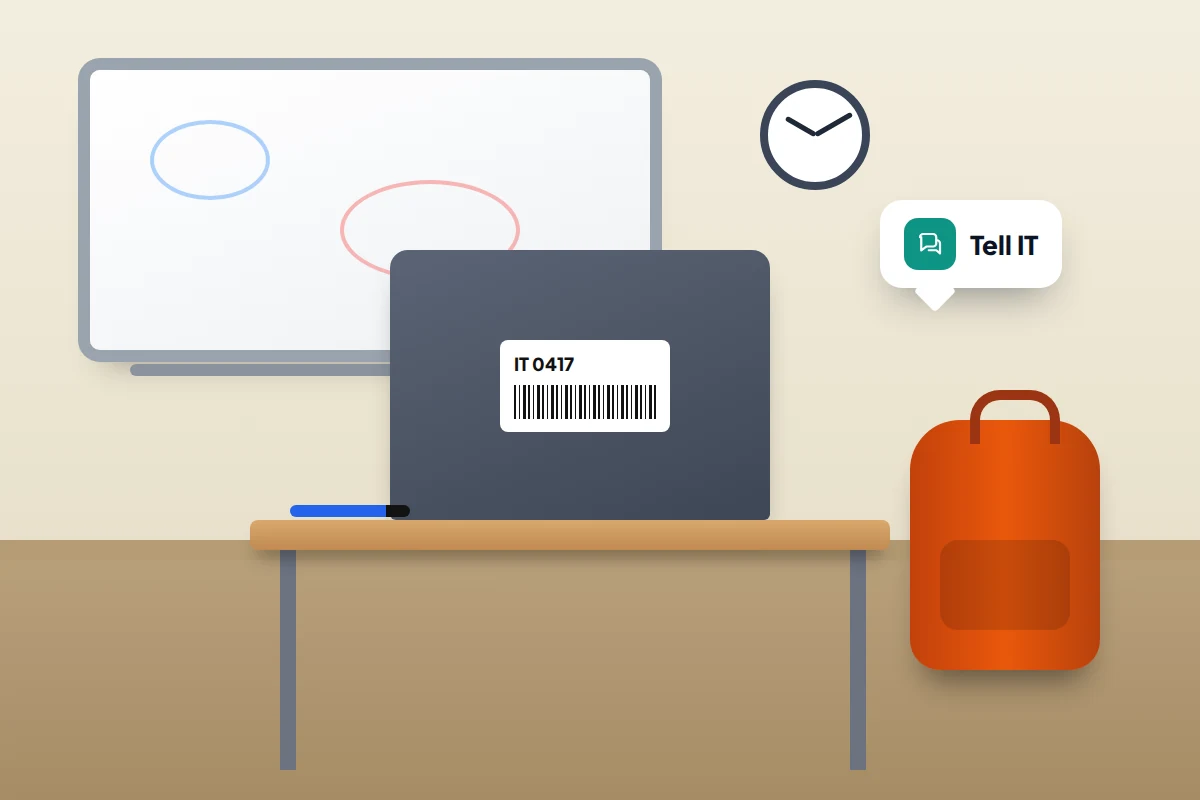
Contact IT or the school office first, before you try anything yourself. Organisations usually manage their laptops with tools such as Microsoft Intune or the Google Admin console, which can often locate, lock or wipe a device, and some require you to report a loss within hours.
Tell them when and where you last had it, whether it was locked, and what was on it. For a child’s school Chromebook, the school can disable it with a message on the screen. Being quick matters more than being sure: a laptop reported and later found costs IT a few minutes.
Set it up now: a five-minute checklist
- Windows: turn on Settings → Privacy & security → Find my device and Location, and confirm you sign in with a Microsoft account.
- Mac: in System Settings → [your name] → iCloud, turn on Find My Mac (you may need to select See All first) and leave the Find My network on.
- Check encryption: Device Encryption, BitLocker or FileVault, and find your recovery key.
- Set a password and a short auto-lock so a closed lid locks the screen.
- Write down the serial number and register it on Immobilise.
- Back up your files to an external drive or cloud storage, so losing the laptop doesn’t mean losing your work.
- Test it: sign in to account.microsoft.com/devices or icloud.com/find from your phone and check the laptop appears.
Frequently asked questions
Can I find my laptop using its IP address or MAC address?
No. Only the internet provider can link an IP address to a customer, and it will do that for the police, not for you. Websites offering to track a laptop this way are not worth paying for.
Can I track a laptop that has been reset?
Not a Windows laptop or Chromebook: a reset ends any tracking. A Mac with Apple silicon or a T2 chip keeps Activation Lock, so it still can’t be set up without your Apple Account password.
My Windows laptop isn’t in the device list. Why?
Usually because you signed in with a local account rather than a Microsoft account, or Find my device was never turned on. Report it to the police with the serial number and secure your accounts.
Should I erase my Mac straight away?
Usually not. Mark it as lost first; it stays findable and locked. Erase if it held sensitive files and wasn’t encrypted with FileVault, or once you’re sure it won’t be returned.
Sources and further reading
- Microsoft Support: Find and lock a lost Windows device
- Microsoft Support: Device encryption in Windows
- Microsoft Support: Find your BitLocker recovery key
- Apple Support: If your Mac is lost or stolen
- Apple Support: Activation Lock for Mac
- Apple Support: Protect data on your Mac with FileVault
- Google Chrome Help: Lock or erase your lost phone or computer
- Immobilise: Free property register used by UK police
Looking for a tool to go with this? TheTruthSpy is a free parental control app for Android that stays visible on the child's phone. If it fits your family, see what the app does.
Related guides

What to Do If Your Phone Is Stolen on Holiday
Phone stolen abroad? What to prepare before you fly, who to call in the first two hours, UK network numbers…
How to Find a Lost Phone That Is Switched Off
Can you find a phone that is off or has a dead battery? What iPhone, Pixel and Samsung can still…
How to Find Lost AirPods or Earbuds
How to find lost AirPods, Pixel Buds or Galaxy Buds: which method suits your model, what to do when they…
Parental controls your child can see
Location, screen time limits, a web filter and alerts from notifications — free, and visible on your child's phone. Pair a phone in about ten minutes.
Android · Free to set up · Visible on your child's phone