How to Secure Your Home Wi-Fi Network

Most home routers are plugged in on the day the broadband is connected and never looked at again. The lights blink, the Wi-Fi works, and the settings stay exactly as they left the factory, which may have been years ago.
Every phone, laptop, camera and smart plug in the house trusts that box. An old router without security updates, or a Wi-Fi password half the street has used, leaves all of them more exposed than they need to be.
You do not need to understand networking. Set aside 20 minutes, find the sticker on your router and work through the checks below; each explains what the setting does, so you can decide sensibly when your router’s menus look different.
The short version
- Log in through your broadband provider’s app or the router’s web page, using the details on the router’s sticker.
- Change the admin password, use WPA3 or WPA2 (AES) encryption, and set a long Wi-Fi password such as three or four random words.
- Turn off WPS and remote management if you do not use them, and make sure the router updates itself.
- Put visitors and smart gadgets on a guest network, and check the list of connected devices for anything you cannot explain.
- Hiding the network name and MAC address filtering add hassle but very little protection.
Find your way into the router
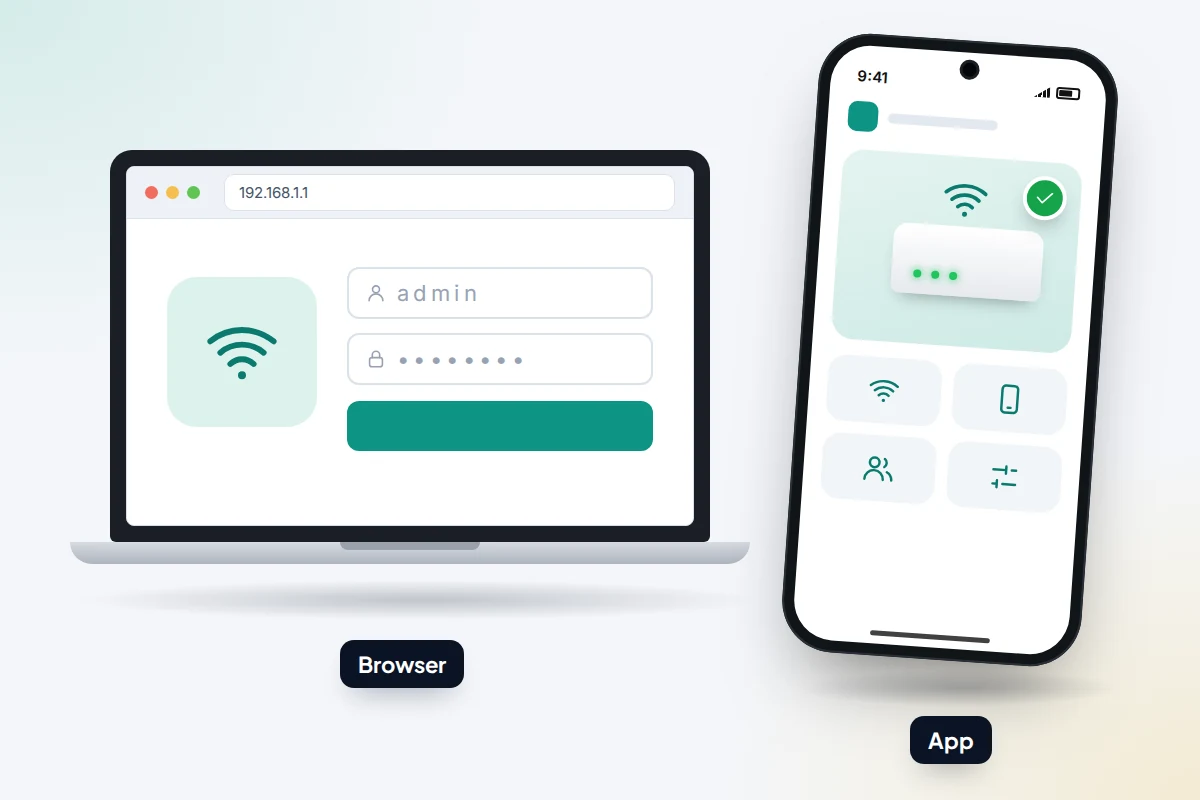
There are two common ways into the router’s settings. Many UK broadband providers now manage their routers through an app, which is the easiest route if you have one. Otherwise, the router has its own settings page that you open in a web browser while connected to your Wi-Fi.
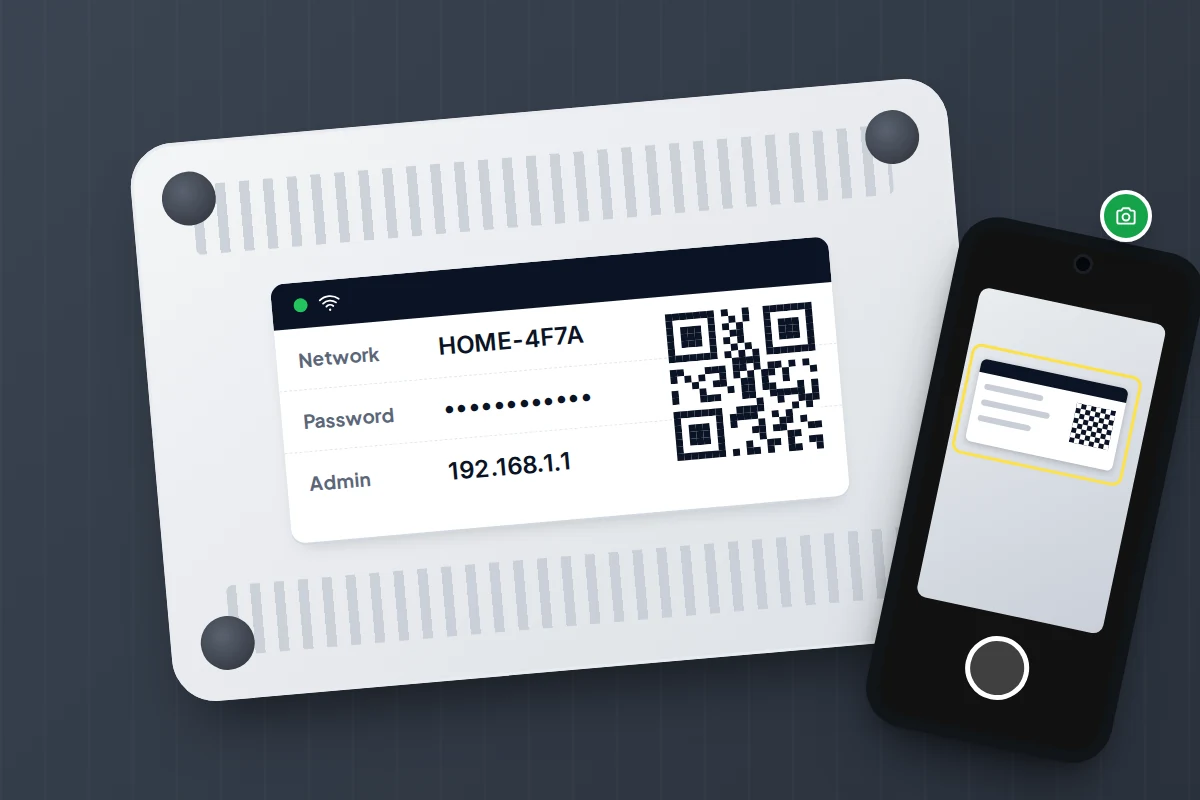
Start with the sticker on the back or underneath. It usually lists the Wi-Fi network name, the Wi-Fi password (sometimes called the wireless key), the address of the settings page and an admin password.
- If your provider has an app, install it from the official app store, sign in with your broadband account and look for a section called Wi-Fi, Hub, Router or Settings.
- If not, type the address from the sticker into a browser on a device connected to your Wi-Fi. It is often something like 192.168.1.1 or 192.168.0.1.
- No address on the sticker? On iPhone, go to Settings → Wi-Fi, tap the info button next to your network and look at Router. On Android, open your Wi-Fi network’s details, where it may be listed as Gateway or Router; the path varies by phone maker.
- Sign in with the admin password from the sticker.
The 20-minute checklist
Work down this table with the router’s settings open. Menu names differ between makers and some provider routers lock certain options, so the middle column gives the usual area, not an exact path.
| Setting | Where to find it | What to set | Why |
|---|---|---|---|
| Admin password | Administration, System or Management | A new, long password kept in a password manager | Whoever has it can change everything else |
| Encryption | Wireless or Wi-Fi security | WPA3 Personal, WPA2/WPA3 mixed, or WPA2 with AES | WEP can be cracked with free tools; WPA and TKIP are outdated |
| Wi-Fi password | Wireless or Wi-Fi settings | Three or four random words | Long resists guessing and is still easy to type |
| Network name | Wireless or Wi-Fi settings | Something neutral, the same on both bands | A surname or house number tells passers-by whose it is |
| WPS | Wireless, WPS or Advanced | Off, unless you rely on the button | Its PIN method can be guessed on vulnerable routers |
| Remote management | Administration or Remote access | Off | Stops anyone on the internet reaching the login page |
| Firmware updates | System, Firmware or Maintenance | Automatic updates on | Updates close known security holes |
| Guest network | Wireless, Guest or Home network | On, with its own password | Keeps visitors and gadgets away from your computers |
| Connected devices | Devices, Clients or Attached devices | Name what you recognise; investigate the rest | An unknown device may be someone using your Wi-Fi |
Changing the Wi-Fi password or network name disconnects every device, including the TV, the printer and smart plugs. Do those two changes last, when you have time to reconnect everything.
Change the admin password
The admin password controls the router itself, unlike the Wi-Fi password your family types into their phones. With it, someone could switch off encryption, redirect your traffic or lock you out.
Older routers often shipped with the same admin login on every unit, such as “admin” and “password”. In the UK, the Product Security and Telecommunications Infrastructure (PSTI) regime has, since 29 April 2024, banned universal default passwords on consumer products that connect to the internet or a home network: each must have a unique password or make you set your own. Some broadband providers publish PSTI compliance statements for the routers they supply, but a router sold before then may still use a shared default.
Even a unique password is printed on the router, where lodgers or visitors can photograph it. Change it to something long and keep it in a password manager; our guide to starting with a password manager shows how. If your provider’s app handles admin access through your broadband account instead, give that account a strong password and two-step verification.
Choose the right encryption and a strong Wi-Fi password
Encryption scrambles everything that travels over the air between your devices and the router. The Wi-Fi security setting usually offers several modes with similar names:
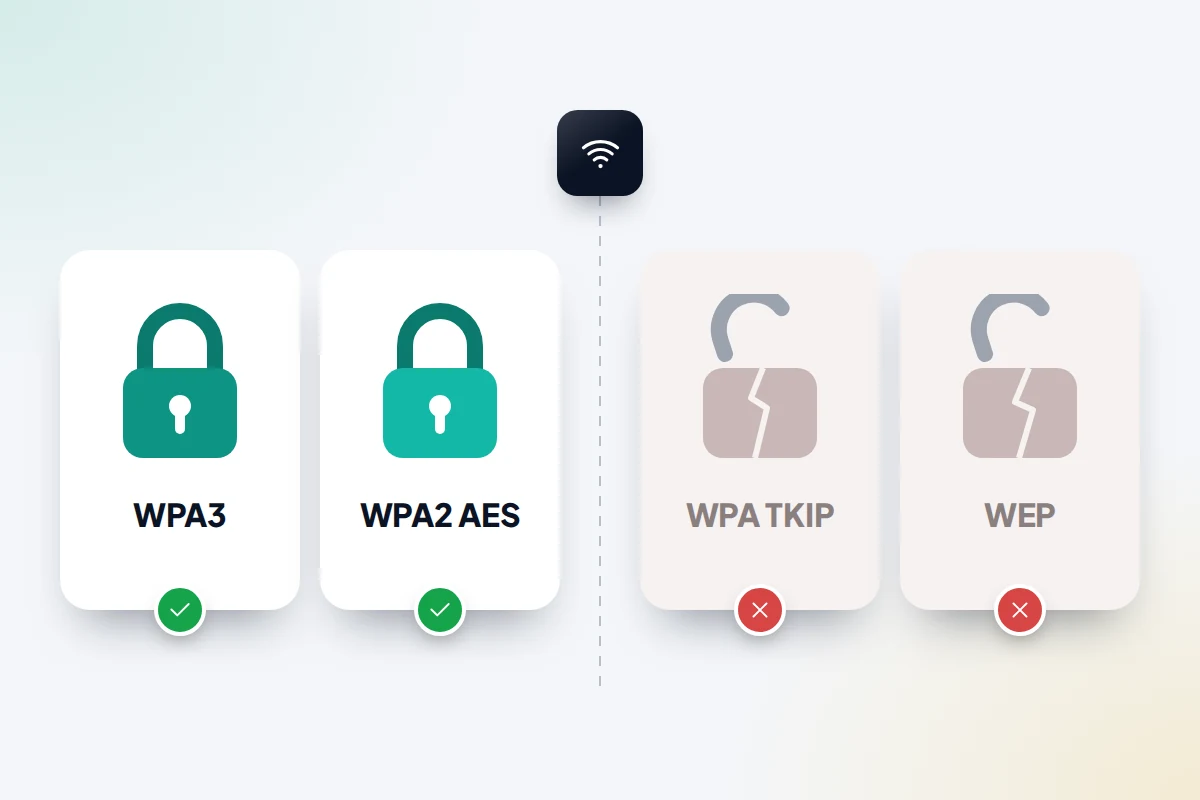
- WPA3 Personal is the newest and strongest; the US Federal Trade Commission (FTC) calls it the best available.
- WPA2/WPA3 mixed (sometimes called transitional) lets older devices connect with WPA2 while newer ones use WPA3. Apple recommends it where some devices cannot manage WPA3.
- WPA2 Personal with AES is still safe. The US Cybersecurity and Infrastructure Security Agency (CISA) says WPA3 and WPA2 AES are the only two forms considered secure.
- WEP, WPA, WPA/WPA2 mixed or anything with TKIP is outdated. Apple says these are no longer secure and trigger a security warning on its devices. Note that WPA/WPA2 mixed is not the WPA2/WPA3 mode above.
For the Wi-Fi password, length beats complexity. The UK’s National Cyber Security Centre (NCSC) suggests combining three random words, and that works well here: “kettle orbit meadow” is hard to guess and easy to read out to a grandparent. Avoid your surname, address or phone number.
Rename the network at the same time. CISA points out that a default name can reveal which router you have, and with it any known weaknesses, while a name containing your surname or flat number tells passers-by whose network it is. Apple recommends using one name for every band (2.4 GHz, 5 GHz and, on newer routers, 6 GHz) so devices can move between them smoothly.
Turn off WPS and remote management
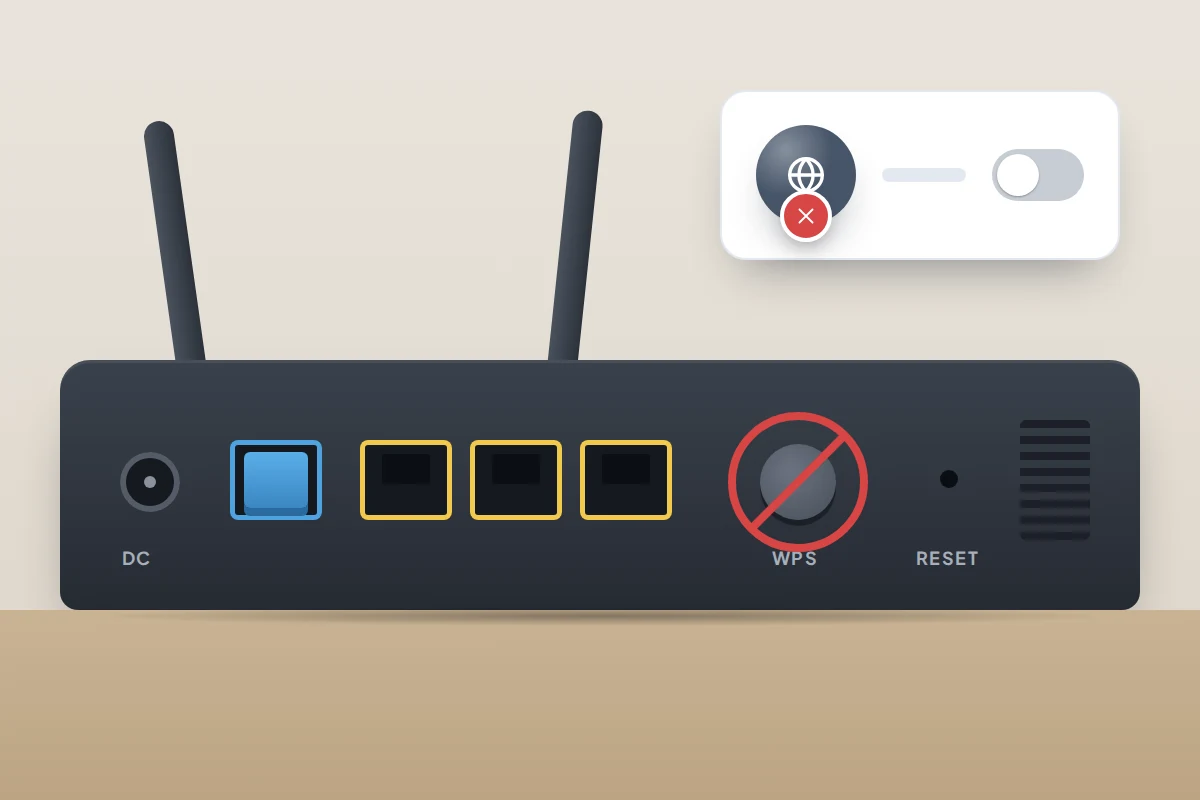
WPS (Wi-Fi Protected Setup) lets a device join by pressing a button on the router or entering an eight-digit PIN. The PIN method has a design flaw: the router confirms each half separately, cutting 100 million possible PINs to about 11,000, few enough for free tools to try them all on routers that do not lock out repeated guesses. The FTC and CISA both advise turning WPS off. If a printer relies on the button, switch WPS on for a few minutes when you need it, then off again.
Remote management lets the router’s settings page be reached from the internet, not just from inside your home. You almost certainly do not need it. In May 2025 the FBI reported that malware was taking over end-of-life routers with remote administration switched on and selling their connections to criminals as proxies. It advises disabling the setting, saving the change and restarting the router. Many provider routers do not show this option at all; that is normal.
You may also see UPnP, which lets devices open connections through the router automatically. The FTC suggests turning it off, but some games consoles and video-calling apps rely on it, so switch it back on if something stops working.
Keep the router updated, or replace it
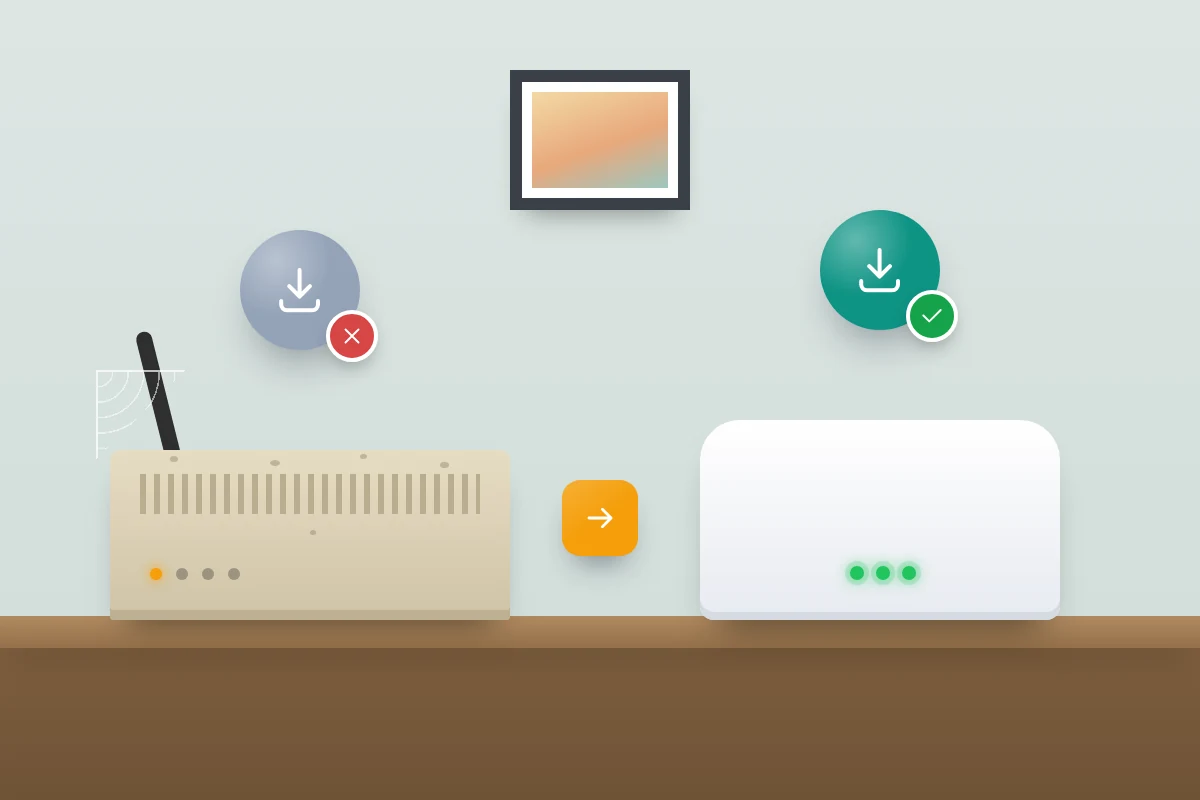
A router is a small computer that gets security fixes like any other. Look in the System, Firmware or Maintenance area for an update check and an automatic update option, and turn automatic updates on. Routers supplied by broadband providers usually update automatically.
The bigger risk is a router that no longer gets updates at all. The same FBI warning said routers from 2010 or earlier are unlikely to still receive updates from their makers, and advised replacing end-of-life routers where possible. Yours may be in this group if it came from a provider you left years ago, the update page shows nothing new for several years, it only offers WEP or WPA-TKIP, or the maker lists it as no longer supported.
If the router came from your provider, ask them whether it is still supported and whether they will replace it. If you are buying one yourself, UK law now requires makers to publish the minimum period a connected product will receive security updates, so check that end date before you buy.
Set up a guest network for visitors and smart gadgets
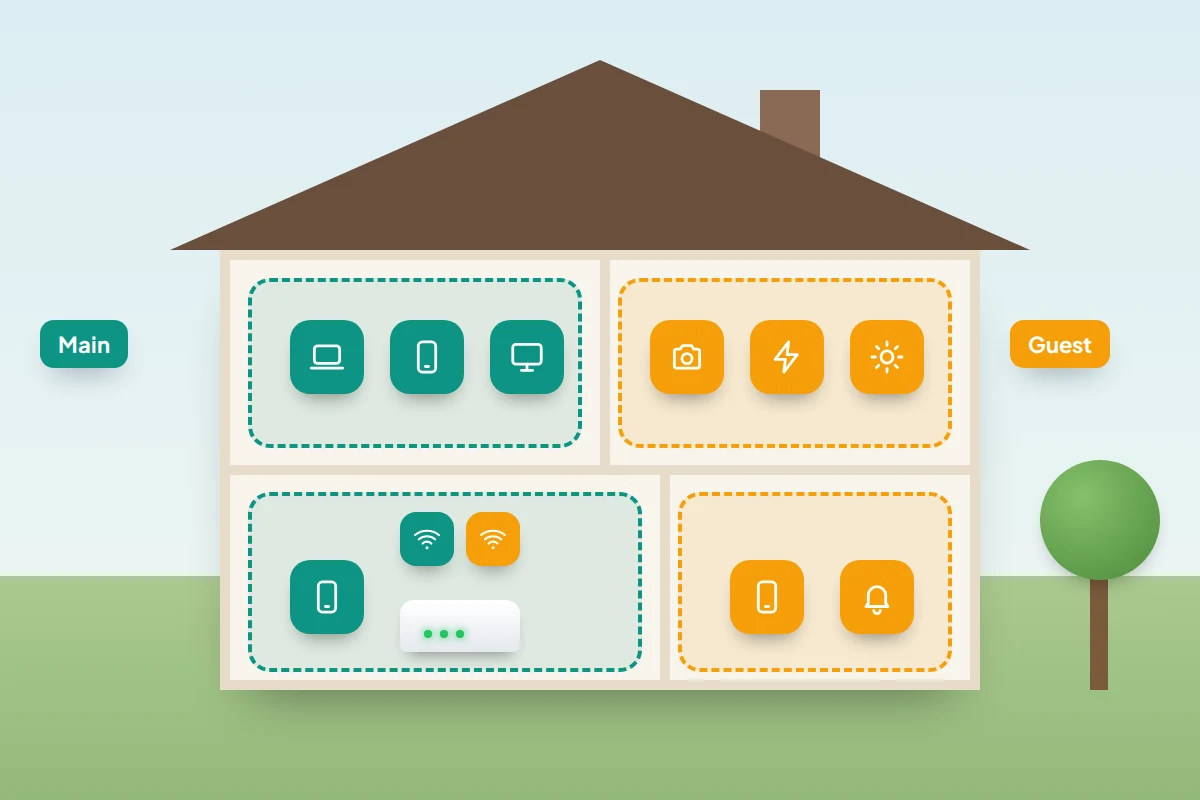
Most routers can run a second, separate network with its own name and password. Devices on it reach the internet but not the laptops, phones and shared drives on your main network.
Visitors get Wi-Fi without learning your main password. Smart plugs, bulbs, cameras and doorbells, which tend to get fewer updates than phones and laptops, are kept away from more sensitive devices. CISA suggests putting smart gadgets on the guest network if internet access is all they need.
The catch: devices you control from your phone, such as a printer, a casting device or some smart speakers, may need to share its network to be found. Move anything that stops responding back to the main network.
Many routers can also filter websites or set Wi-Fi schedules for children; our guide to router and Wi-Fi parental controls covers that separately.
Check which devices are connected
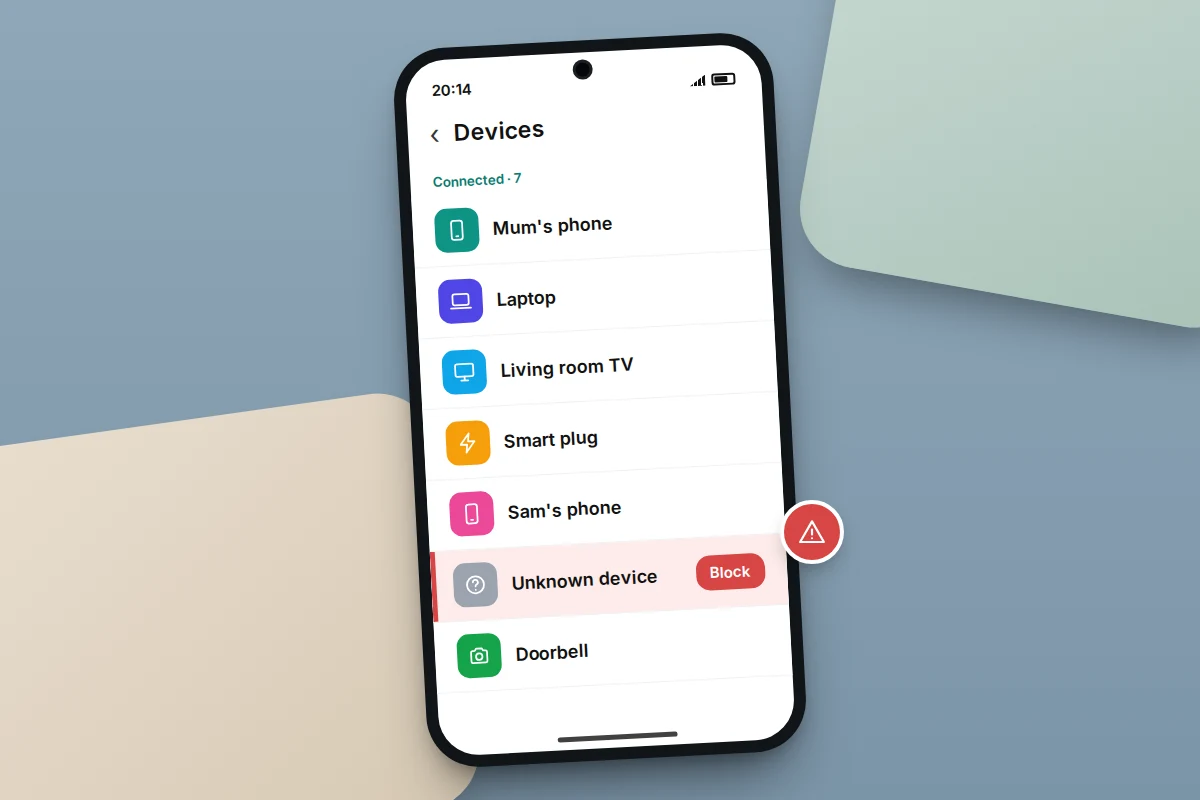
Find the list called Devices, Connected devices, Clients or Home network, which shows everything currently using your Wi-Fi.
- Go room by room. Phones, laptops, the TV, consoles, speakers, the doorbell.
- Rename what you recognise, if your router allows it, so the list is easy to read next time.
- Look at what is left. A string of letters and numbers is often something harmless with a poor default name, or a phone using a private Wi-Fi address, which can make a familiar phone appear as new. Switching your own devices off one at a time and watching the list helps match them up.
- If something still cannot be explained, block it if the app offers that, then change the Wi-Fi password.
What to do if a neighbour has been using your Wi-Fi
Slow evenings and an unknown device that appears at the same times each day can mean someone nearby has your password. Often it was shared innocently: a previous tenant, a babysitter, a neighbour who asked during a broadband outage.
- Change the Wi-Fi password on the main network, and check WPS is off so they cannot rejoin with the button or PIN.
- Reconnect your own devices. Smart gadgets usually need setting up again through their own apps.
- Change the admin password too, in case they also had access to the router’s settings.
- Check the device list the next day to confirm the unknown device has gone.
- If you are happy to help a neighbour, give them the guest network password rather than your main one.
Anything someone does through your connection appears to come from your address, so keep the main password for your household. Dishonestly using a connection to avoid paying can be an offence under section 125 of the Communications Act 2003, but a neighbour who was once given the password has done nothing wrong; a new password is enough.
Popular tips that do little: hiding the name and MAC filtering
Hiding the network name (turning off SSID broadcast) removes it from the casual list of nearby networks, but not from anyone with basic tools, because your devices still call out for it by name when they connect. Apple recommends keeping the network visible, and warns that hiding it can actually expose identifying information.
MAC address filtering only lets approved device addresses join. Those addresses are sent openly over the air, and Apple notes they can easily be copied, spoofed or changed. Modern phones also use a different private address on each network, so filtering can lock out your own family. A strong password with WPA3 or WPA2 does the real work.
If something goes wrong
- A device will not reconnect. On the device, forget the network, then join again with the new password.
- An older gadget cannot see the network after switching to WPA3. Use WPA2/WPA3 mixed mode, or put the gadget on a guest network set to WPA2.
- You are locked out of the router. Most routers have a recessed reset button; holding it with a paperclip for the time stated in the manual restores the details on the sticker and undoes your changes. Provider routers may then need setting up again through the app.
Frequently asked questions
How often should I change my Wi-Fi password?
There is no need to change a strong password on a schedule. Change it when someone who should not have it might, such as after a tenant moves out.
Do I need to do this if my provider manages the router?
Yes, though there is less to do. Providers usually handle firmware updates, but the Wi-Fi password, network name, guest network and connected devices are still yours to check.
Can someone hack my Wi-Fi from outside the house?
With WPA2 or WPA3, a strong password, WPS off and up-to-date firmware, it is very unlikely. Most problems come from shared or weak passwords, old routers and default admin logins.
Sources and further reading
- CISA Project Upskill: Securing your home Wi-Fi
- Federal Trade Commission: How to secure your home Wi-Fi network
- Northern Ireland Cyber Security Centre: Securing your home network and Wi-Fi
- National Cyber Security Centre: Smart devices – new law helps citizens to choose secure products
- National Cyber Security Centre: Smart devices – using them safely in your home
- FBI Internet Crime Complaint Center: Cyber criminal proxy services exploiting end-of-life routers
- Apple Support: Recommended settings for Wi-Fi routers and access points
Looking for a tool to go with this? TheTruthSpy is a free parental control app for Android that stays visible on the child's phone. If it fits your family, see what the app does.
Related guides
How to Recover a Hacked Instagram Account
Get a hacked Instagram account back: use the revert email, instagram.com/hacked and the video selfie check, avoid recovery scams, then…
How to Spot a Scam Call Pretending to Be Your Bank
Recognise fake bank fraud-team calls, know the exact words to end them, call back safely on 159 or your card's…
How to Check If Your Email Was in a Data Breach
Check if your email was in a data breach for free, then act on what leaked: passwords, card details or…
Parental controls your child can see
Location, screen time limits, a web filter and alerts from notifications — free, and visible on your child's phone. Pair a phone in about ten minutes.
Android · Free to set up · Visible on your child's phone