Phone Not Charging? How to Find the Cause and Fix It

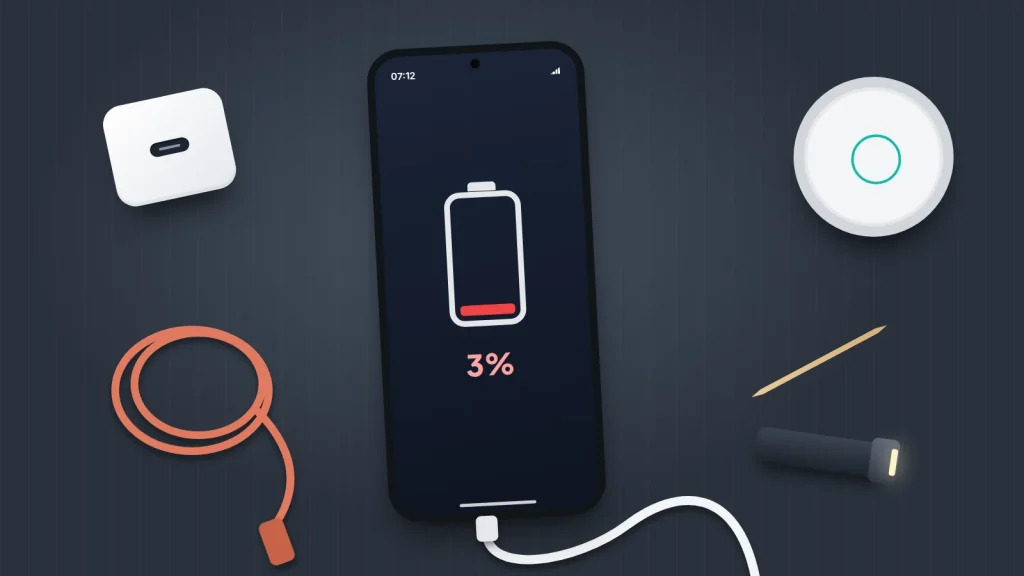
You plug your phone in before bed and wake up to 12%. Or the charging symbol flickers on and off every time the cable moves. A phone that will not charge feels like a broken phone, but the fault is far more often in a cable, an adapter or a pocketful of lint than in the phone itself.
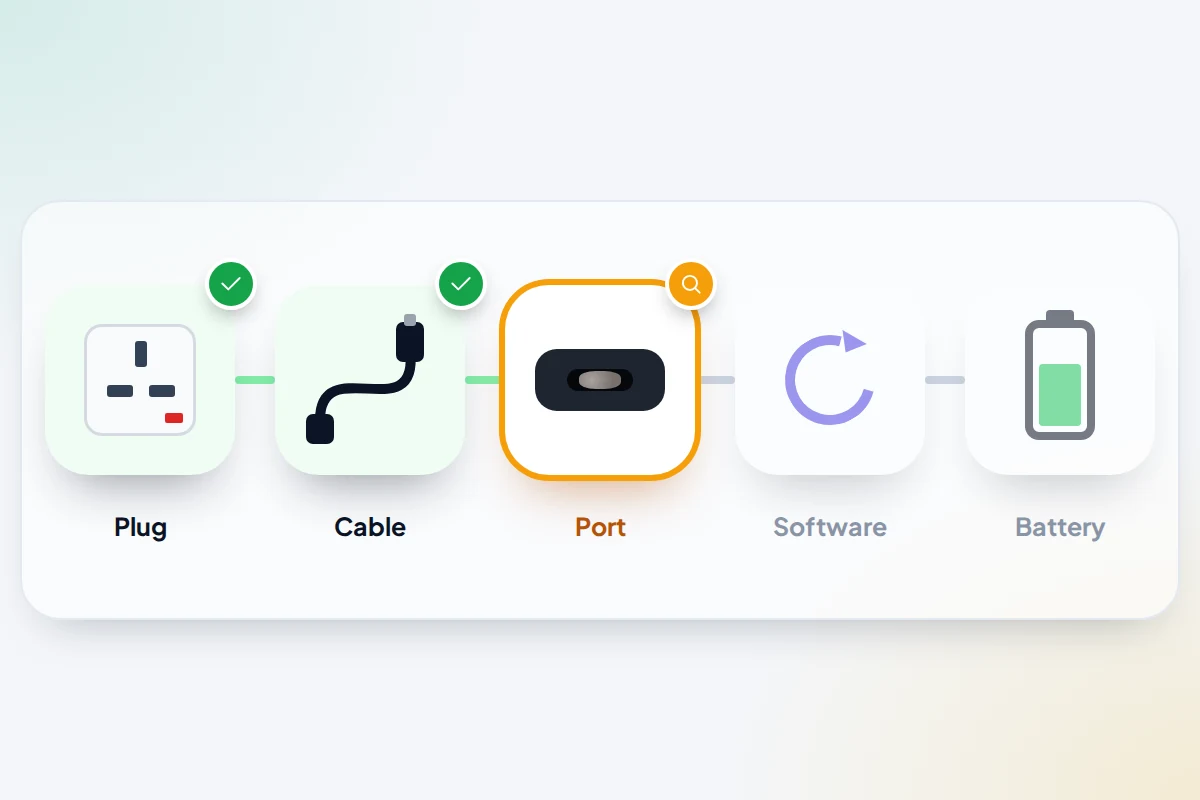
Charging depends on a chain of five links: the socket and adapter, the cable, the port, the phone’s software and the battery. Test them in that order, cheapest and most likely first, and you can usually find the weak link in about ten minutes without buying anything. The table below is the quick route; the sections after it explain the results, the warnings your phone may show, and when a repair is the honest answer.
The short version
- Test the cheap parts first: a different socket, cable and adapter. Worn cables cause far more “won’t charge” problems than broken phones do.
- Lint packed into the port comes next. Switch the phone off and ease it out gently with a wooden toothpick, never anything metal.
- A liquid, heat or 80% message means the phone is holding back on purpose. Let it dry or cool rather than forcing it.
- Cheap lookalike chargers are a fire and shock risk. Buy from a reputable retailer and look for UKCA or CE marking.
- If wireless charging works but the cable does not, suspect the port. If nothing works after a forced restart and 30 minutes on a known-good charger, book a repair.
The ten-minute elimination test
Work down in order: each test either fixes the problem or clears one link. You will need a spare cable and adapter if you have them, a torch, and another device that charges properly.
| Minute | Test | Result | What it tells you |
|---|---|---|---|
| 0–1 | Plug in and look at the screen. Is there a charging symbol, a sound or a message? | A message about liquid, heat, 80% or an unsupported accessory | The phone is receiving power but choosing not to charge. Go to the messages section below. |
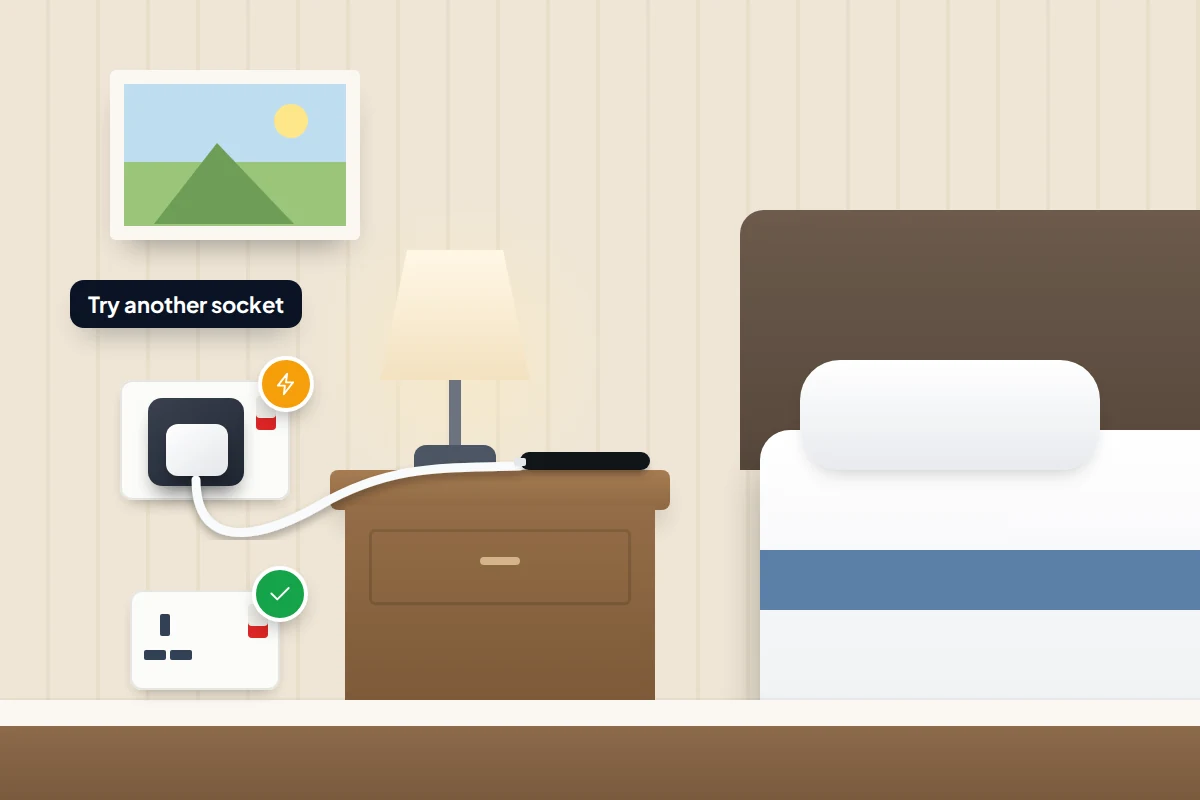
| 1–2 | Try a different wall socket, not an extension lead or a laptop port | Charges now | The socket, extension lead or computer port was the problem. |
| 2–4 | Swap the cable for another one, then swap the adapter | Charges with the new cable or adapter | You have found the faulty part. Replace it with a reputable one. |
| 4–5 | Use your original cable and adapter to charge a different device | The other device will not charge either | Confirms your cable or adapter is faulty, not your phone. |
| 5–7 | Shine a torch into the phone’s port. Does the plug click in firmly or feel loose? | Lint visible, or the plug does not seat fully | Debris in the port. Clean it as described below. |
| 7–8 | If your phone supports it, try a wireless charger | Wireless works, cable does not | The battery and software are fine; the port or its connection is at fault. |
| 8–10 | Force restart the phone, then leave it on a known-good charger | Charges after the restart | A software glitch had stopped charging. Install any pending update. |
| After 30 min | Check for any sign of charge, then check battery health | Still nothing, or health is very low | Likely a hardware fault: the port or the battery. See the repair section. |
Read the message on the screen first
A warning when you plug in means the phone is receiving power and has decided not to use it. Swapping cables will not help until you deal with the reason.
“Liquid detected” or a water-drop icon
iPhones from the XS and XR onwards, Galaxy phones and Pixels check the charging port for moisture and refuse to charge by cable while they find any. No other cable or charger will get round this, and each maker words it differently:
- iPhone: a liquid-detection alert. Apple says to unplug, tap the phone gently against your hand with the connector facing down, leave it somewhere dry with some airflow and try again after at least 30 minutes; full drying can take up to 24 hours. When you reconnect, the alert offers an emergency override. Keep that for a genuine emergency, because charging through a wet port can damage the phone.
- Samsung Galaxy: a water-drop icon and an alarm. Samsung says to wipe the port with a dry cloth or shake the phone gently, port down, then leave it on a cloth somewhere well ventilated or in front of a fan. There is no override.
- Pixel: a “Liquid or debris” message. Google says to switch the phone off, let it dry at room temperature, and contact support if the message lasts two hours or more.
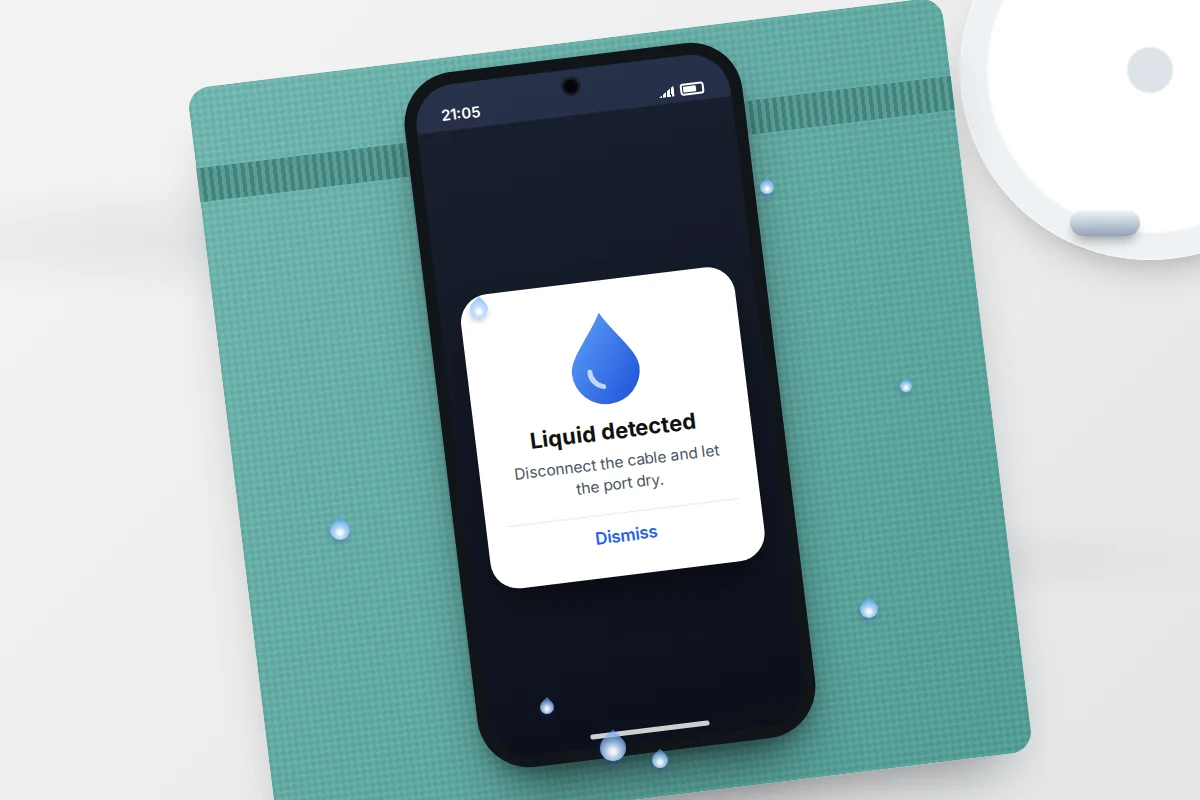
A wireless charger bypasses the port, and Apple and Samsung both say you can use one in the meantime; Samsung adds that the phone should be thoroughly dry first. Heat, compressed air, cotton buds and rice all make things worse. If the phone actually went into water rather than meeting a damp cable, the wait is longer: our guide on what to do when your phone gets wet explains why.
Charging stops at 80% or says it is on hold
This is almost always deliberate. A phone that is too warm pauses or slows charging until it cools, and a charge limit or optimised charging feature deliberately stops at 80%, or another level you chose, to reduce wear. Our guide to why phones overheat and how to cool one safely explains both, including where to find the charge-limit setting on iPhone, Pixel and Galaxy phones.
“Accessory not supported” or “Check charging accessory”
On an iPhone, “This accessory may not be supported” can mean a dirty or damaged port, a faulty charger or an incompatible accessory. A Pixel shows “Check charging accessory” when the cable or adapter may be damaged or unsupported. Both point you straight to the cable and port tests.
“Charging slowly”
Many Android phones show charging speed on the lock screen, with wording such as “Charging slowly” or “Fast charging”. A slow reading usually means a low-powered adapter, a computer’s USB port, a long or poor-quality cable, or a warm phone. On a Samsung, check the fast-charging switch under Settings → Battery → Charging settings. Menu names vary by phone maker and Android version.
Cables and adapters: the usual culprits
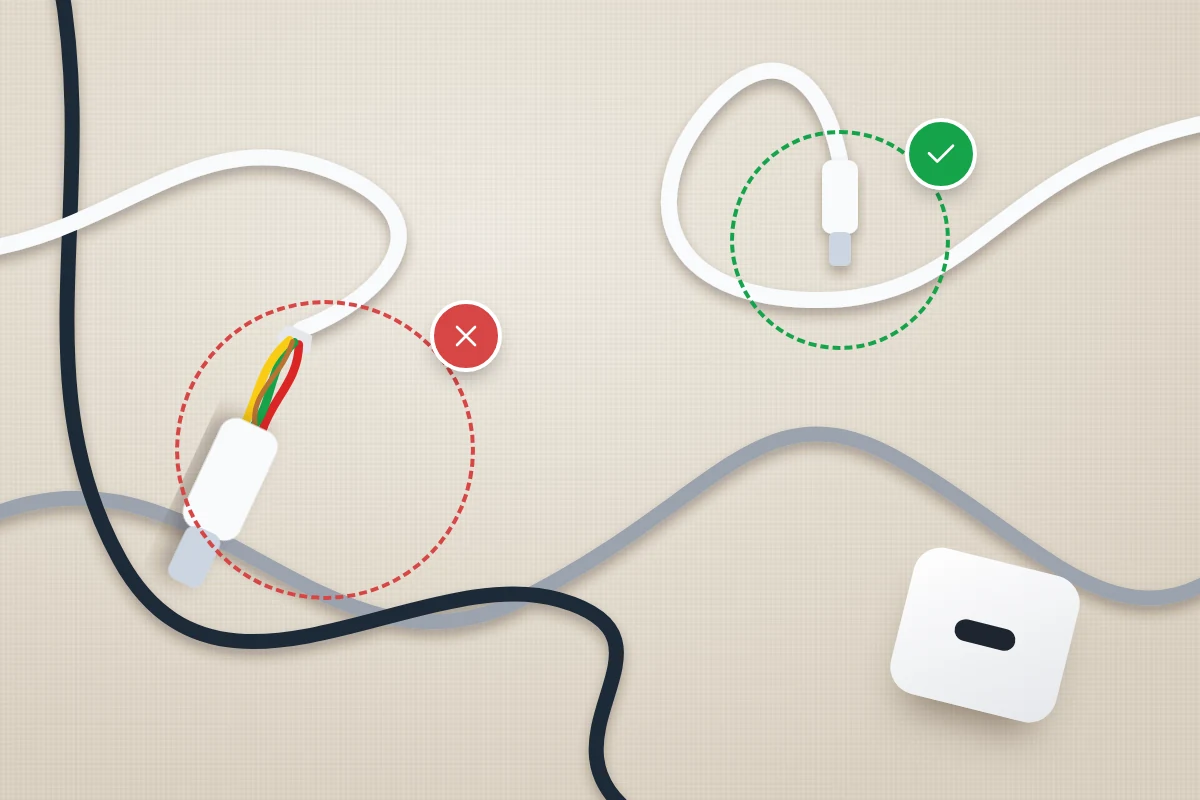
Cables are bent at the same two points thousands of times and yanked out by the lead. The wires inside can break long before the sleeve looks damaged, which is why a cable that “works if you hold it at an angle” is failing, not temperamental.
iPhone 15 and later use USB-C; iPhone 14 and earlier, and every iPhone SE, use Lightning. Almost all current Android phones use USB-C, but not every USB-C cable is equal: some very cheap ones are built for low power and charge slowly.
Check both ends of the cable and the adapter, and replace anything with breaks, bent prongs, scorch marks or a plug that gets hot.
Power matters too. An old, small adapter or a laptop’s USB port may supply so little that a phone in use barely gains charge; if a stronger adapter works normally, yours was simply underpowered.
How to clean lint out of the charging port
Every time you push a plug in, it packs a little more pocket fluff into the back of the port. Eventually the plug cannot seat fully, so it feels loose, charges only at an angle, or stops working.
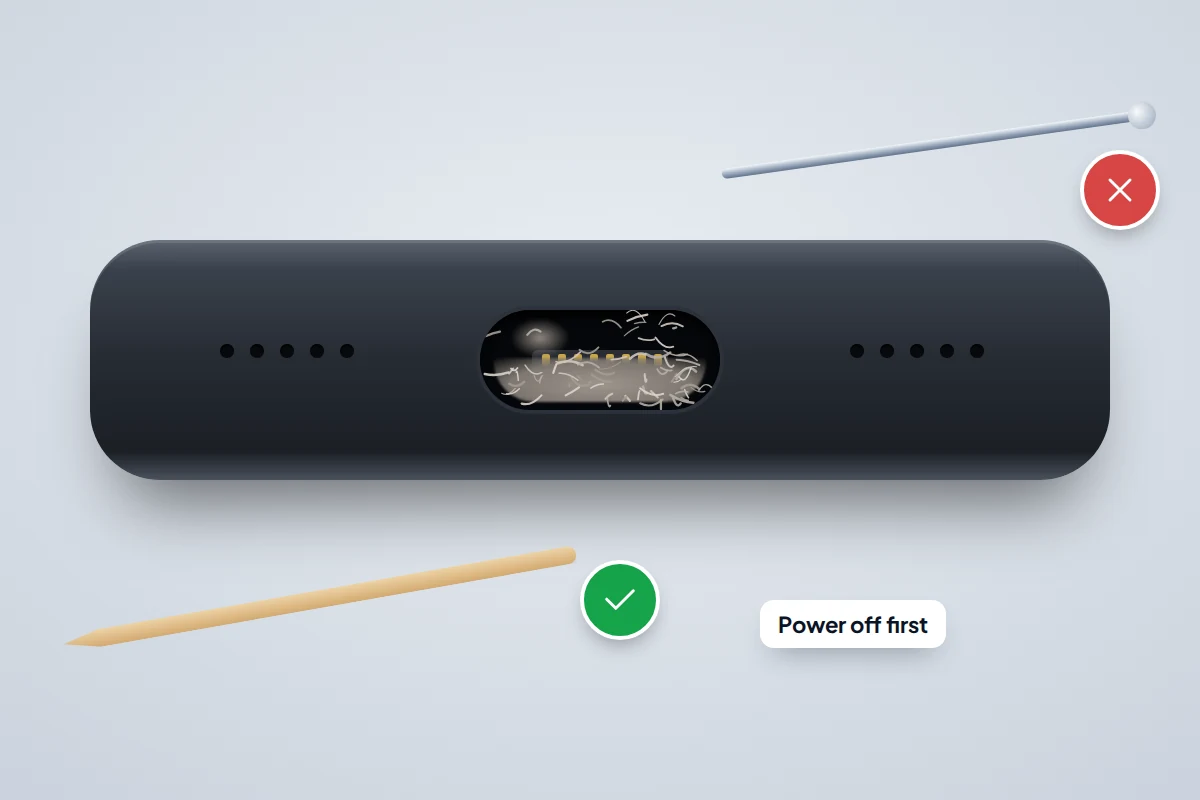
- Switch the phone off and unplug everything.
- Look in with a torch. Lint usually forms a flat, grey layer at the very back that is easy to miss.
- Use a wooden or plastic toothpick. Slide it gently along the back wall of the port and lift the debris out, rather than pushing it further in. Go gently around the contacts.
- Tip the phone port-down and tap it lightly to let loose bits fall out.
- Plug in again. You should feel a firmer click than before.
Never use a pin, paper clip, SIM tool or anything metal: it can scratch or short the contacts. Do not add liquid or spray. Some repair guides suggest compressed air, but Apple’s cleaning guidance says not to use it on an iPhone, and a blast can pack lint in harder, so skip it. If the lint will not budge, a repairer can clean a port in minutes.
Wireless charging: a useful test and a common trap
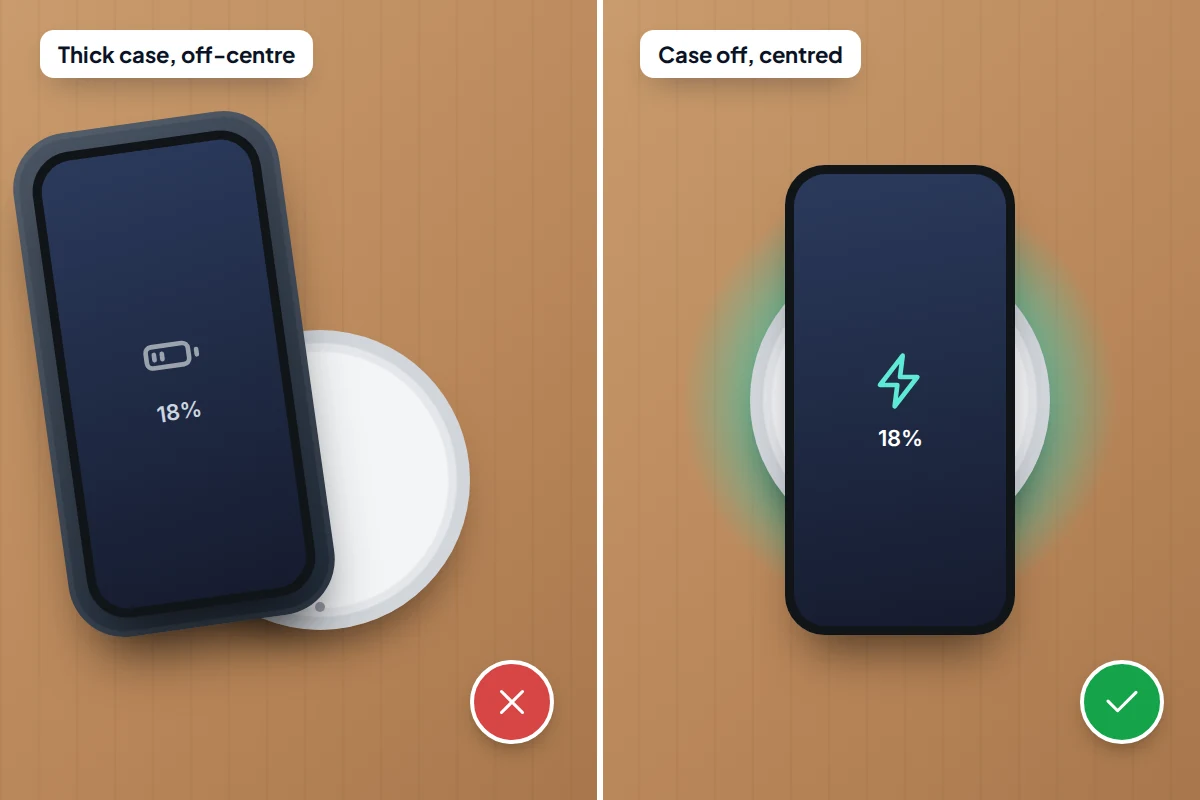
A wireless pad bypasses the port entirely, which makes it the best way to tell a port fault from a battery or software one. If the phone charges wirelessly but not by cable, the port or its internal connection is to blame.
When wireless charging itself fails, it is usually position or the case. Apple says to centre the phone on the charger and remove a thick, metal or battery case if charging is slow or does not start. Cards and magnetic mounts get in the way too, and vibrating notifications can shuffle a phone off the charging spot overnight.
Cheap and fake chargers: why they are a safety risk
A charger converts mains electricity down to a few volts, and only its internal insulation and spacing keep the two apart. Lookalike chargers save money on exactly those parts. Electrical Safety First says counterfeit and substandard USB chargers from third-party online sellers may present a higher risk of exploding or catching fire, and can damage your phone too.
In June 2026 Which? bought 15 USB chargers from online marketplace sellers and found nine posed a risk of electric shock and eight a risk of fire or explosion. All 15 were missing information the law requires on the packaging, the charger or its instructions.
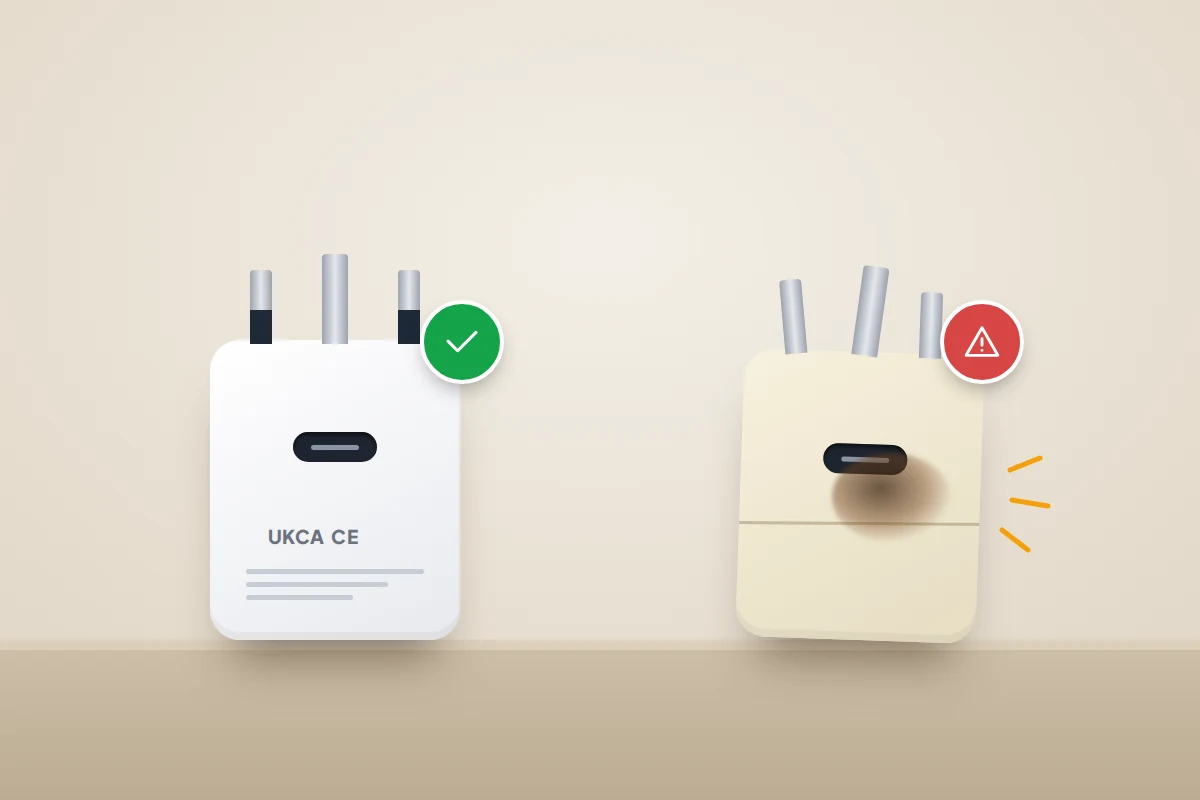
The UK Office for Product Safety and Standards gives simple checks when buying electrical goods online:
- Check the seller: how long they have traded, their UK contact details and their rating.
- Look for recognised safety markings such as UKCA or CE.
- Read the description for instructions, safety warnings and UK contact details.
- Be wary of a price that looks too good to be true.
Stop using any charger that smells odd, buzzes, sparks, gets hot or shows burn marks.
Software: force restart, then update
Charging is managed by software, and a glitch can stop it even when every part is fine. A forced restart clears that without deleting anything.
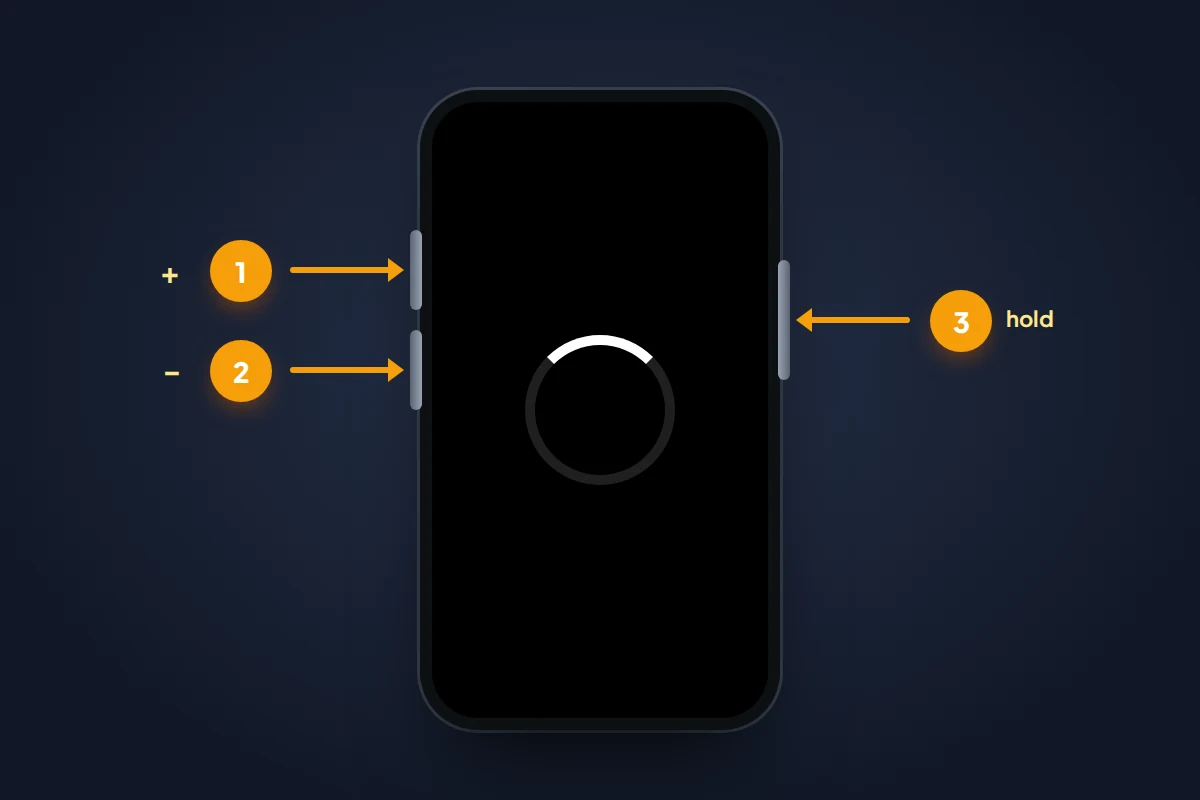
- iPhone 8 and later: press and quickly release volume up, press and quickly release volume down, then press and hold the side button until the Apple logo appears.
- Pixel: press and hold the power button for about 35 seconds.
- Samsung Galaxy: press and hold the side key and volume down together for more than 7 seconds, until the phone vibrates and restarts.
Put it back on a known-good charger for 30 minutes. If it charges, install any waiting system update, since a bug that stopped charging once can do so again.
When the battery is the problem
A worn battery usually still charges, but badly: it fills quickly, drains fast, or shuts the phone down while showing charge left. Our guide to working out why a battery drains fast explains how to read battery health on iPhone, Pixel and Galaxy phones.
A phone that shows no sign of life after 30 minutes on a charger you know works needs professional attention. If the back or screen is lifting, stop charging it: that is a swollen battery and a safety issue.
Repairs, warranty and your rights
If the elimination test points to the port or the battery, both are standard repairs, though on some models the port is part of a larger board and costs more. Use the manufacturer or an authorised repairer where you can, especially under warranty, because an unauthorised repair can complicate a later claim.
Warranties cover manufacturing faults, not wear, accidents or liquid damage, so a port that failed after a drop or a soaking will usually be chargeable. In the UK, your statutory rights under the Consumer Rights Act 2015 are against the retailer that sold you the phone, not the manufacturer. For the first six months, it is up to the retailer to prove a fault was not there when you bought it, which makes early faults much easier to claim.
Before any repair, back up the phone if it still switches on, and ask whether genuine parts are used and how long the repair is guaranteed.
Frequently asked questions
Why does my phone only charge if I hold the cable at an angle?
Either the cable is breaking inside near the plug, or lint in the port is stopping the plug seating fully. Try another cable first; if that behaves the same way, clean the port.
Can I use my old charger with a new phone?
Usually, as long as the connector fits and it is from a reputable brand. An older, lower-powered adapter will simply charge more slowly. Replace any that are damaged or get hot.
My phone died and will not switch on even when plugged in. Is it broken?
Not necessarily. A completely flat battery can take a while to show any sign of life. Apple and Google both suggest leaving it on a known-good charger for 30 minutes; if nothing happens, force restart it and give it another half hour before assuming the worst.
Why does my phone warn about liquid when it hasn’t been near water?
The sensor checks the port, so a damp cable end or packed debris can set it off; Google’s message on Pixels says “liquid or debris” for that reason. Dry the cable plug, clean the port as described above and try a different cable. If the warning keeps coming back on a dry phone, have the port checked.
Sources and further reading
- Apple Support: If your iPhone or iPod touch won’t charge
- Apple Support: If you see a liquid-detection alert on your iPhone
- Android Help: Fix an Android device that won’t charge or turn on
- Samsung UK: My device displays a water drop icon and will not charge
- Office for Product Safety and Standards: My safety – online shopping
- Electrical Safety First: Mobile phone charger safety
- Which?: Dangerous phone chargers for sale on online marketplaces (June 2026)
- Which?: Faulty product? How to get a refund, repair or replacement
Looking for a tool to go with this? TheTruthSpy is a free parental control app for Android that stays visible on the child's phone. If it fits your family, see what the app does.
Related guides
What to Do If Your Phone Gets Wet
Dropped your phone in water? What to do in the first five minutes, hour and day, what IP68 really means,…
Why Is My Phone Overheating? Causes and Fixes
Warm, hot or dangerous? Why phones heat up when charging, gaming or in the sun, how to cool one safely,…
How to Transfer Photos From Your Phone to a Computer
The best way to copy photos from iPhone or Android to Windows or Mac, what happens to HEIC files, dates…
Parental controls your child can see
Location, screen time limits, a web filter and alerts from notifications — free, and visible on your child's phone. Pair a phone in about ten minutes.
Android · Free to set up · Visible on your child's phone